
SO SMART - Internet box Wi-Fi router DANE-ELEC - Free user manual and instructions
Find the device manual for free SO SMART DANE-ELEC in PDF.


| Product type | Internet box / Wi-Fi modem router |
| Brand | DANE-ELEC |
| Model | SO SMART |
| Dimensions (L x W x H) | 15 cm x 12 cm x 3 cm |
| Weight | 200 g |
| Power supply | 5V / 1A USB power adapter |
| Wi-Fi standard | IEEE 802.11 b/g/n, 2.4 GHz |
| Maximum Wi-Fi speed | 300 Mbps |
| Ports | 1 WAN Ethernet 10/100 port, 4 LAN Ethernet 10/100 ports |
| Main functions | Router, Wi-Fi access point, network switch, NAT firewall, DHCP server |
| Antennas | 2 internal antennas |
| Supported protocols | IPv4, TCP/IP, UDP, PPPoE, PPTP, L2TP |
| Wireless security | WEP, WPA, WPA2-PSK, WPS |
| Maintenance and cleaning | Dust with a soft, dry cloth. Do not use liquid or abrasive products. |
| Usage safety | Do not expose to water, excessive heat, or direct sunlight. Unplug during storms. |
| Spare parts and repairability | Power adapter available as spare part. Professional repair recommended. |
| General information | Compliant with directive 1999/5/EC. Indoor use only. |
Frequently Asked Questions - SO SMART DANE-ELEC
User questions about SO SMART DANE-ELEC
0 question about this device. Answer the ones you know or ask your own.
Ask a new question about this device
Download the instructions for your Internet box Wi-Fi router in PDF format for free! Find your manual SO SMART - DANE-ELEC and take your electronic device back in hand. On this page are published all the documents necessary for the use of your device. SO SMART by DANE-ELEC.
USER MANUAL SO SMART DANE-ELEC
© 2008 Dane-Elec Copyright
CONGRATULATIONS
On your purchase of So Smart HDMI, Wifi Hi-Definition Multimedia Player and Welcome to the So Smart HDMI Family!
The So Smart HDMI HD Multimedia Player is a player that allows vivid and crisp playback of dozens of multimedia files.
You can now enjoy your favorite movies, home videos, digital music and digital photos on TV or Home-theater System. The So Smart HDMI Player brings all digital content to your living room so that you can enjoy movies, music and photos with your near and dear ones.
So Smart HDMI Players incorporates state-of-the-art technology, commonly used in high-end computing and consumer electronic solutions. The highly-refined manufacturing process, timeless engineering and careful quality control have resulted in a product of the highest long-term esthetic and commercial value.
We hope you will find the So Smart HDMI player to be a rewarding experience and a worthy investment.
We have made this manual as short as possible so that it is practical for someone to read it carefully and thoroughly.
Please take the time to do this now and feel free to follow the instructions with your unit as you read through the manual.
You've selected one of the best-built, best-backed products available today. With its comprehensive manufacturer's warranty, you can be assured that your player will provide consistent playback and viewing entertainment through many years of use. We'll do everything in our power to keep you happy with your purchase for many years to come.
The Marketing Dept.
TABLE OF CONTENTS :
| Chapter 1 | Safety & Precautions | |
| 1.1 | Do's and Dont's | Page. 5 |
| 1.2 | Limitations and Usage Precautions | Page. 6 |
| Chapter 2 | Introduction | |
| 2.1 | Introducing the Wireless So Smart Hi-Def Multimedia Player | Page. 7 |
| 2.2 | Technical Specifications | Page. 8 |
| 2.3 | Package Contents | Page. 9 |
| 2.4 | Getting Familiar with your Unit | Page. 10 |
| Chapter 3 | Basic Set Up | |
| 3.1 | Connections | Page. 13 |
| 3.11 Audio and Video Connection Setup | Page. 13 | |
| 3.2 | Transferring files to the Hard Disk Drive through USB | Page. 16 |
| 3.3 | The Setup Menu | Page. 17 |
| Chapter 4 | Connecting So Smart to a Network | |
| 4.1 | Setting Network Sharing using Windows XP on your PC | Page. 22 |
| 4.2 | Wired (Via 10/100 LAN, RJ45 port) Network Connections | Page. 26 |
| 4.3 | Wireless Network | Page. 27 |
| Chapter 5 | NDAS Basic Set Up | |
| 5.1 | How to Set UP NDAS in So Smart? | Page. 36 |
| 5.1.1 Set Up in So Smart | Page. 36 | |
| Chapter 6 | Media Playback | |
| 6.1 | Video Playback | Page. 41 |
| 6.2 | Audio Playback | Page. 44 |
| 6.3 | Internet Radio Playback | Page. 46 |
| 6.4 | Image Playback | Page. 47 |
| 6.5 | Mixed-Media Playback | Page. 48 |
| 6.6 | Using MY LIST for Media Playback | Page. 49 |
| Chapter 7 | How do I...? | |
| 7.1 | ...play music files randomly or in shuffle mode? | Page. 50 |
| 7.2 | ...create a playlist or MY LIST? | Page. 50 |
| 7.3 | ...play a video in a loop or continuous repeat? | Page. 50 |
| 7.4 | ...play music while watching photo slideshow? | Page. 50 |
| 7.5 | ...change the subtitle language? | Page. 50 |
| 7.6 | ...backup and play a DVD? | Page. 50 |
| Chapter 8 | Firmware Upgrading | Page. 53 |
| Troubleshooting | Page. 53 | |
| Limited Warranty | Page. 54 | |
| Copyright and Legal Attributions | Page. 55 | |
| Glossary | Page. 56 | |
| R&TTE Certification | Page. 57 | |
Chapter 1: Safety & Precautions
1.1 Do's and Dont's
Do's
- Unplug the player during lightning storms or when unused for long periods of time.
- Do not defeat the safety purpose of the polarized or grounding-type plug. A polarized plug has two blades with one wider than the other. The wide blade is provided for your safety. If the provided plug does not fit into your outlet, consult an electrician for replacement of the obsolete outlet.
- Protect the power cord from being walked on or pinched, particularly at plugs, or at the point where they exit from the player.
- When connecting or disconnecting AV cables, disconnect the power first.
- Do read all safety information and follow all instructions in this user manual.
- When cleaning the So Smart product, disconnect the power and then wipe the unit with a soft piece of dry cloth. Do not use any chemicals or sprays for cleaning.
Dont's
- Don't expose your So Smart unit to heat sources or high temperatures.
- Don't expose your So Smart unit to water, oil, dust or magnetic materials.
- Don't block the vents. Free airflow should be maintained around the unit.
- Don't attempt disassembling or remodeling the unit.
- Don't drop the So Smart unit. This might cause irreversible damage to the unit and the Hard Disk Drive.
- Do not touch the power plug with wet hands or use defective power cables & electric outlets. Doing so might result in electric shock or fire. Only use attachments / accessories specified by the manufacturer.
- Do not mix batteries (old and new or carbon and alkaline, etc.) in the So Smart Remote Control. Remove batteries when the unit is not used for a long time.
Chapter 1: Safety & Precautions
1.2 Limitations and Usage Precautions
Please read the following Limitations and Usage Precautions before using your So Smart player.
- While So Smart players support dozens of file formats and codec, they are not intended to work with every codec-variation. So Smart players provide limited support to standardized versions of codec as stated in the Technical Specifications of this manual.
- Turn off your So Smart player when connecting or disconnecting USB devices. Failure to do so may result in malfunction and/or loss of data on your USB device.
- We strongly recommend backing-up your data or media files stored on the So Smart-HDD. Power surge, HDD-failure, accidental deletions are common causes of data loss. Place your so smart player away from magnetic sources.
- When connected to the computer through the USB cable the So Smart player works like an external USB storage device (During this operation, there is no video/audio playback). To resume playback mode, disconnect the USB cable connected to your PC and turn on the So Smart player.
- The network capability of the So Smart player is designed to work with Windows-based Operating System (OS) and its Network Sharing capability. Depending on the OS and Network environment, Network-Sharing may not work reliably. This issue can be caused by a variety of factors beyond the functionality of the So Smart player.
- The supplied cables and accessories are recommended for customized best performance of the So Smart Media Player. Using any other (after-market) cables or accessories may not provide best performance
- In order to unplug your So Smart Media Player, press the STOP button before removing cables or turning off the power.
- Do NOT open the unit and service or modify the basic assembly. Do NOT modify the firmware of the So Smart unit. Improper or unauthorized repair will Void your warranty coverage.
Chapter 2 : Introduction
2.1 Introducing the So Smart HDMI Multimedia Player
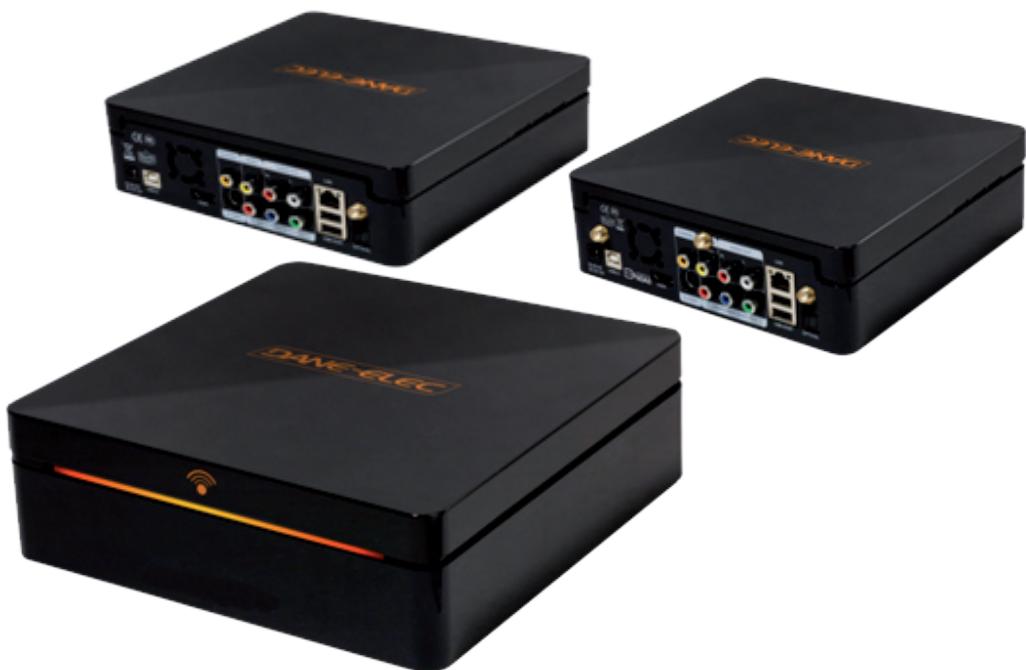
- HD Playback: The So Smart player supports a max resolution of 1920 × 1080 Progressive Scan video output providing Hi-Definition display of clear and crisp picture quality.
- Video / Movie File Player: Supports various video file formats, including DivX® (3/4/5/6), Xvid, MPEG, WMV-9, ASF(WMV9), DAT, DVD(IFO, VOB), ISO as well as HD-level TP, TS, TRP etc. Convenient Automatic Decoding and Bookmarking of multiple files within a folder.
- Audio Jukebox: A perfect music jukebox that supports multiple audio formats: MP3, AC3, WMA, DTS™ with digital audio output and down-mixing capability.
- Digital Photo Album: Supports multiple image formats. Now your entire family can enjoy the digital photo slide-show on the big screen TV.
Network Capable Decoding: Supports streaming of media files on the network. - HD HDMI Interface: Produces digital video signals to enjoy high quality, vivid, Hi-Def video.
- USB-Host: Supports TWO USB2.0 Ports. USB-Host functionality allows easy connection to External Storage (e.g. Flash Drive or External HDD) or an External DVD-ROM.
Chapter 2 : Introduction
2.2 Technical Specifications
| Product Name | So Smart HDMI Wireless Hi-Definition Media Player | |
| Processor | SEM8621L (By Sigma Designs) | |
| Memory | 64MB (RAM), 8MB (Flash) | |
| Operating System | ucLinux | |
| Supported Files & Formate | Video | DivX® (3/4/5/6), AVI, Xvid, MPEG, MPG, VCD(DAT), (VOB, IFO), WMV(WMV-9), ASF(WMV-9), TP, TS, TRP |
| Audio | MP3, WMA, AAC, OGG, PCM, AC3, DTSTM decoding including down-mixing, DTSTM pass through | |
| Image | BMP and PNG (< or = at 1024 x 768), JPEG/JPG not compatible GIF | |
| Video Output | Composite, S-Video, Component, and HDMI. | |
| Audio Output | Analog | Stereo RCA |
| Digital | Coaxial, Optical | |
| TV System | NTSC, PAL, or AUTO | |
| Hi-Def Decoding | HD COMPONENT YPbPr (576p, 720p,1080i) / HDMI (576p, 720p,1080i 1080p) | |
| WMV, ASF, AVI and MP4 formats | ||
| Audio Decoding | MPEG-1 and MPEG-2 Layers I, II and III (MP3), MPEG-2 BC multi-channel layers I, II and III, MPEG-2 and MPEG-4 AAC-LC,WMA9 and WMA9 Pro decoding | |
| Networking | Wire | Ethernet (10/100) LAN via RJ-45 Port |
| Wireless | Wireless LAN : 802.11 b/g or N (MIMO) | |
| Network Security | Wireless: WEP, WPA and MAC-address Filtering | |
| Network Protocol | Wireless : IEEE802.11b/g, 5dBi antenna (SMA type) or N Wire : 10/100Mbps Fast Ethernet (RJ45) TCP/IP (DHCP client mode, Manual IP mode | |
| Hard-Disk Type | 3.5" Internal SATA | |
| USB Interface | USB2.0 host, USB2.0 Slave | |
| Power | AC-DC Adapter 12V, 3A | |
| Dimension | 187mm(W) X 193mm(H) X 58mm(D) or 7.4"(W) x 7.6"(H) x 2.3"(D) | |
Specifications subject to change without prior notice
Chapter 2 : Introduction
2.3 Packaging Contents
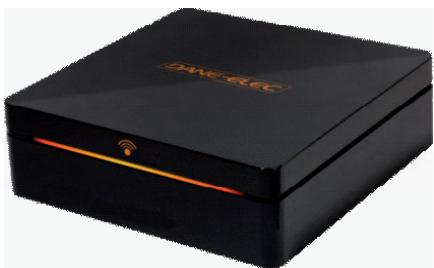
SO SMART HDMI WIFI
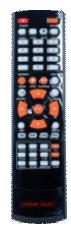
Remote Control
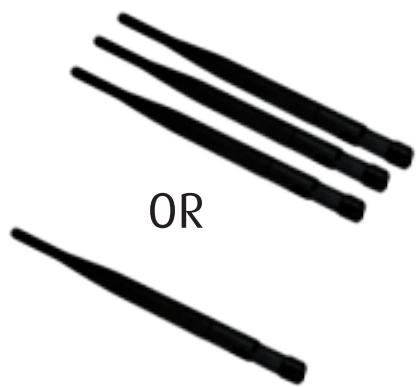
5dBi Antenna
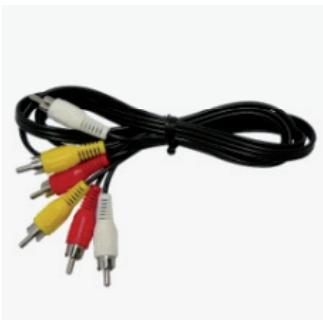
A/V Cable
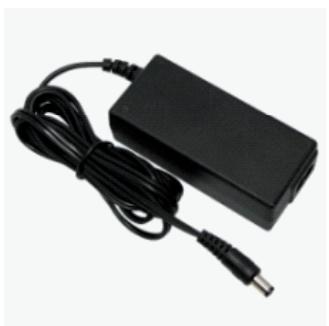
Power Adaptor
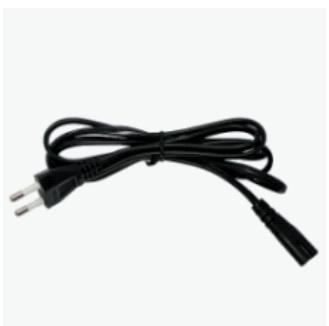
Power Cable
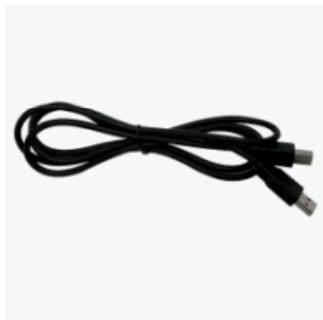
USB Cable
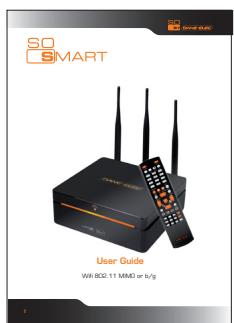
User Manual
Driver CD
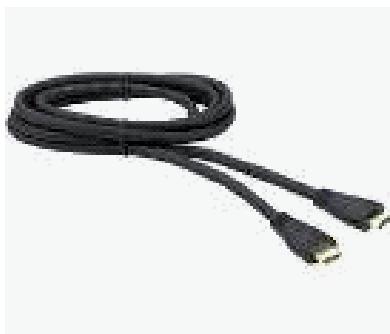
HDMI Cable
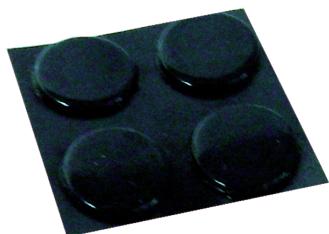
Rubber Pad
Chapter 2 : Introduction
2.4 Getting Familiar with your unit
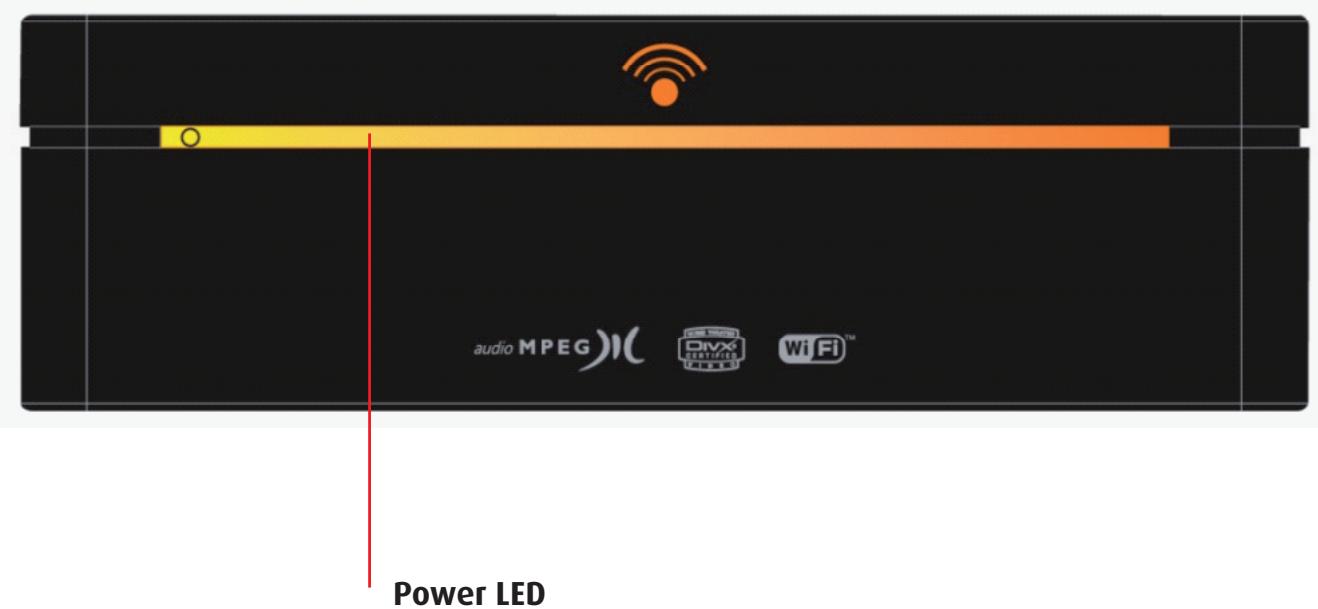
Front View
Chapter 2 : Introduction
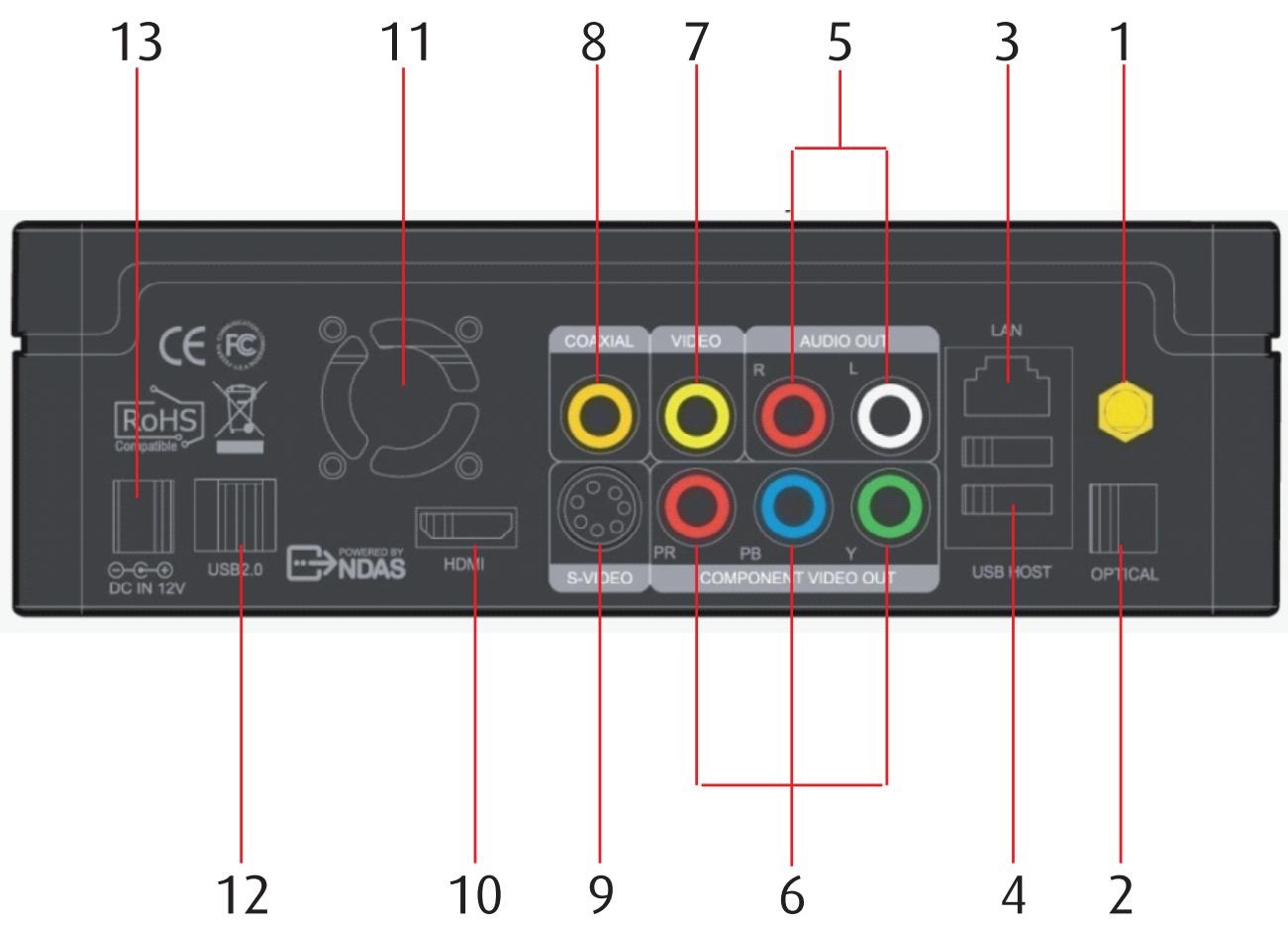
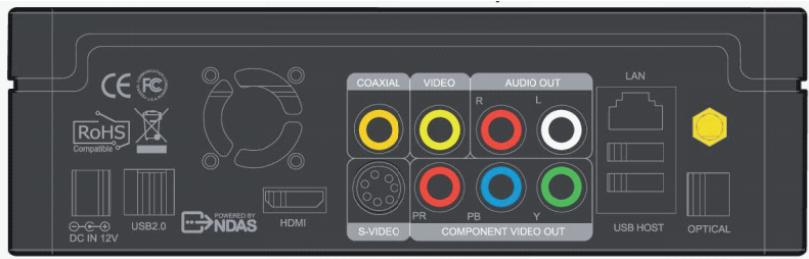
Rear View
| 1 | Wireless Antenna Jack | 7 | Composite Port | |
| 2 | optical (Audio) Port | 8 | Coaxial Cable Jack | |
| 3 | 10/100 Mbps (RJ45) LAN | 9 | S-video Port | |
| 4 | USB 2.0 Host A-Type 2 | 10 | HDMI Port | |
| 5 | Video Composite Port | 11 | High Velocity Fan | |
| 6 | Video Component Port | 12 | USB 2.0 Slot | |
| 13 | Power |
Chapter 2 : Introduction
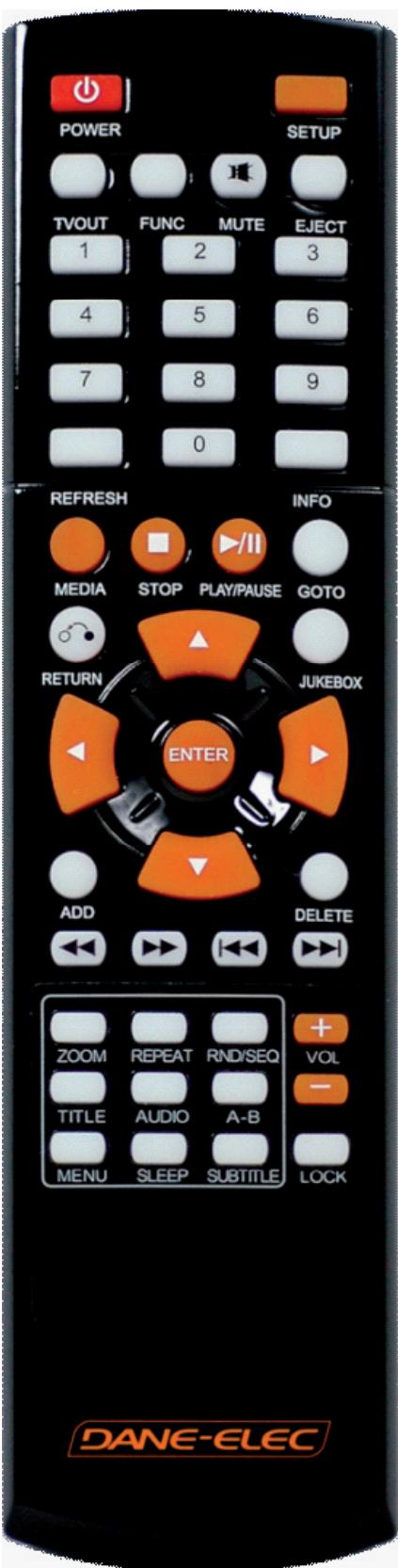
So Smart Remote Control
| POWER | Toggle Unit Power (ON / OFF) |
| SETUP | Enter Setup Menu, Apply/Confirm Setup Settings |
| TV OUT | Toggle Video Output Modes |
| FUNC | Display Control Options (Vol, Contrast, Subtitle etc..) |
| MUTE | Stop Audio Output from the Player |
| (ARROW) | Cursor Navigation Arrow Buttons |
| REFRESH | Refresh Shared-Folder / Directory Contents |
| INFO | Display Media File Information |
| RETURN | Return to Previous Screen / Folder |
| JUKEBOX | Toggle Jukebox Display Options (Audio Only) |
| ENTER | Enter / Play (Individual file) / Select the Highlighted Selection |
| ADD | Add the file to MY LIST |
| DELETE | Delete file from MY LIST |
| MEDIA | Toggle Media List (Video / Audio / Photo / Mixed) |
| STOP | Stop Playback |
| PLAY / PAUSE | Play (Continuous-Sequential Play) / Pause Playback |
| VOL + / - | Volume (Increase / Decrease) |
| FF / End | Fast Forward Playback. Scroll to end of File List. |
| FB / Home | Fast Backwards / Rewind Playback. Scroll to beginning of File List. |
| PREV / PGUP | Previous Chapter / File / Page Up on List |
| NEXT / PGDN | Next Chapter / File / Page Down on List |
| LOCK | Set Folder Password (Folder access Control) |
| SUBTITLE | Subtitle ON / OFF, Change Settings |
| GOTO | Time-Stamp based Search and FF/FR. |
| ZOOM | Zoom Video Playback |
| REPEAT | Repeat Media file(s) Playback |
| RND / SEQ | Switch between Random - Sequential Playback. |
| TITLE | Display DVD / VCD Title Screen on Main Menu Screen |
| AUDIO | Display a list of AUDIO files & start JUKEBOX |
| A-B | Repeat one Small Segment of a Media File |
| MENU | DVD / VCD Menu Screen (Chapters, Extras etc.) |
| SLEEP | Set Sleep Timer |
| EJECT | Eject CD or DVD ROM drive (USB host) |
Chapter 3 : Basic Setup
3.1 Connection
3.11 Audio & Video Connection Setup
| So Smart to TV : Video Connections | |
| So Smart | TV |
| Y/Pb/Pr | Y/Pb/Pr |
| Video | Video |
| S-Video | S-Video |
| R/L | R/L |
| HDMI | HDMI |
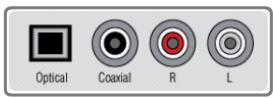
| So Smart to Home Theater : Audio Connections | |
| So Smart | Home Theater |
| Coaxial | Coaxial |
| Optical | Optical |
| R/L | R/L |
Audio Connection Options
Video Connection Options
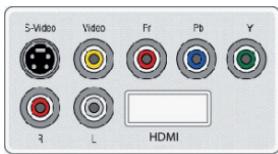

Rq : By default, your So Smart is set to detect the HDMI connection (720p PAL). If you want to use another connector press the button «TV OUT» of the remote control to get the video out you need on your TV (thank you to wait a few seconds between each pressing on the button).
The default language setting on your So Smart is English. To change the language please follow those instructions :
Turn on your So Smart
Choose Set Up with the remote control arrow
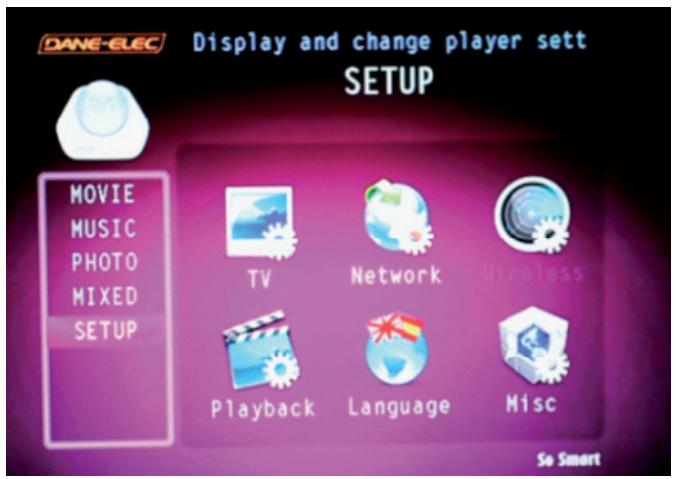
Select Language then ENTER
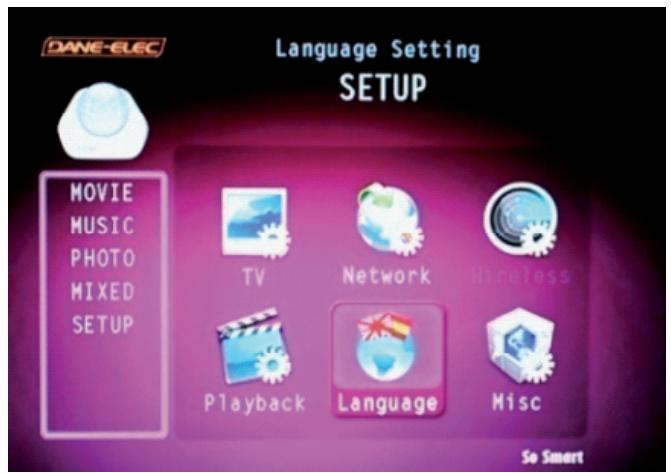
On the list with the arrow select the language you want for example French then ENTER
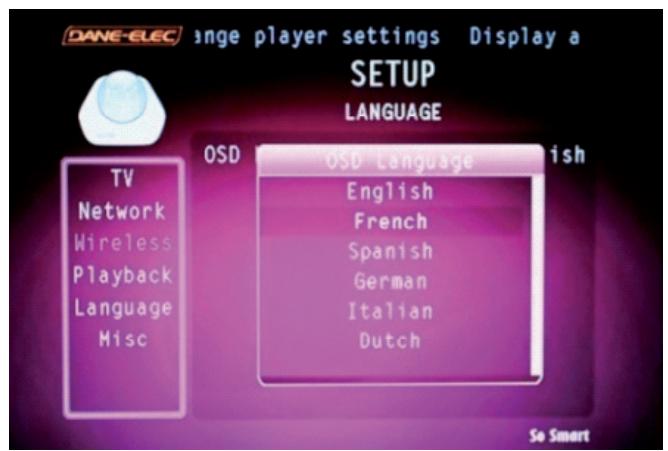
The language selected appear now on the OSD Menu
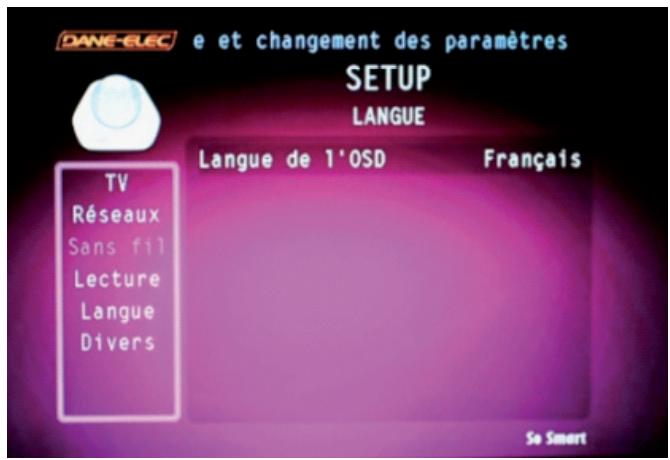
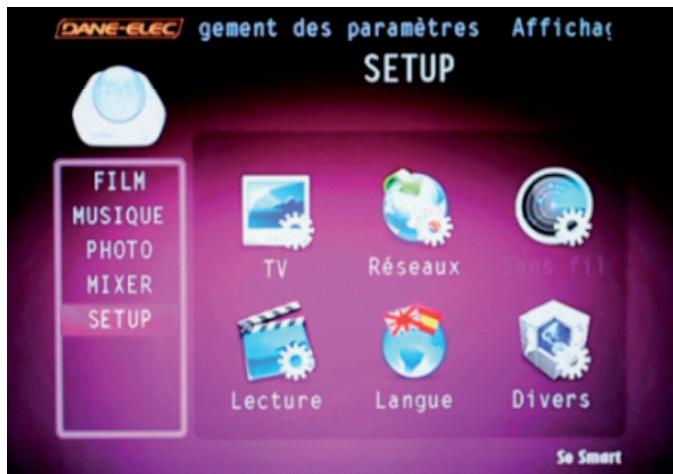
Select Set Up button on the remote control to registered the change
Now your So Smart is in French
Chapter 3 : Basic Setup
3.2 Transferring files to the Hard Disk Drive through USB
When connected to your PC, the So Smart works exactly like an external storage device (e.g. USB Flash drive).
- Power OFF the So Smart Media Player
- Connect the USB2.0 Slave Port to the USB Port of your PC via a USB2.0 A-B Cable.
- Power ON the So Smart Media Player.
- Your PC will recognize the new external USB drive.
-
Simply drag and drop your media files from your PC to the So Smart Multimedia Player. It works exactly like any other external storage device.
-
Turn off your So Smart player before connecting your external device to the player.
- Some 2.5'' external-HDD may require additional power to the external HDD to be recognized. Use the AC-adapter included with your 2.5'' external HDD to enable its use with the So Smart player.
Removal Procedure :
For the safety of your drive and make sure the loss of any data, thank you to always follow the following procedure for unplug your device. Otherwise, an error message appears :
- Close all applications
- Click on the taskbar icon for external storage unit
- Choose your external drive, and confirm the stop

- Unplug the USB cable that connects your So Smart to the computer.
NB : Before disconnecting any cable from your So Smart please turn off the power.
Chapter 3 : Basic Setup
3.3 The SETUP Menu
First time
No image on screen if your TV don't have HDMI port.
If you don't see any picture on screen, while your player is connected to your TV, please press several times the "TVOUT" button on the top left of the remote control. Please wait a few seconds between each push on the button. Image should appear after some pushes (location of the right video out).
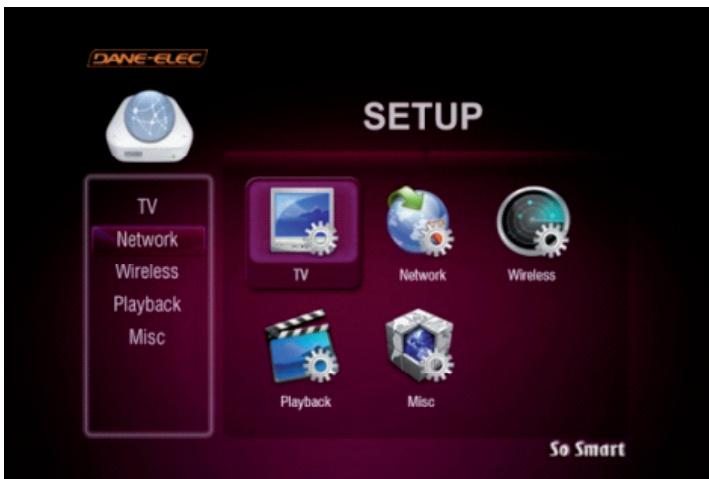
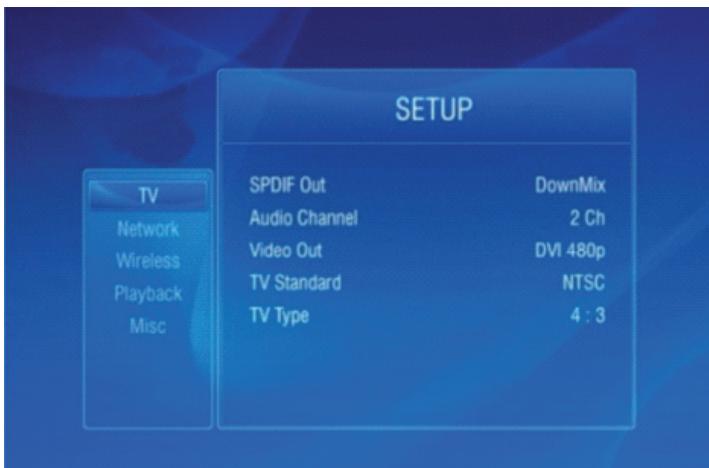
Use the navigation button on the So Smart Remote to select the TV icon/option. This option allows you to configure your video-out settings.
Use the right-arrow button on the So Smart Remote to navigate to the main panel and select configuration option. Press ENTER on each configuration to view available setup options.
SPDIF out: DownMix and Passthrough
Audio Channel: 2 Channels and 5 + 1 Channels.
Video Out: S-Video, Component, DVI etc.
TV Standard: PAL versus NTSC (USA customers use NTSC)
TV Type: 4:3 versus 16:9 (If using Widescreen Display / TV use 16:9)

Chapter 3 : Basic Setup
Use the left-arrow button on the So Smart remote to navigate back to the left-side column.
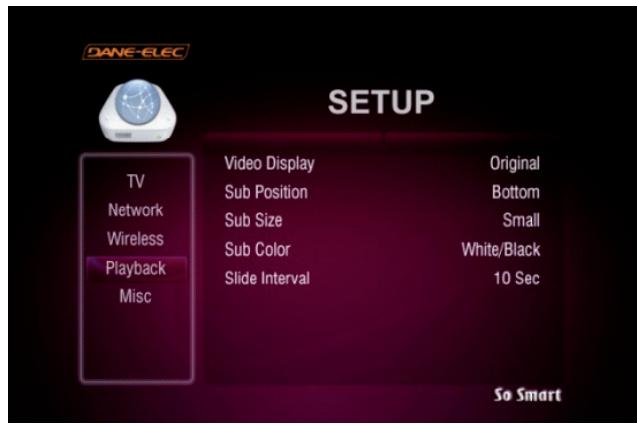
From the left-side navigation column, select PLAYBACK Setup.
Use the arrow keys and press ENTER / SELECT on the So Smart Remote.
Video Display: Original (Letterbox), Expand (Pan-Scan), Full Screen (Modify display size)
Sub Position: Top, Middle, Bottom (Select the display position of subtitles during playback)
Sub Size: Small or Large (Select Subtitle Size)
Sub Color: (Select from a list of over 10 subtitle colors)
Slide Interval:3 sec, 5 sec, 10 sec or 20 sec (Select slide show interval forimage file playback)
Use the left-arrow button on the So Smart Remote to navigate back to the left-side column.
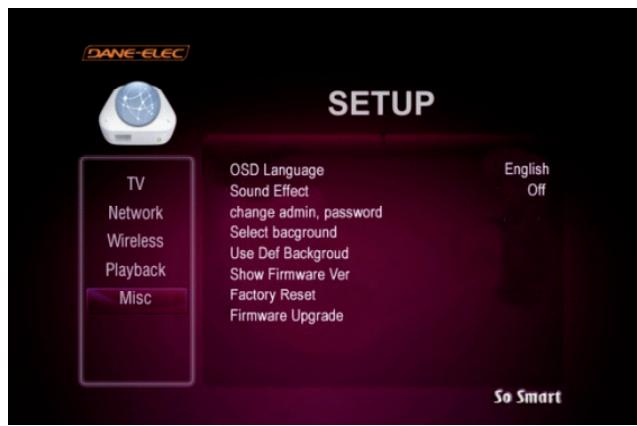
From the left-side navigation column, select MISC Setup. Use the arrow keys and press ENTER / SELECT on the So Smart Remote.
Sound Effect: ON vs OFF (Setup various sound effects)
Change Admin Password: (Password setup: 4-digits)
Select Background: (select JPEG file as wallpaper)
Use Def. Background: (Use original/default image as wallpaper)
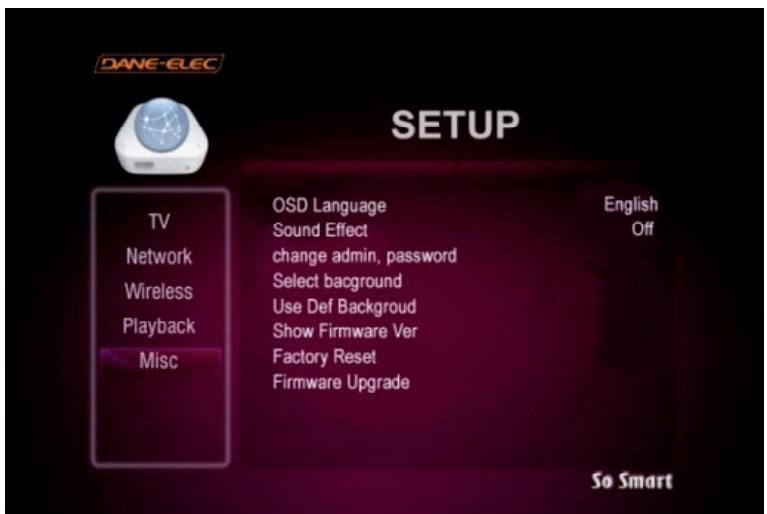
Show Firmware Ver: (Verify / Confirm Firmware Version) Factory Reset: (Reset the unit to Factory Default)
Firmware Upgrade: (Select to upgrade firmware)
Chapter 3 : Basic Setup
password FUNCTIONS:
In order to password-protect folders, you will first need to setup Admin Password.
Default Admin Password: 0000 (4-zeros)
Recommended: Change Admin Password when installing the So Smart Unit.
ADMIN PASSWORD:
(Use this space to write/safekeep new admin password) Admin Password is also required for Factory Reset operation.
Perform a Hardware Reboot if Admin Password is lost
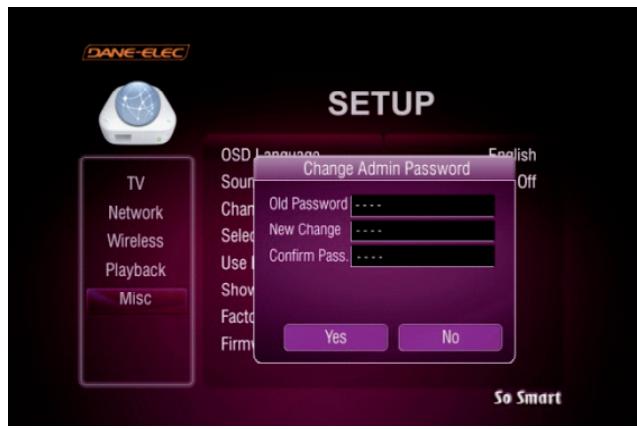
In order to password-protect individual folders:
- Using navigation button on the So Smart Remote, select the folder to protect.
- Press LOCK button on your So Smart Remote
- Enter the Admin Password
- Set Folder Password
To remove/undo Folder Password:
- Navigate to the folder and press LOCK.
- Enter the Admin Password
- Remove Folder Password
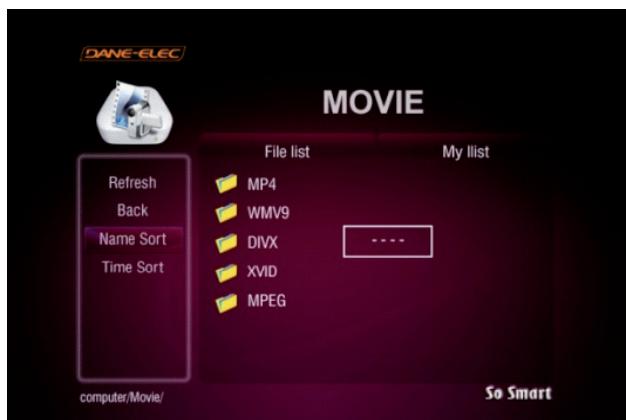
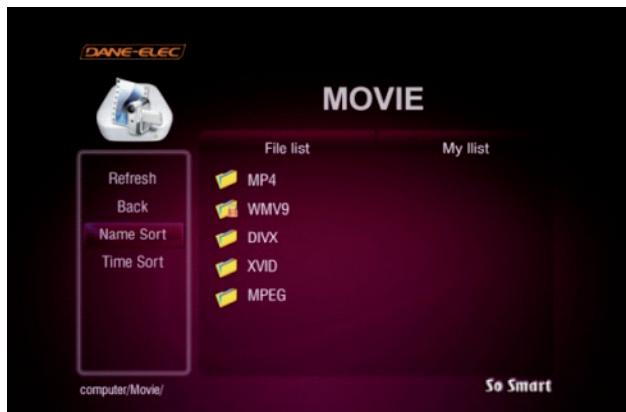
Password-protected folders are displayed with a lock icon

Chapter 3 : Basic Setup
To access a password-protected folder:
- Using the arrow Buttons on the So Smart Remote, navigate to the folder and press ENTER / SELECT.
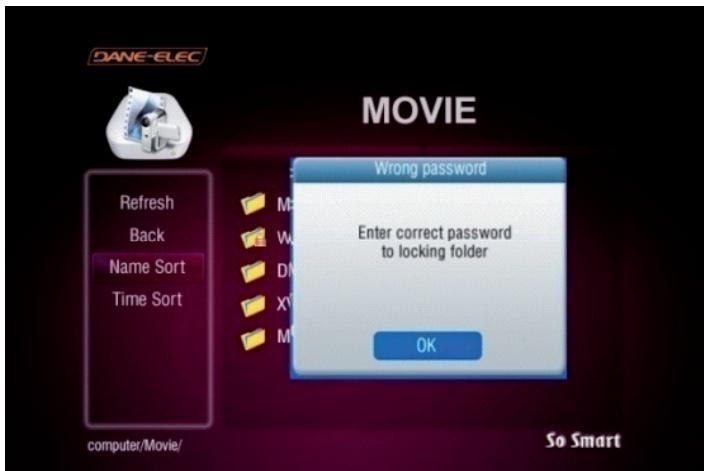
- An Enter-Password prompt will popup. Enter the folder password to access the folder contents.
- Inputting an incorrect password displays the warning as shown.
NOTE: Folder Passwords are CASE SENSITIVE
MODIFY BACKGROUND WALLPAPER:
Background wallpaper of the setup menu and playback screens can be changed as per user preference.
Under MISC setup, navigate and choose "Select Background".
A Select Background file popup allows browsing and choosing a JPEG/JPG, BMP, PNG file. Any of these digital image files can be applied as a wallpaper
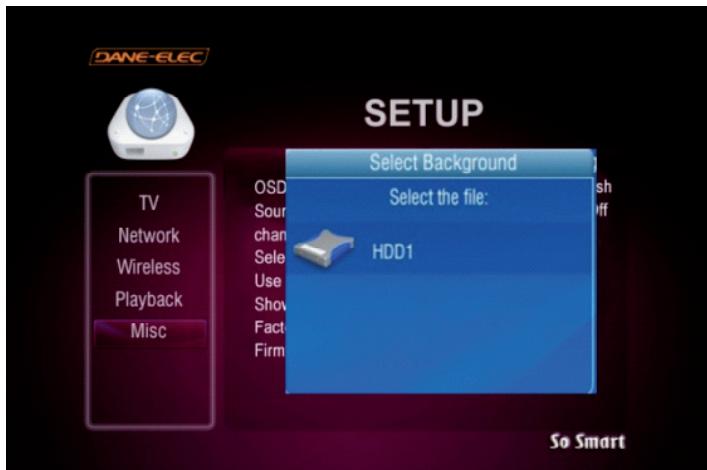
The wallpaper files can be selected from the local So Smart HDD, USB-Host Storage or Network-Shared folder on the PC.
Maximum resolution of a digital image file that can be used as a Background Wallpaper: 1920 x 1080
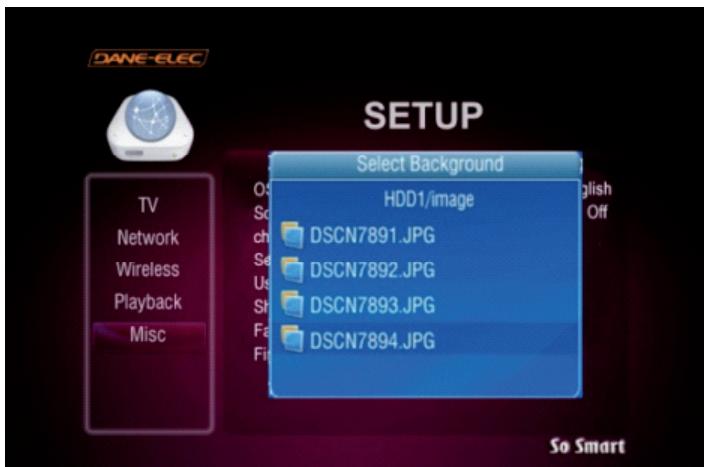
Browse, select and press ENTER / SELECT the image file.
The Background Wallpaper will be applied.
In order to revert to the Default Background, choose "Use Def. Background" under MISC setup.
Chapter 3 : Basic Setup
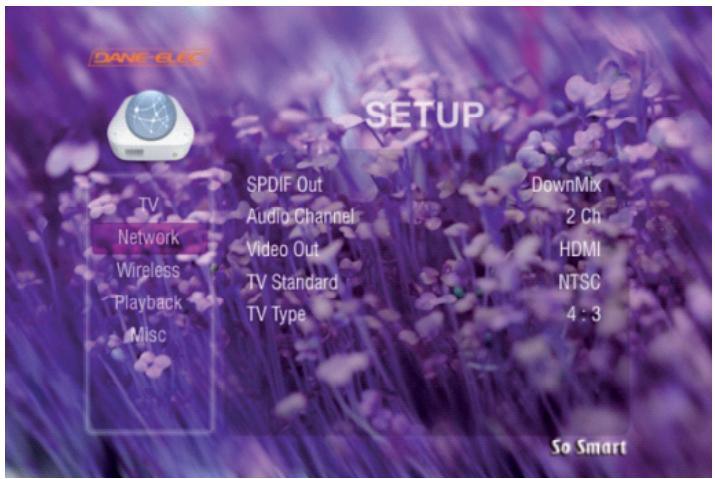
CAUTION: Avoid Choosing a "bright" image as the Background
Wallpaper. Menu items may not be visible on a bright
background.
If a bright image is accidentally chosen, perform a Hardware
Reset to revert to original, Factory-Default Background.
FACTORY RESET FUNCTION:
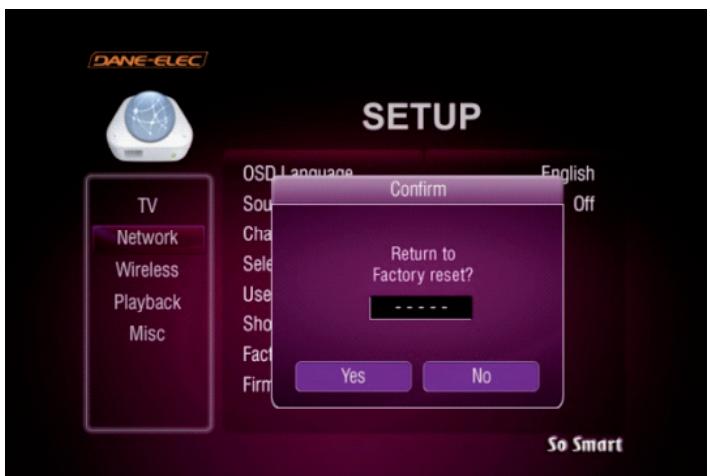
The Factory Reset function is provided under the MISC setup
menu to revert setup settings to Factory-Default condition.
To perform Factory Reset:
- Navigate to MISC Setup menu using the So Smart Remote, select FACTORY RESET.
- Enter Admin Password when prompted.
- Select YES, Press ENTER / SELECT.
CAUTION: Factory Reset Function cannot be performed without the correct ADMIN PASSWORD.
Remember to store the ADMIN PASSWORD, if changed.
Original, Default Admin Password: 0000
Factory Reset
A Hardware Reboot may be required if the player fails to perform well. Hardware Reboot may also be needed if the admin Password is forgotten, lost or misplaced.
Power off the So Smart Player completely.
Press the "SETUP" button and the "1" button right after, on the remote control.
Then LED light on center will turn on.
Press the "POWER" button on the remote control.
The unit reboots and returns to Factory Default condition (Warning! no light on the center).
Wait for 30 seconds before pressing on the "TVOUT" button on the remote control to obtain the video on your TV (please wait a few seconds between each push on the button).
Chapter 4: Connecting So Smart to a Network
4.1 Setting Network Sharing using Windows XP on your PC
In order to connect your So Smart Player to your local area network or to an individual PC, we need to configure the Internet Protocol on your PC:
- On your Win-XP PC, Click START.
- Right-click on MY NETWORK PLACES, and
- Select PROPERTIES
Alternatively, if the "MY NETWORK PLACES" icon is visible on your Desktop, simply right click on the Icon and Select Properties.
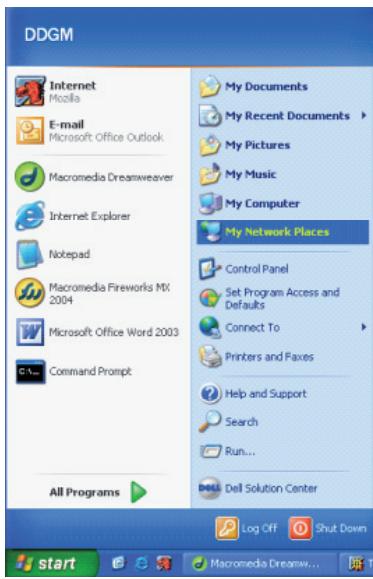
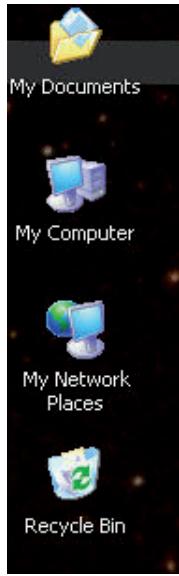
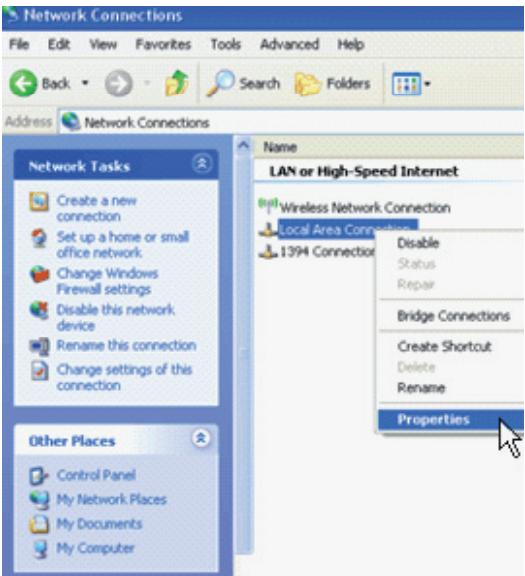
Navigate to Local Area Connection. Right click on it and left click Properties.
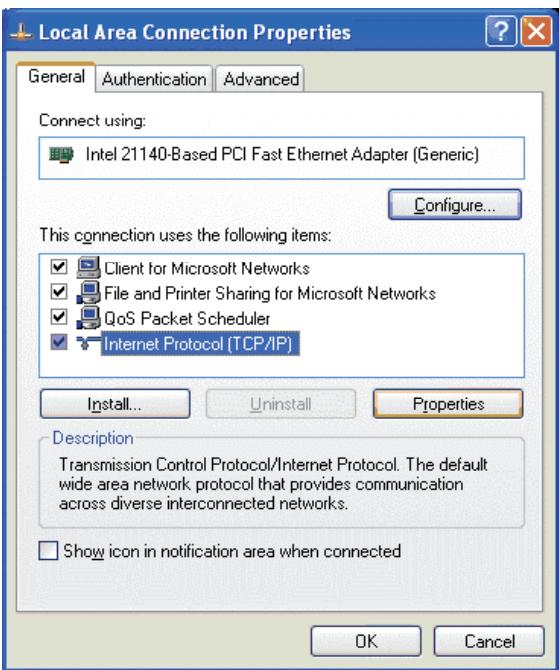
The Local Area Connection Properties window is displayed. Right click the Connection and hit 'Properties'. The window on
the right opens up.
Select Internet Protocol (TCP/IP) and click INSTALL.
Chapter 4: Connecting So Smart to a Network
Setting Up Folder / Drive Sharing on Win-XP PC:
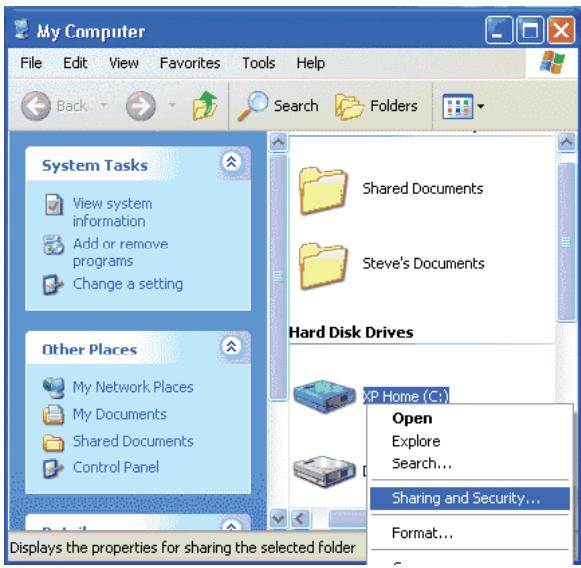
- Right-click the folder or drive that you want to share, and then click SHARING AND SECURITY.
Tip: If you want to share your entire My Documents folder, open My Documents, and then click the UP button on the toolbar. You can then select the My Documents folder.
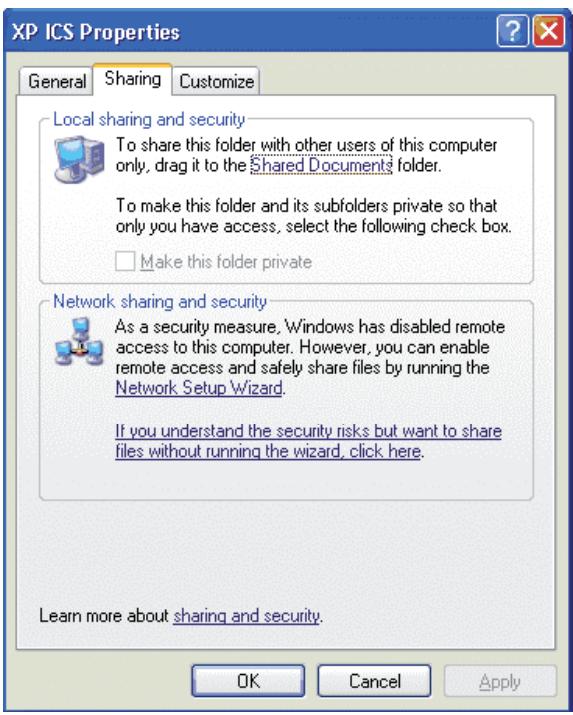
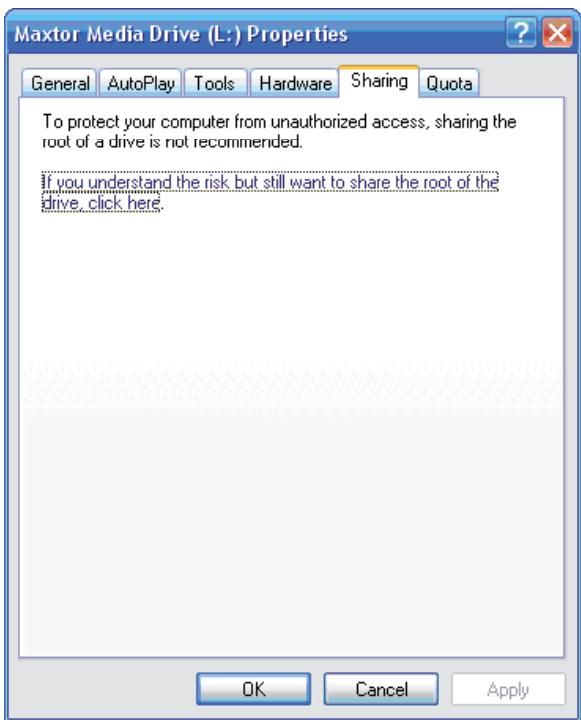
If you are sharing a Drive, under the Sharing tab, click: If you understand the risk but still want to share the root of the drive, click here.
Click on the warning message link to expose the sharing options. Assuming you already have your internet connection configured and firewall settings in place, you can choose the Just Enable File Sharing option (unless you already enabled file sharing previously) When you finish, your computer should be prepared to share files on the network
Under Network Sharing and Security Section:
If you see a message that reads, As a security measure, Windows has disabled remote access to this computer.
Click the Network Setup Wizard link and follow the instructions.
Chapter 4: Connecting So Smart to a Network
Under the Sharing tab, as shown in the picture, you can do one of the following:
- Share this folder on the network - This allows you to share the contents of the drive or folder available to other users on the network. Choose a Sharing name that you will like to see on your TV Display.
-
Allow network users to change my files
-
This allows network users to change files over the network.
Click on APPLY and then select OK
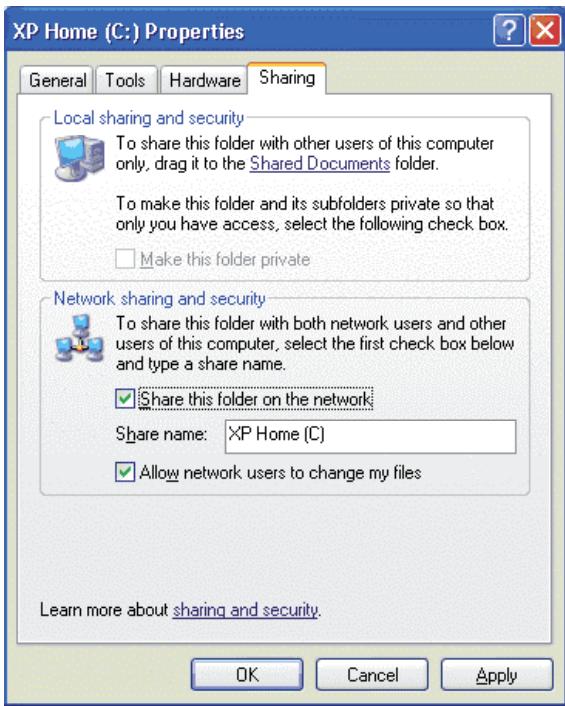
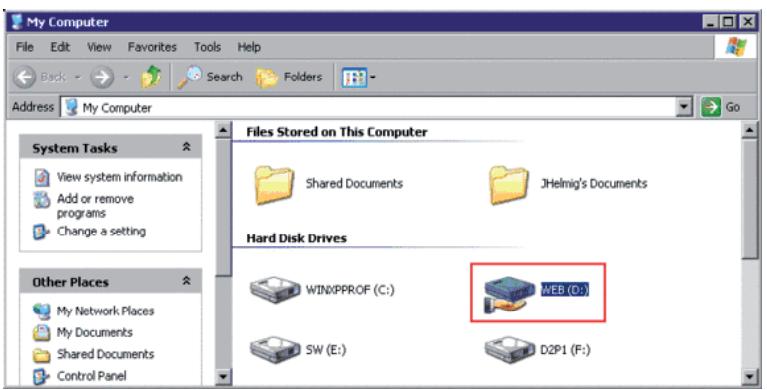
A hand will appear under the folder icon, indicating that the folder is shared.
In Windows XP Pro, you may also need to define the users who can have access to these shared folders and files. In order to use folder sharing with So Smart, it is recommended to provide guest access to the shared folders.
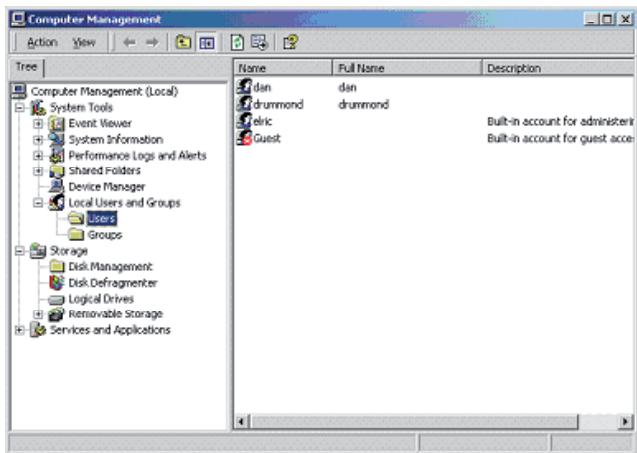
- Right Click on MY COMPUTER and Select MANAGE.
- Click on the ^ +^ next to LOCAL USERS AND GROUPS. Select USERS.
Note the Red 'X' sign next to GUEST. - Double click on the GUEST account and Click ENABLE.
Chapter 4: Connecting So Smart to a Network
Disabling Windows Firewall:
Network Sharing makes it possible for home and small office users to share the Local Area Network (LAN). In order to prevent unsolicited network traffic on this LAN, Windows XP protects the connections via the Internet Connection Firewall (ICF). ICF is automatically turned on in Win-XP (SP2). If the ICF is turned on on your PC, your So Smart player may not be able to access files residing on your PC. Follow this procedure to disable it:
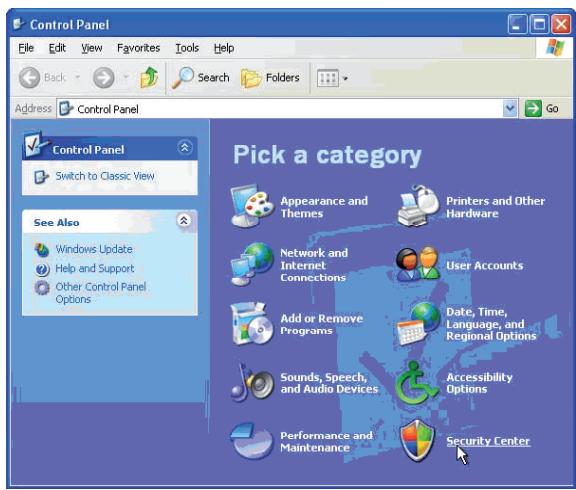
- Click the START menu button, and click CONTROL PANEL.
In the CONTROL PANEL, click SECURITY CENTER
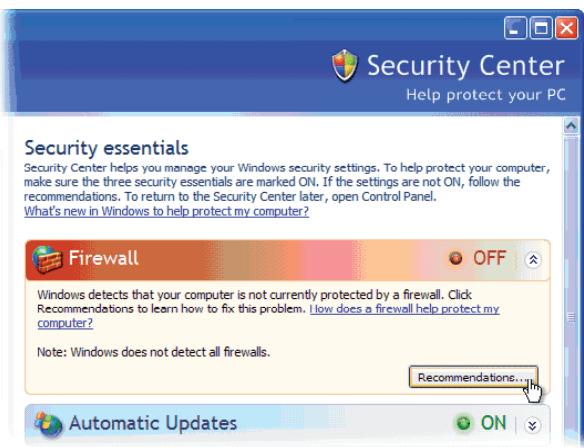
- In the Windows Security Center window, click Windows Firewall.
- In the Windows Firewall window, select OFF to disable the Windows Firewall and click OK.
- Close the remaining Windows Security Center window and the Control Panel.
Remember: Turning OFF Windows Firewall is not recommended by Microsoft. Disable the Windows Firewall at your own Risk.
Chapter 4: Connecting So Smart to a Network
4.2 Wired (via 10/100 LAN, RJ45 port) Network Connections
For Sharing and Accessing media files / folders and drives residing on your PC
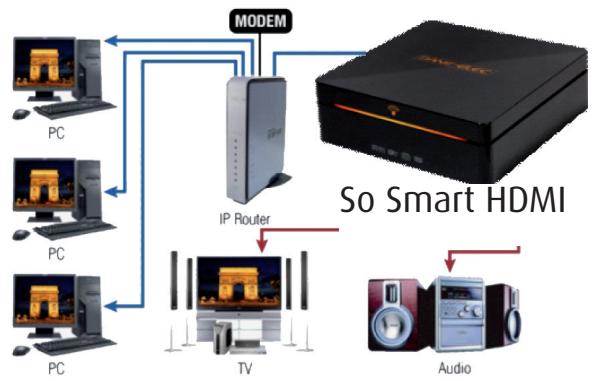
Use LAN (Ethernet, RJ-45) cables to connect to your network Switch / Hub / Router to share the media files residing within folders or drives on your (wired-networked) PC.
Use the left -arrow button on the So Smart Remote to navigate back to the left-side column.
From the left-side navigation column, use the arrow keys and select "NETWORK" Setup. Press ENTER / SELECT on the So Smart Remote.
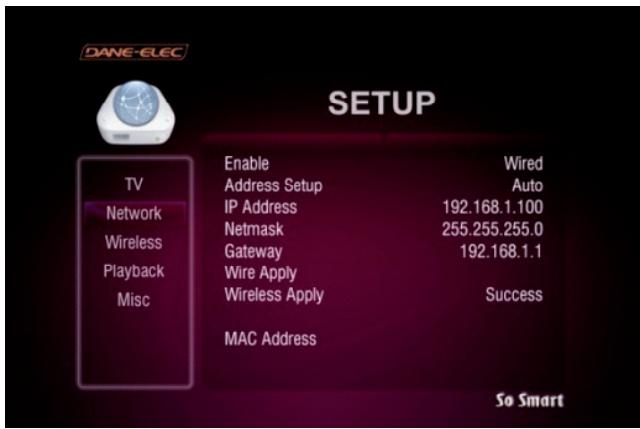
Under ENABLE options- If using Wired setup, choose and apply "Wired".
Select Wire Apply setup to apply your preferred settings.
If the network is setup correctly, the word "Success" appears in front of "Wire Apply"
ADDRESS SETUP:
Default Setup: Auto Assign IP from DHCP server.
Manual Setup: Manually enter the IP address to be assigned to the So Smart Player.
Choice of "wired" or "Wireless" also displays the respective MAC Address of the So Smart unit.
Press SETUP button on the Remote to apply your preferred settings.
Once the settings are applied, you can view the shared Folders and Drives on your Display Screen (e.g. TV)
Wired networks are the best way to connect your PC / Network to the So Smart player. While wireless networks offer flexibility, wired networks offer unbeatable performance, reliability, and security.
Specially when streaming high definition video files from your PC or network-connected shared drive, it is highly advisable to use Wired networks. Wireless networks do not have enough bandwidth to stream high resolution video files.
Chapter 4: Connecting So Smart to a Network
4.3 Wireless Network
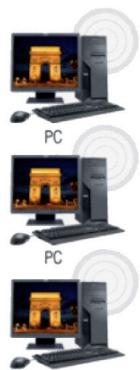
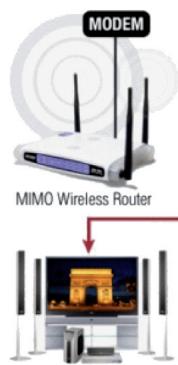
So Smart player is equipped to be connected to your Wireless Network and is capable of streaming media files directly from your PC.
Upon completing the setup as described below, the So Smart player will acquire the IP address automatically from your router.
NOTE: Try to use Wireless setup in an environment with minimal interference. Avoid Wireless setup if streaming hi-def video files.
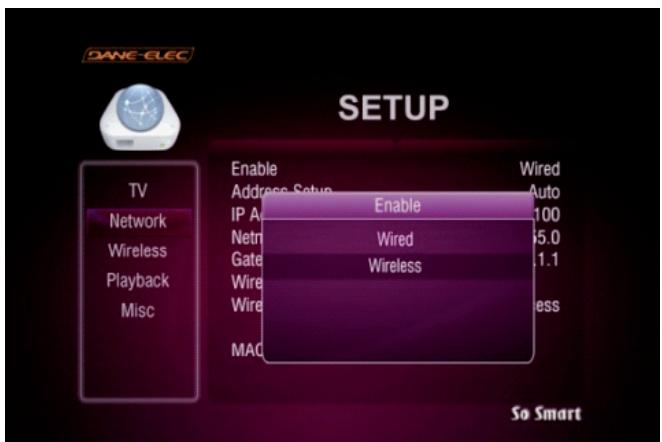
Under SETUP menu, select "NETWORK". Use the arrow keys and select ENABLE. Navigate and ENTER / SELECT the "Wireless" Network option.
PC
IV
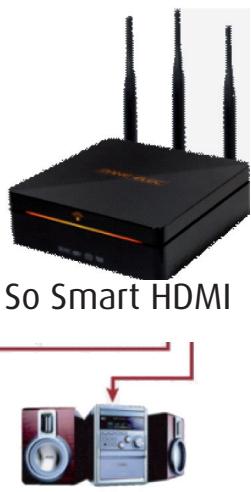
Audio
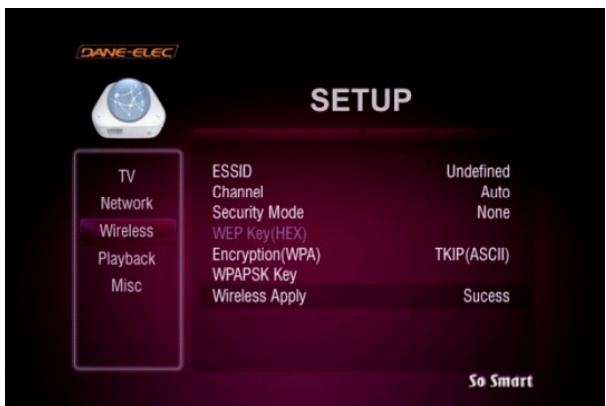
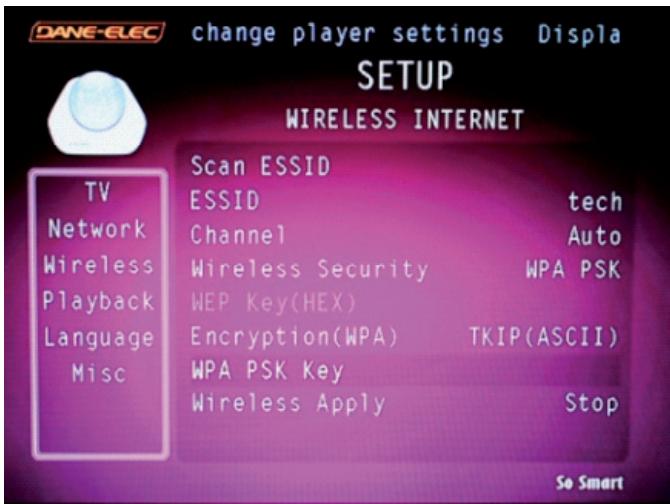
Selecting "Scan ESSID" and ENTER or Autoscan ESSID (depending on your firmware version.).
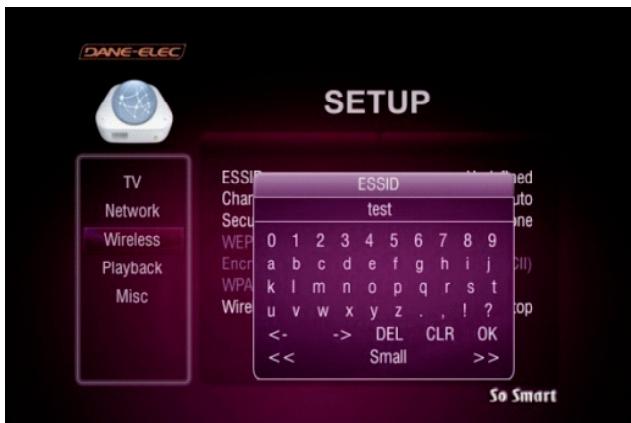
You must enter the SSID of Access Point (AP) or your router. Select your network name.
CHANNEL: Choose the radio channel being used by your network router or Auto is default.
ENCRYPTION: Unless you are running Encryption settings on your Router, choose NONE. (refer: next page)
WEP KEY: If using WEP-Encryption on router, manually input WEP key here. (refer: next page)
Select "Apply" to apply wireless network settings. SUCCESS versus FAIL shows network connectivity status Press SETUP button on the So Smart Remote to apply and confirm all setup options and configurations.
Once the "Wireless" option is chosen,
Select "Wireless Apply" setup to apply your preferred setting. the system will try to acquire the IP address automatically from the router
The Advanced "WIRELESS" settings menu (as shown under) will be automatically displayed for modifying and configuring wireless settings.
Chapter 4: Connecting So Smart to a Network
If the version of your firmware include the autoscan ESSID (you can upgrade your firmware on www.danedigital.com) then follow this process:
Select Set Up on the main menu with the remote control arrow button.
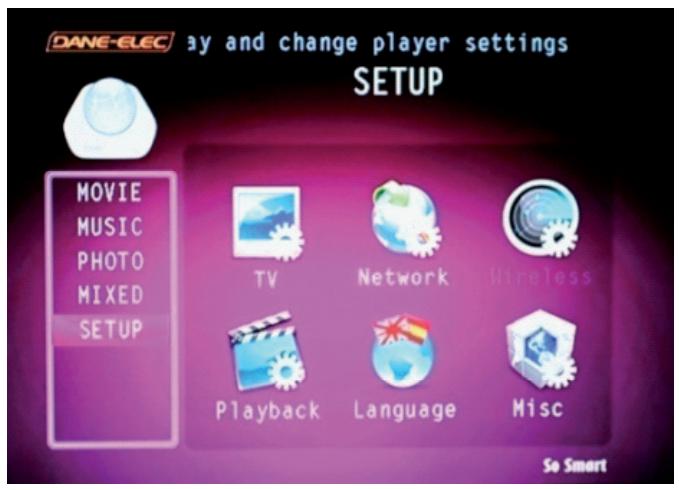
Select Network
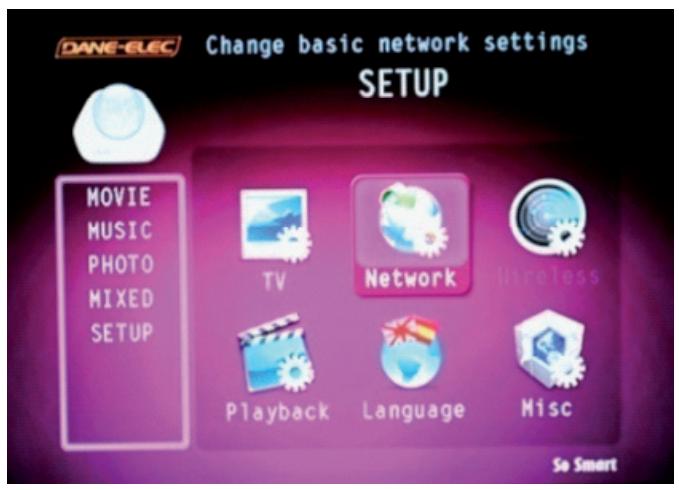
On Network menu select Enable to choose the kind of network you want to use (Wire or Wireless) and follow step by step the next images. Each time press ENTER to validate your choice
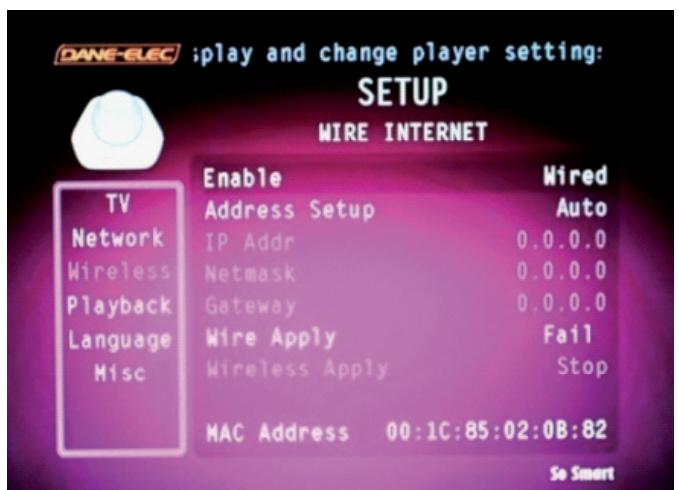
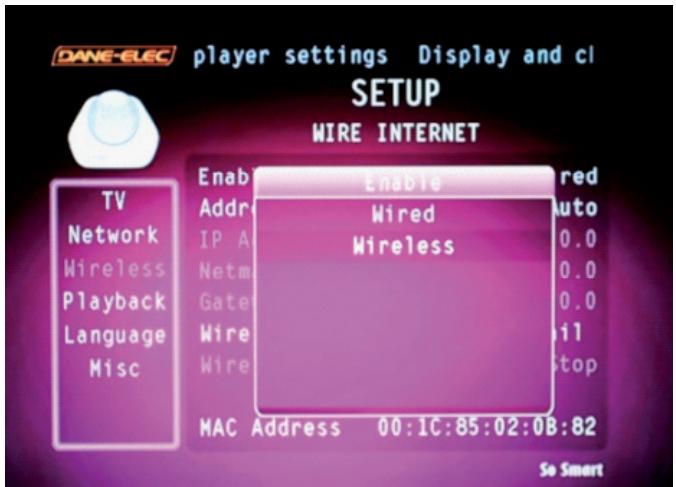
Chapter 4: Connecting So Smart to a Network
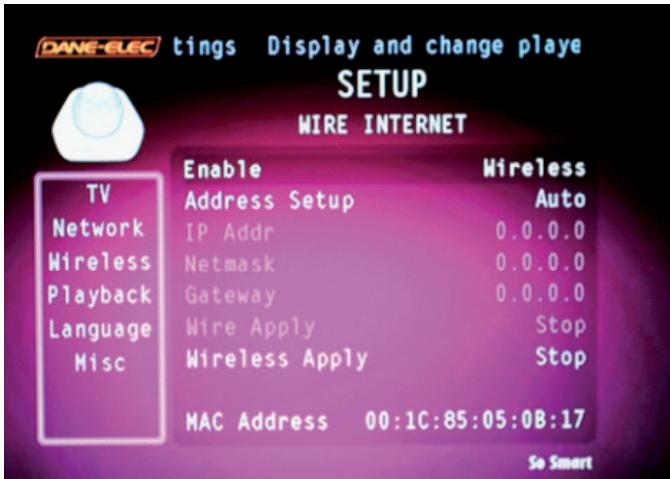
Your Wireless option network is now select. Select wireless Apply then ENTER.
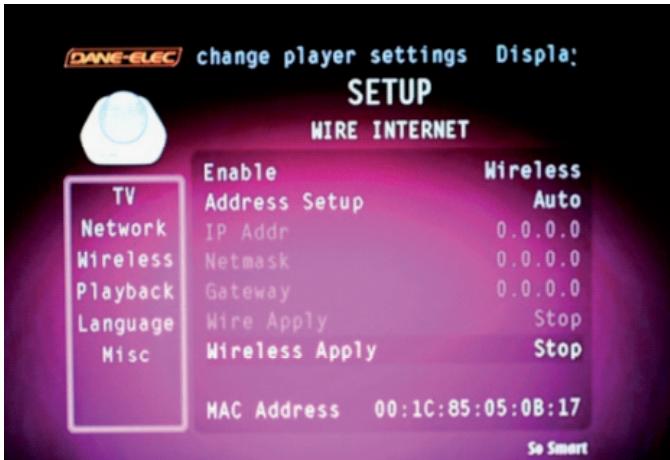
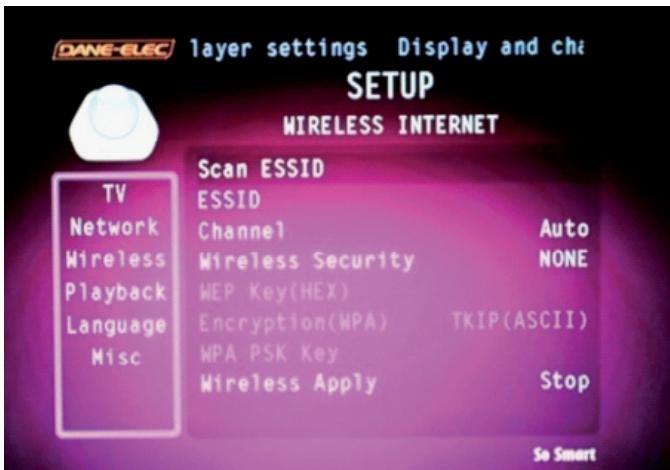
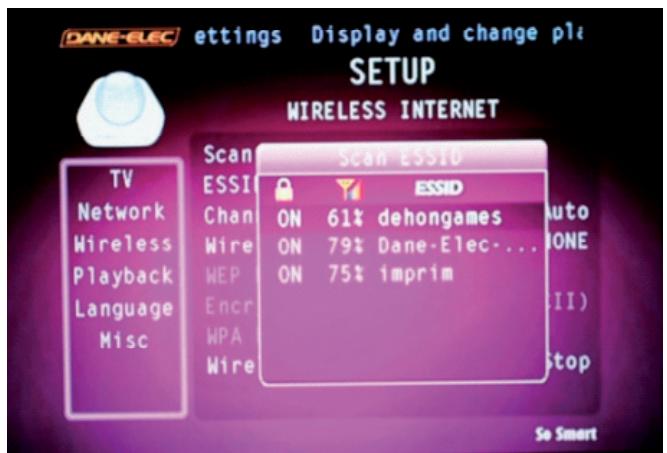
Select Scan ESSID then ENTER.
Chapter 4: Connecting So Smart to a Network
The Automatic scan is going to find all the wireless network available close to your So Smart.
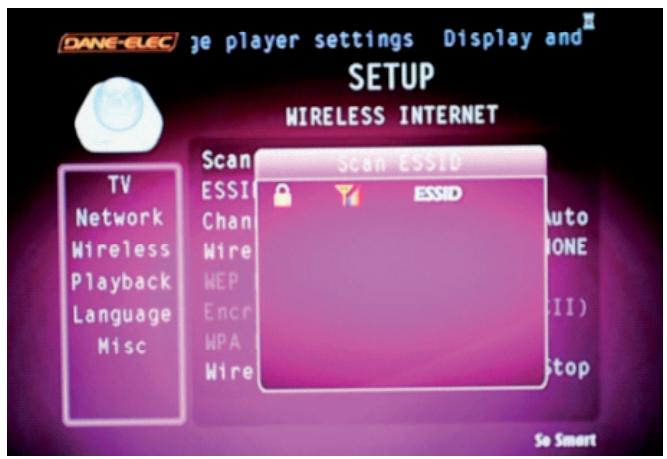
Select on the list your Network (in our example : Dane-Elec) then ENTER.
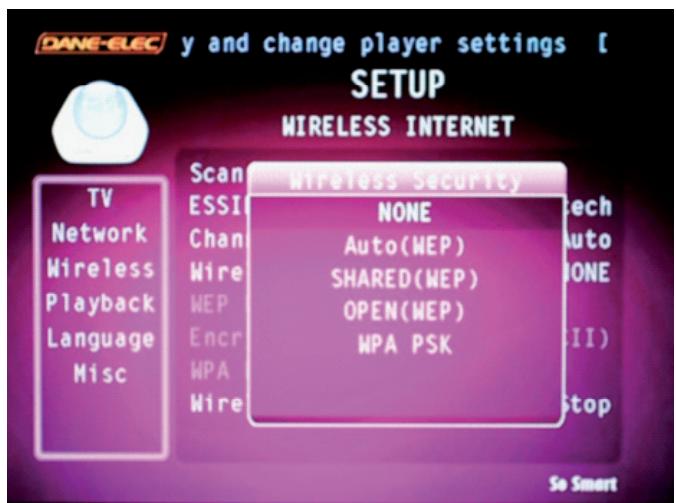
Normally your Wireless Network is secure by a code. There is different possibility to secure it (WEP or WPA encryption). You have to choose now the correct encryption. In our example it is WPA (In WPA case you have to find the password already created by you for your Router).
Chapter 4: Connecting So Smart to a Network
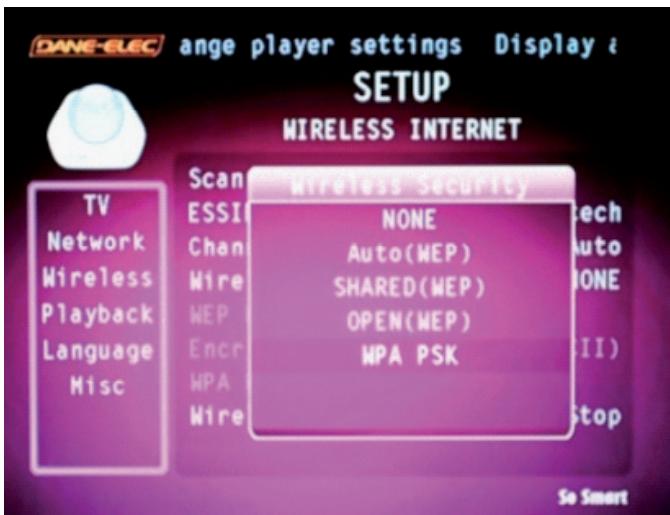
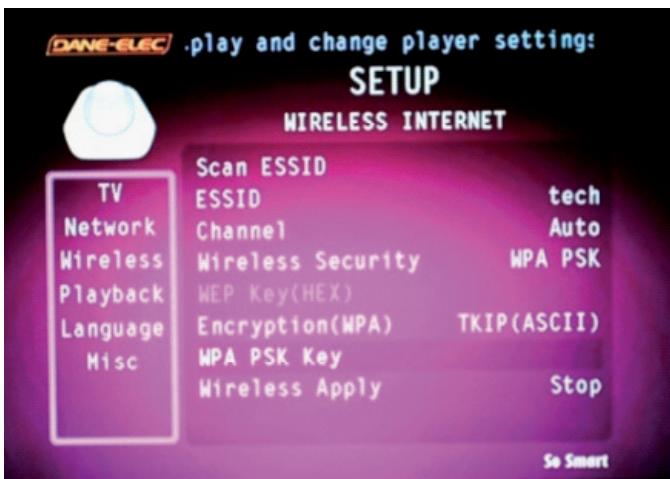
Select WPA PSK
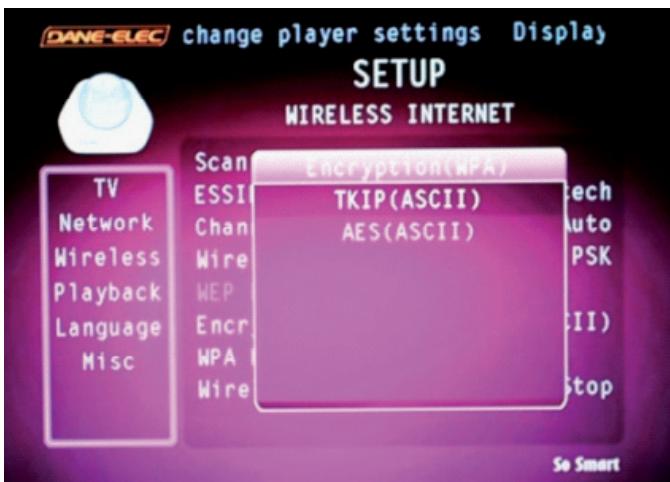
Select in WPA the kind of encryption (in our example TKIP)
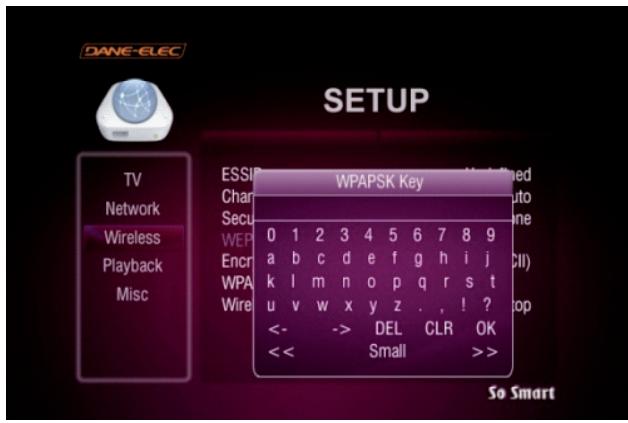
We are going now to enter your password or pass phrase
Select WPA PSK Key then ENTER
Chapter 4: Connecting So Smart to a Network
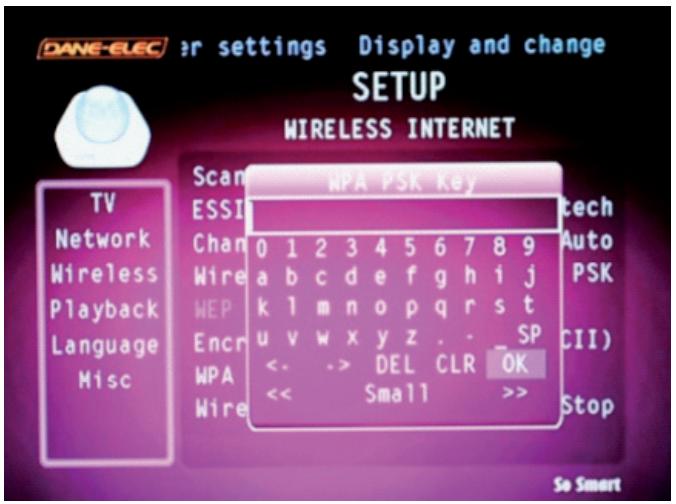
With the arrow button select each letter or number of your Password, validate each with ENTER
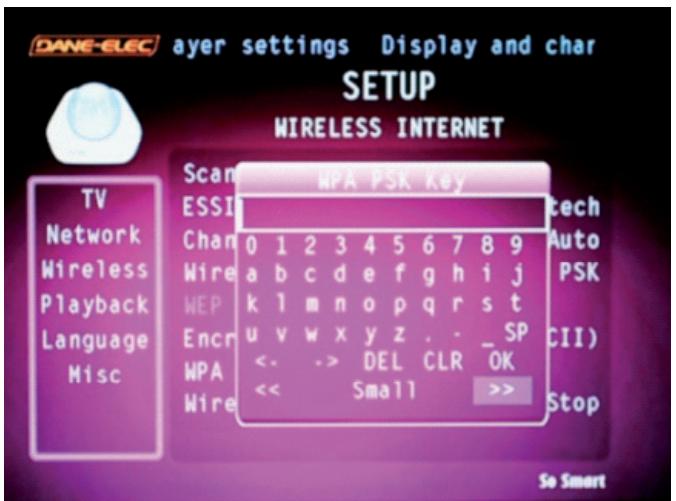
To change Small to Caps letter select on the screen >> button
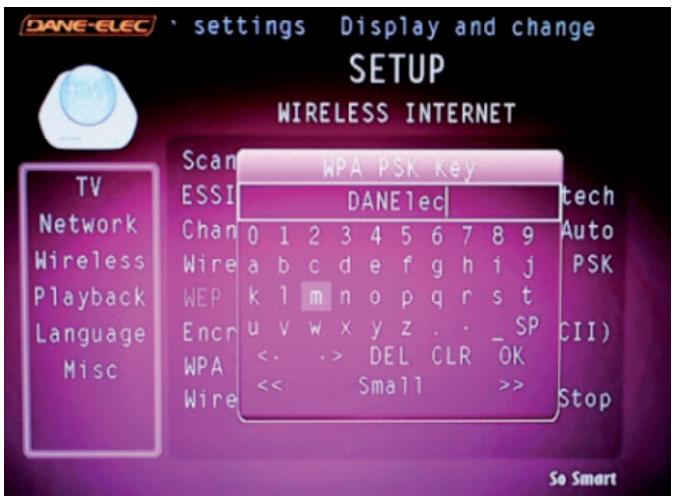
When your password is written, select OK on the screen, then ENTER (in our example the password is DANE1ec).
Chapter 4: Connecting So Smart to a Network
Select Wireless Apply then ENTER. When SUCCESS appear instaed of Stop, your Wireless Network is configured and ready to be used.
Select SetUp on the remove control to save your configuration.
Chapter 4: Connecting So Smart to a Network
Using the So Smart Remote, navigate to your ESSID and press ENTER/SELECT.
SETTING ENCRYPTION OPTIONS:
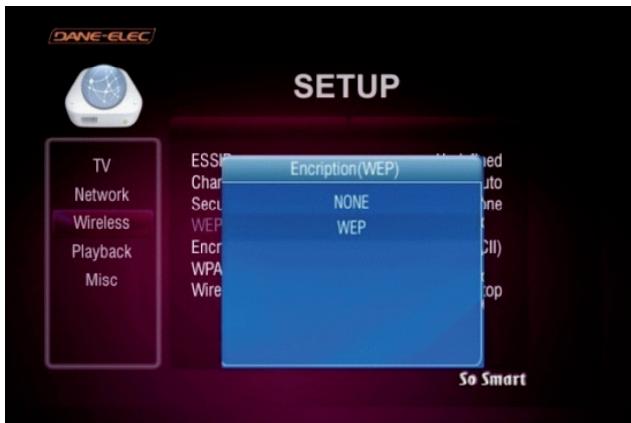
Encryption (WEP):
- Using the So Smart Remote, navigate to Encryption (WEP) and press ENTER/SELECT.
- Select, choose and apply the encryption (WEP) settings used by the network. If you choose WEP option, ensure that the WEP key (to be entered in the next option) correctly matches the WEP-key set on the network router.
ENTERING WEP KEY:
Using the So Smart Remote, navigate to WEP and press ENTER/SELECT.
- A Key-Panel Window pops up on the TV Screen. On the Key Panel Window, navigate and SELECT each alphanumeric character to manually enter the WEP accurately. Be cautious of upper case versus lower case letters (cf. your internet provider notice).
- Once done, navigate to OK and press ENTER / SELECT.
Select "Apply" to apply wireless network settings and press SETUP button on the Remote to apply your changed settings.
NOTE: Under Wireless Network connection, media streaming may experience lag or jitters for some HD video files. Such problems are caused primarily due to insufficient bandwidth available via common home-based wireless routers. Wired 10/100 LAN connections are recommended for streaming of HD-video.
Chapter 5 : NDAS BASIC SET UP
5.1 How to setup NDAS in So Smart
What is NDAS (Network Direct Attached Storage)? It is useful technology that makes your PC recognize Internal HDD inside So Smart which is connected to your wired or wireless home network.
For use of NDAS, you should <<
- Setup NDAS in So Smart
- Install NDAS software in PC
First, So Smart must be connected to wired or wireless network.
Caution<<
NDAS is not working when USB slave cable is used.
- Set "STOP" when NDAS is not being used.
If you use NDAS when So Smart runs files (movies or pictures), then you may experience a drop in performance.
- It may take a while to recognize So Smart as a local hard disk in "My Computer" window depending on your network system.
- After the use of NDAS, remove or dismount So Smart safely. Similarly to external HDD device, you can use "remove hardware safely" icon or "DISMOUNT" in NDAS icon. Otherwise, your data can be damaged.
The performance may decrease if more than two computers access NDAS simultaneously.
5.1.1 Setup in So Smart
1) Connect So Smart to TV. Select "Other Options" Bottom left as shown below. Select "NDAS".
2) Press ENTER, and you can select "START/STOP" option.
Select "START" (Highlighted). (STOP is below)


3) NDAS item is changed from "STOP" to "START".
Save the current setting by pressing "SETUP" button.
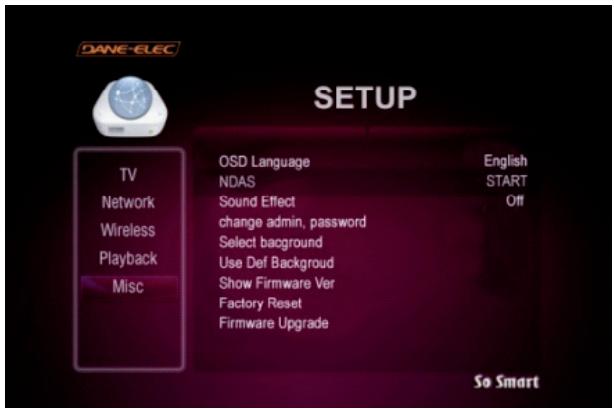
We will therefore undertake the following pages in order to:
-- The activation of the function in your NDAS So Smart,
-- The installation of NDAS software on your computer,
-- The wired network settings,
-- Setting wireless (WiFi)
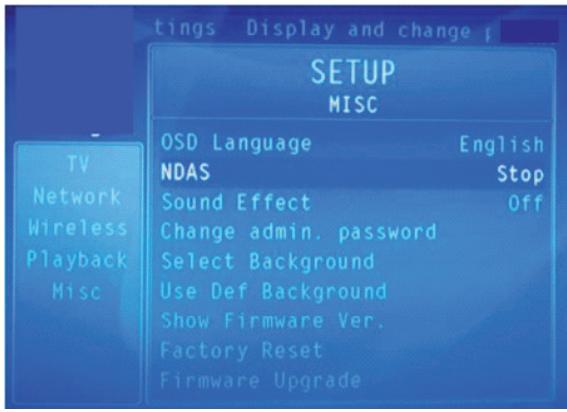
Activation of the function in your NDAS So Smart,
1) Turn on your So Smart
2) Press the button on the remote SETUP
3) Select with the direction of arrows on your remote option «Miscellaneous»
4) Press «Enter»
5) Select the line «NDAS - Stop»
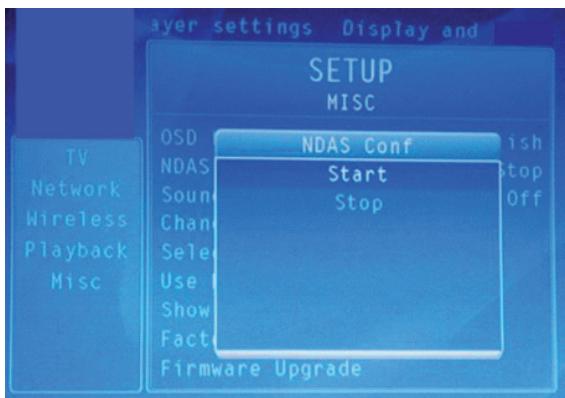
6) Select «Start»
7) Press «Enter»
8) Press the button «Set Up» to save the changes
Installing NDAS software on your computer:
1) Insert the CD Rom So Util provided with your So Smart in your CD drive
2) Select and open the folder NDAS
3) Click twice Setup.exe
4) Click on Next
5) Accept Terms License Agreement «after having read"
6) Select Next
7) Click on Install
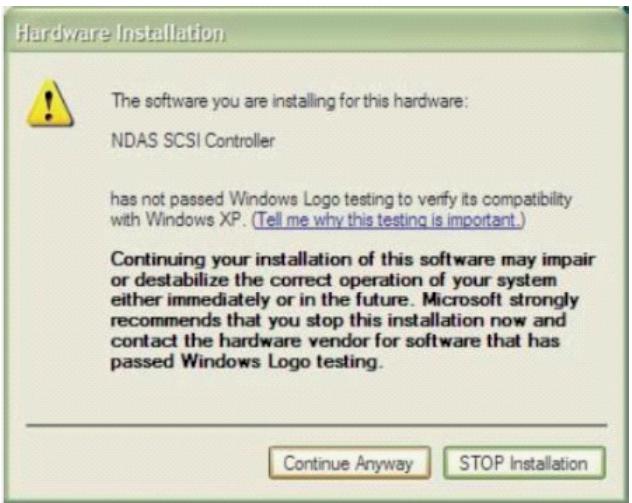
8) Click on «Continue Anyway (the driver was not certified Windows XP)
9) Click Finish
10) Click on Yes
11) Your computer will restart to save the changes
At this level two choices propose to you:
- Using the wired network (cable)
- Use WiFi (wireless)
We will proceed in a first time installation So Smart wired network and then we'll give you the procedure for the wireless network.
Setting the wired network:
Verify the So Smart is connected to your computer via cable network (RJ45) and the latter is switched on.
1) Place your mouse cursor on the taskbar at the bottom right corner of your screen on the icon «NDAS Device Management»
2 ) Click right on mouse button (or the left if you set your mouse for left-handers)
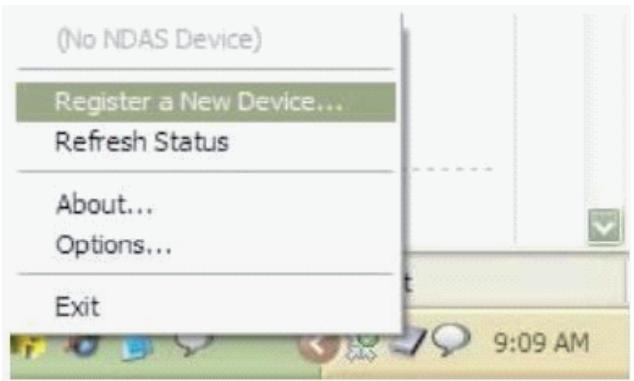
3) Select «Register a New Device» with the left mouse button
4) Click on Next
5) Leave «NDAS Device No» or entry the name you want (for example: So Smart).
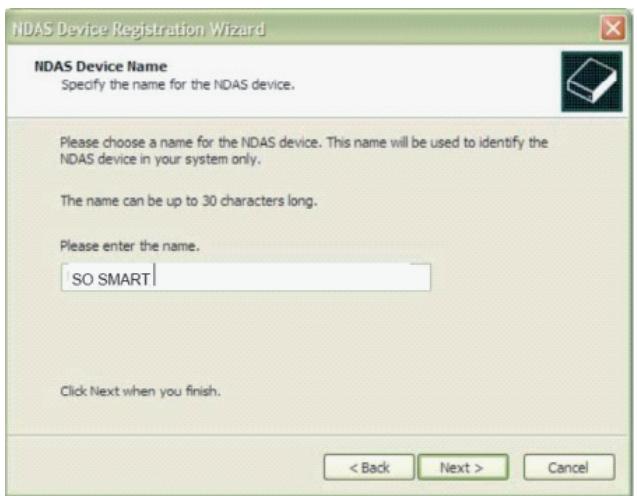
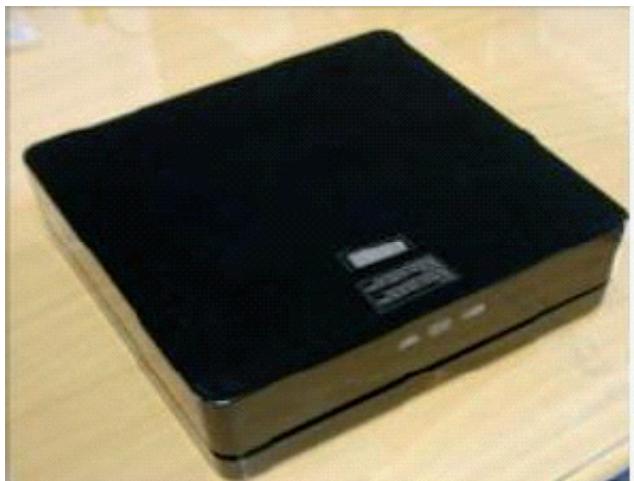
6) Enter on the first line code «NDAS Device ID» which is under your So Smart or the label pasted on the cover of the CD ROM So Util (NB: The code to grasp is that which appears under «Wired MAC and has 20 characters per block 5).
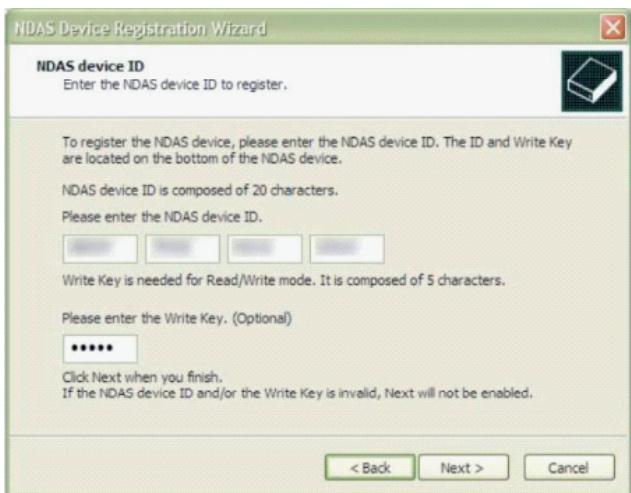
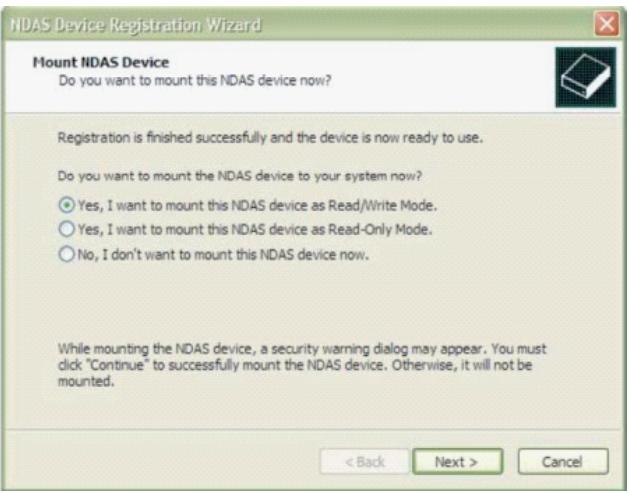
7) If you want to be able to write information on the hard drive of your So Smart you must also enter the code «Write Key», which includes 5 characters otherwise leave this line blank, click on «NEXT».
8) Click «Next»
9) Select the option that you are: A. Read / Write B. Read Only
10) Click «Next»
11) Your computer will then detect the new hardware and proceed with the installation of drivers needed for its operation
12) Click «Next»
13) Click on «Continue Anyway»
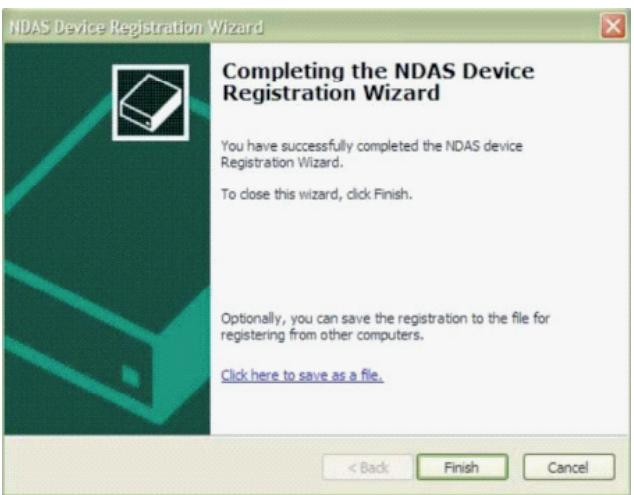
14) Click 2 times on «Finish»
15) The disk of So Smart will be automatically detected and the menu (below) will appear. Click on «Open folder to view files using Windows Explorer.
16) You can now move / rename / delete files So Smart through Windows Explorer
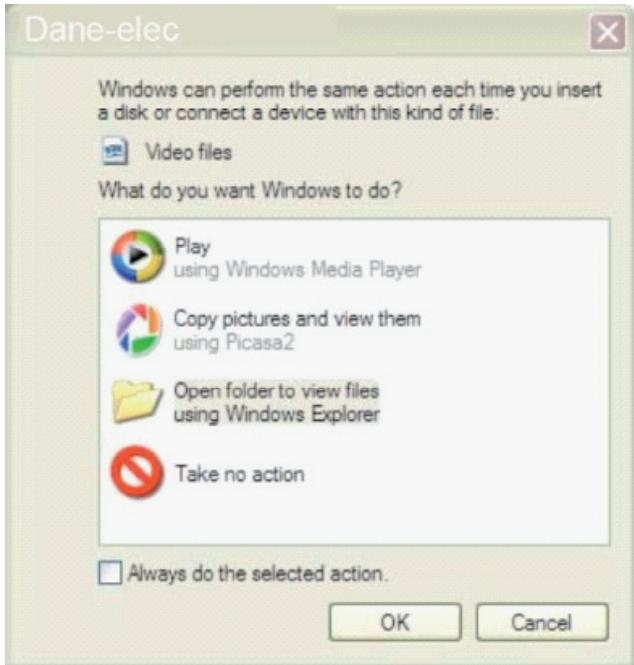
Your So Smart is now set for the function NDAS mode wired network, a function which will allow you to make streaming from your PC ie read data stored in your So Smart (films, photos, videos, music, documents...).
You can read simultaneously different data on your television and your computer screen.
Chapter 6 : Media Playback
6.1 Video Playback
When the So Smart player boots up, a list of all recently-played video files is displayed on the main panel.
The displayed list (icons) consists of the last SIX recently-played video files.
Using the Remote, navigate to one of these files and press ENTER / SELECT. Playback will resume from the last PAUSED / STOPPED position of that file.
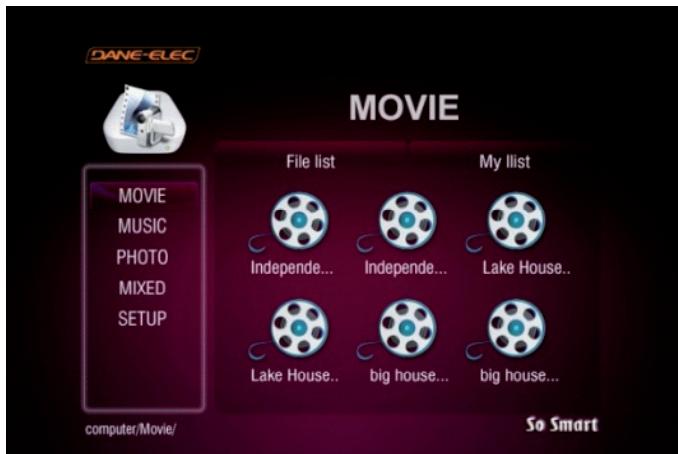
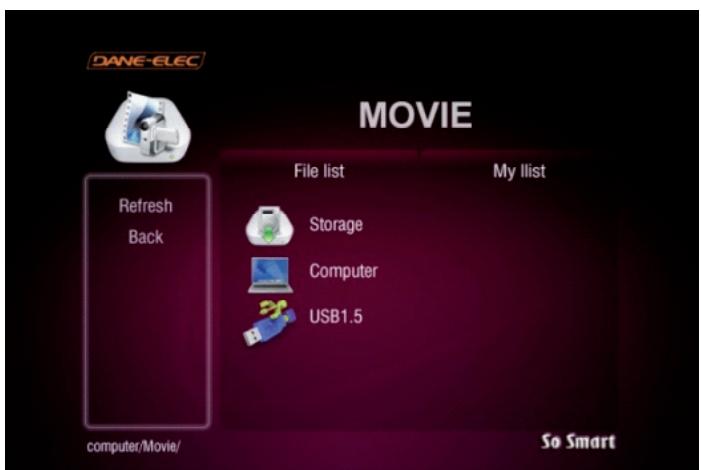
So Smart provides playback of video files residing on your PC
(via network streaming), external storage device (via USB-Host) or local IDE-HDD (installed inside the So Smart player)
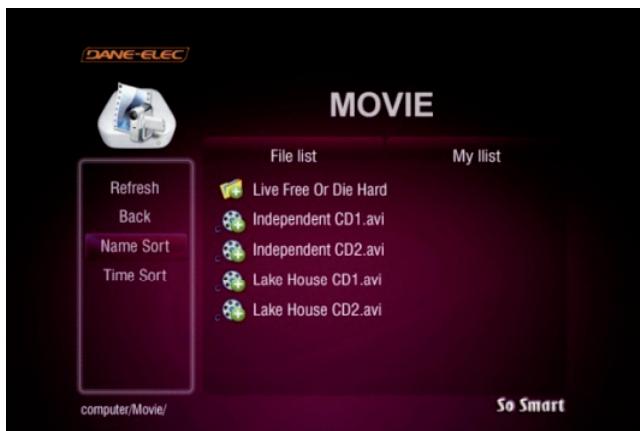
If you select MOVIE from the left-side navigation column, a list of all available video files is displayed.
If the device or folder does not appear or cannot be located, navigate to the left menu (see screen), select REFRESH and press ENTER / SELECT.
If you want to navigate to the previous screen, folder or device, press the RETURN button on the Remote Control.
Once the video files are visible on the display screen (e.g. TV), navigate (using the Remote) to the desired file and press PLAY (Sequential playback) or ENTER/SELECT (play selected file only).
You can sort (ascend/ descend) your video files by NAME and TIME. (Some AVI files may not be playable due to incompatible codec. Please check the codec of your video file to verify that it is compatible with the So Smart player)
Chapter 6 : Media Playback
During Video playback, Press VOLUME button on the Remote to display the video settings float box. Use UP/DOWN arrow keys to select Volume, Brightness, Contrast, Saturation, Subtitle settings options, ENTER / SELECT to change settings.
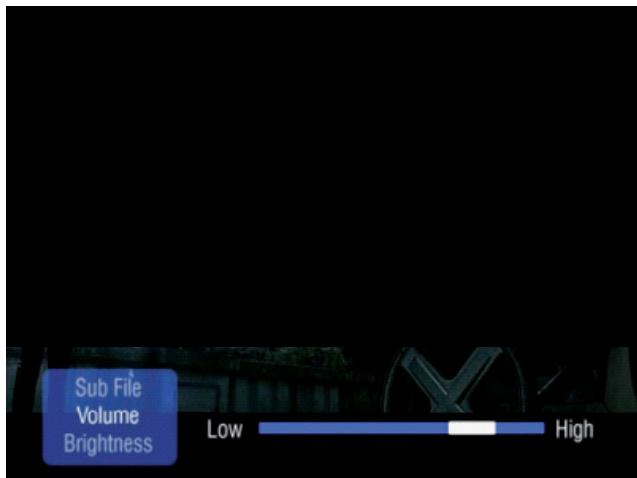
Changing Volume
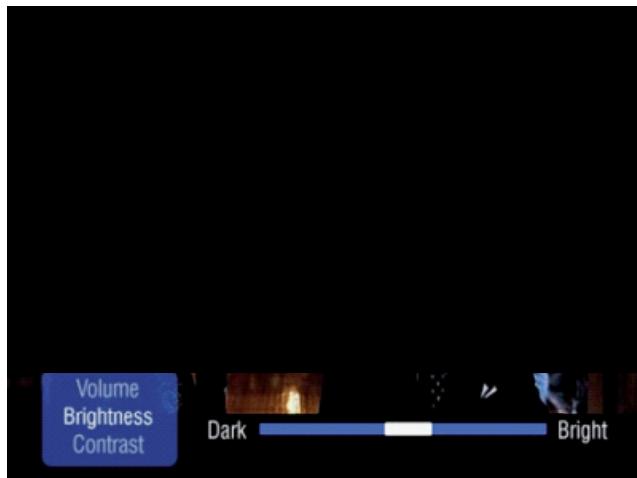
Modifying Brightness settings
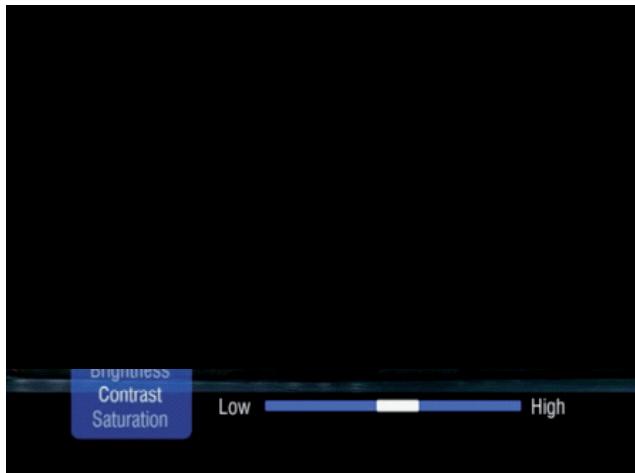
Modifying Display Contrast
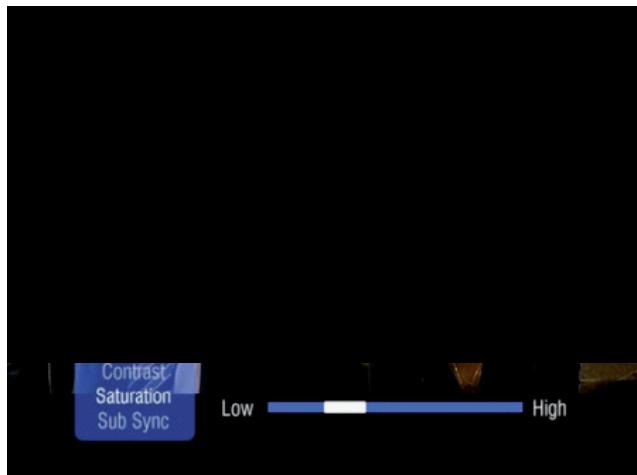
Changing Saturation Settings
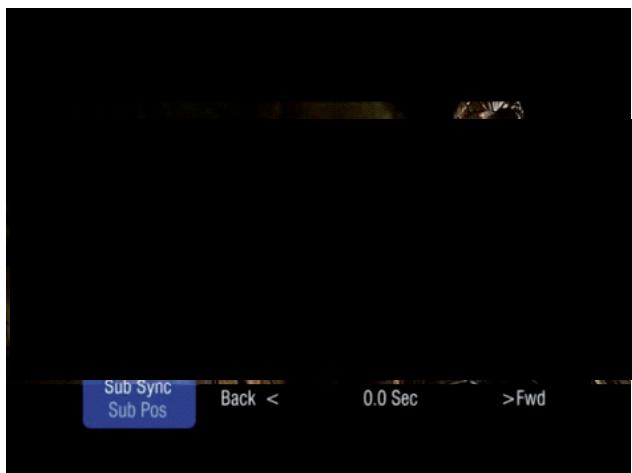
Synchronizing Subtitle Playback
So Smart REMOTE TIPS:
- Press the INFO button to display video file info such as Video/Audio Format, File Size, Subtitle, Time etc.
- Press the GOTO button and enter the time to jump to a desired time-stamp of the video file. During Video playback, press the A-B button to mark a start-point (A) and end-point (B). This function assigns a loop/ repeat video segment. Video between these two points will play indefinitely. Press the A-B button to release.
While the list of video files is displayed on the main panel, use the LEFT or RIGHT arrow key or the FF / FR buttons on the Remote to search for a video file by name (max 32 characters).
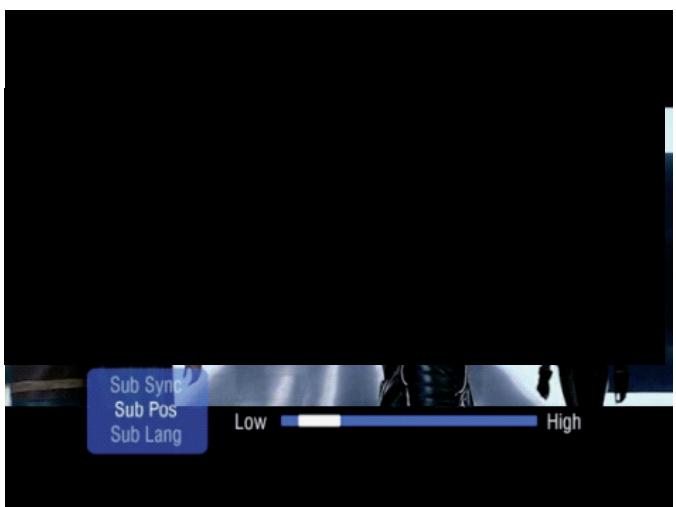
Changing Subtitle Display Position
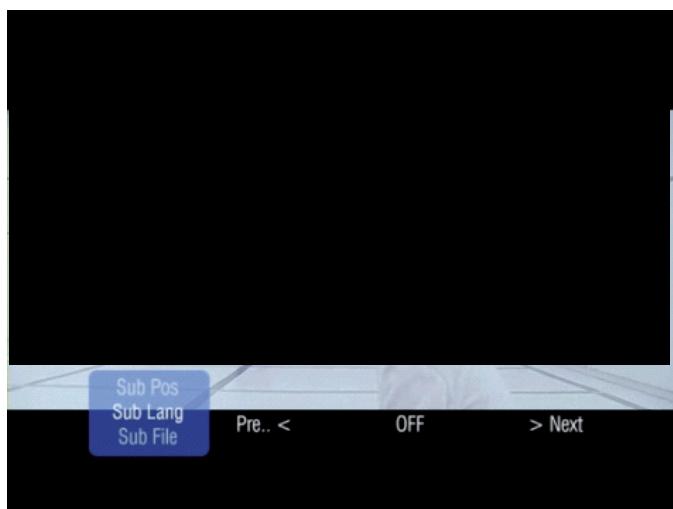
Choosing Subtitle Language
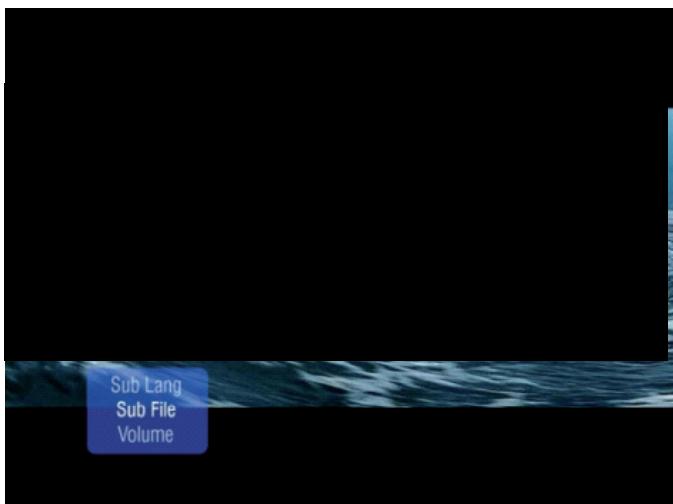
Choosing Subtitle File
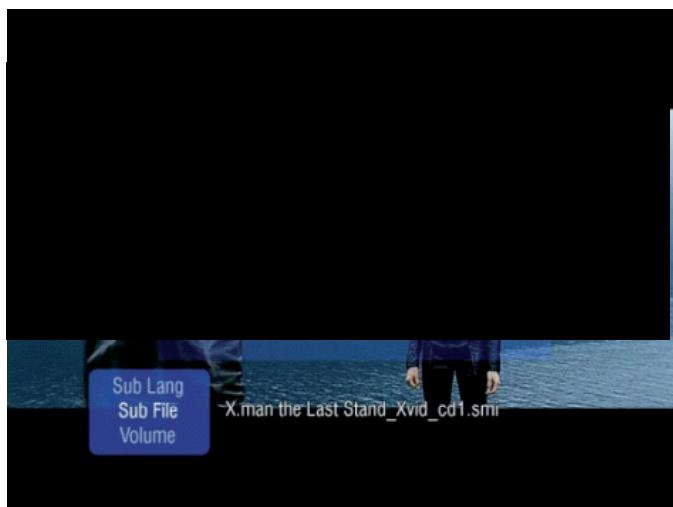
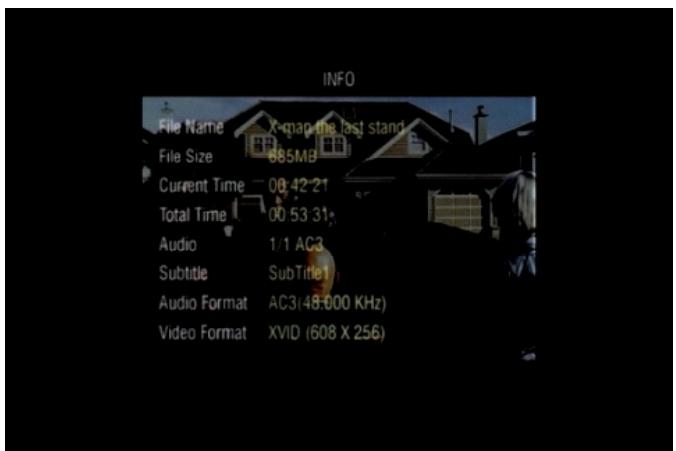
INFO BUTTON:
Display Basic File Information
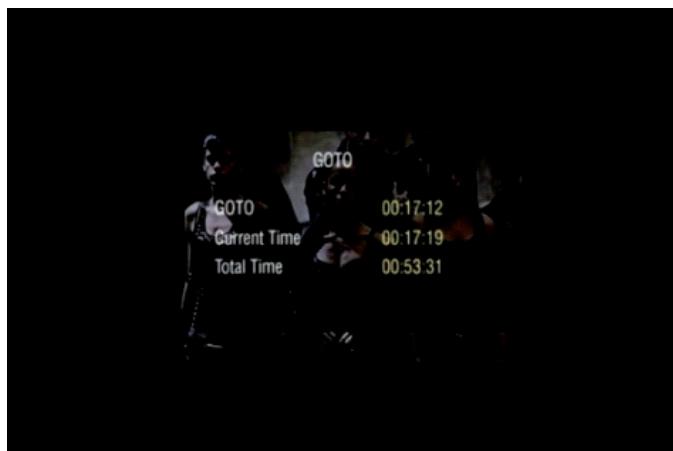
GOTO BUTTON:
Jump to desired time stamp.
Chapter 6 : Media Playback
6.2 AudioPlayback
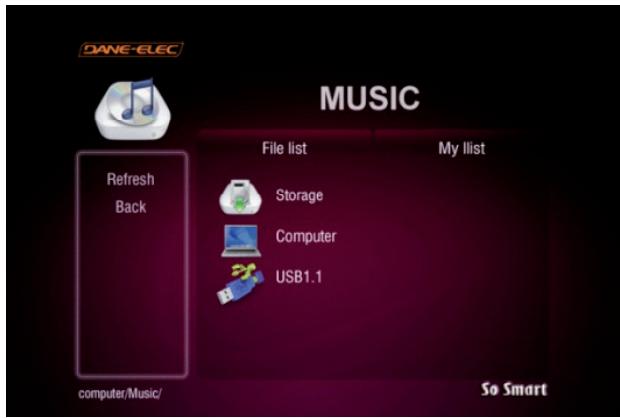
So smart provides playback of audio files residing on your PC(via network streaming), external storage device (via USB-Host) or local HDD (installed inside the So Smart player). A list of available devices is as depicted in this image.
If the device or folder does not appear or cannot be located, navigate to the left menu (see screen), select REFRESH and press ENTER / SELECT.
If you want to navigate to the previous screen, folder or device, press RETURN on the So Smart Remote Control
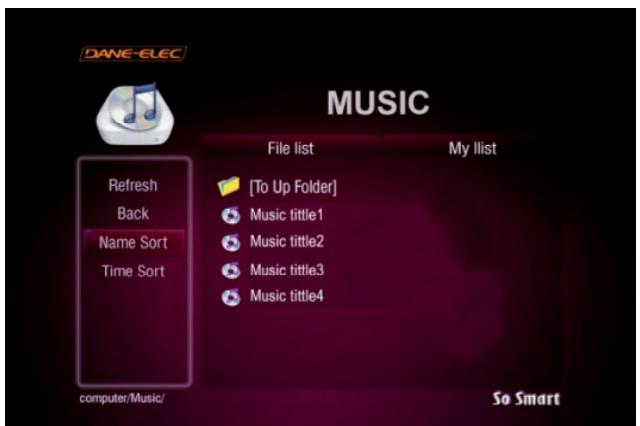
Using the Music JUKEBOX Function:
JUKEBOX function provides an excellent mechanism of playing and managing audio files.
In order to use the JUKEBOX function, first you have to select files to include in JUKEBOX list.
Suppose you have 10 audio files in a folder, navigate to the first file and press ENTER. Within few seconds, use the arrow buttons on So Smart Remote to scroll to FILE2 and press ENTER, move to FILE3 and press ENTER... and so on.
All the files that are selected in this fashion are automatically included in JUKEBOX list.
To playback JUKEBOX files, simply, use the PREV / NEXT buttons.
If you press the AUDIO button on the So Smart remote, a list of all available audio files will be displayed.
Once the audio files are visible on the display screen (e.g. TV), navigate (using the Remote) to the desired file and press PLAY (Sequential playback) or ENTER/SELECT (play selected file only). For example if you have 10 files in a folder, navigate to the first file and press PLAY. All files from File1 through File10 are played sequentially. If you navigate to File4 and press PLAY, then all files from File4 through File10 are played sequentially.
However, if you navigate to FILE4 and press ENTER/SELECT, then only FILE4 is played. Playback stops after FILE4 playback is completed.
You can sort (ascend/ descend) your audio files by NAME and TIME. (Some audio files may not be playable due to incompatible codec. Please check the codec of your audio file to verify that it is compatible with the So Smart player).
Chapter 6 : Media Playback
Use the RND / SEQ button on the So Smart Remote Control to toggle between Random vs Sequential playback of Audio files in JUKEBOX list. This feature can also be used for IMAGE playback.


Use the REPEAT button on the So Smart Remote Control to play an audio (music) file repeatedly. Toggle the button to remove repetition. This is a easy way to play a audio/ image file in LOOP.


To adjust volume, click the VOLUME button on the So Smart Remote Control. A vertical slider is displayed. Use + / - to change volume. The vertical slider fades away after 3 seconds of inactivity.
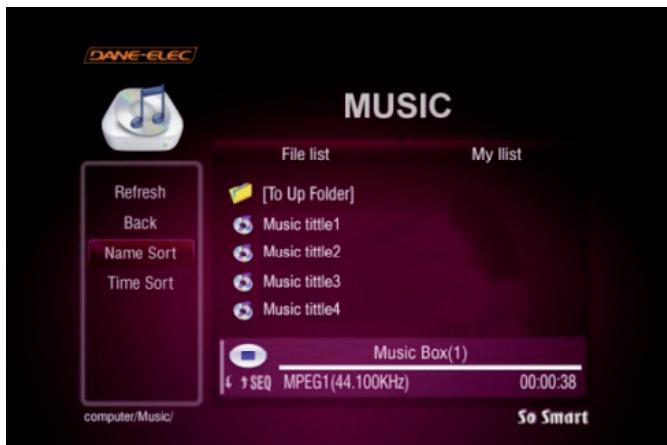
Also note the JUKEBOX function of file list display.
Filename1.mp3 (X/Y)
X - File number in the Jukebox List
Y - Total number of audio/image files selected in Jukebox list.

Web Radio can be used with So Smart by streaming if your network and router are compatible with and can connect to Web.
Chapter 6 : Media Playback
6.3 Internet radio Playback
When the So Smart player boots up, a list of all available locations where files are stored is displayed on the main panel.
So Smart provides playback of video files residing on your PC, on the internet (via network streaming), external storage device (via USB-Host) or local HDD (installed inside the So Smart).
Once your So Smart is connected to the network (via Wire or Wireless) So Smart regards the internet as an available location from which internet radio channels can be streamed and played.
Using the Remote, navigate to Internet Radio and press ENTER / SELECT.
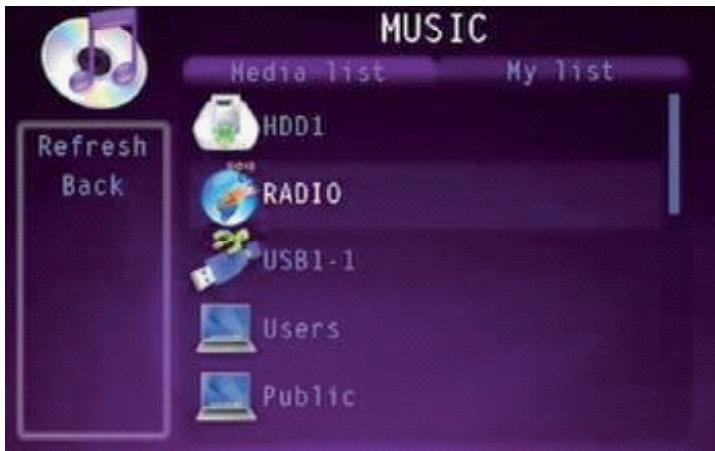
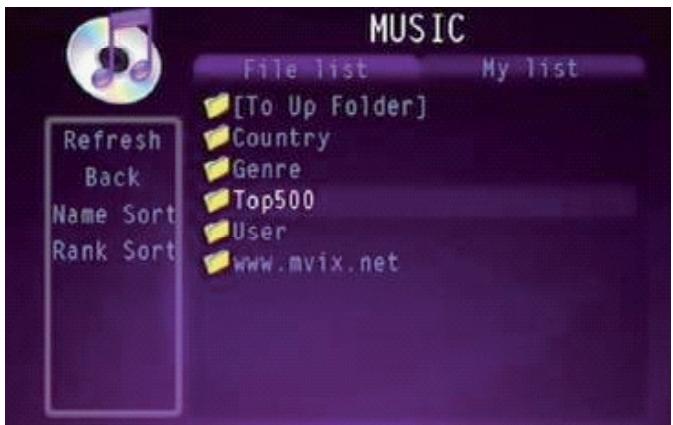
If you select INTERNET RADIO from the list, a list of all available radio genre files is displayed.
The list is divided so as to enable easy navigation between the different genres. If the device or folder does not appear or cannot be located, navigate to the left menu (see screen), select REFRESH and press ENTER / SELECT.
If you want to navigate to the previous screen, folder or device, press the RETURN button on the Remote Control.
Once the genre list is visible on the display screen (e.g. TV), navigate (using the Remote) to the desired file and press ENTER/SELECT.
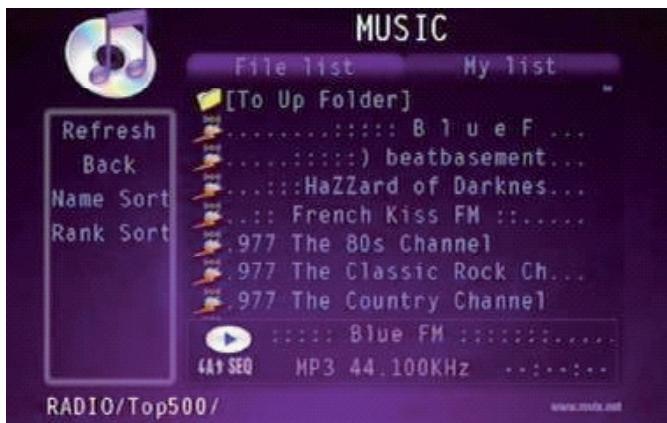
Once you choose the genre of your choice the channel list will become visible on the display screen (e.g. TV), navigate (using the Remote) to the desired channel and press PLAY or ENTER/SELECT.
You can sort (ascend/ descend) your video files by NAME and Rank.
(Some INTERNET RADIO files may not be playable or due to bandwidth issue. Please check your internet connection speed or your router to verify that it is compatible with the So Smart & make sure all downloading software are turned off)
Chapter 6 : Media Playback
6.4 Image Playback
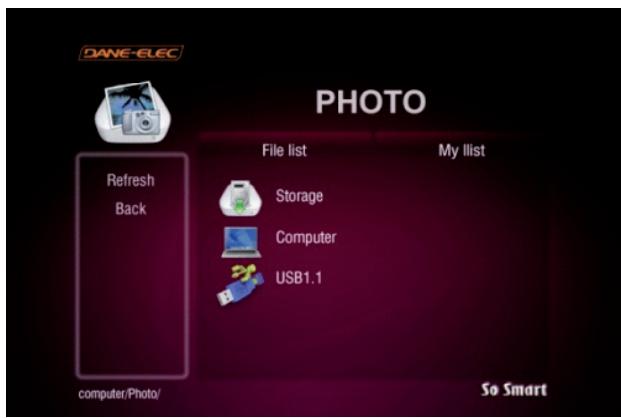
So Smart provides playback of digital image files residing on your PC (via network streaming), external storage device (via USB-Host) or local HDD (installed inside the So Smart player)
A list of available devices is as depicted in this image. If the device or folder does not appear or cannot be located, navigate to the left menu (see screen), select REFRESH and press ENTER / SELECT.
If you want to navigate to the previous screen, folder or device, press the RETURN button on the So Smart Remote Control.
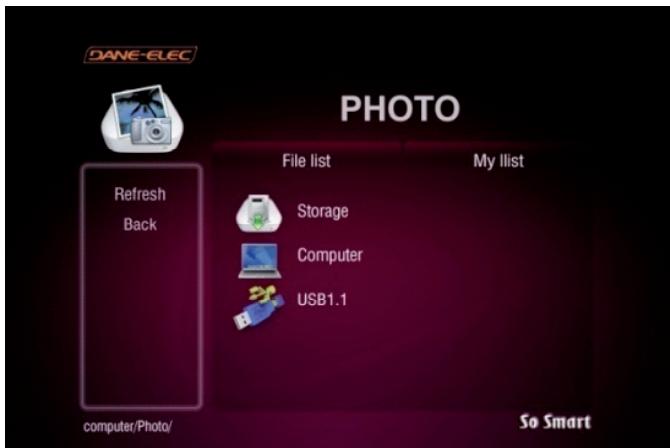
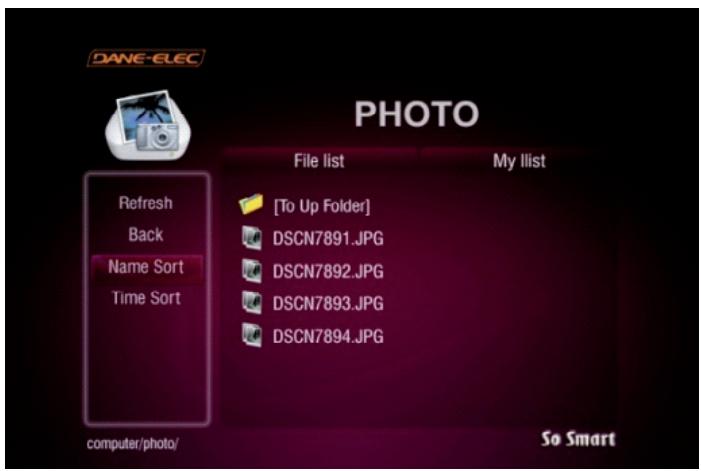
Once the digital image files are visible on the display screen (e.g. TV), navigate (using the Remote) to the desired file and press PLAY (continuous-sequential playback) or ENTER / SELECT (selected file playback only).
You can sort (ascend/ descend) your digital image files by NAME and TIME.
(Some image files may not be playable due to incompatible codec. Please check the codec of your digital image file to verify that it is compatible with the So Smart player).
Chapter 6 : Media Playback
6.5 Mixed-Media Playback
When the So Smart player boots up, a list of all recently-played media files is displayed on the main panel.
In case of video files, you can resume playback (from the point it was last stopped).
The list contains six files of each media type: video, audio and image i.e. a total of 18 files.
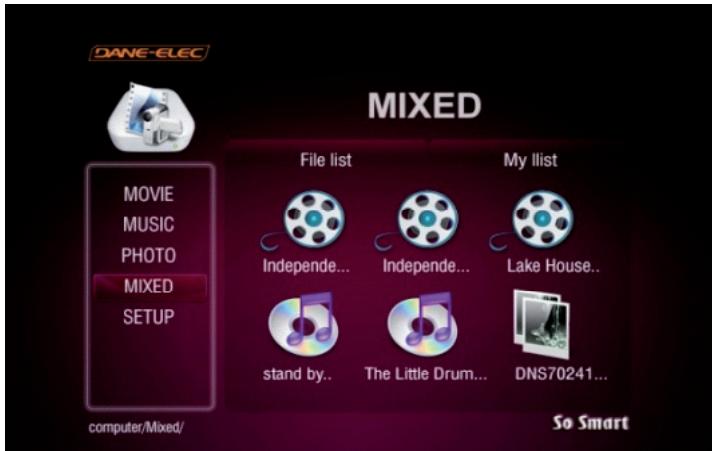
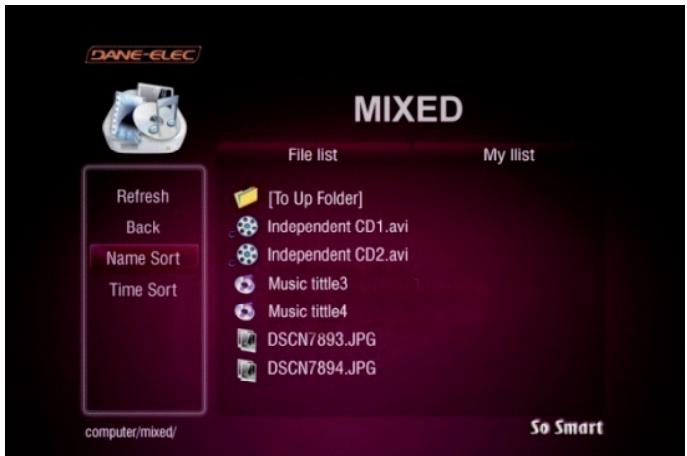
Select MIXED media list from the left navigation column.
The main panel will display the entire media collection available on your HDD (or Network-Shared folder or USB-host).
You can sort (ascend/ descend) your media files by NAME and TIME.
Navigate to the desired file on the main panel, select the file and press PLAY. (Some media files may not be playable due to incompatible codec.
Please check the codec of your media file to verify that it is compatible with the So Smart player).
MIXED media mode: It is a convenient and efficient to move between folders and select and play the desired media files.
REMEMBER:
Use PLAY button on So Smart remote to play all files in a folder continuously and sequentially.Use ENTER button on So Smart remote to play the individually-selected file only.
Chapter 6 : Media Playback
6.6 Using MY LIST for Media Playback
The MY LIST feature allows the creation of a list of your favorite files and folders. This feature enables you to bookmark and keep a list of commonly-used media files separately for easy and quick access and playback.
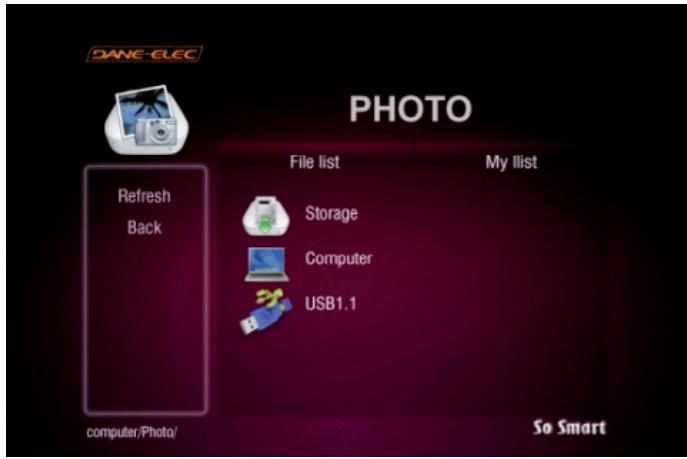
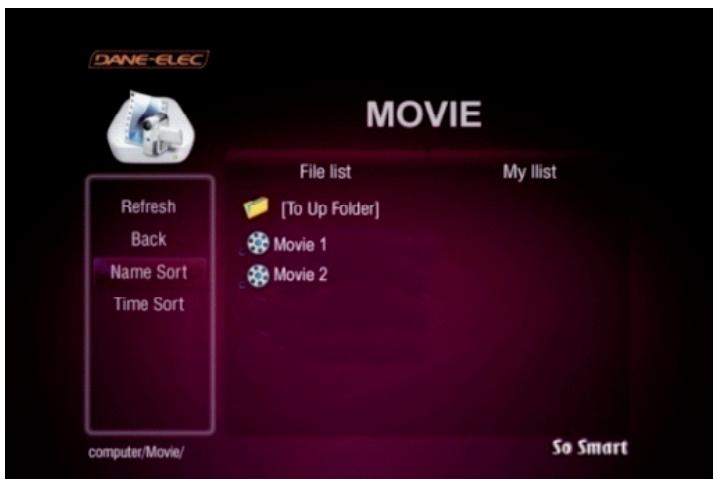
Use the navigation buttons on the So Smart Remote to move to MY LIST tab. A list of all files and folders included in MY LIST is displayed.
To remove / delete any file / folder from MY LIST, navigate and select the desired file / folder and press the DELETE button on the So Smart Remote Control.
Select the file(s) and/or folder(s) that you will like to include in MY LIST and press the ADD button on the So Smart Remote. The file / folder will be added to MY LIST.
The ADD icon will be visible on the main panel to confirm addition of an item to MY LIST.


Chapter 7: How do I...
7.1 ... play music files randomly or in Shuffle Mode?
Using the So Smart Remote, navigate to the folder containing music files.
- Using the So Smart Remote, navigate, and Press ENTER button to select and add all audio files that you intend to randomize. These files will be in a JUKEBOX list. (Refer Page 36 – AUDIO PLAYBACK).
- Press JUKE BOX button on the So Smart Remote, and then Press RND/SEQ button.
All selected files will play in Shuffle mode. Press RND/SEQ button again to play files sequentially.
7.2 ... create a playlist or MY LIST?
- Using the So Smart Remote, navigate to the folder containing files that you will like to add in the playlist.
Using the So Smart Remote, navigate, select media files one at a time. Press ADD button on your remote to add these - files to MY LIST and create a Playlist.
- Use DEL button on So Smart Remote to remove the selected file from MY LIST.
- All Playlists are automatically stored until removed. NOTE: Playlists can be saved even when the unit is powered off.
7.3 ... play a video in a loop or continuous repeat?
Using the So Smart Remote, navigate to the folder containing files that you will like to play in LOOP.
Using the So Smart Remote, navigate, select the video file(s) for intended for continuous repeat.
- Press ADD button on your remote to add these files to MY LIST and create a Playlist.
- Using So Smart Remote, press REPEAT button to play the MY LIST file(s) in LOOP or in continuous repeat playback.
· All Playlists are automatically stored until removed . Playlists can be saved even when the unit
7.4 ... play music while watching photo slideshow?
- Press MEDIA button on the So Smart Remote to choose MIXED Media Mode. (You may have to press this button 2-3 times to toggle to MIXED Media Mode)
Using the So Smart Remote, navigate to the folder containing audio files that you will like to use for background music.
Using the So Smart Remote, Press JUKEBOX button, select and start audio playback. - Press JUKEBOX button again to come out of JUKEBOX mode.
Using So Smart Remote, navigate to the folder location containing your digital photos. - Start Digital Photo slideshow by pressing PLAY button on the So Smart Remote. (Remember DO NOT initiate slideshow playback using the ENTER button. ENTER button playbacks only ONE media file at a time)
7.5 ... change the subtitle language?
- Start Video file playback. Ensure that the subtitle files are located in the same folder as the Video file.
- During Video File playback, press FUNC button on the So Smart Remote. The Display Control Options are presented on the screen.
- Using the So Smart Remote, navigate and select the option for Subtitle Language. Choose and Select the desired language.
7.6 ... backup and play a DVD?
- A movie DVD consists of a bunch of VOB and IFO files. These files can be transferred to the So Smart Player via the USB2.0 or USB-Host Port. The files can be transferred from a PC, an external storage device, a USB flash drive or even an external DVD-ROM.
- The network streaming function can be used to stream DVD files from the PC-DVDROM to the So Smart player.
- in Order to extract and transfer the VOB and IFO files, the DVD should be decrypted.
Decrying DVDs is beyond the scope of this manual. Note: Decrypting Copyrighted DVDs can be illegal. - Simply drag and drop all VOB and IFO files from the DVD to the so Smart-HDD. Using folders and sub folders is a good house-keeping practice when backing up a number of DVDs.
- Using the So Smart Remote, select the folder containing the VOB and IFO files. Press PLAY on the So Smart Remote to play the files like a normal DVD playback.
Chapter 8: Firmware Upgrade
Firmware version check
1) Connect your So Smart Hi-Def Multimedia Player to your TV and power-on the player.
2) Press the SETUP button on the Remote Control. Using the So Smart Remote, navigate (arrow buttons), scroll down and Select
"MISC". Then use the RIGHT ARROW button on the So Smart Remote to scroll down and select "SHOW FIRMWARE VER"
3) Check the latest firmware version of your So Smart Player.
How to Upgrade Firmware:
1) Press the SETUP button on the SO SMART remote. Navigated and select MISC on the left menu column.
2) Use the arrow buttons on the So Smart Remote to navigate to FIMWARE UPGRADE option. The player will search for Firmware Upgrade file within So Smart-HDD, USB-Host.
3) RECOMMENDED: To ensure a smooth error-free upgrade process transfer process, the firmware upgrade file to the local So Smart-HDD before performing the firmware upgrade procedure.
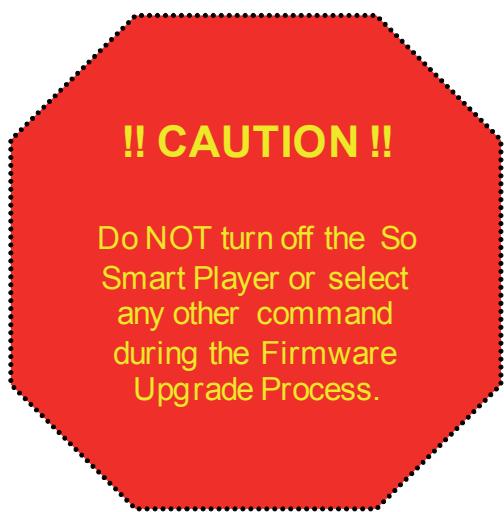
4) CAUTION!! Do NOT turn off the So Smart or select any other command during the Firmware Upgrade Process.
Troubleshooting
Under no circumstances should you try to repair the system yourself, as this will invalidate the warranty. Do not open the system as there is a risk of electric shock. If a fault occurs, first check the points listed below before taking the system for repair.
| No Screen Display. Video Output not working. | 1. Press the TVOUT button on So Smart remote to toggle between TVOUT settings. 2. Check the TV-OUT settings and cable-type on the So Smart player and ensure that it is consistent with the VIDEO-IN settings of the TV. 3. Ensure that the Video Cable is securely connected to the So Smart player and to the TV. |
| The Player does not respond to the Remote Control. Menu Items cannot be selected. | 1. Reduce the distance between the Remote and the So Smart Player and try again. 2. Replace remote batteries 3. Perform a Hardware Reset Procedure |
| So Smart player does not recognize the HDD. | 1. Check the IDE / USB connection to the Hard Disk Drive (HDD). 2. Check to ensure that the HDD has been correctly partitioned and formatted. 3. Try changing the jumper settings to MASTER or SINGLE. If that does not work, try SLAVE or CABLE SELECT (CS) jumpers. |
| Unable to Play DivX®, or Xvid, or MPEG, or AVI video files etc. (or Black Screen problem) | 1. Ensure that the selected video file contains supported video codec. 2. Defragment the So Smart-HDD. 3. If playing a file from a Network-shared PC, there may be too much traffic on the network (check for virus). Try to reboot your PC and establish connection again. |
| Cannot view the Network -shared Folder on your networked-PC. | 1. Check network connection between your PC and the So Smart Player. 2. Reboot the So Smart Player and re-establish the connection. 3. Depending on network environment, there may be a delay in searching for the network. Try REFRESH. 4. Ensure that WEP and ESSID settings are accurate. |
WARNING:
To reduce the risk of fire or electric shock, do not expose your So Smart Media player to rain or moisture.
Limited Warranty
Your So Smart Wireless Hi-Definition Multimedia Player comes with a full 2-yr manufacturer's warranty on parts and labor. The Warranty coverage on this player begins the day you buy your product. This warranty covers defects in manufacturing only, and expressly excludes coverage for excessive wear and tear, physical or accidental abuse, loss and theft. Kindly contact your local distributor for the warranty and service procedures. Warranty service is available in all countries where the product is officially distributed. The warranty covers any service or exchange required for a defective unit during the coverage period. The service / exchange opportunity ends two years after the date of purchase. The replacement product is covered only for the warranty period of the original product. When the warranty on the original product expires, the warranty on all replaced products also expires. When it is necessary for you to ship the product to distributor / service center for service / exchange, you will pay the shipping costs for shipment to the distributor. The distributor will pay the shipping costs when returning the product to you.
To receive warranty service, please be sure to have your proof of purchase and a barcode from the product's packaging. Warranty requests cannot be processed without proof of purchase.
In no event shall Dane-Elec's (or its distributors') liability exceed the price paid for the product from direct, indirect, special, incidental, or consequential damages resulting from the use of the product, its software, or its documentation. Dane-Elec does not offer refunds for any product. As a part of our warranty service, we offer to repair or replace the product. We offer cross shipments, a faster process for processing and receiving your replacement. Dane-Elec and its distributor pay for ground shipping only. Please contact Dane-Elec's Distributor in your country for more details.
Your warranty does not cover the following:
Shipping charges to return defective product.
Labor charges for installation or setup of the product, adjustment of customer controls on the product, and installation or repair of systems outside of the product.
Product repair and/or part replacement because of improper installation, connections to improper voltage supply, abuse, neglect, misuse, accident, unauthorized repair or other cause not within our control.
- Damage occurring to product during shipping when improperly packaged or cost associated with packaging.
- Incidental or consequential damages resulting from the product. (Some states do not allow the exclusion of incidental or
consequential damages, so the above exclusion may not apply to you. This includes, but is not limited to, prerecorded material, whether copyrighted or not.) Dane-Elec and its other partners and distributors DO NOT assume any responsibility in any way for how you choose to use this product, associated firmware and this manual. By purchasing or receiving this product, you automatically agree to this disclaimer, and eliminate this company and any affiliates of any responsibility in this matter.
LIMITATION OF LIABILITY AND REMEDY...
DANE-ELEC or ITS DISTRIBUTORS ARE NOT LIABLE UNDER ANY CIRCUMSTANCES FOR ANY DIRECT, INDIRECT, SPECIAL, INCIDENTAL, OR CONSEQUENTIAL DAMAGES, HOWSOEVER INCurred, EVEN IF NOTIFIED OF THE POSSIBILITY OF SUCH DAMAGES. TO THE EXTENT PERMITTED BY LOCAL LAW, THE REMEDIES PROVIDED IN THIS WARRANTY STATEMENT ARE YOUR SOLE AND EXCLUSIVE REMEDY. THIS LIMITED WARRANTY GIVES YOU SPECIFIC LEGAL RIGHTS, AND YOU MAY ALSO HAVE OTHER RIGHTS WHICH VARY FROM STATE/PROVINCE TO STATE/PROVINCE.
REMEMBER...Please record below the model and serial numbers found on the product.
MODEL #
SERIAL #
Copyright and Legal Attributions
All textual references, brands, logos or product names are the copyrights, trademarks or registered trademarks of their respective owners/holders. Use of these trademarks on our website, products, literature, communications, manuals, advertising material, press releases, etc. do not represent endorsements by the respective companies for Dane-Elec's products, services or brand, but merely reflect their possible compatibility with our products.
- DivX® is a registered trademark of DivX Networks Inc. DivX is a digital video compression format based on the MPEG-4 technology.
- DivX files can be downloaded over high-speed lines in a relatively short time without sacrificing the quality of the digital video dolby ®, AC3 are registered trademarks of dolby ® Laboratories Licensing Corp.
- DTS^TM is a registered trademark of Digital Theater Systems, Inc.
Google is a trademark of Google Technology, Inc.
HDMI is a trademark of HDMI Licensing LLC. - iPod® is a registered trademark of Apple Computer, Inc.
- PSP™ (PlayStation Portable) is a trademark of Sony Computer Entertainment Inc.
- Java™ and all Java-based trademarks are trademarks of Sun Microsystems, Inc. in the United States, other countries, or both.
UNIX is a registered trademark of The Open Group in the United States and other countries.
XVID is a trademark of XVID Project
REFERENCES TO CORPORATIONS, THEIR SERVICES, PRODUCTS and BRANDS WITHOUT WARRANTY OF ANY KIND, Either EXPRESSED OR IMPLIED. IN NO EVENT SHALL DANE-ELEC. BE LIABLE FOR ANY SPECIAL, INCIDENTAL, INDIRECT OR CONSEQUENTIAL DAMAGES OF ANY KIND, OR ANY DAMAGES WHATEVER, INCLUDING, WITHOUT LIMITATION, THOSE RESULTING FROM LOSS OF USE, DATA OR PROFITS, WHETHER OR NOT ADVISED OF THE POSSIBILITY OF DAMAGE, AND ON ANY THEORY OF LIABILITY, ARISING OUT OF OR IN CONNECTION WITH THE USE OR PERFORMANCE OF THIS INFORMATION.
Any Dane-Elec publication may include technical inaccuracies or typographical errors. The information presented here is intended for general information only and is subject to change without notice. ALL INFORMATION IS PROVIDED «AS IS» WITHOUT WARRANTY OF ANY KIND, Either EXPRESSED OR IMPLIED, INCLUDING BUT NOT LIMITED TO THE IMPLIED WARRANTYES OR CONDITIONS OF MERCHANTABILITY OR FITNESS FOR A PARTICULAR PURPOSE, OR NON-INFRINGEMENT. SOME JURISDICTIONS DO NOT
ALLOW THE EXCLUSION OF IMPLIED WARRANTYES, SO THE ABOVE EXCLUSION MAY NOT APPLY TO YOU.
Federal law provides severe civil and criminal penalties for the unauthorized reproduction, distribution, rental or digital transmission of copyrighted video and audio files. (Title 17, United States Code, Sections 501 and 506). So Smart players are designed to assist you in backing up, storing and reproducing material which you own the copyright for or for which you have obtained permission from the copyright owner. UNLESS YOU OWN THE COPYRIGHT OR HOLD PERMISSION TO COPY FROM THE COPYRIGHT OWNER, YOU MAY BE VIOLATING COPYRIGHT LAW AND BE SUBJECT TO PAYMENT OF DAMAGES AND OTHER REMEDIES.
IF YOU ARE UNCERTAIN ABOUT YOUR RIGHTS, YOU SHOULD CONTACT YOUR LEGAL ADVISOR. YOU ASSUME FULL RESPONSIBILITY FOR THE LEGAL AND RESPONSIBLE USE OF THE SO SMART MULTIMEDIA PLAYER. Use of So Smart Players, its accessories and software/firmware for illegal purposes is strictly prohibited.
Glossary
| Aspect Ratio | Used to describe the distribution of pixels in a digital image. Increasing the aspect ratio of an image lowers the efficiency of the use of the pixels. The resulting image will have less detail than an image with the same amount of pixels, but with a lower aspect ratio. | MP3 | Also known as MPEG-1 Audio Layer 3. A popular digital audio format that was designed to reduce the amount of data required to represent audio, without compromising the audio quality. |
| Audio Video Interleave (AVI) | Developed by Microsoft, a multimedia container format Whic h contains both audio as well as video data allowing Simultaneous playback. | MPEG | The Moving Picture Experts Group is a working group that is responsible for the development of video and encoding standards. |
| Bandwidth | The range of signal frequencies that a piece of audio or video equipment can encode or decode; the difference between the limiting frequencies of a continuous frequency band. Video uses higher frequency that audio, thus requires a wider bandwidth. | NTSC | Adopted by the National Television Systems Committee, the analog television system that is currently in use in Canada, Japan, South Korea, the United States and some other countries, mostly in the Americas. |
| Composite Video | A picture signal combined with synchronization and (possibly) color information. It is a composite of three source signals called Y, U and V (together referred to as YUV). | OGG Vorbis | An audio compression format that is absolutely free, open and unpatented. |
| DivX® | Created by DivX Inc., a video codec that is able to compress large video segments into smaller sizes while maintaining a high visual quality. | Phase Alternation Line (PAL) | The analog (a 625-line / 50 Hz) television system that is currently in use in Europe and several countries in Asia. |
| Dolby® Digital or AC3 | Audio compression technology developed by dolby® laboratories. The technology contains up to 6 channels of sound, five channels for normal range speakers, which include Right front, Center, Left Front, Right Rear and Left Rear, as well as one channel for the subwoofer. Mono and Stereo usages are also supported by this format. | Progressive Scan | A method for displaying, storing or transmitting moving images in which the lines of each frame are drawn in sequence. It subjectively increases vertical resolution and reduces flickering. |
| Digital Rights Management (DRM) | technology used by publishers to control access to and usage of hardware and digital data, such as software, music and movies. | S-Video | Separate video is an analog video signal that carries the video data as two separate signals. S-Video works in 480i or 576i resolution. |
| Digital Theater Systems (DTSTM) | A multi-channel digital surround sound form at that is used for theatrical as well as consumer grade applications. | DVD-Video Object (VOB) | A file format that contain DVD-Video media. It includes the video, audio, subtitle and the menu contents in a streaming format. |
| Downmixing | Downmixing allows playback device' to deliver a 5.1 channel signal to a mono signal. This allows the traditional 2-CH television to use a 5.1CH audio signal. | VBR | Variable Bit Rate means that a bit stream has a changing number of bits per second. Simple scenes can be assigned a low bit rate, with complex scenes using a higher bit rate. This enables maintaining the consistency across audio and video quality with optimal file size. |
| Hi-Definition (HDTV) | Broadcasting of television signals with a significantly higher resolution than traditional formats, such as PAL or NTSC, would allow. | Windows Media Audio (WMA) | A Microsoft product that is a compressed audio format developed to compete with the MP3 audio format. |
Dane-Elec. MAKES THIS DOCUMENT AVAILABLE ON AN «AS IS» BASIS AND MAKES NO WARRANTY, EXPRESS OR IMPLIED, AS TO THE ACCURACY, CAPABILITY, EFFICIENCY, MERCHANTABILITY, OR FUNCTIONING OF THIS DOCUMENT. IN NO EVENT WILL DANE-ELEC BE LIABLE FOR ANY GENERAL, CONSEQUENTIAL, INDIRECT, INCIDENTAL, EXEMPLARY, OR SPECIAL DAMAGES, EVEN IF DANE-ELEC HAS BEEN ADVISED OF THE POSSIBILITY OF SUCH DAMAGES.
R&TTE Certification
English : Hereby, Dane-Elec, declares that this So Smart is in compliance with the essential requirements and other relevant provisions of Directive 1999/5/EC.