
DV-D01U - Media player TASCAM - Free user manual and instructions
Find the device manual for free DV-D01U TASCAM in PDF.


| Product type | Media player (DVD/Blu-ray optional) |
| Brand | TASCAM |
| Model | DV-D01U |
| Dimensions (W x D x H) | 430 x 280 x 80 mm |
| Weight | 3.5 kg |
| Power supply | 100-240 V AC, 50/60 Hz |
| Power consumption | 25 W |
| Supported disc formats | DVD-Video, DVD-R/RW, DVD+R/RW, CD-Audio, CD-R/RW, VCD, SVCD |
| USB file formats | MP3, WMA, AAC, JPEG, DivX, MPEG-4, AVI, MKV |
| Video outputs | HDMI (1080p), Composite (RCA), S-Video (optional) |
| Audio outputs | Digital (optical/coaxial), Analog stereo (RCA) |
| Main functions | DVD/CD playback, USB, loop playback, zoom, search, track programming |
| Maintenance and cleaning | Use a soft dry cloth to clean the casing. Clean the lens with a suitable cleaning kit. |
| Safety | Read the manual before use. Do not expose to moisture. Use on a stable surface. |
| Spare parts and repairability | Contact TASCAM customer service for parts and repairs. |
| General information | Class A (professional use). May cause radio interference in a domestic environment. |
Frequently Asked Questions - DV-D01U TASCAM
User questions about DV-D01U TASCAM
0 question about this device. Answer the ones you know or ask your own.
Ask a new question about this device
Download the instructions for your Media player in PDF format for free! Find your manual DV-D01U - TASCAM and take your electronic device back in hand. On this page are published all the documents necessary for the use of your device. DV-D01U by TASCAM.
USER MANUAL DV-D01U TASCAM
TEAC Professional Division
DV-DO1U
DVD PLAYER
OWNER'S MANUAL








Digital Direct Progressive Scan
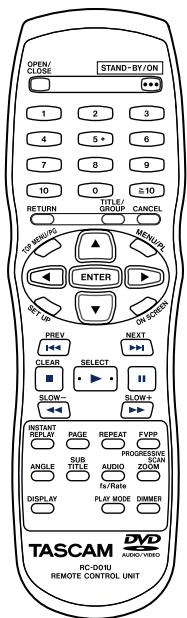


CAUTION
RISK OF ELECTRIC SHOCK
DO NOT OPEN

CAUTION: TO REDUCE THE RISK OF ELECTRIC SHOCK, DO NOT REMOVE COVER (OR BACK). NO USER-SERVICEABLE PARTS INSIDE. REFER SERVICING TO QUALIFIED SERVICE PERSONNEL.

The lightning flash with arrowhead symbol, within equilateral triangle, is intended to alert the user to the presence of uninsulated "dangerous voltage" within the product's enclosure that may be of sufficient magnitude to constitute a risk of electric shock to persons.

The exclamation point within an equilateral triangle is intended to alert the user to the presence of important operating and maintenance (servicing) instructions in the literature accompanying the appliance.
This appliance has a serial number located on the rear panel. Please record the model number and serial number and retain them for your records.
Model number
Serial number
WARNING: TO PREVENT FIRE OR SHOCK HAZARD, DO NOT EXPOSE THIS APPLIANCE TO RAIN OR MOISTURE.
For U.S.A.
TO THE USER
This equipment has been tested and found to comply with the limits for a Class A digital device, pursuant to Part 15 of the FCC Rules. These limits are designed to provide reasonable protection against harmful interference when the equipment is operated in a commercial environment. This equipment generates, uses, and can radiate radio frequency energy and, if not installed and used in accordance with the instruction manual, may cause harmful interference to radio communications.
Operation of this equipment in a residential area is likely to cause harmful interference in which case the user will be required to correct the interference at his own expense.
CAUTION
Changes or modifications to this equipment not expressly approved by TEAC CORPORATION for compliance could void the user's authority to operate this equipment.
For the customers in Europe
WARNING
This is a Class A product. In a domestic environment, this product may cause radio interference in which case the user may be required to take adequate measures.
a) Applicable electromagnetic environment: E4
b) Peak intrush current: 2.6 A
1 Read these instructions.
2 Keep these instructions.
3 Heed all warnings.
4 Follow all instructions.
5 Do not use this apparatus near water.
6 Clean only with dry cloth.
7 Do not block any ventilation openings. Install in accordance with the manufacturer's instructions.
8 Do not install near any heat sources such as radiators, heat registers, stoves, or other apparatus (including amplifiers) that produce heat.
9 Do not defeat the safety purpose of the polarized or grounding-type plug. A polarized plug has two blades with one wider than the other. A grounding type plug has two blades and a third grounding prong. The wide blade or the third prong are provided for your safety. If the provided plug does not fit into your outlet, consult an electrician for replacement of the obsolete outlet.
10 Protect the power cord from being walked on or pinched particularly at plugs, convenience receptacles, and the point where they exit from the apparatus.
11 Only use attachments/accessories specified by the manufacturer.
12 Use only with the cart, stand, tripod, bracket, or table specified by the manufacturer, or sold with the apparatus. When a cart is used, use caution when moving the cart/apparatus combination to avoid injury from tip-over.
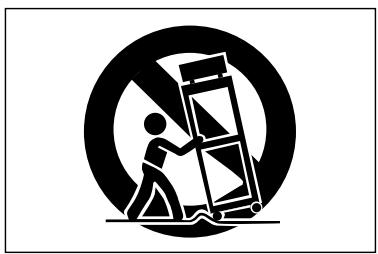
13 Unplug this apparatus during lightning storms or when unused for long periods of time.
14 Refer all servicing to qualified service personnel. Servicing is required when the apparatus has been damaged in any way, such as power-supply cord or plug is damaged, liquid has been spilled or objects have fallen into the apparatus, the apparatus has been exposed to rain or moisture, does not operate normally, or has been dropped.
- Do not expose this apparatus to drips or splashes.
- Do not place any objects filled with liquids, such as vases, on the apparatus.
- Do not install this apparatus in a confined space such as a book case or similar unit.
- The apparatus draws nominal non-operating power from the AC outlet with its POWER switch in the off position.
- The apparatus should be located close enough to the AC outlet so that you can easily grasp the power cord plug at any time.
- An apparatus with Class I construction shall be connected to an AC outlet with a protective grounding connection.
- Batteries (battery pack or batteries installed) should not be exposed to excessive heat such as sunshine, fire or the like.
- Excessive sound pressure from earphones and headphones can cause hearing loss.
- The equipment draws nominal non-operating power from the AC outlet with its STAND-BY/ON in the Stand-By position.
Safety Information
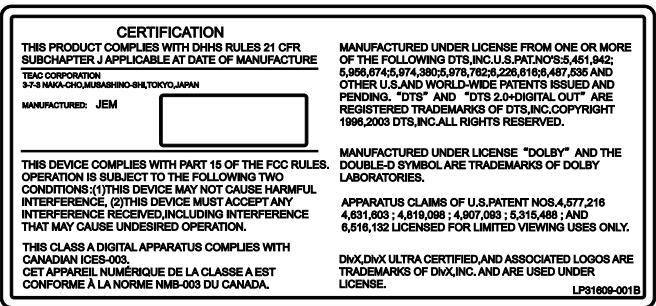
This product has been designed and manufactured according to FDA regulations "title 21, CFR, chapter 1, subchapter J, based on the Radiation Control for Health and Safety Act of 1968", and is classified as a class 1 laser product. There is no hazardous invisible laser radiation during operation because invisible laser radiation emitted inside of this product is completely confined in the protective housings.
The label required in this regulation is shown at ①.
1
For USA
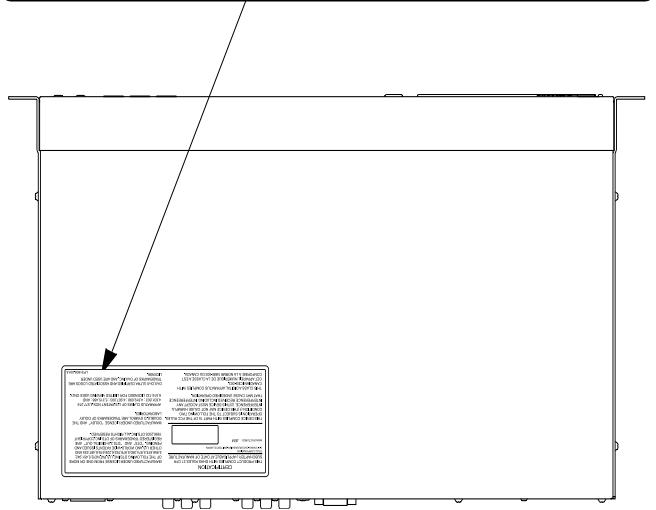
CAUTION
- DO NOT REMOVE THE PROTECTIVE HOUSING USING A SCREWDRIVER.
- USE OF CONTROLS OR ADJUSTMENTS OR PERFORMANCE OF PROCEDURES OTHER THAN THOSE SPECIFIED HEREIN MAY RESULT IN HAZARDOUS RADIATION EXPOSURE.
- IF THIS PRODUCT DEVELOPS TROUBLE, CONTACT YOUR NEAREST QUALIFIED SERVICE PERSONNEL, AND DO NOT USE THE PRODUCT IN ITS DAMAGED STATE.
Optical pickup:
Type : OPA-652PH
Manufacturer: Arima Devices Co, Ltd.
Laser output : Less than 0.5 mW on the objective lens
Wavelength : DVD/650 to 660 nm
CD/770 to 810 nm
Rack-mounting the Unit
If you are mounting the unit in a rack, leave 1U of space above it and 4 inch (10 cm) or more of space at the rear.
Use the rack-mounting kit to mount the unit in a standard 19-inch equipment rack, as shown in this section. Remove the feet of the unit before mounting.
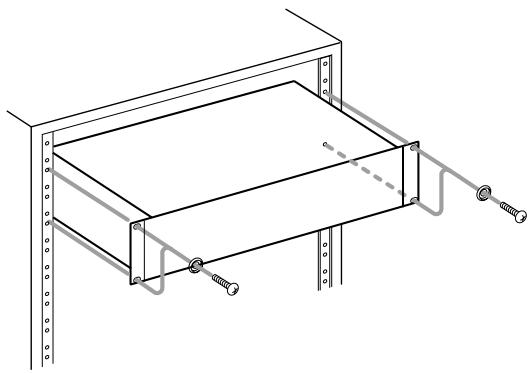
Introduction 2
Notes on handling 2
Supplied accessories. 2
About discs 3
Playable disc types 3
Playable file types 4
Description of parts and controls. 5
Connections 7
Connecting a TV 7
Connecting to a stereo amplifier/receiver 8
Connecting to a digital component. 8
Connecting the power cord. 8
RS-232C connector. 8
Basic operations 9
Turning the unit on/off 9
Adjusting the brightness of the indications [DIMMER] 9
Changing the scan mode 10
Playback 11
Basic playback 11
One Touch Replay. 13
Fast-forward/fast-reverse search. 13
Skip to the beginning of a desired selection 14
Skipping at about 5-minute intervals 14
Locating a desired title/group using number buttons 14
Selecting the desired title/ playlist from the control display. 15
Advanced operation 16
Using the on-screen bar 16
Playing from a specified position on a disc. 17
Using the file control display 19
ResumePlayback 19
Selecting a view angle 19
Selecting the subtitle 20
Selecting the audio 20
Special picture playback 21
ProgramPlayback 22
Random Playback 22
RepeatPlayback. 22
Tray lock 24
Selecting a still picture on a DVD AUDIO disc..... 24
Playing back a bonus group of a DVD AUDIO disc 24
Setting DVD preferences 25
Using the setup menus 25
Menu description. 25
RS-232C interface 28
Specifications 28
Command 28
References 37
Maintenance 37
Troubleshooting 37
Specifications 38
Notes on handling
Important cautions
Installation of the unit
- Select a place which is level, dry and neither too hot nor too cold; between 5^ and 35^ (41°F and 95°F).
- Leave sufficient distance between the unit and the TV.
- Do not use the unit in a place subject to vibration.
Power cord
- Do not handle the power cord with wet hands.
- A small amount of power is always consumed while the power cord is connected to the wall outlet.
- When unplugging the power cord from the wall outlet, always pull on the plug, not the power cord.
- Do not use the power cord supplied with this unit on other devices.
To prevent malfunctions of the unit
- There are no user-serviceable parts inside. If anything goes wrong, unplug the power cord and consult your dealer.
- Do not insert any metallic object into the unit.
- Do not use any non-standard shape disc (like a heart, flower or credit card, etc.) available on the market, because it may damage the unit.
- Do not use a disc with tape, stickers, or paste on it, because it may damage the unit.
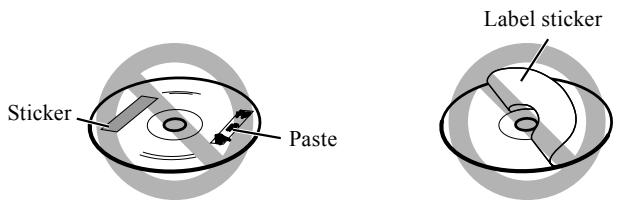
Note about copyright laws
Check the copyright laws in your country before recording from the discs. Recording of copyrighted material may infringe copyright laws.
Note about copyguard system
The discs are protected by copyguard system. When you connect the unit to your VCR directly, the copyguard system activates and the picture may not be played back correctly.
Safety precautions
Avoid moisture, water and dust
Do not place the unit in moist or dusty places.
Avoid high temperatures
Do not expose the unit to direct sunlight and do not place it near a heating device.
When you are away
When away on travel or for other reasons for an extended period of time, disconnect the power cord plugs from the wall outlet.
Do not block the vents
Blocking the vents may damage the unit.
Care of the cabinet
When cleaning the unit, use a soft cloth and follow the relevant instructions on the use of chemically-coated cloths. Do not use benzene, thinner or other organic solvents including disinfectants. These may cause deformation or discoloring.
If water gets inside the unit
Turn the unit off and disconnect the power cord plug from the wall outlet, then call the store where you made your purchase. Using the unit in this condition may cause a fire or electrical shock.
Supplied accessories
In addition to this manual, the DV-D01U has been packed with the following:
Remote control (1)
- Batteries (2)
Audio/video cable (Yellow/White/Red) (1)
- Component video cable (Red/Green/Blue) (1)
Contact your TASCAM supplier if any of these items are missing.
NOTE
- The batteries are not supplied for Taiwan.
Playable disc types
This unit has been designed to play back the following discs:
| DVD VIDEO | DVD AUDIO (2-channel only) |
| DVD VIDEO TM DVD VIDEO TM | DVD AUDIO/VIDEO AUDIO AUDIO |
| VCD | SVCD |
| COMPACT DISC VIDEO CD | COMPACT DISC SUPERVIDEO VIDEO CD |
| Audio CD | |
| COMPACT DISC VIDEO AUDIO |
The in the list below shows available disc types and recording formats.
| Disc type Recording format | CD-R/-RW*1 | DVD-R*1 | DVD-RW*1 |
| DVD Video | — | ✓ | ✓ |
| DVD VR | — | ✓ | ✓ |
| DVD Audio | — | ✓ | ✓ |
| VCD/SVCD | ✓ | — | — |
| Audio CD | ✓ | — | — |
| MP3 | ✓ | ✓*2 | ✓*2 |
| WMA | ✓ | ✓*2 | ✓*2 |
| WAV | ✓ | ✓*2 | ✓*2 |
| JPEG | ✓*3 | ✓*2 | ✓*2 |
| ASF | ✓ | ✓*2 | ✓*2 |
| MPEG-2 | ✓*3 | ✓*2 | ✓*2 |
| MPEG-1 | ✓*3 | ✓*2 | ✓*2 |
| DivX | ✓ | ✓*2 | ✓*2 |
^1 This unit can play finalized discs only.
2 Recorded with UDF Bridge format.
*3 This unit may not be able to play back a file if the file size is too large.
- It is possible to play back finalized +R / + RW (DVD Video Format only) discs. "DVD" lights on the display window when a +R / + RW disc is loaded.
- Super Audio CDs (SACD) compatible with conventional CD players can be played.
- For U.S.A., Canada and Asia: This unit accommodates the NTSC system, and also can play discs recorded with PAL system. Note that PAL video signal on a disc is converted to the NTSC signal and output.
For Europe: This unit is compatible with PAL DVDs, and it can also play discs recorded with NTSC data. Note that the NTSC video signal on the disc is converted to a PAL signal for final output.
- The Non-DVD side of a "DualDisc" does not comply with the "Compact Disc Digital Audio" standard. Therefore, the use of Non-DVD side of a DualDisc on this product may not be recommended.
- On some DVD VIDEOs, VCDs or SVCDs, their actual operation may be different from what is explained in this manual. This is due to the disc programming and disc structure, not a malfunction of this unit.
DVD Logo is a trademark of DVD Format/Logo Licensing Corporation.
Notes on DVD-R and DVD-RW
- This unit does not support "multi-border" disc.
- This unit does not support a disc recorded with DVD VR format.
Notes on CD-R and CD-RW
- This unit can play CD-Rs or CD-RWs recorded with ISO 9660 format.
- This unit supports "multi-session" discs (up to 12 sessions).
- This unit cannot play "packet write" discs.
Region code of DVDVIDEO
DVD VIDEO players and DVD VIDEO discs have their own Region Code numbers. This unit can play back DVD VIDEO discs whose Region Code numbers include the unit's Region Code, which is indicated on the rear panel.
Example of playable DVD:




If a DVD with an improper Region Code number is loaded, "REGION CODE ERROR!" appears on the TV screen and playback cannot start.
Some discs may not be played back because of their disc characteristics, recording conditions, or damage or stain on them.
Unplayable discs
DVD-ROM, DVD-RAM, CD-I (CD-I Ready), Photo CD, etc. Playing back these discs will generate noise and damage the speakers.
Playable file types
For all playable files
- The unit can only recognize and play files with one of the following extensions, which can be in any combination of upper and lower case;
MP3:“.MP3”,“.mp3”
WMA:“WMA”,.wma
WAV:“.WAV”,“.wav”
- The unit recognizes up to 150 tracks (files) per group, 99 groups per disc/device, and the total number of the tracks (files) that the unit can play is 4000.
- Some files may not be played back normally because of their disc characteristics or recording conditions.
- MP3/WMA/WAV/JPEG/ASF/MPEG-2/MPEG-1/DivX files require a longer readout time. (It differs due to the complexity of the directory/file configuration.)
- If different kinds of files are mixed, set the FILE TYPE setting in the PICTURE menu to the appropriate setting for the data to be read ("AUDIO", "STILL PICTURE" or "VIDEO"). (See page 26.)
For MP3/WMA/WAV files
- The unit supports MP3/WMA/WAV files recorded with a bit rate of 32 - 320 kbps and a sampling frequency of 16kHz , 22.05kHz , 24kHz^* , 32kHz , 44.1kHz , or 48kHz .
- If the track information (track title, artist, and album name, etc.) is recorded, it appears in the file control display on the TV screen. (See page 19.)
-
We recommend to record each piece of material (song) at a sample rate of 44.1kHz and at a data transfer rate of 128 (96^*) kbps.
-
For WMA only
For JPEG files
- We recommend to record a file at 640 × 480 resolution. (If a file has been recorded at a resolution of more than 640 × 480 , it will take a longer time to be displayed.)
- This unit can only play baseline JPEG files.
For ASF files
- The unit supports the types of the advanced simple profile as MPEG-4 files (MPEG-4 ASF).
- The unit supports MPEG-4 files with the following conditions:
File format: ASF
Visual profile: MPEG-4 SP (Simple Profile)
Audio CODEC: G.726
Max. picture size: 352 × 288 (CIF)
Max. bit rate: 384 kbps
For MPEG-2/MPEG-1 files
- The stream format should conform to MPEG unit/program stream.
- 720 × 576 pixels (25 fps)/ 720 × 480 pixels (30 fps) is recommended for the highest resolution.
- This unit also supports the resolutions of 352 × 576 / 480 × 576 / 352 × 288 pixels (25 fps) and 352 × 480 / 480 × 480 / 352 × 240 pixels (30 fps).
- The file format should be MP@ML (Main Profile at Main Level)/SP@ML (Simple Profile at Main Level)/MP@LL (Main Profile at Low Level).
- Audio streams should conform to MPEG1 Audio Layer-2 or MPEG2 Audio Layer-2.
For DivX files
- The unit supports DivX 6.x, 5.x, 4.x and 3.11.
- The unit supports DivX files whose resolution is 720 × 480 pixels or less (30 fps), and 720 × 576 pixels or less (25 fps).
- Audio stream should conform to Dolby Digital (including multi channel) or MPEG1 Audio Layer-3 (MP3).
- The unit does not support GMC (Global Motion Compression).
- The file encoded in the interlaced scanning mode may not be played back correctly.
- The unit has its own Registration Code for DivX playback.
-
If necessary, you can confirm the Registration Code of your unit using the OTHERS menu. (See page 27.)
-
This product incorporates copyright protection technology that is protected by U.S. patents and other intellectual property rights. Use of this copyright protection technology must be authorized by Macrovision, and is intended for home and other limited viewing uses only unless otherwise authorized by Macrovision. Reverse engineering or disassembly is prohibited.
- Manufactured under license from Dolby Laboratories. "Dolby" and the double-D symbol are trademarks of Dolby Laboratories.
-
"DTS" and "DTS Digital Out" are registered trademarks of Digital Theater Systems, Inc.
-
USE OF THIS PRODUCT IN ANY MANNER THAT COMPLIES WITH THE MPEG-4 VISUAL STANDARD IS PROHIBITED, EXCEPT FOR USE BY A CONSUMER ENGAGING IN PERSONAL AND NON-COMMERCIAL ACTIVITIES.
DivX, DivX Ultra Certified, and associated logos are trademarks of DivX, Inc. and are used under license. - Official DivX® Ultra Certified product
- Plays all versions of DivX® video (including DivX® 6) with enhanced playback of DivX® media files and the DivX® Media Format
Front panel
The numbers in the figures indicate the pages where the details of the parts are described.

Rear panel
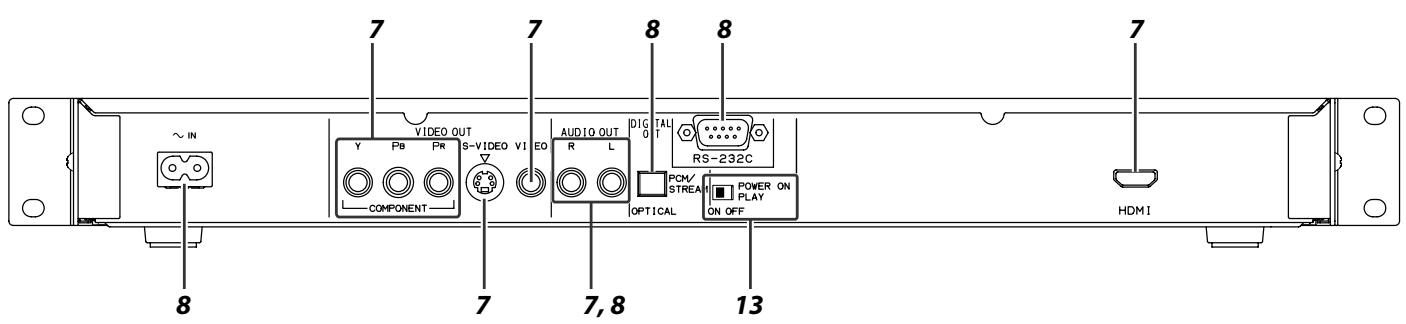
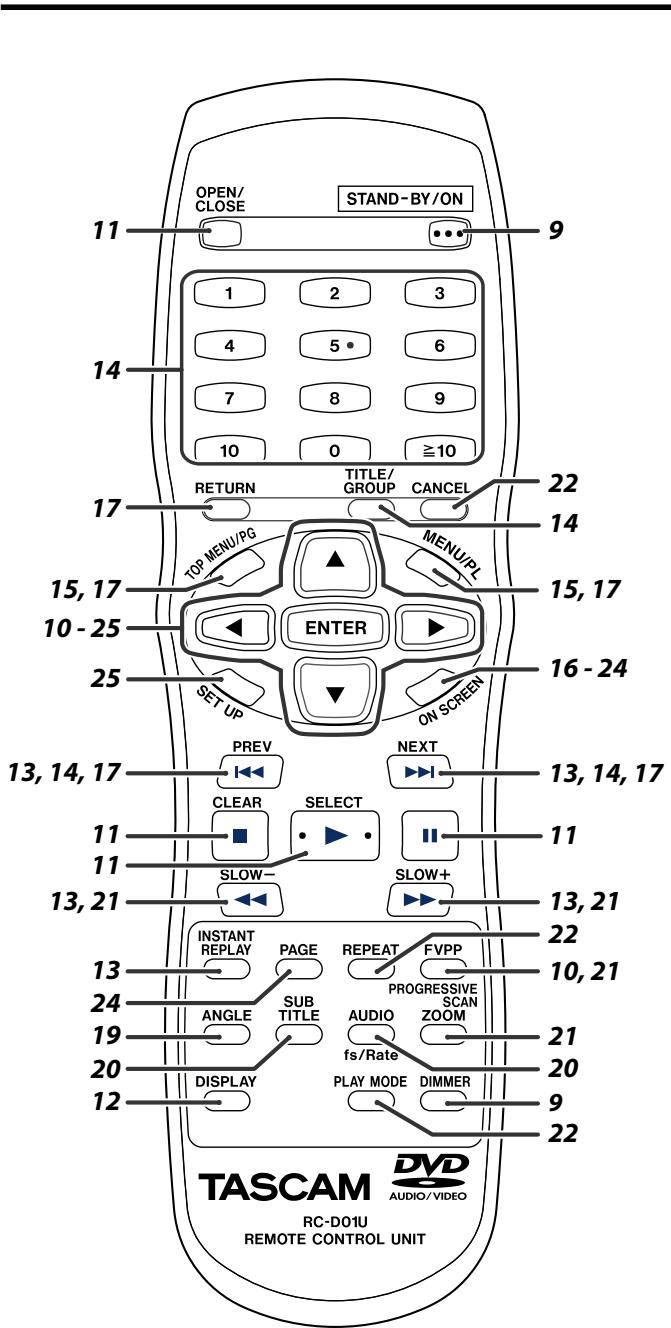
Remote Control
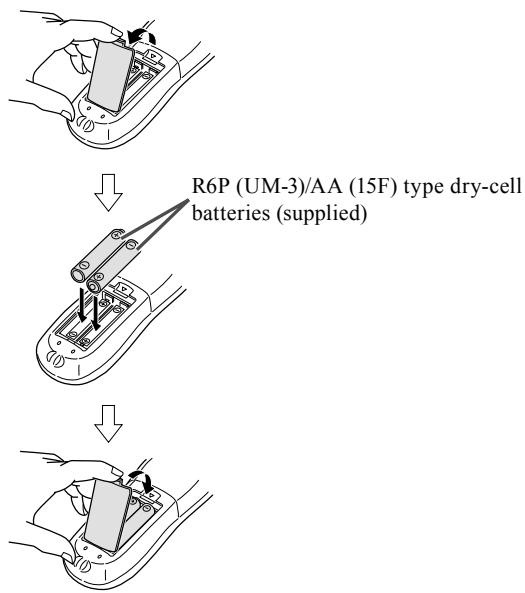
Putting batteries in the remote control
If the range or effectiveness of the remote control decreases, replace both batteries.
CAUTION
- Do not expose batteries to heat or flame.
NOTE
- The batteries are not supplied for Taiwan.
Operating the unit from the remote control
Aim the remote control directly to the front panel of the unit.
- Do not block the remote sensor.
Connecting a TV
Distortion of picture may occur when connecting to the TV via a VCR, or to a TV with a built-in VCR.
- You need to set "MONITOR TYPE" in the PICTURE menu correctly according to the aspect ratio of your TV. (See page 26.)
To connect a conventional TV
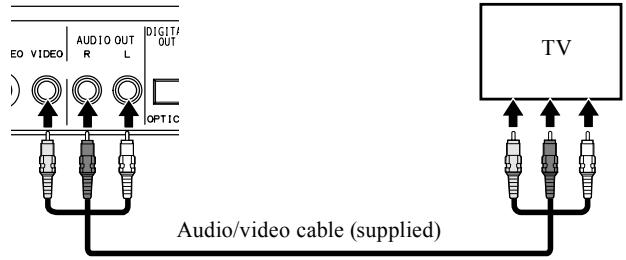
The unit
To connect a TV equipped with the HDMI terminal
HDMI connection allows you to enjoy high quality picture on your HDMI equipped TV with high-definition digital video signals.
You can select the type of video signal from 480p (NTSC), 576p (PAL), 1080i or 720p. (See page 10.)
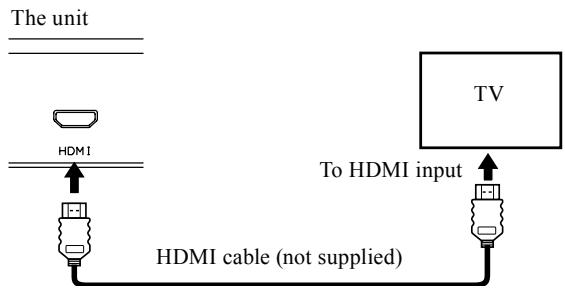
NOTE
- This unit outputs the audio signal of 48kHz , 44.1kHz , or 32kHz Linear PCM from HDMI terminal. Set "DIGITAL AUDIO OUTPUT" in the AUDIO menu to "PCM ONLY". (See page 26.)
- HDMI indicator lights on the display window when the unit and the TV recognize each other and are ready to send and receive signals.
- When you enjoy HDCP contents, sound and picture may not be transmitted to the speakers and TV for a few seconds in the beginning for confirmation.
About DVD AUDIO
- This unit outputs DVD AUDIO through either analog AUDIO OUT or HDMI.
- Down-mixed tracks output through AUDIO OUT (L/R).
- If HDMI input on the device connected to this unit does not support DVD AUDIO, the signal output through the HDMI on this unit will be muted.
What is HDMI?
The HDMI (High Definition Multimedia Interface) is the standard interface for the next-generation TV. By connecting this unit and a TV with the HDMI cable, digital video signals and audio signals are transmitted through the cable. You can enjoy digital video and sound without AD/DA conversion with easy connection.
In addition, this unit is compatible with HDCP (High-Bandwidth Digital Content Protection), and HDCP contents can be viewed if you connect a HDCP compatible TV to this unit.
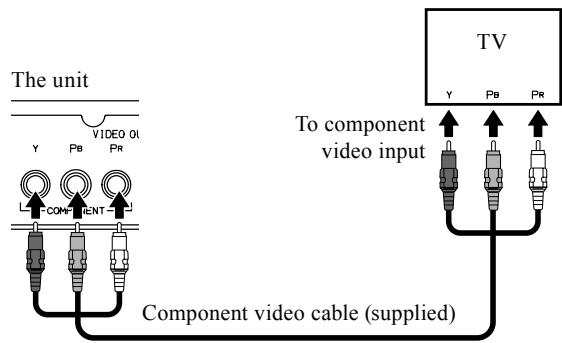
To connect a TV equipped with the component video input jacks
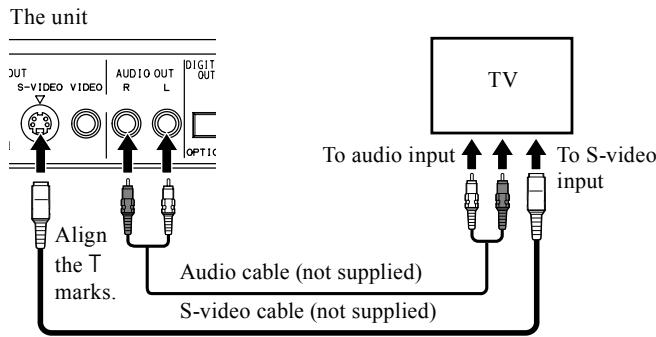
- With analog video connection, you can get better picture quality in the order - Component video > S-video > Composite video.
- If your TV supports progressive video input, you can enjoy a high quality picture by setting the progressive scan mode to active. (See page 10.)
NOTE
- While playing back DivX/ASF files, this unit outputs only progressive signals from the component video jacks. When your TV does not support progressive video input, connect the TV through S-video or composite video jack.
- If the component video input jacks of your TV are of the BNC type, use a plug adapter (not supplied) to convert the pin plugs to BNC plugs.
To connect a TV equipped with an S-video jack
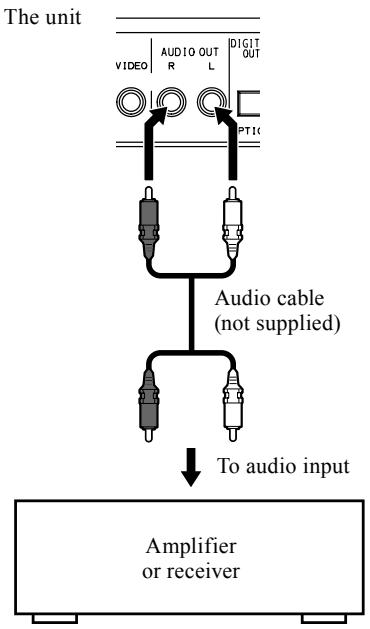
Connecting to a stereo amplifier/ receiver
You can enjoy high-quality audio by connecting the unit's audio output to an amplifier or receiver.
NOTE
- When using the unit with a stereo amplifier or receiver, set "DOWN MIX" in the AUDIO menu to "STEREO". (See page 27.)
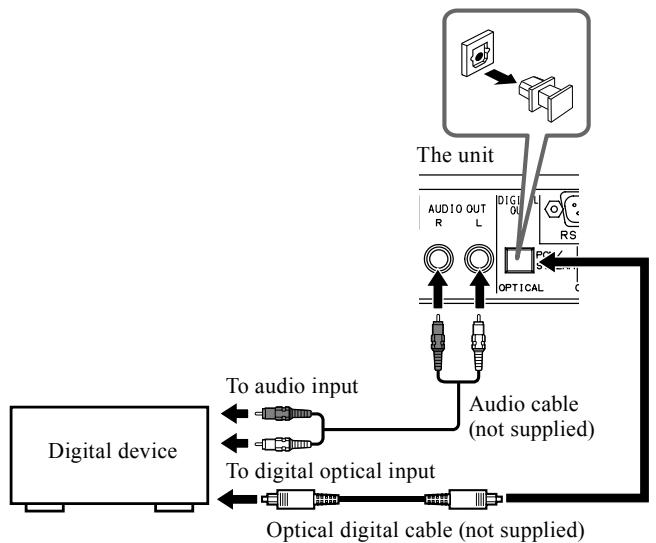
Connecting to a digital component
You can enhance the sound quality by connecting the unit's DIGITAL OUT (OPTICAL) to the digital input of an amplifier by using an optional digital cable. If you connect the unit to a Dolby Digital, DTS or MPEG multichannel decoder or an amplifier with built-in decoder by using an optional digital cable, you can enjoy high-quality surround sound.
With digital connection, depending on the disc type, there may be no audio output from the digital output. It is advisable to also make an analog connection.
NOTE
- When you connect the unit's DIGITAL OUT (OPTICAL) to a digital audio device, before using, set "DIGITAL AUDIO OUTPUT" in the AUDIO menu correctly according to the connected audio device. If "DIGITAL AUDIO OUTPUT" is not set correctly, loud noise may be generated from speakers, causing damage to them. See "DIGITAL AUDIO OUTPUT" on page 26.
- When connecting this unit to a TV via HDMI and to an amplifier using DIGITAL OUT (OPTICAL), set "DIGITAL AUDIO OUTPUT" in the AUDIO menu to "PCM ONLY" to enjoy sound from the TV. To enjoy sound from the amplifier, set "DIGITAL AUDIO OUTPUT" to "STREAM/PCM". (See page 26.)
- When you connect the unit's DIGITAL OUT (OPTICAL) to a Dolby Digital or DTS decoder (or amplifier with a built-in decoder) to enjoy surround sound, the unit's "D. RANGE COMPRESSION" setting in the "AUDIO" menu is invalid. Make appropriate surround audio settings on the decoder.
Connecting the power cord
Make sure that all other connections have been completed.
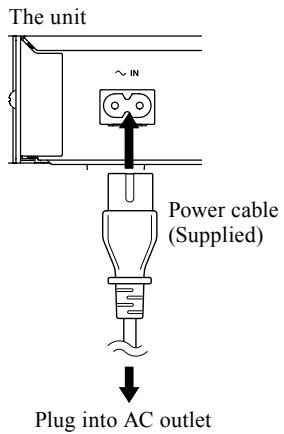
CAUTION
- Disconnect the power cord before cleaning or moving the unit.
- Do not pull on the power cord to unplug the cord. When unplugging the cord, always grasp and pull the plug so as not to damage the cord.
RS-232C connector
Connect a suitable external device to control the unit using RS-232C protocol. (See page 28.)
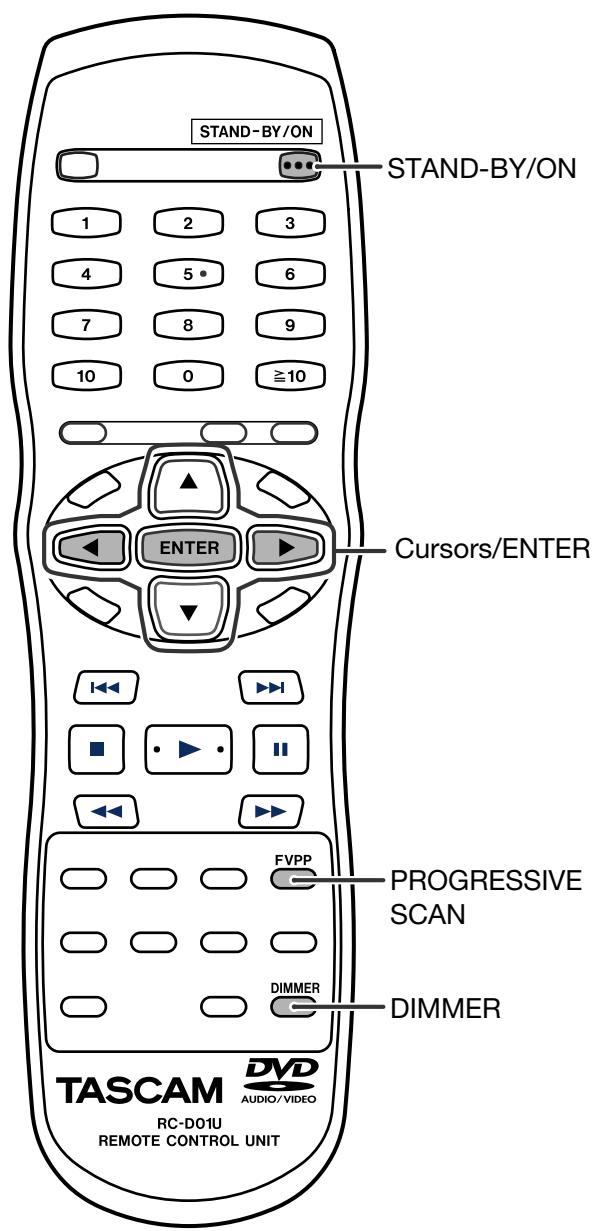
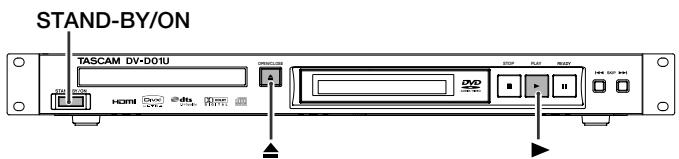
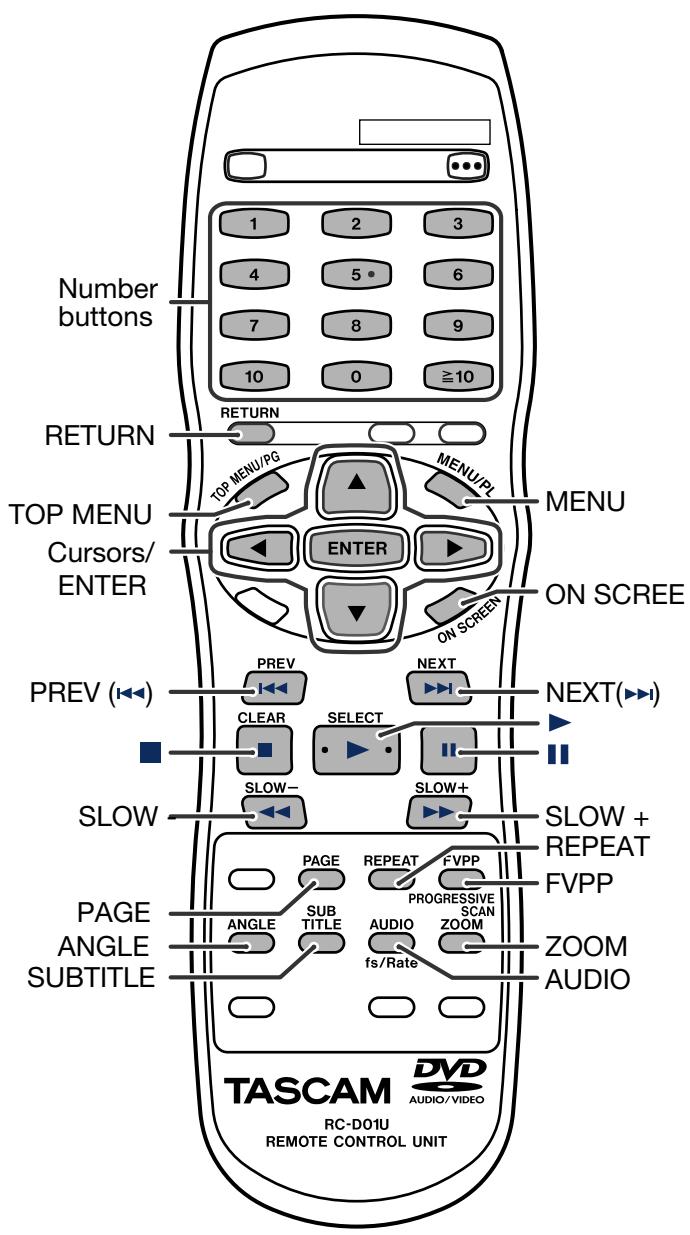
The buttons on the remote control are used to explain most of the operations in this manual. You can use the buttons on the unit same as on the remote control for operations unless otherwise noted.
The buttons described below are used on pages 9 and 10.
Turning the unit on/off
Press STAND-BY/ON.
The following messages will appear on the TV screen.
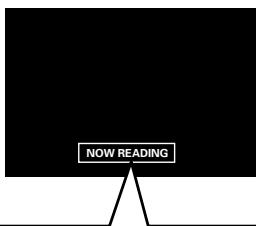
- "OPEN"/"CLOSE":
Appears when opening or closing the disc tray.
- "NOW READING":
Appears when the system is reading the disc/file information.
- "REGION CODE ERROR!":
Appears when the Region Code of the DVD VIDEO does not match the code the system supports. The disc cannot be played back.
- "NO DISC":
Appears when no disc is loaded.
- "CANNOT PLAY THIS DISC":
Appears when unplayable disc is loaded.
NOTE
- A small amount of power is consumed even when the power is turned off. This is called standby mode. Unplug the power cord from the AC outlet to turn the power off completely.
-
You can also turn on the unit by pressing the following buttons;
-
The button on the unit or OPEN/CLOSE on the remote control
-
The (play button) on the unit or remote control
-
When connecting your TV through HDMI terminal, turn on the TV before turning on the unit; otherwise, the following phenomena may happen depending on the TV.
-
The scan mode setting (see page 10) is changed.
- The sound comes out from the speakers on TV even though "HDMI AUDIO OUT" in the AUDIO menu (see page 27) is set to "OFF".
If the above phenomena happen, turn off the unit and turn it back on, then set the scan mode again.
Adjusting the brightness of the indications [DIMMER]
Press DIMMER.
Each time you press the button, you can change the brightness level in 3 steps.
Changing the scan mode
The unit can be accommodated to your TV's scan mode.
NOTE
- To use the unit in the progressive mode, it is required that the unit is connected to the TV by using an HDMI cable or a component video cable (supplied). (See page 7.)
While DVD stopped
1. Press and hold PROGRESSIVE SCAN for 2 seconds.
Currently selected scan mode appears on the display window.
2. Press Cursor / to select the desired mode.
Each time you press the button, the scan mode changes as follows:
- When connecting the TV with the component video cable:
For U.S.A./Canada
480i←→480p
For Europe
576i←→576p
For Asia
NT480i* NT480p* PAL576i PAL576p
- When connecting the TV with the HDMI cable
For U.S.A./Canada
AUTO 480p^ 720p^ 1080i^*
(back to the beginning)
For Europe:
AUTO 576p* 720p* 1080i*
(back to the beginning)
For Asia:
AUTO NT480p* NT720p*
NT1080i* PAL576p* PAL720p*
PAL1080i* (back to the beginning)
- When selecting "AUTO", the unit outputs the video signal to get the best picture quality on your TV according to the High-Definition video signal compatibility of the TV.
- When selecting "AUTO", "1080i", or "720p", the unit up-convert the SD signal to 1080i or 720p.
- When "1080i" or "720p" is selected, the HD indicator lights on the display window.
-
When "1080i" or "720p" are selected, the following signals are out through the each output jack. Component video jacks: NTSC 480p, PAL576p S-video/composite video jacks: NTSC 480i, PAL 576i
-
480i, 480p, 576i, 576p, 1080i, and 720p indicate the number of scanning lines and scanning format of a video signal.
-
480i/576i/1080i indicates 480/1080 scanning lines with interlaced format.
-
480p / 576p / 720p indicates 480 / 720 scanning lines with progressive format.
- Generally, you can get better picture quality by selecting the larger the number of scanning lines.
- You can get better picture quality in the progressive mode than in the interlace mode.
3. Press ENTER while the selected mode is displayed.
When the progressive mode is selected, the PROGRESSIVE indicator lights on the display window.
NOTE
- When selecting "1080i", the picture shrinks vertically.
- Changing the scan mode does not take effect when connecting the TV with the S-video or video cable.
-
Although the picture may be distorted when you press ENTER, this is not a malfunction of the unit.
-
There are some progressive TVs and High-Definition TVs that are not fully compatible with this unit, resulting in an unnatural picture when playing back a DVD VIDEO in the progressive scan mode. In such a case, change the scan mode to the interlace mode.
-
The icon such as DVD shows the disc formats or file types the operation is available for.
The buttons described below are used on pages 11 to 15.
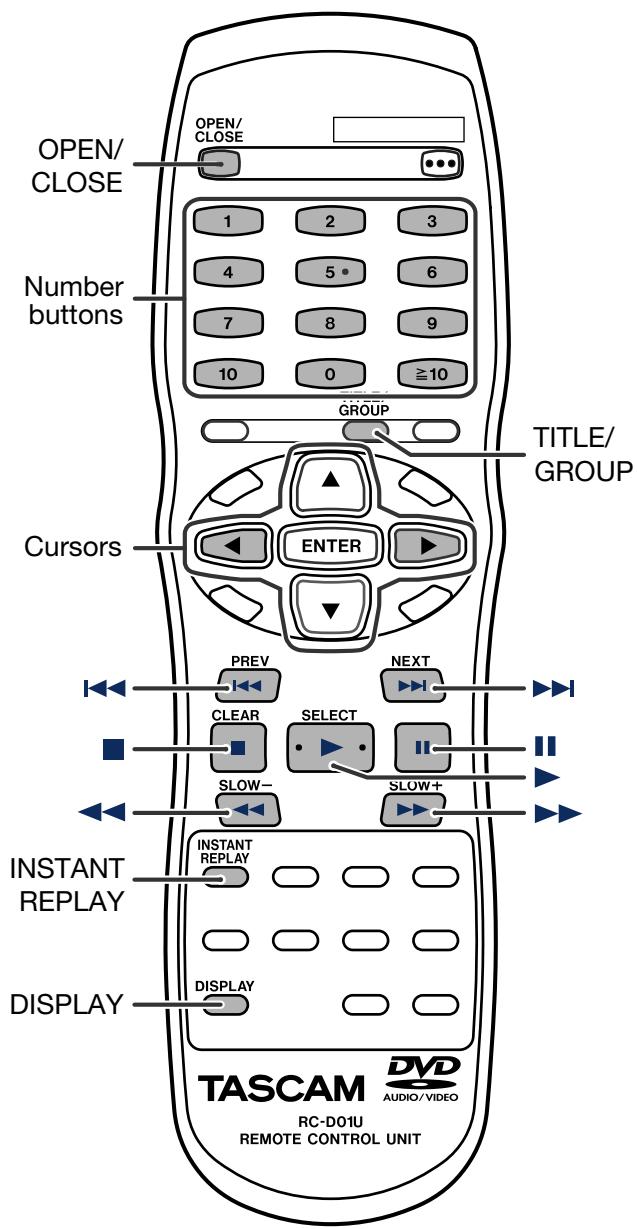
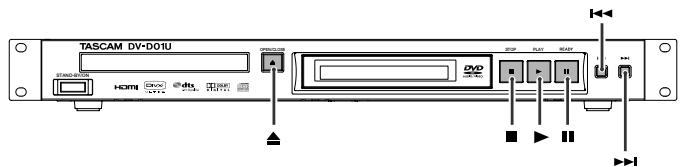
Basic playback
To play a disc
1. Press on the unit or OPEN/CLOSE on the remote control.
- The unit turns on and the disc tray comes out.
| DVD VIDEO | DVD VR | DVD AUDIO |
| VCD | SVCD | CD |
| MP3 WMA | WAV | JPEG |
| ASF | MPEG 2/1 | DivX |
2. Place a disc.
With the label side up
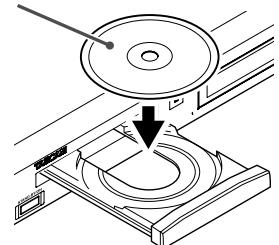
When placing an 8 cm disc
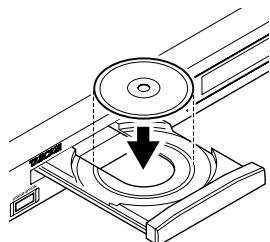
3. Press (play button) on the unit or remote control.
-
When playing the following files...
-
For MP3/WMA/WAV files
The file control display (see page 19) appears on the TV screen.
- For JPEG files
Each file (still pictures) is shown on the TV screen for about 3 seconds (slide-show). When stopping playback, the file control display (see page 19) appears on the TV screen.
For ASF/MPEG-2/MPEG-1 files
When stopping playback, the file control display (see page 19) appears on the TV screen.
For DivX files
During the readout time, "Reading Index..." may appear on the TV screen. When stopping playback, the file control display (see page 19) appears on the TV screen.
NOTE
- When several types of files are recorded on a disc, select appropriate file type on the setup menu. (See page 26.)
- (For JPEG) The unit cannot accept operations even though you press any buttons before the entire picture appears on the TV screen.
To pause
Press II.
To continue playback, press (play button).
To stop
Press ■.
■ On-screen guide icons
During DVD VIDEO playback, the following guide icons may appear for a while on the TV screen;
- : appears at the beginning of a scene containing multi-subtitle languages.
- : appears at the beginning of a scene containing multi-audio languages.
- : appears at the beginning of a scene containing multi-angle views.
- (Play), (Ready), / (Fast forward/ fast-reverse), / (Slow-motion forward/ reverse): appears when you perform each operation.
- : the disc cannot accept an operation you have tried to do.
NOTE
- If you do not want the on-screen guide icons to appear, see page 27.
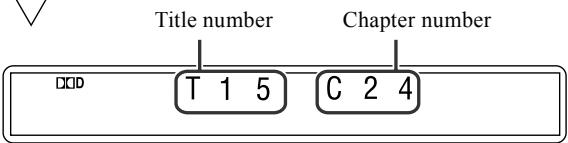
■Playback information on the display window
DVDVIDEO
Example: When a DVD VIDEO encoded with Dolby Digital 5.1 ch is played.
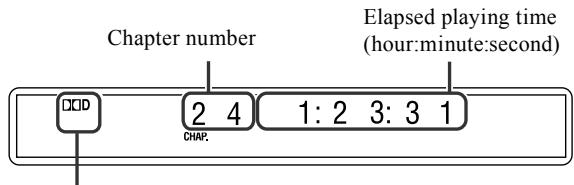
Digital signal format indicator

Pressing DISPLAY
DVD VR disc
Example: During playback on the Original program *1.
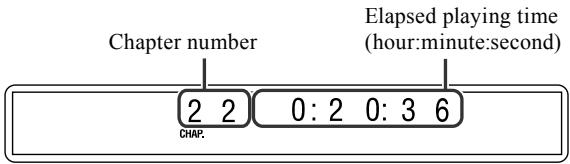

Pressing DISPLAY
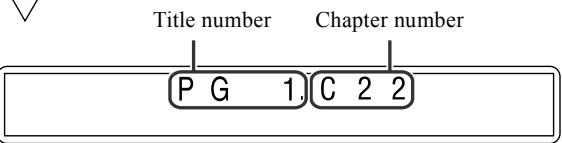
Example: During playback on the Playlist *1.
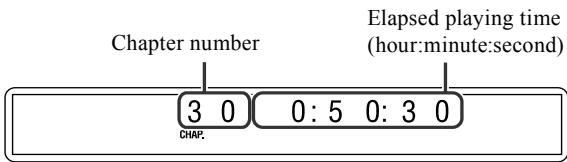

Pressing DISPLAY
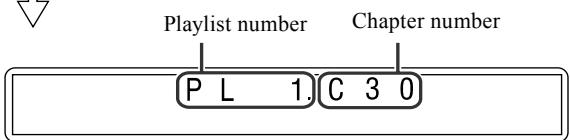
*1 You can press TOP MENU/PG or MENU/PL to change the play mode. (See page 15).
DVD AUDIO
Example: When a DVD AUDIO is played back.

VCD/SVCD/CD
Example: When a CD is played back.
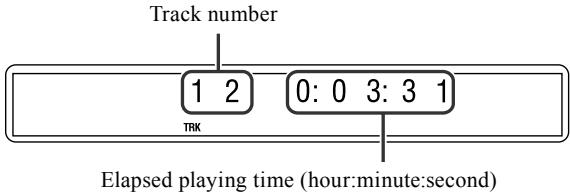
NOTE
- When a VCD or SVCD with PBC function is played, the elapsed playing time does not appear, but "PBC" appears.
MP3/WMA/WAV file
Example: When an MP3 file is played back.
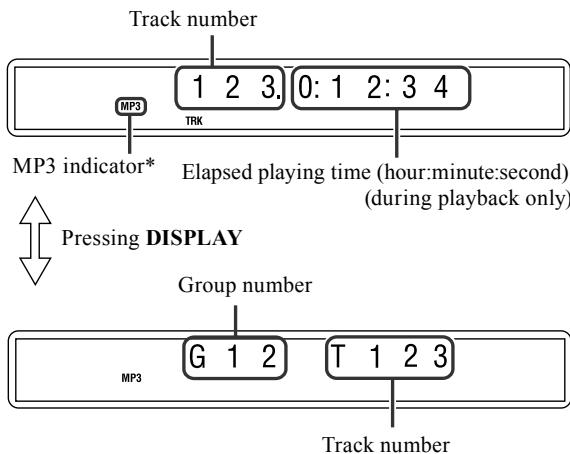
- WMA indicator lights for WMA file
- There is no WAV indicator for WAV file.
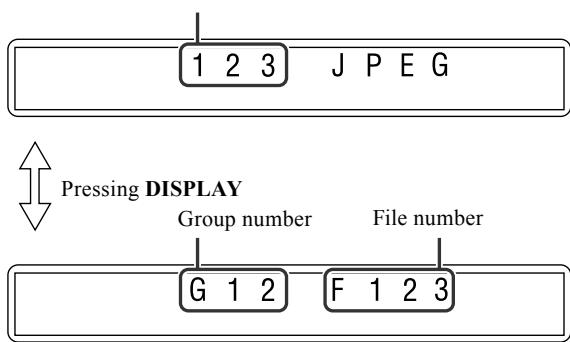
JPEG file
Example: When slide-show is played back. File number
ASF/MPEG-2/MPEG-1/DivX file
Example: When an ASF file is played.
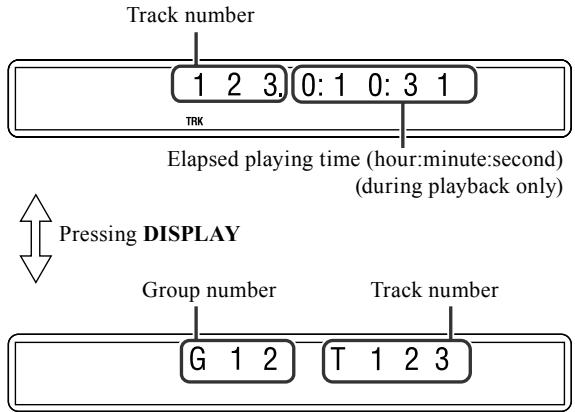
NOTE
- You can change the time information mode (except for MP3/WMA/WAV/ASF/MPEG-2/MPEG-1/DivX). (See page 16.)
- You can also check the playback information on the TV screen. (See page 16.)
Screen saver
An image may burn in on a TV screen if a static picture is displayed for a long time. To prevent this, the unit automatically dims the screen if a static picture is displayed for over 5 minutes while playing back a DVD, SVCD, or VCD (the screen saver function).
- Pressing any button will cancel the screen saver function.
- This function does not work when this unit outputs the video signal from HDMI terminal.
- If you do not want to use the screen saver function, see page 26.
Power on play
This unit is equipped with the power on play function which powers on the unit automatically when an AC input is detected. The unit will begin playback if a disc was loaded.
You can activate this function simply by setting the POWER ON PLAY switch located on the rear panel to ON.
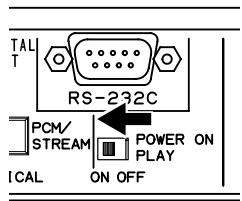
Rear panel
NOTE
- The top menu (if any) in the disc will not be displayed when this function is activated.
- While in power on play mode, operations other than STAND-BY/ON and OPEN/CLOSE are ignored.
- After pressing the Eject button to cycle the power and put the machine back into power on play mode.
One Touch Replay
You can move back the playback position by 10 seconds from the current position.

During playback
Press INSTANT REPLAY.
NOTE
- This function works in the same title.
- This feature may not work for some discs.
Fast-forward/fast-reverse search
During playback
On the remote control:
Press or .
Each time you press the button, the search speed changes.
To return to normal speed playback
Press (play button).
NOTE
- When a DVD VIDEO, DVD VR, VCD, SVCD, or ASF/MPEG-2/MPEG-1/DivX is played back, no sound comes out during fast-forward/reverse search.
- When a CD or MP3/WMA/WAV is played back, sound is intermittent during fast-forward/reverse search.
-
This feature may not work for some discs/files.
For MP3/WMA/WAV: -
The fast-forward/reverse search speed is not shown.
- The fast-forward/reverse search works within a same track.
Skip to the beginning of a desired selection
Using / buttons
For DVD VIDEO/DVD VR (chapter): During playback
For VCD/SVCD (track): During playback without PBC function
For DVD AUDIO/CD/MP3/WMA/WAV/JPEG/ASF/MPEG-2/MPEG-1/DivX (track/file): During playback or while stopped
Press or repeatedly.
NOTE
- When playing back an MP3/WMA/WAV/JPEG/ASF/MPEG-2/MPEG-1/DivX file, you can make operations using the file control display. (See page 19.)
- This feature may not work for some discs/files.
Using number buttons on the remote control
For DVD VIDEO/DVD VR (title, chapter): While stopped, the title number is selected. During playback, the chapter number is selected.
- For DVD AUDIO (group, track):
- While stopped, the group number is selected.
- To call up a group number, press the TITLE/GROUP button then press the number buttons.
- During playback, the track number is selected.
For VCD/SVCD (track): During playback or while stopped without PBC function
For CD/MP3/WMA/WAV/JPEG/ASF/MPEG-2/MPEG-1/DivX (track/file): During playback or while stopped
Press number buttons (0 - 10, ≥ 10) to select the desired number.
- For details on using the number buttons, see "How to use the number buttons" below.
How to use the number buttons
To select 3 : Press 3.
To select 10 : Press 10.
To select 14 : Press ≥ 10,1 , then 4.
To select 24 : Press ≥ 10,2, then 4.
To select 40 : Press ≥ 10, 4, then 0.
To select 114: Press ≥ 10, 1, 1 , then 4.
Skipping at about 5-minute intervals
You can skip within the file at about 5-minute intervals. This is useful especially when you want to skip within a long file.

During playback
Press Cursor /
Each time you press the button, the playback position skips to the beginning of the previous or next interval. Each interval is about 5 minutes.
NOTE
- Intervals are automatically assigned from the beginning of a file.
- This feature is available only within the same file.
- This feature may not work for some discs/files.
Locating a desired title/group using number buttons
During playback or while stopped
1. Press TITLE/GROUP.
“- -” is shown in the title/group display area in the display window.
Example: During DVD VIDEO playback
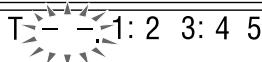
2. While the display window shows “- - ”, use number buttons (0-10, ≥10) to enter the desired title or group number.
The unit starts playback from the first chapter/track/file of the selected title/group.
- For details on using the number buttons, see "How to use the number buttons" on the left column.
NOTE
- When locating a title of a DVD VR disc, PG or PL indicator may light on the display window.
- This feature may not work for some discs/files.
Selecting the desired title/ playlist from the control display
During playback or while stopped.
1. Press TOPMENU/PG or MENU/PL.

The control display is shown on the TV screen, and the unit starts playback of the first title/playlist.
- The PLAY LIST is shown only when the playlist is on the DVD VR disc.
TOP MENU/PG: shows the ORIGINAL PROGRAM.
Example:
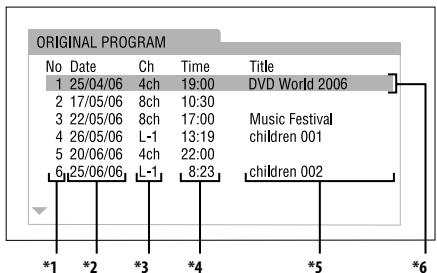
*1: Title number
^2 : Recording date
3: Recording source (TV station, the input terminal of the recording equipment etc.)
4: Start time of recording
5: Title of the original program/playlist (The title may not be displayed depending on the recording equipment.)
*6: Current title
MENU/PL: shows the PLAY LIST.
Example:
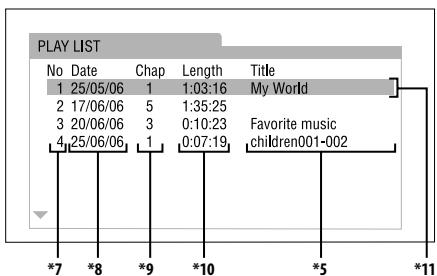
7: Playlist number
*8: Creating date of playlists
9: Number of chapters
10: Total playing time
^11 : Current playlist
2. Press Cursor / to select the desired title/playlist.
The unit starts playback of the selected title/playlist.
To clear the control display
Press ENTER.
About the play mode on a DVD VR disc
- Original program (ORIGINAL PROGRAM): The unit can play back the original picture in the recorded order.
-
Playlist (PLAY LIST): The unit can play back the playlist edited by the recording equipment.
-
The icon such as DVD shows the disc formats or file types the operation is available for.
The buttons described below are used on pages 15 to 24.
Using the on-screen bar
You can check disc information and you can use some functions using the on-screen bar.
Showing the on-screen bar
Whenever a disc is loaded
Press ON SCREEN.
Each time you press the button, the on-screen bar changes as follows on the TV screen.
| DVD VIDEO | DVD VR | DVD AUDIO |
| VCD | SVCD | CD |
| ASF | MPEG 2/1 | DivX |
Example: During DVD VIDEO playback
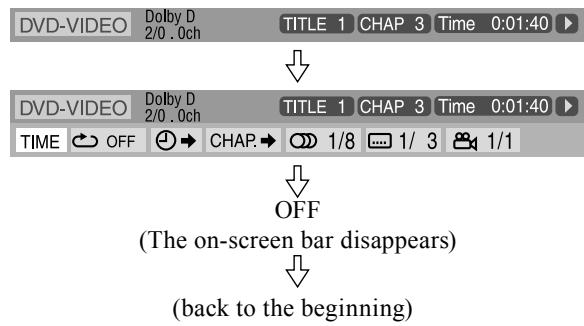
- The currently selected item is highlighted.
Contents of the on-screen bar during playback
DVDVIDEO
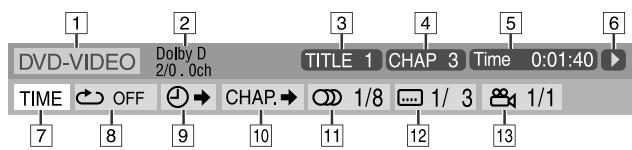
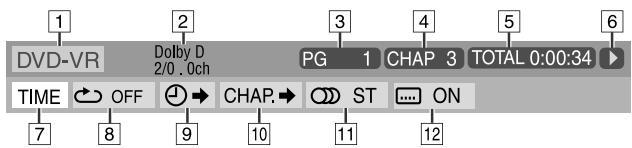
DVD VR disc
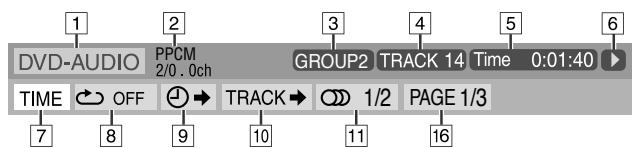
DVD AUDIO
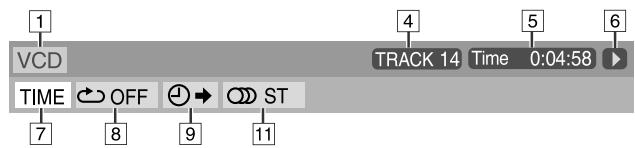
VCD
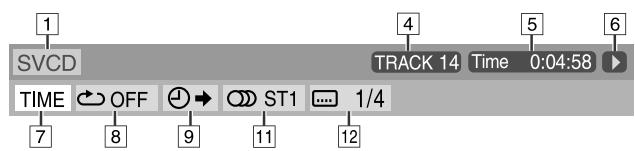
SVCD
CD
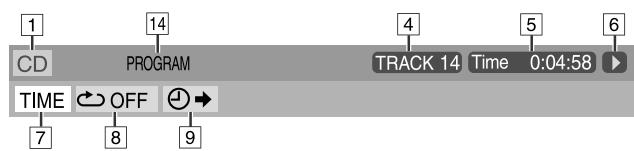
ASF/MPEG-2/MPEG-1/DivX

1 Shows disc type.
2 Shows audio information.
For DVD VIDEO: Shows current title number. For DVD VR: Shows current play mode (PG: for Original program, PL: for Playlist) and title number. For DVD AUDIO: Shows current group number.
For DVD VIDEO and DVD VR: Shows current chapter number. For other type of discs: Shows current track number.
5 Shows time information. See "Changing the time information" below.
6 Shows playback status.
: appears during playback.
/ : appears during fast forward/reverse.
& ~口~ & ~口~ : appears during playback in forward slow-motion/ reverse slow-motion.
II:appearswhenpaused.
□ : appears when stopped.
Select this to change time information (5). See "Changing the time information" below.
8 Select this for Repeat Playback. (See page 22.)
9 Select this for time search function. (See page 18.)
10 Select this for chapter or track search function. (See page 18.)
11 Select this to change audio language or channel. (See page 20.)
12 Select this to change subtitle language and subpicture. (See page 20.)
13 Select this to change view angle. (See page 19.)
14 Shows playback mode status.
PROGRAM: appears during Program Playback. (See page 22.) RANDOM: appears during Random Playback. (See page 22.)
15 Shows Repeat mode status. (See page 22.)
16 Select this to change page (still picture). (See page 24.)
Changing the time information
You can change the time information in the on-screen bar on the TV screen and the display window of the unit.
During playback
1. Press ON SCREEN twice.
The on-screen bar appears on the TV screen.
2. Press Cursor▶/▲ to highlight TIME.
3. Press ENTER repeatedly to select the desired information.
Example: When elapsed playing time of disc is selected.
TOTAL 1:25:58
DVDVIDEO/DVD VR
- Time: Elapsed playing time of current chapter
- REM: Remaining time of current chapter
TOTAL: Elapsed time of title
T. REM: Remaining time of title
DVD AUDIO/VCD/SVCD/CD
- Time: Elapsed playing time of current track
- REM: Remaining time of current track
TOTAL: Elapsed time of disc
T. REM: Remaining time of disc
4. Press ON SCREEN.
The on-screen bar disappears.
NOTE
- When playing back DVD VR, "TIME" and "REM" cannot be shown.
Playing from a specified position on a disc
You can start playing a title, chapter or track you specify. You can also play a disc from specified time.
Locating a desired scene from the DVD menu
DVDs generally have their own menus which show disc contents and you can display them on the TV screen. You can locate a desired scene by using these menus.

Whenever a DVD is loaded
1. Press TOP MENU/PG or MENU/PL.
The menu appears on the TV screen.
Normally, a DVD which contains more than one title will have a "top" menu which lists the titles. Similarly, a DVD AUDIO which contains more than one group will have a "top menu" which lists the groups. Press TOP MENU/PG to show the menu.
Some discs may also have a different menu which is shown by pressing MENU/PL.
See the instructions for each discs regarding its particular menu.
2. Use Cursor / / to select a desired item.
3. Press ENTER.
- With some discs, you can also select items by entering the corresponding number using number buttons.
NOTE
- This feature may not work for some discs.
Locating a desired scene using a VCD/SVCD menu with PBC
A VCD or SVCD recorded with PBC has its own menus such as a list of contained songs. You can locate a specific scene by using these menus.
During playback with PBC function
1. Press RETURN repeatedly until the menu appears on the TV screen.
2. Press number buttons (0 - 10, ≥ 10) to select the number of the desired item.
- For details on using the number buttons, see "How to use the number buttons". (See page 14.)
To return to the menu
Press RETURN repeatedly until the menu screen appears.
When "NEXT" or "PREVIOUS" is shown on the TV screen:
- To go to the next page, press NEXT (▶▶)
To return to the previous page, press PREV (▶).
NOTE
- If you want to play a PBC-compatible VCD/SVCD without using the PBC function, perform any of the following:
- Start playback by pressing number buttons while stopped.
-
Press repeatedly until the desired track number is displayed, then start playback by pressing (play button). The track number appears on the display window instead of "PBC".
-
To activate the PBC function when playing a PBC-compatible VCD/SVCD without using the PBC function, perform any of the following:
-
Press TOP MENU/PG or MENU/PL.
- Press twice to stop playback, then press (play button).
Locating a desired chapter or track using the on-screen bar
During playback
1. Press ON SCREEN twice.

The on-screen bar appears on the TV screen.
2. Press Cursor to highlight CHAP. or TRACK .
3. Press ENTER.

DVDVIDEO

DVD AUDIO
4. Press number buttons (0-9) to enter the desired chapter number.
Example:
To select 8 : Press 8.
To select 10 :Press 1,then 0.
To select 20 :Press 2, then 0.
To select 37 :Press 3,then 7.
To correct a misentry
Repeat step 4.
5. Press ENTER.
6. Press ON SCREEN.
The on-screen bar disappears.
NOTE
- You can select up to the 99th chapter.
- This function cannot be used with a DVD AUDIO that does not contain any picture.
Locating a desired position by specifying the time
For DVDVIDEO/DVD VR/DVD AUDIO: During playback
For VCD/SVCD: While stopped or during playback without PBC function
For CD: During playback or while stopped
- When specifying the elapsed playing time from the beginning of the disc
Perform the following procedure while stopped.
- When specifying the elapsed playing time from the beginning of the current title/track
Perform the following procedure during playback.
1. Press ON SCREEN twice.
The on-screen bar appears on the TV screen.
2. Press Cursor / to highlight .
3. Press ENTER.

4. Use number buttons (0-9) to enter the time.
You can specify the elapsed playing time from the beginning of the disc (while stopped) or from the beginning of the current title/track (during playback).
Example: To play back from a point 2 (hours): 34 (minutes): 08 (seconds) elapsed
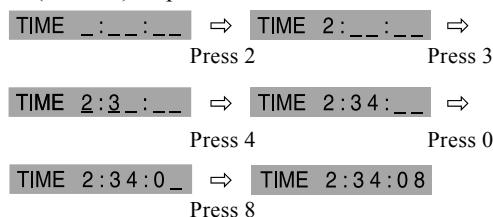
To correct a misentry
Press Cursor repeatedly.
5. Press ENTER.
6. Press ON SCREEN.
The on-screen bar disappears.
Using the file control display
You can search and play desired groups and tracks/files using the file control display on the TV screen.
Example: When the source is DVD.
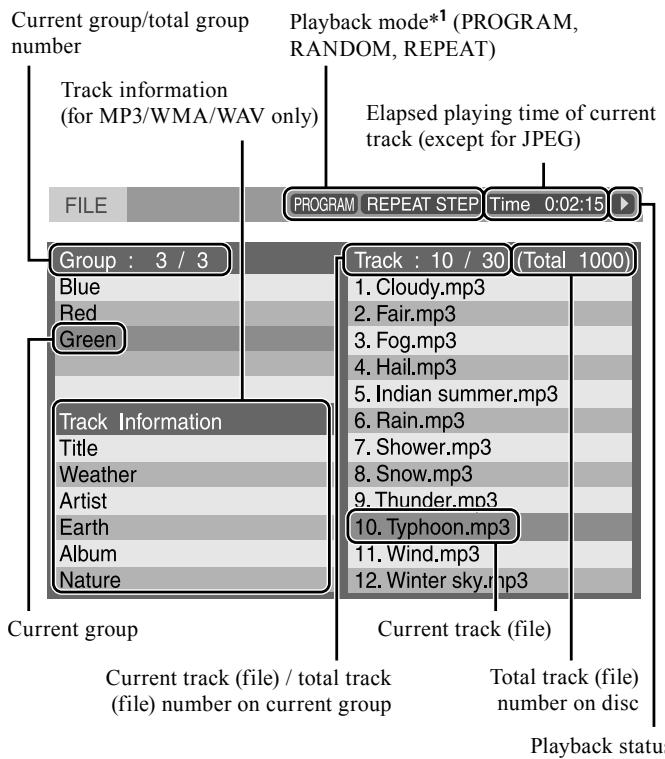
*1 (For JPEG/ASF/MPEG-2/MPEG-1/DivX) The Program and Random mode are not available.
The file control display appears automatically during playback (MP3/WMA/WAV) or while stopped.
For MP3/WMA/WAV: During playback or while stopped
For JPEG/ASF/MPEG-2/MPEG-1/DivX: While stopped
1. Press Cursor / / to select the desired group/track/file.
- For MP3/WMA/WAV, playback starts from the selected track.
- For JPEG, proceed to perform the following operation.
2. Press (play button) or ENTER.
- Track playback/slide-show starts from the selected track/file.
- When you press ENTER for JPEG, only the selected file is played back.
NOTE
- (For MP3/WMA/WAV) During playback, you can locate the desired track/file by pressing▶/I or Cursor ▲/▼.
- You can also check playback information on the display window. (See page 17.)
- Some group, track and file names may not be displayed correctly depending on recording conditions.
- The order of groups, tracks, and files may be displayed differently from the order displayed on your personal computer.
- The extension of the file may not be displayed if the file name is too long.
ResumePlayback
When Resume Playback is set to "ON" (see page 27) and you stop playback by the following operations, the position where playback has been stopped is stored. (RESUME indicator lights on the display window.)
- Turning off the power (See page 9.)
- Pressing once
To start playback from the stored position
Press (play button).
To clear the stored position
Press again.
- Opening the disc tray with the playback disc also clears the stored position.
NOTE
- (For DivX) The beginning of a scene where playback has been stopped may be stored.
Selecting a view angle
During playback of a disc containing multi-view angles
When using the ANGLE button:

1. Press ANGLE.
Example: The first view angle is selected out of 3 view angles recorded.
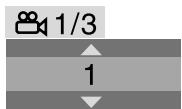
2. Press ANGLE repeatedly, or press Cursor / to select the desired view angle.
When using the on-screen bar:
- Press ON SCREEN twice.
The on-screen bar appears on the TV screen. - Press Cursor / to highlight 1/3.
- Press ENTER.

4. Press Cursor / to select the desired view angle.
5. Press ENTER.
6. Press ON SCREEN.
The on-screen bar disappears.
Selecting the subtitle
During playback of a disc/file containing subtitles in several languages
When using the SUBTITLE button:
1. Press SUBTITLE.
Example (DVD VIDEO): "ENGLISH" is selected out of 3 subtitle languages recorded.
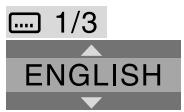
2. Press SUBTITLE repeatedly, or press Cursor / to select the desired subtitle.
For DVD VR
- Pressing SUBTITLE activates the subtitles (sub pictures) regardless of whether the subtitles are recorded or not. (Sub pictures will not change if no sub picture is recorded.)
For SVCD
- An SVCD can contain up to four subtitles. Pressing SUBTITLE changes the subtitles regardless of whether the subtitles are recorded or not. (Subtitles will not change if no subtitle is recorded.)
To clear the subtitle
Select "OFF" in step 2.
When using the on-screen bar:
- Press ON SCREEN twice.
The on-screen bar appears on the TV screen.
- Press Cursor / to highlight 1/3.
- Press ENTER.
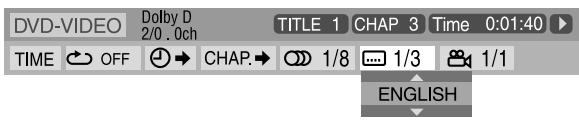
4. Press Cursor / repeatedly to select the desired subtitle.
- Press ENTER.
- Press ON SCREEN.
The on-screen bar disappears.
To clear the subtitle
Select "OFF" in step 4.
NOTE
- Some subtitle or audio languages are abbreviated in the pop-up window. See "The language codes list". (See page 25.)
Each time you press SUBTITLE, the subtitle appears and disappears alternately. - For DivX, you cannot operate this procedure using the on-screen bar.
Selecting the audio
During playback of a disc/file containing audio in several languages
When using the AUDIO button:
1. Press AUDIO.
Example (DVD VIDEO): "ENGLISH" is selected out of 3 audio languages recorded.
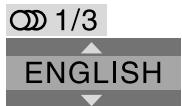
2. Press AUDIO repeatedly or press Cursor / to select the desired audio.
When using the on-screen bar:
- Press ON SCREEN twice.
The on-screen bar appears on the TV screen.
- Press Cursor / to highlight 1/3.
- Press ENTER.

4. Press Cursor / to select the desired audio.
- Press ENTER.
- Press ON SCREEN.
The on-screen bar disappears.
NOTE
- Some subtitle or audio languages are abbreviated in the pop-up window. See "The language codes list". (See page 25.)
- "ST", "L", or "R" is displayed when playing a VCD respectively representing "stereo", "left sound" and "right sound".
- When playing a SVCD, "ST1", "ST2", "L1", "R1", "L2", or "R2" is displayed.
- For DivX, you cannot operate this procedure using the on-screen bar.
.
Special picture playback
Frame-by-frame playback
During playback
| DVD VIDEO | DVD VR | VCD |
| SVCD | MPEG 2/1 | DivX |
Press II repeatedly.
Each time you press the button, the still picture advances by one frame.
To return to normal playback
Press (play button).
Playing back in slow-motion
During playback
1. Press H at the point where you want to start playback in slow-motion from.
The unit pauses playback.
2. Press SLOW+.
Playback in forward slow-motion starts.
For DVD VIDEO only:
- To play back in reverse slow-motion, press SLOW -.
Each time you press the button, the playback speed becomes faster.
Example: On the TV
1/32
To return to normal playback
Press (play button).
NOTE
Sound cannot be heard during slow-motion playback.
Zooming in
During playback or while paused
1. Press ZOOM.
Each time you press ZOOM, scene magnification changes.
| DVD VIDEO | DVD VR | VCD |
| SVCD | JPEG | ASF |
| MPEG 2/1 | DivX |
2. While zoomed in, press Cursor / / to move zoom-in area.
To return to normal playback
Press ZOOM repeatedly to select ZOOM OFF.
NOTE
- The number of the magnification steps varies depending on the disc type.
- During slide-show playback of JPEG, zooming in is not available. In such a case, press to pause slide-show playback, then zoom in.
- During playback, there may be a case where Cursor
( / / / ) does not work in step 2 above.
Changing the VFP setting
The VFP (Video Fine Processor) function enables you to adjust the picture character according to the type of programming, picture tone or personal preference (except when connecting the TV through HDMI terminal).
| DVD VIDEO | DVD VR | DVD AUDIO |
| VCD | SVCD | JPEG |
| ASF | MPEG 2/1 | DivX |
For DVD VIDEO/DVD VR/VCD/SVCD: During playback
For DVD AUDIO: During playback while picture is shown
1. Press FVPP.
The current VFP settings appear on the TV screen. Example:
| NORMAL | |
| GAMMA | 0 |
| BRIGHTNESS | 0 |
| CONTRAST | 0 |
| SATURATION | 0 |
| TINT | 0 |
| SHARPNESS | 0 |
2. Press Cursor / repeatedly to select the VFP mode.
- NORMAL: Normally select this.
CINEMA:Suitable for movies. - When you select "NORMAL" or "CINEMA", press VFP to complete the setting.
- USER 1 and USER 2: You can adjust parameters that affect picture appearance.
Only when selecting "USER 1" or "USER 2" in step 2, proceed to perform the following operation;
3. Press Cursor / repeatedly to select a parameter you want to adjust.
Adjust gradually and confirm picture appearance results are as preferred.
GAMMA: Controls brightness of neutral tints while
maintaining brightness of dark and bright portions (-3 to +3).
- BRIGHTNESS: Controls screen brightness (-8 to +8).
- CONTRAST: Controls screen contrast (-7 to +7).
SATURATION: Controls screen color depth (-7 to +7).
- TINT: Controls screen tint (-7 to +7).
- SHARPNESS: Controls screen sharpness (-8 to +8).
4. Press ENTER.
Example:
GAMMA
C
5. Press Cursor / to change the setting.
6. Press ENTER.
The current VFP settings appear again.
7. Repeat steps 3 to 6 to adjust other parameters.
8. Press FVPP.
NOTE
- Although the setting display disappears in the middle of the procedure, the setting at that time will be stored.
- The VFP function is not available when connecting the TV through HDMI terminal.
- "TINT" setting is not effective when connecting the TV through COMPONENT VIDEO OUT jacks.
Program Playback
While stopped
- Press PLAY MODE repeatedly until program window appears on the TV screen.
PRG indicator lights on the display window.
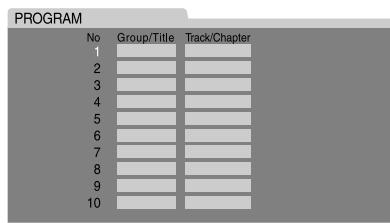
2. Follow the instructions that appear on the TV screen to program the desired tracks.
- For details on using the number buttons, see "How to use the number buttons". (See page 14.)
- The content's numbers that you have to specify for programming varies depending on the disc type:
DVDVIDEO:Titles and chapters
DVD AUDIO: Groups and tracks - VCD, SVCD, CD: Tracks
- MP3/WMA/WAV: Groups and tracks
- You can specify the tracks whose number is up to 99.
- There may be a case that the group or title number can be entered even for discs that contain no groups or titles. In such a case, press ENTER to proceed to the Track/Chapter column.
- When you press ENTER instead of the number buttons in the Track/Chapter column, "ALL" appears and all the tracks on the selected disc are programmed as a step.
To clear the programs one by one from the last entered number
Press CANCEL repeatedly.
To clear all programs
Press and hold CANCEL.
You can also clear the program by turning off the unit.
3. Press (play button).
If all of the programmed tracks have been played back, playback stops and the program window appears again. Note that program setting remains.
To check the program contents
During playback, press. Playback stops and the program window appears.
To quit the Program mode
While stopped, press PLAY MODE repeatedly until both program window and RANDOM disappear from the TV screen.
NOTE
- When programming a track in the bonus group of a DVD AUDIO, the unit will prompt you to enter the password for the bonus group. (See page 24.)
- The Resume function cannot be used with Program Playback.
- Program Playback may not work for some discs.
Random Playback
You can play tracks on a disc in random order.
While stopped
- Press PLAY MODE repeatedly until RANDOM appears on the TV screen.
RND indicator lights on the display window.
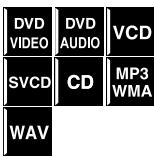
2. Press (play button).
- After playing all titles/tracks on the disc, the unit stops playback.
- The same title/track will not be played back more than once.
To quit Random mode
While stopped, press PLAY MODE repeatedly until both program window and RANDOM disappear from the TV screen. You can also clear the Random mode by turning off the unit.
NOTE
- In the Random Playback mode, tracks in the bonus group are not played back. (See page 24.)
Repeat Playback
Repeating the current selection or all tracks
For DVD VIDEO/DVD VR: During playback
For VCD/SVCD: During playback without PBC function or while stopped
For DVD AUDIO/CD/MP3/WMA/WAV/JPEG/ASF/MPEG-2/MPEG-1/DivX:During playback or while stopped
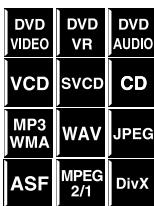
When using the REPEAT button:
Press REPEAT.
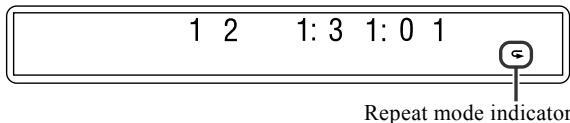
Each time you press REPEAT, the Repeat mode changes.
| Display window | TV screen | Meanings |
| G | GROUP | Repeats the current group for DVD AUDIO/MP3/WMA/WAV/JPEG/ASF/MPEG-2/MPEG-1/DivX. |
| REPEAT GROUP | ||
| TITLE | Repeats the current title for DVD VIDEO. | |
| PG | Repeats the current title for Original program for DVD VR. | |
| PL | Repeats the current playlist for Playlist for DVD VR. | |
| ALL | ALL | Repeats all the available discs/files. |
| REPEAT ALL | ||
| 1 | TRACK, STEP | Repeats the current track for DVD AUDIO/VCD/SVCD/CD/MP3/WMA/WAV/ASF/MPEG-2/MPEG-1/ DivX. |
| REPEAT TRACK, REPEAT STEP | ||
| CHAP, STEP | Repeats the current chapter for DVD VIDEO/ DVD VR. | |
| No indication | OFF | Repeat mode is off.The unit plays back the disc/file normally. |
NOTE
- For DVD VIDEO, REPEAT ALL may not be available depending on the disc.
When using the on-screen bar (except for MP3/WMA/WAV/JPEG/ASF/MPEG-2/MPEG-1/DivX):
- Press ON SCREEN twice.
The on-screen bar appears on the TV screen.
- Press Cursor / to highlight OFF
- Press ENTER.
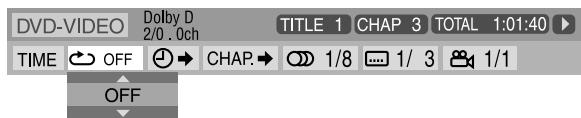
- Press Cursor / repeatedly to select the Repeat mode.
- Press ENTER.
- Press ON SCREEN.
The on-screen bar disappears.
To cancel Repeat Playback
Select "OFF" in step 4.
Repeating a desired part [A-B Repeat]
You can repeat playback of a desired part by specifying the beginning (point A) and ending (point B).
![TASCAM DV-D01U - Repeating a desired part [A-B Repeat] - 1](/content/2025/01/168529/images/5a234b2c81caa561fe2b925c1a00e7dc63faf7853282e76ea024792433264492.jpg)
During playback
- Press ON SCREEN twice.
The on-screen bar appears on the TV screen.
- Press Cursor / to highlight OFF
- Press ENTER.
![TASCAM DV-D01U - Repeating a desired part [A-B Repeat] - 2](/content/2025/01/168529/images/0daf450ff478183341ac495276ff1d27aaa15f97eb818b36aebc2f9a2bbbd397.jpg)
- Press Cursor / repeatedly to select "A-B".
- Press ENTER at the beginning of the part you want to repeat (point A).
![TASCAM DV-D01U - Repeating a desired part [A-B Repeat] - 3](/content/2025/01/168529/images/f7fe4c463a663138e1b99a888a230d3778d780577fa82eaec19ad8ba058b3a81.jpg)
The repeat mode indicator “ ” appears on the display window.
- Press ENTER at the end of the part you want to repeat (point B).
The repeat mode indicator on the display window changes to “ A B” and A-B Repeat Playback starts.
- Press ON SCREEN.
The on-screen bar disappears.
To cancel
Select "OFF" in step 4, then press ENTER.
NOTE
- When playing back a DVD VIDEO, A-B Repeat Playback is possible only within the same title.
- When playing back a DVD AUDIO, VCD, SVCD, or CD, A-B Repeat Playback is possible only within the same track.
- "A-B" cannot be selected during Program and Random Playback.
- "A-B" cannot be selected during playback with PBC function.
Tray lock
You can lock the tray and prohibit unwanted disc ejection.
On the unit ONLY:
While the unit is turned off
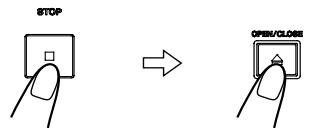
Press and hold
- “LOCKED” appears on the display window.
- If you try to eject the disc, "LOCKED" appears to indicate that the tray is locked.
To cancel
Carry out the same operation again.
- "UNLOCKED" appears on the display window
Selecting a still picture on a DVD AUDIO disc
Most DVD AUDIO discs include still pictures, which usually appear in turn automatically during playback according to the playback sequence. However, when "B.S.P." lights in the display window during playback, there are other page(s) of the current still picture and you can change the picture (turn the page) manually.

NOTE
At the beginning of a part where there are selectable pictures, "PAGE" (or a corresponding word of the current display language) appears on the TV screen.
When using the PAGE button:
- Press PAGE.
The page selection bar appears on the TV screen.
PAGE 1/3
2
-
Press Cursor / to select the desired page.
-
You can also press PAGE to advance to the next page.
When using the on-screen bar:
- Press ON SCREEN twice.
The on-screen bar appears on the TV screen.
- Press Cursor / to highlight PAGE1/3.
- Press ENTER.
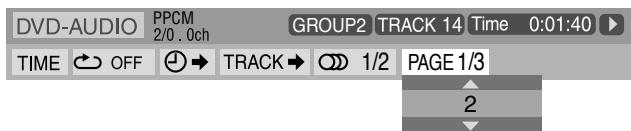
- Press Cursor / to select the desired page.
- Press ENTER.
6. Press ON SCREEN.
The on-screen bar disappears.
Playing back a bonus group of a DVD AUDIO disc
Some DVD AUDIO discs contain a special group called "bonus group" whose contents are not opened to the public. When loading a disc with a bonus group,
"BONUS" indicator lights in the display window. The bonus group is always assigned to the last group of a disc (for example, if a disc contains four groups including a bonus group, "group 4" is the bonus group).

To playback a bonus group, you have to enter the specific password for the bonus group. The way of getting the password depends on discs.
After getting the password, you can playback the bonus group by the following procedure.
While a disc containing a bonus group is stopped
- Press the number buttons (0-9) to select the bonus group number (the last group).
The unit will prompt you to enter the password.
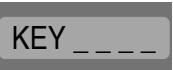
-
Press the number buttons (0-9) to enter the password.
-
If you enter the password correctly, the unit starts playback of the bonus group.
- If the password is wrong, the display remains as shown above.
NOTE
- If you specify a track in the bonus group when programming tracks for the program playback, the above display for inquiring the password will also appear.
- In the random playback mode, tracks in the bonus group are not played back.
-
To clear the password entry display, do any of the following.
-
Press ■.
- Open the disc tray.
- Turn off the unit.
Using the setup menus
- You can change the language used in the setup menus. See "Menu description" below.
Basic operation on the setup menus
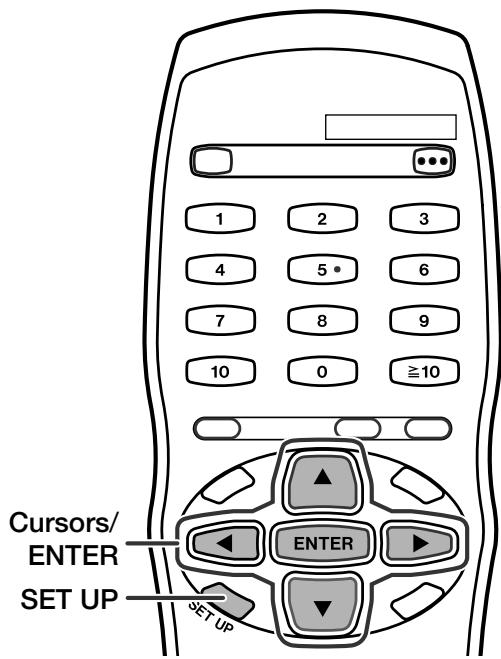
While stopped
1. Press SET UP.
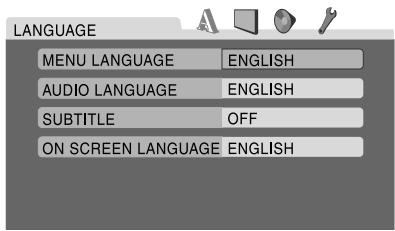
2. Follow the instructions that appear on the TV screen.
Menu description

Language menu (LANGUAGE)
■ MENU LANGUAGE
Some DVDs have their own menus in multiple languages.
- Select the initial language*.
AUDIO LANGUAGE
Some DVDs have multiple audio languages.
- Select the initial audio language*.
SUBTITLE
Some DVDs have multiple subtitle languages.
- Select the initial subtitle language*.
ON SCREEN LANGUAGE
-
Select the language shown on the TV screen when operating this unit.
-
When the language you have selected is not recorded to a disc, the original language is automatically used as the initial language.
NOTE
- See the following "The language codes list" for the code of each language, such as "AA", etc.
The language codes list
| AA | Afar | IK | Inupiak | RN | Kirundi |
| AB | Abkhazian | IN | Indonesian | RO | Rumanian |
| AF | Afrikaans | IS | Icelandic | RW | Kinyarwanda |
| AM | Ameharic | IW | Hebrew | SA | Sanskrit |
| AR | Arabic | JI | Yiddish | SD | Sindhi |
| AS | Assamese | JW | Javanese | SG | Sangho |
| AY | Aymara | KA | Georgian | SH | Serbo-Croatian |
| AZ | Azerbaijani | KK | Kazakh | SI | Singhalese |
| BA | Bashkir | KL | Greenlandic | SK | Slovak |
| BE | Byelorussian | KM | Cambodian | SL | Slovenian |
| BG | Bulgarian | KN | Kannada | SM | Samoan |
| BH | Bihari | KO | Korean (KOR) | SN | Shona |
| BI | Bislama | KS | Kashmiri | SO | Somali |
| BN | Bengali, Bangla | KU | Kurdish | SQ | Albanian |
| BO | Tibetan | KY | Kirghiz | SR | Serbian |
| BR | Breton | LA | Latin | SS | Siswati |
| CA | Catalan | LN | Lingala | ST | Sesotho |
| CO | Corsican | LO | Laothian | SU | Sundanese |
| CS | Czech | LT | Lithuanian | SV | Swedish |
| CY | Welsh | LV | Latvian, Lettish | SW | Swahili |
| DA | Danish | MG | Malagasy | TA | Tamil |
| DZ | Bhutani | MI | Maori | TE | Telugu |
| EL | Greek | MK | Macedonian | TG | Tajik |
| EO | Esperanto | ML | Malayalam | TH | Thai |
| ET | Estonian | MN | Mongolian | TI | Tigrinya |
| EU | Basque | MO | Moldavian | TK | Turkmen |
| FA | Persian | MR | Marathi | TL | Tagalog |
| FI | Finnish | MS | Malay (MAY) | TN | Setswana |
| FJ | Fiji | MT | Maltese | TO | Tonga |
| FO | Faroese | MY | Burmese | TR | Turkish |
| FY | Frisian | NA | Nauru | TS | Tsonga |
| GA | Irish | NE | Nepali | TT | Tatar |
| GD | Scotts Gaelic | NL | Dutch | TW | Twi |
| GL | Galician | NO | Norwegian | UK | Ukrainian |
| GN | Guarani | OC | Occitan | UR | Urdu |
| GU | Gujarati | OM | (Afan) Oromo | UZ | Uzbek |
| HA | Hausa | OR | Oriya | VI | Vietnamese |
| HI | Hindi | PA | Panjabi | VO | Volapuk |
| HR | Croatian | PL | Polish | WO | Wolof |
| HU | Hungarian | PS | Pashto, Pushto | XH | Xhosa |
| HY | Armenian | PT | Portuguese | YO | Yoruba |
| IA | Interlingua | QU | Quechua | ZU | Zulu |
| IE | Interlingue | RM | Rhaeto-Romance | ||

Picture menu (PICTURE)
■ MONITOR TYPE
You can select the monitor type to match your TV when you play DVDs recorded in the picture's height/width ratio of 16:9.
4:3 PS (Pan Scan conversion)
Select this when the aspect ratio of your TV is 4:3 (conventional TV). While viewing a wide screen picture, the black bars do not appear, however, the left and right edges of the pictures will not be shown on the screen.
4:3 LB (Letter Box conversion)
Select this when the aspect ratio of your TV is 4:3 (conventional TV). While viewing a wide screen picture, the black bars appear on the top and the bottom of the screen.
16:9 AUTO (Wide television conversion)
Select this when the aspect ratio of your TV is 16:9 (wide TV).
16:9 NORMAL (Wide television conversion)
Select this when the aspect ratio of your TV is fixed on 16:9 (wide TV).
When you play DVDs recorded in the picture's height/width ratio of 4:3, the unit adjust the ratio of output signal automatically.
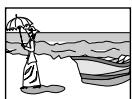
E.g.: 4:3 PS
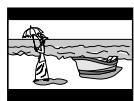
E.g.: 4:3 LB
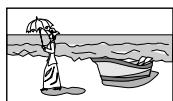
E.g.: 16:9
NOTE
- Even if "4:3 PS" is selected, the screen size may become "4:3 LB" with some DVDs. This depends on how DVDs are recorded.
- When the scan mode is set to "1080i" or "720p" (see page 10), "16:9 AUTO" is automatically selected.
PICTURE SOURCE
When you set the scan mode to "480p" (NTSC), "576p" (PAL) or "720p" (see page 10), you can obtain optimal picture quality by selecting whether the content on the disc/file is processed by frame (film source) or by field (video source). Normally set to "AUTO".
- AUTO
Used to play a disc/file containing both video and film source materials.
This unit recognizes the source type (video or film) of the current disc/file according to the disc/file information.
If the playback picture is unclear or noisy, or the oblique lines of the picture are rough, try to change to other modes.
FILM
Suitable for playing back a film source disc/file.
VIDEO
Suitable for playing back a video source disc/file.
SCREENSAVER (See page 13.)
You can activate or deactivate screen saver function.
FILE TYPE
When several types of files are recorded on a disc, you can select which files to play.
AUDIO
Select this to play MP3/WMA/WAV files.
- STILL PICTURE
Select this to play JPEG files.
VIDEO
Select this to play ASF/MPEG-2/MPEG-1/DivX files.
HDMI DVI COLOR
When connecting the TV by using HDMI cable, you can adjust the picture appearance, such as image quality, color intensity, and black fading.
STANDARD
Select this when you need no picture adjustment.
- ENHANCE
This unit automatically makes picture adjustment suitable for the picture.
HDMI OUT
When connecting the TV by using HDMI cable, you can select the type of video signal output from HDMI terminal. Normally set to "AUTO".
- AUTO
This unit automatically select the video signal type and outputs according to the type of TV connected with HDMI cable.
RGB
Select this when no picture appears on the TV with "AUTO" setting. The video signal output is fixed to RGB.

Audio menu (AUDIO)
DIGITAL AUDIO OUTPUT
To connect the unit's digital output to an external device equipped with a digital input, this item must be set correctly. See the table below for details on the relation between the setting and output signals.
- PCM ONLY
Select this when you connect the DIGITAL OUT (OPTICAL) jack of the unit to the linear PCM digital input of other audio equipment. (See page 7.)
DOLBY DIGITAL/PCM
Select this when you connect the digital input of a Dolby Digital decoder or an amplifier with a built-in Dolby Digital decoder.
- STREAM/PCM
Select this when you connect to the digital input of an amplifier with a built-in DTS, Dolby Digital or MPEG Multichannel decoder. (See page 8.)
Digital output signal table
| Playback discs | Digital audio output | ||
| PCM ONLY | DOLBY DIGITAL/PCM | STREAM/PCM | |
| DVD with 48/44.1 kHz, 16/20/24 bit linear PCM | 48/44.1 kHz, 16 bit, stereo linear PCM | ||
| DVD with 96/88.2 kHz, 16/22/24 bit linear PCM | No output | ||
| DVD with DTS | 48 kHz, 16 bit, stereo linear PCM | DTS bitstream | |
| DVD with Dolby Digital/DVD AUDIO | 48 kHz, 16 bit, stereo linear PCM | Dolby Digital bitstream | |
| DVD with MPEG Multichannel | 48 kHz, 16 bit, stereo linear PCM | MPEG bitstream | |
| Audio CD/Video CD/SVCD | 44.1 kHz, 16 bit, stereo linear PCM | ||
| Audio CD with DTS | 44.1 kHz, 16 bit, stereo linear PCM | DTS bitstream | |
| CD-R/RW with MP3 | Linear PCM | ||
DOWN MIX
To playback a DVD VIDEO recorded with surround multichannel audio correctly, this item must be properly set according to your audio system.
DOLBY SURROUND
Select this when you enjoy multichannel surround audio by connecting the unit's analog AUDIO OUT to a surround decoder.
STEREO
Select this when you enjoy 2-channel stereo audio by connecting the unit's analog AUDIO OUT to a stereo amplifier/receiver or television set, or when you record the audio of a DVD VIDEO recorded with surround audio to your MD, cassette, etc.
D. RANGE COMPRESSION
When enjoying a DVD VIDEO recorded with the Dolby Digital format at low or middle volume, setting this item to "ON" enables you to hear sound comfortably.
- AUTO
Audio is played back with the dynamic range compressed except when playing a disc recorded with Dolby Digital 1- or 2-channel format.
ON
Audio is played back with the dynamic range compressed.
HDMI AUDIO OUT
You can select whether the unit outputs the audio signal with the video signal from HDMI terminal or not.
: Other setting menu (OTHERS)
RESUME
You can activate or deactivate Resume Playback function. (See page 19.)
ON SCREEN GUIDE
You can activate or deactivate the on-screen guide icons. (See page 11.)
DivX registration menu (DivX REGISTRATION)
The unit has its own Registration Code for DivX playback. You can confirm the code of your unit.
- Once you play back a disc created by using the Registration Code, the unit's code is overwritten by a totally different new one for copyright protection purpose.
This unit is equipped with an RS-232C port, capable of receiving commands and sending status information. The commands cover all transport functions, menu functions and power on/standby.
Return status includes timer readouts, type of disc, and transport status. Additional commands are available to enable/disable the unit's front panel or IR controls.
RS-232C Specifications
9-pin D-Sub (Male)
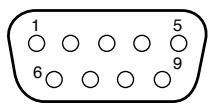
Mode : Asynchronous
Data rate : 9600 bps
Command spacing :>25 ms
Note: For correct operation, wait at least 25ms after receiving the reply to a command from the DV-D01U before sending the next command.
Character length : 8 bits
Parity bit : None
Stop bit : 1 bit
Transfer bit : LSBit First
| Pin | Signal | Description | Signal flow |
| 2 | RxD | Receive data | DVD player ← External device |
| 3 | TxD | Transmit data | DVD player → External device |
| 5 | GND | Signal grounding |
Command
Command structure
Example: PLAY command
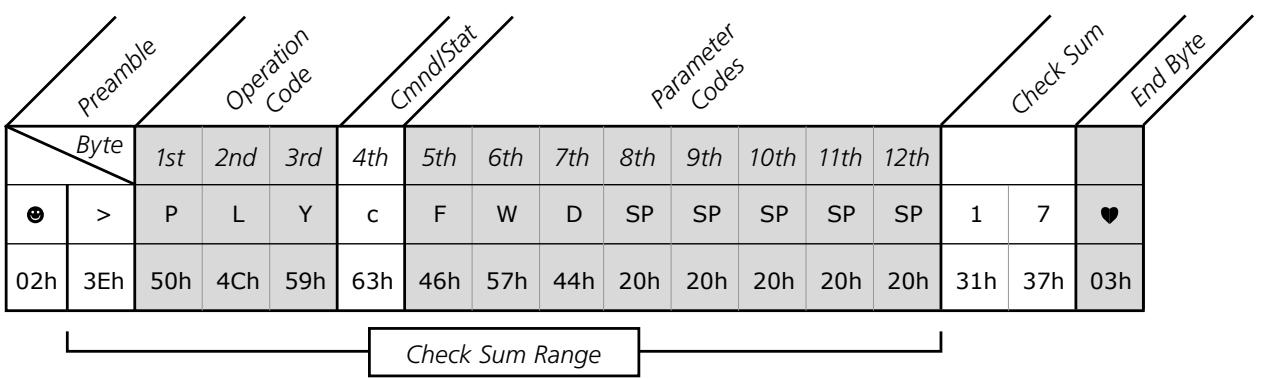
Preamble
All command strings for this unit begin with the start byte "02h" and header byte "3Eh".
Operation Code
Each command has a 3-byte operation code, which are listed in the following pages. The operation code for play is simply PLY (upper-case letters).
Command/Status Byte
This section determines whether the command is telling the unit to do something, or asking for its status. A lowercase "c" (63h) indicates a command while a lowercase "s" (73h) indicates status response.
Parameter Codes
8 bytes are reserved for parameters on the command/status response. When the status information does not fill up all 8 bytes (most don't), the extra slots are filled with spaces (20h). In the above example, FWD indicates playing forward at normal (1x) speed.
Check Sum
The check sum is calculated from the “ > ” in the Preamble to the end of the Parameter Codes. The last two digits of the hexadecimal addition are shown as ASCII in the Check Sum area. In this example, the Check Sum is derived as follows:
$$ 3 \mathrm {E} + 5 0 + 4 \mathrm {C} + 5 9 + 6 3 + 4 6 + 5 7 + 4 4 + 2 0 + 2 0 + 2 0 + 2 0 + 2 0 = 3 1 7 $$
The last two digits, "17" are displayed as ASCII in the Check Sum.
End Byte
This marks the end of the string with "03h".
Command overview
Transport functions (See page 30.)
| Operation Code (first 3 bytes) | Description | ||
| 1st | 2nd | 3rd | |
| P | L | Y | Play/Pause/Slow/Scan command |
| S | T | P | Disc stop command |
| S | K | P | Chapter/Track skip command |
| M | E | D | Open/Close tray command |
| P | O | W | Power On/Off command |
Menu navigation (See page 31.)
| Operation Code (first 3 bytes) | Description | ||
| 1st | 2nd | 3rd | |
| M | N | U | Menu call command |
| N | A | V | Menu navigation ( cursors, ENTER, etc.) command |
| R | C | U | Remote controlling |
Status information (See page 33.)
| Operation Code (first 3 bytes) | Description | ||
| 1st | 2nd | 3rd | |
| M | O | D | For acquiring DVD player status |
| D | S | C | For acquiring disc type information |
| S | P | D | For acquiring playback speed (video discs) |
| I | N | F | For acquiring counter information ( elapsed time, etc.) |
Advanced functions (See page 36.)
| Operation Code (first 3 bytes) | Description | ||
| 1st | 2nd | 3rd | |
| P | S | W | Front panel control enable/disable |
| I | R | D | Infrared control enable/disable |
| S | E | T | Establish default settings |
| I | N | I | Initialize the DVD player |
Transport commands
These commands are pretty straightforward, they function in the same way as the remote control supplied.
NOTE
- If pause is sent when the unit is paused, the unit will advance one video frame. If several pause commands are issued in quick succession, the unit will engage slow motion playback. (This double function only applies to video discs.)
| Play | 02h > P L Y c F W D SP SP SP SP 1 7 02h 3Eh 50h 4Ch 59h 63h 46h 57h 44h 20h 20h 20h 20h 20h 20h 20h 20h 20h 20h 20h 20h 20h 20h 20h 20h 20h 20h 20h 20h 20h 20h 20h 20h 20h 21 31h 37h 03h |
| Stop | 02h > S T P c SP SP SP SP SP SP SP SP SP SP 9 8 02h 3Eh 53h 54h 50h 63h 20h 20h 20h 20h 20h 20h 20h 20h 39h 38h 03h |
| Pause - Pause when paused advances frame, rapid succession is slow motion. | 02h > P L Y c P A U SP SP SP SP SP SP SP 1 C 02h 3Eh 50h 4Ch 59h 63h 50h 41h 55h 20h 20h 20h 20h 20h 31h 43h 03h |
| Fast Forward | 02h > P L Y c F F W SP SP SP SP SP SP SP 1 9 02h 3Eh 50h 4Ch 59h 63h 46h 46h 57h 20h 20h 20h 20h 31h 39h 03h |
| Fast Backward | 02h > P L Y c F B W SP SP SP SP SP SP 1 5 02h 3Eh 50h 4Ch 59h 63h 46h 42h 57h 20h 20h 20h 20h 31h 35h 03h |
| Return to Beginning of Current Track/ Chapter | 02h > S K P c S SP SP SP SP SP SP SP C 2 02h 3Eh 53h 4Bh 50h 63h 53h 20h 20h 20h 20h 20h 43h 32h 03h |
| Return to First Chapter of Current Title (DVDs) | 02h > S K P c T SP SP SP SP SP SP SP C 3 02h 3Eh 53h 4Bh 50h 63h 54h 20h 20h 20h 20h 20h 43h 33h 03h |
| Return to First Track (Audio and Video CDs) | |
| Next Track/Chapter | 02h > S K P c N SP SP SP SP SP SP SP B D 02h 3Eh 53h 4Bh 50h 63h 4Eh 20h 20h 20h 20h 20h 42h 44h 03h |
| Previous Track/Chapter | 02h > S K P c P SP SP SP SP SP SP B F 02h 3Eh 53h 4Bh 50h 63h 50h 20h 20h 20h 20h 20h 42h 46h 03h |
| Slow Motion | 02h > P L Y c S L W SP SP SP SP SP 2 C 02h 3Eh 50h 4Ch 59h 63h 53h 4Ch 57h 20h 20h 20h 20h 32h 43h 03h |
Go to specific track/chapter number
This command uses a capital "G" (47h) in the parameter codes before the track/chapter number.
| TRACK/CHAPTER # CHECK SUM | ||||||||||||||
| Go To Track/Chapter (E.g.: Go To Track/Chapter 12) | ⊗ > 02h 3Eh | S K P c 53h 4Bh 50h | c 63h | G 0 1 2 47h 30h 31h 32h | SP 20h 20h 20h | SP 20h 20h | SP 20h 20h | E 9 45h 39h | ♥ 03h | |||||
To go to a desired chapter on the DVD, set the 6th to 8th byte to the specific chapter number. For Audio and Video CDs, set the 7th and 8th byte to the specific track number with the 6th byte set to "0". Then calculate and set the check sum.
Go to specific title number
For DVDs that contain multiple titles, you can access each title directly using this command. This command is similar in structure to the command for locating a specific track or chapter except for the lowercase “g” (67h) used in the parameter code.
TITLE #
| Go To Title (E.g.: Go To Title 3) | ● > 02h 3Eh | S K P 53h 4Bh | K P 50h | c 63h | g 67h | 0 30h | 0 30h | 3 33h | SP 20h | SP 20h | SP 20h | SP 20h | 0 30h | 9 39h | ♥ 03h |
To go to a desired title on the DVD, set the 7th and 8th byte to the specific title number with the 6th byte set to "0". Then calculate and set the check sum.
Open/close disc tray
This command opens and closes the disc tray. If you wish to know whether the tray is open or closed before issuing this command, use the "MOD" status request.
CHECK SUM
| Open/Close Disc Tray | 02h > 3Eh | M E D 4Dh 45h 44h | c 63h | E J C 45h 4Ah 43h | SP 20h | SP 20h | SP 20h | SP 20h | E 45h | 9 39h | ♥ 03h |
| Open Disc Tray | 02h > 3Eh | M E D 4Dh 45h 44h | c 63h | O P N 4Fh 50h 4Eh | SP 20h | SP 20h | SP 20h | SP 20h | 0 30h | 4 34h | ♥ 03h |
| Close Disc Tray | 02h > 3Eh | M E D 4Dh 45h 44h | c 63h | C L S 43h 4Ch 53h | SP 20h | SP 20h | SP 20h | SP 20h | F 46h | 9 39h | ♥ 03h |
Power on/standby
There are separate commands for power on and standby mode. The unit will respond to the "MOD" when it is off.
| Power On | 02h > 3Eh | P 50h 4Fh | O 57h | c 63h | O N 4Fh | N 4Eh | SP 20h | SP 20h | SP 20h | SP 20h | SP 20h | F 4 46h | 4 34h | ♥ 03h |
| Power Standby | 02h > 3Eh | P 50h 4Fh | O 57h | c 63h | O F 4Fh | F 46h | SP 20h | SP 20h | SP 20h | SP 20h | SP 20h | E C 45h | C 43h | ♥ 03h |
Menu navigation commands
■ Menu call
The MNU command can recall either the "title" or "root" menus on a DVD. However, this command may not work on some DVDs.
| Title Menu | 02h > 3Eh | M 4Dh | N 4Eh | U 55h | c 63h | T 54h | SP 20h | SP 20h | SP 20h | SP 20h | SP 20h | SP 20h | C 43h | 5 35h | ♥ 03h |
| Root Menu | 02h > 3Eh | M 4Dh | N 4Eh | U 55h | c 63h | R 52h | SP 20h | SP 20h | SP 20h | SP 20h | SP 20h | SP 20h | C 43h | 3 33h | ♥ 03h |
- Menu navigation keys
These are the standard navigation keys, and they function just like those on the remote control.
| Cursor Left | 02h > 3Eh | N 4Eh | A 41h | V 56h | c 63h | L 4Ch | F 46h | T 54h | SP 20h | SP 20h | SP 20h | SP 20h | 0 30h | C 43h | ♥ 03h |
| Cursor Right | 02h > 3Eh | N 4Eh | A 41h | V 56h | c 63h | R 52h | I 49h | T 54h | SP 20h | SP 20h | SP 20h | SP 20h | 1 31h | 5 35h | ♥ 03h |
| Cursor Up | 02h > 3Eh | N 4Eh | A 41h | V 56h | c 63h | U 55h | P 50h | SP 20h | SP 20h | SP 20h | SP 20h | SP 20h | E 45h | B 42h | ♥ 03h |
| Cursor Down | 02h > 3Eh | N 4Eh | A 41h | V 56h | c 63h | D 44h | W 57h | N 4Eh | SP 20h | SP 20h | SP 20h | SP 20h | 0 30h | F 46h | ♥ 03h |
| Enter/Select | 02h > 3Eh | N 4Eh | A 41h | V 56h | c 63h | E 45h | N 4Eh | T 54h | SP 20h | SP 20h | SP 20h | SP 20h | 0 30h | D 44h | ♥ 03h |
| Return | 02h > 3Eh | N 4Eh | A 41h | V 56h | c 63h | R 52h | T 54h | N 4Eh | SP 20h | SP 20h | SP 20h | SP 20h | 1 31h | A 41h | ♥ 03h |
| Previous | 02h > 3Eh | N 4Eh | A 41h | V 56h | c 63h | P 50h | R 52h | E 45h | SP 20h | SP 20h | SP 20h | SP 20h | 0 30h | D 44h | ♥ 03h |
| Next | 02h > 3Eh | N 4Eh | A 41h | V 56h | c 63h | N 4Eh | X 58h | T 54h | SP 20h | SP 20h | SP 20h | SP 20h | 2 32h | 0 30h | ♥ 03h |
These remote control keys functions just like those on the remote control.
Remote control keys
| Title/Group | Θ > 02h 3Eh | R 52h 43h | C 55h | U 63h | T 54h | T 54h | L 4Ch | SP 20h | SP 20h | SP 20h | SP 20h | SP 20h | F 31h | F 46h | ♥ 03h |
| Display | Θ > 02h 3Eh | R 52h 43h | C 55h | U 63h | D 44h | S 53h | P 50h | SP 20h | SP 20h | SP 20h | SP 20h | SP 20h | 1 31h | 2 32h | ♥ 03h |
| Repeat | Θ > 02h 3Eh | R 52h 43h | C 55h | U 63h | R 52h | P 50h | T 54h | SP 20h | SP 20h | SP 20h | SP 20h | SP 20h | 2 32h | 1 31h | ♥ 03h |
| Subtitle | Θ > 02h 3Eh | R 52h 43h | C 55h | U 63h | S 53h | U B | B 42h | SP 20h | SP 20h | SP 20h | SP 20h | SP 20h | 1 31h | 5 35h | ♥ 03h |
| Audio/Fs Rate | Θ > 02h 3Eh | R 52h 43h | C 55h | U 63h | A 41h | U D | D 44h | SP 20h | SP 20h | SP 20h | SP 20h | SP 20h | 0 30h | 5 35h | ♥ 03h |
| FVPP | Θ > 02h 3Eh | R 52h 43h | C 55h | U 63h | V 56h | F 46h | P 50h | SP 20h | SP 20h | SP 20h | SP 20h | SP 20h | 1 31h | 7 37h | ♥ 03h |
| Angle | Θ > 02h 3Eh | R 52h 43h | C 55h | U 63h | A 41h | N 4Eh | G 47h | SP 20h | SP 20h | SP 20h | SP 20h | SP 20h | 0 30h | 1 31h | ♥ 03h |
| Zoom | Θ > 02h 3Eh | R 52h 43h | C 55h | U 63h | Z 5Ah | O 4Fh | M 4Dh | SP 20h | SP 20h | SP 20h | SP 20h | SP 20h | 2 32h | 1 31h | ♥ 03h |
| Instant Replay | Θ > 02h 3Eh | R 52h 43h | C 55h | U 63h | I 49h | P 50h | L 4Ch | SP 20h | SP 20h | SP 20h | SP 20h | SP 20h | 1 31h | 0 30h | ♥ 03h |
| Dimmer | Θ > 02h 3Eh | R 52h 43h | C 55h | U 63h | D 44h | I 49h | M 4Dh | SP 20h | SP 20h | SP 20h | SP 20h | SP 20h | 0 30h | 5 35h | ♥ 03h |
| Cancel | Θ > 02h 3Eh | R 52h 43h | C 55h | U 63h | C 43h | A 41h | N 4Eh | SP 20h | SP 20h | SP 20h | SP 20h | SP 20h | F D 46h | ♥ 44h | ♥ 03h |
| Page | Θ > 02h 3Eh | R 52h 43h | C 55h | U 63h | P 50h | A 41h | G 47h | SP 20h | SP 20h | SP 20h | SP 20h | SP 20h | 0 30h | 3 33h | ♥ 03h |
| Play Mode | Θ > 02h 3Eh | R 52h 43h | C 55h | U 63h | P 50h | M 4Dh | D 44h | SP 20h | SP 20h | SP 20h | SP 20h | SP 20h | 0 30h | C 43h | ♥ 03h |
| On-screen | Θ > 02h 3Eh | R 52h 43h | C 55h | U 63h | O 4Fh | S 53h | D 44h | SP 20h | SP 20h | SP 20h | SP 20h | SP 20h | 1 31h | 1 31h | ♥ 03h |
| Set Up | Θ > 02h 3Eh | R 52h 43h | C 55h | U 63h | S 53h | E 45h | T 54h | SP 20h | SP 20h | SP 20h | SP 20h | SP 20h | 1 31h | 7 37h | ♥ 03h |
| Progressive Scan | Θ > 02h 3Eh | R 52h 43h | C 55h | U 63h | P 50h | R 52h | O 4Fh | SP 20h | SP 20h | SP 20h | SP 20h | SP 20h | 1 31h | C 43h | ♥ 03h |
| Number Keys" (E.g.: To enter the number 9) | Θ > 02h 3Eh | R 52h 43h | C 55h | U 63h | N 4Eh | U M 55h | M 4Dh | 0 30h | 0 39h | 0 20h | 0 20h | 0 20h | 5 35h | 4 34h | ♥ 03h |
*1 For the Number Keys command, the number that can be send ranges from "0" to "010". Simply set the 9th and 10th byte to the desired number you want to send with the 8th byte set to "0". Then calculate and set the check sum.
Status information acquisition commands
"MOD" status request
This command is for acquiring information such as unit status (on/off), tray condition and disc type.
| MOD Status Request | ⊗ > M O D 02h 3Eh 4Dh 4Fh 44h | c 63h | SP 20h 20h | SP 20h 20h | SP 20h 20h | SP 20h 20h | SP 20h 20h | SP 20h 20h | 8 38h 31h 03h |
Response to "MOD" request
The reply to the MOD status request will contain two main parameter bytes, offering both transport status and disc format. Refer to the tables below for the available codes.
| VIDEO DVD in Play (Reply to "mod") | TRANSPORT STATUS | DISC FORMAT | ||||||||||||||
| 02h | 3Eh | 4Dh | 4Fh | 44h | s | : | 434h | SP20h | SP20h | SP20h | SP20h | SP20h | B42h | F46h | ♥03h | |
TRANSPORT STATUS
| ASCII | Hex | Description |
| SP | 20h | Power off |
| 1 | 31h | No disc in tray |
| 2 | 32h | Tray open |
| 3 | 33h | Tray opening |
| 4 | 34h | Tray closing |
| 5 | 35h | Reading disc |
| 6 | 36h | DVD menus |
| 7 | 37h | Stop |
| 9 | 39h | Search |
| : | 3Ah | Play |
| ; | 3Bh | Pause |
| < | 3Ch | Still playback |
| = | 3Dh | Scan |
| > | 3Eh | Slow motion playback |
DISC FORMAT
| ASCII | Hex | Description |
| 0 | 30h | No disc |
| 1 | 31h | Unknown format |
| 3 | 33h | DVD Audio |
| 4 | 34h | DVD Video |
| 5 | 35h | Super Video CD |
| 6 | 36h | Video CD |
| 7 | 37h | Audio CD |
| 9 | 39h | MP3/JPEG disc |
| A | 41h | DVD VR disc |
The DSC request will simply return the type of disc in the unit. The same information can also be obtained in the MOD request.
"DSC" status request
| DSC Status Request | ⊗ > D S C c 02h 3Eh 44h 53h 43h 63h | SP SP SP SP SP SP SP SP SP SP SP 20h 20h 20h 20h 20h 20h 20h 20h | ||||||||||||||
Response to "DSC" request
SPD" status request
| Video DVD (Reply to DSC Request) | 02h > 3Eh | 44h | 53h | 43h | s | 73h | V | i | d | SP | SP | SP | SP | SP | 4 | E | ♥ |
| 56h | 69h | 64h | 20h | 20h | 20h | 20h | 20h | 34h | 45h | 03h | |||||||
| Audio DVD (Reply to DSC Request) | 02h > 3Eh | 44h | 53h | 43h | s | 73h | A | u | d | SP | SP | SP | SP | SP | 4 | 5 | ♥ |
| 41h | 75h | 64h | 20h | 20h | 20h | 20h | 20h | 34h | 35h | 03h | |||||||
| Video CD (Reply to DSC Request) | 02h > 3Eh | 44h | 53h | 43h | s | 73h | V | C | D | SP | SP | SP | SP | SP | 0 | 8 | ♥ |
| 56h | 43h | 44h | 20h | 20h | 20h | 20h | 20h | 30h | 38h | 03h | |||||||
| Audio CD (Reply to DSC Request) | 02h > 3Eh | 44h | 53h | 43h | s | 73h | C | D | A | SP | SP | SP | SP | SP | F | 3 | ♥ |
| 43h | 44h | 41h | 20h | 20h | 20h | 20h | 20h | 46h | 33h | 03h | |||||||
| Super Video CD (Reply to DSC Request) | 02h > 3Eh | 44h | 53h | 43h | s | 73h | S | V | C | SP | SP | SP | SP | SP | 1 | 7 | ♥ |
| 53h | 56h | 43h | 20h | 20h | 20h | 20h | 20h | 31h | 37h | 03h | |||||||
| MP3/JPEG (Reply to DSC Request) | 02h > 3Eh | 44h | 53h | 43h | s | 73h | F | I | L | SP | SP | SP | SP | SP | 0 | 6 | ♥ |
| 46h | 49h | 4Ch | 20h | 20h | 20h | 20h | 20h | 30h | 36h | 03h | |||||||
| None (Reply to DSC Request) | 02h > 3Eh | 44h | 53h | 43h | s | 73h | U | N | K | SP | SP | SP | SP | SP | 1 | 9 | ♥ |
| 55h | 4Eh | 4Bh | 20h | 20h | 20h | 20h | 20h | 31h | 39h | 03h | |||||||
| Unknown (Reply to DSC Request) | 02h > 3Eh | 44h | 53h | 43h | s | 73h | N | O | N | SP | SP | SP | SP | SP | 1 | 6 | ♥ |
| 4Eh | 4Fh | 4Eh | 20h | 20h | 20h | 20h | 20h | 31h | 36h | 03h |
The SPD status request will return the playback speed of the unit. The SPD will also provide information on the unit status (pause, play or stop).
| SPD Status Request | 02h | >3Eh | S53h | P50h | D44h | c63h | SP20h | SP20h | SP20h | SP20h | SP20h | SP20h | SP20h | 838h | 838h | ♥03h |
Response to "SPD" request
| Stop Status (Reply to "spd") | ⊗ > 02h 3Eh | S 53h 50h 44h | D 44h | s 73h | S 53h | SP 20h | SP 20h | SP 20h | SP 20h | SP 20h | SP 20h | C 43h | B 42h | ♥ 03h |
| Pause Status | ⊗ > 02h 3Eh | S 53h 50h 44h | D 44h | s 73h | P 50h | SP 20h | SP 20h | SP 20h | SP 20h | SP 20h | SP 20h | C 43h | 8 38h | ♥ 03h |
| Play (Normal 1x) Status | ⊗ > 02h 3Eh | S 53h 50h 44h | D 44h | s 73h | N 4Eh | SP 20h | SP 20h | SP 20h | SP 20h | SP 20h | SP 20h | C 43h | 6 36h | ♥ 03h |
| Forward Status | ⊗ > 02h 3Eh | S 53h 50h 44h | D 44h | s 73h | F 46h | SP 20h | SP 20h | SP 20h | SP 20h | SP 20h | SP 20h | B 42h | E 45h | ♥ 03h |
| Backward Status | ⊗ > 02h 3Eh | S 53h 50h 44h | D 44h | s 73h | B 42h | SP 20h | SP 20h | SP 20h | SP 20h | SP 20h | SP 20h | B 42h | A 41h | ♥ 03h |
"INF" status requests and responses
The INF commands offer requests for different types of information on the disc. CDs and DVDs work differently, so the commands and replies are different.
Structure for Audio and Video CDs
Note that the first parameter byte (following the "c" or "s" command/status byte) is lowercase on the CD status information.
| First and Last Track Request | 02h > 3Eh | I 49h | N 4Eh | F 46h | c 63h | n 6Eh | SP 20h | SP 20h | SP 20h | SP 20h | SP 20h | C 43h | C 43h | ♥ 03h | |
| First and Last Track Response(Shows tracks 01 and 23) | 02h > 3Eh | I 49h | N 4Eh | F 46h | s 73h | n 6Eh | 0 30h | 1 31h | 2 32h | 3 33h | SP 20h | SP 20h | 2 32h | 2 32h | ♥ 03h |
| First Trk | Last Trk | ||||||||||||||
| Total Playing Time of Disc Request | 02h > 3Eh | I 49h | N 4Eh | F 46h | c 63h | t 74h | SP 20h | SP 20h | SP 20h | SP 20h | SP 20h | D 44h | 2 32h | ♥ 03h | |
| Total Playing Time Response(Shows 72min, 48sec, 13fr) | 02h > 3Eh | I 49h | N 4Eh | F 46h | s 73h | t 74h | 7 37h | 2 32h | 4 34h | 8 38h | 1 31h | 3 33h | 5 35h | B 42h | ♥ 03h |
| Minutes | Seconds | Frames | |||||||||||||
| Current Track and Index Request | 02h > 3Eh | I 49h | N 4Eh | F 46h | c 63h | i 69h | SP 20h | SP 20h | SP 20h | SP 20h | SP 20h | C 43h | 7 37h | ♥ 03h | |
| Current Track and Index Response(Shows track 23, index 01) | 02h > 3Eh | I 49h | N 4Eh | F 46h | s 73h | i 69h | 2 3 32h | 3 33h | 0 30h | 1 31h | SP 20h | SP 20h | 1 31h | D 44h | ♥ 03h |
| Track | Index | ||||||||||||||
| Elapsed Time, Current Track Request | 02h > 3Eh | I 49h | N 4Eh | F 46h | c 63h | p 70h | SP 20h | SP 20h | SP 20h | SP 20h | SP 20h | C 43h | E 45h | ♥ 03h | |
| Elapsed Time, Current Track Response(Shows 03min, 12sec, 13fr) | 02h > 3Eh | I 49h | N 4Eh | F 46h | s 73h | p 70h | 0 30h | 3 33h | 1 31h | 2 32h | 1 31h | 3 33h | 4 34h | 8 38h | ♥ 03h |
| Minutes | Seconds | Frames | |||||||||||||
Structure for Video DVDs
Note that the first parameter byte (following the "c" or "s" command/status byte) is uppercase on the DVD status information
| Total Number of Titles Request | 02h > 3Eh | I 49h | N 4Eh | F 46h | c 63h | L 4Ch | SP 20h | SP 20h | SP 20h | SP 20h | SP 20h | SP 20h | A 41h | A 41h | ♥ 03h |
| Total Number of Titles Response(Shows 2 Titles) | 02h > 3Eh | I 49h | N 4Eh | F 46h | s 73h | L 4Ch | 0 30h | 2 32h | SP 20h | SP 20h | SP 20h | SP 20h | D 44h | C 43h | ♥ 03h |
| # of Titles | |||||||||||||||
| Elapsed Time, Current Title Request | 02h > 3Eh | I 49h | N 4Eh | F 46h | c 63h | M 4Dh | SP 20h | SP 20h | SP 20h | SP 20h | SP 20h | SP 20h | A 41h | B 42h | ♥ 03h |
| Elapsed Time, Current Title Response(Shows 1hr, 15min, 23sec) | 02h > 3Eh | I 49h | N 4Eh | F 46h | s 73h | M 4Dh | 1 31h | 1 31h | 5 35h | 2 32h | 3 33h | SP 20h | 1 31h | 7 37h | ♥ 03h |
| HR MIN SEC | |||||||||||||||
| Current Title & Chapter Request | 02h > 3Eh | I 49h | N 4Eh | F 46h | c 63h | H 48h | SP 20h | SP 20h | SP 20h | SP 20h | SP 20h | SP 20h | A 41h | 6 36h | ♥ 03h |
| Current Title & Chapter Response(Shows Title 1, Chapter 23) | 02h > 3Eh | I 49h | N 4Eh | F 46h | s 73h | H 48h | 0 30h | 1 31h | SP 20h | 2 3 32h | 3 33h | SP 20h | 0 30h | C 43h | ♥ 03h |
Title Chapter
Advanced commands
■ Front panel and IR permissions
The unit uses the PSW and IRD commands to disable the front panel or IR controls for automated installations. These settings will remain in tact until either the power is disconnected from the unit, or until these commands are used to turn the control back on. The INI command can also be used to reset the controls to its default (on).
| Disable Front Panel Control | 02h > 3Eh | P 50h | S 53h | W 57h | c 63h | D 44h | SP 20h | SP 20h | SP 20h | SP 20h | SP 20h | SP 20h | B 42h | F 46h | ♥ 03h |
| Enable Front Panel Control | 02h > 3Eh | P 50h | S 53h | W 57h | c 63h | A 41h | SP 20h | SP 20h | SP 20h | SP 20h | SP 20h | SP 20h | B 42h | C 43h | ♥ 03h |
| Disable IR Remote Control | 02h > 3Eh | I 49h | R 52h | D 44h | c 63h | D 44h | SP 20h | SP 20h | SP 20h | SP 20h | SP 20h | SP 20h | A 4 41h | 4 34h | ♥ 03h |
| Enable IR Remote Control | 02h > 3Eh | I 49h | R 52h | D 44h | c 63h | A 41h | SP 20h | SP 20h | SP 20h | SP 20h | SP 20h | SP 20h | A 1 41h | 1 31h | ♥ 03h |
- Initializing the unit
The initial settings of the unit can be set and recalled using the SET and INI commands. The SET command should only be used directly after the unit is turned on. The INI command will initialize the unit, and return the unit to the settings last built by the SET command. No other commands should be sent for at least 500 ms while the RS-232 routine is initializing. As for the SET and INI commands, DV-D01U does not send back response.
| Capture Default Settings | 02h > 3Eh | 53h | 45h | 54h | c 63h | 0 30h | 0 30h | 8 38h | e 65h | SP 20h | SP 20h | 0 30h | 8 38h | 3 33h | 2 32h | ♥ 03h |
| Initialize RS-232 Control | 02h > 3Eh | I 49h | N 4Eh | I 49h | c 63h | SP 20h | SP 20h | SP 20h | SP 20h | SP 20h | SP 20h | SP 20h | 8 38h | 1 31h | ♥ 03h |
Maintenance
Handling Discs
- Remove the disc from its case by holding it at the edge while pressing the center hole lightly.
- Do not touch the shiny surface of the disc or bend the disc.
-
Put the disc back in its case after use to prevent warping.
-
Be careful not to scratch the surface of the disc when placing it back in its case.
- Avoid exposure to direct sunlight, extreme temperature and moisture.
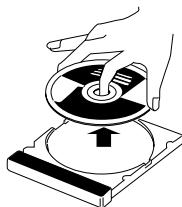
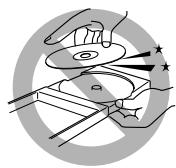
To clean the disc
Wipe the disc with a soft cloth in a straight line from center to edge.
DO NOT use any solvent - such as conventional record cleaner, spray, thinner or benzine - to clean the disc.
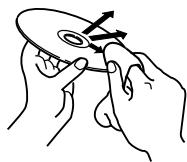
- Cleaning the unit
- Stains on the unit should be wiped off with a soft cloth. If the unit is heavily stained, wipe it with a cloth soaked in water-diluted neutral detergent and wrung well, then wipe clean with a dry cloth.
-
Since the unit may deteriorate in quality, become damaged or get its paint peeled off, be careful about the following.
-
DO NOT wipe it with a hard cloth.
- DO NOT wipe it forcefully.
- DO NOT wipe it with thinner or benzine.
- DO NOT apply any volatile substance such as insecticides to it.
- DO NOT allow any rubber or plastic to remain in contact with it for a long time.
Troubleshooting
| PROBLEM | POSSIBLE CAUSE | SOLUTION |
| Power does not come on. | The power cord is not connected. | Connect the power cord correctly. (See page 8.) |
| The remote control does not work. | The batteries are exhausted. | Replace the batteries. (See page 6.) |
| Sunlight is shining directly on the remote sensor. | Hide the remote sensor from direct sunlight. | |
| The disc reading time is too long. | The disc is dirty. | Clean the disc by referring to “Maintenance” above. |
| No sound. | The audio cable is not connected. | Check the connection. |
| No sound is produced when playing back a DVD recorded with high sampling (88.2 kHz or more) linear PCM audio using the DIGITAL OUT (OPTICAL) jack. | The audio signal is not derived from the unit's DIGITAL OUT (OPTICAL) jack. | Use analog AUDIO OUT when playing back such discs. |
| No picture is displayed on the TV screen. | The video cable is not connected correctly. | Connect the cable correctly. (See page 7.) |
| The disc or file is not playable. | Use a playable disc or file. (See pages 3 and 4.) | |
| No picture is displayed on the TV screen, the picture is blurred, or the picture is divided into two parts. | The scan mode is set to “480p”(NTSC) or “576p”(PAL) though the unit is connected to the TV which does not support the progressive video input such as a conventional TV. | Change the scan mode to “480i” (NTSC) or “576i” (PAL) though. (See page 10.) |
| Video and audio are distorted. | The disc is scratched or dirty. | Replace or clean the disc. |
| A VCR is connected between the unit and the TV. | Connect the unit and TV directly. (See page 7.) | |
| The picture does not fit the TV screen. | The monitor type is not set correctly. | Set “MONITOR TYPE” properly. (See page 26.) |
| No picture is displayed on the TV or no sound come out through HDMI connection. | A video or audio format not compatible with this unit and/or TV is played. | Check the video or audio format of the signal to see if it is compatible with this unit and/or TV. |
| A HDCP-compatible TV is not connected. | Connect a HDCP-compatible TV. (See page 7.) | |
| The unit failed to recognize the TV connected with the HDMI cable. | Disconnect the HDMI cable and connect it again. | |
| A HDMI cable longer than 5 m (15 ft) is used. | Use a HDMI cable shorter than 5 m (15 ft) to assure stable operation and picture quality. | |
| The picture is distorted when the TV is connected through HDMI terminal. | Proportion of the picture may not be shown correctly depending on a disc/file when the TV is connected through HDMI terminal. | Connect the TV through component video, S-video, or composite video jacks (see page 7), then set the scan mode to “480p” (see page 10). |
If there are any other cases than the noted above or if this unit does not seem to work properly, turn off the unit and turn it back on.
Specifications
General
| Power Requirements: | U.S.A./Canada | 120 VAC, 60 Hz |
| U.K./Europe | 230 VAC, 50 Hz | |
| Australia | 240 VAC, 50 Hz | |
| Asia | 100-240 VAC, 50-60Hz | |
| Power Consumption: | at operation | 11 W |
| in standby mode | ||
| U.S.A./Canada/Asia | 0.2 W | |
| U.K./Europe | 0.6W | |
| Dimensions (W x H x D): | 482 mm x 51 mm x 269 mm | |
| (19 inches x 2 inches x 10.6 inches) | ||
| Mass: | 2.6 kg (5.8 lbs) | |
Audio section
| Analog output: | |
| AUDIO OUT: | -8 dB/1 kΩ |
| Digital output*1: | |
| DIGITAL OUT (OPTICAL): | -21 dBm to -15 dBm |
| (660 nm ±30 nm) | |
| *1 Corresponding to Linear PCM, Dolby Digital, and DTS Digital Surround (with sampling frequency — 32 kHz, 44.1 kHz, 48 kHz) | |
Video section
| Video System: | NTSC |
| Horizontal Resolution: | 500 lines |
| Signal-to-Noise Ratio: | 64 dB |
| Video output level | |
| Composite: | 1.0 V(p-p)/75 Ω |
| S-video-Y: | 1.0 V(p-p)/75 Ω |
| S-video-C: | 0.286 V(p-p)/75 Ω |
Component-Y: 1.0 ~V(p-p) / 75
Component- P_B / P_R . 0.7 V(p-p)/75 Ω
HDMI
HDMI Output (Ver. 1.0): HDMI
RS-232C
Serial command: 9-Pin D-SUB
Designs & specifications are subject to change without notice.
- HDMI, the HDMI logo and High-Definition Multimedia Interface are trademarks or registered trademarks of HDMI Licensing LLC.
- HDCP is the abbreviation of "High-Bandwidth Digital Content Protection," and is the high-reliable copy control technology licensed by Digital Content Protection, LLC.

Dimensions (unit: mm)
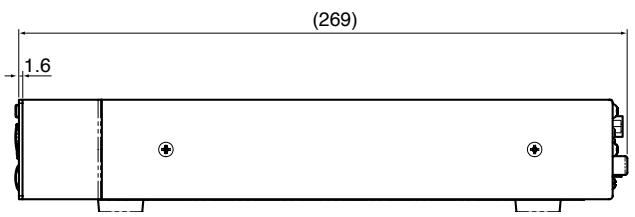
TASCAM
TEAC Professional Division
DV-D01U
TEAC CORPORATION
Phone: +81-422-52-5082
3-7-3, Nakacho, Musashino-shi, Tokyo 180-8550, Japan
www.tascam.com
TEAC AMERICA, INC.
Phone: +1-323-726-0303
7733 Telegraph Road, Montebello, California 90640
www.tascam.com
TEAC CANADA LTD.
Phone: +1905-890-8008 Facsimile: +1905-890-9888
5939 Wallace Street, Mississauga, Ontario L4Z 1Z8, Canada
www.tascam.com
TEAC MEXICO, S.A. De C.V
Phone: +52-555-581-5500
Campsinos No. 184, Colonia Granjes Esmeralda, Delegation Iztapalapa CP 09810, Mexico DF
www.tascam.com
TEAC UK LIMITED
Phone: +44-8451-302511
Unit 19 & 20, The Courtyards Hatters Lane, Watford, Hertfordshire. WD18 8TE, U.K.
www.tascam.co.uk
TEAC EUROPE GmbH
Phone: +49-611-71580

- TEAC Professional Division
- DV-DO1U
- DVD PLAYER
- OWNER'S MANUAL
- WARNING: TO PREVENT FIRE OR SHOCK HAZARD, DO NOT EXPOSE THIS APPLIANCE TO RAIN OR MOISTURE.
- For U.S.A.
- TO THE USER
- CAUTION
- For the customers in Europe
- WARNING
- Safety Information
- Optical pickup:
- Rack-mounting the Unit
- Introduction 2
- About discs 3
- Description of parts and controls. 5
- Connections 7
- Basic operations 9
- Playback 11
- Advanced operation 16
- Setting DVD preferences 25
- RS-232C interface 28
- References 37
- Notes on handling
- Important cautions
- Installation of the unit
- Power cord
- To prevent malfunctions of the unit
- Note about copyright laws
- Note about copyguard system
- Safety precautions
- Avoid moisture, water and dust
- Avoid high temperatures
- When you are away
- Do not block the vents
- Care of the cabinet
- If water gets inside the unit
- Supplied accessories
- NOTE
- Playable disc types
- Notes on DVD-R and DVD-RW
- Notes on CD-R and CD-RW
- Region code of DVDVIDEO
- Unplayable discs
- Playable file types
- For all playable files
- For MP3/WMA/WAV files
- For JPEG files
- For ASF files
- For MPEG-2/MPEG-1 files
- For DivX files
- Front panel
- Rear panel
- Operating the unit from the remote control
- Connecting a TV
- To connect a conventional TV
- To connect a TV equipped with the HDMI terminal
- About DVD AUDIO
- What is HDMI?
- To connect a TV equipped with the component video input jacks
- To connect a TV equipped with an S-video jack
- Connecting to a stereo amplifier/ receiver
- Connecting to a digital component
- Connecting the power cord
- RS-232C connector
- Turning the unit on/off
- Press STAND-BY/ON.
- Adjusting the brightness of the indications [DIMMER]
- Press DIMMER.
- Changing the scan mode
- Press and hold PROGRESSIVE SCAN for 2 seconds.
- Press Cursor / to select the desired mode.
- Press ENTER while the selected mode is displayed.
- Basic playback
- To play a disc
- Press on the unit or OPEN/CLOSE on the remote control.
- Place a disc.
- Press (play button) on the unit or remote control.
- To pause
- Press II.
- To stop
- Press ■.
- ■ On-screen guide icons
- ■Playback information on the display window
- DVDVIDEO
- DVD VR disc
- DVD AUDIO
- VCD/SVCD/CD
- MP3/WMA/WAV file
- JPEG file
- ASF/MPEG-2/MPEG-1/DivX file
- Screen saver
- Power on play
- One Touch Replay
- Press INSTANT REPLAY.
- Fast-forward/fast-reverse search
- Skip to the beginning of a desired selection
- Using / buttons
- Press or repeatedly.
- Using number buttons on the remote control
- Press number buttons (0 - 10, ≥ 10) to select the desired number.
- How to use the number buttons
- Skipping at about 5-minute intervals
- Press Cursor /
- Locating a desired title/group using number buttons
- Press TITLE/GROUP.
- While the display window shows “- - ”, use number buttons (0-10, ≥10) to enter the desired title or group number.
- Selecting the desired title/ playlist from the control display
- Press TOPMENU/PG or MENU/PL.
- Press Cursor / to select the desired title/playlist.
- About the play mode on a DVD VR disc
- Using the on-screen bar
- Showing the on-screen bar
- Press ON SCREEN.
- Contents of the on-screen bar during playback
- Changing the time information
- Press ON SCREEN twice.
- Press Cursor▶/▲ to highlight TIME.
- Press ENTER repeatedly to select the desired information.
- Press ON SCREEN.
- Playing from a specified position on a disc
- Locating a desired scene from the DVD menu
- Press TOP MENU/PG or MENU/PL.
- Use Cursor / / to select a desired item.
- Press ENTER.
- Locating a desired scene using a VCD/SVCD menu with PBC
- Press RETURN repeatedly until the menu appears on the TV screen.
- Press number buttons (0 - 10, ≥ 10) to select the number of the desired item.
- To return to the menu
- When "NEXT" or "PREVIOUS" is shown on the TV screen:
- Locating a desired chapter or track using the on-screen bar
- Press Cursor to highlight CHAP. → or TRACK → .
- Press number buttons (0-9) to enter the desired chapter number.
- Press ENTER.
- Press ON SCREEN.
- Locating a desired position by specifying the time
- - When specifying the elapsed playing time from the beginning of the disc
- - When specifying the elapsed playing time from the beginning of the current title/track
- Press Cursor / to highlight → .
- Use number buttons (0-9) to enter the time.
- Using the file control display
- Press Cursor / / to select the desired group/track/file.
- Press (play button) or ENTER.
- ResumePlayback
- To start playback from the stored position
- To clear the stored position
- Selecting a view angle
- Press ANGLE.
- Press ANGLE repeatedly, or press Cursor / to select the desired view angle.
- Press Cursor / to select the desired view angle.
- Selecting the subtitle
- Press SUBTITLE.
- Press SUBTITLE repeatedly, or press Cursor / to select the desired subtitle.
- For DVD VR
- For SVCD
- To clear the subtitle
- Press Cursor / repeatedly to select the desired subtitle.
- Selecting the audio
- Press AUDIO.
- Press AUDIO repeatedly or press Cursor / to select the desired audio.
- Press Cursor / to select the desired audio.
- Special picture playback
- Frame-by-frame playback
- Press II repeatedly.
- Playing back in slow-motion
- Press H at the point where you want to start playback in slow-motion from.
- Press SLOW+.
- Zooming in
- Press ZOOM.
- While zoomed in, press Cursor / / to move zoom-in area.
- Changing the VFP setting
- Press FVPP.
- Press Cursor / repeatedly to select the VFP mode.
- Press Cursor / repeatedly to select a parameter you want to adjust.
- Press ENTER.
- Press Cursor / to change the setting.
- Press ENTER.
- Repeat steps 3 to 6 to adjust other parameters.
- Press FVPP.
- Program Playback
- Follow the instructions that appear on the TV screen to program the desired tracks.
- To clear the programs one by one from the last entered number
- Press (play button).
- To check the program contents
- To quit the Program mode
- Random Playback
- Press (play button).
- To quit Random mode
- Repeat Playback
- Repeating the current selection or all tracks
- Press REPEAT.
- Repeating a desired part [A-B Repeat]
- To cancel
- Tray lock
- Selecting a still picture on a DVD AUDIO disc
- Playing back a bonus group of a DVD AUDIO disc
- Using the setup menus
- Basic operation on the setup menus
- Press SET UP.
- Follow the instructions that appear on the TV screen.
- Menu description
- Language menu (LANGUAGE)
- ■ MENU LANGUAGE
- AUDIO LANGUAGE
- SUBTITLE
- ON SCREEN LANGUAGE
- The language codes list
- Picture menu (PICTURE)
- ■ MONITOR TYPE
- 4:3 PS (Pan Scan conversion)
- 4:3 LB (Letter Box conversion)
- 16:9 AUTO (Wide television conversion)
- 16:9 NORMAL (Wide television conversion)
- PICTURE SOURCE
- - AUTO
- FILM
- VIDEO
- SCREENSAVER (See page 13.)
- FILE TYPE
- AUDIO
- - STILL PICTURE
- HDMI DVI COLOR
- STANDARD
- - ENHANCE
- HDMI OUT
- RGB
- Audio menu (AUDIO)
- DIGITAL AUDIO OUTPUT
- - PCM ONLY
- DOLBY DIGITAL/PCM
- - STREAM/PCM
- DOWN MIX
- DOLBY SURROUND
- STEREO
- RANGE COMPRESSION
- ON
- HDMI AUDIO OUT
- : Other setting menu (OTHERS)
- RESUME
- ON SCREEN GUIDE
- DivX registration menu (DivX REGISTRATION)
- RS-232C Specifications
- 9-pin D-Sub (Male)
- Command
- Command structure
- Preamble
- Operation Code
- Command/Status Byte
- Parameter Codes
- Check Sum
- End Byte
- Command overview
- Transport commands
- Go to specific track/chapter number
- Go to specific title number
- Open/close disc tray
- Power on/standby
- Menu navigation commands
- ■ Menu call
- - Menu navigation keys
- Status information acquisition commands
- "MOD" status request
- Response to "MOD" request
- "INF" status requests and responses
- Structure for Audio and Video CDs
- Structure for Video DVDs
- Advanced commands
- ■ Front panel and IR permissions
- - Initializing the unit
- Maintenance
- Handling Discs
- To clean the disc
- - Cleaning the unit
- Troubleshooting
- Specifications
- HDMI
- RS-232C
- TASCAM
- DV-D01U
- TEAC CORPORATION
Brand : TASCAM
Model : DV-D01U
Category : Media player