
DR-1 - Portable audio recorder TASCAM - Free user manual and instructions
Find the device manual for free DR-1 TASCAM in PDF.


| Product type | Portable audio recorder |
| Brand | TASCAM |
| Model | DR-1 |
| Dimensions (W x H x D) | 62 x 108 x 26 mm |
| Weight (with batteries) | Approx. 165 g |
| Power supply | 2 AA (LR6) batteries or 5 V DC power adapter |
| Recording media | SD card (up to 2 GB), SDHC (up to 32 GB) |
| Recording formats | WAV (44.1 kHz/16 bits), MP3 (32-320 kbps) |
| Built-in microphone | Stereo, electret condenser |
| Built-in speaker | Yes, monaural |
| CUE/REV function (fast forward/reverse) | Up to 8x speed |
| Auto off (AUTO OFF) | 180 seconds |
| Backlight (BACKLIGHT) | 15 seconds |
| System version | 1.00 DDD1 |
| Line input | 3.5 mm stereo mini-jack |
| Headphone output | 3.5 mm stereo mini-jack |
| External microphone input | 3.5 mm stereo mini-jack with plug-in power |
| Main functions | Recording, playback, track marking, limiter, noise reduction |
| Maintenance and cleaning | Clean with a soft dry cloth; avoid moisture |
| Safety | Use recommended batteries; do not expose to water or shocks |
| Spare parts and repairability | Not provided; contact TASCAM support |
| General information | Portable digital audio recorder for musicians, journalists, and enthusiasts |
Frequently Asked Questions - DR-1 TASCAM
User questions about DR-1 TASCAM
0 question about this device. Answer the ones you know or ask your own.
Ask a new question about this device
Download the instructions for your Portable audio recorder in PDF format for free! Find your manual DR-1 - TASCAM and take your electronic device back in hand. On this page are published all the documents necessary for the use of your device. DR-1 by TASCAM.
USER MANUAL DR-1 TASCAM
Supplied accessories 3
Recycling the rechargeable battery. 3
Notes about this manual. 3
Copyrights 3
2-Preparation 4
About SD cards 4
Inserting the SD card 4
Removing the SD card 4
Inserting a new card 4
Other cases that require formatting 4
Powering the unit 5
Installing the battery 5
Charging the battery. 5
Changing the battery 5
Turning the power on and off 6
Setting the date and time 6
Resetting the unit 6
3-Part Names and Functions 7
Top panel 7
Right side panel. 9
Left side panel. 9
Front Panel 10
Rear Panel 10
Bottom panel 10
4-Screen Overview 11
Home Screen 11
Record Screen 12
Setting Screens. 13
Setting screen structure 13
Operation basics. 14
Operation example 14
5-Making Connections 15
Connecting monitors. 15
Connecting with a computer 15
Disconnecting from a computer 15
Connecting mics and other audio devices 16
Connecting to the MIC 1 IN jack 16
Connecting to the MIC 2 IN jack. 16
Connecting to the LINE IN jack. 16
6-Copying Tracks from a Computer 17
Preparing audio files on a computer 17
Copying audio files from a computer 17
Managing the Music Folder from a computer 17
7-Playback 18
Starting and stopping playback 18
Selecting tracks 18
Search forward and backward 18
Using the wheel to change the playback position 18
Adjusting the volume 18
8-Recording 19
Selecting the file type and sampling frequency 19
Setting the maximum file size 19
Selecting the input source 20
Setting the INT/MIC1 input functions 20
Display of input functions on the Record Screen 21
Adjusting the built-in microphone angle 21
Adjusting the input levels of microphones 21
About recording modes 22
Ordinary recording 22
Overdubbing 23
Preparation for overdubbing 23
Overdub recording 23
9-Playback Area and Playlist 24
Setting the playback area 24
Selecting a folder for the playback area 24
Selecting a file to set the playback area 25
25
Adding tracks to the playlist 25
Editing the playlist 26
10-Browse Screen 27
Screen navigation 27
Icons on the BROWSE screen 27
File operations 28
Folder operations 28
11-SpecialPlaybackControlFunctions 29
Setting the playback control functions 29
Changing the speed 29
Change speed without changing pitch 29
Changing the pitch without changing the speed 29
Reducing vocal and solo instrument sounds. 30
12-Loop, Repeat and Single Playback 31
Loop playback 31
Repeat and single track playback modes 31
13-Using the Effects 32
Turning the effect ON and OFF 32
Setting the effect 32
Closing the Effect Screen 32
14-Using the Metronome 33
Setting the metronome 33
Starting and stopping the metronome 33
15-Using the Tuner 34
Preparation 34
Chromatic tuning mode 34
Oscillator mode 34
16-System Settings and Formatting 35
Making System Settings 35
Restoring the factory settings 35
Formatting the SD card 36
Using QUICK FORMAT 36
Using FULL FORMAT 36
17-Viewing File Information 37
File information page 37
Memory information page 37
System information page 37
18-Effects Preset List 38
19-Messages 39
20-Specifications 41
Audio Input and Output 41
Audio performance 41
Other specifications 41
Computer requirements 42
Dimensions 42
Thank you very much for purchasing the TASCAM DR-1 Portable Recorder. Please read this Owner's Manual carefully in order to maximize your use of all the unit's features. We hope that you will enjoy using this recorder for many years to come. Please make copies of this manual and keep them in safe places for future reference.
Main functions
Portable recorder
- Use SD cards as the recording media
- Record with the built-in microphone, or by connecting a microphone or the line output of a CD player, instrument or other audio device
- Choose MP3 (32 kbps-320 kbps, 44.1 kHz or 48 kHz) or WAV (16-bit or 24-bit, 44.1 kHz or 48 kHz) audio file types for recording
- Mix and record the input signal with the playing audio track (over dubbing)
Other features
- Special playback functions include decreasing playback speed without changing pitch and reducing the sound of a recorded vocal or solo instrument during playback
Built-in effects can be applied to the input signal - Copy audio files from a computer to this unit's SD card by USB connection
Supplied accessories
Soft case 1
- SD card (that contains this Owner's Manual)............1
- USB cable. 1
- Quick Start Guide 1
Warranty card. 1
BP-L2 (specialized lithium ion battery) 1
BP-L2 manual 1
BP-L2 warranty card 1
Please contact the store where you purchased this unit if any of these accessories are missing or have been damaged during transportation.
Recycling the rechargeable battery
This device uses a lithium ion battery. Please do not throw away the battery when it is no longer necessary.
If you have any questions, please contact us (see the last page of this manual for contact information).

Li-ion00
Notes about this manual
Font use conventions
- Controls, keys and other parts on the DR-1 are written like this: MENU.
- Messages shown on the display are written like this: Are you sure?
- We use the term "key" to describe the push-button controls on the DR-1.
Tracks and files are the same
Tracks are files, and files are tracks.
In this manual, we usually use the word "track" when we are describing the playback of a song, for example, just as we would if talking about songs on a CD or a portable music player. However, when we talk about their data properties, such as sampling frequencies and ID3 tags, we often refer to the same "tracks" as "files" because they can be manipulated in ways similar to files on a computer.
Copyrights
Windows, Vista, Windows XP and Windows 2000 are trademarks of Microsoft Corporation.
Macintosh, Mac OS, and Mac OS X are trademarks of Apple Inc.
About SD cards
Since this unit uses an SD card for recording and playback, you must insert an SD card into the unit before use. You can use 64 MB-2 GB SD cards and 4 GB-32 GB SD HC cards with this unit.
Please see the TASCAM web site (www.tascam.com) for information about cards that have been tested with the DR-1.
Inserting the SD card
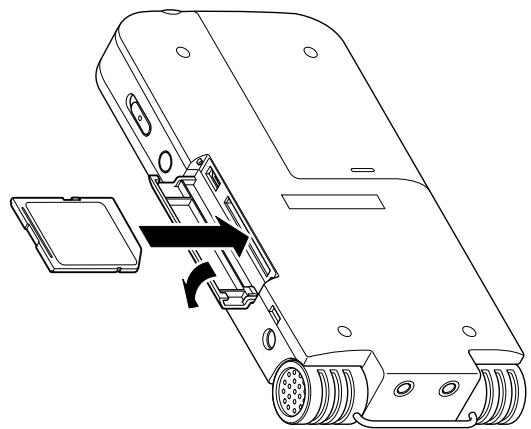
The SD card slot and the USB connector are under the cover on the left side of the unit.
Press the cover down in the direction of the arrow to open it. Insert the included SD card in the SD card slot and push it until it clicks fully into place.
Removing the SD card
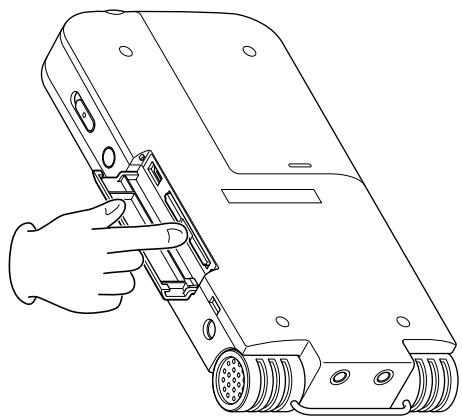
Press the inserted SD card in gently and it will disengage from the unit so that you can completely pull it out.
CAUTION
Do not remove the SD card during recording or playback, or when the unit is connected to the computer by USB.
Inserting a new card
The following pop-up screen appears if you insert a new card in the unit.
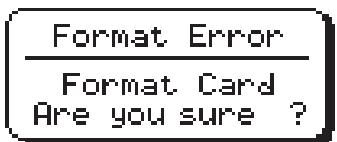
Press the / key to format the card so that it can be used with this unit.
When formatting finishes, the Home Screen appears.
CAUTION
Formatting an SD card erases all files that are on it. Make certain that you have copied any files that you want to save from the card before formatting it.
Other cases that require formatting
- The above "FORMAT ERROR" screen also appears if you install an SD card that was formatted by a device other than the DR-1. Reformat the card to use it with this unit.
- The following pop-up screen appears if a system file or other crucial file was accidentally erased from the SD card when used with a computer
File Not Found
Make Sys File Are you sure ?
In either case, press the / key to reformat the card.
TIP
Always make backup copies of important files as soon as you can.
Powering the unit
The DR-1 can be operated using a special lithium ion battery or an AC adapter (PS-P520). One battery is included with the unit and the AC adapter and additional batteries are available for purchase separately. You can charge the battery by connecting
the unit to a computer by USB or using an AC adapter. When shipped new, the included battery is not sufficiently charged, so it must be charged before using the unit. Charge the battery or connect the AC adapter before using the unit.
Installing the battery
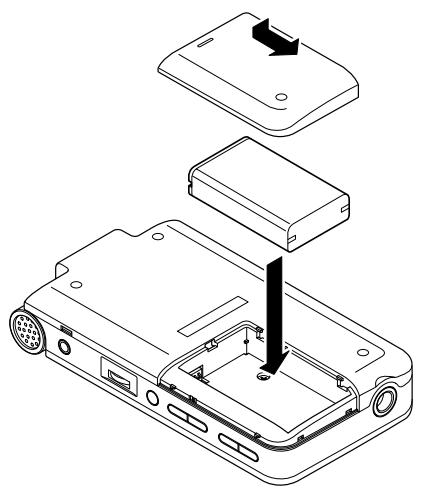
Slide the battery case cover on the back of the unit to open it, and insert the DR-1 battery that was included in the box.
Charging the battery
Charging with a computer
Open the cover on the left side panel, and use the included USB cable to connect the unit's USB port to a USB port on a computer.
Please connect this unit directly to a computer. Proper charging and operation cannot be assured when using a USB hub.
Even if the power for the unit is off, the battery charges when connected to a computer by USB. The computer may need to be ON to charge the battery.
Complete charging by USB takes about 6 hours (when the unit's power is OFF).
When being charged by a computer, the DR-1 automatically enters USB connect mode (see "Connecting with a computer" on page 15).
Charging with an AC adapter
(purchased separately)
Connect an AC adapter to the DC IN 5V jack to charge the unit.
Complete charging with the adapter takes about 3 hours (whether the unit's power is ON or OFF).
You can use this unit normally as it is charged by the connected AC adapter.
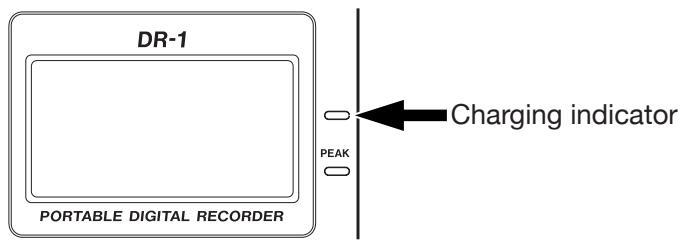
The charge indicator to the right of the display lights orange during charging. The indicator turns off when charging is complete.
NOTE
Changing the battery
You can purchase additional batteries (BP-L2) that are identical to the one included with the unit. You might want to purchase extra batteries if you expect to use the DR-1 for recording or other applications for long periods of time when you will not be able to recharge or use an AC adapter (also sold separately).
To change the battery, slide and remove the battery case cover on the bottom panel.
Turning the power on and off
To turn the power ON, press and hold the POWER key on the left side panel until "TASCAM DR-1" appears on the display.
The Home Screen appears when the unit starts up.
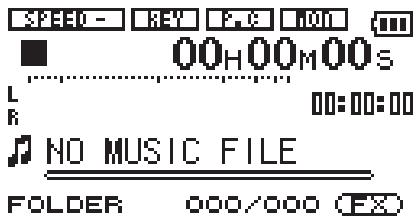
To turn the power OFF, press and hold the POWER key until "PORTABLE DIGITAL REORDER" appears on the display.
Setting the date and time
Follow these procedures to set the date and time of the built-in clock. When you create an audio file, date and time information is included in the file data.
1 Press the MENU key to open the Menu Screen.
2 Use the wheel to select DATE/TIME and press the / key to open the Date/Time Screen.
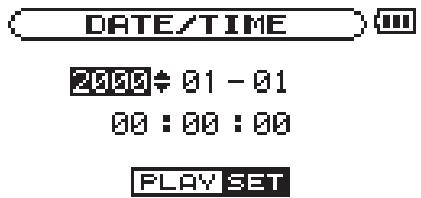
The clock stops while this screen is displayed.
3 Use the and keys to move the cursor (the part highlighted in inverse) and use the wheel to set the values.
4 After making the setting, press the / key to restart the clock from the newly set value.
The display returns to the Menu Screen.
Resetting the unit
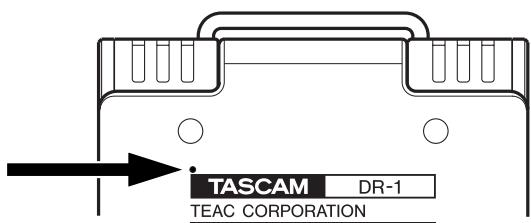
The back panel of the unit has a reset hole.
If the unit is operating abnormally, push the end of a paperclip or similar item into this hole to press a button inside the unit. This turns the power OFF and resets the DR-1's system.
CAUTION
Do not press the reset button when the unit is functioning properly.
Top panel
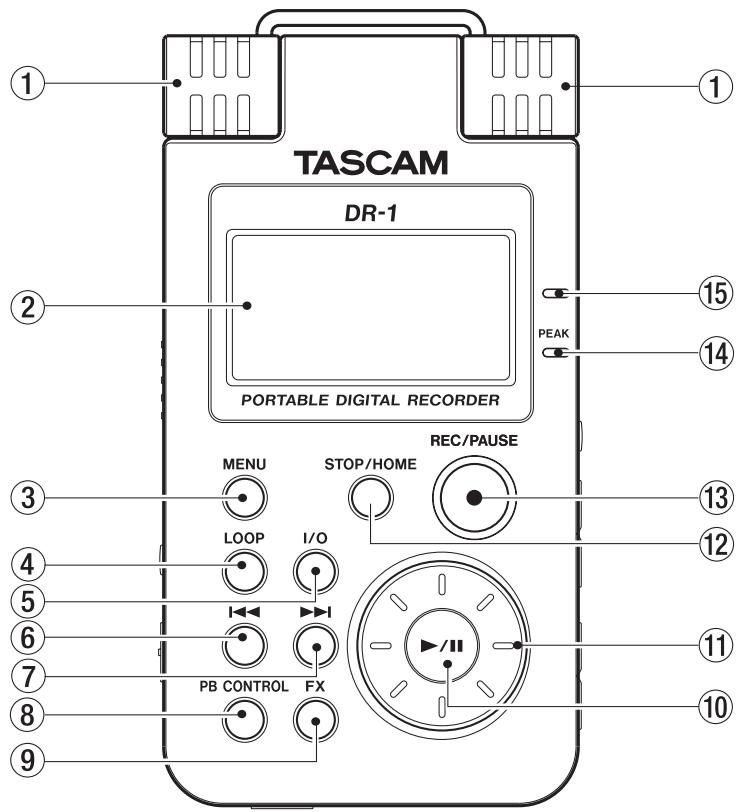
① Built-in stereo microphone
To use this stereo electret condenser microphone as the input source, select "INT/MIC1" on the input setting screen. If you connect an external microphone to the MIC 1 IN jack on the rear panel, the built-in microphone becomes inactive.
② Display
In addition to the Home Screen, this shows the recording screen various setting screens, and other operation information. (See "Screen Overview" on page 11.)
③ MENU key
When the Home Screen is displayed, press this key to open the Menu Screen.
Press this key to return to the Menu Screen from the various setting screens.
When the Menu Screen is displayed, press this key to return to the Home Screen.
④ LOOP key
Press this key to turn loop playback mode ON and OFF, allowing you to repeat playback of a selected interval. (See “Loop playback” on page 31.)
⑤ I/O key
Use this key to set the IN (start) and OUT (end) points of the interval that you want to set for loop playback. When the IN and OUT points are already set, press this key to erase them. (See "Loop playback" on page 31.)
6 key
Press this key to return to the beginning of a track that is playing or stopped in the middle.
If you press this key when a track is stopped at its beginning, the unit will skip to the beginning of the previous track.
Press and hold this key to search backwards.
On the setting screens, use this key to move the cursor left.
On the Browse Screen, press this key to move up a level.
⑦▶key
Press this key during playback or when playback is stopped to skip to beginning of the next track.
Press and hold this key to search forward.
On the setting screens, use this key to move the cursor right.
On the Browse Screen, press this key to move down a level.
PB CONTROL key
Press and hold this key to open the Playback Control (PB CONTROL) Screen. When the Playback Control Screen is open, press and hold this key to return to the Home Screen. (See "Special playback control functions" on page 29.)
Briefly press this key to turn the speed control that is set on the Playback Control Screen (VSA and/or SPEED) ON and OFF. When ON, the icon appears at the top of the Home Screen as light letters on a dark background.
⑨ FX key
Briefly press this key to turn the effect function ON and OFF.
Press and hold this key to open the Effect Setting Screen. When the Effect Setting Screen is open, press and hold this key to return to the Home Screen. (See "Using the effects" on page 32.)
10 / key
When the Home Screen is displayed and playback is stopped, press this key to start playback. During playback, press this key to stop playback at the current position.
When using a setting screen, use this key, for example, to confirm a selection, advance a level in a menu and answer "YES" to a confirmation message
When the Metronome Screen is open, use this key to start and stop the metronome.
⑪ Wheel
When a setting screen is open, use the Wheel to change the setting of the selected item.
When the Home Screen is open, use the wheel to adjust the file playback position.
STOP/HOME key
Press this key to stop recording and playback or to end recording standby.
When a setting screen is open, press to return to the Home Screen.
On a setting screen, use this key to respond "NO" to a confirmation message.
13 REC/PAUSE key
When playback is stopped, press this key to put the unit into recording standby. When in standby, this key flashes. If the Input Setting Screen MONITOR item is ON, the Overdubbing ON/OFF pop-up appears. (See “Recording” on page 19.)
When in recording standby, press this key to start recording. The key lights while recording.
When recording, press this key to pause recording.
14 PEAK indicator
This lights when the selected input signal exceeds the maximum level.
Charge indicator
This indicator lights orange when the lithium ion battery installed in this unit is charging. The light turns OFF when the battery is fully charged.
Right side panel
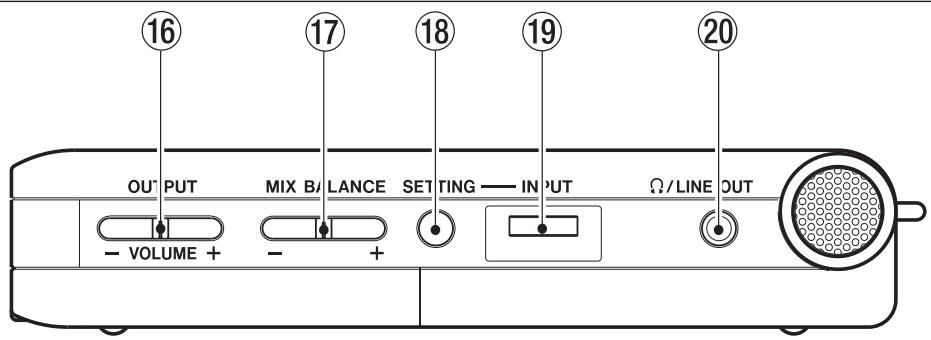
16 OUTPUT VOLUME (+, -) keys
Use these keys to adjust the signal level output from the / LINE OUT jack. The volume level appears on the display during adjustment.
17 MIX BALANCE (-, +) keys
When the Input Setting Screen's MONITOR item is set to ON, use these keys to adjust the volume of the playback signal that is mixed with the input signal. The playback volume appears on the display during adjustment. Use the + key to raise the volume and the - key to lower the volume.
When MONITOR is set to OFF, "MONITOR OFF" appears on the screen and these keys have no effect.
18 SETTING key
Press this key to open the Input Setting Screen where you can select the input, make INT/MIC1 IN settings and turn MONITOR ON and OFF.
19 INPUT volume
Use this to adjust the input signal level of the built-in microphone, the MIC 1 IN jack and the MIC 2 IN jack. This does not affect the input signal level of the LINE IN jack
20 Ω/LINE OUT jack
Use this to connect with headphones or the line input jack of an amp or other equipment.
Depending on the MONITOR setting and recorder operation status, this outputs the input signal, the playback signal or a mix of both signals.
Left side panel
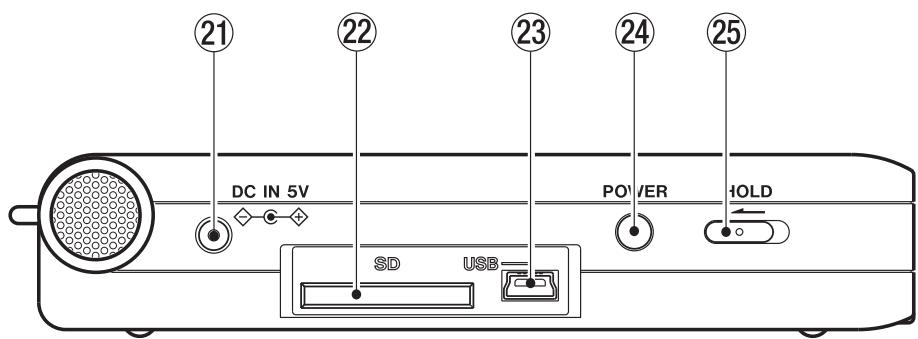
② DC IN 5V jack
Connect a TASCAM PS-P520 AC adapter (purchased separately) to this jack.
SD card slot
Insert an SD card into this slot. (See "About SD cards" on page 4.)
23 USB port
Use the included USB cable to connect with a computer USB port. (See "Connecting with a computer" on page 15.)
CAUTION
Please connect the unit directly to a computer without using a USB hub.
24 POWER key
Press and hold this key to turn the unit's power ON and OFF.
25 HOLD switch
Slide this to the left to turn the hold function ON. All keys are inoperative when hold is ON.
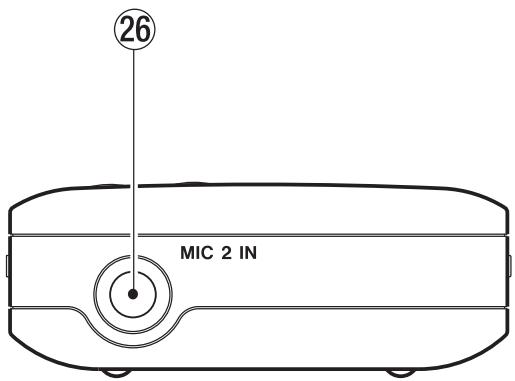
Front Panel
MIC 2 IN jack
Use this standard mono jack to connect a microphone with a 1/4'' plug.
NOTE
We call this the Front Panel because this is the end that faces the operator of the unit when placed on a table with the built-in mic facing the sound source.
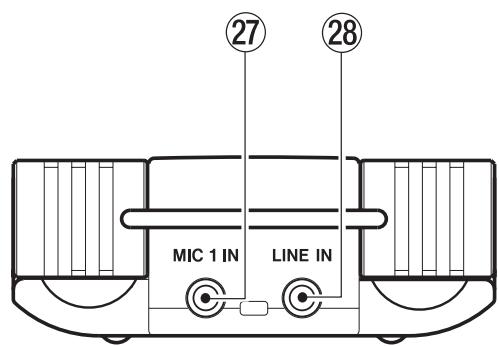
Rear Panel
MIC 1 IN jack
Use this input jack to connect a stereo mini-jack microphone. This jack provides plug-in power when set to do so on the Input Setting Screen.
28 LINE IN jack
Use this stereo mini-jack for line input. The input level is fixed at -10 dBV.
NOTE
We call this the Rear Panel because this is the end that faces away from the operator of the unit when placed on a table with the built-in mic (this end) facing the sound source.
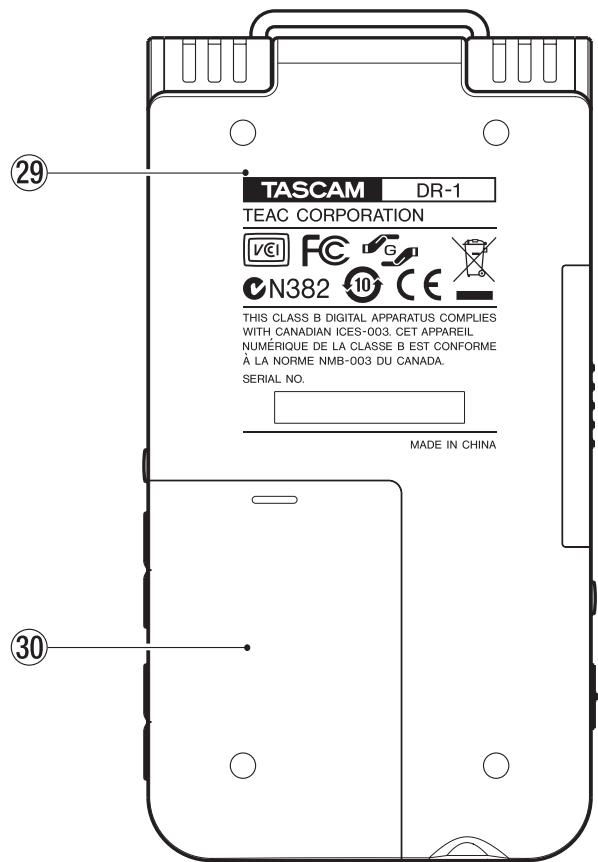
Bottom panel
29 Reset hole
If the unit is operating abnormally, push the end of a paperclip or similar item into this hole to press the system reset button inside the unit. This turns the power OFF and resets the DR-1's system.
CAUTION
Do not press the reset button if the unit is functioning properly.
30 Battery case
This holds the specialized lithium ion battery.
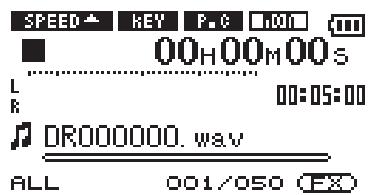
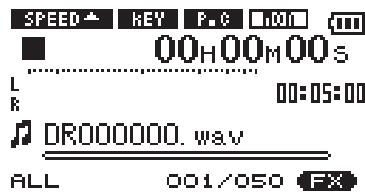
When the unit is ordinarily playing or stopped, the Home Screen appears on the display. Setting screens appear when making various settings, and the Record Screen appears when the unit is recording or in recording standby.
The items that appear on the Home Screen are explained below. See the explanations later in this chapter for the setting screens and the Record Screen.
Home Screen
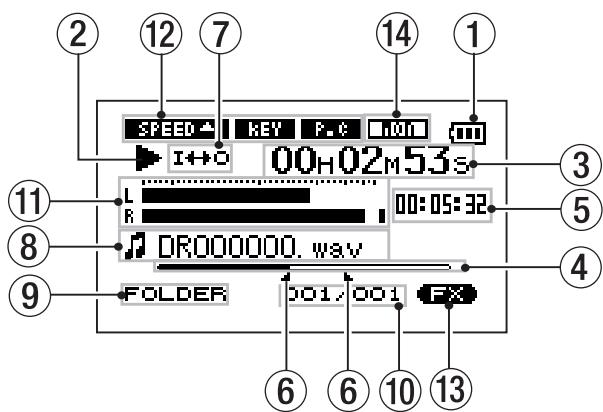
① Power indicator
The battery icon appears when the lithium ion battery is in use. The number of bars shows the current level of remaining battery power. The battery icon flashes when charging is necessary.
② Unit status
This icon shows the current operation status.
Track playing
File stopped in progress (paused)
File stopped at its beginning
Fast forwarding
Fast rewinding
Skipping to the beginning of the next track
Skipping to the beginning of the current or previous track
③ Elapsed time
Shows the elapsed time (hours: minutes: seconds) of the currently playing track.
④ Playback position display bar
This bar shows the current playback position. The bar darkens from the left as playback proceeds.
⑤ Remaining time
Shows the remaining playback time of the current track (hours: minutes: seconds).
(6) Status of loop IN and OUT points
This shows the status of the IN and OUT point settings for loop playback.
If an IN point is set, the icon appears above the display bar at the position equivalent to the playback location.
If an OUT point is set, the icon appears above the display bar at the position equivalent to the playback location.
⑦ Loop/repeat setting status
The following icons appear depending on the current loop/repeat setting.
Single playback
Repeat playback of 1 track
All Repeat playback of all tracks in the play area
1+0 Loop repeat active
⑧ File information
The tag information or file name of the currently playing track is shown. If an MP3 file has ID3 tag information, the ID3 tag information is given priority. The file name is shown for WAV files and for MP3 files that do not have ID3 tag information.
NOTE
ID3 tag information includes the title, artist name and other information that can be saved in an MP3 file.
(9) Selected playback area
Shows the currently selected playback area.
All files in the Music Folder
FOLDER All files in the selected sub folder of the Music Folder
P.LIST Files added to the playlist
⑩ Playback file number/total number of files
The total number of files in the selected playback area and the number of the current file.
11 INPUT level meter
This shows the combined level of the selected input signal and the currently playing file.
When MONITOR is set to OFF, the input signal is not mixed in.
If the input level exceeds the maximum allowable level, a dot is lit at the right end of the level meter.
Status of playback control function settings
These show whether the various playback control functions (speed control, key change, part cancel) are currently active. When they are active, their icons appear as light letters on a dark background (SPEED, KEY, 2). (See "SpecialPlaybackControl Functions" on page 29.)
⑬ Effect status
Shows whether the effect function is ON or OFF. When the effect is ON, the icon appears as light letters on a dark background.
14 Input monitor setting status
This shows the MONITOR ON/OFF status as set on the Input Setting Screen.
When MONITOR is ON, the nonicon appears as light letters on a dark background.
Record Screen
This screen opens when you press the REC/PAUSE key to start recording standby mode and stays open when you press the REC/PAUSE key again to start recording.
This status of the power and the effect use appears the same as on the Home Screen. This screen also shows the following. ① Recorder operation
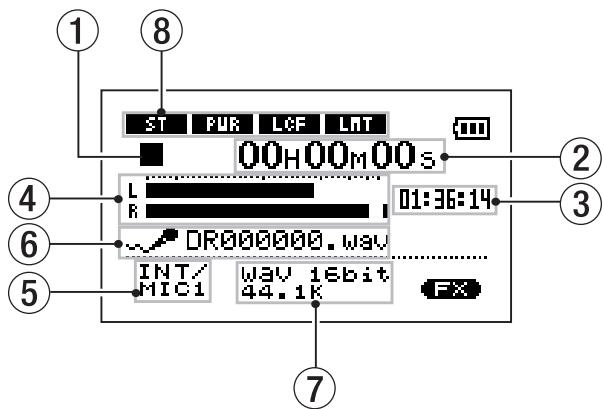
Recording
Recording paused
Recording stopped
② Elapsed recording time
The elapsed recording time of the track appears as hours: minutes: seconds.
During recording standby, the maximum remaining recording time appears.
③ Remaining recording time
The remaining recording time appears in hours: minutes: seconds.
④ Record level meter
The input signal level of the selected input appears as separate L and R channels.
⑤ Input selection
Shows the input source.
⑥ File name
Shows the file name that is automatically assigned to the file being recorded.
⑦ Record mode
Shows the recording file type and sampling frequency. During overdubbing, the playback file information (file name or MP3 ID3 tag) appears.
⑧ INT/MIC1 setting status
Shows the status of settings related to the built-in microphone and MIC 1 input (stereo recording, plug-in power, low cut filter and level control).
Setting Screens
Use this unit's various setting screens to make various settings, conduct operations and show information.
NOTE
Although the various setting screens are also used to execute functions and display information, for example, in addition to making settings, we call them "setting screens" in this manual.
Setting screen structure
Most of the setting screens are accessed by first pressing the MENU button to open the Menu Screen, but some screens can also be accessed directly using dedicated keys.
The following table provides an overview of the setting screens.
| Screen | Overview | Access method |
| INFORMATION | View file information, system setting information, and system information | Press the MENU key to open the Menu Screen and select the desired setting screen |
| BROWSE | View music files and subFolders inside foldersPlay and erase filesAdd files to the playlistCreate and select folders | |
| PLAYLIST | Edit the playlist (erase and move tracks in it) | |
| PLAY MODE | Set playback modeSet single or repeat mode | |
| REC SETTING | Make settings related to recording(file type, sampling frequency, maximum file size) | |
| METRONOME | Set and operate metronome functions | |
| TUNER | Access tuner and oscillator functions | |
| SETUP | Make various system settingsInitialize and format the SD card | |
| DATE/TIME | Set the date and time of the built-in clock | |
| INPUT SETTING | Select input sourceMake input monitoring settingsMake built-in microphone and MIC 1 IN settings | Press the SETTING key |
| EFFECT | Make effect settings | Press and hold the FX key |
| PLAYBACK CONTROL | Set playback control function settings | Press and hold the PBCONTROL key |
Operation basics
Use the MENU, STOP/HOME, / , and keys and the wheel to conduct most operations on the various setting screens.
The keys have the following functions.
MENUKey
Press this key to open the Menu Screen (except when the Menu Screen is already open or the Record screen is open).
When the Menu Screen is open, press this key to return to the Home Screen. This key is inoperative when the Record screen is open.
Wheel
Use this to change the value of the selected item.
key
Press this key to make an item selection and to answer "YES" to a confirmation message. (This functions like the "ENTER key" on a computer). On the Metronome screen, press this key to start and stop the metronome.
key
When a setting screen is open, moves the cursor (part highlighted in inverse) to the left within the screen. Use this after setting the value of an item to return to item selection, etc.
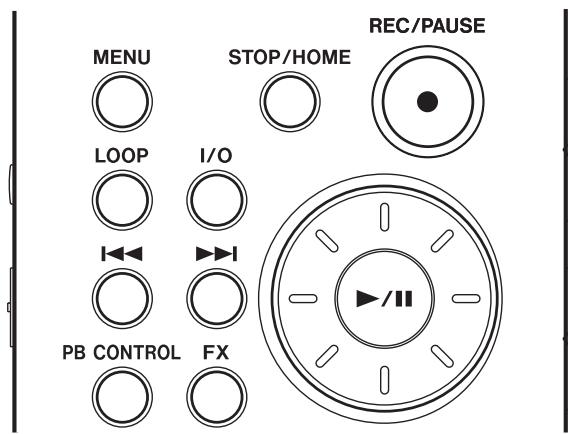
key
When a setting screen is open, moves the cursor (part highlighted in inverse) to the right within the screen. In many cases, the / key can also be used this way.
STOP/HOME key:
When a setting screen is open, press to return to the Home Screen. Press this key to answer "YES" to a confirmation message.
TIP
You can also use menus during playback.
Operation example
In this example, we will use the CUE/REV SPEED item in the Setup Screen to change the forward/ reverse search speed.
1 When the Home Screen is displayed, press the MENU key to open the Menu Screen.
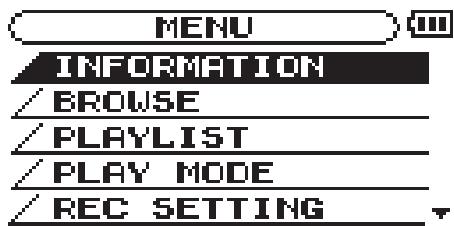
2 Turn the wheel to select SETUP (highlighted in inverse), and press the / key to open the Setup Screen.
3 Turn the wheel to select the CUE/REV SPEED item, and press the / key to show the current setting value (the factory setting is "X8") highlighted in inverse.
4 Turn the wheel to select the desired setting. The setting is changed immediately, so there is no need to press the / key again to confirm it.
5 Press STOP/HOME to return to the Home Screen.
NOTE
- When the icon appears in the lower right part of the screen, as shown in the preceding image, there is additional information for the current screen below what is shown on the display.
- When the icon appears, there is additional information for the current screen above what is shown on the display.
- You can also use the key instead of the / key in these steps.
- When the icon appears to the right of a setting value, you can change that value by turning it to the right.
When the icon appears to the right of a setting value, you can change that value by turning it to the left.
Connecting monitors
Connect headphones, speakers with built-in amplifiers, an amp and speaker system or other monitoring system to the DR-1 / LINE OUT jack.
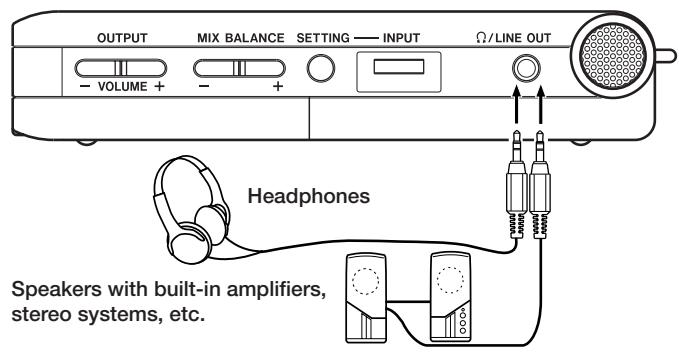
Connecting with a computer
By connecting this unit with a computer, you can copy WAV or MP3 music files from the computer to this unit. From the computer you can also erase files on this unit and manipulate folders.
To connect to a computer, open the left side panel cover and use the included USB cable to connect the USB ports of the DR-1 and the computer.
When connected, "USB connected" appears on the DR-1 screen.
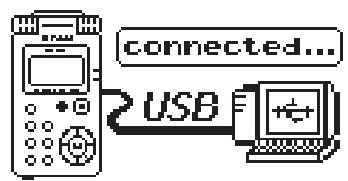
The recorder appears on the computer screen as an external drive named "DR-1."
NOTE
When shipped from the factory the "DR-1" drive contains the "MUSIC" and "UTILITY" folders, as well as the "MANUAL" folder, which contains a PDF copy of this Owner's Manual.
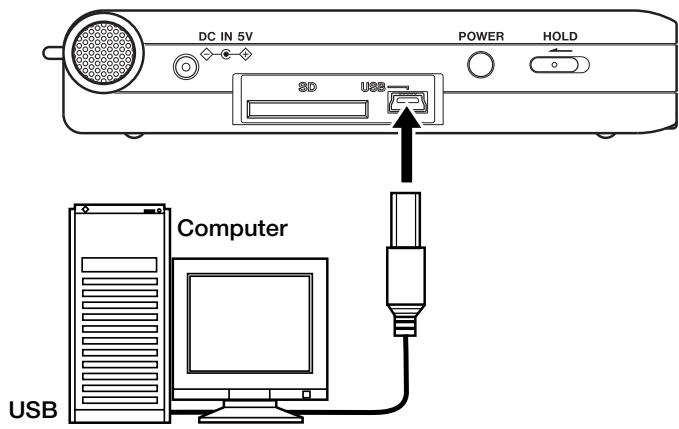
Disconnecting from a computer
To end the USB connection, first follow the procedures for your computer to disconnect the DR-1 and then remove the USB cable. The DR-1 automatically restarts.
See the computer manual for how to close the connection on the computer.
Connecting mics and other audio devices
This unit has a built-in stereo microphone that you can use to practice or record your singing, for example, but you can also use an external mic or other device as an input. You can connect external sound sources to the line input jack or one of two types of microphone input jacks. The following sections explain how to use the jacks to connect external devices. (See "Selecting the input source" on page 20 for more about making settings related to connections and input level setting.)
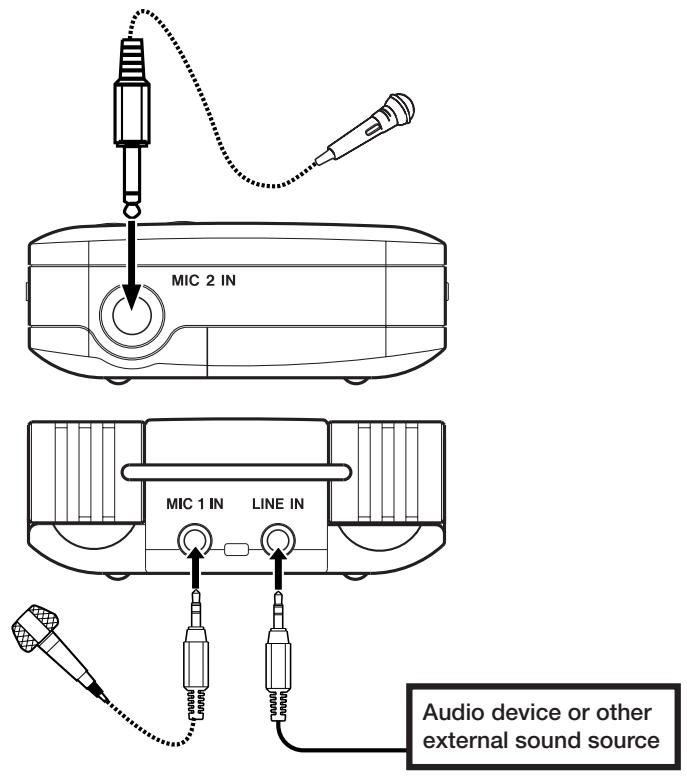
Connecting to the MIC 1 IN jack
You can connect a one-point stereo electret condenser microphone, for example, to the MIC 1 IN jack (stereo mini-jack) on the rear panel. Use the Input Setting Screen to adjust the level control, the low cut filter and other settings. (See "Selecting the input source" on page 20.)
Connecting to the MIC 2 IN jack
You can connect, for example, a dynamic microphone with a 1/4'' plug to the MIC 2 IN jack (standard mono jack) on the front panel.
Connecting to the LINE IN jack
You can connect the line output of an audio device, for example, to the LINE IN jack (stereo mini-jack) on the rear panel.
NOTE
The level control and filter functions cannot be used on the input signal from this jack.
NOTE
- The DR-1 does not have any controls to adjust the input level of the LINE IN jack.
You can copy audio files from a computer to this unit by USB, so that you can use them as backing tracks for practice and to learn difficult passages, for example. You can also use them for overdubbing, as described later in this manual.
This unit can handle MP3 (32-320 kbps, 44.1/48 kHz) and WAV (44.1/48 kHz, 16/24-bit) audio file types.
Preparing audio files on a computer
Use the abilities of your computer OS or a software application to copy tracks from a CD or other source to your computer.
When copying files to you computer, choose file types that the DR-1 can handle (the types of MP3s and WAV files listed above).
TIP
You can also prepare your own tracks using digital audio software, or use tracks you previously recorded with the DR-1 or another device.
Copying audio files from a computer
1 Connect the DR-1 to a computer (See "Connecting with a computer" on page 15).
2 Click the DR-1 drive on your computer to see its contents, including the UTILITY, MUSIC and MANUAL folders.
3 Drag-and-drop audio files from you computer to the Music Folder to copy them to the SD Card in the DR-1.
4 After you finish copying files and ending the connection with the DR-1 on the computer, disconnect the USB cable (or remove the SD card if it is connected directly to the computer).
See the computer manual for how to close the connection on the computer.
The DR-1 automatically restarts after it has been disconnected.
NOTE
Instead of using USB to connect the DR-1 and a computer, you can also conduct the same operations by removing the SD card from the DR-1 and connecting it directly to a computer that has a built-in SD card slot or by using a card reader.
TIP
You can use more than one SD card with the DR-1. Make certain that you format additional cards by inserting them in the DR-1 and following the instructions about formatting (see Formatting the SD card on page 36.) before you copy files from your computer.
Since all storage media, including SD cards, can fail, it is a good idea to make back-up copies of your recordings on your computer hard drive, CD-Rs or other media.
Managing the Music Folder from a computer
You can manage the contents of the Music Folder on an SD Card in the DR-1 from a computer.
You can create up two levels of subFolders inside the Music Folder. Since you can set the DR-1 to only play the contents of a specific folder, you can organize tracks into genres, artists or other categories as you like. (See "Folder operations" on page 28.)
- If you name the subFolders and music tracks, these names will appear on the screen of this unit.
When the Home Screen is displayed, use the / , and keys to operate the DR-1 as you would with an ordinary CD player or other audio device.
Use the wheel to change the playback position.
NOTE
When the Home Screen is not displayed, these keys and the wheel have different functions.
Starting and stopping playback
Play a track
When playback is stopped, press the / key or the STOP/HOME key to start playback.
Stop playback
During playback, press the / key to stop (pause) it at the current position.
Selecting tracks
Use the and keys to select tracks both during playing and when playback is stopped.
During playback or when a track is stopped in the middle, press the key to return to the beginning of the current track.
When stopped at the beginning of a track, press the key to skip to the beginning of the previous track, or press the key to skip to the beginning of the next track.
NOTE
- Only files in the playback area that is currently set can be selected for playback. (See "Setting the playback area" on page 24.)
- The track name, file number and other file information for the currently playing track appear on the display.
- The icon appears on the display when playback is stopped at the beginning a track, and the icon appears when playback is stopped in the middle of a track (paused).
Search forward and backward
Press and hold the key to search backwards or the key to search forwards.
NOTE
Use the CUE/REV SPEED item on the Setup Screen to change the search speed. (See "Making system settings" on page 35.)
Using the wheel to change the playback position
You can use the wheel to adjust the playback position within a track. When you turn the wheel, the position in the playback position display bar changes, so you can visually confirm that the playback position has been moved.
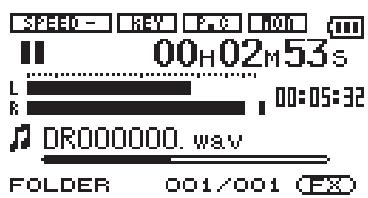
NOTE
No sound is output while you turn the wheel.
Adjusting the volume
Use the OUTPUT VOLUME keys to adjust the volume of the monitoring signal output from the / LINE OUT jack. The volume level appears on the display while being adjusted.
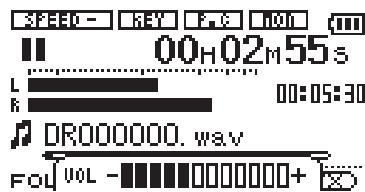
NOTE
If you used the MIX BALANCE keys to lower playback volume during overdubbing, when you play that recorded audio track, the monitoring level will be relatively quiet compared to when monitoring during recording. In this case, use the MIX BALANCE + key to maximize the playback level.
In addition to using the built-in microphone, you can record using an external microphone or record the output signal from a mixer or other audio source. You can select among MP3 (44.1/48 kHz, 32-320 kbps) and WAV (44.1/48 kHz, 16/24-bit) audio recording formats. Moreover, with this unit, you can mix and record a sound input through the built-in mic or one of the input jacks with an audio file that is played back using the overdubbing function.
Selecting the file type and sampling frequency
Select the audio file type that you want to record before you start recording.
1 Press the MENU key to open the Menu Screen.
2 Select the REC SETTING item to open the Recording Settings Screen.
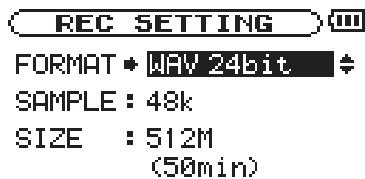
3 Use the FOrmat item to select the file type from the following options: WAV at 16-bit (factory setting) or 24-bit, or MP3 at 32 kbps, 64 kbps, 96 kbps, 128 kbps, 192 kbps, 256 kbps, or 320 kbps.
4 Use the SAMPLE item to select a sampling frequency of 44.1 kHz (factory setting) or 48 kHz.
NOTE
- For over dubbing, set the file type to WAV. You cannot use over dubbing when the setting is MP3. (See "Over dubbing" on page 23.)
TIP
- WAV files do not use data compression and are truer to the character of the sound, but they use much memory. Since MP3 files use data compression, they do not use nearly as much memory. For example, ordinary audio CD tracks are 16-bit, 44.1kHz WAV files. A 3.5-minute CD track uses about 35 MB of space when copied to a hard drive. The same track converted to a 128 kbps MP3 file uses only about 3.2 MB.
- If you are making a recording that you intend to use in the production of a CD, it is a good idea to record WAV files. If you have enough space, 24-bit recording gives you extra head room, allowing you to capture a greater dynamic range. When recording rehearsals, lectures and songwriting ideas, for example, and higher quality audio is not as important as smaller file size, MP3 may be a better choice. There are many excellent books (and resources on the Internet) about digital recording if you want to learn more about these formats.
Setting the maximum file size
On the Recording Settings Screen, where you select the audio file type as described above, you can also set the maximum size of the audio file. Recording automatically stops if the maximum file size is reached while recording audio.
1 Press the MENU key to open the Menu Screen.
2 Select the REC SETTING item to open the Recording Settings Screen.
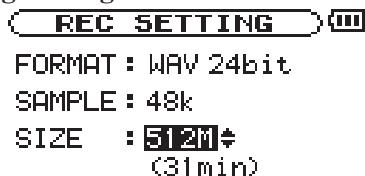
3 With the SIZE item, select the maximum file size from the following options: 64 M, 128 M, 256 M, 512 M, 1 G and 2 G (factory setting)
Under the file size value, the possible recording time for the selected size, format and sample rate appears.
NOTE
For the same file size, the possible recording time differs depending on the file type selected. Furthermore, if the possible recording time is 24 hours or more, this will be displayed as 23:59:59.
Selecting the input source
Follow these procedures to select the input source.
1 Press the SETTING key to open the Input Setting Screen.
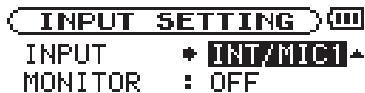
INT/MIC1
2 Use the INPUT item to select the input source you want to use (listed at right).
CAUTION
Use headphones to monitor when you are recording with a microphone. If you use speakers to monitor, the sound output from the speakers may also be recorded, causing a poor recording and even feedback.
NOTE
The input source is the recording source when recording.
TIP
Use the DR-1's built-in effects as necessary on the input source. (See "Using the Effects" on page 32.)
INT/MIC1
Sets the input source as the built-in microphone when no microphone cable is connected to the MIC 1 IN jack (stereo mini-jack). When a microphone cable is connected to the MIC 1 IN jack, the input microphone signal becomes the input source.
If you select INT/MIC1, you should also set the input functions. (See "Setting the INT/MIC1 input functions" below.)
MIC2
Sets the input source as the microphone signal input through the MIC 2 IN jack (mono standard jack) on the front panel. Left and right channels are combined into the same signal.
LINE
Sets the source as the line level signal (-10dBV) input to the rear panel LINE IN jack (stereo mini-jack).
Setting the INT/MIC1 input functions
After selecting INT/MIC1 as the INPUT item, press the key to highlight INPUT, then turn the wheel right to open the INT/MIC1 Input Setting screen.
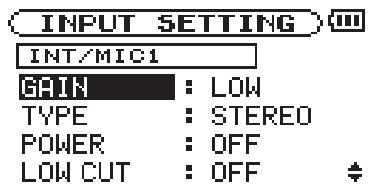
This screen has the following settings. Except for POWER, all items also affect the built-in microphone.
GAIN
Set the input sensitivity as HIGH or LOW. The factory default setting is LOW. Change it to HIGH if the input level is too low.
TYPE
Select STEREO or MONO according to the type of connected microphone. The factory setting is STEREO. If you select MONO, the left and right channels are combined into the same signal.
POWER
When connecting a microphone that requires plug-in power set this to ON. The factory default is OFF.
CAUTION
Set this to OFF when using the built-in mic or connecting a dynamic microphone or microphone with a built-in battery. If set to ON, the plug-in power my damage such microphones.
LOW CUT
The factory default setting of the low cut filter is OFF, but you can also select 80Hz or 120Hz as the cut-off frequency for a low cut filter.
TIP
Try using one of the low cut filter settings when recording outdoors or another place where the unwanted sound of wind is being recorded.
LEVEL CTRL
Use this to set the level control function.
Set it to AUTO to have the DR-1 automatically adjust the input gain according to the input level. Loud sounds and quiet sounds are both adjusted to the same level.
Set it to LMT to have the DR-1 automatically limit the input gain so that input level of loud sounds are reduced to prevent distortion.
The factory default setting is OFF.
NOTE
When recording live performances and in other situations where unexpected loud sounds might occur, set this function to LMT to prevent input clipping and allow recording without distortion.
Display of input functions on the Record Screen
Icons appear on the Record Screen to show the status of the TYPE, POWER, LOW CUT and LEVEL CTRL settings.
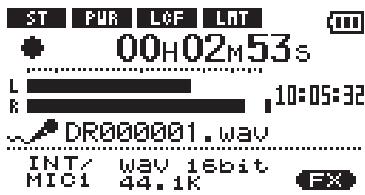
ST
When TYPE is set to STEREO, the st icon appears as light letters on a dark background.
POWER
When POWER is ON, the PRB icon appears as light letters on a dark background.
LCF
When LOW CUT is set to 80Hz or 120Hz , the LOF icon appears as light letters on a dark background.
LEVEL CTRL
When LEVEL CTRL is set to AUTO or LMT, the icon appears as light letters on a dark background.
Adjusting the built-in microphone angle
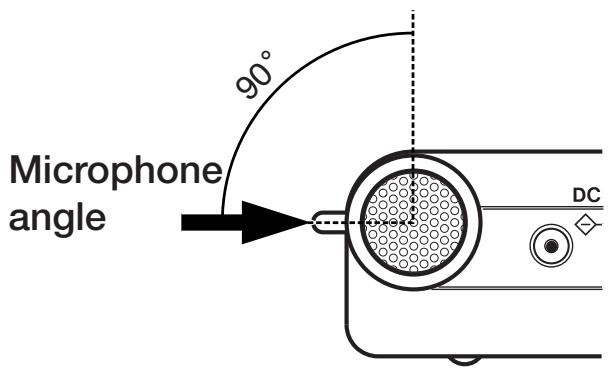
You can adjust the angle of the built-in microphone to best suit the placement of the unit and the location of the sound source during recording.
You can adjust the angle in a 90^ range as shown in the illustration.
Adjusting the input levels of microphones
You can adjust the level of each microphone input. (The signal input level of the LINE IN jack is fixed.) The following procedures explain how to use the Record Screen to set the levels.
1 Press the REC/PAUSE key to begin recording standby. The key flashes red and the Record Screen appears.
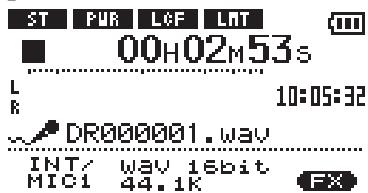
2 Use the INPUT volume control on the right side of the unit to adjust the microphone input level.
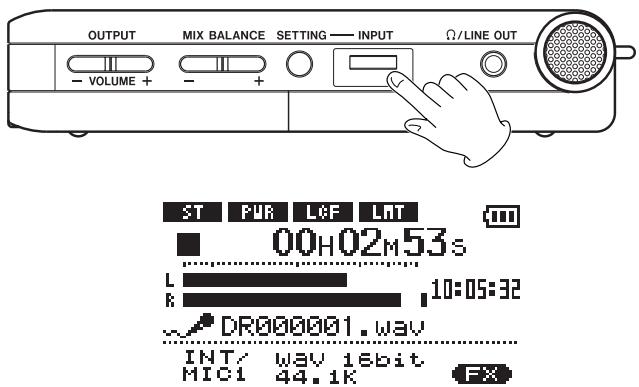
The L/R meter shows the input level. If the input is too high, the PEAK indicator to the right of the display lights and a line remains at the right end of the indicator bar.
Set the level as high as possible without causing the PEAK indicator to light when the loudest sounds occur.
- When you have selected INT/MIC1 as the input source and are using the built-in microphone or MIC 1 IN jack, if you find the level to be too low even when the INPUT volume is at maximum, use the INT/MIC1 Input Setting Screen to set the GAIN item to HIGH. (See "Setting the INT/MIC1 input functions" on the previous page.)
- When LINE is selected as the input source, adjust the input level by changing the output level of the sound source.
NOTE
Press the STOP/HOME key to end recording standby.
TIP
- In addition to adjusting the INPUT volume, try changing the distance and angle between the microphone and the sound source. The angle and distance of the microphone can also changed the character of the recorded sound.
- An easy way to set the input level is to raise it until the PEAK indicator lights while inputting as loud a noise as you expect to record. When the PEAK indicator lights, lower the input level until it no longer lights.
About recording modes
In addition to ordinary recording of the input signal, with this unit, you can mix and record the input sound with an audio file that is playing back in overdubbing.
Over dubbing OFF
Ordinary recording of the input signal occurs and a new file is automatically created.
Overdebbing ON
When overdubbing is ON, you can play an audio file saved on the SD card and mix in and record a new sound. For example, you can sing along to a karaoke track or play an instrument over a backing track.
Even when overdubbing a new file is created automatically. The audio file that is played back is not overwritten.
TIP
By recording repeatedly in OVERDUB mode, you can use the unit as a simple multitrack recorder to overdub multiple parts.
Ordinary recording
Before starting the following operation procedures, input selection and level adjustment should be completed, and the Home Screen should be open.
1 Press REC/PAUSE to begin recording standby.
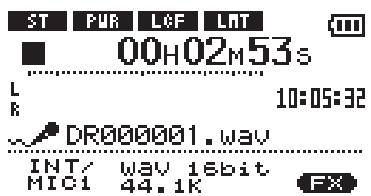
The screen shows the recording file name, the input source, the recording audio file type and sampling frequency. Please confirm that these are as desired before starting recording.
NOTE
If you have set the Input Setting Screen's MONITOR item to ON so that you can always monitor the input, a pop-up appears that allows you to turn overdubbing ON or OFF. For ordinary recording, select OFF and continue to step 2.
2 To start ordinary recording, press the REC/PAUSE key again.
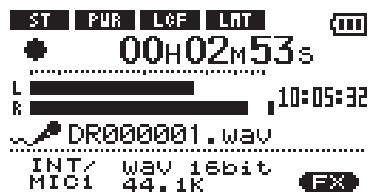
When recording starts, the REC/PAUSE key lights continuously, and the display shows the elapsed recording time and the remaining recording time.
3 Press the STOP/HOME key to end recording and create the audio file.
- To pause recording, press the REC/PAUSE key. Press the REC/PAUSE key again to restart recording in the same track. If you press the STOP/HOME key after pausing a recorded audio file up to the moment that you paused recording is created.
Over dubbing
By overdubbing, you can play an instrument or sing as you play back a saved track and mix and record both sounds in a new file.
Preparation for overdubbing
Follow these procedures to prepare for overdubbing.
Set the file type to WAV
Only WAV files can be created by overdubbing.
1 Press the MENU key to open the Menu Screen.
2 Use the wheel to select REC SETTING (highlighted in inverse) and press the / key.
3 Use the wheel to select FORMAT and press the /11 key.
4 Use the wheel to select WAV 16-bit or WAV 24-bit.
5 Press STOP/HOME to return to the Home Screen.
NOTE
The playback track can be either an MP3 or a WAV file.
Overdub recording
Before beginning these procedures, in addition to setting the file type to WAV and turning MONITOR ON, set the input and adjust the level if necessary.
1 When the Home Screen is displayed, use the and keys to select the track for playback.
2 Press the / 1 key to start playback, and check the volume balance between the playback and the input sounds.
3 Use the MIX BALANCE keys as necessary to adjust the balance by increasing or decreasing the playback signal volume.
During adjustment using the keys, the playback volume appears the lower part of the display.
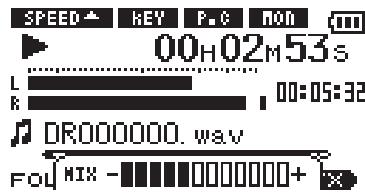
4 Press REC/PAUSE to begin recording standby.
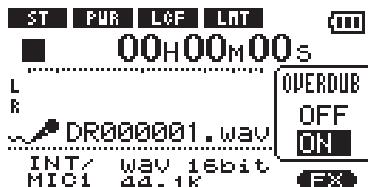
The screen overdubbing ON/OFF pop-up appears.
The recording file name, input source, recording audio file type and sampling frequency also appear so that you can confirm them before you start recording.
Turn MONITOR ON in the Input Setting Screen
1 Press the SETTING key to open the Input Setting Screen.
2 Use the wheel to select the MONITOR item and press the / key.
3 Use the wheel to select ON.
This status allows you to always monitor the input signal. In other words, you can monitor a mix of the track being played back and the input signal.
4 Press STOP/HOME to return to the Home Screen.
TIP
By making the above settings, in addition to over dubbing, you can use a recorded (or copied) audio track for vocal or instrument practice, as well as karaoke.
5 Use the wheel to select from the overdubbing ON/OFF pop-up.
6 Press the REC/PAUSE key to start overdubbing.
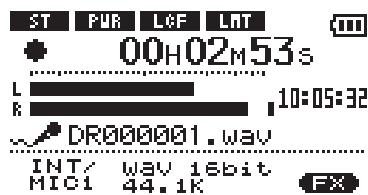
When recording starts, the REC/PAUSE key lights and the display shows the elapsed and remaining recording times.
The lower part of the screen shows the name of the playing file that is being mixed in the overdub.
7 To stop recording, press the STOP key or directly select a track for playback on the Browse Screen (See "Browse Screen" on page 27).
CAUTION
You cannot pause when overdubbing (the REC/PAUSE key is inoperative).
NOTE
- Set the file type to WAV for overdubbing (see "Selecting file type and sampling frequency" on page 19). If you try to overdub when the file type is set to MP3 "Format i = MP3" appears and operation is prevented.
- To play a track that is not in the currently selected playback area, you can select the track directly on the Browse Screen (See "Browse Screen" on page 27), or you can change the selected playback area on the Play Mode Screen before conducting the above operation. (See "Setting the playback area" on page 24.)
On the Home Screen, you can use the and keys to select the playback track. The files that you can select are determined by the playback area setting.
Limiting the playback area makes track selection easier when you have numerous recorded and copied tracks on the SD card.
On the Play Mode Screen, you can select all files, the current folder or the playlist as the playback area. You can also use the Browse Screen to set a folder as the playback area.
TIP
On the Browse Screen, regardless of the playback area setting, you can select any file on the card that you want.
Setting the playback area
Use the following procedures to select the playback area on the Play Mode Screen.
1 Press the MENU key to open the Menu Screen and select PLAY MODE. Press the key to open the Play Mode Screen.
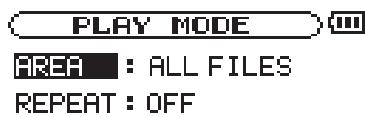
2 Select the AREA item and press the / key.
3 Set the playback area to one of the options on the right.
NOTE
The current playback area setting appears in the lower left of the Home Screen.
ALL
Set the playback area as all files in the Music Folder on the SD card.
FOLDER
Set the playback area as all the files in the currently selected folder.
PLAYLIST
Set the playback area as the tracks in the playlist. (See " Playlist" on the next page.)
If there is no playlist defined, a "No PLAYLIST" pop-up appears.
Selecting a folder for the playback area
Regardless of the current playback area, if you select a folder on the Browse Screen, the playback area changes to the selected folder.
- Press the MENU key to open the Menu Screen, and select the BROWSE item. Press the / key to open the Browse Screen.
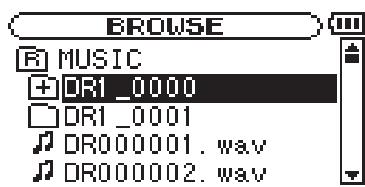
2 Select the desired folder.
For an explanation of how to use the Browse Screen, see "Screen navigation" on page 27.
3 Press the / key to open the following pop-up window.
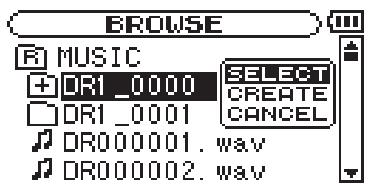
4 Select the SELECT item and press the / key.
The display returns to the Home Screen, and the first file in the folder is selected. This folder becomes the playback area regardless of the previous playback area setting.
Selecting a file to set the playback area
When the playback area is set to FOLDER, if you select a file on the Browse Screen, the folder that contains the selected file becomes the playback area.
1 Press the MENU key to open the Menu Screen and select the BROWSE item. Press the / key to open the Browse Screen.
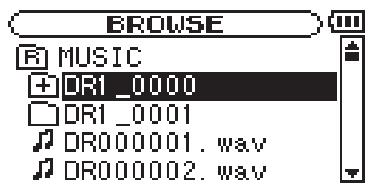
2 Select the file you want.
For an explanation of how to use the Browse Screen, see "Screen navigation" on page 27.
3 Press / to open the following pop-up window.
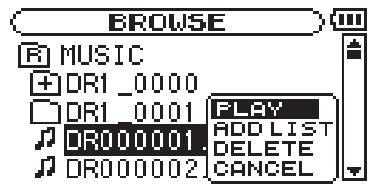
4 Select the PLAY item and press the / key.
The display returns to the Home Screen, and the selected track starts playing. In addition, the folder that contains this track becomes the playback area regardless of the playback area folder set previously.
Playlist
You can make a list of tracks for playback (playlist). On the Play Mode Screen if you select PLAYLIST for the AREA item, you can set playback to just the tracks in your playlist.
Adding tracks to the playlist
1 Press the MENU key to open the Menu Screen. Select the BROWSE item and press the / key to open the Browse Screen.
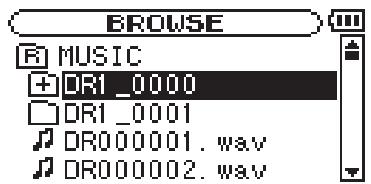
2 Select a track that you want to add to the playlist and press the / key.
A pop-up window appears.
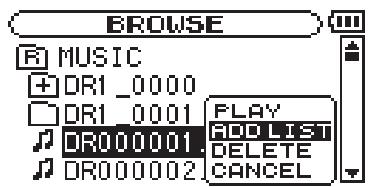
3 Select ADD LIST and press the / key.
The track is added to the playlist and the popup window closes.
4 Repeat steps 2 and 3 as necessary to add more tracks to the playlist. The tracks are numbered in the order that they are added.
NOTE
For an explanation of how to use the Browse Screen and how to select tracks, see "Screen navigation" on page 27.
Editing the playlist
You can view and edit the playlist you have made on the Playlist Screen.
You can also use this screen to play tracks and to edit the playlist.
1 Press the MENU key to open the Menu Screen. Select PLAYLIST and press the / key to open the Playlist Screen.
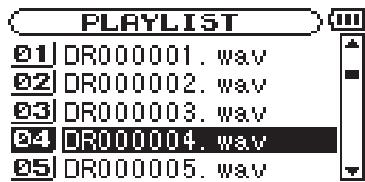
2 Select the file that you want to edit and press the / key to open a pop-up window.
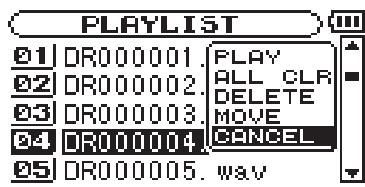
Use the wheel to select the item you want and press the / key. Their functions are as shown to the right.
3 Press the / H key to complete the move and return to the ordinary Playlist Screen.
PLAY
Play the file and return to the Home Screen.
ALL CLR
A confirmation message appears to confirm that you want to remove all the files from the playlist. Press the / key to remove all the files or the STOP key to cancel this operation.
For this operation, it does not matter which track you select in step 2. All the files are removed from the playlist, but they are not erased from the SD card.
DELETE
Remove the selected track from the playlist.
The file is removed from the playlist, but it is not erased from the SD card.
MOVE
Select this to change the order of tracks in the playlist. In addition to the file name, the track number also appears highlighted in inverse.
In step 2, use the wheel to move the track to a different position in the playlist.
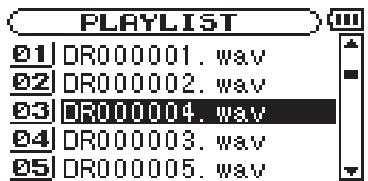
In the above example, the 4th track has been moved to the 3rd track position.
On the Browse Screen, you can view the contents of the Music Folder, which contains the audio files on the SD card that you can use with the DR-1. On this screen, you can also play and erase selected audio files, create folders, add tracks to the playlist and so on. (See " Playlist" on page 25.)
To open the Browse Screen, press the MENU key to open the Menu Screen. Select BROWSE and press the / key.
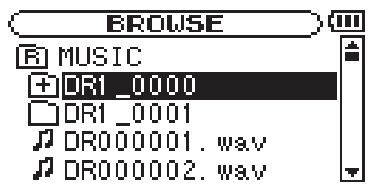
The contents of the folder that contains the file that was selected on the Home Screen before the Browse Screen was opened appears on the display.
TIP
If you connect the DR-1 with a computer by USB, or mount the SD card on a computer using a card reader or other input, you can change the folder structure within the Music Folder and erase files from the computer as you would the contents of a hard drive. Furthermore, you can change file names from the computer.
Screen navigation
On the Browse Screen, folders and music files appear in a hierarchical structure much like they would appear on a computer. On the DR-1, folders can only be used to two levels.
- Use the wheel to select files and folders.
- When a folder is selected, press the key to show the contents of that folder.
- When a file or folder is selected, press the key to exit the currently open folder and go to a higher level in the folder structure.
Icons on the BROWSE screen
The meanings of icons that appear on the Browse Screen are as follows.
Root Music Folder
The Music Folder is the highest (root) level folder in the hierarchy shown on the Browse Screen.
Audio file
This icon appears before the names of music files.
Plus folder
This icon shows folders that contain sub folders.
Plain folder
This icon shows folders that do not contain sub folders.
Open folder
The contents of the folder marked with this icon currently appear on this screen.
File operations
Select the desired audio file on the Browse Screen and press the / key to open the pop-up window that is shown below.
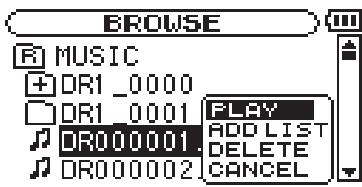
Use the wheel to select the item you want from the list to the right and press the / key to execute it.
PLAY
Plays the file. The display returns to the Home Screen. If the playback area is set to FOLDER, the playback area becomes the folder that contains the playing file.
ADD LIST
Adds the selected file to the playlist. (See " Playlist" on page 25.)
DELETE
A message appears to confirm that you want to delete the file. Press the / key to erase the file and the STOP/HOME key to cancel the deletion operation.
CANCEL
No operation is conducted and the selected file is left as is.
Folder operations
Select the desired folder on the Browse Screen and press the / key to open the pop-up window that is shown below.
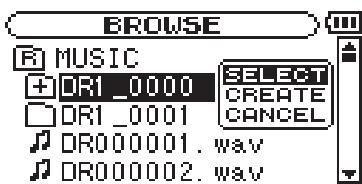
Use the wheel to select the item you want from the list to the right and press the / key to execute it.
SELECT
Returns to the Home Screen and selects the first file in the folder. This folder becomes the new playback area regardless of the previous playback area setting. When recording, files are created in this folder.
CREATE
A pop-up appears to confirm that you want to create a new folder. Press the / key to create a new folder, or press the STOP/HOME key to cancel the operation. However, if you try to create a new folder inside a second level subfolder the message, "Laser too deep" appears and the folder is not made.
CANCEL
No operation is conducted and the selected folder is left as is.
11-Special Playback Control Functions
Not only can you use the DR-1 to change the tempo of track playback, you can even do this without changing the pitch. You can also change the playback pitch of a track without changing the tempo.
Furthermore, you can also reduce (cancel) the sound of a voice or solo instrument on a track. You can use these playback control functions effectively to practice and learn parts.
Setting the playback control functions
Use the Playback Control Screen to set the playback control functions. When the Home Screen is displayed, press and hold the PB CONTROL key to open the Playback Control Screen.
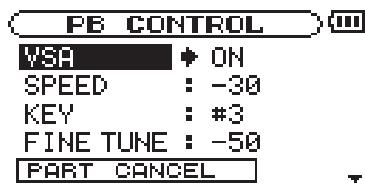
After you finish making settings on this screen, press the STOP/HOME key (or press and hold the PB CONTROL key) to return to the Home Screen. In the upper part of the Home Screen, the icons for the playback control functions that are currently active appear highlighted in inverse.
Changing the speed
Use the SPEED item to set the speed of playback. However, setting the speed does not automatically make the speed control function active. After setting it, briefly press the PB CONTROL key to turn the speed control ON, making it active. When ON, the Speed icon appears as light letters on a dark background in the upper part of the Home Screen. You can turn the speed control ON and OFF by briefly pressing the PB CONTROL key, so you can easily switch between the set speed and the normal speed.
Since the speed adjustment range is -50% to +16% (in 1% increments), the slowest speed setting is half the original speed.
NOTE
Briefly pressing the PB CONTROL key to turn the speed setting function ON and OFF is unique to this function. For all other playback control functions, changing the setting on the Playback Control Screen from anything other than the factory default results in the function being turned ON all the time.
Change speed without changing pitch
Turn the Variable Speed Audition (VSA) function ON to keep the pitch the same when changing the tempo. Use the vsa item to turn the VSA function ON and OFF (the factory setting is ON).
Changing the pitch without changing the speed
Use the KEY item to change the pitch in semitones without changing the tempo.
Use the KEY item to adjust the pitch up or down by 1-6 semitones (#6-b6) (the factory setting is 0).
If you change the key to any value besides 0, the key change function turns ON and the KEY icon appears on the Home Screen as light letters on a dark background.
Use the FINE item to adjust the pitch up or down in cents (100 cents = 1 semitone).
NOTE
Even if you use the F I N E item to adjust the key, as long as the KEY item setting is 0, the KEY icon will not appear as light letters on a dark background on the Home Screen.
Reducing vocal and solo instrument sounds
You can use the part cancel function to reduce the sound levels of vocals and solo instruments on commercially available CDs and other recorded sound sources.
Use the PART CANCEL item to set this function. Use the wheel to select the PART CANCEL item and open the Part Cancel Screen, which has three items.
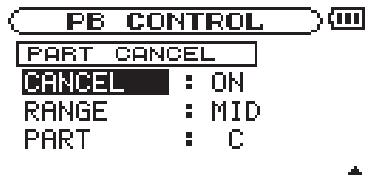
CANCEL
Set the CANCEL item to ON to turn the part cancel function ON (the factory setting is OFF). The F-6 icon appears as light letters on a dark background on the Home Screen.
Depending on the music, the vocal cancel function may not reduce the recorded vocal or solo instrument sound sufficiently. If this is the case, changing the PART and RANGE settings might make the reduction more effective. Listen to the music as you adjust the settings to achieve the best effect.
RANGE
Select MIDDLE or ALL for the frequency range of sound reduction. The default setting is MIDDLE.
PART
Adjust this setting to match the stereo position of the sound that you want to reduce between LEFT 10 and RIGHT 10. The initial default setting is CENTER.
In ordinary playback mode, once playback starts, it will stop when the end of the last track in the current playback area is reached (or you press the STOP key). By following the instructions in this chapter, however, you can also make the DR-1 loop a section of a track that you choose, repeat the entire sequence of tracks in the current playback area, play a single track repeatedly or play a single track once and stop.
Loop playback
With this function, you can continuously repeat the playback of a selection that you make (loop playback).
1 Press the IN/OUT key during playback to set the point when you want to start loop playback. The current position is set as the IN point.
2 Press the IN/OUT key at the point when you want loop playback to stop. The current position is set as the OUT point, and loop playback begins between the IN and OUT points.
The current positions of the IN and OUT points are shown by the and icons that appear below the playback position display bar in the lower part of the Home Screen. During loop playback the 1 + 0 indicator also appears.
To stop loop playback, press either the LOOP key or the IN/OUT key.
If you press the LOOP key, the loop interval settings are saved, and if you press the LOOP key again loop playback of the set interval begins again.
If you press the IN/OUT key, the loop interval settings (IN point and OUT point settings) are canceled.
NOTE
Accurate assignment of IN and OUT points is not always possible for variable bit rate (VBR) MP3 files.
Repeat and single track playback modes
You can set the DR-1 to repeatedly play the current track or all tracks in the playback area, as well as play just a single track once.
1 Press the MENU key to open the Menu Screen. Select PLAY MODE and press the / key.
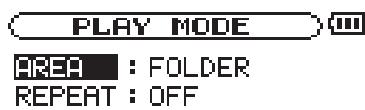
2 Select the REPEAT item to set the playback mode to one of the options describe at right.
OFF:
All tracks in the playback area are played in sequence one time. (This setting is the ordinary playback mode.)
- SINGLE:
The selected track is played once without repeating. The single icon appears on the Home Screen.
1 REPEAT:
The current track is played repeatedly. The _1 icon appears on the Home Screen.
- ALL REPEAT:
All tracks in the selected playback area are played back repeatedly.
The _ALL icon appears on the Home Screen.
NOTE
If you start loop playback, the REPEAT item automatically switches to OFF if it is in a different mode.
The DR-1 has built-in effects that can be applied to the input signal during recording and practice.
Turning the effect ON and OFF
Briefly press the EFFECT key to turn the effects ON and OFF. When ON, the effect last set on the Effect Screen becomes active, and the FX icon appears as light letters on a dark background at the bottom right of the Home Screen. (The default setting is RevHali.)
Setting the effect
Press and hold the FX key to open the Effect Screen.
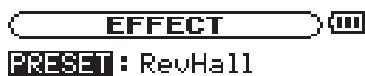
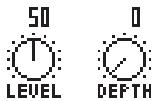
As the illustration above shows, the Effect Screen has three items that can be set. They are described at right. Although it appears different from other setting screens, operation is the same.
1 Use the wheel to select the desired item and press the / key to access that item's settings.
2 Use the wheel to set the desired value.
3 Press the key when you are done making the setting to return to item selection status.
PRESET
See the Effects Preset List on page 38 for details about the preset effects.
LEVEL knob
Use this to change the output level of the preset effect selected in the PRESET item. Select the LEVEL knob icon and press the / key to select the numerical value in the upper part of the icon. The level can be set to values between 0 and 100.
DEPTH knob
This adjusts the character of the selected preset. Select the DEPTH knob icon and press the / II key to select the numerical value in the upper part of the icon. Use the wheel to set the value.
Closing the Effect Screen
Press the STOP/HOME key (or press and hold the EFFECT key) to return to the Home Screen.
The DR-1 has a built-in metronome that outputs its sound from the / LINE OUT jack.
Setting the metronome
To use the metronome, press the MENU key to open the Menu Screen. Select the METRONOME item and press the / key.
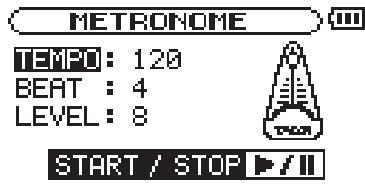
You can set the items shown on the right on the Metronome Screen.
TEMPO
Set the speed to a value between 20 and 250 beats per minute (BPM).
BEAT
Set the accent frequency between 0 and 9. There is no accent when set to 0. For example, set this to 4 if you want 4/4 time.
LEVEL
Set the metronome volume.
Starting and stopping the metronome
When the Metronome screen is open, press the / key to start and stop the metronome.
NOTE
When using the metronome, you cannot return to the Home Screen.
The DR-1 has a built-in tuner. By using a mic to input the sound of an instrument, you can use the tuning meter on the display to tune that instrument accurately. In addition, you can output a tuner sound from the / LINE OUT jack to, for example, tune multiple instruments simultaneously.
Preparation
1 Press the MENU key to open the Menu Screen. Select the TUNER and press the / key.
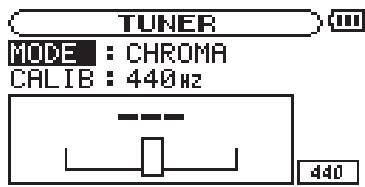
2 Use the MODE item to select the tuner mode.
CHROMACHromatictunermode
OSC. Oscillator mode
3 Use the CALIB item to set the frequency of A above middle C (A4) between 435Hz and 445Hz .
The set value appears in the lower right part of the screen. This setting affects both tuner modes.
Use of the two tuner modes is explained below.
Chromatic tuner mode
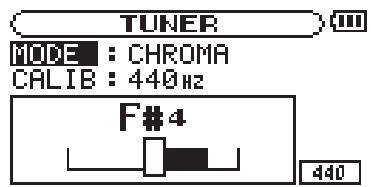
This is the default mode. Use the tuning meter on the DR-1's screen to tune your instrument.
The tuning meter and input signal pitch appear on the screen. ("--") appears when there is no input).
1 Set the input source that you are using. (See "Selecting the input source" on page 20.)
2 Input the sound of the instrument you are tuning through the selected microphone or line input. The name of the closest pitch appears in the upper part of the meter.
3 Tune the instrument until the desired pitch is shown and the center of the meter is highlighted. A bar appears to the left if the tuning is too low and a bar appears to the right if it is too high. The longer the bar is the more out of tune the instrument is.
Oscillator mode
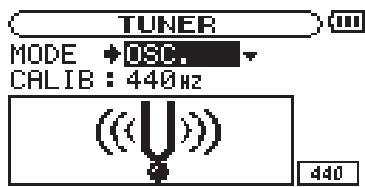
The built-in oscillator can output a sine wave of a pitch in the three octaves between C4 and B6 through the / LINE OUT jacks. In addition to the CALIB item described above, the oscillator mode has the following three setting items.
NOTE
Set the output pitch (C4-B6).
OUT
Set whether or not the oscillator sound is output (ON or OFF). When ON, an image of a vibrating pitchfork as shown to the left appears on the screen.
If you switch from chromatic mode to oscillator mode, the OUT item turns ON automatically. If you switch from oscillator mode to chromatic mode, the OUT item turns OFF automatically.
LEVEL
Set the level of the output sound between 0 and 10.
From the Setup Screen, you can change various settings to optimize the device for your use environment and other requirements. You can also initialize and format the SD card.
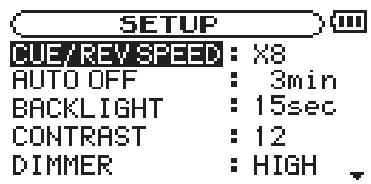
To open the Setup Screen, press the MENU key. Select SETUP from the Menu Screen and press the / key. The following settings can be made for the items on the Setup Screen.
Making System Settings
Setting the search speed
Use the CUE/REV SPEED item to set the speed of forward and backward searching when pressing and holding the and keys.
Options: × 2, × 4, × 8 (factory setting), × 10
Turning the unit power OFF automatically
Use the AUTO OFF item to set the time before the unit power automatically turns OFF after the last activity or use when powered by the internal battery.
Options: OFF (factory setting—the unit does not automatically turn OFF), 3 min, 5 min, 10 min, 30 min
Backlight Auto OFF setting
Use BACKLIGHT to set the time until the backlight automatically turns OFF after the last operation when powered by the internal battery.
Options: OFF (backlight always on), 5 sec (factory setting), 10 sec, 15 sec, 30 sec
Adjust the display contrast
Use contrast to adjust the display contrast.
Options: 1-20 (factory setting: 12)
Adjust the backlight brightness
Use DIMMER to adjust the backlight brightness.
Options: HIGH (factory setting), LOW, OFF (no backlight)
Restoring the factory settings
Use the INITIALIZE item to restore the various settings of this unit to their factory settings.
1 Select INITIALIZE and press the / key to highlight "Exec."
2 Press the / key again to open a confirmation pop-up window.
3 Press the / key to initialize the unit. Press the STOP/HOME key to cancel initialization.
Formatting the SD card
Using QUICK FORMAT or FULL FORMAT erases all music files on the card and automatically creates new "MUSIC" and "UTILITY" folders as well as the "dr-1.sys" file that is necessary to use the SD card with the DR-1.
CAUTION
When the unit is shipped new from the factory, its SD card also has a "MANUAL" folder that contains a PDF copy of this Owner's Manual file. These are erased and not restored when the card is formatted.
Using QUICK FORMAT
Use the QUICK FORMAT item to quickly format the SD card.
1 Select the QUICK FORMAT item and press the / key to highlight "Exec."
2 Press / to open a pop-up confirmation window.
3 Press / to execute the quick formatting, or press the STOP/HOME key to cancel formatting.
Using FULL FORMAT
Use the FULL FORMAT item to completely format the SD card.
Full formatting checks the memory for errors while formatting, so it takes more time than quick formatting and you might have to wait a while.
1 Select the FULL FORMAT item and press the / key to highlight "Exec."
2 Press / to open a pop-up confirmation window.
3 Press the / key to execute the full formatting, or press the STOP/HOME key to cancel formatting.
CAUTION
- When using FULL FÜR M, use the AC adapter (sold separately) or confirm that the battery is sufficiently charged. If the power fails during formatting, the formatting may not occur correctly.
- Depending on the size of the SD card, FULL FÜRMAT could take an hour or more. Please be patient and do not disconnect the power during formatting.
Use the Information Screen to view various types of information about your DR-1.
To open the Information Screen, first press the MENU key to open the Menu Screen. Select
"INFORMATION" and press the / key.
Use the wheel to switch between the following three information pages.
File information page (FILE)
Shows information about the currently playing file.
Memory information page (MEMORY)
Shows the use status of the currently inserted SD card
System information page (SYSTEM)
Shows the unit's system setting information and firmware version
File information page
The FILE page shows information about the currently selected file.
| INFORMATION | |
| FILE [1/3]▲ | |
| MP3 : 16bit, ST, 44.1k | |
| TITLE : DR000001. wav | |
| ALBUM : | |
| ARTIST : |
WAV or MP3
Shows the audio file type.
For WAV files, bit length, stereo/mono, and sampling frequency (Hz) also appear.
For MP3 files, the bit rate (kbps), CBR (constant bit rate) or VBR (variable bit rate) type, and sampling frequency (Hz) also appear.
TITLE
Shows the file name. If an MP3 files has ID3 tag title information that information appears.
ALBUM
If an MP3 files has ID3 tag album information that information appears. Nothing appears for WAV files and MP3 files without ID3 tag information.
ARTIST
If an MP3 files has ID3 tag artist information that information appears. Nothing appears for WAV files and MP3 files without ID3 tag information.
Memory information page
The MEMORY page shows the status of the currently inserted SD card.
| INFORMATION | |
| MUSIC | |
| TOTAL FOLDER | 5 |
| TOTAL MEMORY | 967MB |
| RENAME MEMORY | 738MB |
TOTAL MUSIC
Shows the number of playable files contained by the Music Folder.
TOTAL FOLDER
Shows the total number of folders in the Music Folder.
TOTAL MEMORY
Shows the total memory capacity of the SD card.
REMAIN MEMORY
Shows the amount of unused memory on the SD card.
System information page
The system page shows information about the DR-1's system settings and firmware version.
Shows the speed of forward and backward searching.
AUTO OFF
Shows the automatic power OFF setting.
BACKLIGHT
Shows the automatic backlight OFF setting.
System Ver.
Shows the system firmware version.
| Number | Name | Effect |
| 1 | RevHall | Adds long reverberations that create the sound of a large hall. |
| 2 | RevRoom | Adds short reverberations that create the sound of a room. |
| 3 | RevLive | Adds reverberations that create a sense of distance. |
| 4 | RevStudio | Adds short reverberations that create the sound of a studio. |
| 5 | RevCho | Adds reverberations with a sense of sound doubling. |
| 6 | RevPit | Adds reverberations with a sense of pitch change. |
| 7 | RevEnh | Adds reverberations with a sense of sparkle. |
| 8 | Emphasis | Emphasizes high frequencies and makes the edges of sounds clearer. |
| 9 | Detune | Creates a chorus-like effect through detuning. |
| 10 | AutoPan | Shifts the sound left and right automatically in the stereo field. |
| 11 | Lo-Fi | Reduces the fidelity of the sound. |
The following is a list of the popup messages that might appear on the DR-1 under certain conditions. Refer to this list if one of these popup messages
appears and you want to check the meaning or determine a proper response.
| Message | Meaning and response |
| File not found | The audio file cannot be found or is corrupted. Check the file (using a computer). |
| Non-Supported | The audio file is not a supported format. Check the file format (using a computer). |
| Battery Empty | The battery is almost out of power. Use a USB connection or an AC adapter (sold separately) to recharge it. |
| I/O Too Short | When using the I/O key, the IN and OUT points are too close together to start loop playback. Reset the IN and OUT points and try again. |
| File Not Found PLAYLIST | The file in the Playlist cannot be found. Please confirm that the file is still in the Music Folder. |
| No PLAYLIST | No files are in the Playlist. This appears when the PLAY MODE is set to PLAYLIST, but no files have been added to the Playlist. Add a file to the Playlist. See “Adding tracks to the playlist” on page 25. |
| PLAYLIST FULL | You cannot add more than 99 tracks to the Playlist. Erase an unneeded file from the Playlist and then add the new file. See “Editing the playlist” on page 26. |
| MBR Error Init CARD | There is a problem with the Master Boot Record. The card is not formatted properly or the formatting is broken. When “Are you Sure?” appears, press the ENTER key to format the entire card in FAT format. CAUTION Execution of FAT formatting erases all data currently on the card. |
| Format Error Format CARD | The FAT formatting of the card is abnormal or broken. This message also appears if you FAT formatted the card using a computer connected by USB (or by card reader). This message also appears when a new card is inserted in the unit. Always use the DR-1 to conduct FAT formatting of cards to be used with it. When “Are you Sure?” appears, press ENTER to FAT format the entire card. CAUTION Execution of FAT formatting erases all data currently on the card. |
| File Not Found Make Sys File | The system file is missing. This unit requires a system file for operation. When “Are you Sure?” appears, press ENTER to automatically create a system file. |
| Invalid SysFile Make Sys File | The system file is invalid. The system file required to operate this unit has become abnormal or broken. When “Are you Sure?” appears, press the ENTER key to automatically create a valid system file. |
| Invalid Card Change Card | This appears when there is some type of error with the card. |
| Protected Card Change Card | This appears when the card in the unit during startup is a protected card without the necessary Music Folder and other folders and files. |
| Write Timeout | Writing to the card timed out. Backup files on the card to your computer, and format the card using the DR-1. |
| Card Full | Erase unnecessary files or move them to your computer to make open space. |
| The file is larger than the designated size or the recording time exceeds 24 hours. | |
| File Full | The total number of folders and files is already 999. Erase unnecessary files or move them to your computer. |
| Card Error | There was some sort of error with the card. Turn off the power and replace the card with a working card. |
This list continues on the next page.
| Message | Meaning and response |
| Not Continued | If any of these errors occur, turn the DR-1 power OFF and restart the unit. If the error message continues to appear, contact a TEAC Repair Center. |
| File Error | |
| FX Rx Failed | |
| FX Busy | |
| Can't Save Data | |
| Player Error | |
| Device Error | |
| Writing Failed | |
| Sys Rom Err | |
| FX Init Err | |
| System Err 50 | |
| System Error 1 | |
| System Error 2 | |
| System Error 3 | |
| System Error 4 | |
| System Error 5 | |
| System Error 6 | |
| System Error 7 | |
| System Error 8 | |
| System Error 9 |
Audio Input and Output
MIC2INinput
Jack
Input impedance
Nominal input level
Maximum input level
1 / 4^ , mono, unbalanced
10k or more
-50 dBV
-34 dBV
MIC 1 IN input
Jack
Input impedance
Nominal input level
Maximum input level
3.5-mm stereo phone (with plug-in power)
30k
-64 dBV (GAIN set to HIGH)
-48 dBV (GAIN set to LOW)
-48 dBV (GAIN set to HIGH)
-32 dBV (GAIN set to LOW)
LINE IN input
Jack
Input impedance
Nominal input level
Maximum input level
3.5-mm phone (stereo)
23 kΩ
-10 dBV
+6 dBV
/LINE OUT output
Jack
Nominal line output
Maximum line output
Maximum headphones output
3.5-mm phone (stereo)
-14 dBV
+2 dBV
15mW + 15mW (with 32 impedance headphones)
Audio performance
Frequency response (LINE IN > Ω/LINE OUT)
Distortion (LINE IN > Ω/LINE OUT)
S/N ratio (LINE IN > Ω/LINE OUT)
20Hz - 20kHz, + 1 / - 3 dB
0.03% or less
90 dB or more
Other specifications
Audio file compatibility
MP3 files
32-320 kbps
44.1/48 kHz sampling frequency
VBR (playback only)
ID3 tag support up to Ver 2.4
44.1/48 kHz sampling frequency
16/24-bit rate
WAV files
SD card (64 MB-2 GB) or SD HC card (4-32 GB)
FAT16/32
Physical
Lithium ion battery
Battery life
3.7 V, 1800 mAh
About 7 hours when recording MP3 format with the built-in mic (varies with operating conditions)
1 W (during MP3 playback)
70 (W) x 27 (H) x 135.3 (D) (mm)
2.8 (W) x 1.1 (H) x 5.3 (D) (inches)
208 g (including battery)
Accessories available for purchase
AC adapter (PS-P520), BP-L2 lithium ion battery, accessory kit (tripod, tripod adapter, microphone stand adapter)
Computer requirements
Windows
Pentium 300 MHz or faster
128 MB or more memory
USB port (USB 2.0 recommended, 500mA bus power required)
Macintosh
Power PC, iMac, G3, G4 266 MHz or faster
64 MB or more memory
USB port (USB 2.0 recommended, 500mA bus power required)
Recommended USB host controller
Intel chipset
Supported OS
Windows 2000, XP and Vista
Mac OS X 10.2 or later
Dimensions
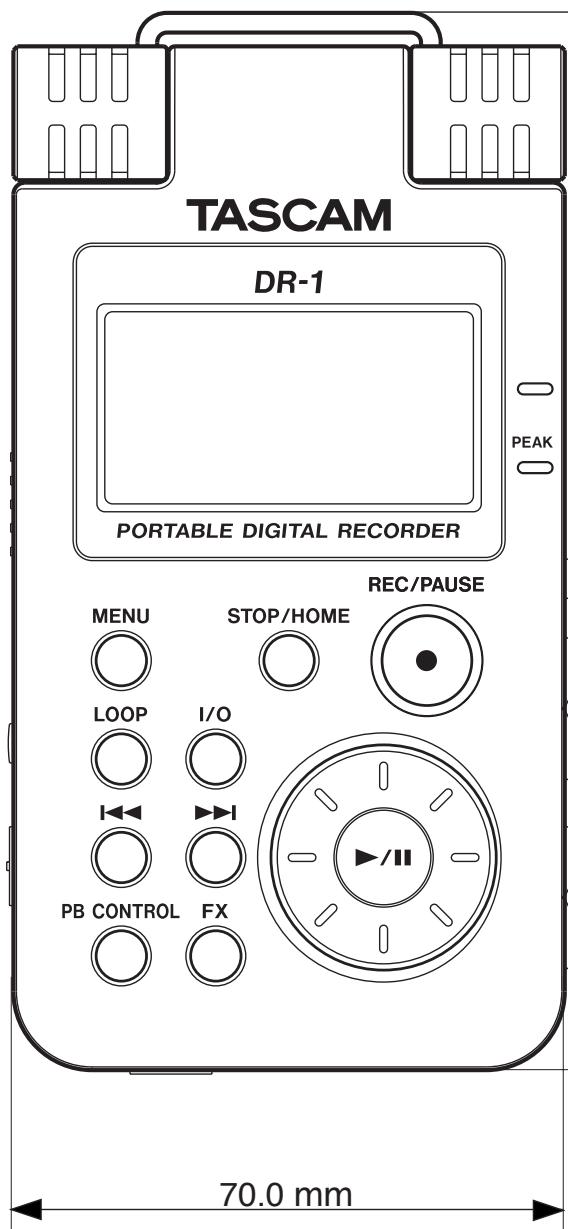
135.3 mm
Windows 2000, XP and Vista

TASCAM
TEAC Professional Division
DR-1
TEAC CORPORATION
Phone: +81-42-356-9143
1-47 Ochiai, Tama-shi, Tokyo 206-8530 Japan
www.tascam.com
TEAC AMERICA, INC.
Phone: +1-323-726-0303
7733 Telegraph Road, Montebello, California 90640 U.S.A.
www.tascam.com
TEAC CANADA LTD.
Phone: +1905-890-8008 Facsimile: +1905-890-9888
5939 Wallace Street, Mississauga, Ontario L4Z 1Z8, Canada
www.tascam.com
TEAC MEXICO, S.A. De C.V.
Phone: +52-555-581-5500
Campesinos No. 184, Colonia Granjes Esmeralda, Delegation Iztapalapa CP 09810, Mexico DF
www.tascam.com
TEAC UK LIMITED
Phone: +44-8451-302511
Unit 19 & 20, The Courtyards Hatters Lane, Watford, Hertfordshire. WD18 8TE, U.K.
www.tascam.co.uk
TEAC EUROPE GmbH
Phone: +49-611-71580
- Main functions
- Portable recorder
- Other features
- Supplied accessories
- Recycling the rechargeable battery
- Notes about this manual
- Font use conventions
- Tracks and files are the same
- Copyrights
- About SD cards
- Inserting the SD card
- Removing the SD card
- CAUTION
- Inserting a new card
- Other cases that require formatting
- TIP
- Powering the unit
- Installing the battery
- Charging the battery
- Charging with a computer
- Charging with an AC adapter
- Changing the battery
- Turning the power on and off
- Setting the date and time
- Resetting the unit
- Top panel
- ⑨ FX key
- / key
- ⑪ Wheel
- STOP/HOME key
- REC/PAUSE key
- PEAK indicator
- Charge indicator
- Right side panel
- Left side panel
- Front Panel
- NOTE
- Rear Panel
- Bottom panel
- Home Screen
- ① Power indicator
- ② Unit status
- ③ Elapsed time
- ④ Playback position display bar
- ⑤ Remaining time
- Status of loop IN and OUT points
- ⑦ Loop/repeat setting status
- ⑧ File information
- Selected playback area
- ⑩ Playback file number/total number of files
- INPUT level meter
- Record Screen
- Setting Screens
- Setting screen structure
- Operation basics
- MENUKey
- Wheel
- key
- STOP/HOME key:
- Operation example
- Connecting monitors
- Connecting with a computer
- Disconnecting from a computer
- Connecting mics and other audio devices
- Connecting to the MIC 1 IN jack
- Connecting to the MIC 2 IN jack
- Connecting to the LINE IN jack
- Preparing audio files on a computer
- Copying audio files from a computer
- Managing the Music Folder from a computer
- Starting and stopping playback
- Play a track
- Stop playback
- Selecting tracks
- Search forward and backward
- Using the wheel to change the playback position
- Adjusting the volume
- Selecting the file type and sampling frequency
- Setting the maximum file size
- Selecting the input source
- INT/MIC1
- MIC2
- LINE
- Setting the INT/MIC1 input functions
- GAIN
- TYPE
- POWER
- LOW CUT
- LEVEL CTRL
- Display of input functions on the Record Screen
- ST
- LCF
- Adjusting the built-in microphone angle
- Adjusting the input levels of microphones
- About recording modes
- Over dubbing OFF
- Overdebbing ON
- Ordinary recording
- Over dubbing
- Preparation for overdubbing
- Set the file type to WAV
- Overdub recording
- Setting the playback area
- ALL
- FOLDER
- PLAYLIST
- Selecting a folder for the playback area
- Selecting a file to set the playback area
- Adding tracks to the playlist
- Editing the playlist
- PLAY
- ALL CLR
- DELETE
- MOVE
- Screen navigation
- Icons on the BROWSE screen
- Root Music Folder
- Audio file
- Plus folder
- Plain folder
- Open folder
- File operations
- ADD LIST
- CANCEL
- Folder operations
- SELECT
- CREATE
- 11-Special Playback Control Functions
- Setting the playback control functions
- Changing the speed
- Change speed without changing pitch
- Changing the pitch without changing the speed
- Reducing vocal and solo instrument sounds
- RANGE
- PART
- Loop playback
- Repeat and single track playback modes
- Turning the effect ON and OFF
- Setting the effect
- PRESET
- LEVEL knob
- DEPTH knob
- Closing the Effect Screen
- Setting the metronome
- TEMPO
- BEAT
- LEVEL
- Starting and stopping the metronome
- Preparation
- Chromatic tuner mode
- Oscillator mode
- OUT
- Making System Settings
- Setting the search speed
- Turning the unit power OFF automatically
- Backlight Auto OFF setting
- Adjust the display contrast
- Adjust the backlight brightness
- Restoring the factory settings
- Formatting the SD card
- Using QUICK FORMAT
- Using FULL FORMAT
- File information page
- WAV or MP3
- TITLE
- ALBUM
- ARTIST
- Memory information page
- TOTAL MUSIC
- TOTAL FOLDER
- TOTAL MEMORY
- REMAIN MEMORY
- System information page
- AUTO OFF
- BACKLIGHT
- System Ver.
- Audio Input and Output
- MIC2INinput
- MIC 1 IN input
- LINE IN input
- /LINE OUT output
- Audio performance
- Other specifications
- Audio file compatibility
- Physical
- Accessories available for purchase
- Computer requirements
- Windows
- Macintosh
- Recommended USB host controller
- Supported OS
- Dimensions
- TASCAM
- TEAC Professional Division
- DR-1
Brand : TASCAM
Model : DR-1
Category : Portable audio recorder