
CD-VT1MKII - Portable audio recorder TASCAM - Free user manual and instructions
Find the device manual for free CD-VT1MKII TASCAM in PDF.

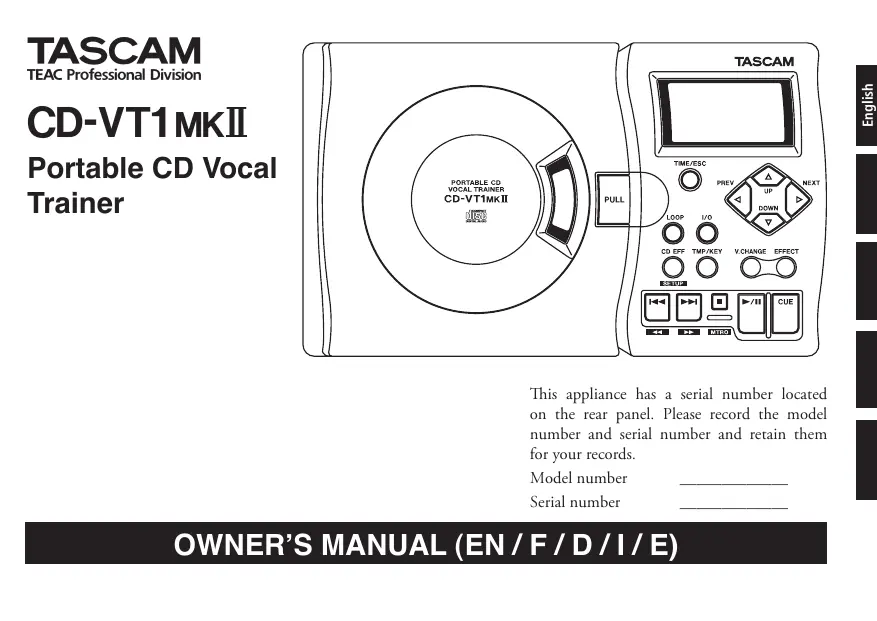

| Product Type | Portable audio recorder |
| Brand | TASCAM |
| Model | CD-VT1MKII |
| Dimensions (W x D x H) | 232 x 138 x 40 mm |
| Weight (without batteries) | 620 g |
| Power supply | DC 9 V AC adapter (PS-PS5, sold separately) or 4 AA batteries (NiMH recommended) |
| Battery life | Approx. 4.5 h (NiMH) / 1.5 h (alkaline) |
| CD player | Audio CD, finalized CD-R/RW |
| Tempo variation range | -50% to +16% (VSA enabled: preset steps) |
| Key control | ±6 semitones |
| Fine adjustment | ±50 cents |
| Built-in effects | 18 presets (reverb, vibrato, chorus, etc.) |
| Voice change | Upper or lower octave |
| Built-in metronome | 40 to 220 BPM, beats from 2 to 6 |
| Oscillator | Notes C to B over 3 octaves |
| Microphone inputs | 2 x 6.35 mm mono jack (unbalanced) |
| Line input | 3.5 mm stereo jack |
| Headphone output | 3.5 mm stereo jack |
| Line output | 3.5 mm stereo jack (-10 dBV level) |
| Frequency response | 20 Hz - 20 kHz ±1 dB |
| Signal-to-noise ratio | >88 dB |
| Total harmonic distortion | <0.01% |
| Power consumption | 4 W (with AC adapter) |
| Laser class | Class 1 (safe laser product) |
| Maintenance and cleaning | Clean with a soft, dry cloth. Do not use chemical agents (benzine, thinner, antistatic sprays). |
| Safety | Do not expose to water or moisture. Disconnect during thunderstorms. Have repairs carried out by qualified personnel. |
| Spare parts and repairability | PS-PS5 AC adapter optional, AA batteries not included. No user-serviceable parts inside. |
Frequently Asked Questions - CD-VT1MKII TASCAM
User questions about CD-VT1MKII TASCAM
0 question about this device. Answer the ones you know or ask your own.
Ask a new question about this device
Download the instructions for your Portable audio recorder in PDF format for free! Find your manual CD-VT1MKII - TASCAM and take your electronic device back in hand. On this page are published all the documents necessary for the use of your device. CD-VT1MKII by TASCAM.
USER MANUAL CD-VT1MKII TASCAM
This appliance has a serial number located on the rear panel. Please record the model number and serial number and retain them for your records.
Model number
Serial number
OWNER'S MANUAL (EN/F/D/I/E)

CAUTION
RISK OF ELECTRIC SHOCK DO NOT OPEN

CAUTION: TO REDUCE THE RISK OF ELECTRIC SHOCK,DO NOT REMOVE COVER (OR BACK). NO USER-SERVICABLE PARTS INSIDE.REFER SERVICING TO QUALIFIED SERVICE PERSONNEL.

The lightning flash with arrowhead symbol, within an equilateral trinagle, is intended to alert the user to the presence of uninsulated "dangerous voltage" within the product's enclosure that may be of sufficient magnitude to constitute a risk of electric shock to persons.

WARNING: TO PREVENT FIRE OR SHOCK HAZARD,DO NOT EXPOSE THIS APPLIANCE TO RAIN OR MOISTURE.
FOR U.S.A.
TO THE USER
This equipment has been tested and found to comply with the limits for a Class B digital device, pursuant to Part 15 of the FCC Rules. These limits are designed to provide reasonable protection against harmful interference when the equipment is operated in a commercial environment. This equipment generates, uses, and can radiate radio frequency energy and, if not installed and used in accordance with the instruction manual, may cause harmful interference to radio communications. However, there is no guarantee that interference will not occur in a particular installation. If this equipment does cause harmful interference to radio or television reception, which can be determined by turning the equipment off and on, the user is encouraged to try to correct the interference by one or more of the following countermeasures.
a) Reorient or relocate the receiving antenna
b) Increase the separation between the equipment and receiver.
c) Connect the equipment into an outlet on a circuit other from that to which the receiver is connected.
d) Consult the dealer or an experienced radio/ TV technician for help.
CAUTION
Changes or modifications to this equipment not expressly approved by TEAC CORPORATION for compliance could void the user's authority to operate this equipment.
1 Read these instructions.
2 Keep these instructions.
3 Heed all warnings.
4 Follow all instructions.
5 Do not use this apparatus near water.
6 Clean only with dry cloth.
7 Do not block any ventilation openings. Install in accordance with the manufacturer's instructions.
8 Do not install near any heat sources such as radiators, heat registers, stoves, or other apparatus (including amplifiers) that produce heat.
9 Do not defeat the safety purpose of the polarized or grounding-type plug. A polarized plug has two blades with one wider than the other. A grounding type plug has two blades and a third grounding prong. The wide blade or the third prong are provided for your safety. If the provided plug does not fit into your outlet, consult an electrician for replacement of the obsolete outlet.
10 Protect the power cord from being walked on or pinched particularly at plugs, convenience receptacles, and the point where they exit from the apparatus.
11 Only use attachments/accessories specified by the manufacturer.
12 Use only with the cart, stand, tripod, bracket, or table specified by the manufacturer, or sold with the apparatus. When a cart is used, use caution when moving the cart/aparatus combination to avoid injury from tip-over.

13 Unplug this apparatus during lightning storms or when unused for long periods of time.
14 Refer all servicing to qualified service personnel. Servicing is required when the apparatus has been damaged in any way, such as power-supply cord or plug is damaged, liquid has been spilled or objects have fallen into the apparatus, the apparatus has been exposed to rain or moisture, does not operate normally, or has been dropped.
- Do not expose this apparatus to drips or splashes.
- Do not place any objects filled with liquids, such as vases, on the apparatus.
- Do not install this apparatus in a confined space such as a book case or similar unit.
The apparatus draws nominal non-operating power from the AC outlet with its POWER switch in the off position.
Safety Information
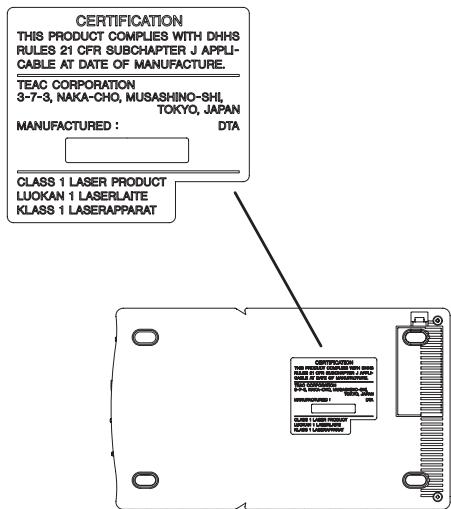
This product has been designed and manufactured according to FDA regulations "title 21, CFR, chapter1, subchapter J, based on the Radiation Control for Health and Safety Act of 1968", and is classified as a class 1 laser product. There is no hazardous invisible laser radiation during operation because invisible laser radiation emitted inside of this product is completely confined in the protective housings. The label required in this regulation is shown here.
CAUTION
- DO NOT REMOVE THE PROTECTIVE HOUSING USING A SCREWDRIVER.
- USE OF CONTROLS OR ADJUSTMENTS OR PERFORMANCE OF PROCEDURES OTHER THAN THOSE SPECIFIED HEREIN MAY RESULT IN HAZARDOUS RADIATION EXPOSURE.
- IF THIS PRODUCT DEVELOPS TROUBLE, CONTACT YOUR NEAREST QUALIFIED SERVICE PERSONNEL, AND DO NOT USE THE PRODUCT IN ITS DAMAGED STATE.
Optical pickup: Type KSM-900AAA
Manufacturer: SONY CORPORATION
Laser output: < 1mW play on the objective lens
Wavelength: 775—816 nm
Handling of compact discs 6
About the power supply 7
Part names and functions 9
Making connections 12
Using the menu system 14
Using the CD player. 16
Pitch and tempo changes 17
Using CD effects 18
Using built-in effects. 19
Effect presets 20
Using the metronome / Using the oscillator 21
Changing your preferences for the CD-VT1MKII 22
Facts and figures (specifications) 23
About this Manual:
When we refer to a key or connector or control on the CD-VT1MKII, the typeface looks like this: PLAY.
When we refer to items shown on the display, the typeface looks like this: MENU.
Handling of compact discs
Observe the following:
Always place compact discs in the tray with their label facing upward (compact discs can only be played on one side).
- To remove a disc from its storage case, press down on the center of the case, and lift the disc out, holding it carefully by the edges.
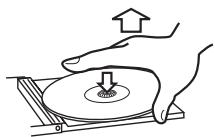
- Finger marks and dust should be carefully wiped off the disc's recorded surface with a soft cloth. Unlike conventional records, the compact disc has no grooves to collect dust and microscopic debris, so gently wiping with a soft cloth should remove most particles.
- Wipe in a straight motion from the inside to the outside of the
disc. Small dust particles and light stains will have absolutely no effect on reproduction quality.
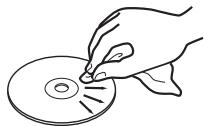
- Never use such chemicals as record sprays, antistatic sprays or fluid, benzine or thinner to clean compact discs. Such chemicals will do irreparable damage to the disc's plastic surface.
- Discs should be returned to their cases after use to avoid serious scratches that could cause the laser pickup to "skip".
-
Don't expose discs to direct sunlight or high humidity and temperature for extended periods. Long exposure to high temperature can warp the disc.
-
Only use circular compact discs.
Avoid using noncircular promotional, etc. discs.

- To keep the laser pickups clean, do not touch them. For the same reason, do not leave the disc tray open unnecessarily.
- The CD-VT1MKII cannot play unfinalized CD-R/RW discs. In addition, some finalized CD-R/RW discs may be unplayable on the CD-VT1MKII.
Operation using batteries
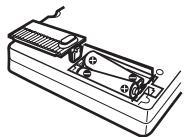
Remove the cover of the battery compartment at the back of the CDVT1MKII and insert four AA (SUM-3) batteries (not supplied) following the + and - markings inside the battery compartment.
CAUTION
We strongly recommend the use of rechargeable Ni-MH batteries (alkaline batteries may also be used). Your CD-VT1MKII may not operate properly with batteries of other types.
WARNING
Misuse of batteries may cause leaks and explosions. Please carefully read and follow the instructions below:
Notes on batteries
-
When you are using the CDVT1MKII with batteries, unplug the AC adapter.
-
Make sure the batteries are inserted in the correct direction, according to the markings inside the battery compartment.
Always use batteries of the same type, and replace all batteries together. - Do not attempt to recharge batteries that are not rechargeable.
- If you are not going to use the CDVT1MKII for longer than one month, remove the batteries.
- Do not throw batteries into water or fire. Do not disassemble batteries.
- If a battery leaks in the compartment, wipe the liquid away completely with a disposable cloth. Make certain no residue remains before inserting new batteries.
Remaining battery charge level display
When the CD-VT1MKII is running on batteries, a rough indication of the remaining battery charge is displayed as
as the battery symbol as follows:
3 parts are lit

There is plenty of battery charge left.
2 parts are lit

Battery charge is approximately half.
1 part is lit

Not much battery charge is left.
3 parts blink

Battery charge is nearly gone. Replace with fully charged batteries.
Length of battery life
- Ni-MH batteries: Approx. 4.5 hours
Alkaline batteries: Approx. 1.5 hours
Auto power save
While using battery power, the CD player and CD functions of the CDVT1MKII shut down automatically if any of the following conditions lasts more than 5 minutes: (the CD part of the display shows CD OFF).
(continued on the next page)
About the power supply (Continued)
- Being in Stop mode
- CD drive cover is open
No CD is loaded
To turn the CD player on, press the PLAY key.
CAUTION
Because the CD-VT1MKII is equipped with special functions such as key change and effects, the battery life is shorter compared with standard portable CD players.
The length of battery life in CD-VT1MKII is affected by both the environment and the number of functions in use. Factors that affect battery life include temperature, humidity, the number of special functions used, and so on.
Under some circumstances, there may not be enough power in the batteries to power the CD-VT1MKII, despite the battery power indication on the display. If this happens, change the batteries, or use an AC adapter.
Always dispose of used batteries as recommended by your local authorities.
Operation using an AC adapter
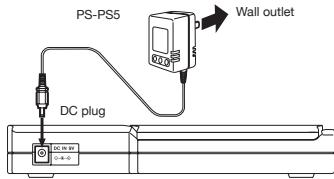
Connect a TASCAM PS-PS5 AC adapter (sold separately) to the DC IN jack at the back of the CD-VT1MKII. Insert the plug of the AC adapter into a domestic AC power outlet. Make sure that the voltage of the outlet corresponds to that marked on the adapter.
WARNING
Use only a PS-PS5 AC adapter with your CDVT1MKII. Using another type of AC adapter may damage your CD-VT1MKII.
CAUTION
Remove the batteries before operating the CD-VT1MKII with an AC adapter. There is a possibility of slight noise if you use the unit
with an AC adapter while the batteries are inside. If you plug in an AC adapter but have forgotten to take out the batteries, turn the power off using the POWER switch, and take out the batteries. Likewise, turn the power off before you change between using the batteries and using the AC adapter.
Unplug the AC adapter from the domestic AC power outlet when you are not using the CD-VT1MKII.
Settings may not be properly saved if you turn the power off immediately after inserting a CD or changing settings. If settings are not saved properly, the system may not start with the last settings and instead will start using the default values.
Switching the unit on and off
Use the POWER switch to turn the power to the whole unit on and off.

When there are two different words above and below the same key (e.g. CD EFF and SETUP), you use the key like this:
- To activate the function written above the key:
Tap the key once
To activate the function written below the key:
Press and hold down the key
For example, in the case of the CD EFF/SETUP key, the CD effects menu opens when you tap the key lightly and the Setup menu opens if you press and hold the key down.

CD EFF
SETUP
Part names and functions (Continued)
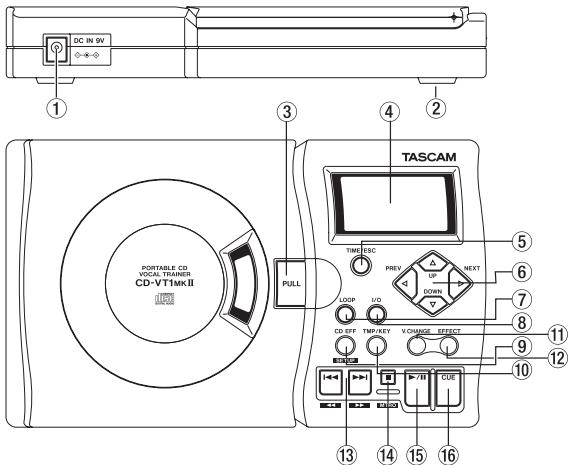
1) DC IN Jack
Use this jack to connect the DC plug of a TASCAM PS-PS5 AC adapter (sold separately).
2) Battery Compartment
Remove the battery compartment cover at the back of the CD-VT1MKII in order to insert 4 AA (SUM-3) batteries.
3) CD Drive Cover
To open, pull up the unlocking lever. Push down the cover and it will latch automatically.
4) Display
The CD-VT1MKII status is seen here.
5) TIME/ESC Key
- Use this key in the home display mode to change the way CD and track time is displayed.
- Use this key when you are in a menu mode in order to escape and return to the home display mode.
6) PREV, NEXT, UP, DOWN Keys
Use these keys to select menu items or
modify the setting values while in menu mode (See Using the menu system). You can also set the functions of the UP and DOWN keys in the home display mode (See Changing your preferences).
7) LOOP Key
Use this key to start the repeat (loop) mode.
8) I/O Key
Use this key to set the "IN point" and "OUT point" of the section of music that you want repeated (See Using the CD player).
9) CD EFF/SETUP Key
Use this key to enter the CD Effect menu and the Setup menu (See Using the menu system).
10) TMP/KEY Key
Use this key to enter the Tempo/Key menu (See Using the menu system).
11)V.CHANGEKey
Use this key to enter the Voice Change menu (See Using built-in effects).
12) EFFECT Key
Use this key to enter the Effect menu (See Using built-in effects).
13) Track Skip/Search Keys

Track Skip:
Use these keys to skip to the previous track or the next track.
- Press these keys while playing a CD to skip to the previous track or the next track.
- Pressing these keys while the CD is not playing allows you to choose the track you want to start. (To play, press the PLAY key.)
Search: Fast forward/Fast rewind
- Keep one of these keys pressed down while playing a CD to fast forward or fast rewind.
- The speed of the search increases if you continue to hold either of these keys pressed down.
Part names and functions (Continued)
14) STOP/MTRO Key [■]
Press this key to stop playback. Pressing and holding this key down activates the metronome menu (See Using the metronome).
15) PLAY/PAUSE Key [▶/III]
Use this key to start playing a CD.
While a CD is playing, you can pause playback by pressing this key. Press again to resume playing.
16) CUE Key
Use this key to return to the cue point (the point where playback last started). Use the Setup menu to choose a mode that the CUE key can perform (See Changing your preferences).
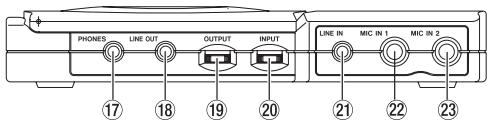
17) PHONES Jack
Connect your headphones here.
18) LINE OUT Jack
Use this port to connect the CDVT1MKII to devices such as speakers with a built-in amplifier, a stereo system AUX input jack, a cassette tape recorder, or a CD recorder. You can hear
the results of the effects and key changes through devices connected here.
19) OUTPUT Control
Use this control to adjust the output level of the PHONES jack and the LINE OUT jack. This control adjusts the level of the two jacks together (the two jack levels cannot be adjusted separately).
20) INPUT Control
Use this control to adjust the input level of MIC IN jacks 1 and 2. This control adjusts the input level of MIC IN 1 jack and MIC IN 2 jack together (the levels of the two jacks cannot be adjusted separately).
21) LINE IN Jack
Use this stereo jack to connect external devices such as a synthesizer, cassette tape recorder, rack-mount effect unit, etc., to the CD-VT1MKII. This jack has no level control, so you must adjust the output level at the source device.
22) MIC IN 1 Jack
Connect a microphone to this jack.
23) MIC IN 2 Jack
Connect a microphone to this jack.
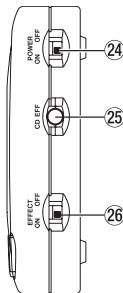
24) POWER Switch
This switch turns the power to the whole unit on and off.
25) CD EFF Switch
Use this switch to turn CD effects on and off.
This switch turns the effector and voice change on and off. When this switch is ON, the display shows EFFECT.
Making connections
Connecting a microphone (MIC IN 1/MIC IN2)
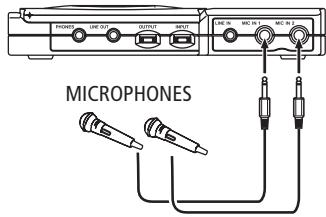
- Connect a microphone to either the MIC IN 1 jack or the MIC IN 2 jack. You can also connect microphones to both jacks and use them together.
- The MIC IN jacks (1 and 2) of the CD-VT1MKII accept unbalanced input signals. Use a 14 inch mono phone plug.
Adjusting the microphone level
Use the INPUT control to adjust the level of the input signal from the MIC IN 1 and MIC IN 2 jacks.
The INPUT control adjusts the input level of MIC IN 1 jack and MIC IN 2 jack together (the levels of the two jacks cannot be adjusted separately).
Adjusting the mix balance between microphone(s) and CD
Press and hold down the CD EFF/ SETUP key to open the Setup menu, and press either the NEXT or PREV key to choose MIX. You can set the mix balance using values between M (Mic) 10 -M1,0,C(CD)1-C10.
Inputting signals from external devices (LINE IN)
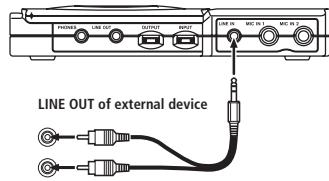
- The LINE IN jack accepts a stereo mini-jack plug (3.5mm).
- The input level at the LINE IN jack cannot be adjusted, so adjust the output level on the external device you have connected.
Output to headphones and external devices
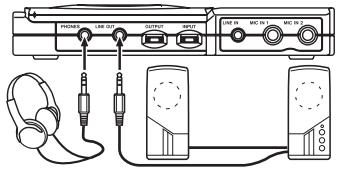
- Connect headphones to the PHONES jack.
- Use the stereo LINE OUT jack to connect the CD-VT1MKII to external devices, such as speakers with a built-in amplifier, AUX input jacks of a stereo system, cassette tape recorders, or CD recorders.
Adjusting the output level
You can adjust the output level of LINE OUT and PHONES by using the OUTPUT control.
NOTE
The levels from both the LINE OUT and PHONES jacks are controlled together by the OUTPUT control and cannot be adjusted independently.
When you have a recording device connected to the LINE OUT jack, remember that the OUTPUT control affects the recording level.
NOTE
When you are using the CD-VT1MKII with speakers and microphone(s), be careful to avoid feedback (howaround).
Using the menu system
Entering the menu system
To enter the menu category of your choice, do the following:
- Effect menu
- Tap the EFFECT key
Voice Change menu Tap the V.CHANGE key - Setup menu (system setup) Press and hold down the CD EFF/ SETUP key
- Tempo/Key menu Tap the TMP/KEY key
- CD Effect menu Tap the CD EFF/SETUP key
- Metronome menu
- Press and hold down the STOP key.
The menu then shows the menu category you select, reversed and blinking.
| Menu Category | Menu Item | Values (default values are underlined) | Notes |
| EFFECT V.CHANGE EFFECT | EFF | 01-18 | sets the number of the effect preset |
| PAR | - | sets the effect parameter | |
| VOICE CHANGE V.CHANGE EFFECT | VCHG | DN, OFF, UP | sets the voice change function |
| SETUP CD EFF SETUP | MIX | M10 - M1, Q, C1 - C10 | sets the mix balance between CD and input |
| PLAY | ALL/SGL | selects all or single play | |
| CUE | CUE/FLS | selects the action of the CUE key | |
| UPDN | MIX, TMP, KEY, FIN | Sets the UP/DOWN key function in the home display mode | |
| CAL | 435 - 440 - 445 | sets base frequency (A4, unit: Hz) | |
| OSC | (OFF), _C-_B, C-A, B, ^C^-B, (3 octaves) | sets the pitch of the oscillator | |
| TEMPO KEY TMP/KEY | TMP | VSA=OFF: -50 to +16 VSA=ON: -50, -32, -16, -12, -8, -4, 0, +4, +8, +12, +16 | sets the speed of CD playback in % |
| VSA | QN/OFF | turns VSA on or off | |
| KEY | b6 - Q - #6 | sets key control in semitones | |
| FINE | -50 - Q - +50 | sets fine tuning (cent) | |
| CD EFF CD EFF | CNCL | QN/OFF | turns vocal cancel function on or off |
| PART | L10 - L1, C, R1 - R10 | selects the stereo region reduced by the vocal cancel function | |
| RNGE | MID/ALL | selects the range reduced by the vocal cancel function | |
| MONO | OFF (stereo), L+R, L, R | selects mono monitor mode | |
| SPLT | QFF (mix), C-M, M-C | selects split monitor mode | |
| METRONOME MTRO | MTRO | (OFF), 40 - 120 - 220 | sets tempo of metronome in BPM (Beats Per Minute) |
| BEAT | QFF, 2 - 6 | selects number of beats of the metronome |
Choosing menu items
Choose menu items in the selected menu category using the PREV and NEXT keys.

Changing the setting values
Change the setting values using the UP and DOWN keys.

Exiting the menu system
Press the TIME/ESC key to exit the menu system and go back to the home display mode.
TIME/ESC

Using the CD player
The CD player in CD-VT1MKII works in much the same way as other CD players, with a few minor differences and special features.
Playback
Press the PLAY/PAUSE key ( / ) to start playback and to pause playback. Press the STOP key (■) to stop playback.
Skipping between tracks and searching within tracks
Use the skip/search keys ( /1 and 1 / ) to move back and forward one track at a time.
Use these keys to search within the CD by pressing and holding the key for the direction that you want to search. By continuing to press, the search will speed up.
Looping (track/disc)
Press the LOOP key to repeat a single track, or all tracks, according to the PLAY item in the Setup menu.
Setting Repeat Mode
SGL repeats a single current track. LOOP 1 appears on the display.
ALL repeats the whole disc. Loop appears on the display.
Looping (In/Out points)
To repeat a particular section of a track, use the I/O key to set the start (IN) point of the loop, then use the I/O key to set the end (OUT) point.
- Pressing the I/O key during playback or paused playback sets the IN point. The I-O symbol blinks on the display.
- Pressing the I/O key again during playback or paused playback sets the OUT point. LOOP and I-O appear on the display. The section between the two points repeats seamlessly.
-
To cancel an I/O loop, press the LOOP key. LOOP disappears from the display and the loop mode is canceled. Pressing the LOOP key again will restart the previously determined loop.
-
Pressing the I/O key again clears the loop points.
The CUE key
The CUE key has two functions that can be set in the Setup menu:
Setting Function
CUE playback pauses at the point where playback last started.
FLS playback "flashes" automatically back to the last pointwhere playback started.
Display
In the home display mode press the TIME/ESC key to change the time display between track elapsed time, track remaining time, and total remaining time of the CD.
There are four ways to change the way a CD is played back, using menu items in the Tempo Key menu: Tempo control (TMP), VSA (Variable Speed Audition) setup (VSA), Key control (KEY), and Fine tuning (FINE)
Tempo control
Tempo control allows you to change the tempo of a track.
Press the TMP/KEY key to enter the Tempo Key menu, and select TMP by pressing either the PREV or NEXT key. TEMPO blinks on the display.
When VSA is ON (see below), the settings you can choose are: -50, -32, -16, -12, -8, -4, 0 (off), +4, +8, +12, and +16%. Press the UP or DOWN keys to set the value.
When VSA is OFF you can change the setting between -50 and +16% in 1% steps.
Press either the UP or DOWN key to set the tempo. When the tempo is set to a value other than zero, TEMPO shows in the home display mode.
VSA
When VSA is ON, you can change the tempo without changing the key.
Press the TMP/KEY key to enter the Tempo Key menu, select VSA by pressing either the PREV or NEXT key. Press either the UP or DOWN key to choose either ON or OFF. TEMPO blinks on the display. When the VSA is set to ON, the letters VSA are shown in the display.
NOTE
If the tempo control value is not set to 0 and you change VSA from OFF to ON, the tempo value will be automatically reset to a "VSA ON value." For example, if the value displayed is -33 when VSA is OFF, it will automatically be adjusted to -50 when you turn VSA ON.
Key control
Key control changes the key of the music up or down by six semitones.
Press the TMP/KEY key to enter the Tempo Key menu, and select KEY by pressing either the PREV or NEXT key. KEY blinks on the display. Press either the UP or DOWN key to set the value for the key. The range is ± 6 semitones
(b6 - 0(off) - # 6) .When the key is set to a value other than zero, KEY shows in the home display mode.
Fine tuning
Fine tuning changes the key of the music by cents (100 cents = 1 semitone). This allows you to make fine adjustments and allow for slight tuning differences between your instruments and the CD.
Press the TMP/KEY key to enter the Tempo Key menu, and select FINE by pressing either the PREV or NEXT key. KEY blinks on the display. Press either the UP or DOWN key to set the fine tuning value.
The range for adjustment is ± 50 cents (-50 - 0 (off) +50) .If the key control is set to #6, however, the available range of fine tuning is between -50 - 0 and when it is set to b6, the fine tuning range is between 0 + 50 .When the fine tuning is set to a value other than zero, KEY shows in the home display mode.
(continued on the next page)
(continued from the previous page)
CAUTION
If you set the key control to #6 while the fine tuning value is greater than 0, the fine tuning value is automatically reset to 0. Similarly, if you set the key control to 6 while the fine tuning value is less than 0, the fine tuning value is automatically reset to 0.
Also note that when key control or VSA is ON, you may find that the music played back has a "vibrato" feel. This is not a fault of the CD player - it is a natural result of the special effects.
Using CD effects
Turning CD effects on and off
Pressing the CD EFF switch at the side of the CD-VT1MKII turns on the CD effects: vocal cancel, mono monitor, split monitor. The CD EFF symbol is shown on the display when the switch is ON. Press the CD EFF switch again to turn off the CD effects.
Vocal Cancel
The vocal cancel function reduces the volume of a chosen region of the stereo
image in a chosen frequency range.
On/Off
Tap the CD EFF/SETUP key to enter the CD Effect menu, and choose CNCL to turn the vocal canceller on or off.
Setting the stereo region to be reduced
Tap the CD EFF/SETUP key to enter the CD Effect menu, and choose PART to set the value of the localization to be reduced.
The value can be selected from L10 -L1,C,R1-R10.
Setting the frequency range to be reduced
Tap the CD EFF/SETUP key to enter the CD Effect menu, and choose RNGE to select either MID (mid range) or ALL (all range).
NOTE
- You may not get the full effect of the vocal cancel function on some tracks.
- When the vocal cancel effect is on, the stereo sound of the CD playback may not seem quite as vivid.
Mono monitor
Setting the monitor mode allows you to control the output signal between mono and stereo with alternate options for both.
Tap the CD EFF/SETUP key to enter the CD Effect menu, and select MONO by pressing either the PREV or NEXT key. Press either the UP or DOWN key to select from the following:
- L + R : outputs a mono signal, mixing the L (left) and R (right) channels.
- L: outputs the L channel signal only.
- R: outputs the R channel signal only.
- OFF: outputs normal stereo signal.
Split monitor
Setting the split monitor mode allows you to split the CD output and the microphone(s) into left and right outputs.
(continued on the next page)
(continued from the previous page)
Tap the CD EFF/SETUP key to enter the CD Effect menu, and select SPLT by pressing either the PREV or NEXT key. Press the UP or DOWN key to select from the following:
C-M: outputs the sound of the CD from the left, and the sound of the microphone(s) from the right.
- M-C: outputs the sound of the microphone(s) from the left, and the CD sound from the right.
- OFF: outputs stereo mixed sound of CD and microphone(s) from left and right.
Using built-in effects
The effector of the CD-VT1MKII consists of an effect library and a voice change function.
Effect Library
There are 18 built-in preset effects.
You can adjust the parameters for each of them.
Voice Change function
The Voice Change function allows you to raise or lower the pitch of the sound input from the microphone(s) by 1 octave.
Using the effector
- Switch the EFFECT ON/OFF switch to ON.

- Press the EFFECT key to open the Effect menu.

- Select EFF using either the PREV or NEXT key.
- Use either the UP or DOWN key to select the preset effect (01-18).
-
Select PAR by pressing either the PREV or NEXT key, then press either the UP or DOWN key to set the effect parameters (effect values).
-
Press the TIME/ESC key to exit the Effect menu. The parameters you have selected are automatically stored.
Using the voice change
- Switch the EFFECT ON/OFF switch to ON.
- Press the V.CHANGE key to open the voice change menu.

V.CHANGE EFFECT
-
Press either the UP or DOWN key to select from the following:
-
UP: raises the pitch of the sound from the microphone by 1 octave
- OFF: the sound from the microphone is not affected
-
DN: lowers the pitch of the sound from the microphone by 1 octave
-
Press the TIME/ESC key to exit the voice change menu.
| Preset number | Preset name | Effect | Range of parameters |
| 01 | Pops 1 | Large “pop” reverb sound 1 | 0–20 |
| 02 | Pops 2 | Large “pop” reverb sound 2 | 0–20 |
| 03 | Pops 3 | Large “pop” reverb sound 3 | 0–20 |
| 04 | Rock 1 | Lively “rock” reverb 1 | 0–20 |
| 05 | Rock 2 | Lively “rock” reverb 2 | 0–20 |
| 06 | Rock 3 | Lively “rock” reverb 3 | 0–20 |
| 07 | Enka 1 | Vibrato and echo 1 (enka) | 0–20 |
| 08 | Enka 2 | Vibrato and echo 2 (enka) | 0–20 |
| 09 | Enka 3 | Vibrato and echo 3 (enka) | 0–20 |
| 10 | Emphasis | Emphasizes “buried” vocals | 0–20 |
| 11 | Chorister | Detuned choral effect | 0–20 |
| 12 | Quivering Voice | Strong vocal vibrato | 0–30 |
| 13 | Screaming | Flanged vocal sound | 0–30 |
| 14 | Panning Vocal | Pans the voice between left and right channels | 0–30 |
| 15 | Shout | Distorted “shouting” vocal sound | 0–20 |
| 16 | Lo-Fi Vocal | Low-fidelity vocal sound | 0–20 |
| 17 | Megaphone | Vocal sound through a megaphone | 0–99 |
| 18 | Duet | Mixed duet in harmony | -17 – +17 |
Using the metronome / Using the oscillator
Using the metronome
The CD-VT1MKII has a built-in metronome.
To use the metronome, press and hold the STOP key to open the Metronome menu.

Choosing the metronome tempo
- Press either the PREV or NEXT key to select MTRO.
- When the menu is first opened, the metronome sound is off. The metronome will begin generating the sound of beats at the previously set tempo when you press either the UP key or the DOWN key to set the tempo. Press once to change by one beat per minute; press and hold either the UP or DOWN key to fast forward or backward through the tempos. You can set the value between 40 and 220 BPM (beats per minute)
and you will hear the sound of metronome beats as soon as you set the value.
Choosing the beats
- Press either the PREV or NEXT key to select BEAT.
- Select the rhythm (2 through 6 or OFF) by pressing either the UP or DOWN key. When you choose a rhythm you will notice that the first beat is a higher pitch and volume than the other beats. In the OFF setting, all beats are the same pitch and volume.
NOTE
The metronome functions only when a CD is not being played back. If you start playing a CD while using the metronome, the metronome function stops automatically.
Using the oscillator
The CD-VT1MKII can output notes (sine waves) in the standard Western musical scale between C and B in a three octave range. Standard tuning frequency in this case is determined
by the setting in the CAL (calibration) function.
TIP
This is a convenient feature to use when tuning an acoustic instrument, not connected to the CD-VT1MKII.
- Press down and hold the CD EFF/ SETUP key to open the Setup menu.

CD EFF
SETUP
- Select OSC (oscillator) using either the PREV or NEXT key.
- Press either the UP or DOWN key to select the pitch you like.
Calibration
Usually, A4 (A above Middle C = standard tuning frequency) is tuned to 440 Hz. The CD-VT1MKII allows you to set A4 between 435Hz and 445Hz.
Press down and hold the CD EFF/ SETUP key to open the Setup menu, select CAL (calibration) and set the value between 435 and 445 (Hz).
Changing your preferences for the CD-VT1MKII
Use the Setup menu to make changes to the setup of the CD-VT1MKII.
To open the Setup menu, press and hold down the CD EFF/SETUP key.
Press either the PREV or NEXT key to select between menu items, and press either the UP or DOWN key to select values.
Mix balance
This function allows you to adjust the mix balance between the microphone(s) sound and the CD sound.
Select MIX in the Setup menu, and select a value between M (Mic) 10 - M1, 0, C (CD) 1 - C10.
CD playback mode
This function allows you to set the CD playback mode.
Select PLAY in the Setup menu, and set it to either ALL (plays all tracks) or SGL (plays a single track).
UP key and DOWN key function
The function of the UP and DOWN keys when you are in the home display mode can be set so that they change the value of the menu item that you select. This can be a useful shortcut.
Select UPDN in the Setup menu, and select one of the four functions by pressing either the UP or DOWN key. Choose from the following list:
MIX: mix balance (See Changing your preferences)
TMP: CD playback tempo (See Pitch and tempo changes)
KEY: key control (See Pitch and tempo changes)
FIN: fine tuning (See Pitch and tempo changes)
CUE key function
This function allows you to set the function of the CUE key.
Select CUE in the Setup menu, and set it to either CUE or FLS (FLASH).
CUE: playback is paused at the last point where playback started.
FLS: playback starts automatically from the last point where playback started.
| Disc types | 8 cm single, 12 cm CD |
| AD/DA | 16-bit |
| Nominal output level (LINE OUT) | -10 dBV |
| Maximum output level (LINE OUT) without distortion | 0 dBV (1 Vrms) |
| Output impedance | 1 kΩ |
| Maximum output level (PHONES) | > 18mW (into 32Ω) |
| Nominal input levels | |
| LINE IN | -10 dBV |
| MIC IN (1 / 2) | -40 dBV |
| Voltage requirements | DC 9V (PS-PS5 AC adapter) |
| AA batteries x 4 (NiMH or alkaline) | |
| Power consumption | 4W (PS-PS5 AC adapter) |
| Dimensions (w x d x h) including feet | 232 x 138 x 40 (mm) / 9.1 x 5.4 x 1.6 (in) |
| Weight (excluding batteries) | 620g / 1 lb, 6 oz. |
| CD playback characteristics | |
| Frequency response | 20 Hz to 20 kHz ±1.0 dB |
| Dynamic range | >88 dB |
| S/N ratio | >88 dB |
| THD | < 0.01% |
| Digital signal processing | 32-bit |
- Specifications and the appearance of the CD-VT1MKII may change without notice for improvement reasons.
The illustrations in this manual may differ slightly from the actual product.
TEAC CORPORATION
3-7-3 Nakacho Musashino-shi Tokyo 180-8550 JAPAN
+81-422-52-5082
www.tascam.com
TEAC AMERICA, INC
7733 Telegraph Road Montebello CA 90640 USA
+1-323-726-0303
www.tascam.com
TEAC CANADA LTD.
5939 Wallace Street Mississauga Ontario L4Z 1Z8 CANADA
+1-905-890-8008
www.tascam.com
TEAC MEXICO, S.A de C.V
Campesinos No. 184 Colonia Granjas Esmeralda, Delegation Iztapalapa CP 09810 Mexico DF MEXICO
+52-555-581-5500
www.tascam.com
TEAC UK LIMITED
5 Marlin House, Croxley Business Park Watford Hertfordshire WD18 8TE UNITED KINGDOM
+44-1923-438880
www.tascam.co.uk
TEAC EUROPE GmbH
- FOR U.S.A.
- TO THE USER
- CAUTION
- Safety Information
- About this Manual:
- Handling of compact discs
- Observe the following:
- Operation using batteries
- WARNING
- Notes on batteries
- Remaining battery charge level display
- Length of battery life
- Auto power save
- About the power supply (Continued)
- Operation using an AC adapter
- Switching the unit on and off
- Part names and functions (Continued)
- 1) DC IN Jack
- 2) Battery Compartment
- 3) CD Drive Cover
- 4) Display
- 5) TIME/ESC Key
- 6) PREV, NEXT, UP, DOWN Keys
- 7) LOOP Key
- 8) I/O Key
- 9) CD EFF/SETUP Key
- 10) TMP/KEY Key
- 11)V.CHANGEKey
- 12) EFFECT Key
- 13) Track Skip/Search Keys
- 14) STOP/MTRO Key [■]
- 15) PLAY/PAUSE Key [▶/III]
- 16) CUE Key
- 17) PHONES Jack
- 18) LINE OUT Jack
- 19) OUTPUT Control
- 20) INPUT Control
- 21) LINE IN Jack
- 22) MIC IN 1 Jack
- 23) MIC IN 2 Jack
- 24) POWER Switch
- 25) CD EFF Switch
- Making connections
- Connecting a microphone (MIC IN 1/MIC IN2)
- Adjusting the microphone level
- Adjusting the mix balance between microphone(s) and CD
- Inputting signals from external devices (LINE IN)
- Output to headphones and external devices
- Adjusting the output level
- NOTE
- Using the menu system
- Entering the menu system
- Choosing menu items
- Changing the setting values
- Exiting the menu system
- Using the CD player
- Playback
- Skipping between tracks and searching within tracks
- Looping (track/disc)
- Looping (In/Out points)
- The CUE key
- Display
- Tempo control
- VSA
- Key control
- Fine tuning
- Using CD effects
- Turning CD effects on and off
- Vocal Cancel
- On/Off
- Setting the stereo region to be reduced
- Setting the frequency range to be reduced
- Mono monitor
- Split monitor
- (continued from the previous page)
- Using built-in effects
- Effect Library
- Voice Change function
- Using the effector
- Using the voice change
- Using the metronome / Using the oscillator
- Using the metronome
- Choosing the metronome tempo
- Choosing the beats
- Using the oscillator
- TIP
- Calibration
- Changing your preferences for the CD-VT1MKII
- Mix balance
- CD playback mode
- UP key and DOWN key function
- CUE key function
Brand : TASCAM
Model : CD-VT1MKII
Category : Portable audio recorder