
IVM4500 - In-ear monitoring system AKG - Free user manual and instructions
Find the device manual for free IVM4500 AKG in PDF.


| Product Type | Wireless In-Ear Monitoring System |
| Brand | AKG |
| Model | IVM4500 |
| Components | SRA 2W Transmitter and RA 4000W Receiver |
| Frequency Band | UHF (approximately 600-900 MHz) |
| Maximum Range | Up to 100 meters in open field |
| Receiver Battery Life | Approximately 8 hours with AA alkaline batteries |
| Receiver Power Supply | 2 AA batteries or optional rechargeable battery |
| Transmitter Power Supply | 12V DC mains adapter (included) |
| Receiver Dimensions | 70 x 100 x 25 mm |
| Receiver Weight | 150 grams (batteries included) |
| Input Connectors | 3.5 mm stereo jack (transmitter) and RCA line input |
| Output Connectors | 3.5 mm jack for earphone (receiver) |
| Main Functions | Wireless monitoring, volume control, channel selection, LCD display |
| Number of Channels | 16 selectable channels |
| Maintenance | Clean with a dry, soft cloth. Avoid moisture. |
| Safety | Compliant with directive 1999/5/EC. Do not expose to water or shocks. |
| Included Accessories | In-ear earphone, antenna, mains adapter, user manual |
Frequently Asked Questions - IVM4500 AKG
User questions about IVM4500 AKG
0 question about this device. Answer the ones you know or ask your own.
Ask a new question about this device
Download the instructions for your In-ear monitoring system in PDF format for free! Find your manual IVM4500 - AKG and take your electronic device back in hand. On this page are published all the documents necessary for the use of your device. IVM4500 by AKG.
USER MANUAL IVM4500 AKG
Please read the manual before using the equipment!
MODE D'EMPLOI p. 42
| SST SPR | SST SPR | SST SPR | SST SPR | Blinkendes Zeichen | ||||
| 7 | 7 | H | HH | R | R | - | ||
| - | 8 | 8 | I | I | S | S | S | |
| . | 9 | 9 | J | J | T | T | E | |
| 0 | A | A | K | K | U | U | U | |
| 1 | B | B | L | L | V | V | U | |
| 2 | C | C | M | M | W | W | W | |
| 3 | D | D | N | N | X | X | - | |
| 4 | E | E | O | O | Y | Y | Y | |
| 5 | F | F | P | P | Z | Z | Z | |
| 6 | G | G | Q | Q | - | - | - | |
Stereo-Monitorsignal:
Zwei unabhanglge Monitorsignale:
AUDIO LOOP:
Getting Started Quickly 23
Symbols and Characters 24
1 Safety and Environment. 25
Safety 25
High Volume 25
Environment 26
2 Description 27
Introduction 27
Unpacking. 27
Optional Accessories 27
SST 4500 Stationary Transmitter. 27
Front Panel 27
Display 28
Rear Panel 28
SPR 4500 Stereo Bodypack Receiver. 28
Controls. 28
Display. 29
IP 2 Earbuds. 29
3 Setting Up 30
Placing the Transmitter. 30
Rack Mounting the Transmitter 30
Rack Mounting a Single Transmitter 30
Rack Mounting Two Transmitters
Side by Side. 30
Setting Up the Receiver. 31
Inserting Batteries. 31
Powering Up (LOCK/SETUP Modes) 31
Powering Down 31
Automatic Frequency Selection. 31
Manual Group/Channel Selection. 32
Selecting Frequencies Manually 32
Connecting Earbuds. 32
Setting Up the Transmitter 33
Antenna 33
Audio Connections 33
Connecting to Power 34
Setting Up (LOCK/SETUP Modes)............34
Deactivating the RF Output 34
Selecting Frequencies
from the Preset Screen 34
Selecting Frequencies
from the Frequency Screen. 34
Naming the Transmitter. 34
Setting Input Gain 34
Multichannel Systems 34
4 Advanced Functions 36
Transmitter 36
SOUND. 36
EXTRA 37
Receiver 37
Battery Management 37
CUE Function 37
RF Attenuation Pad. 38
Setting the Squelch Threshold. 38
Hearing Protection Limiter 38
Page
Balance. 38
Info. 39
5 Cleaning 39
Transmitter and Receiver. 39
Earbuds 39
6 Troubleshooting 40
7 Specifications 41
IVM 4500. 41
SST 4500 Transmitter. 41
SPR 4500 Receiver 41
IP 2 Earbuds. 41
Standards. 41
8 Appendix 122
Transmitter and Receiver Menus. 122
Basic Functions (Figs. A1 to A8) 124
Advanced Functions (Figs. A9 to A26) 128
Figs. 7 to 12 . Foldout Pages
FCC Statement
This equipment has been tested and found to comply with the limits for a Class B digital device, pursuant to Parts 74 and 15 of the FCC Rules. These limits are designed to provide reasonable protection against harmful interference in a residential installation. This equipment generates, uses, and can radiate radio frequency energy and, if not installed and used in accordance with the instructions, may cause harmful interference to radio communications. However, there is no guarantee that interference will not occur in a particular installation. If this equipment does cause harmful interference to radio or television reception, which can be determined by turning the equipment off and on, the user is encouraged to try to correct the interference by one or more of the following measures:
Reorient or relocate the receiving antenna.
- Increase the separation between the equipment and the receiver.
- Connect the equipment into an outlet on a circuit different from that to which the receiver is connected.
- Consult the dealer or an experienced radio/TV technician for help.
Shielded cables and I/O cords must be used for this equipment to comply with the relevant FCC regulations. Changes or modifications not expressly approved in writing by AKG Acoustics may void the user's authority to operate this equipment.
This device complies with Part 15 of the FCC Rules. Operation is subject to the following two conditions: (1) this device may not cause harmful interference, and (2) this device must accept any interference received, including interference that may cause undesired operation.
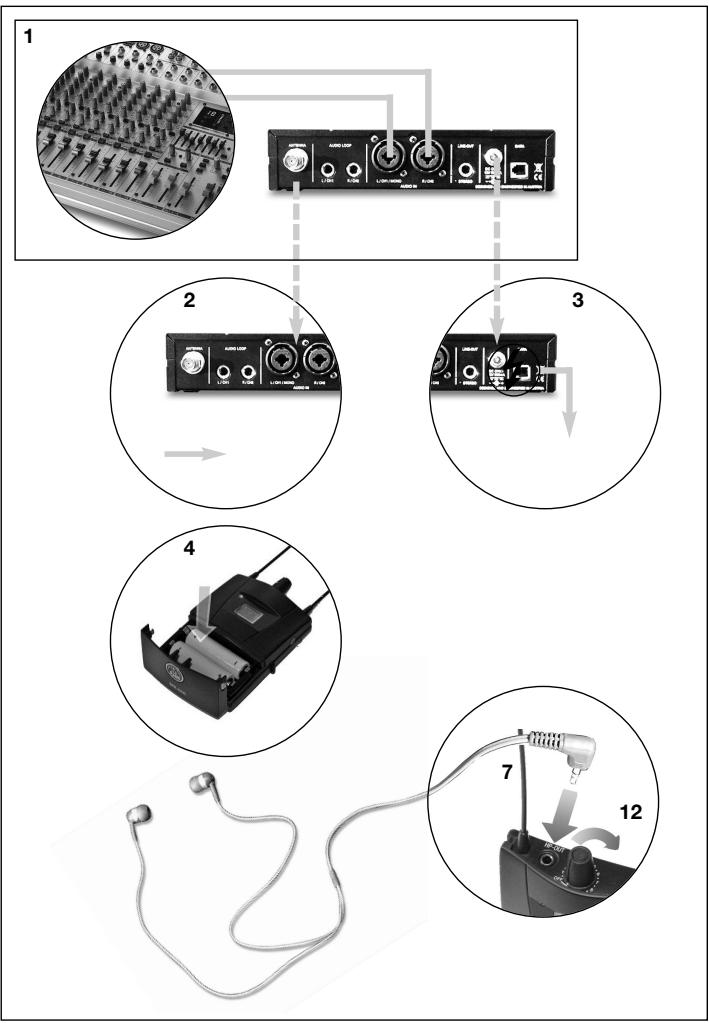
- Make all audio connections.
- Connect the antenna to the transmitter.
- Connect the transmitter to power.
- Insert the supplied batteries into the SPR 4500 receiver.
- Select a clean frequency on the receiver ("AUTO" menu, section "Automatic Frequency Selection").
- Connect the earbuds to the receiver.
- Tune the transmitter to the same frequency you selected on the receiver (section "Selecting Frequencies from the Preset Screen").
- Set RF output on the transmitter (sections on 2frequency Selection").
- Set input gain on the transmitter (section "Setting Input Gain").
- Set the desired volume for the earbuds.

Symbols Used in the Manual
Symbols and Characters
The following symbols are used in the menu diagrams Figs. A1 through A26 on pages 121 to 136:
| SETUP control on SST 4500 transmitter | Jog switch on SPR 4500 receiver | |
| 2 s | 2 s | Long push (approx. 2 secs.) |
| Short push | ||
| ←→ | ←→ | Turn all the way CW or CCW |
| ← | ← | Turn all the way CCW |
| → | → | Turn all the way CW |
Display Characters
| SST SPR | SST SPR | SST SPR | SST SPR | Flashing character | ||||||||
| 7 | H | R | ||||||||||
| - | -- | - | 8 | I | S | |||||||
| 9 | J | T | ||||||||||
| 0 | A | K | U | |||||||||
| 1 | B | L | V | |||||||||
| 2 | C | M | W | |||||||||
| 3 | D | N | X | |||||||||
| 4 | E | O | Y | |||||||||
| 5 | F | P | Z | |||||||||
| 6 | G | Q | ||||||||||
- Do not spill any liquids on the equipment and do not drop any objects through the ventilation slots in the equipment.
- The equipment may be used in dry rooms only.
- The equipment may be opened, serviced, and repaired by authorized personnel only. The equipment contains no user-serviceable parts.
- Before connecting the equipment to power, check that the AC mains voltage stated on the supplied power supply is identical to the AC mains voltage available where you will use the equipment.
- Operate the equipment with the included power supply with an output voltage of 12 VDC only. Using adapters with an AC output and/or a different output voltage may cause serious damage to the unit.
- If any solid object or liquid penetrates into the equipment, shut down the sound system immediately. Disconnect the power supply from the power outlet immediately and have the equipment checked by AKG service personnel.
- If you will not use the equipment for a long period of time, disconnect the power supply from the power outlet. Please note that the equipment will not be fully isolated from power when you set the power switch to OFF.
- Do not place the equipment near heat sources such as radiators, heating ducts, or amplifiers, etc. and do not expose it to direct sunlight, excessive dust, moisture, rain, mechanical vibrations, or shock.
- To avoid hum or interference, route all audio lines, particularly those connected to the microphone inputs, away from power lines of any type. If you use cable ducts, be sure to use separate ducts for the audio lines.
- Clean the equipment with a moistened (not wet) cloth only. Be sure to disconnect the power supply cable from the power outlet before cleaning the equipment! Never use caustic or scouring cleaners or cleaning agents containing alcohol or solvents since these may damage the enamel and plastic parts.
- Use the equipment for the applications described in this manual only. AKG cannot accept any liability for damages resulting from improper handling or misuse.
- In some countries, you may need a permit for operating your equipment. Be sure to contact the respective authority of the country where you are going to operate your equipment.
- Any modifications made to the equipment without the express consent of AKG may lead to violations of telecommunications legislation voicing the operating permit.
Listening over headphones at excessive sound pressure levels, particularly over extended periods of time, may damage your hearing! Therefore, always set the volume as low as possible.
Table 1 is based on German research in occupational medicine and lists maximum exposure times for high volume levels before hearing damage occurs. Please note that local legislation where you will use your equipment may differ from the values in Table 1. Basically, you can double the maximum exposure time without damaging your ears by reducing the sound pressure level by 3 dB.

Table 1: Maximum exposure to sound pressure levels
| Sound pressure | Maximum exposure |
| 85 dB(A) | 8 hours |
| 88 dB(A) | 4 hours |
| 91 dB(A) | 2 hours |
| 94 dB(A) | 1 hour |
| 97 dB(A) | 30 minutes |
| 100 dB(A) | 15 minutes |
| 120 dB (A) | Threshold of pain |
To protect your ears from damage, follow a few tips:
- Set the volume just high enough to hear properly.
1 Safety and Environment
Environment

- If you hear ringing or whistling sounds in your ears, fail to hear high notes (even momentarily), or hear less clearly for a while after a concert, you have been exposed to excessive sound pressure levels for too long. Consult an audiologist and use lower volume levels.
- Have your ears checked by an audiologist on a regular basis.
-
To avoid infections, wipe the ear molds with a skin compatible antiseptic before and after use. Stop using the earbuds if they are causing great discomfort or infection.
-
The power supply will draw a small amount of current even when the equipment is switched off. To save energy, disconnect the power cable from the power outlet if you will leave the equipment unused for a long period of time.
- When scrapping the equipment, separate the case, circuit boards, and cables, and dispose of all components in accordance with local waste disposal rules.
- The packaging of the equipment is recyclable. Dispos of the packaging in an appropriate container provided by the local waste collection/recycling entity and observe all local legislation relating to waste disposal and recycling.
Thank you for purchasing an AKG product. This Manual contains important instructions for setting up and operating your equipment. Please take a few minutes to read the instructions below carefully before operating the equipment. Please keep the Manual for future reference. Have fun and impress your audience!
1 SST 4500 stereo transmitter
1 SPR 4500 bodypack stereo receiver
1 pair of IP 2 earbuds with 3 pairs of ear molds
1rod antenna
1 rack mounting kit
1 power supply
2 AA size dry batteries
- Check that the packaging contains all of the items listed above. Should any of these items be missing, please contact your AKG dealer.
SPC 4500 wideband antenna combiner
SRA 2 W passive wideband directional antenna
- RA 4000 W passive wideband omnidirectional antenna
- PSU 4000 central power supply
HUB 4000 Q network interface
- MK PS antenna cables
- Front panel mounting kit for supplied antenna 0110E01890
BP 4000 2.4-V rechargeable battery pack
- CU 4000 charger for 2 receivers or BP 4000 battery packs
The SST 4500 is a stationary stereo transmitter designed to transmit a mono, stereo, or dual-channel signal to the SPR 4500 bodypack stereo receiver. It allows you to select one of 1200 frequencies within a 30-MHz band. In addition, it provides an integrated compressor, limiter, highpass filter, and a dedicated binaural room simulator. You can use the transmitter as a standalone unit or install it in a 19^th rack using the supplied rack mounting kit.
Unpacking
Optional
Accessories
SST 4500
Stationary Transmitter
Front Panel
Fig. 1: Transmitter front panel and display.
Refer to fig. 1.
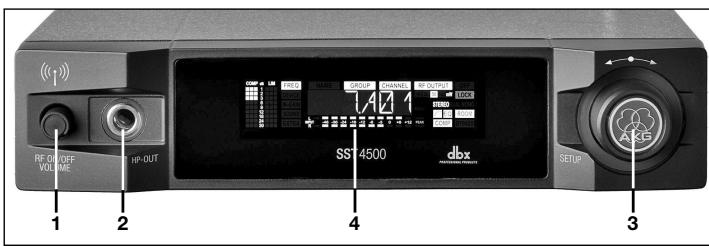
1 RF ON/OFF VOLUME: Combined pushbutton switch for activating/deactivat ing RF power and rotary volume control for the headphone output.
2 HP OUT: TRS 1/4 " jack for connecting a pair of headphones. The signal is identical to the audio signal fed to the RF section.
3 SETUP: Adjusts the transmitter parameters.
4 Color code: Replaceable ring for marking the transmitter.
5 Display: Seenext page.
Refer to fig. 2.
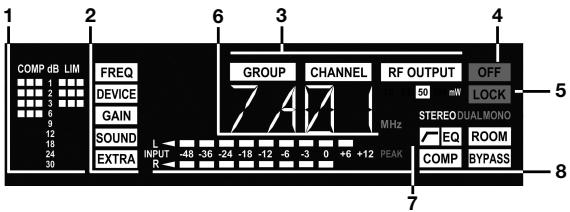
Fig. 2: LC display on transmitter front panel.
The display indicates all operating parameters of the transmitter:
1 Compressor and limiter gain reduction.
2 Menus for frequency, transmitter name, input gain, audio processing, system settings.
3 Submenus for Frequency Group, Subchannel, RF output.
4 OFF (red): Indicates the transmitter is off the air.
5 LOCK mode label (red): goes out in SETUP mode.
6 Alphanumeric display.
7 Audio input level bargraph and red PEAK LED
8 Audio functions: input mode, highpass filter, EQ, room simulation, compressor, bypass.
In SETUP mode, the currently active setup parameter will be flashing.
Rear Panel
Refer to fig. 3.
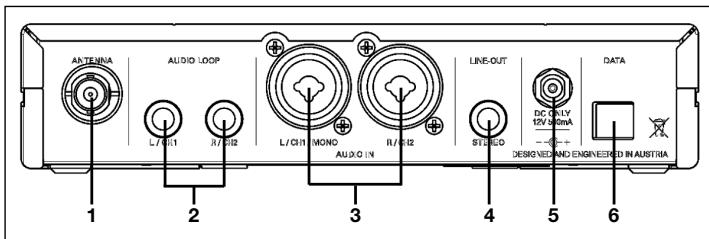
Fig. 3: Inputs and outputs on transmitter rear panel.
1 ANTENNA: BNC antenna output.
2 AUDIO LOOP L/CH1, R/CH2: These two jacks are connected in parallel to the AUDIO IN jacks and carry the unprocessed input signal.
3 AUDIO IN L/CH1/MONO, R/CH2: Combined female XLR/1/4" jacks for feeding in a stereo or mono signal. The ?" jacks accept both balanced and unbalanced cables.
4 LINE OUT STEREO: This TRS ?" jack provides the processed audio signal. You can feed this signal to an extra monitor amplifier for floor wedges, etc.
5 DC ONLY: Locking DC input for connecting the included power supply.
6 DATA: Interface for linking the transmitter to a HiQNet network for controlling the transmitter using a computer and HUB 4000 Q.
SPR 4500 Bodypack Receiver
The SPR 4500 bodypack receiver has been designed specifically for use with the SST 4500 transmitter and IP 2 earbuds. You may, however, connect other earbuds to the receiver as well.
Controls Refer to fig. 4.
To power the receiver you can use either the two supplied dry batteries or the optional BP 4000 battery pack from AKG.
1 Headphones output: TRS mini jack.
2 Detented rotary control with integrated on/off switch: Switches power to the receiver on and OFF and sets the volume of the earbud signal.
3 Permanently attached flexible antennas.
4 Status LED
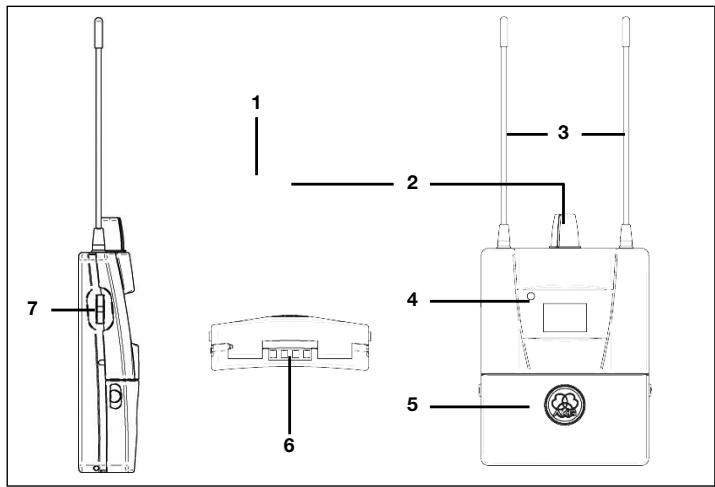
5 Battery compartment accepting two AA size dry batteries (included) or an optional BP 4000 battery pack.
6 Charging contacts for charging the BP 4000 battery pack using the optional CU 4000 charger.
7 Jog switch: Sets the various parameters of the receiver.
8 Color code: Paper strip for identifying the receiver.
Refer to fig. 4.
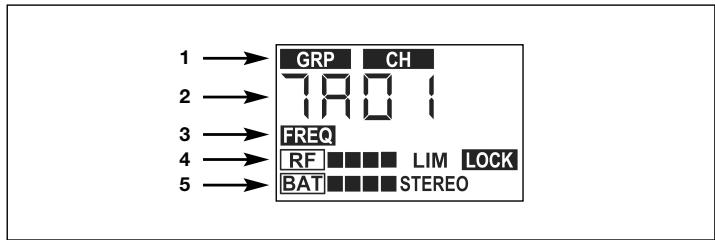
Fig. 4: SPR 4500 bodypack receiver.
The display indicates all operating parameters of the receiver:
1 Menus for Frequency Group, Subchannel, number of clean channels.
2 Alphanumeric display.
3 Menus for preset frequency, frequency in MHz, squelch.
4 RF level meter, limiter indicator, LOCK mode label.
5 Battery capacity, stereo and dual channel mode indicators.
Display
Fig. 5: Display on SPR 4500 receiver.
Refer to fig. 5.
The IP 2 earbuds have been specifically designed for generating very high sound pressure levels. Their frequency range from 12Hz to 23.5kHz ensures pristine, high-end sound quality throughout the audible spectrum. The supplied ear molds (1) in various sizes attenuate unwanted ambient sound and guarantee optimum, secure fit.
The cable sheath (2) allows you to tighten the cable behind your neck.
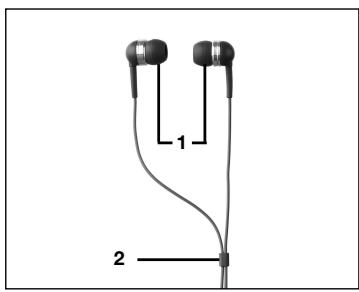
Fig. 6: IP 2 earbuds.
Earbuds
Important

Note:
Placing the Transmitter
3 Setting Up
- Prior to every soundcheck, verify that the transmitter and receiver are tuned to the same frequency.
- The adjustment procedures for all transmitter and receiver parameters are diagrammatically shown in figs. A1 to A25 on pages 122 through 136.
Reflections off metal parts, walls, ceilings, etc. or the shadow effects of musicians and other people may weaken or cancel the direct transmitter signal.
For best results, place the transmitter or remote antenna as follows:
- Place the transmitter/antenna near the performance area (stage). Make sure, though, that the receiver will never get any closer to the transmitter than 10 ft (3 m). Optimum separation is 16 ft. (5 m).
- Place the transmitter/antenna at least 5 ft. (1.5 m) away from any big metal objects, walls, scaffolding, ceilings, etc.
- Place the transmitter at least 10 ft. (3 m) away from any wireless microphone receiver (e.g., an SR 4500) in order to prevent crosstalk from the in-ear monitor system into wireless microphone channels.
Rack Mounting the Transmitter Rack Mounting a Single Transmitter
Refer to fig. 7.
- Unscrew the four rubber feet (1) from the transmitter bottom panel.
- Unscrew the two fixing screws (2) from each side panel.
- Use the fixing screws (2) to screw the short bracket (3) to one side panel and the long bracket (4) to the other side panel. The brackets are contained in the supplied rack mounting kit.
- Install the transmitter in your rack.
Rack Mounting Two Transmitters Side by Side
Refer to fig. 8.
- Unscrew the four rubber feet (1) from each transmitter's bottom panel and remove the screws (5) from the rubber feet (1).
- Unscrew the two fixing screws (2) from the right-hand side panel of one transmitter and from the left-hand side panel of the other transmitter.
- Insert one connecting strip (4) into each free slot in the side panel of the first transmitter, making sure to align the hole in each connecting strip (4) with the appropriate threaded hole in the transmitter bottom panel.
- Fix the three connecting strips (4) on the first transmitter using three of the screws (5) you removed from the rubber feet.
- To join the two transmitters, slide the connecting strips (4) on the first transmitter through the free slots in the side panel of the second transmitter. Make sure to align the hole in each connecting strip (4) with the appropriate threaded hole in the bottom panel of the second transmitter.
- Fix the connecting strips (4) on the second transmitter using the three screws (5) you removed from the rubber feet.
- Screw a short bracket (6) to the outer side panel of each transmitter using for each bracket two of the screws (2) you removed from the transmitter side panels.
-
Install the transmitters in your rack.
-
Open the battery compartment (1).
- Insert the two supplied batteries (2) into the battery compartment, aligning the batteries with the polarity symbols inside the battery compartment. If you insert the batteries the wrong way, the receiver will not be powered.
-
Close the battery compartment (1).
-
Alternatively to the supplied dry batteries, you may use the optional BP 4000 battery pack from AKG. The BP 4000 fits into the battery compartment in the correct orientation only, so you cannot insert it the wrong way.
- Please note that standard rechargeable batteries may damage the receiver if the charging contacts are shorted and will provide no meaningful remaining-battery-life indication. AKG will accept no liability for any damage resulting from the use of standard rechargeable batteries.
-
Set the rotary control to position 1 or higher.
-
Status LED is lit green: power to receiver is on, radio link operating.
-
Status LED is lit red: power to receiver is off or batteries will be dead in less than 60 minutes.
-
Status LED remains dark: no batteries or dead batteries inside battery compartment.
-
When powering up for the first time, the first thing you need to do is select a Preset. Read on in section "Automatic Frequency Selection.
- When powering up again later, the receiver will automatically come on in LOCK mode. The display will indicate the selected frequency in MHz for about 2 seconds, the battery type ("BATBAT" - two dry batteries, "-Accu-" - BP 4000) for about 2 seconds, and finally the frequency as a Preset Subchannel.
The receiver is electronically locked so you cannot make any adjustments. The "LOCK" label is lit on the display.
-
You can scroll through the following status screens:
-
Preset (comes up only if a Preset has been saved): Carrier frequency shown as a Subchannel number within a Frequency Group.
- Frequency: Carrier frequency in MHz. (This screen is always available, even if no Preset has been saved.)
- Battery: Percent battery capacity. (This screen is only available if you are using a BP 4000 battery pack.)
In SETUP mode, the electronic lock is disabled so you can adjust all receiver parameters. The "LOCK" label is not shown.
- To toggle between LOCK and SETUP modes, hold down the Jog switch for about 2 seconds.
-
Set the rotary control to the "OFF" position.
-
Switch all transmitters OFF.
- Select the "AUTO" menu to start the automatic frequency search.
- The currently active frequency GROUP starts flashing. The receiver scans all preset frequencies (CHANNELs) within the selected GROUP.
The "FREE" field lists the number of clean channels. - If the receiver has found enough CHANNELs for your system, confirm the selected GROUP.
If the clean CHANNELs found are fewer than required, use the arrow keys to select a different GROUP.
- Having selected and confirmed a GROUP, you can use the arrow keys to select any clean CHANNEL within this GROUP.
- Select the CHANNEL to which you wish to program your system.
- Program the transmitter to the same GROUP and CHANNEL referring to the section on "Selecting Frequencies from the Preset Screen".
Setting Up the Receiver Inserting Batteries
Refer to fig. 9.
Note:

Powering Up (LOCK/SETUP Modes)
Refer to fig. A1 on page 124.
LOCK Mode:
SETUP Mode:
Selecting Modes:
Powering Down
Automatic Frequency Selection
Refer to figs. A2 and A3.1 on pages 124/125.
Manual Group/Channel Selection
Refer to fig. A3.2 on page 125.
If the receiver finds no clean frequencies:
- Check the antenna system.
-
Slowly increase the squelch threshold from -100 dBm to -82 dBm. Make sure never to set the squelch threshold any higher than absolutely necessary. The higher the squelch threshold (-82dB = ., -100dB = .) , the lower the sensitivity of the receiver and thus the usable range between transmitter and receiver.
-
Select the "GROUP/CHANNEL" menu. The currently active GROUP starts flashing.
- Confirm the selected GROUP or use the arrow keys to select a different GROUP.
- Having selected and confirmed a GROUP, you can use the arrow keys to select any CHANNEL within this GROUP.
- Select a CHANNEL to which you wish to program your system.
- Program the transmitter to the same GROUP and CHANNEL referring to the section on "Selecting Frequencies from the Preset Screen".
Selecting Frequencies Manually
- Select the "FREQUENCY" menu. The currently active frequency starts flashing.
- Confirm the selected frequency or use the arrow keys to select a different GROUP.
- Confirm the selected frequency.
- Program the transmitter to the same GROUP and CHANNEL referring to the section on "Selecting Frequencies from the Frequency Screen".
Connecting Earbuds
Refer to fig. 10.
- Insert the earbuds into your ears. The earbuds are marked "L" (left) and "R" (right).
- Route the cable above your ears to the back of your head and slide the cable sheath up far enough to make the cable rest snugly against your neck.
- Plug the mini jack connector into the HP OUT jack on the receiver.
- Use the rotary control on the receiver to set the desired volume.
-
If the ear molds should fit less than perfectly, try the extra ear molds supplied with your IVM 4500.
-
To avoid the risk of electric shock, install the antenna and make all audio connections before connecting the transmitter to power.
- Connect the supplied rod antenna to the ANTENNA socket on the transmitter rear panel and lock the BNC connector.
- If you use a remote antenna, please note that these antennas may boost their RF output (ERP) in their preferred directions. In order to keep RF output within legal limits, make sure to use antenna cables of the correct length for each type of cable, e.g., RG58: 16 ft. (5 m) for an RA 4000 W or 33 ft. (10 m) for an SRA 2 W.
The AUDIO IN sockets accept both XLR connectors and 1 / 4'' jack plugs. - If only a single mono monitor signal is available, e.g. at an AUX output, connect the appropriate output on your mixer to the L/CH1/MONO jack on the transmitter rear panel.
- Mono signals will not be transmitted in mono unless the room simulator is deactivated. (The room simulator will generate a stereo signal from any mono input signal.)
- Connect the stereo monitor outputs on your mixer to the two AUDIO IN jacks on the transmitter rear panel.
- If your mixer can provide two different monitor signals (e.g., AUX 1 for the soloist's microphone and keyboard, AUX 2 for the entire band), connect AUX 1 to L/CH1/MONO and AUX 2 to R/CH 2.
The AUDIO LOOP outputs carry the unprocessed audio input signal. You can use these outputs as follows:
A (refer to fig. 11):
You can feed the same stereo monitor signal to one or more SST 4500 transmitters. This allows you to set the sound, compression, etc. individually for each musician. Fig. 11 shows a wiring example.
- Connect the stereo monitor outputs on your mixer to the two AUDIO IN jacks on the rear panel of the first transmitter.
- Connect the AUDIO LOOP jacks on the first transmitter to the AUDIO IN jacks on the next transmitter.
- Repeat step 2 for all other transmitters.
- Set all transmitters to STEREO mode.
B (refer to fig. 12):
You can use one channel to distribute the same mono monitor mix to several SST 4s while feeding a personalized monitor signal for each musician to the other input channel on each SST 4500. This allows each musician to set their own balance between the two signals on the receiver. Fig. 12 shows a wiring example.
- Set all transmitters and receivers to DUAL mode.
- Explain to the musicians how to set the balance between the band mix and their own signals on the receiver.
C - other applications:
You can also feed the AUDIO LOOP signal to a separate amplifier for stage monitors, a headphone amplifier, or a recording device.
LINE OUT STEREO is an alternative output for connecting a headphone amplifier or recording device. This jack carries the processed audio signal.
Setting Up the

Antenna

Important!
Audio Connections Note:
Mono Monitor Signal:
Note:
Stereo Monitor Signal:
Two Independent Monitor Signals:
AUDIO LOOP:
See section
"EXTRA/MODE".
See section
"EXTRA/MODE".
LINE OUT STEREO:
Connecting to Power Important!
3 Setting Up
- Check that the AC mains voltage stated on the included power supply is identical to the AC mains voltage available where you will use your system. Using the power supply with a different AC voltage may cause damage to the unit.
- Plug the feeder cable on the included power supply into the DC ONLY socket on the transmitter rear panel and screw down the DC connector.
- Plug the power cable on the power supply into a convenient power outlet.
- The transmitter will automatically come on in LOCK mode.
Setting Up (LOCK/SETUP Modes) LOCK Mode:
The transmitter is electronically locked so you cannot make any adjustments. The red "LOCK" label is lit on the display.
-
You can scroll through the following status screens:
-
Preset (comes up only if a Preset has been saved): Carrier frequency shown as a Subchannel number within a Frequency Group.
- Frequency: Carrier frequency in MHz. (This screen is always available, even if no Preset has been saved.)
- "DEVICE NAME": Current receiver name (comes up only if you have previously named the receiver)
SETUP Mode:
In SETUP mode, the electronic lock is disabled so you can adjust all transmitter parameters. The "LOCK" label disappears.
Selecting Modes:
- To toggle between LOCK and SETUP modes, hold down SETUP for about 2 seconds.
Deactivating the RF Output
- Hold down the RF ON/OFF control for about 2 seconds.
Selecting Frequencies from the Preset Screen Refer to fig.A5 on page 126.
- Switch the transmitter to SETUP mode.
- If the display shows the frequency in MHz, briefly turn SETUP CCW to call up the Preset screen.
- Select a Frequency Group ("GROUP") and a frequency ("CHANNEL") within this Group.
- Set RF output to the desired level between 10mW and 100mW . Make sure to comply with RF output limits as required by local law! You can use the RF ON/OFF key to deactivate the RF output.
- Save your setting ("SAVE—Y").
Selecting Frequencies from the Frequency Screen Refer to fig.A6 on page 127.
- Switch the transmitter to SETUP mode.
- If the display shows the Preset screen, briefly turn SETUP CCW to call up the frequency screen.
- You can select the frequency in 25kHz increments.
- Set RF output to the desired level between 10 mW and 100 mW. Make sure to comply with local RF output limits!
You can use the RF ON/OFF key to deactivate the RF output. - Save your setting ("SAVE—Y").
Naming the Transmitter Refer to fig.A7 (p.127.
- You can use the "DEVICE NAME" screen to assign a name to the transmitter.
Setting Input Gain Refer to fig. A8 (p. 128).
The control range is -20 dB to +20 dB.
To save the selected value, press SETUP briefly.
Multichannel Systems Important!
-
Do not operate two or more wireless channels on the same frequency at the same time and location. This would cause unwanted noise due to radio interference.
-
Select the same "GROUP" on all transmitters and receivers.
-
Switch ON any radio microphones, personal monitor transmitters, etc. (including even those made by other manufacturers) except for your IVM 4500 system! This is the only way to make sure the receiver will find frequencies that will be free of any mutual interference during the performance.
-
On the first receiver, find the nearest clean Subchannel of the selected Frequency Group:
-
In SETUP mode, turn the Jog switch CW or CCW as many times as needed to call up the "AUTO" and "CH" labels on the display.
- Select the desired Frequency Group.
-
The frequency search starts automatically. The "FREE" tag incidactes how many clean frequencies have been found. If this number is zero, you can raise the squelch threshold and try again. Remember, though, that a higher squelch threshold reduces the system range.
-
Clean frequencies are frequencies where the receiver finds no RF signal or an RF signal whose level is lower than the set threshold.
-
Tune the transmitter assigned to the first receiver to the same frequency that you selected on the receiver and switch power to the transmitter on.
- Repeat steps 2 and 3 for each channel.
Refer to fig. A3.1 on page 125.
Note:
Refer to fig. A5 on page 126.
Transmitter
4 Advanced Functions
| Transmitter | In addition to the basic functions described in section 3 above, the SST 4500 trans-mitter provides a number of advanced functions that allow you to "tweak" the mon-itor signal to satisfy each user. |
| SOUND | The SOUND menu includes four sound processing screens. Note that these will not be available when "BYPASS" is active. |
| Note: | Each screen provides up to ten preprogrammed Settings. Each Setting is followed by an "OFF" option so you can make an A/B comparison of the sound against the unprocessed signal. To deactivate a SOUND function, choose "OFF". |
| The sound screens appear in the following order: | |
| Highpass Filter: | The highpass filter lets you brighten up a dull sound or suppress low-frequency interference, e.g., from a bass amp. |
| Refer to fig. A9 on page 128. | You can set the highpass filter corner frequency from 10 Hz to 300 Hz. To save your setting, press SETUP briefly. |
| EQ: | The EQ presets let you shape the sound to suit your preferences (e.g., more clarity, less harsh sound). |
| Refer to fig. A10 on page 128. | The following settings are available: - "EQ OFF": EQ deactivated. - "EQ IP2": neutral sound optimized for supplied IP 2 earbuds. |
| - "CLEAR 1-3": Low-mid attenuation in the critical range from 125 Hz to 250 Hz for added clarity. Recommended for repairing indifferent, muddy sound. | |
| - "SOFT 1-3": Upper-mid attenuation between 3.4 kHz and 6.8 kHz for a mel-low sound. Recommended for repairing excessively harsh sound with exaggerated sibi-lance and cymbal crashes. | |
| - "WARM 1-3": Special processing in the ranges around 150 Hz and from 3.4 kHz to 6.8 kHz for a warm, pleasant sound. | |
| To save the selected Setting, press SETUP briefly. | |
| ROOM: | Specifically designed for in-ear monitoring, the binaural room simulator restores a natural sonic environment. This enables the artist to localize their own signal more easily in the mix and hear all instruments much more clearly. |
| Refer to fig. A11 on page 129. | The following preprogrammed Settings are available: - "RS OFF": no room simulation. - "CLOSE" 1 to 3: close-in monitors - "NATUR" 1 to 3: natural sound - "WIDE" 1 to 3: open sound To save the selected Setting, press SETUP briefly. |
| Note: | This screen is not available in DUAL mode! |
| COMP: | The compressor has been designed by AKG on the model of the top-of-the-line dbx mastering compressors. It maintains all the nuances of the original signal and provides inaudible gain reduction. |
| Refer to fig. A12 on page 129. | The following preprogrammed Settings are available: - "CO OFF": compressor deactivated. - "SOFT" 1 to 3: very soft, gentle, completely inaudible compression - "MED" 1 to 3: standard compression ratio around 2:1 for gentle enhancement of intelligibility and loudness, completely inaudible gain control. - "HARD" 1 to 3: aggressive compression for massive boost of punch and loudness. |
| To save the selected Setting, press SETUP briefly. | |
| Note: | In DUAL mode, the compressor will control channel 1 gain only! |
- To activate the bypass, select "ON". All SOUND Settings will be deactivated.
- To deactivate the bypass, select "OFF". The SOUND Settings will be activated.
BYPASS:
Refer to fig. A13
on page 129.
The EXTRA menu provides six submenus that appear in the following order:
-
You can choose from the following modes:
-
"STEREO" for stereo input signals.
- "DUAL" for two independent input signals.
-
"MONO" for mono input signals.
"SR4500" for mono transmission to an SR 4500 receiver. -
In DUAL and SR4500 modes, no room simulation is available and the compressor will operate on channel 1 only.
-
Mono signals will not be transmitted in mono unless the room simulator is deactivated.
-
You can choose from the following modes:
-
"AUTO": When the transmitter is in SETUP mode and nobody touches a control for approx. three minutes, the transmitter will automatically switch to LOCK mode. (You can still switch to LOCK mode manually at any time.)
-
"MANUAL": You can only lock the setup menus manually.
-
You can set the brightness of the display from 1 (dark) to 10 (bright).
This setting is only active in LOCK mode.
-
You can call up the following details about your transmitter in this order:
-
Firmware version (e.g., "F 3.09")
- Frequency band (e.g., "B 5.E5")
- Preset version (e.g., "P 1.00")
-
Audio preset version (e.g., "A 03.00")
-
You can reset all parameters to their default settings ("YES") or leave them untouched ("NO").
- Press SETUP briefly. The display will revert to the EXTRA screen.
In addition to the basic functions described in section 3 above, the SPR 4500 receiver provides a number of advanced functions.
To make sure the transmitter battery capacity is indicated correctly:
- Do not use any dry or rechargeable batteries other than the types listed below.
-
Never use batteries that have been in use during the previous 24 hours.
-
Match the transmitter system to the type of battery you inserted:
-
Select the "BAT." menu.
- Use the arrow keys to select the desired setting:
"LR6" for AA size (LR6) alkaline dry batteries. The display indicates the remaining battery capacity as a bar graph.
"Fr6" for AA size (FR6) lithium batteries. The display indicates the remaining battery capacity as a bar graph.
Lithium batteries have a life of up to 10 hours. With new lithium batteries, the display will constantly indicate four rectangles during initial operating hours.
"Hr6" for AA size (HR6) NiMH rechargeable batteries. If the battery capacity drops below 20% the display will show the "LO.BAT" warning.
- The optional BP 4000 battery pack is detected and indicated automatically.
The "CUE" function allows you to listen to each of up to 16 monitor channels. You can select the appropriate frequencies and save them as a GROUP. In LOCK mode, you can use the jog switch to scroll through these frequencies. You can only add, delete, or modify CUE frequencies when the CUE function is active.
EXTRA
Refer to fig. A14 (p. 130).
MODE:
Refer to fig. A15
on page 130.
Note:
LOCK:
Refer to fig. A16
on page 131.
LIGHT:
Refer to fig. A17
on page 131.
INFO:
Refer to fig. A18
on page 132.
RESET:
Refer to fig. A19
on page 132.
ESCAPE:
Refer to fig. A20
on page 132.
Receiver
Battery Management
CUE Function
Activating/ Deactivating CUE
Refer to fig. A22 on page 133.
4 Advanced Functions
- In SETUP mode, turn the jog switch CW or CCW a s many times as required to display "CuE.ON", and press the jog switch briefly.
In this mode, you cannot modify any squelch, limiter, balance, battery type, or HF attenuation pad settings.
You can save up to 16 frequencies. In LOCK mode, you can only scroll through the CUE frequencies.
- To quit CUE, turn the jog switch CW or CCW a s many times as required to display "CuE.OFF", and press the jog switch briefly.
Adding Frequencies
- Turn the jog switch CW or CCW a s many times as required to display "CuE.Add", and press the jog switch briefly.
- You can select CUE frequencies as CHANNELs of a GROUP or directly in MHz.
Group/Channel:
- If the display indicates the current frequency in MHz, briefly turn the jog switch CCW to call up the Preset menu.
- Select the GROUP and CHANNEL assigned to the desired monitor mix.
- Save your setting ("SAVE—Y"). The selected frequency will be added to your CUE GROUP.
Frequency in MHz:
- If the display indicates a GROUP and CHANNEL, briefly turn the jog switch CW to call up the frequency menu.
- You can select the desired frequency in 25-kHz increments.
- Save your setting ("SAVE—Y"). The selected frequency will be added to your CUE GROUP.
Deleting Frequencies
- In CUE mode, turn the jog switch CW or CCW a s many times as required to display the desired frequency, and press the jog switch briefly.
- Turn the jog switch CW or CCW a s many times as required to display "DELETE", and press the jog switch briefly.
RF Attenuation Pad (ATT)
This function enables you to the attenuate the RF signal at the antenna input. If the receiver is used within approx. 65 feet (20 m) or less from the transmitter, we recommend activating the ATT function to make the system reliable and insensitive to interference. With transmitter-to-receiver distances longer than approx. 65 feet (20 m), deactivate ATT in order to increase system range.
Activating ATT:
- In SETUP mode, turn the jog switch CW or CCW as many times as required to display "ATT.OFF", and press the jog switch briefly.
- Select "ATT.ON".
- Press the jog switch to activate the RF Attenuation Pad.
Deactivating ATT:
- In SETUP mode, turn the jog switch CW or CCW a s many times as required to display "ATT.ON", and press the jog switch briefly.
- Select "ATT.OFF".
- Press the jog switch to deactivate the RF Attenuation Pad.
Setting the Squelch
Threshold
Refer to fig. A22 (p. 134).
Hearing
Protection Limiter
Refer to fig. A23
on page 134.

Balance
Refer to fig. A24
on page 135.
The hearing protection limiter places an absolute ceiling on the receiver output level. Please note that the actual sound pressure at the ears will depend on the type of earbuds used.
- You can switch the limiter "ON" and "OFF".
-
To save your selection, press the Jog switch briefly.
-
To avoid hearing damage, always leave the hearing protection limiter ON.
-
The sensitivity of the human hearing system to aural stress differs from person to person. Therefore, AKG will not assume any liability for any damage to the user's hearing.
-
Set the receiver to STEREO or DUAL mode.
-
In STEREO mode, you can set the balance between the left and right audio channels. The display will indicate the volume of the louder channel (L or R) in 12 increments.
"L R 00" means the volume of both channels is the same.
In DUAL mode, you can set the balance between channel 1 ("CH1") and channel 2 ("CH2"). The display will indicate the volume of the louder channel in 12 increments.
"CH-00" means the volume of both channels is the same.
-
To save your selection, press the Jog switch briefly.
-
You can call up the balance screen even in LOCK mode by pressing the Jog switch briefly. You can set and save the balance between the left and right channels or channels 1 and 2. However, you cannot toggle between STEREO and DUAL modes.
You can call up the following details about your transmitter in this order:
- Firmware version (e.g., "F 2.30")
- Frequency band (e.g., "B 7.A5")
- Preset version (e.g., "P 1.76")
Note:
Info
Refer to fig. A25 on page 136.

Transmitter and Receiver
Earbuds
5 Cleaning
- To clean the transmitter and receiver surfaces, use a soft cloth moistened with water.
- Use a soft cloth moistened with water to clean the earbud surfaces.
- To prevent infections, clean the ear molds with a skin compatible antiseptic before and after use.
| Probelm | Possible Cause | Remedy | |
| No sound. | 1. Power supply is not connected to transmitter and/or power outlet. 2. RF output is OFF. 3. Receiver is OFF. 4. Transmitter is not connected to mixer. 5. Transmitter is tuned to different frequency than receiver. 6. Receiver batteries are not inserted properly. 7. Receiver batteries/battery pack dead. 8. Transmitter is too far away from receiver or squelch threshold setting is too high. 9. Obstructions between transmitter and receiver. 10. Transmitter too close to metal objects. | 1. Connect power supply to transmitter and/or power outlet. 2. Activate RF output (press RF ON/OFF). 3. Switch receiver ON. 4. Connect mixer output to transmitter input. 5. Tune transmitter and receiver to same frequency. 6. Insert batteries conforming to "+" and "-" marks. 7. Replace batteries/charge battery pack. 8. Move closer to transmitter or choose lower squelch threshold setting. 9. Remove obstructions. 10. Remove objects or place transmitter further away. | |
| Noise, crackling, unwanted signals. | 1. Antenna location. 2. Interference from other wireless systems, TV, radio, CB radios, or defective electrical appliances or installations. | 1. Relocate transmitter or antenna. 2. Switch off interference sources or defective appliances or tune transmitter and receiver to a different frequency; have electrical installation checked. | |
| Distortion. | • Interference from other wireless systems, TV, radio, CB radios, or defective electrical appliances or installations. | • Switch off interference sources or defective appliances or tune transmitter and receiver to a different frequency; have electrical installation checked. | |
| Momentary loss of sound ("drops") at some spots within performance area. | • Antenna location. | • Relocate transmitter or antenna. If dead spots persist, mark and avoid them. | |
| Receiver Error Messages and Warnings | Problem | Remedy | |
| Receiver | "REC.ACC" | • When charging BP 4000, a recommended RECOVERY cycle was not run. Remaining battery life is not indicated. | • Press Jog switch briefly and run RECOVERY cycle next time you charge BP 4000. |
| "ERR.BAT" | • Volume too high and battery voltage too low. SPR 4500 limiter is automatically activated to avoid premature power-down. | • Press Jog switch briefly to reset limiter to last active mode. Reduce volume or replace batteries/charge battery pack. | |
| "LO BAT" | • Battery/BP 4000 capacity lower than 20%. | • Replace batteries/charge BP 4000. | |
| "NO RF" | 1. Received signal level was too low for a moment (dropout). 2. Radio signal still too weak after 10 seconds, warning comes up again. | 1. Press Jog switch briefly. (Warning disappears.) 2. Relocate transmitter/antenna. If dropouts persist, mark and avoid critical spots. | |
| Transmitter and receiver | All other error messages ("ERR.XXX") | • Internal error. | 1. Switch power to receiver OFF and back ON after about 10 seconds. 2. Contact your AKG dealer as soon as possible, even if problem appears to be corrected. |
| Carrier frequency bands: | Band 1: 650.1 – 680.5 MHz Band 3-A: 720 – 750.5 MHz Band 4: 759.5 – 789.9 MHz Band 5-A: 790.1 – 819.9 MHz Band 5-JA: 797.125 – 805.875 MHz Band 5-TH: 790.1 – 805.9 MHz Band 5-IL: 794.1 – 805.9 MHz Band 7: 500.1 – 530-5 MHz Band 8: 570.1 – 600.5 MHz Band 9: 600.1 – 605.9 MHz & 614.1 – 630.5 MHz Band 9-U: 600.1 – 630.5 MHz |
| RF bandwidth: | 30 MHz / 25 kHz |
| Modulation: | FM, MPX Stereo |
| Audio formats: | stereo, mono, dual channel (selectable) |
| Audio bandwidth: | 35 Hz to 20 kHz |
| THD: | typ. < 0.8% |
| Signal/noise ratio: | >90 dBA |
| Operating temperature: | -10°C to +50°C |
Clean carriers per frequency band: 14
| RF output: | 10, 20, 50, 100 mW (selectable, depending on local legislation) |
| Antenna: | 50-ohm rod antenna with BNC connector |
| Audio input: | 2 x combined XLR/1/4" jacks, balanced, 10 dBV max. |
| Input gain and limiter: | digitally controlled |
| Audio processor: | 24-bit DSP |
| Audio outputs: | AUDIO LOOP: 2 x ?" jacks, directly connected to audio inputLINE OUT: TRS ?" jack, connected to audio section output, 0 dBV max.HP OUT: 18 Hz to 20 kHz, THD < 0.5%, maximum power 2 x 500 mW into 16 to 600 ohms |
| Power supply: | 12 V DC, 0.5 A |
| Size: | 200 x 216 x 44 mm (7.8 x 1.7 x 7.4 in.) |
| Weight: | 1070 g (2.4 lbs.) |
Squelch threshold: -100 dBm to -82 dBm, selectable
| Audio bandwidth: | 35 Hz to 15 kHz |
| THD at 1 kHz: | < 0.8% |
| Channel separation: | > 40 dB |
| Signal/noise ratio: | > 90 dBA |
| Audio output: | TRS mini jack |
| Controls: | Jog switch, volume control, backlit LCD, status LED |
| Power supply: | 2 AA size dry batteries or BP 4000 battery pack |
| Battery life: | 6 to 8 hours |
| Size: | 70 x 90 x 25 mm (2.8 x 3.5 x 1 in.) |
| Net weight inc. batteries: | 165 g (5.8 oz.) |
Frequency range: 12 Hz to 35 kHz
| Sensitivity: | 121 dB SPL/V |
| Power handling capability: | 25 mW |
| Rated impedance: | 16 ohms |
| Weight (inc. cable): | 3 g (0.1 oz.) |
| Connecting cable: | 1.5 m (5 ft.) long, Y connected |
| Connector: | TRS mini jack plug |
This product conforms to the standards listed in the Declaration of Conformity. To order a free copy of the Declaration of Conformity, visit http://www.akg.com or contact sales@akg.com.
SST 4500 Transmitter
SPR 4500 Receiver
IP 2 Earbuds
Standards
For other products and distributors worldwide visit www.akg.com

C€0682 ROHS OK
Technische Änderungen vorbehalten. Specifications subject to change without notice. Ces caractéristiques sont susceptibles de modifications. Ci riserviamo il diritto di effettare modifiche tecniche. Nos reservamos el dato de introduir modificaciones tíncas. Especificações sujeitas a mudanças sem uso prévio.
Printed in Hungary.
09/11/9100 U 13330

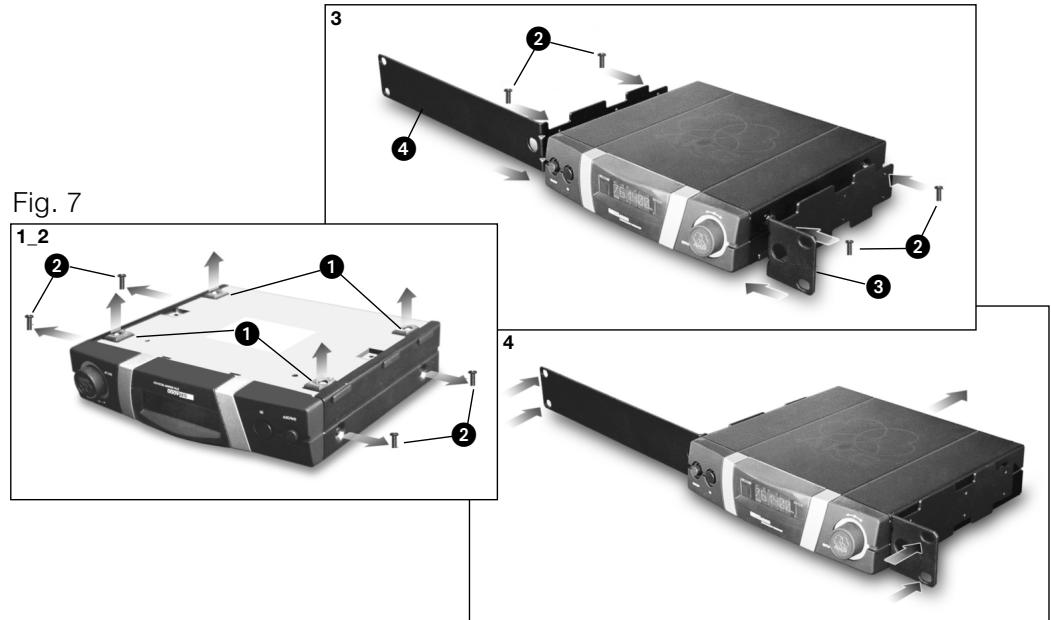
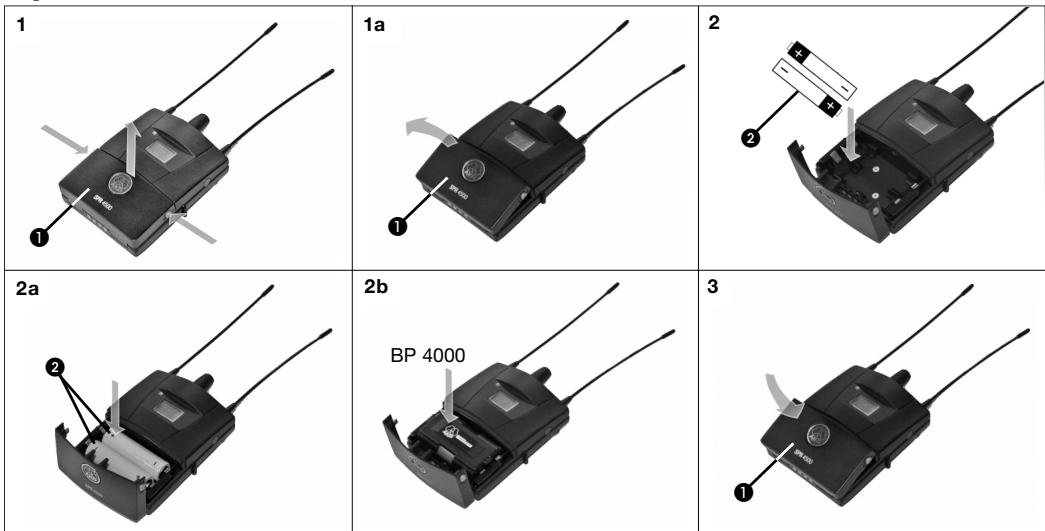
Fig. 9
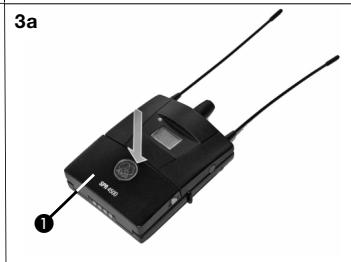

Fig. 8
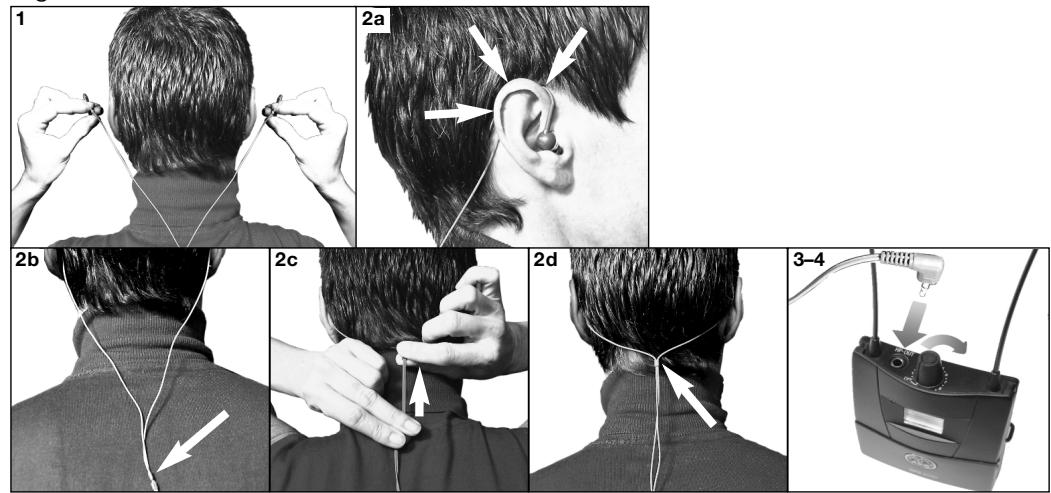
Fig. 10
Fig. 11
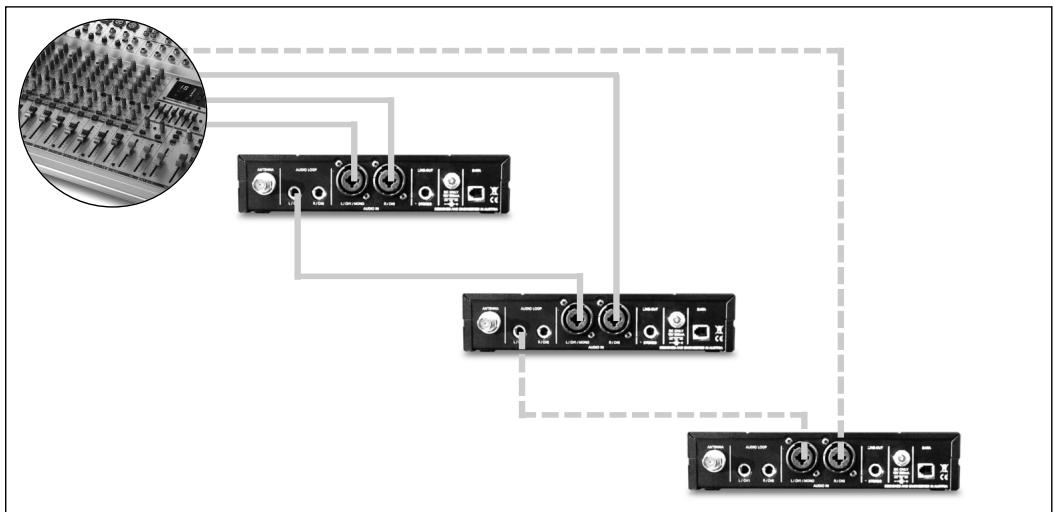
Fig. 12
Zur Verwendung in:
For use in:
Pour l'usage en:
Per I'uso in:
Para el uso en:
Para o uso em:
Epnoiopoinoios otns:
AKG Acoustics GmbH herewith declares that the IVM 4500, SRA 2 W and RA 4000 W are in compliance with the essential requirements and other relevant provisions of Directive 1999/5/EC. To order a free copy of the Declaration of Conformity, visit http://www.akg.com or contact sales@akg.com.
Only for EU countries!
For other countries refer to the information of the local distributor.
- Zwei unabhanglge Monitorsignale:
- FCC Statement
- Symbols Used in the Manual
- Symbols and Characters
- Display Characters
- Safety and Environment
- Environment
- Unpacking
- Optional
- Accessories
- SST 4500
- Stationary Transmitter
- Front Panel
- Rear Panel
- SPR 4500 Bodypack Receiver
- Controls Refer to fig. 4.
- Display
- Earbuds
- Important
- Note:
- Placing the Transmitter
- Setting Up
- Rack Mounting the Transmitter Rack Mounting a Single Transmitter
- Rack Mounting Two Transmitters Side by Side
- Manual Group/Channel Selection
- Selecting Frequencies Manually
- Connecting Earbuds
- A (refer to fig. 11):
- B (refer to fig. 12):
- C - other applications:
- Antenna
- Audio Connections Note:
- Two Independent Monitor Signals:
- AUDIO LOOP:
- Connecting to Power Important!
- Setting Up (LOCK/SETUP Modes) LOCK Mode:
- SETUP Mode:
- Selecting Modes:
- Deactivating the RF Output
- Selecting Frequencies from the Preset Screen Refer to fig.A5 on page 126.
- Selecting Frequencies from the Frequency Screen Refer to fig.A6 on page 127.
- Naming the Transmitter Refer to fig.A7 (p.127.
- Setting Input Gain Refer to fig. A8 (p. 128).
- Multichannel Systems Important!
- Transmitter
- Advanced Functions
- BYPASS:
- EXTRA
- MODE:
- LOCK:
- LIGHT:
- INFO:
- RESET:
- ESCAPE:
- Receiver
- Battery Management
- CUE Function
- Activating/ Deactivating CUE
- Adding Frequencies
- Group/Channel:
- Frequency in MHz:
- Deleting Frequencies
- RF Attenuation Pad (ATT)
- Activating ATT:
- Deactivating ATT:
- Setting the Squelch
- Threshold
- Hearing
- Protection Limiter
- Balance
- Info
- Cleaning
- C€0682 ROHS OK
- Only for EU countries!
Brand : AKG
Model : IVM4500
Category : In-ear monitoring system