
AD-800-B - Audio recorder TEAC - Free user manual and instructions
Find the device manual for free AD-800-B TEAC in PDF.



| Product Type | Audio recorder with CD player, cassette deck and USB recording |
| Brand | TEAC |
| Model | AD-800-B |
| Dimensions (W x H x D) | 435 x 145 x 288 mm |
| Weight | 5,1 kg |
| Power Supply | AC 120/230 V, 50-60 Hz (selectable) |
| Power Consumption | 14 W |
| Supported Formats (CD) | Audio CD, CD-R/RW (audio and MP3), finalized |
| Supported Formats (USB) | MP3, FAT12/16/32 file systems |
| Cassette Types (playback) | Normal (type I), Chrome (type II), Metal (type IV) |
| Cassette Types (recording) | Normal (type I), Chrome (type II) |
| Frequency Response (CD) | 20 Hz - 20 kHz, ±2 dB |
| Signal-to-Noise Ratio (CD) | More than 87 dB (IHF-A) |
| Audio Output | 2.0 V (RCA) |
| Auxiliary Input | LINE: 87 mV (impedance 50 kΩ) |
| Headphone Output | 10 mW / 32 Ω |
| Remote Control | Yes (RC-1257), AAA batteries included |
| Supplied Accessories | Remote control, batteries, RCA cables, quick start guide, warranty card |
| Cleaning | Dry soft cloth; do not use thinner or alcohol |
| Head Maintenance | Clean with cotton swab and cleaning liquid every 10 h; demagnetize if necessary |
| Safety | Do not expose to water; unplug before cleaning; do not open the casing |
| Operating Temperature | +5°C to +35°C |
| Operating Humidity | 5% to 85% (non-condensing) |
| Max. Number of USB Files | 999 files, 255 folders |
| USB Recording | MP3 format, bitrate 128 kb/s, max. duration 240 min per file |
| Timer | Programmable playback/recording (external timer required) |
Frequently Asked Questions - AD-800-B TEAC
User questions about AD-800-B TEAC
0 question about this device. Answer the ones you know or ask your own.
Ask a new question about this device
Download the instructions for your Audio recorder in PDF format for free! Find your manual AD-800-B - TEAC and take your electronic device back in hand. On this page are published all the documents necessary for the use of your device. AD-800-B by TEAC.
USER MANUAL AD-800-B TEAC
Compact Disc Player/Reverse Cassette Deck
OWNER'S MANUAL
MODE D'EMPLOI
MANUAL DEL USUARIO
CAUTION
RISK OF ELECTRIC SHOCK DO NOT OPEN
CAUTION: TO REDUCE THE RISK OF ELECTRIC SHOCK, DO NOT REMOVE COVER (OR BACK). NO USER- SERVICEABLE PARTS INSIDE. REFER SERVICING TO QUALIFIED SERVICE PERSONNEL.
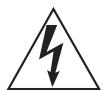
The lightning flash with arrowhead symbol, within an equilateral triangle, is intended to alert the user to the presence of uninsulated "dangerous voltage" within the product's enclosure that may be of sufficient magnitude to constitute a risk of electric shock to persons.
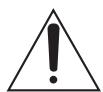
The exclamation point within an equilateral triangle is intended to alert the user to the presence of important operating and maintenance (servicing) instructions in the literature accompanying the appliance.
IMPORTANT SAFETY INSTRUCTIONS
1) Read these instructions.
2) Keep these instructions.
3) Heed all warnings.
4) Follow all instructions.
5) Do not use this apparatus near water.
6) Clean only with dry cloth.
7) Do not block any ventilation openings. Install in accordance with the manufacturer's instructions.
8) Do not install near any heat sources such as radiators, heat registers, stoves, or other apparatus (including amplifiers) that produce heat.
9) Do not defeat the safety purpose of the polarized or grounding-type plug. A polarized plug has two blades with one wider than the other. A grounding type plug has two blades and a third grounding prong. The wide blade or the third prong are provided for your safety. If the provided plug does not fit into your outlet, consult an electrician for replacement of the obsolete outlet.
10) Protect the power cord from being walked on or pinched particularly at plugs, convenience receptacles, and the point where they exit from the apparatus.
11) Only use attachments/accessories specified by the manufacturer.
12) Use only with the cart, stand, tripod, bracket, or table specified by the manufacturer, or sold with the apparatus. When a cart is used,
use caution when moving the cart/apparatus combination to avoid injury from tip-over.
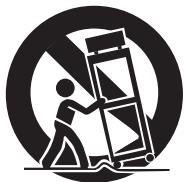
13) Unplug this apparatus during lightning storms or when unused for long periods of time.
14) Refer all servicing to qualified service personnel. Servicing is required when the
apparatus has been damaged in any way, such as power-supply cord or plug is damaged, liquid has been spilled or objects have fallen into the apparatus, the apparatus has been exposed to rain or moisture, does not operate normally, or has been dropped.
- Do not expose this apparatus to drips or splashes.
- Do not place any objects filled with liquids, such as vases, on the apparatus.
- Do not install this apparatus in a confined space such as a book case or similar unit.
- The apparatus draws nominal non-operating power from the AC outlet with its POWER or OFF/ON switch not in the ON position.
- The apparatus should be located close enough to the AC outlet so that you can easily grasp the power cord plug at any time.
- The mains plug is used as the disconnect device, the disconnect device shall remain readily operable.
- Products with Class I construction are equipped with a power supply cord that has a grounding plug. The cord of such a product must be plugged into an AC outlet that has a protective grounding connection.
- If the product uses batteries (including a battery pack or installed batteries), they should not be exposed to sunshine, fire or excessive heat.
- CAUTION for products that use replaceable lithium batteries: there is danger of explosion if a battery is replaced with an incorrect type of battery. Replace only with the same or equivalent type.
- Caution should be taken when using earphones or headphones with the product because excessive sound pressure (volume) from earphones or headphones can cause hearing loss.
WARNING: TO PREVENT FIRE OR SHOCK HAZARD, DO NOT EXPOSE THIS APPLIANCE TO RAIN OR MOISTURE.
CAUTION
DO NOT REMOVE THE EXTERNAL CASES OR CABINETS TO EXPOSE THE ELECTRONICS. NO USER SERVICEABLE PARTS ARE WITHIN.
- IF YOU ARE EXPERIENCING PROBLEMS WITH THIS PRODUCT, CONTACT TEAC FOR A SERVICE REFERRAL. DO NOT USE THE PRODUCT UNTIL IT HAS BEEN REPAIRED.
- USE OF CONTROLS OR ADJUSTMENTS OR PERFORMANCE OF PROCEDURES OTHER THAN THOSE SPECIFIED HEREIN MAY RESULT IN HAZARDOUS RADIATION EXPOSURE.
IN NORTH AMERICA USE ONLY ON 120 V SUPPLY.
Supply of this product does not convey a license nor imply any right to distribute MPEG Layer-3 compliant content created with this product in revenue-generating broadcast systems (terrestrial, satellite, cable and/or other distribution channels), streaming applications (via Internet, intranets and/or other networks), other content distribution systems (pay-audio or audio-on-demand applications and the like) or on physical media (compact discs, digital versatile discs, semiconductor chips, hard drives, memory cards and the like).
An independent license for such use is required. For details, please visit http://mp3licensing.com.
MPEG Layer-3 audio coding technology licensed from Fraunhofer IIS and Thomson.
Manufactured under license from Dolby Laboratories. Dolby and the double-D symbol are trademarks of Dolby Laboratories.
For U.S.A.
This equipment has been tested and found to comply with the limits for a Class B digital device, pursuant to Part 15 of the FCC Rules. These limits are designed to provide reasonable protection against harmful interference in a residential installation. This equipment generates, uses, and can radiate radio frequency energy and, if not installed and used in accordance with the instructions, may cause harmful interference to radio communications. However, there is no guarantee that interference will not occur in a particular installation. If this equipment does cause harmful interference to radio or television reception, which can be determined by turning the equipment off and on, the user is encouraged to try to correct the interference by one or more of the following measures:
- Reorient or relocate the equipment and/or the receiving antenna.
- Increase the separation between the equipment and receiver.
- Connect the equipment into an outlet on a circuit different from that to which the receiver is connected.
- Consult the dealer or an experienced radio/TV technician for help.
CAUTION
Changes or modifications to this equipment not expressly approved by TEAC CORPORATION for compliance will void the user's warranty.
This product has been designed and manufactured according to FDA regulations "title 21, CFR, chapter 1, subchapter J, based on the Radiation Control for Health and Safety Act of 1968", and is classified as class 1 laser product. There is not hazardous invisible laser radiation during operation because invisible laser radiation emitted inside of this product is completely confined in the protective housings.
The label required in this regulation is as follows:
For U.S.A.
CERTIFICATION
THIS PRODUCT COMPLIES WITH 21
CFR 1040.10 AND 1040.11 EXCEPT
FOR DEVIATIONS PURSUANT TO LASER
NOTICE NO. 50, DATED JUNE 24, 2007.
TEAC CORPORATION
Manufacturer : Sanyo Electric Co., Ltd
Laser output : Less than 1 mW on the objective lens
Wavelength : 790 ±30 nm
Contents
Thank you for choosing this TEAC product. Read this manual carefully to get the best performance from this unit.
What You Can Do with This Unit. 5
Before Use 5
Discs. 7
USB Storage Devices. 8
MP3 Files. 8
Cassette Tapes 9
Identifying the Parts (Main Unit) 10
Identifying the Parts (Remote Control Unit) 12
Remote Control Unit 13
Display 14
Connections 16
Basic Operation 17
Listening to a CD. 18
RepeatPlayback(CD/USB) 20
ShufflePlayback(CD/USB) 20
ProgrammedPlayback(CD/USB). 21
Listening to a Cassette Tape 24
Listening to Files on a USB Storage Device (MP3) 26
Recording on a USB Storage Device 28
Erasing Files from a USB Storage Device 31
Recording on a Cassette Tape 32
Timer-ControlledPlayback and Recording 34
Troubleshooting. 37
MP3Playback Order 38
Specifications 39
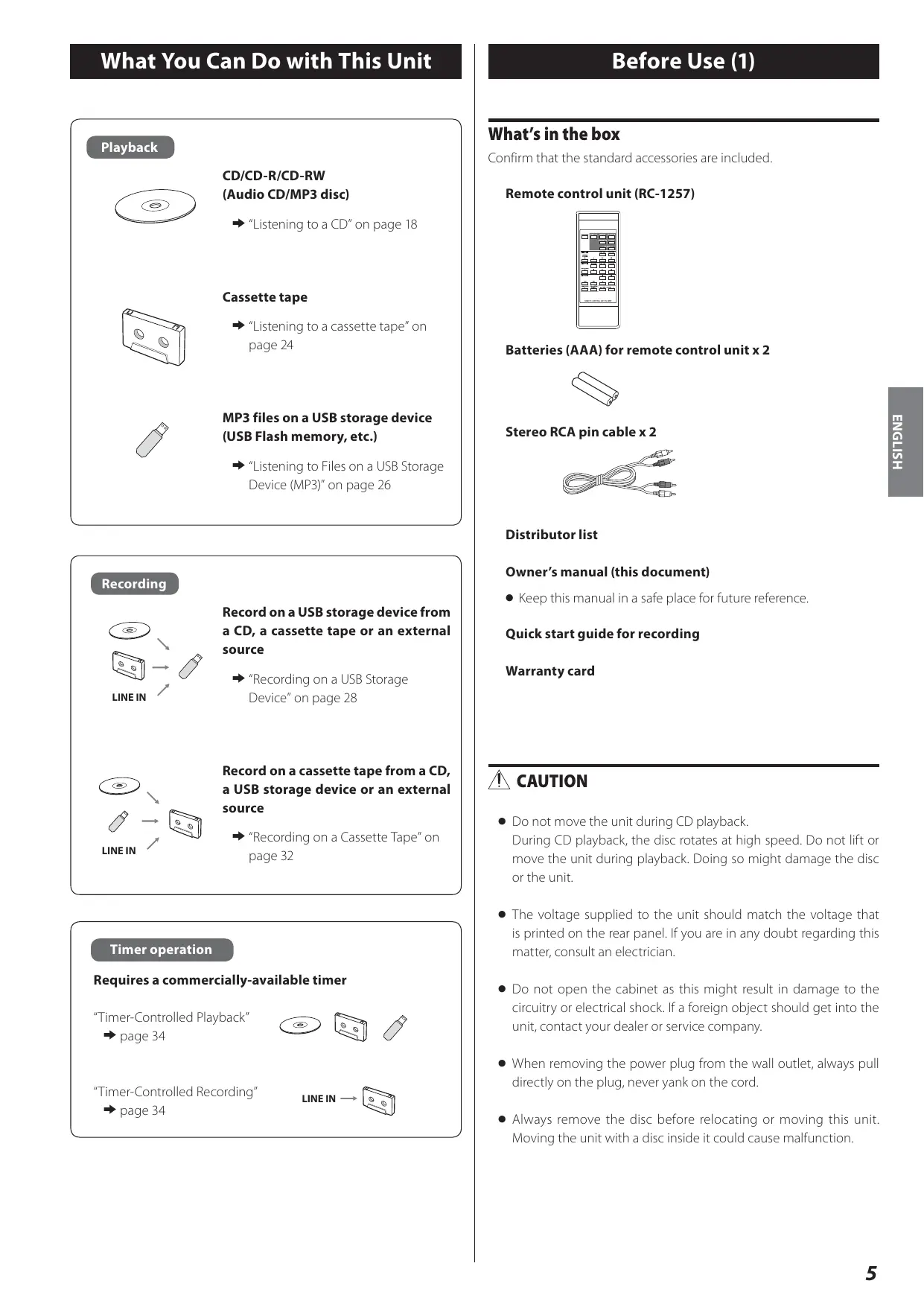
Playback
CD/CD-R/CD-RW (Audio CD/MP3 disc)
"Listening to a CD" on page 18
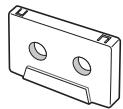
Cassette tape
"Listening to a cassette tape" on page 24

MP3 files on a USB storage device (USB Flash memory, etc.)
"Listening to Files on a USB Storage Device (MP3)" on page 26
Recording
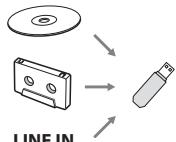
Record on a USB storage device from a CD, a cassette tape or an external source
"Recording on a USB Storage Device" on page 28

Record on a cassette tape from a CD, a USB storage device or an external source
"Recording on a Cassette Tape" on page 32
Timer operation
Requires a commercially-available timer
"Timer-Controlled Playback"
page 34


"Timer-Controlled Recording"
page 34
LINE IN


What's in the box
Confirm that the standard accessories are included.
Remote control unit (RC-1257)

Batteries (AAA) for remote control unit x 2

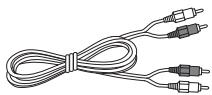
Stereo RCA pin cable x 2
Distributor list
Owner's manual (this document)
- Keep this manual in a safe place for future reference.
Quick start guide for recording
Warranty card

CAUTION
- Do not move the unit during CD playback.
During CD playback, the disc rotates at high speed. Do not lift or move the unit during playback. Doing so might damage the disc or the unit. - The voltage supplied to the unit should match the voltage that is printed on the rear panel. If you are in any doubt regarding this matter, consult an electrician.
- Do not open the cabinet as this might result in damage to the circuitry or electrical shock. If a foreign object should get into the unit, contact your dealer or service company.
- When removing the power plug from the wall outlet, always pull directly on the plug, never yank on the cord.
- Always remove the disc before relocating or moving this unit. Moving the unit with a disc inside it could cause malfunction.
Placement of the unit
- Choose the location where you install the unit carefully. Avoid placing it in direct sunlight or close to a source of heat. You should also avoid locations that are subject to vibrations or exposed to excessive dust, heat, cold or moisture.
- As the unit may become warm during operation, always leave sufficient space around it for ventilation.
- Do not place the unit on an amplifier, a receiver or any other device that generates heat.
- When the unit is turned on, if a TV is turned on nearby lines might appear on the TV screen depending on the frequency of the TV broadcast. This is not a malfunction of the unit or the TV. If you see such lines, move the unit and the TV further apart.
Beware of condensation
When the unit is moved from a cold to a warm place, or used after a sudden temperature change, there is a danger of condensation; vapor in the air could condense on the internal mechanism, making correct operation impossible. To prevent this, or if this occurs, leave the unit turned on for one or two hours. Then the unit will stabilize at the temperature of its surroundings.
Maintenance
If the surface of the unit gets dirty, wipe it with a soft cloth or use diluted mild liquid soap. Allow the surface of the unit to dry completely before using.
For safety, disconnect the power cord from the outlet before cleaning.
- Never spray liquid directly on this unit.
- Do not use thinner or alcohol as they could damage the surface of the unit.
Cleaning and demagnetizing the cassette deck
Cleaning
A dirty head can cause poor sound quality or the sound to skip. Dirt on the tape tracking roller might catch the tape.
Clean the head, pinch roller, and capstan with a cotton applicator dampened with a commercially-available cleaning solution about every ten hours of use.
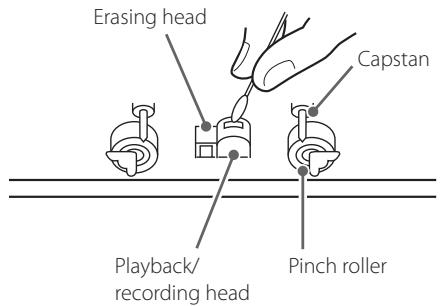
Demagnetizing
When the head is magnetized, it increases noise and hinders the transmission of high notes.
If these problems occur, demagnetize the head using a commercially-available head eraser.
- Do not put a cassette tape in the cassette holder of the unit until the cleaning solution on the head dries.
Discs that can be played by this unit
CDs (12-cm and 8-cm) that bear the "COMPACT disc DIGITAL AUDIO" logo can be played by this unit.
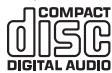
- The logo should be on the disc label or the CD jacket.
CD-R and CD-RW discs that have been correctly recorded in the audio CD format and finalized, as well as finalized CD-R and CD-RW discs that contain MP3 files, can be played by this unit.
This unit can play these types of discs without an adapter. It cannot play any other type of disc.
Playback of any other type of disc could cause loud noise and damage to speakers as well as harm hearing. Never try to play any other type of disc.
- Depending on the quality of the disc and/or the condition of the recording, some discs might not be playable.
- Video CDs, CD-ROMs and similar types of discs can be read by the unit, but they will make no sound when played back.
- Super Audio CDs cannot be read or played back by this unit.
- Video and audio DVDs, DVD-ROMs and other types of DVDs cannot be read or played back by this unit.

CAUTION
If you put a video or audio DVD, DVD-ROM or other type of DVD into the disc tray, the unit will attempt to read the disc and rotate at high speed. If you accidentally insert such a disc, wait until the unit stops spinning before ejecting it in order to avoid possibly damaging the disc. Do not attempt to remove the disc when "READING" appears on the display.
- Copy-protected discs and other discs that do not conform to the CD standard might not play correctly in this player. If you use such discs in this unit, TEAC Corporation and its subsidiaries will not be responsible for any consequences or guarantee the quality of reproduction. If you experience problems with such non-standard discs, you should contact their issuers.
About CD-R/CD-RW discs
This unit can play back CD-R and CD-RW discs that have been recorded in the audio CD format (CD-DA) and the MP3 format.
- Discs created by a CD recorder must be finalized before use with this unit.
- Depending on disc quality and recording conditions, playback of some discs might not be possible. Please see the manual for the device that you used to create the disc.
- If you are uncertain about the handling of a CD-R or CD-RW disc, please contact the seller of the disc directly.
CAUTION
- Do not play any disc that is warped, deformed or damaged. Playing such discs could cause irreparable harm to the playing mechanisms.
- Printable CD-R and CD-RW discs are not recommended because their label sides could be sticky and damage the unit.
- Do not stick paper or protective sheets on discs and do not use any protective coating sprays.
- Never use a stabilizer. Using commercially-available CD stabilizers with this unit will damage the mechanisms and cause them to malfunction.
- Do not use irregularly-shaped discs (octagonal, heart-shaped, business card size, etc.). Such CDs could damage the unit.

Handling precautions
- Always place the disc on the disc tray with the label side up. Only one side of a Compact Disc can be played or used for recording.
- To remove a disc from a standard storage case, press down on the case through the center of the disc and lift the disc out, holding it carefully by its edges.
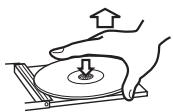
How to remove a disc
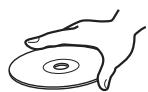
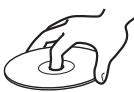
How to hold a disc
Storage precautions
- Discs should be returned to their cases after use to avoid dust and scratches that could cause the laser pickup to "skip."
- Do not expose discs to direct sunlight or high temperature or humidity for extended periods. Long exposure to high temperatures will warp discs.
- CD-R and CD-RW discs are more sensitive to the effects of heat and ultraviolet rays than ordinary CDs. It is important that they not be stored in locations where they will be exposed to direct sunlight. They should also be kept away from sources of heat, such as radiators and heat-generating electrical devices.
Maintenance
- If a disc becomes dirty, wipe its surface radially from the center hole outward towards the outer edge with a soft, dry cloth.
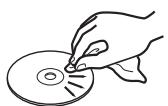
- Never clean discs using chemicals such as record sprays, antistatic sprays and fluids and thinners. Such chemicals will do irreparable damage to the disc's plastic surface.
If you are in any doubt as to the care and handling of a CD-R or CD-RW disc, read the precautions supplied with the disc or contact the disc manufacturer.
USB Storage Devices
CAUTION
Never turn the unit off or disconnect a USB storage device when it is being accessed, for example, during writing, playback, recording or the erasure of files.
Doing so could damage the AD-800 and the connected USB storage device.
Compatibility
- Only USB flash memory can be used.
- Some flash memory players that charge from a USB terminal cannot be used for playback.
- Hard disk drives, CD/DVD drives, and other devices connected via USB cannot be used.
- This unit cannot copy or move files.
- Playable formats: FAT12, FAT16, FAT32
- NTFS, HFS and HFS+ formats cannot be used.
- Max. number of playable folders: 255
- Max. number of playable/recordable files: 999
- Depending on the conditions of a USB storage device, this unit might not be able to play the files on it or skipping might occur.
Recording
This unit can record sound from CDs, cassette tapes and connected external devices, including tuners, to USB storage devices in MP3 format. See page 28 for details.
MP3 Files
This unit can play MP3 files that are on CD-R/CD-RW discs and external USB storage devices.
- This unit can play back mono and stereo MP3 files that are in the MPEG-1 Audio Layer 3 format with a sampling rate of 16 - 48kHz and a bit rate of 320kbps or less.
- This unit is not compatible with discs that have been recorded using multiple sessions. Only the first session can be played back.
- See page 28 for information about the file format recorded with this unit.
File information display
The display of this unit can only show single-byte letters and numbers.
- If the file information uses Japanese, Chinese or other double-byte characters, playback is possible but the name will not be shown correctly. In such cases, "**" is displayed.
Precautions when preparing MP3 files using a computer or other device
- Always include the extension in the file name. This unit recognizes MP3 files by their“.mp3” file extensions.
- Always close the session (complete disc creation). This unit cannot play discs if the session has not been closed.
- Carefully read the manual for the software that you are using when you create an MP3 disc.
Files that are unplayable or only partially playable
- Files without extensions cannot be played. Files that are not in the MP3 format cannot be played even if they have“.mp3” file extensions.
- Variable bit rate files might not play back correctly.
- If a disc or USB storage device has more than 999 files or 255 folders, this unit can only play the first 999 files and files in the first 255 folders.
- Depending on disc conditions, this unit might not be able to play a disc or skipping might occur.
Tape types
There are several types of cassette tapes.
Cassette tapes that can be played by this unit
Normal (type I) Chrome (type II) Metal (type IV)
Cassette tapes that can be recorded on by this unit
Normal (type I) Chrome (type II)
CAUTION
- Do not open a cassette or pull out the tape.
- Do not touch the tape.
Storage precautions
- Keep cassette tapes away from magnets or magnetized items because they may cause noise or erase recorded contents.
- Do not leave cassette tapes in a dusty place.
- Do not store cassette tapes in a place with high temperature or humidity.
Types of cassette tapes that should be avoided
The following types of cassette tapes might prevent the unit from operating or functioning normally. The tape of such cassette tapes could be caught in the unit and cause unexpected problems.
Deformed cassette tapes
Cassettes that are deformed, that have tape that does not track properly, or that generate abnormal noise during fast-forwarding or rewinding.
Long-duration tapes
Tapes that allow recording for 90 minutes or longer sometimes get caught by the capstan because they are extremely thin and stretch easily. Avoid using them whenever possible.
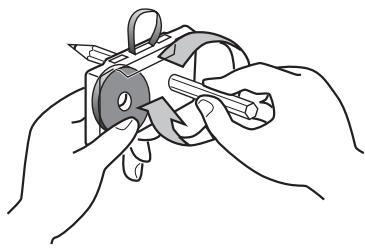
Slackening of tapes
Slack tape could get caught in the capstan or other parts. Eliminate slack by using a pencil or similar tool before use.
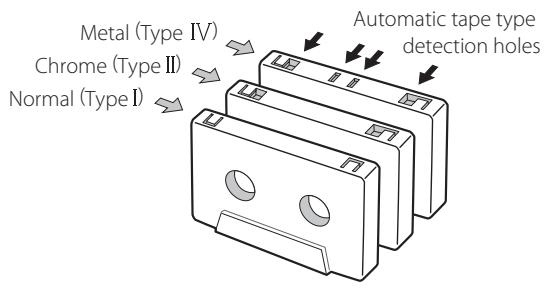
Automatic tape type detection function
This cassette deck can detect what type of tape is being used based on the detection holes in the cassette shell. Be sure to use cassettes with detection holes.
Accidental erasure prevention tabs
Tabs in the top of the cassette shell allow you to prevent important recordings from being erased by mistake. There are two tabs in each cassette shell—one for "side A" and one for "side B."
Once these tabs have been removed using a screwdriver or similar tool, there is no chance of the recording function being activated by accident.
Accidental erasure prevention tab for "side A"
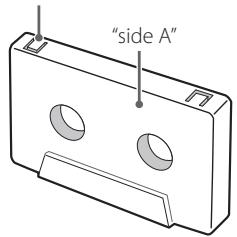
- To record on a cassette that has had its tab broken off, put a piece of adhesive tape over the hole. Be careful not to block the tape type detection holes.
Dolby NR (noise reduction)
Dolby NR is designed to reduce tape hiss, which is noise introduced during the recording and playback processes. This cassette deck is equipped with Dolby B-type noise reduction.
Use the DOLBY NR switch to turn the Dolby NR on and off.
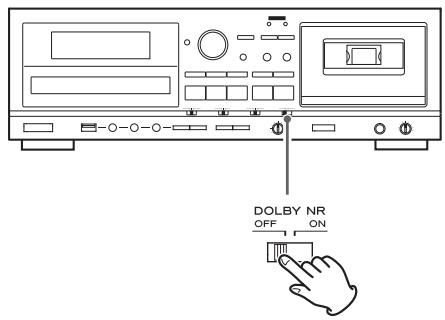
- The Dolby NR system affects both recording and playback quality. For playback, be sure to set the DOLBY NR switch to the same position used when the recording was made.
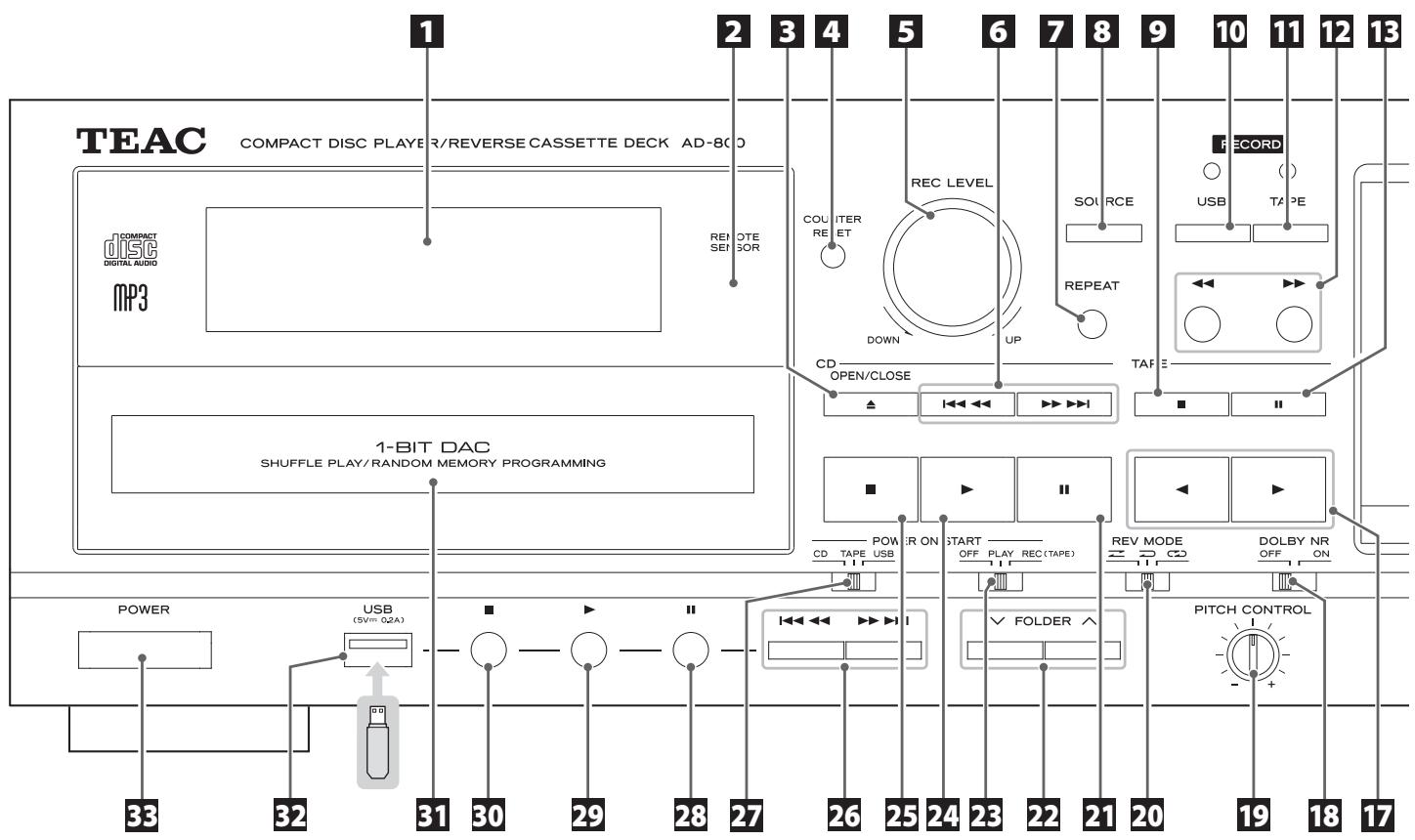
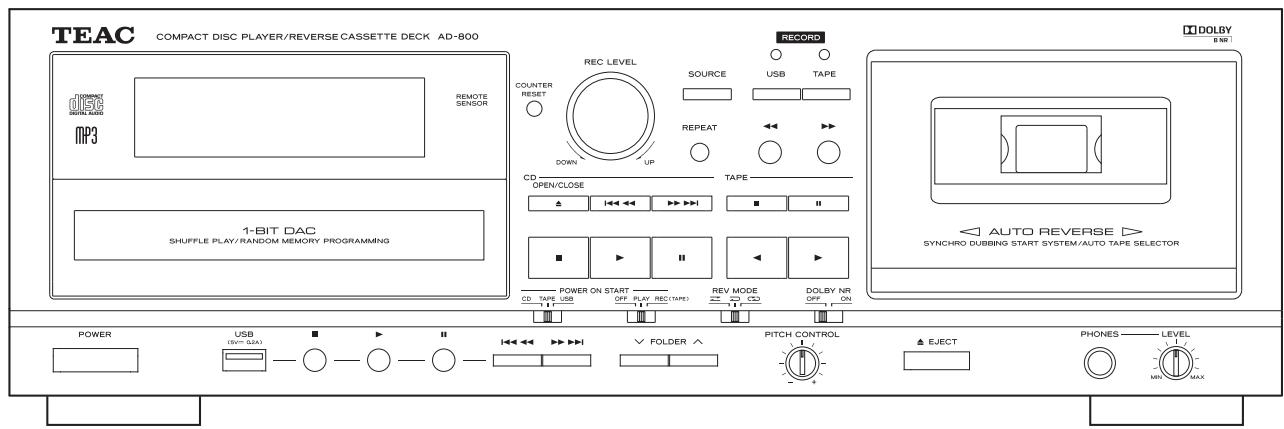
1 Display
See "Display" on page 14.
Remote sensor
When operating the remote control, point it towards here.
3 CD OPEN/CLOSE (△)
Press this button to open and close the disc tray.
4 TAPE COUNTER RESET
Press this button to reset the tape counter to "0000".
5 REC LEVEL knob
Turn this knob to adjust the recording level.
6 CD Skip (I
Press these buttons to skip through tracks/files.
Hold down these buttons to search for part of a track/file.
7 CD USB REPEAT
Use this button to set the repeat function (page 20).
8 SOURCE
Use this button to select the source (page 17).
9 TAPE Stop (■)
Press this button to stop cassette tape playback.
Press this button to stop recording to a tape.
10 RECORD USB
Use to record to an external USB storage device. Press it once to enable recording standby, and press it again to start recording (page 29).
Press it during recording to divide the file at that point (page 30).
RECORD TAPE
Use to record to a tape. Press it once to enable recording standby, and press it again to start recording (page 32).
12 TAPE Fast-forward/Rewind (←/▶)
Press these buttons to fast-forward/rewind the cassette tape.
13 TAPE Pause (II)
Press this button to pause cassette tape playback or recording.
Press this button again to resume playback or recording.
14 TAPE Cassette tape compartment
15 PHONES jack/LEVEL knob
To listen with headphones, turn the LEVEL knob to minimize the volume level before connecting the headphones plug to the PHONES jack. Then, adjust the volume after connecting the plug.
CAUTION
Do not connect headphones to the PHONES jack while wearing them. Moreover, do not disconnect headphones or turn the unit on or off while wearing them. Very loud sound could be output from the headphones.
AVOID DAMAGING YOUR HEARING—Do not put on headphones until after plugging them in.
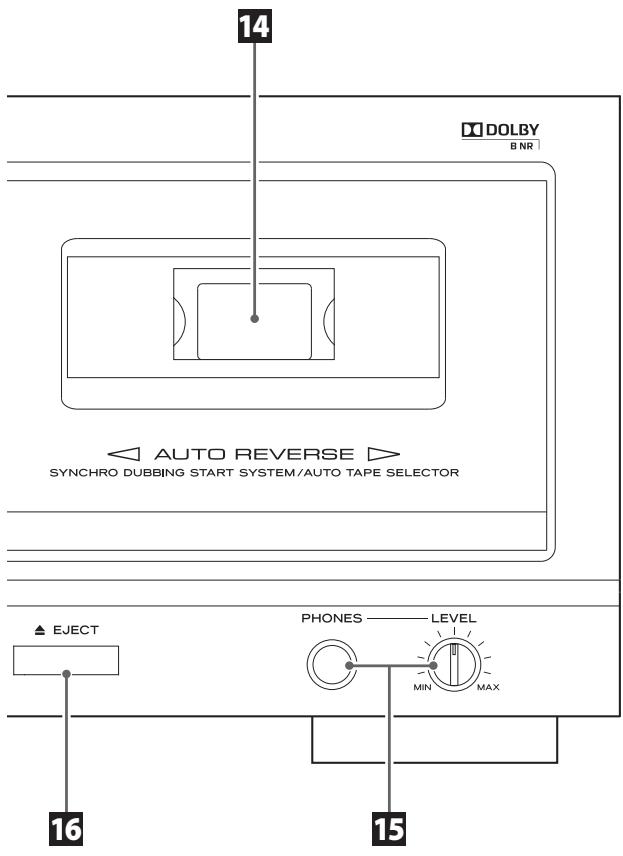
16 TAPE EJECT (△)
When the tape is stopped, press this button to open the cassette tape compartment.
17 TAPE Reverse/Forward play (▶)
Press these buttons to start playback of the back/front side of a tape.
Press during tape playback/recording standby to restart playback/recording.
18 TAPE DOLBY NR switch
Use this switch to turn Dolby noise reduction on and off (pages 9 and 25).
19 TAPE PITCH CONTROL knob
Turn this knob to vary the playback speed (page 26).
20 TAPE REV (Reverse) MODE switch
Use this switch to select the reverse mode (page 24).
21 CD Pause (II)
Press this button to pause CD playback. To resume playback, press this button again.
22 CD USB FOLDER /
Use these buttons to select folders (pages 19 and 28).
23 POWER ON START OFF-PLAY-REC (TAPE)
Use this switch to select the timer setting (play, record or off). To use this when set to play or record, connect a commercially-available audio timer to this unit (page 35).
24 CD Play (▶)
Press this button to start CD playback.
25 CD Stop (■)
Press this button to stop CD playback.
26 USB Skip (↓←/→↑)/Search (←←/→↑)
Press these buttons to skip through files.
Hold down these buttons to search for part of a file.
27 POWER ON START CD-TAPE-USB
Use this switch to set the sound source that is active when the power is turned on.
Use this switch to set the media used for timer playback/ recording. (The timer recording can only record to cassette tape.) To use timer playback/recording, connect a commercially-available audio timer to this unit (page 35).
28 USB Pause (II)
Press this button to pause USB playback or recording.
Press this button again to resume playback or recording.
29 USB Play (▶)
Press this button to start USB playback.
When in USB recording standby, press this to start recording.
30 USB Stop (■)
Press this button to stop USB playback.
Press this button also to stop recording to USB.
31 CD Disc tray
32 USB USB port
Connect an external USB storage device here.
33 POWER
Press this button to turn the unit on or off.
CAUTION
Never turn the unit off or disconnect a USB storage device when it is being accessed, for example, during writing, playback, recording or the erasure of files.
Doing so could damage the AD-800 and the connected USB storage device.
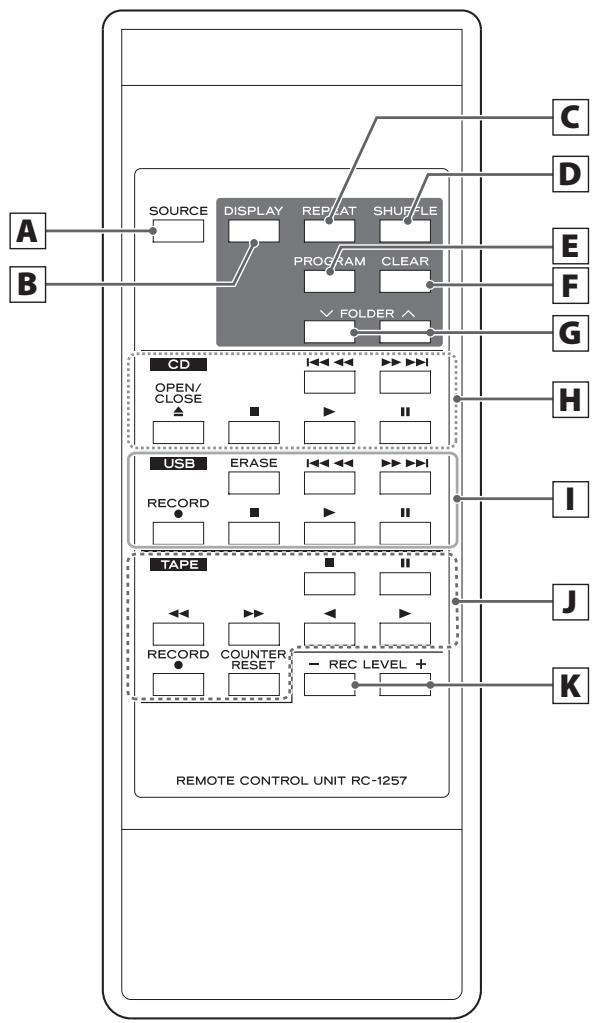

SOURCE
Use this button to select a source (page 17).

CD USB
DISPLAY
Press this button to change the display information (page 15).

CD USB
REPEAT
Use this button to set the repeat function (page 20).

CD USB
SHUFFLE
Use this button to start shuffle playback (page 20).

CD USB
PROGRAM
Use this button to program tracks/files (page 21).

CD USB
CLEAR
Use this button to clear programmed tracks/files (page 23).

CD USB
FOLDER(√/∧)
Use these buttons to select MP3 folders (pages 19 and 28).

CD
Skip (1 / ) /Search ( /)
Press these buttons to skip through tracks/files.
Hold down these buttons to search for part of a track/file.
OPEN/CLOSE (△)
Press this button to open and close the disc tray.
Stop (■)
Press this button to stop playback.
Play (▶)
Press this button to start playback.
Pause (II)
Press this button to pause playback. To resume playback, press this button again.

USB
ERASE
Use this button to erase files from a USB storage device (page 31).
Skip (1 / ) /Search ( /)
Press these buttons to skip through files.
Hold down these buttons to search for a part of a file.
Remote Control Unit (1)
RECORD (●)
Use this to record to an external USB storage device. Press it once to enable recording standby, and press it again to start recording. (page 29)
Press it during recording to divide the file at that point (page 30).
Stop (■)
Press this button to stop playback.
Press this button to stop recording to USB.
Play (▶)
Press this button to start playback.
When in USB recording standby, press this to start recording.
Pause (II)
Press this button to pause playback or recording.
Press this button again to resume playback or recording.
J TAPE
Stop (■)
Press this button to stop playback.
Press this button to stop recording to a tape.
Pause (II)
Press this button to pause playback or recording.
Press this button again to resume playback or recording.
Fast-forward/Rewind ( /)
Press these buttons to fast-forward/rewind the tape.
Reverse/Forward play (▶)
Press these buttons to start playback of the back/front side of a tape.
Press during tape playback/recording standby to restart playback/recording.
RECORD (●)
Use to record to a tape. Press it once to enable recording standby, and press it again to start recording (page 32).
COUNTER RESET
Press this button to reset the tape counter to "0000".
K REC LEVEL (- / +)
Use these buttons to adjust the recording level.
NOTE
To simplify explanations, instructions in this manual might refer only to the main unit or the remote control. In such cases, the same controls on the remote control and main unit will operate similarly.
The included remote control allows this unit to be operated from a distance.
When using the remote control, point it towards the remote sensor on the front panel of the main unit.
- Even if the remote control unit is used within its effective range, operation by remote control might not be possible if there are any obstacles between the unit and the remote control.
- If the remote control unit is operated near other devices that generate infrared rays, or if other remote controls that use infrared rays are operated near the unit, this unit and the other devices might not operate correctly.
Battery installation
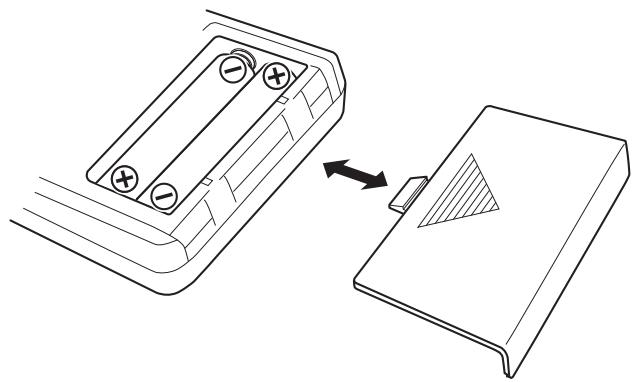
- Remove the battery compartment cover.
- Insert two AAA (R03) dry batteries. Make sure that they are inserted with their positive () and negative () poles oriented correctly.
- Close the cover.
Battery replacement
If the distance from the main unit that the remote control works effectively decreases, the batteries are probably exhausted. Replace the batteries with new ones when this happens.
For more information about the collection of batteries, please contact your local municipality, your waste disposal service or the place where you purchased them.
Precautions concerning batteries
Misuse of batteries could cause them to rupture or leak leading to fire, injury or the staining of nearby things. Please read and observe the following precautions carefully.
- Be sure to insert the batteries with correct positive () and negative () orientations.
- Use batteries of the same type. Never use different types of batteries together.
- Both rechargeable and non-rechargeable batteries can be used. Refer to the precautions on their labels.
- If the remote control will not be used for a long time (more than a month), remove the batteries to prevent them from leaking.
- If the batteries leak, wipe away the leakage inside the battery compartment and replace the batteries with new ones.
- Do not use batteries of types other than those specified. Do not mix new batteries with old ones or use different types of batteries together.
- Do not heat or disassemble batteries.
- Never throw batteries into fire or water.
- Do not carry or store batteries with other metallic objects. The batteries could short circuit, leak or explode.
- Never try to recharge a battery unless you can confirm that it is a rechargeable type.
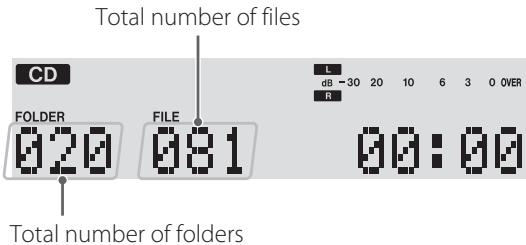
CD mode
During playback
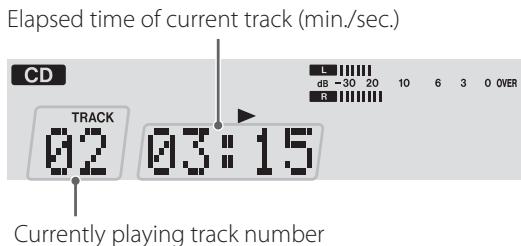
Audio CD
MP3 disc
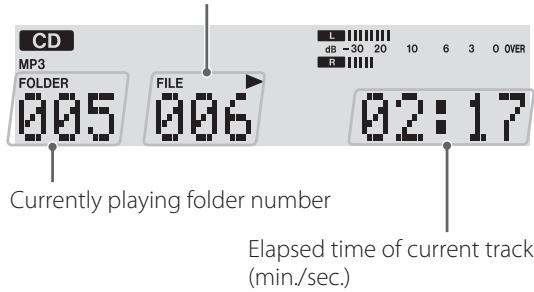
Currently playing file number (starting with 001 in each folder)
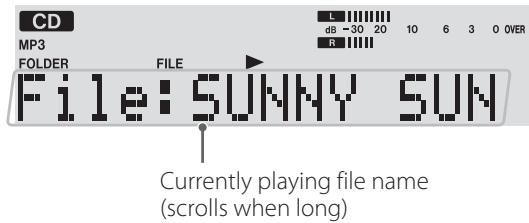
When playback is stopped
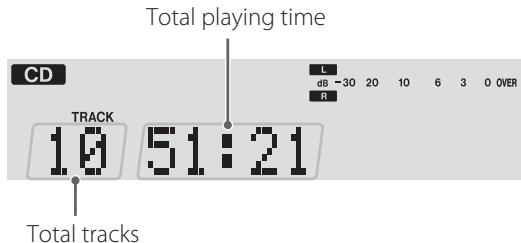
Audio CD
MP3 disc
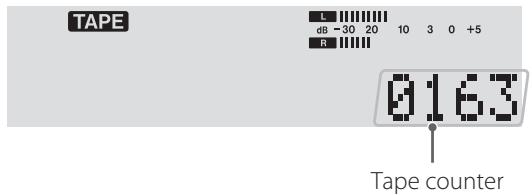
TAPE mode
USB mode
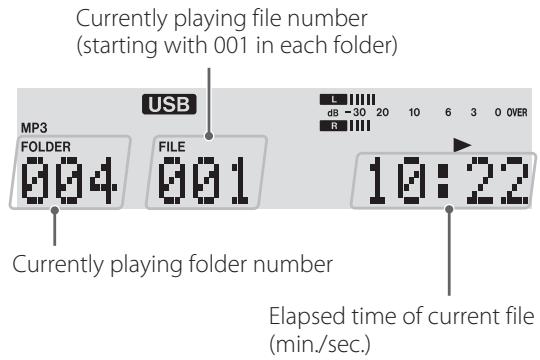
During playback
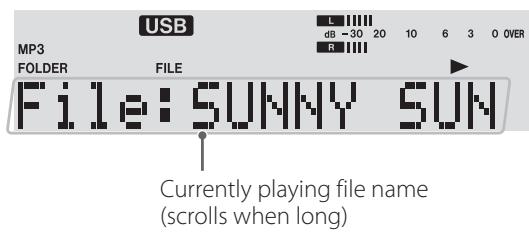
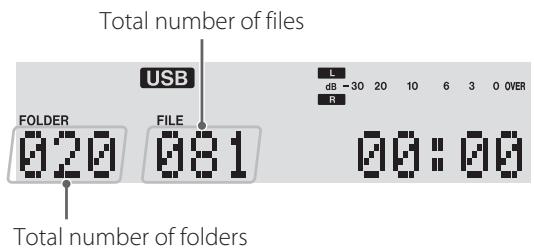
When playback is stopped
Recording mode
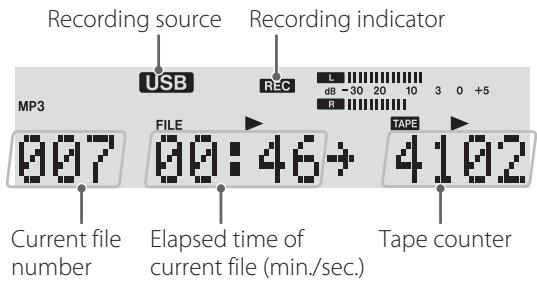
(Example: Recording on a cassette tape from a USB storage device)
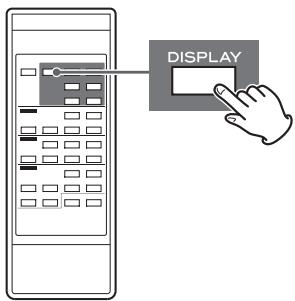
Changing the display (CD/USB mode)
During playback in CD mode or USB mode, each time the DISPLAY button is pressed, the display changes as follows:
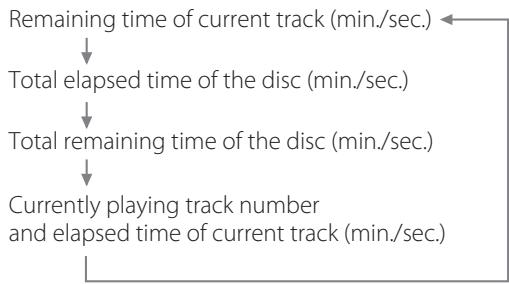
Audio CD
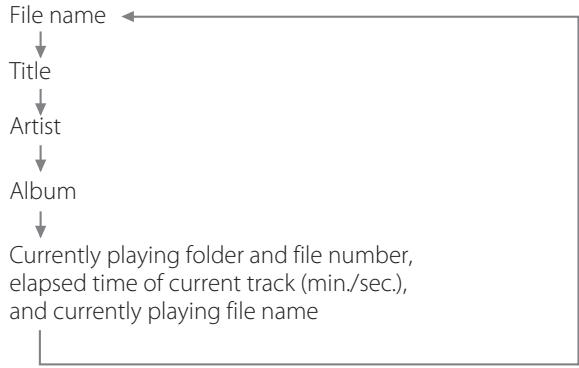
MP3 disc/USB
- "No title", "No album" or "No artist" appears when there is no information.
- "**" appears when the unit cannot read the information.
- The display of this unit can only show single-byte letters and numbers. If a file name uses Japanese, Chinese or other double-byte characters, playback is possible but the name will not be shown correctly. In such cases, "**" is displayed.
After all connections are complete, connect the power cord's plug to the AC wall socket.
- Read the instructions of each device that you intend to use with this unit.
- Be sure to connect each plug securely. To avoid hum and noise, do not bundle the connection cords.
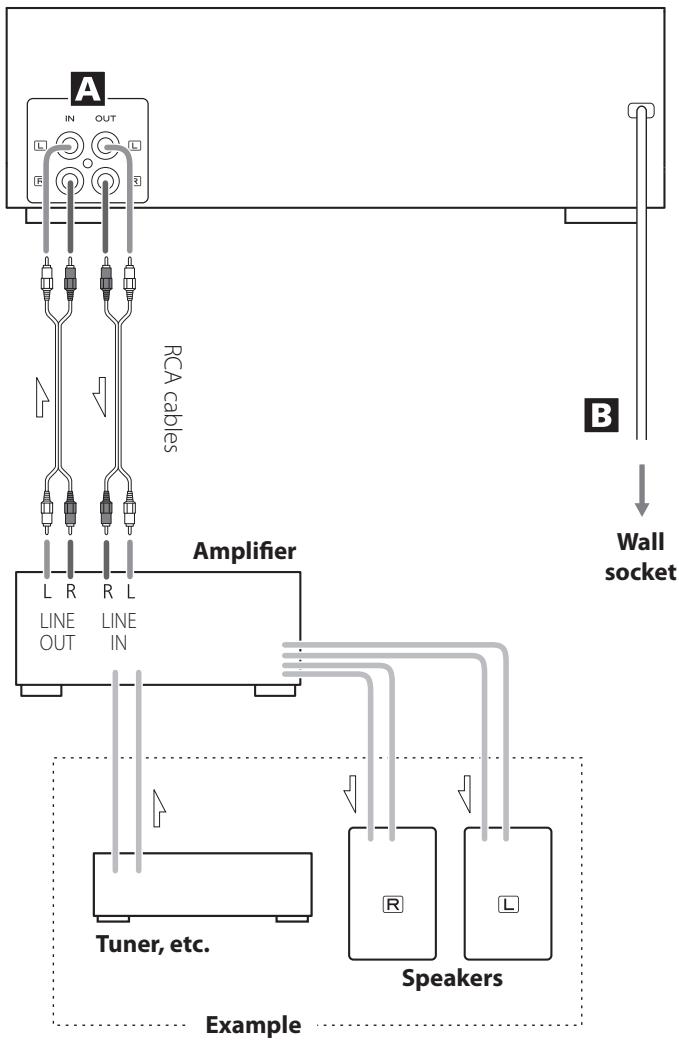
AD-800 (back side)
A LINE IN/OUT jacks
These jacks transmit an analog 2-channel audio signal. Connect the components using the included RCA pin cables.
Be sure to connect:
White plug White jack (L: left channel)
Red plug Red jack (R: right channel)
B AC Power Cord
After all other connections are complete, connect the plug to an AC wall outlet.
Be sure to connect the power cord to an AC outlet that supplies the correct voltage.
Hold the power plug when plugging it into an outlet or unplugging it. Never pull or yank on the power cord.
Voltage Selection
(General export/North America models only)
Be sure to remove the power cord from the AC outlet before changing the position of the voltage selector switch.
1. Locate the VOLTAGE SELECTOR switch on the rear panel.
2. Using a flat-bladed screwdriver, set it to the appropriate position (230 V or 120 V) for the power supply used in your area.
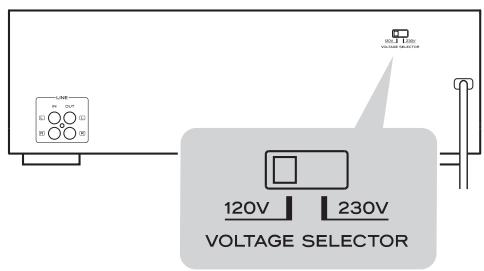
IN NORTH AMERICA USE ONLY ON 120 V SUPPLY.
Notes on turning on or off the power
When an amplifier is connected to the AD-800, turn on or off the power of the AD-800 and the amplifier in the following sequence.
When turning on the power
- AD-800
- Amplifier
When turning off the power
- Amplifier
- AD-800
Basic Operation
Turning the unit on or off
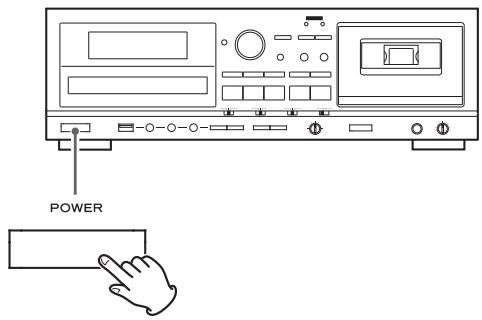
Press the POWER button to turn the unit on or off. When the unit turns on, the display lights.
Check the POWER ON START switches that determine what the unit does when the power is turned on.
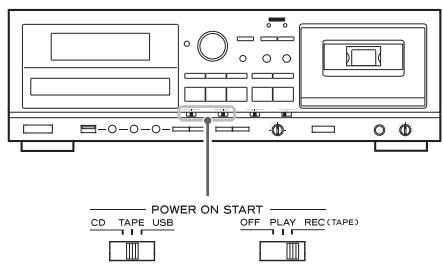
When the power is turned on, and the POWER ON START (OFF-PLAY-REC) switch for the timer is set to PLAY or REC
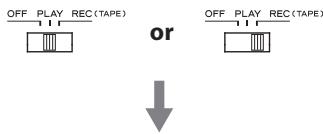
The source set with the POWER ON START (CD-TAPE-USB) switch starts playback/recording.
The timer recording can only record to cassette tape (page 35).
When the power is turned on, and the POWER ON START (OFF-PLAY-REC) switch for the timer is set to OFF
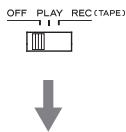
The source set with the POWER ON START (CD-TAPE-USB) switch becomes the active source.
- When you do not want to use the timer, be sure to set the OFF-PLAY-REC switch to the OFF position to prevent accidentally recording over an important cassette tape.
Selecting a source for playback/recording
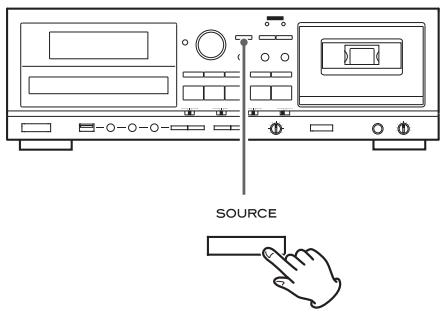
Each time the SOURCE button is pressed, the source changes as follows:
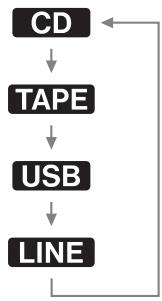
The selected source is shown on upper left of the display.
- During recording, the source cannot be changed.
- Pressing the play button for a source also selects and starts playback of that source.
- Select "LINE" to use an external source connected to the LINE jacks.
Listening with headphones
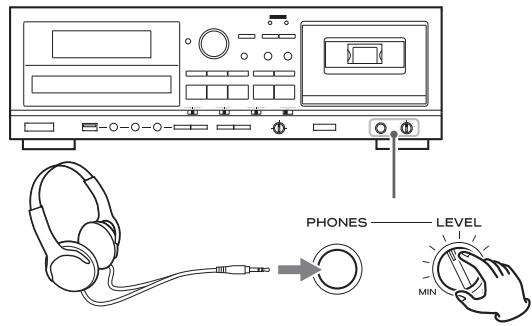
To listen with headphones, turn the LEVEL knob to minimize the volume level before connecting the headphones plug to the PHONES jack. Then, adjust the volume after connecting the plug.
CAUTION
Do not connect headphones with the PHONES jack while wearing them. Moreover, do not disconnect headphones or turn the unit on or off while wearing them. Very loud sound could be output from the headphones.
AVOID DAMAGING YOUR HEARING—Do not put on headphones until after plugging them in.
Press the SOURCE button repeatedly to select "CD".
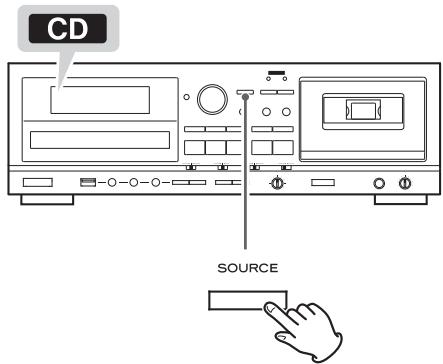
- When a different source is selected, pressing the CD Play (▶) button automatically selects the CD and, if a disc is loaded, starts playback.
Press the CD OPEN/CLOSE (▲) button to open the disc tray.
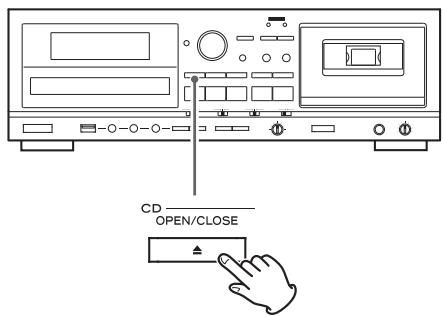
3 Place a disc on the tray with the label side up.
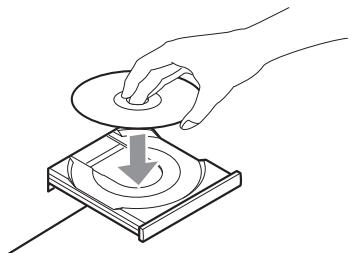
- Always confirm that the disc is centered on the tray. The disc must be centred on the disc tray. If a disc is not correctly loaded, it might not be possible to open the tray again after it has been closed.
CAUTION
- Do not load more than one disc.
- Do not force the tray by hand when opening and closing it.
- Do not attach adhesive labels or similar materials to either side of a disc.
- Do not use irregularly-shaped discs.
Failure to follow any of the above cautions could cause malfunction.
4 Press the CD OPEN/CLOSE (▲) button again to close the tray.
CAUTION
Be careful not to let your finger be pinched by the tray.
Loading a disc takes a few seconds.
During loading, "READING" appears on the display and no buttons will work. Wait until the total number of tracks/files is displayed.
- When no disc is loaded, "NO DISC" is displayed.
Press the CD Play (▶) button to start playback.
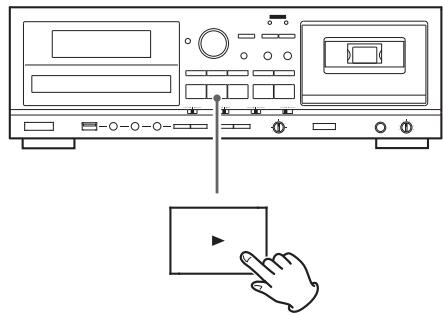
Playback starts from the first track/file on the disc.
- If you load a disc, and then press the CD Play (▶) button without having first closed the disc tray, the disc tray closes and playback starts.
- When playback of all the tracks/files has finished, the unit stops automatically.
- MP3 files that are not placed in folders are automatically put in the "ROOT" folder. Playback starts from the first file in the ROOT folder.
See page 38 for information about the playback order of MP3 discs.
Suspending playback temporarily (Pause mode)
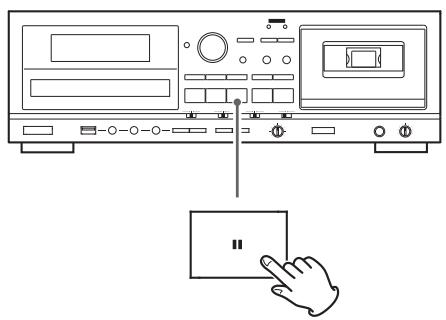
Press the CD Pause (I) button during playback to stop playback at the current position.
To resume playback, press the CD Pause (■) button again or press the CD Play (▶) button.
Stopping playback
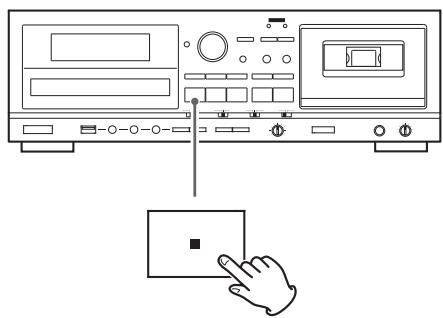
Press the CD Stop (■) button to stop playback.
Opening the disc tray
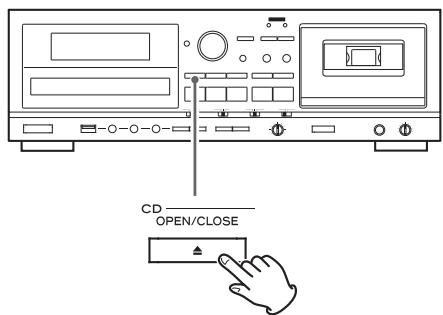
Press the CD OPEN/CLOSE (▲) button to open the disc tray.
- You can also open the tray when in modes other than CD mode.
Search for a part of a track/file
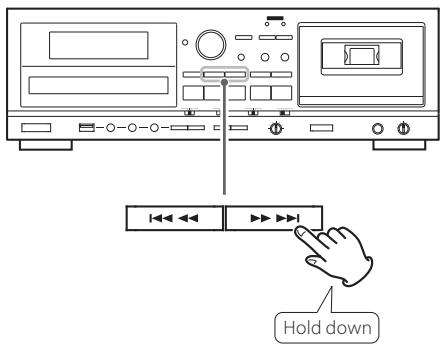
During playback, hold down a CD Search (or ) button to search a part of a track/file. Release it when you find the beginning of the part you want to hear.
Skipping to an earlier or later track/file
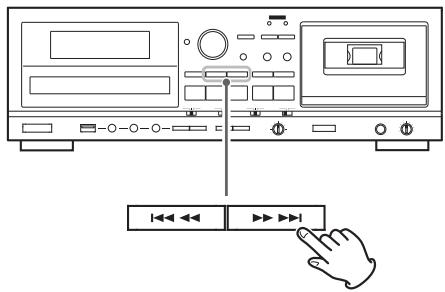
During playback
Press a CD Skip (I▶/▶) button repeatedly until the desired track/file is selected. The selected track/file will be played from the beginning.
- If the button is pressed once during playback, the track/file being played will be played again from its beginning. To return to the beginning of the previous track/file, press the button twice.
When playback is stopped or paused
Press a CD Skip (I▶/▶) button repeatedly to select the track/file you want to hear. Then, press the CD Play (▶) button or CD Pause (■) button to start playback of the selected track/file.
Selecting a folder (MP3 disc)
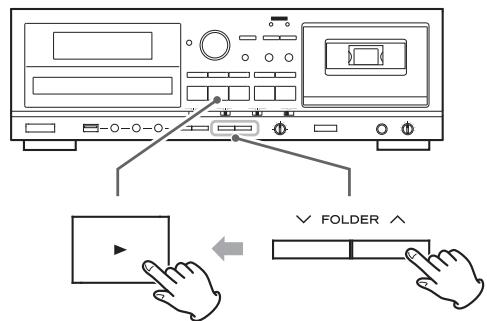
Press the FOLDER ( /) buttons to select a folder. Then, press the CD Play () button to start playback.
This function can be used in CD and USB modes.

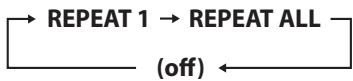
Press the REPEAT button to cycle through the following playback modes:
Audio CD
MP3

- If any of the following buttons are pressed, the repeat mode will be canceled.
In CD mode
POWER, SOURCE, CD OPEN/CLOSE (▲), REPEAT, SHUFFLE
In USB mode
POWER, SOURCE, REPEAT, SHUFFLE
REPEAT 1 (Repeat one track/file)
The track/file being played will be played repeatedly.
"REPEAT 1" appears on the display.
- If you use the CD/USB Skip (I▶or I) buttons to select a different track/file, that track/file will be played repeatedly.
- You can select a track/file to be repeated when playback is stopped. Press the REPEAT button, select a track/file using the CD/USB Skip (I or ) buttons, and then press the CD/USB Play () button or CD/USB Pause (II) button to start playback.
REPEAT ALL (Repeat all tracks/files)
All the tracks/files on the disc will be played repeatedly.
"REPEAT ALL" appears on the display.
- During program playback, the programmed tracks/files will be played repeatedly.
REPEAT FOLDER (Repeat all the files in a folder) (MP3 only)
All the files in the selected folder will be played repeatedly.
"REPEAT FOLDER" appears on the display.
This function can be used in CD and USB modes.
Use this function to play the tracks/files on a disc/USB storage device in random order.
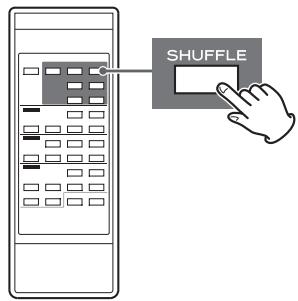
Pressing the SHUFFLE button turns the shuffle mode on and off.
During shuffle playback, "SHUFFLE" appears on the display.
After playing back all tracks/files, the unit exits the "Shuffle" playback mode and stops playback.
To stop shuffle playback, press the CD/USB Stop (■) button.
- If you press the button during shuffle playback, the next track/file will be randomly selected and played. If you press the button, the currently played track/file will be played from the beginning. During shuffle playback, a track/file that has completed playback will not be played again.
- The shuffle function does not work during program playback.
- If any of the following buttons are pressed, shuffle mode will be cancelled.
In CD mode
POWER, SOURCE, CD OPEN/CLOSE (▲), REPEAT, SHUFFLE
In USB mode
POWER, SOURCE, REPEAT, SHUFFLE
This function can be used in CD and USB modes.
Up to 30 tracks/files can be programmed in the desired order.
When playback is stopped, press the PROGRAM button to enter program mode.
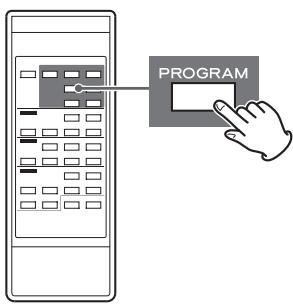
"PROGRAM" blinks and "P-01" appears on the display.
Example when in CD mode
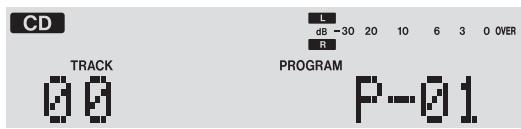
- To stop programming, press the CD/USB Stop (■) button.
2 (When programming MP3 files)
Press the CD/USB Skip (or ) buttons to select a folder, then press the PROGRAM button.
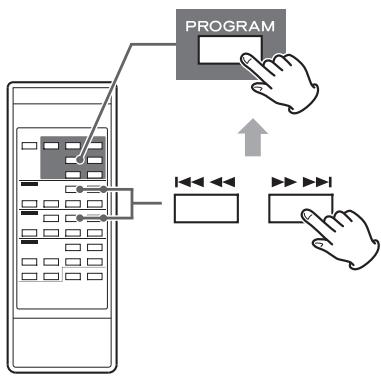
- MP3 files not located in a specific folder are in the "001" (ROOT) folder.
3 Press the CD/USB Skip (I or ) buttons to select a track/file, then press the PROGRAM button.
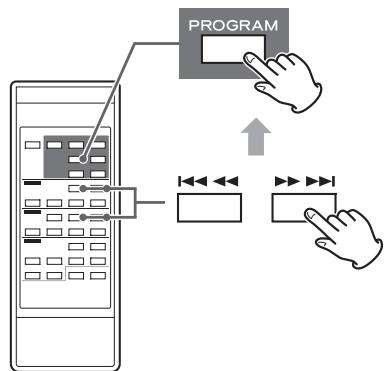
The track/file is programmed, and "P-02" is displayed.
- Repeat steps 2 and 3 to program more tracks/files.
- You can program up to 30 tracks/files.
- To stop programming, press the CD/USB Stop (■) button. Programming is cancelled, but the program contents are retained in memory. If you want to restart program playback, press the PROGRAM button, and then press the CD/USB Play (▶) button.
When the selection of track/file numbers is completed, press the CD/USB Play (▶) button to start program playback.
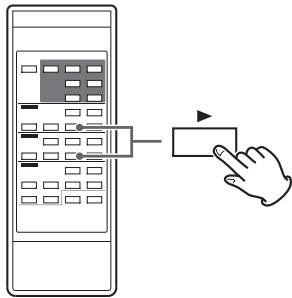
To stop program playback, press the CD/USB Stop (■) button.
- After program playback finishes, press the CD/USB Play (▶) button to play the program again.
- You can use the CD/USB Skip (I▶ and ▷▶) buttons during program playback to select and play other tracks/files in the program.
- The shuffle function does not work during program playback.
- "REPEAT 1" and "REPEAT ALL" playback are possible during program playback. When set to "REPEAT ALL" mode, the programmed tracks/files will be played repeatedly.
Adding tracks/files to the end of the program
When playback is stopped, press the PROGRAM button repeatedly until "TRACK 00" appears on the display.
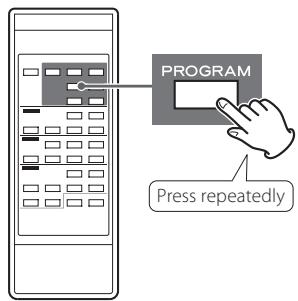
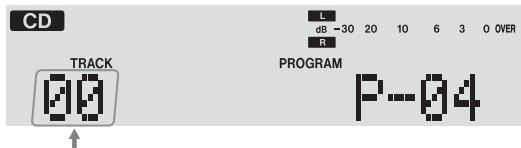
Select a track/file number you want to add using the CD/USB Skip (I▶ and▶) buttons, and then press the PROGRAM button.
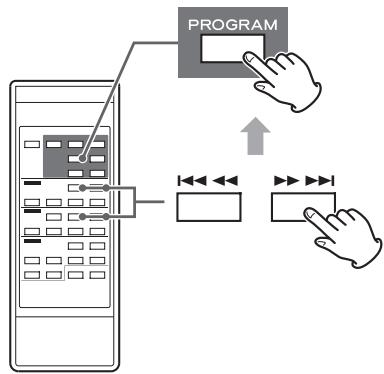
The track/file is added to the end of the program.
Overwriting part of the program
When playback is stopped, press the PROGRAM button repeatedly until the program number of the track that you want to change appears on the display.
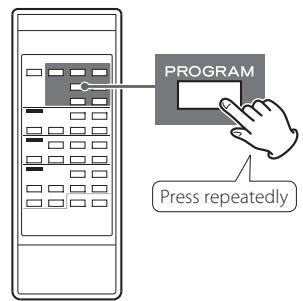
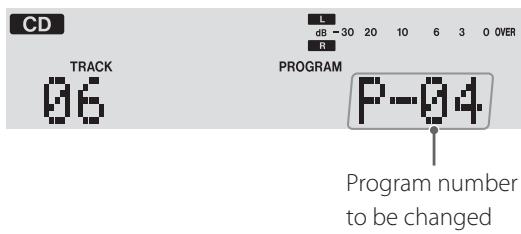
Select the track/file number that you want to add using the CD/USB Skip (I▲ and ▷I) buttons, and then press the PROGRAM button.
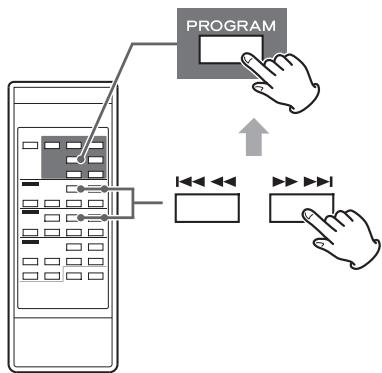
The selected track/file is added to the program, replacing the track that had been at that program number before.
Checking the program order
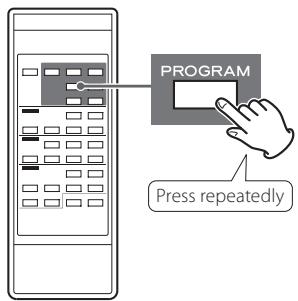
When playback is stopped, press the PROGRAM button repeatedly. The numbers of the programmed tracks/files and their program numbers will be shown in order.
Deleting tracks/files from the program
When playback is stopped, press the PROGRAM button repeatedly until the program number of the track to be deleted appears on the display.
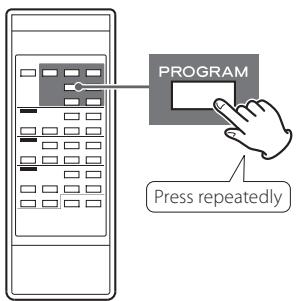
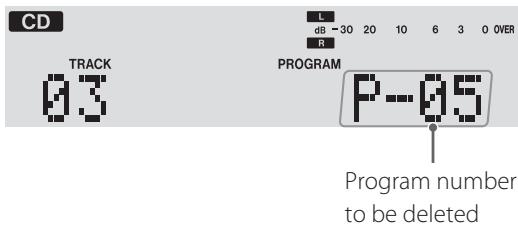
Press the CLEAR button.
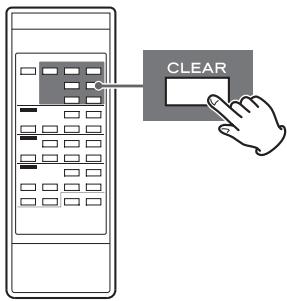
The track/file is deleted from the program.
Clearing the program
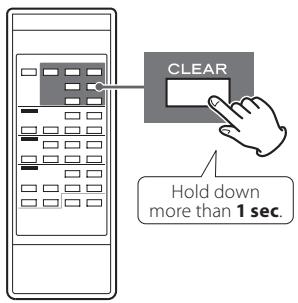
When playback is stopped, press the PROGRAM button, followed by the CLEAR button or CD/USB Stop (■) button more than 1 second.
The PROGRAM indicator disappears and all the contents of the program are cleared.
- If the PROGRAM indicator is not shown, press the PROGRAM button to activate program mode before pressing the CLEAR button.
- If one of the following buttons is pressed, the contents of the program are also cleared.
In CD mode
POWER, CD OPEN/CLOSE (▲), SOURCE
In USB mode
POWER, SOURCE
Exiting program mode
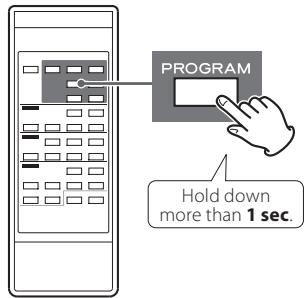
When playback is stopped, press and hold the PROGRAM button more than 1 second. The PROGRAM indicator will disappear.
- This does not clear the contents of the program. Press the PROGRAM button again and then press the CD/USB Play (▶) button if you want to restart program playback.
Listening to a Cassette Tape (1)
You can play Normal (type I), Chrome (type II) and Metal (type IV) tapes with this unit.
Press the SOURCE button repeatedly to select "TAPE".
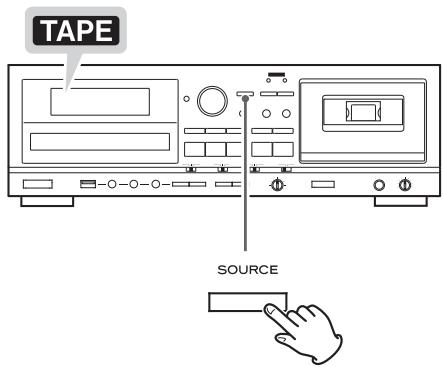
- When a different source is selected, starting tape playback automatically selects the tape.
Press the TAPE EJECT (▲) button to open the cassette tape compartment.
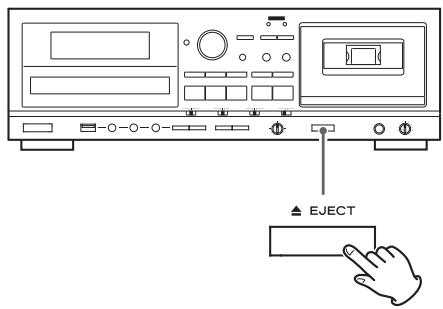
3 Put a cassette tape in the compartment.
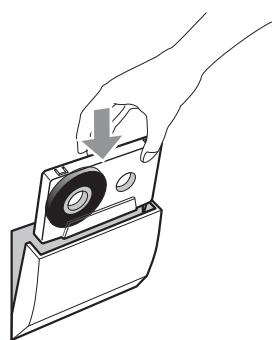
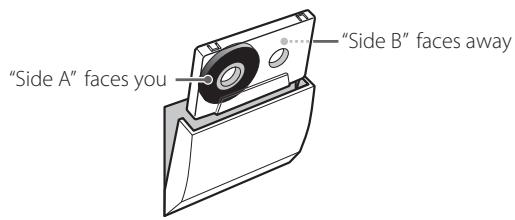
Insert the cassette tape with its open edge facing down and the side that you want to play facing you. Then, close the cassette compartment by pushing its door in.
CAUTION
- Do not use deformed or slack cassette tapes.
- Do not force the door of the compartment by hand when opening it.
Failure to follow any of the above cautions could cause malfunction.
NOTE
For the sake of simplicity, we refer to the tape side facing you as "side A" and to the tape side facing away as "side B" in this manual.
When you insert a cassette with "side A" and "side B" reversed, read "side A" as "side B" and "side B" as "side A".
4 Set the reverse mode setting using the REV MODE switch.
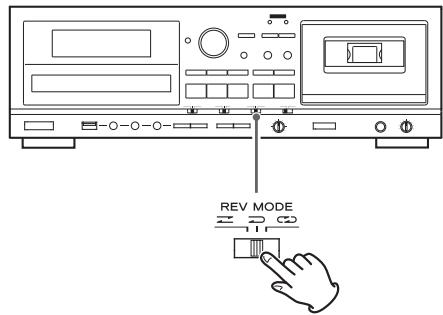
You can select one of three settings.
One way mode
Set the switch to this position to play back only one side.
Two way mode
Set the switch to this position to play back both sides of the tape in succession. When playback reaches the end of "side A", the playback direction is automatically reversed, and playback continues on "side B".
Repeat mode
Set the switch to this position to repeat playback of both sides of the tape as many as 5 times.
5 Set the DOLBY NR (noise reduction) switch.
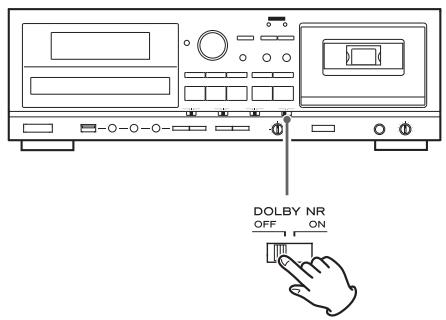
Set the switch to the ON position when playing back tapes recorded with Dolby NR.
To play tapes recorded without Dolby NR, set the switch to the OFF position.
About Dolby NR
Dolby NR is designed to reduce tape hiss, a noise introduced during the recording and playback processes. This cassette deck is equipped with Dolby B-type noise reduction.
6 Press the Forward (▶) or Reverse (▲) play button to start playback.
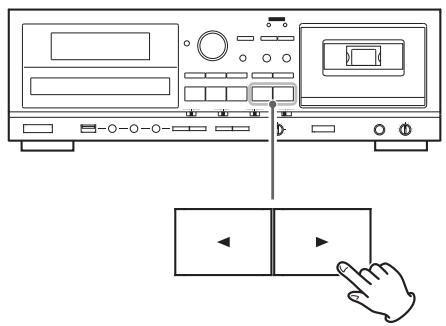
Forward () play
Pressing this button starts playback of "side A".
When the reverse mode is set to
Playback stops when the end of "side A" is reached.
When the reverse mode is set to
Playback continues on "side B", stopping at the end of "side B".
When the reverse mode is set to CD
Playback cycles through both tape sides 5 times.
Reverse side (▲) play
Pressing this button starts playback of "side B".
When the reverse mode is set to or
Playback stops when the end of "side B" is reached.
When the reverse mode is set to CD
"Side B" is played back, and then playback cycles through both tape sides 4 times.
Pausing playback temporarily
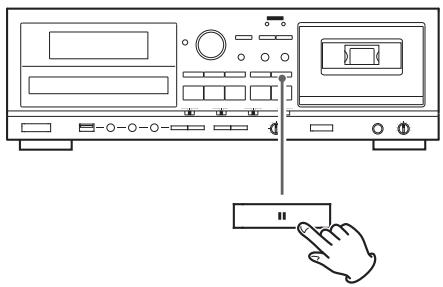
Press the TAPE Pause (I) button during playback to stop playback at the current position.
To resume playback, press the TAPE Pause (I) button again or press the Forward/Reverse play (or ) button.
Stopping playback
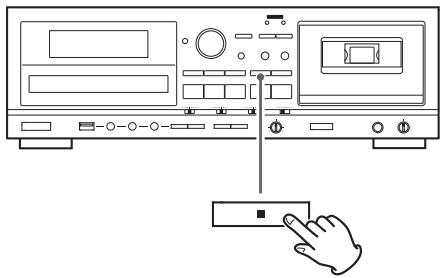
Press the TAPE Stop (■) button to stop playback.
Opening the cassette tape compartment
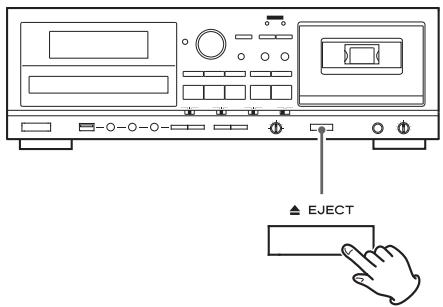
When the tape is stopped or paused, press the TAPE EJECT (▲) button to open the cassette tape compartment.
- You can also open the compartment when in modes other than TAPE mode.
Listening to a Cassette Tape (2)
Fast-forwarding/Rewinding a tape
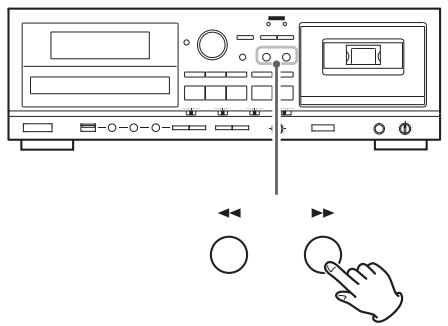
Press the Fast-forward (▶▶) button or the Rewind (←▶) button to wind the tape rapidly.
Winding stops when the end of the tape is reached. To stop winding before the end, press the TAPE stop (■) button.
- You can wind the tape when CD/USB/LINE is selected as a source. These buttons do not, however, function when in a recording mode.
Pitch control
This control varies the pitch of the music during playback.
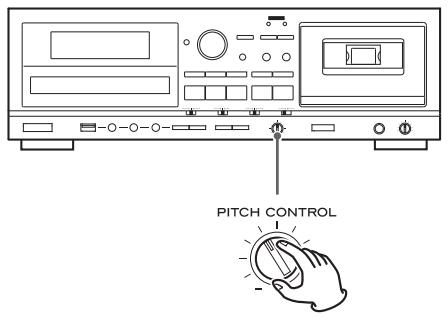
Turning the PITCH CONTROL knob clockwise increases the playback speed and raises the pitch by a maximum of +10% .
Turning the PITCH CONTROL knob counterclockwise reduces the playback speed and lowers the pitch by a maximum of -10% .
- This control does not work during recording.
Tape counter
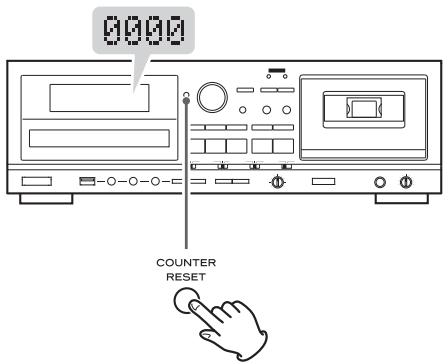
Press the COUNTER RESET button to reset the tape counter to "0000". You can use this function to easily locate any desired point on the tape.
Listening to Files on a USB Storage Device (MP3) (1)
CAUTION
Never turn the unit off or disconnect a USB storage device when it is being accessed, for example, during writing, playback, recording or the erasure of files.
Doing so could damage the AD-800 and the connected USB storage device.
Press the SOURCE button repeatedly to select "USB".
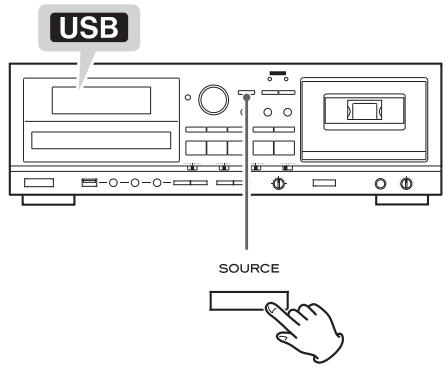
- When a different source is selected, starting USB playback automatically selects the USB mode.
2 Connect an external USB storage device to the USB port of this unit.
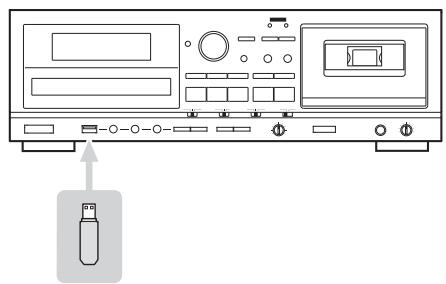
Reading the USB device takes a few seconds.
- If no MP3 file is on the USB device, "NO MUSIC FILE" is displayed.
Press the USB Play (▶) button to start playback.
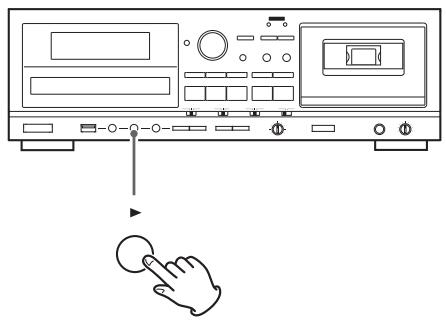
- When playback of all the files has finished, the unit stops automatically.
- MP3 files that are not put in folders are automatically put in the "ROOT" folder. Playback starts from the first file in the ROOT folder.
See page 38 for information about the playback order of MP3 files.
Pausing playback temporarily
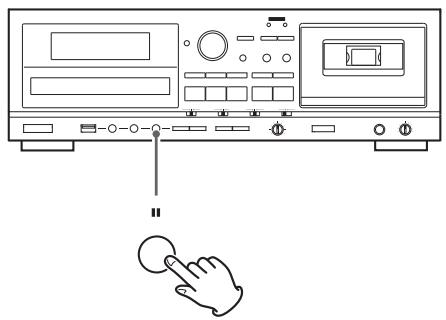
Press the USB Pause (■) button during playback to stop playback at the current position.
To resume playback, press the USB Pause (■) button again or press the USB Play (▶) button.
Stopping playback
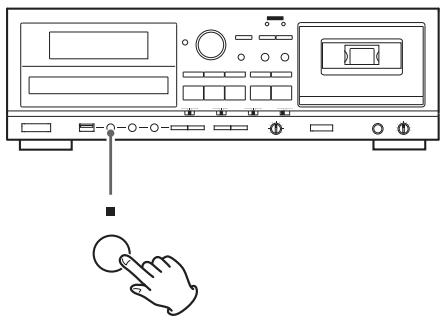
Press the USB Stop (■) button to stop playback.
Search for a part of a file
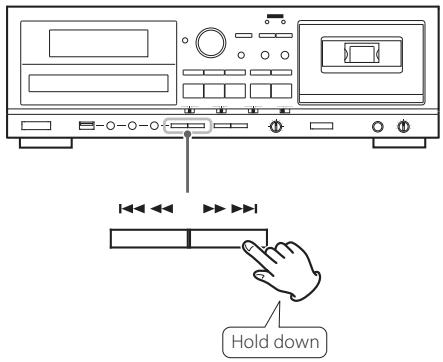
During playback, hold down a USB Search (I or ) button to search for a part of a file. Pressing and holding a Search button increases the search speed.
Release it when you find the beginning of the part that you want to hear.
Listening to Files on a USB Storage Device (MP3) (2)
Skipping to an earlier or later file
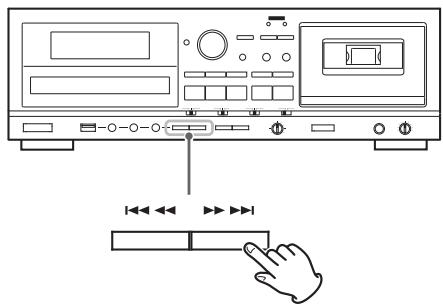
During playback
Press a USB Skip (I< I) button repeatedly until the desired file is selected. The selected file will be played from the beginning.
- If the 1 button is pressed once during playback, the file being played will be played again from the beginning. To return to the beginning of the previous file, press the 1 button twice.
When playback is stopped or paused
Press a USB Skip (I▶/▶) button repeatedly to select the file you want to hear. Then, press the USB Play (▶) button or USB Pause (■) button to start playback of the selected file.
Selecting a folder
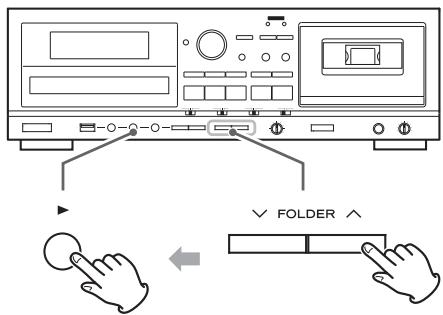
Press the FOLDER ( /) buttons to select a folder. Then, press the USB Play () button to start playback.
Repeat, shuffle and programmed playback
These functions can be used in USB mode.
Please see the following sections for details about using them.
Repeat playback
page 20
Shuffle playback
page 20
Programmed playback
page 21
Recording on a USB Storage Device (1)
This unit can record sound from a CD, cassette tape or connected external device in MP3 format to a USB storage device.
- This unit can also record to cassette tape, but it cannot record to both USB and tape at the same time.
- This unit cannot record to a USB storage with the timer recording function.

CAUTION
Do not disconnect the USB storage device during recording. Do not turn the unit off or disconnect the power cord during recording. Doing so might cause damage to the AD-800 and the connected USB storage device.
About recorded MP3 files
- When recording, "RECORD" folder is automatically created and a subfolder for each source ("CD", "TAPE" or "LINE") is also created in the "RECORD" folder. MP3 files are added to the corresponding subfolder.
- File names are assigned automatically with a numerical endings in order.
When recorded from a CD
"CD001.MP3", "CD002.MP3" ...
If there are, for example, files named "CD004.MP3" and "CD009.MP3" in the USB folder already, and you make a recording, the next new file will be named "CD010.MP3".
When recorded from a cassette tape
"TO01.MP3", "TO02A.MP3" ...
When record from an external source
"L001.MP3"
- During recording from a tape or LINE input, you can divide the file manually (page 30). In this case, consecutive numbers are added to the ends of the file names.
Example:
If "T001.MP3" is divided, files named "T001.MP3" and "T002.MP3" are created.
- This unit can record up to 999 files to a USB device. However, if the USB device already contains files, those files are included in the maximum total of 999 files when recording.
- The maximum time possible for a recorded file is 240 minutes, and a new file is created when the time exceeds 240 minutes. When a new file is created, recording will pause for a few seconds.
- When recording from a CD containing MP3 files, the maximum recording time is 3 hours.
- Tracks recorded onto a USB storage device are converted to MP3 files at a bit rate of 128 kbps.
1 Connect an external USB storage device to the USB port of this unit.
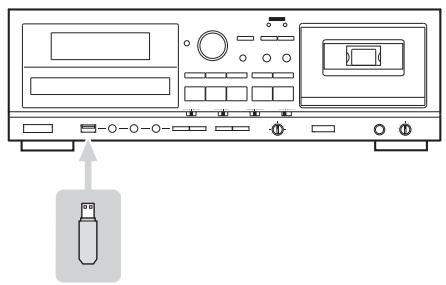
- You cannot record to an external USB storage device if there is no free space or the device is locked.
- Before recording, check the remaining capacity of the USB storage device using a PC. You cannot check the remaining memory capacity with this unit.
Press the SOURCE button repeatedly to select the source to be recorded (CD, TAPE, or LINE).
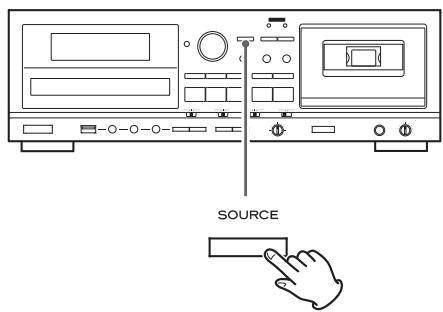
Press the RECORD USB button to start recording standby.
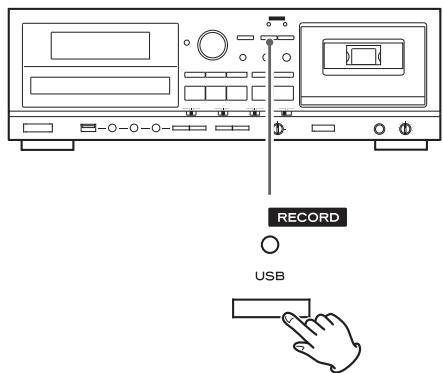
The red indicator above the RECORD USB button and the REC icon on the display blink.
- To stop recording, press the USB Stop (■) button.
4 (When recording from a tape or an external source) Adjust the recording level.
Before recording, adjust the recording level. Failure to do so could cause the recorded sound to be distorted or noisy.
- Play the source (cassette tape or external source) to be recorded.
- Use the REC LEVEL knob to adjust the recording level so that the loudest sound never lights the "OVER" indicator on the peak level meter.
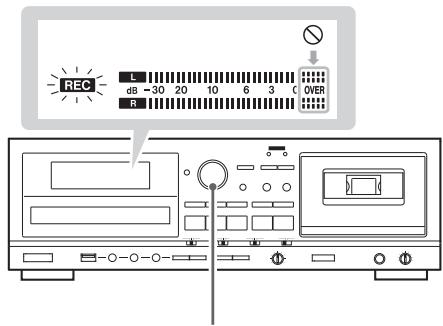
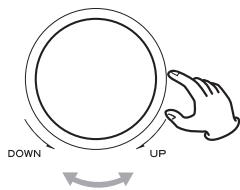
REC LEVEL
- Different sources to be recorded have different volumes. In order to record at the optimal volume for each source, it is necessary to adjust the recording level for each source.
- When recording from a CD, the recording level does not need to be changed, and it cannot be adjusted.
5 Prepare the recording source.
Recording from a CD
To record all the tracks/files on a CD, stop the disc first. To record only some of the tracks/files on a CD, pause at the beginning of the part that you want to record.
You can also record tracks in programmed order. For information about how to set the program, see page 21.
Continued on the next page

Recording on a USB Storage Device (2)
Recording from a cassette tape
To record the entire tape, rewind the tape to its starting point. To record from the middle of a tape, stop or pause at the point from where you want to start recording.
Select the DOLBY NR (noise reduction) setting (page 9).
To record from a single tape side, set the REV MODE switch to , and set the playback direction using the Forward (▶) or Reverse (▲) play button. Then press the TAPE Stop (■) button.
To record from both tape sides, set the REV MODE switch to and set the playback direction to. If you set the recording direction to , recording will be of "side B" only.
Recording from an external source
Prepare to start playback of the source device.
Example: Set the source selection of an amplifier. Set the playback media in a connected player. To record from a tuner, tune in a station.
6 Press the RECORD USB button again to start recording.
When recording from an external source, you must also start playback of that source.
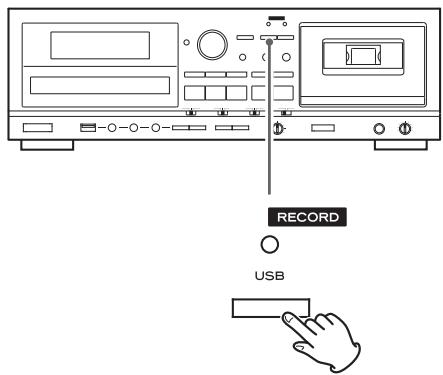
The red indicator above the RECORD USB button and the REC icon on the display stop blinking.
CAUTION
Do not turn the unit off or disconnect the power cord during recording. Doing so could damage the unit and connected devices.
- If the USB storage device runs out of open space during recording, recording stops automatically.
- To pause recording temporarily, press the USB Pause (■) button. A second press of the button resumes recording.
Recording from a CD or a cassette tape
When source playback stops, recording also automatically stops. To stop recording, press the USB Stop (■) button. Doing this also stops playback of the recording source.
Recording from an external source
When source playback stops, recording does not automatically stop. Press the USB Stop (■) button to stop recording.
Manual file division
When recording from a tape or a device connected to the LINE inputs, you can manually divide the MP3 file as it is being recorded. This function cannot be used when recording from a CD. A recorded CD will automatically be divided at each track.
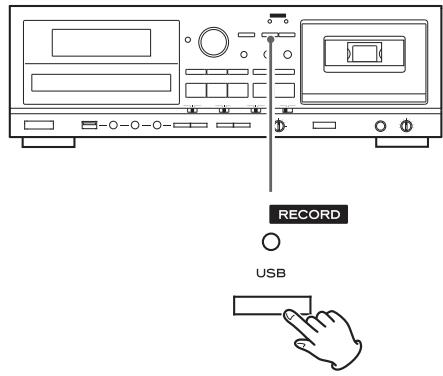
During recording, press the RECORD USB button at the point where you want to divide the recorded file.
File division takes about 10 seconds.
When recording from a tape:
During file division, the tape stops, but almost no gap in the recording should occur.
When recording from the LINE inputs:
During file division, a gap will occur in the recording.
- This unit cannot divide an already recorded MP3 file. This function only works during recording.
- Consecutive numbers are added to the end of the file names after division.
Example:
If "T001.MP3" is divided, files named "T001.MP3" and "T002.MP3" are created.
Erasing Files from a USB Storage Device
CAUTION
Do not disconnect the USB storage device during erasing. Do not turn the unit off or disconnect the power cord during erasing. Doing so might cause damage to the AD-800 and the connected USB storage device.
Erasing all files
CAUTION
Using this function will erase all the contents of a USB storage device. Non-audio files that are not recognized by this unit will also be erased. Confirm that this is acceptable before beginning this operation.
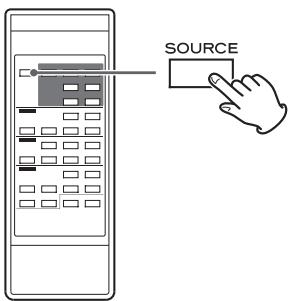
1 Press the SOURCE button repeatedly to select "USB".
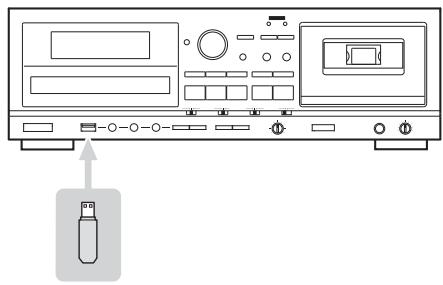
2 Connect an external USB storage device to the USB port of this unit.
3 Press the ERASE button for more than 2 seconds.
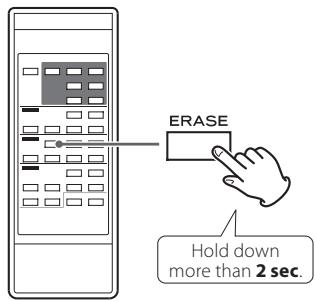
"Erase all?" appears on the display.
4 Within 6 seconds, press the ERASE button again.

The USB storage device is completely erased.
"NO MUSIC FILE" appears on the display.
Erasing a file
1 Start playing the file that you want to delete (page 26).
2 Press the ERASE button.
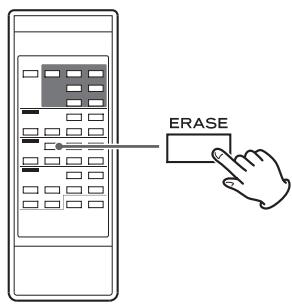
"Erase file?" appears on the display.
3 Within 6 seconds, press the ERASE button again.
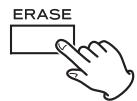
"Erasing" appears on the display, the file currently being played is erased, and playback stops.
This unit can record sound from a CD, USB storage device, or connected external device to a cassette tape.
You can record on Normal (type I) and Chrome (type II) tapes with this unit. Metal (type IV) cannot be recorded with this unit.
- You can record to one or both sides of the tape.
- This unit can also record to a USB storage device, but it cannot record to both USB and tape at the same time.
1 Put a cassette tape in the compartment.
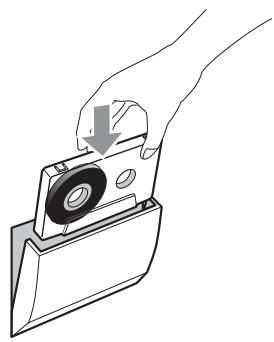
- If the erasure prevention tabs of the cassette tape have been broken off, put pieces of adhesive tape over the hole(s).
Press the SOURCE button repeatedly to select the source to be recorded (CD, USB, or LINE).
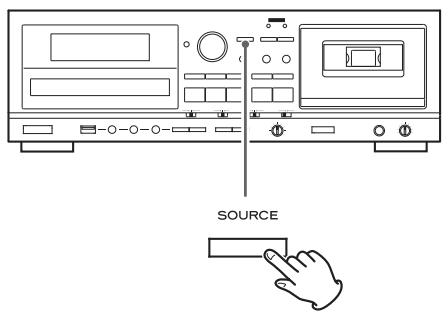
3 Set the reverse mode setting using the REV MODE switch, and set the recording direction.
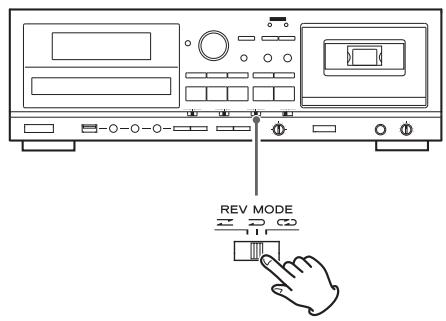
To record on a single tape side, set the REV MODE switch to , and set the recording direction using the Forward (▶) or Reverse (▲) play button. Then press the TAPE Stop (■) button.
To record on both tape sides, set the REV MODE switch to or , and set the recording direction to. If you set the recording direction to , only "side B" will be recorded on.
4 Set the DOLBY NR (noise reduction) switch ON or OFF.
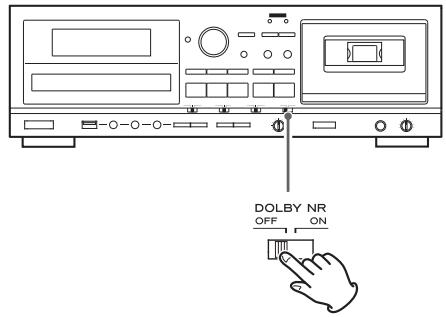
For information about the DOLBY NR function, see page 9.
Press the RECORD TAPE button to start recording standby.
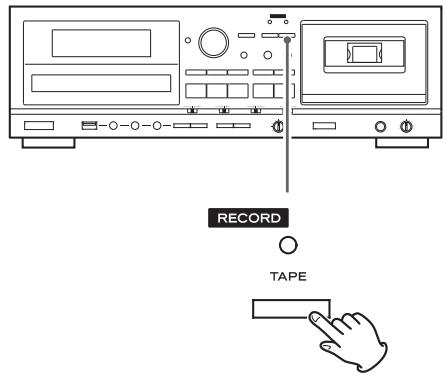
The red indicator above the RECORD TAPE button and the REC icons on the display blink.
- To stop recording, press the TAPE Stop (■) button.
6 Adjust the recording level.
Before recording, adjust the recording level. Failure to do so could cause the recorded sound to be distorted or noisy.
- Play the source (external source) to be recorded.
- Use the REC LEVEL knob to adjust the recording level so that the loudest sound does not continually exceed the "0" indicator on the peak level meter.
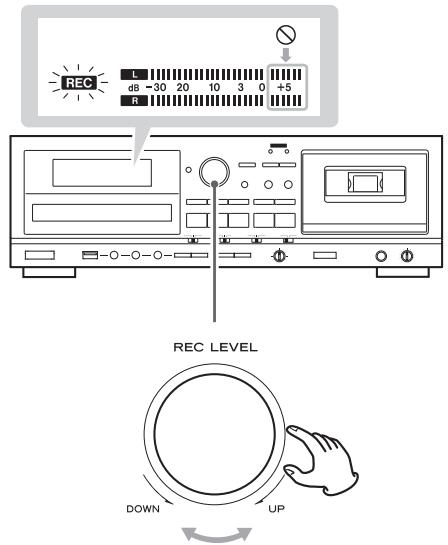
- Different sources to be recorded have different volumes. In order to record at the optimal volume for each source, it is necessary to adjust the recording level for each source.
7 Prepare a recording source.
Recording from a CD
To record all the tracks/files on a CD, stop the disc first. To record only some of the tracks/files on a CD, pause at the beginning of the part that you want to record.
You can also record tracks in programmed order. For information about how to set the program, see page 21.
Recording from a USB storage device
To record the entire contents of the USB device, stop the unit. To record from the middle of the USB device, pause at the point from where you want to start recording.
You can also record tracks in programmed order. For information about how to set the program, see page 21.
- See page 38 for information about the playback order of MP3 files.
Recording from an external source
Prepare to start playback of the source device.
Example: Set the source selection of an amplifier. Set the playback media in a connected player. To record from a tuner, tune in a station.
Press the RECORD TAPE button again to start recording.
When recording from an external source, you must also start playback of the source.
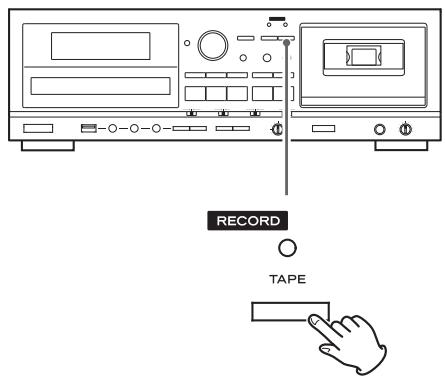
The red indicator above the RECORD TAPE button and the REC icon on the display stop blinking.
CAUTION
Do not turn the unit off or disconnect the power cord during recording. Doing so could damage the unit and connected devices.
- To stop recording temporarily, press the TAPE Pause (I) button. Press the button again to resume recording.
Recording from a CD or a USB storage device
When source playback stops, recording also automatically stops. To stop recording, press the TAPE Stop (■) button. Doing this also stops playback of the recording source.
- During two-side recording to a tape, if "side A" of the tape ends in the middle of a track/file while recording from a CD or USB device, the unit starts recording again on "side B" from the beginning of the track/file that had been interrupted.
Recording from an external source
When source playback stops, recording does not automatically stop. Press the TAPE Stop (■) button to stop recording.
Recording on a Cassette Tape (2)
Erasing recordings
When you make a recording, the tape is overwritten (the previous recording is erased). You can erase a tape recording by setting the recording level to MIN and recording silence.
Press the TAPE RECORD button to start recording standby.
2 Set the REC LEVEL control to the minimum MIN position.
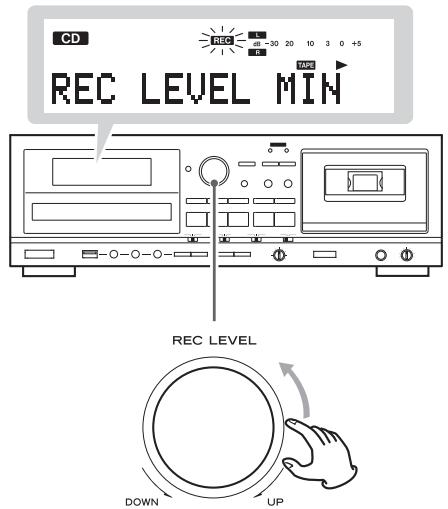
Press the Forward (▶) or Reverse (▲) play button to start erasing (by recording silence).
Timer-ControlledPlayback and Recording (1)
Connecting a commercially-available timer to your audio setup lets you wake up to your favorite music or start recording at specified times.
- The source for timer playback must be CD, TAPE or USB. Timer playback does not work with external devices connected to the LINE inputs.
- The timer recording source can only be an external device connected to the LINE inputs. And the timer recording can only record to cassette tape.
Connections
Referring to the illustration below, connect your audio equipment.
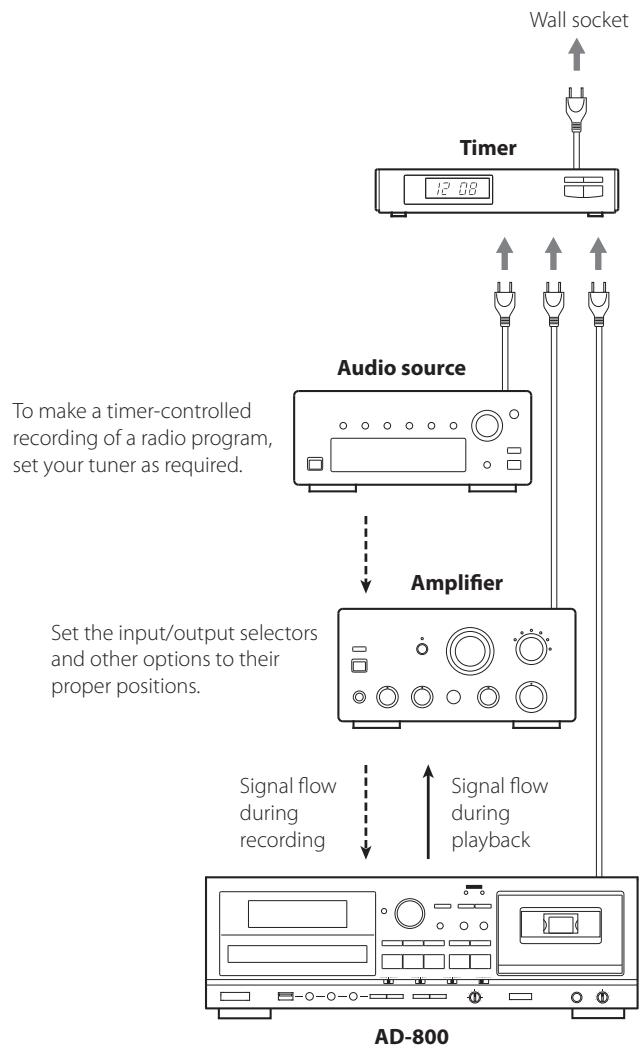
Turn off the power of all equipment before making connections.
- Read the instructions of each component you intend to use with this unit.
- Be sure to connect each plug securely. To prevent hum and noise, do not bundle the connection cords.
Timer-ControlledPlayback( CD USB TAPE )
- The source for timer playback must be CD, TAPE or USB. Timer playback does not work with an external device connected to the LINE input.
1 Connect this unit and a stereo system to a commercially-available audio timer (see previous page).
2 Set the power switch of all components to ON.
3 Prepare the source for timer playback.
When you set a cassette tape
Set the REV MODE switch to the desired position. To make both sides play continuously, set the REV MODE switch to the position.
Set the DOLBY NR switch. (page 9).
Playback always starts from "side A".
4 Set the CD-TAPE-USB switch to the desired source for timer playback.
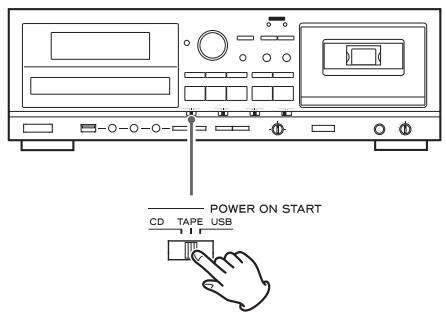
5 Set the OFF-PLAY-REC switch to the PLAY position.
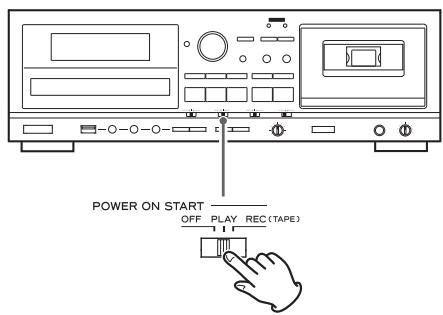
"TIMER" appears on the AD-800's display.
6 Set the audio timer to your desired start (power on) and stop (power off) times.
When this setting is completed, the power to all components should be turned off.
At this time, do not press the AD-800 POWER button. Leave the button pushed in (the on position). If the POWER button is in the off position, timer playback will not function.
When the preset start time is reached, power will be supplied and playback will start automatically.
- When you do not want to use the timer, set the OFF-PLAY-REC switch to the OFF position.
Timer-Controlled Recording (LINE TAPE)
- The timer recording source can only be an external device connected to the LINE inputs. And the timer recording can only record to cassette tape.
(Example: Recording a broadcast program)
1 Connect this unit and a stereo system to a commercially-available audio timer (see previous page).
2 Set the power switches of all components to ON.
3 Prepare the cassette tape that you want to record to with timer recording.
Recording always starts from "side A".
To record on a single tape side, set the REV MODE switch to To record on both tape sides, set the REV MODE switch to or
Set the DOLBY NR switch (page 9).
If the erasure prevention tabs of the cassette tape have been broken off, put pieces of adhesive tape over the hole(s).
You can record on Normal (type I) and Chrome (type II) tapes with this unit.
NOTE
If you have previously used the cassette, and the tape is stopped part of the way through "side B" of the cassette, timer recording will then start part of the way through "side A". Always bear this in mind, so that you do not accidentally erase any important recordings. You should take special note of this when recording more than once on the same cassette using the timer recording function.
4 Set the CD-TAPE-USB switch to TAPE.
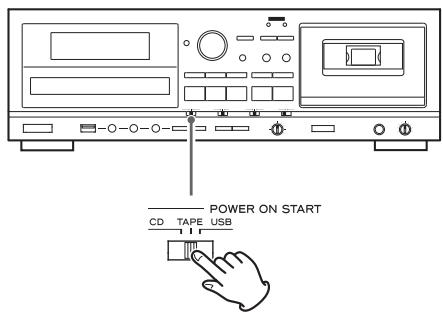
- This unit cannot record to CDs and USB storage devices with the timer recording.
5 Set the OFF-PLAY-REC switch to the REC position.
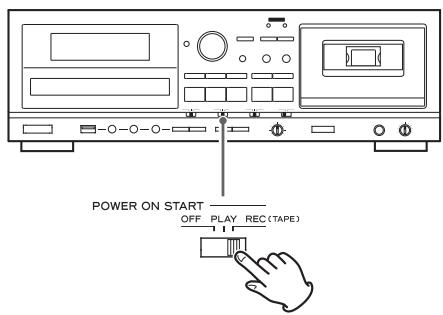
"TIMER" and REC appear on the AD-800's display.
6 Tune in the station that you want to record (when recording from radio).
7 Adjust the recording level.
Failure to do so could cause the recorded sound to be distorted or noisy.
Use the REC LEVEL knob to adjust the recording level so that the loudest sound does not continually exceed the "0" indicator on the peak level meter.
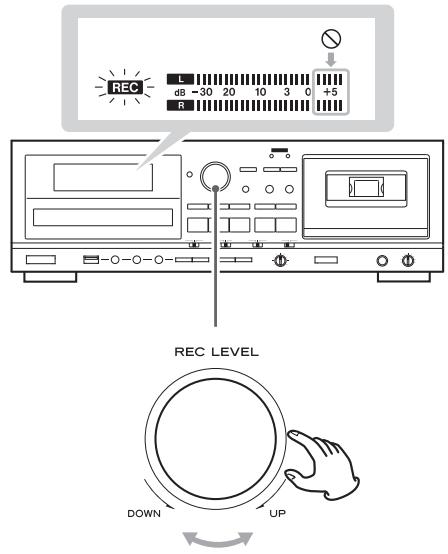
8 Set the audio timer to your desired start (power on) and stop (power off) times.
When this setting is completed, the power to all components will be switched off.
At this time, do not press the AD-800 POWER button. Leave the button pushed in (the on position). If the POWER button is in the off position, timer recording will not function.
When the preset start time is reached, power will be supplied and recording will start automatically.
- When you do not want to use the timer, be sure to set the OFF-PLAY-REC switch to the OFF position to prevent accidentally recording over an important cassette tape.
If you experience any problems with the unit, please take the time to read through these pages and try to solve the problem yourself before you call your dealer or a TEAC service center.
Moreover, the problem might be caused by something other than this unit. Confirm that connected devices are also being used properly.
General
No power
Check the connection to the AC power source. Confirm that the AC source is not a switched outlet, and, if it is, that the switch is turned on. Confirm that there is power to the AC outlet by plugging another device such as a lamp or a fan into the outlet.
Remote control does not work
Press the POWER switch of the main unit to turn it on.
If the batteries are exhausted, change the batteries.
Use the remote control within its effective range (16 ft/5 m) and point it toward the remote sensor on the front panel.
Make sure that there are no obstacles between the remote control and the main unit.
If a fluorescent light is near the unit, turn it off.
Other devices with remote controls operate incorrectly
Other devices with remote controls might operate incorrectly because of infrared light "overspill" when you operate the remote control of this unit.
Buttons do not work properly
If another operation is still in process, wait a moment and try again.
No sound or only a very low sound level is heard.
Check the connections to the amplifier.
Check that the speakers and other audio components are connected securely.
Check the operation of the connected component.
There might be a / short in a speaker cable. Check the speaker cables.
Select the correct input source using the SOURCE button.
Severe hum or noise is heard
Place the unit as far away from TVs as possible.
CD player
Will not play
Load a disc with the label side up.
If the disc is dirty, clean the surface of the disc. If the disc is scratched or has any sticky substance on its surface, do not play the disc until you have corrected the condition of the disc. Never under any circumstances use after-market stick-on labels or "disc enhancement" devices that sit on top of or wrap around a disc.
If a blank disc has been loaded, load a prerecorded disc.
Depending on the disc and other factors, playback of some CD-R/RW discs might not be possible. Try again with another disc.
You cannot play unfinalized CD-R/RW discs. Finalize such a disc in a CD recorder and try again.
If moisture condensation has occurred in the unit, leave the unit for one or two hours with the power turned on.
Sound skips
Place the unit in a stable place to avoid vibrations and shocks.
If the disc is dirty, clean its surface.
Do not use scratched, damaged or warped discs.
Cassette tape recorder
Cassette tape compartment does not close
The cassette tape is not properly loaded. Reinsert it.
Sound quality is poor
Clean the heads (page 6).
If a head is magnetized, demagnetize it with a head demagnetizer.
Check that the Dolby NR switch is set to the same position as when the recording was made.
Playback speed seems somewhat fast or slow
Check the pitch control setting (page 26).
Auto reverse does not occur
Set the REV MODE switch to or
If the REV MODE switch is set to , start playback from the tape side facing you ("side A").
Cannot record
If the erasure prevention tabs on top of the cassette are broken off, cover the holes using pieces of adhesive tape.
Check the recording level setting (page 33).
USB
No sound even if the USB Play () button is pressed
Confirm that there are MP3 files on the USB device.
- File formats other than MP3 (e.g. MPEG 1 LAYER 2 file) cannot be played.
Cannot record
Confirm that the USB storage device has open space.
Confirm that the USB storage device is not locked.
When record from an analog source, check the recording level setting (page 29).
MP3 files
Unknown characters are displayed on the display panel
This unit cannot display double-byte symbols and characters (such as Japanese and Chinese) correctly. MP3 file names must only be alphanumeric characters to be shown properly.
"No title", "No artist" or "No album" appears on the display
ID3 tag information for the music file is missing. Edit the title, artist and/or album information of the song on a PC using a suitable application.
Since this device uses a microcontroller, external noise and other interference can cause the unit to malfunction. If this occurs, turn the power off and, after waiting for about one minute, restart operation.
MP3Playback Order
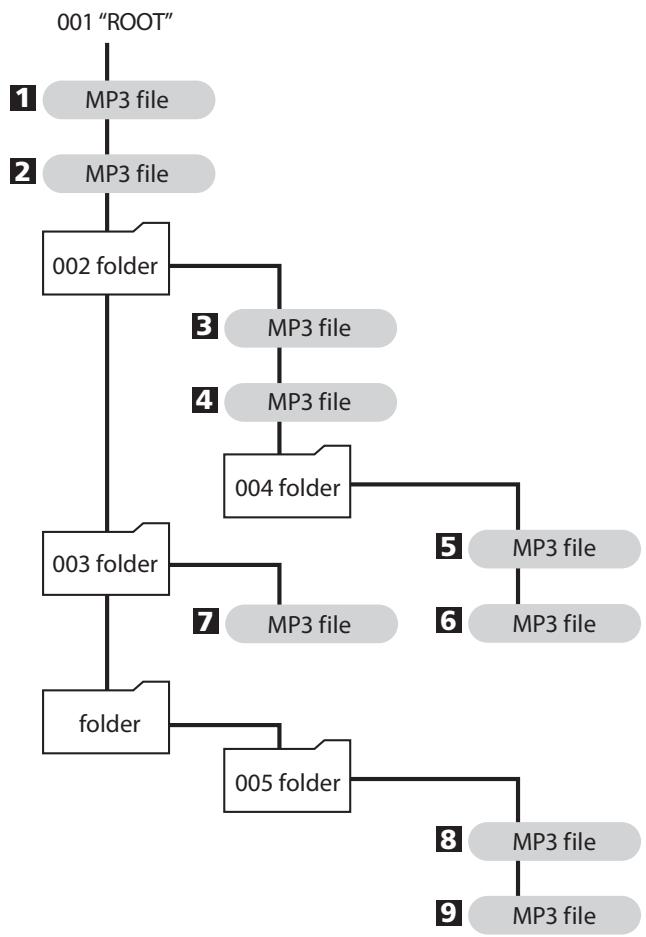
MP3 files on a CD or a USB storage device can be stored in folders in the same way that files are managed on a computer. Moreover, multiple folders can be contained inside another folder.
Here is an example of the file and folder structure of an MP3 disc or a USB storage device, showing the order of the folders (001 "ROOT" to 005) and the playback order of the files (1 to 9).
CD Player
Pickup. 3-beam, semiconductor laser
Digital filter. 8-times oversampling
Frequency response. 20 Hz-20 kHz ±2 dB
Total harmonic distortion. Less than 0.02% (1 kHz)
Signal-to-noise ratio (S/N) . More than 87 dB (IHF-A)
Analog output 2.0 V (RCA)
Cassette tape player
Track system 4-track, 2-channel stereo
Heads.......Record/playback x 1 (rotary reverse), erase x 1
Type of tape. Cassette tape C-60
Tape speed. 4.76 cm/sec.
Motor . DC servo motor x 1
Pitch control. ±10% (playback only)
Wow and flutter. 0.25% (W.RMS)
Frequency response (overall) 50-12,000 Hz ± 3 dB, metal
50-12,000 Hz ± 3 dB, chrome
50-12,000 Hz ± 3 dB, normal
Signal-to-noise ratio (overall)
59 dB (Dolby NR off, 3% THD level, weighted),
69 dB (DOLBY NR on, over 5 kHz)
Rewinding time Approx. 120 sec. (with C-60)
Input.......Line: 87 mV (input impedance of 50k or more)
Output.......Line: 0.46 V (load impedance of 50k or more)
Headphones 10 mW/32 ohms
USB
USB bus-power output 5V,0.2A
Playback
Frequency response. 20 Hz-20,000 Hz (±2 dB)
Signal-to-noise ratio. more than 85 dB
Playback bit rate. 8k-320k bps
Recording
Frequency response. 20 Hz-15,000 Hz (±2 dB)
Signal-to-noise ratio. more than 85 dB
Record bit rate 128 kbps
General
Power requirement.. AC 230 V, 50 Hz (Europe model)
AC 220 V, 60 Hz (Korea model)
AC 120 V, 60 Hz (USA/Canada model)
AC 120 V/230 V, 50-60 Hz (General export model)
Power consumption. 14 W
Dimensions (W x H x D)
435 × 145 × 288 ~mm (17 1/8'' × 511/16'' × 115/16''
(including protrusions)
Weight (Net) 5.1 kg (11 1/8 lbs)
Operating temperature. +5^ C + 35^ C
Operating humidity . 5 % to 85% (no condensation)
Storage temperature -20^ + 55^
Included Accessories
Remote control unit (RC-1257)
Batteries (AAA) for remote control unit (2)
Stereo RCA pin cables (2)
Distributor list
Owner's manual (this document)
Quick start guide for recording
Warranty card
- Design and specifications are subject to change without notice.
- Weight and dimensions are approximate.
- Illustrations may differ slightly from production models.
For European customers
Disposal of electrical and electronic equipment
(a) All electrical and electronic equipment should be disposed of separately from the municipal waste stream via collection facilities designated by the government or local authorities.
(b) By disposing of electrical and electronic equipment correctly, you will help save valuable resources and prevent any potential negative effects on human health and the environment.
(c) Improper disposal of waste electrical and electronic equipment can have serious effects on the environment and human health because of the presence of hazardous substances in the equipment.
(d) The Waste Electrical and Electronic Equipment (WEEE)
symbol, which shows a wheeled bin that has been crossed out, indicates that electrical and electronic equipment must be collected and disposed of separately from household waste.
(e) Return and collection systems are available to end users. For more detailed information about the disposal of old electrical and electronic equipment, please contact your city office, waste disposal service or the shop where you purchased the equipment.
Disposal of batteries and/or accumulators
(a) Waste batteries and/or accumulators should be disposed of separately from the municipal waste stream via collection facilities designated by the government or local authorities.
(b) By disposing of waste batteries and/or accumulators correctly, you will help save valuable resources and prevent any potential negative effects on human health and the environment.
(c) Improper disposal of waste batteries and/or accumulators can have serious effects on the environment and human health because of the presence of hazardous substances in them.
(d) The WEEE symbol, which shows a wheeled bin that has been crossed out, indicates that batteries and/or accumulators must be collected and disposed of separately from household waste.

Pb,Hg,Cd
If a battery or accumulator contains more than the specified values of lead (Pb), mercury (Hg), and/or cadmium (Cd) as defined in the Battery Directive (2006/66/EC), then the chemical symbols for those elements will be indicated beneath the WEEE symbol.
(e) Return and collection systems are available to end users. For more detailed information about the disposal of waste batteries and/or accumulators, please contact your city office, waste disposal service or the shop where you purchased them.
Sommaire
Lecture programme (CD/USB) 57
Normal (type I) Chrome (type II) Métal (type IV)
Normal (type I) Chrome (type II)
ATTENTION
A Prises LINE IN/OUT
POWER, SOURCE, CD OPEN/CLOSE (▲), REPEAT, SHUFFLE
En mode USB
POWER, SOURCE, REPEAT, SHUFFLE
POWER, SOURCE, CD OPEN/CLOSE (▲), REPEAT, SHUFFLE
En mode USB
POWER, SOURCE, REPEAT, SHUFFLE
POWER, CD OPEN/CLOSE (▲), SOURCE
En mode USB
POWER, SOURCE
Sortiedu modeprogramme
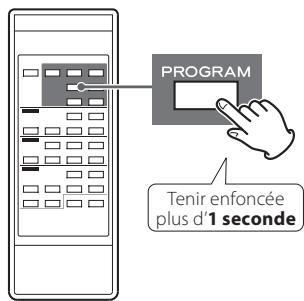
This device has a serial number located on its rear panel. Please record the serial number and retain it for your records.
- Compact Disc Player/Reverse Cassette Deck
- CAUTION
- IMPORTANT SAFETY INSTRUCTIONS
- For U.S.A.
- CERTIFICATION
- Contents
- Thank you for choosing this TEAC product. Read this manual carefully to get the best performance from this unit.
- Playback
- CD/CD-R/CD-RW (Audio CD/MP3 disc)
- Cassette tape
- MP3 files on a USB storage device (USB Flash memory, etc.)
- Recording
- Record on a USB storage device from a CD, a cassette tape or an external source
- Record on a cassette tape from a CD, a USB storage device or an external source
- Timer operation
- Requires a commercially-available timer
- What's in the box
- Remote control unit (RC-1257)
- Batteries (AAA) for remote control unit x 2
- Stereo RCA pin cable x 2
- Distributor list
- Owner's manual (this document)
- Quick start guide for recording
- Warranty card
- Placement of the unit
- Beware of condensation
- Maintenance
- Cleaning and demagnetizing the cassette deck
- Cleaning
- Demagnetizing
- Discs that can be played by this unit
- About CD-R/CD-RW discs
- Handling precautions
- Storage precautions
- USB Storage Devices
- Compatibility
- MP3 Files
- File information display
- Precautions when preparing MP3 files using a computer or other device
- Files that are unplayable or only partially playable
- Tape types
- Cassette tapes that can be played by this unit
- Cassette tapes that can be recorded on by this unit
- Types of cassette tapes that should be avoided
- Deformed cassette tapes
- Long-duration tapes
- Slackening of tapes
- Automatic tape type detection function
- Accidental erasure prevention tabs
- Dolby NR (noise reduction)
- Display
- Remote sensor
- CD OPEN/CLOSE (△)
- TAPE COUNTER RESET
- REC LEVEL knob
- CD Skip (I
- CD USB REPEAT
- SOURCE
- TAPE Stop (■)
- RECORD USB
- RECORD TAPE
- TAPE Fast-forward/Rewind (←/▶)
- TAPE Pause (II)
- TAPE Cassette tape compartment
- PHONES jack/LEVEL knob
- TAPE EJECT (△)
- TAPE Reverse/Forward play (▶)
- TAPE DOLBY NR switch
- TAPE PITCH CONTROL knob
- TAPE REV (Reverse) MODE switch
- CD Pause (II)
- CD USB FOLDER /
- POWER ON START OFF-PLAY-REC (TAPE)
- CD Play (▶)
- CD Stop (■)
- USB Skip (↓←/→↑)/Search (←←/→↑)
- POWER ON START CD-TAPE-USB
- USB Pause (II)
- USB Play (▶)
- USB Stop (■)
- CD Disc tray
- USB USB port
- POWER
- SOURCE
- CD USB
- DISPLAY
- REPEAT
- SHUFFLE
- PROGRAM
- CLEAR
- FOLDER(√/∧)
- CD
- OPEN/CLOSE (△)
- Stop (■)
- Play (▶)
- Pause (II)
- USB
- ERASE
- Remote Control Unit (1)
- RECORD (●)
- J TAPE
- Fast-forward/Rewind ( /)
- Reverse/Forward play (▶)
- COUNTER RESET
- K REC LEVEL (- / +)
- NOTE
- Battery installation
- Battery replacement
- Precautions concerning batteries
- CD mode
- During playback
- When playback is stopped
- USB mode
- Recording mode
- A LINE IN/OUT jacks
- B AC Power Cord
- Voltage Selection
- (General export/North America models only)
- Notes on turning on or off the power
- Basic Operation
- Turning the unit on or off
- Selecting a source for playback/recording
- Listening with headphones
- Press the SOURCE button repeatedly to select "CD".
- Press the CD OPEN/CLOSE (▲) button to open the disc tray.
- Place a disc on the tray with the label side up.
- Press the CD OPEN/CLOSE (▲) button again to close the tray.
- Press the CD Play (▶) button to start playback.
- Suspending playback temporarily (Pause mode)
- Stopping playback
- Opening the disc tray
- Search for a part of a track/file
- Skipping to an earlier or later track/file
- When playback is stopped or paused
- Selecting a folder (MP3 disc)
- REPEAT 1 (Repeat one track/file)
- REPEAT ALL (Repeat all tracks/files)
- REPEAT FOLDER (Repeat all the files in a folder) (MP3 only)
- This function can be used in CD and USB modes.
- When playback is stopped, press the PROGRAM button to enter program mode.
- (When programming MP3 files)
- Press the CD/USB Skip (I or ) buttons to select a track/file, then press the PROGRAM button.
- When the selection of track/file numbers is completed, press the CD/USB Play (▶) button to start program playback.
- Adding tracks/files to the end of the program
- Overwriting part of the program
- Checking the program order
- Deleting tracks/files from the program
- Clearing the program
- Exiting program mode
- Listening to a Cassette Tape (1)
- Press the SOURCE button repeatedly to select "TAPE".
- Press the TAPE EJECT (▲) button to open the cassette tape compartment.
- Put a cassette tape in the compartment.
- Set the reverse mode setting using the REV MODE switch.
- One way mode
- Two way mode
- Repeat mode
- Set the DOLBY NR (noise reduction) switch.
- About Dolby NR
- Press the Forward (▶) or Reverse (▲) play button to start playback.
- Forward () play
- Reverse side (▲) play
- Pausing playback temporarily
- Opening the cassette tape compartment
- Listening to a Cassette Tape (2)
- Fast-forwarding/Rewinding a tape
- Pitch control
- Tape counter
- Listening to Files on a USB Storage Device (MP3) (1)
- Press the SOURCE button repeatedly to select "USB".
- Connect an external USB storage device to the USB port of this unit.
- Press the USB Play (▶) button to start playback.
- Search for a part of a file
- Listening to Files on a USB Storage Device (MP3) (2)
- Skipping to an earlier or later file
- Selecting a folder
- Repeat, shuffle and programmed playback
- Recording on a USB Storage Device (1)
- About recorded MP3 files
- When recorded from a CD
- When recorded from a cassette tape
- When record from an external source
- Example:
- Connect an external USB storage device to the USB port of this unit.
- Press the SOURCE button repeatedly to select the source to be recorded (CD, TAPE, or LINE).
- Press the RECORD USB button to start recording standby.
- (When recording from a tape or an external source) Adjust the recording level.
- Prepare the recording source.
- Recording from a CD
- Recording on a USB Storage Device (2)
- Recording from a cassette tape
- Recording from an external source
- Press the RECORD USB button again to start recording.
- Recording from a CD or a cassette tape
- Manual file division
- When recording from a tape:
- When recording from the LINE inputs:
- Erasing Files from a USB Storage Device
- Erasing all files
- Press the SOURCE button repeatedly to select "USB".
- Press the ERASE button for more than 2 seconds.
- Within 6 seconds, press the ERASE button again.
- Erasing a file
- Within 6 seconds, press the ERASE button again.
- Put a cassette tape in the compartment.
- Press the SOURCE button repeatedly to select the source to be recorded (CD, USB, or LINE).
- Set the reverse mode setting using the REV MODE switch, and set the recording direction.
- Set the DOLBY NR (noise reduction) switch ON or OFF.
- Press the RECORD TAPE button to start recording standby.
- Adjust the recording level.
- Prepare a recording source.
- Recording from a USB storage device
- Press the RECORD TAPE button again to start recording.
- Recording from a CD or a USB storage device
- Recording on a Cassette Tape (2)
- Erasing recordings
- Timer-ControlledPlayback and Recording (1)
- Connections
- Timer-ControlledPlayback( CD USB TAPE )
- Connect this unit and a stereo system to a commercially-available audio timer (see previous page).
- Set the power switch of all components to ON.
- Prepare the source for timer playback.
- When you set a cassette tape
- Set the CD-TAPE-USB switch to the desired source for timer playback.
- Set the OFF-PLAY-REC switch to the PLAY position.
- Set the audio timer to your desired start (power on) and stop (power off) times.
- Timer-Controlled Recording (LINE → TAPE)
- (Example: Recording a broadcast program)
- Set the power switches of all components to ON.
- Prepare the cassette tape that you want to record to with timer recording.
- Set the CD-TAPE-USB switch to TAPE.
- Set the OFF-PLAY-REC switch to the REC position.
- Tune in the station that you want to record (when recording from radio).
- Adjust the recording level.
- Set the audio timer to your desired start (power on) and stop (power off) times.
- General
- No power
- Remote control does not work
- Other devices with remote controls operate incorrectly
- Buttons do not work properly
- No sound or only a very low sound level is heard.
- Severe hum or noise is heard
- CD player
- Will not play
- Sound skips
- Cassette tape recorder
- Cassette tape compartment does not close
- Sound quality is poor
- Playback speed seems somewhat fast or slow
- Auto reverse does not occur
- Cannot record
- No sound even if the USB Play () button is pressed
- Unknown characters are displayed on the display panel
- "No title", "No artist" or "No album" appears on the display
- MP3Playback Order
- Cassette tape player
- Included Accessories
- For European customers
- Disposal of electrical and electronic equipment
- Disposal of batteries and/or accumulators
- Sommaire
- ATTENTION
- A Prises LINE IN/OUT
- Sortiedu modeprogramme
Brand : TEAC
Model : AD-800-B
Category : Audio recorder