
TEW-403PIPLUS - Wireless Access Point TRENDNET - Free user manual and instructions
Find the device manual for free TEW-403PIPLUS TRENDNET in PDF.

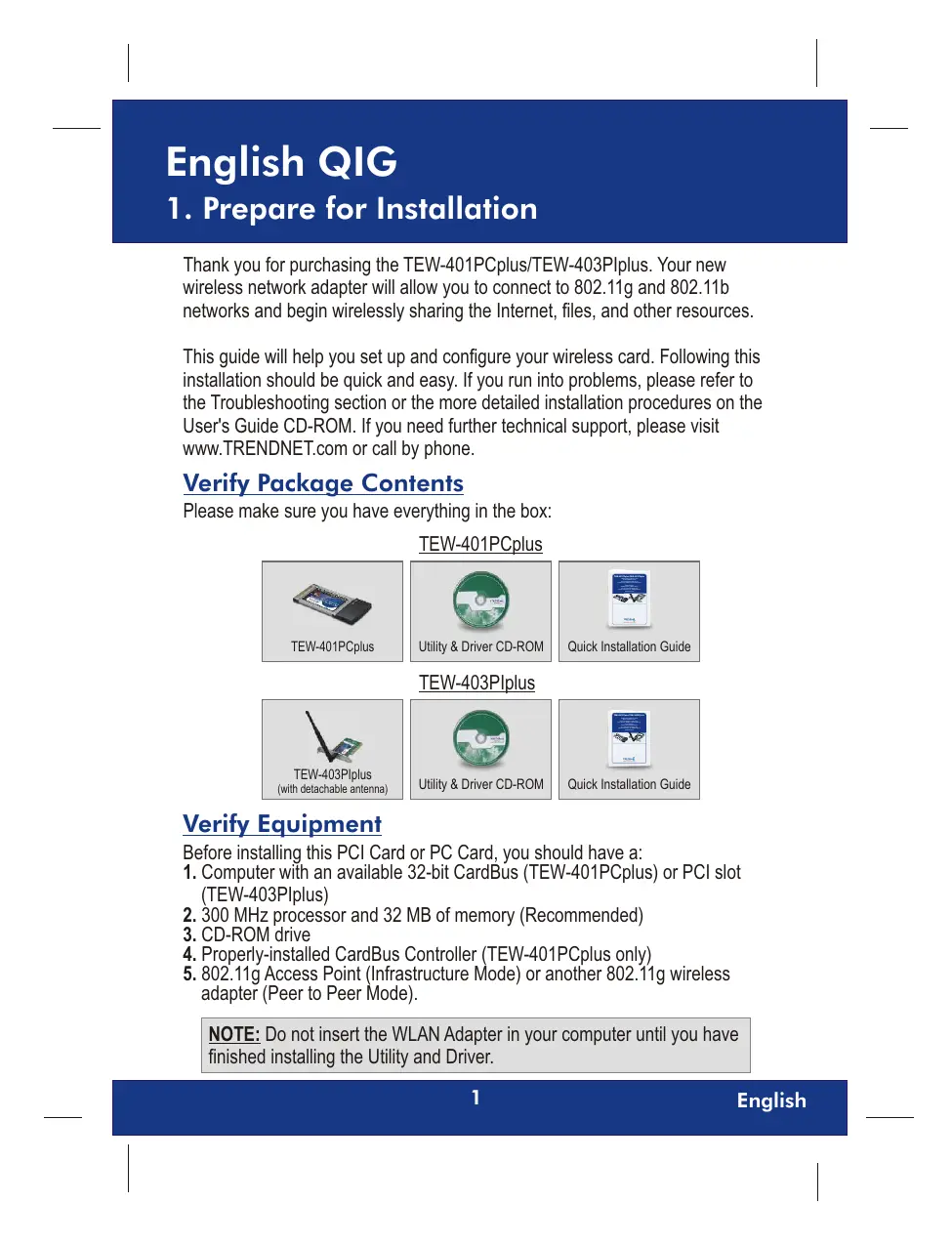

| Product Type | Wireless Access Point / Wireless Network Card |
| Brand | TRENDNET |
| Model | TEW-403PIPLUS |
| Wireless Standard | IEEE 802.11g/b |
| Maximum Data Rate | 125 Mbit/s (Turbo mode) |
| Frequency Band | 2.4 GHz |
| Interface | PCI (CardBus 32 bits) |
| Wireless Security | WEP 64/128 bits, WPA, WPA2 |
| Antenna | Integrated (diversity) |
| Dimensions (L x W x H) | 120 x 80 x 10 mm |
| Weight | Approximately 95 g |
| Power Supply | Via PCI port (computer bus) |
| Supported Operating Systems | Windows 2000/XP/Vista/7, Linux (via drivers) |
| Operating Temperature | 0°C to 40°C |
| Operating Humidity | 10% to 90% (non-condensing) |
| Maintenance and Cleaning | Unplug the device before cleaning. Use a soft, dry cloth. |
| Safety | Avoid heat sources and moisture. Do not open the casing. |
| Spare Parts and Repairability | No spare parts available. In case of failure, contact customer service. |
| General Information | Quick installation guide included. Compatible with existing Wi-Fi networks. |
Frequently Asked Questions - TEW-403PIPLUS TRENDNET
User questions about TEW-403PIPLUS TRENDNET
0 question about this device. Answer the ones you know or ask your own.
Ask a new question about this device
Download the instructions for your Wireless Access Point in PDF format for free! Find your manual TEW-403PIPLUS - TRENDNET and take your electronic device back in hand. On this page are published all the documents necessary for the use of your device. TEW-403PIPLUS by TRENDNET.
USER MANUAL TEW-403PIPLUS TRENDNET
TEW-401PCplus/TEW-403PIplus
125Mbps 802.11g Wireless Cards
Quick Installation Guide
natural_image
Two electronic devices: a wireless Cordbus T4.6398 Ethernet card and a Wi-Fi network card with I/O ports (no visible text or symbols on the devices themselves)Table of Contents
English 1
- Prepare for Installation 1
- Install Wireless Configuration Utility 2
- Install Hardware 5
- Install Drivers 7
- Configure Wireless Utility 10
Troubleshooting 18
1. Prepare for Installation
Thank you for purchasing the TEW-401PCplus/TEW-403PIplus. Your new wireless network adapter will allow you to connect to 802.11g and 802.11b networks and begin wirelessly sharing the Internet, files, and other resources.
This guide will help you set up and configure your wireless card. Following this installation should be quick and easy. If you run into problems, please refer to the Troubleshooting section or the more detailed installation procedures on the User's Guide CD-ROM. If you need further technical support, please visit www.TRENDNET.com or call by phone.
Verify Package Contents
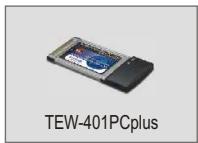
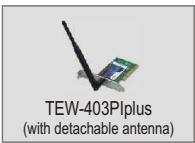
Please make sure you have everything in the box:
TEW-401PCplus

TEW-403PIplus

Verify Equipment
Before installing this PCI Card or PC Card, you should have a:
- Computer with an available 32-bit CardBus (TEW-401PCplus) or PCI slot (TEW-403PIplus)
- 300 MHz processor and 32 MB of memory (Recommended)
- CD-ROM drive
- Properly-installed CardBus Controller (TEW-401PCplus only)
- 802.11g Access Point (Infrastructure Mode) or another 802.11g wireless adapter (Peer to Peer Mode).
NOTE: Do not insert the WLAN Adapter in your computer until you have finished installing the Utility and Driver.
2. Install Wireless Configuration Utility
Windows 95/98/98SE/ME
- Insert the TEW-401PCplus/403PIplus CD-ROM into your computer's CD-ROM drive; the installation menu window will appear automatically. If the window does not appear automatically, click Start, click Run, and type E:\Autorun.exe in the text-field. Click OK.
NOTE: Replace "E" in "E:\Autorun.exe" with whichever letter is assigned to your CD-ROM drive.
- On the Installation Menu, Select the Wireless Card and click Install Utility button.
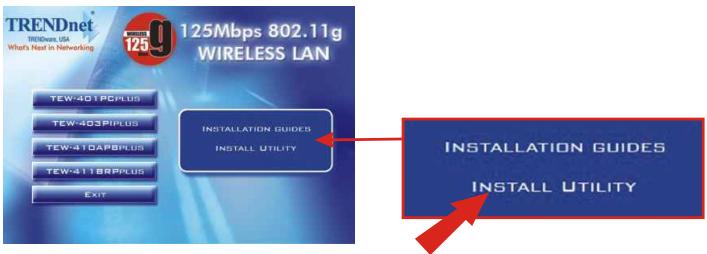
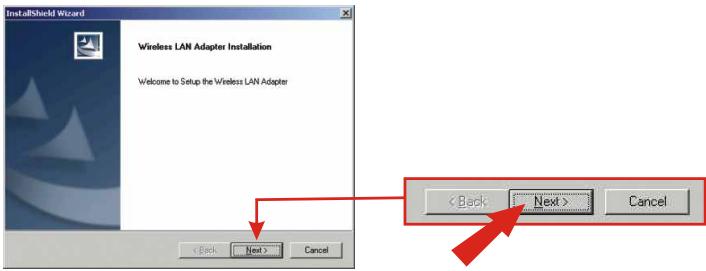
- Follow the Install Shield Wizard's instructions to install the wireless configuration utility, click Next to start.
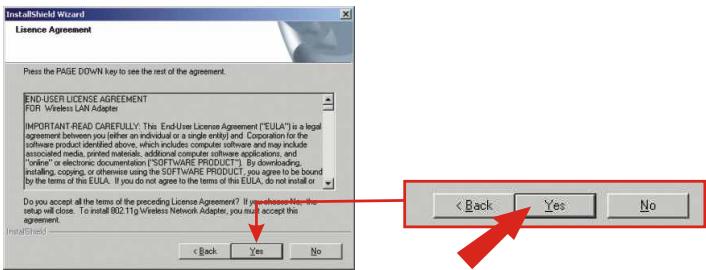
- Simply go through the License Agreement and then click Yes to proceed.
- Now the window will load the utility onto your computer, click Next to continue.
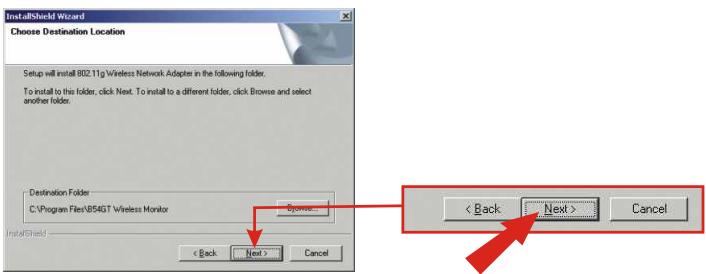
- During the Utility installation procedures of Windows 2000/XP, a warning message for the Windows Logo testing verification will appear. Click Yes for Windows 2000 and Continue Anyway for Windows XP to proceed.
- The Configuration Utility has been installed; click Finish to complete the installation.
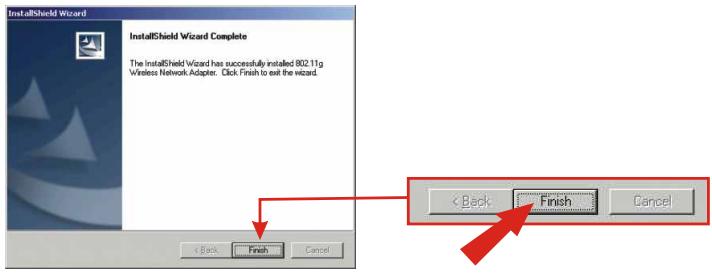
NOTE: For Windows 98SE/ME, Windows will prompt a message for restarting the computer, select "No, I will restart my computer later," and click Finish.
3. Install Hardware
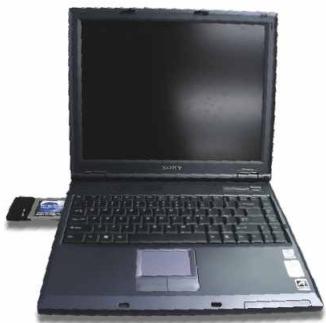
If you are installing the TEW-401PCplus Wireless PC Card:
Proceed only if you have already completed the steps in Section 2
- Shut down your computer.
- Insert the PC Card firmly into your notebook PC's open PC Card slot. Only the plastic end-piece should protrude from the slot.
- Reboot your computer.
natural_image
Black Sony laptop with visible keyboard and front screen, no text or symbols on the device itselfIf you are installing the TEW-403PIplus Wireless PCI Card:
Proceed only if you have already completed the steps in Section 2
- Shut down your computer.
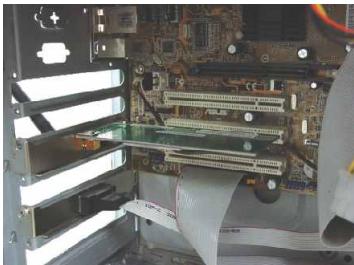
- Open your computer case to reveal the motherboard and expansion slots. (Please refer to your computer's user manual if you need help opening the case)
- Insert the wireless card into one of motherboard's free PCI slots. Press down firmly and evenly on the card until it snaps into place.
natural_image
Interior view of a computer motherboard showing CPU socket, RAM slots, and cable spool (no visible text or labels)- Screw the PCI card's metal bracket into your case with a standard bracket screw. Attach the included antenna to the connector on the back of your card.
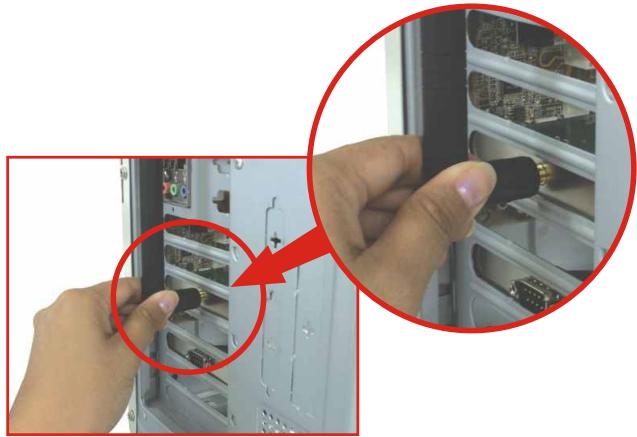
natural_image
Close-up of hands inserting a USB into a computer tower case, showing internal components and wiring (no text or symbols visible)- Close your computer case, and reboot your computer.
Windows 98SE/ME
- After your computer reboots, window will detect the new hardware and load the driver automatically.
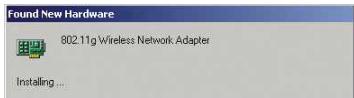
- After the driver is installed, windows will prompt the following message, click Yes to save the changes and restart the computer.
- Driver installation is now complete.
Windows 2000
- After your computer reboots, window will detect the new hardware and load the driver automatically.
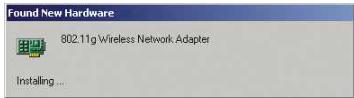
- When Digital Signature Not Found Window appears, click Yes to continue.
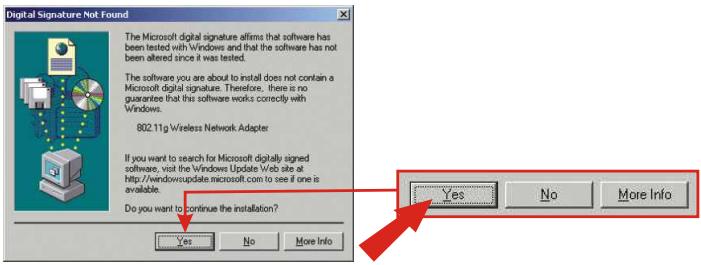
NOTE: TRENDnet's Wireless Adapters have been fully tested under all supported Windows Operating Systems and have been approved for their functionality.
- Driver installation is now completed.
Windows XP
- After your computer reboots, the "Found New Hardware Wizard" will appear. Click Next to load the driver.
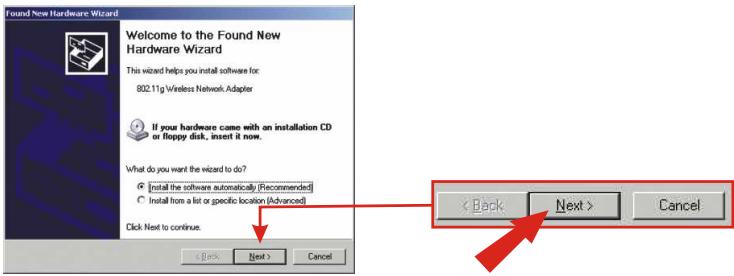
- A warning message will tell you that the device you're installing has not yet been certified for Windows XP compatibility. Click Continue Anyway.
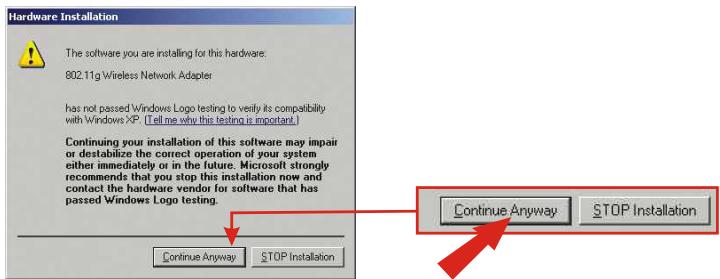
NOTE: TRENDnet's Wireless Adapters have been fully tested under all supported Windows Operating Systems and have been approved for their functionality.
- Now the driver has been installed, click Finish to complete the installation.
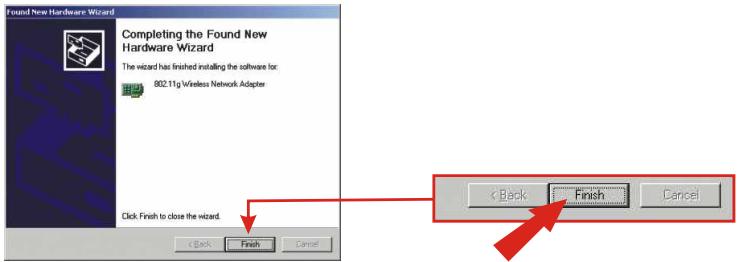
- Restart your computer.
5. Configure Wireless Utility
Infrastructure Mode (PC-to-Access Point Connection)
- Double-click the wireless computer icon in your system tray (next to the clock in the bottom right corner of your screen).
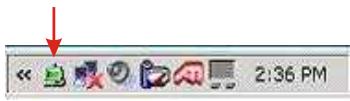
- From the Wireless Monitor window, select Profile Setting tab, then click Add.

- Type in a Profile Name, and then click Next.
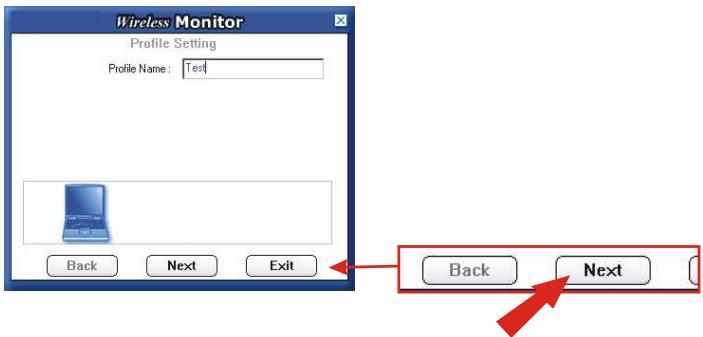
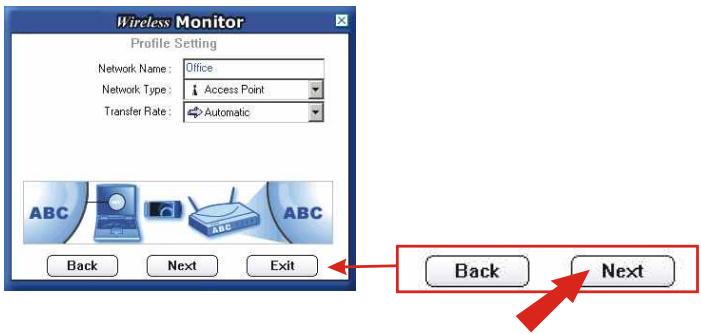
- Type in your Access Point's or Wireless Router's SSID for the Network Name and click Next.
- If your wireless network does not require security setting, click Next to continue.
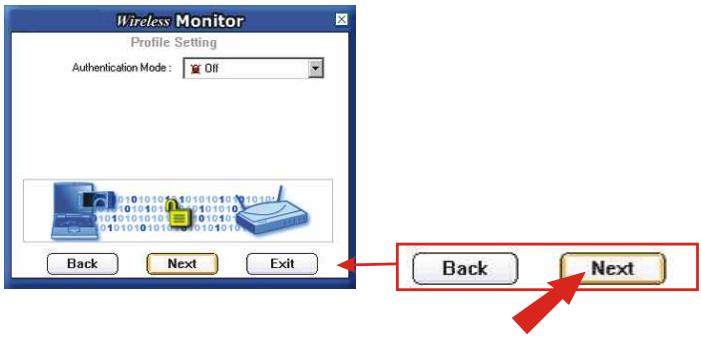
NOTE: If you would like to set the Authentication Mode, select the option from the drop down menu and make sure the setting matches your wireless network's security settings.
- If you do not need to configure IP settings, click Complete.
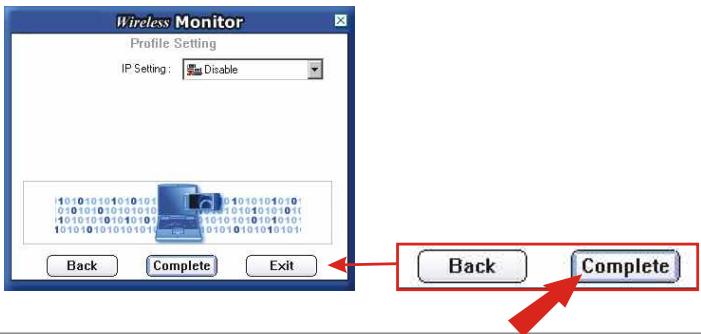
NOTE: IP Setting is "Disable" means the wireless card will Obtain an IP address automatically from a DHCP server. Otherwise, please specify an IP address to meet your wireless network's configuration.
- Select the Profile you just created and click on the Connect button to connect.
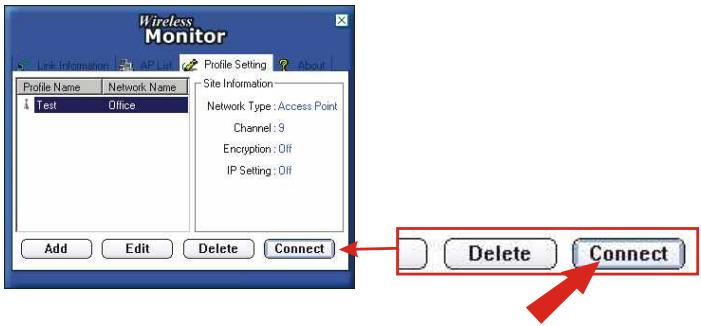
- To verify your connectivity, you can select the Link Information tab and click More button. If you see connection information, your card's wireless configuration is complete.
![Wireless Monitor Wireless Information Connect To Network : Office [ 00:0C:41:FB:E3:7D ] Network Type : Access Point Channel : 9 Encryption : Off Link Speed : 54 Mbits / sec Signal Strength Link Quality IP Information DHCP Status : Enable Current IP : 192.168.1.18 Subnet Mask : 255.255.255.0 Default Gateway : 192.168.1.254 DNS Server : 192.168.1.254.208.57.0.11.208 Back](/content/2025/01/166991/images/5b894ba929a415e715662cddc2f459c9891e47088360be7804b1852dfcafa2da.jpg)
Your Wireless Card is now configured and ready for use!
Ad-Hoc Mode (PC-to-PC connection)
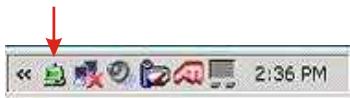
- Double-click the wireless computer icon in your system tray (next to the clock in the bottom right corner of your screen).
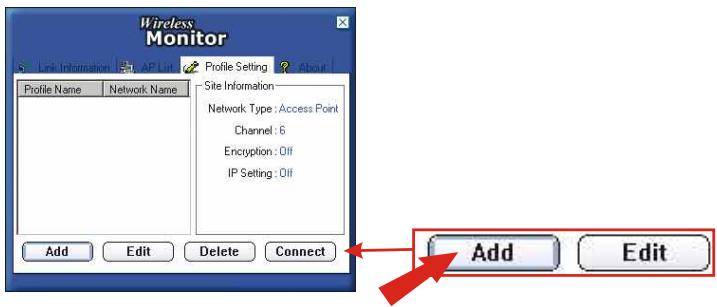
- From the Wireless Monitor window, select Profile Setting tab, then click Add.
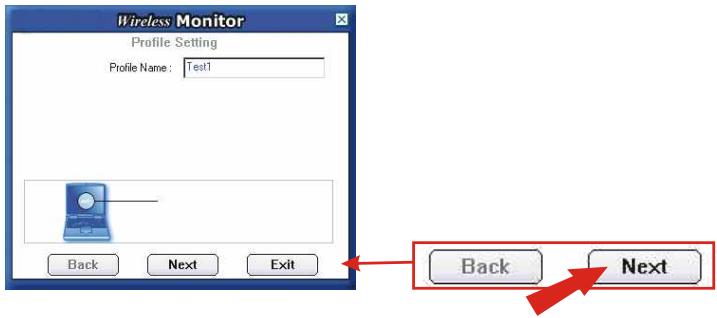
- Create a Profile Name, and then click Next.
- Create a Network Name for your Peer to Peer network and use the dropdown menus, set the: Network Type to Peer to Peer, Transfer Rate to Automatic, and select a Channel. Click Next to continue.
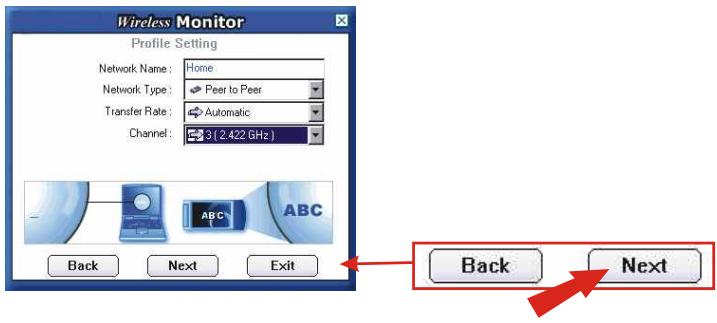
- If your wireless network does not require security setting, click Next to continue.
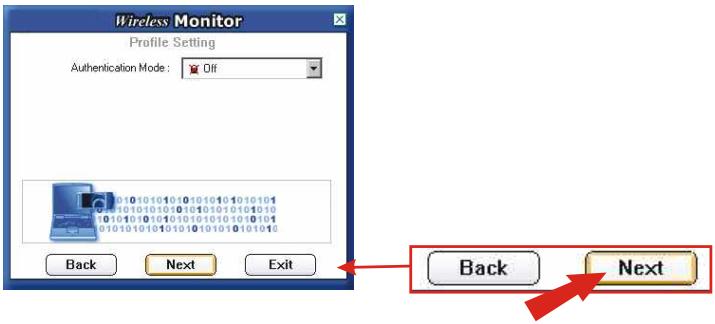
NOTE: If you would like to set the Authentication Mode, select the option from the drop down menu and make sure the setting matches your wireless network's security settings.
- If your wireless network does not require security setting, click Next to continue.
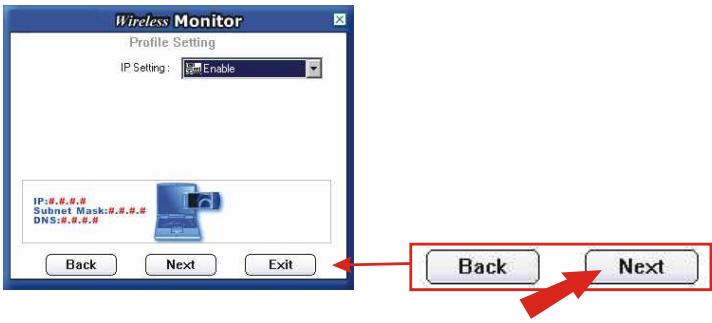
- Using the drop-down menu, set the DHCP Status to Disable and input the IP address. (in this example, the IP address is 192.168.1.10 and the Subnet Mask is 255.255.255.0)
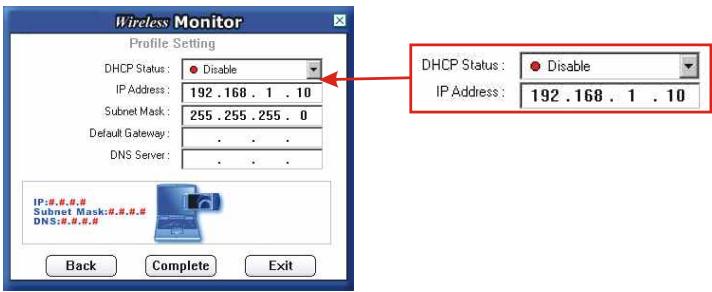
NOTE: On the second computer, follow the same steps 1 9. On step 9, you must specify a different IP address. For example, you may use the IP address 192.168.1.11, but the Subnet Mask remains 255.255.255.0)
-
Click Complete to finish the configurations.
-
Once you have configured both computers for "Peer to Peer" connection, select the Profile Name then click Connect.
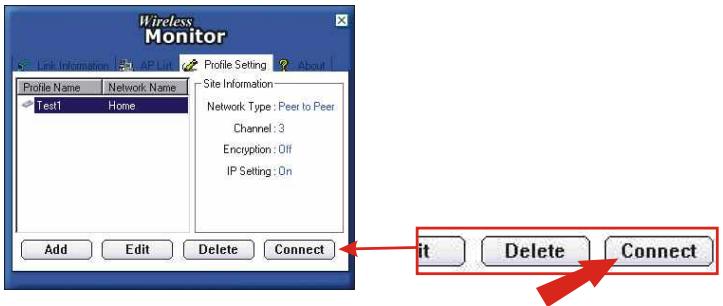
- To verify the "Peer to Peer" wireless network connection, select the Link Information tab, and click More. If you see connection information, your card's wireless configuration is not complete.
![Wireless Monitor Wireless Information Connect To Network : Home [ 86:AD:2D:0A:9A:B5 ] Network Type : Peer to Peer Channel : 3 Encryption : Off Link Speed : 11 Mbits / sec Signal Strength Link Quality IP Information DHCP Status : Disable Current IP : 192.168.1.10 Subnet Mask : 255.255.255.0 Default Gateway : 0.0.0.0 DNS Server : 192.168.1.254 Back](/content/2025/01/166991/images/c2a7597663ad0b0c9c1960fa2aed757c4b621d02248e022b6a3200ad794187d5.jpg)
Your Wireless Network Adapter is now configured and ready for use!
Q1. I completed all the steps in the quick installation guide, but my card isn't connecting to my access point. What should I do?
A1. You should first verify that the Network SSID matches your wireless router or access point's SSID. If they already match, you should check your TCP/IP properties to ensure that Obtain an IP address automatically is selected.
Q2. Windows is unable to recognize my hardware. What should I do?
A2. Make sure your computer meets the minimum requirements as specified in Section 1 of this quick installation guide. Also, you must install the wireless configuration utility (as described in Section 2) before you physically install your network card. Lastly, you may consider moving the card to a different PCI/PC Card Slot.
Q3. I cannot open the wireless configuration utility. What should I do?
A3. Go to your device manager (control panel system) to make sure the adapter is installed properly. If you see a networking device with a yellow question mark or exclamation point, you will need to reinstall the device and/or the drivers.
If you still encounter problems, please refer to the User's Guide CD-ROM or contact technical support.
Contact Technical Support
Telephone: +1-310-626-6252
Fax: +1-310-626-6267
Website: www.TRENDNET.com
E-mail: support@trendware.com
Technical Support Hours
7:00AM \~ 6:00PM, Monday through Friday
Pacific Standard Time (except holidays)
Certifications
This equipment has been tested and found to comply with FCC and CE Rules.
Operation is subject to the following two conditions:
(1) This device may not cause harmful interference.
(2) This device must accept any interference received, including interference that may cause undesired operation.
TRENDnet® TRENDware, USA
What's Next in Networking
Product Warranty Registration
Please take a moment to register your product online. Go to TRENDware's website at http://www.TRENDNET.com
TRENDware International, Inc.
3135 Kashiwa Street
Torrance, CA 90505
http://www.TRENDNET.com
- TEW-401PCplus/TEW-403PIplus
- Table of Contents
- English 1
- Troubleshooting 18
- Prepare for Installation
- Verify Package Contents
- Verify Equipment
- Install Wireless Configuration Utility
- Windows 95/98/98SE/ME
- Install Hardware
- If you are installing the TEW-401PCplus Wireless PC Card:
- If you are installing the TEW-403PIplus Wireless PCI Card:
- Windows 98SE/ME
- Windows 2000
- Windows XP
- Configure Wireless Utility
- Infrastructure Mode (PC-to-Access Point Connection)
- Ad-Hoc Mode (PC-to-PC connection)
- Contact Technical Support
- Technical Support Hours
- Certifications
- TRENDnet® TRENDware, USA
- What's Next in Networking
- Product Warranty Registration
Brand : TRENDNET
Model : TEW-403PIPLUS
Category : Wireless Access Point