DN-C200P - Professional CD player MARANTZ - Free user manual and instructions
Find the device manual for free DN-C200P MARANTZ in PDF.


| Product Type | Professional CD Player |
| Brand | Marantz |
| Model | DN-C200P |
| Disc Format | Audio CD, CD-R, CD-RW |
| Dimensions (W x H x D) | 482 x 88 x 350 mm |
| Weight | 5.2 kg |
| Power Supply | 230 V AC, 50/60 Hz |
| Power Consumption | 25 W |
| Audio Outputs | Analog (RCA), digital (coaxial and optical) |
| Main Functions | Play, pause, stop, track skip, search, programmed play, repeat, random play |
| Maintenance and Cleaning | Wipe with a soft, dry cloth. Do not use solvents. |
| Safety | Do not expose to moisture, ensure adequate ventilation, disconnect during storms. |
| Spare parts and repairability | Contact an authorized Marantz service center for any repairs. |
| General Information | Compliant with standards EN60065, EN55013, EN55020, EN61000-3-2, EN61000-3-3. |
Frequently Asked Questions - DN-C200P MARANTZ
User questions about DN-C200P MARANTZ
0 question about this device. Answer the ones you know or ask your own.
Ask a new question about this device
Download the instructions for your Professional CD player in PDF format for free! Find your manual DN-C200P - MARANTZ and take your electronic device back in hand. On this page are published all the documents necessary for the use of your device. DN-C200P by MARANTZ.
USER MANUAL DN-C200P MARANTZ
The lightning flash with arrowhead symbol, within an equilateral triangle, is intended to alert the user to the presence of uninsulated "dangerous voltage" within the product's enclosure that may be of sufficient magnitude to constitute a risk of electric shock t persons.

The exclamation point within an equilateral triangle is intended to alert the user to the presence of important operating and maintenance (servicing) instructions in the literature accompanying the appliance.
WARNING:
TO REDUCE THE RISK OF FIRE OR ELECTRIC SHOCK, DO NOT EXPOSE THIS APPLIANCE TO RAIN OR MOISTURE.
CLASS 1 LASER PRODUCT
LUOKAN 1 LASERLAITE
KCLASS 1 LASERAPPARAT
"CLASS 1 LASER PRODUCT"
ADVARSEL: USYNLIG LASERSTRÄLING VED ÅBNING, NÄR SIKKERHEDSAFBRYDERE ER UDE AF FUNKTION. UNDGÅ UDSAETTALSE FOR STRÄLING.
VAROITUS! LAITTEEN KÄYTTÄMINEN MUULLA KUIN TÄSSÄ KÄYTTÖOHJEESSA MAINTULLA TAVALLA SAATTAA ALTISTAA KÄYTTÄJÄN TURVALLISUUSLUOKAN 1 YLITTÄVÄLLE NAKYMÄMTTÖMÄLLE LASERSÄTEILLYLLE.
VARNING: OM APPARATEN ANVÄNDS PÄ ANNAT SÄTT ÄN I DENNA BRUKSANVISNING SPECIFICERATS, KAN ANVÄNDAREN UTSÄTTAS FÜR OSYNLIG LASERSTRÄLNING SOM ÖVERSKRIDER GRÄNSEN FÜR LASERKLASS 1.
ATTENZIONE: QUESTO APPARECCHIO E' DOTATO DI DISPOSITIVO OTTICO CON Raggio LASER.
USE OF CONTROLS OR ADJUSTMENTS OR PERFORMANCE OF PROCEDURES OTHER THAN THOSE SPECIFIED HEREIN MAY RESULT IN HAZARDOUS RADIATION EXPOSURE.
THIS PRODUCT SHOULD NOT BE ADJUSTED OR REPAIRED BY ANYONE EXCEPT PROPERLY QUALIFIED SERVICE PERSONNEL.
- DECLARATION OF CONFORMITY
We declare under our sole responsibility that this product, to which this declaration relates, is in conformity with the following standards: EN60065, EN55013, EN55020, EN61000-3-2 and EN61000-3-3. Following the provisions of 73/23/EEC, 89/336/EEC and 93/68/EEC Directive.
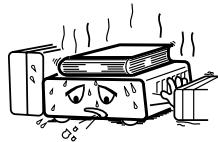
Allow for sufficient heat dispersion when installed in a rack
- Handle the power cord carefully.
Hold the plug when unplugging the cord.
* (For apparatuses with ventilation holes)
- Do not obstruct the ventilation holes.
Die Beluftungsöffnungen)durenichtverdecktwerden. - Ne pas obstruer les trou s d'airation.
Non coprite i fori di ventilazione. - No obtruya los orificios de ventilación.
- De ventilatieopeningen mogen nicht worden beblokkeerd.
- Täpp inte till ventilationsöppningarna.
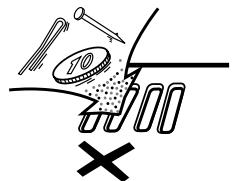
- Do not let foreign objects into the apparatus.
- Keine fremden Gegenstände in das Gerätkommenlassen.
- Ne pas laisser des objets étrangers dans l'appareil.
E' importante che nessun oggett o inserto all'interno dell'unita. - Nodeojectosextraosdentrodelequipo.
- Laat geen vreemde voorwerpen in dit apparaat vallen.
- Se till att främande foremål inte tränger in i apparaten.
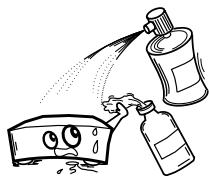
- Do not let insecticides, benzene, and thinner come in contact with the apparatus.
- Lassen Sie das Gerät nicht mit Insektiziden, Benzin oder Verdunnungsmitteln in Berührung kommt.
- Ne pasmettre encontactdes insecticides,du benzene et un diluant avec l'appareil.
- Assicuratevvi che l'unità non venga in contatto con insetticidi, benzolo o solventi.
- No permita el contacte de insecticidas, gasolina y diluyentes con el equipo.
- Laat geen insetkenverdelende middelen, benzine of verfederdneter met dit apparaat in Kontakt worden.
- Se till att inte insektsmedel på spraybruk, bensen och thinner kommt其间 kontakt med apparatens höje.
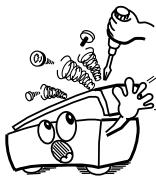
- Never disassemble or modify the apparatus in any way.
- Versuchen Sie nemals das Gerät auseinander zu behnem oder auf jegliche Art zu verändern.
- Ne jamais démonter ou modifier l'appareil d'une manière ou d'une autre.
- Non smontate mai, né modifies l'unité in dessn modo.
- Nunca desarme o modifie el equipo de ninguna manera.
- Nooit dit apparat demonteren of op andere wijze modifierten.
- Tainte isär apparaten och försök inte bygga om den.
CAUTION:
- The ventilation should not be impeded by covering the ventilation openings with items, such as newspapers, tablecloths, curtains, etc.
- No naked flame sources, such as lighted candles, should be placed on the apparatus.
- Attention should be drawn to the environmental aspects of battery disposal.
- Do not expose the set to dripping or splashing fluids.
- No objects filled with liquids, such as vases, shall be placed on the apparatus.
ACHTUNG:
A NOTE ABOUT RECYCLING:
This product's packaging materials are recyclable and can be reused. Please dispose of any materials in accordance with the local recycling regulations.
When discarding the unit, comply with local rules or regulations.
Batteries should never be thrown away or incinerated but disposed of in accordance with the local regulations concerning chemical waste.
This product and the accessories packed together constitute the applicable product according to the WEEE directive except batteries.
HINWEIS ZUM RECYCLING:
To completely disconnect this product from the mains, disconnect the plug from the wall socket outlet.
The mains plug is used to completely interrupt the power supply to the unit and must be within easy access by the user.
VORSICHT:
Thank you for purchasing this DENON PROFESSIONAL CD Player. Please read the operation instructions thoroughly in order to acquaint yourself with the CD player and achieve maximum satisfaction from it.
Be sure to keep these instructions for future reference, should any questions or problems arise.
Contents
Getting Started
Accessories 1
Before using 1,2
About discs
Discs usable on this set 2
Before playing MP3 or WMA (Windows Media® Audio) files ……2
Holding discs 2
Loading discs 2
Cautions on loading discs 3
Cautions on handling 3
Cautions on storing discs 3
Cleaning discs 3
About the remote control unit
Inserting the batteries 3
Operating range of the remote control unit 3
Part names and functions
Front panel 4
Display 4
Rear panel 5
Remote control unit 5
Connections
Cable indications 6
6
Digital connections 6
Connecting the power supply cord 6
Operation
Turning the power on 7
Opening and closing the drawer and loading a disc
Starting playback 8
To stop playback 8
Various playback functions
Playing the desired disc and desired track [Direct play] 8
To move to the next disc during playback 8
To pause playback 8
Automatic search 8, 9
Manual search 9
Programmed play 9
Random play 9
Repeat play 10
Other functions 10
Troubleshooting 11
Specifications 12
Accessories
Check that the following parts are attached in addition to the main unit:
① Operating instructions 1
② Service station list. 1
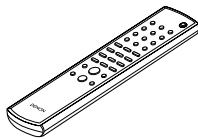
③ Remote control unit (RC-1033)
④ R03/AAA batteries 2
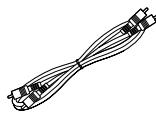
⑤ Pin-plug cable (Cable length: Approx. 1 m)............1
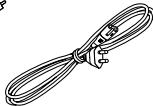
⑥ Power supply cord (Cable length: Approx. 2 m)
(3)
(4)
⑤
(6)

Before using
- Remove two shipping screws.
At the bottom of the player there are two red shipping screws for use when the player is transported. Before using the player, turn these screws counterclockwise and remove them.
If the shipping screws are still in place and the power is turned on, the disc tray
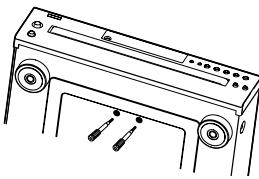
will not open. If this happens, turn off the power, unplug the power supply cord from the power outlet and remove the shipping screws. Retain these screws as they will be needed when the player is transported.
Before transporting the player, take out the discs, close the disc tray, turn off the power after "0 000 00:00" is displayed and unplug the power supply cord from the power outlet. Then install the shipping screws by turning them clockwise. Be sure to fasten them securely.
- Handle the power supply cord carefully.
Do not damage or deform the power supply cord. If it is damaged or deformed, it may cause electric shock or malfunction when used. When disconnecting the power supply cord from the wall outlet, hold the plug and do not pull on the cable.
- Do not open the top cover.
In order to prevent electric shock, do not open the top cover. If problems occur, contact your DENON PROFESSIONAL dealer.
- Do not place anything inside.
Prevent metal objects from entering the CD player and avoid spilling liquids on it.
Electric shock or malfunction may result.
- Cautions on moving.
First, if a disc is loaded, eject it, then turn off the power, unplug the power supply cord from the power outlet and disconnect the connection cables with other devices.
- Cautions on using mobile phones.
Using a mobile phone near this unit may result in noise. If so, move the mobile phone away from this unit when using it.
- Sufficiently ventilate the place of installation.
If the unit is left in a room full of the smoke from cigarettes, etc., for long periods of time, the surface of the optical pickup could get dirty, in which case it will not be able to read the signals properly.
- Store the operating instructions in a safe place.
After reading the operating instructions, store them in a safe place as they could come in handy in the future.
- Note that the illustrations in these instructions may differ from the actual unit for explanation purposes.
NOTE:
- This CD player uses a semiconductor laser. To ensure stable operation, it is recommended to use the set indoors at a temperature of 5^ (41^) 35^ (95^)
About discs
Discs usable on this set
1 Music CDs
Discs with the mark at the right can be used on this set.
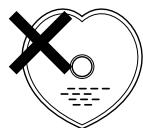
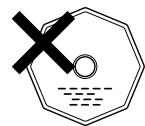
Note however that discs with special shapes (heart-shaped discs, octagonal discs, etc.) cannot be played. Do not attempt to play them, as doing so could damage the set.

CD-R/CD-RW
- Some discs and some recording formats may not be playable.
Non-finalized discs cannot be played.
※ Finalization:
Finalization is the process that makes recorded CD-R/CD-RW discs playable on compatible players.
Before playing MP3 or WMA (Windows Media® Audio) files
There are many music distribution sites on the Internet allowing you to download music files in MP3 or WMA format. The music (files) downloaded from such sites can be stored on CD-R or CD-RW discs and played on the this CD player.
"Windows Media" and "Windows" are registered trademarks or trademarks in the United States and other countries of the Microsoft Corporation of the United States.
※ According to copyright laws, recordings you have made should only be used for your personal enjoyment and must not be used in other ways without the consent of the copyright holder.
NOTE:
- This CD player is compatible with "MPEG-1 Audio Layer-3" standards (sampling frequency of 44.1 and 48kHz ). It is not compatible with "MPEG-2 Audio Layer-3", "MPEG-2.5 Audio Layer-3", MP1 or MP2 standards.
The signals are output with a sampling frequency of 44.1kHz - When writing MP3 files on a CD-R or CD-RW disc, set the writing software's format to "ISO9660 Level 1". The files may not play properly if they are recorded in other formats. Also note that with some writing software it is not possible to record in ISO9660 format. If so, use a different program allowing you to record in ISO9660 format.
- With MP3 files, the higher the bit rate, the better the sound quality. The compatible bit rate range is 32 to 320 kbps for MP3 files, 64 to 160 kbps for WMA files. We recommend using MP3 files with bit rates of 128 kbps or greater on the this CD player.
- Be sure to add the extensions ".MP3" or ".WMA" to MP3 or WMA files, respectively. Files with extensions other than ".MP3" or ".WMA" or files without extensions cannot be played. (On Macintosh computers, MP3 files can be played by giving the extension ".MP3" after the file name consisting up a maximum of 8 alphanumeric characters and storing the files on a CD-R or CD-RW disc.)
- This CD player is not compatible with packet write software or playlists.
- The time may not be displayed properly when searching or pausing during variable bit rate playback.
- The time display cannot be switched "TOTAL REMAIN" using the TIME button on the remote control unit.
NOTE:
- Multisession and CD-R/CD-RW discs that have not been completely written can be played, but we recommend using discs closed after a maximum of 10 sessions or discs that have been completed.
- The maximum number of files and folders playable is 512 (total of the number of folders and files). The maximum number of folders is 256.
- Copyright-protected WMA files cannot be played. ("--:--" is displayed. Use the 1一 / 一 一 or button on the main unit (the 1一 一 or button on the remote control unit) to select a different file.)
Holding discs
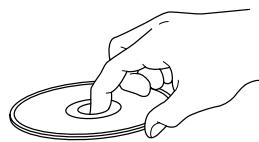
Do not touch the signal surface.
Loading discs
- Set the disc with the labeled side facing up.
- Make sure the disc tray is fully open when inserting the disc.
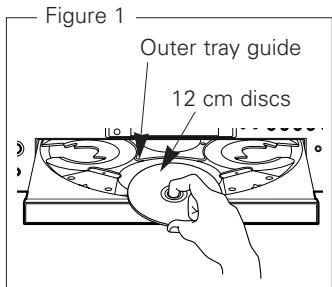
- Place the discs flatly, 12cm discs in the outer tray guide (Figure 1), 8cm discs in the inner tray guide (Figure 2).
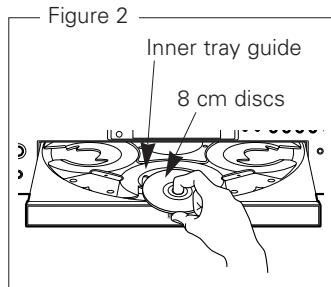
- Place 8 cm discs in the inner tray guide without using an adapter.

- "0 000 00:00" is displayed if no disc is loaded, if a disc that cannot be played is loaded or if the disc is loaded upside-down.
Cautions on loading discs
- Only load one disc per tray at a time. Loading two or more discs per tray can damage the set or scratch the discs.
- Do not use cracked or warped discs or discs that have been repaired with adhesive, etc.
- Do not use discs on which the sticky part of cellophane tape or labels is exposed or on which there are traces of where labels have been removed. Such discs could get caught inside the player and damage it.
Cautions on handling
- Do not get fingerprints, oil or dirt on discs.
- Take special care not to scratch discs when removing them from their cases.
- Do not bend or heat discs.
- Do not enlarge the hole at the center.
- Do not write on the labeled (printed) surface with ball-point pens, pencils, etc., or stick new labels on discs.
- Water droplets may form on discs if they are moved suddenly from a cold place (outdoors for example) to a warm place, but do not try to dry them off using a hairdryer, etc.
Cautions on storing discs
- Be sure to remove discs after using them.
- Be sure to store discs in their cases to protect them from dust, scratches, warping, etc.
-
Do not store discs in the following places:
-
Places exposed to direct sunlight for long periods of time
- Dusty or humid places
- Places exposed to heat from heating appliances, etc.
Cleaning discs
- If there are fingerprints or dirt on discs, wipe them off before using the disc. If not the sound quality could be reduced and the sound may be broken.
- Use a commercially available disc cleaning set or a soft cloth to clean discs.
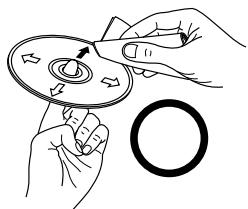
Gently wipe the disc from the inside towards the outside.
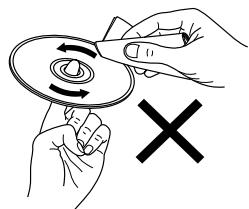
Do not wipe with a circular motion.
NOTE:
- Do not use record spray, antistatic agents, or benzene, thinner or other solvents.
About the remote control unit
Inserting the batteries
① Remove the remote control unit's rear cover.
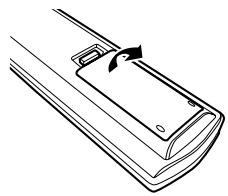
③ Put the rear cover back on.
② Set two R03/AAA batteries in the battery compartment in the indicated direction.
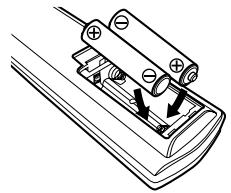
Notes on batteries:
- Replace the batteries with new ones if the set does not operate even when the remote control unit is operated nearby the unit. (The attached batteries are only for verifying operation.)
- When inserting the batteries, be sure to do so in the proper direction, following the “ ” and “ ” marks in the battery compartment.
-
To prevent damage or leakage of battery fluid:
-
Do not use a new battery together with an old one.
- Do not use two different types of batteries.
- Do not short-circuit, disassemble, heat or dispose of batteries in flames.
- If the battery fluid should leak, carefully wipe the fluid off the inside of the battery compartment and insert new batteries.
- Remove the batteries from the remote if it will not be in use for long periods.
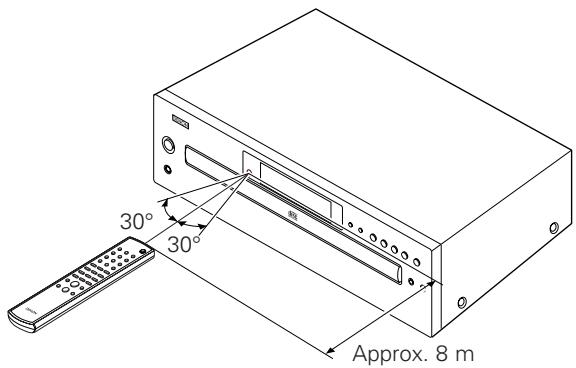
Operating range of the remote control unit
- Point the remote control unit at the remote sensor when operating it.
- The remote control unit can be used from a distance of up to about 8 meters, at a horizontal angle of up to 30^ with respect to the sensor.
NOTE:
- It may be difficult to operate the remote control unit if the remote sensor is exposed to direct sunlight or strong artificial light.
Part names and functions
For buttons not explained here, see the page indicated in parentheses ( ).
Front panel
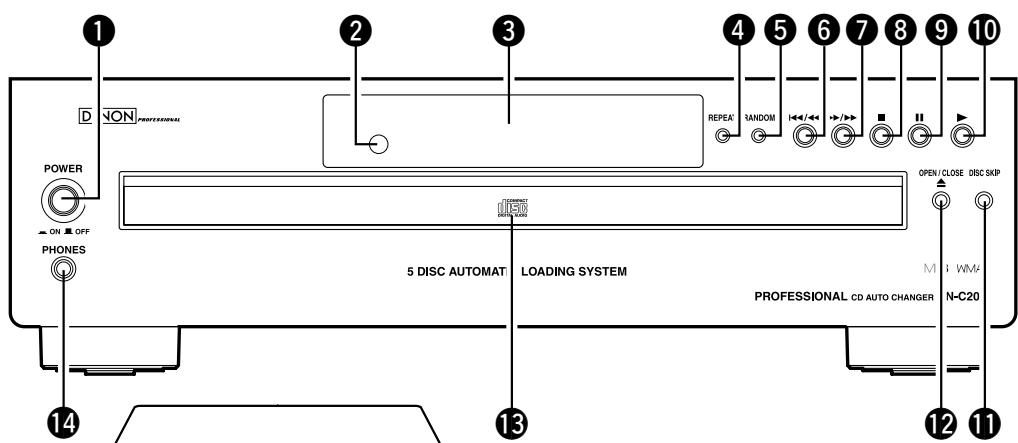
Automatic/Manual Search Reverse button (1/4)
- Press this button to return the pickup to the beginning of the present track. Press again to return to other tracks.
- Keep on pressing this button for more than 0.5 seconds during playback for fast reverse search.
1 POWER switch
- Press once to turn the power on.
- If a disc is loaded when the power is turned on, playback starts automatically.
Remote control sensor
This sensor receives the infrared light transmitted from the wireless remote control unit.
③ Display
4 REPEAT button
Press this button for repeated playback. The "REPEAT" indicator appears on the display. Three types of repeat modes are available.(10 page 10)
5 RANDOM button
Press this button to begin random play.
Automatic/Manual Search Forward button ( / )
- Press this button to move the pickup forward to the beginning of the next track. Press again to move ahead to other tracks.
- Keep on pressing this button for more than 0.5 seconds during playback for fast forward search.
8 Stop button (■)
Press this button to stop playback.
9 Pause button (II)
Press this button to stop play temporarily.
10 Play button (▶ PLAY)
Press this button to play a disc.
DISC SKIP button
Each time this button is pressed, the carousel will rotate in a clockwise direction to the next tray position. This allows for loading or unloading of discs.
This button is also used to select the next disc, in the normal play continuously.
12 OPEN/CLOSE button (▲)
- Press this button when opening.
- The drawer is opened toward the front.
- Press the button again to close the drawer.
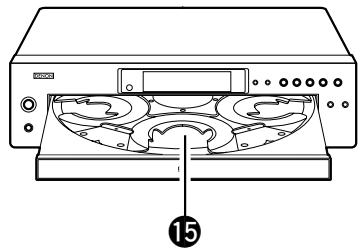
15 Loading Printer
Discs can be loaded and unloaded when this drawer is open. Do not force the drawer closed by hand.
14 PHONES jack
For private listening, you can connect your headphones (commercially available) to this jack.
15 Disc Trays (1 ~ 5)
One disc per tray can be loaded.
Display
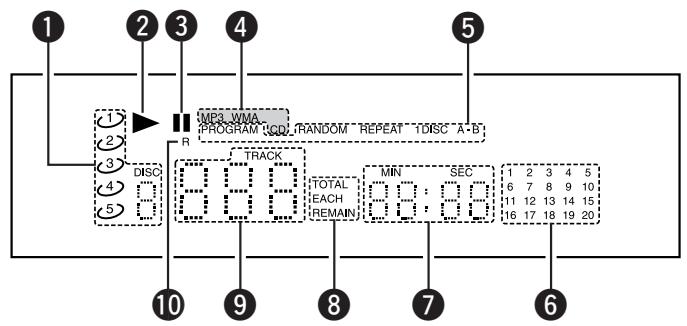
1 Disc indicator
2 Play indicator
3 Pause indicator
4 Playing disc indicator
5 Playing mode indicator
6 20-track music calender
Time indicator
Time display mode indicator
9 Track number indicator
Remote control signal receive indicator
Rear panel
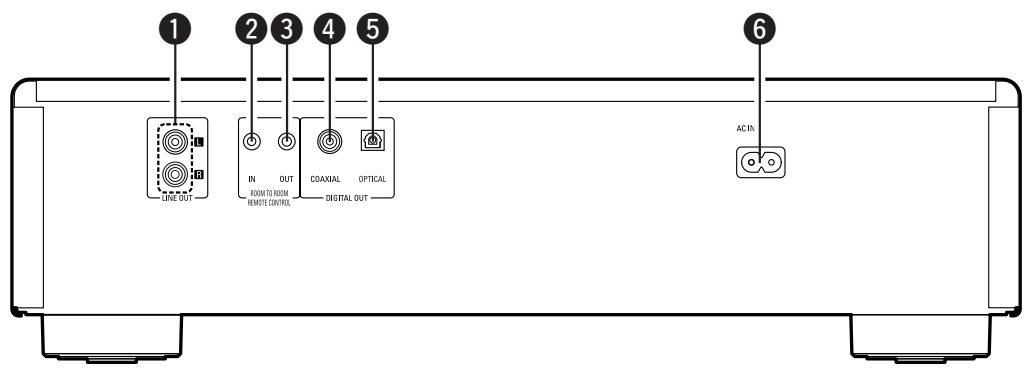
LINE OUT terminals
Connect these to the amplifier's input terminals.
REMOTE CONTROL jack (ROOM TO ROOM IN)
This is the input connector for wired remote control.
Consult your DENON PROFESSIONAL dealer if you wish to use this connector.
REMOTE CONTROL jack (ROOM TO ROOM OUT)
This is the output connector for wired remote control.
Consult your DENON PROFESSIONAL dealer if you wish to use this connector.
COAXIAL terminal
This terminal outputs digital data.
Connect using a 75 Ω/ohms coaxial cable (commercially available) intended for digital audio connections.
OPTICAL terminal
Digital data is output in optical form from this terminal.
Connect using an optical fiber cable (commercially available).
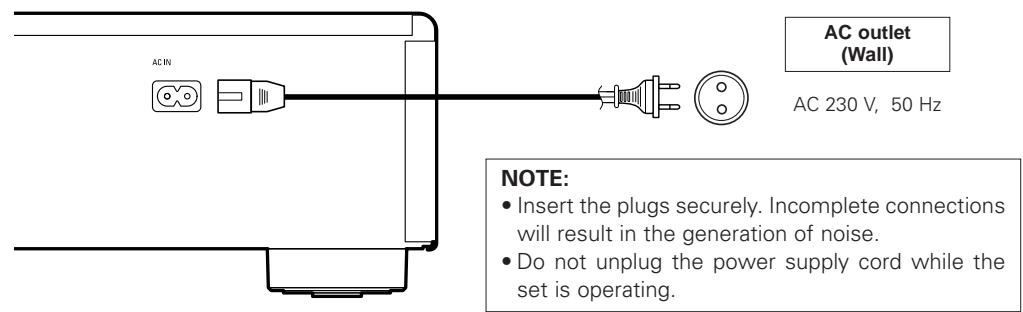
6 AC inlet
Connect to an AC power supply using the included power supply cord.
Remote control unit
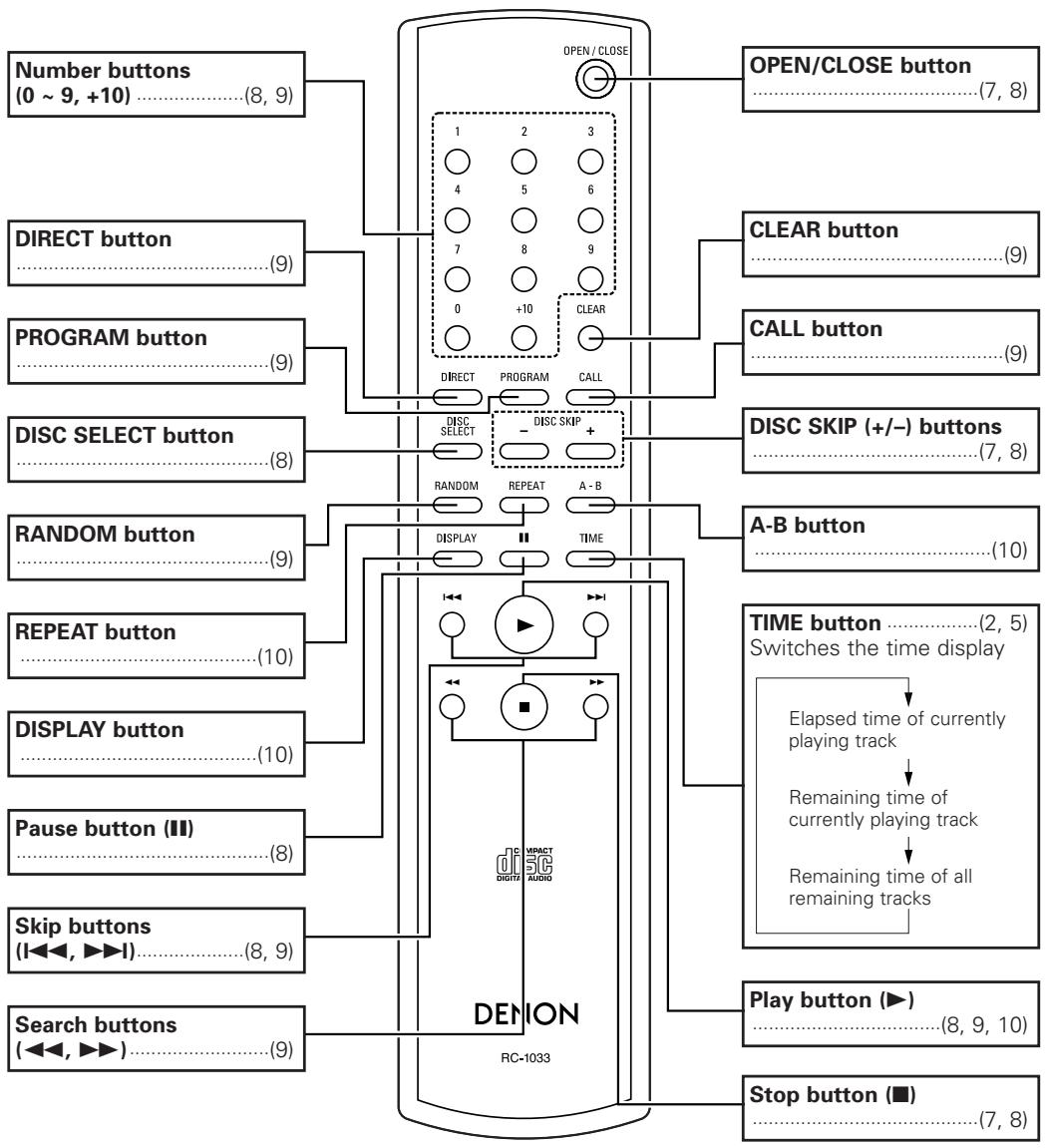

- If the automatic search forward button (▶▶), automatic search reverse button (↓←) or +10 button are held in, the function of these button will be repeated.
Connections
NOTE:
- Do not plug in the power supply cord until all connections have been completed.
- When making connections, also refer to the operating instructions of the other components.
- Be sure to connect the left and right channels properly (left with left, right with right).
- Making connections with the power turned on could result in noise or damage the speakers.
- Bunching the power supply cords and connection cables together could result in humming or noise.
Cable indications
Connect using the connection cables shown below.
| Audio cable | Signal direction |
| A Analog connections (Stereo) (White) (Red) Pin-plug cable | Audio signal OUT IN |
| B Digital connections (Coaxial) (Orange) Coaxial cable (75 Ω/ohms pin-plug cable) C Digital connections (Optical) Optical fiber cable |
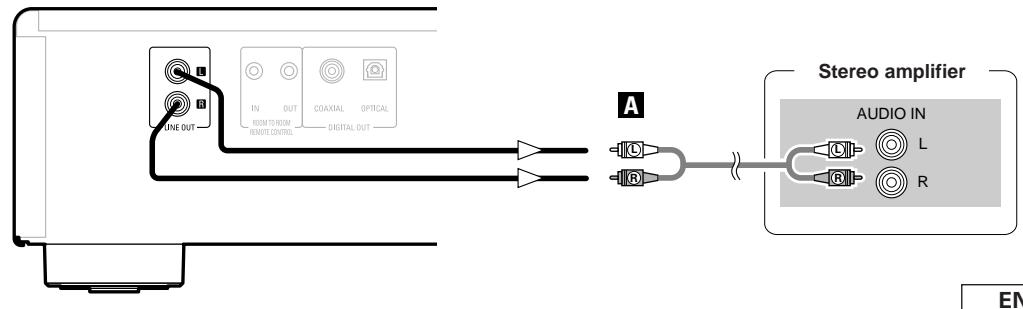
Analog connections
Use the included pin-plug cable to connect the left (L) and right (R) output terminal (LINE OUT) of the CD Player to the CD, AUX or TAPE PLAY left (L) and right (R) input terminal of the amplifier.
Digital connections
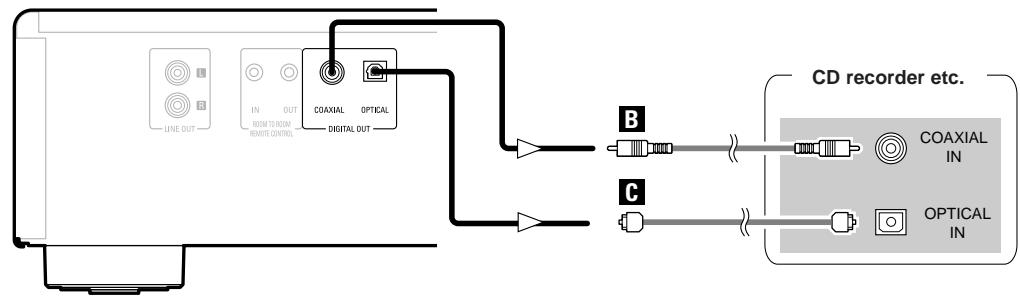

- Digital signals are output from optical terminal and coaxial terminal with parallel.
□When connecting the OPTICAL digital output connector with an optical transmission cable (commercially available)
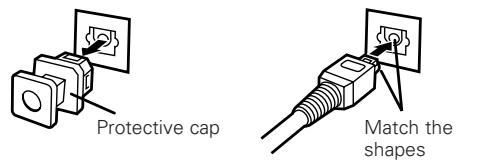
Remove the protective cap, match the shapes then insert firmly all the way in.

- Store the protective cap in a safe place so as not to lose it, and use it when not using the terminal.
Connecting the power supply cord
Operation
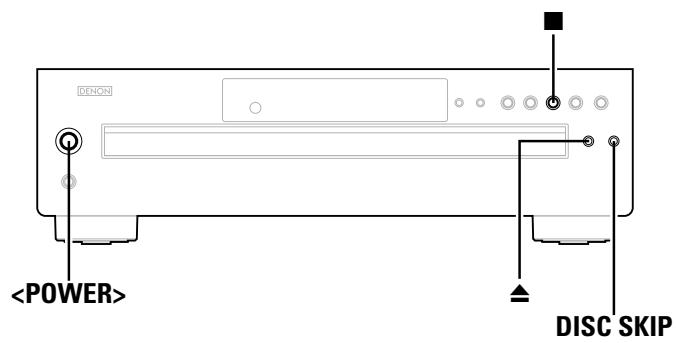
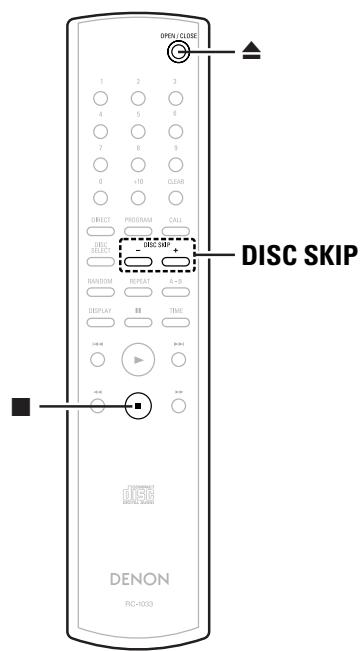
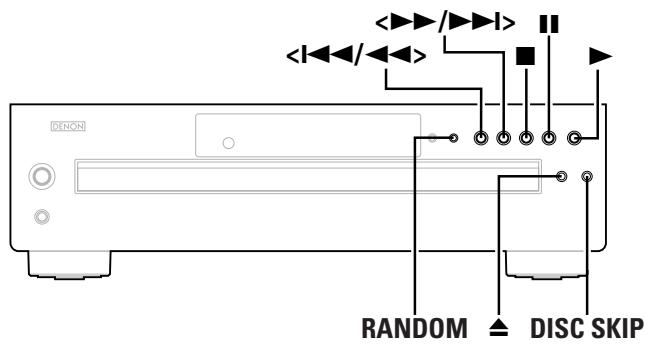
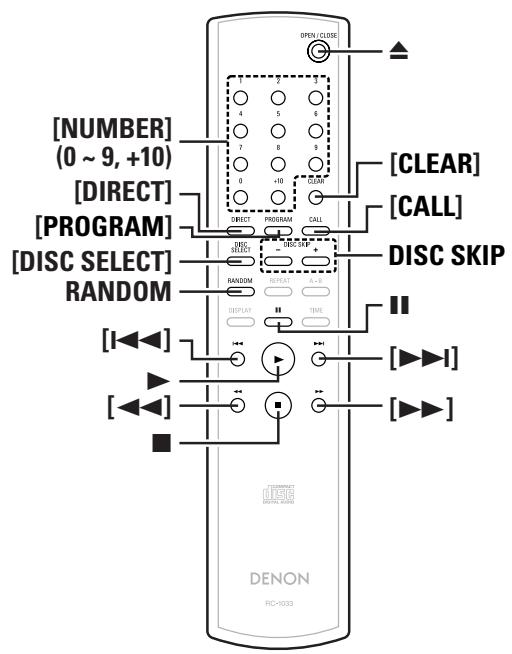
About the button names in this explanation
< > : Buttons on the main unit
[ ] : Buttons on the remote control unit
Button name only :
Buttons on the main unit and remote control unit
Turning the power on
Press.
- When a disc is loaded, playback starts automatically.
- If no disc is loaded "0 000 00:00" is displayed.
To turn off the power:
Press
NOTE:
- To turn off the power while a disc is playing, be sure to press to stop playback before turning off the power.
Opening and closing the drawer and loading a disc
1 Press ▲.
- Make sure the drawer is completely open.
※ Hold the disc by the edges and place it on the disc tray. (Do not touch the signal surface, i.e., the glossy side.)
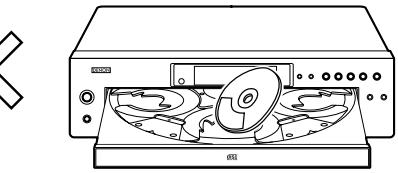
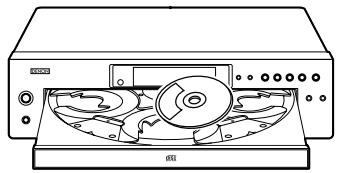
2 Set the disc properly in the tray according to its size. -Set 8 cm discs in the center hole.
- Set 12 cm discs in the outer hole.
3 Press DISC SKIP.
※ The carousel turns and a disc can be loaded in the another disc tray.
※ When the drawer is opened during the play mode, it is possible to load and unload discs in all of the disc trays other than the one whose disc is currently playing.
4 Press again.
NOTE:
- The player will not operate properly and the disc may even be damaged if it is not set correctly.
- If your finger should get caught in the drawer when it closes, press .
- Do not place any foreign objects on the disc tray, and do not place more than one disc on the tray at a time. Otherwise malfunction may occur.
- Do not push in the disc tray manually when the power is off as this may cause malfunction and damage the CD player.
- Do not touch the carousel while it is turning. Also, do not turn the carousel by hand when it is stopped. Doing so could damage it.
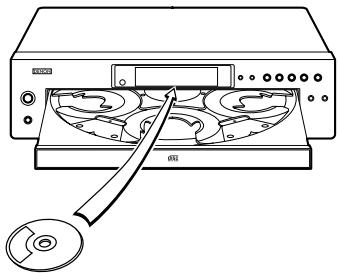
- Do not insert disc where indicated by arrow. This could damage the internal mechanism in the unit.
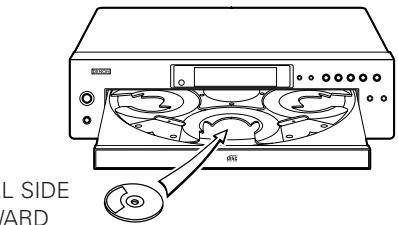
LABEL SIDE UPWARD


About the button names in this explanation
< > : Buttons on the main unit
[ ] : Buttons on the remote control unit
Button name only :
Buttons on the main unit and remote control unit
Starting playback
Press ▷.
- The drawer closes and the disc just loaded is played.
- Playback starts.
※ If is pressed while a disc is playing, playback continues, but the drawer opens and four discs can be replaced. The disc that can be replaced switches when DISC SKIP is pressed.
※ Playback stops automatically after the last track on the disc has been played.
To stop playback
Press during playback.
- Playback stops.
Various playback functions
Playing the desired disc and desired track [Direct play]
1 Press [DISC SELECT].
2 Use [NUMBER] (1 to 5) to select the disc.
3 Use [NUMBER] (0 9, + 10) to select the track.
Example: To play the 4th track on the 3rd disc: Press [DISC SELECT] [3] [4].
Example: To play the 12th track on the 5th disc: Press [DISC SELECT] [5] [+10] [2].
4 Playback begins from the number of the disc and track selected.
To move to the next disc during playback
Press DISC SKIP.
The carousel in the drawer turns and the disc on the next tray is played.


- When [DISC SKIP-] on the remote control unit is pressed, the carousel turns in the opposite direction and the previous disc is played.
To pause playback
Use this function to stop playback temporarily, and later resume playback from that point.
Press II during playback.
- Playback pauses.
To resume playback:
Press ▷.
Automatic search
□ Moving ahead to the beginning of the next track (file):
Press [ I] or < >> / < >> during playback.
- The pickup will advance to the beginning of the next track and playback will continue. Pressing the button several times will forward the pickup the corresponding number tracks.
※ Normal playback resumes when you release your finger from the button.
Operation
□ Moving back to the beginning of the current track (file):
Press [I] or during playback.
- The pickup will advance to the beginning of the next track and playback will continue. Pressing the button several times will forward the pickup the corresponding number tracks.
Manual search
Use this function to skip forward or backward while listening to the sound.
Searching forward:
Press [▶▶] or press and hold / during playback.
- "[]" is displayed if the end of the last track is reached during manual searching. If this happens, use [▲] or
Searching backward:
Press [←] or press and hold
- "E E" is displayed if the beginning of the first track is reached during manual searching. If this happens, use [▶] or <▶▶/▶▶ to turn the display off.
NOTE:
- The sound may be interrupted momentarily when resuming normal playback from the manual search mode. This is not a malfunction.
Programmed play
You can play certain tracks on the loaded discs in any order. Up to 32 tracks can be set in a program.
1 Press [PROGRAM].
- The "PROGRAM" indicator lights.
2 Press [DISC SELECT], [NUMBER] to select the disc to be programmed.
Example: To program the 3rd track on the 2nd disc and the 12 track on the 5th disc: Press [PROGRAM] [DISC SELECT] [2] [3], [DISC SELECT] [5] [+10] [2].
3 Press ▲.
- The tracks are played in the programmed order.
□ Checking the programmed tracks:
Press [CALL].
The tracks are displayed in the programmed order each time the button is pressed.
Clearing tracks from the program:
Press [CLEAR] while the track you want to clear is displayed during the "Checking the programmed tracks" operation above.
□ Stopping programmed playback:
Press [DIRECT] or press to open the disc tray.

- Tracks on a disc not loaded can also be programmed, but if you try to play that disc, the microprocessor detects that it is not loaded and the following disc is played automatically.
- When programming, do not program a track number which is not recorded on the disc. If such a number is programmed by mistake, the player ignore the program.
- For programmed playback, the remaining time for the program is only displayed when the programmed tracks are all on the same disc.
"---:---" is displayed when tracks on more than one disc are programmed.
- In the case that the total playing time of programmed tracks becomes more than 99:59, "---:---" is displayed.
Random play
Use this function to play all the tracks on the all discs or a disc once in random order.
Full random play:
1 Press RANDOM.
- The "RANDOM" indicator lights.
2 Press▶.A track in
※ During programmed playback:
The programmed tracks are played in random order.
※ During repeat playback:
The tracks are played once in random order, then played again in a different order, and this is repeated.
□Stopping random playback:
Press RANDOM or [DIRECT].
NOTE:
- During random play, the player may display the number of disc which is not loaded in the tray. In such a case, the player will read the disc information, then reset automatically to correct. This is not a malfunction.
Disc sequential random play:
1 Press RANDOM and specify the disc numbers (1 to 5) with the [DISC SELECT] and the [NUMBER].
2 Press ▷.
- A track is selected automatically and playback starts.
![MARANTZ DN-C200P - Press RANDOM and specify the disc numbers (1 to 5) with the [DISC SELECT] and the [NUMBER]. - 1](/content/2025/01/166697/images/ad51b1965e311214909f6435014f39077b1ebbf95c703e367ca00b7be1f59df0.jpg)
![MARANTZ DN-C200P - Press RANDOM and specify the disc numbers (1 to 5) with the [DISC SELECT] and the [NUMBER]. - 2](/content/2025/01/166697/images/2572faa5612fd682f51c713116ebe123cfd3f300f6bf891750315b0c4bc96d22.jpg)
About the button names in this explanation
< > : Buttons on the main unit
[ ] : Buttons on the remote control unit
Button name only :
Buttons on the main unit and remote control unit
Repeat play
1 Press REPEAT once.
One-track Repeat
- The "REPEAT 1" indicator lights.
The track currently playing is repeated.
One-disc Repeat
- The "REPEAT 1DISC" indicator lights.
The disc currently playing is repeated.
All-disc Repeat
- The "REPEAT DISC" indicator lights.
- All the discs currently loaded are repeated.
OFF
2 Press ▷.
During regular playback:
All the tracks are played repeatedly.
During programmed playback:
The tracks are played repeatedly in the programmed order.
※ In the random play mode:
The tracks are played once each in random order, then played again in a different order.
□ Stopping all-track repeat playback:
Press REPEAT twice in a row or press to open the disc tray.

- In the programmed play or random play mode during all-track repeat playback, normal playback resumes when REPEAT is pressed once.
□A-B repeat play:
1 During playback, press [A-B] at the point at which you want to start repeating (point A).
- The "A-B" indicator blinks.
2 During playback, press [A-B] at the point at which you want to stop repeating (point B).
- The "A-B" indicator lights and the A-B section is played repeatedly.
□Stopping A-B repeat playback:
Press [A-B] again.

- The pickup will now return to the starting point and repeat playback of the selected interval.
- A-B repeat playback is not possible during programmed playback or random playback.
Other functions
Switching the display brightness:
The brightness can be switched in three steps or turned off. Press [DISPLAY].
Troubleshooting
If a problem should arise, first check the following.
- Are the connections correct?
- Have you operated the player according to the Operating Instructions?
If this unit is not operating properly, check the items listed in the table below. Should the problem persist, there may be a malfunction.
Disconnect the power immediately and contact your store of purchase.
| Symptom | Cause | Measures | Page |
| Disc tray does not open. | • The power is not on. | • Turn on the power. | 7 |
| “0 000 00:00” is displayed even though a disc is loaded. | • The disc is not properly loaded. • The loaded disc is not a CD. | • Reload the disc. • Load a CD. | 2, 3 2 |
| Disc is not played when▶ button is pressed. | • The disc is dirty or scratched. | • Wipe the dirt off the disc or replace the disc. | 3 |
| No sound is produced or sound is distorted. | • The output cables are not properly connected to the amplifier. • The amplifier's function setting or adjustments are not right. | • Check the connections. • Check the amplifier's function and controls and adjust as necessary. | 6 - |
| No digital signals are output. | • The connection cables are not properly connected. | • Check the connections. | 6 |
| Specific section of the disc cannot be played properly. | • The disc is dirty or scratched. | • Wipe the dirt off the disc or replace the disc. | 3 |
| Programmed playback is not possible. | • The tracks have not been programmed properly. | • Program properly. | 9 |
| A CD-R or CD-RW disc cannot be played. | • The disc has not been finalized. • The recording conditions are bad or the quality of the disc itself it poor. | • Finalize the disc then play it. • Use a properly recorded disc. | 2 2 |
| Set does not operate properly when remote control unit is operated. | • The batteries are spent. • The remote control unit is too far from the set. | • Replace the batteries with new ones. • Move the remote control unit closer to the set. | 3 3 |
| “- - : - - ” is displayed when playing files recorded in MP3 or WMA format. | • You have selected a copyright-protected WMA file or a file that cannot be played normally. | • Use the ↓/▲ or ▷/▲ button on the main unit (the ↓ or ▷ button on the remote control unit) to select a different file. | 2 |
Specifications
Audio performance
- Analog output
Channels: 2 channels
Playable frequency range: 2 Hz ~ 20 kHz
S/N: 108 dB
Dynamic range: 98 dB
Harmonic distortion: 0.003 % (1 kHz)
Separation: 98 dB
Wow & flutter: Less than the measuring
Output level: Fix 2.0 V (10 kΩ/kohms)
Signal type: 16-bit linear PCM
Sampling frequency: 44.1 kHz
Audio compact discs are used
12 cm and 8 cm
Digital output
Coaxial: 0.5 Vp-p (75 Ω/ohms)
OPTICAL: -15 ~ -21 dBm
Light emission wavelength: 660 nm
- Phones output 0.04 mW
General
Power supply: AC 230 V, 50 Hz
Power consumption: 15 W
Maximum external dimensions: 434 (W) x 120 (H) x 400 (D) mm
(including protruding parts)
Mass: 6.3 kg
Remote control unit (RC-1033)
Remote control type: Infrared pulse
Batteries: R03/AAA Type (two batteries)
External dimensions: 49 (W) x 220 (H) x 21 (D) mm
Mass: 106 g (included batteries)
- For purposes of improvement, specifications and design are subject to change without notice.
D&M Holdings Inc.
PROFESSIONAL BUSINESS COMPANY
TOKYO, JAPAN
www.dm-pro.jp
- WARNING:
- "CLASS 1 LASER PRODUCT"
- - DECLARATION OF CONFORMITY
- CAUTION:
- ACHTUNG:
- A NOTE ABOUT RECYCLING:
- HINWEIS ZUM RECYCLING:
- VORSICHT:
- Contents
- Getting Started
- About discs
- About the remote control unit
- Part names and functions
- Connections
- Operation
- Various playback functions
- Accessories
- Before using
- - Remove two shipping screws.
- - Handle the power supply cord carefully.
- - Do not open the top cover.
- - Do not place anything inside.
- - Cautions on moving.
- - Cautions on using mobile phones.
- - Sufficiently ventilate the place of installation.
- - Store the operating instructions in a safe place.
- NOTE:
- Discs usable on this set
- Music CDs
- CD-R/CD-RW
- ※ Finalization:
- Before playing MP3 or WMA (Windows Media® Audio) files
- Holding discs
- Loading discs
- Cautions on loading discs
- Cautions on handling
- Cautions on storing discs
- Cleaning discs
- Inserting the batteries
- Notes on batteries:
- Operating range of the remote control unit
- Front panel
- Display
- Rear panel
- LINE OUT terminals
- REMOTE CONTROL jack (ROOM TO ROOM IN)
- REMOTE CONTROL jack (ROOM TO ROOM OUT)
- COAXIAL terminal
- OPTICAL terminal
- AC inlet
- Remote control unit
- Cable indications
- Analog connections
- Digital connections
- Connecting the power supply cord
- Turning the power on
- Press.
- To turn off the power:
- Opening and closing the drawer and loading a disc
- Press ▲.
- Set the disc properly in the tray according to its size. -Set 8 cm discs in the center hole.
- Press DISC SKIP.
- Press again.
- About the button names in this explanation
- Starting playback
- Press ▷.
- To stop playback
- Press during playback.
- Playing the desired disc and desired track [Direct play]
- To move to the next disc during playback
- Press DISC SKIP.
- To pause playback
- Press II during playback.
- To resume playback:
- Automatic search
- □ Moving ahead to the beginning of the next track (file):
- Press [ I] or < >> / < >> during playback.
- □ Moving back to the beginning of the current track (file):
- Press [I] or during playback.
- Manual search
- Searching forward:
- Press [▶▶] or press and hold / during playback.
- Searching backward:
- Press [←] or press and hold
- Programmed play
- Press [DISC SELECT], [NUMBER] to select the disc to be programmed.
- □ Checking the programmed tracks:
- Clearing tracks from the program:
- □ Stopping programmed playback:
- Random play
- Full random play:
- □Stopping random playback:
- Disc sequential random play:
- Press RANDOM and specify the disc numbers (1 to 5) with the [DISC SELECT] and the [NUMBER].
- Repeat play
- Press REPEAT once.
- One-track Repeat
- One-disc Repeat
- All-disc Repeat
- OFF
- Press ▷.
- □ Stopping all-track repeat playback:
- □A-B repeat play:
- Other functions
- Troubleshooting
- Specifications
- Audio performance
- General
- Remote control unit (RC-1033)
Brand : MARANTZ
Model : DN-C200P
Category : Professional CD player