
XRB 300 RC - Car radio SCOTT - Free user manual and instructions
Find the device manual for free XRB 300 RC SCOTT in PDF.


| Product type | Car radio |
| Brand | SCOTT |
| Model | XRB 300 RC |
| Power supply | DC 12V, negative ground |
| Dimensions (W x D x H) | 178 x 160 x 50 mm |
| Maximum output power | 4 x 40 watts |
| Supported audio formats | CD, CD-R/RW, MP3, WMA, SD/MMC, USB, AUX |
| Radio | FM stereo, 87.5 - 108 MHz, RDS |
| Bluetooth | Yes, with hands-free and A2DP audio streaming |
| Front panel | Detachable and flip-down |
| Display | LCD |
| RDS functions | AF, TA, PTY, REG, EON |
| Sound settings | Bass, treble, balance, fader, preset equalizer (POP, ROCK, CLASS, FLAT), Loudness |
| Station memory | 18 FM stations |
| USB port | Type 1.1, max capacity 2 GB |
| Memory card slot | SD/MMC, max capacity 1 GB |
| AUX input | 3.5 mm jack on front panel |
| Anti-shock function | Yes |
| Clock | 12/24 h display, adjustable |
| Included accessories | Manual, mounting frame, metal brackets, screws, removal keys, ISO connector, front panel protective case |
| Care and cleaning | Clean with a soft dry cloth. Do not use alcohol or solvents. |
| Safety | Protection fuse, disconnect battery before installation |
| Spare parts and repairability | Repair only by an authorized center. No spare parts provided. |
| General information | Standard DIN installation. Max installation angle 30°. |
Frequently Asked Questions - XRB 300 RC SCOTT
User questions about XRB 300 RC SCOTT
0 question about this device. Answer the ones you know or ask your own.
Ask a new question about this device
Download the instructions for your Car radio in PDF format for free! Find your manual XRB 300 RC - SCOTT and take your electronic device back in hand. On this page are published all the documents necessary for the use of your device. XRB 300 RC by SCOTT.
USER MANUAL XRB 300 RC SCOTT
Anti-Shock Mechanism
Bluetooth Function
40 W X 4 High Power Output
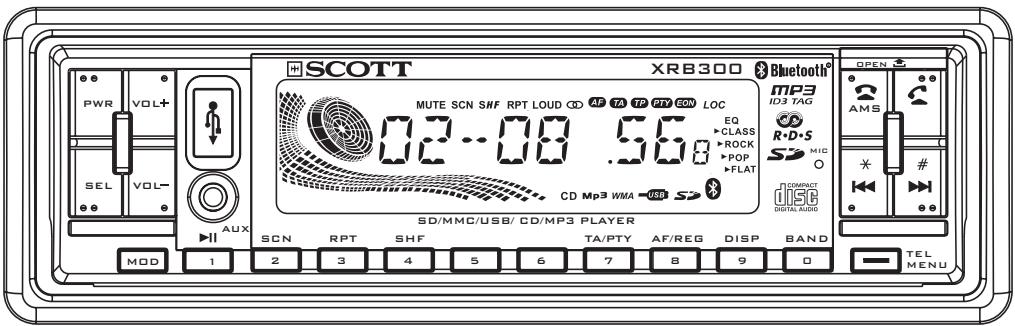
USER MANUAL AND INSTALLATION INSTRUCTIONS
CONTENTS
CONTENTS GB-1
ACCESSIONS GB-2
PRECAUTION GB-3
INSTALLATION GB-4
USING THE DETACHABLE FRONT PANEL GB-7
WIRING DIAGRAM GB-8
OPERATIONS GB-9
LOCATION AND FUNCTION OF KEYS GB-9
GENERAL OPERATIONS GB-10
RADIO OPERATIONS GB-14
RDS (RADIO DATA SYSTEM) OPERATIONS GB-15
CD/MP3/WMA DISC OPERATIONS GB-17
SD/MMC MEMORY CARD OPERATIONS GB-20
USB OPERATIONS GB-21
AUX IN OPERATIONS . GB-21
BLUETOOTH FUNCTION TIPWIZARD GB-22
DISC NOTES GB-25
SPECIFICATIONS . GB-27
TROUBLESHOOTING . GB-28
ACCESSIONS
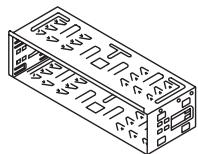
Mounting Bracket (Half Sleeve) X1
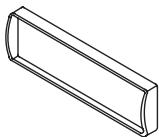
Removable Trim Ring equipped on the unit X1
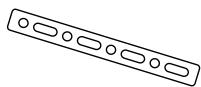
Small metal Strip X1

Plain Washer X1

Spring Washer X2
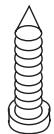
Tapping Screw X1

Screw X4

Hex Nut X1
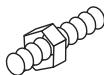
Mounting Bolt X1
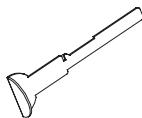
Release Key X2
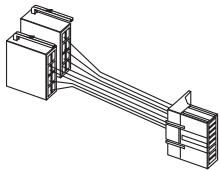
ISO Wire Connector X1
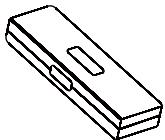
Protective Case X1
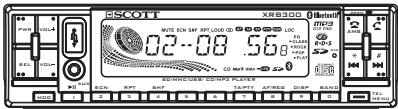
Removable Control Panel X1
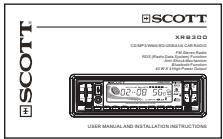
User Manual X1
PRECAUTION
This unit is designed and manufactured with the users safety in mind, however any improper use or operation may result in certain dangers. It is therefore highly recommended to read this manual thoroughly and adhere to the following precautions.
SAFETY PRECAUTIONS
To prevent an electrical shock, do not open the housing of the unit. In any case of malfunctioning, only have the unit serviced by an approved and qualified service centre.
Do not expose to any water or to a very humid environment. Do not operate the unit when your hands are wet as this may cause a short circuit.
For safe driving, keep the volume low in order to concentrate on traffic conditions.
Do not clean the unit with alcohol, only clean with a soft dry cloth.
If the unit has been kept at a high temperature or in a high humidity environment, cool down the car interior before turning on the unit.
Do not use the unit for a long time without running the vehicle engine, it may drain the battery and the vehicle engine may not be able to start.
Before final installation in the dashboard opening, first connect the wiring and make sure the unit is working properly.
Only use parts provided with the unit to ensure proper installation.
Do not route wiring in places that the heat may melt the wiring insulation.
When replacing the fuse, ensure that the new fuse has the capacity recommended by the manufacturer.
OPERATION PRECAUTIONS
Do not operate the player with scratched, bent or broken discs. When a disc is not loaded properly, do not force in into the disc loader.
Never insert any other objects into the disc loader like a coin or pin, etc as this may cause damage or a short circuit.
Do not use different disc formats other than 12cm round discs.
If the unit is disconnected to the battery, it will lose memorized data.
If the source disc has poor sound quality due to scratches, dirt or a bad recording, the playback sound quality may be poor.
Installation
Notes:
- Choose the mounting location where the unit will not interfere with the normal driving function of the driver.
- Before finally installing the unit, connect the wiring and make sure that the unit works properly.
- Consult with your nearest dealer if installation requires the drilling of holes or other modifications of the vehicle.
- Install the unit where it does not get in the driver's way and cannot injure the passenger if there is a sudden stop, like an emergency stop.
- If installation angle exceeds 30° from horizontal, the unit may not perform properly.
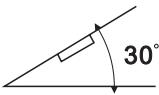
- Avoid installing the unit where it would be subject to high temperature, such as from direct sunlight, or from hot air, from the heater, or where it would be subject to dust, dirt or excessive vibration.
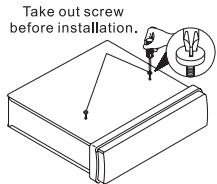
Remove the CD mechanism transit screw before installation
Before install the unit, must remove the two screws with label "REMOVE SCREW".
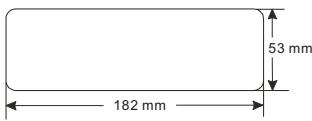
Installation Opening
This unit can be installed in any dashboard having an opening as shown below (DIN standard):
Installing the unit
Be sure you test all connections first, and then follow these steps to install the unit.
- Make sure the ignition is turned off, and then disconnect the cable from the vehicle battery's negative (-) terminal.
- Disconnect the wire harness and the antenna.
- Press the OPEN (▲) button to remove the control panel (For details, refer to 'USING THE DETACHABLE FRONT PANEL').
- Lift the top of the outer trim ring then pull it out to remove it.
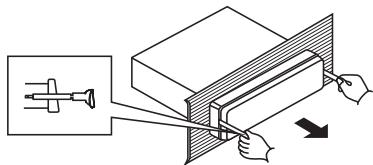
- Use the two supplied release keys to remove the unit from the mounting bracket. Insert the left ("L") and right ("R") release keys as far as they will go (with the notches facing up) into the appropriate slots at the middle left and right sides of the unit. Then slide the sleeve off the back.
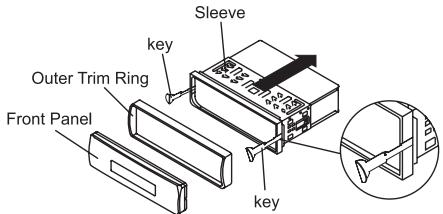
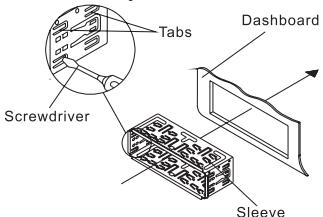
- Mount the sleeve by inserting the sleeve into the opening of the dashboard and bend out the tabs located around the sleeve with a screwdriver. Not all tabs will be able to make contact, so examine which ones will be most effective. To secure the sleeve in place, bend out the appropriate tabs so that they make contact with the dashboard.
- Reconnect the wire harness and the antenna and be careful not to pinch any wires or cables.
- Slide the unit into the sleeve until it locks into place.
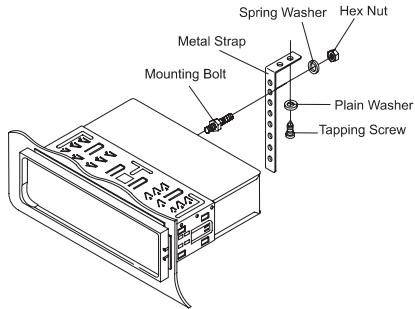
- To further secure the unit, use the supplied metal strap to secure the back of the unit in place. Use the supplied hardware (Hex Nut (M5mm) and Spring Washer) to attach one end of the strap to the mounting bolt on the back of the unit. If necessary, bend the metal strap to fit your vehicle's mounting area. Then use the supplied hardware (Tapping Screw (5x25mm) and Plain Washer) to attach the other end of metal strap to a solid metal part of the vehicle under the dashboard.
This metal strap also helps ensure proper electrical grounding of the unit.
Ensure that you install the short part of the mounting bolt to the back of the unit and the other long part to the dashboard.
- Reconnect the cable to the vehicle battery's negative (-) terminal. Then replace the outer trim ring and install the unit's front panel (see the steps of 'to install the front panel').
Dismantling the unit
- Make sure the ignition is turned off, and then disconnect the cable from the vehicle battery's negative (-) terminal.
- Press the OPEN (▲) button to remove the front panel.
- Lift the top of the outer trim ring then pull it out to remove it.
- Insert both of the supplied keys into the slots at the middle left and right sides of the unit then pull the unit out of the dashboard.
- Remove the metal strap attached to the back of the unit (if attached).
USING THE DETACHABLE FRONT PANEL
REMOVING AND PROTECTING DETACHABLE FRONT PANEL
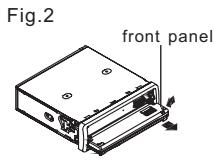
The front panel of the unit may be removed as a theft deterrent. After removing the front panel, use the case provided to keep the front panel from getting damaged.
- Press the OPEN button (4) to flip down the front panel.
- Grasp the right side of the front panel, then gently push the front panel towards the left side before pulling it out from the unit.
- Store the front panel in the protective case provided for safe keeping.
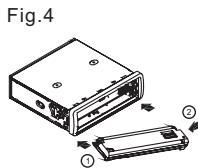
TO ATTACH THE FRONT PANEL
Hold the right side of the front panel with the plate facing down.
First attach the left side of the front panel to the unit by inserting the hole into the left holder.
Then slightly push it to the left and attach the right side hole into the right holder. Finally push up the front panel.

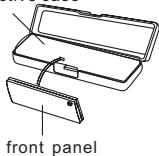
Fig.3 protective case
Wiring Diagram
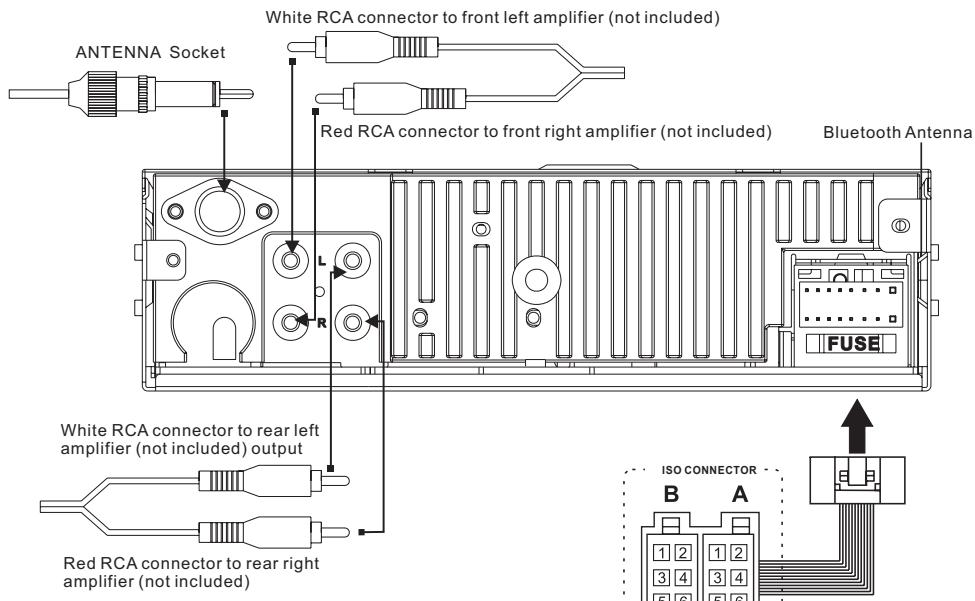
ISO connector:
Part A:
A1: No Connect
A2: No Connect
A3: No Connect
A4: Battery B+ (Yellow)
A5: Antenna (Blue)
A6: No Connect
A7: Accessory (Red)
A8: Ground B- (Black)
Part B:
B1: Rear Right + (Violet)
B2: Rear Right - (Violet/Black)
B3: Front Right + (Grey)
B4: Front Right - (Grey/Black)
B5: Front Left + (White)
B6: Front Left - (White/Black)
B7: Rear Left + (Green)
B8: Rear Left - (Green/Black)
Operations
Location and Function of Keys
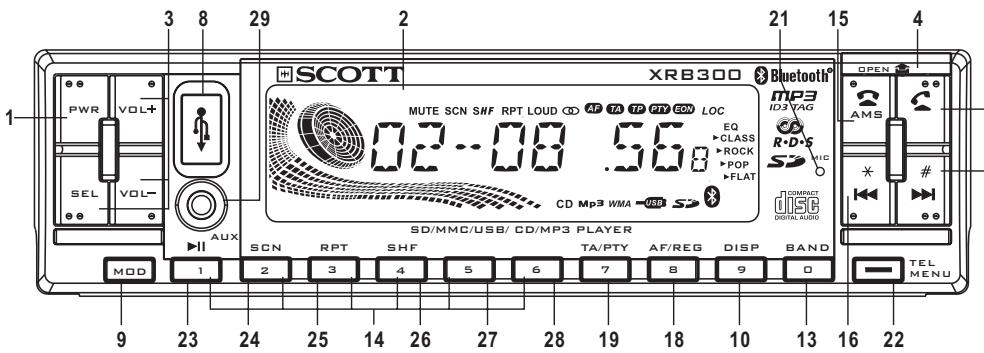
Front panel:
The front facet afer removing the front panel:
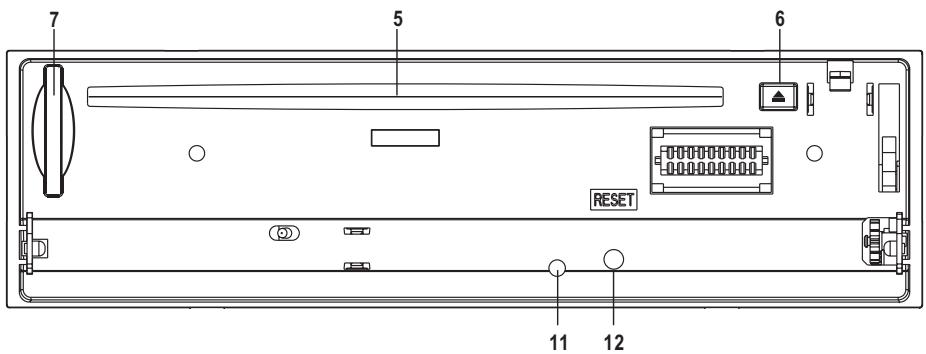
Descriptions of Function Controls
(1) PWR(Power)/Mute Button
(2) LCD display
(3)VOL + / - and SEL(MENU/ENTER) Button
(4) OPEN (舍) Button
(5) Disc slot
(6)Eject () key
(7) SD/MMC Memory Card Slot
(8) USB Port
(9) MOD (Mode)/Pairing Button
(10) Disp(Display)/9 Button
(11) Anti-theft LED Indicator
(12) Reset Button
(13) BAND / 0 Button
(14) Preset Station (1-6) Buttons
(15) /AMS(Auto-storage / Preset memory Scan)
(16) (Down)/*Button Tune down,Seek down, track down, fast reverse
(17) (UP)/#Button Tune up,Seek up, track up, fast forward
(18) AF/REG/ 8 Button
(19)TA/PTY/7Button
(20) C Button (answer call)
(21) Built-in Microphone (MIC) for Bluetooth function
(22) TEL MENU Button
(23) II (Play/Pause)/1 Button
(24) SCN(Scan) / 2 Button
(25) RPT(Repeat)/3 Button
(26) SHF(Random)/4 Button
(27)-10 track / 5 Button
(28) + 10 track / 6 Button
(29) AUX Input Jack
The 0-9 number keys can also be used to dial telephone numbers in Bluetooth mode.
General Operations
Reset the unit
Operating the unit for the first time, after replacing the car battery or changing the connections, you must reset the unit.
- Turn off the unit power.
- Press the OPEN (±) button and remove the front panel, then press the RESET button with a ballpoint or similar object to restore the unit to the original factory settings.
Power on/off
In power off mode, switch on the unit by pressing any button except the OPEN button and the EJECT(▲) button or inserting a disc to disc slot, USB device to USB port or SD/MMC card to card slot.
When the system is on, press and hold the POWER ( ) button long to turn off the unit.
Sound adjustment
- Press the VOL +/ - button to adjust volume level.
- Press the SEL button repeatedly to select the sound mode volume, bass, treble, balance and fader. Press the VOL +/- button to adjust the level of the selected sound mode:
VOL:00,01\~45,46 (46 steps)
-BASS/TRE:-6,-5\~,0,\~+5,+6
-BAL:12L,11L, ,L = R, , 11R,12R
-FAD:12F,11F, 一 _ i F = R , 一 ,11R,12R
System setup menu
Press the SEL button and hold for more than 2 seconds to access the system setup menu mode, then press the SEL or button to select next menu item, or press the button to select the previous menu item in sequence as follows:
TA SEEK/ALARM, MASK DPI/ALL, TAVOL, RETUNE L/S, EQ MODE, LOUD ON/OFF, CLK FORMAT, VOL LAST/ADJ, V-ADJ, BEEP ON/OFF, STEREO/MONO, LOCAL/DX.
After selecting the desired menu item, press the VOL +/ - button to select the mode of the selected item.
TA SEEK/ALARM:
Press the VOL + / - button to select the TA SEEK or TAALARM.
-TASEEKmode:
When newly tuned station does not receive TP information for 5 seconds, the radio retunes to next station which is not the same station (PI) as the last station, but has the TP information.
When TP information gets lost at the current station for retune time which is set by RETUNE SHORT (30 sec.) or RETUNE LONG (90 sec.), the radio start to retune to next same PI station. When same PI station does not catch in 1 cyclic search, the radio retunes to next station with TP information.
-TA ALARM mode:
When this mode is selected, any automatic retune mode is not activated. Only double beep sound (ALARM) is output.
When newly tuned station does not have TP information for 5 seconds, a beep can be heard .
When TP information gets lost at the current station for retune time, a beep sound can also be heard.
When newly tuned station has no RDS signal, "PI SEEK" is suppressed somewhat.
Note: TP: Traffic Program Identification data for traffic information broadcasting station.
PI: Program Identification code for identifying program.
MASK DPI/ALL:
Press the VOL +1 - button to select the MASK DPI or MASK ALL.
The AF frequency (which has different PI or NO RDS signal with high field strength) is masked during checking PI when the unit searches AF. The unit doesn't search this AF (DPI) for few minutes. In the case of the AF of NO RDS signal with high field strength, if the real AF is wrongly masked as DIP by some interference, the unit hesitates to search real AFs. For this reason, the unit has the user option (MASK DPI) which doesn't mask the AF of NO RDS signal with high field strength.
-MASK DPI mode:
Mask only the AF which has different PI.
-MASKALLmode:
Mask the AF which has different PI and NO RDS signal with high field strength.
TAVOL:
The value define the minimum value of the TA volume that can be adjusted down. The adjustable range is 00~46. The defaulted value is 25. Press the VOL +/ - button to choose a value of TA volume.
RETUNE L/S:
Press the VOL +I - button to select the RETUNE Lor RETUNE S.
The initial time of automatic TA search or PI search modes is selected. This function allows you to set the time after which the automatic search for new frequencies should be carried out when the TA search of PI search is selected.
Select "RETUNE L" to set the automatic search after 90 seconds.
Select "RETUNE S" to set it after 60 seconds.
-RETUNE L mode: Automatic search for new frequencies takes place after 90 seconds.
- RETUNE S mode: Automatic search for new frequencies takes place after 60 seconds.
EQ MODE:
The car audio device is equipped with 4 preset equalization modes. After entering this mode by pressing the SEL button, press the VOL +/ - button to select the EQ mode as follows: DSP OFF, DSP POP, DSP ROCK, DSP CLAS(classic), DSP FLAT. When using preset EQ modes you will not have access to Bass and Treble settings.
LOUD ON/OFF:
Press the VOL +1 - button to choose loudness on or off.
CLOCK FORMAT:
Press the VOL +1 - button to choose 24 HOUR or 12 HOUR display.
VOL LAST/ADJUST:
Press the VOL + / - button to choose to choose between VOL LAST and VOL ADJ.
VOL LAST: The unit switches on at the last volume level when it was last switched off.
VOL ADJ: This function allows you to set the switch-on volume level, regardless of what level the volume was set at when the car radio was switched off.
To set the volume to a certain level, press the SEL button momentarily until V-ADJ is displayed. Then Press the VOL +/- button to adjust to certain volume level when V-ADJ is displayed.
BEEP ON/OFF :
The car audio device is equipped with 2 beep tone ON, beep tone off function,After entering this mode by pressing the SEL button, press the VOL +1 - button to choose one.
- Beep on mode: The beep sound is on when any key is pressed.
- Beep off mode: The beep sound is disabled.
STEREO/MONO:
FM station is received in stereo mode. However, if the signal weak or reception is not as good as you would like, switching to MONO mode usually improves the overall sound quality
Press the VOL +1 - button to choose FM STEREO or MONO audio effect.
LOCAL/DX:
In urban settings, most stations are strong enough and it should be set in LOCAL mode.
Switch to DX (distant) mode to search for stations with weaker signals.
Mute on/off
In power on mode, short press the PWR/ MUTE button to toggle mute on or off. The muted state will be also released when the SEL, MOD, VOL+ or VOL - is pressed.
To select playback mode
In power on mode, press MOD button repeatedly to select the different modes in the following sequence: RADIO, CD(with a disc inside the disc slot), USB(with USB device inserted), CARD(with SD/MMC card inserted), AUX or BT AUDIO (Bluetooth) mode.
Last position memory feature
- During disc, USB, card playback, if you turn off the unit and then switch on it, the unit will resume playing from the point that it was interrupted.
- During disc, USB, card playback, if you switch to other mode, and then return the previous mode again, the unit will resume playing from the point that it was interrupted.
INFORMATION DISPLAY
Press DISP button repeatedly to display as follows:
- In case of receiving a RDS station
In radio mode: PS (Name of the station) -> FREQ -> CT->->PTY (Type of program)
In CD/USB/CARD mode: CD/USB/SD mode information->PS->FREQ->CT->PTY
- In case of no receiving CT or PTY information, the display shows as “NO CLOCK” or “NO PTY”.
- In case of receiving a non RDS station
In radio mode: "FREQ"-> "CT"->
In CD(USB/SD) mode:CD/USB/SD mode information->FREQ->CT->>>“NO PTY”
Each displaying time is 5 seconds, and come back to 1'st position after 5 seconds.
Notes:
CT = clock time FREQ = frequency.
Clock display and adjustment
To view the current time, press the DISP button repeatedly ( refer to "Information Display" ), it will show for 5 seconds and then revert to the previous display mode unless the DISP button is pressed again.
To adjust the time, press and hold the DISP button until the clock time blinks, then press the VOL + to adjust hour, press the VOL - button to adjust minute.
Radio Operations
Press the MOD button to select the radio mode.
To select a radio band
In radio mode, Press the BAND button repeatedly to select one of the three radio broadcasting bands: ->FM 1-> FM 2 -> FM 3 ->.
Auto/ Manual tuning(FM 50KHz/step)
Automatic search mode:
Press the or button, the automatic search will start. It will search upward or downward for the strong signal radio station within the current band. "SEARCH" appears on the LCD display.
Press and hold the or button until "MANUSEEKK" appears on LCD display, it will change into manual searching mode.
- Manual search mode:
Press the or button repeatedly to manually search upward or downward step by step for the desired radio station within the current band. For fast manual searching, press and hold the or button.
In manual search process, if the both buttons haven't been pressed within 5 seconds, it will change into automatic search mode automatically. "SEARCH" appears on the LCD display.
To store / recall a preset radio stations
You can store up to a total of 18 radio stations in the memory (18 FM), manually or automatically.
- To store a station:
- Select a band (if needed)
- Select a station by or buttons, refer to auto / manual tuning.
- Hold a Preset button (1-6) for at least 2 seconds.
- To recall a station:
- Select a band (if needed).
- Press a preset button (1-6) briefly to recall the stored station. In case of RDS mode, the strongest AF is selected after AF searching.
Auto store / Preset scan
- Preset scan:
Press the AMS button to scan each preset station. If the field strength level is more than the threshold level, the radio will hold at this preset station for 5 seconds with sound output, then go to next station until all 18 FM stations are scanned, finally the radio will play at the preset station where scanning started. The preset station number on the LCD will flash during the process. Press the AMS again to stop preset scan.
- Auto store:
Press the AMS button for more than 2 seconds to start auto store. The radio will scan from the lowest frequency, and automatically store the 6 strongest stations into the preset memories. When auto store is complete, the radio will start preset scan to the stored 6 station.
RDS (Radio Data System) Operations
To replace the current frequency with the alternative frequency
Press AF/REG button short to switch AF mode on or off. There are 3 state the segment "AF" on the LCD display:
Segment "AF" off: AF switching mode off.
Segment "AF" on: AF switching mode on, and has RDS information.
Segment "AF" flashing: AF switching mode on, but RDS information is not received yet.
When AF switching mode is selected, the radio checks the signal strength of the AF all the time. The interval of checking time of each AFs depends on the signal strength of current station, from a few minute for strong station to few seconds for weak station. Every time that new AF is stronger than current station, it switches over to that frequency for very short time. Because the mute time of AF switching or checking time is very short, it is almost inaudible in case of normal program. During FM mode, when AF is on, manual store, Auto store/preset scan function can only receive and save RDS program.
Regional Program Operation
Press AF/REG button for 2 seconds to switch on or off region mode.
Some broadcasting stations change their program from normal broadcasting to regional broadcasting for a certain time period.
When region is on, the current listening program remains unchanged. When region is off, it allows the reception moved to the regional station.
Using PTY to Select Program
Press the PTY button for 2 seconds repeatedly to select the PTY as follows:
PTY MUSIC GROUP → PTY SPEECH GROUP → GROUP PTY OFF
When the PTY MUSCI GROUP or PTY SPEECH GROUP has been selected, press any one of the preset numbered buttons repeatedly to search relevant PTY information. And stop searching if the radio detect the PTY relevant information. If the relevant PTY information is not found, the radio exit the PTY function and return to previous normal mode.
HINT:
When you the select PTY MUSIC GROUP, the preset station buttons are categorized as follows:
| Preset station button | PTY |
| 1 | POP M, ROCK M |
| 2 | EASY M, LIGHT M |
| 3 | CLASSICS, OTHER M |
| 4 | JAZZ M, COUNTRY |
| 5 | NATION M, OLDIES M |
| 6 | FOLK M |
| When you select the PTY SPEECH GROUP, the preset numbered buttons is shared as follows: | |
| 1 | NEWS, AFFAIRS, INFO |
| 2 | SPORT, EDUCATE, DRAMA |
| 3 | CULTURE, SCIENCE, VARIORED |
| 4 | WEATHER, FINANCE, CHILDREN |
| 5 | SOCIAL, RELIGION, PHONE IN |
| 6 | TRAVEL, LEISURE, DOCUMENT |
Listening to Traffic Announcement
TA button is operated as follows:
Press TA button to turn TA mode on or off.
When TA mode is on and a traffic announcement is transmitted:
- When the unit was in CD (MP3/WMA), USB/SD/MMC or AUX IN mode, it will switch temporarily to radio mode.
- Temporary switch over to an EON linked station when EON detects a traffic announcement on that other program.
- If the volume level was under the threshold point, it will be raised to the threshold point.
- When TA mode is on, segment "TA" is turned on.
- When a TP station is received, segment "TP" is turned on.
TA interruption function
The current traffic announcement is cancelled by pressing this key. But the TA mode will not be off.
CD/MP3/WMA Disc Operations
Press the MOD button to select the disc mode.
Loading/Removing a Disc
- Press the OPEN (▲) button on the front panel to flip down the front panel and then insert a disc into the disc slot with the printed side facing upward; and close the front panel, the player will play the disc automatically.
- To eject the disc, press the OPEN ( ) button to open the front panel and then press the EJECT ( ) button.
Playing/Paising
- During playback, press the button to interrupt the playback. Press again to resume the playback.
- During playback, press and hold the PLAY/PAUSE (▶II) button for 2 seconds to resume play at the beginning of the 1st track of current disc.
Playing the previous/ next track
- During playback, press the button to play the next track.
- During playback, press the button once to play the current track from the beginning. Press the button twice continuously to play the previous track.
Playing forward and backward
During playback, press and hold the or button to fast forward or fast reverse. Release the buttons when the desired location is found, and normal playback starts.
Playing the + / - 10 track up or down
During MP3/WMA playback, press the 5 (-10), 6 (+10) button to play the +/- 10 track up or down.
Introduction playback
You can play the beginning of every track for 10 seconds in sequence.
- In CD/MP3/WMA file playback, briefly press the SCN button to play the first 10 seconds of each track. Press it again to stop scanning and play the currently track.
- For MP3/WMA files, press the SCN button for longer than 2 seconds to play the first 10 seconds of each track in the current folder. "SCN FOLD" (scan folder) will appear briefly.
Repeat playback
- In CD/MP3/WMA files playback, briefly press the RPT button to continuously play the current track. Press again to stop repeat playback and resume normal playback.
- For MP3/WMA files, press the RPT button for longer than 2 seconds to continuously play all the tracks in the current folder. "RPT FOLD" (repeat folder) will appear briefly.
Random playback
- In CD/MP3/WMA file playback, briefly press the SHF button to play all tracks of the disc in random sequence. Press again to cancel random playing.
- For MP3/WMA files, press the SHF button for longer than 2 seconds to randomly play the tracks in the current folder. "SHF FOLD" (shuffle folder) will appear briefly.
Select the tracks for playback in MP3 or WMA files
You can access 4 different types of track search modes for MP3/WMA files:
Track search → File search → Folder search → File name search mode
Track search mode:
a) Press the AMS button once to access the track number search mode which allow you to quickly find a specific MP3/WMA title by its serial number, and the "TRK-SCH" will appear on the LCD display.
b) Press the SEL, VOL+ or VOL- button to confirm the selection of this search mode. "TRK001" will be shown on the LCD display, and the first digit will blink. Use the VOL+ or VOL- button to adjust the first digit.
c) If long press the SEL button, the system will play the selected track.
If press the SEL button briefly to confirm, and the "0" on the tenth digit will be blink, and you also can select and enter the tenth digit by VOL+/- button.
d) If long press the SEL button, the system will play the selected track.
If press the SEL button briefly to confirm, and the "0" on the hundredth digit will be blink, and you can select and enter the hundredths digit by VOL+/- button. Finally press the SEL button, the system will find the selected track.
Folders/Files Navigation search mode:
a) Press the AMS button twice to access the file search mode, the "FILE-SCH" will appear on the LCD display.
b) Press the SEL, or VOL+ or VOL- button to confirm the selection of this search mode. "FOLD001" will appear on the LCD display, and "001" will blink.
Then press VOL + or VOL - button to select the folder.
If the selected folder is directory, press the SEL button again to go into the selected directory and then press VOL + or VOL - button to select the favorite file in the directory.
c) Finally press the SEL button to play the selected file. When you want to return to last upper level of folder which contains files or sub folder, press the VOL- button.
Folder name search mode:
a) Press the AMS button third times to access the folder name search mode, the "FOLD-SCH" will appear on the LCD display.
b) Press the SEL, VOL+ or VOL- button to confirm the selection of this search mode. "A" will blink on the LCD display. Press the VOL+ or VOL- button to select a character on the first place, then press the SEL button to confirm. Then "A" flashes at the next place, select and enter the second and other characters of the desired folder name as above step.
c) Press and hold the SEL button to confirm and play the selected folder. If there are no that folder, the "NO MATCH" will be shown on the LCD display.
File name search mode:
a) Press the AMS button fourth times to access the file name search mode, the "CHAR-SCH" will appear on the LCD display.
b) Follow same steps in "Folder name search mode" (b) and (c) to play the selected file.
ID3 information of MP3 file
In playback of MP3 files, if you press the BAND button repeatedly, the folder name, file name, title, artist and album information will be scroll on the LCD display.
Note:
As long as the current playing MP3 music contains relevant ID3 tag information in version 1.0/2.0 format, the 3 items underlined above will be scroll on the LCD display, otherwise, they will not appear.
SD/MMC Memory Card Operations
Using the SD/MMC card:
When you insert a SD/MMC card into the memory card slot, the player will read the SD/MMC card automatically.
If you insert a disc into the disc slot while reading the SD/MMC card, the unit will play the disc. You can press MOD button to select card mode.
SD/MMC memory card playback operation is the same with the CD/MP3/WMA disc operations described above.
Note:
-
When reading the memory card, please don't touch or take out the card.
-
If following the instruction above, the unit can't read the card, please check if the card is in good condition, or take out the card and then insert it into the card slot once more.
USB Operations
Using the USB stick:
When you insert a USB stick through the port, the unit will search for the MP3/WMA files and start to play them automatically. If you insert a disc into the disc slot while reading the USB stick, the unit will play the disc. You can press MOD button to select USB mode.
Note:
- The operations of playing MP3/WMA files in the USB is the same as the MP3/WMA operation described in the CD/MP3/WMA disc operations.
- When reading the USB stick, please don't touch or remove it.
- If following the instruction above, the unit can't read the file in the USB stick, please check if the device is in good condition, or take it out then insert it into the USB port once more.
- The main unit can only support the standard USB-memory device.
- USB MP3 player is not a standard which means different brand name or different models have their own standard. So this product cannot support all MP3 players.
- When connecting an MP3 player and there is a normal battery in the player (non rechargeable battery), you should remove the battery from the MP3 player and then connect it to the USB port. Otherwise, it may cause battery burst.
- When reading a USB device, be sure not to remove it from the USB port (change mode beforehand).
Aux In Operations
This system has an external input jack, so you can listen to music from external devices connected to this unit. Press the MOD button to switch to the AUX mode on or off.
BLUETOOTH FUNCTION TIPWIZARD
1. Pairing
1.1 Long press the MODE button to access pairing mode.
1.2 During pairing, please activate the Bluetooth function on your mobile phone and search for a Bluetooth device. When your mobile phone prompts you, enter the pairing code "1234" and confirm in your mobile phone.
1.3 If pairing succeeds, the “PAIROK” will be visible on the LCD display. Simultaneously, the “ 串 ” is displayed continuously on the LCD display. Otherwise, “PAIR ERR” will be displayed. The “ 串 ” icon will flash continuously on the LCD display.
Remark:
After pairing succeeds, the auto-connect function needs mobile phone support. If your mobile phone don't support this function, please use manual-connect function to connect your mobile phone and Bluetooth.
2. Connect/disconnect
2.1 Connect
Long press BAND button, the bluetooth module will connect to mobile phone that has paired. If connection succeeds, "CONT OK" will be visible on the LCD display, otherwise, it will appear "NO CONT" on the LCD and the " " flashes on the LCD display.
2.2 Disconnect
If Bluetooth module has connected with your mobile phone, long press the BAND button to disconnect from the Bluetooth.
3. DIAL CALL
3.1 Dial with the mobile phone directly.
3.2 Dial with the 0~9 numeric button.
3.2.1 When the car radio is connected to the mobile phone, press the "C" button.
3.2.2 Press the "0~9" button on to input telephone number. Simultaneously, the input number will be appear on the LCD. If a number is entered incorrectly, press the " " button to delete the incorrect number.
3.2.3 press the " C " button to execute dialing.
3.3 Dial the last number
3.3.1 In connection status, press the " C " button.
3.3.2 Press the "C" button to find out the last dialing number.
3.3.3 Press the " C " button to call this number.
3.4 Preset the number
The detail operations please refer to the "6.Bluetooth menu wizard (b)" on page GB23.
3.5 Dial the preset number
3.5.1 In connection status, press the "C" button.
3.5.2 Long press the "1~6" button find out the preset number.
4. Accept / Reject / End call
4.1 Accept call
When a ring comes, press the "C" button to accept call.
4.2 Reject call
When a ring comes, press the " " button to reject the coming call.
4.3 End call
When you are talking, press the " Q " button to hang up the call.
5. Call Transfer
During talking status, if you do not want your conversation to be heard from the loudspeakers connected to your car radio, you can transfer your conversation to private listening on your phone by pressing the TEL MENU button for a while. Hold down the TEL MENU button transfer the call back to the car radio.
6. Bluetooth menu wizard
In connection status, press the TEL MENU button repeatedly to view Bluetooth menu. The structure of the Bluetooth menu as follows:
PRENUM : Preset number list.
RECV : Received call list.
DIAL : Dialed call list.
MISS : Missed call list.
AUTOANS(MANUANS):
Switch auto answer or manual answer.
TALK 29:Bluetooth speaker volume
Press the TEL MENU button to select the item. Press the SEL to enter the current menu item. Press the “ 一 ” button to exit from current menu. Press the “ 一 ” button again to exit Bluetooth menu.
a) Select preset number list:
You can select the next or previous phone number that stored on preset number list by pressing the VOL+ or VOL- button.
b) Edit preset number list:
- Press the TEL MENU to enter preset number list. You can see EMPTY(1-6) on the LCD display, if you haven't stored any phone numbers.
-
Then press SEL or VOL + or VOL - button to enter editing status.
-
Press 0~9, # or * to edit phone number, simultaneously, the inputted number will display on the LCD display. If a number is wrongly input, press the “ ” button to delete the incorrect number.
- After the entire phone number has been input, press the SEL button to save the phone number. Press the “ 一 ” button to exit from phone editing status.
c) Dial phone number of menu list:
When you look around the preset number or received list or dialed list or missed list, you can dial any phone number on the lists by pressing “ ” button.
d) Switch auto or manual answer
Select auto answer or manual answer the incoming phone by pressing the VOL + or VOL - button after entering this preset item.
e) Adjust the Bluetooth speaker volume
You can adjust the volume level of Bluetooth speaker by pressing the VOL + or VOL - button.
- Voice dialing function
If your mobile phone support voice dialing function, you can dial a phone number by voice dialing.
Remark:
Please operate the voice dial function according to your mobile phone manual.
- A2DP Function
If your mobile phone support function A2DP ( Advance Audio Distribution Profile) that it is special designed for transmitting stereo music to Bluetooth device. You can listen to the music stored in your mobile phone by this car audio.

WARNING:
Please be sure that the distance between your mobile phone and car audio is less than 3 meters.
DISC NOTES
A. Notes on discs:
- Attempting to use non-standard shape discs (e.g. square, start, and heart) may damage the unit. Be sure to use round shape CD discs only for this unit.
- Do not stick paper or tape, etc, onto the label side or the recording side of any discs, as it may cause a malfunction. Dirt, dust, scratches and warping discs will cause disoperation.
B. Notes on CD-Rs (recordable CDs)/CD-RWs (rewritable CDs):
- Be sure to use discs with following marks only for the unit to play:



- The unit cannot play a CD-R and CD-RW that is not finalized. (Please refer to the manual of your CD-R/CD-RW recorder or CD-R/CD-RW software for more information on finalization process).
- Depending on the recording status, conditions of the disc and the equipment used for the recording, some CD-Rs/CD-RWs may not be played on this unit. (see *1)
*1: To have more reliable play back, please see following recommendations:
a. Use CD-RWs with speed 1x to 4x and write with speed 1x to 2x.
b. Use CD-Rs with speed 1x to 8x and write with speed 1x to 2x.
c. Do not play a CD-RW which has been written more than 5 times.
d. The car radio supports discs which comply with the ISO 9660 level 1 or level 2 format, or the Joliet or Romeo format.
C. Notes on MP3 files
- When naming a MP3 file, be sure the file name extension is 'MP3'.
- For a non-MP3 file, even though the file name extension is 'MP3', the unit cannot recognize it.
D. Handling and Cleaning
- Dirt, dust, scratches and warping discs will cause mal-operation.
- Do not place stickers or make scratches on discs.
- Do not warp discs.
- A disc should always be kept in its case when not in use to prevent from damage.
-
Do not place discs in the following places:
-
Direct sunlight.
-
Dirty, dusty and damp areas.
-
Near car heaters.
- On the seats or dashboard.
Disc Cleaning
Use a dry soft cloth to wipe the surface. If the disc is quite dirty, Use a soft cloth slightly moistures with isopropyl (rubbing) alcohol. Never use solvents such as benzene, thinner or conventional record cleaners as they may mar the surface of the disc.
Note:
A disc may become somewhat scratched (although not enough to make it unusable) depending on the way it is handled and conditions in the usage environment. Note these scratches are not an indication of any problem with the player.
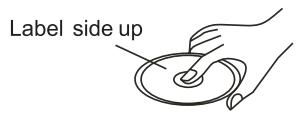

Do not touch the underside of the disc
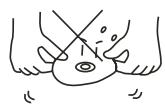
Do not bend
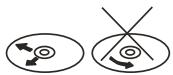
Wipe the disc from center toward the outside edge
E. Precautions when using new discs
A new disc may have irregularities. It will sometimes be necessary to remove these rough edges in advance by using a ballpoint pen or pencil as shown in the illustration.
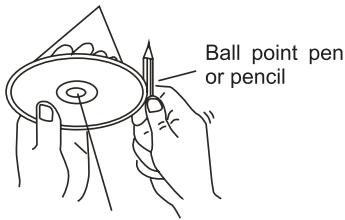
Rough spots on outside edge
Rough spots on inside edge
Specification
1. GENERAL
Power Supply Requirements. DC 12 Volts, Negative Ground
Unit Dimensions. 178(W) x 160(D) x 50(H) mm
Tone Controls. Bass (at 100 Hz) ±10 dB
- Treble (at 10 KHz) ±10 dB
Maximum Output Power. 4x40 watts
Current Drain. 15 Ampere (max.)
2. CD PLAYER
Signal to Noise Ratio. >55 dB
Channel Separation. >40 dB
Frequency Response. 40Hz - 18 KHz
Audio output (RCA). 1.5Vrms+ -0.3V 10K Ω
Discs/files played. CD-DA,CD-R/RW/MP3/WMA
3. RADIO
FM
Frequency Range. 87.5 - 108.0 MHz
IF. 10.7 MHz
Sensitivity (S/N=30dB). 4μV
S/N ratio. 55dB(mono)
Stereo separation. 30 dB (65dBu, 1KHz)
4.USB/SD/MMC card
USB Port type 1.1
USB Port Maximum Handling Capacity. 2GB
SD/MMC Card Slot Maximum Handling Capacity. 1GB
Trouble Shooting
| Symptom | Cause | Solution |
| No power | The car ignition switch is not on. | Turn the ignition key to “ACCESSION” in order to switch the unit on. |
| The connections are not correct. | Check the connections. | |
| A fuse has blown in the vehicle | Check the vehicle fuses. | |
| The fuse at the back of unit has been blown. | ||
| Disc can not be loaded or ejected. | Presence of CD disc inside the player. | Remove the disc from the player, and insert a new one. |
| Inserting the disc in reverse direction. | Insert the CD with the label facing upward. | |
| The surface of CD is extremely dirty or scrapped. | Clean the disc or try to replace a new one. | |
| Temperature inside the car is too high. | Cool off or until the ambient temperature return to normal. | |
| Condensation | Leave the player off for an hour or so, and then try again. | |
| No sound | Volume is in minimum. | Adjust volume to a desired level. |
| The wiring is not properly connected. | Check wiring connection. | |
| Sound skips | The installation angle is more than 30°. | Adjust the installation angle less than 30°. |
| The surface of CD is extremely dirty or scrapped. | Clean the disc or try to replace a new one. | |
| The operation keys do not work | 1. The built-in micro-processor is not operating properly due to electrical noise. | 1. Press the RESET button. |
| 2. The front panel is not properly installed. | 2. Fix the front panel into its place. | |
| No radio reception. | The antenna cable is not connected. | Insert the antenna cable firmly into the antenna socket of this CD player. |
| In automatic search mode the radio does not stop at a transmitting station. | The transmission signals are too weak. | Select a radio station manually. Check the antenna connection. Change to “DX” (distant) mode. |
If at any time in the futrue you should need to dispose of this product, please note that waste electrical product should not be disposed of with household waste. Please recycle where facilities exist. Check with Your Local Authority or retailer for recycling advice. (Waste Electrical and Electronic Equipment Directive)

- CONTENTS
- ACCESSIONS
- PRECAUTION
- SAFETY PRECAUTIONS
- OPERATION PRECAUTIONS
- INSTALLATION
- NOTES
- REMOVE THE CD MECHANISM TRANSIT SCREW BEFORE INSTALLATION
- INSTALLATION OPENING
- INSTALLING THE UNIT
- DISMANTLING THE UNIT
- USING THE DETACHABLE FRONT PANEL
- REMOVING AND PROTECTING DETACHABLE FRONT PANEL
- TO ATTACH THE FRONT PANEL
- WIRING DIAGRAM
- OPERATIONS
- LOCATION AND FUNCTION OF KEYS
- DESCRIPTIONS OF FUNCTION CONTROLS
- GENERAL OPERATIONS
- RESET THE UNIT
- POWER ON/OFF
- SOUND ADJUSTMENT
- SYSTEM SETUP MENU
- TA SEEK/ALARM
- TASEEKMODE
- TA ALARM MODE
- MASK DPI/ALL
- MASK DPI MODE
- MASKALLMODE
- TAVOL
- RETUNE L/S
- EQ MODE
- LOUD ON/OFF
- CLOCK FORMAT
- VOL LAST/ADJUST
- BEEP ON/OFF
- STEREO/MONO
- LOCAL/DX
- MUTE ON/OFF
- TO SELECT PLAYBACK MODE
- LAST POSITION MEMORY FEATURE
- INFORMATION DISPLAY
- CLOCK DISPLAY AND ADJUSTMENT
- RADIO OPERATIONS
- TO SELECT A RADIO BAND
- AUTO/ MANUAL TUNING(FM 50KHZ/STEP)
- AUTOMATIC SEARCH MODE
- MANUAL SEARCH MODE
- TO STORE / RECALL A PRESET RADIO STATIONS
- TO STORE A STATION
- TO RECALL A STATION
- AUTO STORE / PRESET SCAN
- PRESET SCAN
- AUTO STORE
- RDS (RADIO DATA SYSTEM) OPERATIONS
- TO REPLACE THE CURRENT FREQUENCY WITH THE ALTERNATIVE FREQUENCY
- REGIONAL PROGRAM OPERATION
- USING PTY TO SELECT PROGRAM
- HINT
- LISTENING TO TRAFFIC ANNOUNCEMENT
- TA BUTTON IS OPERATED AS FOLLOWS
- TA INTERRUPTION FUNCTION
- CD/MP3/WMA DISC OPERATIONS
- LOADING/REMOVING A DISC
- PLAYING/PAISING
- PLAYING THE PREVIOUS/ NEXT TRACK
- PLAYING FORWARD AND BACKWARD
- PLAYING THE + / - 10 TRACK UP OR DOWN
- INTRODUCTION PLAYBACK
- REPEAT PLAYBACK
- RANDOM PLAYBACK
- SELECT THE TRACKS FOR PLAYBACK IN MP3 OR WMA FILES
- TRACK SEARCH MODE
- FOLDERS/FILES NAVIGATION SEARCH MODE
- FOLDER NAME SEARCH MODE
- FILE NAME SEARCH MODE
- ID3 INFORMATION OF MP3 FILE
- NOTE
- SD/MMC MEMORY CARD OPERATIONS
- USING THE SD/MMC CARD
- USB OPERATIONS
- USING THE USB STICK
- AUX IN OPERATIONS
- BLUETOOTH FUNCTION TIPWIZARD
- PAIRING
- REMARK
- CONNECT/DISCONNECT
- DIAL CALL
- ACCEPT / REJECT / END CALL
- 4.1 ACCEPT CALL
- 4.2 REJECT CALL
- 4.3 END CALL
- CALL TRANSFER
- BLUETOOTH MENU WIZARD
- AUTOANS(MANUANS)
- SELECT PRESET NUMBER LIST
- EDIT PRESET NUMBER LIST
- WARNING
- DISC NOTES
- NOTES ON DISCS
- NOTES ON CD-RS (RECORDABLE CDS)/CD-RWS (REWRITABLE CDS)
- NOTES ON MP3 FILES
- HANDLING AND CLEANING
- DISC CLEANING
- PRECAUTIONS WHEN USING NEW DISCS
- SPECIFICATION
- GENERAL
- CD PLAYER
- RADIO
- FM
- 4.USB/SD/MMC CARD
Brand : SCOTT
Model : XRB 300 RC
Category : Car radio