
8100T - Navigation GPS NAVIGON - Free user manual and instructions
Find the device manual for free 8100T NAVIGON in PDF.


User questions about 8100T NAVIGON
0 question about this device. Answer the ones you know or ask your own.
Ask a new question about this device
Download the instructions for your Navigation GPS in PDF format for free! Find your manual 8100T - NAVIGON and take your electronic device back in hand. On this page are published all the documents necessary for the use of your device. 8100T by NAVIGON.
USER MANUAL 8100T NAVIGON
200 W Madison Street
Suite 650
Chicago, IL 60606
The information contained herein may be changed at any time without prior notification. This manual nor any parts thereof may not be reproduced for any purpose whatsoever without the express written consent of NAVIGON, INC, nor transmitted in any form either electronically or mechanically, including photocopying and recording. All technical specifications, drawings, etc., are subject to copyright law.
© 2008, NAVIGON, INC
All rights reserved.
End User License Agreement (EULA)
(SINGLE USE LICENSE)
PLEASE READ THE FOLLOWING SOFTWARE LICENSE (THE "LICENSE") BEFORE USING YOUR NAVIGON PRODUCT. BY USING YOUR NAVIGON PRODUCT, YOU ARE AGREEING TO BE BOUND BY THE TERMS OF THIS LICENSE. IF YOU DO NOT AGREE WITH THEM, OR DO NOT WANT THEM TO BE BINDING ON YOU, YOU SHOULD PROMPTLY RETURN THE NAVIGON PRODUCT TO THE PLACE WHERE YOU OBTAINED IT FOR A REFUND.
1. OWNERSHIP
It is hereby understood and agreed by you that NAVIGON, Inc. ("NAVIGON") is the owner of all title, ownership rights, intellectual property rights and copyrights in and to the software ("Software"), including, but not limited to, any source codes, object codes, codifications, methods, formulas, images, photographs, animation, video, audio and text incorporated into the Software and the accompanying printed materials. The Software shall remain the sole and exclusive property of NAVIGON and its licensors' and NAVIGON and its licensors' will retain all patents, copyrights and other intellectual property rights in the Software, as applicable. For the avoidance of doubt, you also hereby understand and agree that NAVIGON and/or its third party licensors own all right, title and interest in and to all accessories and content which work with, are included in or subsequently enabled on the Software, including, but not limited to, all intellectual property rights therein (the "Content").
You through your purchase of this product do not acquire any ownership rights to the Software or Content. You own the hardware device (the "Hardware Device") on which the Software is recorded, but NAVIGON or its licensors', as applicable, retain ownership of all copies of the Software and Content at all times.
2. LICENSE
2.1 In consideration of the payment of a license fee, which is a percentage of the price paid by you for this Software and Hardware Device, NAVIGON hereby grants you a limited and non-exclusive right to use and display this copy of the Software and Content on this single Hardware Device. This License does not grant any rights to obtaining future upgrades, updates or supplements of the Software or Content. If upgrades, updates or supplements of the Software are obtained, however, the use of such upgrades or updates is governed by this License and the amendments that may accompany them and may be subject to additional payments and conditions.
2.2 NAVIGON hereby reserves any and all rights to and may require that Software and Content upgrades (including, but not limited to, version changes) be downloaded into your Hardware Device to receive applicable updates. These software upgrades may potentially change your user experience.
2.3 All rights not expressly granted are hereby reserved by NAVIGON.
3. TERM
The License is effective until terminated. Your rights under this License will terminate automatically without notice from NAVIGON if you fail to comply with any term(s) of this License. Upon the termination of this License, you shall cease all use of the Software.
4. RESTRICTIONS ON USE
4.1 You shall not transfer the Software to other suitable hardware devices without NAVIGON's express, prior written consent.
4.2 You shall not, without NAVIGON's express written consent:
(a) Copy or reproduce the Software;
(b) Electronically transfer the Software through area or other network systems or any other system or use the Software on a server or any other device that permits simultaneous use of the Software by multiple users;
(c) Reproduce, copy, modify, adapt, reverse engineer, decompile or create derivative works based on the Software or any accompanying materials; or
(d) Remove, destroy, cover-up or obliterate any notices on the Software with regard to patent, trademark, trade dress or any other intellectual property or proprietary right.
4.3 You may not transfer the Content included within the Software apart from a permitted transfer of the Software itself. You also may not extract or remove the Content from the Software or otherwise make use of the Content apart from the Software.
4.4 You agree to use the Content with the Hardware Device solely for personal, non-commercial purposes for which you were licensed, and not for service bureau, time-sharing or other similar purposes. Accordingly, but subject to the restrictions set forth in Sections 4 and 5, you may copy the Content only as necessary for your personal use to (a) view it, and (b) save it, provided that you do not remove any copyright notices that appear and do not modify the Content in any way. You agree not to otherwise reproduce, copy, modify, adapt, decompile, disassemble or reverse engineer any portion of the Content, and may not transfer or distribute it in any form, for any purpose, except to the extent permitted by mandatory laws.
4.5 THE SOFTWARE, CONTENT AND THE HARDWARE DEVICE ARE NOT DESIGNED OR INTENDED FOR USE IN ON-LINE CONTROL OF AIRCRAFT, AIR TRAFFIC, AIRCRAFT NAVIGATION OR AIRCRAFT COMMUNICATIONS, OR IN THE DESIGN, CONSTRUCTION, OPERATION OR MAINTENANCE OF ANY NUCLEAR FACILITY OR FOR USE IN THE CONTROL OF MASS TRANSIT OR MEDICAL APPLICATIONS OR IN ANY OTHER INHERENTLY DANGEROUS APPLICATION. NAVIGON AND ITS SUPPLIERS DISCLAIM ANY EXPRESS OR IMPLIED WARRANTY OF FITNESS FOR SUCH USES AND SHALL NOT BE LIABLE FOR ANY
CLAIMS OR DAMAGES ARISING FROM SUCH USE IF YOU USE THE SOFTWARE, CONTENT OR HARDWARE DEVICE IN SUCH APPLICATIONS.
5. RESTRICTIONS ON TRANSFER
5.1 You may transfer, in whole, the Hardware Device, the Software and this License to another party if the other party agrees to accept the terms and conditions of this License. For the avoidance of doubt, you may not transfer the Software and related Content separately from the Hardware Device.
5.2 You shall not sub-license, lease, assign, or transfer the Hardware Device, the Software and this License except as expressly provided in this License. Any attempt otherwise to sublicense, lease, assign, or transfer any of the rights, duties, or obligations hereunder renders this License Void.
6. EXPORT CONTROL
You may not use or otherwise export or re-export the Software except as authorized by the laws of the United States law and the laws of the jurisdiction(s) in which the Software were obtained. For the avoidance of doubt, the Software may not be exported or re-exported (a) into any U.S. embargoed countries or (b) to anyone on the U.S. Treasury Department's list of Specially Designated Nationals or the U.S. Department of Commerce Denied Person's List or Entity List. By using the Software, you represent and warrant that you are not located in any such country or on any such list. You also agree that you will not use the Software for any purposes prohibited by laws of the United States, including, without limitation, the development, design, manufacture or production of missiles, nuclear, chemical or biological weapons.
7. WARRANTY DISCLAIMER
7.1 EXCEPT FOR THE LIMITED WARRANTY DOCUMENT INCLUDED WITH THE HARDWARE DEVICE, IF ANY, AND TO THE MAXIMUM EXTENT PERMITTED BY APPLICABLE LAW, ALL SOFTWARE, OTHER COMPONENTS THEREOF AND CONTENT ARE PROVIDED ON AN "AS IS" BASIS. YOU EXPRESSLY ACKNOWLEDGE AND AGREE THAT YOUR USE OF THE SOFTWARE IS AT YOUR SOLE RISK AND THAT THE ENTIRE RISK AS TO SATISFACTORY QUALITY, PERFORMANCE, ACCURACY AND EFFORT IS WITH YOU. EXCEPT AS OTHERWISE EXPRESSLY STATED IN THIS LICENSE, NAVIGON DOES NOT MAKE, AND HEREBY EXPRESSLY DISCLAIMS, ANY AND ALL EXPRESS AND/OR IMPLIED WARRANTYES, INCLUDING, BUT NOT LIMITED TO, WARRANTYIES OF MERCHANTABILITY, FITNESS FOR A PARTICULAR PURPOSE, NONINFRINGEMENT AND TITLE, AND ANY WARRANTYES ARISING FROM A COURSE OF DEALING, USAGE OR TRADE PRACTICE. WITHOUT LIMITING THE FOREGOING, (A) NAVIGON DOES NOT WARRANTY THAT (i) THE SOFTWARE OR CONTENT WILL MEET YOUR REQUIREMENTS, (ii) THE SOFTWARE OR CONTENT WILL BE UNINTERRUPTED, TIMELY, SECURE OR ERROR-FREE, (iii) THE RESULTS THAT MAY BE OBTAINED FROM THE USE OF THE SOFTWARE OR CONTENT WILL BE ACCURATE OR RELIABLE, OR (iv) ANY ERRORS IN THE SOFTWARE OR CONTENT WILL BE CORRECTED; AND (B) NO ADVICE OR INFORMATION, WHETHER ORAL OR WRITTEN, OBTAINED BY
YOU FROM NAVIGON OR THROUGH THE USE OF THE SOFTWARE OR CONTENT SHALL CREATE ANY WARRANTY NOT EXPRESSLY STATED IN THIS LICENSE. YOU UNDERSTAND AND AGREE THAT THE USE OF THE SOFTWARE AND CONTENT IS DONE AT YOUR OWN DISCRETION AND RISK AND THAT YOU WILL BE SOLELY RESPONSIBLE FOR ANY DAMAGES. SOME JURISDICTIONS DO NOT ALLOW THE EXCLUSION OF IMPLIED WARRANTYES OR LIMITATIONS ON APPLICABLE STATUTORY RIGHTS OF A CONSUMER, SO THE ABOVE EXCLUSION AND LIMITATIONS MAY NOT APPLY TO YOU.
7.2 This exclusion does not apply to (a) any implied condition as to title and (b) any implied warranty as to conformity with description. If applicable law requires any implied warranties with respect to the Software, Content or the Hardware Device, all such warranties are limited in duration to ninety (90) days unless stated otherwise in writing.
7.3 Any suggestions by NAVIGON or NAVIGON's agents regarding use, application, or suitability of the Software shall not be construed as an express warranty unless confirmed to be such in writing by NAVIGON.
8. LIMITATION OF LIABILITY
8.1 TO THE MAXIMUM EXTENT PERMITTED BY LAW AND EXCEPT AS OTHERWISE EXPRESSLY STATED IN THIS LICENSE, NAVIGON WILL NOT BE LIABLE OR RESPONSIBLE TO YOU OR ANY OTHER PERSON OR ENTITY FOR ANY TYPE OF DIRECT, INCIDENTAL, SPECIAL, PUNITIVE, INDIRECT OR CONSEQUENTIAL DAMAGES, INCLUDING, BUT NOT LIMITED TO, LOST REVENUE, LOST PROFITS, REPLACEMENT GOODS, LOSS OF PROPRIETARY MATERIAL, RIGHTS OR SERVICES, BUSINESS INTERRUIPTION, LOSS OR CORRUCTION OF ELECTRONIC COMMUNICATIONS, OR INTERRUPTION OR LOSS OF USE OF SERVICES OR EQUIPMENT, EVEN IF ADVISED OF THE POSSIBILITY OF SUCH DAMAGES, OTHER PECUNIARY LOSS, AND WHETHER ARISING UNDER THEORY OF CONTRACT, TORT (INCLUDING NEGLIGENCE), STRICT LIABILITY OR OTHERWISE. SOME JURISDICTIONS DO NOT ALLOW THE LIMITATION OF LIABILITY FOR PERSONAL INJURY, OR OF INCIDENTAL OR CONSEQUENTIAL DAMAGES, SO THIS LIMITATION MAY NOT APPLY TO YOU.
8.2 IN NO EVENT SHALL NAVIGON'S TOTAL LIABILITY (WHETHER ARISING UNDER A THEORY OF CONTRACT, TORT, INCLUDING NEGLIGENCE, STRICT LIABILITY OR OTHERWISE) UNDER OR IN CONNECTION WITH THIS LICENSE OR BASED ON ANY CLAIM FOR INDEMNITY OR CONTRIBUTION EXCEED THE AMOUNT OF PURCHASE PRICE OF THE LICENSE. NOTWITHSTANDING ANY OF THE FOREGOING, YOU EXPRESSLY ACKNOWLEDGE AND AGREE THAT NAVIGON WILL NOT BE LIABLE FOR ANY CLAIMS OR DAMAGES WHATSOEVER, WHICH ARE MORE THAN ONE (1) YEAR PRIOR TO THE INSTITUTION OF A LAWSUIT. THE FOREGOING LIMITATIONS WILL APPLY EVEN IF THE ABOVE STATED REMEDY FAILS OF ITS ESSENTIAL PURPOSE.
8.3 Without limiting the foregoing, NAVIGON shall not be liable for any loss resulting from a cause over which NAVIGON does not have sole and direct control, including, but not limited to, failure of electronic or mechanical equipment or communication lines; telephone or other interconnection problems; bugs, errors, configuration problems or incompatibility of computer hardware or
software; problems with equipment or services relating to your computers; problems with intermediate computer or communications networks or facilities; problems with data transmission facilities or your telephone or telephone services; unauthorized access, theft, operator errors, severe weather, earthquakes or labor disputes; or the termination of traffic data services or networks by service providers of same.
9. THIRD PARTY SOFTWARE LICENSES
NAVIGON and the Hardware Device may make use of third party software. Notwithstanding the terms and conditions of this License, use of some third party materials included in the Software may be subject to other terms and conditions. The official third party copyright notices and specific license conditions of these third party software codes and algorithms are provided at the end of this License. You hereby agree to the terms and conditions for such third party software.
10. REMEDIES FOR BREACH
You understand and agree that NAVIGON will not have adequate remedy at law for the material breach or threatened breach by you, or your, agents, employees, representatives or subcontractors, of any one or more of the covenants set forth in this License, including, but not limited to, Sections 3, 4, 5 and 6 of this License. You agree that in the event of any such material breach or threatened breach, NAVIGON may, in addition to (but not in substitution for) the other remedies which may be available to it either at law or in equity, file suit in equity to enjoin you from the breach of or threatened breach of said covenants.
11. JURISDICTION AND DISPUTES; SEVERABILITY
11.1 This License is governed by the laws of the State of Illinois without regard to its conflict of laws rules.
11.2 All disputes hereunder shall be resolved in the applicable state or federal courts of the State of Illinois located within Cook County, Illinois. To the extent permitted by law the parties consent to the jurisdiction of such courts, agree to accept service of process by mail, and waive any jurisdictional or venue defenses otherwise available.
11.3 If at any time any one or more of the provisions of this License become invalid, illegal or unenforceable in any respect for any reason, the validity, legality and enforceability of any such provision in every other respect and of the remaining provisions of this License shall not be in any way impaired.
12. INTEGRATION
This License constitutes the entire understanding of the parties, and revokes and supersedes all prior agreements, oral or written, between the parties, and is intended as a final expression of their agreement. This License shall not be modified or amended except in writing signed by
NAVIGON. This License shall take precedence over any other documents that may be in conflict therewith.
ADDITIONAL TERMS AND CONDITIONS OF USE RELATING TO THE TOTAL TRAFFIC NETWORK DATA PROVIDED WITH YOUR NAVIGON PRODUCT:
A. Total Traffic Network, a division of Clear Channel Broadcasting, Inc., holds the rights to the traffic incident data and RDS-TMC network through which it is delivered. You may not modify, copy, scan or use any other method to reproduce, duplicate, republish, transmit or distribute in any way any portion of traffic incident data. You agree to indemnify, defend and hold harmless Clear Channel Broadcasting, Inc. (and its affiliates) against any and all claims, damages, costs or other expenses that arise directly or indirectly out of (1) your unauthorized use of the traffic incident data or the RDS-TMC network, (2) your violation of this directive and/or (3) any unauthorized or unlawful activities by you in connection herewith.
B. Total Traffic Network traffic data is informational only. User assumes all risk of use. Total Traffic makes no representations about content, traffic and road conditions, route usability, or speed.
C. TOTAL TRAFFIC NETWORK TRAFFIC DATA IS PROVIDED "AS IS," AND "WHERE IS". TOTAL TRAFFIC NETWORK EXPRESSLY DISCLAIMS ALL WARRANTYES OR WITH RESPECT TO THE TRAFFIC DATA (INCLUDING, WITHOUT LIMITATION, THAT THE TRAFFIC DATA WILL BE ERROR-FREE OR WILL OPERATE WITHOUT INTERRUPTION), EXPRESS, IMPLIED OR STATUTORY, INCLUDING, WITHOUT LIMITATION, THE IMPLIED WARRANTYES OF MERCHANTABILITY, NON-INFRINGEMENT, FITNESS FOR A PARTICULAR PURPOSE, OR THOSE ASING FROM A COURSE OF DEALING OR USAGE OF TRADE.
D. TOTAL TRAFFIC NETWORK WILL NOT BE LIABLE TO YOU FOR ANY INDIRECT, SPECIAL, CONSEQUENTIAL, EXEMPLARY, OR INCIDENTAL DAMAGES (INCLUDING, WITHOUT LIMITATION, LOST REVENUES, ANTICIPATED REVENUES, OR PROFITS RELATING TO THE SAME) ASING FROM ANY CLAIM RELATING DIRECTLY OR INDIRECTLY TO USE OF THE TRAFFIC DATA, WHETHER A CLAIM FOR SUCH DAMAGES IS BASED ON WARRANTY, CONTRACT, TORT (INCLUDING, WITHOUT LIMITATION, NEGLIGENCE OR STRICT LIABILITY).
E. IN SOME AREAS A PORTION OF THE TRAFFIC INFORMATION IS PROVIDED BY INRIX, INC. AND (IN CERTAIN STATES) VIRGINIA DEPARTMENT OF TRANSPORTATION, UDOT COMMUTERLINK™, AND/OR LOS ANGELES METRO AND CALTRANS. ALL RIGHTS RESERVED.
NOTICE REGARDING NAVIGON FRESHMAPS FEATURE:
Internet access is required to use the FreshMaps feature on your NAVIGON enabled product. Download performance can vary based on bandwidth speeds. When applicable, your NAVIGON FreshMaps subscription includes quarterly map updates. For NAVIGON FreshMaps accessory activation is purchased, you must register your product at www.navigonusa.com/freshmaps within 60 days from the date of purchase of the accessory to qualify for updates. NAVIGON hereby reserves any and all rights to and may require that software upgrades (including, but not limited to, version changes) be downloaded into your device to receive NAVIGON FreshMaps updates. These software upgrades may potentially change your user experience. Retain proof of purchase to assist with future customer support.
This page intentionally left blank.
Contents
End User License Agreement (EULA)
Introduction
About this User Guide 1
Conventions 1
Symbols 1
Legal notice 2
Liability 2
Trademarks 2
Customer Service 3
Telephone Support 3
E-mail 3
The NAVIGON Shop. 4
Welcome
Introducing Your NAVIGON 8100T .5
About GPS navigation 7
Getting Started
What's included 9
Important safety information 10
Navigation safety information 10
Safety information for the navigation device 11
Safety guidelines for Installation 11
Preparing your NAVIGON 8100T for use 12
Charging the battery. 12
Power Interruptions 12
Memory Card 13
Removing the memory card 13
Inserting a memory card 13
Installing the Car Cradle 14
Securing the Cradle 14
Providing Power to the NAVIGON 8100T 14
TMC (Traffic) Antenna 14
Inserting the NAVIGON 8100T into the Cradle 15
Removing the NAVIGON 8100T From the Cradle 15
Connecting an Optional GPS Antenna (Not Included) 15
Optional Accessory Services 16
Activate Accessory Services 16
Activating NAVIGON FreshMaps Accessory Service 16
Basic Operations
Starting the NAVIGON 8100T. 17
Turning off the NAVIGON 8100T 18
First Time Startup 18
Using the Screenshotaver 19
Selecting Day/Night Viewing Mode 20
Viewing Version Information 20
Using Standby Mode 21
From the Main Window 21
From Any NAVIGON 8100T Window 21
Switching the Device Back On From Standby 21
The Main Window 22
New Destination 22
My Destinations 22
Take Me Home 22
Voice Entry 22
The Standby Button 22
The Options Button 23
Initializing the GPS receiver 24
Setting the volume 24
Using Hardware Keys. 24
With a Map Displayed. 25
Returning to the Previous Window 25
Viewing device status 26
GPS 26
Power 26
Traffic Information (TMC) 27
Phone/Bluetooth 28
Using Keyboards 29
Alphabetic keyboard 29
Numeric keyboard 29
Special character/symbol keyboard 29
Special keys 30
Using menus 30
Security
The Password Window 31
Setting a password 31
Changing a password 32
Cancelling password protection 32
Forgotten your password? 33
DirectHelp
The DirectHelp Window 35
Using DirectHelp 38
Calling a DirectHelp POI 39
Using Voice Destination Entry
General Instructions 41
Languages 41
Street, Highway, Route Names 42
House Numbers 42
Background Noise 43
Setting Up Voice Destination Entry to Recognize Your Voice 44
Restarting Audio Assistant 45
Select Audio Assistant Volume 45
The Voice Destination Entry Main Window 46
Selecting a Destination using Voice Entry 47
Selecting a Different Destination Using Voice Entry 50
Destination Selection
Using auto-complete to select a destination 51
The Search Area Tab 52
Search Areas 52
Selecting a Search Area Using the Keyboard 52
Selecting a Search Area From a List 53
Ways to Search for Destinations 54
Enter an Address 54
Search for a POI 54
Select a Direct Access POI 54
Tap on the Map 54
Entering an address. 55
Selecting a Point of Interest (POI) destination 58
POIs nearby 58
POIs in a specified city 60
Statewide POIs 63
Selecting a Direct Access POI 65
Specify Direct Access POI categories 66
Information about the POI 67
Searching for POIs Near a Selected Location 68
Selecting a destination by tapping the map 71
Starting navigation 73
Quitting navigation 73
No GPS reception 73
Arriving at your destination 73
ZAGAT POIs
ZAGAT POI Categories 75
Zagat Ratings 75
Rating Ranges 75
Price Ranges 75
Rating Basis 76
Search for ZAGAT POIs. 76
View ZAGAT POI Information 77
My Destinations
Saving a destination to the Favorites List 79
Saving the current location using GPS 80
Saving your home address as a Favorite Destination 80
Navigating Home 82
Importing Destinations from Outlook 83
Download and Install the NAVIGON Sync Software 83
Copy Outlook Contact Information to the NAVIGON 8100T ......... 85
Delete Outlook Contact Information From the NAVIGON 8100T...... 88
Selecting a saved destination 90
Selecting a destination from the Favorites list 90
Selecting a destination from the Last Destinations list 91
Selecting a destination Imported from Outlook 92
Routes
Accessing the Route Planning Window 93
Entering the starting point 93
Changing the starting point 94
Entering route points 94
Changing the order of route points 95
Managing routes 96
Saving routes 96
Loading routes 96
Navigation 97
Using Logbook 97
Stop recording for a single route 98
Calculating and displaying routes 99
Finding POIs at Highway Exits Using the Exit Guide 99
Remove an Exit POI from your Route 101
Viewing or Changing the Route Profile 101
Simulating routes 103
Starting a route simulation 103
Ending simulation 103
Viewing a Turn-by-Turn List. 104
Blocking route sections 104
Removing blocks and using original routes 105
Maps
North America Map. 107
View information on the current map 107
Map Preview mode 108
Map Navigation mode 110
Map functions in Navigation mode 112
Destination Search mode 113
Operating in Destination Search mode 114
Reality View Pro 115
Turning on Reality View Pro. 115
Panorama View 3D 116
Turning on Panorama View 3D 116
NAVIGON Lifetime Traffic
Accessing the NAVIGON Lifetime Traffic Window 117
The NAVIGON Lifetime Traffic Window 118
Types of Messages 118
Specify the type of traffic messages to display 118
Traffic Flow Severity Indicators 119
Event or Incident Icons 120
Displaying traffic messages 121
SelectReroute Settings 122
Reroutes 123
Requesting a route recalculation 123
Canceling a Reroute Calculation for a Traffic Event 124
TMC Status Window 125
Select another station 125
Select Tuning Mode Settings 125
Recalculating Route 125
Hands-Free Operation (Bluetooth)
The Hands-Free Main Window 127
Opening the Hands-Free Main Window 128
Changing hands-free volume 128
Show/Hide the Hands-Free Main Window 128
Connecting (Pairing) with a Mobile Phone 129
Establishing a connection from the navigation device 129
Establishing a connection from the mobile phone 130
Terminating the connection between the NAVIGON 8100T and the mobile phone. 131
Troubleshooting Hands-Free Operation 132
Answering a call. 133
Making a call 134
Dialing a telephone number 134
Dialing a Speed Dial number 134
Dialing a contact from the Address Book 135
Calling missed, most recently dialed, or received numbers 136
Transferring a call from your mobile telephone 136
During a call 137
Moving the navigation application to the foreground 137
Entering numbers 137
Placing the Microphone on Mute 138
Transferring a call to the mobile phone 138
Ending the call 138
Configuring the Hands-Free function 139
The Hands-Free Settings Window 139
Adding a New Speed Dial Number 140
Adding an Address Book Number to Speed Dial 141
Changing a Speed Dial Number 141
Deleting a Speed Dial Number 142
Setting Hands-Free Volume 143
Setting Bluetooth Options 144
Logbook
Start recording. 145
Stop recording 145
Customization
Accessing the Settings window 147
The Settings Window 147
Navigation Settings 147
Route Profile Settings 148
Map Display Settings 148
General Settings 149
Options Button 150
Selecting options 151
Moving between pages 151
Viewing a list of options for a setting. 151
Viewing information about a setting 151
Toggling between options 151
Changing an option setting 152
Legal Notices
NOTICE TO DRIVERS IN CALIFORNIA AND MINNESOTA 153
GPS 153
Technical Data
Specifications 155
Compliance Notices 157
Federal Communication Commission Interference Statement...... 157
Canada C Request. 157
Canada Notices 158
Index
About this User Guide
Conventions
For better legibility and clarification, the following styles are used in this manual:
Italics: Registered names, company and product descriptions.
SMALLCAPITALS: WINDOW,LIST,ANDDIALOGBOXTITLES.
Bold Italics: View modes.
Bold: Descriptions of buttons, tabs, input fields and other elements on the screen.
Symbols
The following symbols refer to specific passages of text:

Warnings.

Instructions and tips for operating the software.

More detailed information and explanations.
Legal notice
Liability
The software and the manual are subject to change without notice. NAVIGON, INC is not liable for the accuracy of the information contained in this manual or for damages resulting from the use of this manual.
Trademarks
All brands and trademarks mentioned in this document are possibly registered by third parties and are subject to the current legislation and to the rights of their respective owners without reservation. All mentioned names of products, societies, or brands may be registered trademarks of their respective owners. Every right that is not explicitly accorded is reserved.
The absence of the explicit labeling of registered trademarks used in this manual does not imply that the brand is not subject to the rights of a third party.
NAVIGON, DirectHelp, and Reality View Pro are trademarks of NAVIGON, INC.
DirectHelp and NAVIGON Lifetime Traffic are service marks of NAVIGON, INC.
Microsoft, Windows, Outlook, and Excel are trademarks of the Microsoft Corporation.
NAVTEQ is a registered trademark of NAVTEQ.
ZAGAT SURVEY Ratings and Reviews is a registered trademark of ZAGAT Survey, LLC.
Bluetooth is a registered trademark of the Bluetooth SIG.
Total Traffic Network is a registered trademark of Total Traffic Network.
Clear Channel is a registered trademark of Clear Channel Communications.
ZENRIN is a registered trademark of ZENRIN EUROPE GmbH.
Customer Service
Visit the NAVIGON website (www.navigonusa.com/support/) to view our support page. On this page you can:
- Register your device.
- Search the NAVIGON database for frequently asked questions.
- Download navigation software updates.
- Send an e-mail to the NAVIGON support team.
- Call Customer Service.
View or download User Guides.
Report a problem.
Report a map inaccuracy.
Telephone Support
Telephone: (888) 848-0701 (Toll Free)
Service Hours: Monday through Friday, 7 a.m. to 9 p.m. CT (except official holidays)
To ensure a timely response use e-mail at www.navigonusa.com/support/ and select By Email. Customers will receive a response within 2 business days.
The NAVIGON Shop
If you need accessories or accessory services for your device, please visit the NAVIGON web store at www.navigonusa.com/store/.
Introducing Your NAVIGON 8100T
Welcome to the exciting world of handheld navigation. The NAVIGON 8100T offers Global Positioning System (GPS)-based navigation and millions of Points Of Interest (POIs).
With NAVIGON Lifetime Traffic, your navigation system can receive the latest traffic information available. If necessary, it can change your route dynamically in order to avoid traffic congestion.
With ZAGAT Survey Ratings and Reviews POI, you receive ratings on thousands of POIs from the world's leading provider of consumer survey-based dining, travel and leisure information.
With NAVIGON FreshMaps, you can receive quarterly map updates.
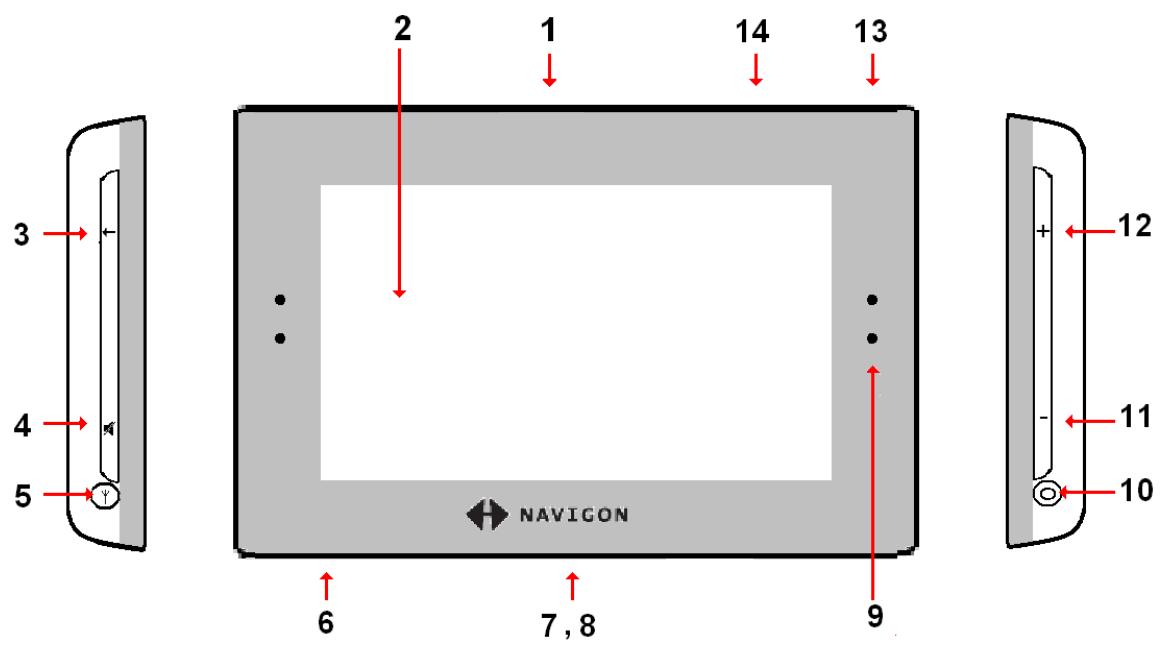
| 1 | ○ | On/Standby/Off |
| 2 | Touch screen | |
| 3 | ← | Back to Previous Window |
| 4 | × | Volume - Mute |
| 5 | ◎ | Socket for Optional External GPS antenna |
| 6 | ↔ | Power Connector Port (with integrated TMC antenna) |
| 7 | LED | |
| 8 | RESET | Reset |
| 9 | Microphone | |
| 10 | Ω | Socket for Optional External Headphone |
| 11 | - | Volume -Softer |
| 12 | + | Volume - Louder |
| 13 | Stylus | |
| 14 | SD | SD/SDHC memory card slot |
About GPS navigation
The Global Positioning System (GPS) uses a constellation of up to 32 satellites that enable a GPS receiver to calculate its geographical position.
For a sufficiently precise positioning it is necessary to obtain the data from at least three satellites. With the data from 4 or more satellites the altitude above sea level can also be determined.
Geographical terrain (such as mountains), man-made structures (such as highway overpasses, bridges and tall buildings), and even weather can interfere with or disrupt the GPS signal.
Once the navigation device has determined your position, it can be used as a starting point for route calculation.
The map data on your navigation device includes the geographical coordinates of all digitally recorded Points Of Interest (POIs), streets and places. This enables the device to calculate a route between a starting point and a destination.
The calculation of the current position and its representation on the map takes place once every second so your current position is always shown on the map.
If GPS reception is impaired, navigation is interrupted but the navigation software remains active. As soon as GPS reception is restored, the navigation system calculates any change of position which has occurred in the meantime and navigation may simply be continued.

Caution! The United States government operates the Global Positioning System (GPS) and is solely responsible for its accuracy and maintenance. Changes by the United States government may affect the accuracy and performance of all GPS equipment, including your personal navigation device.
Caution! Ordinances or laws may restrict use of certain abilities of your navigation device on public or private land.
This page intentionally left blank.
What's included
Your NAVIGON 8100T comes with the following accessories. If the contents are incomplete, please notify us within 14 days of purchase. The purchased product includes:
- NAVIGON 8100T navigation device
- SD card with navigation software (already inserted in the device)
- Car cradle and mounting disk
- Car charger cable (12 volt adapter) with integrated TMC antenna.
- Quick Start Guide
Warranty and Safety Flyer
Important safety information

Caution! Please be sure to read, understand, and follow the safety information in "Important safety information" on page 10.
Navigation safety information
Use this navigation system at your own risk.

Caution! To prevent accidents, do not operate the navigation system while driving.
Caution! Do not look at the display unless it is absolutely safe to do so!
Caution! Traffic regulations have priority over any instructions from the navigation system.
Caution! Follow the instructions of the navigation system only when the circumstances and the road traffic regulations allow you to do so! The navigation system guides you to your destination even if you deviate from the calculated route.
Caution! Check that the cradle is secured and adjusted properly before each journey.

Note: If you have not understood the spoken instructions, or you're not sure about what to do next, you can briefly refer to the map or arrow view of your navigation system.
Safety information for the navigation device

Caution! Do not use pointed or sharp-edged objects on your device's touch screen. Your NAVIGON 8100T is designed for use by simply tapping the touchscreen with your finger.
Caution! Protect the device from moisture. The device is not waterproof and is not protected against water damage.
Caution! Do not run cables directly next to safety-relevant devices and supply lines.
Caution! After installation, check all safety-relevant equipment in the car.
Caution! Unplug the navigation device's power supply when you park the vehicle. The navigation device requires power in standby mode, and may drain the vehicle's battery. When not using your device for an extended time see "Turning off the NAVIGON 8100T" on page 18.
Caution! Do not open the navigation device's casing under any circumstances.
Caution! Do not attempt to replace the battery. For problems related to the battery, contact NAVIGON Customer Support.
Caution! Always follow local regulations when disposing of this device.
Caution! Do not expose the navigation device to extreme heat or cold. This may damage the device or impair its function.
Caution! Use only the charger provided or one that has been approved by the manufacturer.
Caution! Connect the charger to a suitable power supply. The voltage requirements can be found on the device case and/or the packaging.

Note: Ensure that there are no kinks in the cable and that it will not be damaged by any sharp objects.
Note: To clean the navigation device, use a moist cloth only.
Note: Do not unplug by pulling on the cable. Doing so could damage the cable!
Note: Create a backup of the data contained on the memory card provided. This is very easy to do with the NAVIGON Fresh software. It can be downloaded free of charge from our website www.navigonusa.com.
Note: The memory card must remain inserted in the device during operation of the navigation system.
Note: Use only SD or MMC memory cards! Make sure that the memory card contacts are clean and undamaged.
Safety guidelines for Installation

Caution! Secure the cradle in such a way that the driver's visibility is not impaired.
Caution! Do not attach the cradle within the deployment zone of airbags.
Caution! When installing the cradle, ensure that it does not represent a risk in the event of an accident.
Caution! Do not run cables directly next to safety-relevant devices and power supplies.
Caution! After installation, check all safety-relevant equipment in the car.
Caution! The car charger cable is to be connected to cigarette lighters with an operating voltage of 12V only.
Preparing your NAVIGON 8100T for use
Charging the battery

Note: A 12 volt car charger cable is included with your device. An A/C wall charger is also available as an optional accessory. Visit our web store www.navigonusa.com/store/.
- Connect the car charger cable to the navigation device and to the vehicle's cigarette lighter.
The LED of the NAVIGON 8100T indicates the current battery charge. The LED lights:
No light, the battery has no charge.
Orange during charging.
- Green during charging when the battery is fully charged.
- Blue when the device is on.
Power Interruptions

For more information on setting this option, see Automatic Standby in "General Settings" on page 149.
When power to the device is interrupted, the NAVIGON 8100T can be configured to put itself into Standby mode to save power. This occurs when the device is on and is disconnected from a power source, such as:
The vehicle cigarette lighter, or
A wall outlet.
With this option, after a power interruption, the device waits 30 seconds, then puts itself into Standby mode. When one of the above power interruptions occur, the following message displays a 30 second countdown:
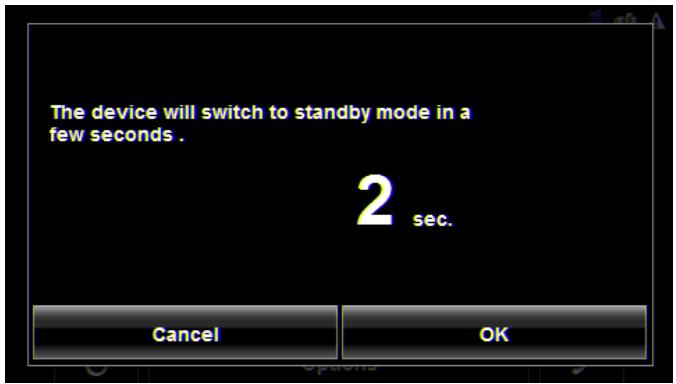
Tap:
- OK or wait until the 30 seconds countdown completes to allow the device to enter Standby mode.
- Cancel to end the countdown and continue using the device.
Memory Card
A memory card with the software and card data is already inserted in the navigation device. You can copy these data to another memory card or save them on your PC. To do so, the NAVIGON Fresh software can be downloaded free of charge from www.navigonusa.com.
Removing the memory card
- Turn off the navigation device. (Press and hold the (On/Standby/Off) button on the top of the device for eight (8) seconds, then release.)
- Press the memory card gently into the device until the lock disengages.
- Let go of the memory card. It now projects slightly out of the device.
- Pull the memory card out of the slot.
Inserting a memory card
- Insert the memory card into the device (as shown below).
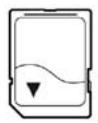

- Press the card into the device until it locks in place.

Note: The navigation device will work only if the memory card contains the navigation software and card data.
Installing the Car Cradle

Caution! Please be sure to read, understand, and follow the safety information in "Important safety information" on page 10.
Securing the Cradle
- Clean the mounting surface where you want to secure the cradle. The mounting surface must be dry and free of dirt and grease.
- Use the suction cup to fix the cradle to the windscreen.
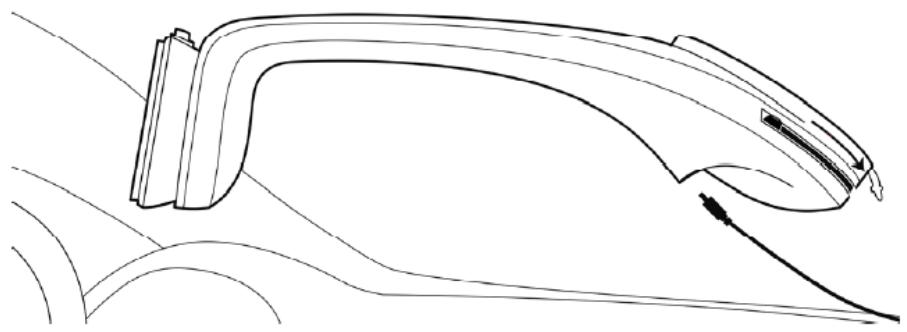
- Press the lever on the suction cup forwards.
Providing Power to the NAVIGON 8100T
Included in delivery of the NAVIGON 8100T is a car charger cable with which power can be supplied to the navigation device by the vehicle's cigarette lighter.
- Connect the car charger cable to the vehicle's cigarette lighter.
- Connect the mini-USB socket on the cradle.
The navigation device is supplied with power as soon as it is inserted in the cradle.

Caution! Connect the car charger cable to 12V cigarette lighters only.

Note: Be sure to insert the USB connector into the NAVIGON 8100T as far it will go.
Note: Power is only supplied to the cradle when the NAVIGON 8100T is inserted.
When the device is in the cradle, the USB socket will not operate.
TMC (Traffic) Antenna
The NAVIGON 8100T has an integrated TMC receiver. A TMC antenna is integrated in the car charger cable. Once the NAVIGON 8100T is inserted in the cradle it is ready to receive traffic message updates.
For more information on traffic message updates, see "NAVIGON Lifetime Traffic" on page 117.
Inserting the NAVIGON 8100T into the Cradle
On the rear of the navigation device is a ring which fits in the ring of the cradle.
- Align the head of cradle so that the button is at the top.
- Tilt the top end of the navigation device slightly forward towards you.
- Position the recess in the ring on the device so that it fits in the ring of the cradle.
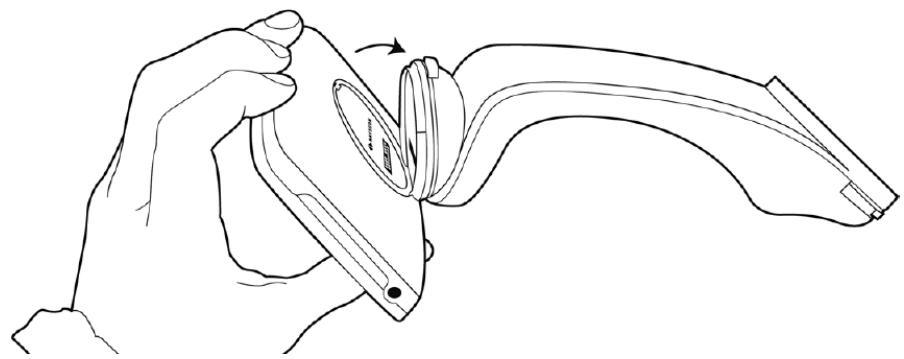
- Press the device into the cradle until you hear it lock in place.
Removing the NAVIGON 8100T From the Cradle
- Press the button on top of the cradle.
- Tilt the navigation device slightly forward towards you.
- Remove the device from of the cradle.
Connecting an Optional GPS Antenna (Not Included)
With the NAVIGON 8100T, you can also use an external GPS antenna (not provided with the device).
- Connect the GPS antenna to the external antenna/headset socket antenna) on the NAVIGON 8100T

(GPS
- Secure the antenna to the mounting surface using the suction cups.
Optional Accessory Services
This optional accessory service is available for your NAVIGON 8100T:
- NAVIGON FreshMaps
Optional services are purchased separately.
Activate Accessory Services
Activating NAVIGON FreshMaps Accessory Service

Note: NAVIGON FreshMaps Disclaimer (General)
NAVIGON FreshMaps is a subscription whose duration is limited to the period described on the purchased product. Internet access and a USB cable (that includes a TYPE-A connector and a MINI-B connector) are required to use NAVIGON FreshMaps. Windows XP or Windows Vista is recommended. Download performance can vary based on bandwidth speeds (broadband internet access is required). To qualify for updates, customers must register their device and activate NAVIGON FreshMaps at www.navigonusa.com/freshmaps within 60 days from the date of purchase or, if FreshMaps comes with your device, 60 days from the purchase date of the device. Software upgrades that could potentially change the user experience may be required to be downloaded in order to receive updates. NAVIGON FreshMaps updates are dependent on the updating of the product's underlying map database provided to NAVIGON by a third party. Therefore, the timing and availability of NAVIGON FreshMaps updates are subject to change based on when the third-party supplier provides updates to NAVIGON. Map data sizes increase and may necessitate additional storage capacity for which the customer will be solely responsible for providing. Retain proof of purchase. For further information, visit www.navigonusa.com.
To activate:
- Go to www.navigonusa.com
- Select the Registration & Activation tab.
- Select REGISTER YOUR NAVIGON DEVICE and provide the requested information.
- Select ACTIVATE YOUR SERVICE ACCESSORIES.
- Follow on-screen instructions for activating this accessory service.
Starting the NAVIGON 8100T
- Press and hold the (On/Standby/Off) button for two (2) seconds, then release.
If password protection has been activated, the ENTER PASSWORD WINDOW opens.
- Enter the password.
- Tap the Continue button.

See "Security" on page 31 for more information on using passwords.

After being turned off, when the navigation device is turned back on, the following message appears:
Note: This message does not display if the device is turned back on from Standby.
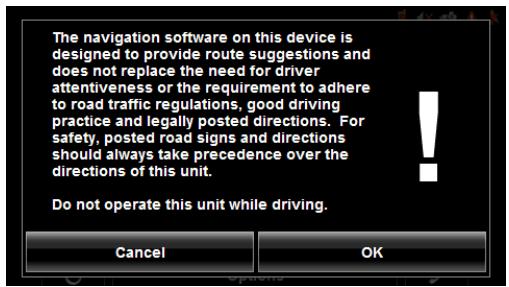
- After you have read and fully understood the text, tap OK.
The MAIN WINDOW displays.

Note: If you do not accept these instructions, tap Cancel to exit the navigation software.
Turning off the NAVIGON 8100T

Note: When your device is not in use for an extended period of time, use this procedure to turn off your device and conserve battery power.
- Press and hold the (On/Standby/Off) button on the top of the device.
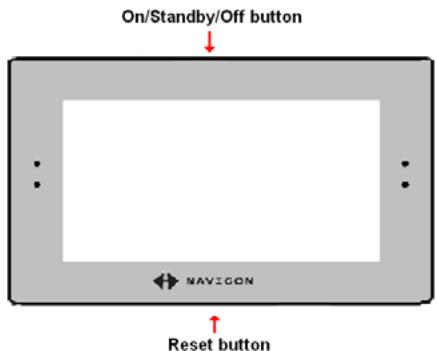
- Use a stylus or paper clip to press the reset button located on the bottom of the device case behind the LED.
First Time Startup
When you first start your device, the LANGUAGE SELECTION WINDOW displays.

Caution! Selecting the
(Cancel) button during these steps will cause these operation and will require the user to reset the device.
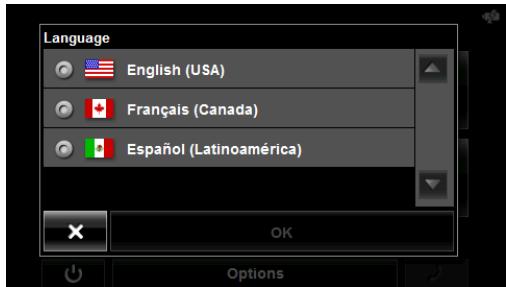
- Select the appropriate language and tap OK. The DISTANCE UNIT SELECTION WINDOW displays.
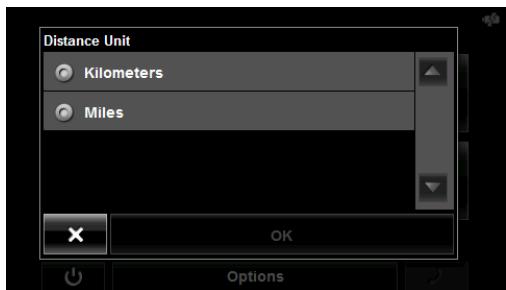
- Select either Kilometers or Miles and tap OK.
The CLOCK SETTING WINDOW displays.
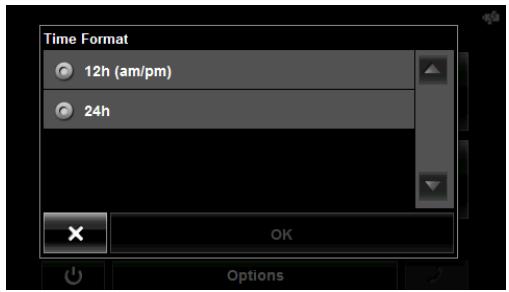
- Select either 12h (am/pm) or 24h and tap OK.
The selected options will be used by the device.
The following message displays:
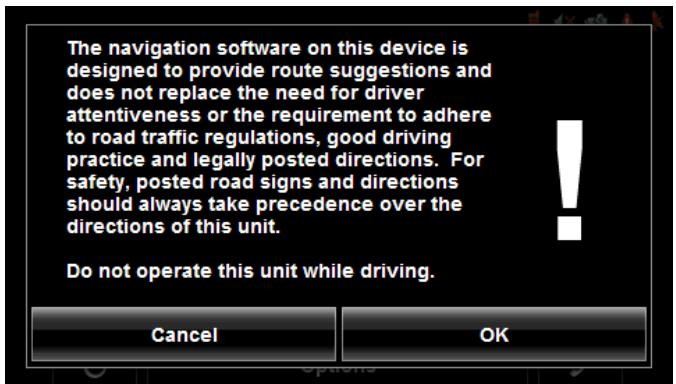
- After you have read and fully understood the text, tap OK.

Note: If you do not accept these instructions, tap Cancel to exit the navigation software.
The MAIN WINDOW displays.

You can change these settings at any time. For more information, see "General Settings" on page 149.
Using the Screensaver

Note: When enabled, the screensaver displays a slide show of pictures when you have not touched the device after an extended period of inactivity.
Note: The screensaver is automatically disabled during navigation or when using voice entry.
Note: The screenshot must be disabled before setting a device password.
In the MAIN WINDOW:
- Tap Options > Settings > General.
The GENERAL OPTIONS PAGE 1 displays.
- On PAGE 3, in the Screensaver field, tap Yes.
- Tap OK to save the change.
Selecting Day/Night Viewing Mode
In the MAIN WINDOW:
- Tap Options > Settings > General.
On GENERAL PAGE ONE:
- In the Display mode field, set the viewing mode. Options are:
Automatic Automatically switch between day and night display, based on sunrise and sunset times.
Night Display with darker colors for night viewing.
Day Display normally for daytime use.

Note: Change day and night brightness levels in the Brightness Day and the Brightness Night fields.
- When finished, tap OK to return to PAGE ONE.
- Tap OK to save changes.
Viewing Version Information
You can view software version information. This information may be required if you call for customer support. Version information is also useful when NAVIGON offers software and map updates.
In the MAIN WINDOW:
- Tap Options > Settings.
On the SETTINGS WINDOW: - Tap Options > Product Information.
- Use (Up) and (Down) to view all of the information.
Using Standby Mode

Note: Use Standby mode only when your device will be unused for a very short time. If left in Standby mode for an extended period, battery drain can occur as the GPS receiver continues to draw power. For longer periods of inactivity, see "Turning off the NAVIGON 8100T" on page 18.
Note: To further conserve battery power, the device resets itself if left in Standby mode for a longer time.
Standby mode conserves battery power. When the device is switched back on from Standby, the window that displayed when the device was set to Standby re-displays.
There are two ways to switch your device to Standby.
From the Main Window
On the MAIN WINDOW:
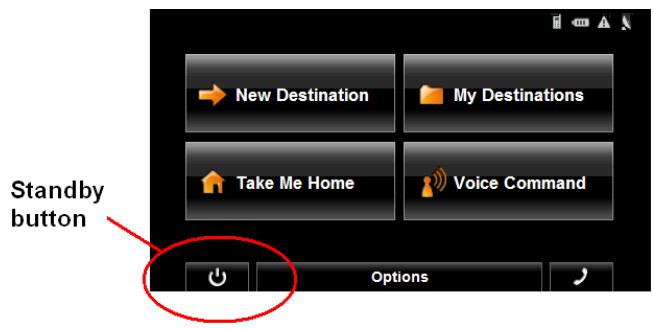
- Tap the (Standby) button.
From Any NAVIGON 8100T Window
- Press and hold the (On/Standby/Off) button for two (2) seconds, then release.
Switching the Device Back On From Standby
To switch the Device back on:
- Press and hold the (On/Standby/Off) button for two (2) seconds, then release.

Note: If a password has been created for the device, the ENTER PASSWORD WINDOW appears when the device is switched back on from Standby. See "Security" on page 31 for more on using passwords.
The Main Window
The MAIN WINDOW opens when the navigation software starts.
You can reach all of the navigation software functions from this window.
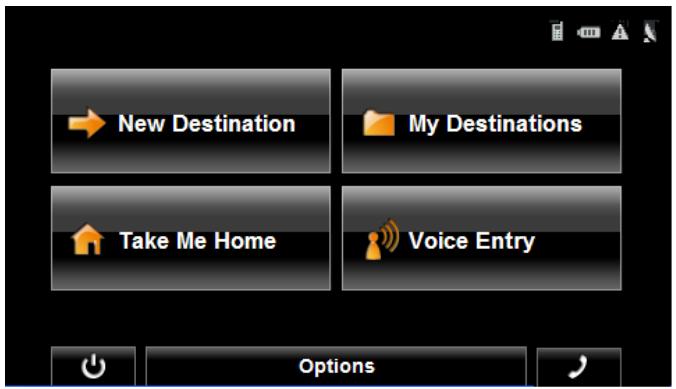
New Destination
Tap this button to:
- Select an address as a destination. (See page 55.)
- Select a POI as a destination. (See page 58.)
- Select a Direct Access POI. (See page 65.)
My Destinations
Tap this button to select a destination from:
- A list of destinations you have saved. (See page 90.)
A list of the most recently entered destinations. (See page 91.) - A list of addresses imported from Outlook. (See page 83.)
Take Me Home
Tap this button to:
- Specify your home address as a destination. (See page 80.)
- Quickly create a route back to your home address from your present location. (See page 82.)
Voice Entry
Tap this button to:
- Select an address using voice entry. (See page 41)
The Standby Button
- Tap this button to place the device on Standby and conserve power. (See "Using Standby Mode" on page 21 for more information.)
The Options Button
Tap this button to:
Activate an accessory service:
- Activate NAVIGON FreshMaps. Access the Route Planning window
Create a route. (See page 93.)
- Save a route. (See page 96.)
- Load a saved route. (See page 96.)
- Run a simulation of a route. (See page 103.)
Access the Settings window to set:
- Navigation options. (See page 147.)
- Route Profile options. (See page 149.)
Map display options. (See page 148.) - General options. (See page 148.)
Additional Options button. (See page 150.)
Go to the GPS Status window to:
View current GPS status and location information.
- Save the current location as a destination (GPS reception required). (See page 80.)
View the NAVIGON Lifetime Traffic window information. (See page 121.)
Go to the DirectHelp window. (See page 35.)
Hands-Free Operation (Bluetooth)
- Tap the (Phone) button to open the Hands-Free module.
Initializing the GPS receiver

Note: If possible, position the device with a clear line of sight to the sky to successfully receive messages from the GPS satellites.
Note: GPS initialization requires data from at least three satellites. If GPS data is not available, the receiver will not initialize.
Note: It can take up to 20 minutes to initialize the integrated GPS receiver for the first time.
Note: Each time you turn on the device, GPS receiver initialization begins. When GPS data is available, reception starts within one minute.
If the navigation device has been switched to standby for more than a week, the next initialization can take up to 10 minutes.
In the upper right-hand corner of the display, the GPS symbol appears. As soon as data from at least 3 satellites is received, the symbol changes to (GPS Ready).


Note: If the GPS symbol displays GPS Ready after considerably less than 20 minutes, it is advisable to leave the receiver switched on for at least an additional 15 minutes to ensure reliable operation.

Caution! The GPS receiver requires a constant supply of power. Leaving the device plugged into your cigarette lighter for a longer period with the vehicle turned off could drain the vehicle battery.
Setting the volume
The volume of the spoken driving instructions can be adjusted during navigation.
On the NAVIGON 8100T, there are two ways to adjust the volume.
Using Hardware Keys
Hardware keys on the sides of the device can be used to control volume.

On the left side of the device:
Tap (Mute) to mute the volume. Tap again to restore volume.
Tap + (Louder) to increase the volume.
Tap - (Softer) to lower the volume.
With a Map Displayed
- Tap (Volume).
The volume bar opens. It contains three buttons for adjusting the volume:

(Louder)

(Soffer)

(Mute on/off).
- Tap (Volume) again.
The volume bar closes.

Note: When you mute the volume, an icon appears in the upper right corner of the screen, next to the Bluetooth, battery, traffic, and GPS icons. The icon disappears when the volume mute is turned off.
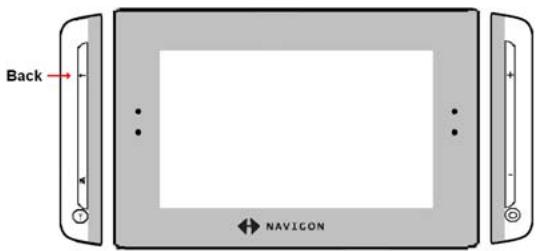
Returning to the Previous Window
On the NAVIGON 8100T, press the (Back) hardware key to return to the previous window.
Viewing device status
Symbols located at the top right of the screen are used to display information.
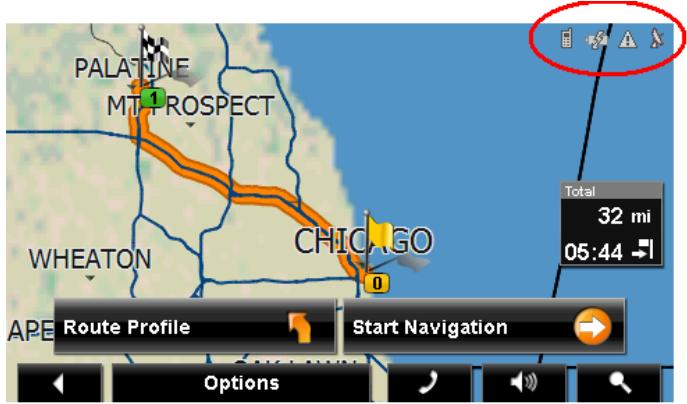
GPS
The GPS symbol can show the following GPS reception status:
No Symbol The built-in GPS receiver is not operational. Contact customer service if the problem persists.

No Signal Data is being received from fewer than three satellites. Position cannot be calculated.

GPS Ready Data is being received from at least three satellites. Position can be calculated.

For more information, see "About GPS navigation" on page 7.
Power

For more information on recharging your device, see "Charging the battery" on page 12.
The Power symbol can display the following conditions of the built-in battery:

The device is powered by an external power source. The battery is charging.

The device is powered by its internal battery. Battery is fully charged.

The device is powered by its internal battery. Battery charge is sufficient.

The device is powered by its internal battery. Battery charge is low.

Caution! When the No Battery ( ) icon displays, the battery has no power remaining. The device will soon turn off. See "Charging the battery" on page 12.
Caution! Do not attempt to replace the battery. For problems related to the battery, contact NAVIGON Customer Support.
Traffic Information (TMC)
The NAVIGON 8100T, with a car charger cable with integrated TMC antenna, provides the navigation system with up to date traffic messages. If necessary, it can alter the route dynamically in order to avoid a traffic jam.

Note: This function is only available if TMC traffic messages are being transmitted in the map area in which you are traveling. Traffic messages are not available in all areas.
Note: The charger cable does not need to be connected to the vehicle's cigarette lighter for the antenna to be operational.
Note: Without the antenna, TMC messages may not be received when the device is operating on battery power only.
The TMC symbol can display the following TMC reception status:
No Symbol
TMC is not operational.

Tuning
TMC is operational, but cannot find a station that is transmitting TMC signals.

No Reception
Traffic messages are no longer being received, but there are still traffic messages in the queue that have not expired.

TMC Ready
Traffic messages can be received.

For more information, see "Displaying traffic messages" on page 121.
Phone/Bluetooth
The NAVIGON 8100T has an integrated Bluetooth hands-free (Bluetooth) module. This enables you to use the device as a hands-free kit for a mobile phone with Bluetooth capability.
For more details see "Hands-Free Operation (Bluetooth)" on page 127.
The Phone icon displays the following states of the hands-free module:
No Symbol Bluetooth is disabled. See "Configuring the Hands-Free function" on page 141 to enable the Hands-Free operation.

Not Connected Bluetooth is available, but the NAVIGON 8100T is not connected (paired) with a mobile phone.

Connected The NAVIGON 8100T is paired to a mobile phone and can be used for making and receiving calls.

In Use The NAVIGON 8100T is paired to a mobile phone and is currently in use making or receiving a phone call.
Using Keyboards
Software keyboards appear on the screen when text entries are necessary. All entries can be made on the software keyboard using the fingertips. Only capital letters can be entered. Three keyboards are available for entering destination information.

Note: When you need to enter a hyphen, use the space button in place of the hyphen. For example, to enter a hyphenated house number of 20-36 tap two, zero, space, three, six.
Alphabetic keyboard
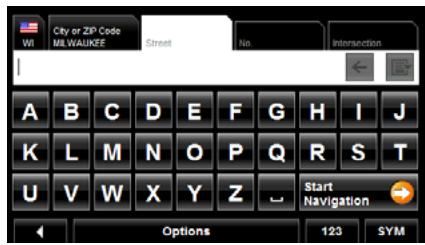
Tap ABC to display the alphabetic keyboard. Only capital letters can be entered.
Numeric keyboard
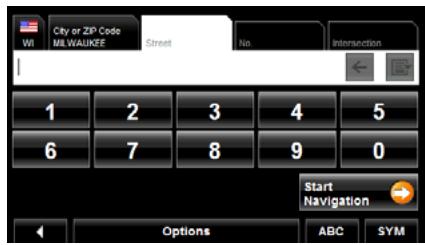
Tap 123 to display the numeric keyboard.
Special character/symbol keyboard
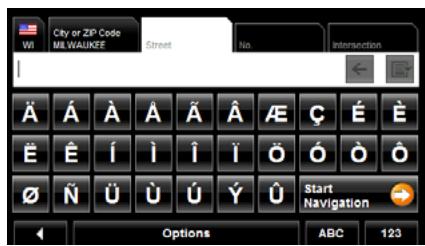
Tap SYM to display the special character keyboard. As soon as you have entered a special character, the Alphabetic keyboard reappears automatically.
Special keys

On the Alphabetic keyboard, enters a space character.
This key is also used to enter a space in place of a hyphen.

On the Alphabetic and Numeric keyboards, deletes the previous character and moves the cursor back one space.

On the Alphabetic and Special Character keyboards, opens the Numeric keyboard.

On the Numeric and Special Character keyboards, opens the Alphabetic keyboard.

On the Alphabetic and Numeric keyboards, opens the Special Character keyboard.
Using menus
Some buttons display menus with options that can be selected.
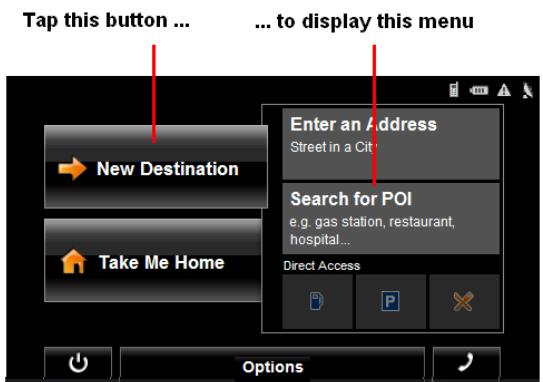
To open a menu:
- Tap on a button to show the menu options.
To close a menu without selecting a function:
- Tap on the button again.

By using a password, you can protect your navigation system from unauthorized use.
Note: Password protection takes effect the next time the NAVIGON 8100T is switched to standby mode. See "Using Standby Mode" on page 21.
The Password Window
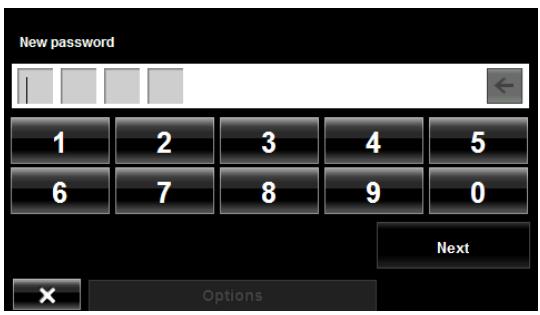
Setting a password

Note: If the screenshot is active, it must be disabled before setting a device password. Note: The password must be exactly 4 digits.
In the MAIN WINDOW:
- Tap Options > Settings
The SETTINGS WINDOW opens.
- Tap Options > Password Lock.
The PASSWORD LOCK WINDOW opens.
- In the New password field, type the new password.
- Tap Next.
- Re-type the new password in the Confirm new password field.
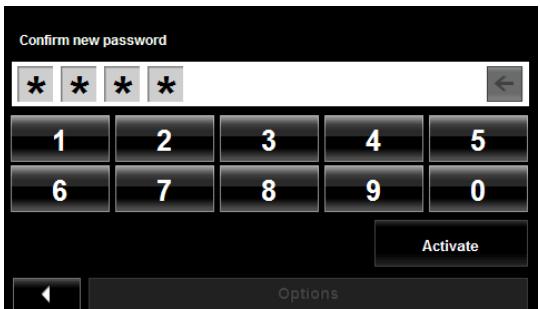
- Tap Activate.
Changing a password
In the MAIN WINDOW:
- Tap Options > Settings.
The SETTINGS WINDOW opens.
- Tap Options > Password Lock.
The PASSWORD LOCK WINDOW opens.
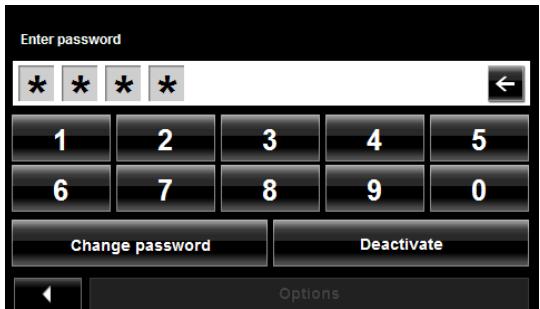
- Type the current password in the Enter Password field.
- Tap Change Password.
- Type the new password in the New password field and tap Next.
- Re-type the new password in the Confirm new password.
- Tap Activate.
Cancelling password protection
In the MAIN WINDOW:
- Tap Options > Settings.
The SETTINGS WINDOW opens.
- Tap Options > Password Lock.
The PASSWORD LOCK WINDOW opens. - Type the current password in the Enter Password field.
- Tap Deactivate.
Forgotten your password?
After three unsuccessful attempts, the device displays the following message.
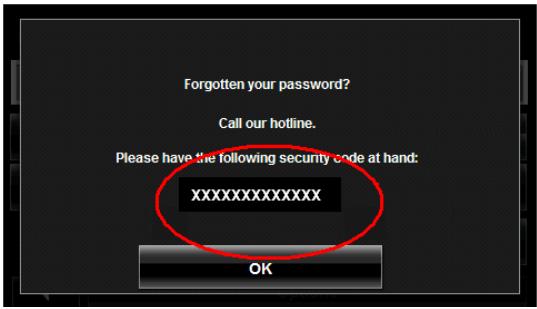
- Record the device number shown on your device.
- Call our customer support at:
(888) 848-0701 (Toll Free)
Monday through Friday, 7 a.m. to 9 p.m. CT
(except official holidays)
- Follow the instructions to reset your password.
This page intentionally left blank.
The NAVIGON DirectHelp feature offers speedy access to emergency POIs. You can quickly find a telephone number and make an emergency call (when paired with a mobile phone), find an address, get directions, and drive to help. DirectHelp also provides you with directional distance to the nearest intersection, and your latitude/longitude location. This information can help emergency personnel quickly come to your assistance.
DirectHelp is available at any time, while you are on-route or off, and with or without GPS reception. The last known GPS position is used when GPS reception is not available. With GPS, you can quickly find help and calculate a route to a DirectHelp POI.
The DirectHelp Window
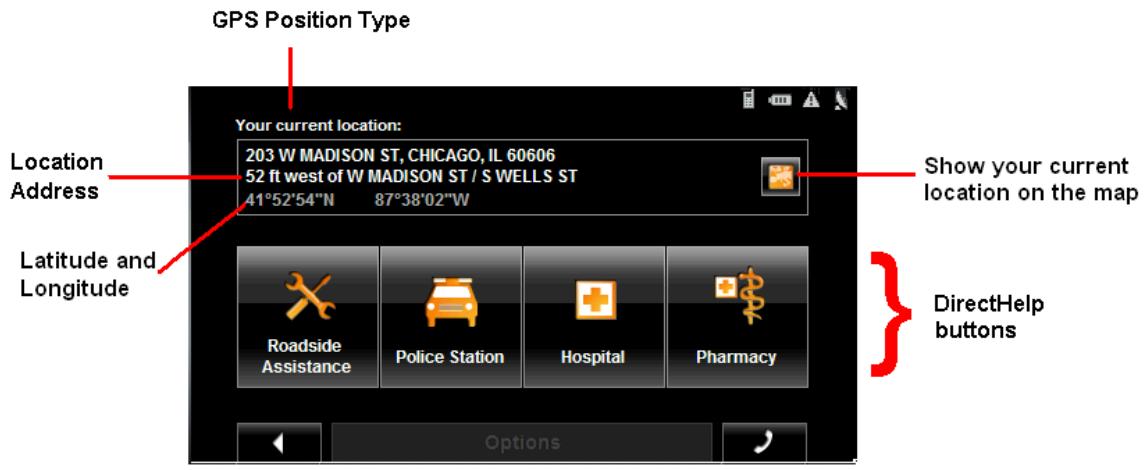
GPS Position Type
The location type indicates whether GPS reception is available or not. If the location type is:
Simulated Position: Displays only once when neither current or historical GPS position is available. Shown at time of purchase or whenever the device is reset.
Your current location: GPS reception is available. Your current location is shown in the Location Address field.
Your last location: GPS reception has been lost. The last GPS location is shown in the Location Address field.
Location Address
With GPS reception, the distance to the intersection closest to your present location is shown. If GPS is not available, this is the approximate distance to the closest intersection from the last known GPS position. If the device is located:
On an Unnamed Road Unnamed Road appears with the distance and direction to the nearest navigable intersection.
Off Road Off Road appears with the distance and direction to the nearest navigable intersection.
Latitude/Longitude
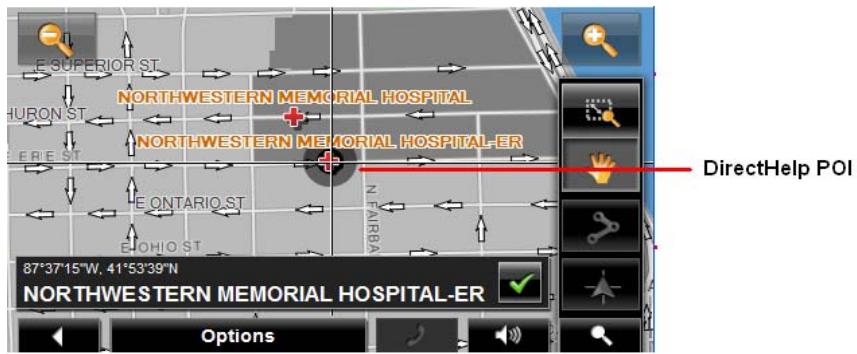
Show Your Current Location on the Map
View your location on a map. Once a DirectHelp POI is selected, tapping this button centers the map on the location of the selected POI. The selected POI is shown as a gray circle. If you have enabled the display of the particular POI icon category (such as Healthcare for Hospital) in map display, the icon and label of the selected POI appears on the map. Changing the zoom level (Zoom In) or (Zoom Out))
affects whether the icons display.
The crosshairs indicate the center of the map. The name of the POI closest to the center of the map is shown.
DirectHelp buttons
Four DirectHelp POI categories are available:
Roadside Assistance
Police Station
Hospital
Pharmacy
DirectHelp returns up to 10 POIs within a 30 mile radius of your location, with the closest POI shown first. If no POIs are found, the following message displays:
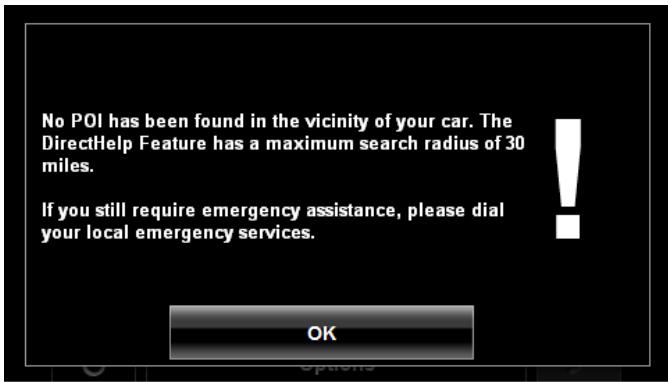
If no emergency POIs are found, seek assistance in the usual manner.
Using DirectHelp
From the MAIN WINDOW:
- Tap Options > DirectHelp.
The DIRECTHELP WINDOW opens.
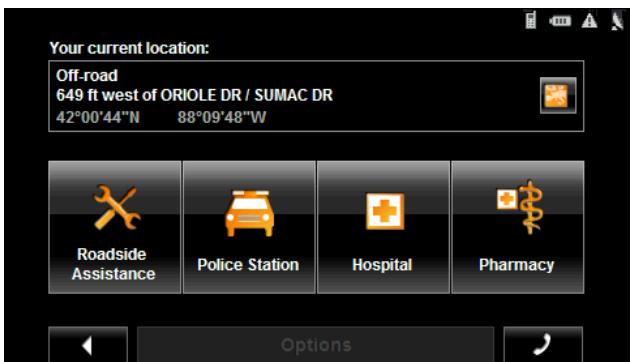
- Tap on the DirectHelp category button for the type of help you need. The DIRECTHELP DETAIL WINDOW displays.
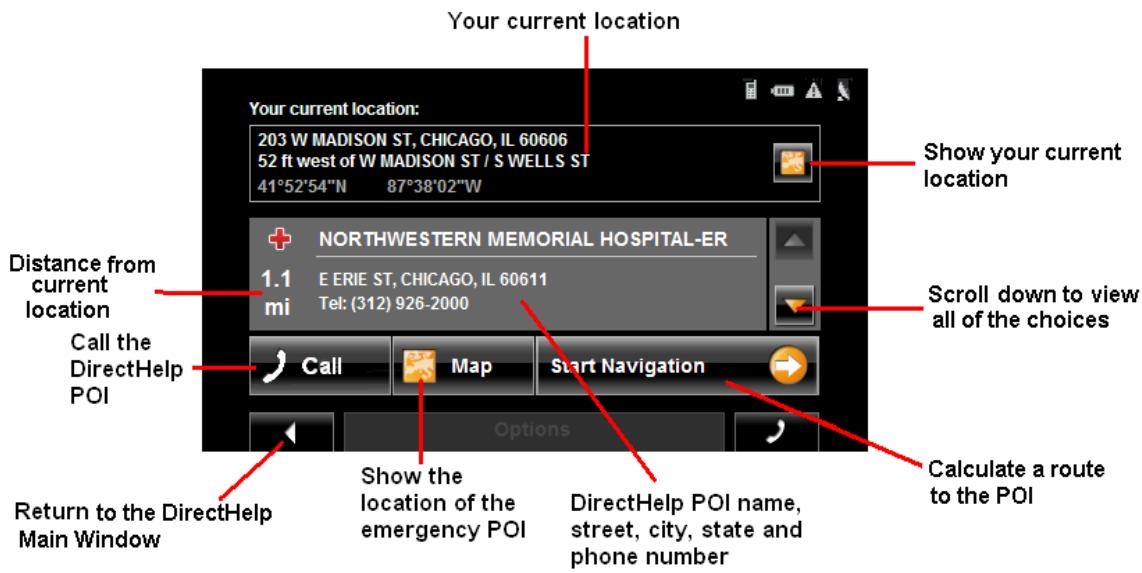
- Use the (Down) and (Up) buttons to select an emergency POI.
- Tap the (Map) button to show the location of the selected emergency POI.
- Tap the Start Navigation button to calculate a route to the POI.

Note: If GPS reception has been lost, the route is calculated from the last recorded GPS location.
Calling a DirectHelp POI

Note: This feature is only available when the NAVIGON 8100T is connected to a mobile phone using Bluetooth and the phone is within a coverage area. For more information, see “Connecting (Pairing) with a Mobile Phone” on page 129.
- Tap Options > DirectHelp.
The DIRECTHELP WINDOW opens.
- Follow procedures in "Using DirectHelp" on page 38 to select an emergency POI.
- Tap (Call) to call the selected emergency POI.

Note: The Call Direct Help POI button is not available if a phone number for the selected emergency POI is not available.
This page intentionally left blank.

Caution! Please be sure to read, understand, and follow the safety information in "Important safety information" on page 10.
You can speak the city, street and house number for your destination and the NAVIGON 8100T shows you a list of destinations that match your city and street spoken entry. If necessary, you can also change the destination.
Because NAVIGON 8100T voice destination entry 'learns' from previous commands, returning correct destinations becomes faster and easier over time.
The Audio Assistant is used to set spoken entry settings.
General Instructions
When using voice destination entry, always:
- Speak at a normal rate and clearly say each syllable in the city and street names.
- Speak directly toward the NAVIGON 8100T microphone.
- Provide as much information as possible. Include the directional info (North, South, East, West) and the street type (Street, Lane, Avenue, Boulevard, etc.). A spoken entry of "East Madison Street" returns a much shorter list of possible matches than an entry of "Madison".
Languages
When using voice destination entry, speak the address in the language of the location. In the United States and all Canadian provinces except Quebec, speak the name of the location in English. For locations in Quebec, where the language is French, speak the French name of the province, city and street in the location language. Speak the house number in the language used on the NAVIGON 8100T.
For example:
| If you are looking for a location in: | And the NAVIGON 8100T Language is: | Say: | |
| The State/Province, City and Street Name in: | The House Number and answer questions in: | ||
| New York | English | English | English |
| New York | Spanish | English | Spanish |
| Quebec | English | French | English |
| Quebec | French | French | French |
| Quebec | Spanish | French | Spanish |
Street, Highway, Route Names

Note: See "House Numbers" on page 42 for instructions on entering house numbers.
When using voice destination entry, consider the guidelines below:
| Numbered Routes | Rule | Example | Spoken as |
| 0 - 99 | Say each one or two digit number as it appears, NOT by the individual digits that make up the number. | IN-2CA-99 | INDIANA TwoCALIFORNIA Ninety-Nine |
| 100-999 | Say the first digit by itself and the second and third digits as a separate number.Exception: If the second digit is a zero, it is pronounced as the letter ‘O’ and the first and third digits are pronounced individually. | I-580WI-158US-101 | I Five EightyWISCONSIN One Fifty Eight(Exception) U.S. One O One |
| 1,000-9,999 | Say the first two digits as one number and the second two digits as another number.Exception: Some alter-nates can be used when a zero appears within the name. | 1234 RD1201 ST1001 AVE | Twelve Thirty Four RoadTwelve O One StreetOne Thousand One Avenue(Exception) Ten O One Ave |
House Numbers
Speak house numbers using the following conventions:
| For: | Rule | Example | Spoken as |
| Numbers | Say numbers as individual digits. | 241 | Two Four One |
| 12358 | One Two Three Five Eight | ||
| Zeros | Always say “Zero” rather than the letter “O”. | 302 | Three Zero Two |
| 14030 | One Four Zero Three Zero |
Background Noise
NAVIGON 8100T voice destination entry works best in an environment with a minimal amount of background noise. Possible sources of noise include:
- Open windows
- Passengers/bystanders talking
Heating/Air conditioning - Engine/traffic noise
Radio/CDs
Reducing background noise improves spoken entry performance.
Setting Up Voice Destination Entry to Recognize Your Voice
The first time you use voice entry, the Audio Assistant displays and is used to set the NAVIGON 8100T to recognize your voice.

Note: If another person is to use voice entry, repeat this procedure to calibrate voice entry to a different voice.
On the MAIN WINDOW:
1. Tap Voice Entry.
The AUDIO ASSISTANT PAGE ONE displays.
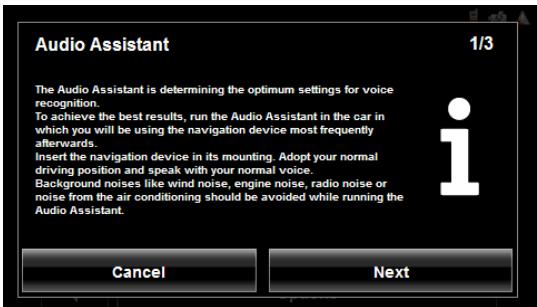
- Review the displayed information and reduce or eliminate any unnecessary background noise.
3. Tap Next.
The AUDIO ASSISTANT PAGE TWO displays.
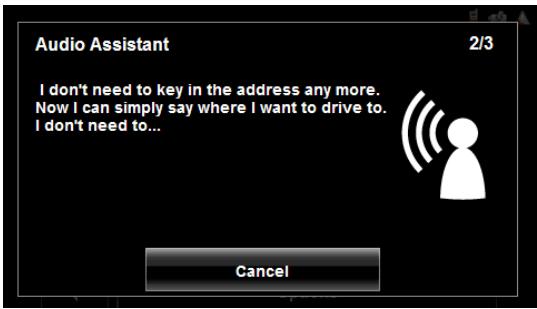
- After the tone, speak the words displayed on the window.
- Continue speaking until the AUDIO ASSISTANT PAGE THREE displays.
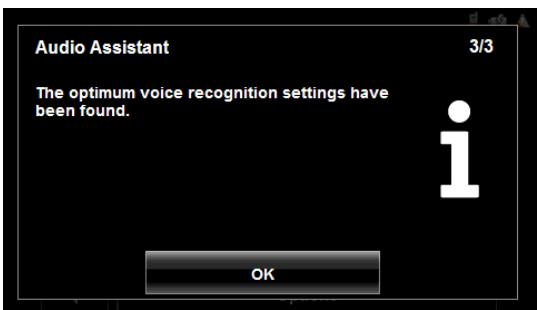
6. Tap OK.
The MAIN WINDOW re-shows.
You can now start using voice entry to select destinations.
Restarting Audio Assistant
If you reset your NAVIGON 8100T or if another person will be using the device, you should run Audio Assistant again.
From the VOICE ENTRY MAIN WINDOW:
- Tap Options > Audio Assistant.
- See "Setting Up Voice Destination Entry to Recognize Your Voice" on page 44 to set up voice recognition.
Select Audio Assistant Volume
From the VOICE ENTRY MAIN WINDOW:
- Tap Options > Settings.
The AUDIO ASSISTANT SETTINGS WINDOW displays.
The orange boxes indicate the volume.

- To increase the volume, tap (Toggle). The more orange boxes, the louder the volume.
- To decrease the volume, tap (Toggle) to increase the volume until the all boxes are orange. Tap again to clear all of the orange boxes and start at the lowest volume setting.
- When finished, tap OK.
The Voice Destination Entry Main Window
On the VOICE ENTRY MAIN WINDOW, destination can be entered either by speaking or by tapping a button and entering the information.
Before using Voice entry, see "Setting Up Voice Destination Entry to Recognize Your Voice" on page 44.
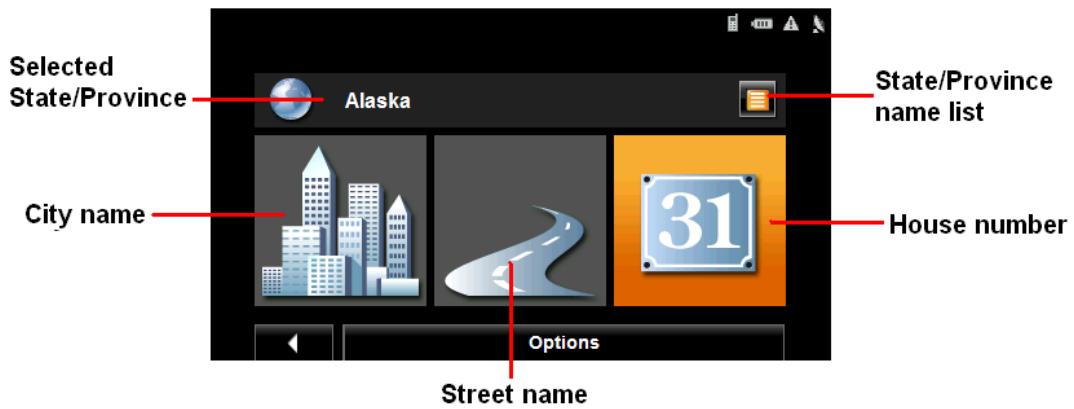
Selecting a Destination using Voice Entry
On the MAIN WINDOW:
- Tap Voice Entry.
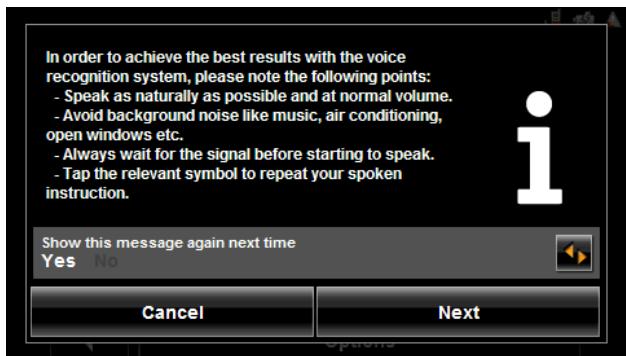
- Review the displayed information. To hide the message from showing next time
voice entry is used, tap to No.
- When ready, tap Next.
The VOICE ENTRY MAIN WINDOW displays the last selected state/province.
- To select a different state/province, tap

(List).
The STATE OR COUNTRY WINDOW displays.
This screen lists states in the U.S. and provinces in Canada.
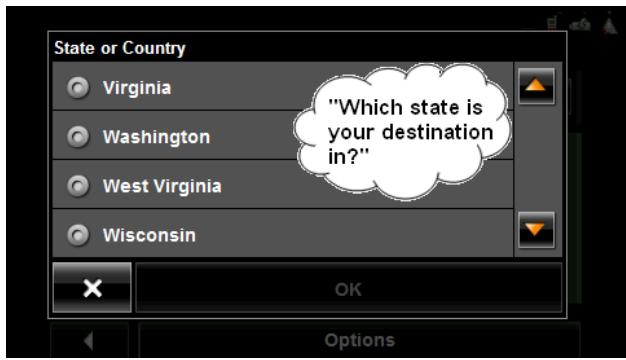

The first time voice entry is used, the STATE OR COUNTRY WINDOW displays automatically.
- Say or tap on the name of the state/province.
The voice prompt asks you to confirm your entry.
-
If the state/province is:
-
Correct, say "Yes".
- Incorrect, say “No”. After the prompt repeat the above steps to select the correct state/province.
Once the state/province is selected the VOICE ENTRY MAIN WINDOW re-displays.
You are prompted for the city name.
- After the tone, say the city name.
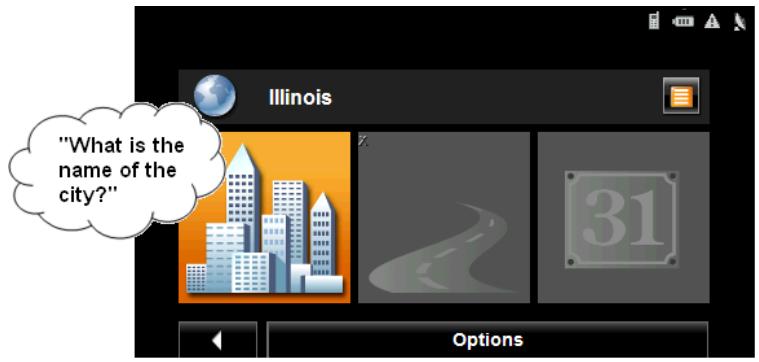
You are prompted for the street name.
- After the tone, say the street name.
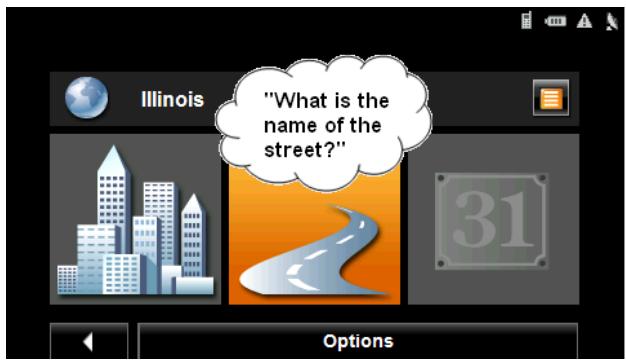
You are prompted for the house number.
- After the tone, say the house number.
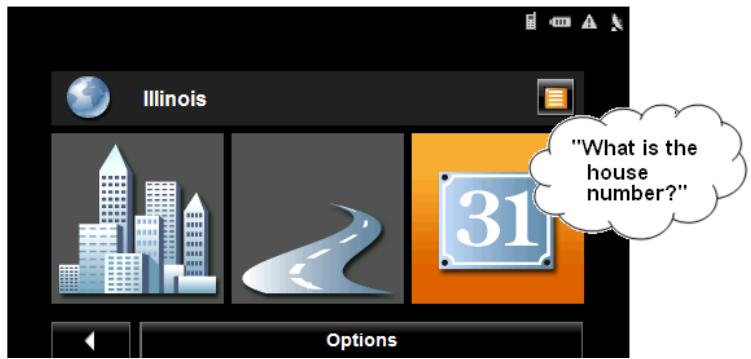
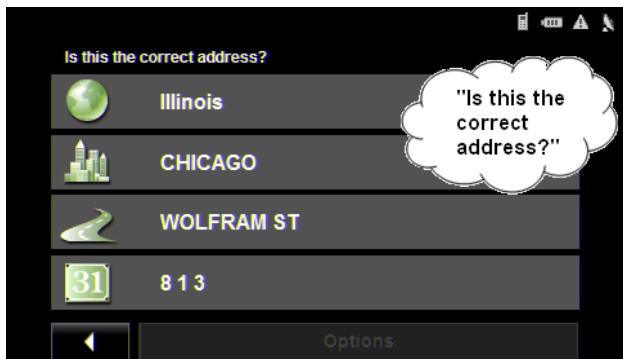
The NAVIGON 8100T calculates and returns the address that most closely matches your spoken address information on the VOICE ENTRY CONFIRMATION WINDOW.
-
After the voice prompt, if the address is:
-
Correct, say "Yes". A route is calculated and navigation begins.
Incorrect, say "No" to display the VOICE ENTRY SELECTION WINDOW.
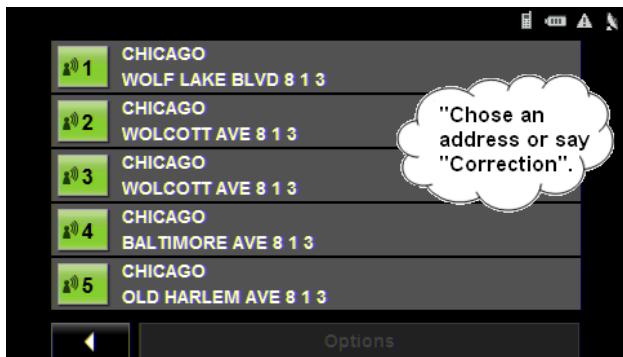
-
After the prompt, if the spoken address is:
-
Correct, say "Yes".
- Incorrect but the correct address is listed on the window, say the number (i.e. if 813 Baltimore Ave, Chicago is correct, say “Four”).
Incorrect and the correct address is not shown, say "Correction".
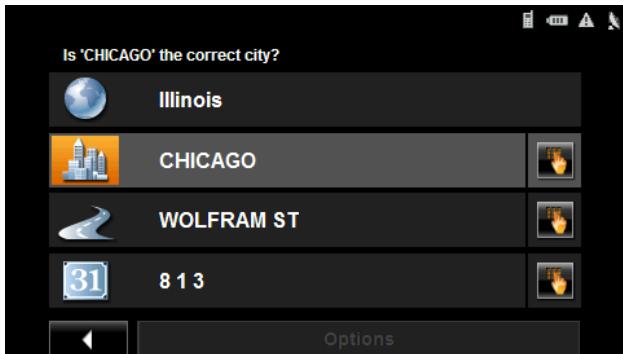
The VOICE ENTRY CORRECTION WINDOW displays.
After each voice prompt, say the city, street, and house numbers again. or
To exit voice entry and enter the address manually, tap

(Manual entry).
A voice prompts asks if you want to exit.
- Say "Yes".
The DESTINATION SELECTION WINDOW displays.
- Follow steps for selecting the destination manually.

Note: For more information on manually entering a location, see “Enter an Address” on page 54.
Selecting a Different Destination Using Voice Entry
If the returned address is not the destination you want, you can restart voice entry destination and specify a different destination.
On the VOICE ENTRY MAIN WINDOW:
- Tap Options > Enter a different destination.
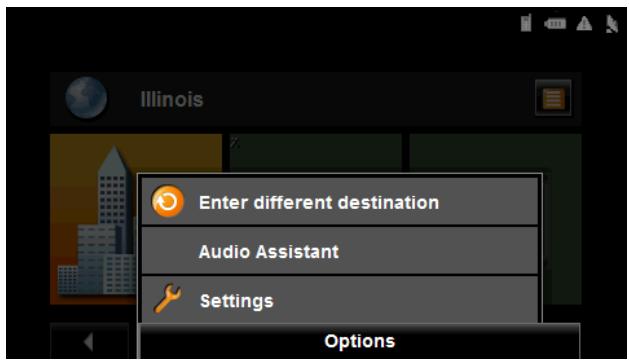

Caution! Please be sure to refer to the safety information in "Important safety information" on page 10.
New destinations for the NAVIGON 8100T are destinations that you have not yet navigated to or those that you have not yet stored.
You can enter an address, select a POI, or select a destination from the quick search function.
Using auto-complete to select a destination
When you enter a city name, after you type the first letter, the largest city in the search area appears on the CITY OR ZIP CODE TAB. On the keyboard, the only keys available are for the next valid character in a search area name.
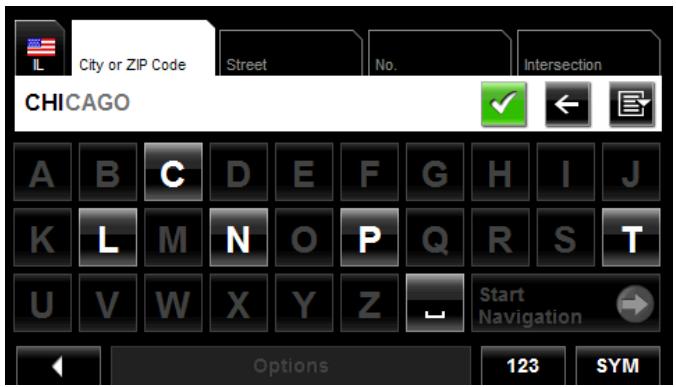
To select:
- The city shown, tap (OK).
- A different city, continue typing the city name until the correct city is shown on the CITY OR ZIP CODE TAB. Tap (OK) to select the city.

When entering characters, tap the (Back) button to delete the previous character and move the cursor back one space.

Note: The auto-complete feature is not available for all locations.
The Search Area Tab
When you enter the New Destination button on the MAIN WINDOW, the SEARCH AREA keyboard opens. If you are selecting a destination for the first time, the tab appears blank.

The (Search Area) tab, used to select a map area, is located at the top left corner of the destination selection window.
Once an area is selected, a code on the button reflects the selection and the flag of the country appears above it. For example:
If "IL - Illinois" is selected, the tab displays as:

If "QC-Quebec" is selected, the tab displays as:


Note: Only areas that are represented in the currently loaded map can be selected.
Search Areas
Selecting a Search Area Using the Keyboard
To select an area, do the following:
On the MAIN WINDOW:
- Tap New Destination > Enter an Address.
The DESTINATION SELECTION WINDOW opens and displays the Alphabetic keyboard.
- Tap on the SEARCH AREA TAB.
- Tap the key of the first character in the state/province within which your location is located.
For example, tap "I" for Idaho.
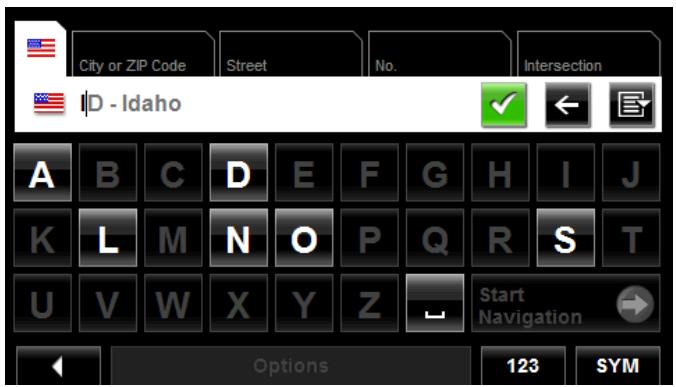
The name of the first search area beginning with the selected character is shown.
On the keyboard, the only keys available are for the next valid character in a search area name.
- Tap the next characters in the search area name.
- When the correct state/province name is shown, tap OK).
Selecting a Search Area From a List
When you enter the New Destination button on the Main window, the SEARCH AREA keyboard opens. To select an area, do the following:
On the MAIN WINDOW:
- Tap New Destination > Enter an Address.
The DESTINATION SELECTION WINDOW opens.
- Tap on the SEARCH AREA TAB.
- Tap (Area List).
A list of search areas displays.
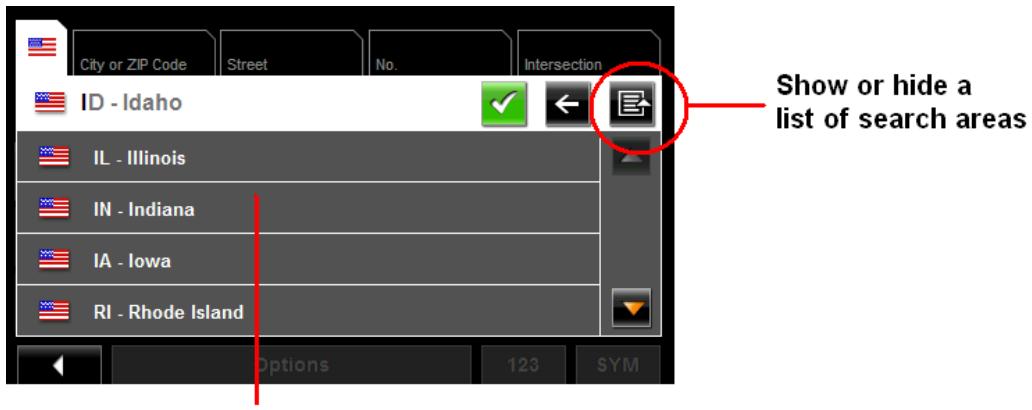
List of search areas
- Tap on the state/province in which your destination is located.
- Tap (OK).
Ways to Search for Destinations
Enter an Address
You can find an address by entering the state/province, city, street and house number.
Search for a POI
Points of Interest, (POIs) are useful locations that are organized according to particular criteria. POIs include airports, restaurants, hotels, gas stations, government offices, banks, hospitals, shopping centers, etc. Icons representing the POIs can be displayed on the map.
You can search for POIs:
Nearby
POIs nearby are special destinations that are located within a given radius of your current location. This means you can always find the nearest gas station, for example, no matter where you are.
In a City
POIs in a given location can be useful when navigating in an unfamiliar town.
Statewide
Popular POIs and POIs of national significance in a state/province. Includes airports, national parks, historic sites, etc. This enables you to find places of interest within a state/province.
Near a Selected POI
Select a location, then search for POIs near it. For example, search for restaurants close to an airport. No GPS reception is required for this type of search.
Select a Direct Access POI
POI direct access system contains three categories of special destinations. POIs in your vicinity that correspond to these categories can be listed quickly, without the need for additional entry.
Tap on the Map
You may indicate a destination directly on the map. In addition to towns and streets, you may also select POIs.

Note: Only areas that are represented in the currently loaded map can be selected.
Entering an address
When searching for a location, you do not have to enter all of the address details.
If you do not know the house number, leave the No. tab blank. On the Intersection tab, enter the name of a nearby cross street and the navigation system calculates a route to the intersection of the specified streets.
In the MAIN WINDOW:
1. Tap New Destination > Enter an Address.
The DESTINATION SELECTION WINDOW opens. The search area used in the previous search is shown on the SEARCH AREA TAB.

Note: To select a different search area, tap on the SEARCH AREA TAB, and select the state/province.
The CITY OR ZIP CODE tab opens.
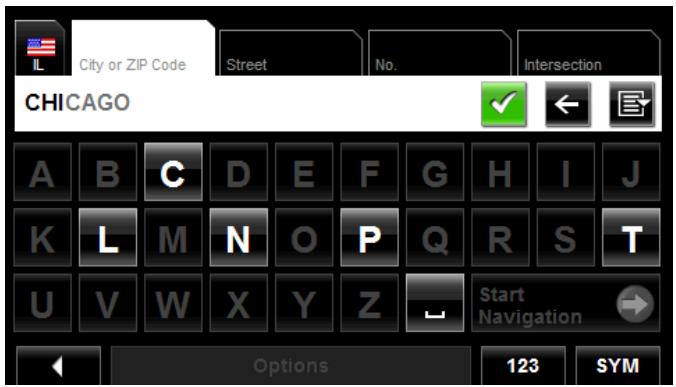
2. Enter the city name or Postal code, then tap OK).
Use the Alphabetic keyboard to type a city name, or
- Use the Numeric keyboard to type the zip or postal code
- Switch between the Alphabetic and Numeric keyboards to type a Canadian postal code.

Note: You can specify just a city name if you prefer a route to the center of the city. Note: Only the first three characters of a Canadian postal code are supported.
The STREET TAB opens.
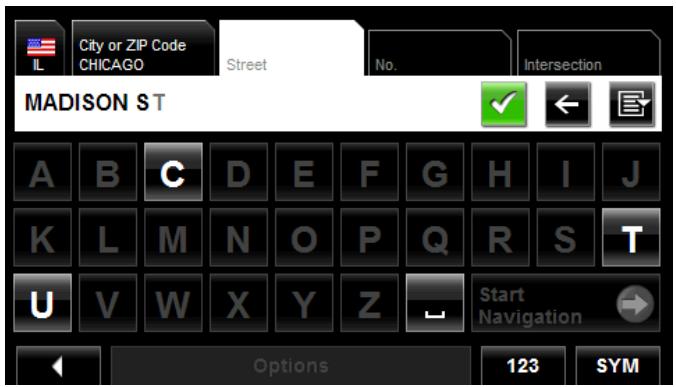
- Enter the name of the destination street, then tap OK).
The NO. TAB opens.
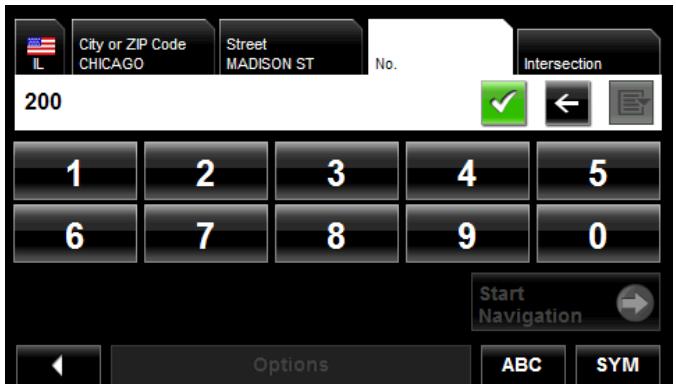
- Enter the house number, then tap OK).
If you do not know the house number:
- Leave the No. tab blank. On the Intersection tab, enter the name of a nearby cross street and the navigation system calculates a route to the intersection of the specified streets.
- Tap Start Navigation to route to just the street.
If more than one location is found that matches your destination selection info, the NAVIGON 8100T displays a list of locations.

Note: The search is performed on the street name and type, directional information (such as North, South, East and West) is not used in the search. The returned list of addresses will have specified street name with any directional indicator.
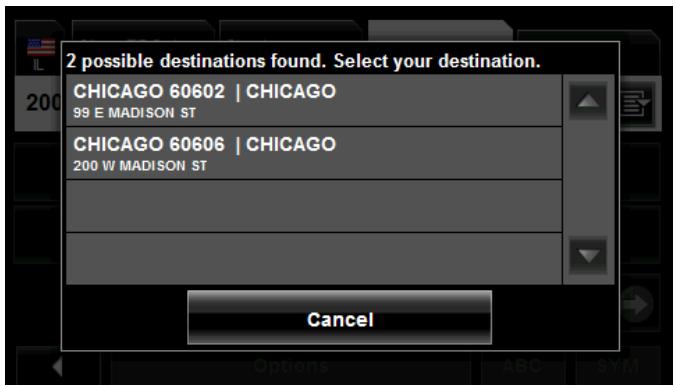
- Tap on a location to select it.
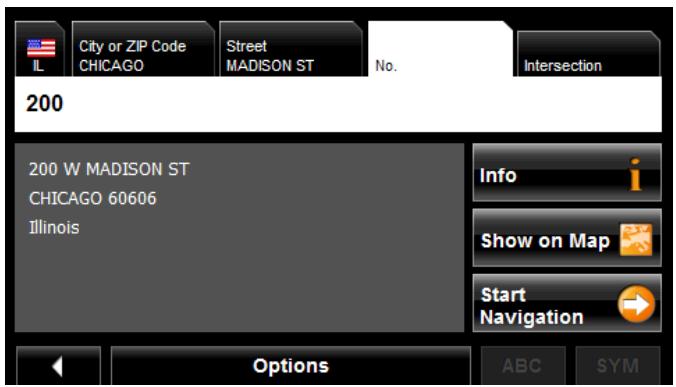
6. Tap Start Navigation.
The map opens in Preview mode.

For more information, see "Starting navigation" on page 73.
Selecting a Point of Interest (POI) destination
POIs nearby

Note: GPS reception must be sufficient to determine your current position. You can see if GPS reception is sufficient by looking at the (GPS Ready) symbol. For more information, see "GPS" on page 26.
In the MAIN WINDOW:
- Tap New Destination > Search for POI > Nearby.
The CATEGORY tab opens.
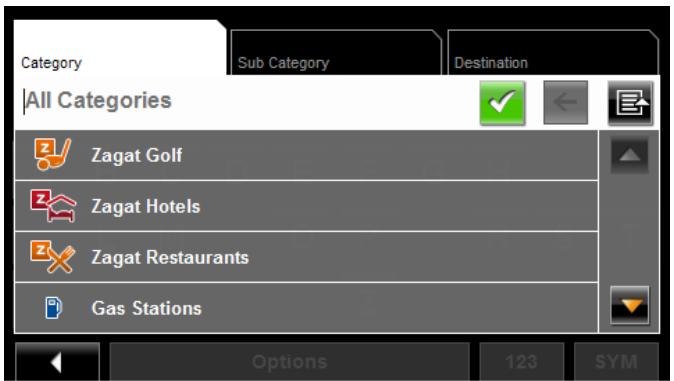
- Tap on the category from which you would like to select a POI. The SUB CATEGORY tab opens.
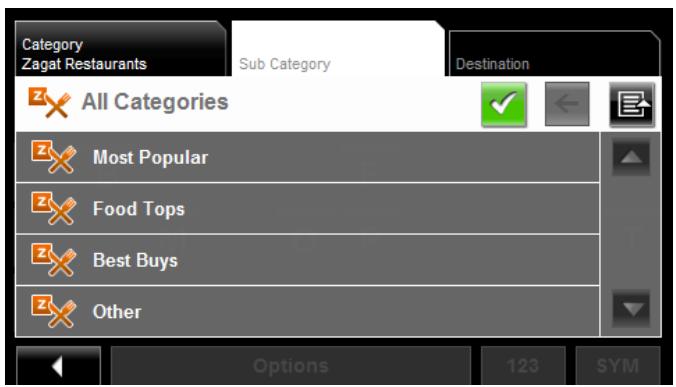
- Tap on the subcategory from which you would like to select a POI.
The DESTINATION TAB opens.
If more than one location is found that matches your destination selection info, the NAVIGON 8100T displays a list of locations.
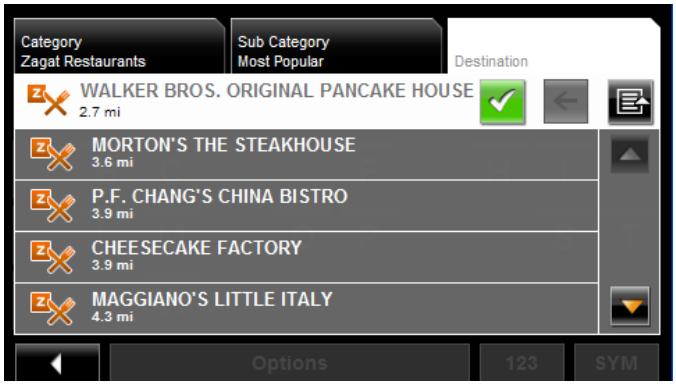
- Tap on the name of the destination. Information for the selected POI displays.
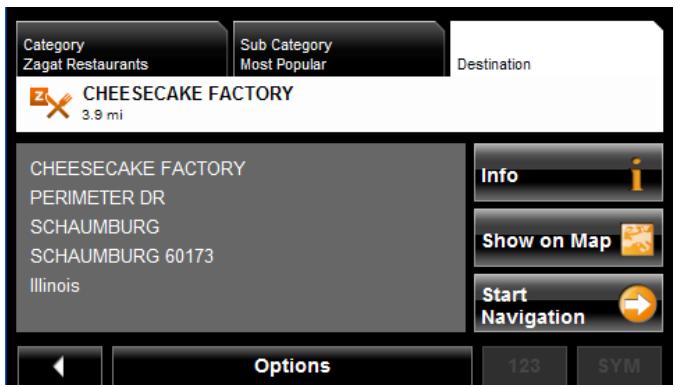
- Tap Start Navigation.
The map opens in Preview mode.
For more information, see "Starting navigation" on page 73.

POIs in a specified city
On the MAIN WINDOW:
- Tap New Destination > Search for POI > in a City.
The DESTINATION SELECTION WINDOW opens. The search area used in the previous search is shown on the SEARCH AREA TAB.

Note: To select a different search area, tap on the SEARCH AREA TAB, and select the state/province.
The City OR ZIP CODE tab opens.
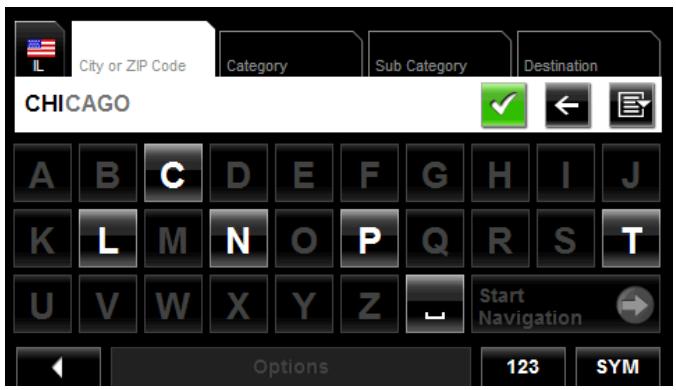
-
Enter the city name or ZIP code, then tap OK).
-
Use the Alphabetic keyboard to type a city name, or
Use the Numeric keyboard to type the zip code. - Switch between the Alphabetic and Numeric keyboards to type a Canadian postal code.

Note: Only the first three characters of a Canadian postal code are supported.
The CATEGORY TAB displays.
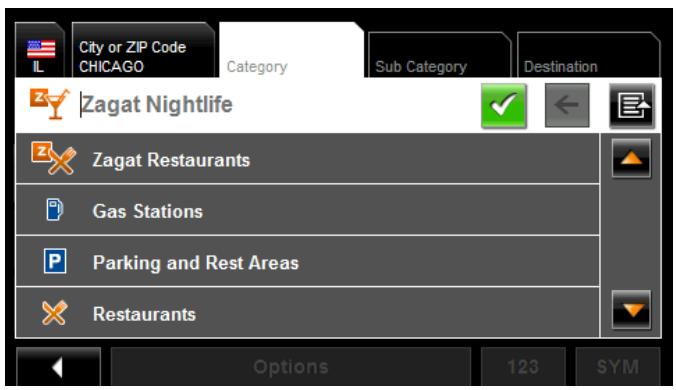
- Tap on the category from which you would like to select a POI.
The SUB CATEGORY TAB displays.
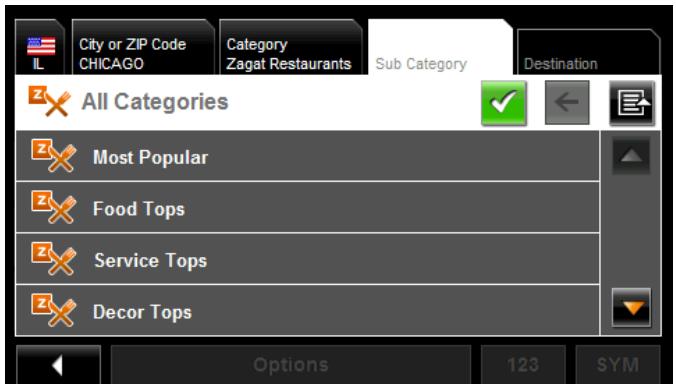
- Tap on the subcategory from which you would like to select a POI. The DESTINATION TAB opens.
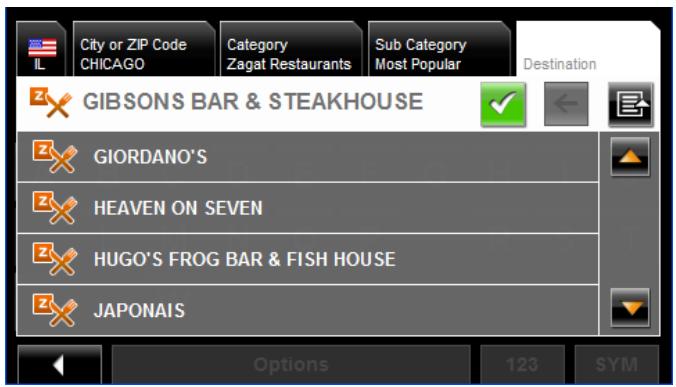
- Tap on the name of the destination.
If more than one location is found that matches your destination selection info, the NAVIGON 8100T displays a list of locations.
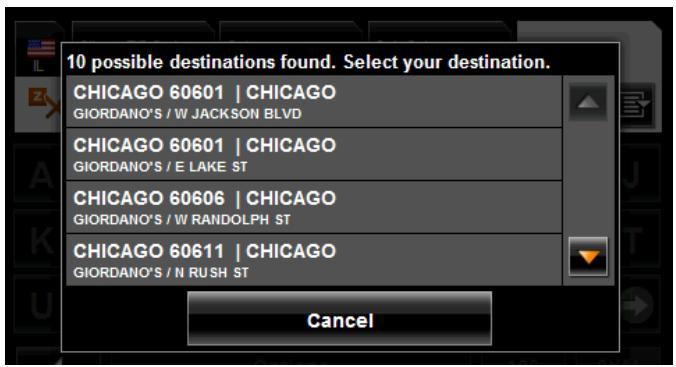
- Tap on the location you want.
The DESTINATION TAB displays information on the selected POI.
For more on POI information, see "Information about the POI" on page 67.

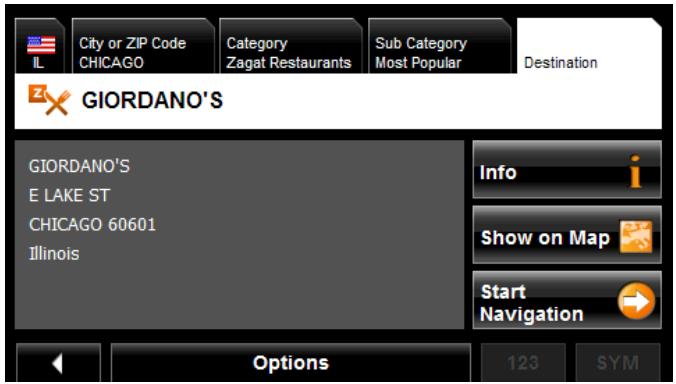
7. Tap Start Navigation.
The map opens in Preview mode.

For more information, see "Starting navigation" on page 73.
Statewide POIs
In the MAIN WINDOW:
- Tap New Destination > Search for POI > Statewide.
The STATEWIDE POI WINDOW opens.
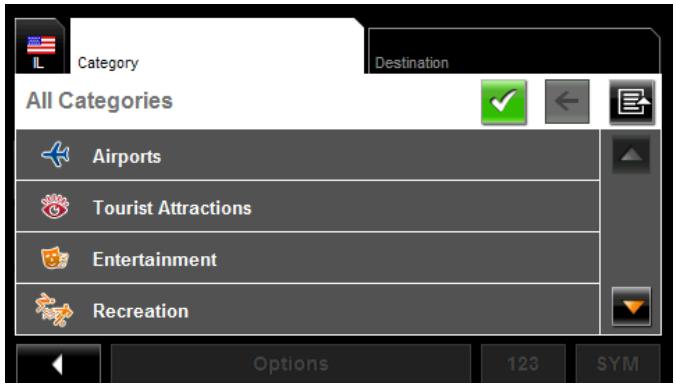
- Tap on the category from which you would like to select a POI.
The DESTINATION TAB opens.
If more than one location is found that matches your destination selection info, the NAVIGON 8100T displays a list of locations.
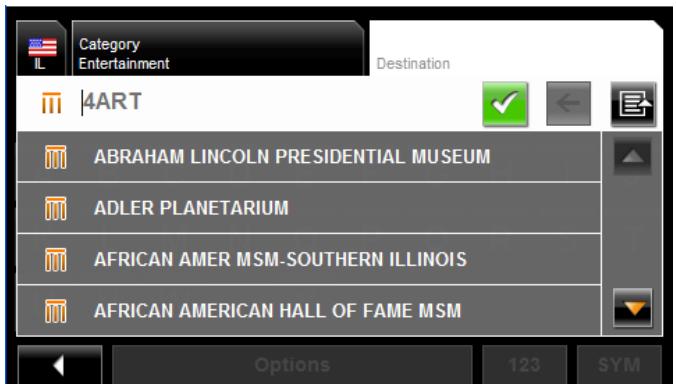
- Tap on the name of the POI.
The DESTINATION TAB displays information on the selected POI.
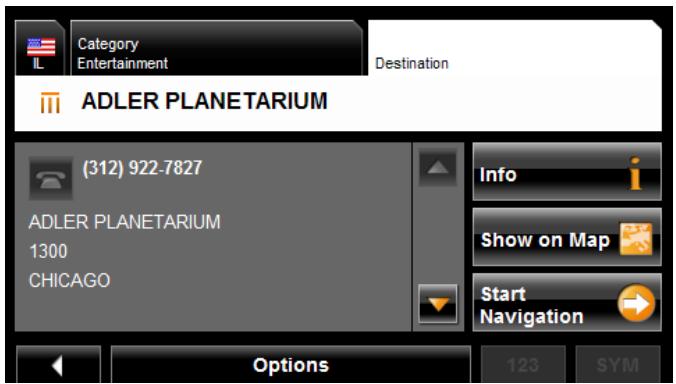

For more on POI information, see "Information about the POI" on page 67.
4. Tap Start Navigation.
The map opens in Preview mode.

For more information, see "Starting navigation" on page 73.
Selecting a Direct Access POI

Note: Sufficient GPS reception is required for Direct Access POIs. You can check GPS reception by looking at the (GPS Ready) symbol.
When you receive your device, the following 3 POI categories are selected for direct access:
Gas Stations
- Parking
- Restaurants.

Note: To select other types of POIs for direct access, see "Specify Direct Access POI categories" on page 66.
In the MAIN WINDOW:
- Tap New Destination.

The NEW DESTINATION MENU opens.
The symbols of the categories which have been selected for direct access can be seen in the menu at the bottom.
- Tap on a category from which you would like to select a POI.
The Name of the Destination list opens. It contains the nearest POIs in the specified category, sorted by distance.
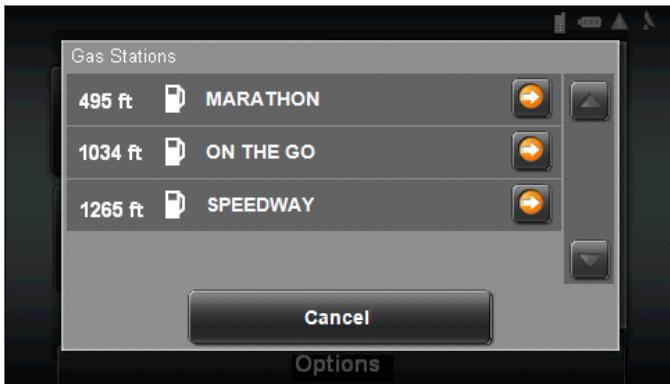
- Tap on the name of the destination.
The map opens in Preview mode.
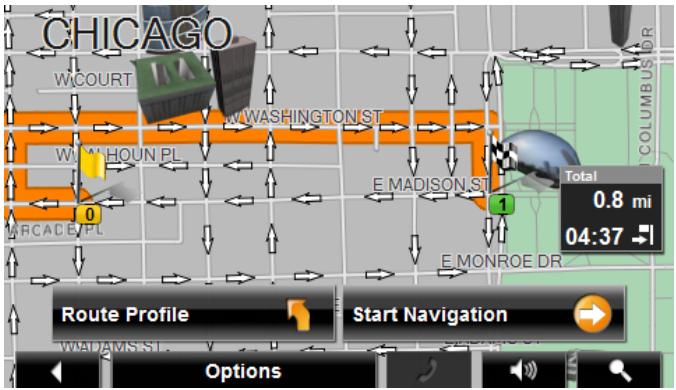

For more information, see "Starting navigation" on page 73.
Specify Direct Access POI categories
In the MAIN WINDOW:
- Tap Options > Settings > General.
- Use (Next Page) to go to PAGETwo.
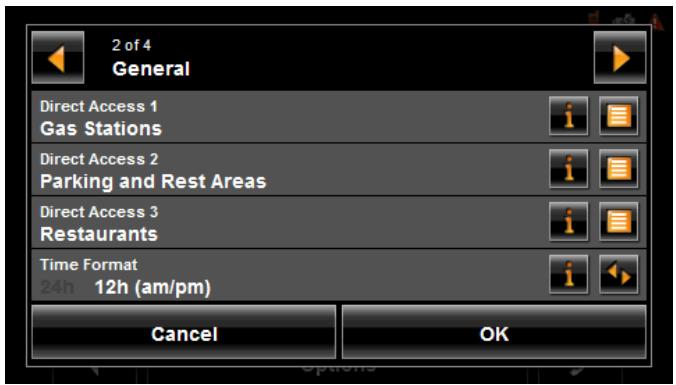
- In the Direct Access 1 field, tap (List) and select a POI category.
- Repeat the above step in the Direct Access 2 and Direct Access 3 fields.
- When finished, tap OK to save the changes.
Information about the POI
For many POI destinations, additional information is available. For example, telephone numbers are provided for many restaurants, allowing you to call the restaurant and reserve a table ahead of time.
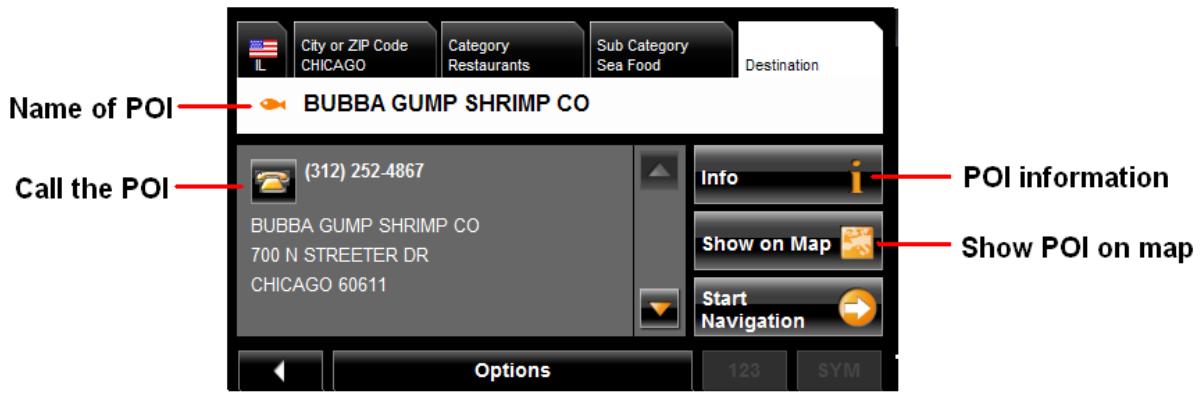
On the DESTINATION SELECTION WINDOW, the following buttons are available:
| Info i | Opens the DESTINATION INFO WINDOW and shows basic information about a POI, including address and phone number. Postal codes in Canada will only display the first three characters. |
| Show on Map | Show the POI on a map. (GPS reception required.) |
| Phone the POI, if a phone number is available. This feature is only available when the NAVIGON 8100T is connected to a mobile phone using Bluetooth. See “Connecting (Pairing) with a Mobile Phone” on page 129 for more information. | |
| Start Navigation | Calculate a route and start navigation to the selected POI. |
Searching for POIs Near a Selected Location
With the NAVIGON 8100T you can select a location, then search for POIs nearby. For example, if you are traveling for business you can search for restaurants close to your hotel. You can perform this type of search from anywhere - your home, hotel room, airport, etc. No GPS reception is required for this type of search.
On the MAIN WINDOW:
- Select the location. (See the corresponding section of "Destination Selection" on page 51.)
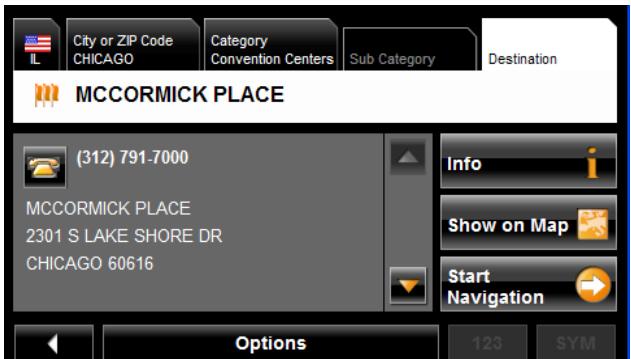
2. Tap Show on Map.
The map displays the selected POI centered on the map and the street name of the POI appears below it.
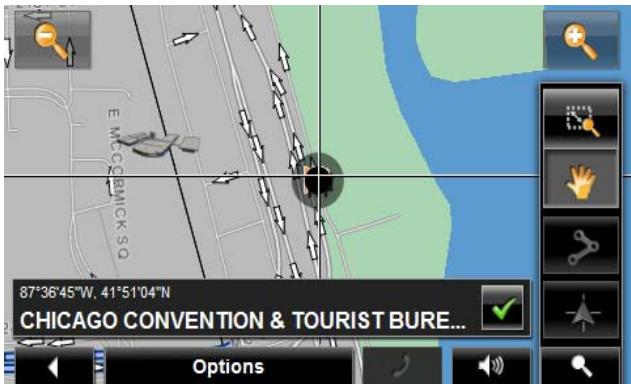
- Tap (OK).
The DESTINATION SEARCH MODE WINDOW displays.
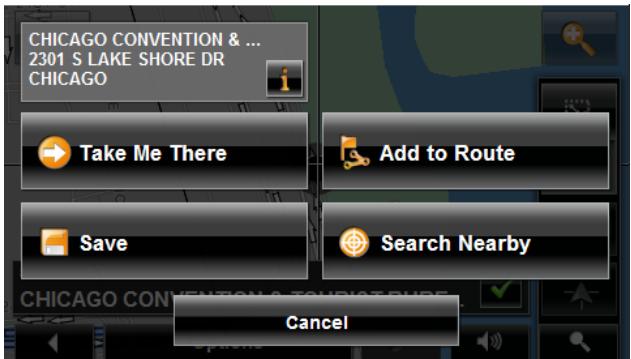
- Tap the Search Nearby button.
The CATEGORY TAB opens.
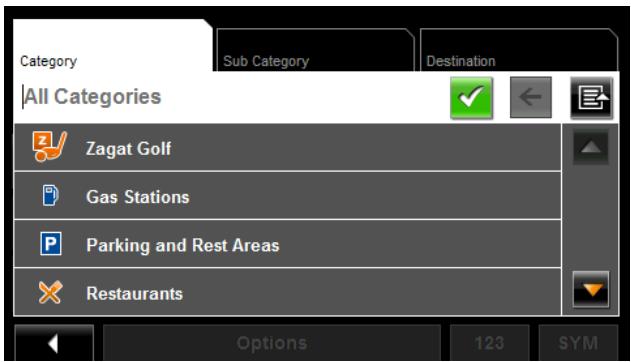
- Select the POI category
The SUB CATEGORY tab opens.
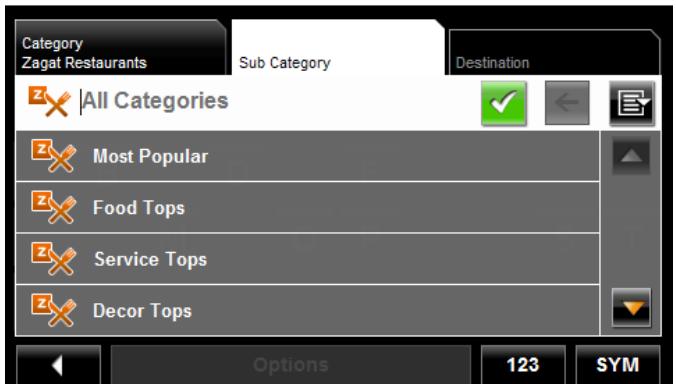
- Tap on the subcategory from which you would like to select a POI.
The DESTINATION TAB opens. The distance from your current location and the POI is shown.
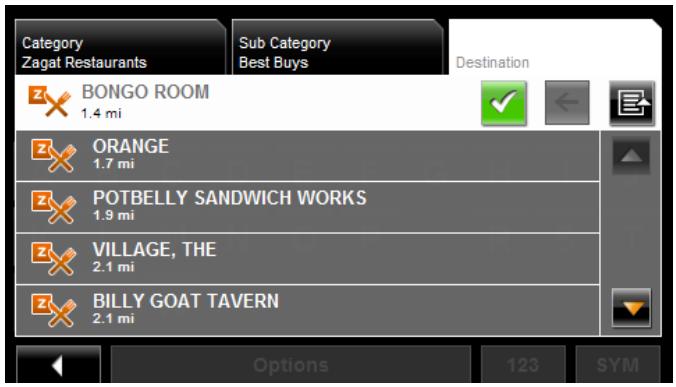
- Tap on the location you want.
The DESTINATION TAB displays information on the selected POI.
For more on POI information, see "Information about the POI" on page 67.

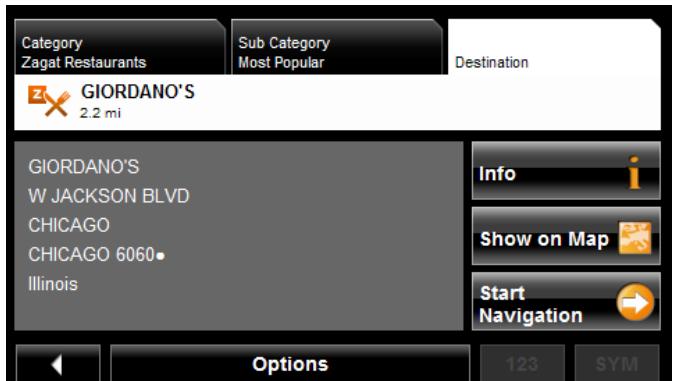
- Tap Start Navigation.
For more information, see "Starting navigation" on page 73.

Selecting a destination by tapping the map

You can select towns, streets, and even POIs by tapping on the map.
On the MAIN WINDOW:
- Tap Options > Show Map.
The map opens in Preview mode.
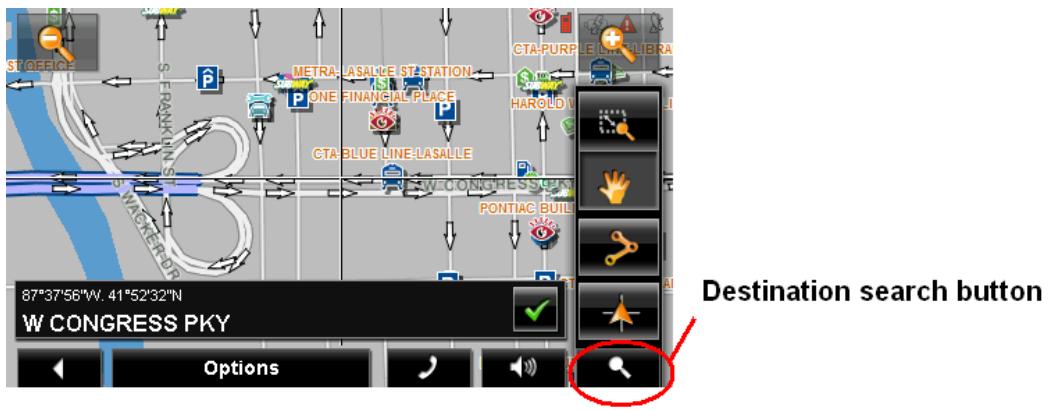
- Tap (Destination search) to display destination search tools.

For more information on using destination search tools, see "Destination Search mode" on page 113.
- Use the Destination search tools (zoom in, zoom out, pan, etc.) to view the general map area you are interested in.
- Tap on the point to which you wish to navigate.
The name of the location displays. The selected destination is centered in the map and appears under the cross hairs.
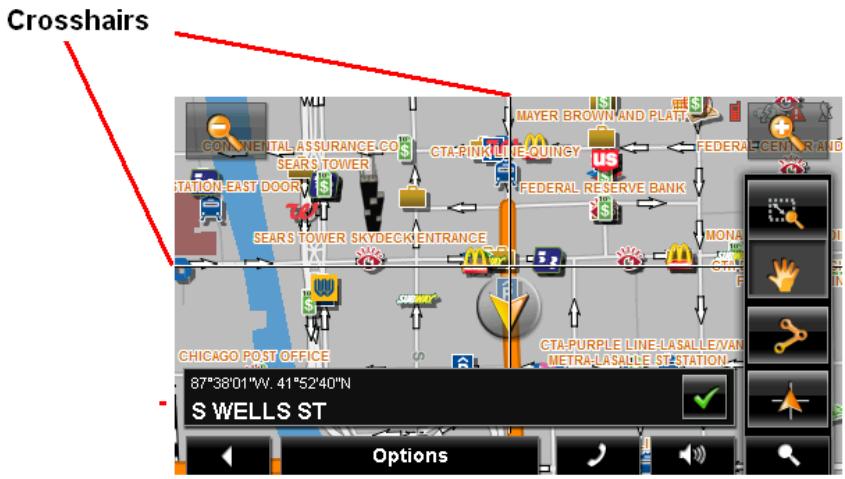
- Tap (OK).
The DESTINATION ON MAP WINDOW opens. Detailed address information for the selected destination displays in the upper left-hand corner.

- Tap the Take Me There button.
The map opens in Preview mode and shows the route calculated from your current location to this destination.

For more information, see "Starting navigation" on page 73.
Starting navigation
With the map open in Preview mode, the destination is shown as a small flag. The route and the estimated trip time are displayed.
With the map open in Preview mode:
- Tap the Start Navigation button or simply start driving.
Quitting navigation
- Tap (Back) to quit navigation.
A window prompts you to confirm.
No GPS reception
If GPS reception is insufficient when the Start Navigation button is tapped, the following message appears:
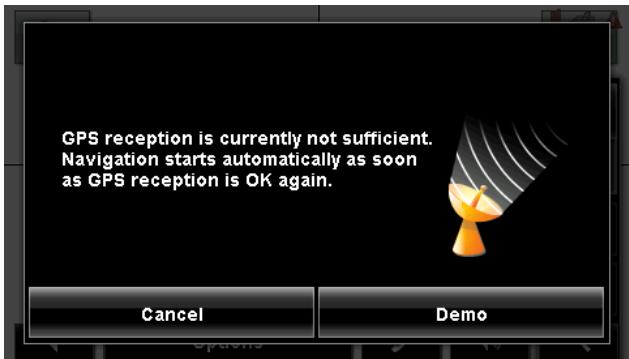
You can:
- Wait until GPS reception resumes for determining position. Navigation begins automatically once GPS reception is sufficient.
- Tap the Cancel button. The MAIN WINDOW opens. Your destination is saved in the LAST DESTINATIONS list.
- Tap the Demo button. The route is calculated using a nearby location as a starting point. The simulation of the calculated route begins. Tap (Back) to end the demonstration. (The Demo button does not appear when the destination was selected by tapping on the map.)
Arriving at your destination
A voice announcement tells you that you have reached your destination. If available, the street name is also given.
Your current position (indicated by an orange triangle) is shown on the map.
If the destination has a house number, the NAVIGON 8100T announces which side of the street the destination is on.
This page intentionally left blank.
With ZAGAT Survey Ratings and Reviews POIs, you can select from thousands of POIs and view customer survey ratings for a selected POI.
ZAGAT POI Categories
ZAGAT survey information features over 30,000 points of interest (POIs) in hundreds of cities. ZAGAT Survey information is provided in the following five categories:

Attractions
Shopping centers and entertainment venues.

Golf Courses
Public, semi-private and resort courses.

Hotels
Hotels, resorts and spas.

Nightlife
Nightspots and dance clubs.

Restaurants
Food, decor, service, and cost.
Zagat Ratings
Rating Ranges
Establishments are rated on a scale of 0 to 30 where:
26 - 30 Extraordinary to Perfection.
20 - 25 Very Good to Excellent.
16 - 19 Good to Very Good.
10-15 Fair to Good.
0-9 Poor to Fair.
Price Ranges
VE Very Expensive.
E Expensive.
M Moderate.
Inexpensive.
Rating Basis
Establishments are rated from 0 - 30, based on the following:
| ZAGAT POI | Rated on: | Cost Estimate Based on: |
| Restaurants | Food, Decor, and Service | Price of dinner, one drink, and tip. |
| Nightlife | Appeal, Decor, and Service | Cost of one drink. |
| Hotels | Rooms, Service, Dining, and Facilities | High-season rate for a standard double room. Note: Does not reflect price changes and special rates. |
| Attractions | Appeal, Facilities, and Service | High season price for one adult. |
Search for ZAGAT POIs
ZAGAT POIs are returned with any POI search.

Note: ZAGAT POI information is not available for all locations.
ZAGAT categories appear first in the list of returned locations. A

(ZAGAT POI)
appears in front of a ZAGAT category.
View ZAGAT POI Information
On a POI DESTINATION SELECTION WINDOW:
- Tap on a ZAGAT POI category.
- If sub-categories exist for the category, tap the subcategory.
- Tap on the name of a POI.
The DESTINATION INFO WINDOW opens and displays basic POI information.
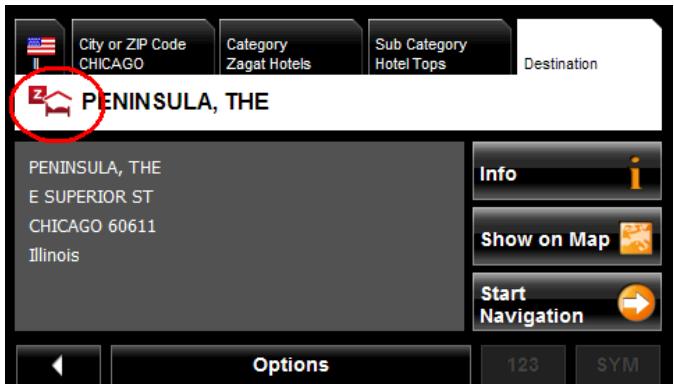
- Tap Info to view ZAGAT survey information about the POI.
The ZAGAT DETAIL WINDOW opens and displays detail information for the POI including hours of operation, costs, offered services, etc.
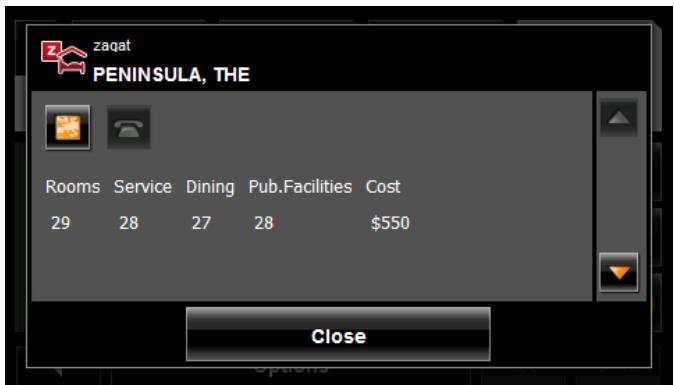
- Use the (Down) and (Up) buttons to view all of the information.
- When finished, tap Close.
This page intentionally left blank.
My Destinations include a Favorites list of locations you have saved and a Last Destinations list of the last locations your performed a search for. These lists can be useful if you often navigate to particular locations.
Saving a destination to the Favorites List
- Enter a destination. (See "Destination Selection" on page 51.)
- Tap Options > Save Destination.
-OR-
- Select a destination from MY DESTINATIONS. (See page 90.)
- Tap Options > Save Destination.
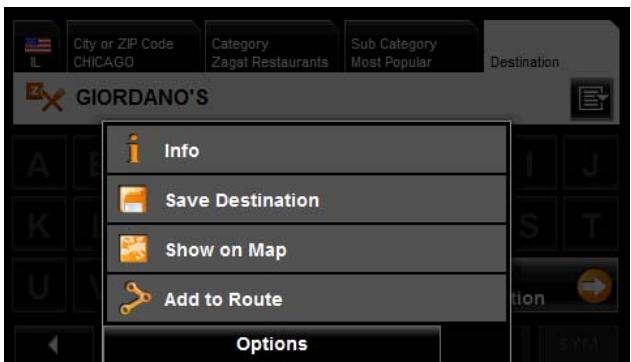
The SAVE DESTINATION AS window displays.
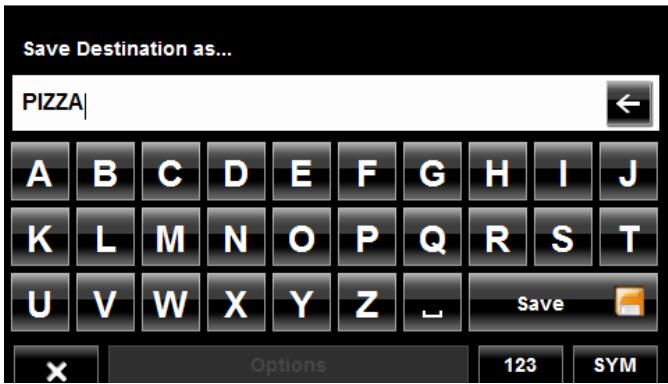
- Enter the name for the destination.
- Tap Save.
Saving the current location using GPS
The GPS STATUS WINDOW provides you with an overview of the data the navigation system calculates from the received GPS signals.
In the GPS STATUS WINDOW:
- Tap Options > GPS status.
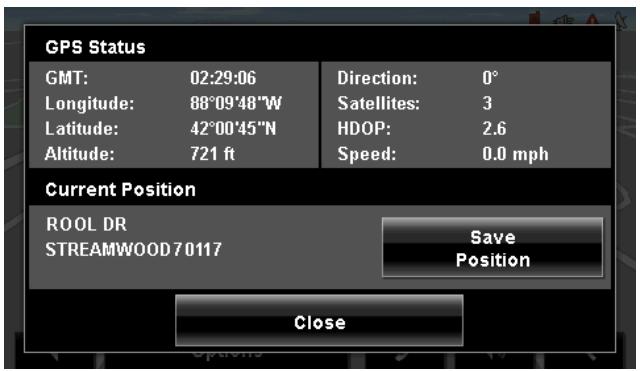
The current location can be stored in the FAVORITES list.
- Tap the Save Position button.
The SAVE DESTINATION AS WINDOW opens. - In the Name field, enter the name for the destination.
- Tap the Save button.
Saving your home address as a Favorite Destination
You can begin navigation to this destination quickly by tapping the Take Me Home button in the MAIN WINDOW. Only one destination from the FAVORITES list can be defined as your home address.
On the MAIN WINDOW:
- Tap the Take Me Home button.
The following message displays:
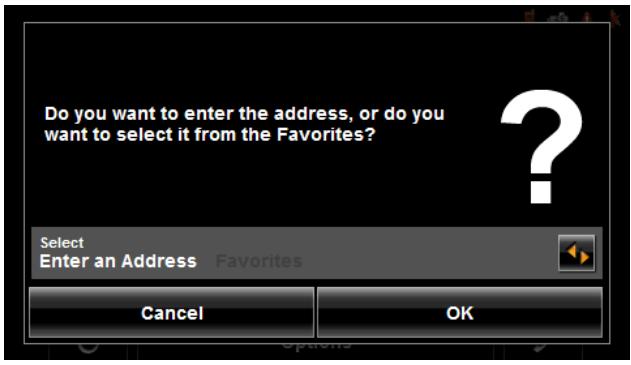

Note: If you do not have any addresses saved in your FAVORITES LIST, the message will ask if you want to enter your home address directly.
2. Use the (Toggle) button to select:
- Enter an Address - To enter your home address, or
- Favorites - To select an address from your Favorites List.
3. Tap the OK button.
If you selected Enter an Address, the DESTINATION SELECTION WINDOW displays.
4. Follow procedures for "Entering an address" on page 55.
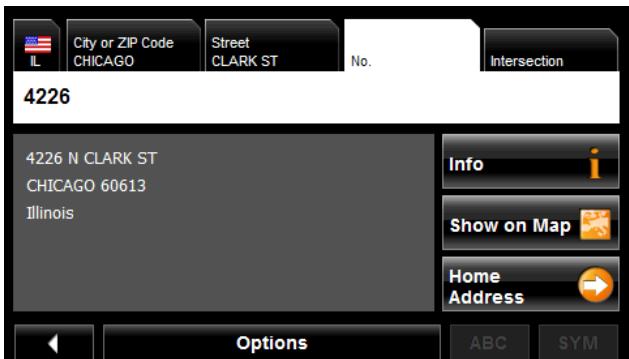
If you selected FAVORITES, the FAVORITES WINDOW displays.
5. Select your home address and tap OK).
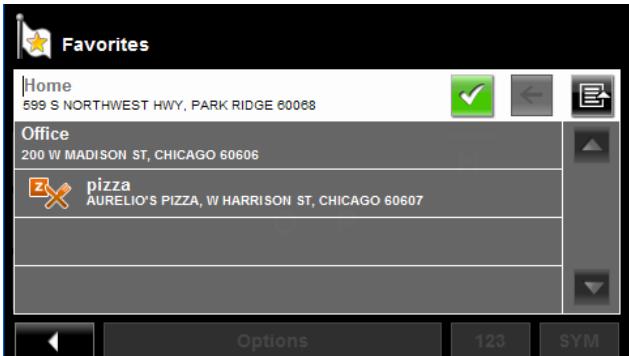
6. Tap Home Address.
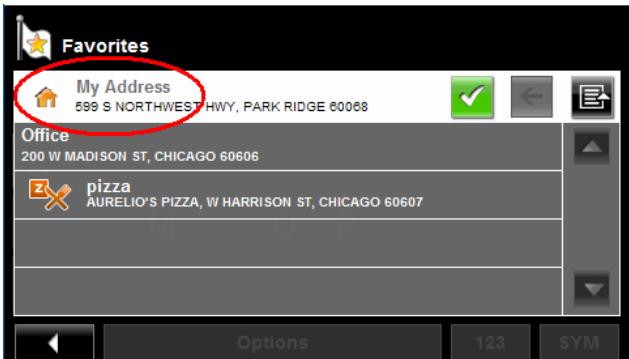
The selected destination is saved as your home address. On the FAVORITES LIST, a house icon displays next to your home address.
Navigating Home
After saving an home address, you can navigate to your home from anywhere by tapping a single button.
The first time you tap the Take Me Home button, you are asked to enter your address.
- Follow procedures for "Saving your home address as a Favorite Destination" on page 80.
In the MAIN WINDOW:
- Tap the Take Me Home button.
Navigation, using the current route profile information to calculate the route, begins.

For more information, "Starting navigation" on page 73.
Importing Destinations from Outlook
With NAVIGON Sync, you can download your Microsoft Outlook contacts to your NAVIGON 8100T. The NAVIGON Sync software can be downloaded from our website, and installed on your computer. Once installed, Outlook contacts can be copied to your device. Once downloaded, contacts are stored in the device.
Download and Install the NAVIGON Sync Software
- Go to www.navigonusa.com/sync and follow on-screen instructions.
On your computer:
- Double click on the Setup_Sync.exe file.
The INSTALLER LANGUAGE WINDOW displays.
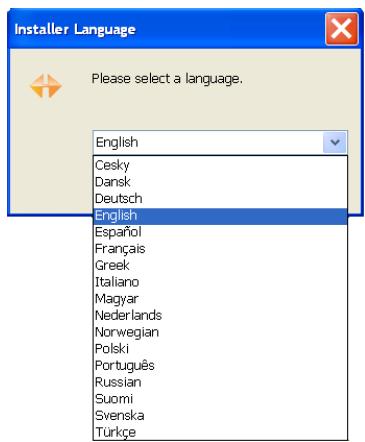
- Click on the appropriate language to be used during the installation procedure, then click OK.
The NAVIGON SYNC SETUP WELCOME PAGE displays.
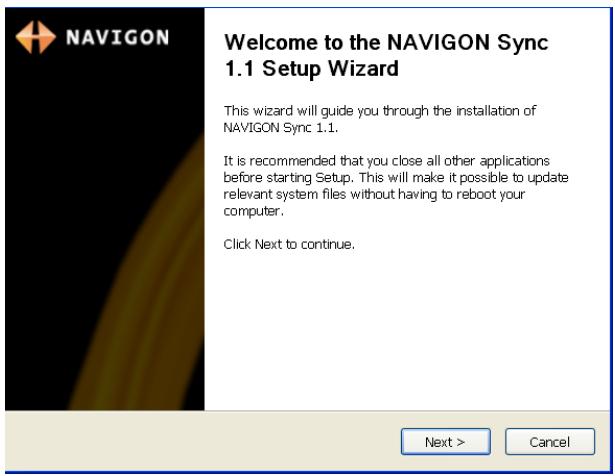
- Follow the instructions, then click Next >.
The NAVIGON SYNC LICENSE AGREEMENT PAGE displays.
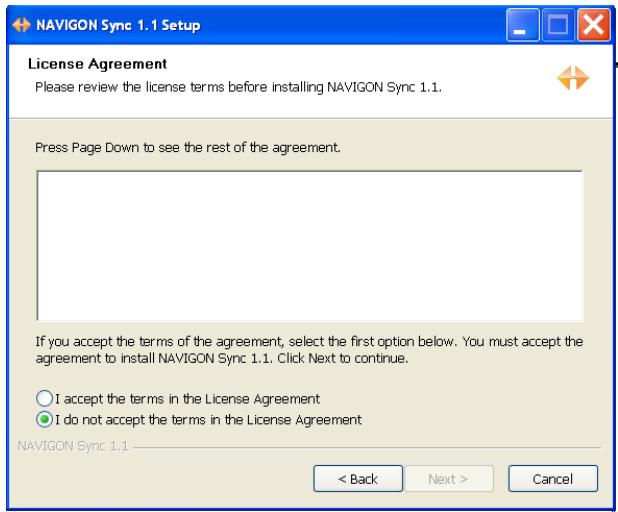
-
After you have read and fully understood the text:
-
If you agree, click I accept the terms in the License Agreement and click Next >.

Note: If you do not accept these instructions, tap Cancel to exit the NAVIGON Sync setup.
The CHOSE INSTALL LOCATION PAGE displays.
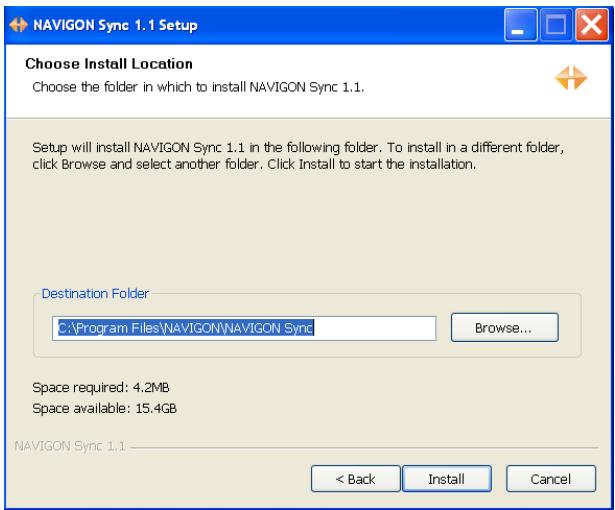
- Specify the location on your computer where the NAVIGON Sync software will be installed, then click Install.
The following page displays.
- Click Finish to complete the installation.
Copy Outlook Contact Information to the NAVIGON 8100T
After the NAVIGON Sync software is installed on your computer, you can copy Outlook contact information to your NAVIGON 8100T. A copy of the information is saved on your device. The Outlook information on your computer is not affected.
- Make sure that your computer and your NAVIGON 8100T are powered on.
- Connect the large end of a USB cable to your computer and the small end of the cable to your NAVIGON 8100T
On your computer:
- Navigate to the location where you installed the NAVIGON Sync software. (See page 83) and double click on the Sync .exe file.
The NAVIGON SYNC WINDOW displays.
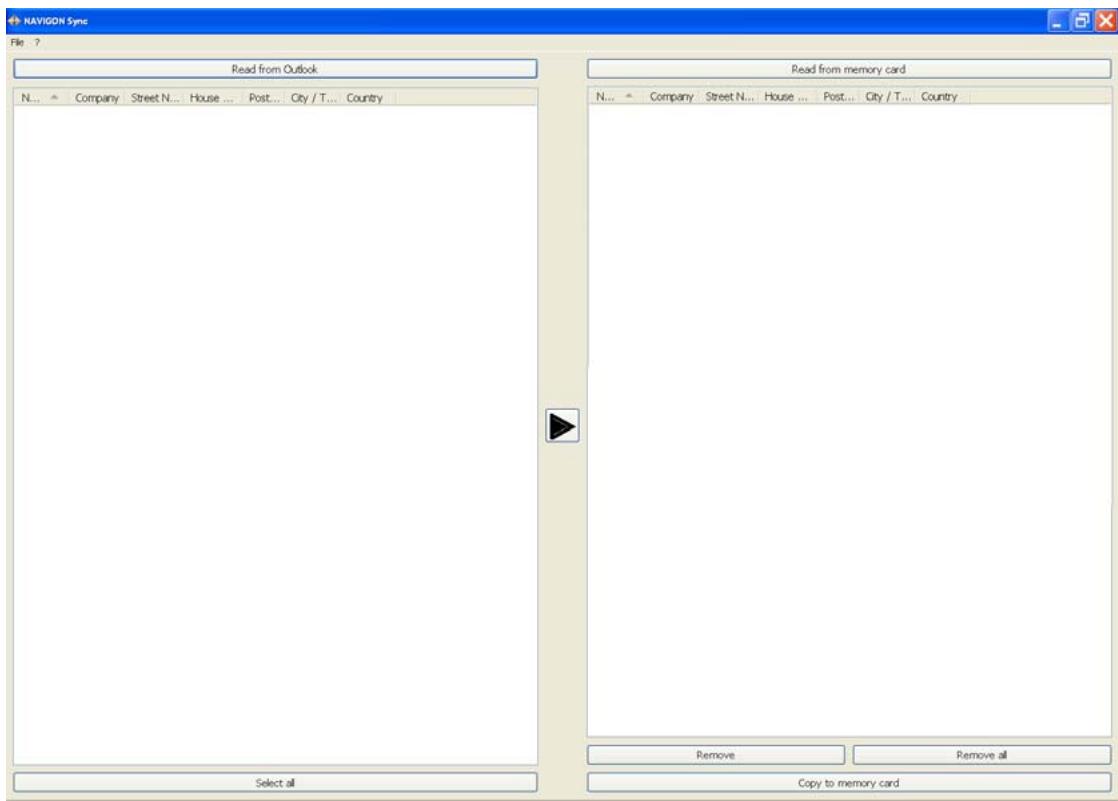
- Click File > Contact Folder.
The SETTINGS WINDOW displays.
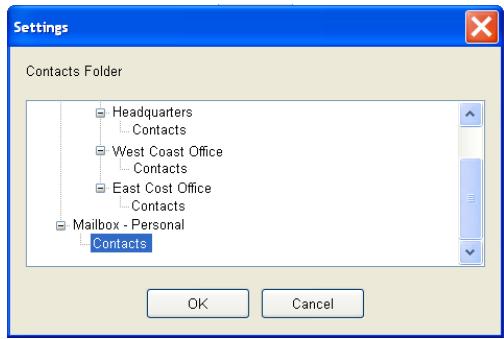
- Click on the Contacts folder that contains the information you want, then click OK.
- On the NAVIGON SYNC WINDOW, at the top of the left hand pane, click Read from Outlook.
The contact information from the selected folder appears in the left pane of the window.
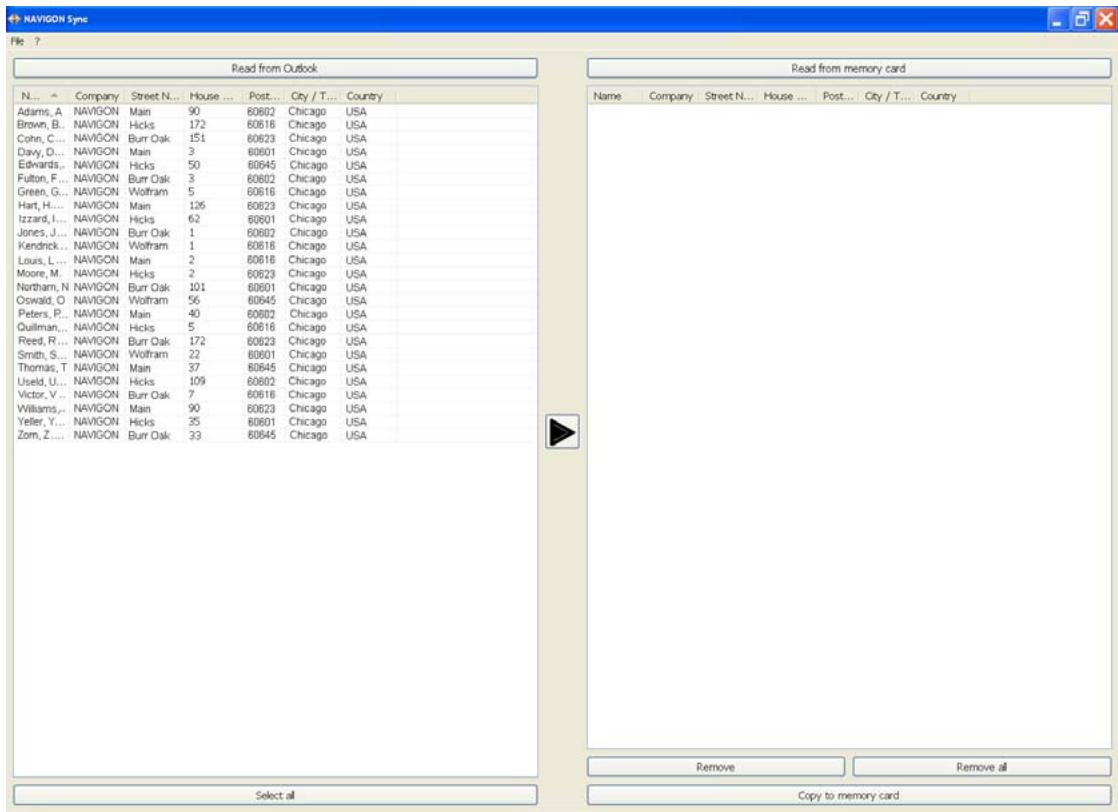
-
For contacts to be added, to select:
-
All Outlook contacts - Click the Select All button.
A single contact - Click on the contact. - A range of contacts, hold the Shift key down and click on the first and last contact in the range.
-
Individual contacts - Hold the Ctrl key down and click on each contact.
-
After selecting contacts, click the

button.
The selected contacts are shown in the right pane.
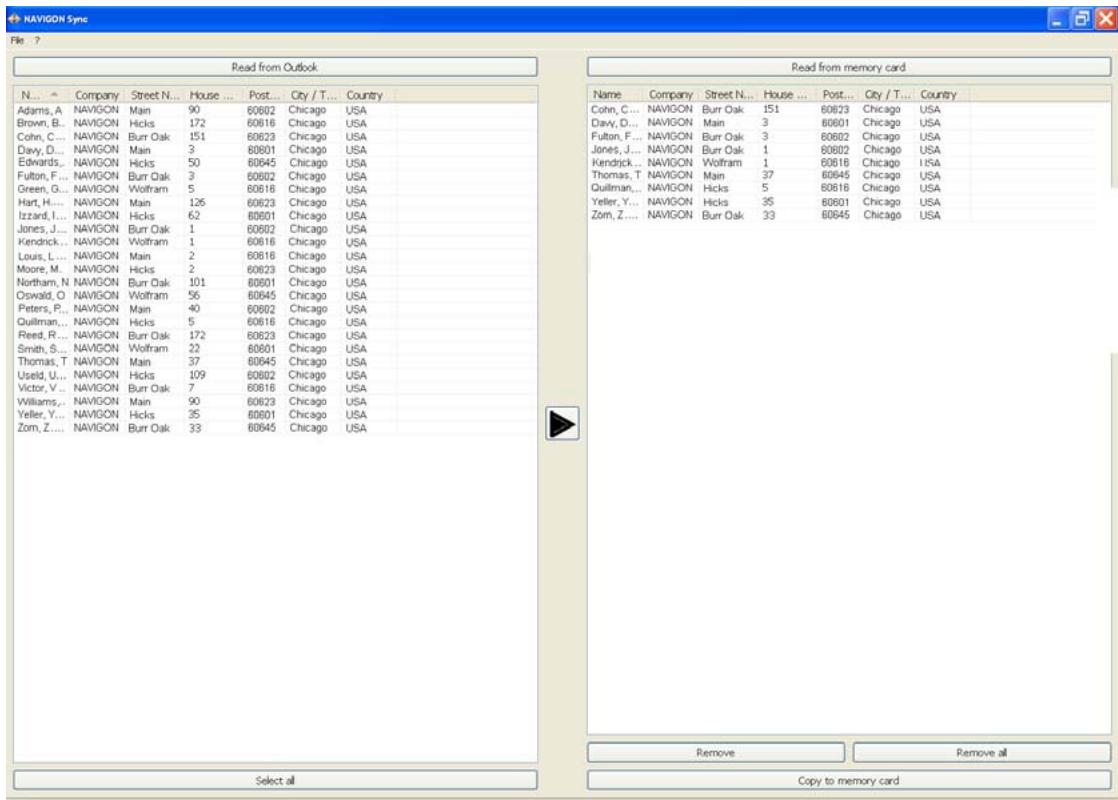
- In the lower right hand pane, click on Copy to Memory.
The selected Outlook contacts have been saved on the device. These contacts can be accessed on the from the My Destinations button the NAVIGON 8100T.
Delete Outlook Contact Information From the NAVIGON 8100T
- Make sure that your computer and your NAVIGON 8100T are powered on.
- Connect the large end of a USB cable to your computer and the small end of the cable to your NAVIGON 8100T.
On your computer:
- Navigate to the location where you installed the NAVIGON Sync software (see page 83) and double click on the Sync.exe file.
The NAVIGON SYNC WINDOW displays.
- On the NAVIGON SYNC WINDOW, at the top of the right hand pane, click Read from Memory.
The contact information that is currently saved on your device is shown.
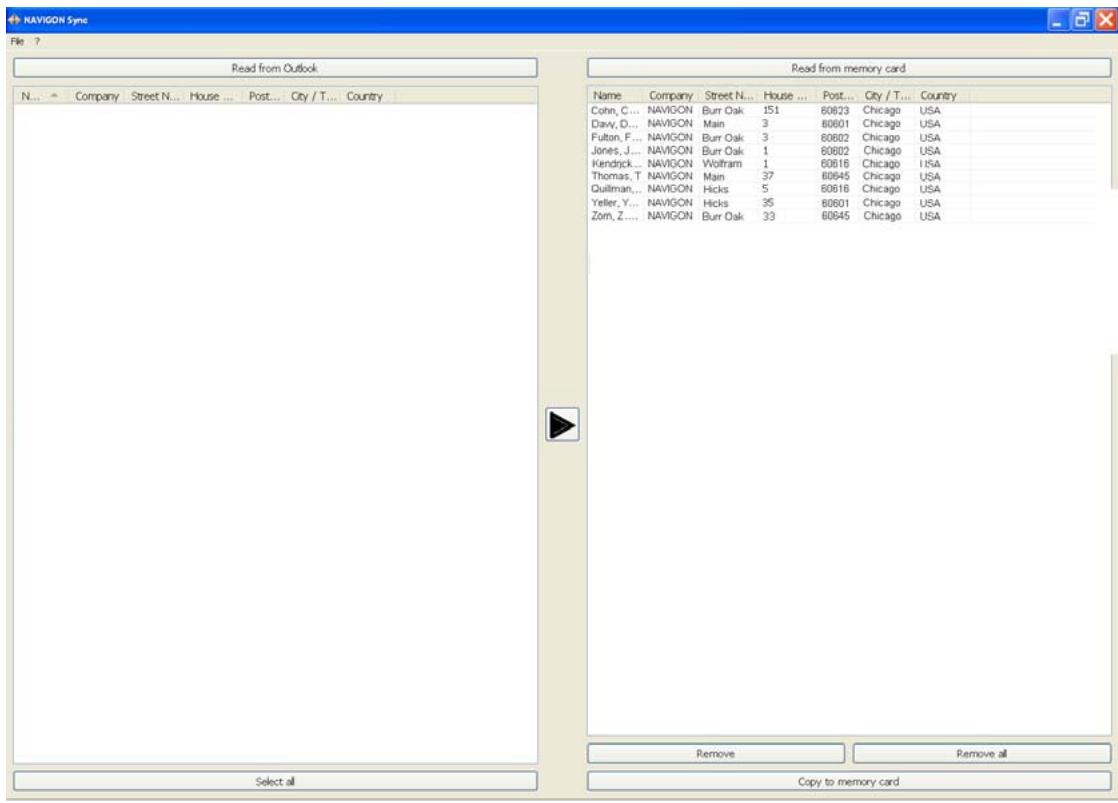
- For contacts to be removed, to select:
A single contact - Click on the contact.
- A range of contacts, hold the Shift key down and click on the first and last contact in the range.
- Individual contacts - Hold the Ctrl key down and click on each contact.
-
Click the Remove button.
-
To remove all contacts from the device, click Remove all.
Selecting a saved destination
The following lists of destinations and addresses are available under My Destinations.
Favorites Destinations you have stored in your NAVIGON 8100T.
Last Destinations Destinations you have previously navigated to.
From Outlook Destinations you have imported from Outlook.
Selecting a destination from the Favorites list
Destinations to which you often travel can be saved in the FAVORITES list.
In the FAVORITES LIST, up to 300 destinations can be saved.

Information on how to store a destination can be found in "Saving a destination to the Favorites List" on page 79.
In the MAIN WINDOW:
- Tap My Destinations > Favorites.
The FAVORITES WINDOW displays.
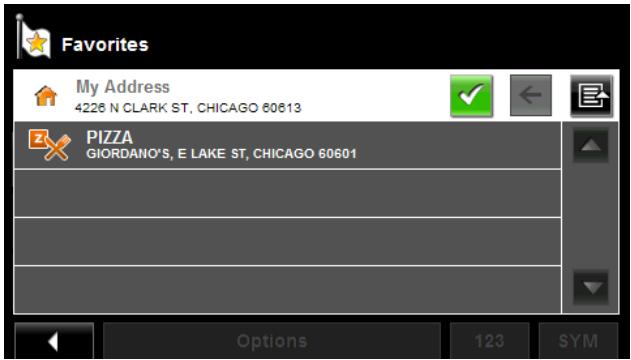
- Tap the destination to which you would like to navigate.
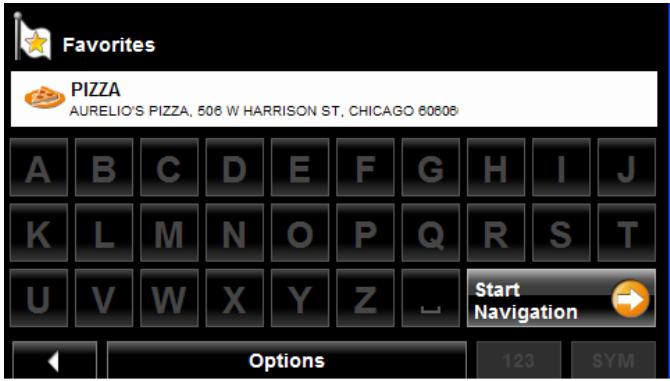
- Tap the Start Navigation button.
The map opens in Preview mode.
For more information, see "Starting navigation" on page 73.

Selecting a destination from the Last Destinations list
Your NAVIGON 8100T saves the last 30 destinations to which you have navigated in the LAST DESTINATIONS LIST.
In the MAIN WINDOW:
- Tap My Destinations > Last Destinations.
The LAST DESTINATIONS WINDOW displays.
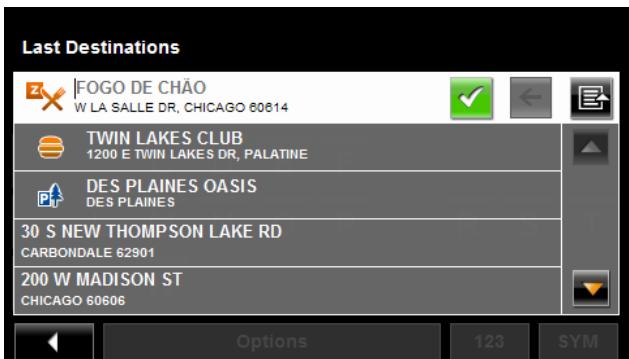
- Tap the destination to which you would like to navigate.
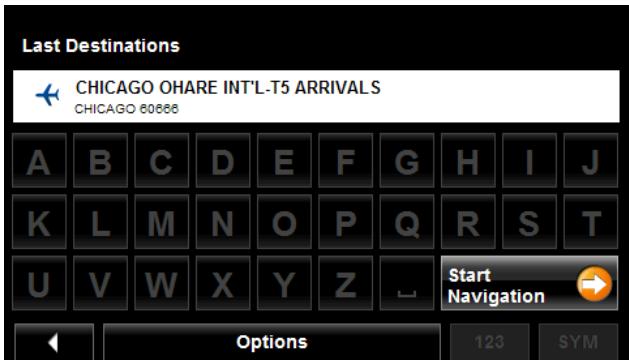
- Tap the Start Navigation button.
The map opens in Preview mode.
For more information, see "Starting navigation" on page 73.

Selecting a destination Imported from Outlook
In the MAIN WINDOW:
- Tap My Destinations > Imported addresses.
The LAST DESTINATIONS WINDOW displays.
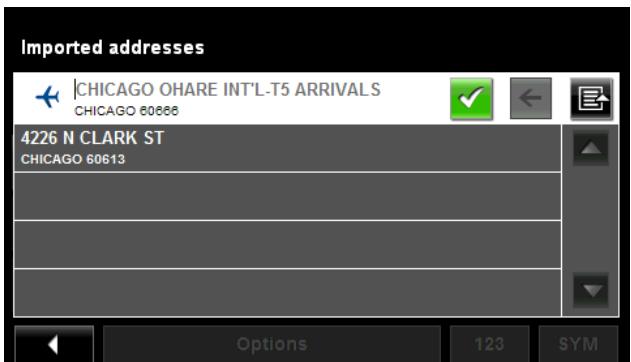
- Tap the destination to which you would like to navigate.
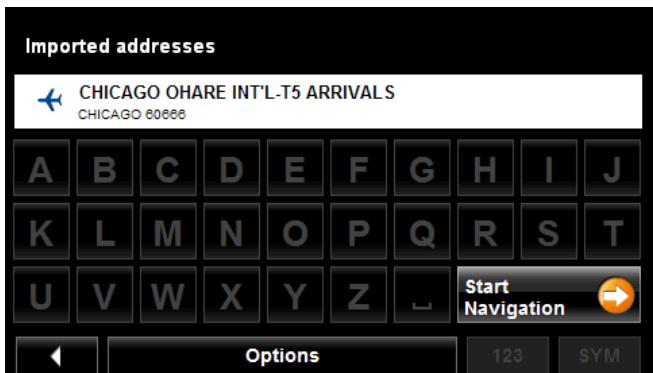
- Tap the Start Navigation button.
The map opens in Preview mode.
For more information, see "Starting navigation" on page 73.

With the NAVIGON 8100T, you can preplan routes. Planned routes can be saved for later use, allowing you to create as many routes as you like.

Route calculations and arrival times are based on the type of vehicle and the route type. Vehicle types (Speed Profiles) are: Standard car, Bicycle, or Pedestrian. Route types are Fast, Short, or Optimum. For more information on these settings See "Route Profile Settings" on page 148.
Accessing the Route Planning Window
In the MAIN WINDOW:
- Tap the Options button.
The OPTIONS LIST opens.
- Tap the Route Planning option.
The ROUTE PLANNING WINDOW opens.
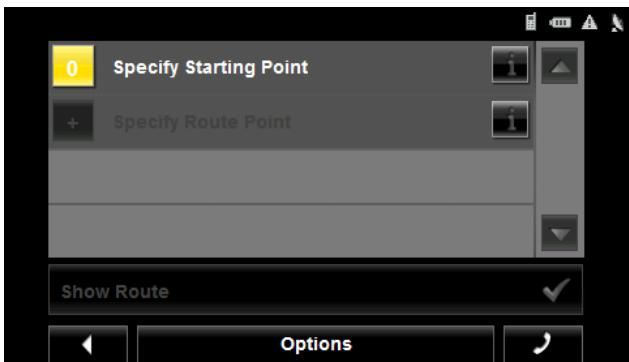
Entering the starting point
The starting point, the point at which you want to begin your trip, is required. This does not need to be your current location. If you are at home planning a route for your vacation, you could, for example, enter your hotel as the starting point.
The starting point is only important if you want to see a planned route on the map, but currently have no GPS reception, or you are not currently at the planned starting point. The starting point that you enter has the flow number "0".
As soon as you begin navigation, your current location is used as the starting point for the route calculation.
Route calculation to the first route point is shown as flow number "1".
On the ROUTE PLANNING WINDOW:
- Tap the Specify Starting Point button.
The STARTING POINT menu opens.
2. Select:
- Enter an Address to search for a location address.
- Search for a POI to search for a POI.
- My Destinations to select a location from the FAVORITES, IMPORTED ADDRESSES, or LAST DESTINATIONS lists.
- My Address to select your home address. (Only available if you have already specified a home address.)
-
Current Location to specify your current position as the starting point.
-
Enter the starting point. (See the corresponding section of "Destination Selection" on page 51.)
-
Tap the Set Starting Point button.
The selected destination appears next to the “0”, indicating that it is the starting point of the route.
Changing the starting point
On the ROUTE PLANNING WINDOW:
- Tap the 0 (Specify Starting Point) button.
The STARTING POINT menu opens.
- Select a different starting point by following the above steps.
Entering route points
Route points are destinations on the route that you want to navigate to.
The flow number for each route point can be found on a button in front of it.
On the ROUTE PLANNING WINDOW:
- Tap the Add Route Point field. The ROUTE POINT MENU opens.
- Tap on the button for the desired destination entry type.
- Enter the route point. (See the corresponding section of "Ways to Search for Destinations" on page 54.)
- Tap Add to Route button.
- Repeat these steps for each additional destination that you want to add to your route.
Changing the order of route points
Route points can be deleted from a route. The order of the route points can be varied as you wish.

Note: The starting point (flow number "0") cannot be moved or deleted. To change the starting point, create a route point and move the new route point up to the top of the route. The old starting point can now be moved or deleted.
On the ROUTE PLANNING WINDOW:
- Tap on the route point that you want to edit.
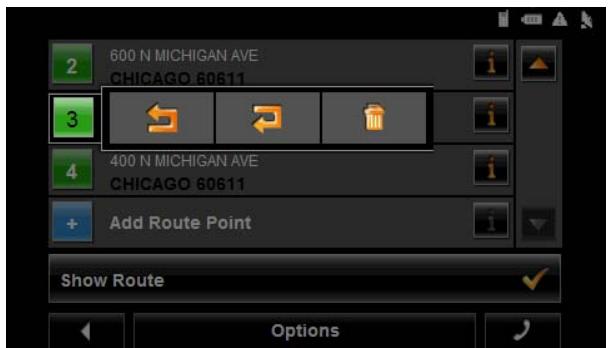
The context menu contains the following buttons:

Route Point Up
Moves the selected route stage forwards.
(Example: route point 2 becomes route point 1).

Route Point Down
Moves the selected route point backwards.
(Example: route point 2 becomes route point 3).
Delete
Deletes the selected route point. A window prompts you to confirm deletion.
Managing routes
You can save each planned route under a particular name.

Note: Only the start point and route points are saved. The calculated route is not. If you load a route that has been saved, it must be recalculated before navigation can begin.
You can load, rename or delete stored routes.
Saving routes
You can save a route after you have entered the starting point and at least one route point.
On the ROUTE PLANNING WINDOW:
- Tap Options > Save Route.
- Enter a name for the route.
- Tap the Save button.
The route is saved to the SAVED ROUTES LIST.
Loading routes
On the ROUTE PLANNING WINDOW:
- Tap Options > Saved Routes.
- Tap the route you want to load.
- Tap the Load Route button.
The ROUTE PLANNING WINDOW displays the starting point and the route points of the selected route.
Navigation
After the route is calculated, you can begin navigation or view a simulation of the route.
Using Logbook
You can use the NAVIGON 8100T to record your vehicle mileage for tax purposes or for expense reports.
- Start Logbook recording. (See page 145.)
- Create a new route, load a saved route, or select a destination.
- Tap the Start Navigation button.
The REASON FOR THE TRIP TAB opens.
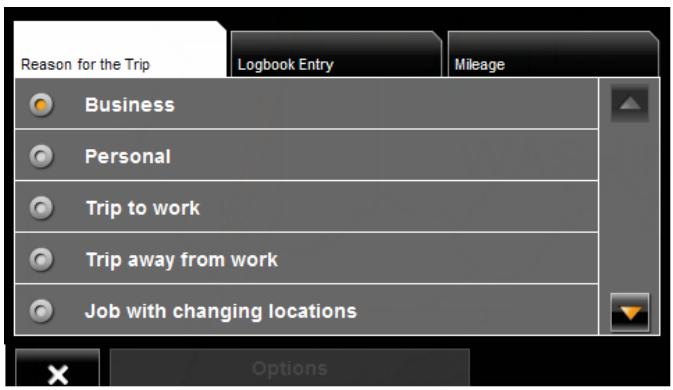
- Select a reason.
The LOGBOOK ENTRY TAB opens.
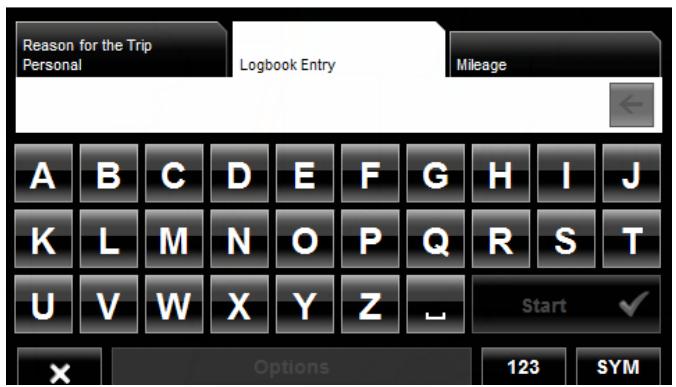
- Type the name or reason of the trip (enter at least one character).
- Tap Mileage to open the MILEAGE TAB opens.
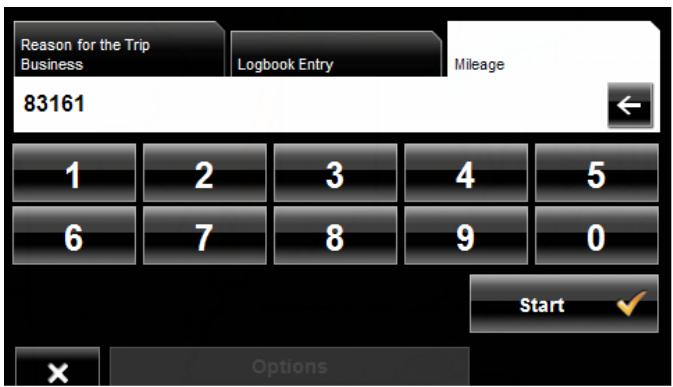
- Type the starting mileage on your vehicle and tap Start.
During a recording, the Logbook icon displays at the top right corner of the screen.
- Follow navigation to your destination.

Note: Once logbook recording starts, every movement of the vehicle is recorded, even when you are not navigating on-route.
After reaching your destination, logbook stops recording and adds an entry to the Logbook.xls file. The Logbook icon no longer displays.
Stop recording for a single route
Once you have turned on logbook recording, you can stop recording for individual routes.
- Start Logbook recording. (See page 145.)
- Create a new route, load a saved route, or select a destination.
- Tap the Start Navigation button.
The REASON FOR THE TRIP TAB opens.
- Tap X
The following message displays.
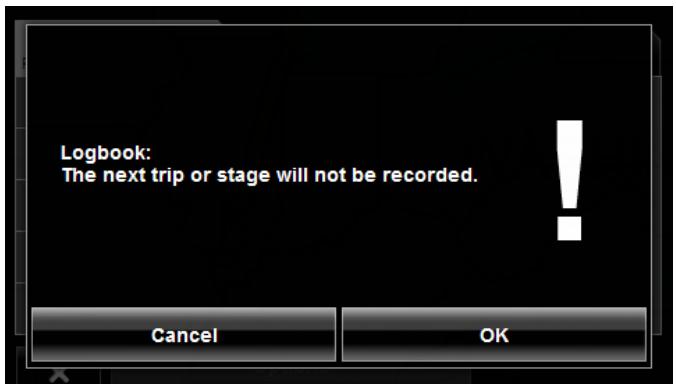
- Tap OK.
Logbook is not recording for this trip. However, recording will start again for all subsequent routes.
Calculating and displaying routes
On the ROUTE PLANNING WINDOW:
- Load a saved route.
-OR
- Enter a starting point and at least one route point.
- Tap the Show Route button.
The map opens in Preview mode.
The starting point and the route points are marked by flags. For each stage, the distance and the estimated trip time is given. This information is also displayed for the entire route.
- Tap the Start Navigation button or simply start driving.
Finding POIs at Highway Exits Using the Exit Guide
While traveling on a controlled access highway, you can find POIs (such as gas stations or lodging) at the next five exits along your route.

Note: This feature is only available when traveling on controlled access roads, such as interstate highways.
- Create a route or load a previously saved route.
On the ROUTE PLANNING WINDOW: - Tap the Show Route button.
The map opens in Preview mode and displays the calculated route.
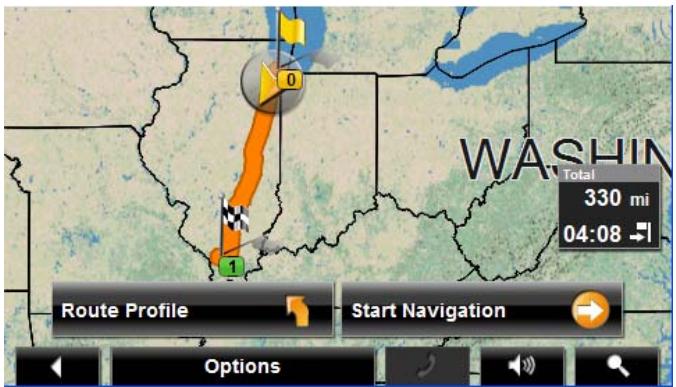
- Tap the Start Navigation button or start driving.
The map changes to Navigation mode.
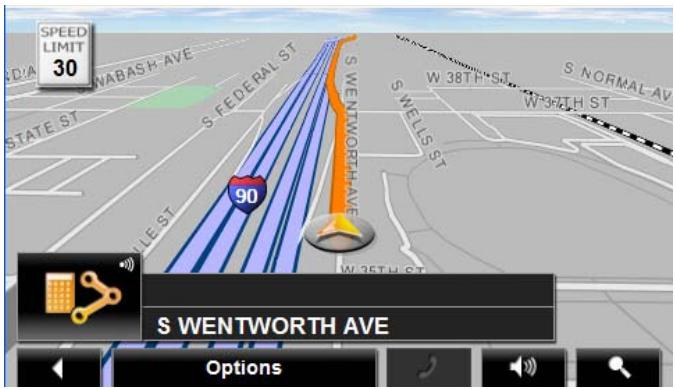
- When navigating with your NAVIGON 8100T on a controlled access roadway, tap the screen.
The NAVIGATION MODE MAP FUNCTIONS WINDOW displays.
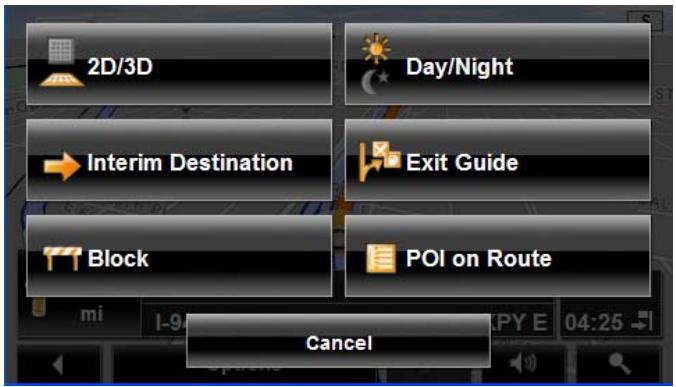
- Tap Exit Guide.
The Exit POI Window displays POI categories for the exit. Only categories with one or more POIs at the next exit can be selected. If a category icon is unavailable, no POIs of that type are available at this exit.
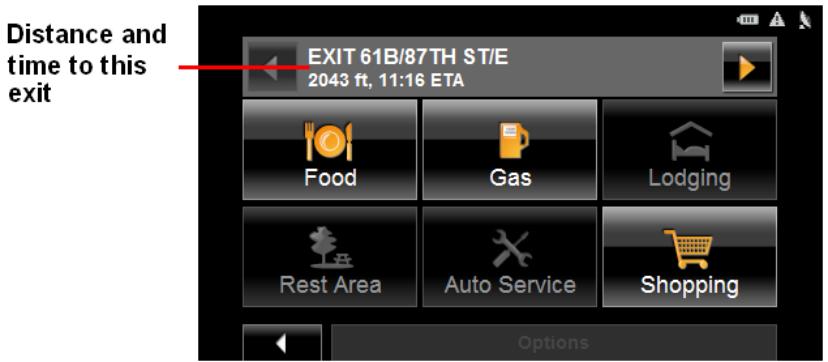
- To view POIs available at exits further ahead, tap (Next).
- To view available POIs at an exit select a category button.
The POI list for the category at this exit displays.
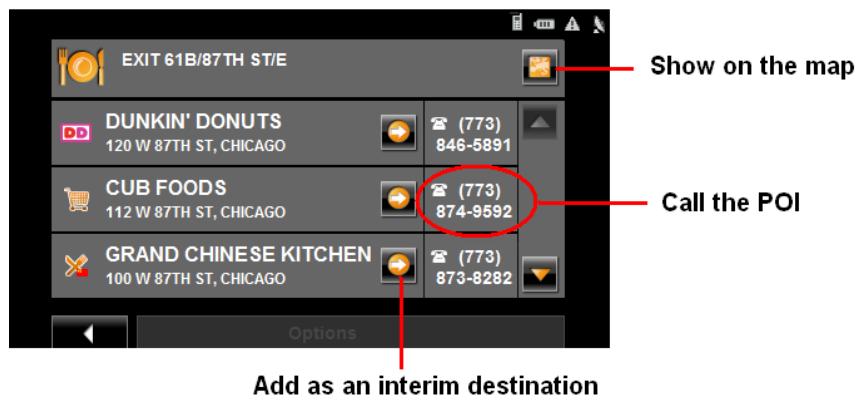
- To:
Show the POI on the map, tap

(Show on Map).
-
Call the POI (when paired to a mobile phone), tap the phone number.
-
Add a POI to your route, tap

(Interim Destination).
The POI is added to your route as an interim destination. When you are approaching the exit, the NAVIGON 8100T provides navigation instructions to the POI.

Note: If an exit POI interim destination is added after you have passed the exit, the NAVIGON 8100T will take you off the originally calculated route and navigate you back to the POI.
Remove an Exit POI from your Route
If you change your mind, you can remove an exit POI from your route.
During navigation:
- Tap on the map.
The Navigation mode map functions window displays.
- Tap Interim Destination.
The INTERIM DESTINATION MENU displays.
- Tap Skip Route Point.
The exit POI is removed from the route and the map re-displays in Navigation mode.
Viewing or Changing the Route Profile
The calculation of a route is based on route options.
On the ROUTE PLANNING WINDOW:
- Create a route or load a previously saved route.
- Tap the Show Route button.
The map opens in Preview mode and displays the calculated route.
- Tap the Route Profile button.
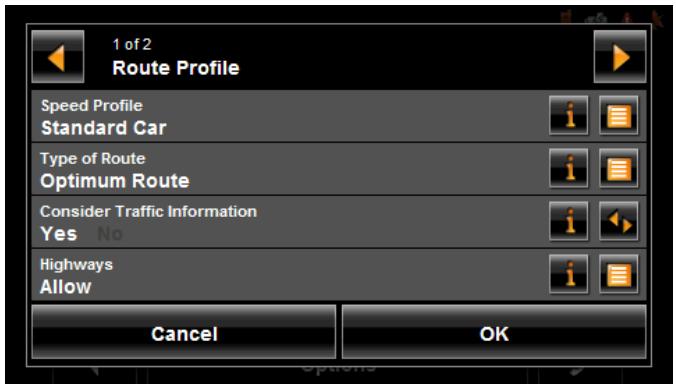
You can view and, if necessary, change any of the displayed options.

Note: Once options are changed, they remain in effect for all subsequent routes. You can get information regarding changing individual route profiles by tapping the corresponding i (Help) button.
Simulating routes
You can also view a simulation of a calculated route.

Note: GPS signal reception is not required for simulation.
Starting a route simulation
You have calculated and displayed a route.
With the route displayed in Preview mode:
- Tap Options > Simulation.
The route is recalculated for simulation purposes. Simulation begins once calculations have completed.
Ending simulation
You can end simulation at any time.
While viewing the route simulation:
- Tap (Back).
The ROUTE PLANNING WINDOW re-displays.
Viewing a Turn-by-Turn List
You can display detailed directions of the calculated route before starting navigation or at any time during navigation. This list displays all of the driving instructions in table form.
With the route displayed:
- Tap Options > Turn-By-Turn List.
The TURN-BY-TURN LIST WINDOW opens.
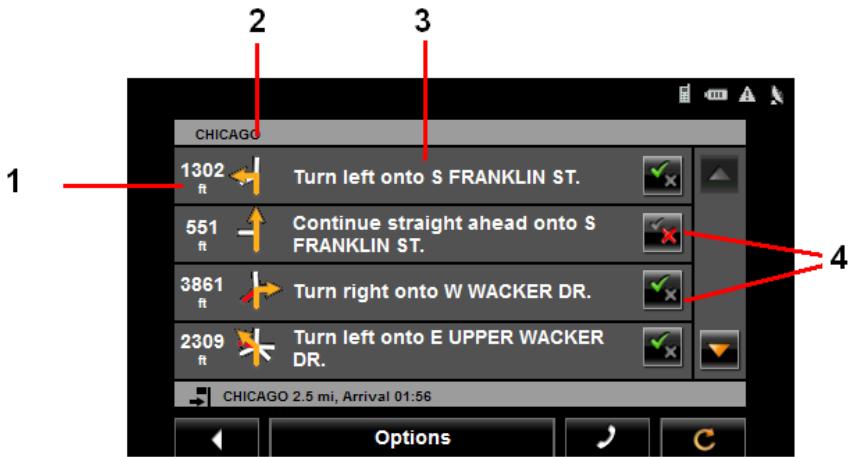
- Distance to this junction.
- Schematic depiction of the next junction where you must turn.
- Name of the street onto which you must turn.
- Indicates whether you want to travel on the section of the route.

(Allow) Include this section in the route.

(Forbid) Exclude this section from the route.
Blocking route sections
On the TURNSBY-TURN LIST WINDOW:
-
Tap on the route section you do not want to travel on, so that the × (Forbid) symbol appears next to them.
-
Tap (Modify Route).
The navigation system calculates an alternative route avoiding (if possible) the route sections selected. The new driving instructions are displayed in the TURN-BY-TURN LIST WINDOW.
- Tap (Back) to close the TURN-BY-TURN LIST WINDOW.
Removing blocks and using original routes
Section blocks can be removed at anytime.
On the TURN-BY-TURN LIST WINDOW:
- Tap Options > Calculate the Original Route.
This page intentionally left blank.
Your NAVIGON 8100T comes with a full North American map (48 contiguous United States, District of Columbia, Alaska, Hawaii, Puerto Rico, Virgin Islands, and all 13 Canadian provinces/territories).
North America Map
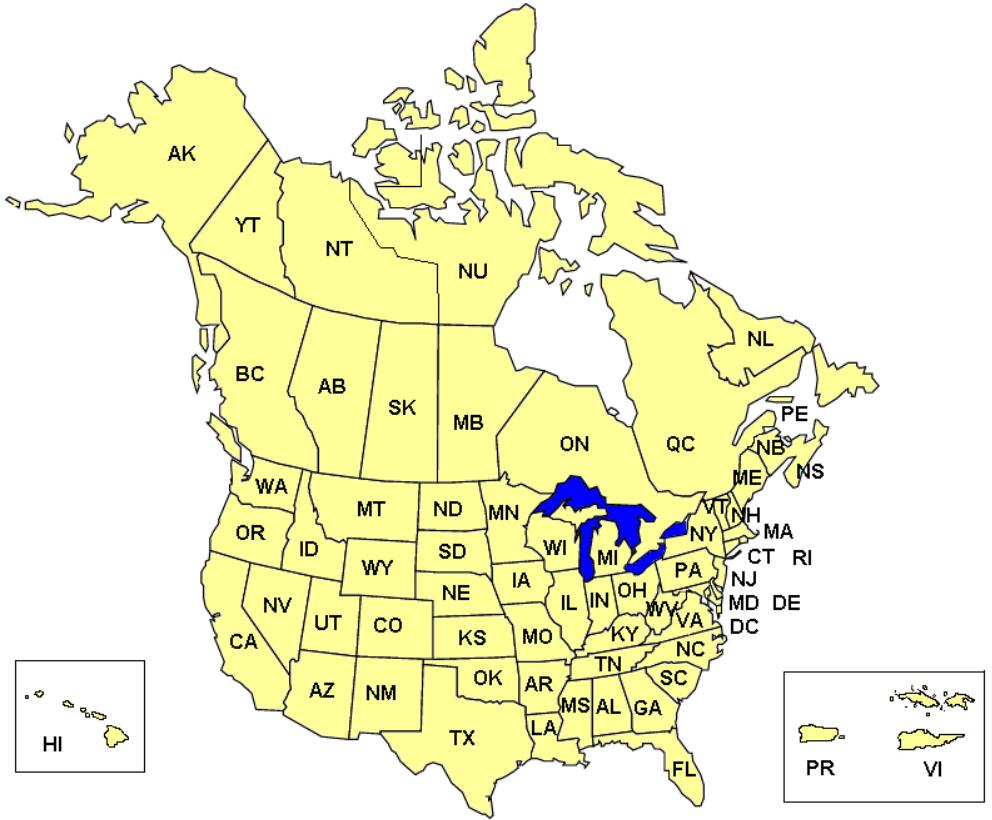
View information on the current map
On the MAIN WINDOW:
- Tap Options > Settings > Map Display. The MAP DISPLAY WINDOW opens.
- Use (Next Page) to go to PAGE TWO.
Map Preview mode
You have entered a destination and tapped the Start Navigation button.
-OR-
Create a route or load a saved route, then tap the Show Route button.
The map opens in Preview mode. The entire route is visible.
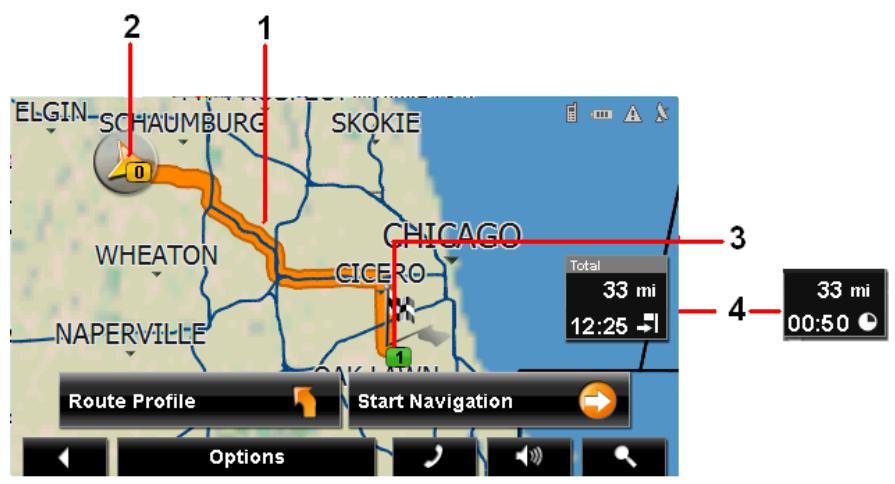
- The route is highlighted in orange.
- A triangle in orange shows your current position.
If you display a route and the specified starting point is not the same as your current location, the current position may not be shown on the preview.
- The destination is marked with a small flag.
When you have planned or loaded a route and displayed it, the starting point and each route point is marked with a small flag.
- The remaining distance to the destination is shown. Tap the box to toggle to display the estimated time of arrival ( ) and the time remaining ( ).
If you are navigating a route with several stages, you see the remaining distance, estimated duration of the trip, and the estimated time of arrival for the next interim destination.
This information can be displayed or hidden by tapping on Options > Settings > Navigation.
If you display a route with several stages, information for the current stage is shown.
Tap:
- The Route Profile button to view or change settings used to calculate the route.
-
The Start Navigation button to begin the journey. When you display a planned or loaded route, the route may be recalculated. Starting point for the calculation is your current location. Once the route is calculated, you are guided to the first route point.
-
Options > Turn-by-Turn List to view detailed directions for the route. (See "Viewing a Turn-by-Turn List" on page 104.)
- (Destination search) to view the map in Destination search mode.

For more information on using this feature, see "Destination Search mode" on page 113.
Map Navigation mode
After the route has been viewed in Preview mode, navigation starts.
Navigation is shown in Navigation mode.
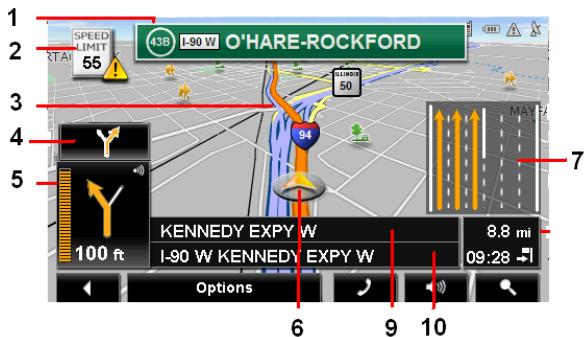
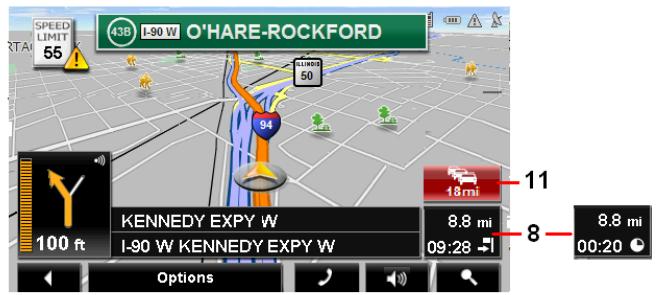
- Signage to be followed is displayed here.
- Posted speed limits are displayed here (where available).
- The route is marked in orange.
- When two maneuvers need to be executed in quick succession, the small arrow indicates the second maneuver to be executed.
- The large arrow shows a schematic depiction of the next maneuver. The remaining distance to the junction is displayed below the arrow.
As you get closer to the junction, a vertical bar appears to indicate proximity.
The nearer you get to the junction, the more the vertical bar fills with orange.
If you don't have to change direction for a longer period, you see only a forward-facing arrow. The distance you travel on the road you are on displays beneath the arrow.
-
Tap the large arrow to hear current route instructions.
-
An orange triangle shows your current position. The display refreshes as you move so that, in 3-D mode, a greater part of the screen shows the area ahead of you.
- Lane Assistant Pro shows the lanes to be followed (in orange) to your destination.
- The remaining distance to the destination is shown. Tap the box to toggle to display the estimated time of arrival ( ) and the time remaining ( ).
If you are navigating a route with several stages, you see the remaining distance, estimated duration of the trip, and the estimated time of arrival for the next interim destination.
- The name of the stretch of road that you must travel on next.
- The name of the street you are currently traveling on.

- (TMC shortcut button). The TMC shortcut button displays when traffic messages have been received and are currently available. Tap the button to display the NAVIGON LIFETIME TRAFFIC INFORMATION WINDOW.
Note: The displays for many of the above mentioned fields can be configured using Options > Settings > Map Display. Information only displays when available. Note: If you tap on the large arrow, the current route instruction is repeated.
- Tap Options > Show Turn-by-Turn List to view detailed directions for the route. (See "Viewing a Turn-by-Turn List" on page 104.)
- Tap (Destination search) to view the map in Destination Search mode. (See "Destination Search mode" on page 113.)
- Tap (Back) to quit navigation.
Map functions in Navigation mode
When the map is open in Navigation mode, tap any point on the map. Buttons with various functions are displayed.
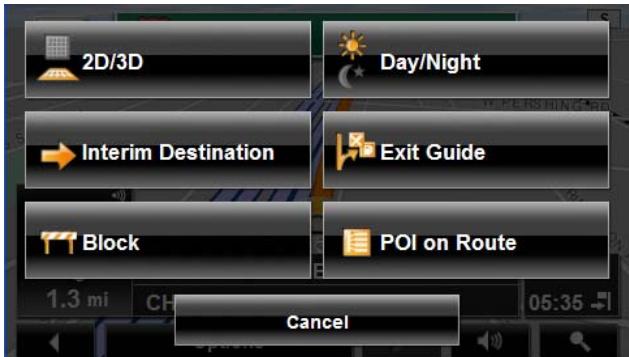
2D/3D
Changes between 2D and 3D map views. The symbol for the view currently set is marked orange.
Day/Night
Changes between "day" and "night" display. The symbol for the display currently set is marked orange.
Interim Destination
Opens a menu for entering an interim destination. The navigation system first guides you to this interim destination. Afterwards, you can simply continue navigation to your original destination.
Exit Guide
Tap this button to find POIs (such as gas stations or lodging) at the next five exits along your route. (Only available when the vehicle is on a controlled access road.)
Block
Tap this button to block a section of the route that lies in front of you. The device will recalculate the route and attempt to avoid the blocked section. This can be used if you encounter a stretch of road that is impassable due to its physical condition, weather, or your vehicle's capabilities.
POI on Route
Tap this button to display POIs on your route. This enables you to find out, for example, how far it is to the nearest services. A destination shown here can be added as an interim destination by tapping the (Interim Destination) button to the right of its entry in the list. The three POI categories selected for Direct Access are available.
Destination Search mode
When in Destination Search mode, a pair of cross hairs are shown and the map is always oriented with north up.
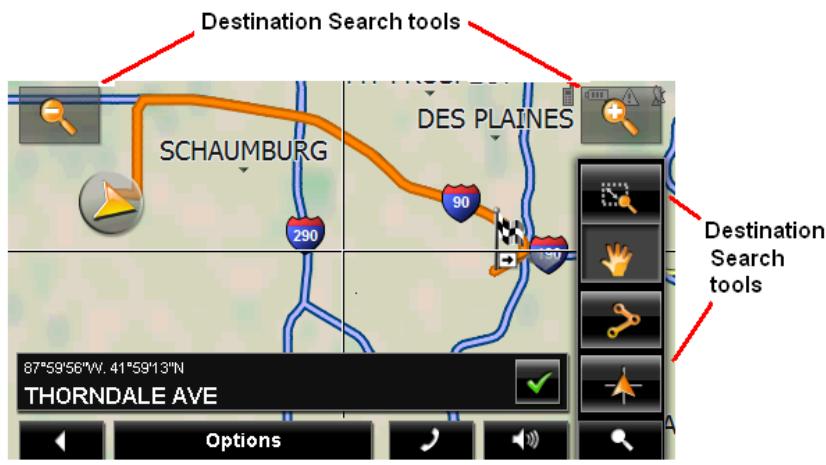
Destination search tools include:
Zoom Out
The map section shown becomes larger, but fewer details are shown.
Zoom In
The map section becomes smaller, but shows more details.
Zoom Mode
When this button is active, you can plot a map section with your finger.
Plot the map section from upper left to bottom right and it zooms to fit the size of the screen.
Plot the map section from bottom right to top left, and the map zooms out.
Pan Mode
When this button is active, you can move the map section with your finger. Tap on the map and drag it in the desired direction.

Entire Route
Zooms the map so that the entire route is visible.
Current Position
Show your current position on the map.
Operating in Destination Search mode
- Tap on the point to which you wish to navigate.
The destination that you have selected appears under the cross hairs.
- Tap (OK).
Buttons with various functions appear.
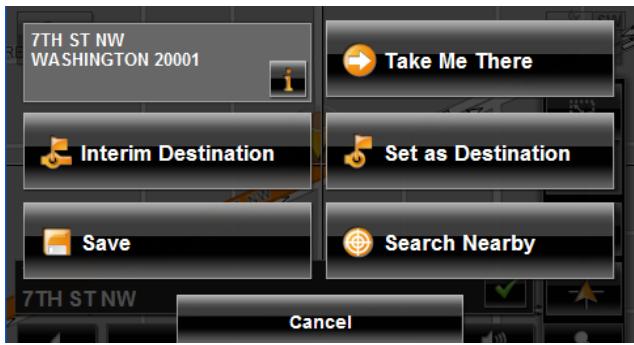
Detailed address information for the selected destination displays in the upper left-hand corner. Tap for more information about the POI.
Take Me There
Begins navigation to the selected point. If you are currently navigating, navigation stops.
Interim Destination
Sets the selected point as an interim destination. The navigation system first guides you to this interim destination. Afterwards, you can continue navigation to your original destination.
This function is only active during navigation.
Set as Destination
Sets the selected point as the destination.
Save
Opens the SAVE DESTINATION AS... WINDOW. You can enter a name for the selected point to be stored in the FAVORITES list.
Search Nearby
Opens the POI NEARBY WINDOW. Here you can search for destinations near the specified point. (See “POIs nearby” on page 58.)
Reality View Pro
When, during navigation, you approach a highway junction, the map changes to Reality View Pro mode.
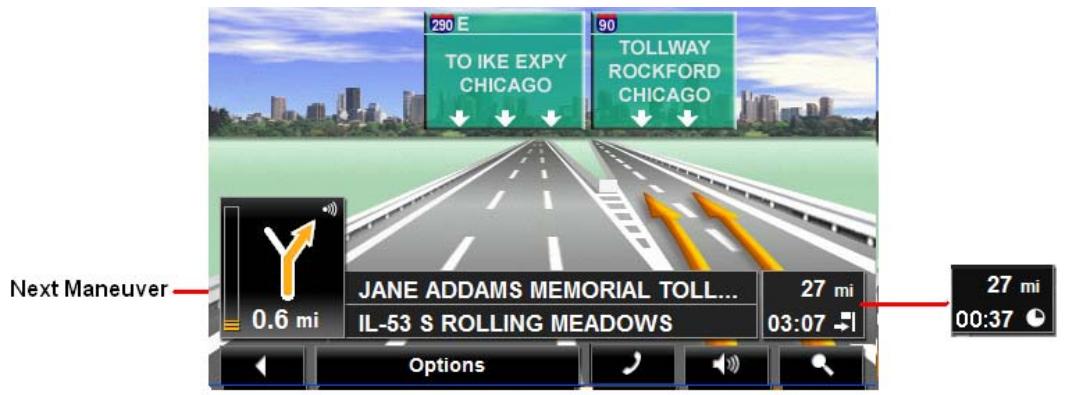
Reality View Pro mode shows the signage and lanes you must follow. This mode displays until you pass the highway junction. Once past the junction, the map returns to Navigation mode.
While traveling through the highway junction to:
- Change from Reality View Pro back to Navigation mode, tap anywhere on the screen.
- Change from Navigation Mode back to Reality View Pro, tap the Next Maneuver button.

Note: Reality View Pro mode is not available for every highway junction. Availability is dependent on the map data currently in use.
Turning on Reality View Pro
- Tap Options > Settings > Map Display.
- In the Reality View 3D field, select Yes (to show) or No (to hide).
- Tap OK to save the changes.
Panorama View 3D
Panorama View 3D presents a realistic view of the surrounding environment and provides better perspective on bridges and in tunnels. It also makes it easier for you to recognize routes and landscape.
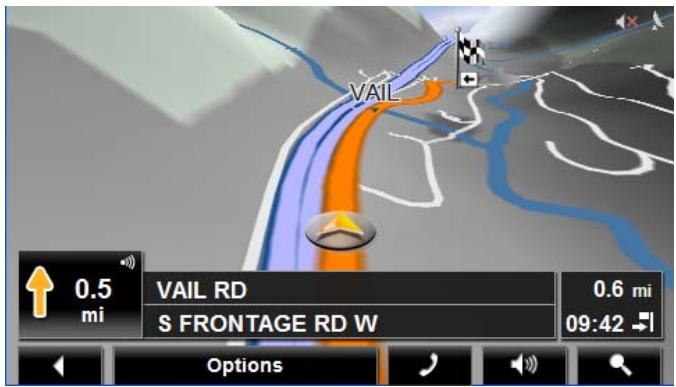

Note: Panorama View 3D mode is not available in all locations.
Turning on Panorama View 3D
- Tap Options > Settings > Map Display.
- In the Panorama View 3D field, select Yes (to show) or No (to hide).
- Tap OK to save the changes.
NAVIGON Lifetime Traffic (TMC) Information allows your NAVIGON 8100T to receive the latest traffic information available. If necessary, it can change your route dynamically in order to avoid a traffic jam.

Note: This function is only available if TMC traffic messages are being transmitted in the area in which you are traveling. Traffic messages are not available in all areas.
Note: The charger cable does not need to be connected to the vehicle's cigarette lighter or power outlet for the antenna to be operational.
Note: If the car charger/antenna is not attached to the device, TMC messages may not be received when the device is operating on battery power only.
Accessing the NAVIGON Lifetime Traffic Window
All currently available traffic information can be viewed from the Options button on the MAIN WINDOW, ROUTE PLANNING WINDOW and any of the map views.
From any of the above windows:
- Tap Options > Traffic.
The NAVIGON LIFETIME TRAFFIC WINDOW opens.
The NAVIGON Lifetime Traffic Window
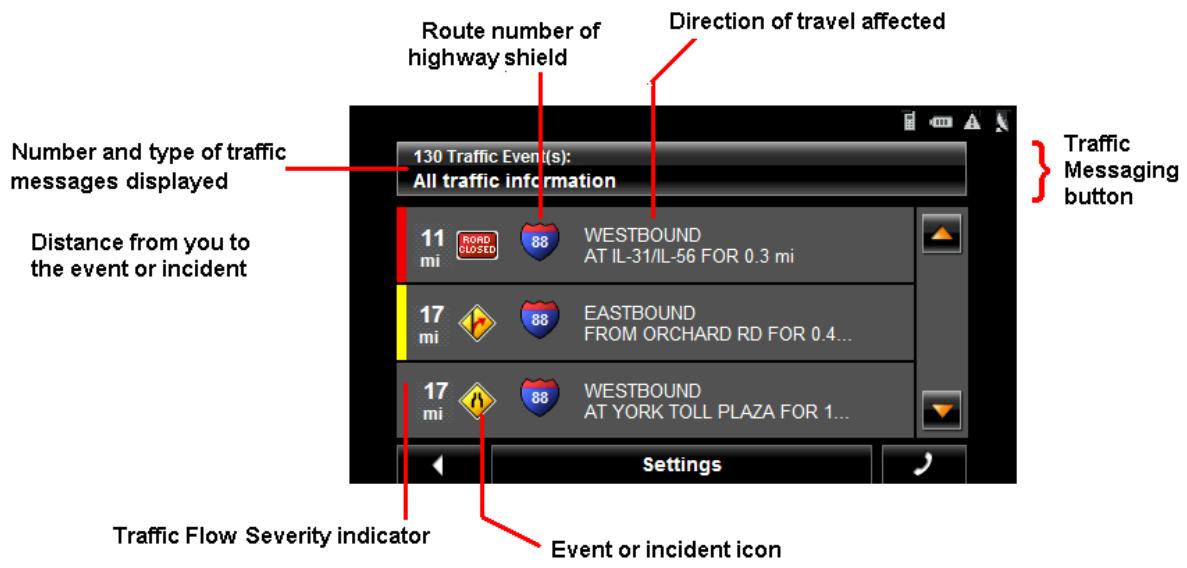
Types of Messages
All traffic information
Information on all traffic events (severe and moderate traffic jams and obstructions) and weather warnings received in the area, based on TMC antenna reception.
On route
Information on all traffic events (severe and moderate traffic jams and obstructions) and weather warnings occurring along the route.
Not on route: all
Information on all traffic events (severe and moderate traffic jams and obstructions) and weather warnings not occurring on the route, based on TMC antenna reception.
Not on route: traffic jams
Information on severe traffic events (traffic jams) not occurring on the route, based on TMC antenna reception.
Not on route: obstructions
Information on moderate traffic events (obstructions) not occurring on the route, based on TMC antenna reception.
Not on route: weather warnings
Information on weather warnings not occurring on the route, based on TMC antenna reception.
Specify the type of traffic messages to display
On the MAIN WINDOW:
- Tap Options > Traffic.
The NAVIGON LIFETIME TRAFFIC INFORMATION WINDOW opens.

On the Navigation map, the 18mi (TMC shortcut) button can also be used to display the NAVIGON LIFETIME TRAFFIC INFORMATION WINDOW. The TMC shortcut button displays when traffic messages have been received and are currently available. See "Map Navigation mode" on page 110.
The Traffic Messages button shows the type of traffic messages listed and how many messages of this type are listed.
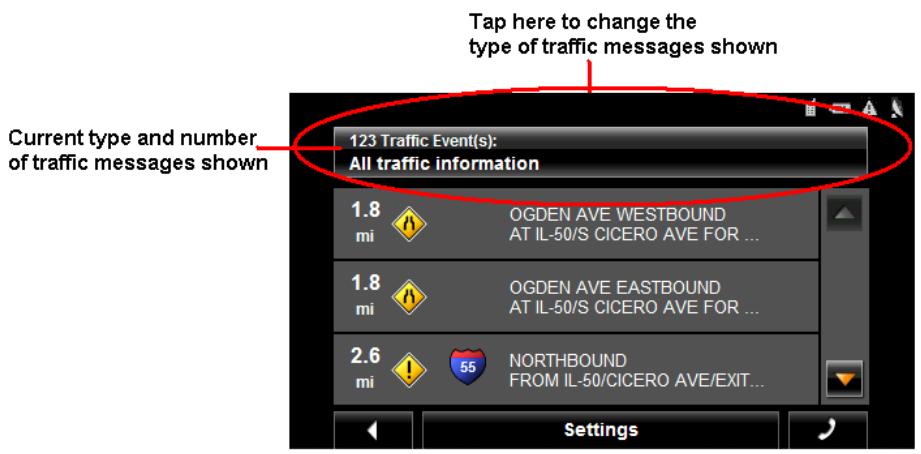

For a description of each message type, see "Types of Messages" on page 118.
- Tap the Traffic information button to view a list of available traffic message types.
- Tap on the type of messages to display.
- Tap the OK button.
Traffic Flow Severity Indicators
The severity indicator reflects the impact of the traffic occurrence on traffic flow.
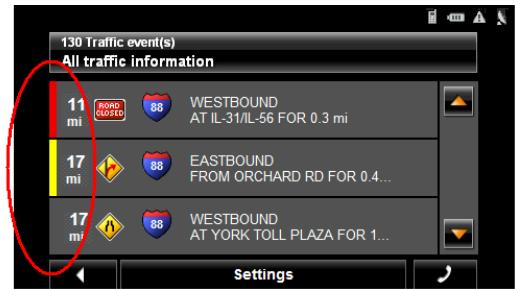
Traffic Flow Severity indicator
The severity indicator appears as a color bar on the traffic list view. Indicators are
Red Heavy traffic, expect delays.
Yellow Moderate impact to traffic.
None Minor impact to traffic flow.
Event or Incident Icons
On the NAVIGON LIFETIME TRAFFIC WINDOW, the following icons are used to represent traffic events or incidents:

Slow traffic.

Construction.

Accident.

Slippery road due to weather (snow, ice, rain, etc.).

General problem affecting traffic flow.

Wind.

Lane closures.

Flooding.

Road closed or blocked.

Informational only. No negative affect on traffic flow.

Ramp problems. On- or off-ramp closures, etc.
Displaying traffic messages
The traffic reports that are currently valid are available from several windows.
On the MAIN WINDOW:
1. Tap Options > Traffic.
The NAVIGON LIFETIME TRAFFIC INFORMATION WINDOW opens.
Above the list, the Traffic information button indicates the type of traffic information listed (on-route, off-route, etc.) and how many messages of this type are listed.
For each traffic message in the list, information about the location and type of traffic obstruction is displayed.
2. Tap a message to view more information on the traffic event.
The TRAFFIC DETAIL WINDOW displays.
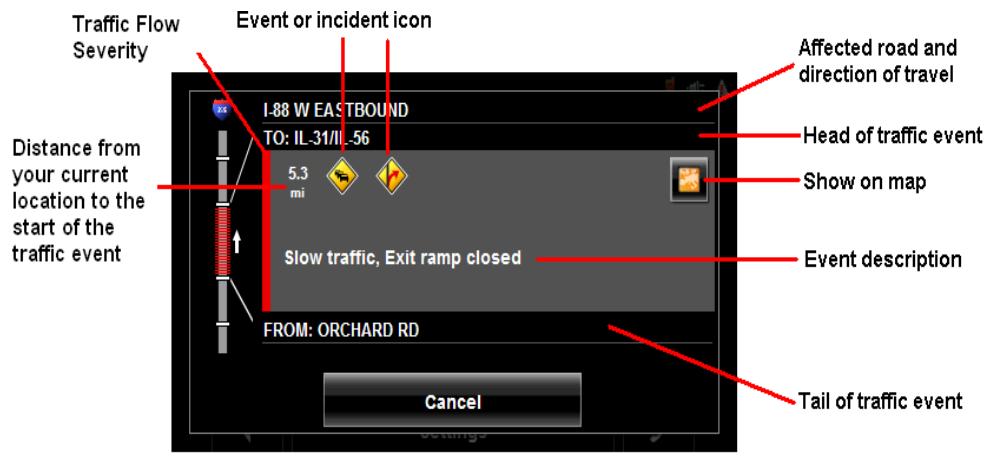
- When finished, tap the Cancel button to return to the NAVIGON LIFETIME TRAFFIC WINDOW.
Select Reroute Settings
You can select whether the navigation software recalculates a route automatically when a TMC message indicates that a problem exists on your current route.
On the TMC STATUS WINDOW:
- Tap Options > TMC Settings.
- In the Recalculate Route, select how you want to set route recalculation:
Automatically
The navigation system determines when to recalculate a route and when to ignore a traffic event, based on the severity of the impact on traffic flow. When a traffic message is received that severely impacts your current route, the navigation software displays a message indicating that it has recalculated a route avoiding the event.

Note: Only traffic events with a red severity will be recalculated. Yellow severity traffic events are not recalculated.
On Request
Each received traffic message displays on screen. You can specify whether to calculate an alternative route.
- Tap (Toggle) to switch between options.
The selected value is in bold.
- Tap OK to save your changes.
Reroutes
Requesting a route recalculation

Note: This procedure is only available when the TMC Setting Recalculate Route is set to On Request. For more information, see "Select Reroute Settings" on page 122.
During navigation, a message displays when a traffic message indicates a traffic event exists on your current route. Details of the event are shown on the TRAFFIC DETAIL WINDOW.
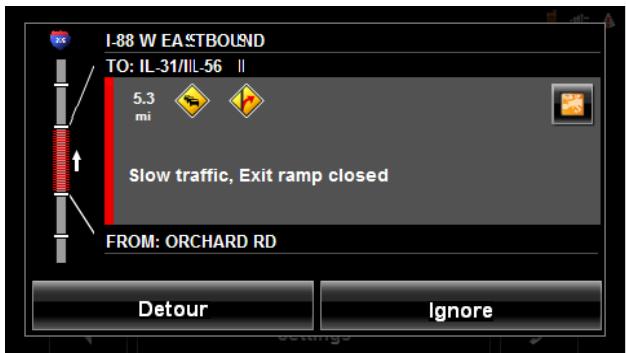
On the TRAFFIC DETAIL WINDOW:
- Select how you want the traffic block to be handled. Options are:
Detour The navigation software recalculates a route to avoid the traffic obstruction. A (Detour) appears next to the traffic segment on the TMC TRAFFICMESSAGE WINDOW.
Ignore The navigation software ignores the traffic message and remains on the current route. A (Ignore) appears next to the traffic segment on the TMC TRAFFICMESSAGE WINDOW.
The NAVIGON LIFETIME TRAFFIC WINDOW re-displays. An icon for the selected action (§ (Detour) or ↑ (Ignore) appears next to the traffic segment.
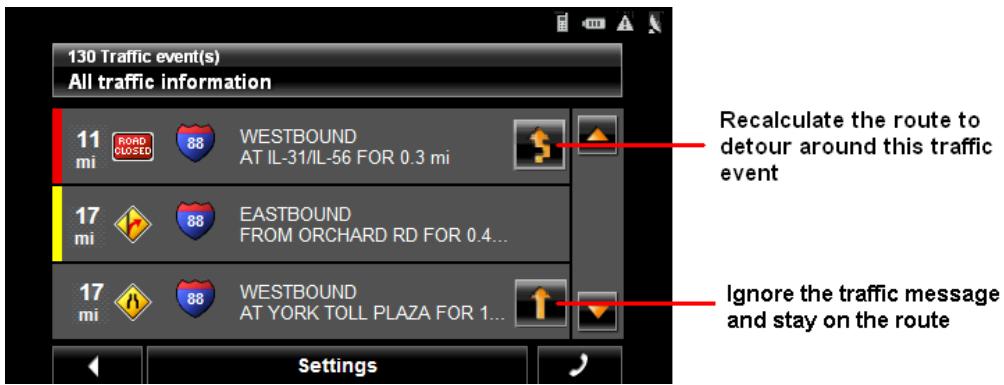
- Tap (Back) to close the NAVIGON LIFETIME TRAFFIC INFORMATION WINDOW.
Canceling a Reroute Calculation for a Traffic Event
If you have set the navigation software to avoid an event and calculate another route,
you can cancel the reroute request by tapping (Detour) next to the event. The
icon changes to (Ignore) and the route is not recalculated. To change the icon back to Detour, tap the Ignore icon again.
TMC Status Window
In the TMC STATUS WINDOW, you can set and configure the TMC receiver. These settings determine how received traffic messages will affect subsequent routing.
On the MAIN WINDOW:
- Tap Options > Traffic > Settings.
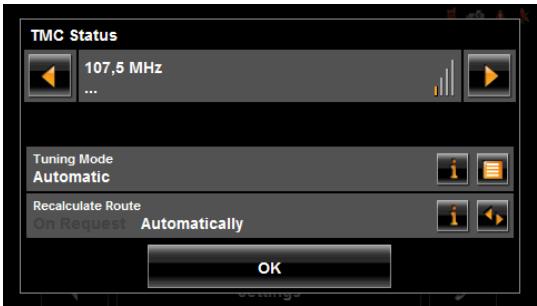
Select another station
On the TMC STATUS WINDOW:
- Tap (To the Left) and (To the Right) to tune to another station.

Note: Some stations do not have TMC information.
Select Tuning Mode Settings
On the TMC STATUS WINDOW:
- In the Tuning Mode field, select an option:
Automatically The system searches for another station if reception becomes poor.
Hold station The system searches for the same station on a different frequency if the signal becomes poor.
Hold frequency The system does not search for another station if reception becomes poor.
- Tap (List) to view the list and select an option.
- Tap the Done button to save your changes.
Recalculating Route
On the TMC STATUS WINDOW:
In the Recalculate Route field, select an option:
On Request The route is only recalculated when requested.
Automatically The route is automatically recalculated every time a severe traffic event is identified on the route.
This page intentionally left blank.

Note: Hands-Free Operation is only available on supported Bluetooth mobile phones.
With NAVIGON 8100T, you can use Bluetooth to operate your mobile phone hands-free.
The Hands-Free Main Window

On the HANDS-FREE MAIN WINDOW, you can:

Keypad
Select this button to show a keypad to dial a phone number, enter a PIN Code, or select menu options in automated systems.
This option is only available when the device is paired to a mobile phone.

Settings
Select this button to go to the HANDS-FREE SETTINGS WINDOW. See "The Hands-Free Settings Window" on page 139.

Address Book
Select this button to view mobile phone address book entries on your mobile phone. Address book entries are not saved on the navigation device and are only available when the NAVIGON 8100T is connected to the mobile phone.
This option is only available on supported mobile phones.

Recent Calls
Select this button to view a list of recent calls made from your mobile phone. This option is only available when the device is connected to a supported mobile phone.

Four speed dial buttons can be specified. They can be set manually or imported from a mobile phone address book. Once set, the name of the location is shown on the button.
See "Adding a New Speed Dial Number" on page 140.

Select this button to close the Hands-Free module and re-display the MAIN WINDOW.

Select this button to send the HANDS-FREE MAIN WINDOW to the background and display the navigation application.
To re-display the HANDS-FREE MAIN WINDOW, tap (Phone).
Opening the Hands-Free Main Window
In the navigation software:
- Tap (Phone).
The HANDS-FREE MAIN WINDOW opens.
Changing hands-free volume
You can adjust the volume of the hands-free module independently of the volume of the navigation system. You can change call volume in two ways:
To change the volume of the current call:
- On the CALL IN PROGRESS WINDOW, tap

(Volume) to change the volume.
To change the volume of all calls:
- On the HANDS-FREE MAIN WINDOW, tap Settings > Handsfree Settings.
- In the Call Volume field, set the volume louder or softer.
Show/Hide the Hands-Free Main Window
On the HANDS-FREE MAIN WINDOW:
- Tap (Navigation) to move the navigation application to the foreground.
- Tap (Back) to return to the MAIN WINDOW.
Connecting (Pairing) with a Mobile Phone

Note: The Bluetooth functions of both the NAVIGON 8100T and the mobile phone must be configured accordingly in order for a Bluetooth connection to be established between the two devices.
For details of how to configure the NAVIGON 8100T see "Setting Bluetooth Options" on page 144.
For details of how to configure the mobile phone refer to the related manual.
The NAVIGON 8100T can establish a connection to only one Bluetooth-capable mobile phone.
As a rule the NAVIGON 8100T automatically establishes a connection to a mobile phone to which it was once connected before. However, you can also use this function to establish a connection to a different mobile phone while a connection between the NAVIGON 8100T and a mobile phone already exists.
Establishing a connection from the navigation device
- Make sure that the Bluetooth function is activated on both the mobile phone and the NAVIGON 8100T.
On your mobile phone:
- Make sure that your mobile phone is set to "Discoverable", "Find Me", etc.
On your NAVIGON 8100T:
- On the HANDS-FREE MAIN WINDOW, tap Settings > Mobile Phone Connection > New Connection.
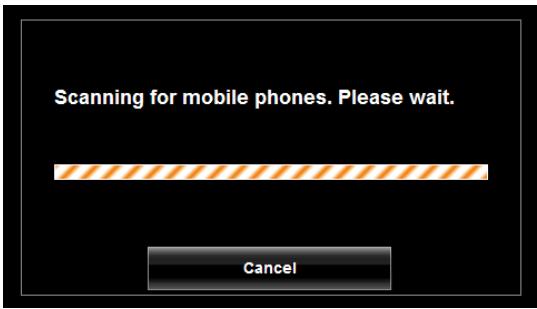
The navigation device scans for Bluetooth devices.
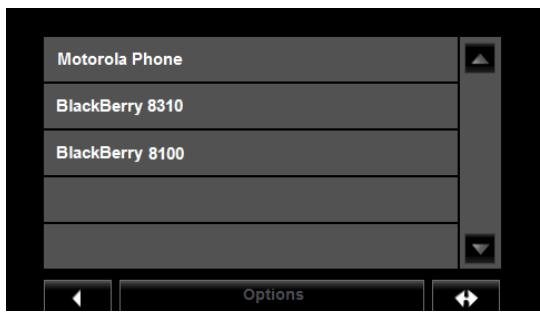
When finished, a list of Bluetooth devices in the area is shown.
- Tap on the name of your mobile phone.
The navigation device prompts you to enter a PIN code.
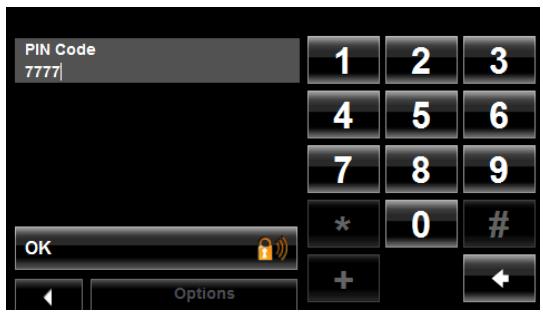
- In the PIN Code field, enter a four-digit number.

Note: A PIN code can be any four digits. However, the same 4 digit PIN code must be entered on the mobile phone in order to complete the pairing.
- Tap OK.
On the mobile phone:
Your mobile phone prompts you to enter a PIN code.
- Enter the same PIN code that was entered on the NAVIGON 8100T.
On the NAVIGON 8100T, the The HANDS-FREE SETTINGS WINDOW opens. A connection is established between the two devices.
- Follow instructions on your mobile phone to establish the connection.
On the navigation device:
- Tap (Back) in order to return to the HANDS-FREE MAIN WINDOW.
On the NAVIGON 8100T HANDS-FREE MAIN WINDOW, the Keypad, Address Book, and Recent Calls buttons are now available. The Bluetooth status icon in the
upper right-hand corner displays in gray ( ).
Establishing a connection from the mobile phone

Note: See your mobile phone's manual if you are uncertain about how to perform the following steps on the mobile phone.
- Make sure that the Bluetooth function is activated on both the mobile phone and the NAVIGON 8100T.
On your NAVIGON 8100T:
- On the HANDS-FREE MAIN WINDOW, select Settings > Bluetooth Settings and in the Discoverable by Others field select Yes.
On your mobile phone:
-
Search for other Bluetooth devices. The navigation device is detected as NAVIGON.
-
Initiate a connection to the detected NAVIGON device.
The mobile phone prompts you to enter a PIN code.

Note: A PIN code can be any four digits. However, the same 4 digit PIN code must be provided to the navigation device in order to complete the pairing.
- Enter a four-digit PIN code.
On the navigation device:
The NAVIGON 8100T prompts you to enter a PIN code.
-
In the PIN Code field, enter the same PIN code that you entered on the mobile phone.
-
Tap OK.
The HANDS-FREE MAIN WINDOW displays. A connection is established between the two devices.
On the NAVIGON 8100T HANDS-FREE MAIN WINDOW, the Keypad, Address Book, and Recent Calls buttons are now available. The Bluetooth status icon in the
upper right-hand corner displays in gray ( ).
Terminating the connection between the NAVIGON 8100T and the mobile phone
You can terminate the connection between the NAVIGON 8100T and the mobile phone at any time.

Note: You don't need to terminate the connection manually. The connection is terminated automatically when the mobile phone moves out of range (approximately 30 feet (10 meters) from the NAVIGON 8100T). Connection data is saved so that the connection can be restored automatically when the mobile phone comes back into range.
In the HANDS-FREE SETTINGS WINDOW:
- Tap Mobile Phone Connection > Delete Device.
You will be prompted to confirm that you want to terminate the connection.
- Tap OK.
On the NAVIGON 8100T HANDS-FREE MAIN WINDOW, the Keypad, Address Book, and Recent Calls buttons are no longer available. The Bluetooth status icon in
the upper right-hand corner displays in red ( ).

Note: When the connection is terminated using this procedure, the NAVIGON 8100T can not establish an automatic connection to a mobile phone, including the same mobile phone as for the last connection.
You must establish the next connection to a mobile phone manually. (See “Connecting (Pairing) with a Mobile Phone” on page 129).
Troubleshooting Hands-Free Operation
The NAVIGON 8100T must be connected to a mobile phone in order for you to use the telephone functions. After the first connection, your NAVIGON 8100T automatically reconnects with your phone each time it comes into range.
Problems occurring when trying to establish a Bluetooth connection can have various causes:
- Bluetooth is deactivated in the hands-free module of the NAVIGON 8100T.
=> Activate Bluetooth. Make sure that the NAVIGON 8100T can be detected by other Bluetooth devices. (See "Setting Bluetooth Options" on page 144 for more information.) - Bluetooth is deactivated on the mobile phone or it is set to "Hidden".
=> Activate Bluetooth on your mobile phone. Make sure that your mobile phone can be detected by other Bluetooth devices.
For more details refer to your mobile phone manual.
- The NAVIGON 8100T may not have successfully connected to your mobile phone before.
Initiate the connection manually. (See “Connecting (Pairing) with a Mobile Phone” on page 129 for more information.)
If none of the above actions resolve the problem, reset the device.
=> With the NAVIGON 8100T powered on, use a stylus or paper clip to press the reset button located on the bottom of the case.

Note: If the NAVIGON 8100T is still unable to establish a Bluetooth connection to your mobile phone, contact your mobile phone manufacturer's customer support.
Answering a call
When you receive a call, the INCOMING CALL WINDOW opens. A message asks whether you want to take the call.
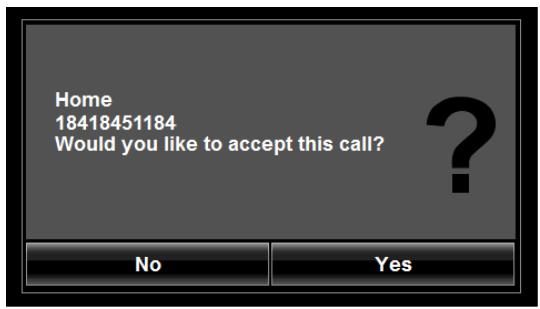
To ignore the call:
- Tap No.
To take the call:
- Tap Yes.
The name and the number of the caller will be displayed if this information is available.
The CALL IN PROGRESS WINDOW opens.
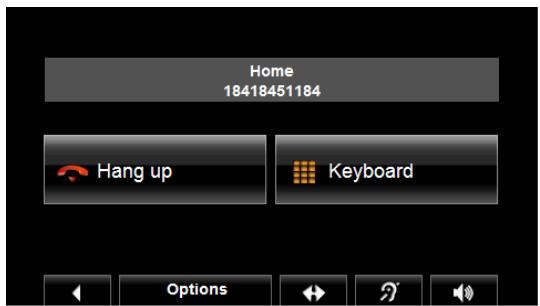

Note: Spoken navigation instructions continue during a call.
Making a call
With the NAVIGON 8100T you can make a call in various ways:
- Dialog a telephone number.
- Dialog a Speed Dial number.
- Dialoging a contact from the Address Book.
- Calling missed, most recently dialed, or received numbers.

Note: Spoken navigation instructions continue during a call.
Dialing a telephone number
In the Navigation software:
- Tap (Phone).
The HANDS-FREE MAIN WINDOW appears.
- Tap Keypad.
The HANDS-FREE KEYPAD WINDOW opens.
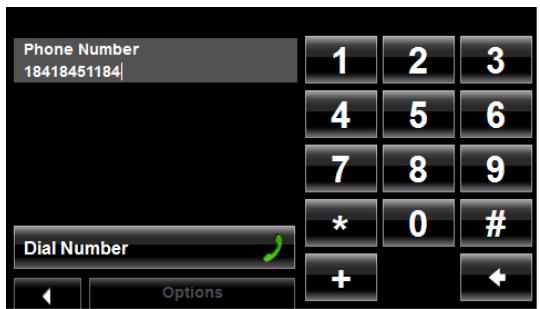
- Enter the desired telephone number.
- Tap Dial Number.
Dialing a Speed Dial number
You can configure up to four Speed Dial buttons. For more information on how to set up a Speed Dial number, see "Adding a New Speed Dial Number" on page 140.
In the navigation software:
- Tap (Phone).
The HANDS-FREE MAIN WINDOW appears.
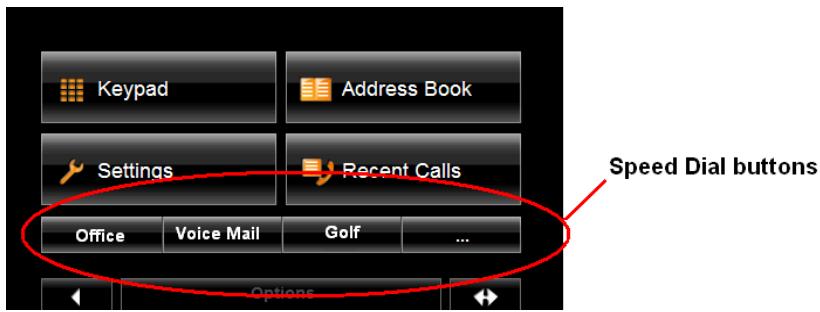
- Tap the desired Speed Dial button.

Note: If a Speed Dial button has not been set up, or if a Bluetooth connection to the mobile phone has not been established, the HANDS-FREE MODIFY SPEED DIAL WINDOW displays.
Dialing a contact from the Address Book

Note: This feature is only available on supported Bluetooth mobile phones.
Note: Depending on your mobile phone, only phones numbers may display. Contact names may not be shown.
You can select numbers from the address book of the mobile phone to which the NAVIGON 8100T is connected.
On the HANDS-FREE MAIN WINDOW:
- Tap Address Book.
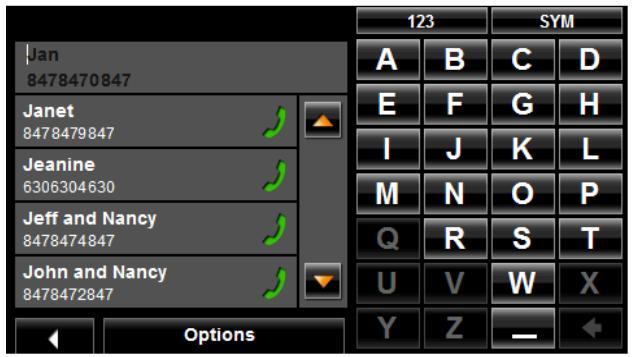
The entries in the mobile phone's address book are shown.

Note: The address book is not saved on the navigation device. It is only available to the Hands-Free module while the navigation device is connected to the mobile phone.
- Tap on the contact you want to call. If more than one phone number is saved for this contact, a list with all the phone numbers saved for the contact will open.
- Tap on the number you want to dial.
Calling missed, most recently dialed, or received numbers

Note: This feature is only available on supported Bluetooth mobile phones.
On the NAVIGON 8100T, the RECENT CALLS WINDOW lists missed, answered and outgoing calls.

Note: Missed calls are shown first, then dialed calls, then answered calls.
Note: Recent calls may not be shown in chronological order.
Note: Incoming and unanswered calls can only be dialed if the caller's number was transmitted.
In the Navigation software:
- Tap (Phone).
The HANDS-FREE MAIN WINDOW appears.
- Tap Recent Calls.
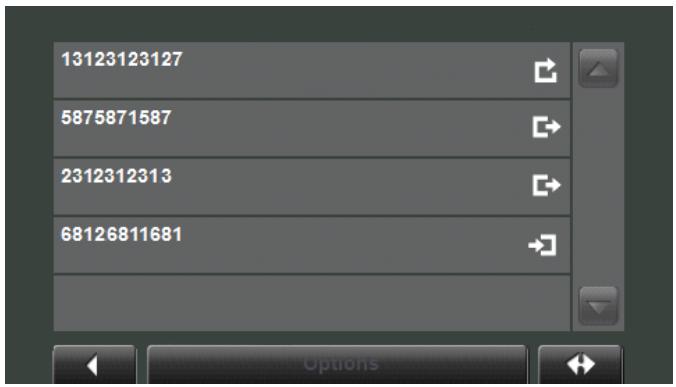
The RECENT CALLS WINDOW displays a list of calls.
On this list, the type of call is indicated as:

Missed call

Dialed call

Received call
- Tap on the entry you want. A call is placed to the selected number.

Note: The RECENT CALLS LIST is not saved on the navigation device. It is only available to the Hands-Free module while the navigation device is connected to the mobile phone.
Transferring a call from your mobile telephone
The NAVIGON 8100T takes calls automatically from the mobile phone as soon as a Bluetooth connection is established between the two devices.
During a call
During a call, the CALL IN PROGRESS WINDOW displays.
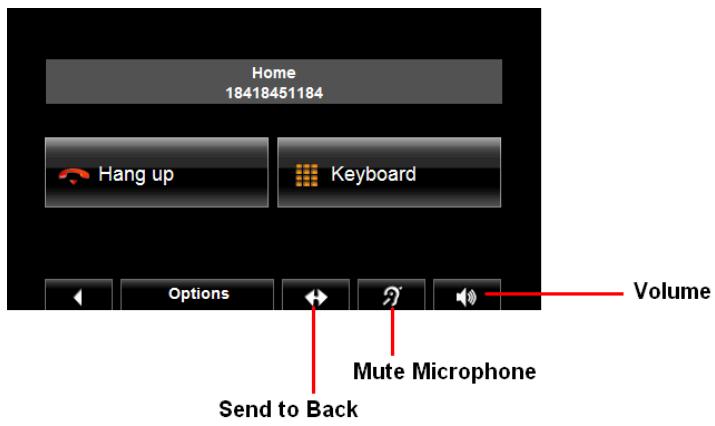
Moving the navigation application to the foreground
You can move the navigation application to the foreground at any time. In this way you can have the map in the foreground during a call when the NAVIGON 8100T is in the process of navigating.
- Tap (Navigation).
While a mobile phone is connected to the navigation device, the icon (green mobile phone) is shown in the top right corner of the window.
- Tap (Phone) to re-open the CALL IN PROGRESS WINDOW.
Entering numbers
You can enter numbers during a call, for example, when you need to enter a PIN code for retrieving voice mail.
- Tap Keypad.
- Enter the desired numbers.
- Tap (Back) to open the CALL IN PROGRESS WINDOW.

Note: Spoken navigation instructions continue during a call.
Placing the Microphone on Mute
During a call you can place the NAVIGON 8100T microphone on mute.
To mute the microphone:
- Tap (Mute).
The mute button displays in red
To turn the microphone back on:
- Tap (Mute) again.
Transferring a call to the mobile phone
On the CALL IN PROGRESS WINDOW:
- Tap Options > Use Cell Phone.
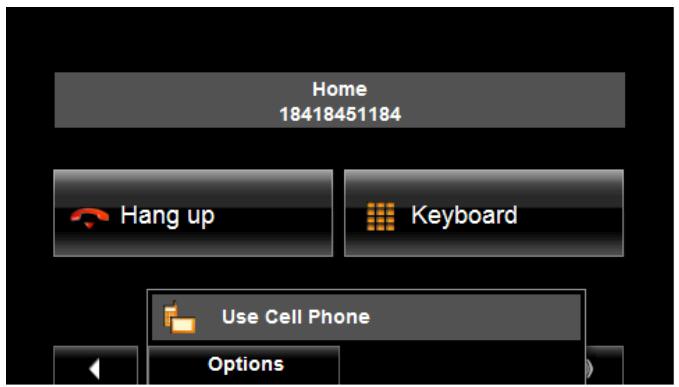
- Pick up the mobile telephone and continue the call.
Ending the call
On the CALL IN PROGRESS WINDOW:
- Tap End Call.
Configuring the Hands-Free function
With NAVIGON 8100T, you can use Bluetooth to operate your mobile phone hands-free.
The Hands-Free Settings Window
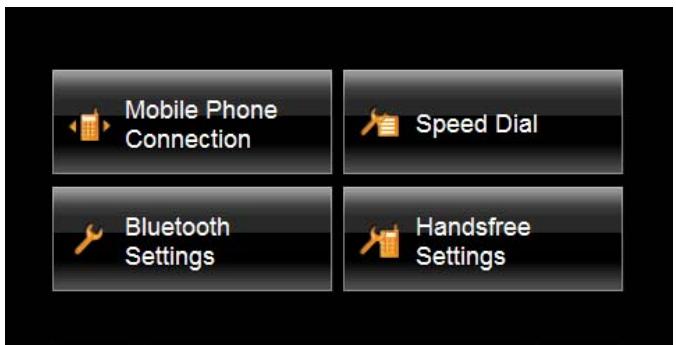
On the HANDS-FREE SETTINGS WINDOW, you can:
Select this button to connect your NAVIGON 8100T to your mobile phone. See "Connecting (Pairing) with a Mobile Phone" on page 129 for more information.
Select this button to set up to four speed dial phone numbers. See "Adding a New Speed Dial Number" on page 140 for more information.
Select this button to activate Bluetooth functionality and set options. See "Setting Bluetooth Options" on page 144 for more information.
Select this button to set the volume of the ring tone and dial tone. See “Setting Hands-Free Volume” on page 143 for more information.

For information about configuring your device, see "Customization" on page 147.
Adding a New Speed Dial Number
The NAVIGON 8100T hands-free module has four Speed Dial buttons that can be set for frequently called numbers.
On the HANDS-FREE MAIN WINDOW:
1. Tap Settings > Speed Dial.
The SPEED DIAL WINDOW displays.
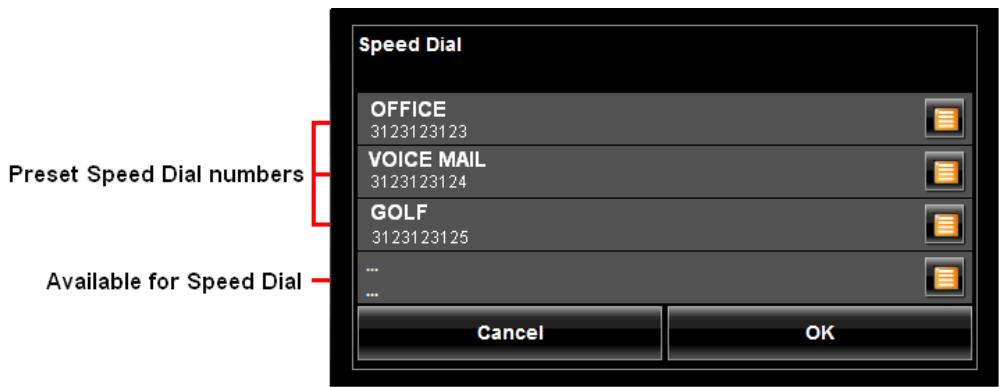
- Tap on an available Speed Dial line.
The MODIFY SPEED DIAL WINDOW displays.
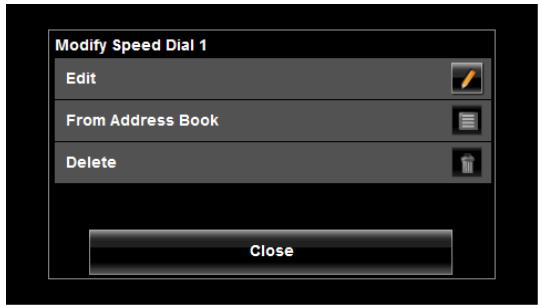
- Tap Edit.
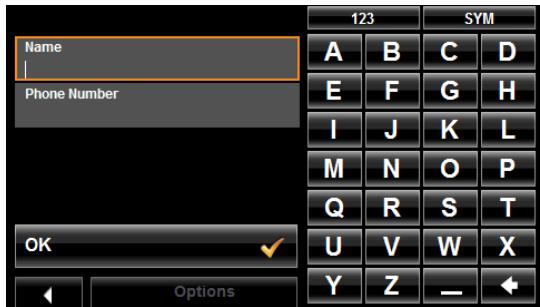
- Enter the name and the number for the Speed Dial button.
- Tap OK.
The added Speed Dial button displays on the MODIFY SPEED DIAL WINDOW.
- Tap OK.
Adding an Address Book Number to Speed Dial

Note: The NAVIGON 8100T must be connected to the mobile phone to add a Speed Dial number from the mobile phone's address book.
Note: Speed dial numbers are stored in the device memory.
On the HANDS-FREE MAIN WINDOW:
- Tap Settings > Speed Dial.
The SPEED DIAL WINDOW displays.
- Tap on an available Speed Dial button.
The MODIFY SPEED DIAL WINDOW displays.
- Tap From Address Book.
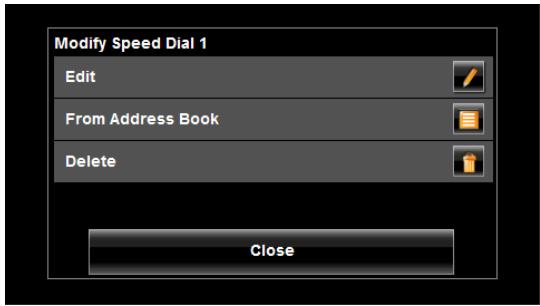
The phone numbers on the mobile phone are shown.
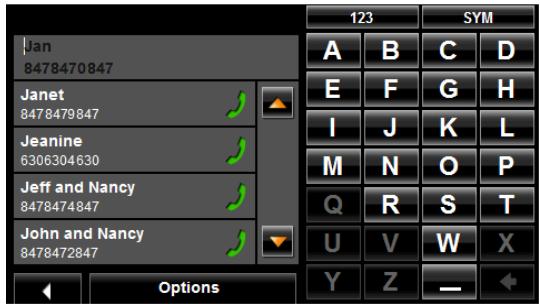
- Tap on the entry you want to add to a Speed Dial button. The new entry displays on the SPEED DIAL WINDOW.
- Tap OK.
Changing a Speed Dial Number
On the HANDS-FREE MAIN WINDOW:
- Tap Settings > Speed Dial.
The SPEED DIAL WINDOW displays. - Tap on the Speed Dial line to be changed.
The MODIFY SPEED DIAL WINDOW displays. - Tap Edit.
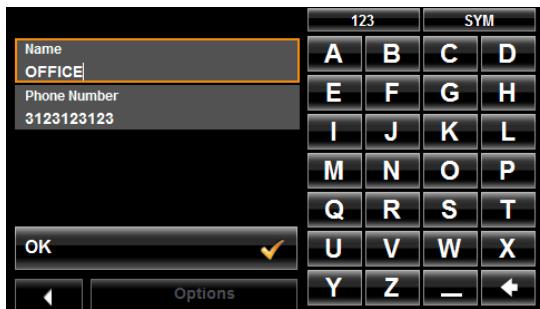
The name and the number for the Speed Dial button are shown.
- Enter the new information for the Speed Dial button.
- When finished, tap OK.
The updated entry displays on the MODIFY SPEED DIAL WINDOW.
- Tap OK.
Deleting a Speed Dial Number
On the HANDS-FREE MAIN WINDOW:
- Tap Settings > Speed Dial.
The SPEED DIAL WINDOW displays. - Tap on the Speed Dial line to be deleted.
The MODIFY SPEED DIAL WINDOW displays. - Tap Delete.
The MODIFY PRESENT WINDOW re-displays. The name and number no longer appear on the Speed Dial button.
Setting Hands-Free Volume
You can configure phone settings for the hands-free module of your NAVIGON 8100T.
On the HANDS-FREE MAIN WINDOW:
- Tap Settings > Handsfree Settings.
The HANDSFREE VOLUME SETTINGS WINDOW opens.
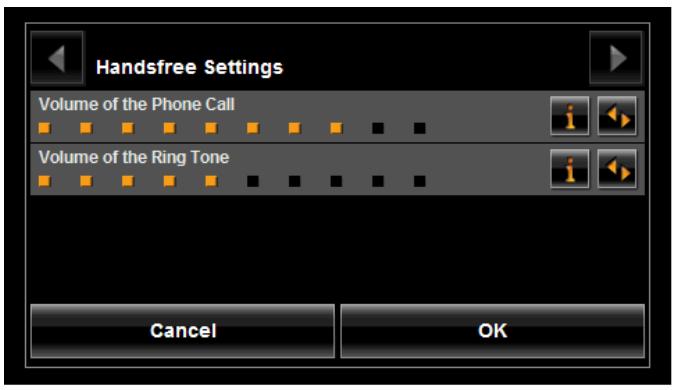
Volume of the Phone Call
Volume of the Ring Tone
The volume of the call can be adjusted independent of the volume of the navigation application.
The volume of the ring tone can be adjusted independent of the volume of the navigation application.
Setting Bluetooth Options
In the HANDS-FREE MAIN WINDOW:
- Tap Settings > Bluetooth Function.
The BLUETOOTH SETTINGS WINDOW opens.
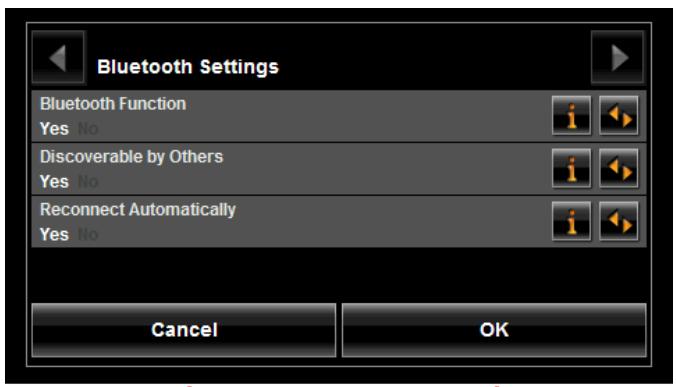
On this window, set the following options:

Note: A Bluetooth connection can be established from the mobile phone only when the Bluetooth Function setting is set to Yes.
Bluetooth Function
Select whether you want to activate the Bluetooth function (Yes or No). The hands-free module cannot connect to a mobile phone if the Bluetooth function is deactivated.

Note: These following settings (Discoverable by Others and Reconnect Automatically) are only available when the Bluetooth function is activated.
Discoverable by Others
Select whether other Bluetooth-capable devices (in particular mobile phones) should be able to detect the NAVIGON 8100T (Yes or No).
Reconnect Automatically
Select whether the connection to the last connected phone is to be restored automatically (Yes or No).
For example: The connection is interrupted as soon as you leave the vehicle. It can be restored as soon as you approach the vehicle again.
You can use the NAVIGON 8100T to record your vehicle mileage for tax purposes or for expense reports. The logbook is recorded in the Logbook.xls file. You can open the file with Microsoft Excel spreadsheet program. Each recorded trip is added to the spreadsheet as a new entry.
When first used, the Logbook.xls file is created in the MN7\Logbook directory on the memory card. If you delete or move this file, a new file is created when you next record a trip.
The NAVIGON 8100T supports various types of trips for which one could record mileage. You can record mileage for Business, Personal, Commutes to work, etc.

Note: When logbook recording starts, every movement of the vehicle is recorded, even when you are not navigating on-route.
The Logbook option is not available during a route simulation.
Start recording
From the MAIN WINDOW:
- Tap Options > Settings > Navigation.
The NAVIGATION SETTINGS WINDOW opens.
- Use (Next Page) to go to Page Three.
- In the Logbook setting field, select Yes.
- Tap OK.
- When you begin a route, select the type of entry.
- Enter a name for the route.
- Tap OK.

Note: When you start recording, the (Logbook) icon appears in the upper right corner of the window.
- See "Using Logbook" on page 97 for more information.
Stop recording
Use this procedure to stop all Logbook recording. To selectively stop recording, see "Stop recording for a single route" on page 98.
From the MAIN WINDOW:
- Tap Options > Settings > Navigation.
The NAVIGATION SETTINGS WINDOW opens.
- Go to page three by tapping (Next Page) twice.
- In the Logbook setting field, tap No.
- Tap OK.
This page intentionally left blank.
Accessing the Settings window
The settings can be reached from several windows.
- Tap Options > Settings.
The Settings Window
The SETTINGS WINDOW is where you can customize your NAVIGON 8100T to suit your personal needs and preferences.

The SETTINGS WINDOW has several buttons.
- Tap a button to open the corresponding settings window.
Navigation Settings
These settings include:
Show Speed Limits
Select whether to show highway speed limits. Options are all speed limits, no special speed limits, or no speed limits.
Within Urban Areas: Warn When Exceeding by
Indicate whether a warning displays when exceeding the speed limit in densely populated areas. Options are to never warn, or to display a warning when 5, 10, 15 or 20mph over the stated speed limit. Only supported in areas where speed limit information is available.
Outside Urban Areas: Warn When Exceeding by
Indicate whether a warning displays when exceeding the speed limit in less densely populated or rural areas. Options are to never warn, or to display a warning when 5, 10, 15 or 20mph over the posted speed limit. Only supported in areas where speed limit data is available.
| Show Altitude and Speed | Show or hide the altitude and current speed on a displayed map. |
| Indication of Travel Time | Show either the estimated time of arrival or the remaining time to the destination (or an interim destination, if applicable). |
| Display Compass | Show or hide a small compass on screen during navigation. |
| Announce Street Names | Indicate whether or not to hear the street names announced. |
| Info When Crossing Borders | Show or hide local speed restrictions when crossing a country border. |
| Logbook | Indicate whether to turn on logbook to record vehicle mileage. |
| Route Profile Settings | |
| These settings include: | |
| Speed Profile | Select the type of transport: standard car, bicycle (avoids highways and adheres to one-way restrictions), or pedestrian (avoids highways and disregards one-way street restrictions). This is used for calculating routes and arrival times. |
| Type of Route | Select the type of route to be calculated: Fast (shortest travel time), Short (shortest travel distance, and Optimum (uses both fast and short segments in the route calculation). |
| Consider Traffic Information | Select whether TMC (traffic information) is used when calculating a route. (This requires TMC reception and may not be available in all areas.) |
| Highways | Select whether highways are considered in a calculated route. |
| Toll Roads | Select whether toll roads are considered in a calculated route. |
| Ferries | Select whether ferries are considered in a calculated route. |
| Residents Only Streets | Select whether residents only streets (where through traffic is prohibited) are considered in a calculated route. |
| Calculate the Next Stage | Used for routes with multiple destinations. After reaching a route point, select whether the next stage is calculated automatically. |
| Map Display Settings | |
| These settings include: | |
| Reality View | Indicate whether Reality View Pro displays a visual |
| representation of an approaching junction. Highway signs and the lane to be used are indicated. (This feature is dependent on the selected map and may not be available in all areas.) | |
| Display 'Panorama View 3D' | Show or hide 3D icons in panorama (terrain) view. |
| 3D Maps: Show Street Names | Show or hide street names when displaying the map in 3D view. (Not available if Display 'Panorama View 3D' is set to Yes.) |
| 2D Maps: Show Street Names | Show or hide street names when displaying the map in 2D view. |
| 2D Zoom Factor | Indicate how auto-zoom behaves by default when a 2D view mode is selected. The zoom changes, based on speed. When driving slower, the map scale gets smaller. When driving faster, the map scale gets larger. Options are no automatic zoom, smaller or larger map sections, or standard. |
| 2D Map: Orientation | Indicate the orientation of maps shown in 2D map view mode. Options are Direction of Travel (at the top of the map), or Always North (North at the top of the map). |
| Categories Shown | Specify which POI categories are shown on the displayed map. |
| Countries in | Select the map area to use. |
| General Settings | |
| Brightness Day | Indicate the display brightness for use during the daytime. Options are from 1 (less bright) to 8 (most bright). |
| Brightness Night | Indicate the display brightness for use at night. Options are from 1 (less bright) to 8 (most bright). |
| Display Mode | Select the default display mode for the device. Options are: Automatic (the device switches between modes depending on the time of sunrise and sunset), Day, and Night (the display uses darker colors). |
| Automatic Standby | Select whether the device will automatically go into standby mode after a period of inactivity or when the power supply to the device is interrupted. |
| Direct Access 1 | Select the first POI category to display for use with the POI direct access and for the POI on route functions. |
| Direct Access 2 | Select a second POI category to display for use with the POI direct access and for the POI on route functions. |
| Direct Access 3 | Select a third POI category to display for use with the POI direct access and for the POI on route |
| functions. | |
| Time Format | Indicate how times are displayed, either a 12 hour format (with am and pm), or a 24 hour format. |
| Distance Unit | Indicate the distance unit to be used, either Miles or Kilometers. |
| Coordinate Format | If coordinates are shown, indicate whether they display in decimal format or in degrees, minutes, and seconds format. |
| Screensaver | Indicate whether a screensaver should display after a period of inactivity. |
| Language | Select the language to be displayed on screen and to be used with spoken directions. Options are English, Spanish, or French. |
| Voice | Select the appropriate voice to be used with spoken navigation instructions. |
| Options Button | |
| Product Information | Select this option to view NAVIGON 8100T software and hardware versions, as well as, information on the maps, traffic, and ZAGAT POIs. |
| Touchscreen Calibration | Select this option to recalibrate the touchscreen. |
| Factory Settings | Select this option to reset the device to default values. |
| Password Lock | Select this option to add, change, or remove a device password. |
Selecting options
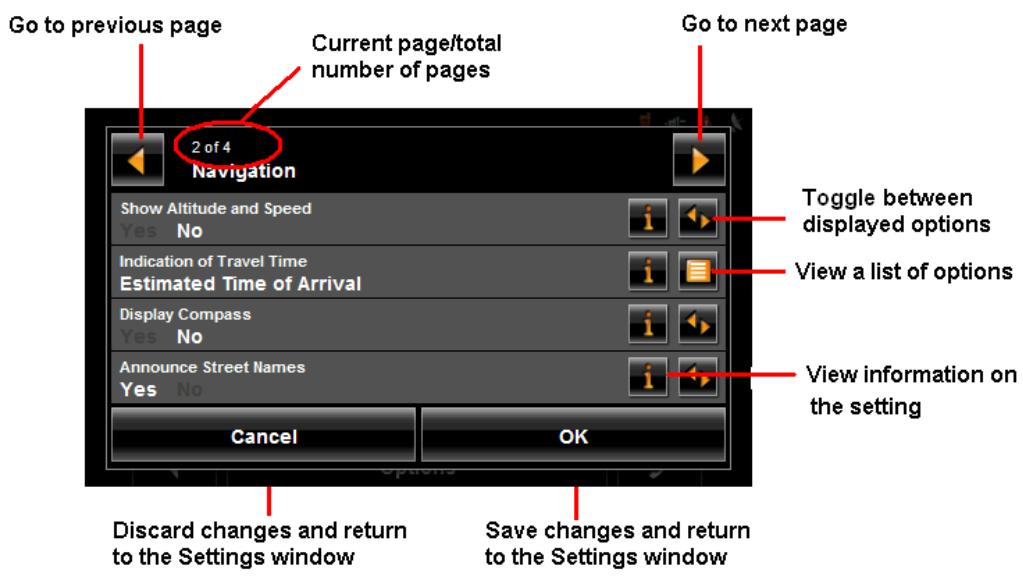
Moving between pages
Some NAVIGON 8100T settings require several windows, as shown in the example above (Page 2 of 4). To move between windows:

(To the Left) and (To the Right).
Viewing a list of options for a setting
Some settings have several values. A value can be selected from a list. The value that is currently valid is shown.
- Tap (List).
A list with all potential values opens. The value that is currently valid is marked.
- Tap the desired value. It is now marked.
- Tap the OK button.
The list closes. The new value is displayed.
Viewing information about a setting
For each setting, tap the i (Help) button to view an explanation of the setting.
Toggling between options
Some settings can only accept two or three different values. All values are displayed with the currently selected value shown in white.
- Tap (Toggle) to alternate between the potential values.
Changing an option setting
After changing an option setting:
- To save the change, tap the OK button.
- To discard the change, tap the Cancel button.
The SETTINGS WINDOW re-shows.
NOTICE TO DRIVERS IN CALIFORNIA AND MINNESOTA
State law prohibits drivers in California and Minnesota from using mounts on their windshields while operating motor vehicles. NAVIGON does not take any responsibility for any fines, penalties, or damages that may be incurred as a result of disregarding this notice. (See California Vehicle Code Section 26708(a); Minnesota Statutes 2005, Section 169.71)
GPS
Underwriters Laboratories Inc. ("UL") has not tested the performance or reliability of the Global Positioning System ("GPS") hardware, operating software or other aspects of this product. UL has only tested for fire, shock or casualties as outlined in UL's Standard(s) for Safety for Information Technology Equipment (UL 60950-1, cUL 991). UL Certification does not cover the performance or reliability of the GPS hardware and GPS operating software. UL MAKES NO REPRESENTATIONS, WARRANTY OR CERTIFICATIONS WHATSOEVER REGARDING THE PERFORMANCE OR RELIABILITY OF ANY GPS RELATED FUNCTIONS OF THIS PRODUCT.
This page intentionally left blank.
Specifications
| Dimensions | approx. 5.3" x 3.32" x .86" | |
| Weight | approx. 9.347 ounces | |
| Operating conditions | Operating temperature | -10°C to +60°C |
| Storage temperature | -30°C to +70°C | |
| Humidity | 0% to 90%, non-precipitating | |
| CPU | Samsung 2443-533MHz | |
| Operating System | Microsoft Windows CE .Net 5.0 | |
| Display | 4.8" LCD Color displayResistive flat touch panel480 x 272 pixels (WQVGA)Landscape format, transmissive | |
| Memory | ROM | 512 MB |
| RAM | 128 MB | |
| GPS | SiRF GPS III, 20 channelsBuilt-in antennaSocket for external antenna | |
| TMC | Built-in | |
| I/O | Stylus | Yes |
| Keyboard | Software keyboard | |
| Loudspeaker | Built-in | |
| Microphone | Built-in | |
| Storage | Not used | |
| Memory card | SD, SDHC, MMC | |
| USB | USB 2.0 | |
| Bluetooth | CSR Bluecore 4 | |
| Power Supply | USB socket or cradle | |
| Rechargeable battery | Type | Li-Ion, 1500 mAh |
| Period of operation | Up to 4 hours1 | |
| Charging | Electronic | Built-in |
| Duration | approx. 4-5 hours | |
| Car charger cable | Type | With integrated TMC antenna ( |
| Input | 10-30V DC | |
| Output | 1A, 5V DC | |
| Operating Temperature | -10°C to 60°C | |
- Some features can reduce battery operation time. These include NAVIGON Lifetime Traffic, GPS antenna reception, Daytime viewing mode, Hands-Free, etc.
Compliance Notices
This NAVIGON 8100T complies with Part 15 of the FCC interference limits for Class B digital devices for home or office use.
"Operation is subject to the following two conditions: (1) this device may not cause interference, and (2) this device must accept any interference, including interference that may cause undesired operation of the device."
(Carrier frequency: 1575.42MHz, receiver only)
Federal Communication Commission Interference Statement
This equipment has been tested and found to comply with the limits for a Class B digital device, pursuant to Part 15 of the FCC Rules. These limits are designed to provide reasonable protection against harmful interference in a residential installation. This equipment generates, uses and can radiate radio frequency energy and, if not installed and used in accordance with the instructions, may cause harmful interference to radio communications. However, there is no guarantee that interference will not occur in a particular installation. If this equipment does cause harmful interference to radio or television reception, which can be determined by turning the equipment off and on, the user is encouraged to try to correct the interference by one of the following measures:
- Reorient or relocate the receiving antenna.
- Increase the separation between the equipment and receiver.
- Connect the equipment into an outlet on a circuit different from that to which the receiver is connected.
Consult the dealer or an experienced radio/TV technician for help.
This device complies with Part 15 of the FCC Rules. Operation is subject to the following two conditions: (1) This device may not cause harmful interference, and (2) this device must accept any interference received, including interference that may cause undesired operation.
This device and its antenna(s) must not be co-located or operating in conjunction with any other antenna or transmitter.
FCC Caution: Any changes or modifications not expressly approved by the party responsible for compliance could void the user's authority to operate this equipment.
Canada C Request
Country Code selection feature to be disabled for products marketed to the US/CAN-ADA
Operation is subject to the following two conditions: (1) this device may not cause interference, and (2) this device must accept any interference, including interference that may cause undesired operation of the device. This Class [B] digital apparatus complies with Canadian ICES-003.
This Category II radiocommunication device complies with Industry Canada Standard RSS-310.
Canada Notices
This class [B] digital device is consistent with Canada's standard NMB-003.
This category II radio communication device meets Canada Industry Convention CNR-310.
Index
A
accessory services 16
activation
NAVIGON Freshmaps 16
arriving at your destination 73, 105
Audio Assistant
restarting 45
setting volume 45
using 44
B
battery
charging 12
LED indicator 12
Bluetooth
hands-free 139
status symbol 28
Bluetooth, see hands-free operation 127
button
options 23
C
changing
hands-free volume 128
charging the battery
compliance notices
Canada C Request 157
FCC Interference Statement 157
configuration 147
options
move between pages 151
save changes 152
selecting 151
toggle between options 151
view a list 151
view information 151
connecting (pairing)
to a telephone 129
from a mobile phone 130
from the navigation device 129
conventions used in the user guide 1
cradle
inserting the device 15
removing the device from 15
securing the 14
supplying power to the 14
customer support 3
e-mail 3
telephone 3
D
Day/Night viewing mode
setting the 20
description ....
destination
arriving at your 73
new location
select by city 55
quit navigation
search for ZAGAT POI 76
select a map a
start navigation 73
no GPS reception 73
Take Me Home 82
destination search map mode
using 114
destination search mode
using 114
destination selection
direct access POIs 54
entering an address 54, 55
finding
highway exit POIs 99
home address
importing destinations from Outlook
delete destinations 88
download and install software 83, 85
My Destinations
saving a Favorite 79
saving the current location using GPS .... 80
saving your home address 80
POI information
removing
a highway exit POIs 101
search area tab
search for POIs
select a search :
tap the map ....
tapping the map
using auto-comp
using voice entry
select a different destination 50
ways to search f
ZAGAT POIs
categories 75
view information 77
device status symbols
Bluetooth ....
GPS
power
traffic
Direct Access POIs
specifycategories 66
DirectHelp 35
buttons 36
calling the POI 39
GPS position type 35
Location address 35
location latitude and longitude 36
no POIs found 37
show on map 36
using 38
DirectHelp window 35
E
e-mail support 3
end user license .iii
ending a route simulation 103
entering an address 55
EULA .iii
F
Favorites List 90
finding 99
first time startup 18
from a list 53
G
GPS
about navigation 7
impaired reception 7
initializing the receiver 24
no reception 73
optional antenna 15
status symbol 26
H
hands-free operation 127, 139
changing volume 128
connecting to a telephone 129
from a mobile phone 130
from the navigation device 129
Hands-Free Main window 127
opening the module 128
showing.hiding module 128
termininating connection to a phone 131
troubleshooting 132
highway exit POIs 99, 101
home address 82
saving 80
hyphens, entering 29
1
importing
destinations from Outlook 83
download and install software 83, 85
installation safety 11
K
keyboards
alphabetic 29
numeric 29
special character/symbol 29
special keys 30
using 29
L
Lane Assistant Pro 110
Last Destinations List 91
LED indicator battery 12
legal notices 153
GPS 153
notice to drivers in California and Minnesota . 153
liability 2
license 3
loading routes 96
Logbook 145
recording with a route 97
start recording 145
stop recording 145
stop recording for a route 98
M
Main window 22
Hands-Free Operation button 23
My Destinations button 22
New Destinations button 22
Options button 23
Standby button 22
Take Me Home button 22
Voice Entry button 22
main window 17, 19
manual
conventions 1
symbols 1
map modes
destination search map 113
using 114
navigation map 110
functions 112
preview map 108
Reality View Pro 115
maps 107, 108, 110, 112, 113, 114, 115
North America 107
view panorama 116
viewing information on the current map 107
memory card 13
inserting the 13
removing the 13
menus
using 30
My Destinations 79
Favorites
saving a destination 79
saving the current location using GPS .... 80
saving your home address 80
selecting a saved destination 90
from the Favorites List 90
from the Last Destinations List 91
imported from Outlook 92
N
navigation 97
arriving at your 73
quit 73
route profile 101
start 73
no GPS reception 73
turn-by-turn list 104
blocking route sections 104
removing route section blocking 105
navigation device safety 11
navigation map mode 110
functions 112
navigation mode 110
functions 112
navigation safety 10
NAVIGON Freshmaps
activation 16
NAVIGON Lifetime Traffic
accessing the TMC window 117
cancel a reroute calculation 124
displaying traffic messages 121
event or incident icons 120
request a route recalculation 123
selectreroute settings 122
TMC window 118
traffic flow severity indicators 119
types of messages 118
specify 118
NAVIGON webshop 4
0
opening
the hands-free module 128
optional GPS antenna 15
options button 23
Outlook
importing destinations
delete destinations 88
download and install software 83, 85
importing destinations from 83
selecting an imported destination 92
P
Panorama View 3D 116
password
cancelling a 32
changing a 32
forgotten password 33
setting a 31
password lock 31
password protection 31
Password window 31
POI information window 67
POI searches 54
at highway exits 99, 101
categories 75
direct access POIs 54, 65
specify direct access POI categories 66
in a city 60
near a selected location 68
Nearby 58
POI information 67
statewide 63
tap the map 54
ZAGAT POI information 75, 77
power
status symbol 26
power interruptions 12
Preview map mode 108
preview mode 108
Q
quit navigation 73
R
Reality View Pro 115
recalculate a route 125
recalculate route 122
removing from a route 101
reroutes cancel a reroute calculation 124
request a route recalculation 123
select settings 122
route planning 93
route points changing a starting point 94
changing the order of 95
delete 95
entering a route point 94
entering a starting point 93
route profile 101
routines 93
accessing the route planning window 93
arrive at your destination 105
calculating and displaying 99
changing a starting point 94
changing the order of route points 95
entering a route point 94
entering a starting point 93
finding POIs at highway exits 99
manage 96
loading 96
saving 96
navigation 97
removing a highway exit POI from a route ....101
route profile 101
simulation 103
ending a 103
starting a 103
starting point
changing 94
current location 93
stopping Logbook recording for a route 98
turn-by-turn list 104
blocking route sections 104
removing route section blocking 105
using Logbook 97
S
safety information 10
installation 11
navigation 10
navigation device 11
saved destinations
selecting 90
Favorites List 90
imported from Outlook 92
Last Destinations List 91
saving
routines 96
screensaver
using the 19
search areas search area tab 52
select from a list 53
select using the keyboard 52
selecting a saved destination 90
from the Favorites List 90, 91
imported from Outlook 92
setting device volume 24
settings
configuration 147
move between pages 151
save changes 152
selecting 151
TMC 125
toggle between options 151
view a list 151
view information 151
Settings window 147
accessing 147
showing/hibing hands-free module 128
simulation ending a route 103 starting a route 103
special keys 30
start
navigation 73
no GPS reception 73
starting a route simulation 103
starting with password 17
startup first time 18 using a password 17
switching the device back on 21
symbols used in the user guide 1
T
Take Me Home 82
tapping the map 71
technical data 155
specifications 155
telephone 127, 139 changing hands-free volume 128
connecting (pairing) 129
from a mobile phone 130, 131
from the navigation device 129
Hands-Free Main window 127
opening the hands-free module 128
showing/hiding hands-free module 128
telephone support 3
termininating connection to a telephone 131
TMC
accessing the TMC window 117
antenna .14
recalculate a route .125
recalculate route .122
tuning .125
TMC settings recalculate route 122
trademarks 2
traffic 125
accessing the TMC window 117
cancel a reroute calculation 124
displaying traffic messages 121
event or incident icons 120
select a route recalculation 123
selectreroute settings 122
status symbol 27
TMC window 118
traffic flow severity indicators 119
types of messages 118
specify 118
traffic information
recalculate route 122
settings 125
tuning 125
tuning
TMC 125
turn-by-turn list
blocking route sections 104
removing route section blocking 105
turning on the device
turning the device off
U
usingstandby 21
from any device window 21
from the Main window 21
using the keyboard
V
version information
viewing 20
viewing
turn-by-turn list 104
removing route section blocking 105
viewing map panorama 116
voice destination entry 41
background noise 43
general instructions 41
house numbers 42
languages 41
select a different destination 50
set up to recognize your voice 44
street, highway and route names 42
voice entry
select a destination 47
volume
setting device 24
W
ways to search for destinations 54
direct access POIs 54
entering an address 54
search for POIs 54
tap the map 54
webshop
The NAVIGON 4
what's included 9
windows
accessing the TMC 117
DirectHelp 35
Hands-Free Main 127
Main 22
Password 31
POI information 67
route planning 93
TMC 118
Z
ZAGAT POIs 75
categories 75
view information 77
This page intentionally left blank.