
PORSCHE DESIGN P9611 - Navigation GPS NAVIGON - Free user manual and instructions
Find the device manual for free PORSCHE DESIGN P9611 NAVIGON in PDF.


| Product type | Navigation GPS |
| Brand | NAVIGON |
| Model | PORSCHE DESIGN P9611 |
| Dimensions (L x W x H) | 125 x 82 x 19 mm |
| Weight | Approx. 250 g |
| Power supply | 5 V DC, 2 A max.; Li-Ion battery 1400 mAh; mains charger 100-240 V, car charger 10-30 V |
| Processor | Intel PXA 270, 520 MHz |
| Memory | 64 MB RAM, 64 MB ROM, expandable via SD card |
| Screen | 4.3-inch WQVGA touchscreen |
| GPS receiver | Integrated 3rd generation GPS (μ-blox Antaris 4 SuperSense) |
| TMC receiver | Integrated, for traffic information |
| Bluetooth | Integrated Bluetooth hands-free kit |
| Audio | Dual audio system: 0.5 W (device) and 2.0 W (mount) |
| Connectivity | Headphone jack, external GPS antenna, USB 1.1 |
| Main functions | Road navigation, points of interest (POI), route planning, TMC traffic information, MP3 player, hands-free kit, destination saving, simulation mode |
| Care and cleaning | Clean with a damp cloth, no harsh solvents. Keep dry. |
| Safety | Do not program while driving. Follow traffic rules. Keep away from airbags. Do not expose to temperatures above 60°C. |
| Spare parts and repairability | Removable battery, accessible SD card. Repairs by NAVIGON or authorized dealer. 24-month warranty. |
| General information | Box contents: device, battery, car mount, car charger, mains charger, USB cable, pre-installed SD card, manual, warranty card, restoration DVD. |
Frequently Asked Questions - PORSCHE DESIGN P9611 NAVIGON
User questions about PORSCHE DESIGN P9611 NAVIGON
0 question about this device. Answer the ones you know or ask your own.
Ask a new question about this device
Download the instructions for your Navigation GPS in PDF format for free! Find your manual PORSCHE DESIGN P9611 - NAVIGON and take your electronic device back in hand. On this page are published all the documents necessary for the use of your device. PORSCHE DESIGN P9611 by NAVIGON.
USER MANUAL PORSCHE DESIGN P9611 NAVIGON
1.1 About this manual 55
1.2 Legal notice 55
1.3 Customer service 55
2 Prior to commissioning 58
2.1 Package contents 58
2.2 Initializing the device 58
2.3 Turning the device on and off, Reset 62
2.4 Navigation with GPS 63
2.5 Important safety information 63
3 Operating the Navigation Software 65
3.1 Volume 65
3.2 Information 65
3.3 Software keyboard 66
3.4 Lists 66
3.5 Options 66
3.6 Menus 66
4 Navigation 67
4.1 Starting P'9611 67
4.2 Specifying a new destination 68
4.3 Select a stored destination 70
4.4 Navigation homewards 71
4.5 Determining a destination on the map 71
4.6 POI on your route 71
4.7 Starting navigation 72
5 Destination management 73
6 Routes with various stages 74
6.1 Planning routes 74
6.2 Managing routes 75
6.3 Navigation 75
7 Options 77
8 Working with the map 79
8.1 Maps 79
8.2 Map in Preview mode 79
8.3 Map in Navigation mode 80
8.4 Map in Destination search mode 81
9 Useful functions 83

The crossed-through wheely bin symbol means that, within the European Union, the product must be disposed of at a recycling center. This applies both to the product itself, and to all accessories that carry this symbol. This product may not be disposed of with unsorted household waste.
9.1 GPS status, store current location 83
9.2 TMC [Traffic information] 83
9.3 TMC Settings 83
10 Configuring P'9611 85
11 MP3 Player 86
11.1 MP3 settings 87
12 Hands-free Module 87
12.1 Connecting to a telephone 87
12.2 Receiving a call 88
12.3 Dialing 88
12.4 During a conversation 88
12.5 Phone book 89
12.6 Recent calls 89
12.7 Configuring the hands-free module 89
12.8 Configuring a connection to a mobile phone 90
13 Appendix 92
13.1 Technical data 92
13.2 Restoring the contents of the memory card 92
13.3 Terms of guarantee 92
13.4 Terms of licence 94
14 Index 97
By purchasing the P'9611 navigation system, you have chosen the functional combination of quality and design. The P'9611 has been conceived by designers and rigorously developed by engineers. Every part has been carefully tested and subjected to NAVIGON AG's strict and continuous quality control. However, the service life of the device lies partially in your hands. For this reason, we ask you to read this manual carefully and to take note of the instructions contained herein. Thank you.
1.1 About this manual
1.1.1 Symbols
The following symbols refer to specific passages of text:
! Instructions and tips for operating the software
i Further detailed information and explanations
Warnings
1.2 Legal notice
1.2.1 Liability
The software and documentation are subject to change without notice. NAVIGON AG is not liable for the accuracy of the information contained in this manual or for damages resulting from the use of this manual.
To improve the quality of our products and our services, we appreciate any suggestions or notice of defects.
1.2.2 Trademarks
All brands and trademarks mentioned in this document are possibly registered by third parties and are subject to the current legislation and to the rights of their respective owners without reservation. All names of products, societies, or brands mentioned may be registered trademarks of their respective owners. Every right that is not explicitly accorded is reserved.
The absence of explicit labelling of registered trademarks does not imply that the brand is not subject to the rights of third party.
– Navigon is a registered trademark of NAVIGON AG.
- Porsche Design is a registered trademark of PLH | Porsche Lizenz- und Handelsges. mbH & Co. KG.
1.3 Customer service
Our service team employees are available via telephone or email in many countries.
You can find additional information at the website under NAVIGON AG [www.navigon.com] in the "Service & Support" section.
Support via email
Danish: support.dk@navigon.com
German: support.de@navigon.com
English: support.uk@navigon.com
Finnish: support.fin@navigon.com
French: support.fr@navigon.com
Italian: support.it@navigon.com
Dutch: support.nl@navigon.com
Norwegian: support.no@navigon.com
Swedish: support.se@navigon.com
Spanish: support.es@navigon.com
Telephone customer service
| Country | Telephone | Service times | Costs |
| Germany | 01805-6284466 | Monday to Saturday from 8 a.m. to 8 p.m. CET | € 0.14/min. |
| Belgium | 0900-70016 | Monday to Friday from 8 a.m. to 8 p.m. CET | € 0.45/min. + € 0.05 per call |
| Denmark | 901-31033 | Monday to Friday from 8 a.m. to 8 p.m. CET | DKK 3.00/min. |
| Finland | 0600-413414 | Monday to Friday from 8 a.m. to 9 p.m.* | € 0.50/min. |
| France | 0891-650065 | Monday to Friday from 8 a.m. to 8 p.m. CET | € 0.225/min. |
| Great Britain | 0905-8480701 | Monday to Friday from 7 a.m. to 7 p.m.* | GBP 0.25/min. |
| Italy | 166-205301 | Monday to Friday from 8 a.m. to 8 p.m. CET | € 0.40/min. + € 0.09 per call |
| Netherlands | 0900-0400468 | Monday to Friday from 8 a.m. to 8 p.m. CET | € 0.30/min. + € 0.045 per call |
| Norway | 820-33050 | Monday to Friday from 8 a.m. to 8 p.m. CET | NOK 3.26/min. |
| Austria | 0820-240437 | Monday to Friday from 8 a.m. to 8 p.m. CET | € 0.145/min. |
| Sweden | 0900-1001110 | Monday to Friday from 8 a.m. to 8 p.m. CET | SEK 4.00/min. |
| Switzerland | 0848-662544 | Monday to Friday from 8 a.m. to 8 p.m. CET | 8 a.m.-5 p.m.: CHF 0.11/min.5 p.m.-10 p.m.: CHF 0.09/min.10 p.m.-8 a.m.: CHF 0.06/min. |
| Spain | 807-001205 | Monday to Friday from 8 a.m. to 8 p.m. CET | 8 a.m.-8 p.m.: € 0.356/min.+ € 0.104 per call8 p.m.-8 a.m.: € 0.288/min.+ € 0.104 per call |
| Country | Telephone | Service times | Costs |
| U.S.A. | +1-888-8480701 | Monday to Friday from 6 a.m. to 2 p.m. EST | free of charge |
| Other countries | +49-221-2888-999 | Monday to Friday from 8 a.m. to 8 p.m. CET | dependent on telephone provider |
Note: All quoted costs refer to calls made from a landline within the relevant country.
* local time
2.1 Package contents
Please check that the contents of the package are complete. If this is not the case, please inform us within 14 days of purchase. The package you have purchased contains:
- The P'9611 navigation device
- Battery
- Car holder
- Car charging cable power supply cable for 12 V cigar lighter socket
- Mains charger cable
- USB cable
- [Pre-installed] SD Memory Card
- Manual
- Guarantee card
- DVD [files for restoring the SD card and manuals in pdf format]
- Battery compartment cover
2.2 Initializing the device
The following steps are to be carried out before use:
- Insert battery
- Charge battery
- Insert Memory Card
- Install the holder in the car
- Switch the device on
2.2.1 Insert battery
- Remove the battery from the packaging.
- Remove the battery compartment cover.
- Insert the battery into the battery compartment.
- Close the battery compartment.
2.2.2 Charging the battery

Note: the battery is not supplied in a charged state and must be fully charged before it is used for the first time. When charging the battery for the first time, it should remain connected to the power supply for at least 12 hours.
The battery cannot be charged when the device is switched off, or, when the device is connected to a computer, via the USB cable
provided. [6]
- Slide the adapter connector on the back side into the guide of the mains adapter.
- Insert the mini USB connector of the mains cable into the power supply socket on the LEFT SIDE of the device.
- Insert the plug of the mains cable into a mains socket.
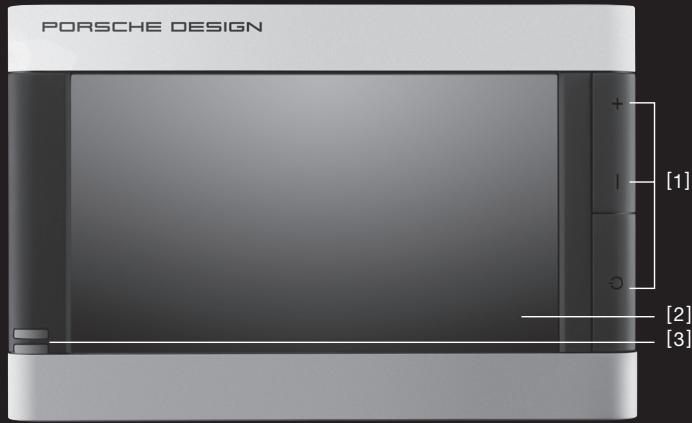
Front view
[1] Hardware keys

Key INCREASE VOLUME

Key DECREASE VOLUME

Key ON/OFF
[2] Touchscreen
[3] Display external power supply and Bluetooth display:
- The power supply display lights up ORANGE when the device is connected to an external power source.
- The Bluetooth display lights up BLUE when the P'9611 has established a Bluetooth connection to a mobile telephone.
Rear view
[1] Battery compartment cover
[2] Connection for an external GPS antenna [optional]
[3] Headphone connection
[4] Reset button
[5] SD slot
[6] Power supply connection/USB cable
text_image
PORSCHE DESIGN + - [1] - - [2] [3]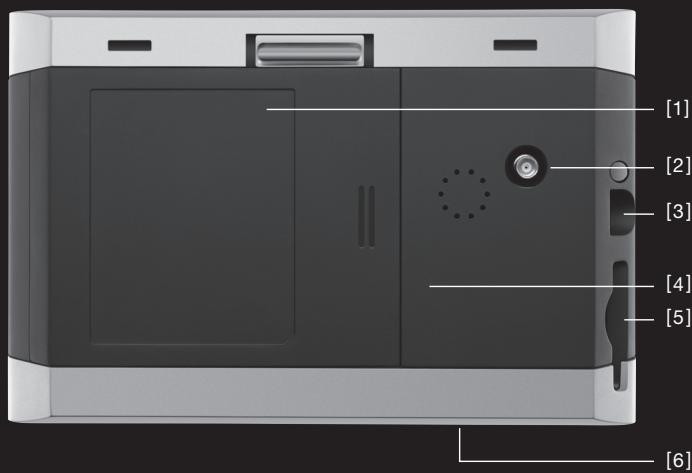
text_image
[1] [2] [3] [4] [5] [6]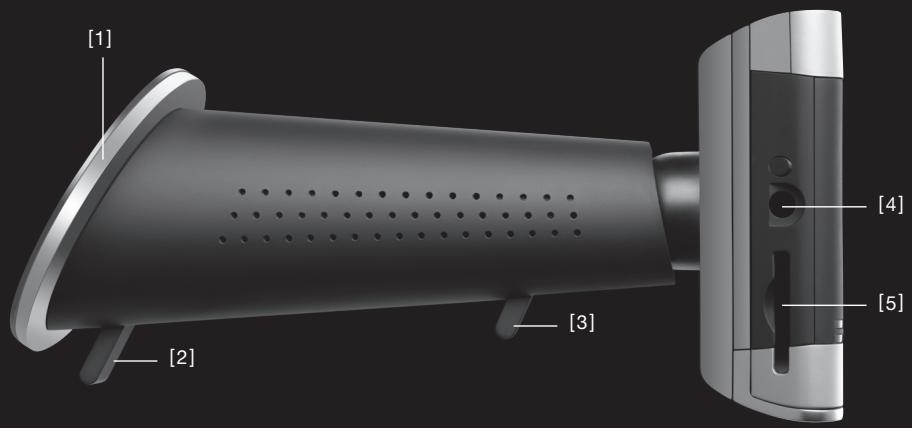
text_image
[1] [2] [3] [4] [5]Side view left
[1] Locking lever for suction cup
[2] Suction cup
[3] Locking lever for ball-and-socket joint
[4] Headphones jack
[5] SD slot
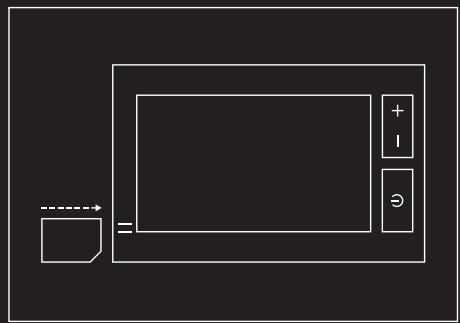
2.2.3 Insert Memory Card
- Carefully remove the Memory Card from its packaging, taking care not to touch or soil the contacts.
- Hold the Memory Card so that the cut-off edge is positioned downwards and to the left.
- Carefully push the Memory Card into the card slot on the LEFT SIDE of the device, until it locks into position.
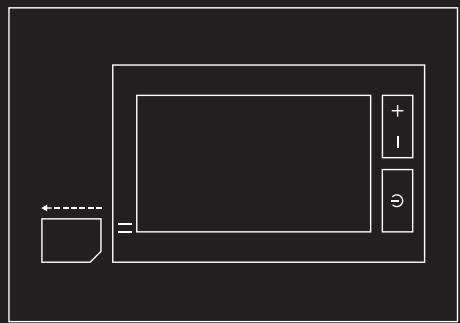
2.2.4 Removing the Memory Card

Note: all applications must be closed and the navigation system turned off before the Memory Card is removed.
- Press lightly against the edge of the SD card until the catch releases.
- Pull the card out without touching the contacts. [Fig. 2]
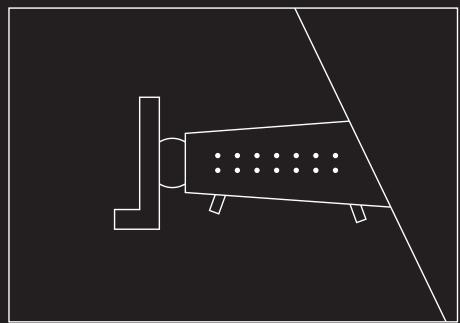
2.2.5 Installing the car holder [Fig. 3]
![NAVIGON PORSCHE DESIGN P9611 - Installing the car holder [Fig. 3] - 1](/content/2025/01/165482/images/d2853d87dc46e6a5ce2c7404df9f61984afe3669c6db655813f20a061aa1e546.jpg)
Caution! The car holder must be affixed to the windscreen so that the view out of the windscreen is not restricted.
![NAVIGON PORSCHE DESIGN P9611 - Installing the car holder [Fig. 3] - 2](/content/2025/01/165482/images/4a8e6593ddd3bce06e6e3d36260a7e3882b2b7b9b52af62be7f43f768a093af4.jpg)
Note: before installing the car holder, the windscreen should be thoroughly cleaned with a glass cleaner. The windscreen temperature should not be below 15^ C.
- Place the holder with the suction cup onto the windscreen. [Fig. 3]
- Press the lever on the suction cup in the direction of the windscreen until it sticks to the windscreen.
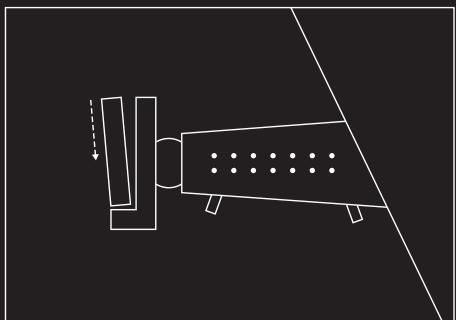
- Place the navigation device into the car holder. [Fig. 4]
- Press the device against the car holder until it clicks audibly into place.
- Insert the power supply connector into the cigarette lighter socket.
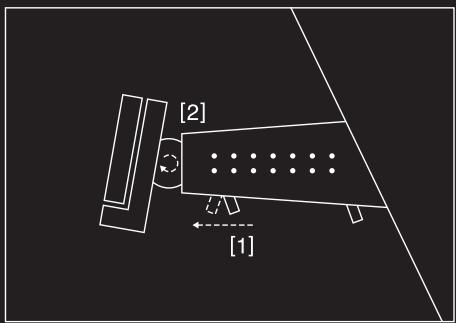
- Release the catch for the ball-and-socket joint. [Fig. 5]
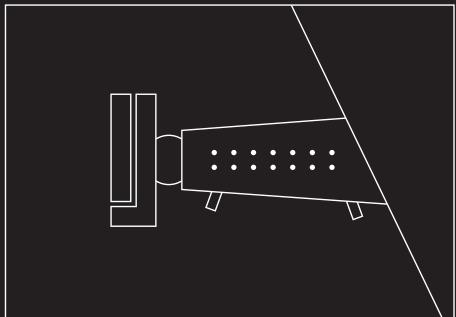
- Position the holder so that the display can easily be seen. [Fig. 6]
- Press the catch for the ball-and-socket joint back in the direction of the device.
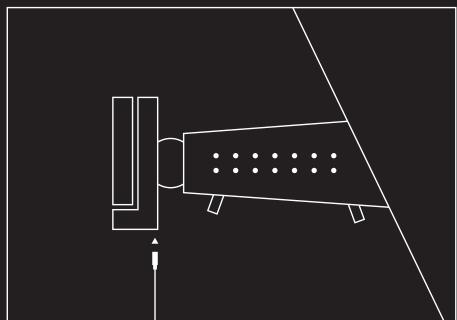
- Insert the mini USB connector of the car charging cable into the power supply socket on the back of the car holder. [Fig. 7]
2.2.6 Switching on the navigation device
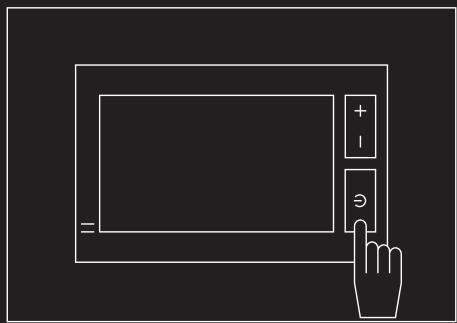
- Press and hold the ON/OFF button for 1.5 sec. [Fig. 8]
- Select the desired language when prompted to do so.
- Touch the OK button. The START DISPLAY appears.
- Touch the NAVIGATION button in the START DISPLAY in order to open the navigation software.
- Touch the MP3 PLAYER button in the START DISPLAY in order to open the MP3 player.
natural_image
Pure diagram of a rectangular layout with internal components and arrows, no text or symbols presentFig. 1
natural_image
Pure electrical circuit lines without any symbolsFig. 2
natural_image
Pure technical line drawing of a mechanical component without any text, numbers, or symbolsFig. 3
natural_image
Pure technical line drawing of a mechanical assembly without any text, numbers, or symbolsFig. 4
- Touch the SETTINGS button in the START DISPLAY in order to adjust the language and brightness settings or to calibrate the touchscreen.
2.3 Turning the device on and off, Reset
General information on switching on and off In order to minimize battery charge loss while reducing switch-on time, the device also has a standby mode.
Switching on
To switch on the device, press and hold the on/off button down for 1.5 seconds. The device powers up within 2 seconds from standby mode, or within 35 seconds from off mode.
Switching off
You can switch the device to standby mode by pressing the on/off button briefly (recommended). To switch to off mode, you must press and hold the on/off button for 4 seconds. In this mode, the device requires no power, but cannot be charged.
Reset
Should the device show signs of malfunction, then please carry out a reset. To do this, press the reset button on the back of the device. [page 59] The device will then restart (warmstart). If this does not work, or the malfunction persists, please carry out a hardware reset (Coldstart). To do this, press and hold the on/off button for 4 seconds when the device is switched on. Wait a few seconds and then switch on the device using the on/off button.
text_image
[2] [1]Fig. 5
natural_image
Pure line drawing of a mechanical component or bracket with no text, numbers, or symbolsFig. 6

Note: you can get information regarding changing individual settings by touching the

HELP button.
natural_image
Pure technical line drawing of a mechanical assembly without any text, numbers, or symbolsFig. 7
natural_image
Line drawing of a hand pressing a button on a screen (no text or symbols)Fig. 8
2.4 Navigation with GPS
GPS is based on a total of 24 satellites that circle the earth and, in doing so, are constantly transmitting their position and the current time. The GPS receiver receives this data and calculates its own geographical position on the basis of the information broadcast by the various satellites.
In order to determine position precisely, it is necessary to obtain the data from at least three satellites. With the data from 4 or more satellites, the altitude above sea level can also be ascertained. Position is accurate within 3 metres.
Once P'9611 has determined your position, this position can be used as a starting point for a route calculation.
The map data on your navigation device includes the geographical coordinates of all digitally recorded points of interest, streets and places. Using this data, the system is able to calculate a route from any given starting point to a destination.
The calculation of the current position and its representation on the map takes place once every second, so your current position is always shown on the map.
2.5 Important safety information
In your own interest, read the following notices and safety information carefully before starting up your navigation system.
2.5.1 Navigation safety information
Use the navigation system at your own risk.

Caution!
- To prevent accidents, do not program the navigation system while driving.
- Only look at the touchscreen when it is safe to do so and the traffic situation allows it.
- Traffic regulations have priority over any instructions from the navigation system.
- Do not follow the instructions of the navigation system unless the circumstances and the traffic regulations allow you to do so! Should it be necessary to deviate from the calculated route, the navigation system will automatically calculate a new route.

Note: should the spoken instructions not be clear, the map and arrow display serves as an additional aid to orientation.
2.5.2 Safety guidelines when installing in your car

Caution!
- Make sure you do not attach the holder within the deployment zone of the airbag.
- When installing the holder, you should ensure that it will not present a safety risk in the event of an accident.
2.5.3 Safety instructions for the navigation device

Caution!
- The navigation device is to be kept dry as it is not water resistant.
- Do not lay the cable directly next to safety-relevant devices and supply lines.
- After installation, all safety-relevant systems in the car should be checked.
- When leaving the car, pull the charging cable connector out of the cigarette lighter socket, otherwise the GPS receiver will continually consume power and the car battery could discharge.
- Please use only accessories designed for this model.
- Please do not expose the device or the battery to temperatures above 60°C.

Note:
- only use a moist cloth for cleaning and do not use aggressive solvents. The case of the navigation device may otherwise be damaged.
– the connector should not be pulled out by the cable as this may damage it! - do not kink the cable and ensure that it does not become damaged by sharp objects.
3.1 Volume
The volume of the spoken driving instructions from the P'9611 can be adjusted during navigation using the volume control or software as follows.
You have started navigation. The map is in NAVIGATION or DESTINATION SEARCH mode.
1. Touch the

VOLUME button.
The volume bar opens. It contains three buttons for adjusting the volume.

LOUDER

QUIETER

VOLUME ON/OFF
2. Touch the

VOLUME button again.
The volume bar closes.
3.2 Information
Symbols located at the top of the screen are used to display information.
GPS
The GPS symbol can show the following GPS-reception status:
NO GPS: The built-in GPS receiver is not operational. If this problem persists, consult customer service.

NO SIGNAL (red): Data are being received from 5 s than three satellites. The position cannot be calculated.

GPS READY (grey): Data are being received at least three satellites. The position can be calculated.

Refer to chapter “GPS status” on page 83 for detailed information regarding the GPS status.
Energy
The ENERGY symbol can display the following conditions of the built-in battery:

The device is being supplied by an external source. The battery is being charged.

The device is being supplied by its internal v. The battery charge is sufficient.

The device is being supplied by its internal v. The battery charge is low.
Direction
The DIRECTION symbol shows you in which direction you are currently moving. It can show the following points of the compass: N, NE, E, SE, S, SW, W, NW.
TMC [Traffic information]
The TMC symbol can display the following TMC states:
NO SYMBOL: The built-in TMC receiver is not operational. If this problem persists, consult customer service.
![NAVIGON PORSCHE DESIGN P9611 - TMC [Traffic information] - 1](/content/2025/01/165482/images/823541e606cfdb9a0478e56d24c67f3f5bf72003a57888fca7131618839d21b7.jpg)
TUNING (red): The TMC receiver is operational, cannot find a transmitter that is sending TMC als.
![NAVIGON PORSCHE DESIGN P9611 - TMC [Traffic information] - 2](/content/2025/01/165482/images/e08ae65fb848e30a643eae1946332d705f39606b76b847256c5896fb326b49d8.jpg)
TMC ON STANDBY (grey): Traffic messages be received.
![NAVIGON PORSCHE DESIGN P9611 - TMC [Traffic information] - 3](/content/2025/01/165482/images/aa0e4d9f870f24daae8946ad299a0c7826eb0131269daf266b384e22101231cc.jpg)
For details of the TMC functions, please refer to chapter “TMC [Traffic Information]”, page 83.
3.3 Software keyboard
A software keyboard appears at the bottom of the screen when text entries are necessary. All entries can be made on the software keyboard using your fingertips. Only capital letters can be entered.
When entering the name of a town or street, it is not necessary to enter any special characters or umlauts. P'9611 replaces these characters automatically. If, for example, you are searching for "Würzburg", then simply enter "WURZBURG". You need not enter special characters when entering a destination's town or street name, but they may be helpful for entering names for saved destinations and itineraries.
Special keys

enters a space character.

deletes the character to the left of the cursor.
123
opens the numeric keypad.
ABC
opens the character keyboard.
SYM
opens the special character
keyboard. As soon as you have entered a special character, the letter keyboard reappears.
3.4 Lists
There are many cases where you have to select an entry from a list. This is the case, for example, when you enter a location.
As soon as you enter the first letter, the largest city in the given country that begins with this letter appears.
As soon as you enter the second letter, a list appears with all locations that begin with the given letters.
If you enter additional letters, the list adapts to your entries. This means that you will always be
presented with entries that begin with the letters entered or entries that contain the entered letters in their name.
To select an entry, proceed as follows:
- You can move around in the list by means of the

UP and

DOWN buttons.
- Touch the desired entry. The list will close as soon as you have confirmed an entry.
3.5 Options
Some windows have options which lead to additional functions.
For detailed information on the options, please refer to chapter "Options" on page 77.
3.6 Menus
Some buttons have menus which open when activated.
- Touch a menu button to select its function.
- Touch the same menu button to close the window again.
Use navigation system at your own risk.

Caution! Please be sure to refer to the safety information in the “Important safety information” chapter on page 62.
Obstructed GPS reception
If GPS reception is hindered, navigation will be interrupted. The navigation software remains active. As soon as GPS signals can be received, the navigation system will determine your current position and navigation can be continued.
Arriving at your destination
When you have reached the specified destination, a message to this effect will be displayed. Your current position will then be shown on the map by a triangle in green.
4.1 Starting P'9611
- Switch on the navigation device.
- Touch the NAVIGATION button in the START SCREEN.
The following message appears:
“Please note that the road traffic regulations have priority over the instructions of the navigation system. Please do not operate the device while driving.”
- Touch the CANCEL button in order to ignore the message. This will close the navigation software.
- Otherwise, touch the OK button, in order to accept. The main menu opens.
You can reach any of the navigation software functions via the main window.
Touch the desired button in the bottom margin of the screen:

MP3 PLAYER in order to open the MP3
player.

HANDS-FREE MODULE in order to bring free module into the foreground.

START SCREEN in order to bring the SCREEN into the foreground.
4.1.1 Initialising the GPS receiver

Note: It can take up to 30 minutes to initialize the GPS receiver for the first time. Each time you switch on the receiver after this, the GPS reception will start within one minute. The next initialisation may take up to 30 minutes if the navigation device was not used for a longer period of time, and/or the last destination to which you navigated lies more than 190 miles from your present location.
As soon as the navigation device has been switched on, initialization of the GPS receiver will begin. In the right-hand top corner of the display, you will see the GPS symbol. As soon as data from at least 3 satellites are received, the symbol changes to ✗ GPS READY (red).

Note: if the GPS symbol displays GPS READY (red) after considerably less than 20 minutes, it is advisable to switch off the receiver for at least 15 minutes so as to ensure reliable operation.

Caution! When leaving the car, the power supply is to be interrupted via the cigar lighter socket. As the GPS receiver requires a constant supply of power, it could drain the vehicle's battery.
Opening the main menu
Touch the NAVIGATION button in the START SCREEN.
If another window is open, touch the

BACK button until the main window
appears.
4.2 Specifying a new destination
New destinations for the P'9611 are all destinations that you have not yet navigated, or you have not yet stored.
You can enter an address here, select a special destination, or select a destination from the quick search function.
If you are entering a new destination for the first time, the COVERED COUNTRIES list opens.
Tap on the country in which your destination lies.
4.2.1 Specify destination country
Above the right-hand upper corner of the uppermost entry field of the window ADDRESS, POI IN A CITY, and POI OF NATIONAL SIGNIFICANCE, is the COUNTRY button. It shows the country code of the country of which current navigation destinations can be entered.
If your destination is in a different country, then proceed as follows:
-
Touch the COUNTRY button. The COVERED COUNTRIES list opens.
-
Touch the country in which the destination lies. The COVERED COUNTRIES list closes again.
The symbol will display the country code of the destination country.

Note: only countries which are displayed at least partially can be selected from the current map.
4.2.2 Address of destination
-
In the main menu, touch the NAVIGATE button.
-
Select ENTER AN ADDRESS. The ADDRESS window opens.
-
Enter the name of the town or the postcode.
-
Enter the name of the street. Alternatively, you can enter the name of a well-known object, such as “Olympic Stadium” or “Eiffel Tower”.
-
Enter the house number [optional].
-
If a house number is not known, the name of a side street can be entered in the field provided, in order to navigate to the intersection of the two streets.
Note: It is not necessary to enter all the address details. If you specify the town only, the navigation system will calculate a route to the town center. If you specify the town and street without specifying a house number or side street, the navigation system will calculate a route to the center of the street entered.
- Touch the START NAVIGATION button. The map screen opens in PREVIEW mode.
Note: For detailed information on how to start the navigation system, please refer to chapter "Starting navigation" page 76.
4.2.3 Special destination
Special destinations, also known as to POIs [Points Of Interest] are useful addresses that are catalogued according to particular criteria.
Ports, airports, restaurants, hotels, gas stations, public buildings, and others belong to the special destinations.
Points of interest can be displayed on the map by means of a symbol.
-
In the main menu, touch the OPTIONS button.
-
Select SETTINGS.
-
Touch POI in order to select which categories are to be displayed on the map.
Special destinations nearby
Special destinations nearby are special destinations that are located within a particular radius of your current location. This means you can always find, for example, the nearest gas station, no matter where you are.
Note:
- The GPS-reception must be sufficient for position determination. Suitable GPS reception is designated by means of the GPS READY (grey) symbol. For detailed information, please refer to chapter “GPS status” on page 83.
- In quick access mode, there are categories of special destinations available from the current vicinity, which can be searched quickly and without additional entry. For detailed information, please refer to chapter “Quick Access Points of Interest” on page 70.
- In the main menu, touch the NAVIGATE button.
- Select SEARCH FOR POI.
- Touch NEARBY. The POI NEARBY window opens.
- Enter the category of the desired POI. If sub-categories exist for the category you have selected, the SUBCATEGORY list will open.
- Enter the subcategory of the desired POI. The NAME OF THE DESTINATION list opens. It contains the nearest points of interest in the specified category, sorted by distance.
- Touch the name of the destination.
- Touch the START NAVIGATION button. The map screen opens in PREVIEW mode.
For detailed information on how to start the navigation system, please refer to chapter "Starting navigation" page 72.
Nationwide Points of Interest
Nationwide Points of Interest are airports, places of interest, national monuments, large ports, etc. This enables you to find places of interest, for example, without having to know the name of the location.
- In the main menu, touch the NAVIGATE button.
- Select SEARCH FOR POI.
-
Touch NATIONWIDE. The POI OF NATIONAL SIGNIFICANCE window opens.
-
Enter the category of the desired POI. The NAME OF THE DESTINATION list opens. It contains the nearest points of interest in the specified category, sorted by distance.
- Touch the name of the destination.
- Touch the START NAVIGATION button. The map screen opens in PREVIEW mode.
For detailed information on how to start the navigation system, please refer to chapter "Starting navigation" page 72.
Point of Interest in a given location
Points of Interest in a given location can be useful when navigating in an unfamiliar town.
- In the main menu, touch the NAVIGATE button.
- Select SEARCH FOR POI.
- Touch IN A CITY. The POI IN A CITY window opens.
- Enter the name of the town or the postcode.
- Enter the category of the desired POI. If subcategories exist for the category you have selected, the SUBCATEGORY list will open.
- Enter the subcategory of the desired POI. The NAME OF THE DESTINATION list opens. It contains the special destinations from the specified category, sorted alphabetically.
- Touch the name of the destination.
- Touch the START NAVIGATION button. The map screen opens in PREVIEW mode.
For detailed information on how to start the navigation system, please refer to chapter "Starting navigation" page 72.
4.2.4 Information about the destination
For many destinations that you specify, there will be further information available stored in the navigation system's database, e.g., telephone numbers of restaurants.
From one of the destination entry windows described above, proceed as follows:
- Touch the

DESTINATION INFO button. The
DESTINATION INFO window opens. It contains all information about the specified destination that is stored in the navigation system's database.
- Touch the

SHOW ON MAP button in order to v the destination on the map.
- Touch the

button to call the destination
directly.
- Touch the CANCEL button to close the DESTINATION INFO window.
4.2.5 Quick Access Points of Interest
The quick access system contains three categories of Points of Interest. Destinations in your vicinity that correspond to these categories can be listed quickly without the need for additional entries.
- In the main menu, touch the OPTIONS button.
- Select SETTINGS.
- Touch POI in order to set which categories are available in the quick access system.
Note: The GPS reception must be sufficient for position determination. Suitable GPS reception is designated by means of the ✗ GPS READY symbol. For detailed information, please refer to chapter “GPS status” on page 83.
- In the main menu, touch the NAVIGATE button. The NAVIGATE menu opens.
The symbols of the categories which have been selected for quick access can be seen in the menu at the bottom.
-
Enter the category of the desired POI. The NAME OF THE DESTINATION list opens. It contains the nearest points of interest in the specified category, sorted by distance.
-
Touch the name of the destination. The map screen opens in PREVIEW mode.
For detailed information on how to start the navigation system, please refer to chapter "Starting navigation" page 76.
4.3 Select a stored destination
The following lists of destinations and addresses are available for selection from MY DESTINATIONS in P'9611.
- LAST DESTINATIONS: destinations that you have previously navigated to.
- FAVORITES: all destinations that you have stored in P'9611.
4.3.1 Last destinations
P'9611 saves the last 30 destinations to which you have navigated, in the LAST DESTINATIONS list.
- In the main menu, touch the MY DESTINA-TIONS button.
- Select LAST DESTINATIONS.
- Touch your desired destination.
- Touch the START NAVIGATION button. The map screen opens in PREVIEW mode.
For detailed information on how to start the navigation system, please refer to chapter "Starting navigation" page 76.
4.3.2 Favorites
Your favourite destinations can be saved in the FAVORITES list. There is room for up to 500 destinations.
Information on how to store a destination can be found in the “Saving a destination” chapter on page 76.
- In the main menu, touch the MY DESTINATIONS button.
- Select FAVORITES.
- Touch your desired destination.
- Touch the START NAVIGATION button. The map screen opens in PREVIEW mode.
For detailed information on how to start the navigation system, please refer to chapter "Starting navigation" page 72.
4.4 Navigation homewards
In P'9611, you can save your address as the home address. You can navigate to your home address by touching a single button.
The first time you tap the TAKE ME HOME button, you will be requested to enter your address.
Further information about entering your home address can be found in chapter “Define destination as home address” page 76.
- In the main menu, touch the TAKE ME HOME button. If you have not entered an address, a pop-up window will notify you. The navigation starts. The route profile of the previous navigation applies.
4.5 Determining the destination on the map
You may indicate a destination directly on the map. In addition to towns and streets, you may also select special destinations quickly.
- In the main menu, touch the OPTIONS button.
- Select SHOW MAP. The map screen opens in DESTINATION SEARCH mode.
- Touch the point to which you want to navigate. The destination that you have selected appears under the crosshairs.
Note: Please refer to chapter "Map in Destination search mode" on page 81 for information about how to change the map view so that your destination can easily be seen.
The geographical coordinates of the destination and the corresponding address is shown in the bottom third of the screen.
- Touch the

OK button. The DESTINATION ON MAP ow opens. The detailed address data of elected destination is displayed in the left- upper corner.
- Touch the TAKE ME THERE button. The map screen opens in PREVIEW mode.
For detailed information on how to start the navigation system, please refer to chapter „Starting navigation“ page 76.
4.6 POI on your route
Whilst navigating you can view points of interest [that are located on your route] from three specific categories at any time. This way you can find out quickly, e.g., where the next rest area is. You can then, for example, insert this rest area as an interim destination in your route.
The map is opened in Navigation mode.
- Press any point on the map.
- Press on the POI ON YOUR ROUTE button.
The POI ON YOUR ROUTE window opens. It shows from each of the three categories the two next points of interest that are located on or in the vicinity of your route.
The points of interest are arranged according to distance.
Specifying one of the points of interest as an interim destination
If you wish to drive to one of the displayed points of interest, then press the INTERIM DESTINATION button to the right alongside its entry in the list. The route is recalculated. The specified point of interest is taken as the next route point.
4.7 Starting navigation
The map is open in PREVIEW mode.
The navigation destination is depicted by a small flag. The route and the estimated trip time is displayed. A so-called route profile forms the basis of the route calculation.
Touch the ROUTE PROFILE button if you don't want to view or change the route profile.

Note: if you change the route options, these remain valid for subsequent navigation. You can get information regarding the individual route profile settings by clicking on the corresponding

HELP button.
No GPS reception
When the received GPS signal is not sufficient, the following message appears: "No GPS signal available at present. Would you like to use the last known position?"
You have the following possibilities:
- Touch the OK button. The route will be calculated using the last known position as the starting point. As soon as the GPS reception is sufficient for determining the position, the route will be recalculated and you can begin the navigation.
- Touch the CANCEL button. The main menu opens. The destination is now saved to the LAST DESTINATIONS list.
Every destination that you enter and the destinations from the LAST DESTINATIONS list may be added to the FAVORITES list. This makes sense if you navigate frequently to the same destination.
5.1.1 Saving a destination
- Enter the destination without pressing the START NAVIGATION button.
- Touch the OPTIONS button.
- Select SAVE DESTINATION.
- OR -
- Select the destination from the LAST DESTINATIONS list, without touching the START NAVIGATION button.
- Touch the OPTIONS button.
- Select SAVE AS FAVOURITE.
- Enter a name for the destination.
- If you want to define the destination as your home address, touch the

TOGGLE button, so that the YES value is ghted in black.
- Touch the SAVE button.
5.1.2 Define destination as home address
You can determine a destination from the FAVORITES list as the home address, in order to enable quick and easy navigation to this address via the main window. In order to do so, touch the TAKE ME HOME button. To save an address as home address, proceed as follows:
- Select the destination from the FAVORITES list that is to be defined as the home address.
- Touch the OPTIONS button.
- Select HOME ADDRESS.
The selected destination has now been saved as your home address. The home address is shown in the FAVORITES list with the house symbol.
It is possible to plan routes at home without GPS reception, in order to, for example, to plan a vacation route based on a defined route.
6.1 Planning routes
- In the main window, touch the OPTIONS button. The options list opens.
- Select ROUTE PLANNING. The ROUTE PLANNING window opens.
6.1.1 Enter the starting point
The starting point of a route is the point at which you want to begin your trip. This can differ from your current location. The starting point is only important if you want to see a planned route on the map, but currently have no GPS reception or you are not currently at the planned starting point. The starting point that you enter therefore has the flow number "0".
As soon as you begin navigation, your current location will be used as the basis for the route calculation.
The first stage is therefore the trip to the route stage with the flow number “1”.
- Touch the SPECIFY STARTING POINT field. The STARTING POINT menu opens.
If you want to enter your current location as the starting point:
- Tap on the CURRENT POSITION menu point.
If you want to enter a different starting point:
- Touch the corresponding button.
- Enter the desired starting point.
- Touch the SET STARTING POINT button. The selected starting point will now be shown next to the 0 [Starting point] button.
Change the starting point
Touch the SPECIFY STARTING POINT field. The STARTING POINT menu opens. You can now enter a different starting point. Proceed as described above.
6.1.2 Entering route stages
Route stages are points within the route that you want to navigate to. In front of every route stage is its flow number on a button.
- Touch the SPECIFY ROUTE POINT field. The ROUTE POINT menu opens.
- Select the type of destination entry.
- Enter the route point.
- Touch the ADD button. The selected route stage will now be shown next to its flow number.
Repeat this step for each additional destination that you want to add to your route.
6.1.3 Editing route stages
Route stages can be deleted from a route. The order of the route stages can be varied as you wish.

Note: the starting point cannot be moved or deleted.
- Touch the route point that is to be edited.
The context menu contains the following buttons:
ROUTE POINT UP: Moves the selected
route stage up. [e.g., route stage 2 will become route stage 1]
ROUTE POINT DOWN: Moves the
selected route stage down. [e.g., route point 2 will become route point 3]

DELETES the selected route stage.
A dialog box prompts you to confirm.
6.2 Managing routes
Each planned route can be saved under a particular name.

Note: only the route starting points and the route stages will be saved, not the calculated route. If you load a route, you will have to recalculate it.
Stored routes can be loaded, renamed or deleted.
6.2.1 Saving a route
The ROUTE PLANNING window is open. You have entered the starting point and at least one route stage.
- Touch the OPTIONS button.
- Select SAVE ROUTE.
- Enter the name for the route.
- Touch the SAVE button.
The destination is now entered into the SAVED ROUTES list.
6.2.2 Loading a route
- Touch the OPTIONS button.
- Select SAVED ROUTES.
- Touch your desired route.
- Touch the LOAD ROUTE button. The ROUTE PLANNING window opens. The starting point and the route stages of the loaded route are entered.
6.3 Navigation
In order to simulate a route, the system first has to calculate the route.
6.3.1 Calculating and displaying the route
A route may be calculated and displayed on the map even without GPS reception in order to get an impression of the itinerary.
The ROUTE PLANNING window is open. The starting point and at least one stage have been entered.
- Touch the SHOW ROUTE button. The map screen opens in PREVIEW mode. The starting point and the route stages are marked by flags. For each stage, the distance and the estimated trip time is given. These data are also given for the entire trip.
6.3.2 Simulating the route
You can also simulate navigation.

Note: the reception of GPS signals is not necessary for the simulation. Simulation is restricted to routes of max 60 mi.
You have calculated and displayed a route.
- Touch the OPTIONS button.
- Select SIMULATION.
The route will be recalculated for simulation purposes. Simulation starts when calculation has finished.
Ending simulation
You may stop a simulation at any time.
- Touch the

BACK button. When cancellation of the simulation has been confirmed, the main window opens.
6.3.3 Starting navigation
You have calculated and displayed a route.
The calculation of a route is based on so-called route options. In order to view or change these settings:
- Touch the ROUTE PROFILE button.

Note: if you change the route profile, these changes remain valid for subsequent navigation. You can get information regarding changing individual route profiles by touching the corresponding

HELP button.
- Select START NAVIGATION or just commence your journey.
No GPS reception
If the GPS signal is too weak, you have the following options:
- Touch the OK button in order to calculate the route using the last known position as the starting point. As soon as the GPS reception is sufficient for determining the position, the route will be recalculated and you can restart the navigation.
- Touch the CANCEL button in the list in order to store the destination in the LAST DESTINA-TIONS list.
Some windows have options which lead to additional functions.
- Touch the OPTIONS button to open the options list.
- Select the desired option.
- Touch the OPTIONS button again in order to close the list without selecting an option.
DELETE ALL: Deletes all destinations from the LAST DESTINATIONS list. The list is then empty. The delete process must be confirmed by means of a dialog window.
SAVE AS FAVOURITE: Saves the given destination to the FAVORITES list.

For detailed information, please refer to chapter "Saving a destination" on page 73.
SHOW ON MAP: Shows the given address on the map.
SETTINGS: Opens the SETTINGS window in which the navigation system can be configured.

For detailed information, please refer to chapter "Configuring P'9611" on page 85.
SAVED ROUTES: Opens a window in which a saved route can be loaded.
GPS STATUS: Opens the GPS STATUS window. Details regarding GPS reception can be viewed here and data regarding the current location can be stored.

For detailed information, please refer to chapter "GPS status" on page 83.
HOME ADDRESS: Saves the selected destination as your home address which can then be started via the TAKE ME HOME button.
CALIBRATION: Opens a window in which the touchscreen can be recalibrated, in the event that it becomes imprecise to the touch.
SHOW MAP: Opens the map screen in DESTINATION SEARCH mode. A navigation destination can be determined directly on the map from here.

For detailed information, please refer to chapter "Determining the destination on the map" on page 71.
DELETE: Deletes the selected destination from the FAVORITES list or the selected route from the SAVED ROUTES list. The delete process must be confirmed by means of a dialog window.
NEW ROUTE: Deletes the starting point and all route stages from the ROUTE PLANNING window, so that you can plan a new route. The previously planned route should be saved under a different name, if necessary.
PRODUCT INFO: Opens a window in which you can obtain information regarding the installed software as well as the time stored in the navigation system.
SAVE ROUTE: Opens a window in which a planned route can be saved under a particular name.

For detailed information, please refer to chapter "Saving a route" on page 75.
ROUTE PLANNING: Opens the ROUTE PLANNING window. Routes can be planned, edited and navigation for a planned route can be started from here.

For detailed information, please refer to chapter "Planning routes" on page 74.
ROUTE PROFILE: Opens the ROUTE PROFILE window in which the options for route calculation can be viewed and changed, if necessary.
SIMULATION: Simulates navigation based on the displayed route. Simulation can only be carried out for routes of max. 100 km. GPS reception is not required for simulation.
TRAFFIC: Opens the TRAFFIC INFORMATION window, in which pending reports can be listed.

For detailed information, please refer to chapter "TMC [Traffic information]", page 83.
STORE A VOICE COMMAND: Opens a window in which a voice command for the selected destination can be given to the device, when prompted. This means that navigation to the destination can always be started “on command”.
RENAME: Opens a window in which you can change the name of the selected destination or route.
FACTORY SETTINGS: Opens a window in which all settings can be restored to their original factory settings.
DELETE DESTINATION: Deletes the marked destination from the LAST DESTINATIONS or FAVORITES lists. The delete process must be confirmed by means of a dialog window.
SAVE DESTINATION: Saves the given address in the FAVORITES list.

For detailed information, please refer to chapter "Saving a destination" on page 73.
ADD TO ROUTE: Opens the route planning. The address entered will be entered as the first route stage of a new route.

For detailed information, please refer to chapter "Planning routes" on page 74.
8.1 Maps
Even if you have stored numerous navigation maps on the navigation system's memory card, P'9611 can only work with one map at a time. In order to see which map is currently in use, proceed as follows:
- Touch the OPTIONS button.
- Select SETTINGS.
- Touch CURRENT MAP.
8.2 Map in Preview mode
You have entered a destination and touched on the START NAVIGATION button.
- OR -
You have planned or loaded a route and touched the SHOW ROUTE button.
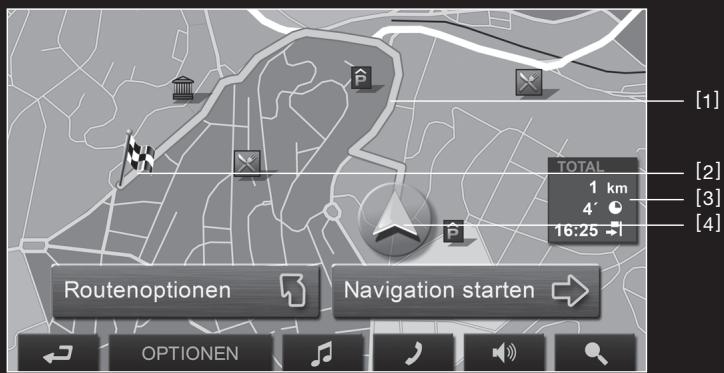
The map screen opens in PREVIEW mode. You can see the entire route. [Fig. 9]
If you display a route with several stages, you will see this information for each stage.
In order to view or, if necessary, change the settings which form the basis of a calculated route, proceed as follows:
- Touch the ROUTE PROFILE button.
- Select START NAVIGATION in order to begin the trip. When you display a planned or loaded route, the route may be recalculated. Your current location will be integrated into the calculation. The navigation will initially guide you to the first route stage entered.
In order to open the map screen in DESTINATION SEARCH mode:
- Touch the

DESTINATION SEARCH button.
[1] The route is marked GREEN.
[2] The destination is marked with a little flag. When you have planned or loaded a route and displayed it, the starting points and each route stage will be marked with a small flag.
[3] You will see the entire route in a small info box, together with the estimated trip time and the estimated time of arrival. This information can be displayed or hidden as follows:
text_image
[1] [2] [3] [4] TOTAL 1 km 4' 16:25 Routenoptionen Navigation starten OPTIONENFig. 9
- Touch the OPTIONS button.
- Select SETTINGS.
- Touch BASIC SETTINGS.
- Show or hide information.
[4] A GREEN triangle shows the current position. If you display a planned or loaded route and the given starting point is not the same as your current location, then the current position may not be shown on the preview.
8.3 Map in Navigation mode
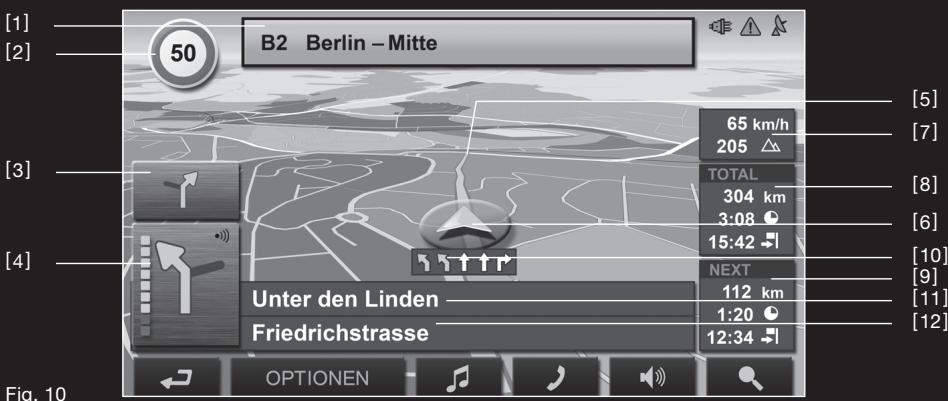
After the route has been viewed in PREVIEW mode, the navigation has been started. The map screen opens in NAVIGATION mode. [Fig. 10]
[1] Shows the signing that is to be followed.
[2] Possible speed limits may be shown here.
[3] If two maneuvers need to be executed quickly this shows the maneuver to be executed immediately after the next maneuver.
[4] Shows a diagram of the next junction where you should turn off. Underneath is the remaining distance to this junction.
text_image
[1] [2] B2 Berlin – Mitte [5] [7] [3] [8] [6] [4] [10] [9] [11] [12] Unter den Linden 1:20 Friedrichstrasse 12:34 OPTIONEN Fig. 10When you approach the junction, you will see a spot diagram instead of the distance.
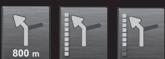
The nearer you are to the junction, the fewer green spots are displayed.
If you don't have to change direction for a longer period, you will only see a forward-facing arrow with the distance shown underneath, which shows how long you are to follow the current road.
[5] The route is depicted in the GREEN.
[6] A triangle in GREEN shows the current position on the map. The displayed sector of the map changes continually to show your current position centered on the map whenever possible.
[7] The height above sea level and the current speed is shown here.
[8] Shows the route, the estimated trip duration, and the estimated time of arrival.
[9] Shows the entire route, the estimated trip duration and the estimated time of arrival for the current stage.
[10] The traffic lanes that lead to your destination are depicted in the GREEN.
[11] The name of the route section that you need to drive onto next is shown in the upper street field.
[12] The name of the street you are currently driving on is shown in the lower street field.
Note:
- The displays for many of the above mentioned areas can be configured via OPTIONS > SETTINGS > BASIC SETTINGS. A number of displays only work when the corresponding information is available on the map.
- If you touch the large arrow field, then the current route instruction will be repeated.[4]
Quit navigation
In order to end navigation, proceed as follows:
- Touch the

BACK button.
- Confirm quitting.
Map functions in Navigation mode
When the map is open in the NAVIGATION mode, touch any point on the map. Various buttons with options will be displayed.
2D/3D: Changes between 2D and 3D mode. The symbol of the mode currently set is displayed in green.
DAY/NIGHT: Toggles between the DAY and NIGHT touchscreen display modes. The symbol of the mode currently set is displayed in green. INTERIM DESTINATION: Opens the menu for entering a way point.
The navigation system will then guide you to this way point first. Afterwards, you can continue your journey to your original destination.
SKIP ROUTE POINT: When this button is touched, the next route point is omitted. This button is inactive when less than 2 stages are pending.
BLOCK: Blocks a route stage in order to, e.g., avoid a traffic jam. The route will then be calculated around the blocked route stage. Touch this button once in order to remove the block.
POI ON YOUR ROUTE: Touching this button displays Points of Interest on the given route. A destination shown here can also be selected as a way point. In order to do so, touch the

INTERIM DESTINATION button.
8.4 Map in Destination search mode
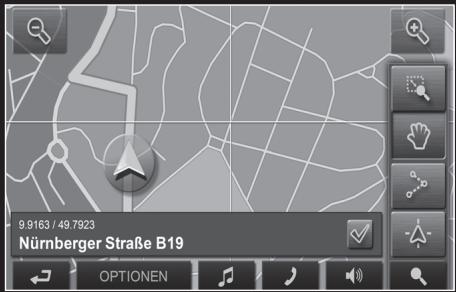
The map is always in DESTINATION SEARCH mode, when a pair of crosshairs are to be seen. [Fig. 10]
When you are driving, the map does not change direction. It is always oriented with north shown at the top.

ZOOM OUT: The map section enlarges.
There are fewer details shown.

ZOOM IN: The map section shown
decreases in size. More details can be seen.

ZOOM MODE: If this button is active, the section can be traced with a finger or the pen top left to bottom right and afterwards zoomed een size. If the map section is traced from n right to top left, the map will zoom out.
text_image
9.9163 / 49.7923 Nürnberger Straße B19 OPTIONENFig. 11

PAN MODE: If this button is active, the map section can be moved in the desired direction with a finger or the pen.

ENTIRE ROUTE: Zooms the map so that the entire route is visible.

CURRENT POSITION: Selects the map section shown, so that the current location is centered.
8.4.1 Working in Destination search mode
-
Touch the point to which you want to navigate. The destination that you have selected appears under the crosshairs. The geographical coordinates of the destination and the corresponding address are shown in the field in the bottom third of the screen.
-
Touch the

OK button.
Buttons with various functions will appear.
TAKE ME THERE: Begins the navigation to the selected point. Current navigation will be aborted.
INTERIM DESTINATION: Sets the current destination as a way point. The navigation system will then guide you to this way point first. Afterwards, you can continue your journey to your original destination. This function is only active when you are currently navigating.
SET AS DESTINATION: Adds the selected point as the last point in the route plan. If no route plan has been opened, the selected point will become the first point in a new route plan.
SAVE: Opens the SAVE DESTINATION AS ... window. A name can be entered here which will be used to save the given point in the FAVORITES list.

For detailed information, please refer to chapter "Saving a destination" on page 73.
NEIGHBORHOOD SEARCH: Opens the POI NEARBY window. Destinations in the vicinity can be searched for from here.
- Touch the

DESTINATION SEARCH button in
order to quit the DESTINATION SEARCH mode. You will be returned to the window from which you started this mode.
- Touch

BACK in order to return to the main
window. If you are currently navigating, you will be prompted to confirm quitting navigation.
9.1 GPS status, store current location
In the GPS STATUS screen, you will find an overview of the data the navigation system calculates from the received GPS signals.
GPS status is available from the options of many windows.
- Touch OPTIONS.
- Select GPS STATUS.
The current location can be stored in the FAVORITES list. - Touch the SAVE POSITION button. The SAVE DESTINATION AS... dialog opens up. The cursor blinks in the NAME field.
- Enter a name for the destination.
- If necessary, define the current position as the home address.
- Touch the SAVE button.
9.2 TMC [Traffic information]
Your device has an integrated TMC receiver. The navigation system will only receive the latest traffic reports once you have connected your cable to the car charger. It can dynamically change the route in order to avoid traffic jams, for example.
The current valid traffic reports are available via the options of many windows.
- Touch the OPTIONS button.
- Select TRAFFIC. The TRAFFIC INFORMATION window opens.
Via the list, the DISPLAYED INFORMATION button shows which kind of traffic messaging is listed and the number of messages received. - Touch the DISPLAYED INFORMATION button to select which traffic messages should be displayed.
For each traffic message, information about the location and type of congestion will be shown. - Touch a message in order to show more detailed information.
The navigation system can
![NAVIGON PORSCHE DESIGN P9611 - TMC [Traffic information] - 1](/content/2025/01/165482/images/e7139a71f1fae99d0456adf6a788a830917a716a505a6dde99df03f0e3fb5fa6.jpg)
AVOID or
![NAVIGON PORSCHE DESIGN P9611 - TMC [Traffic information] - 2](/content/2025/01/165482/images/593e9faf7c9dd6d922dd4d0a8ffb936ecd6c9f21c24babd84926f8499cff5f83.jpg)
IGNORE
congestion on the route. The button AVOID / IGNORE shows the corresponding status.
Touch the
![NAVIGON PORSCHE DESIGN P9611 - TMC [Traffic information] - 3](/content/2025/01/165482/images/86f5f574e526eb2c89ca34ddce1a86fc09b0ead1b89e5508c610a9840024cbad.jpg)
BACK button to close the TRAFFIC
INFORMATION window.
9.3 TMC Settings
In the TMC SETTINGS window, you can set and configure the TMC sender, this will determine the effect that the reception of a message concerning your route will have on its calculation. Proceed as follows:
-
Touch the OPTIONS button in the TRAFFIC INFORMATION window.
-
Select TMC SETTINGS.
Tuning
Touch the TUNING button to determine which sender should be set, from which you want to receive traffic information.
AUTOMATIC: The arrow buttons near the sender can be used to set a different sender. The system will search for another sender if reception is weak.
HOLD STATION: The arrow buttons near the sender can be used to set a different sender. The system will search for the same sender on a different frequency if the signal is weak.
HOLD FREQUENCY: The arrow buttons near the sender can be used to set a different sender. The system will not search for another sender if the reception is weak.
Recalculate Route
Touch RECALCULATE ROUTE to determine how new messages concerning your route should be dealt with.
AUTOMATICALLY: An alternative route avoiding the traffic obstruction will be calculated.
ON REQUEST: The message is displayed. This window can be used to determine if a detour should be calculated or not.
The SETTINGS window is the point from which you can make any modifications to match your personal preferences on the P'9611.
The settings can be reached from the options of many windows.
-
Touch the OPTIONS button.
-
Select SETTINGS. The SETTINGS window has several buttons: CURRENT MAP, POI, BASIC SETTINGS and ROUTE PROFILE.
-
Touch the corresponding button in order to open the desired settings window.
The settings of the individual windows are displayed on several screens.
You can toggle between them with the

TO THE LEFT and

TO THE RIGHT buttons.
Some settings can only accept two or three different values. These settings are recognisable by means of the

TOGGLE button. All possible values are
visible. The value that is currently valid is highlighted in black.
- Touch the

TOGGLE button to alternate between the ble values.
Some settings can accept many different values.
These settings are recognisable by means of the

LIST button. The value that is currently set is
shown.
- Touch the

LIST button.
A list with all possible values opens up. The value that is currently valid is marked.
-
Touch the desired value. It will now be marked.
-
Touch the OK button. The list closes again. The new value will be displayed.
For each setting, there is a

HELP button.
- Touch the HELP button in order to call up a detailed explanation of the relevant setting.
You can close the settings windows in two ways:
-
Touch the DONE button. Any changes you have made will be stored.
-
Touch the CANCEL button. Any changes you have made will not be stored.
The SETTINGS window opens again.
The integrated MP3 player can be used to play MP3 files, even during navigation. In order to do so, MP3 files must first be copied onto the supplied memory card.
Copy MP3 files onto the device
- Turn on navigation device.
- Plug enclosed USB cable into the navigation device and your computer.

Note: The USB cable cannot be used to charge the navigation device.
- Windows creates a new drive containing a folder called "mp3".
- Copy the desired MP3 files into this folder. You can even copy entire folders, e.g. albums, into this folder.
- Restart the MP3 player to update the new MP3s on the player view.
Open the MP3 player
- Touch the MP3 PLAYER button in the START SCREEN.
If the navigation software is active:
- Touch the

MP3 PLAYER button in the bottom margin of the screen.
The MP3 PLAYER window opens.
- Touch the

NAVIGATION button in order to
bring the navigation software into the foreground.
- Touch the

START SCREEN in order to
bring the START SCREEN into the foreground.
Playing MP3 files
Mark the directory or file in the list that you want to play.

PLAY: plays the marked file or files within the ed directory.

OPEN FOLDER: opens the marked directory.

UP ONE LEVEL: marks the overriding tory.

SELECT NEXT: marks the next element in the

SELECT PREVIOUS: marks the previous ment in the list.

PAUSE: pauses playback.

CONTINUE: continues play.

FAST FORWARD: fast forwards within the file.

REWIND: rewinds within the current file.

VOLUME: opens the volume bar.
Information
The screen displays the following information at the top of the MP3 PLAYER window while a file is being played:
- The name of the file currently being played.
-
The name of the directory in which the file is stored.
-
The play mode:
REPEAT ALL
REPEAT TRACK
INCLUDE SUBFOLDERS
SHUFFLE
11.1 MP3 settings
-
Touch SETTINGS. Settings for the play modes can be undertaken from the MP3 SETTINGS window.
-
Touch the

TOGGLE button next to the relevant setting ler to alternate between the possible values. current value is highlighted in yellow.
The hands-free module allows to use P'9611 as a hands-free kit for your mobile phone.
Opening the hands-free module
Touch the

HANDS-FREE MODULE button in the
navigation software.
The HANDS-FREE MODULE window opens.
Operating the hands-free module
The volume of the hands-free kit can be adjusted independently of the navigation system's volume.
- Touch the

MP3 PLAYER button in order to MP3 player into the foreground.
- Touch the

NAVIGATION button in order to bring ation software into the foreground.
- Touch

START SCREEN in order to bring the SCREEN into the foreground.

Note: you can get information regarding changing individual settings by touching the

HELP button.
12.1 Connecting to a telephone
The telephone functions are only available when the P'9611 is connected to a mobile phone. On starting for the first time, the P'9611 is in „Discoverable by others” mode. For information on how to change this setting, refer to 12.7.1 Activate Bluetooth. (page 89)
Problems occurring when trying to establish a Bluetooth connection can have various causes.
-
Bluetooth is deactivated in the P'9611 hands-free module. Activate Bluetooth. Ensure that your mobile phone can be detected by other Bluetooth devices. [See “Activate Bluetooth”, on page 88]
-
Bluetooth is deactivated on the mobile phone, or it is set to "Hidden". Activate Bluetooth on your mobile phone. Ensure that your mobile phone can be detected by other Bluetooth devices. For further information, please refer to your mobile phone manual.
-
P'9611 has never been connected to your mobile phone. Initiate the connection manually. [See “Establishing a Bluetooth connection”, on page 89]
If P'9611 was previously connected to your mobile phone, the connection will be established without further prompting.
12.2 Receiving a call
When you receive a call, the INCOMING CALL window opens. When the relevant information is available, the name and number of the caller will be displayed.
- Touch the PICK UP button in order to accept the call. The CALL IN PROGRESS window opens.
12.3 Dialing
There are different ways to make a call using P'9611.
12.3.1 Dialing a telephone number
- Touch the DIAL A NUMBER button in the HANDS-FREE MODULE window.
- Enter the required telephone number.
- Touch the

button.
12.3.2 Dialing a number, calling home
4 speed call buttons can be configured.
- In the HANDS-FREE MODULE window, touch the appropriate speed call button.
12.3.3 Calling a contact from the Phone Book

Note: It is only possible to use the phone book if your mobile phone supports the phone book synchronization feature. The latest compatibility list can be found at www.navigon.com/porsche-design.
- Touch the PHONE BOOK button in the HANDS-FREE MODULE window.
- Touch the desired entry.
12.3.4 Calling a Point of Interest
- Touch the CALL POI button in the HANDS-FREE MODULE window.
- Enter the special destination. [See “Point of Interest in a given location”, on page 69]
- Touch the

12.3.5 Calling your destination

Note: this function is only available when navigating, and if the telephone number of your destination is stored in the systems databank. This is usually the case, especially with Points of Interest.
- Touch the OPTIONS button in the HANDS-FREE MODULE window.
- Select CALL DESTINATION.
12.3.6 Calling most recently dialed numbers

Note: the list contains outgoing, incoming and missed calls. Incoming and missed calls can only be dialed if the caller's number was transferred.
- Touch the RECENT CALLS button in the HANDS-FREE MODULE window.
- Touch the desired entry.
12.4 During a conversation
You are calling using the hands-free module. The CALL IN PROGRESS window is open.
12.4.1 Bring the navigation software into the foreground
The navigation software can be brought into the foreground at any time.
Proceed as follows:
- Touch the

NAVIGATION button.
- The

HANDS-FREE MODULE button
changes color when a call is in progress.
- Touch the

HANDS-FREE MODULE button to
open the CALL IN PROGRESS window again.
12.4.2 Entering numbers
During a conversation, you can enter numbers. This might be necessary, for example, when a telephone system is trying to connect you.
- Touch the DIAL A NUMBER button.
- Enter the required number.
- Touch the

BACK button to open the CALL IN
PROGRESS window again.
12.4.3 Ending the call
Touch the HANG UP button in the CALL IN PROGRESS window to end the call.
12.5 Phone book
P'9611 enables you to import the phone book of the mobile phone with which you are connected. The synchronization takes place automatically.
12.5.1 Opening the Phone Book
Touch the PHONE BOOK button in the HANDS-FREE MODULE window.
12.6 Recent calls
P'9611 saves the list of calls from the connected mobile telephone in the RECENT CALLS list.
12.6.1 Opening Recent Calls
Touch the RECENT CALLS button in the HANDS-FREE MODULE window. The RECENT CALLS list opens.
12.7 Configuring the hands-free module
The hands-free of P'9611 incorporates several settings which you can configure according to your own requirements.
- Touch the HANDS-FREE SETTINGS button in the HANDS-FREE MODULE window.

For detailed information, please refer to chapter "Configuring P'9611" on page 85.
12.7.1 Activate Bluetooth
- Touch OPTIONS in HANDS-FREE SETTINGS.
- Select BLUETOOTH. The BLUETOOTH window opens.
BLUETOOTH FUNCTION
Touch YES in order to activate Bluetooth. Otherwise, touch NO. The hands-free module cannot connect to a mobile phone when Bluetooth is deactivated.
DISCOVERABLE BY OTHERS
Determine whether P'9611 should be shown to other Bluetooth devices [esp. mobile phones] [YES] or not [NO]. This setting only takes effect when the Bluetooth signal is activated. When recognition is set to NO a Bluetooth connection can only be established using P'9611 and not with a mobile phone.
12.7.2 Speed call buttons
The P'9611 hands-free module has many quick dial buttons which can be assigned individually.
- Touch the PRESET button in the HANDS-FREE SETTINGS window.
- Touch the speed call that is to be edited.
Set up or edit a speed call
- Touch the EDIT button.
- Enter or change the name and number for the selected speed call.
- Touch the

OK button.
Transferring numbers from the Phone Book
- Touch the FROM PHONE BOOK button. If the telephone book contains no entries, the button is deactivated.
- Select the entry for the speed call that is to be transferred.
- Touch the

OK.
Deleting a speed call
- Touch the CLEAR button.
- When prompted to do so, confirm with OK. The MODIFY PRESET window opens again. There is no telephone number and no name under the speed call you have selected.
12.7.3 Call Settings
In the CALL SETTINGS window, you can modify the settings for the P'9611 mobile phone functions of the hands-free unit.
- Touch the button in the window.
- You can get information regarding changing individual settings by touching the

HELP button.
12.8 Configuring a connection to a mobile phone
- Touch the OPTIONS button in the HANDS-FREE MODULE window.
- Select HANDS-FREE SETTINGS. The HANDS-FREE SETTINGS window opens.
12.8.1 Establishing a Bluetooth connection
P'9611 enables you to establish a connection to a mobile phone.

Note: as a rule, P'9611 will automatically establish a connection to the mobile phone to which it was last connected. This function can, however, be used to establish a connection to another mobile phone while P'9611 is connected to a mobile phone. Please refer to the notes in chapter "Connecting to a telephone", on page 87.
- Touch the CONNECTION WITH MOBILE PHONE button in the HANDS-FREE SETTINGS window.
- Select NEW CONNECTION.
- Confirm the scan for new Bluetooth devices with OK. All detected devices will be listed once the search has been completed.
- Touch the mobile phone to which you would like to connect. The device will establish a connection to the selected mobile phone.
- When prompted, enter a code of any length.
- Touch the

OK button.
- When prompted, enter the previously determined code into the mobile telephone. A similar prompt also appears on the display of the mobile phone.
- Press the key on the mobile phone with which you entered the last number.
- Press OK when requested.
12.8.2 Ending a connection and deleting connection data
The connection between P'9611 and the mobile phone can be ended at any time.

Note: the connection does not have to be ended manually. The connection is cut off automatically when the mobile phone is further than 10 m away from P'9611. In this event, the connection data is stored so that the connection can be restored automatically when the mobile phone is close enough to the P'9611.
- Touch the CLEAR CONNECTION DATA button in the CONNECTION WITH MOBILE PHONE window.
- When prompted to do so, confirm with OK.

Note: P'9611 is not able to establish an automatic connection to a mobile phone once a connection has been ended, even if it happens to be the most recent connection. This is also the case even when it is the same mobile phone that was used for the previous connection. The next connection must be established manually. [please refer to “Establishing a Bluetooth connection”, page 91]
13.1 Technical data
Navigation device
Processor: Intel PXA 270, 520 MHz
Memory: 64 MB RAM, 64 MB ROM
Expanded memory: SD memory card
Power supply: 5VDC 2A [max.]
GPS: Integrated 3rd generation GPS receiver: μ-blox Antaris 4 SuperSense
TMC: Integrated TMC-antenna
Display: Extra-large 4.3-inch touch-screen display [WQVGA]
Speakers: Dual Audio System: in the device 0.5 watt, in the mounting, 2.0 watt
Hands-free set: High-quality Bluetooth hands-free set
Connections: Headphones, external GPS-antenna, USB 1.1
Dimensions: 125 x 82 x 19mm [width x height x depth]
Weight: Approx. 250 g
Battery [Li-Ion]
Rated capacity: 1400 mAh
Charging cable:
Mains cable: 100–240 V
Charging cable: 10–30 V
13.2 Restoring the contents of the memory card In the event of loss or damage to the supplied memory card, you will find all necessary backup files required for restoring the memory card on the P'9611 DVD-ROM. You need a PC to do this.
-
Place a memory card with at least 4 GB storage capacity into the card slot of a PC.
-
Insert the supplied DVD-ROM into the DVD drive.
-
Select the DVD drive from Windows Explorer. Copy the contents of the folder "Mobile Navigator 6" onto the memory card.
-
Insert the memory card into the card slot on the LEFT SIDE of the navigation device.

Note: Before connecting the device to a PC with a USB cable, please make sure that the device is turned on.
13.3 Terms of guarantee
The following terms of guarantee relate to the Porsche design product with the type designation "P'9611", of which the guarantee card is enclosed on purchase [subsequently referred to as "product"].
NAVIGON AG, Berliner Platz 11, 97080 Würzburg [hereafter referred to as “NAVIGON”] provides full guarantee that this product shall exhibit no material faults or faults of workmanship for the period of 24 months from the initial purchase. Should functional faults occur during the guarantee period, that are verifiably caused by faults of material and workmanship, NAVIGON shall either repair the product or replace its damaged components, free of charge, in accordance with the following conditions. NAVIGON may replace defective products or components by new or exchange products [functionally equivalent, overhauled products] or with new replacement components or exchange items. Replaced products or components will be the property of NAVIGON. NAVIGON may arrange for the above mentioned guarantee services to be undertaken by third parties.
NAVIGON reserves the right to charge a processing fee, should the product prove not to be a valid guarantee claim in accordance with the following conditions.
Terms of guarantee
-
The product, together with the required documentation, is to be presented to the specialist dealer who originally sold the product within a period of thirty [30] days after determination of the fault, if the end user wishes to make a claim within the guarantee period of the product.
-
The guarantee period amounts to 24 months from the point in time of transfer to the initial purchaser. Neither the indication of a fault, nor the subsequent fulfilment shall give rise to an extension. If NAVIGON repairs or replaces the product, then the guarantee entitlement for the repaired or replaced product shall be valid until the end of the original guarantee period, or
three months after reception of the repaired or replaced product, depending on which period is the longer.
-
An obligation to fulfilment of the guarantee services only exists where the faulty product is presented within the guarantee period, together with the original packaging and the original invoice or cash register receipt, and a correctly filled out guarantee card [details of date of purchase, model designation, device number, name of the dealer]. NAVIGON reserves the right to refuse guarantee services if these documents are not presented or if they are incomplete or unreadable. NAVIGON also reserves the right to refuse guarantee services in cases where the serial number on the product has been changed, deleted, removed or made unreadable.
-
Personal data as well as downloaded files and other data may be lost during the fulfilment of guarantee services by way of repair or exchange of the product. In order to prevent damage to removable storage media or external data carriers or the loss or deletion of data, please remove these and create back up copies of all data stored on the product before the product is presented for the fulfilment of guarantee services. NAVIGON accepts no liability for data loss of any kind and is not liable for claims for compensation for such losses of data.
-
The guarantee covers neither the costs for transportation of your product to NAVIGON or a third-party commissioned by NAVIGON, nor the risks associated with such transportation.
-
The guarantee does not apply to the following cases:
a. In the event of faults to the product created by normal wear and tear, erroneous usage, inappropriate or improper operation, especially usages for which the product was not designed, as well as in the event of failure to observe NAVIGON's instructions and directions relating to deployment, care and maintenance [especially those relating
to handling, physical or surface damage or cosmetic damage to the product or damage to the liquid-crystal display or the jacks].
b. Regular maintenance and repairs or the replacement of components required due to normal wear and tear.
c. For wearing parts [components that are subject to wear and tear and, as such, can be expected to require regular replacement during the life-time of a product, especially batteries, charging devices, protective cases, memory card reading devices].
d. Damage or alterations to the product that are the result of i] virus infection, ii] usage of the product with software that was not supplied with the product or is not recommended by NAVIGON or was installed in an improper manner; iii] usage of the product with accessories, I/O devices and other products that are not expressly recommended by NAVIGON or were not developed to be used with the product; lv] repairs or attempts at repair by persons not authorized by NAVIGON; v] adaptations or alterations to the hardware or software without the written consent or recommendation of NAVIGON, especially upgrading of the product over and above the characteristics of the specifications described in the operating instruction; vi] negligence; vii] accidents, fire, dampness, liquids, chemicals, other substances, vibrations, excessive heat, excessive cold, extreme variations of temperature, insufficient ventilation, sudden voltage spikes, excessive or reversed power or input voltage, radiation, electrostatic discharge including lightening, and other forms of external energy and influences.
e. The brightness and color of the screen can deviate slightly from one product to another. Tiny bright or dark points that can be found on the screen known as defective pixels. These are individual faulty pixels
which cannot be properly controlled. Two faulty pixels are considered acceptable.
-
These conditions apply neither to software nor to data or applications that are stored on the memory card or other storage media. This guarantee covers only the hardware components of the product.
-
There is no express guarantee, neither written nor verbal, other than this printed limited guarantee. All implicit guarantees, including – without being limited to – commercial product guarantees and suitability for a particular purpose, only apply for the period of this limited guarantee. NAVIGON and its licensor are, insofar as exclusion of liability is legally allowed, in no way liable for damages for secondary or consequential damage of any kind, including – and without being limited to – income profits and economical disadvantages. In some countries/states, the exclusion or limitation of liability for secondary or consequential damage or the limitation of the period of implicit guarantee is not allowed. In this case, the above mentioned limitations and exclusions do not apply.
Protection of your statutory rights
Consumers possess particular statutory rights in accordance with national laws relating to the sale of consumer goods. This guarantee does not interfere with your possible legal rights, or rights that may not be excluded or limited, or legal claims on the person from whom you purchased the product. You are entitled to assert your rights at your own discretion. Should your product malfunction, please contact your service partner before laying claim to guarantee services, in order that the functionality of your product can be restored as quickly as possible.
13.4 Terms of licence
§1 Scope of the terms
This Agreement regulates the relations between the user and NAVIGON AG, Schottmuellerstrasse 20 A,
20251 Hamburg, developer and proprietor of the exclusive utilization rights to the NAVIGON software
[“Software”] as specified in the order. Subject matter of this Agreement shall be deemed to be copyright interests.
§2 Scope of utilization
[1] NAVIGON grants the user the non-exclusive right, unlimited by time and location, to utilize the Software at a utilization volume as specified in the order. The licensing includes the right to install and use the Software in accordance with the documentation and pursuant to these regulations.
[2] The user shall ensure that the above mentioned restricted utilization rights are complied with.
[3] Any kind of use which supersedes the framework as stipulated in the Agreement requires the written consent of NAVIGON. In the event that such utilization should be exploited without NAVIGON's consent, NAVIGON shall charge the amount accruing for this extended utilization in accordance with the valid price list at the time. NAVIGON shall reserve the right to assert further reaching claims for compensation of damages. The user shall have the right to prove lower damages.
[4] All the above mentioned utilization rights shall only be transferred to the user after full and final payment of the license fee.
§3 Copyright and intellectual property rights
[1] The user recognises the copyright of NAVIGON and thereby the exclusive utilization and usage rights of the software. The exclusive utilization and usage rights also apply to software extensions or alterations that NAVIGON may have created for the user in accordance with the contract.
[2] Any kind of not explicitly authorized copying of the Software in its entirety or partially, any kind of not expressly authorized passing on of the Software and development of similar Software or segments of such Software or utilization of the contractual Software as master template
shall in particular be deemed to be judicially and contractually prohibited.
[3] Exclusive utilization and exploitation rights also exist with regard to extended development of the Software or amendments thereto, which NAVIGON has created for the user compliant with order. The user is forbidden from removing, changing or in any other way camouflaging the copyright notices and identifications pertaining to existing protection rights.
§4 Transfer of the software
[1] The user is permitted to sell or give away the Software and the user manual or any other accompanying materials on a permanent basis to third parties, under the proviso that the acquiring third party is in accord that the contractual terms and conditions at hand shall henceforth be also be imposed on it.
[2] In the event of passing on, the user shall hand over to the new user all copies of the program, including possible backup copies made or destroy the copies not handed over. As a result of imparting, the former user's utilization rights to the program shall extinguish.
[3] The user is permitted to sell or give away the Software and the user manual or any other accompanying materials to third parties on a temporary basis, if this is not done within the framework of leasing or renting out for gainful purposes, under the proviso that the acquiring third party is in agreement that the contractual terms and conditions at hand shall henceforth also be imposed on it. For the period of assignment of the Software to third parties, the assigning user shall have no right to any kind of utilization of the program. Renting out or granting a lease for gainful purposes shall be prohibited. In the event that regular storage of the entire data base and the integrated computer programs should be crucial for security purposes or safeguarding a rapid reactivation of the computer system after complete breakdown, the user is permitted to
make the necessary number of essential back-up copies.
[4] The user may not assign the Software to third parties if there should be any justified suspicion that such third party could violate the contractual terms and conditions, especially making unlawful copies.
§5 Reproduction rights and access protection
[1] The user may reproduce the Software, if the respective copying should be necessary for operations. Necessary reproduction shall be deemed to be the installation of the program from the original data carrier to the bulk memory of the installed hardware as well as loading the program into random access memory.
[2] Furthermore, the user is permitted to make copies for backup purposes. However, only one single backup copy may be made for safe-keeping. The backup copy has to be identified as such.
[3] The user may create backup copies, restricted to absolutely necessary numbers, should it be necessary to do so due to reasons of data security or the retention of a quick reactivation of the computer system after a total failure of the scheduled backup of the total data storage, including the computer applications used. The relevant data carriers are to be designated as such. The backup copies may only be used for archive purposes.
[4] Further reproductions, which also include release of the program code on a printer as well as photocopying of the manual, may not be made by the user. Any additional manuals required by employees have to be obtained from NAVIGON.
§6 Multiple usage and network operation
[1] The user may operate the software on all of his or her hardware. However, if the user swaps the hardware, the software must be erased from the previously used item of hardware. The simultaneous storage, availability or usage on
more than one item of hardware is not permissible.
[2] The deployment of the entrusted Software within a network or any other multiple workstation computer system is not permissible, if thereby the possibility of simultaneous multiple-shift usage should be facilitated. Should the user select to use the Software within network operations or any other multiple-shift computer system, the user is obliged to abstain from simultaneous multiple use by integration of access protection devices or compensate NAVIGON by payment of special network license fees, which fee is calculated on the basis of the number of users linked up with the computer system. The user shall be informed immediately by NAVIGON with regard to network license fees to be raised in each individual case as soon as the user has informed NAVIGON in writing of the intended network integration and the number of integrated users. The implementation into such kind of network or multiple workstation computer system shall only be permissible after full and final payment of the network licensing fees.
§7 Third-party software
The Software contains third-party software products, which have been integrated into the contractual Software or supplied together with the contractual Software. NAVIGON fundamentally only awards such rights which are necessary for general use of the programs as components of the contractual Software and which NAVIGON is authorized to grant. No modification rights or further processing rights are incorporated therein.
§8 Decompiling and program alteration
The user is forbidden from retranslation of the entrusted program code into other code configurations [decompiling] as well as any other kind of inverted development of the diverse manufacturing phases of the Software [reverse engineering] or carrying out program amendments of any kind,
unless if such actions should serve purposes of eliminating serious defects, especially such defects which can not be avoided by organisational or any other reasonable measure of remedy. Copyright markings, serial numbers as well as other characteristics serving purposes of identification of the program, may not be eliminated or changed. Any removal of copy protection or similar protective routine measures is prohibited without the knowledge and co-operation of NAVIGON.
§9 Final provisions
[1] In the event that any provision contained in this License Policy should be determined to be invalid or become invalid, the effectiveness of the other regulations shall not be affected thereby. The said invalid provision shall be replaced by a valid provision within the context of the remaining contractual interpretation, which comes as close to the intended economical purpose of such invalid provision.
[2] Amendments and supplements to these regulations have to be in the written form and have to be expressly identified as such. Verbal ancillary agreements shall be deemed to be ineffective. This requirement of written form may only be renounced by written agreement.
[3] If legally permissible, the Parties agree that the laws of the Federal Republic of Germany shall apply to all legal relations arising from these contractual relations, under exclusion of UN Purchase Law.
[4] If the user should be a businessman within the meaning of the Commercial Code, legal entity under public law or special assets under public law, all disputes which may arise in connection with the accomplishment of these contractual regulations shall fall under the jurisdiction of Hamburg.
B
Block 81
Bluetooth
Connection with Mobile Phone 91
Bluetooth 90
C
Calibration 77
Call destination
Make a call 88
Call destination---- 88
Call Settings 90
Connection with Mobile Phone
Clear Connection Data 91
Connected Device 90
New Connection 90
Connection with Mobile Phone 90
Current position
Save 83
Current position 83
D
Destination info
Direct Access 69
Enter an address 71
Favorites 70
Home address 71
Last destinations 70
My destinations 68
Navigate 68
Nationwide 69
Nearby 68
POI 68
In a City 69
Save 73
Start navigation 68
Destination info 70
E
External power supply display 58
F
Factory settings 78
G
GPS
Initialize 67
Signals 67
GPS 63
GPS status 83
H
Hands-free Module
Call in Progress 88
Dial a Number 88
Hands-free Module 90
Hang up
Call destination 88
Call Settings 90
Clear Connection Data 91
Connected Device 90
Connection with Mobile Phone 90
Dial a Number 88
Ending the call 89
Import Phone Book 89
Incoming Call 88
Make a call 88
Phone book 89
POI 88
Preset 90
Recent calls 89
Settings 77,85
Show Map 71
Volume 86
Hang up 89
Hands-free Settings
Import Phone Book 89
New Connection 91
Preset 90
Show Map 71
Volume 86
Hands-free Settings 89
Hardware keys 58
Home address 71
Hotline 56,57
|
Import Phone Book 89
Interim destination 81, 82
K
Keyboard 66
Keys
Hardware 58
Keys 58
M
Main Window 67
Make a call
Call destination 88
Dial a Number 88
Phone book 89
POI 88
Preset 90
Recent calls 88
Make a call 88
Manual
Symbols 55
Manual 55
Map
Destination search 81
Navigation 80
Preview 79
Map 79
Menu 66
MP3 player 86
MP3 settings 86
My destinations 70
N
Navigate 68
Navigation
Block 81
Interim destination 81, 82
Navigation 67
No GPS reception
POI on your route 81
Skip route point 81
Skip route point 81
Start 67,71
Unblock 81
No GPS reception 72
O
Options 66,77
P
P'9611
Start 67
Phone book
Import Phone Book 89
Make a call 88
Phone book 89
POI
Direct Access 70
In a City 69
Make a call 88
Nationwide 69
Nearby 68
On your route 81
POI 68
Preset 90
Product info 77
R
Recalculate Route 84
Recent calls 88, 89
Route planning 74
Route points
Delete 77
Indicate 71
Order 74
Save 75
Simulation mode 75
Start navigation 68
Starting point 74
Route points 75
Routes
Calculate 75
Manage 75
Planning 74
Routes 74
S
Safety information 63
SD slot 58,60
Service 55
Settings
Calibration 77
Call Settings 90
Clear Connection Data 91
Connected Device 90
Connection with Mobile Phone 90
Factory settings 78
Hands-free Module 87
Hands-free Settings 89
Import Phone Book 89
New Connection 90
Preset 90
Product info 77
Volume 65,86
Settings 83
Simulation mode
Quit 75
Simulation mode 75
Skip route point 81
Skip route point 81
Software keyboard 66
Support 55
Switching off the device
Coldstart 62
Warmstart 62
Reset 62
Symbols used in this manual 55
T
Take me home 71
Telephone
Connection with Mobile Phone 91
Telephone 87
Terms of Guarantee 92
TMC
Recalculate Route 84
Symbols 65
Tuning 83
TMC 83
TMC Settings
Recalculate Route 84
TMC Settings 83
Tuning 83
Touchscreen 58
Trademarks 55
Traffic information
Recalculate Route 84
Traffic information 83
U
Unblock 81
V
Volume 65