
AG-225H - Wireless Access Point ZYXEL - Free user manual and instructions
Find the device manual for free AG-225H ZYXEL in PDF.


| Product Type | Wireless Access Point / USB Wi-Fi Adapter |
| Brand | ZYXEL |
| Model | AG-225H |
| Wireless Standards | IEEE 802.11a/b/g |
| Maximum Data Rate | Up to 54 Mbps |
| Frequency Bands | 2.4 GHz (b/g) and 5 GHz (a) |
| Host Interface | USB 2.0 |
| Antenna | Integrated |
| Wireless Security | WEP 64/128/256 bits, WPA, WPA2, IEEE 802.1x |
| Operating Modes | Station (client) and Access Point (SoftAP) |
| Wi-Fi Finder Function | Detection and display of networks (up to 15) with security indicator and signal strength |
| Supported Operating Systems | Windows 2000, Windows XP |
| Power | Via USB port (5 V) |
| Dimensions (approx.) | 90 x 30 x 15 mm |
| Weight (approx.) | 30 g |
| Package Contents | AG-225H Adapter, Installation CD (drivers and utility), Quick Start Guide |
| Warranty | 2 years (limited) |
| Certifications | FCC Part 15 Class B |
| LED Indicators | Power and link LED |
Frequently Asked Questions - AG-225H ZYXEL
User questions about AG-225H ZYXEL
0 question about this device. Answer the ones you know or ask your own.
Ask a new question about this device
Download the instructions for your Wireless Access Point in PDF format for free! Find your manual AG-225H - ZYXEL and take your electronic device back in hand. On this page are published all the documents necessary for the use of your device. AG-225H by ZYXEL.
USER MANUAL AG-225H ZYXEL
Copyright ©2005 by ZyXEL Communications Corporation
The contents of this publication may not be reproduced in any part or as a whole, transcribed, stored in a retrieval system, translated into any language, or transmitted in any form or by any means, electronic, mechanical, magnetic, optical, chemical, photocopying, manual, or otherwise, without the prior written permission of ZyXEL Communications Corporation.
Published by ZyXEL Communications Corporation. All rights reserved.
Disclaimer
ZyXEL does not assume any liability arising out of the application or use of any products, or software described herein. Neither does it convey any license under its patent rights nor the patents' rights of others. ZyXEL further reserves the right to make changes in any products described herein without notice. This publication is subject to change without notice.
Trademarks
Trademarks mentioned in this publication are used for identification purposes only and may be properties of their respective owners.
ZyXEL Limited Warranty
ZyXEL warrants to the original end user (purchaser) that this product is free from any defects in materials or workmanship for a period of up to one (2) years from the date of purchase. During the warranty period and upon proof of purchase, should the product have indications of failure due to faulty workmanship and/or materials, ZyXEL will, at its discretion, repair or replace the defective products or components without charge for either parts or labor and to whatever extent it shall deem necessary to restore the product or components to proper operating condition. Any replacement will consist of a new or re-manufactured functionally equivalent product of equal value, and will be solely at the discretion of ZyXEL. This warranty shall not apply if the product is modified, misused, tampered with, damaged by an act of God, or subjected to abnormal working conditions.
NOTE
Repair or replacement, as provided under this warranty, is the exclusive remedy of the purchaser. This warranty is in lieu of all other warranties, express or implied, including any implied warranty of merchantability or fitness for a particular use or purpose. ZyXEL shall in no event be held liable for indirect or consequential damages of any kind of character to the purchaser.
To obtain the services of this warranty, contact ZyXEL's Service Center for your Return Material Authorization (RMA) number. Products must be returned Postage Prepaid. It is recommended that the unit be insured when shipped. Any returned products without proof of purchase or those with an out-dated warranty will be repaired or replaced (at the discretion of ZyXEL) and the customer will be billed for parts and labor. All repaired or replaced products will be shipped by ZyXEL to the corresponding return address, Postage Paid. This warranty gives you specific legal rights, and you may also have other rights that vary from country to country.
Online Registration
-Pleases click "Product Registration" in the installation program of your support CD for the online registration.
-Register online at www.zyxel.com for free future product updates and information.
Federal Communications Commission (FCC) Interference Statement
This equipment has been tested and found to comply with the limits for a Class B digital device, pursuant to Part 15 of the FCC Rules. These limits are designed to provide reasonable protection against harmful interference in a residential installation. This equipment generates, uses and can radiate radio frequency energy and, if not installed and used in accordance with the instructions, may cause harmful interference to radio communications. However, there is no guarantee that interference will not occur in a particular installation. If this equipment does cause harmful interference to radio or television reception, which can be determined by turning the equipment off and on, the user is encouraged to try to correct the interference by one of the following measures:
Reorient or relocate the receiving antenna.
- Increase the separation between the equipment and receiver.
- Connect the equipment into an outlet on a circuit different from that to which the receiver is connected.
- Consult the dealer or an experienced radio/TV technician for help.
This device complies with Part 15 of the FCC Rules. Operation is subject to the following two conditions: (1) This device may not cause harmful interference, and (2) this device must accept any interference received, including interference that may cause undesired operation.
FCC Caution: Any changes or modifications not expressly approved by the party responsible for compliance could void the user's authority to operate this equipment.
IMPORTANT NOTE:
FCC Radiation Exposure Statement:
This equipment complies with FCC radiation exposure limits set forth for an uncontrolled environment. This equipment should be installed and operated with minimum distance 20cm between the radiator & your body.
If this device is going to be operated in 5.15 ~ 5.25GHz frequency range, then it is restricted in indoor environment only.
This transmitter must not be co-located or operating in conjunction with any other antenna or transmitter.
Customer Support
When contacting your Customer Support Representative, please have the following information ready:
Product model and serial number.
Warranty Information.
Date you received your product.
Brief description of the problem and the steps you took to solve it.
| METHOD LOCATION | SUPPORT E-MAIL | TELEPHONE1 | WEB SITE | REGULAR MAIL |
| SALES E-MAIL | FAX | FTP SITE | ||
| CORPORATE HEADQUARTERS (WORLDWIDE) | support@zyxel.com.tw | +886-3-578-3942 | www.zyxel.com www.europe.zyxel.com | ZyXEL Communications Corp. 6 Innovation Road II Science Park Hsinchu 300 Taiwan |
| sales@zyxel.com.tw | +886-3-578-2439 | ftp.zyxel.com ftp.europe.zyxel.com | ||
| NORTH AMERICA | support@zyxel.com | +1-800-978-7222 +1-714-632-0882 | www.us.zyxel.com | ZyXEL Communications Inc. 1130 N. Miller St. Anaheim CA 92806-2001 U.S.A. |
| CZECH REPUBLIC | info@cz.zyxel.com | +420 241 091 350 | www.zyxel.cz | ZyXEL Communications Czech s.r.o. Modranská 621 143 01 Praha 4 – Modrany Ceská Republika |
| info@cz.zyxel.com | +420 241 091 359 | |||
| DENMARK | support@zyxel.dk | +45 39 55 07 00 | www.zyxel.dk | ZyXEL Communications A/S Columbusvej 5 2860 Soeborg Denmark |
| sales@zyxel.dk | +45 39 55 07 07 | |||
| FINLAND | support@zyxel.fi | +358-9-4780-8411 | www.zyxel.fi | ZyXEL Communications Oy Malminkaari 10 00700 Helsinki Finland |
| sales@zyxel.fi | +358-9-4780 8448 | |||
| FRANCE | info@zyxel.fr | +33 (0)4 72 52 97 97 | www.zyxel.fr | ZyXEL France 1 rue des Vergers Bat. 1 / C 69760 Limonest France |
| +33 (0)4 72 52 19 20 | ||||
| GERMANY | support@zyxel.de | +49-2405-6909-0 | www.zyxel.de | ZyXEL Deutschland GmbH. Adenauerstr. 20/A2 D-52146 Wuerselen Germany |
| sales@zyxel.de | +49-2405-6909-99 | |||
| sales@zyxel.com | +1-714-632-0858 | ftp.us.zyxel.com | ||
| LOCATION\ METHOD | SUPPORT E-MAIL | TELEPHONE1 | WEB SITE | REGULAR MAIL |
| SALES E-MAIL | FAX | FTP SITE | ||
| NORWAY | support@zyxel.no | +47 22 80 61 80 | www.zyxel.no | ZyXEL Communications A/SNils Hansens vei 130667 OsloNorway |
| sales@zyxel.no | +47 22 80 61 81 | |||
| SPAIN | support@zyxel.es | +34 902 195 420 | www.zyxel.es | ZyXEL CommunicationsAlejandro Villegas 331°, 28043 MadridSpain |
| sales@zyxel.es | +34 913 005 345 | |||
| SWEDEN | support@zyxel.se | +46 31 744 7700 | www.zyxel.se | ZyXEL Communications A/SSjöporten 4, 41764 GöteborgSweden |
| sales@zyxel.se | +46 31 744 7701 | |||
| UNITEDKINGDOM | support@zyxel.co.uk | +44 (0) 1344 30304408707 555779 (UKonly) | www.zyxel.co.uk | ZyXEL Communications UK Ltd.,11, The Courtyard, Eastern Road,Bracknell, Berkshire, RG12 2XB,United Kingdom (UK) |
| sales@zyxel.co.uk | +44 (0) 1344 303034 | ftp.zyxel.co.uk |
Table of Contents
Copyright..
ZyXEL Limited Warranty . 3
Federal Communications Commission (FCC) Interference Statement.
Customer Support.
Preface.
Chapter 1 Getting Started. 1-1
1.1 About Your ZyXEL AG-225H. 1-1
1.2 ZyXEL AG-225H Wi-Fi Finder User Interface 1-1
1.3 LCM Description 1-2
1.4 Basic Operation 1-2
1.5 ZyXEL AG-225H Adapter Hardware and Utility Installation 1-2
1.6 Using the ZyXEL Utility to Configure Your Network 1-2
1.6.1 Network 1-4
1.6.2 Profile 1-5
1.6.3 Site Survey 1-13
1.6.4 Options 1-16
1.6.5 Version 1-17
1.7 ZyAIR Modes 1-17
1.7.1 Change ZyAIR Modes 1-18
Chapter 2 Wireless LAN Networking 2-1
2.1 Overview 2-1
2.1.1 SSID 2-1
2.1.2 Channel 2-1
2.1.3 Transmission Rate (Transfer Rate) 2-1
2.1.4 Wireless Network Application 2-1
2.1.5 Roaming 2-3
2.2 Wireless LAN Security 2-4
vii
Table of Contents
2.2.1 Data Encryption with WEP 2-5
2.2.2 IEEE 802.1x. 2-5
2.2.3 WPA/WPA2. 2-6
2.2.4 WPA-PSK/WPA2-PSK Application Example 2-7
2.2.5 WPA/WPA2 with RADIUS Application Example 2-7
2.3 Fragmentation Threshold 2-8
2.4 RTS/CTS Threshold 2-8
2.5 Authentication Type 2-9
Chapter 3 Access Point Mode Configuration 3-1
3.1 Introduction 3-1
3.1.1 Additional Setup Requirements 3-1
3.2 The Profile Screen 3-1
3.3 How to configure in Access Point Mode 3-3
3.3.1 Profile 3-3
3.3.2 The MAC Filter 3-8
3.3.3 Version 3-10
Chapter 4 Maintenance 4-1
4.1 The Version Screen 4-1
4.2 Uninstalling the ZyXEL Utility 4-2
4.3 Upgrading the ZyXEL Utility 4-3
Chapter 5 Configuring Wireless Security. 5-1
5.1 Configuring Security 5-1
5.2 Configuring WEP 5-1
5.3 Configuring WPA-PSK 5-3
5.4 Configuring WPA2-PSK 5-4
Chapter 6 Troubleshooting. 6-1
6.1 Problems Starting the ZyXEL Utility Program 6-1
6.2 Problem with the Link Status 6-1
6.3 Problems Communicating With Other Computers 6-2
6.4 Problem Connecting to an Access Point 6-2
Preface
Congratulations on the purchase of your new ZyXEL AG-225H!
About This User's Guide
This manual provides information about the ZyXEL Wireless LAN Utility.
Syntax Conventions
- "Type" or "Enter" means for you to type one or more characters. "Select" or "Choose" means for you to use one of the predefined choices.
- Mouse action sequences are denoted using a comma. For example, "click the Apple icon, Control Panels and then Modem" means first click the Apple icon, then point your mouse pointer to Control Panels and then click Modem.
- Window and command choices are in Bold Times New Roman font. Predefined field choices are in Bold Arial font.
- The ZyXEL AG-225H 802.11a/g Wireless USB 2.0 Adapter is referred to as the ZyXEL AG-225H in this guide.
- The ZyXEL Wireless LAN Utility may be referred to as the ZyXEL WLAN Utility or, simply, as the ZyXEL Utility in this guide.
Related Documentation
Support Disk
Refer to the included CD for support documents and device drivers.
Quick Start Guide
Our Quick Start Guide is designed to help you get your ZyXEL AG-225H up and running right away. It contains a detailed easy-to-follow connection diagram and information on installing your ZyXEL AG-225H.
ZyXEL Glossary and Web Site
Please refer to www.zyxel.com for an online glossary of networking terms and additional support documentation.
User Guide Feedback
Help us help you. E-mail all User's Guide-related comments, questions or suggestions for improvement to techwriters@zyxel.com.tw or send regular mail to The Technical Writing Team, ZyXEL Communications Corp., 6 Innovation Road II, Science Part, Hsin-Chu, Taiwan. Thank you.
Graphics Icons Key
| Wireless Access Point | Computer | Notebook computer |
| Server | Modem | Wireless Signal |
| Telephone | Switch | Router |
1.1 About Your ZyXEL AG-225H
The ZyXEL AG-225H is an IEEE 802.11a, 802.11b, and 802.11g compliant wireless LAN adapter. With the ZyXEL AG-225H, you can enjoy wireless mobility within almost any wireless networking environment. The following lists the main features of your ZyXEL AG-225H.
ZyXEL AG-225H Wireless USB 2.0 Client Adapter with Integrated Hotspot Finder
ZyXEL AG-225H can communicate with other IEEE 802.11a/b/g compliant wireless devices.
Automatic rate selection.
- Standard data transmission rates up to 54 Mbps.
- Offers 64-bit, 128-bit and 256-bit WEP (Wired Equivalent Privacy) data encryption for network security.
Supports IEEE802.1x, WPA (Wi-Fi Protected Access) and WPA2.
Support Soft-AP.
- Low CPU utilization allowing more computer system resources for other programs.
A built-in antenna.
- Driver support for Windows XP/2000.
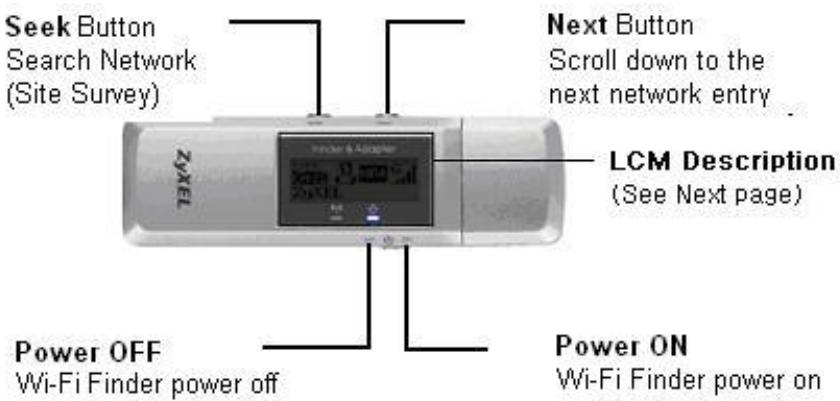
1.2 ZyXEL AG-225H Wi-Fi Finder User Interface
1.3 LCM Description
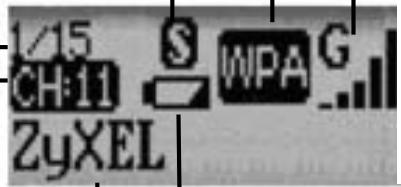
Detect Mode
3 Display up to 15 detected networks in the order of the signal strength
Display the detected networks without any security setting (free hot spot).
Display the dedicated network you choose to use
Entry
Display the current entry of the detected Access Points. Users can detect up to 15 networks at one time.
Channel
Display the radio channel of the detected network.
SSID
The SSID identifies the Service Set to the network users detect. When the length of SSID is longer than 12 characters, it will be scrolled horizontally.
Security Information
WEP WEP security is enabled.
WPA WPA security is enabled.
Wireless security is disabled (no security)
Signal
Indicate A/B/G World Wide Radio Band.
5 levels of signal strength.
A 802.11a mode at 5 GHz band
B 802.11b mode at 2.4 GHz band
G 802.11g mode at 2.4 GHz band
Power
Display Low Battery
Display Full Battery
1.4 Basic Operation
Follow the instructions in the Quick Start Guide to know how to operate AG-225H Wi-Fi Finder Mode.
1.5 ZyXEL AG-225H Adapter Hardware and Utility Installation
Follow the instructions in the Quick Start Guide to install the ZyXEL Utility and make hardware connections.
1.6 Using the ZyXEL Utility to Configure Your Network
The following are explanations on how to configure and use the ZyXEL Utility program. For initial setup, please see the included Quick Start Guide.
After completing the installation procedure, a Z icon as shown below will automatically appear in the lower right tray bar.

Double-clicking on the icon will display the following ZyXEL utility window.
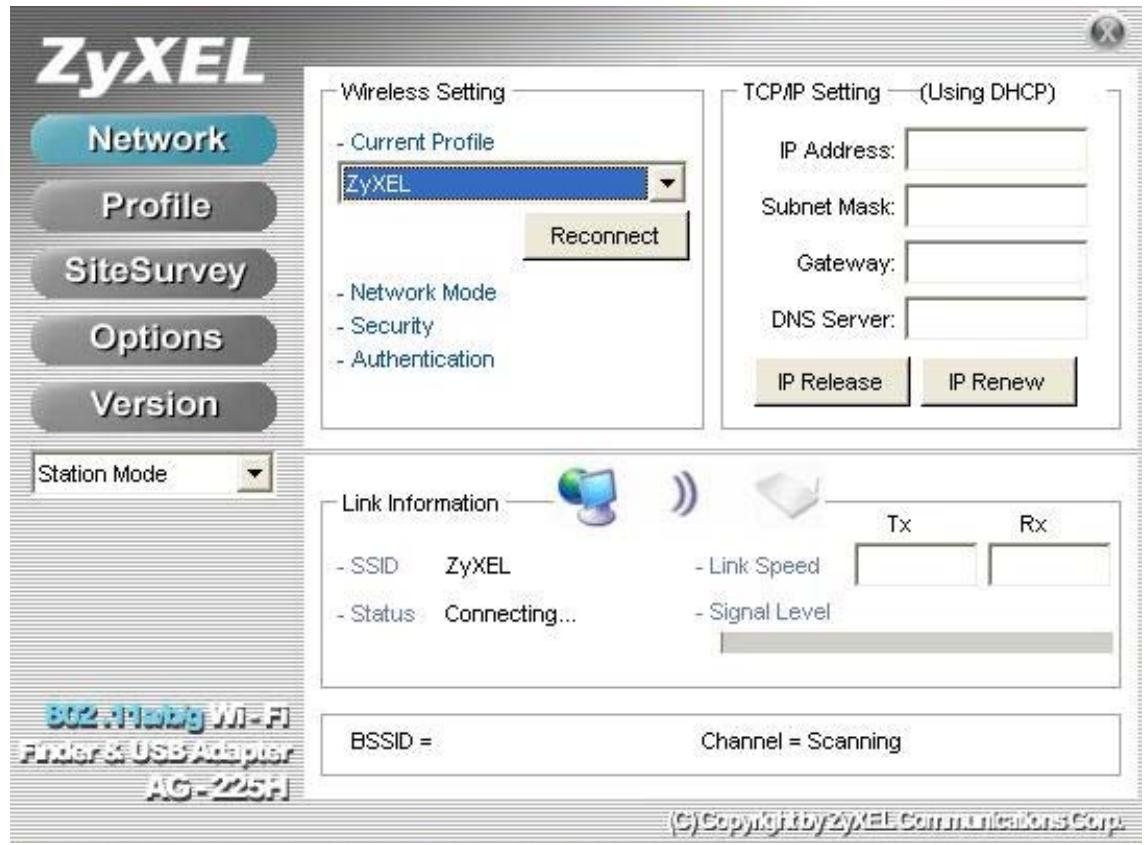
Each of the pages (Network, Profile, Site Survey, Options, Version) presented in the ZyXEL Utility are explained in the following sections.
1.6.1 Network
This page shows how the network is presently configured: network mode, information on the connected AP, TCP/IP, etc. This information cannot be modified in the Network screen.
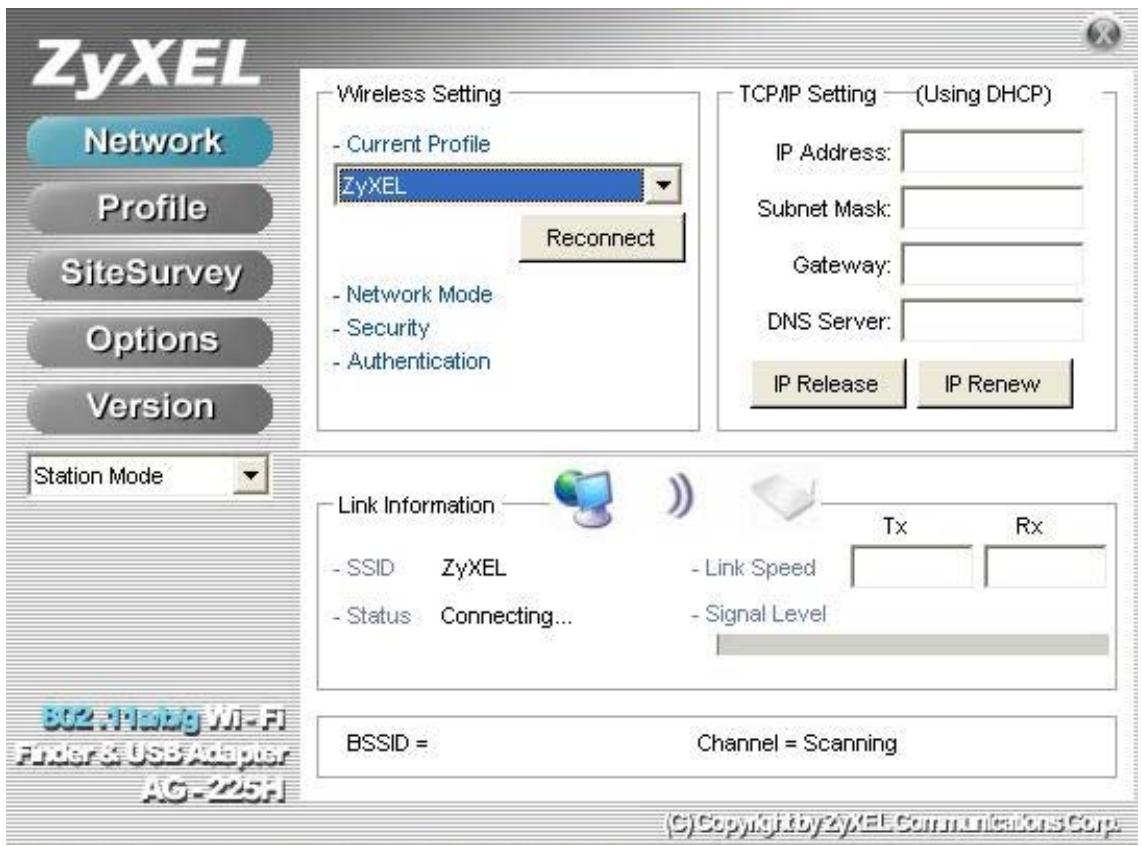
The "Link Information" (lower) window shows the signal quality, signal strength, channel, etc. between the client and AP. It is always in view regardless of which page (Network, Profile, Search, Option, Version) is selected within the ZyXEL Utility.
1.6.2 Profile
This page is used to manage connections with Access Points. You can create different configuration profiles for connections with different APs and SSIDs.
The advantage of saving different profiles is the easiness of quickly changing connections without having to configure the PC with every single variable each time a connection change is made. Also, when configuring TCP/IP via the ZyXEL Utility you do not need to reboot the PC as when TCP/IP configuration is done via Windows' Control Panel.
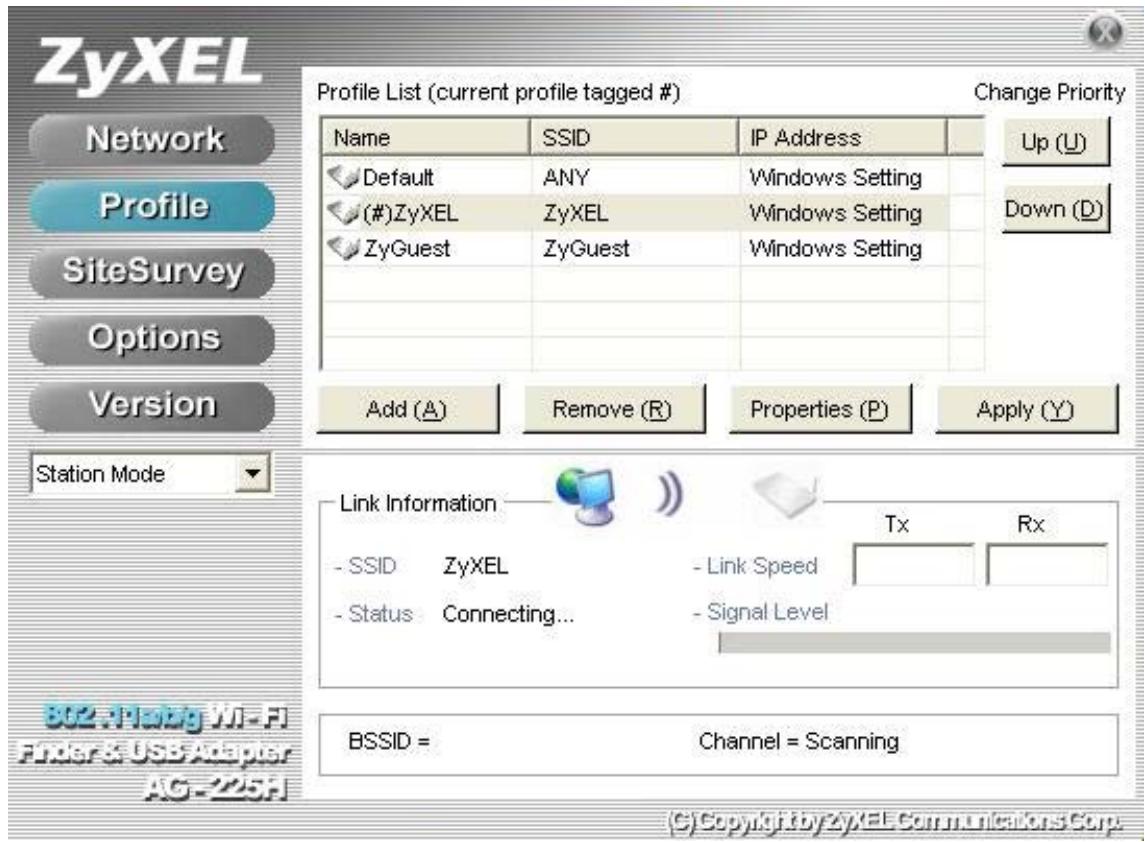
Explanation of each button in this page is shown below.
Add
Clicking on this button enables you to create a new profile. The following steps show how this can be done
1) Click on [Add] and the following screen will appear.
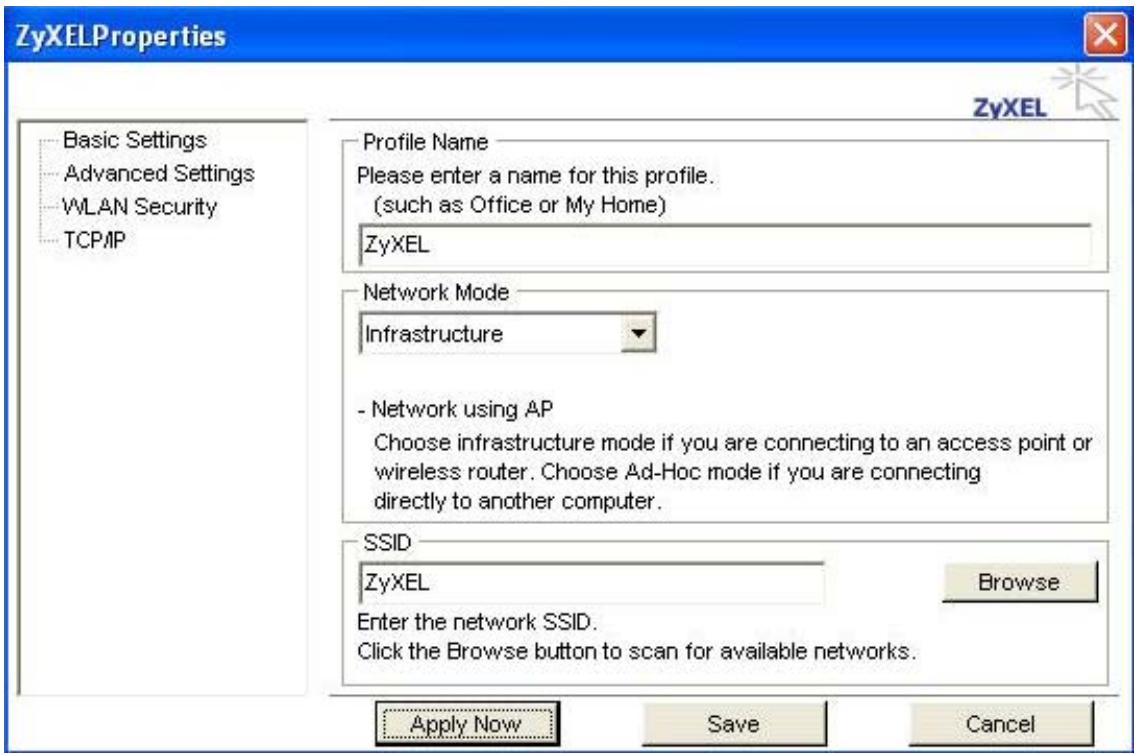
2) On this screen you will insert some basic settings for your wireless network.
a. [Profile Name] Enter in a descriptive name for this profile.
b. [Network Mode] If connecting to an access point or wireless router, choose "Infrastructure". If you are going to network one computer directly to another computer without an access point, then choose "Ad-Hoc".
c. [SSID] Select [Browse] The utility will perform a brief site survey and display the results to you. Click on the SSID^4 of the access point you would like to connect to and
then click on [Add to Profile]. If the access point you choose has encryption enabled, a window will pop up reminding you to enter the encryption information on the next page. If your access point is not listed, close the [Site Survey] window, and type the name of the SSID into the [SSID] field.
d. Click [Next]. The following screen will appear.
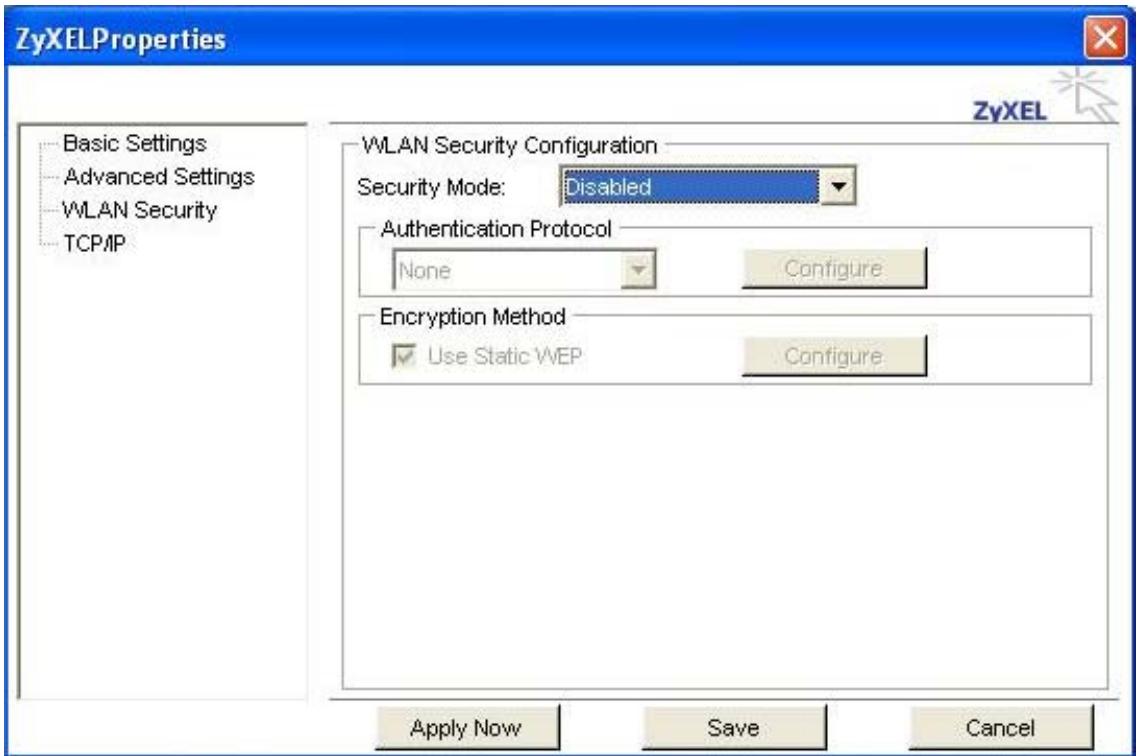
This screen will vary in appearance depending on whether any encryption was detected with your access point.
3) Enter in the appropriate security information.
^4 SSID: The SSID is a group name used by users of a common wireless network. Only those devices using the same SSID are able to access each other. Also, you must use the same SSID as the Access Point you want to connect with. SSIDs are case sensitive so take care to make sure your capitalization matches.
Remove
To remove a profile from the "Profile List" select it and then click on [Remove].
Apply
If you want to change the current profile with another profile from the "Profile List", select the desired profile and click on [Apply]. The new profile will immediately become the current profile and you will be connected with its SSID.
Properties
Selecting a profile from the "Profile List" and clicking on [Properties] will allow you to check and/or modify the properties of the selected profile. Clicking on [Properties] will take you to the following screen.
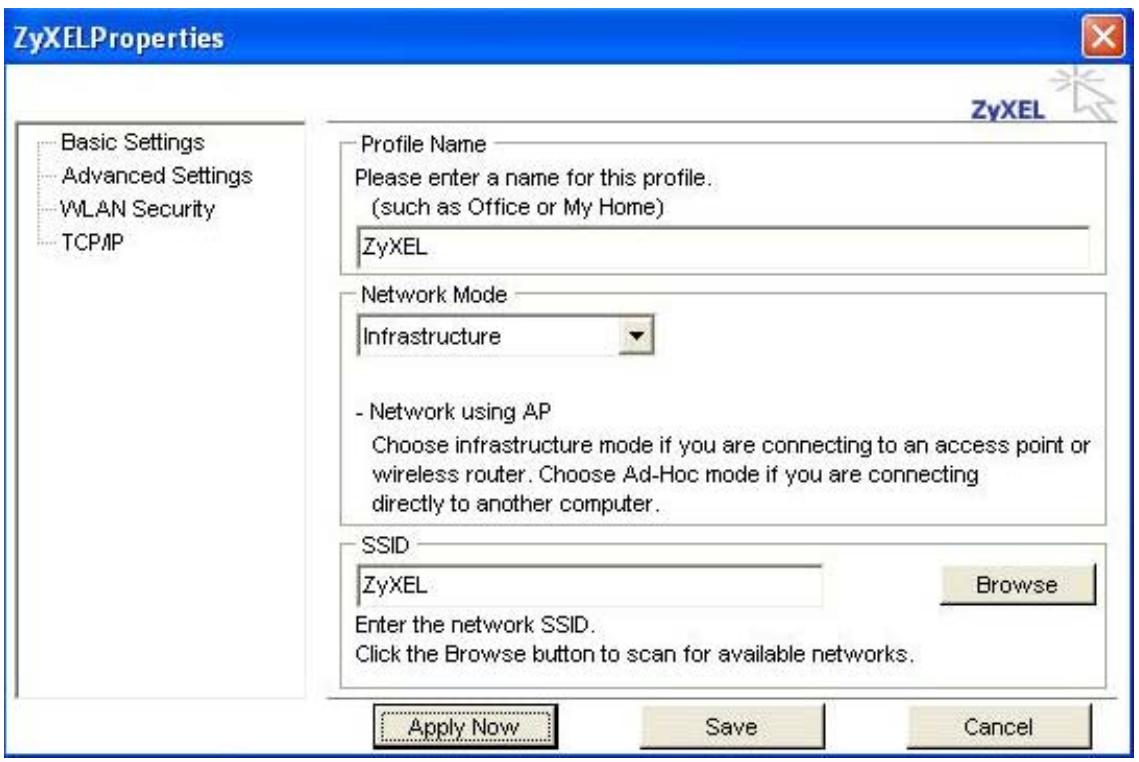
Each page in [Properties] is explained below.
Basic Settings: In this page, you can verify the name of the current profile.
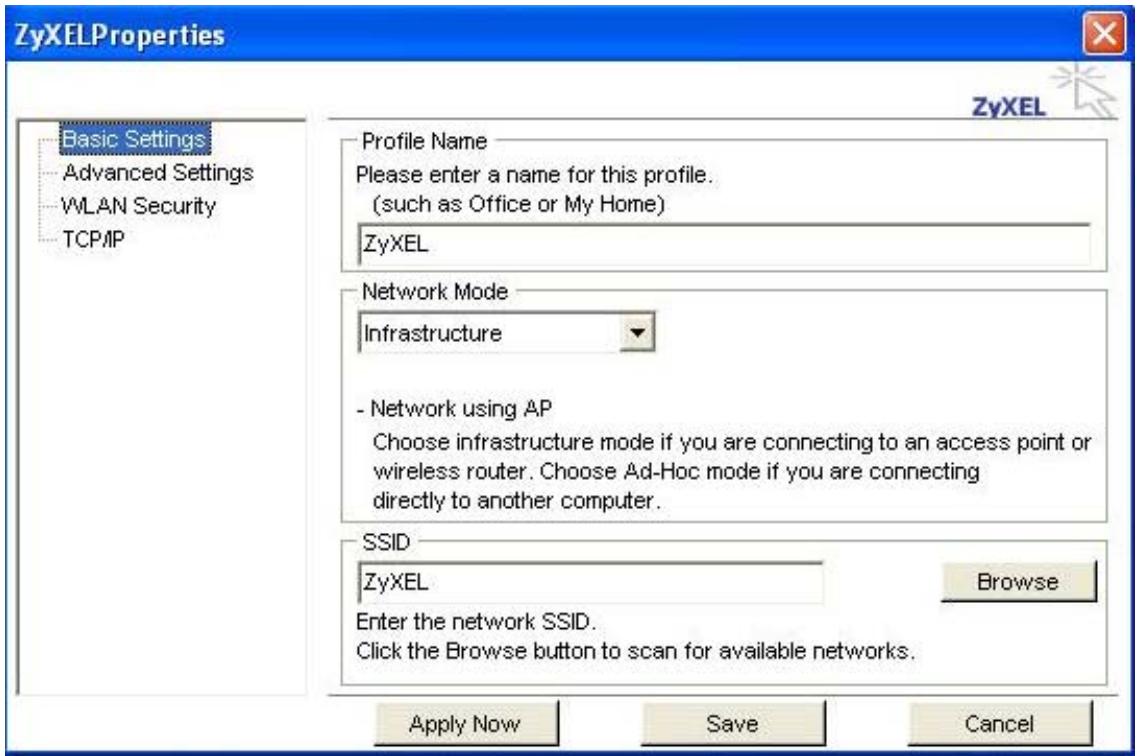
[Profile Name] Allows you to change the name of the current profile.
[Network Mode] Allows you to change between Infrastructure and Ad-Hoc networking modes.
[SSID] Allows you to change the SSID that this profile will associate with. Use the [Browse] button to perform a site survey and select the SSID from a list of available SSIDs. Keep in mind when manually entering an SSID that SSIDs are case sensitive.
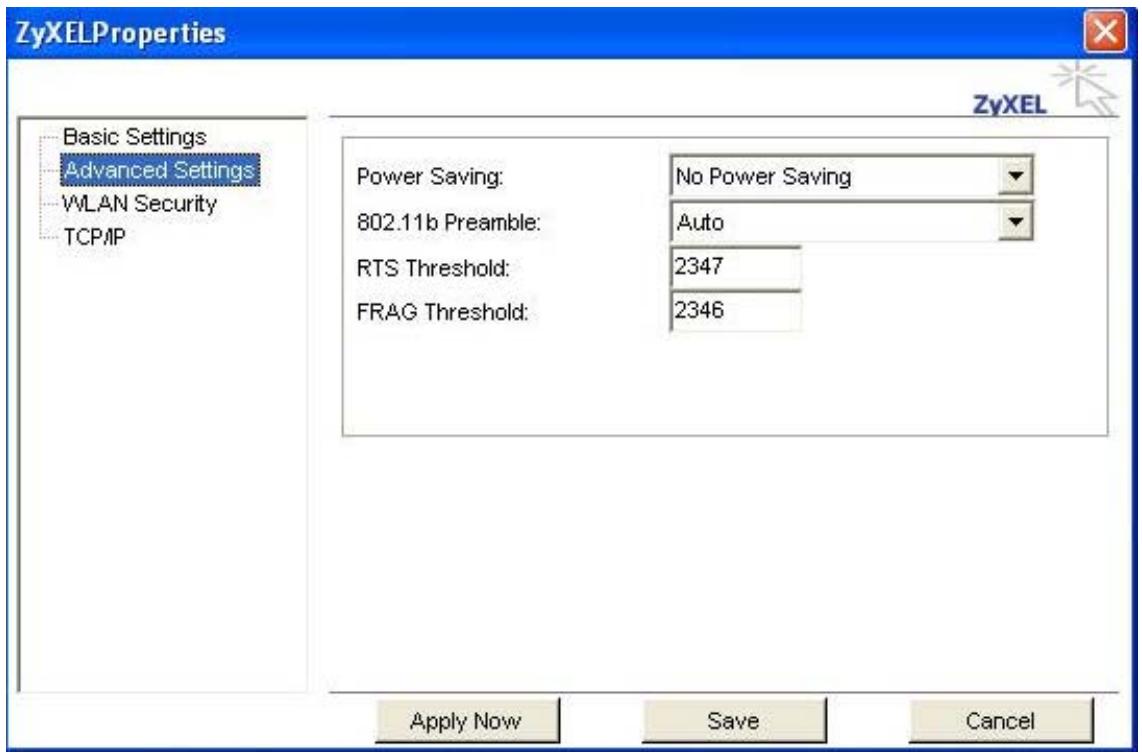
Advanced Settings: This screen allows you to make changes to the default ways the adapter operates including advanced 802.11 settings. Unless you are an advanced user and have deep knowledge about each property on this page, it is recommended that you leave them at the default settings.
WLAN Security: This screen allows you to configure the security settings of your wireless LAN.
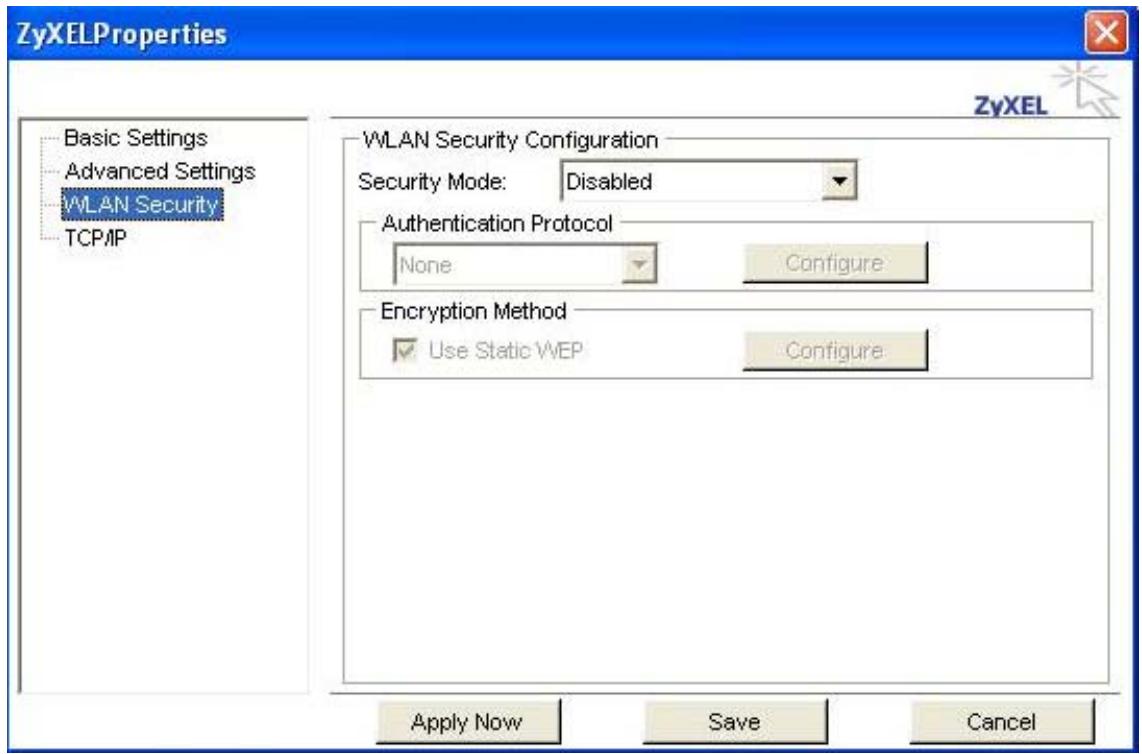
Security Mode
1) Disabled
All data sent between the AP and the client is left unencrypted and may be viewed by other wireless devices.
2) WEP
Wired Equivalent Privacy – Encrypted all traffic sent between the AP and the client using a shared key. When using WEP encryption (available in 64, 128, or 256-bit), only those APs and PCs using the same WEP Key are allowed to communicate with each other.
3) WPA-PSK or WPA2-PSK
WPA-PSK or WPA2-PSK is a compromise between WPA and WEP. Like WEP, it uses a pre-shared key that every user of the network must have in order to be able to send and receive data. Like WPA, it uses either TKIP or AES, which improve greatly over the encryption found in WEP. In the utility, WPA-PSK or WPA2-PSK is enabled and it will automatically depend on the AP/Router's setting to switch either WPA-PSK or WPA2-PSK.
We recommend you use WPA-PSK or WPA2-PSK whenever possible.
TCP/IP: This allows you to change your TCP/IP settings.
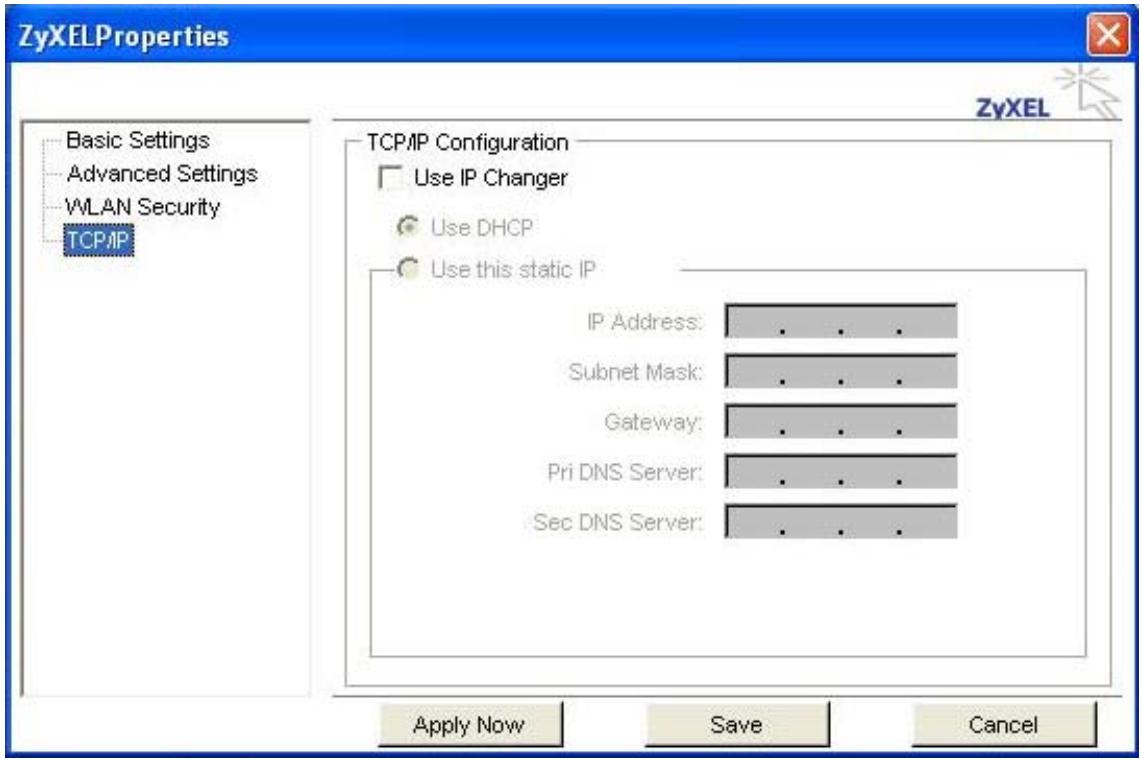
[Use IP Changer] By putting a checkmark in the box, you will overwrite your existing WLAN TCP/IP configuration and use the IP Changer software built-into the ZyXEL Utility. This allows you to configure TCP/IP settings for each profile.
1.6.3 Site Survey
This page shows a list of SSIDs in your vicinity. Information regarding each SSID is also shown: SSID, mode, signal strength, channel, BSSID (MAC address), data rate, and WEP, WPA, WPA-PSK, etc status.
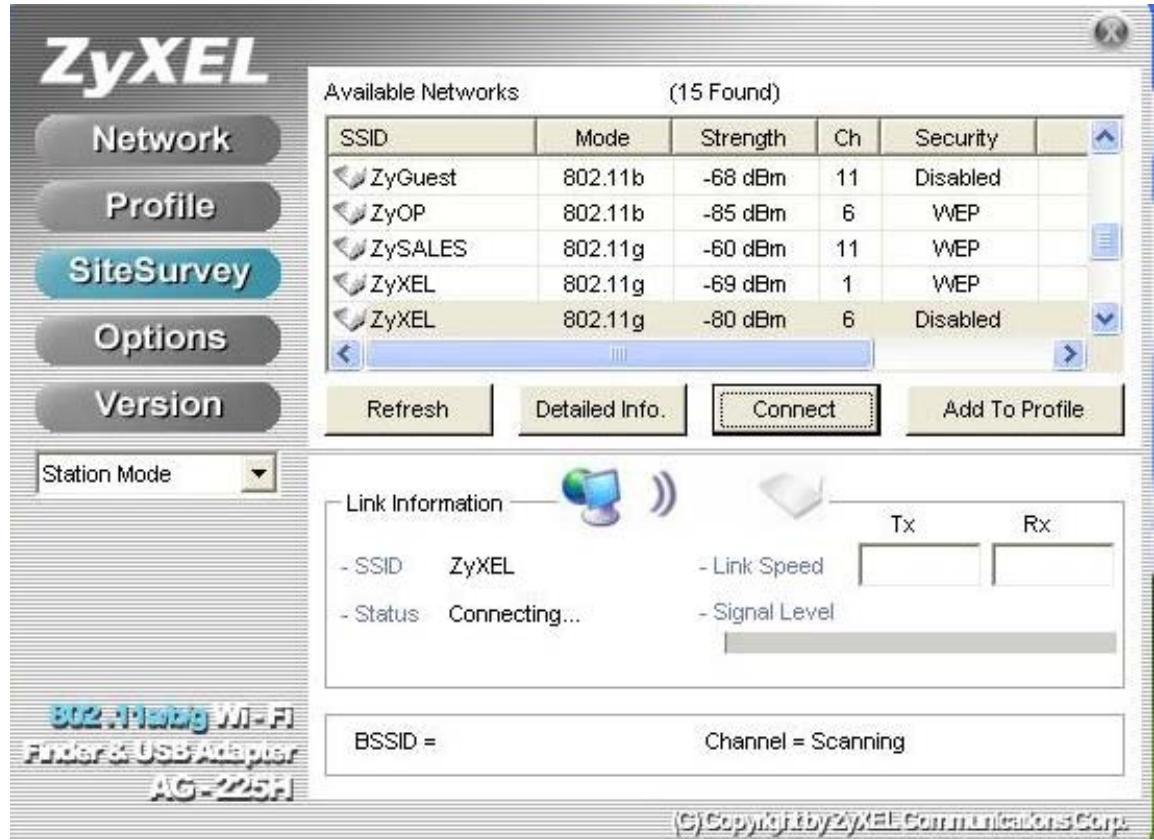
Refresh
[Refresh] will scan the vicinity for a certain amount of time and display the scan results.
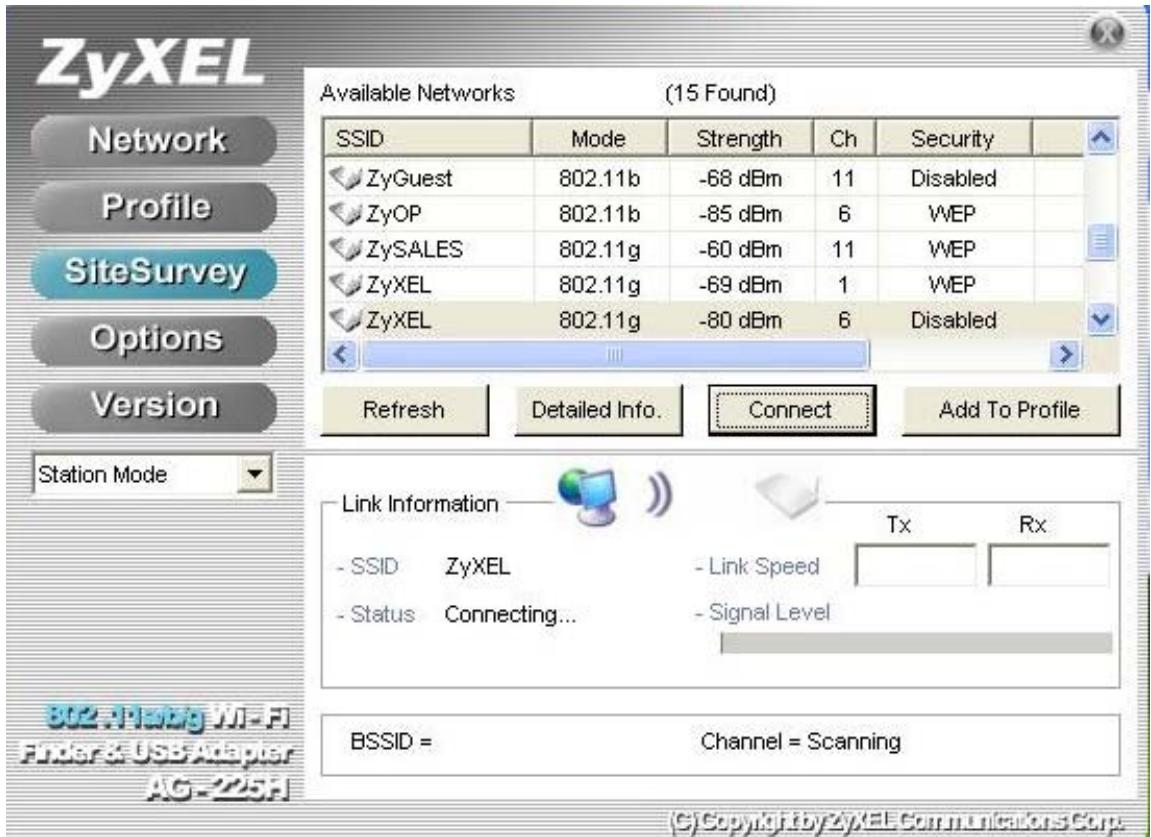
Selecting a network from the [Available Networks] list will enable the [Detail Info], [Connect] and [Add to profile] buttons.
Detail Info
[Detail info] will display the following screen showing the selected device's configuration information. An alternative to clicking on [Detail info] is double-clicking on the SSID of choice.
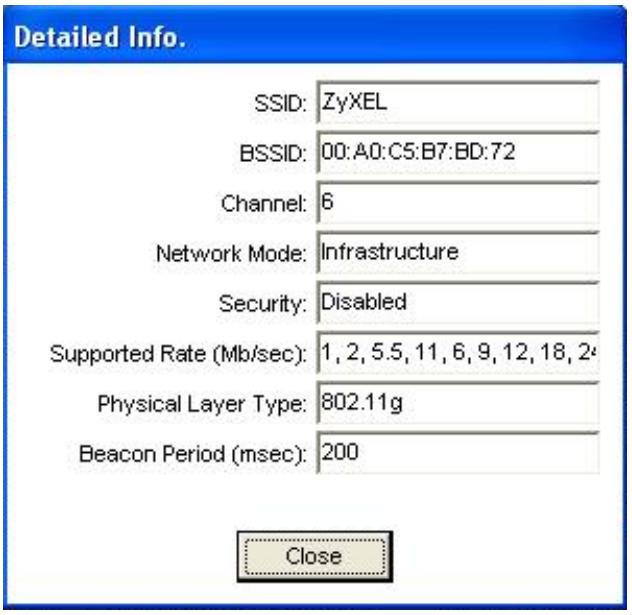
Connect
[Connect] will immediately connect you with the selected network.
Add to profile
[Add to profile] will have the same effect as clicking on [Add] in the [Profile] page
1.6.4 Options
In this page you can configure the behavior of the ZyXEL utility.
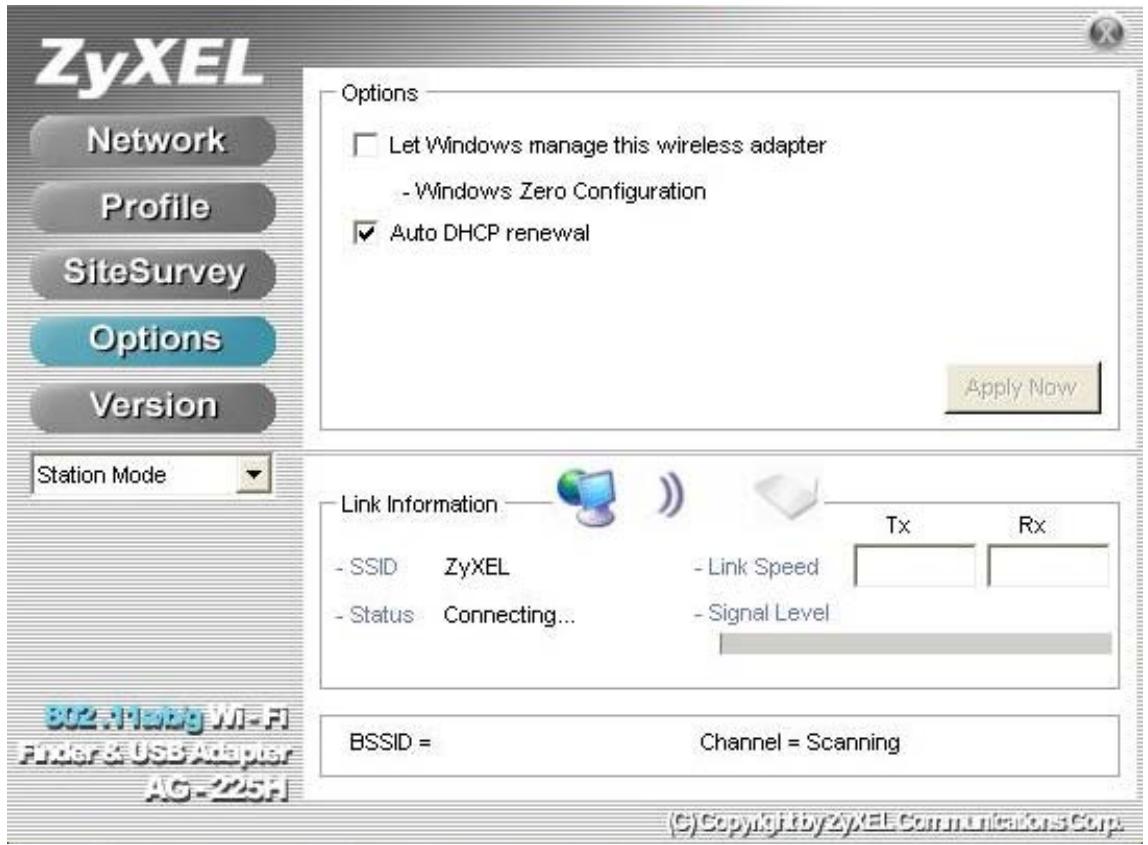
Let Windows manage this wireless adapter - Windows Zero configuration
Allows you to use Windows to configure your wireless network settings. Check this box to configure.
Auto DHCP renewal
Automatically renews the DHCP information after changing profiles.
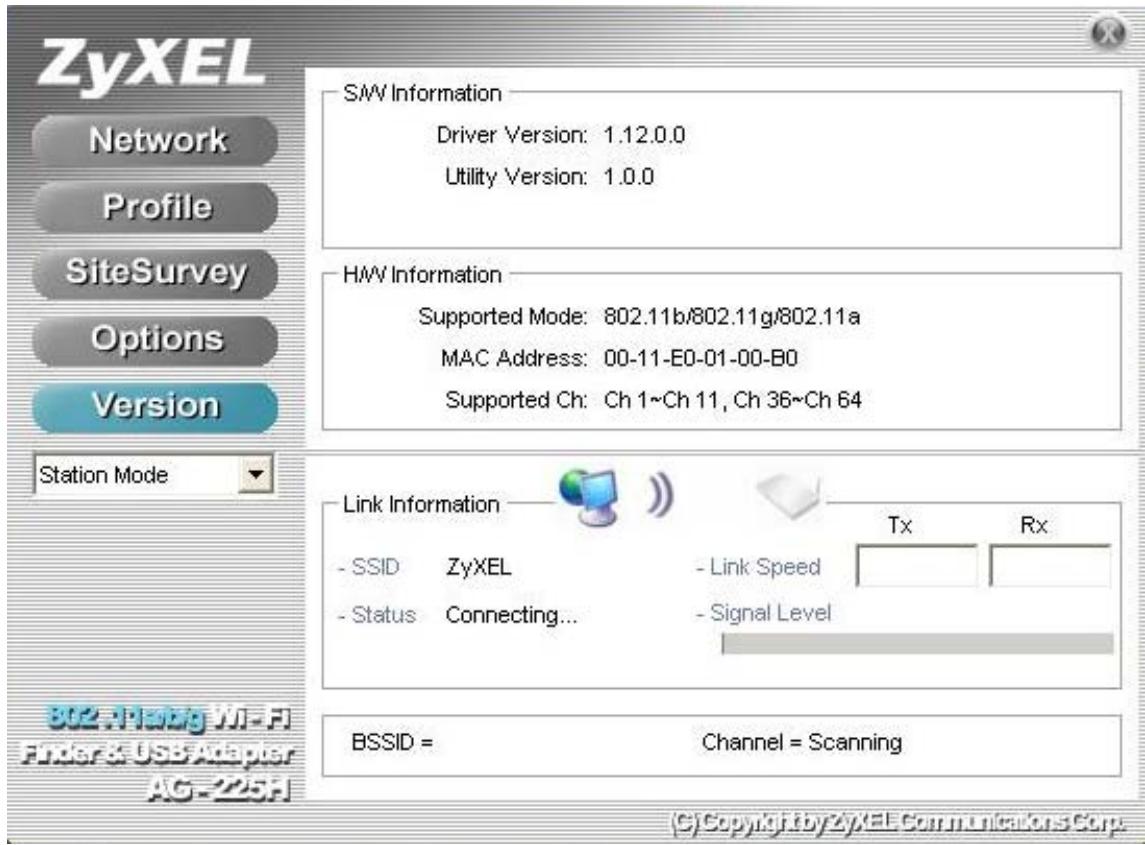
1.6.5 Version
Software and Hardware information of the current client device.
1.7 ZyAIR Modes
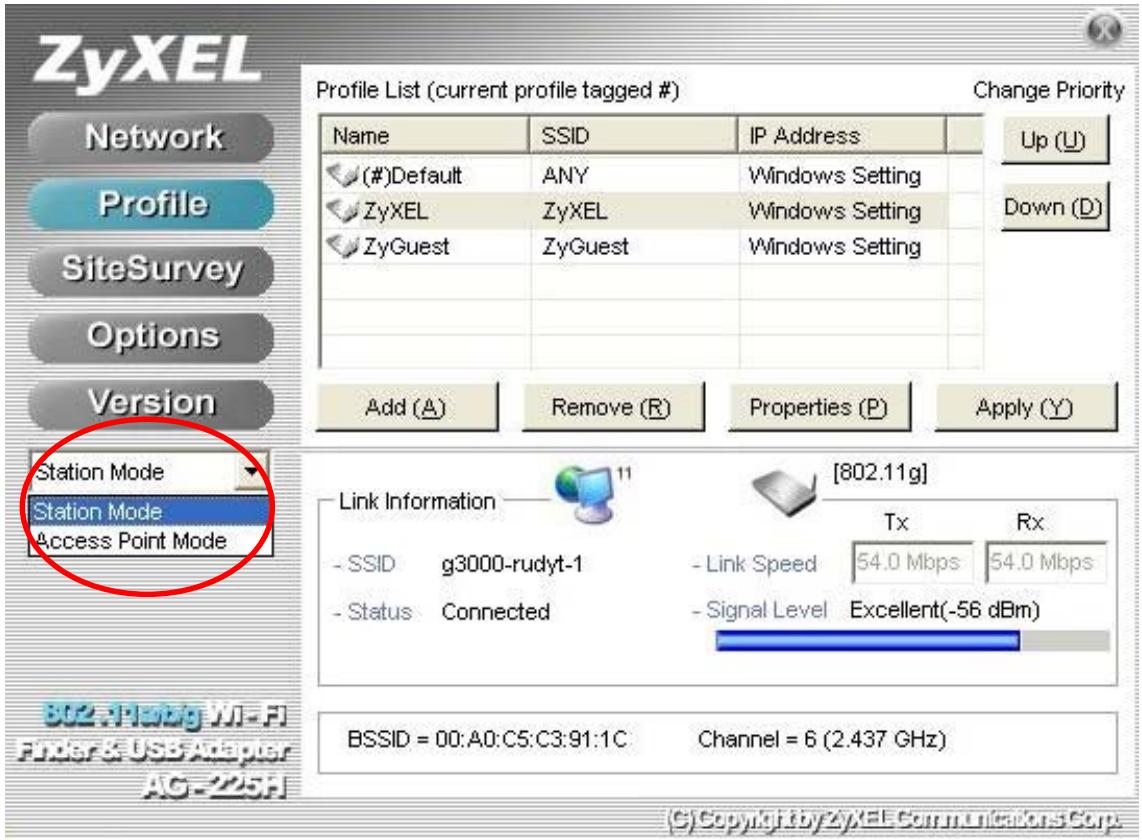
You can set your ZyAIR to operate in either wireless station or access point (AP) modes.
In wireless station mode, your ZyAIR must connect to a peer wireless station or an AP to take part in your wireless network.
In access point mode, your ZyAIR functions as an access point. This allows you to set up your wireless network without using a dedicated AP device. Up to 15 wireless stations can associate to the ZyAIR to form a wireless network.
1.7.1 Change ZyAIR Modes
You may change between the modes; select either the Station Mode or AP Mode option in the ZyXEL Utility screen.
Chapter 2
Wireless LAN Networking
This chapter provides background information on general wireless LAN networking technology and terminology.
2.1 Overview
This section describes the wireless LAN network terms and applications.
2.1.1 SSD
The SSID (Service Set Identity) is a unique name shared among all wireless devices in a wireless network. Wireless devices must have the same SSID to communicate with each other.
2.1.2 Channel
A radio frequency used by a wireless device is called a channel.
2.1.3 Transmission Rate (Transfer Rate)
The ZyXEL AG-225H provides various transmission (data) rate options for you to select. Options include Fully Auto, 1 Mbps, 2 Mbps, 5.5 Mbps, 11 Mbps, 6 Mbps, 9 Mbps, 12 Mbps, 18 Mbps, 24 Mbps, 36 Mbps, 48 Mbps and 54 Mbps. In most networking scenarios, the factory default Fully Auto setting proves the most efficient. This setting allows your ZyXEL AG-225H to operate at the maximum transmission (data) rate. When the communication quality drops below a certain level, the ZyXEL AG-225H automatically switches to a lower transmission (data) rate. Transmission at lower data speeds is usually more reliable. However, when the communication quality improves again, the ZyXEL AG-225H gradually increases the transmission (data) rate again until it reaches the highest available transmission rate.
2.1.4 Wireless Network Application
Wireless LAN works in either of the two modes: ad-hoc and infrastructure.
To connect to a wired network within a coverage area using Access Points (APs), set the ZyXEL AG-225H operation mode to Infrastructure (BSS). An AP acts as a bridge between the wireless stations and the wired network. In case you do not wish to connect to a wired network, but prefer to set up a small independent wireless workgroup without an AP, use the Ad-hoc (IBSS) (Independent Basic Service Set) mode.
Ad-Hoc (IBSS)
Ad-hoc mode does not require an AP or a wired network. Two or more wireless stations communicate directly to each other. An ad-hoc network may sometimes be referred to as an Independent Basic Service Set (IBSS).
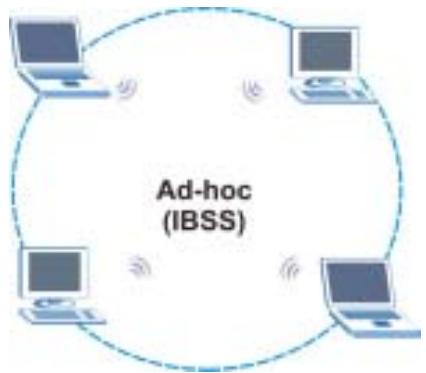
Figure 2-1 IBSS Example
To set up an ad-hoc network, configure all wireless stations in ad-hoc network type and use the same SSID and channel.
Infrastructure (BSS)
When a number of wireless stations are connected using a single AP, you have a Basic Service Set (BSS).
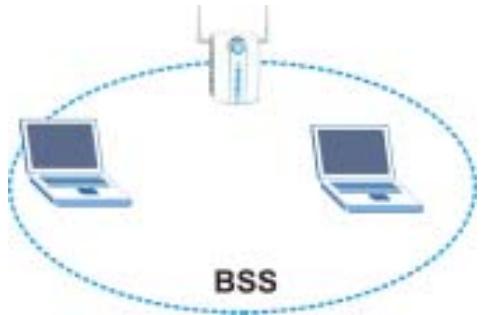
Figure 2-2 BSS Example
A series of overlapping BSS and a network medium, such as an Ethernet forms an Extended Service Set (ESS) or infrastructure network. All communication is done through the AP, which relays data packets to other wireless stations or devices connected to the wired network. Wireless stations can then access resource, such as the printer, on the wired network.
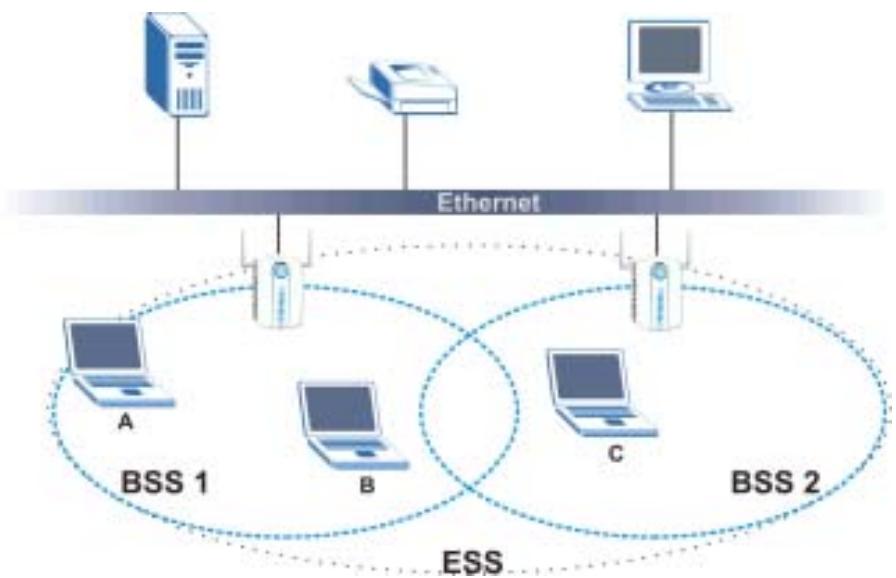
Figure 2-3 Infrastructure Network Example
Access Point Mode
The following figure depicts a network example in which you set the ZyAIR in access point mode.
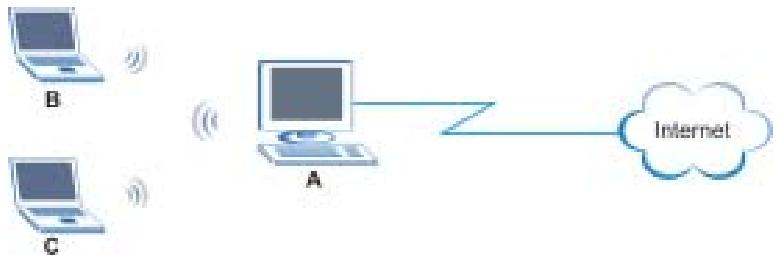
Figure 2-4 ZyAIR as an Access Point Example
In the example, the ZyAIR is installed on computer A and set to operate in access point mode. Computer A shares Internet connection to the wireless LAN, so wireless stations B and C can access the Internet.
2.1.5 Roaming
In an infrastructure network, wireless stations are able to switch from one BSS to another as they move between the coverage areas. During this period, the wireless stations maintain uninterrupted connection to the network. This is roaming. As the wireless station moves from place to place, it is responsible for choosing the most appropriate AP depending on the signal strength, network utilization or other factors.
The following figure depicts a roaming example. When wireless station B moves to position X , the ZyXEL AG-225H in wireless station B automatically switches the channel to the one used by access point 2 in order to stay connected to the network.
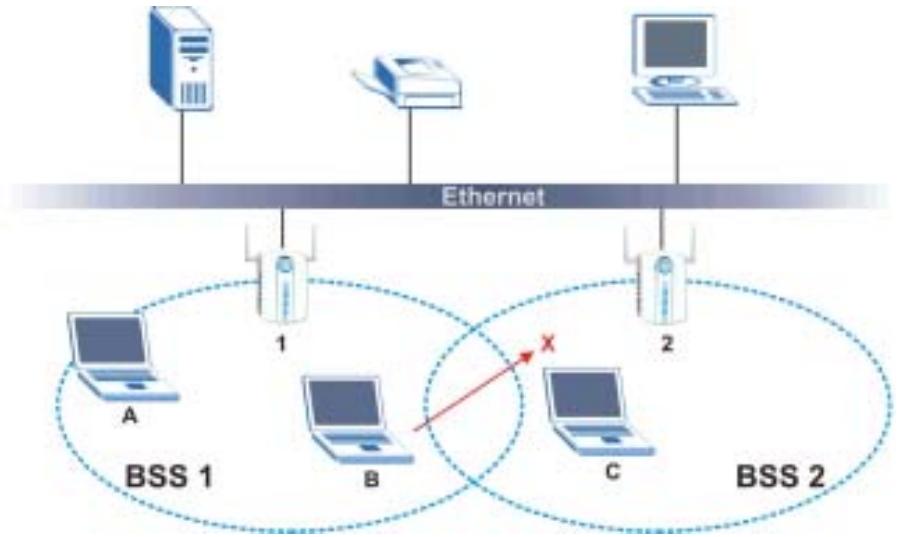
Figure 2-5 Roaming Example
2.2 Wireless LAN Security
Wireless LAN security is vital to your network to protect wireless communication between wireless stations and the wired network.
The figure below shows the possible wireless security levels on your ZyXEL AG-225H. EAP (Extensible Authentication Protocol) is used for authentication and utilizes dynamic WEP key exchange. It requires interaction with a RADIUS (Remote Authentication Dial-In User Service) server either on the WAN or your LAN to provide authentication service for wireless stations.
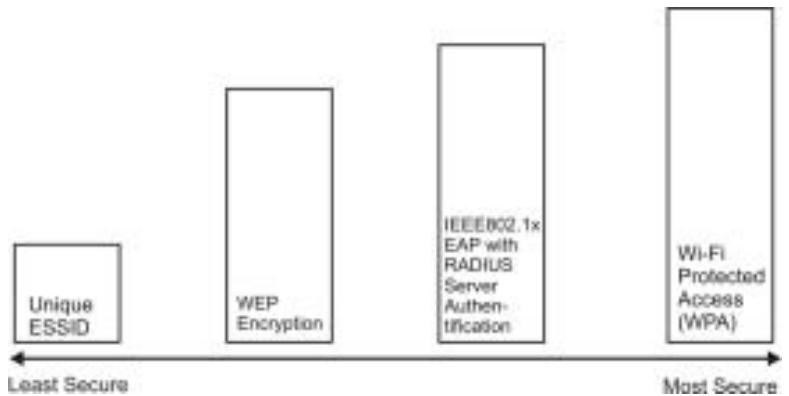
Figure 2-6 Wireless LAN Security Levels
Configure the wireless LAN security using the Profile Security Settings screen. If you do not enable any wireless security on your ZyXEL AG-225H, the ZyXEL AG-225H's wireless communications are accessible to any wireless networking device that is in the coverage area.
2.2.1 Data Encryption with WEP
WEP (Wired Equivalent Privacy) encryption scrambles all data packets transmitted between the ZyXEL AG-225H and the AP or other wireless stations to keep network communications private. Both the wireless stations and the access points must use the same WEP key for data encryption and decryption.
There are two ways to create WEP keys in your ZyXEL AG-225H.
Automatic WEP key generation based on a "password phrase" called a passphrase. The passphrase is case sensitive. You must use the same passphrase for all WLAN adapters with this feature in the same WLAN.
For WLAN adapters without the passphrase feature, you can still take advantage of this feature by writing down the four automatically generated WEP keys from the Security Settings screen of the ZyXEL Utility and entering them manually as the WEP keys in the other WLAN adapter(s).
- Enter the WEP keys manually.
Your ZyXEL AG-225H allows you to configure up to four 64-bit, 128-bit or 152-bit WEP keys and only one key is used as the default key at any one time.
2.2.2 IEEE 802.1x
The IEEE 802.1x standard outlines enhanced security methods for both the authentication of wireless stations and encryption key management. Authentication can be done using an external RADIUS server.
EAP Authentication
EAP (Extensible Authentication Protocol) is an authentication protocol that runs on top of the IEEE802.1x transport mechanism in order to support multiple types of user authentication. By using EAP to interact
with an EAP-compatible RADIUS server, an access point helps a wireless station and a RADIUS server perform authentication.
The type of authentication you use depends on the RADIUS server and an intermediary AP(s) that supports IEEE802.1x. The ZyXEL AG-225H supports EAP-TLS, EAP-TTLS and EAP-PEAP.
For EAP-TLS authentication type, you must first have a wired connection to the network and obtain the certificate(s) from a certificate authority (CA). A certificate (also called digital IDs) can be used to authenticate users and a CA issues certificates and guarantees the identity of each certificate owner.
2.2.3 WPA/WPA2
Wi-Fi Protected Access (WPA) and WPA2 is a subset of the IEEE 802.11i security specification draft. Key differences between WPA and WEP are user authentication and improved data encryption. WPA2 is a wireless security standard that defines stronger encryption, authentication and key management than WPA.
User Authentication
WPA applies IEEE 802.1x and Extensible Authentication Protocol (EAP) to authenticate wireless clients using an external RADIUS database.
Therefore, if you don't have an external RADIUS server, you should use WPA-PSK (WPA -Pre-Shared Key) that only requires a single (identical) password entered into each access point, wireless gateway and wireless client. As long as the passwords match, a client will be granted access to a WLAN.
Encryption
WPA improves data encryption by using either Temporal Key Integrity Protocol (TKIP) or Advanced Encryption Standard (AES), Message Integrity Check (MIC) and IEEE 802.1x.
Temporal Key Integrity Protocol (TKIP) uses 128-bit keys that are dynamically generated and distributed by the authentication server. It includes a per-packet key mixing function, a Message Integrity Check (MIC) named Michael, an extended initialization vector (IV) with sequencing rules, and a re-keying mechanism.
TKIP regularly changes and rotates the encryption keys so that the same encryption key is never used twice. The RADIUS server distributes a Pairwise Master Key (PMK) key to the AP that then sets up a key hierarchy and management system, using the pair-wise key to dynamically generate unique data encryption keys to encrypt every data packet that is wirelessly communicated between the AP and the wireless clients. This all happens in the background automatically.
The Message Integrity Check (MIC) is designed to prevent an attacker from capturing data packets, altering them and resending them. The MIC provides a strong mathematical function in which the receiver and the transmitter each compute and then compare the MIC. If they do not match, it is assumed that the data has been tampered with and the packet is dropped.
By generating unique data encryption keys for every data packet and by creating an integrity checking mechanism (MIC), TKIP makes it much more difficult to decode data on a Wi-Fi network than WEP, making it difficult for an intruder to break into the network.
The encryption mechanisms used for WPA and WPA-PSK are the same. The only difference between the two is that WPA-PSK uses a simple common password, instead of user-specific credentials. The common
password approach makes WPA-PSK susceptible to brute-force password-guessing attacks but it's still an improvement over WEP as it employs an easier-to-use, consistent, single, alphanumeric password.
2.2.4 WPA-PSK/WPA2-PSK Application Example
A WPA-PSK application looks as follows.
Step 1. First enter identical passwords into the AP and all wireless clients. The Pre-Shared Key (PSK) must consist of between 8 and 63 ASCII characters (including spaces and symbols).
Step 2. The AP checks each client's password and (only) allows it to join the network if it matches its password.
Step 3. The AP derives and distributes keys to the wireless clients.
Step 4. The AP and wireless clients use the TKIP encryption process to encrypt data exchanged between them.
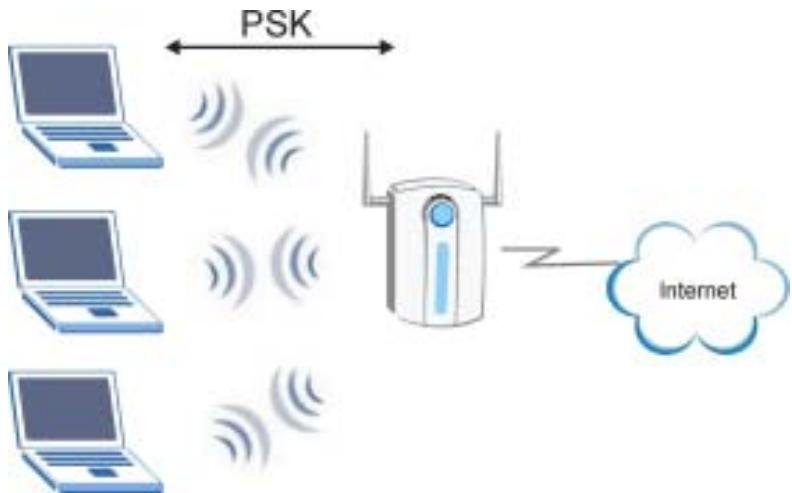
Figure 2-7 WPA-PSK/WPA2-PSK Authentication
2.2.5 WPA/WPA2 with RADIUS Application Example
You need the IP address of the RADIUS server, its port number (default is 1812), and the RADIUS shared secret. A WPA/WPA2 application example with an external RADIUS server looks as follows. "A" is the RADIUS server. "DS" is the distribution system.
Step 1. The AP passes the wireless client's authentication request to the RADIUS server.
Step 2. The RADIUS server then checks the user's identification against its database and grants or denies network access accordingly.
Step 3. The RADIUS server distributes a Pairwise Master Key (PMK) key to the AP that then sets up a key hierarchy and management system, using the pair-wise key to dynamically generate unique
data encryption keys to encrypt every data packet that is wirelessly communicated between the AP and the wireless clients.
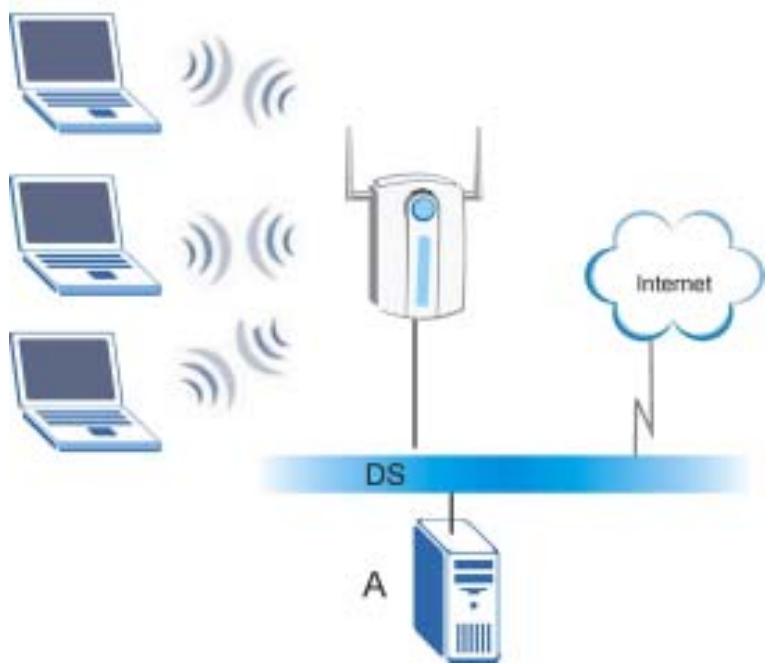
Figure 2-8 WPA/WPA2 with RADIUS Application Example
2.3 Fragmentation Threshold
The Fragmentation Threshold is the maximum data fragment size (between 256 and 2432 bytes) that can be sent in the wireless network before the ZyXEL AG-225H will fragment the packet into smaller data frames.
A large Fragmentation Threshold is recommended for networks not prone to interference while you should set a smaller threshold for busy networks or networks that are prone to interference.
If the Fragmentation Threshold value is smaller than the RTS/CTS Threshold value (see previously) you set then the RTS (Request To Send)/CTS (Clear to Send) handshake will never occur as data frames will be fragmented before they reach RTS/CTS Threshold size.
2.4 RTS/CTS Threshold
A hidden node occurs when two stations are within range of the same access point, but are not within range of each other. The following figure illustrates a hidden node. Both stations are within range of the access point (AP) or wireless gateway, but out-of-range of each other, so they cannot "hear" each other, that is
they do not know if the channel is currently being used. Therefore, they are considered hidden from each other.
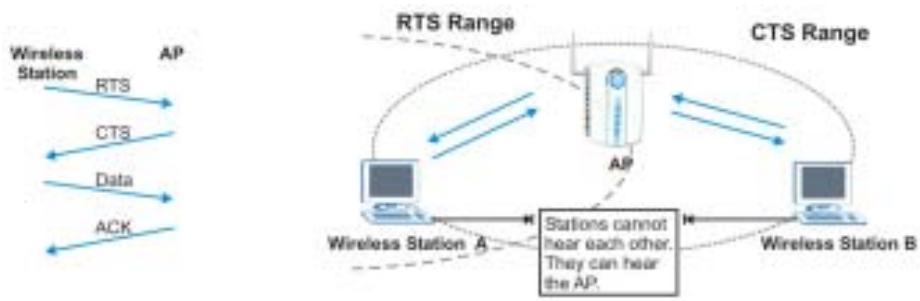
Figure 2-9 RTS Threshold
When station A sends data to the AP, it might not know that the station B is already using the channel. If these two stations send data at the same time, collisions may occur when both sets of data arrive at the AP at the same time, resulting in a loss of messages for both stations.
RTS/CTS Threshold is designed to prevent collisions due to hidden nodes. An RTS/CTS Threshold defines the biggest size data frame you can send before an RTS (Request To Send)/CTS (Clear to Send) handshake is invoked.
When a data frame exceeds the RTS/CTS Threshold value you set (between 0 to 2432 bytes), the station that wants to transmit this frame must first send an RTS (Request To Send) message to the AP for permission to send it. The AP then responds with a CTS (Clear to Send) message to all other stations within its range to notify them to defer their transmission. It also reserves and confirms with the requesting station the time frame for the requested transmission.
Stations can send frames smaller than the specified RTS/CTS Threshold directly to the AP without the RTS (Request To Send)/CTS (Clear to Send) handshake.
You should only configure RTS/CTS Threshold if the possibility of hidden nodes exists on your network and the "cost" of resending large frames is more than the extra network overhead involved in the RTS (Request To Send)/CTS (Clear to Send) handshake.
If the RTS/CTS Threshold value is greater than the Fragmentation Threshold value (see next), then the RTS (Request To Send)/CTS (Clear to Send) handshake will never occur as data frames will be fragmented before they reach RTS/CTS Threshold size.
Enabling the RTS Threshold causes redundant network overhead that could negatively affect the throughput performance.
2.5 Authentication Type
The IEEE 802.11b standard describes a simple authentication method between the wireless stations and AP. Two authentication modes are defined: Open and Share.
Open authentication mode is implemented for ease-of-use and when security is not an issue. The wireless station and the AP do not share a secret key. Thus the wireless stations can associate with any AP and listen to any data transmitted plaintext.
Shared authentication mode involves a shared secret key to authenticate the wireless station to the AP. This requires you to enable the wireless LAN security and use same settings on both the wireless station and the AP.
Chapter 3
Access Point Mode Configuration
This chapter shows you how to configure your ZyAIR in access point mode.
3.1 Introduction
In access point mode, your ZyAIR functions as an access point. This allows you to set up your wireless networks without using a dedicated AP device. Up to 15 wireless stations can associate to the ZyAIR.
3.1.1 Additional Setup Requirements
To bridge your wired and wireless network using the ZyAIR, the following requirements must be met:
- The ZyAIR must be installed on a computer connected to the wired network.
- Either configure network sharing (refer to the appendix for an example) or bridge the two interfaces (wireless and wired) on the computer.
- Set the wireless station's IP address to be in the same subnet as the computer in which the ZyAIR is installed. Refer to the Setting Up Your Computer's IP Address appendix.
3.2 The Profile Screen
Select the Access Point Mode and wait for about five seconds to display the screen as shown.
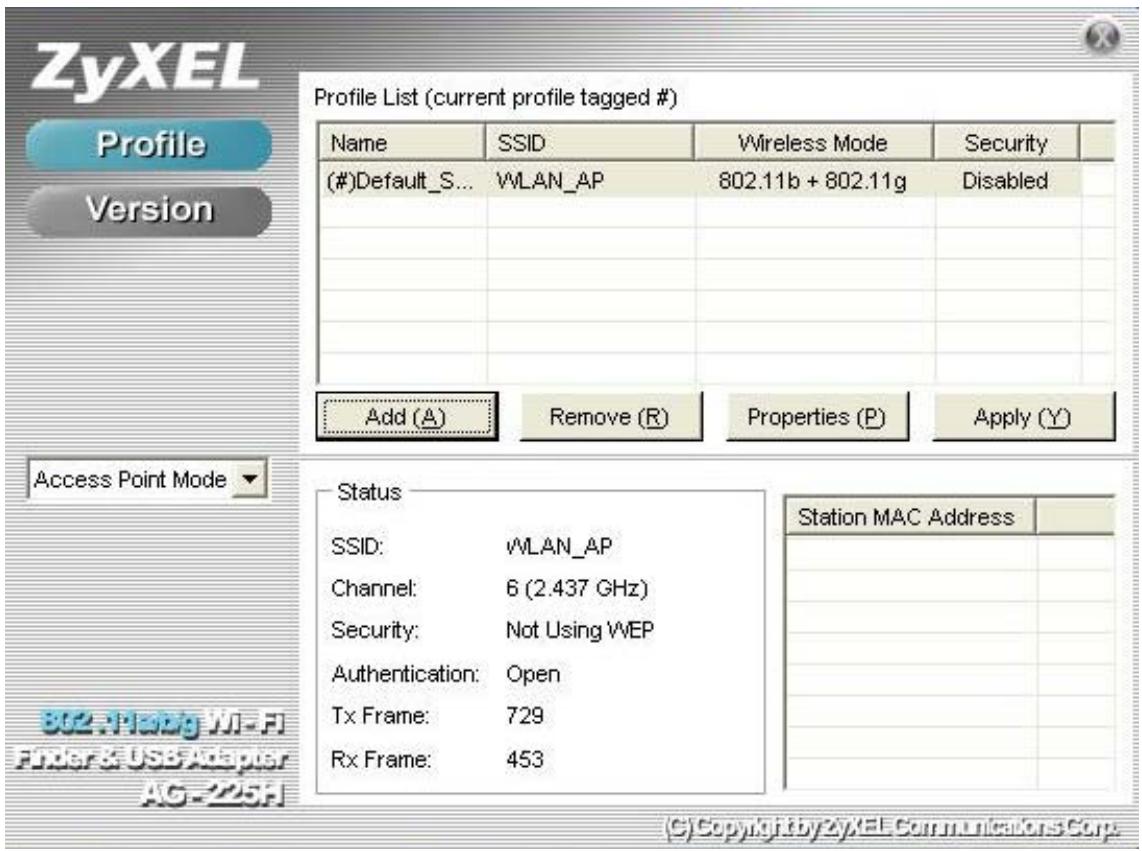
Profile
| LABEL | DESCRIPTION |
| Status | |
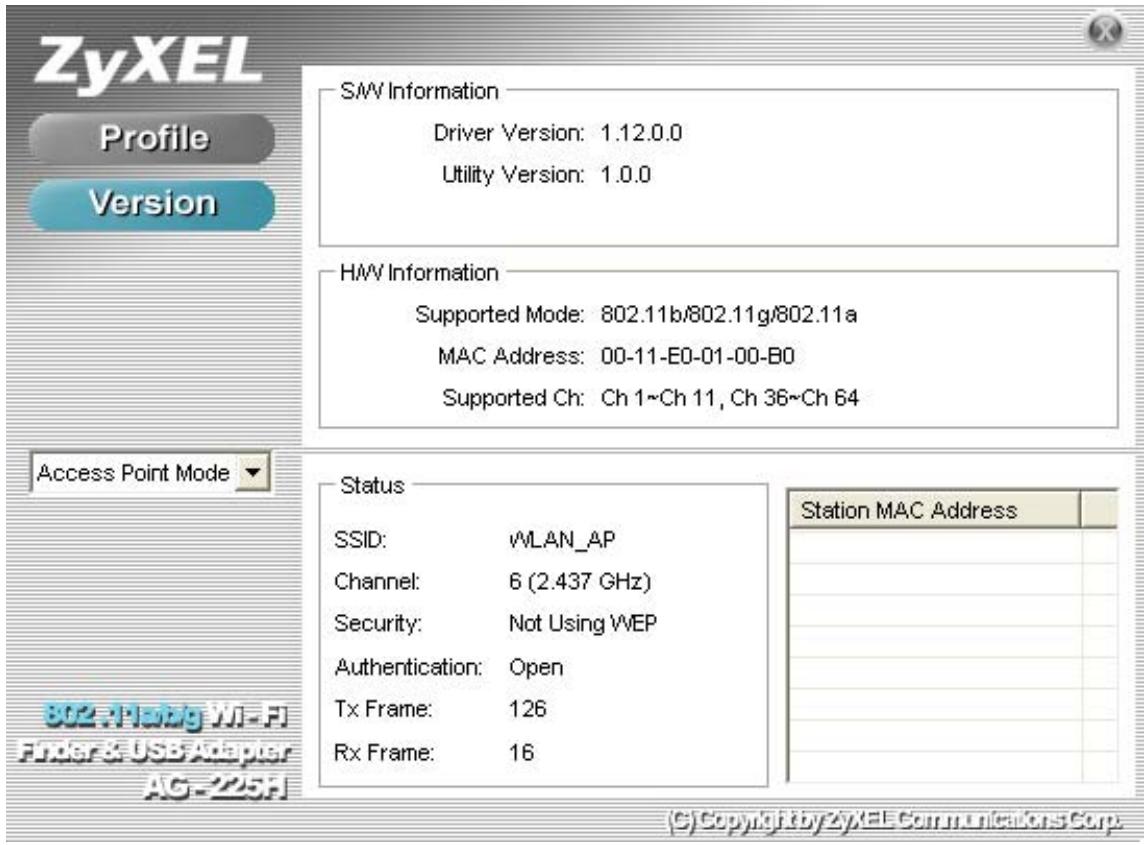
| SSID | This field displays the name that identifies your ZyAIR in the wireless LAN network. |
| Channel | This field displays the radio channel the ZyAIR is currently using. |
| Security | This field displays the authentication type of the ZyAIR. |
| Authentication | Select an authentication method. Choices are Shared and OpenRefer to section 2.5 for detail information |
| TX Frame | This field shows the number of frame when transmitting |
Profile
| LABEL | DESCRIPTION |
| RX Frame | This field shows the number of frame when receiving |
| MAC Address | This field displays the MAC addresses of up to 15 wireless stations that are currently connected to the ZyAIR. |
3.3 How to configure in Access Point Mode
3.3.1 Profile
This page is used to manage connections in the Access Point Mode.
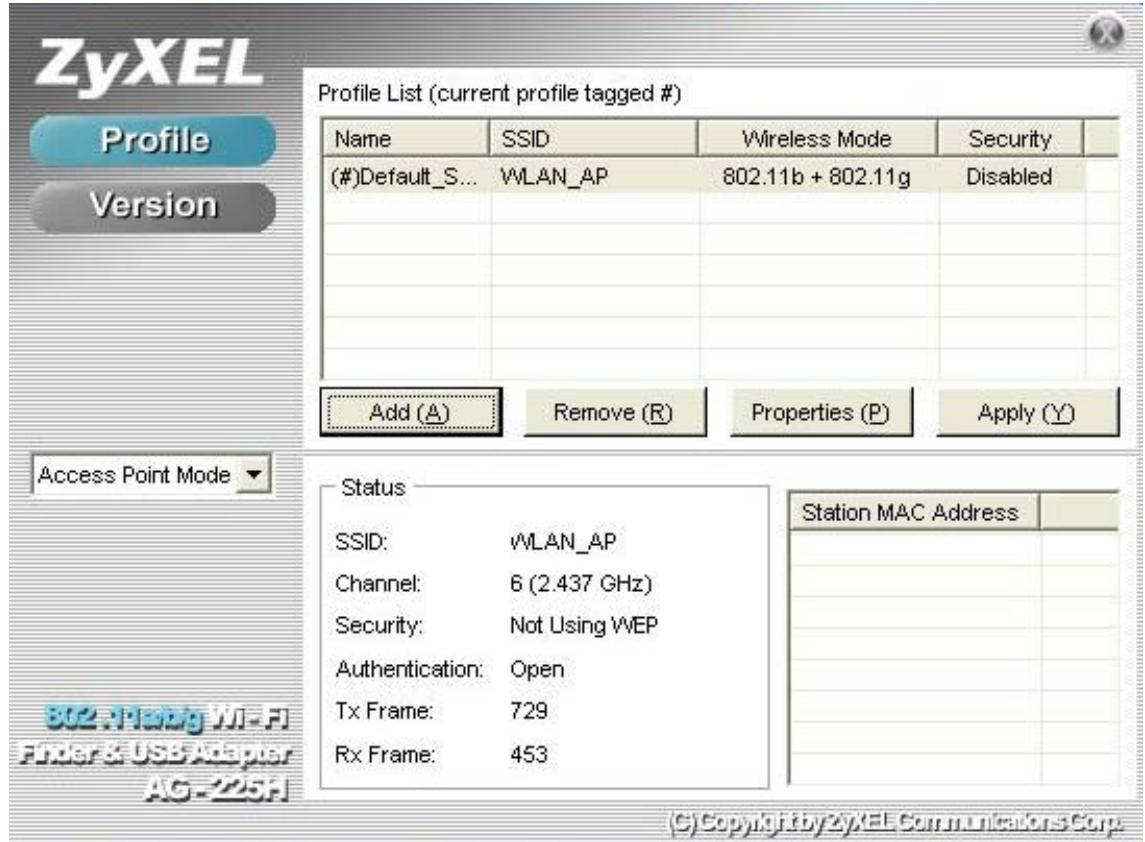
Explanation of each button in this page is shown below.
Add
Clicking on this button enables you to create a new profile. The following steps show how this can be done.
1) Click on [Add] and the following screen will appear.
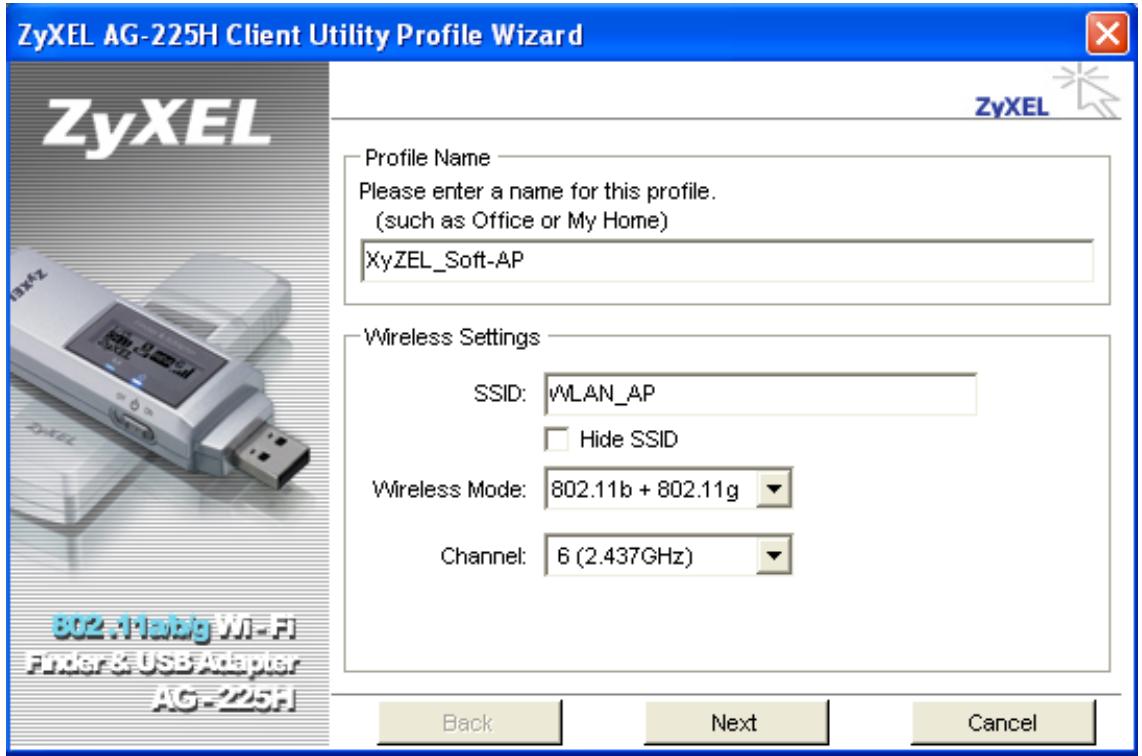
2) On this screen you will insert some basic settings for your wireless network.
a. [Profile Name] You may enter in a descriptive name for this profile.
b. [SSID] TheSSID identifies the Service Set to which a wireless station is associated. Wireless stations associating to the access point (the ZyAIR) must have the sameSSID. Enter a descriptive name (up to 32 printable 7-bit ASCII characters) for the wireless LAN.
c. [Hide SSID] Select this check box to hide the SSID in the outgoing beacon frame so a station cannot obtain the SSID through passive scanning using a site survey tool.
d. [Wireless Mode]: Set the operating frequency depending on your geographical region.
e. [Channel]: Set the operating channel depending on your geographical region.
f. Click [Next]. The following screen will appear.
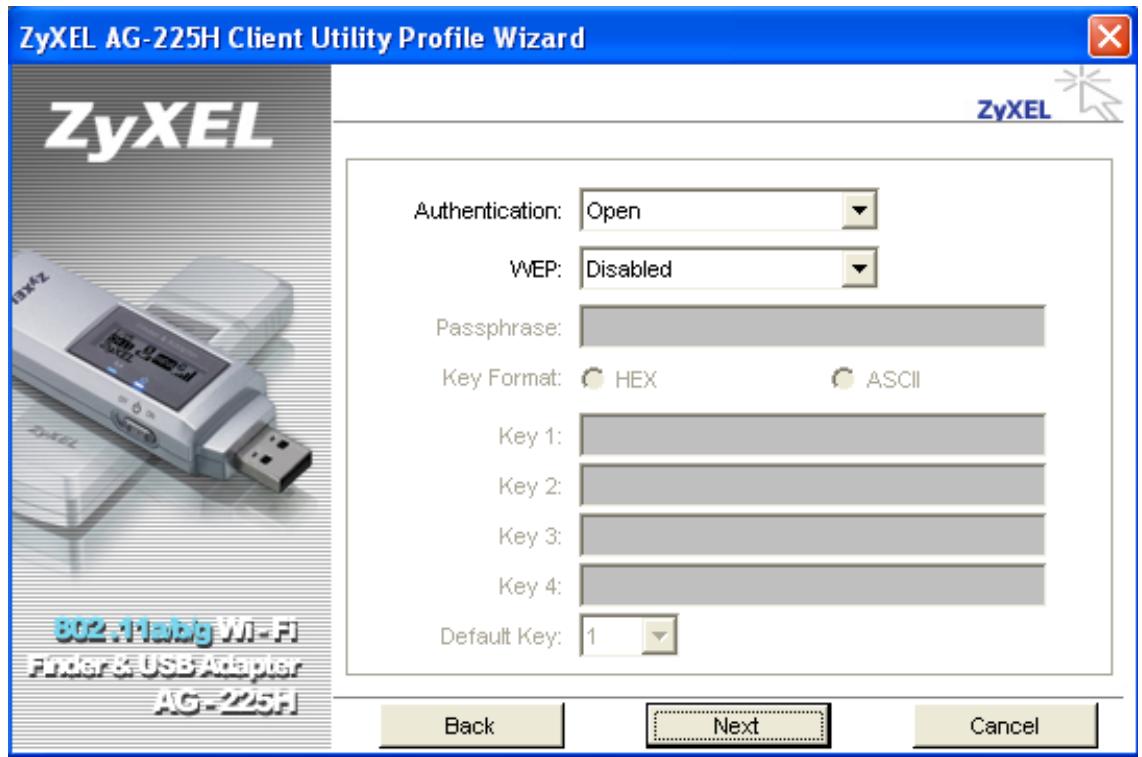
This screen will vary in appearance depending on whether any encryption was detected with your access point.
3) Enter in the appropriate security information.
a. Click [Next]. The following screen will appear.
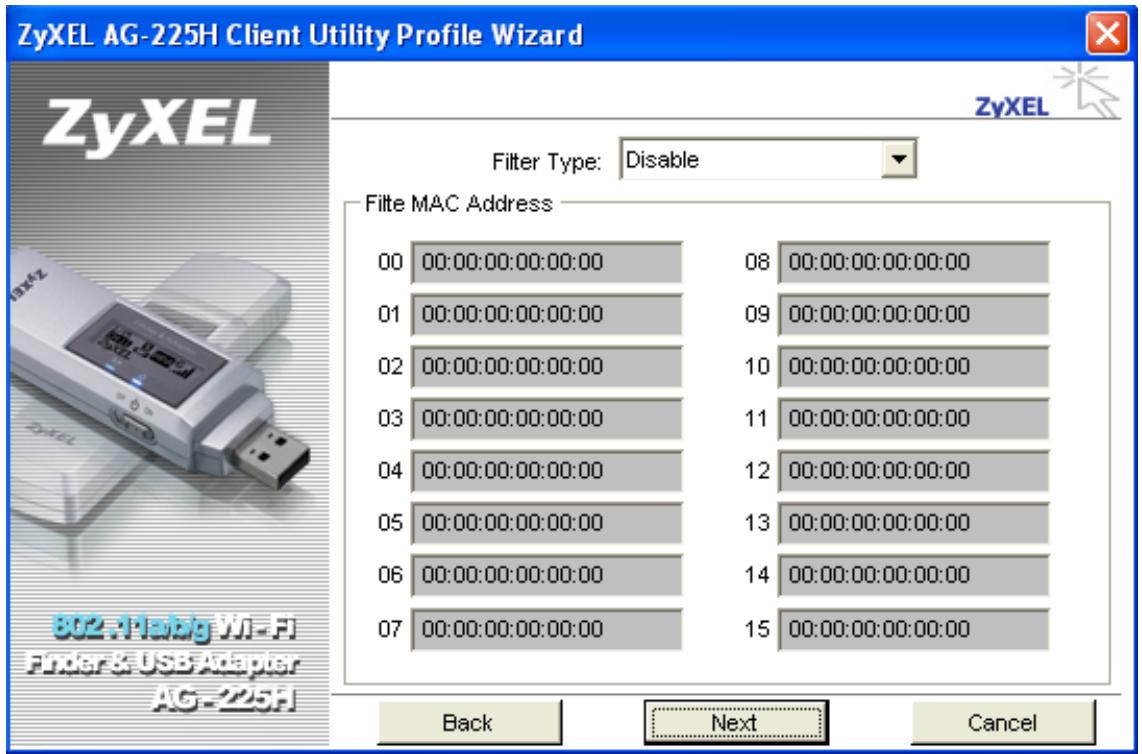
b. See 3.3.2 MAC Filter Screen
c. Click [Next]. The following screen will appear.
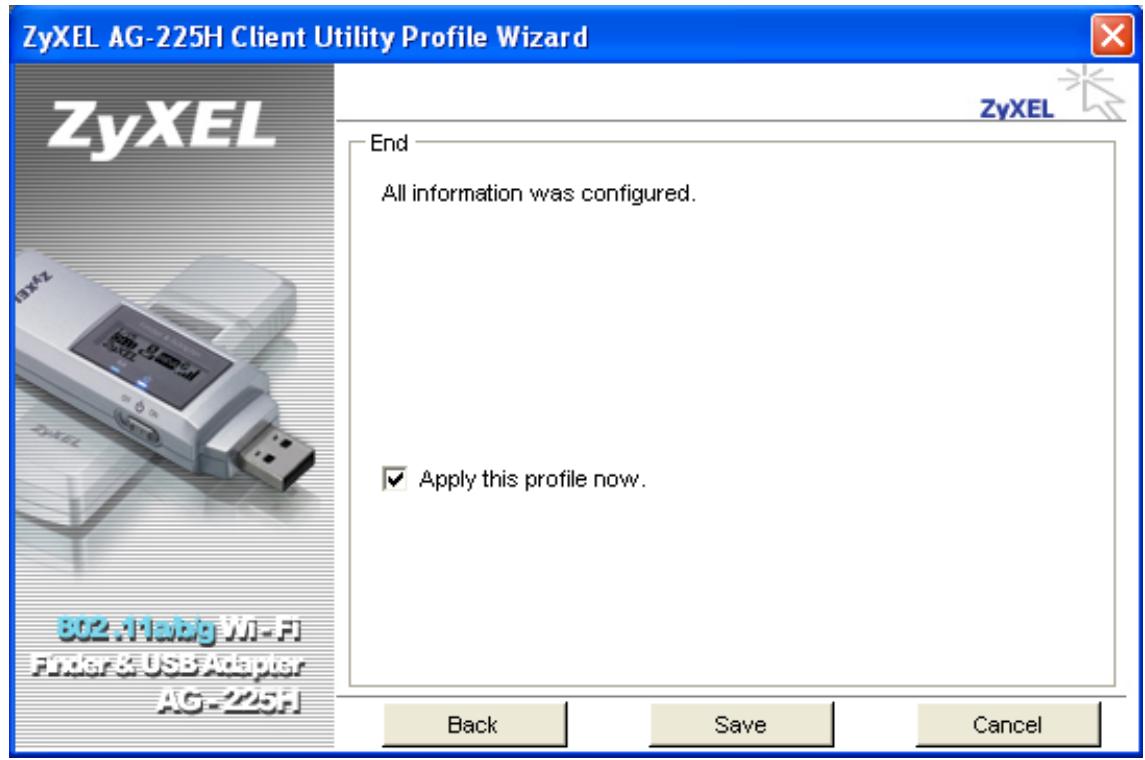
4) Final Step
a. Uncheck the box [Apply this profile now] if you do not want to activate this profile at this time.
b. Click [Save] to complete the wizard and save the profile you have just created.
Remove
To remove a profile from the "Profile List" select it and then click on [Remove].
Apply
If you want to change the current profile with another profile from the "Profile List", select the desired profile and click on [Apply]. The new profile will immediately become the current profile and you will be connected with its SSID.
Properties
Selecting a profile from the "Profile List" and clicking on [Properties] will allow you to check and/or modify the properties of the selected profile. Clicking on [Properties] will take you to the following screen.
3.3.2 The MAC Filter
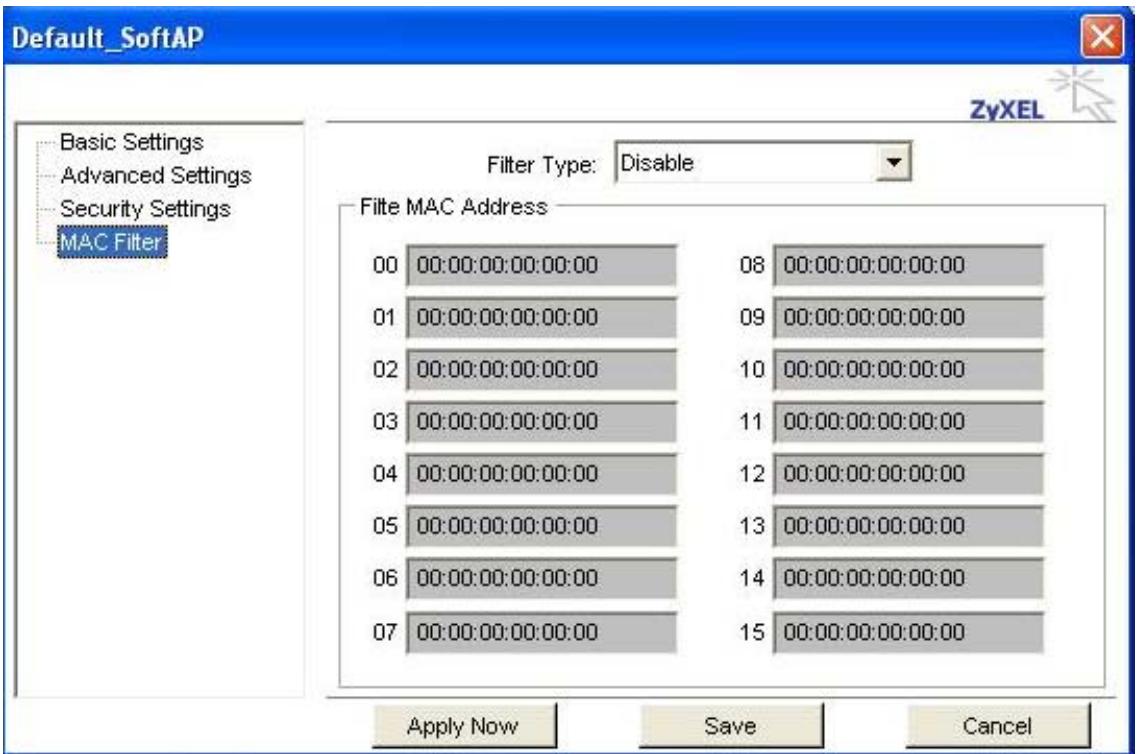
The MAC Filter screen allows you to configure the ZyAIR to give exclusive access to (Accept) devices or exclude devices from (Reject) connecting to the ZyAIR. Every Ethernet device has a unique MAC (Media Access Control) address. The MAC address is assigned at the factory and consists of six pairs of hexadecimal characters, for example, 00:A0:C5:00:00:02. You need to know the MAC address of the device(s) to configure this screen.
MAC Filter
| LABEL | DESCRIPTION |
| Filter Type | Define the filter action for the list of MAC addresses in the MAC address filter table. Select Disable to deactivate the MAC filter feature. Select Accept to permit access to the ZyAIR, MAC addresses not listed will be denied access to the ZyAIR. Select Reject to block access to the ZyAIR, MAC addresses not listed will be allowed to access the ZyAIR. |
| Filter MAC Address | |
| 1-15 | Specify the MAC address(es) of the wireless station(s) that is allowed or denied association to the ZyAIR. Enter six pairs of hexadecimal digits (separated by colons) in the range of “A-F”, “a-f” and “0-9” (for example, 00:A0:C5:00:00:02). If you enter an invalid MAC address, once you click Save to save the values, a warning screen will be displayed. |
| Save | Click Save to save the changes back to the ZyAIR. |
| Cancel | Click Cancel to discard changes. |
3.3.3 Version
Software, Hardware and Status information of the current Access Point Mode.
4.1 The Version Screen
The Version screen displays related version numbers of the ZyXEL AG-225H.
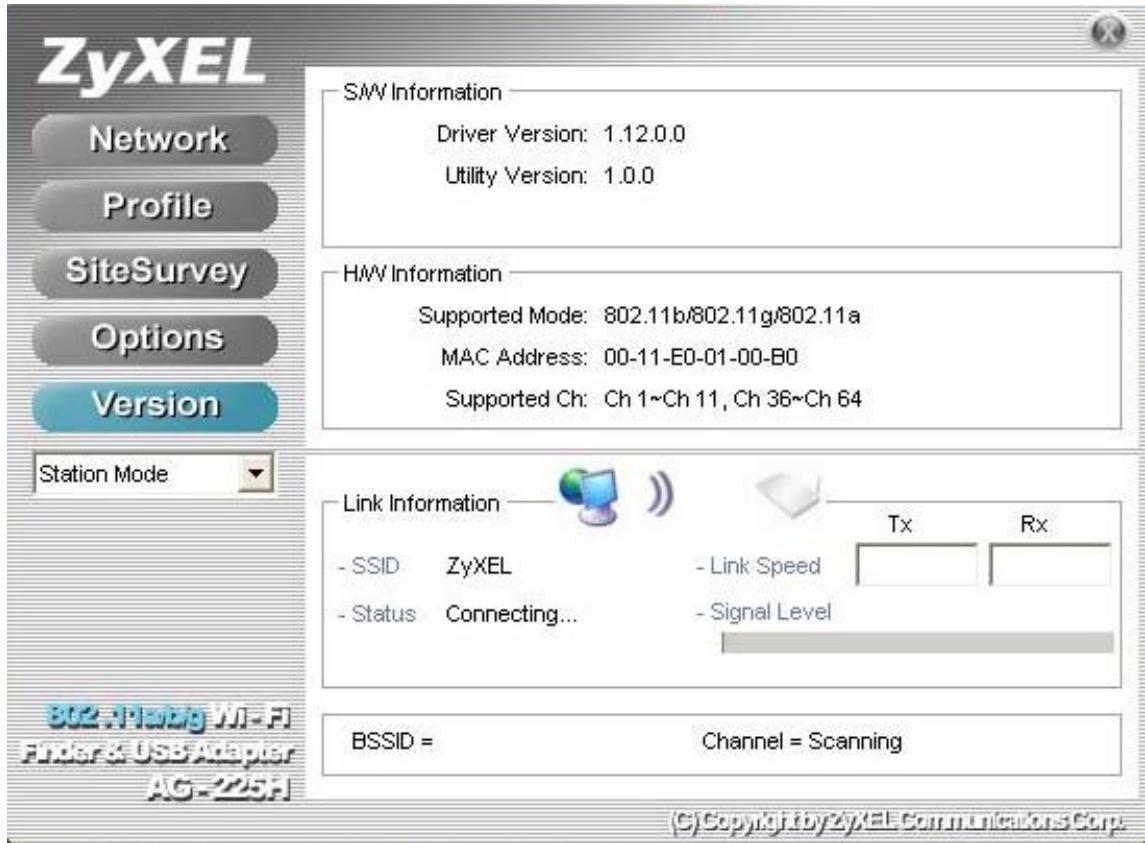
The following table describes the read-only fields in this screen.
About
| LABEL | DESCRIPTION |
| Package Version | This field displays the version number of the combination driver/utility package. |
| Driver Version | This field displays the version number of the ZyXEL driver. |
| Utility Version | This field displays the version number of the ZyXEL utility. |
4.2 Uninstalling the ZyXEL Utility
Follow the steps below to remove (or uninstall) the ZyXEL Utility from your computer.
Step 1. Click Start, Programs, ZyXEL ZyAIR SW, Uninstall.
Step 2. When prompted, click [OK] to remove the driver and the utility software.
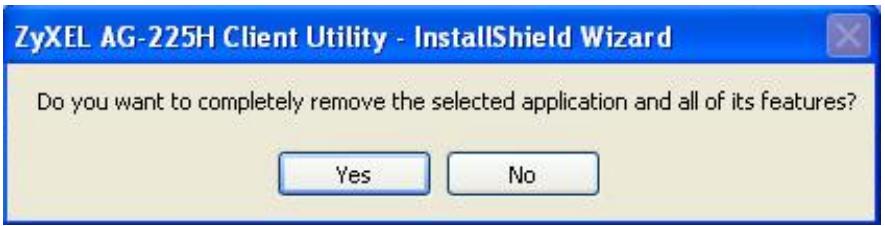
Step 3. Click [Ok] to finish the uninstall process. Reboot your computer if prompted to do so.
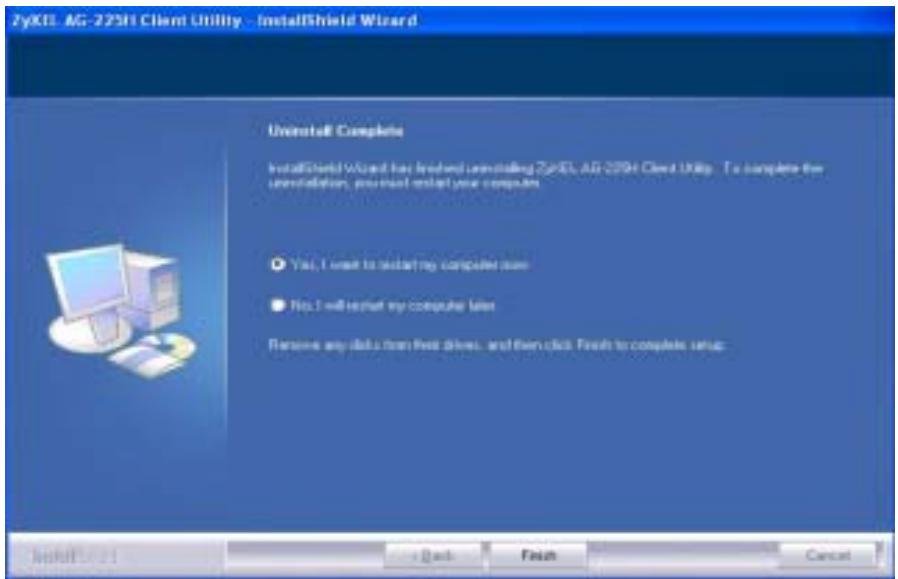
4.3 Upgrading the ZyXEL Utility
Before you uninstall the ZyXEL Utility, take note of the current network configuration.
To perform the upgrade, follow the steps below.
Step 1. Download the latest version of the utility from the ZyXEL web site and save the file on your computer.
Step 2. Follow the steps in Section 4.2 to remove the current ZyXEL Utility from your computer.
Step 3. Restart your computer if prompted.
Step 4. After restarting, refer to the procedure in the Quick Start Guide to install the new utility.
Step 5. Check the version numbers in the Version screen to make sure the new utility is installed properly.
Chapter 5
Configuring Wireless Security
This chapter covers the configuration of security options in the ZyXEL Utility.
5.1 Configuring Security
You can configure your security settings at any time. Simply select the profile you wish to edit under the [Profile] tab, select [Properties] and then choose [WLAN Security]. You are also presented with the option to configure security during the profile creation process. Whether changing the security settings of an existing profile or creating a new profile, the steps to configure your security settings remain the same.
5.2 Configuring WEP
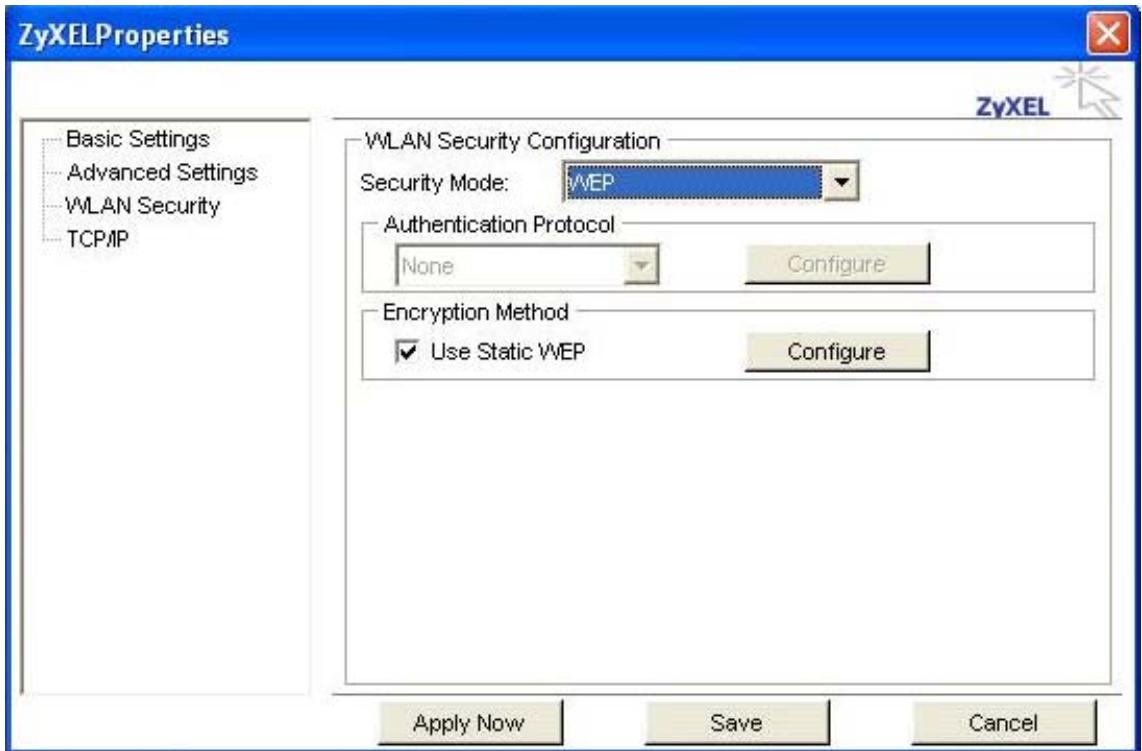
1. Select [WEP] under [Security Mode]
- Put a check mark next to [Using Static WEP]
- Click [Config]. You will then see the screen below.
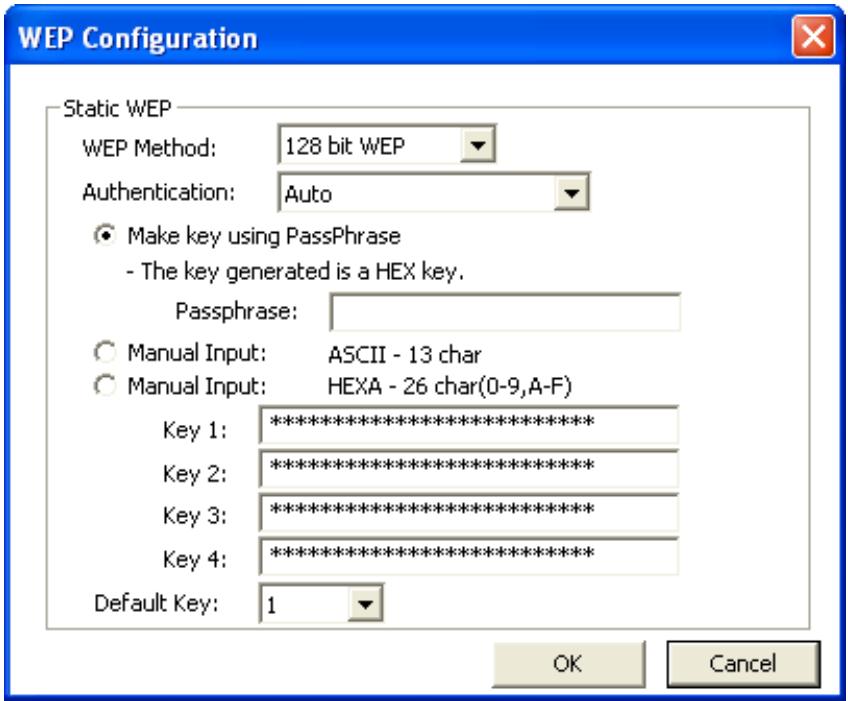
- [WEP Method] Select the correct encryption level to match your access point. Either 64, 128, or 256-bit. The encryption level set her must match the encryption level used by your access point.
a. [Authentication] You can choose between Auto Switch, Open, and Shared. Please see section 2.5 for more information on the different types of authentication. For most installations choosing "Auto Switch" is the best choice.
b. Enter the WEP key exactly as you did in your access point.
There are three ways of generating a WEP Key:
Make key using PassPhrase: a WEP Key is automatically generated as you type in any PassPhrase of your choice. Use this feature when you have used a PassPhrase to generate your WEP key on your access point.
Manual Input (ASCII): You generate your own WEP Key using ASCII characters (5 characters for 64-bit, 13 characters for 128-bit, 29 characters for 256-bit)
Manual Input (Hexadecimal): You generate your own WEP Key using hexadecimal characters (10 characters for 64-bit, 26 characters for 128-bit, 58 characters for 256-bit).
- Click [OK] to save your settings and return to the previous screen.
5.3 Configuring WPA-PSK
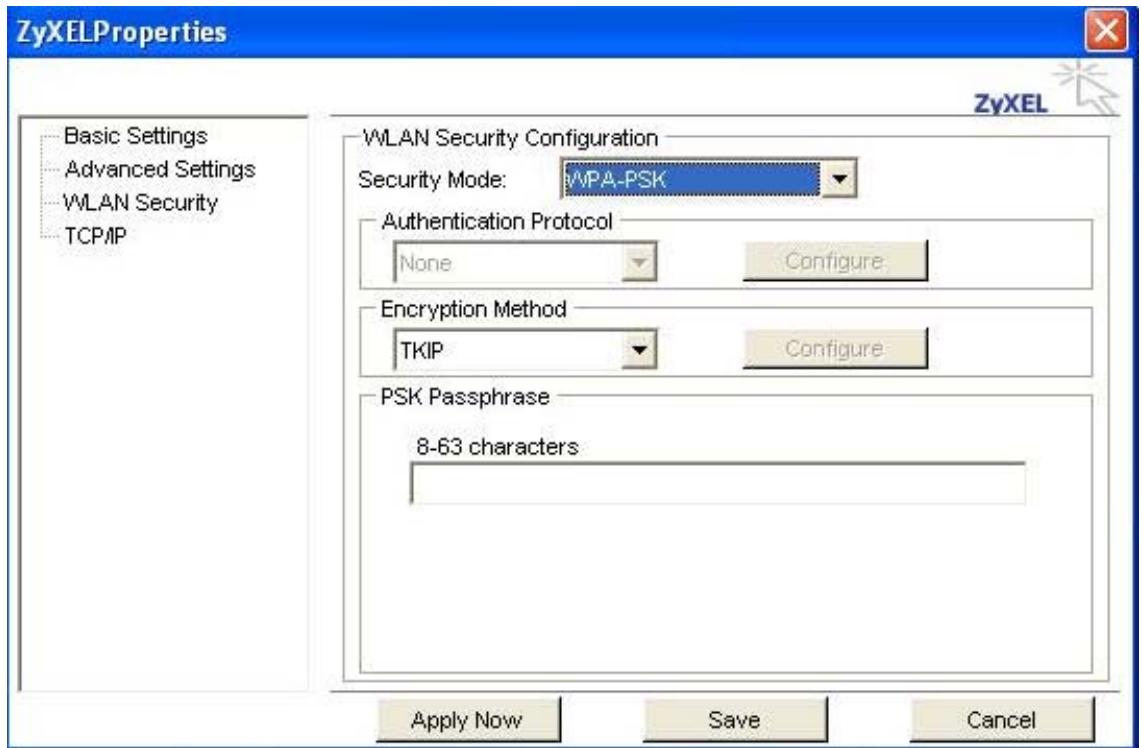
- Select [WPA-PSK] under [Security Mode].
- Select [Encryption method]. You can choose between TKIP or AES. Most access points use TKIP for WPA-PSK.
- Under [PSK Pass Phrase] enter the same pass phrase used to configure WPA-PSK on your access point.
5.4 Configuring WPA2-PSK
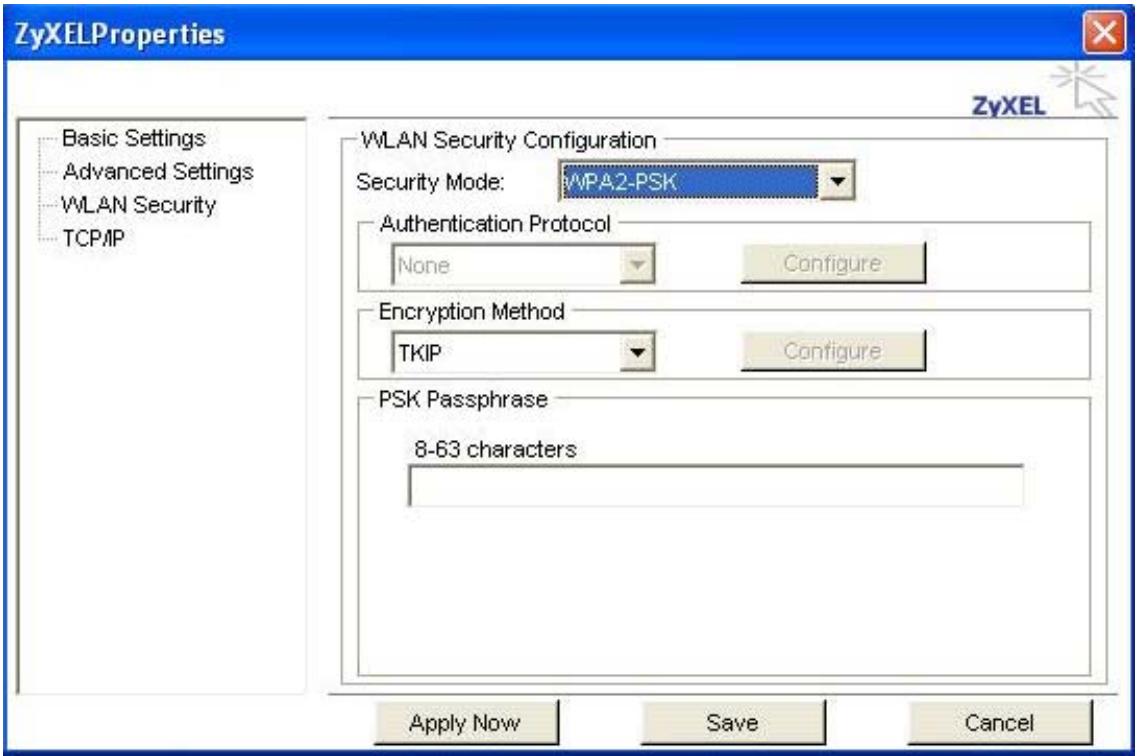
- Select [WPA2-PSK] under [Security Mode].
- Select [Encryption method]. You can choose between TKIP or AES. Most access points use AES for WPA2-PSK.
- Under [PSK Pass Phrase] enter the same pass phrase used to configure WPA2-PSK on your access point.
Chapter 6
Troubleshooting
This chapter covers potential problems and possible remedies. After each problem description, some instructions are provided to help you diagnose and solve the problem.
6.1 Problems Starting the ZyXEL Utility Program
Table 6-1 Troubleshooting Starting ZyXEL Utility Program
| PROBLEM | CORRECTIVE ACTION |
| Cannot start the ZyXEL Wireless LAN Utility | Make sure the ZyXEL AG-225H is properly plugged in your USB port and the LED(s) is on. Refer to the Quick Start Guide for LED descriptions. |
| Use the Device Manager to check for possible hardware conflicts. Click Start, Settings, Control Panel, System, Hardware and Device Manager. Verify the status of the ZyXEL AG-225H under Network Adapter. (Steps may vary depending on the version of Windows). | |
| Install the ZyXEL AG-225H in another computer. If the error persists, you may have a hardware problem. In this case, you should contact your local vendor. |
6.2 Problem with the Link Status
Table 6-2 Troubleshooting Link Quality
| PROBLEM | CORRECTIVE ACTION |
| The link quality and/or signal strength is poor all the time. | Search and connect to another AP with a better link quality using the Site Survey screen. Change the channel used by your AP. Move your computer closer to the AP or the peer computer(s) within the transmission range. There may be too much radio interference (for example microwave or another AP using the same channel) around your wireless network. Relocate or reduce the radio interference. |
6.3 Problems Communicating With Other Computers
Table 6-3 Troubleshooting Communication Problems
| PROBLEM | CORRECTIVE ACTION |
| The ZyXEL AG-225H computer cannot communicate with the other computer. | Make sure you are connected to the network. |
| A. Infrastructure | Make sure that the AP and the associated computers are turned on and working properly. Make sure the ZyXEL AG-225H computer and the associated AP use the same SSID. Change the AP and the associated wireless clients to use another radio channel if interference is high. Make sure that the computer and the AP share the same security option and key. Verify the settings in the Profile Security Settings screen. |
| B. Ad-Hoc (IBSS) | Verify that the peer computer(s) is turned on. Make sure the ZyXEL AG-225H computer and the peer computer(s) are using the same SS ID and channel. Make sure that the computer and the peer computer(s) share the same security option and key. Change the wireless clients to use another radio channel if interference is high. |
6.4 Problem Connecting to an Access Point
Table 6-4 Troubleshooting Access Point Connection Problem
| PROBLEM | CORRECTIVE ACTION |
| When using the Windows XP configuration tool, cannot scan for or connect to any access points. | The ZyAIR might still be operating in access point mode. This results when you set the ZyAIR to operate in access point mode using the ZyXEL Utility, close the ZyXEL Utility and then use the Windows XP configuration tool. Before you use the Windows XP configuration tool, make sure you set the ZyAIR to operate in station mode before you close and exit the ZyXEL Utility. |

- Copyright ©2005 by ZyXEL Communications Corporation
- Disclaimer
- Trademarks
- ZyXEL Limited Warranty
- NOTE
- Online Registration
- Federal Communications Commission (FCC) Interference Statement
- IMPORTANT NOTE:
- Customer Support
- Table of Contents
- Chapter 1 Getting Started. 1-1
- Chapter 2 Wireless LAN Networking 2-1
- Chapter 3 Access Point Mode Configuration 3-1
- Chapter 4 Maintenance 4-1
- Chapter 5 Configuring Wireless Security. 5-1
- Chapter 6 Troubleshooting. 6-1
- Preface
- About This User's Guide
- Syntax Conventions
- Related Documentation
- User Guide Feedback
- Graphics Icons Key
- About Your ZyXEL AG-225H
- ZyXEL AG-225H Wi-Fi Finder User Interface
- LCM Description
- Detect Mode
- Entry
- Channel
- SSID
- Security Information
- Signal
- Power
- Basic Operation
- ZyXEL AG-225H Adapter Hardware and Utility Installation
- Using the ZyXEL Utility to Configure Your Network
- Network
- Profile
- Add
- Remove
- Apply
- Properties
- Security Mode
- 1) Disabled
- 2) WEP
- 3) WPA-PSK or WPA2-PSK
- Site Survey
- Refresh
- Detail Info
- Connect
- Add to profile
- Options
- Let Windows manage this wireless adapter - Windows Zero configuration
- Auto DHCP renewal
- Version
- ZyAIR Modes
- Change ZyAIR Modes
- Chapter 2
- Wireless LAN Networking
- Overview
- SSD
- Channel
- Transmission Rate (Transfer Rate)
- Wireless Network Application
- Ad-Hoc (IBSS)
- Infrastructure (BSS)
- Access Point Mode
- Roaming
- Wireless LAN Security
- Data Encryption with WEP
- IEEE 802.1x
- EAP Authentication
- WPA/WPA2
- User Authentication
- Encryption
- WPA-PSK/WPA2-PSK Application Example
- WPA/WPA2 with RADIUS Application Example
- Fragmentation Threshold
- RTS/CTS Threshold
- Authentication Type
- Chapter 3
- Access Point Mode Configuration
- Introduction
- Additional Setup Requirements
- The Profile Screen
- How to configure in Access Point Mode
- Profile
- The MAC Filter
- Version
- The Version Screen
- Uninstalling the ZyXEL Utility
- Upgrading the ZyXEL Utility
- Chapter 5
- Configuring Wireless Security
- Configuring Security
- Configuring WEP
- Configuring WPA-PSK
- Configuring WPA2-PSK
- Chapter 6
- Troubleshooting
- Problems Starting the ZyXEL Utility Program
- Problem with the Link Status
- Problems Communicating With Other Computers
- Problem Connecting to an Access Point
Brand : ZYXEL
Model : AG-225H
Category : Wireless Access Point