
DF 1851 - Cordless phone SWITEL - Free user manual and instructions
Find the device manual for free DF 1851 SWITEL in PDF.



| Product type | Cordless telephone |
| Brand | SWITEL |
| Model | DF 1851 |
| Standard | DECT / GAP |
| Frequencies | 1880 - 1900 MHz |
| Outdoor range | Up to 300 meters |
| Indoor range | Up to 50 meters |
| Maximum number of handsets | 5 |
| Base power supply | 100-240 V AC, power adapter 5.1 V DC / 700 mA |
| Handset power supply | 2 AAA NiMH rechargeable batteries 1.2 V / 500 mAh |
| Standby autonomy | Approx. 100 hours |
| Talk autonomy | Approx. 10 hours |
| Phonebook capacity | 50 entries |
| Call log capacity | 50 entries |
| Redial capacity | 20 entries |
| Special features | Babyphone, intercom, conference, call transfer, alarm, key lock, eco mode |
| Display | Screen with icons and function lines |
| Base dimensions | 80 x 170 mm (W x H) |
| Handset dimensions | 165 x 55 x 25 mm |
| Care and cleaning | Soft lint-free cloth, no solvents |
| Safety | Use only provided power adapter, do not open device, separate disposal |
| Operating temperature | 0°C to 40°C |
| Warranty | 2 years |
Frequently Asked Questions - DF 1851 SWITEL
User questions about DF 1851 SWITEL
0 question about this device. Answer the ones you know or ask your own.
Ask a new question about this device
Download the instructions for your Cordless phone in PDF format for free! Find your manual DF 1851 - SWITEL and take your electronic device back in hand. On this page are published all the documents necessary for the use of your device. DF 1851 by SWITEL.
USER MANUAL DF 1851 SWITEL
DF 1851
DF 1852
DF 1853
DF 1854
Bitrate: 1152 kB / s
Modulation: GFSK
Bips touches Activer
Langue Allemand
Nom combine SWITEL
Reponse auto ON
Pilese rechargeablese 2
PIN BASE 20
PIN TELPHONE 19
Prendre l'appele 11
Bit rate: 1152 kB / s
Modulazione: GFSK
IMP. DI DEFAULT 20, 21
1 Safety Information 2
2 Preparing the Telephone 4
3 Operating Elements 7
4 Preliminary Information 9
5 Telephoning 11
6 Other features 15
7 Call list / Redial 16
8 Phone book 17
9 Setting the telephone 19
10 Registering/de-registering handsets 23
11 PBX / Supplementary Services 24
12 Appendix 25
1 Safety Information
Please read this operating instruction manual thoroughly.
Intended use
The telephone is suitable for telephoning within a public telephone network system. Any other use is considered unintended use. Unauthorized modification or reconstruction is not permitted. Under no circumstances open the device or complete any repair work yourself.
Installation location
Prevent excessive exposure to smoke, dust, vibration, chemicals, moisture, heat and direct sunlight.
Do not use the handset in potentially explosive areas.
Power adapter plug
Attention: Only use the power adapter plug supplied because other power supplies could damage the telephone.
Ensure access to the power adapter plug is not obstructed by furniture or such.
Rechargeable batteries
Attention: Never throw batteries into a fire. Only use batteries of the same type. Pay attention to the correct polarity. Incorrect polarity of the batteries represents a risk of explosion during charging.
Power failure
The telephone cannot be used to make calls in the event of a power failure. Always keep a cord connected telephone which operates without an external power supply available in case of emergency situations.
Medical equipment
Attention: Never use the telephone in the vicinity of medical equipment. Effects on such equipment cannot be fully ruled out.
DECT® telephones can cause an unpleasant humming sound in hearing aids.
Disposal
In order to dispose of your device, take it to a collection point provided by your local public waste authorities (e.g. recycling centre). The adjacent symbol indicates that the device must not be disposed of in normal domestic waste! According to laws on the disposal of electronic and electrical devices, owners are obliged to dispose of old electronic and electrical devices in a separate waste container.
Batteries must be disposed of at the point of sale or at the appropriate collection points provided by the public waste authorities.
Packaging materials must be disposed of according to local regulations.



1 DECT: Digital Enhanced Cordless Telecommunication = Standard for cordless telephones.
2 Preparing the Telephone
Safety information
Attention: It is essential to read the Safety Information in Chapter 1 before starting up.
Checking the package contents
The package contains:
| Content | DF 185x model | |||
| 1851 | 18521 | 18531 | 18541 | |
| Base station with power adapter plug | 1 | 1 | 1 | 1 |
| Charging station with power adapter plug | - | 1 | 2 | 3 |
| Handset | 1 | 2 | 3 | 4 |
| Telephone connection cable | 1 | 1 | 1 | 1 |
| Rechargeable batteries | 2 | 4 | 6 | 8 |
| Operating instructions | 1 | 1 | 1 | 1 |
Electrical consumption
The electrical consumption of the base is:
- in operation mode (idle/call): approx. 0.3 / 0.4 W
- during charging of the handset: approx. 1.0 W.
The adaptor input power without load is approx. 0.3 W. The average efficiency is approx. 62% .
The electrical consumption of the charger is:
- without handset charging: approx. 0.3 W
- during charging of the handset: approx. 1.0 W.
The adaptor input power without load is approx. 0.3 W. The average efficiency is approx. 62% .
Low-radiation operation (ECO mode)

Both in call mode as well as in stand-by mode, the radiation is reduced considerably as compared to standard, cordless DECT telephones.
Connecting the base station
Attention: Position the base station at least 1 m away from other electronic devices, otherwise there is a risk of mutual disturbance.
Connect the base station as illustrated in the diagram. For reasons of safety, only use the power adapter plug and telephone connection line supplied.
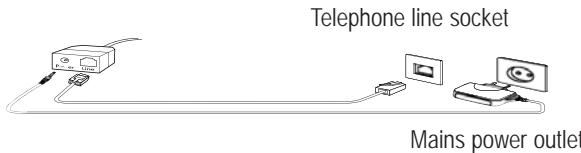
Attention: Use only the power adapter plug supplied with the base station! Ensure access to the power adapter plug is not obstructed by furniture or such.
Connecting the charging station
Connect the charging station to the mains. Ensure access to the power adapter plug is not obstructed by furniture or such.
Inserting the battery
Remove the back cover of the handset.
Insert the battery into the battery compartment.
Put on the back cover by placing it flat on the back of the handset and press it down all around until it clicks. Have a look at the handset again around from the side, whether the coverage gap is attached firmly.
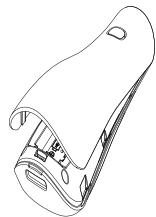
Attention: Use only the rechargeable batteries supplied or rechargeable batteries of the same type. Observe the correct polarity!
Charging the battery
Before the handset is used for the first time, insert it in the base station / charging station for at least 8 hours.
The handset warms up during the charging process. This is normal and does not represent a risk. Use only the adapter plug unit provided for the base/charging station. The battery status is shown on the display. When the battery capacity is nearly exhausted, the battery symbol will flash in the display and you will hear the battery warning sound.
Setting the time and date
At initial operation the handset does not have the correct time (e.g. for entries in the call list). Date and time are set through the menu item "BASE/Time Set".
Setting the display language
The display language is available in several languages. The default setting is "German (Deutsch)". Set the language using the menu item "MOBILTEIL / SPRACHE".
Auto Answer
If this function is activated, an incoming call is taken when the handset is removed from the base station. The automatic answering function is activated and deactivated using the menu item "HANDSET/ Auto Answer".
3 Operating Elements
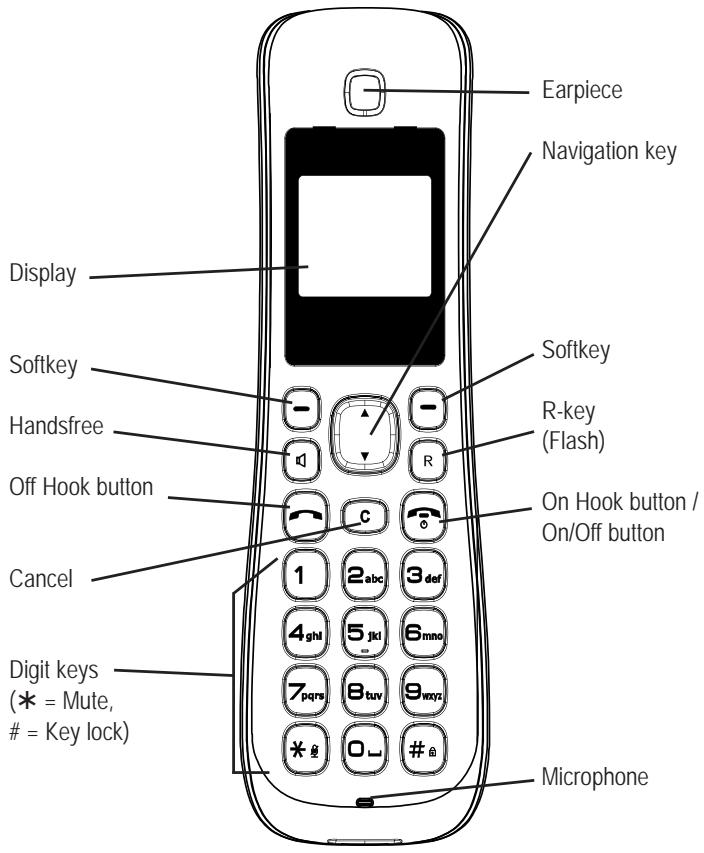
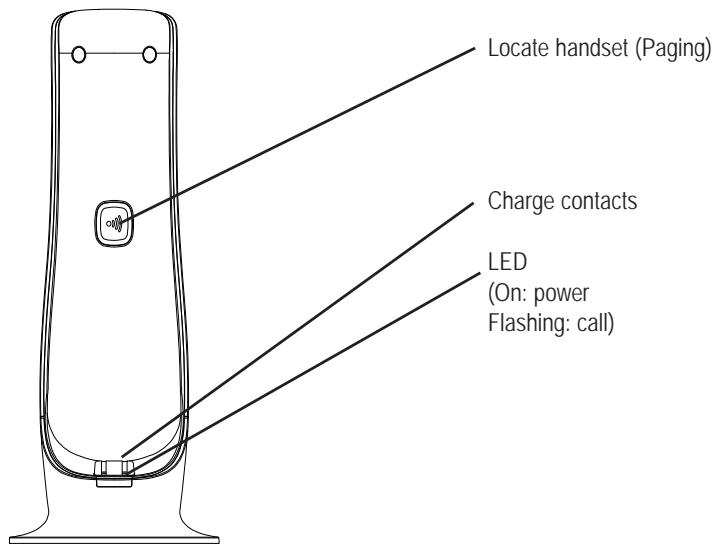
4 Preliminary Information
This chapter provides basic information on using the operating instruction manual and the telephone.
Icons in the handset display
| Icon | Description |
| Tull | On: The connection to the base station is good. Flashing: The connection to the base station is lost. |
| Ucc | On: Indicates the battery charge status. Flashing while handset in base: Battery is being charged. Some segments are not displayed: Battery needs charging. |
| C | On: A call is currently being made. Flashing: A call has been received. |
| S | The keypad is locked. |
| R | The alarm function is activated. |
The functions assigned to the two softkeys are shown in the lowest line of the display. The key function changes automatically according to the operating status of the handset, e.g.:
| Menu | Accessing the menu. |
| P/Book | Open the phonebook. |
| OK | Confirmation. |
| Back | Back to the previous menu or cancel programming. |
Function of the navigation key

In menu / lists (phonebook, call list, radial): scroll up.
During conversation: volume up.

During conversation: volume down.
In menu / lists (phonebook, call list, radial): scroll down.
Special functions for some keys

In idle state: press and hold down to activate/deactivate key lock.
When entering names: press briefly to toggle between uppercase and lowercase letters.

During conversation: press and hold down to mute/unmute the microphone.

During diallin/pre-dial: press and hold down to enter a dialling pause.
Standby mode
All descriptions in this operating manual assume that the handset is in Standby mode. The system switches to Standby mode by pressing the button.
Navigating in the menu
All the functions can be accessed via the various menus.
The softkeys and the arrow keys are used for navigation in the menu.
The menu is opened with the left softkey Menu.
Use the arrow keys and to move within the menu.
Press the softmax to open a sub menu.
Use the arrow keys and to do settings.
To return to the main menu press Back briefly.
With a long press on the On Hook button you will return to the standby state.
5 Telephoning
Taking a call
()
Your phone is ringing.
If the handset is not in the base station:

Press any key except the On Hook button.
If the handset is in the base station and Auto Answer is not activated:

Remove the handset from the base and press any key except the On Hook button.
If the handset is in the base station and Auto Answer is activated:

Remove the handset from the base - the call will be taken automatically.
Making a call

Enter the telephone number.
Enter a dialling pause pressing the R key. Delete wrong digits pressing C.

The telephone number is being dialled.
You can also press and hold the Off Hook button (approx 3 seconds) and you will hear the dialling tone. The entered number will be dialled immediately. It is not possible to correct wrong digits individually using this dialling procedure.
Ending a call

Press the On Hook button or replace the handset in the base station.
Redial
Your handset saves the last 20 dialled telephone numbers. If a caller is stored in your phone book, the name will be displayed. Whilst the name is displayed to show the respective number press OK.

Press the Off hook key briefly to open the radial list.

Select an entry.

The telephone number is being dialled.
Making a call from the call list
Your handset saves the numbers of the last 50 incoming calls in the call list. If a caller is stored in your phone book, the name will be displayed. Whilst the name is displayed to show the respective number press OK. Saving can only take place if the function "Phone number transmission (CLIP)" is available at your connection and caller ID is not suppressed by the caller or was not transmitted for any other reason.
Menu...
Press Menu, select CALL INFO -> New Calls or All Calls.

Select an entry.

The telephone number is being dialled.
Making a call from the phone book
You can store up to 50 entries in the phone book. For creating entries see section "Phone book".
P/Book
Open the telephone book.

Select an entry.

The telephone number is being dialled.
Making a call with quick dialling
To use this feature you will have to store an entry from the phonebook to a digit key. For detailed information please refer to the section "Phonebook".
Press the relevant digit key for approx. 2 seconds. The "main" telephone number will be dialled immediately.
Call timer
Your handset automatically times the duration of every call in hours, minutes and seconds.
Setting the earpiece/LOUDspeaker volume

During a call you can adjust the volume in 5 levels (if telephoning "normally" -> earpiece volume, with hands-free -> loudspeaker volume).
These seperate settings will remain at the last selected level when you end the call.
Muting the microphone

During a call you can switch your handset's microphone off.

Press and hold the star key. The display shows Mic Mute.
To unmute press and hold the star key again.
During a call you can also mute/unmute the microphone with pressing Menu -> Mic Mute -> OK.
Internal calls
Internal calls, transfers and conference calls are only possible if multiple handsets are registered.
Making an internal call
Menu...
Press Menu, select EXTRA MENU ->
INT Call. Select the desired handset or ALL and press OK.
Transferring an external call to another handset
During an external call ..
Menu... Press Menu, select INT Call. Select the desired handset or ALL and press OK. The external call is put on hold. When the called handset answers you can announce the call transfer. Press the On-Hook key. The call will be transferred.
Call Toggle
Während eines Externgespraches . . .
Menu ... Press Menu, select INT Call. Select the desired handset or ALL and press OK. The external call is put on hold.
Menu ... Press Menu, select Call Toggle and press OK. In this way you can toggle between the two calls.
3-Party Conference
During call toggles (see above) ... Menu... Press MENU, select Conference and press OK. Press C.End to get back to call toggle.
Any handset hangs up during a conference call will leave the other handset still in connection with the external call.
6 Other features
Key lock
The key lock prevents functions assigned to buttons being activated inadvertently. Incoming calls can still be taken in the normal way even when the key lock function is activated.

Press and hold down the #-key until the icon appears in the display.

For unlocking the keypad press and hold down the #-key again.
Switching off the handset

You can switch off the handset for saving battery capacity.

Press and hold down the On Hook-button. After a few seconds the handset will be switched off. The display illumination goes down.

For switching the handset on again press and hold down the On Hook-button until you hear a short beep and the display is illuminated.
7 Call list / Redial
Editing the call list
Menu...

Menu...

Copy to PB
Press Menu, select CALL INFO ->
New Calls or All Calls.
Select an entry and press OK. Date and time of the call are displayed.
Press Menu.
Select one of the following options and confirm with OK:
The telephone number will be stored in the telephone book.
For further information please refer to „Phone book/Creating a new entry".
The entry will be deleted after a confirmation query.
The complete list will be deleted after a confirmation query.
Editing the radial list
Menu...

Menu...

Copy to PB
Press Menu, select CALL INFO ->
Redial.
Select an entry and press OK.
Press Menu.
Select one of the following options and confirm with OK:
The telephone number will be stored in the telephone book.
For further information please refer to „Phone book/Creating a new entry".
Delete
Delete All
The entry will be deleted after a confirmation query.
The complete list will be deleted after a confirmation query.
8 Phone book
- Your phone can store up to 50 private phonebook entries with names and numbers. You can also select different ringtones for your phonebook entries and store them to a digit key (1...0) for quick dialling. Always enter the phone numbers with the area code; this enables a correct display of the respective caller for whom there is an existing entry and whose phone number transmission to your connection is available.
Creating a new entry
Menu...
Press Menu, select PHONEBOOK ->
New Entry.
Enter the name.
Letters are also imprinted on the digit keys. Letters, digits and special characters are entered by pressing the relevant key the respective number of times.
Use the # key to toggle between uppercase and lowercase letters.
中
After a short time the cursor skips one position forwards.
After having entered the name press
Enter the phone number (max. 24 digits). If your telephone is connected to a PBX start the telephone number with the access code. If a dialling pause is needed, press after the access code the R key for approx. 2 sec. A P appears in the display.
After having entered the telephone number press . Press Edit, select a melody for the entry and press .
Press Edit, select a digit key for quick dialling. Only the keys which are still available are shown.
For storing the entry press Save.
Editing telephone book entries
| Menu... | Press Menu, select PHONEBOOK and press OK. |
| Show Entry | Select one of the following options and confirm with OK: All entries are shown. Scroll to the desired entry. Press Menu to edit or delete the entry. |
| New Entry | You can create a new entry. |
| Delete All | The complete phonebook will be deleted after a confirmation query. |
| Memory Info | The current allocation will be displayed (e.g. 007/050 : 7 of 50 possible entries are present). |
9 Setting the telephone
Menu HANDSET
Menu...
Press Menu, select HANDSET and press OK.
If you set a handset PIN (any four digit number) you'll always need to key it in before you can use the handset menu.
| Sound | Volume - Press OK and set the volume for internal and external calls. Melody - Press OK and set the melody for internal and external calls. Key Beep - Set the key beep on or off. If this function is on an incoming call will immediately be taken when the handset is taken from the base. For registering a handset on a base. Select the base, the handset should be registered on and enter the relevant PIN. For further information please refer to the documentation of the relevant base. If your handset is already registered to several base stations you can select the "active" base.. |
| Auto Answer | |
| Registration | |
| Select Base | |
| Name Handset | To better distinguish between handsets, you can give each handset a name. Set the desired display language. If you want to protect the menu from unauthorized access, you can program a 4-digit handset PIN. As delivered, the handset PIN is set to "0 0 0 0". In this case the menu access without the PIN-entry is possible. To deactivate a PIN code request for the menu again, simply enter "0 0 0 0". |
| Language | |
| PIN Handset | |
| Set Default | After a confirmation query the handset will be reset to delivery state. The phonebook entries will not be deleted. |
Menu BASE
Menu... Press Menu, select BASE and press OK.
If you set a handset PIN (any four digit number) you'll always need to key it in before you can use the handset menu.
Time Set
Enter the date (e.g. für den 2. July 2011 -> 020711) and the time (e.g. für 8:15 o'clock -> 0815) using the digit keys and press OK.
In case of a power failure the settings will be lost if the handset will be switched off or the battery is empty.
Dial Mode
Select Tone or Pulse. In most situations the Tone option should be selected.
Flash Time Deregistration
Select the flash time.
Enter the base PIN (in delivery state "0 0 0 0"), select one of the handsets and press OK. When a handset is deregistered you cannot use it for calling any more until it is registered on a base again.
PIN Base
You need the base PIN e. g. for registering/deregistering handsets.
Set Default
In delivery state the base PIN is "0 0 0 0".
After a confirmation query the base will be reset to delivery state.

The registration of handsets will not be changed.
Menu EXTRA MENU
Menu...
Press Menu, select EXTRA MENU and press OK.
Alarm
Mode - Select Off, Single or Everyday.
Time - Enter the alarm time.
Melody - Select a melody for the alarm.
Repeat - Select how often the alarm should be repeated.
Baby Monitor
Cycle - Select the time between the alarm repetition.
Mode - Select Off, Baby Call or Baby Monitor.
- If Baby Call is activated, a programmed telephone number (see below) is dialled each time a key is pressed (except the right softkey - with this you can switch off the function).
- If Baby Monitor is activated, the handset is used for room monitoring. When a noise above the sensitivity level is detected, the programmed telephone number will be dialled. Leave the handset in the room you want to monitor. For switching the function off press Off.
- With Sensitivity you set the trigger level for the room monitoring (only with activated function Baby Monitor) (Low/High).
- Call to: Press OK, select Internal or External and press OK. Select the desired handset or enter the external telephone number.
If you select "Internal" and there is only one handset registered to the base, a warning appears.
Setting the telephone
INT Call
To call another handset registered to the same base station.
10 Registering/de-registering handsets
Up to six handsets can be registered to a base station. The handsets delivered with your telephone are already registered. To register a "foreign" handset please refer to it's user manual.
Registering a handset of the same type
| Menu... | Press Menu, select HANDSET -> Registration. |
| ▲/▼ | Select a base station and press OK. The relevant base is marked. |
| Enter the relevant PIN for the base, the new handset should be registered on, and press OK. |
| ●● | Press and hold down the paging key on the base station until the LED is flashing (approx. 5 sec.). |
After a few seconds the handset is registered.
Deleting a handset
| Menu... | Press Menu, select BASE -> Deregistration. |
| Enter the relevant PIN. | |
| ▲/▼ | Select a handset and press OK. |
11 PBX / Supplementary Services
PBX
If the telephone is connected to a private branch exchange, functions such as transferring calls and automatic call back can be used via the R button. Refer to the operating manual provided with your private branch exchange as to which Flash time must be set in order to use these functions. The sales outlet where you purchased the exchange can provide information as to whether the telephone will work properly with the exchange.
Please remember to enter the access code and a neccessary dialling pause (longpress "R") when creating phone book entries.
Supplementary services
Your telephone supports supplementary services provided by your telephone network provider, such as brokering, call waiting and conference facilities. These supplementary services can be used via the R-button.
Please contact your telephone network provider regarding which Flash time must be set to use the supplementary services. Contact your telephone network provider with regard to enabling supplementary services.
12 Appendix
In Case of Problems
Should problems arise with the telephone, please refer to the following information first. In the case of technical problems, you can contact our hotline service, Tel. 0900 00 1675 within Switzerland (Costs for call from Swisscom landline at time of going to print: CHF 2.60/min). In the case of claims under the terms of guarantee, contact your sales outlet. There is a 2 year period of guarantee.
- After pressing the on hook button, no ring tone is audible, the line is not engaged.
- Check the telephone connector on the base station and on the wall socket.
- Check power connector on the base station and on 230V
- The line is being occupied by another handset. Wait until the connection is terminated.
- Display:"Base Search".
- Check power connector on the base station and on 230V
- Reduce range.
- Register handset.
No display. - Handset turned off -> turn on.
- Battery empty -> recharge.
Technical data
Standard: DECT / GAP
Number of channels: 120 duplex channels
Frequencies: 1880 MHz to 1900 MHz
Duplex mode: Time division multiplex, 10ms frame length
Channel spacing: 1728 kHz
Bit rate: 1152 kB / s
Modulation: GFSK
Voice encoding: 32 kB / s
Transmitter power: 10mW (average power per channel)
Range: up to 300 m outside, up to 50 m inside buildings
Electricity supply base station:
100-240 V AC adapter plug, 5.1 V DC / 700 mA
Handset: Operating time: Stand-by time / Talk time
2 x AAA NiMH, 1.2 V, 500 mAh = approx. 100 h / approx. 10 h
Operating temperature for handset operation:
0^ to 40^;20% to 75% rel. humidity
Operating temperature for base station operation:
0^ to 40^;20% to 75% rel. humidity
Storage temperature: -20^ to +60^
Dial mode: Tone / Pulse
R-key : Flash time (98 ms / 270 ms / 380 ms / 900 ms)
Base station dimensions (mm): Diameter / H = 80 x 170
Handset dimensions (mm): L/W/H = 165 x 55 x 25
Telephone line cord:
TSV on Pin 3 and 4 according to CTR 37 (Euro)
Adapter plug: European-type mains connector
Default settings
Call list No entry
Phonebook No entry
Alarm Off
Ringer handset Internal call: Melody 2
External call: Melody 1
Volume: 3
Key tone: On
Language German
Handset name SWITEL
Auto answer On
Dial mode Tone
Flash time 98 ms
PIN 0000
Declaration of Conformity
This device fulfils the requirements stipulated in the EU directives:
- 1999/5/EU directive on radio equipment and telecommunications terminal equipment and the mutual recognition of their conformity.
- 2005/32/EU directive "Energy-using products".
- Regulation 1275/2008 "Electric power consumption in standby- and off-state".
- Regulation 278/2009 "External power supplies without load and their average efficiency in use".
Conformity with the above mentioned directives is confirmed by the CE symbol on the device.
To view the complete Declaration of Conformity, please refer to the free download available on our web site www.switel.com
Maintenance
Clean the housing surfaces with a soft, fluff-free cloth.
Do not use any cleaning agents or solvents.
Guarantee
SWITEL equipment is produced and tested according to the latest production methods. The implementation of carefully chosen materials and highly developed technologies ensure trouble-free functioning and a long service
life. The terms of guarantee do not apply where the cause of equipment malfunction is the fault of the telephone network operator or any interposed private branch extension system. The terms of guarantee do not apply to the batteries or power packs used in the products. The period of guarantee is 24 months from the date of purchase.
All deficiencies related to material or manufacturing errors within the period of guarantee will be redressed free of charge. Rights to claims under the terms of guarantee are annulled following tampering by the purchaser or third parties. Damage caused as the result of improper handling or operation, normal wear and tear, incorrect positioning or storage, improper connection or installation or Acts of God and other external influences are excluded from the terms of guarantee. In the case of complaints, we reserve the right to repair defect parts, replace them or replace the entire device. Replaced parts or devices become our property. Rights to compensation in the case of damage are excluded where there is no evidence of intent or gross negligence by the manufacturer.
If your device shows signs of defect during the period of guarantee, please return it to the sales outlet in which you purchased the SWITEL device together with the purchase receipt. All claims under the terms of guarantee in accordance with this agreement can only be asserted at the sales outlet. No claims under the terms of guarantee can be asserted after a period of two years from the date of purchase and hand-over of the product.
Index
3-Party Conference 14
A
Alarm 21
Auto Answer 6, 19
B
Baby Call 21
Baby Monitor 21
C
Call list 16
Call timer 13
Call Toggle 14
Charging the battery 6
Connecting the base station .5
Connecting the charging station . . . .5
D
Declaration of Conformity 27
Default settings 27
Deleting a handset 23
Deregistration 20, 23
Dial Mode 20
Disposal 3
E
Earpiece/LOUDspeaker volume . . . . . .13
Electrical consumption 4
Ending a call 11
F
Flash Time 20
Function of the navigation key . . . . .10
G
Guarantee 27
H
Hotline 25
1
Icons 9
In Case of Problems 25
Inserting the battery 6
Installation location 2
INT Call 22
Intended use 2
Internal calls 13
K
Key Beep 19
Key lock 15
L
Language 6, 19
M
Maintenance 27
Making a call 11
Making a call from the call list 12
Making a call from the phone book .12
Making a call with quick dialling . . .13
Medical equipment 3
Melody 19
Menu BASE 20
Menu EXTRA MENU 21
Menu HANDSET 19
Muting the microphone 13
N
NameHandset 19
Navigating in the menu 10
0
Operating Elements 7
P
Package contents 4
PBX 24
Phonebook 17
PIN Base 20
PIN Handset 19
Power adapter plug .2
Power failure 2
Preparing the Telephone 4
R
Rechargeable batteries 2
Redial 12, 16
Registering a handset 23
Registration 19
s
Safety Information 2
Select Base 19
Set Default 19,20
Sound 19
Special functions for some keys . . .10
Standby mode 10
Supplementary services 24
Switching off the handset 15
T
Taking a call 11
Technical data 26
Technical problems 25
Time and date 6
Time Set 20
Transferring an external call 14
V
Volume 19
SWITEL
Declaration of conformity
To view the complete Declaration of Conformity, please refer to the free download available at our web site: www.switel.com.
Service Hotline
In the event of technical problems, you can contact our hotline service, Tel. 0900 00 1675 within Switzerland (cost via Swisscom at time of going to print: CHF 2.60/min).