 ManualGo.com
4COREDUAL-SATA2 - Motherboard ASROCK - Free user manual and instructions
Find the device manual for free 4COREDUAL-SATA2 ASROCK in PDF.



Download the instructions for your Motherboard in PDF format for free! Find your manual 4COREDUAL-SATA2 - ASROCK and take your electronic device back in hand. On this page are published all the documents necessary for the use of your device. 4COREDUAL-SATA2 by ASROCK.
USER MANUAL 4COREDUAL-SATA2 ASROCK
Copyright Notice: No part of this installation guide may be reproduced, transcribed, transmitted, or translated in any language, in any form or by any means, except duplication of documentation by the purchaser for backup purpose, without written consent of ASRock Inc. Products and corporate names appearing in this guide may or may not be registered trademarks or copyrights of their respective companies, and are used only for identification or explanation and to the owners’ benefit, without intent to infringe. Disclaimer: Specifications and information contained in this guide are furnished for informational use only and subject to change without notice, and should not be constructed as a commitment by ASRock. ASRock assumes no responsibility for any errors or omissions that may appear in this guide. With respect to the contents of this guide, ASRock does not provide warranty of any kind, either expressed or implied, including but not limited to the implied warranties or conditions of merchantability or fitness for a particular purpose. In no event shall ASRock, its directors, officers, employees, or agents be liable for any indirect, special, incidental, or consequential damages (including damages for loss of profits, loss of business, loss of data, interruption of business and the like), even if ASRock has been advised of the possibility of such damages arising from any defect or error in the guide or product. This device complies with Part 15 of the FCC Rules. Operation is subject to the following two conditions: (1) this device may not cause harmful interference, and (2) this device must accept any interference received, including interference that may cause undesired operation.
CALIFORNIA, USA ONLY
The Lithium battery adopted on this motherboard contains Perchlorate, a toxic substance controlled in Perchlorate Best Management Practices (BMP) regulations English passed by the California Legislature. When you discard the Lithium battery in California, USA, please follow the related regulations in advance. “Perchlorate Material-special handling may apply, see www.dtsc.ca.gov/hazardouswaste/perchlorate” ASRock Website: http://www.asrock.com Published September 2007 Copyright©2007 ASRock INC. All rights reserved. ASRock 4CoreDual-SATA2 Motherboard
Motherboard LLayout ayout
PS2_USB_PWR1 Jumper ATX 12V Connector (ATX12V1) 775-Pin CPU Socket North Bridge Controller CPU Fan Connector (CPU_FAN1) 2 x 240-pin DDRII DIMM Slots (Dual Channel A: DDRII_1, DDRII_2; Yellow) 2 x 184-pin DDR DIMM Slots (Dual Channel B: DDR1, DDR2; Blue) AGP Slot (1.5V_AGP1) Primary IDE Connector (IDE1, Blue) Secondary IDE Connector (IDE2, Black) Secondary Serial ATAII Connector (SATA2) Primary Serial ATAII Connector (SATA1) System Panel Header (PANEL1) Chassis Speaker Header (SPEAKER 1)
Chassis Fan Connector (CHA_FAN1) South Bridge Controller Flash Memory USB 2.0 Header (USB45, Blue) Clear CMOS Jumper (CLRCMOS1) USB 2.0 Header (USB67, Blue) Floppy Connector (FLOPPY1) Game Connector (GAME1) HDMI_SPDIF Header (HDMI_SPDIF1) Front Panel Audio Header (HD_AUDIO1) 4 x PCI Slots (PCI1- 4) PCI Express Graphics Slot Infrared Module Header (IR1) Internal Audio Connector: CD1 (Black) ATX Power Connector (ATXPWR1) ASRock 4CoreDual-SATA2 Motherboard HD 8CH I/O
Parallel Port RJ-45 Port Side Speaker (Gray) Rear Speaker (Black) Central / Bass (Orange) Line In (Light Blue)
Microphone (Pink) USB 2.0 Ports (USB01) USB 2.0 Ports (USB23) Serial Port: COM1 PS/2 Keyboard Port (Purple) PS/2 Mouse Port (Green) Front Speaker (Lime)
- If you use 2-channel speaker, please connect the speaker’s plug into “Front Speaker Jack”. See the table below for connection details in accordance with the type of speaker you use. TABLE for Audio Output Connection Central / Bass (No. 5) --V
Side Speaker (No. 3) ---V English Audio Output Channels Front Speaker Rear Speaker (No. 7) (No. 4)
- To enable Multi-Streaming function, you need to connect a front panel audio cable to the front panel audio header. After restarting your computer, you will find “Mixer” tool on your system. Please select “Mixer ToolBox” , click “Enable playback multi-streaming”, and click “ok”. Choose “2CH”, “4CH”, “6CH”, or “8CH” and then you are allowed to select “Realtek HDA Primary output” to use Rear Speaker, Central/Bass, and Front Speaker, or select “Realtek HDA Audio 2nd output” to use front panel audio. ASRock 4CoreDual-SATA2 Motherboard
1. Introduction
Thank you for purchasing ASRock 4CoreDual-SATA2 motherboard, a reliable motherboard produced under ASRock’s consistently stringent quality control. It delivers excellent performance with robust design conforming to ASRock’s commitment to quality and endurance. This Quick Installation Guide contains introduction of the motherboard and step-bystep installation guide. More detailed information of the motherboard can be found in the user manual presented in the Support CD. Because the motherboard specifications and the BIOS software might be updated, the content of this manual will be subject to change without notice. In case any modifications of this manual occur, the updated version will be available on ASRock website without further notice. You may find the latest VGA cards and CPU support lists on ASRock website as well. ASRock website http://www.asrock.com
1.1 Package Contents
ASRock 4CoreDual-SATA2 Motherboard (ATX Form Factor: 12.0-in x 9.6-in, 30.5 cm x 24.4 cm) ASRock 4CoreDual-SATA2 Quick Installation Guide ASRock 4CoreDual-SATA2 Support CD One 80-conductor Ultra ATA 66/100/133 IDE Ribbon Cable One Ribbon Cable for a 3.5-in Floppy Drive One Serial ATA (SATA) Cable (Optional) One Serial ATA (SATA) HDD Power Cable (Optional) One HDMI_SPDIF Cable (Optional) One HD 8CH I/O Panel Shield English
ASRock 4CoreDual-SATA2 Motherboard Specifications Platform CPU Chipset Memory Hybrid Booster Expansion Slot Audio LAN Rear Panel I/O - ATX Form Factor: 12.0-in x 9.6-in, 30.5 cm x 24.4 cm - LGA 775 for Intel® CoreTM 2 Extreme / CoreTM 2 Duo / Pentium® XE / Pentium® D / Pentium® Dual Core / Pentium® 4 / Celeron® / Celeron® D, supporting Quad Core Kentsfield processors (see CAUTION 1) - FSB 1066/800/533 MHz - Supports Hyper-Threading Technology (see CAUTION 2) - Supports Untied Overclocking Technology (see CAUTION 3) - Supports EM64T CPU - Northbridge: VIA® PT880 Pro/PT880 Ultra - Southbridge: VIA® VT8237S - Dual Channel DDR/DDRII Memory Technology (see CAUTION 4) - 2 x DDRII DIMM slots - Support DDRII667/533 - Max. capacity: 2GB - 2 x DDR DIMM slots - Support DDR400/333/266 - Max. capacity: 2GB - CPU Frequency Stepless Control (see CAUTION 5) - ASRock U-COP (see CAUTION 6) - Boot Failure Guard (B.F.G.) - 4 x PCI slots - 1 x PCI Express Graphics slot (see CAUTION 7) - 1 x AGP 8X slot (see CAUTION 8) - 7.1 CH Windows® VistaTM Premium Level HD Audio (ALC888 Audio Codec)
- VIA® PHY VT6103
- Speed: 10/100 Ethernet - Supports Wake-On-LAN HD 8CH I/O - 1 x PS/2 Mouse Port - 1 x PS/2 Keyboard Port - 1 x Serial Port: COM1 - 1 x Parallel Port (ECP/EPP Support) - 4 x Ready-to-Use USB 2.0 Ports - 1 x RJ-45 Port - Audio Jack: Side Speaker/Rear Speaker/Central Bass/Line in/Front Speaker/Microphone (see CAUTION 9) ASRock 4CoreDual-SATA2 Motherboard English
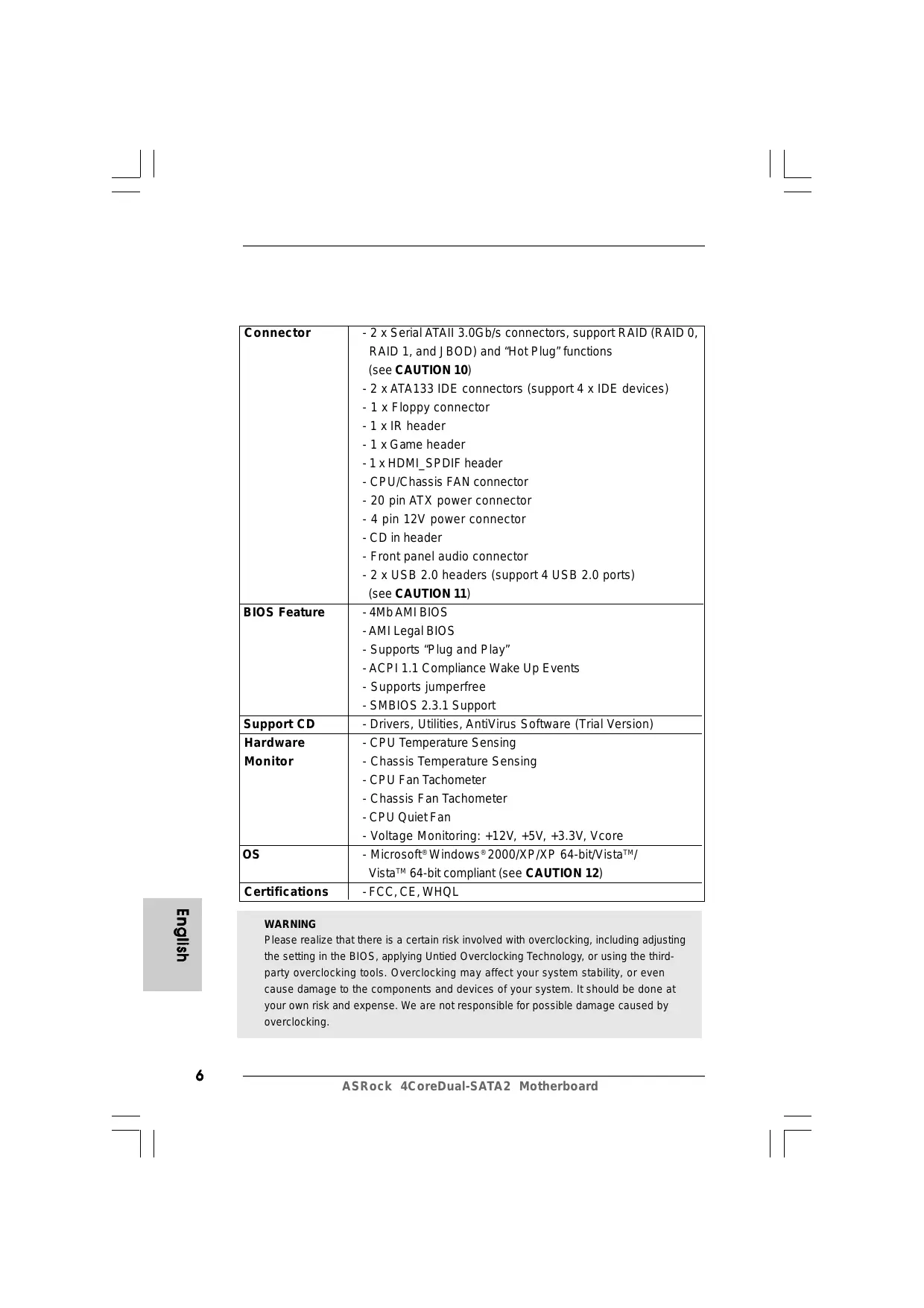
- 2 x Serial ATAII 3.0Gb/s connectors, support RAID (RAID 0, RAID 1, and JBOD) and “Hot Plug” functions (see CAUTION 10) - 2 x ATA133 IDE connectors (support 4 x IDE devices) - 1 x Floppy connector - 1 x IR header - 1 x Game header - 1 x HDMI_SPDIF header - CPU/Chassis FAN connector - 20 pin ATX power connector - 4 pin 12V power connector - CD in header - Front panel audio connector - 2 x USB 2.0 headers (support 4 USB 2.0 ports) (see CAUTION 11) - 4Mb AMI BIOS - AMI Legal BIOS - Supports “Plug and Play” - ACPI 1.1 Compliance Wake Up Events - Supports jumperfree - SMBIOS 2.3.1 Support - Drivers, Utilities, AntiVirus Software (Trial Version) - CPU Temperature Sensing - Chassis Temperature Sensing - CPU Fan Tachometer - Chassis Fan Tachometer - CPU Quiet Fan - Voltage Monitoring: +12V, +5V, +3.3V, Vcore - Microsoft® Windows® 2000/XP/XP 64-bit/VistaTM/ Certifications VistaTM 64-bit compliant (see CAUTION 12)
- FCC, CE, WHQL
BIOS Feature Support CD Hardware Monitor English WARNING Please realize that there is a certain risk involved with overclocking, including adjusting the setting in the BIOS, applying Untied Overclocking Technology, or using the thirdparty overclocking tools. Overclocking may affect your system stability, or even cause damage to the components and devices of your system. It should be done at your own risk and expense. We are not responsible for possible damage caused by overclocking.
ASRock 4CoreDual-SATA2 Motherboard CAUTION!
When you adopt Quad Core CPU on this motherboard, FSB frequency may be reduced 5%.
2. About the setting of “Hyper Threading Technology”, please check page
37 of “User Manual” in the support CD.
3. This motherboard supports Untied Overclocking Technology. Please read
“Untied Overclocking Technology” on page 27 for details.
4. This motherboard supports Dual Channel Memory Technology. Before
you implement Dual Channel Memory Technology, make sure to read the installation guide of memory modules on page 13 for proper installation. 5. Although this motherboard offers stepless control, it is not recommended to perform over-clocking. Frequencies other than the recommended CPU bus frequencies may cause the instability of the system or damage the CPU.
6. While CPU overheat is detected, the system will automatically shutdown.
Before you resume the system, please check if the CPU fan on the motherboard functions properly and unplug the power cord, then plug it back again. To improve heat dissipation, remember to spray thermal grease between the CPU and the heatsink when you install the PC system.
7. For the information of the compatible PCI Express VGA cards, please
refer to the “Supported PCI Express VGA Card List for PCI Express Graphics Slot” on page 9. For the proper installation of PCI Express VGA card, please refer to the installation guide on page 15.
8. Do NOT use a 3.3V AGP card on the AGP slot of this motherboard!
It may cause permanent damage!
9. For microphone input, this motherboard supports both stereo and mono
modes. For audio output, this motherboard supports 2-channel, 4-channel, 6-channel, and 8-channel modes. Please check the table on page 3 for proper connection.
10. Before installing SATAII hard disk to SATAII connector, please read the “SATAII
Hard Disk Setup Guide” on page 23 to adjust your SATAII hard disk drive to SATAII mode. You can also connect SATA hard disk to SATAII connector directly.
11. Power Management for USB 2.0 works fine under Microsoft® Windows®
ASRock 4CoreDual-SATA2 Motherboard English VistaTM 64-bit / VistaTM / XP 64-bit / XP SP1 or SP2 / 2000 SP4.
12. Microsoft® Windows® VistaTM / VistaTM 64-bit driver keeps on updating now.
As long as we have the latest driver, we will update it to our website in the future. Please visit our website for Microsoft® Windows® VistaTM / VistaTM 64bit driver and related information. ASRock website http://www.asrock.com
Minimum Hardware R equirement TTable able for W indows ® Requirement Windows Vista TM Premium 2007 and Basic OS This motherboard can support all features in Windows® VistaTM Premium 2007. Please follow below table for minimum hardware requirement. CPU Memory VGA Celeron D 326 1GB system memory DX9.0 with WDDM Driver with 128bit VGA memory (Premium) with 64bit VGA memory (Basic) English
ASRock 4CoreDual-SATA2 Motherboard Supported PCI Express VGA Card List for PCI Express Graphics Slot (for Windows® 2000/XP/XP 64-bit/VistaTM/VistaTM 64-bit) Graphics Chip Vendor NVIDIA ATI Model Name Chip Name GeForce 6800GT GeForce 7600GT GeForce 7800 GTX GeForce 6600GT GeForce 7100GS GeForce 8600 GTS GeForce 6500 GeForce 7300 GS GeForce 7300 LE GeForce 7900GS GeForce PCX5750 GeForce 8600 GTS GeForce 8800 GTS Radeon X1900XT
RADEON X850XT
RADEON X1300Pro RADEON X1600Pro
RADEON X1600XT
For the latest updates of the supported PCI Express VGA card list for PCI Express Graphics slot, please visit ASRock website for details. ASRock website: http://www.asrock.com/support/index.htm English
ASRock 4CoreDual-SATA2 Motherboard
2. Installation
Pre-installation Precautions Take note of the following precautions before you install motherboard components or change any motherboard settings.
1. Unplug the power cord from the wall socket before touching any
component. Failure to do so may cause severe damage to the motherboard, peripherals, and/or components.
2. To avoid damaging the motherboard components due to static
electricity, NEVER place your motherboard directly on the carpet or the like. Also remember to use a grounded wrist strap or touch a safety grounded object before you handle components.
3. Hold components by the edges and do not touch the ICs.
4. Whenever you uninstall any component, place it on a grounded
antstatic pad or in the bag that comes with the component.
5. When placing screws into the screw holes to secure the
motherboard to the chassis, please do not over-tighten the screws! Doing so may damage the motherboard.
2.1 CPU Installation
For the installation of Intel 775-LAND CPU, please follow the steps below. Before you insert the 775-LAND CPU into the socket, please check if the CPU surface is unclean or if there is any bent pin on the socket. Do not force to insert the CPU into the socket if above situation is found. Otherwise, the CPU will be seriously damaged.
ASRock 4CoreDual-SATA2 Motherboard Step 1. Open the socket: Step 1-1. Disengaging the lever by depressing down and out on the hook to clear retention tab. Step 1-2. Rotate the load lever to fully open position at approximately 135 degrees. Step 1-3. Rotate the load plate to fully open position at approximately 100 degrees. black line black line Step 2. Insert the 775-LAND CPU: Step 2-1. Hold the CPU by the edges where are marked with black lines. Step 2-2. Orient the CPU with IHS (Integrated Heat Sink) up. Locate Pin1 and the two orientation key notches. Pin1 orientation key notch orientation key notch Pin1 alignment key alignment key For proper inserting, please ensure to match the two orientation key notches of the CPU with the two alignment keys of the socket. English Step 2-3. Carefully place the CPU into the socket by using a purely vertical motion. Step 2-4. Verify that the CPU is within the socket and properly mated to the orient keys. Step 3. Remove PnP Cap (Pick and Place Cap): Use your left hand index finger and thumb to support the load plate edge, engage PnP cap with right hand thumb and peel the cap from the socket while pressing on center of PnP cap to assist in removal. ASRock 4CoreDual-SATA2 Motherboard
1. It is recommended to use the cap tab to handle and avoid kicking
2. This cap must be placed if returning the motherboard for after
service. Step 4. Close the socket: Step 4-1. Rotate the load plate onto the IHS. Step 4-2. While pressing down lightly on load plate, engage the load lever. Step 4-3. Secure load lever with load plate tab under retention tab of load lever.
Installation of CPU Fan and Heatsink For proper installation, please kindly refer to the instruction manuals of your CPU fan and heatsink. Below is an example to illustrate the installation of the heatsink for 775-LAND CPU. Step 1. Apply thermal interface material onto center of IHS on the socket surface. Step 2. Step 3. Step 4. Place the heatsink onto the socket. Ensure fan cables are oriented on side closest to the CPU fan connector on the motherboard (CPU_FAN1, see page 2, No. 5). Align fasteners with the motherboard throughholes. Rotate the fastener clockwise, then press down on fastener caps with thumb to install and lock. Repeat with remaining fasteners. English If you press down the fasteners without rotating them clockwise, the heatsink cannot be secured on the motherboard. Step 5. Step 6.
Connect fan header with the CPU fan connector on the motherboard. Secure excess cable with tie-wrap to ensure cable does not interfere with fan operation or contact other components. ASRock 4CoreDual-SATA2 Motherboard
2.3 Installation of Memory Modules (DIMM)
4CoreDual-SATA2 motherboard provides two 184-pin DDR (Double Data Rate) DIMM slots and two 240-pin DDRII DIMM slots, and supports Dual Channel Memory Technology. For dual channel configuration, you always need to install identical (the same brand, speed, size and chip-type) DDR / DDRII DIMM pair in the slots of the same color. In other words, you have to install identical DDRII DIMM pair in Dual Channel A (DDRII_1 and DDRII_2; Yellow slots; see p.2 No.6) or identical DDR DIMM pair in Dual Channel B (DDR1 and DDR2; Blue slots; see p. 2 No.7), so that Dual Channel Memory Technology can be activated. You may refer to the Dual Channel Memory Configuration Table below. Dual Channel Memory Configurations DDRII_1 DDR1 (Yellow Slot) (Blue Slot) Populated Populated
It is not allowed to install a DDR memory module into DDRII slot or a DDRII memory module into DDR slot; otherwise, this motherboard and DIMM may be damaged. It is not allowed to install both DDR and DDRII memory modules to this motherboard at the same time; otherwise, this motherboard and DIMM may be damaged. English (1) (2) DDRII_2 DDR2 (Yellow Slot) (Blue Slot) Populated Populated ASRock 4CoreDual-SATA2 Motherboard
Installing a DIMM Please make sure to disconnect power supply before adding or removing DIMMs or the system components. STEP 1: STEP 2: Unlock a DIMM slot by pressing the retaining clips outward. Align a DIMM on the slot such that the notch on the DIMM matches the break on the slot. The DIMM only fits in one correct orientation. It will cause permanent damage to the motherboard and the DIMM if you force the DIMM into the slot at incorrect orientation. STEP 3: Firmly insert the DIMM into the slot until the retaining clips at both ends fully snap back in place and the DIMM is properly seated. English
ASRock 4CoreDual-SATA2 Motherboard
2.4 Expansion Slots (PCI, AGP, and PCI Express Graphics
Slots) There are 4 PCI slots, 1 AGP slot, and 1 PCI Express Graphics slot on 4CoreDualSATA2 motherboard. PCI slots: PCI slots are used to install expansion cards that have the 32-bit PCI interface. AGP slot: The AGP slot is used to install a graphics card. The ASRock AGP slot has a special design of clasp that can securely fasten the inserted graphics card. AGP slot is used to install AGP expansion cards. Please do NOT use a 3.3V AGP card on the AGP slot of this motherboard! It may cause permanent damage! For the voltage information of your AGP card, please check with the AGP card vendors. PCI Express Graphics slot: PCI Express Graphics slot is used to install PCI Express expansion cards. For the information of the compatible PCI Express VGA cards, please refer to the “Supported PCI Express VGA Card List for PCI Express Graphics Slot” on page 9. Installing an expansion card Before installing the expansion card, please make sure that the power supply is switched off or the power cord is unplugged. Please read the documentation of the expansion card and make necessary hardware settings for the card before you start the installation. Remove the system unit cover (if your motherboard is already installed in a chassis). Remove the bracket facing the slot that you intend to use. Keep the screws for later use. Align the card connector with the slot and press firmly until the card is completely seated on the slot. Fasten the card to the chassis with screws. Replace the system cover. English Step 1. ASRock 4CoreDual-SATA2 Motherboard
2.5 Surround Display Feature
Thanks to ASRock patented PCI Express Graphics Technology, this motherboard supports Surround Display upgrade. With the external add-on AGP VGA card and PCI Express VGA card, you can easily enjoy the benefits of Surround Display feature. For the detailed instruction, please refer to the document at the following path in the Support CD: ..\ Surround Display Information
2.6 Jumpers Setup
The illustration shows how jumpers are setup. When the jumper cap is placed on pins, the jumper is “Short”. If no jumper cap is placed on pins, the jumper is “Open”. The illustration shows a 3-pin jumper whose pin1 and pin2 are “Short” when jumper cap is placed on these 2 pins. Jumper
PS2_USB_PWR1
Short Open Setting Short pin2, pin3 to enable +5VSB (standby) for PS/2 or USB wake up events. Note: To select +5VSB, it requires 2 Amp and higher standby current provided by power supply. (see p.2, No. 1) Clear CMOS (CLRCMOS1, 2-pin jumper) (see p.2, No. 19) 2-pin jumper English Note: CLRCMOS1 allows you to clear the data in CMOS. The data in CMOS includes system setup information such as system password, date, time, and system setup parameters. To clear and reset the system parameters to default setup, please turn off the computer and unplug the power cord from the power supply. After waiting for 15 seconds, use a jumper cap to short 2 pins on CLRCMOS1 for 5 seconds.
ASRock 4CoreDual-SATA2 Motherboard
2.7 Onboard Headers and Connectors
Onboard headers and connectors are NOT jumpers. Do NOT place jumper caps over these headers and connectors. Placing jumper caps over the headers and connectors will cause permanent damage of the motherboard! FDD Connector (33-pin FLOPPY1) (see p.2, No. 21) the red-striped side to Pin1 Note: Make sure the red-striped side of the cable is plugged into Pin1 side of the connector. Primary IDE Connector (Blue) Secondary IDE Connector (Black) (39-pin IDE1, see p.2, No. 9) (39-pin IDE2, see p.2, No. 10) connect the blue end to the motherboard connect the black end to the IDE devices 80-conductor ATA 66/100/133 cable Note: If you use only one IDE device on this motherboard, please set the IDE device as “Master”. Please refer to the instruction of your IDE device vendor for the details. Besides, to optimize compatibility and performance, please connect your hard disk drive to the primary IDE connector (IDE1, blue) and CD-ROM to the secondary IDE connector (IDE2, black). (SATA1: see p.2, No. 12) (SATA2: see p.2, No. 11) SATA1 Serial ATA (SATA) Data Cable (Optional) SATA2 These two Serial ATAII (SATAII) connectors support SATAII or SATA hard disk for internal storage devices. The current SATAII interface allows up to
3.0 Gb/s data transfer rate.
English Serial ATAII Connectors Either end of the SATA data cable can be connected to the SATA / SATAII hard disk or the SATAII connector on the motherboard. ASRock 4CoreDual-SATA2 Motherboard
Serial ATA (SATA) Power Cable (Optional) connect to the SATA HDD power connector connect to the power supply USB 2.0 Headers Please connect the black end of SATA power cable to the power connector on the drive. Then connect the white end of SATA power cable to the power connector of the power supply. Besides four default USB 2.0 ports on the I/O panel, there are two USB 2.0 headers on this motherboard. Each USB 2.0 header can support two USB
2.0 ports.
(9-pin USB67) (see p.2 No. 20) (9-pin USB45) (see p.2 No. 18) This header supports an optional wireless transmitting and receiving infrared module. (5-pin IR1) (see p.2, No. 27) Internal Audio Connector (4-pin CD1) (CD1: see p.2, No. 28) CD1 Front Panel Audio Header (9-pin HD_AUDIO1) English (see p.2, No. 24) This connector allows you to receive stereo audio input from sound sources such as a CD-ROM, DVD-ROM, TV tuner card, or MPEG card. This is an interface for the front panel audio cable that allows convenient connection and control of audio devices.
1. High Definition Audio supports Jack Sensing, but the panel wire on the
chassis must support HDA to function correctly. Please follow the instruction in our manual and chassis manual to install your system.
ASRock 4CoreDual-SATA2 Motherboard
2. If you use AC’97 audio panel, please install it to the front panel audio
header as below: A. Connect Mic_IN (MIC) to MIC2_L. B. Connect Audio_R (RIN) to OUT2_R and Audio_L (LIN) to OUT2_L. C. Connect Ground (GND) to Ground (GND). D. MIC_RET and OUT_RET are for HD audio panel only. You don’t need to connect them for AC’97 audio panel. E. Enter BIOS Setup Utility. Enter Advanced Settings, and then select Chipset Configuration. Set the Front Panel Control option from [Auto] to [Enabled]. F. Enter Windows system. Click the icon on the lower right hand taskbar to enter Realtek HD Audio Manager. For Windows® 2000 / XP / XP 64-bit OS: Click “Audio I/O”, select “Connector Settings” , choose “Disable front panel jack detection”, and save the change by clicking “OK”. For Windows® VistaTM / VistaTM 64-bit OS: Click the right-top “Folder” icon , choose “Disable front panel jack detection”, and save the change by clicking “OK”. System Panel Header This header accommodates several system front panel functions. (9-pin PANEL1) (see p.2, No. 13) Chassis Speaker Header Please connect the chassis speaker to this header. (4-pin SPEAKER 1) (see p.2, No. 14) Please connect the chassis fan cable to this connector and match the black wire to the ground pin. (3-pin CHA_FAN1) (see p.2, No. 15) CPU Fan Connector (4-pin CPU_FAN1) (see p.2, No. 5)
English Chassis Fan Connector Please connect the CPU fan cable to this connector and match the black wire to the ground pin. ASRock 4CoreDual-SATA2 Motherboard
Though this motherboard provides 4-Pin CPU fan (Quiet Fan) support, the 3-Pin CPU fan still can work successfully even without the fan speed control function. If you plan to connect the 3-Pin CPU fan to the CPU fan connector on this motherboard, please connect it to Pin 1-3. Pin 1-3 Connected 3-Pin Fan Installation Game Connector Connect a Game cable to this connector if the Game port bracket is installed. (15-pin GAME1) (see p.2, No. 22) ATX Power Connector (20-pin ATXPWR1) Please connect an ATX power supply to this connector. (see p.2, No. 29) ATX 12V Connector (4-pin ATX12V1) (see p.2, No. 2) HDMI_SPDIF Header (3-pin HDMI_SPDIF1) (see p.2 No. 23) English
Please note that it is necessary to connect a power supply with ATX 12V plug to this connector so that it can provides sufficient power. Failing to do so will cause the failure to power up. HDMI_SPDIF header, providing SPDIF audio output to HDMI VGA card, allows the system to connect HDMI Digital TV/ projector/LCD devices. Please connect the HDMI_SPDIF connector of HDMI VGA card to this header. ASRock 4CoreDual-SATA2 Motherboard Please connect the black end (A) of HDMI_SPDIF cable to the HDMI_SPDIF header on the motherboard. Then connect the white end (B or C) of HDMI_SPDIF cable to the HDMI_SPDIF connector of HDMI VGA card. ASRock 4CoreDual-SATA2 Motherboard
2.8 HDMI_SPDIF Header Connection Guide
HDMI (High-Definition Multi-media Interface) is an all-digital audio/video specification, which provides an interface between any compatible digital audio/video source, such as a set-top box, DVD player, A/V receiver and a compatible digital audio or video monitor, such as a digital television (DTV). A complete HDMI system requires a HDMI VGA card and a HDMI ready motherboard with a HDMI_SPDIF header. This motherboard is equipped with a HDMI_SPDIF header, which provides SPDIF audio output to HDMI VGA card, allows the system to connect HDMI Digital TV/projector/ LCD devices. To use HDMI function on this motherboard, please carefully follow the below steps.
- Step 1. Install the HDMI VGA card to the PCI Express Graphics slot on this Step 2. motherboard. For the proper installation of HDMI VGA card, please refer to the installation guide on page 15. Connect the black end (A) of HDMI_SPDIF cable to the HDMI_SPDIF header (HDMI_SPDIF1, yellow, see page 2, No.
23) on the motherboard.
Make sure to correctly connect the HDMI_SPDIF cable to the motherboard and the HDMI VGA card according to the same pin definition. For the pin definition of HDMI_SPDIF header and HDMI_SPDIF cable connectors, please refer to page 20. For the pin definition of HDMI_SPDIF connectors on HDMI VGA card, please refer to the user manual of HDMI VGA card vendor. Incorrect connection may cause permanent damage to this motherboard and the HDMI VGA card. Step 3. Connect the white end (B or C) of HDMI_SPDIF cable to the HDMI_SPDIF connector of HDMI VGA card. (There are two white ends (2-pin and 3-pin) on HDMI_SPDIF cable. Please choose the appropriate white end according to the HDMI_SPDIF connector of the HDMI VGA card you install. Please do not connect the white end of HDMI_SPDIF cable to the wrong connector of HDMI VGA card or other VGA card. Otherwise, the motherboard and the VGA card may be damaged. For example, this picture shows the wrong example of connecting HDMI_SPDIF cable to the fan connector of PCI Express VGA card. Please refer to the VGA card user manual for connector usage in advance. Step 4. Step 5.
Connect the HDMI output connector on HDMI VGA card to HDMI device, such as HDTV. Please refer to the user manual of HDTV and HDMI VGA card vendor for detailed connection procedures. Install HDMI VGA card driver to your system. ASRock 4CoreDual-SATA2 Motherboard
Before installing SATAII hard disk to your computer, please carefully read below SATAII hard disk setup guide. Some default setting of SATAII hard disks may not be at SATAII mode, which operate with the best performance. In order to enable SATAII function, please follow the below instruction with different vendors to correctly adjust your SATAII hard disk to SATAII mode in advance; otherwise, your SATAII hard disk may fail to run at SATAII mode. Western Digital If pin 5 and pin 6 are shorted, SATA 1.5Gb/s will be enabled. On the other hand, if you want to enable SATAII 3.0Gb/s, please remove the jumpers from pin 5 and pin 6. SAMSUNG If pin 3 and pin 4 are shorted, SATA 1.5Gb/s will be enabled. On the other hand, if you want to enable SATAII 3.0Gb/s, please remove the jumpers from pin 3 and pin 4. HITACHI Please use the Feature Tool, a DOS-bootable tool, for changing various ATA features. Please visit HITACHI’s website for details: http://www.hitachigst.com/hdd/support/download.htm English The above examples are just for your reference. For different SATAII hard disk products of different vendors, the jumper pin setting methods may not be the same. Please visit the vendors’ website for the updates. ASRock 4CoreDual-SATA2 Motherboard
2.10 Serial A
ATTA (SA (SATTA) / Serial A ATTAII (SA (SATTAII) Hard Disks Installation This motherboard adopts VIA® VT8237S southbridge chipset that supports Serial ATA (SATA) / Serial ATAII (SATAII) hard disks and RAID (RAID 0, RAID 1, and JBOD) functions. You may install SATA / SATAII hard disks on this motherboard for internal storage devices. This section will guide you to install the SATA / SATAII hard disks. STEP 1: Install the SATA / SATAII hard disks into the drive bays of your chassis. STEP 2: Connect the SATA power cable to the SATA / SATAII hard disk. STEP 3: Connect one end of the SATA data cable to the motherboard’s SATAII connector. STEP 4: Connect the other end of the SATA data cable to the SATA / SATAII hard disk.
2.11 Hot Plug and Hot Swap FFunctions
unctions for SA SATTA / SA SATTAII HDDs 4CoreDual-SATA2 motherboard supports Hot Plug and Hot Swap functions for SATA / SATAII Devices. NOTE What is Hot Plug Function? If the SATA / SATAII HDDs are NOT set for RAID configuration, it is called “Hot Plug” for the action to insert and remove the SATA / SATAII HDDs while the system is still power-on and in working condition. However, please note that it cannot perform Hot Plug if the OS has been installed into the SATA / SATAII HDD. What is Hot Swap Function? If SATA / SATAII HDDs are built as RAID1 then it is called “Hot Swap” for the action to insert and remove the SATA / SATAII HDDs while the system is still power-on and in working condition. English
ASRock 4CoreDual-SATA2 Motherboard
2.12 Driver Installation Guide
To install the drivers to your system, please insert the support CD to your optical drive first. Then, the drivers compatible to your system can be auto-detected and listed on the support CD driver page. Please follow the order from up to bottom side to install those required drivers. Therefore, the drivers you install can work properly.
2.13 Installing Windows ® 2000 / XP / XP 64-bit / Vista TM
/ Vista TM 64-bit With RAID Functions If you want to install Windows® 2000, Windows® XP, Windows® XP 64-bit, Windows® Vista TM or Windows ® VistaTM 64-bit OS on your SATA / SATAII HDDs with RAID functions, please follow below procedures according to the OS you install. The current version of RAID driver does not support Hot Swap function under RAID 1. If you create RAID 1 on your SATA / SATAII HDDs, please do not insert or remove your SATA / SATAII HDDs while the system is power on and in working condition. As soon as the RAID driver with Hot Swap function under RAID 1 is ready, we will upload it to our website. Please visit our website for RAID driver update in the near future. ASRock website: http://www.asrock.com
2.13.1 Installing Windows ® 2000 / XP / XP 64-bit With
RAID Functions If you want to install Windows® 2000, Windows® XP or Windows® XP 64-bit on your SATA / SATAII HDDs with RAID functions, please follow below steps. ASRock 4CoreDual-SATA2 Motherboard English STEP 1: Set Up BIOS. A. Enter BIOS SETUP UTILITY Advanced screen IDE Configuration. B. Set the “SATA Operation Mode” option to [RAID]. STEP 2: Make a SATA / SATAII Driver Diskette. A. Insert the ASRock Support CD into your optical drive to boot your system. B. During POST at the beginning of system boot-up, press <F11> key, and then a window for boot devices selection appears. Please select CD-ROM as the boot device. C. When you see the message on the screen, “Generate Serial ATA driver diskette [YN]?”, press <Y>. D. Then you will see these messages, Please insert a blank formatted diskette into floppy drive A: press any key to start Please insert a floppy diskette into the floppy drive, and press any key.
E. The system will start to format the floppy diskette and copy SATA / SATAII drivers into the floppy diskette. STEP 3: Use “RAID Installation Guide” to set RAID configuration. Before you start to configure RAID function, you need to check the RAID installation guide in the Support CD for proper configuration. Please refer to the BIOS RAID installation guide of the document in the following path in the Support CD: .. \ RAID Installation Guide STEP 4: Install Windows® 2000 / Windows® XP / Windows® XP 64-bit OS on your system. After step 1, 2, 3, you can start to install Windows® 2000 / Windows® XP / Windows® XP 64-bit OS on your system. At the beginning of Windows® setup, press F6 to install a third-party RAID driver. When prompted, insert the SATA / SATAII driver diskette containing the VIA® RAID driver. After reading the floppy disk, the driver will be presented. Select the driver to install according to the OS you install.
1. If you install Windows® 2000 / Windows® XP / Windows® XP 64-bit on IDE HDDs and
want to manage (create, convert, delete, or rebuild) RAID functions on SATA / SATAII HDDs, please set the RAID configuration by using the Windows RAID installation guide part of the document in the following path in the Support CD: .. \ RAID Installation Guide
2. If you want to use “VIA RAID Tool” in Windows® environment, please install SATA
/ SATAII drivers from the Support CD again so that “VIA RAID Tool” will be installed to your system as well.
2.13.2 Installing Windows ® Vista TM / Vista TM 64-bit With
RAID Functions If you want to install Windows® VistaTM or Windows® VistaTM 64-bit on your SATA / SATAII HDDs with RAID functions, please follow below steps. English STEP 1: Set Up BIOS. A. Enter BIOS SETUP UTILITY Advanced screen IDE Configuration. B. Set the “SATA Operation Mode” option to [RAID]. STEP 2: Use “RAID Installation Guide” to set RAID configuration. Before you start to configure RAID function, you need to check the RAID installation guide in the Support CD for proper configuration. Please refer to the BIOS RAID installation guide of the document in the following path in the Support CD: .. \ RAID Installation Guide STEP 3: Install Windows® VistaTM / Windows® VistaTM 64-bit OS on your system. Insert the Windows® VistaTM / Windows® VistaTM 64-bit optical disk into the optical drive to boot your system, and follow the instruction to install Windows® VistaTM / Windows® VistaTM 64-bit OS on your system. When you see “Where do you want to install Windows?” page, please insert the ASRock Support CD into your optical drive,
ASRock 4CoreDual-SATA2 Motherboard and click the “Load Driver” button on the left on the bottom to load the VIA® RAID drivers. VIA® RAID drivers are in the following path in our Support CD: .. \ I386 \ NT5 (For Windows® VistaTM OS) .. \ AMD64 \ 2003x64 (For Windows® VistaTM 64-bit OS) After that, please insert Windows® VistaTM / Windows® VistaTM 64-bit optical disk into the optical drive again to continue the installation.
1. If you install Windows® VistaTM / VistaTM 64-bit on IDE HDDs and want to manage
(create, convert, delete, or rebuild) RAID functions on SATA / SATAII HDDs, please set the RAID configuration by using the Windows RAID installation guide part of the document in the following path in the Support CD: .. \ RAID Installation Guide
2. If you want to use “VIA RAID Tool” in Windows® environment, please install SATA
/ SATAII drivers from the Support CD again so that “VIA RAID Tool” will be installed to your system as well.
2.14 Installing Windows ® 2000 / XP / XP 64-bit / Vista TM
/ Vista TM 64-bit Without RAID Functions If you want to install Windows® 2000, Windows® XP, Windows® XP 64-bit, Windows® VistaTM or Windows® VistaTM 64-bit OS on your SATA / SATAII HDDs without RAID functions, please follow below steps. STEP 1: Set Up BIOS. A. Enter BIOS SETUP UTILITY Advanced screen IDE Configuration. B. Set the “SATA Operation Mode” option to [non-RAID]. STEP 2: Install Windows® 2000 / Windows® XP / Windows® XP 64-bit / Windows® VistaTM / Windows® Vista TM 64-bit OS on your system. After step 1, you can start to install Windows® 2000 / Windows® XP / Windows® XP 64-bit / Windows® VistaTM / Windows® VistaTM 64-bit OS on your system.
2.15 Untied Overclocking TTechnology
echnology English This motherboard supports Untied Overclocking Technology, which means during overclocking, FSB enjoys better margin due to fixed AGP / PCI / PCIE bus. You may set “CPU Host Frequency” option of BIOS setup to [Auto], which will show you the actual CPU host frequency in the following item. Therefore, CPU FSB is untied during overclocking, but AGP / PCI / PCIE bus is in the fixed mode so that FSB can operate under a more stable overclocking environment. Please refer to the warning on page 6 for the possible overclocking risk before you apply Untied Overclocking Technology. ASRock 4CoreDual-SATA2 Motherboard
3. BIOS Information
The Flash Memory on the motherboard stores BIOS Setup Utility. When you start up the computer, please press <F2> during the Power-On-Self-Test (POST) to enter BIOS Setup utility; otherwise, POST continues with its test routines. If you wish to enter BIOS Setup after POST, please restart the system by pressing <Ctl> + <Alt> + <Delete>, or pressing the reset button on the system chassis. The BIOS Setup program is designed to be user-friendly. It is a menu-driven program, which allows you to scroll through its various sub-menus and to select among the predetermined choices. For the detailed information about BIOS Setup, please refer to the User Manual (PDF file) contained in the Support CD.
4. Software Suppor
Supportt CD information This motherboard supports various Microsoft® Windows® operating systems: 2000 / XP / XP 64-bit / VistaTM / VistaTM 64-bit. The Support CD that came with the motherboard contains necessary drivers and useful utilities that will enhance motherboard features. To begin using the Support CD, insert the CD into your CD-ROM drive. It will display the Main Menu automatically if “AUTORUN” is enabled in your computer. If the Main Menu does not appear automatically, locate and double-click on the file “ASSETUP. EXE” from the BIN folder in the Support CD to display the menus. English
ASRock 4CoreDual-SATA2 Motherboard ASRock 4CoreDual-SATA2 Motherboard
ASRock 4CoreDual-SATA2 Motherboard
ASRock 4CoreDual-SATA2 Motherboard
ASRock 4CoreDual-SATA2 Motherboard
ASRock 4CoreDual-SATA2 Motherboard
ASRock 4CoreDual-SATA2 Motherboard ASRock 4CoreDual-SATA2 Motherboard
ASRock 4CoreDual-SATA2 Motherboard ASRock 4CoreDual-SATA2 Motherboard
ASRock 4CoreDual-SATA2 Motherboard ASRock 4CoreDual-SATA2 Motherboard
SATA2 ASRock 4CoreDual-SATA2 Motherboard CD1 ASRock 4CoreDual-SATA2 Motherboard
ASRock 4CoreDual-SATA2 Motherboard
ASRock 4CoreDual-SATA2 Motherboard
ASRock 4CoreDual-SATA2 Motherboard ASRock 4CoreDual-SATA2 Motherboard
ASRock 4CoreDual-SATA2 Motherboard
ASRock 4CoreDual-SATA2 Motherboard
ASRock 4CoreDual-SATA2 Motherboard
ASRock 4CoreDual-SATA2 Motherboard
ASRock 4CoreDual-SATA2 Motherboard
ASRock 4CoreDual-SATA2 Motherboard
ASRock 4CoreDual-SATA2 Motherboard Spezifikationen Plattform CPU Chipsatz Speicher Hybrid Booster ASRock 4CoreDual-SATA2 Motherboard Deutsch
Deutsch ASRock 4CoreDual-SATA2 Motherboard ASRock 4CoreDual-SATA2 Motherboard Deutsch
ASRock 4CoreDual-SATA2 Motherboard ASRock 4CoreDual-SATA2 Motherboard Deutsch ASRock 4CoreDual-SATA2 Motherboard ASRock 4CoreDual-SATA2 Motherboard
ASRock 4CoreDual-SATA2 Motherboard ASRock 4CoreDual-SATA2 Motherboard
ASRock 4CoreDual-SATA2 Motherboard ASRock 4CoreDual-SATA2 Motherboard Deutsch Schritt 1:
ASRock 4CoreDual-SATA2 Motherboard Seriell-ATAII-Anschlüsse Serial ATA- (SATA-) Datenkabel (Option) SATA2 Deutsch ASRock 4CoreDual-SATA2 Motherboard
ASRock 4CoreDual-SATA2 Motherboard ASRock 4CoreDual-SATA2 Motherboard Deutsch ASRock 4CoreDual-SATA2 Motherboard
ASRock 4CoreDual-SATA2 Motherboard
ASRock 4CoreDual-SATA2 Motherboard ASRock 4CoreDual-SATA2 Motherboard
ASRock 4CoreDual-SATA2 Motherboard ASRock 4CoreDual-SATA2 Motherboard ASRock 4CoreDual-SATA2 Motherboard
ASRock 4CoreDual-SATA2 Motherboard
4. Software Suppor
Supportt CD information Deutsch ASRock 4CoreDual-SATA2 Motherboard
ASRock 4CoreDual-SATA2 Motherboard
1.2 Spécifications
CPU Chipsets Mémoire ASRock 4CoreDual-SATA2 Motherboard ASRock 4CoreDual-SATA2 Motherboard ASRock 4CoreDual-SATA2 Motherboard ASRock 4CoreDual-SATA2 Motherboard ASRock 4CoreDual-SATA2 Motherboard
ASRock 4CoreDual-SATA2 Motherboard Ligne noire Français ASRock 4CoreDual-SATA2 Motherboard
(Orifices des attaches ressortant) ASRock 4CoreDual-SATA2 Motherboard ASRock 4CoreDual-SATA2 Motherboard
ASRock 4CoreDual-SATA2 Motherboard ASRock 4CoreDual-SATA2 Motherboard ASRock 4CoreDual-SATA2 Motherboard (USB45 br.9) (voir p.2 No. 18) (IR1 br. 5) (voir p.2 No. 27) ASRock 4CoreDual-SATA2 Motherboard (PANEL1 br. 9) (voir p.2 No. 13) (SPEAKER1 br. 4) (voir p.2 No. 14) (CHA_FAN1 br. 3) (voir p.2 No. 15) ASRock 4CoreDual-SATA2 Motherboard
(GAME1 br. 15) (voir p.2 No. 22) ASRock 4CoreDual-SATA2 Motherboard ASRock 4CoreDual-SATA2 Motherboard ASRock 4CoreDual-SATA2 Motherboard
ASRock 4CoreDual-SATA2 Motherboard ASRock 4CoreDual-SATA2 Motherboard
ASRock 4CoreDual-SATA2 Motherboard ASRock 4CoreDual-SATA2 Motherboard
ASRock 4CoreDual-SATA2 Motherboard ASRock 4CoreDual-SATA2 Motherboard
ASRock 4CoreDual-SATA2 Motherboard Connettori BIOS ASRock 4CoreDual-SATA2 Motherboard
Italiano ASRock 4CoreDual-SATA2 Motherboard ASRock 4CoreDual-SATA2 Motherboard
ASRock 4CoreDual-SATA2 Motherboard ASRock 4CoreDual-SATA2 Motherboard
ASRock 4CoreDual-SATA2 Motherboard (1) Popolato (2) - Popolato Popolato
Popolato ASRock 4CoreDual-SATA2 Motherboard ASRock 4CoreDual-SATA2 Motherboard
ASRock 4CoreDual-SATA2 Motherboard ASRock 4CoreDual-SATA2 Motherboard Italiano ASRock 4CoreDual-SATA2 Motherboard ASRock 4CoreDual-SATA2 Motherboard Italiano ASRock 4CoreDual-SATA2 Motherboard ASRock 4CoreDual-SATA2 Motherboard Italiano ASRock 4CoreDual-SATA2 Motherboard ASRock 4CoreDual-SATA2 Motherboard ASRock 4CoreDual-SATA2 Motherboard ASRock 4CoreDual-SATA2 Motherboard Italiano ASRock 4CoreDual-SATA2 Motherboard ASRock 4CoreDual-SATA2 Motherboard
ASRock 4CoreDual-SATA2 Motherboard
1.2 Especificación
Chipset Memoria ASRock 4CoreDual-SATA2 Motherboard Español Plataforma Procesador
Conectores BIOS ASRock 4CoreDual-SATA2 Motherboard ASRock 4CoreDual-SATA2 Motherboard Español
ASRock 4CoreDual-SATA2 Motherboard ASRock 4CoreDual-SATA2 Motherboard
ASRock 4CoreDual-SATA2 Motherboard ASRock 4CoreDual-SATA2 Motherboard
ASRock 4CoreDual-SATA2 Motherboard ASRock 4CoreDual-SATA2 Motherboard
ASRock 4CoreDual-SATA2 Motherboard ASRock 4CoreDual-SATA2 Motherboard
ASRock 4CoreDual-SATA2 Motherboard ASRock 4CoreDual-SATA2 Motherboard
(9-pin USB67) (ver p.2, No. 20) (9-pin USB45) (ver p.2, No. 18) (9-pin HD_AUDIO1) (vea p.2, No. 24) ASRock 4CoreDual-SATA2 Motherboard ASRock 4CoreDual-SATA2 Motherboard
ASRock 4CoreDual-SATA2 Motherboard ASRock 4CoreDual-SATA2 Motherboard
ASRock 4CoreDual-SATA2 Motherboard ASRock 4CoreDual-SATA2 Motherboard
ASRock 4CoreDual-SATA2 Motherboard ASRock 4CoreDual-SATA2 Motherboard Español ASRock 4CoreDual-SATA2 Motherboard ASRock 4CoreDual-SATA2 Motherboard
ASRock 4CoreDual-SATA2 Motherboard