
RS Intelligent Tracking Module - Tripod DJI - Free user manual and instructions
Find the device manual for free RS Intelligent Tracking Module DJI in PDF.


| Product Type | Intelligent Tracking Module with integrated tripod |
| Dimensions | Approximately 125 x 68 x 52 mm |
| Weight | Approximately 135 g |
| Power Supply | Rechargeable lithium battery via USB-C port |
| Battery Life | Up to 4 hours of continuous tracking |
| Tracking Range | Approximately 0.5 m to 30 m |
| Camera Sensor | Built-in 1/4-inch CMOS sensor |
| Video Resolution | 1080p at 30 fps |
| Field of View | Approximately 65 degrees |
| Mounting Thread | Standard 1/4-inch-20 UNC tripod thread |
| Compatibility | DJI RS 2, RS 3, RS 3 Pro, and RS 4 gimbals |
| Wireless Connectivity | Bluetooth 5.0 and Wi-Fi for app control |
| Main Functions | ActiveTrack, Motion Lapse, Time-lapse, and Static Tracking |
| Control Method | DJI Ronin app (iOS and Android) |
| Tripod Legs | Built-in foldable legs with rubber feet |
| Maintenance | Clean with soft dry cloth; avoid moisture and dust |
| Safety Precautions | Do not disassemble or expose to water; keep away from heat sources |
| Spare Parts & Repairability | Replacement screws, USB cables, and lens caps available; battery serviced by authorized centers |
| Operating Temperature | 0°C to 40°C |
| Storage Temperature | -10°C to 60°C |
Frequently Asked Questions - RS Intelligent Tracking Module DJI
User questions about RS Intelligent Tracking Module DJI
0 question about this device. Answer the ones you know or ask your own.
Ask a new question about this device
Download the instructions for your Tripod in PDF format for free! Find your manual RS Intelligent Tracking Module - DJI and take your electronic device back in hand. On this page are published all the documents necessary for the use of your device. RS Intelligent Tracking Module by DJI.
USER MANUAL RS Intelligent Tracking Module DJI
DJI RS Intelligent Tracking Module
User Manual
v1.0 2025.02

This document is copyrighted by DJI with all rights reserved. Unless otherwise authorized by DJI, you are not eligible to use or allow others to use the document or any part of the document by reproducing, transferring or selling the document. Only refer to this document and the content thereof as instructions to operate DJI products. The document should not be used for other purposes.
In the event of divergence among different versions, the English version shall prevail.

Searching for Keywords
Search for keywords such as "battery" and "install" to find a topic. If you are using Adobe Acrobat Reader to read this document, press Ctrl+F on Windows or Command+F on Mac to begin a search.

Navigating to a Topic
View a complete list of topics in the table of contents. Click on a topic to navigate to that section.

Printing this Document
This document supports high resolution printing.
Using this Manual
Legend
⚠️ Important
Hints and Tips
Reference
Read Before Use
DJI TM provides you with tutorial videos and the following documents:
- Safety Guidelines
- Quick Start Guide
- User Manual
It is recommended to watch all the tutorial videos and read the Safety Guidelines before using for the first time. Make sure to review the Quick Start Guide before using for the first time and refer to this User Manual for more information.
Contents
Using this Manual 3
Legend 3
Read Before Use 3
1 Overview 5
2 Operations 6
2.1 Installation 6
2.2 Slide Right - ActiveTrack Settings 7
2.3 Tracking and Shooting 8
Control via Buttons and Joystick 8
Control via Gesture 9
3 Firmware Update 11
4 Appendix 12
4.1 Specifications
12
1 Overview
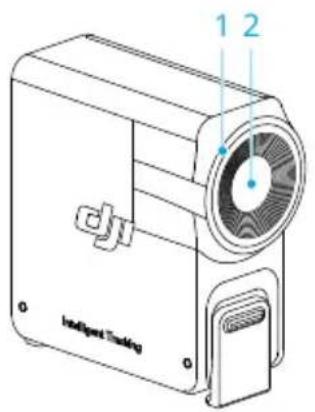
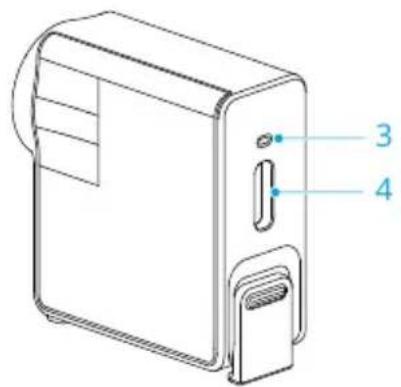
1. Ring Light
| Battery Level | |
 | Solid red ActiveTrack disabled(in sleep mode) or sub-ject lost |
 | Solid green ActiveTrack in use |
 | Blinks green Subject lost temporarily |
 | Solid yellow Composition being adjusted |
 | Blinks yellow Countdown for taking a picture or recording(shutter triggered after 3s of blinking) |
- Tracking Lens
- Status Indicator

Light signals and meanings are consistent with the ring light.
- USB-C Data Port
Connect to a computer for firmware updates.
2 Operations
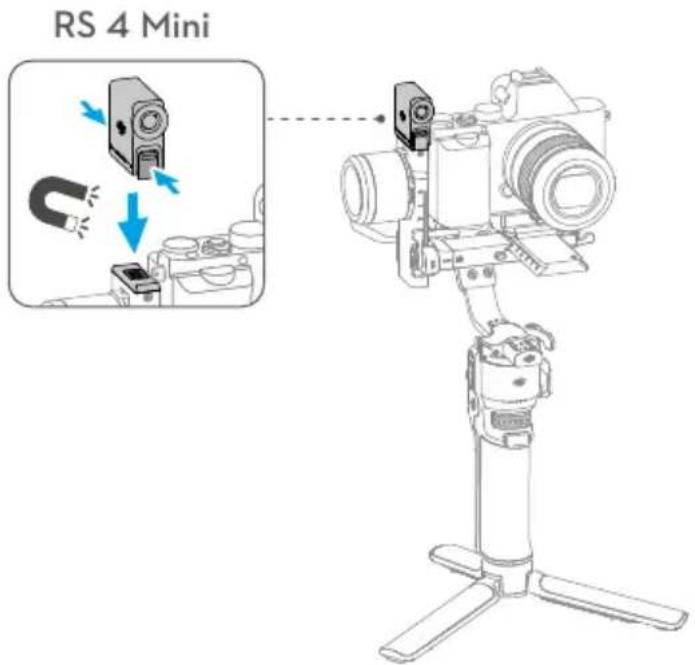
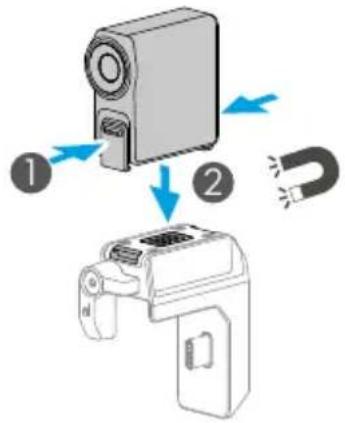
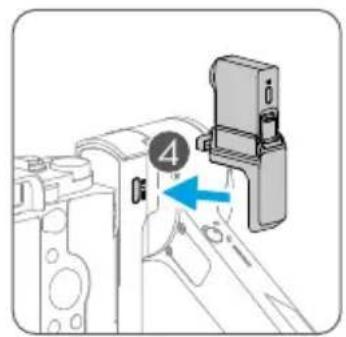
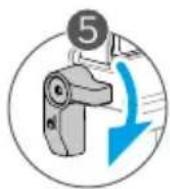
2.1 Installation
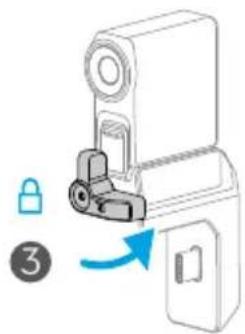
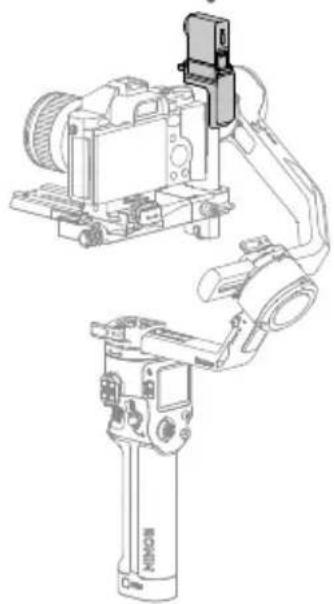
After installing the intelligent tracking module, slide right from the home page to enter the ActiveTrack settings interface and adjust according to shooting needs. For detailed operations, refer to Slide Right - ActiveTrack Settings.

- If the status indicator does not light up after installation, check if the magnetic attachment is in place.
- If the tracking module idle for more than five minutes, it automatically enters sleep mode and the indicator turns off. To wake up the module, press the trigger on the gimbal.
RS 4 / RS 4 Pro
√
2.2 Slide Right - ActiveTrack Settings
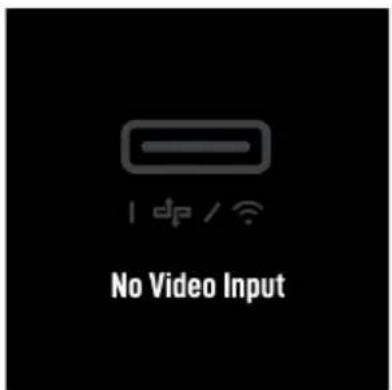
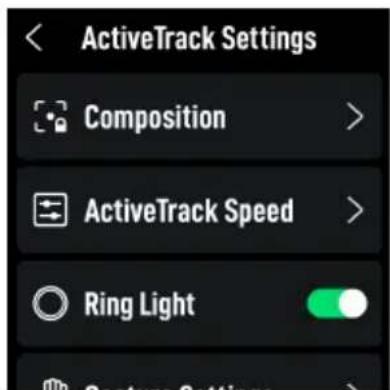
If no intelligent tracking module is connected, No Signal Input will display on the screen. When the intelligent tracking module is connected, composition, ActiveTrack Speed and gestures can be set on this page.
Composition: When Composition is adjusted to Center Tracking Subject, the subject tracked will be moved to the center of the ActiveTrack view. When ActiveTrack is enabled with Keep Current Framing, the gimbal will maintain the current composition.
ActiveTrack Speed: Slow speed provides smooth tracking, ideal for live streaming. Medium speed works well for parallel tracking, while fast speed is best for close-up circling shots or high-motion scenes.

- The touchscreen does not display the ActiveTrack view.
- In Center Tracking Subject, the subject may not always stay perfectly centered due to variations in camera, lens, and shooting distance. If this happens, use the joystick to adjust the composition.
2.3 Tracking and Shooting

- It is not recommended to use in backlight or low-light scenarios.
- During tracking, keep the subject 0.5 m to 10 m away from the tracking lens.
Control via Buttons and Joystick
Press the trigger to enable or disable the ActiveTrack.
Once the subject is being tracked, you can use the joystick to adjust the composition.
Press the trigger twice to disable the ActiveTrack and recenter the gimbal.

- The tracking module only supports following people and prioritizes those close to the lens and near the center of the view. The subject tracked should be 1 m to 3 m away from the tracking lens.
- During shooting, you can switch ActiveTrack mode using the gimbal mode switch. In Pan Follow (PF) mode, only the pan axis can follow; in Pan and Tilt Follow (PTF) mode, both the pan and tilt axes can follow; in Full Follow (FPV) mode, ActiveTrack is not supported.
When shooting from a mid-low camera position, the gimbal handle should point in the direction of the subject being tracked.

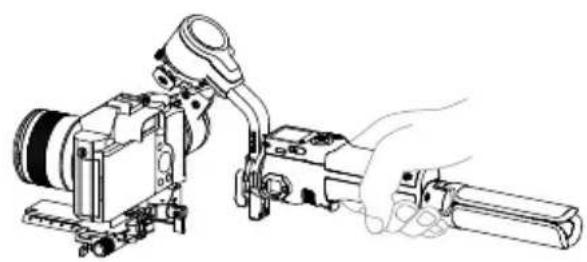
Control via Gesture
Enable tracking: Show the gesture to the camera or press the trigger. The indicator turns solid green.
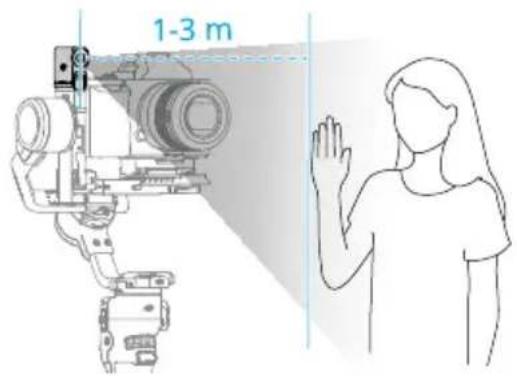
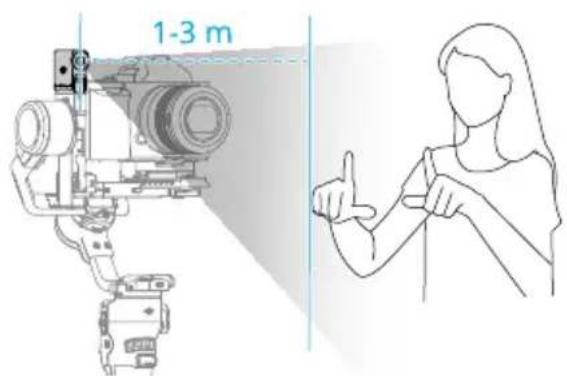
Adjusting composition: Adjust the composition as needed during tracking. Show the gesture to the camera. The indicator turns solid yellow and tracking is automatically paused. The subject can move to the desired position in the frame.
Show the gesture again to confirm the composition. The indicator turns solid green and tracking automatically resumes.
Stop tracking: Show the gesture or press the trigger again. The indicator turns solid red.
Shooting: Whether tracking is in use or not, you can use to start a countdown for taking a photo or starting/stopping recording. The indicator pulses yellow during the countdown.
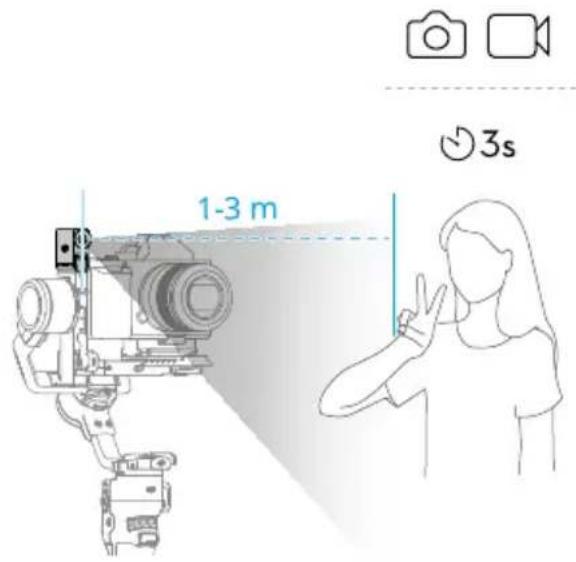
3 Firmware Update
The tracking module needs to be connected to a computer for firmware update.
- Visit https://www.dji.com/rs-4-mini/downloads and download the corresponding firmware package.
- Use the included USB-C cable to connect the tracking module to the computer.
- Place the downloaded firmware package (file ending in .bin) in the root directory of the tracking module.
- Once copied, disconnect the USB connection.
- Reconnect the tracking module to the computer. The tracking module will automatically start the update process. The status indicator will blink red and green alternately. DO NOT disconnect the connection during the process.
- The status indicator remaining solid red indicates that the update is complete.
4 Appendix
4.1 Specifications
Visit the following website for specifications.
https://www.dji.com/rs-4-mini/specs
Contact
DJI SUPPORT
This content is subject to change without notice.
Download the latest version from

https://www.dji.com/rs-4-mini/downloads
If you have any questions about this document, please contact DJI by sending a message to DocSupport@dji.com.
DJI is a trademark of DJI.
Copyright © 2025 DJI All Rights Reserved.
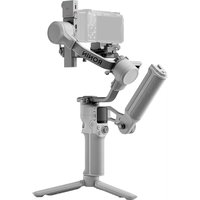
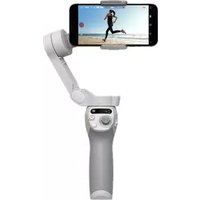
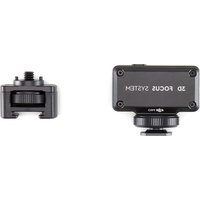
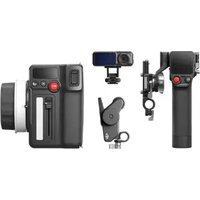
- DJI RS INTELLIGENT TRACKING MODULE
- SEARCHING FOR KEYWORDS
- NAVIGATING TO A TOPIC
- PRINTING THIS DOCUMENT
- USING THIS MANUAL
- LEGEND
- READ BEFORE USE
- CONTENTS
- OVERVIEW
- OPERATIONS
- FIRMWARE UPDATE
- APPENDIX
- RING LIGHT
- INSTALLATION
- SLIDE RIGHT - ACTIVETRACK SETTINGS
- TRACKING AND SHOOTING
- CONTROL VIA BUTTONS AND JOYSTICK
- CONTROL VIA GESTURE
- SPECIFICATIONS
Brand : DJI
Model : RS Intelligent Tracking Module
Category : Tripod