
SATA II EXPRESSCARD #F5U239 - Expansion card BELKIN - Free user manual and instructions
Find the device manual for free SATA II EXPRESSCARD #F5U239 BELKIN in PDF.


| Product type | ExpressCard SATA II Adapter Card |
| Brand | BELKIN |
| Model | F5U239 |
| Interface | PCI Express x1 (2.5 Gbps) |
| SATA Standard | Serial ATA II (3.0 Gbps) |
| Controller | Silicon Image Sil 3132 |
| Number of ports | 2 external SATA ports |
| Connector type | ExpressCard 54 mm |
| Computer compatibility | Laptops with ExpressCard slot |
| Supported operating systems | Windows 2000, XP, Server 2003 |
| Main features | Adds SATA II port, hot-swap support, NCQ and LCQ support |
| Power supply | Via ExpressCard bus |
| Maintenance and cleaning | Clean gold connectors with a dry cloth if necessary |
| Safety | Do not expose to water, follow standard electronic component precautions |
| Certifications | FCC, CE |
| Warranty | Limited lifetime warranty |
Frequently Asked Questions - SATA II EXPRESSCARD #F5U239 BELKIN
User questions about SATA II EXPRESSCARD #F5U239 BELKIN
0 question about this device. Answer the ones you know or ask your own.
Ask a new question about this device
Download the instructions for your Expansion card in PDF format for free! Find your manual SATA II EXPRESSCARD #F5U239 - BELKIN and take your electronic device back in hand. On this page are published all the documents necessary for the use of your device. SATA II EXPRESSCARD #F5U239 by BELKIN.
USER MANUAL SATA II EXPRESSCARD #F5U239 BELKIN
Add a Serial ATA II port to your notebook computer using ExpressCard technology
Add a Serial ATA II port to your notebook computer using ExpressCard technology
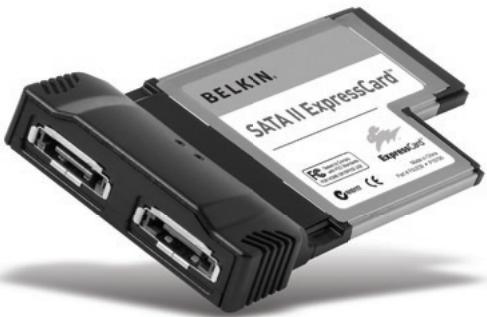
Table of Contents
- Introduction......5
Specifications....6
System Requirements....7
Package Contents......7 - Hardware Installation....8
- Verifying Proper Installation 9
- Troubleshooting 10-11
- Information 12-13
Congratulations and thank you for purchasing the SATA II ExpressCard from Belkin. This ExpressCard offers notebook users a fast and convenient way to add Serial ATA ports that can take advantage of the increased bandwidth and features the new ExpressCard I/O interconnection standard delivers.
Why ExpressCard?
ExpressCard, the standard destined to replace CardBus, quadruples your computing bandwidth. This results in faster music downloads, smoother streaming video, and lightning-fast access to mass-storage devices.
The ExpressCard provides the perfect solution for simultaneously streaming movies and downloading video from your camcorder to your hard drive—without risking that your computer will freeze, crash, or slow to a trickle. ExpressCard future-proofs your computer with technology so advanced that it exceeds the processing speed of many devices currently on the market. This means that installing the ExpressCard now assures you of device-upgrade expansion room for many years to come.
Please carefully review this User Manual so that you can take full advantage of all the capabilities the Belkin SATA II ExpressCard offers.
Benefits
- Meets PCI Express Base Specification Revision 1.1
- Delivers single-lane (x1) PCI Express throughput support rates of 2.5Gbps
- Complies with ExpressCard 54mm-wide module specification
- Builds in 2 external, independent Serial ATA ports
- Complies with Serial ATA 1.0 specifications
- Provides Serial ATA II transfer rates of up to 3.0Gbps
- Allows you to connect/disconnect devices without powering down the system (hot-swappable)
Specifications
- Interface: One-lane PCI Express
- Mode: Serial ATA Generation 2
• Controller: Silicon Image Sil 3132 - Support for Legacy Command Queuing (LCQ)
- Support for Native Command Queuing (NCQ)
- Support for non-zero offsets (NCQ)
- Support for out-of-order data delivery (NCQ)
- Support for FIS-based switching with port multipliers
System Requirements
- Windows® based notebook with available ExpressCard slot
- Windows 2000, XP, 2003 Server
Package Contents
- SATA II ExpressCard
- User Manual
-
CD Driver
-
Locate your notebook's ExpressCard slot(s).
- With your notebook on, slide the ExpressCard into the unused 54mm ExpressCard bus slot.
Note: Do not plug any devices into the ExpressCard until you have completely finished the driver installation.
- The "New Hardware Wizard" will launch and recognize the ExpressCard.
- Windows "Found New Hardware Wizard" pops up and finds a "Mass Storage Controller". Select "Install from a list or specific location" and click "Next".
- Select "Include this location in the search" and click "Browse" to specify the Serial ATA ExpressCard driver located on the CD (
:\Windows 32bit\Driver). Then, click "Next". Note: " " represents the letter that identifies your CD-ROM driver under "My Computer"—e.g., if the CD is in drive D, enter "D:\Windows 32bit\Driver". - Windows automatically installs the correct driver. Click "Finish" to complete driver installation.
- Installation is now complete and the ExpressCard is ready to use.
Check the “Windows Device Manager” to confirm that your ExpressCard has been properly installed.
- Right-click on "My Computer" and select "Manage".
- Select the "Device Manager" tab.
- Click the (+) sign next to “SCSI and RAID controllers”. The “SCSI and RAID controllers” will now include one entry that reads “Silicon Image Sil 3132 SATALink Controller”.
The ExpressCard and devices connected to the computer do not work properly.
Please do the following:
- Check that all the cables you are using are the correct types, and that they are all securely connected.
- Make sure all devices are powered on and connected to the proper power supply and source.
- Reconnect daisy-chained devices you may have disconnected for installation. If reconnecting does not clear up the problem, restart your computer.
- Make sure you have properly installed the ExpressCard.
The computer did not detect the ExpressCard.
- Make sure that the ExpressCard is correctly plugged into the ExpressCard 54mm slot; if not, plug it in securely.
- If the ExpressCard is plugged in correctly, see if its gold connectors are clean; if not, clean the connector surface.
- Follow the procedure on page 5 titled “Verifying Proper Installation”. If the ExpressCard designation “Silicon Image Sil 3132 SATALink Controller” does not appear in the Device Manager, update your computer BIOS to the latest version (contact your computer manufacturer for details). If after updating your BIOS, your computer still does not detect the ExpressCard, contact your computer manufacturer for advanced support for BIOS.
I cannot install the ExpressCard driver.
Ensure that your Microsoft Windows operating system is upgraded to the latest “Service Pack” (please check the Microsoft website). It is highly recommended that you update your system to Windows 2000 service pack 4, Windows XP service pack 2, or Windows Server 2003 service pack 1 (or later).
FCC Statement
DECLARATION OF CONFORMITY WITH FCC RULES FOR ELECTROMAGNETIC COMPATIBILITY
We, Belkin Corporation, of 501 West Walnut Street, Compton, CA 90220, declare under our sole responsibility that the product:
F5U239ea
to which this declaration relates:
Complies with Part 15 of the FCC Rules. Operation is subject to the following two conditions: (1) this device may not cause harmful interference, and (2) this device must accept any interference received, including interference that may cause undesired operation.
CE Declaration of Conformity
We, Belkin Corporation, declare under our sole responsibility that the F5U239ea, to which this declaration relates, is in conformity with Generic Emissions Standard EN55022:1998 Class B, EN50081-1, and with Generic Immunity Standard EN50082-1:1992.
Belkin Corporation Limited Lifetime Product Warranty What this warranty covers.
Belkin Corporation warrants to the original purchaser of this Belkin product that the product shall be free of defects in design, assembly, material, or workmanship.
What the period of coverage is.
Belkin Corporation warrants the Belkin product for the lifetime of the product.
What will we do to correct problems?
Product Warranty.
Belkin will repair or replace, at its option, any defective product free of charge (except for shipping charges for the product).
What is not covered by this warranty?
All above warranties are null and void if the Belkin product is not provided to Belkin Corporation for inspection upon Belkin's request at the sole expense of the purchaser, or if Belkin Corporation determines that the Belkin product has been improperly installed, altered in any way, or tampered with. The Belkin Product Warranty does not protect against acts of God (other than lightning) such as flood, earthquake, war, vandalism, theft, normal-use wear and tear, erosion, depletion, obsolescence, abuse, damage due to low voltage disturbances (i.e. brownouts or sags), non-authorized program, or system equipment modification or alteration.
How to get service.
To get service for your Belkin product you must take the following steps:
- Check www.Belkin.com for your local technical support number and contact us with the following information at hand:
a. The part number of the Belkin product.
b. Where you purchased the product.
c. When you purchased the product.
d. Copy of original receipt.
- Your Belkin Customer Service Representative will then instruct you on how to forward your receipt and Belkin product and how to proceed with your claim.
Belkin Corporation reserves the right to review the damaged Belkin product. All costs of shipping the Belkin product to Belkin Corporation for inspection shall be borne solely by the purchaser. If Belkin determines, in its sole discretion, that it is impractical to ship the damaged equipment to Belkin Corporation, Belkin may designate, in its sole discretion, an equipment repair facility to inspect and estimate the cost to repair such equipment. The cost, if any, of shipping the equipment to and from such repair facility and of such estimate shall be borne solely by the purchaser. Damaged equipment must remain available for inspection until the claim is finalized. Whenever claims are settled, Belkin Corporation reserves the right to be subrogated under any existing insurance policies the purchaser may have.
How state law relates to the warranty.
THIS WARRANTY CONTAINS THE SOLE WARRANTY OF BELKIN CORPORATION, THERE ARE NO OTHER WARRANTIES, EXPRESSED OR, EXCEPT AS REQUIRED BY LAW, IMPLIED, INCLUDING THE IMPLIED WARRANTY OR CONDITION OF QUALITY, MERCHANTABILITY OR FITNESS FOR A PARTICULAR PURPOSE, AND SUCH IMPLIED WARRANTIES, IF ANY, ARE LIMITED IN DURATION TO THE TERM OF THIS WARRANTY.
Some states do not allow limitations on how long an implied warranty lasts, so the above limitations may not apply to you.
IN NO EVENT SHALL BELKIN CORPORATION BE LIABLE FOR INCIDENTAL, SPECIAL, DIRECT, INDIRECT, CONSEQUENTIAL OR MULTIPLE DAMAGES SUCH AS, BUT NOT LIMITED TO, LOST BUSINESS OR PROFITS ARISING OUT OF THE SALE OR USE OF ANY BELKIN PRODUCT, EVEN IF ADVISED OF THE POSSIBILITY OF SUCH DAMAGES.
This warranty gives you specific legal rights, and you may also have other rights, which may vary from state to state. Some states do not allow the exclusion or limitation of incidental, consequential, or other damages, so the above limitations may not apply to you.
BELKIN®
www.belkin.com
Belkin Ltd.
Express Business Park, Shipton Way
Rushden, NN10 6GL, United Kingdom
+44 (0) 1933 35 2000
+44 (0) 1933 31 2000 fax
Belkin B.V.
Boeing Avenue 333
1119 PH Schiphol-Rijk, The Netherlands
+31 (0) 20 654 7300
+31 (0) 20 654 7349 fax
Belkin GmbH
Hanebergstrasse 2
80637 Munich, Germany
+49 (0) 89 143405 0
+49 (0) 89 143405 100 fax
Belkin SAS
130 rue de Silly
92100 Boulogne-Billancourt, France
+33 (0) 1 41 03 14 40
+33 (0) 1 41 31 01 72 fax
Belkin Iberia
Avda. Cerro del Aguila 3
28700 San Sebastián de los Reyes, Spain
+34 9 16 25 80 00
+34 9 02 02 00 34 fax
Belkin Nordic
Knarrarnäsgatan 7
164 40 Kista, Sweden
+46 (0) 8 5229 1870
+46 (0) 8 5229 1874 fax
- Introduction......17
Spécifications....18
Configuration requise....19
Contenu de l'emballage....19 - Installation du matériel....20
- Vérification de l'installation....21
- Dépannage ......22-23
- Information ......24-25
Express Business Park, Shipton Way
natural_image
Exterior view of a black SATAII ExpressCard flash drive (no visible text beyond branding)EN 3
FR 15
DE 27
NL 39
ES 51
IT 63
Express Business Park, Shipton Way
Express Business Park, Shipton Way
Express Business Park, Shipton Way
Rushden, NN10 6GL, Reino Unido
+44 (0) 1933 35 2000
+44 (0) 1933 31 2000 fax
Belkin B.V.
Boeing Avenue 333
Manuale d'uso
Express Business Park, Shipton Way
Express Business Park, Shipton Way
Rushden, NN10 6GL, United Kingdom
+44 (0) 1933 35 2000
+44 (0) 1933 31 2000 fax
Belkin B.V.
Boeing Avenue 333
1119 PH Schiphol-Rijk, The Netherlands
+31 (0) 20 654 7300
+31 (0) 20 654 7349 fax
Belkin GmbH
Hanebergstrasse 2
80637 Munich, Germany
+49 (0) 89 143405 0
+49 (0) 89 143405 100 fax
Belkin SAS
130 rue de Silly
92100 Boulogne-Billancourt, France
+33 (0) 1 41 03 14 40
+33 (0) 1 41 31 01 72 fax
Belkin Iberia
Avda. Cerro del Aguila 3
28700 San Sebastián de los Reyes, Spain
+34 9 16 25 80 00
+34 9 02 02 00 34 fax
Belkin Nordic
Knarrarnäsgatan 7
164 40 Kista, Sweden
+46 (0) 8 5229 1870
+46 (0) 8 5229 1874 fax