CASQUE SANS FIL BLUETOOTH™ #F8T061EA - Wireless Headphones BELKIN - Free user manual and instructions
Find the device manual for free CASQUE SANS FIL BLUETOOTH™ #F8T061EA BELKIN in PDF.


User questions about CASQUE SANS FIL BLUETOOTH™ #F8T061EA BELKIN
0 question about this device. Answer the ones you know or ask your own.
Ask a new question about this device
Download the instructions for your Wireless Headphones in PDF format for free! Find your manual CASQUE SANS FIL BLUETOOTH™ #F8T061EA - BELKIN and take your electronic device back in hand. On this page are published all the documents necessary for the use of your device. CASQUE SANS FIL BLUETOOTH™ #F8T061EA by BELKIN.
USER MANUAL CASQUE SANS FIL BLUETOOTH™ #F8T061EA BELKIN
natural_image
Exterior view of a white and gray wireless earbuds device (no visible text or symbols)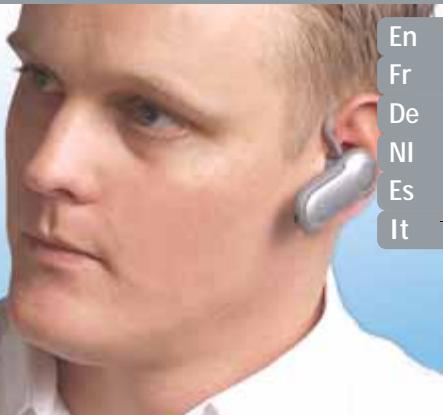
text_image
En Fr De NI Es It
Bluetooth™
F8T061
BELKIN®
Bluetooth™
Hands-Free Headset
natural_image
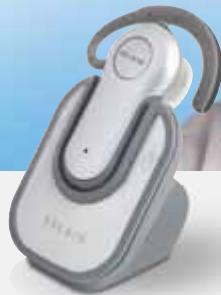
White and gray wireless earbuds with a black clip, displayed against a blue background (no text or symbols visible)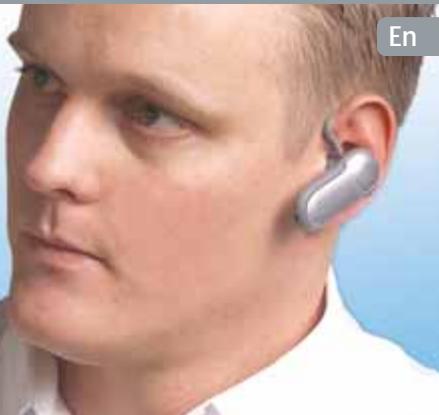
natural_image
Close-up of a person wearing a small earband device (no visible text or symbols)
Bluetooth™
F8T061
Table of Contents
1 Introduction ...... 1
Product Features ....1
System Requirements 2
Specifications 3
Supported Profiles ....5
2 Getting to Know your Hands-Free Headset .....6
3 Before you Begin 8
4 Pairing to a Bluetooth Technology-Enabled Phone .....12
5 Information .....26
Introduction
Congratulations and thank you for purchasing the Bluetooth Hands-Free Headset from Belkin. The Headset features the breakthrough Bluetooth wireless technology that lets you create efficient communications with your Bluetooth technology-enabled phone. Please review this manual carefully to ensure you get the most from your product.
Product Features
The Bluetooth Hands-Free Headset is compliant with Bluetooth standard version 1.1 and provides:
• Support for the Headset and Hands-Free Profile
- Compatibility with Bluetooth technology-enabled phones
- A moldable ear hook, providing a comfortable fit with SoftHold™ technology
• Built-in security: up to 128-bit encryption and authentication
Introduction
System Requirements
Compatible with all phones enabled with Bluetooth v1.1, including, but not limited to:
- Sony Ericsson® T610, T616, T618, T68i, P800
- Nokia® 3650, 3600, 6310, 6310i, 8910, 8910i, 6600, N-Gage™
• Philips® Fisio® 820, 825
• Ericsson® T39m, T68m
Package Contents
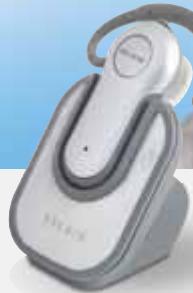
- Bluetooth Hands-Free Headset
- Desktop Charger
- SoftHold moldable ear hook with 3 interchangeable earplugs
• 5V DC, 300mA Power Supply - User Manual
- Registration Card
Introduction
Specifications
| Model: | F8T061 |
| Bluetooth Compliance: | Version 1.1 |
| Operating Frequency: | 2.4 to 2.4835GHz |
| Spread Spectrum: | FHSS (Frequency Hopping Spread Spectrum) |
| Modulation: | GFSK (Gussian Frequency Shift Keying) |
| RF Output: | 0 dBm, Class 2 |
| Sensitivity: | < 0.1% BER at -81 dBm |
| Frequency Stability: | +/- 10PPM |
| Operation Range: | 10m (33 ft.)* |
| Design: | Left and right ear |
| Battery: | Rechargeable lithium polymer |
Introduction
| Antenna: | Integrated, 0 +/- adbi |
| LED Indicator: | Power/Pairing |
| Charger: | 5.0V DC, 300mA |
| Typical Power Consumption: | TX: 150mA, Rx 80mA |
| Dimensions: | 64mm (L) x 22mm (W) x 8mm (H) |
| Weight: | 0.8oz. |
*10m range is dependent upon environment, number of users, and other wireless devices within immediate proximity. Specifications are subject to change without notice.
Introduction
Supported Profiles
The services supported by your Headset are defined as "Profiles". Available Profiles include:
- Hands-Free
- Headset
Getting to Know your Hands-Free Headset
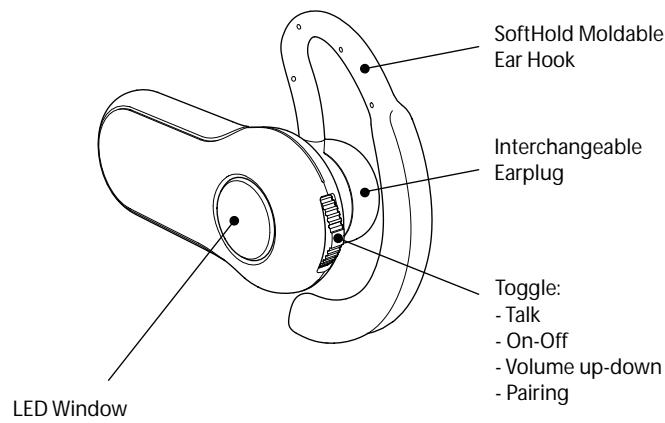
text_image
SoftHold Moldable Ear Hook Interchangeable Earplug Toggle: - Talk - On-Off - Volume up-down - Pairing LED WindowGetting to Know your Hands-Free Headset
| Status Indicators | |
| LED | Status |
| 5 quick blue flashes | Headset is being turned on |
| 5 quick red flashes | Headset is being turned off |
| Continues blue/red flashing | Headset is in pairing mode |
| Flashes blue once every 3 seconds | Headset paired but not active |
| 3 quick blue flashes every 3 seconds | Headset paired and active |
1
2
3
4
5
Before you Begin
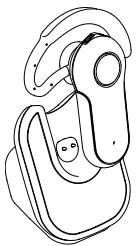
Warning: The Bluetooth Hands-Free Headset and charger have magnets in them that allow them to dock with each other. Keep magnets at least two feet away from computer hard drives, and other magnetic storage media, monitors, televisions, VCRs, videotapes, cameras, camera film, credit cards, etc.
natural_image
Line drawing of a mechanical clamping device (no text or symbols)For Bluetooth Technology-Enabled Phones
The Bluetooth Hands-Free Headset is compatible with Bluetooth phones (version 1.1 phones).
Check for phone compatibility on page 2, or check with your phone manufacturer to ensure Bluetooth compatibility.
Before you Begin
Charge your Headset
Your Bluetooth Hands-Free Headset is equipped with a rechargeable lithium polymer battery and must be charged prior to use.
- Plug one end of the power adapter into the desktop charger and the other end into an available 230V AC electrical outlet.
- Insert the Headset into the desktop charger. The charging indicator on the charger will illuminate red.
- Charge the Headset for approximately two hours or until the red charger indicator light goes out.
Note: The red indicator light will be on while the Headset is charging and will turn off when charging is complete.
Before you Begin
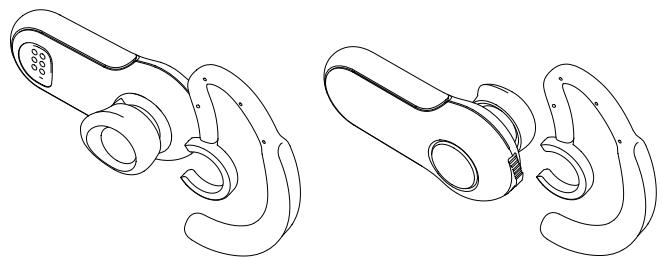
Adjust the Earpiece
The SoftHold earpiece was designed to comfortably fit around the left or right ear. You may change the position of the earpiece simply by flipping the earpiece and snapping it into place as described below.
natural_image
Line drawings of two different types of smart glasses (no text or symbols present)10
Before you Begin
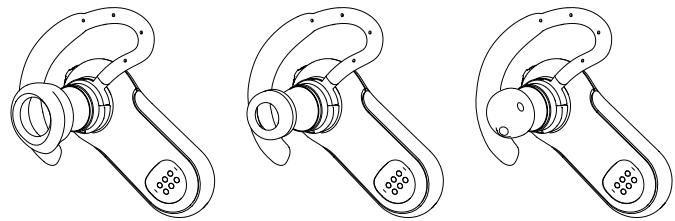
Changing the Ear Plugs
The Headset includes three interchangeable earplugs that are designed to fit common ear types. Select the earplug that fits the most comfortably for your ear type.
natural_image
Three identical line drawings of a mechanical clamp or bracket device, showing different mounting points (no text or symbols present)11
Pairing to a Bluetooth Technology-Enabled Phone
Pairing Instructions for Popular Bluetooth Technology-Enabled Phones
For specific instructions to pair your phone, find your model below or refer to your mobile telephone user guide.
Note: For security purposes, the Headset will remain in pairing mode for 60 seconds. If the paring process is not completed within 60 seconds, you will have to redo the entire pairing procedure.
Pairing to a Bluetooth Technology-Enabled Phone
Pairing Process for Nokia 6310 and 6310i
- Ensure that your Headset is turned off.
- Press and hold down the talk button. After approximately eight seconds, the blue light will flash five times, indicating the Headset is powered on. Do not release the button until you see an alternating blue and red light. This indicates the Headset is in pairing mode.
- Select "Menu" and then go to "Bluetooth".
- Make sure your Bluetooth capability is turned ON.
- Scroll down to "Search for Audio Accessories".
- Your phone will find the Belkin Headset and list it under "Found Devices".
Pairing to a Bluetooth Technology-Enabled Phone
- Select "Belkin Headset" to initiate the pairing.
- Enter the passkey or pin "0000" (4 zeros). You should see the LED lights switch from flashing blue/red to flashing blue every three seconds.
- Your Headset is now ready to use.
Pairing to a Bluetooth Technology-Enabled Phone
Pairing Process for Nokia 3650 and N-Gage
- Ensure that your Headset is turned off.
- Press and hold down the talk button. After approximately eight seconds, the blue light will flash five times, indicating the Headset is powered on. Do not release the button until you see an alternating blue and red light. This indicates the Headset is in pairing mode.
- Select "Menu" and then go to the "Tools" folder.
- Select "Bluetooth".
- Make sure your Bluetooth capability is turned ON.
- Scroll to the "Paired Devices" tab and select "Options".
- Under "Options" select "New Paired Devices".
Pairing to a Bluetooth Technology-Enabled Phone
- Your phone will search and find the "Belkin Headset".
- Select "Belkin Headset" to initiate the pairing.
- Enter the passkey or pin "0000" (4 zeros). You should see the LED lights switch from flashing blue/red to flashing blue every three seconds.
- Exit the Menu.
- On your Headset, initiate a connection to your mobile phone by pushing the talk button once. After a few seconds you will be asked on your mobile phone to accept a connection from the Bluetooth Headset.
- Your Headset is now ready to use.
Pairing to a Bluetooth Technology-Enabled Phone
Pairing Process for Sony Ericsson T68i
- Ensure that your Headset is turned off.
-
Press and hold down the talk button. After approximately eight seconds, the blue light will flash five times, indicating the Headset is powered on. Do not release the button until you see an alternating blue and red light. This indicates the Headset is in pairing mode.
-
Go to the Menu screen for your T68i.
- Select the "Connect" icon, then select "Bluetooth".
- Go to "Paired Devices" and "Add a Device".
- Select "Phone Initiates".
- Select "Hands-Free" (make sure your Headset is flashing blue/red).
Pairing to a Bluetooth Technology-Enabled Phone
- Your phone will find the Headset and list it under "Found Devices".
- Select "Belkin Headset" to initiate the pairing.
- Enter the passkey or pin "0000" (4 zeros). You should see the LED lights switch from flashing blue/red to flashing blue every three seconds.
- Your Headset is now ready to use.
Pairing to a Bluetooth Technology-Enabled Phone
Pairing Process for Sony Ericsson T610, T616, T618
- Ensure that your Headset is turned off.
- Press and hold down the talk button. After approximately eight seconds, the blue light will flash five times, indicating the Headset is powered on. Do not release the button until you see an alternating blue and red light. This indicates the Headset is in pairing mode.
- Go to the Menu screen for your T610 series.
- Select the "Connect" icon, then select "Bluetooth".
- Select "Hands-free Devices".
- Select "My Hands-free" and "Add a new hands-free device".
- Your phone will find the "Belkin Headset" and list it under "Found Devices".
Pairing to a Bluetooth Technology-Enabled Phone
- Select "Belkin Headset" to initiate the pairing.
- Enter the passkey or pin "0000" (4 zeros). You should see the LED lights switch from flashing blue/red to flashing blue every three seconds.
- Your Headset is now ready to use.
Pairing to a Bluetooth Technology-Enabled Phone
Pairing Process for Sony Ericsson P800
- Ensure that your Headset is turned off.
- Press and hold down the talk button. After approximately eight seconds, the blue light will flash five times, indicating the Headset is powered on. Do not release the button until you see an alternating blue and red light. This indicates the Headset is in pairing mode.
- From the application selection screen, select "Control Panel".
- Select the "Connections" tab, then select "Bluetooth" from the list.
- Select the "Settings" tab and bring down the "Operation Mode" drop-down menu.
Pairing to a Bluetooth Technology-Enabled Phone
- Select "Auto", then select the "Add" button.
- Once you've done this, the P800 will detect all the discoverable Bluetooth devices within its range.
- Once the P800 has detected your "Belkin Headset", select it and when prompted for the passkey, enter "0000" and select "Done".
- You have now successfully paired your Bluetooth Hands-Free Headset with your P800 phone.
- You may select the "Done" button to return to the Control Panel.
Pairing to a Bluetooth Technology-Enabled Phone
Using your Headset
Switching the Headset On and Off
To turn your Headset on, remove the Headset from the desktop charger, then press and hold the talk button until the LED indicator flashes blue five times. The LED indicator will flash blue every three seconds while the Headset is on.
To turn your Headset off, press and hold the talk button until the LED indicator flashes red five times.
Fitting the Headset
Decide which side of your head you will wear the Headset on, and use your hand on that side to slide the ear hook gently over and around your ear in a circular motion. Adjust the ear hook to your ear by molding it around the contour of your ear.
Pairing to a Bluetooth Technology-Enabled Phone
Answering a Call
To answer a call, wait until your Headset rings, then press the talk button once to answer.
Ending a Call
To end a call, press the talk button at any time during a phone call.
Making a Call
To make a call, dial using your mobile phone.
Voice Dialling
If your mobile phone allows voice Dialling, push the talk button to initiate it through your Headset.
Pairing to a Bluetooth Technology-Enabled Phone
Volume Control
Right-ear users:
To increase the volume on the Headset, push the toggle button upward.
To decrease the volume on the Headset, push the toggle button downward.
Left-ear users:
To increase the volume on the Headset, push the toggle button downward.
To decrease the volume on the Headset, push the toggle button upward.
Information
Regulatory Notices
To identify this product, refer to the part or model number on the product label.
For customer support and for regulatory issues, contact Belkin at 00 800 223 55 460.
Federal Communications Commission Notices
This equipment has been tested and found to comply with the limits for a Class B digital device, pursuant to Part 15 of the FCC Rules. These limits are designed to provide reasonable protection against harmful interference in a residential installation. This equipment generates, uses, and can radiate radio frequency energy and, if not installed and used in
Information
accordance with the instructions, may cause harmful interference to radio communications. However, there is no guarantee that interference will not occur in a particular installation. If this equipment does cause harmful interference to radio or television reception, which can be determined by turning the equipment off and on, the user is encouraged to try to correct the interference by one or more of the following measures:
- Increase the separation between the equipment and receiver.
- Connect the equipment into an outlet on a circuit different from that to which the receiver is connected.
- Consult the dealer or an experienced radio/TV technician for help.
Information
We, Belkin Corporation, of 501 West Walnut Street, Compton, CA 90220, declare under our sole responsibility that the product, F8T061
to which this declaration relates, complies with Part 15 of the FCC Rules. Operation is subject to the following two conditions: (1) this device may not cause harmful interference, and (2) this device must accept any interference received, including interference that may cause undesired operation.
Modifications
The FCC requires the user to be notified that any changes or modifications made to this device that are not expressly approved by the manufacturer may void the user's authority to operate the equipment.
Information
Canada-Industry Canada (IC)
The wireless radio of this device complies with RSS 139 & RSS 210 Industry Canada. This Class B digital complies with Canadian ICES-003.
European Community Notice
Hereby, Belkin Corporation declares that this Bluetooth Hands-Free Headset is in compliance with the essential requirements and other relevant provisions of Directive 1999/5/EC.
CE
Information
Products bearing the CE marking comply with the R&TTE Directive (1999/5/EC), EMC Directive (89/336/EEC), and the Low Voltage Directive (73/23/EEC) issued by the commission of the European Community Compliance with these directives implies conformity to the following European Norms (in parentheses are the equivalent international standards and regulations):
• EN 60950 (IEC60950) – Product Safety
• ETS 300 328 – Technical requirements for radio equipment
- EN 301 489-17 – General EMC requirements for radio equipment
This product may be used in all EU and EFTA countries.
Information
Wireless Notice
In some situations or environments, the use of wireless devices may be restricted. Such restrictions may apply aboard airplanes, in hospitals, near explosives, in hazardous locations, etc. If you are uncertain of the policy that applies to the use of this device, please ask for authorisation to use it prior to turning it on.
BELKIN®
Bluetooth™ Hands-Free Headset
BELKIN®
5501 West Walnut Street
Compton • CA • 90220-5221 • USA
Tel: +1 310 898 1100
Fax: +1 310 898 1111
Belkin Ltd.
Express Business Park • Shipton Way
Rushden • NN10 6GL • United Kingdom
Tel: +44 (0) 1933 35 2000
Fax: +44 (0) 1933 31 2000
Belkin B.V.
Boeing Avenue 333
1119 PH Schiphol-Rijk • The Netherlands
Tel: +31 (0) 20 654 7300
Fax: +31 (0) 20 654 7349
Belkin Tech Support
Europe: 00 800 223 55 460
US: 877 736 5771
© 2004 Belkin Corporation. All rights reserved. All trade names are registered trademarks of respective manufacturers listed. The Bluetooth name and the Bluetooth trademarks are owned by Bluetooth SIG, Inc., and are used by Belkin Corporation under license.
Belkin GmbH
Hanebergstrasse 2
80637 München • Germany
Tel: +49 (0) 89 143405 0
Fax: +49 (0) 89 143405 100
Belkin Components SAS
NSW 2250 • Australia
Tel: +61 (0) 2 4372 8600
Fax: +61 (0) 2 4372 8603
P74500
natural_image
Product photo of a white and gray electronic device with a curved handle (no visible text or symbols)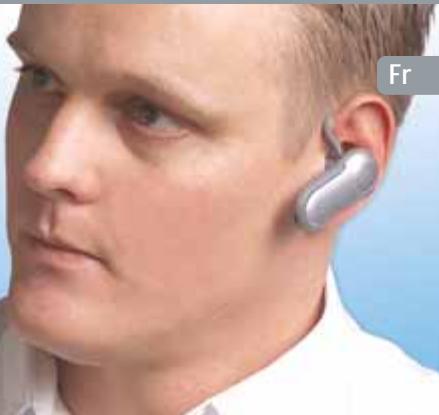
natural_image
Close-up of a person wearing a medical ear with a silver earband, against a blue background (no text or symbols visible)
Bluetooth™
F8T061
Fr
Table des matières
1 Introduction ...... 1
natural_image
Line drawing of a mechanical clamping device (no text or symbols)natural_image
Line drawings of two types of smart glasses with curved connectors (no text or symbols)10
Avant de commencer
natural_image
Three identical line drawings of a mechanical clamp or bracket device, showing different mounting points (no text or symbols present)11
Canada-Industry Canada (IC)
La radio sans fil de cet appareil est conforme aux normes RSS 139 & RSS 210 d'Industrie Canada. This Class B digital complies with Canadian ICES-003.
5501 West Walnut Street
Express Business Park • Shipton Way
Assistance technique Belkin
Europe: 00 800 223 55 460
US: 877 736 5771
natural_image
Product photo of a white and gray handheld device with a curved handle (no visible text or symbols)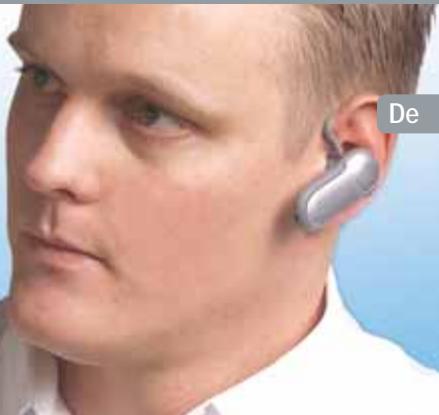
natural_image
Close-up of a person wearing a silver earband, head tilted slightly (no visible text or symbols)
Bluetooth™
F8T061
Inhaltsverzeichnis
1 Einleitung ....1
natural_image
Line drawing of a mechanical clamping device (no text or symbols)natural_image
Line drawings of two different types of smart glasses (no text or symbols present)10
Vorbereitung:
natural_image
Three identical line drawings of a mechanical clamp or bracket device, showing different mounting points (no text or symbols present)11
5501 West Walnut Street
Compton • CA • 90220-5221 • USA
Tel: +1 310 898 1100
Fax: +1 310 898 1111
Belkin Ltd.
Express Business Park • Shipton Way
natural_image
Product photo of a white and gray electronic device with a handle (no visible text or symbols)
natural_image
Close-up of a person wearing a small ear with a metallic device, against a plain blue background (no text or symbols visible)
Bluetooth™
F8T061
NI
Inhoud
1 Inleiding ....1
Productkenmerken 1
Systeemvereisten 2
natural_image
Line drawing of a mechanical clamping device (no text or symbols)natural_image
Line drawings of two types of smart air purifiers with no text or symbols10
Voordat u begint
natural_image
Three identical line drawings of a mechanical clamp or bracket device, showing different mounting points (no text or symbols present)11
Canada-Industry Canada (IC)
5501 West Walnut Street
Compton • CA • 90220-5221 • USA
Tel: +1 310 898 1100
Fax: +1 310 898 1111
Belkin Ltd.
Express Business Park • Shipton Way
natural_image
Product photo of a white and gray electronic device with a curved handle (no visible text or symbols)
natural_image
Close-up of a person wearing a silver earband device (no visible text or symbols)
Bluetooth™
F8T061
natural_image
Line drawing of a mechanical clamping device (no text or symbols)natural_image
Line drawings of two different types of smart glasses (no text or symbols present)10
Antes de empezar
natural_image
Three identical line drawings of a mechanical clamp or bracket device, showing different mounting points (no text or symbols present)11
5501 West Walnut Street
Express Business Park • Shipton Way
Rushden • NN10 6GL • Reino Unido
Tel: +44 (0) 1933 35 2000
Fax: +44 (0) 1933 31 2000
Belkin B.V.
Boeing Avenue 333
1119 PH Schiphol-Rijk • Holanda
Tel: +31 (0) 20 654 7300
Fax: +31 (0) 20 654 7349
NSW 2250 • Australia
Tel: +61 (0) 2 4372 8600
Fax: +61 (0) 2 4372 8603
P74500
natural_image
Product photo of a white and gray electronic device with a curved handle (no visible text or symbols)
natural_image
Close-up of a person wearing a small ear with a metallic device, against a plain blue background (no text or symbols visible)
Bluetooth™
F8T061
Indice
natural_image
Line drawing of a mechanical clamping device (no text or symbols)natural_image
Line drawings of two different types of smart glasses (no text or symbols present)10
Prima di iniziare
natural_image
Three identical line drawings of a mechanical clamp or bracket device, showing different mounting points (no text or symbols present)11
Canada-Industry Canada (IC)
5501 West Walnut Street
Compton • CA • 90220-5221 • USA
Tel: +1 310 898 1100
Fax: +1 310 898 1111
Belkin Ltd.
Express Business Park • Shipton Way
Rushden • NN10 6GL • Regno Unito
Tel: +44 (0) 1933 35 2000
Fax: +44 (0) 1933 31 2000
Belkin B.V.
Boeing Avenue 333
1119 PH Schiphol-Rijk • Paesi Bassi
Tel: +31 (0) 20 654 7300
Fax: +31 (0) 20 654 7349
Belkin GmbH
Hanebergstrasse 2
80637 München • Germania
Tel: +49 (0) 89 143405 0
Fax: +49 (0) 89 143405 100
Belkin Components SAS
NSW 2250 • Australia
Tel: +61 (0) 2 4372 8600
Fax: +61 (0) 2 4372 8603
5501 West Walnut Street
Compton • CA • 90220-5221 • USA
Tel: +1 310 898 1100
Fax: +1 310 898 1111
Belkin Ltd.
Express Business Park • Shipton Way
Rushden • NN10 6GL • United Kingdom
Tel: +44 (0) 1933 35 2000
Fax: +44 (0) 1933 31 2000
Belkin B.V.
Boeing Avenue 333
1119 PH Schiphol-Rijk • The Netherlands
Tel: +31 (0) 20 654 7300
Fax: +31 (0) 20 654 7349
Belkin Tech Support
Europe: 00 800 223 55 460
US: 877 736 5771
Belkin GmbH
Hanebergstrasse 2
80637 München • Germany
Tel: +49 (0) 89 143405 0
Fax: +49 (0) 89 143405 100
Belkin Components SAS
NSW 2250 • Australia
Tel: +61 (0) 2 4372 8600
Fax: +61 (0) 2 4372 8603
© 2004 Belkin Corporation. All rights reserved. All trade names are registered trademarks of respective manufacturers listed. The Bluetooth name and the Bluetooth trademarks are owned by Bluetooth SIG, Inc., and are used by Belkin Corporation under license.
P74500ea