
NEO 368050 - Laser rangefinder BUSHNELL - Free user manual and instructions
Find the device manual for free NEO 368050 BUSHNELL in PDF.


User questions about NEO 368050 BUSHNELL
0 question about this device. Answer the ones you know or ask your own.
Ask a new question about this device
Download the instructions for your Laser rangefinder in PDF format for free! Find your manual NEO 368050 - BUSHNELL and take your electronic device back in hand. On this page are published all the documents necessary for the use of your device. NEO 368050 by BUSHNELL.
USER MANUAL NEO 368050 BUSHNELL
Section 1: Introduction. 4
Welcome 4
Important Information 5
www.bushnellgolf.com/gps.html 6
Package Contents 7
Additional Requirements 7
Bushnell Neo Features 8
Battery Information 9
Keypad Function 10
Start Up 10
Section 2: Bushnell Neo. 11
Main Menu 11
Play Golf 12
Map Course 15
Delete Course 17
Satellites 17
Battery Level 17
Settings 18
About Bushnell 20
Section 3: Bushnell Neo Sync. 21
Introduction 21
Installation 22
Download Courses 23
Send Courses 24
Save Courses 25
Settings 26
Section 4: Appendices. 27
English
Welcome
Dear Valued Consumer:
We sincerely hope you will find your Bushnell product both enjoyable and easy to use. Knowing the exact distance for each shot will assist you in lowering your score and enhance your overall golfing experience.
This User Manual was created for you to get the most out of your new device. It only takes a few minutes to read, after which you can immediately begin using the Bushnell Neo and enjoying its many features.
Also, please visit http://www.bushnellgolf.com/gps.html to set up your iGolf membership (click "Log-In"). As a member, you have access to all the features and benefits iGolf has to offer, including access to an extensive database of GPS enabled golf course files for use on your Bushnell Neo.
Thank you for choosing Bushnell.
Important Information
Legal Disclaimer
By using this product, you agree that Bushnell Outdoor Products will not be held legally responsible for any injury or damage to you or any person or property caused by the user's improper operation and/or poor judgment while using this product.
Note: See Limited Warranty for other limitations on our liability.
Additional Information
The Global Positioning System (GPS), a network of 32 satellites orbiting Earth, is operated and maintained by the U.S. government. This GPS device requires at least 3 satellites to be acquired to accurately determine your position. Any change made to the system by the government could affect the accuracy and performance of this product.
http://www.bushnellgolf.com/gps.html
Bushnell Golf GPS Website
http://www.bushnellgolf.com/gps. html is an online resource for all our Golf GPS product owners, and it also serves as a portal to access iGolf GPS course files to use with these Bushnell products. Setting up your iGolf membership allows you access to GPS course files, the ability to download GPS files and many other benefits.
Download Course Files
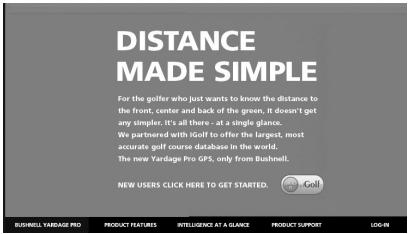
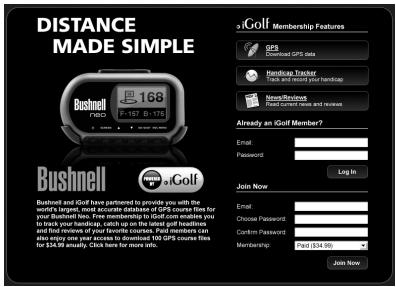
1) Go to http://www.bushnellgolf.com/gps.html, and click the "Log-In" link. If not already an iGolf member, fill in the boxes and click "Join Now".
2) Search for desired course using simple terms to broaden results
(i.e. Augusta National Golf Club: search for Augusta).
3) Select course name from search results and download GPS file.
4) When prompted, SAVE the file.
5) Use Bushnell Neo Sync to transfer golf course file to device.
Package Contents - Additional Requirements
Package Contents*
1-Bushnell Neo
1-BeltClip
1 - USB Cable
1 - AC/DC 5V Adapter
1 - Software CD
1 - Quick Start Guide
*Please contact your dealer if your package is incomplete.
Additional Requirements*
PC with Windows Vista, Windows XP or Windows 2000 or Mac with OS X, version 10.4.x or later **
PC or Mac with CD-ROM drive and USB port
*Required to transfer files from computer
**Windows is a registered trademark of Microsoft Corporation in the United States and other countries. Mac and Mac OS are trademarks of Apple Inc., registered in the U.S. and other countries.
Bushnell Neo Features
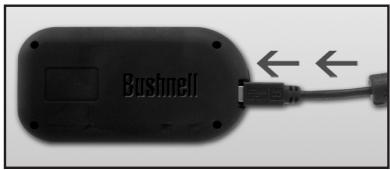
USB Connection >
Battery Information
Battery Information
This product contains an internal rechargeable lithium-ion battery. Under normal operating conditions, a new battery will last 14-16 hours on a full charge. However, battery life is diminished due to a variety of factors including temperature and backlight usage. All rechargeable batteries lose their effective charge length over time.
The internal battery can be charged by connecting the included USB cable to the device and a computer. Alternatively, the battery can be charged by connecting the USB cable to the device and using the included adapter to plug the charger into a standard 110V wall outlet.
Keypad Function - Start-up
Keypad Function
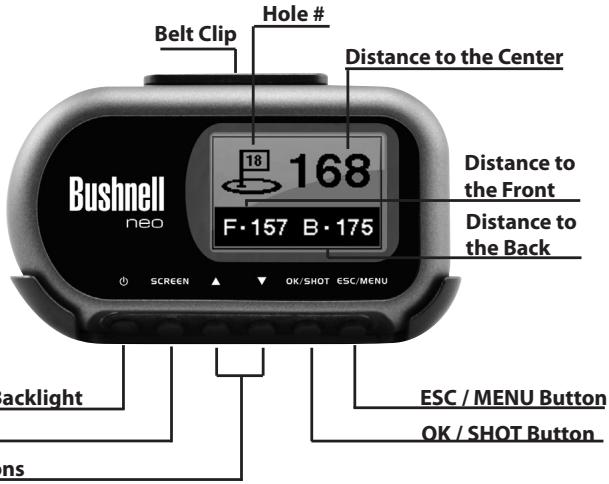
Power Button
Turns the device on & off
Turns the backlight on & off
SCREEN Button
- Switches between screens within Play Golf mode
Up Button
- Scrolls up
Changes hole number (+)
Down Button
- Scrolls down
- Changes hole number (-) OK/SHOT Button
- Selects highlighted option
- Activates Shot Distance
ESC/MENU Button
- Cancel current operation
- Returns to previous step or screen
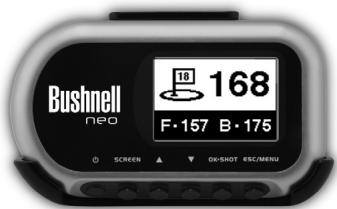
Power Button
SCREEN Button
Up/Down Buttons
ESC / MENU Button
OK/SHOTButton
Start-Up
Power On
- Press and hold power button until the welcome screen appears (about 2 seconds).
Power Off
- Press and hold power button until the screen goes blank.
Backlight On/Off
- From any screen, press power button to turn backlight on.
- Press power button again to turn backlight off.
Main Menu
The Main Menu displays all the features available to the user, which are explained in detail in subsequent sections of this User Manual. To begin using the device, scroll to highlight any feature and press OK.
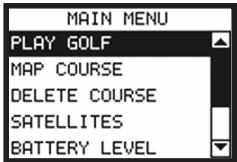
Feature Descriptions
Play Golf- - - - - - - - Select to play golf using GPS data
Map Course- - - - - - - Select to create and customize golf course files
Delete Course - - - - - Select to delete files from the device
Satellites- - - - - - - - - Select to view satellite position and signal strength
Battery Level- - - - - - Select to verify remaining battery power
Settings - - - - - - - - Select to customize additional features
About Bushnell - - - - - Select to display version and company information
Play Golf
Play Golf
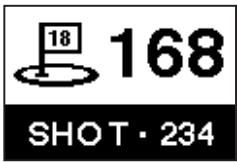
This feature is the main interface to display distance information. Course information must be first downloaded from Bushnell golf.com or manually entered using the Map Course feature. If GPS data is available, distances to the front, center and back of the green and up to four custom points per hole will be displayed upon satellite acquisition. Highlight "Play Golf" on the Main Menu and press OK. Scroll to highlight the desired golf course and press OK.
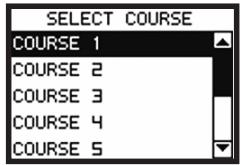
Screen Operation
Up/Down buttons _ _ _ _ Move between holes
SCREEN button _ _ _ _ Move between screens
OK/SHOT button _ _ _ _ Activate Shot Distance
ESC/MENU button _ _ _ _ Go to Play Menu
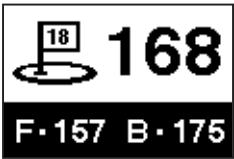
Shot Distance Operation
From any Play Golf screen, press SHOT to activate the Shot Distance feature. Press SHOT again to establish starting point. Distance will automatically update as the user moves. Once the user reaches the end position, press SHOT to freeze the shot distance measurement. Press SHOT again to reactivate the Shot Distance feature and establish a new start position.
Play Golf
Play Menu
From any Play Golf screen, press MENU to access the Play Menu. This menu allows the user to easily view status or modify settings being used for the current course.
PLAY MENU
MAP GOLF HOLE
SATELLITES
BATTERY LEVEL
RETURN TO GAME
EXIT
1. Map Golf Hole
Allows the user to map the current hole being played without having to exit the game.
2. Satellites
Displays various bar lengths to show signal strength for all satellites being tracked.
3. Battery Level
Displays a horizontal bar representing the power remaining in the battery.
4. Return to Game
Resumes play from previous hole.
5.Exit
Returns to Main Menu.
Map Course
Map Course
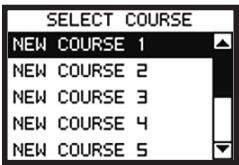
This feature is used to manually input course name and map GPS data points. Existing course files may be customized or new files created using the device. Highlight "Map Course" on the Main Menu and press OK.
1. Select Course
Scroll to highlight the desired new or existing golf course and press OK.
2. Function: Course Name
To revise name highlight "Course Name" and press OK. Names are limited to fourteen (14) characters and should be distinguishable from other golf courses entered. Scroll to highlight the character and press OK. To delete characters, scroll to "BKSPC" and press OK. When finished, scroll to highlight "SAVE" and press OK.
Note: Course files may also be renamed using the Neo PC Sync application.
Map Course
Map Course (continued)
3. Function: Map GPS Point
To add or revise GPS data highlight "Map GPS Point" and press OK. Select the desired hole and press OK. Highlight point to map* and press OK. Stand at desired location, confirm satellite strength and press OK to register point. Do not move until process is complete. Repeat these instructions for all desired points. When finished, scroll to highlight "Save" and press OK. Repeat for all holes, then select "Save/Exit" to return to Main Menu.
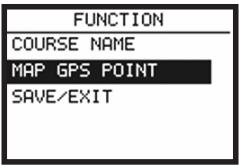
*If mapping a Custom Point, the user may customize the name prior to registering GPS data. The user may select from a list of common abbreviations, or choose a six (6) character name, to easily identify the point on the course. If the user chooses not to customize the name, proceed directly to "Register Point".
4. Function: Save/Exit
After all data has been entered and/or captured, the user MUST scroll to "Save/Exit" and press OK to save all information. All entered data will be lost if function is exited without saving.
Use Up/Down
Select Hole Save/Exit
Select Hole Press OK
Delete Course - Satellites - Battery Level - Sync
Delete Course
This feature allows the user to permanently remove a golf course file from the device. Highlight "Delete Course" on the Main Menu and press OK. Scroll to highlight the golf course to delete and press OK. To remove course from device, confirm by highlighting "Yes" and pressing OK. (Note: this only deletes the course from the Neo device. All downloaded course data is still saved on your PC, and may be reloaded onto the Neo later by using the Sync application).
Satellites
This feature displays the GPS satellites recognized by the device. Satellites providing location data to the device for use in distance calculation are represented by black horizontal bars and black boxes around the satellite numbers. Typically, at least three satellites providing location data are required before GPS distance can be calculated. Highlight "Satellites" on the Main Menu and press OK.
Battery Level
This feature displays the status of the battery in the device. Battery information is displayed using a horizontal bar representing the amount of power remaining in the battery. Highlight "Battery Level" on the Main Menu and press OK.
Settings
Settings
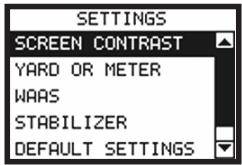
This feature provides various configuration settings to personalize the device, such as screen contrast, distance measurement and GPS performance. Highlight "Settings" on the Main Menu and press OK.
1. Screen Contrast
Allows the user to adjust the contrast of the screen to aid viewing in various light conditions.
2. Yard or Meter
Allows the user to select yards or meters as the measure of distance.
3.WAAS
Allows the user to select if location correction is used to improve GPS accuracy within the United States. Commonly known as WAAS, this system of satellites and ground stations provides GPS signal corrections for much of the U.S. The user may need to adjust the WAAS setting according to geographic location. The default setting on the device is "On".
Settings (continued)
4. Stabilizer
Allows the user to select the rate at which the device refreshes GPS position. With stabilizer "On" the device will not refresh GPS distance readings once movement has ceased. This is useful to users who experience fluctuating distance readings, even though they are stationary. The default setting on the device is "On".
5. Default Settings
Allows user to return device to factory default settings. All data, including course files, will be permanently deleted. It is recommended all files are saved to computer prior to accessing this setting.
6. Update
For factory use only.
7. Auto Off
Default "On" setting will shut power off after 45 minutes of inactivity (no buttons pressed) to save battery power. Selecting "Off" will allow the device to remain powered on with no time limit, until manually turned off by user.
About Bushnell Neo
About Bushnell Neo
This feature displays general information pertaining to the device including the software version. Highlight "About Bushnell Neo" on the Main Menu and press OK.
Introduction
Bushnell Neo Sync provides the user with all the tools required to enable communication between the device and Windows Vista, Windows XP, Windows 2000 or Mac OS X computer*. Using this interface, the user can control every aspect of golf course file management. From accessing the iGolf.com database to syncing course files, Bushnell Neo Sync encompasses many functions which enhance the GPS experience.
Feature Descriptions
Sync Courses - - - - Transfer data from computer to device
Download Courses - - Access iGolf.com database of golf course files
Save Courses - - - - Transfer all course files from device to computer
Settings - - - - - - - - Change COM Port and modify course file locations
- Windows is a registered trademark of Microsoft Corporation. Mac and Mac OS are trademarks of Apple Inc., registered in the U.S. and other countries.
Installation
Installation
Follow these instructions to assist in the proper and complete installation of iGolf Sync on a computer. Confirm the Neo is NOT connected with the USB cable to the computer before beginning the installation.
To install Bushnell Neo Sync on a Windows Vista, Windows XP, Windows 2000 or Mac OS X computer*:
- Insert CD included with the product into computer.
- Open appropriate CD drive to view contents.
- Select "Bushnell Neo Sync Installer" to start the install process.
- Select "USB Driver Setup" to install required drivers.
- Select "Sync Application" to install sync software.
- Launch software from "Bushnell Neo Sync" icon on desktop.
Note: If you experience any problem with the installer, click the "Product Support" link at http://www.bushnellgolf.com/gps/yardage_neo_support.cfm, and download and install the latest version of the Neo Sync application.
*Windows is a registered trademark of Microsoft Corporation in the United States and other countries. Mac and Mac OS are trademarks of Apple Inc., registered in the U.S. and other countries.
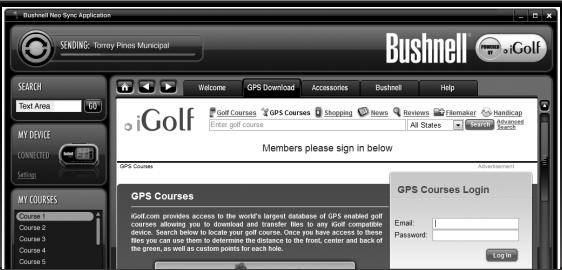
Download Courses (GPS Download tab)
This feature provides direct access to iGolf.com where users may search for golf courses and members may download files. Click the "GPS Download" tab. Select "Member Login" to access account. If not yet an iGolf.com member, use the "Join Now" link to enroll.
For further assistance, please note:
- If search returns more than one page of results, use Advanced Search to narrow results.
- All GPS files contain scorecard information.
- Once downloaded, the course file will appear in the "My Courses" section of the sync application.
Send Courses
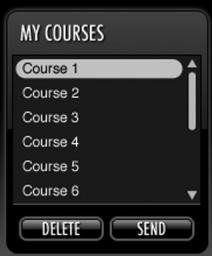
Send Courses
This feature allows the user to transfer golf course files from a computer to the device. Select course files from the "My Courses" section of the sync application and press the "Send" button to transfer the courses to the device. For further assistance, please note:
- Before you can transfer the course files, the device must be powered on and connected (with the USB cable) to the computer. The device will then display "USB Mode".
- Multiple courses can be selected and transferred at one time (by holding down the Ctrl key on your PC as you click on the names of the courses).

Save Courses
This feature allows the user to transfer golf course files from the device to a computer. Select the course files from the "My Device" section of the sync application and use the mouse to drag the courses into the "My Courses" section of the sync application. For further assistance, please note:
- Before you can transfer the course files, the device must be powered on and connected (with the USB cable) to the computer. The device will then display "USB Mode".
- Multiple course files can be saved at one time (by holding down the Ctrl key on your PC as you click on the names of the courses).
Settings
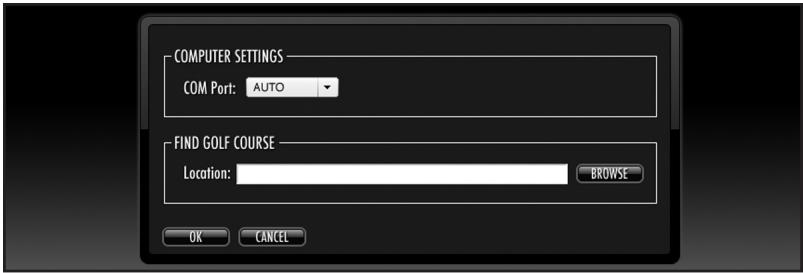
Settings
This feature allows the user to specify how the device communicates with a computer and where course files are stored. Select "Settings" from the "My Device" section. For further assistance, please note:
- Always set COM to "AUTO" unless specific port being used is known (does not apply to Mac users).
- Default course file storage location is C:\My Documents\Bushnell\Neo. If the setting must be changed, note new location and save downloads from iGolf.com in the same folder.
Appendix A - Troubleshooting
Problem 1: The backlight does not work.
- Turn unit off for ten (10) seconds and try again. Re-test in a low-light environment.
From Main Menu, press and release power button.
Problem 2: The device will not turn off.
- Press and hold power button for at least ten (10) seconds.
Problem 3: There are no golf course names listed in Play Menu.
- No golf course files are loaded on the device.
- Transfer file again and confirm that the Bushnell Sync software reads "Completed" before disconnecting device.
Problem 4: There is no GPS data for the selected golf course.
- No golf course files are loaded on the device.
- Confirm GPS file downloaded from iGolf site. (Note: GPS data not included in scorecard files).
- Confirm mapped GPS points were saved prior to exiting the Map Course feature.
- Confirm the device has acquired at least 3 satellites.
Problem 5: There are no custom points available for my golf course.
- No custom points are loaded on the device.
- Confirm custom points are available on iGolf.com for golf course in question.
- Confirm GPS file downloaded from iGolf site. (Note: GPS data not included in scorecard files).
Appendix A - Troubleshooting (Continued)
- Confirm mapped GPS points were saved prior to exiting Map Course feature.
Problem 6: GPS points cannot be mapped/registered on device.
- Ensure satellite strength is sufficient to obtain accurate data.
- Move to a clear, unobstructed view of the sky (i.e. no trees, buildings or objects that might interfere GPS satellite strength).
- Time of day may affect GPS signal strength. Reattempt during various hours of the day.
Problem 7: Entire golf course name cannot be entered in the space provided.
- Limit the golf course name to fourteen (14) characters.
- Abbreviate name so it can be identified from other golf courses on device.
Problem 8: There are no satellites in view.
- Move to a clear, unobstructed view of the sky (i.e. no trees, buildings or objects that might interfere GPS satellite strength).
- The time required to acquire satellites may increase to 5-10 minutes for first use or if device has not been used for an extended period of time.
Problem 9: The distances on the device are inaccurate.
- Confirm correct golf course and hole number are selected from Play screen.
- Move to a clear, unobstructed view of the sky (i.e. no trees, buildings or objects that might interfere GPS satellite strength).
- Go to Settings and set WAAS to "Off".
Appendix A - Troubleshooting (Continued)
- Go to Settings and set Stabilizer to "On".
- Remap GPS points using device and confirm accuracy.
Report any GPS or scorecard errors found to iGolf.com.
Problem 10: The distances on the device are in yards, not meters.
- Go to Settings and set device to display "Meters".
Problem 11: The distance displayed on the device is fluctuating.
- Go to Settings and set Stabilizer to "On".
- Move to a clear, unobstructed view of the sky (i.e. no trees, buildings or objects that might interfere GPS satellite strength).
- Go to Settings and set WAAS to "Off".
Problem 12: Sync software does not state "Connected".
- Confirm USB cable is connected to computer.
- Confirm USB cable is connected to the device.
- Confirm sync software was installed correctly. Remove and reinstall the USB driver and Sync application if necessary.
- Confirm correct COM port selected.
Problem 13: Golf course files cannot be sent to the device.
- Confirm USB cable is connected to the device.
- Confirm sync software was installed correctly. Remove and reinstall the USB driver and Sync application if necessary.
- Confirm correct COM port selected.
- Confirm status as "Connected" on sync software.
Appendix A - Troubleshooting (Continued)
- Confirm file to be sent is selected on sync software.
Problem 14: Golf course files cannot be saved to computer from device.
- Confirm USB cable is connected to the device.
- Confirm sync software was installed correctly. Remove and reinstall the USB driver and Sync application if necessary.
- Confirm correct COM port selected
- Confirm status as "Connected" on sync software.
Problem 15: No golf course files are available to transfer in sync software.
- Confirm settings in sync software to locate file sync location. The default location is C:\My Documents\Bushnell.
- Perform a search for the file using search feature on computer.
Problem 16: Saved golf course files cannot be located on computer.
- Confirm settings in sync software to locate file save location. The default location is C:\My Documents\Bushnell.
- Perform a search for the file using search feature on computer.
Problem 17: No more golf course files can be transferred to the device.
- Delete unused files from the device to make room for new files.
- Ensure files deleted from device are safely saved on computer before confirming deletion.
- Approximately ten (10) courses can be stored on your device.
FCC Compliance Statement
This device complies with Part 15 of the FCC interference limits for Class B digital devices FOR HOME OR OFFICE USE. These limits are designed to provide reasonable protection against harmful interference in a residential installation, and are more stringent than "outdoor" requirements.
Operation of this device is subject to the following conditions; (1) This device may not cause harmful interference, and (2) this device must accept any interference received, including interference that may cause undesired operation.
This equipment generates, uses and can radiate radio frequency energy and, if not installed and used in accordance with the instructions, may cause harmful interference to radio communications. However, there is no guarantee that interference will not occur in a particular installation. If this equipment does cause harmful interference to radio or television reception, which can be determined by turning the equipment off and on, the user is encouraged to try to correct the interference by one or more of the following measures:
Reorient or relocate the receiving antenna.
- Increase the separation between the equipment and receiver.
- Connect the equipment into an outlet on a circuit different from that to which the receiver is connected.
- Consult the dealer or an experienced radio/TV technician for help.
The device does not contain any user-serviceable parts. Repairs should only be made by an Authorized Bushnell repair center. Unauthorized repairs or modifications could result in permanent damage to the equipment, and will void your warranty and your authority to operate this device under Part 15 regulations.
The shielded interface cable which is provided must be used with the equipment in order to comply with the limits for a digital device pursuant to Subpart B of Part 15 of FCC Rules.

UK Environment protection first!
15 Your appliace contains valuable materials which can be recovered or recydded.
Leave it at a local site, write collection point.
Specifications and designs are subject to change without any notice or obligation on the part of the manufacturer.
ONE YEAR LIMITED WARRANTY
Your Bushnell product is warranted to be free of defects in materials and workmanship for one year after the date of purchase. In the event of a defect under this warranty, we will, at our option, repair or replace the product, provided that you return the product postage prepaid. This warranty does not cover damages caused by misuse, improper handling, installation, or maintenance provided by someone other than a Bushnell Authorized Service Department.
Any return made under this warranty must be accompanied by the items listed below:
1) A check/money order in the amount of $10.00 to cover the cost of postage and handling
2) Name and address for product return
3) An explanation of the defect
4) Proof of Date Purchased
5) Product should be well packed in a sturdy outside shipping carton, to prevent damage in transit, with return postage prepaid to the address listed below:
IN U.S.A. Send To:
Bushnell Outdoor Products
Attn.: Repairs
8500 Marshall Drive
Lenexa, Kansas 66214
IN CANADA Send To:
Bushnell Outdoor Products
Attn.: Repairs
25A East Pearce Street, Unit 1
Richmond Hill, Ontario L4B 2M9
For products purchased outside the United States or Canada please contact your local dealer for applicable warranty information. In Europe you may also contact Bushnell at:
Bushnell Germany GmbH
European Service Centre
Mathias-Bruggen-Str. 80
D-50827 Köln
GERMANY
This warranty gives you specific legal rights.
You may have other rights which vary from country to country.
©2009 Bushnell Outdoor Products
Section 1: Introduction. 34
Bouton OK/SHOT (OK/COUP)
Select Hole Save/Exit
Select Hole Press OK
GARANTIE LIMITÉE D'UN AN
(GARANTIE LIMITÉE DE DEUX ANS DANS L'UNION EUROPÉNNE ET EN ASIE)
Bushnell Outdoor Products
Attn.: Repairs
8500 Marshall Drive
Lenexa, Kansas 66214
Au CANADA, envoyez:
Bushnell Outdoor Products
Attn.: Repairs
25A East Pearce Street, Unit 1
Richmond Hill, Ontario L4B 2M9
European Service Centre
Mathias-Brüggen-Str. 80
D-50827 Köln
GERMANY
©2009 Bushnell Outdoor Products
FR
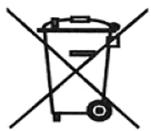
Environment protection first!
Your appliance contains valuable materials which can be recovered or recycled.
Leave it at a local civic waste collection point.
DE AT
IN NO EVENT SHALL BUSHNELL BE LIABLE FOR ANY INCIDENTAL, SPECIAL, INDIRECT OR CONSEQUENTIAL DAMAGES, WHETHER RESULTING FROM THE USE, MISUSE, OR INABILITY TO USE THIS PRODUCT OR FROM DEFECTS IN THE PRODUCT.
Some states do not allow the exclusion of incidental or consequential damages, so the above limitations may not apply to you.
BUSHNELL NE SAURAIT ENAUCUN CASÉTRE RESPONSABLE DE QUELCONQUES DOMMAGES ACCESSOIRES, SPEÇIAUX, INDIRECTS OU CONSÉCUTIFS, QU'ILS RÉSULTENT DE L'UTILISATION NORMALE, EMPLOI ABUSIF OU INCAPACITE À UTILISER CE PRODUIT OU DE DéfautS DU PRODUIT.
INNOVATION THAT THRIVES OUTSIDE
Customer Service: (800) 423-3537
Service après-vente: (800) 423-3537
www.bushnell.com
©2009 Bushnell Outdoor Products