
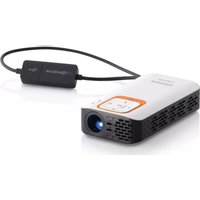
ProScreen PXG20 - Projector PHILIPS - Free user manual and instructions
Find the device manual for free ProScreen PXG20 PHILIPS in PDF.


Pick your language and provide your email: we'll send you a specifically translated version.
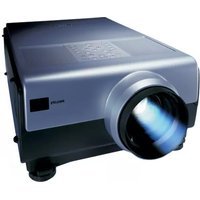
| Product type | Video projector |
| Brand | Philips |
| Model | ProScreen PXG20 |
| Display technology | DLP |
| Native resolution | XGA (1024 x 768) |
| Brightness | 2000 ANSI lumens |
| Contrast ratio | 800:1 |
| Aspect ratio | 4:3 native, 16:9 compatible |
| Lamp type | 200 W P-VIP |
| Lamp life | 3000 hours (standard mode) |
| Projection lens | 1.2x manual zoom and focus |
| Image size | 40 - 200 inches |
| Throw distance | 1.2 - 9.1 meters |
| Keystone correction | Vertical +/- 20 degrees |
| Video inputs | VGA, S-Video, Composite |
| Monitor output | VGA pass-through |
| Built-in speaker | 1 x 1 W |
| Power consumption | 250 W (max) |
| Power supply | AC 100-240 V, 50/60 Hz |
| Dimensions (W x D x H) | 250 x 200 x 80 mm |
| Weight | 2.4 kg |
| Maintenance | Clean air filter; replace lamp after 3000 hours |
| Spare parts and repairability | Replacement lamp and air filter available; bottom access panel |
Frequently Asked Questions - ProScreen PXG20 PHILIPS
How do I connect my laptop to the Philips ProScreen PXG20?
Use a VGA cable to connect your laptop's VGA (D-Sub 15 pin) output to the projector's VGA input. Plug in the audio cable to the audio mini-jack if you want sound. Press the Source button on the projector or remote to select the correct input.
Why is the projector not turning on?
Check that the power cable is securely connected and the wall outlet works. Ensure the power switch on the back of the projector is in the ON position. Verify the lamp cover is closed properly; if the safety switch is triggered, the projector won't turn on. Also, the projector may have gone into thermal shutdown - allow it to cool down.
How do I clean the air filter?
Turn off the projector and unplug it. Locate the air filter on the side or bottom panel. Gently remove it and use a vacuum cleaner on low power to remove dust. Do not use water or solvents. Reinsert the filter after cleaning. Repeat this every 1000 hours or when you see dust buildup.
When should I replace the lamp?
The lamp should be replaced when the Lamp indicator turns red or when the projected image becomes noticeably dimmer. The expected lamp life is about 3000 hours. Always use a Philips certified replacement lamp to maintain optical performance and safety. After replacing, reset the lamp timer via the menu.
Can I use this projector during the day with bright lights?
It depends on ambient lighting. The 2000 ANSI lumens brightness works well in dim rooms. In daylight, close curtains or use the presentation mode to increase contrast. For best results, use a high-gain screen and avoid direct sunlight on the projection area.
What throw distance is needed for a 100-inch screen?
With a 1.2x zoom lens and throw ratio of 1.8 to 2.1:1, you need a distance of approximately 3.6 to 4.3 meters from the lens to the screen to achieve a 100-inch diagonal image. Adjust the zoom ring slightly to fine-tune the size.
How do I adjust the keystone correction?
Press the Keystone button on the remote. Use the arrow keys to correct the trapezoid effect vertically. The projector offers +/- 20 degrees of vertical keystone correction. Try to place the projector horizontally for best image geometry; keystone correction reduces resolution slightly.
The image is distorted or blurry, what should I do?
First, adjust the focus ring on the lens until the image is sharp. If the image has a trapezoid shape, use keystone correction. If edges are blurry, check that the projector is centered and perpendicular to the screen. Clean the lens with a soft, dry cloth. Also verify that the source resolution matches the projector's native XGA (1024 x 768).
Does this projector support HDMI?
No, the Philips ProScreen PXG20 was designed before HDMI became standard. It offers analog inputs: VGA, S-Video, and composite. To connect an HDMI device, use an HDMI to VGA converter (with audio extraction if needed).
Where can I find the user manual in PDF?
You can download the free user manual in English from various online resources, including the notice-facile.com website. Search for 'ProScreen PXG20 Philips manual PDF'. It contains installation instructions, troubleshooting, and maintenance tips.
User questions about ProScreen PXG20 PHILIPS
0 question about this device. Answer the ones you know or ask your own.
Ask a new question about this device
No questions yet. Be the first to ask one.
Download the instructions for your Projector in PDF format for free! Find your manual ProScreen PXG20 - PHILIPS and take your electronic device back in hand. On this page are published all the documents necessary for the use of your device. ProScreen PXG20 by PHILIPS.
USER MANUAL ProScreen PXG20 PHILIPS

Manual assistant
Powered by Anthropic
Waiting for your message
Product information
Brand : PHILIPS
Model : ProScreen PXG20
Category : Projector