
M300 - Navigation GPS NAVMAN - Free user manual and instructions
Find the device manual for free M300 NAVMAN in PDF.


| Product type | Sports navigation GPS |
| Brand | NAVMAN |
| Model | M300 |
| Power source | 1 AA battery (included) |
| Battery life | Not specified, but low battery indicator on screen |
| Water resistance | Yes, water-resistant (not submersible) |
| Display | LCD screen with icons and numeric values |
| Buttons | 2 control buttons (⬤ and ⬤) |
| Main functions | Current speed, average, maximum, odometer, heading, clock, timer, lap recall |
| Modes | Speed, Average Speed, Maximum Speed, Odometer, Heading, Clock, Timer, Lap Recall |
| Number of storable laps | Up to 50 laps per session |
| Speed units | Knots, km/h, mph (adjustable) |
| Time format | 12h or 24h (adjustable) |
| Date format | dd-mm or mm-dd (adjustable) |
| Sound (beep) | Enable or disable |
| Time offset adjustment | Yes, to display local time |
| Factory reset | Yes, clears all data and settings |
| Package contents | M300 device, armband, quick start guide, user manual, AA battery, registration card |
| Maintenance and cleaning | Soft cloth with soapy water, rinse with fresh water after contact with salt water |
| Safety | Do not use while driving or in dangerous motion. Recreational use only. Consult a doctor before starting an exercise program. |
| Spare parts and repairability | No user-serviceable parts. Do not disassemble. |
Frequently Asked Questions - M300 NAVMAN
User questions about M300 NAVMAN
0 question about this device. Answer the ones you know or ask your own.
Ask a new question about this device
Download the instructions for your Navigation GPS in PDF format for free! Find your manual M300 - NAVMAN and take your electronic device back in hand. On this page are published all the documents necessary for the use of your device. M300 by NAVMAN.
USER MANUAL M300 NAVMAN
Navman's 300 series GPS Sport Tools provide an affordable and reliable way to track and store a variety of personal performance indicators.
Please read this guide carefully and familiarize yourself with the interface and functions, as well as the intended use and limitations of the Navman M300 GPS Sport Tool.
This product complies with CE, FCC, Canada 210, and C-Tick regulations.
Operation is subject to the following two conditions:
(1) this device may not cause interference
(2) this device must accept any interference, including interference that may cause undesired operation of the device.
WARNING: Entering information or handling the Navman Sport Tool while moving is unsafe and may cause you to be distracted or fail to observe safe practices necessary to avoid death, serious injury, collisions or accidents to you or others. Use the memory functions to review data when you are not moving.
CAUTION: The Navman M300 GPS Sport Tool is intended for recreational use only. Do not use this product for obtaining measurements that require professional or industrial precision. Consult your physician before starting or changing any exercise programs.
Content
1.0 General information 1-6
1.1 Checklist 1-6
1.2 Care and maintenance 1-6
1.3 Water resistance 1-6
1.4 Changing the battery 1-7
2.0 Navman M300 interface 1-8
2.1 Button functions 1-8
2.2 Display screen 1-8
3.0 Getting started 1-9
3.1 Be outdoors 1-9
3.2 Fit the M300 1-9
3.3 Startup 1-9
3.3.1 Enter setup 1-10
3.3.2 Start normal operation 1-10
4.0 Setup 1-11
4.1 Setting options 1-11
4.1.1 Set time format 1-12
4.1.2 Set date format 1-12
4.1.3 Beep 1-13
4.1.4 Set speed units 1-13
4.1.5 Set offset (set local time) 1-14
4.1.6 Editing settings (overview) 1-15
5.0 Normal operation 1-16
5.1 Modes 1-16
5.1.1 Speed mode 1-17
5.1.2 Speed (Average) mode 1-17
5.1.3 Speed (Maximum) mode 1-18
5.1.4 Odometer mode 1-18
5.1.5 Heading mode 1-19
5.1.6 Clock mode 1-20
5.1.7 Timer mode 1-21
5.1.8 Timer recall mode 1-21
5.1.9 Mode operation (overview) 1-22
6.0 Restoring default settings 1-23
7.0 Glossary 1-24
8.0 Copyright 1-24
9.0 Additional warnings, disclaimers, and limitations on liability 1-25
1.0 General information
1.1 Checklist
The M300 package should contain the following items:
Navman M300 GPS Sport Tool
- armband
- quick guide
- user guide
- 1 x AA battery
- registration card
1.2 Care and maintenance
Do not attempt to disassemble the M300; there are no user serviceable components in this product.
The M300 is of robust design. However, care should be taken to protect from shocks or extreme heat.
Clean using only a soft cloth with mild soap and warm water. Do not use abrasive cleaning materials or products. We recommend rinsing the M300 with fresh water after any exposure to salt water.
CAUTION: Please ensure battery cover is in place during cleaning.
Store the M300 away from direct sunlight or extreme heat sources. (Remove battery before storing for an extended period.)
1.3 Water resistance
The Navman M300 GPS Sport Tool is water resistant.
1.4 Changing the battery
Always shut down the M300 before changing the battery.
Note: All system settings, and the calculated data that was stored at the last controlled shutdown*, are retained when the battery is removed. This information persists indefinitely until updated or reset.
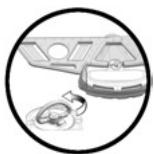
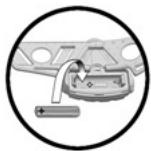
- Turn D-ring anti-clockwise and slide enclosure cover down to open battery enclosure.
- Insert battery with 艹 ^ 十 end as indicated inside enclosure.
- Replace enclosure cover (ensuring lugs at the bottom of the cover are aligned with slots in the enclosure surround), turn D-ring clockwise to seal.

If battery power becomes low during operation the battery icon is displayed.

constant = low power
□ flashing = approx 5 min before automatic shutdown**
- Press and hold Ⓒ to perform a controlled shutdown.
** When battery power becomes too low to continue operation, a controlled shutdown is automatically executed (current data is saved).
2.0 Navman M300 interface
2.1 Button functions

There are two control buttons, and . These buttons are pressed separately or together to turn the unit on and off, cycle through modes, and select mode options.
Throughout this guide the button icons are used as follows:
= press this button
= press this button
= press both buttons together
Note: where it is required to press and HOLD buttons, a countdown begins. To perform the required action continue to hold until the counter reaches zero; if you release the button sooner the action will not be performed.
2.2 Display screen
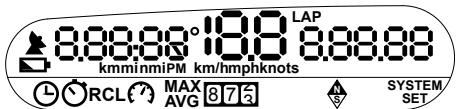
The illustration above shows the complete display capability of the M300. Only a sub-set of these elements appear at any time during operation.
The upper screen section displays the antenna and battery icons, as well as all values and units. The lower screen section displays the mode icons and the setup icon (System Set).
Mode Icons
Clock

Speed (Average)

Timer

Speed (Maximum)

Timer recall

Odometer

Speed

Heading

3.0 Getting started
3.1 Be outdoors
The M300 is not intended for operation indoors or under water as it uses Global Positioning System (GPS) satellites to get time and date information, and to calculate distance and speed. For best results, always use the M300 outdoors with an unobstructed view of the sky.
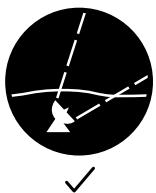
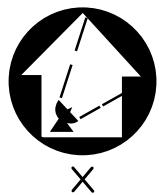
3.2 Fit the M300
The M300 is designed to be worn on the left upper arm. The easiest way to fit the unit is to feed the strap through the fastener to create a loose enclosure. Then slide your left arm through the enclosure and tighten the strap after the unit is in a comfortable position.

3.3 Startup
Press and hold to turn the power on and enter setup, OR press to turn the power on and start normal operation.
First start may take up to 80 seconds to get all the satellite data
- Flashing = seeking GPS data
Constant = GPS data obtained
Always enter setup first if you wish to change settings. To enter setup after starting normal operation, you will need to shut down and re-start the unit.
3.3.1 Enter setup
To enter setup
Press and hold ⑨ to turn the power on and enter setup.
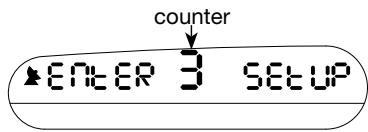
When the counter reaches zero, the M300 will enter setup. If you release ⑥ before the counter reaches zero the M300 will immediately start normal operation.
Note: To enter setup after starting normal operation you will need to restart the M300. For details about changing settings see Section 4.0.
To leave setup
Press and hold ⑨ to leave setup and start normal operation.
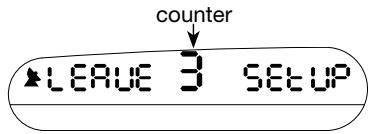
When the counter reaches zero, the M300 will leave setup and start normal operation in Speed mode. If you release ⑨ before the counter reaches zero the M300 will remain in setup.
Note: you must leave setup first if you want to turn the power off.
3.3.2 Start normal operation
To start normal operation
Press to turn the power on and start normal operation.
When starting directly into normal operation, the M300 will start in the mode it was in at last shutdown. (Speed mode is always displayed first when starting normal operation after leaving setup.) For details about normal operating modes see Section 5.0.
4.0 Setup
4.1 Setting options
Press and hold to turn the power on and enter setup. Press repeatedly to step through the setting options.
Setting options are accessed in the order shown below. See subsequent sections for details about editing settings.
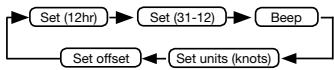
Set (12hr)
lets you set 12hr or 24hr time format
Set (31-12)
lets you set dd-mm or mm-dd date format
Beep
When beep is ON a beep will sound when the buttons are pushed.
Set units (knots)
lets you set the speed units to knots, km/h or mph
Set offset (set local time)
lets you adjust the M300 to display local time
Press and hold ⑨ to leave setup and start normal operation.
4.1.1 Set time format
Set 12hr or 24hr time display format.
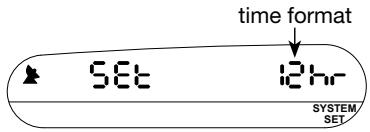
To access this option
If necessary, press and hold to turn the power on and enter setup. Press repeatedly until the screen appears as shown above.
To set time format
1) Press to start editing (time format option flashes).
2) Press or to select 12hr or 24hr.
3) Press to stop editing.
4) Press to go to the next option, or hold to leave setup.
4.1.2 Set date format
Set 'dd-mm' or 'mm-dd' date display format.
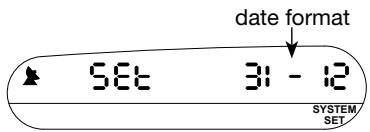
To access this option
If necessary, press and hold to turn the power on and enter setup. Press repeatedly until the screen appears as shown above.
To set the date format
1) Press to start editing (date format example flashes).
2) Press or to select dd-mm or mm-dd.
3) Press to stop editing.
4) Press to go to the next option, or hold to leave setup.
4.1.3 Beep
Set beep ON or beep OFF. When beep is ON, an audible 'beep' will sound when buttons are pressed.
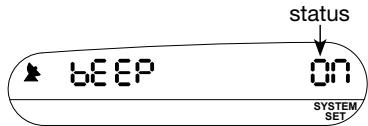
Access this option
If necessary, press and hold to turn the power on and enter setup. Press repeatedly until the screen appears as shown above.
To set button beep status
1) Press to start editing (setting status flashes).
2) Press or to select On or OFF.
3) Press to stop editing.
4) Press to go to the next option, or hold to leave setup.
4.1.4 Set speed units
Set units for speed (knots, km/h or mph).
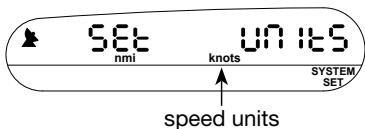
Access this option
If necessary, press and hold to turn the power on and enter setup. Press repeatedly until the screen appears as shown above.
To set speed units
1) Press to start editing (speed units flash).
2) Press or to select knots, km/h or mph.
3) Press to stop editing.
4) Press to go to the next option, or hold to leave setup.
Note: Distance is displayed in units that correspond to user selected speed units. For example, if you select speed units 'km/h', then distance is displayed in 'km'.
4.1.5 Set offset (set local time)
This option lets you adjust the M300 to display local time. You only need to do this once, unless operating the unit in a new time zone. ( By default the M300 displays GPS time. The M300 will perform all functions accurately without adjusting the offset to display your local time.)
Note: If you attempt to change the time offset before all GPS data are obtained, the screen displays 'no GPS' and the antenna icon flashes until all GPS data are received.
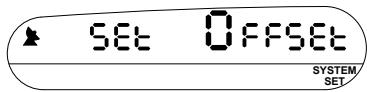
Access this option
If necessary, press and hold to turn the power on and enter setup. Press repeatedly until the screen appears as shown above.
To set local time
1) Press to start editing (the screen now appears as shown below). The current time value flashes. The date is displayed to ensure that adjustments are made in the correct direction.
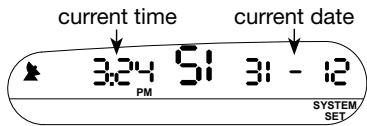
2) Press repeatedly to set time display forward (press and hold to set time display forward quickly), or press repeatedly to set time display backward (press and hold to set time display backward quickly).
3) Press to stop editing.
4) Press to go to the next option, or hold to exit setup.
4.1.6 Editing settings (overview)
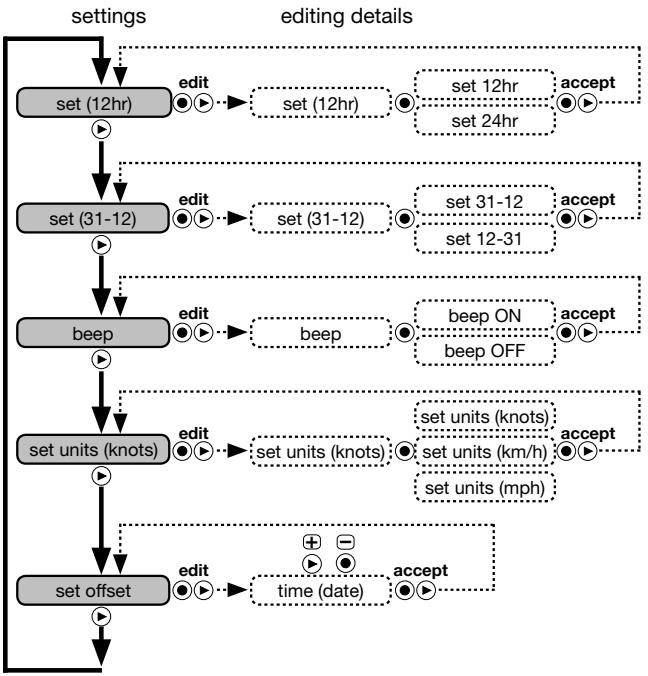
KEY
= press this button
=press this button
= press both buttons together
5.0 Normal operation
5.1 Modes
Press to turn the power on and start normal operation.
Press repeatedly to step through the modes (press and hold
to cycle through the modes quickly).
Modes are accessed in the order shown below. See subsequent sections for details about using different modes.
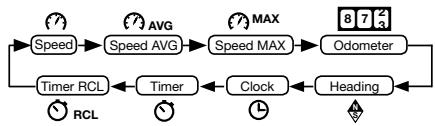
Speed mode
shows distance and speed
Speed (AVG) mode
shows distance and average speed
Speed (MAX) mode
shows distance and maximum speed
Odometer mode
shows total distance from last odometer reset
Heading mode
shows current heading in degrees from true North
Clock mode
shows current time and date
GPS time is displayed unless you set local time, see Section 4.1.5.
Timer mode
shows session and lap times
Timer recall mode
recalls stored session and lap times
(^*Seeglossary.)
5.1.1 Speed mode
This mode lets you monitor session distance and current speed.
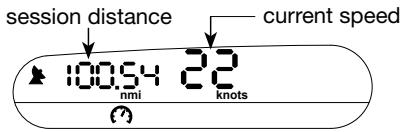
To access this mode
If necessary, press to turn the power on and start normal operation. Press repeatedly until the screen appears as shown above.
While in Speed mode
- Press to store current lap data (the screen briefly shows the lap distance, lap number, and lap time that is being stored).
- Press and hold to clear all session data. (Does not clear odometer.)
- Press to go to the next mode.
5.1.2 Speed (Average) mode
This mode lets you monitor session distance and average speed.
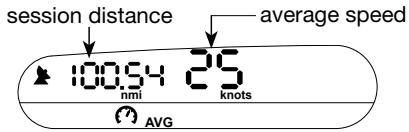
To access this mode
If necessary, press to turn the power on and start normal operation. Press repeatedly until the screen appears as shown above.
While in Speed (average) mode
- Press to store current lap data (the screen briefly shows the lap distance, lap number, and lap time that is being stored).
- Press and hold to clear all session data. (Does not clear odometer.)
- Press to go to the next mode.
5.1.3 Speed (Maximum) mode
This mode lets you monitor session distance and maximum speed.
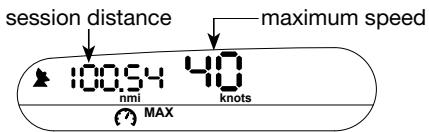
Access this mode
If necessary, press to turn the power on and start normal operation. Press repeatedly until the screen appears as shown above.
While in Speed (maximum) mode
- Press to store current lap data (the screen briefly shows the lap distance, lap number, and lap time that is being stored).
- Press and hold to clear maximum speed only.
- Press to go to the next mode.
5.1.4 Odometer mode
This mode shows total distance since odometer was last reset.
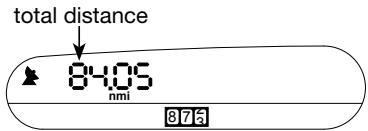
Access this mode
If necessary, press to turn the power on and start normal operation. Press repeatedly until the screen appears as shown above.
While in Odometer mode
- Press to store current lap data (the screen briefly shows the lap distance, lap number, and lap time that is being stored).
- Press and hold to clear odometer only.
- Press to go to the next mode.
Note: The M300 displays distance in units corresponding to speed units (see section 4.1.4).
5.1.5 Heading mode
This mode shows the current heading in degrees from true North.
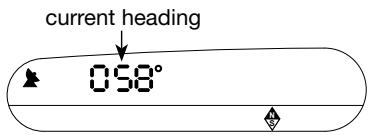
Access this mode
If necessary, press to turn the power on and start normal operation. Press repeatedly until the screen appears as shown above.
While in Heading mode
- Press to store current lap data (the screen briefly shows the lap distance, lap number, and lap time that is being stored).
- Press to go to the next mode.
5.1.6 Clock mode
Clock mode shows the current time and date.
(Time is only displayed while GPS satellite signals are available. By default, GPS time is displayed. See section 4.1.5 for instructions on setting local time.)
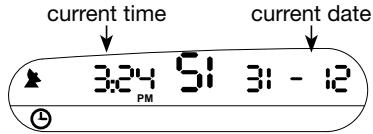
Access this mode
If necessary, press to turn the power on and start normal operation. Press repeatedly until the screen appears as shown above.
While in Clock mode
- Press to store current lap data (the screen briefly shows the lap distance, lap number, and lap time that is being stored).
- Press and hold to clear all session data. (Does not clear odometer).
- Press to go to the next mode.
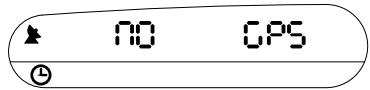
Note: If GPS signals are not yet obtained a 'no GPS' alert is displayed. The antenna icon flashes until GPS signals are received.
5.1.7 Timer mode
Timer mode lets you monitor session time, lap number and current lap time. Up to 50 laps may be stored during each session. Each lap entry resets the current lap time to zero.
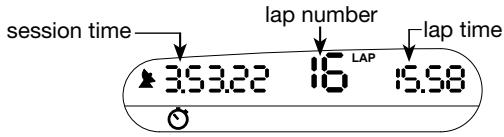
Access this mode
If necessary, press to turn the power on and start normal operation. Press repeatedly until the screen appears as shown above.
While in Timer mode
- Press to store current lap data (the screen briefly shows the lap distance, lap number, and lap time that is being stored).
- Press and hold to clear all session data. (Does not clear odometer.)
- Press to go to the next mode.
Note: The timer starts automatically whenever you start moving and stops whenever you stop moving.
5.1.8 Timer recall mode
This mode lets you recall stored lap data.
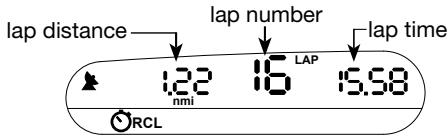
Access this mode
If necessary, press to turn the power on and start normal operation. Press repeatedly until the screen appears as shown above.
While in Timer recall mode
- press repeatedly to step through lap data
- press to start recall again from lap 1
- press to go to the next mode
5.1.9 Mode operation (overview)
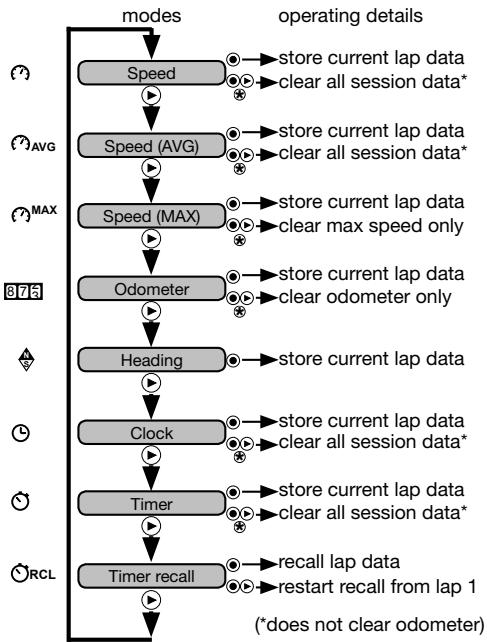
KEY
= press this button
= press this button
= press both buttons together
= press and hold both buttons together
6.0 Restoring default settings
WARNING: Restoring factory default settings clears all stored data and all user selected settings!
To restore all default factory settings
1) make sure the unit is off
2) press and hold to turn the unit on - DO NOT RELEASE
3) while holding , press five times
E5E6
ALL 2
When restoring default settings
The screen displays the message 'reset all' and a counter. If you stop any time down to 1 on the counter, default settings will not be restored and all current settings and data will not be cleared. After pressing the fifth time, the 'reset done' message appears and all settings are restored to factory defaults. A controlled shutdown is executed automatically after defaults are restored.
After factory default settings have been restored, when the M300 is next turned on you will need to enter setup if you want to display local time or adjust other setting preferences.
7.0 Glossary
Global Positioning System (GPS)
A satellite tracking system.
Lap
A lap is the distance travelled in the time between the current lap entry and the previous lap entry.
Session
A session includes all time that the Sport Tool has been actively operating since first start-up, or since the session data was last cleared. Clearing the session data removes all stored data from the previous session except the odometer value, which must be cleared separately.
8.0 Copyright
This publication and its contents are proprietary to Navman and are intended solely for the use of its clients to obtain information about the operation of Navman Sport Tool products, it should not be used or distributed for any other purpose. Proprietary information and specifications relating to this document or the Navman Sport Tool products are subject to change without notice.
9.0 Additional warnings, disclaimers, and limitations on liability
It is the user's sole responsibility to set-up and use the Navman GPS Sport Tool (the Product) in a manner that will not cause accidents, personal injury or property damage to you or others. Entoring information or handling the Product while moving is unsafe and may cause you to be distracted or fail to observe safe practices necessary to avoid death, serious injury, collisions or accidents to you or others. The user of this Product is solely responsible for observing safe practices and for following the instructions including, but not limited to, those instructions relating to the care and use of the Product in the User's Guide (this document). Failure to follow instructions provided in this document relating to the care and use of the product may cause the product not to perform in its designed potential or specifications, or may result in voiding of the warranty. Navman NZ Limited (Navman) neither owns nor maintains the Global Positioning Service (GPS). Navman assumes no responsibility for the quality or continuity of the GPS service. Navman will not accept the return of products where dissatisfaction results from any changes to the GPS service.
EXCEPT AS SPECIFICALLY STATED IN ANY LIMITED WARRANTY
ACCOMPANYING THIS PRODUCT, (A) NAVMAN PROVIDES THE PRODUCT WITH ALL FAULTS, (B) THE ENTIRE RISK AS TO SATISFACTORY QUALITY, PERFORMANCE, ACCURACY, AND EFFORT IS WITH THE PURCHASER AND USER, (C) NAVMAN MAKES NO WARRANTY AGAINST INTERFERENCE WITH ANY PURCHASER'S OR USER'S ENJOYMENT OF THE PRODUCT OR AGAINST INFRINGEMENT, AND (D) NAVMAN DOES NOT WARRANTY THAT THE OPERATION OF THE PRODUCT WILL BE CONTINUOUS OR ERROR-FREE. IN NO CASE WILL NAVMAN HAVE ANY LIABILITY FOR ANY INCIDENTAL, CONSEQUENTIAL, PUNITIVE OR OTHER DAMAGES EVEN IF IT IS Aware OF THE POSSIBILITY OF SUCH DAMAGES. SOME STATES AND COUNTRIES DO NOT ALLOW THE EXCLUSION OR LIMITATION OF INCIDENTAL OR CONSEQUENTIAL DAMAGES, SO THE ABOVE LIMITATION MAY NOT APPLY TO YOU. NAVMAN WILL NOT BE LIABLE FOR ANY LOSS OF DATA. ANY IMPLIED WARRANTY WILL ONLY LAST FOR THE PERIOD STATED IN THE ACCOMPANYING LIMITED WARRANTY. SOME STATES AND COUNTRIES DO NOT ALLOW LIMITATIONS ON HOW LONG AN IMPLIED WARRANTY LASTS, SO THE ABOVE WARRANTY PERIOD MAY NOT APPLY TO YOU.
Each of these disclaimers is in addition to, and does not reduce the effect of, any other disclaimer. No dealer has the authority to change this warranty. No event that voids any warranty of the Product will have any effect on these disclaimers or limitations of liability. This disclaimer will be construed under the laws of New Zealand without regard for any conflict of law rules. Navman has taken care to ensure the information in this document is accurate. However, Navman assumes no responsibility for errors or omissions in the content of this document and no warranty of accuracy is expressed or implied. As Navman is continuously improving this Product, Navman may make changes to the Product at any time which may not be reflected in this document. Please contact your nearest Navman office if you require any further assistance. Navman' is a registered trade mark of Navman NZ Limited.
- Content
- General information 1-6
- Navman M300 interface 1-8
- Getting started 1-9
- Setup 1-11
- Normal operation 1-16
- Restoring default settings 1-23
- Additional warnings, disclaimers, and limitations on liability 1-25
- General information
- Checklist
- Care and maintenance
- Water resistance
- Changing the battery
- Navman M300 interface
- Button functions
- Display screen
- Mode Icons
- Getting started
- Be outdoors
- Fit the M300
- Startup
- Enter setup
- To enter setup
- To leave setup
- Start normal operation
- To start normal operation
- Setup
- Setting options
- Set (12hr)
- Set (31-12)
- Beep
- Set units (knots)
- Set offset (set local time)
- Set time format
- To access this option
- To set time format
- Set date format
- To set the date format
- Beep
- Access this option
- To set button beep status
- Set speed units
- To set speed units
- Set offset (set local time)
- To set local time
- Editing settings (overview)
- Normal operation
- Modes
- Speed mode
- Speed (AVG) mode
- Speed (MAX) mode
- Odometer mode
- Heading mode
- Clock mode
- Timer mode
- Timer recall mode
- Speed mode
- To access this mode
- While in Speed mode
- Speed (Average) mode
- While in Speed (average) mode
- Speed (Maximum) mode
- Access this mode
- While in Speed (maximum) mode
- Odometer mode
- While in Odometer mode
- Heading mode
- While in Heading mode
- Clock mode
- While in Clock mode
- Timer mode
- While in Timer mode
- Timer recall mode
- While in Timer recall mode
- Mode operation (overview)
- KEY
- Restoring default settings
- To restore all default factory settings
- When restoring default settings
- Glossary
- Global Positioning System (GPS)
- Lap
- Session
- Copyright
- Additional warnings, disclaimers, and limitations on liability
Brand : NAVMAN
Model : M300
Category : Navigation GPS