178808 - Mouse MANHATTAN - Free user manual and instructions
Find the device manual for free 178808 MANHATTAN in PDF.


Pick your language and provide your email: we'll send you a specifically translated version.
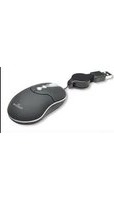
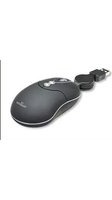
| Product Type | Computer Mouse |
| Brand | Manhattan |
| Model | 178808 |
| Interface | USB Wired |
| Sensor Type | Optical |
| Number of Buttons | 3 (left, right, middle) |
| Scroll Wheel | Yes |
| DPI | 1000 |
| Cable Length | 1.5 m |
| Compatible Operating Systems | Windows, macOS, Linux |
| Dimensions (L x W x H) | 105 x 60 x 35 mm |
| Weight | 80 g |
| Power Supply | USB powered |
| Design | Ergonomic, symmetrical |
| Color | Black |
| Maintenance | Clean with a dry, soft cloth |
| Safety Precautions | Avoid exposure to liquids and extreme temperatures |
| Spare Parts / Repairability | Not user-serviceable; open only by qualified personnel |
| Certifications | CE, RoHS |
| Package Contents | Mouse, quick start guide |
Frequently Asked Questions - 178808 MANHATTAN
How do I connect the Manhattan 178808 mouse to my computer?
Simply plug the USB connector directly into an available USB port on your computer. The mouse should be recognized automatically without needing additional drivers.
The cursor is not moving smoothly. What should I do?
First, check that the optical sensor on the bottom is clean and unobstructed. Use a dry cloth to wipe it. Also ensure you are using the mouse on a non-reflective surface like a mouse pad or matte desk.
Is this mouse compatible with Mac computers?
Yes, the mouse works with macOS as well as Windows and Linux. It is plug-and-play and does not require special software for basic functionality.
How can I clean the mouse?
Unplug the mouse and wipe the exterior with a soft, dry cloth. For stubborn dirt, slightly dampen the cloth with water, but avoid getting moisture into any openings. Never use harsh chemicals.
What is the DPI of the Manhattan 178808?
The mouse has a fixed DPI of 1000, which is suitable for everyday computing tasks like browsing and document work.
The left button seems to double-click when pressed once. How can I fix it?
Try compressed air to blow out any dust under the button. If the problem persists, it may be a mechanical switch issue and the mouse might need replacement, as it is not designed to be repaired by users.
Do I need to install drivers for this mouse?
No, the mouse is plug-and-play. Your operating system will automatically install the necessary generic driver when you connect it via USB.
Can I use this mouse on a glass surface?
It is not recommended to use an optical mouse on transparent or glossy surfaces like glass. For best performance, use a mouse pad or a matte, non-reflective surface.
The computer does not detect the mouse. What should I try?
Verify that the USB connector is fully inserted. Try a different USB port. If it still fails, test the mouse on another computer to determine if the issue is with the mouse or your system. Restart your computer if needed.
How can I adjust the pointer speed for this mouse?
You can adjust the pointer speed in your operating system settings. For Windows, go to Control Panel > Mouse > Pointer Options. For macOS, go to System Preferences > Mouse or Trackpad.
User questions about 178808 MANHATTAN
0 question about this device. Answer the ones you know or ask your own.
Ask a new question about this device
No questions yet. Be the first to ask one.
Download the instructions for your Mouse in PDF format for free! Find your manual 178808 - MANHATTAN and take your electronic device back in hand. On this page are published all the documents necessary for the use of your device. 178808 by MANHATTAN.
USER MANUAL 178808 MANHATTAN


Manual assistant
Powered by Anthropic
Waiting for your message
Product information
Brand : MANHATTAN
Model : 178808
Category : Mouse