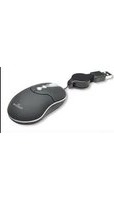
MM3 - Mouse MANHATTAN - Free user manual and instructions
Find the device manual for free MM3 MANHATTAN in PDF.


| Product Type | Mouse |
| Model | MM3 (176873) |
| Interface | USB 1.1 |
| Sensor | Optical, 800 dpi |
| Number of Buttons | 5 (left, right, scroll wheel, page forward, page back) |
| Scroll Wheel | Yes, with adjustable speed |
| Design | Ambidextrous, non-slip |
| Cable | Retractable, 70 cm (28 in) |
| Dimensions (Mouse) | 9.8 x 5.6 x 3.6 cm (3.8 x 2.2 x 1.4 in) |
| Weight | 68 g (2.4 oz) |
| Material | ABS plastic |
| Power Consumption | 5 V, < 30 mA |
| Compatibility | Windows 98SE/Me/2000/XP/Vista; Mac OS X 10.2 and above |
| Operating Temperature | 0 – 45°C |
| Storage Temperature | -40 – 45°C |
| Humidity | < 85% |
| Certifications | CE, FCC, WEEE |
| Warranty | Lifetime |
| Package Contents | Mouse, Quick Install Guide, Driver CD, Carrying Bag |
| Cleaning | Wipe with a dry, soft cloth |
| Safety | Standard low-voltage device; avoid liquids |
| Repairability | Not user-serviceable; contact support for warranty |
Frequently Asked Questions - MM3 MANHATTAN
User questions about MM3 MANHATTAN
0 question about this device. Answer the ones you know or ask your own.
Ask a new question about this device
Download the instructions for your Mouse in PDF format for free! Find your manual MM3 - MANHATTAN and take your electronic device back in hand. On this page are published all the documents necessary for the use of your device. MM3 by MANHATTAN.
USER MANUAL MM3 MANHATTAN
Thank you for purchasing the MANHATTAN® MM1 Optical Mobile Mini Mouse, Model 176835 or MM3 Optical Mobile Micro Mouse, Model 176873.
Its compact size, ambidextrous shape and non-slip design provide a secure, comfortable grip, and the included software allows you to fully customize and program each button to access and control frequently used applications and tasks for increased productivity.
The easy-to-follow instructions in this guide help make installation of the mouse quick and simple, so you'll also soon be enjoying the benefits of these additional features:
- Top-mount buttons control page forward and page back functions
- Retractable reel maintains desired length and reduces tangles
- Low-friction base smoothly glides over work surfaces
- Plug and Play installation – Windows and Mac compatible
- Lifetime Warranty
NOTE: Some software screen images have been modified to fit the format of this guide.
FCC Statement (as applicable)
This equipment has been tested and found to comply with the limits for a class B digital device, pursuant to part 15 of the FCC rules. These limits are designed to provide reasonable protection against harmful interference in a residential installation. This equipment generates, uses and can radiate radio frequency energy and, if not installed and used in accordance with the instructions, may cause harmful interference to radio communications. However, there is no guarantee that interference will not occur in a particular installation. If this equipment does cause harmful interference to radio or television reception — which can be determined by turning the equipment off and then back on — the user is encouraged to try to correct the interference by one or more of the following measures:
- Reorient or relocate the receiving antenna.
- Increase the separation between the equipment and receiver.
- Connect the equipment into an outlet on a circuit different from that to which the receiver is connected.
- Consult your MANHATTAN dealer or an experienced radio/TV technician.
DRIVER INSTALLATION
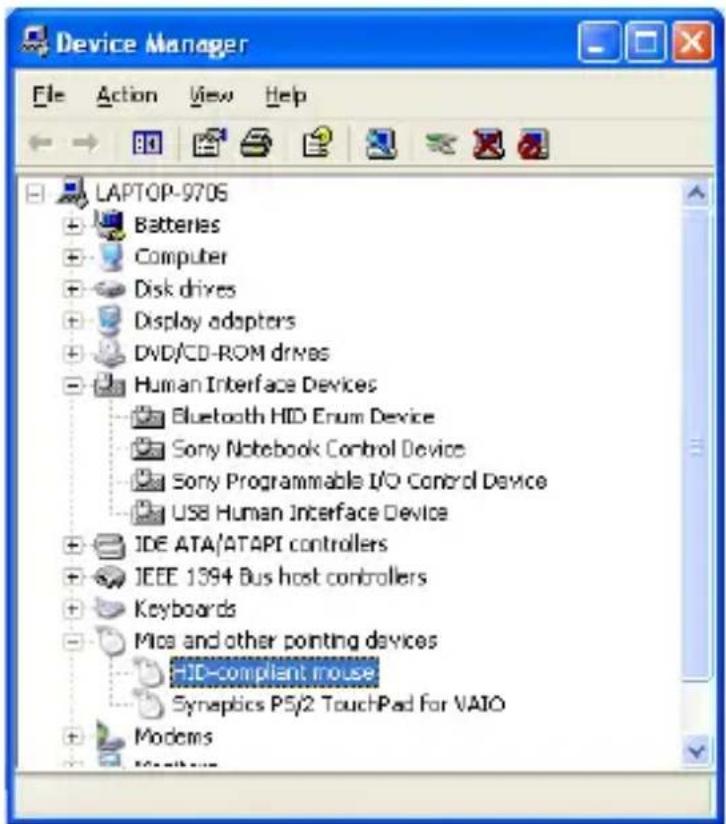
If no drivers are installed on the computer, this device will come up as an HID-compliant mouse and will function as a normal scroll mouse.
To install the driver and configure the customizable mouse buttons, insert the enclosed driver CD in the CD-ROM drive of the computer, then proceed with the rest of the installation procedure below.
- With the Email Mouse Install screen displayed, click "Mouse Driver" to run the setup program.

- When the Setup welcome screen displays, click "Next" to continue.
-
When the Information screen displays, click "Next" to continue.
-
With the Select Device Type screen displayed, select "5 Button Mouse," then click "Next."

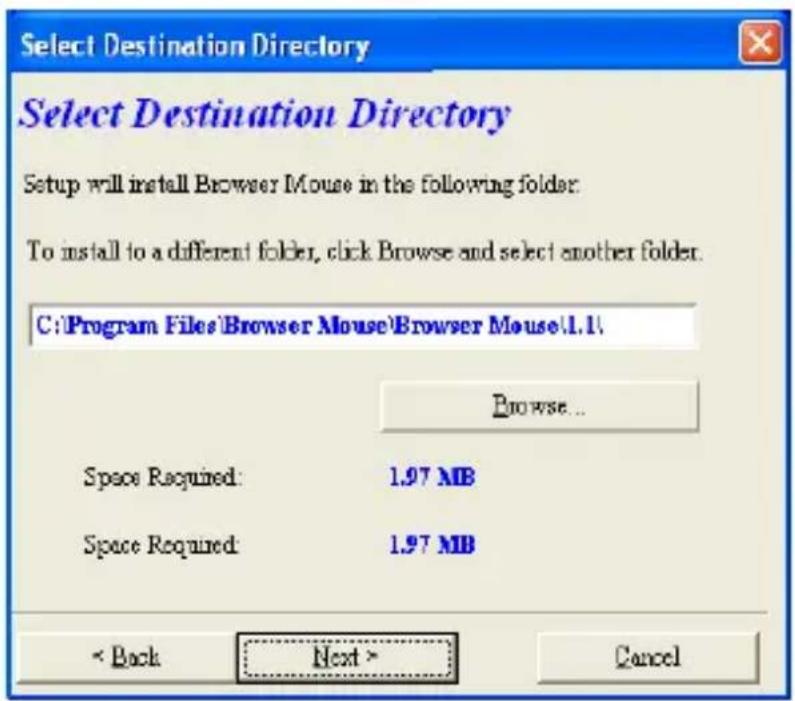
- When the Select Destination Directory screen displays, the default install path is presented. It's recommended that this default be used. Click "Next."
- When the Select Program Folder screen displays, it's recommended that the defaults be used. Click "Next."

- When the Start Copying Files screen displays, click "Back" to review or change any settings; otherwise, if the settings are okay, click "Next" to continue with the installation.
NOTE: A Copy Files screen displays to indicate that this step is in progress.

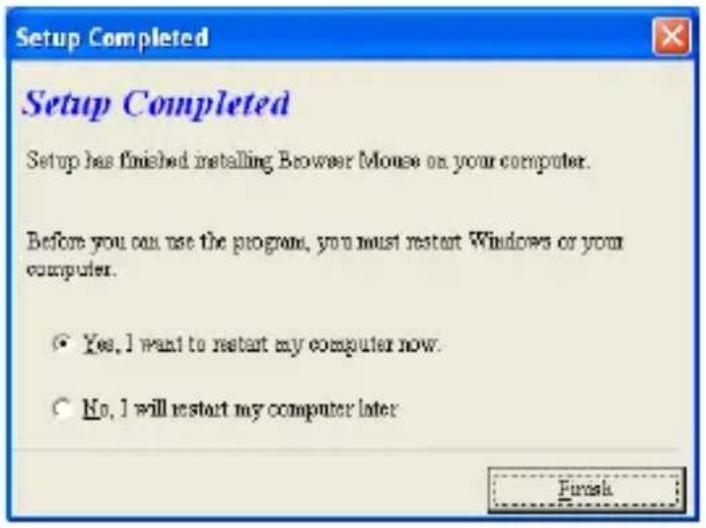
- When the Setup Completed screen displays, select "Yes, I want to restart my computer now." NOTE: Make sure that all applications are closed. Click "Finish."
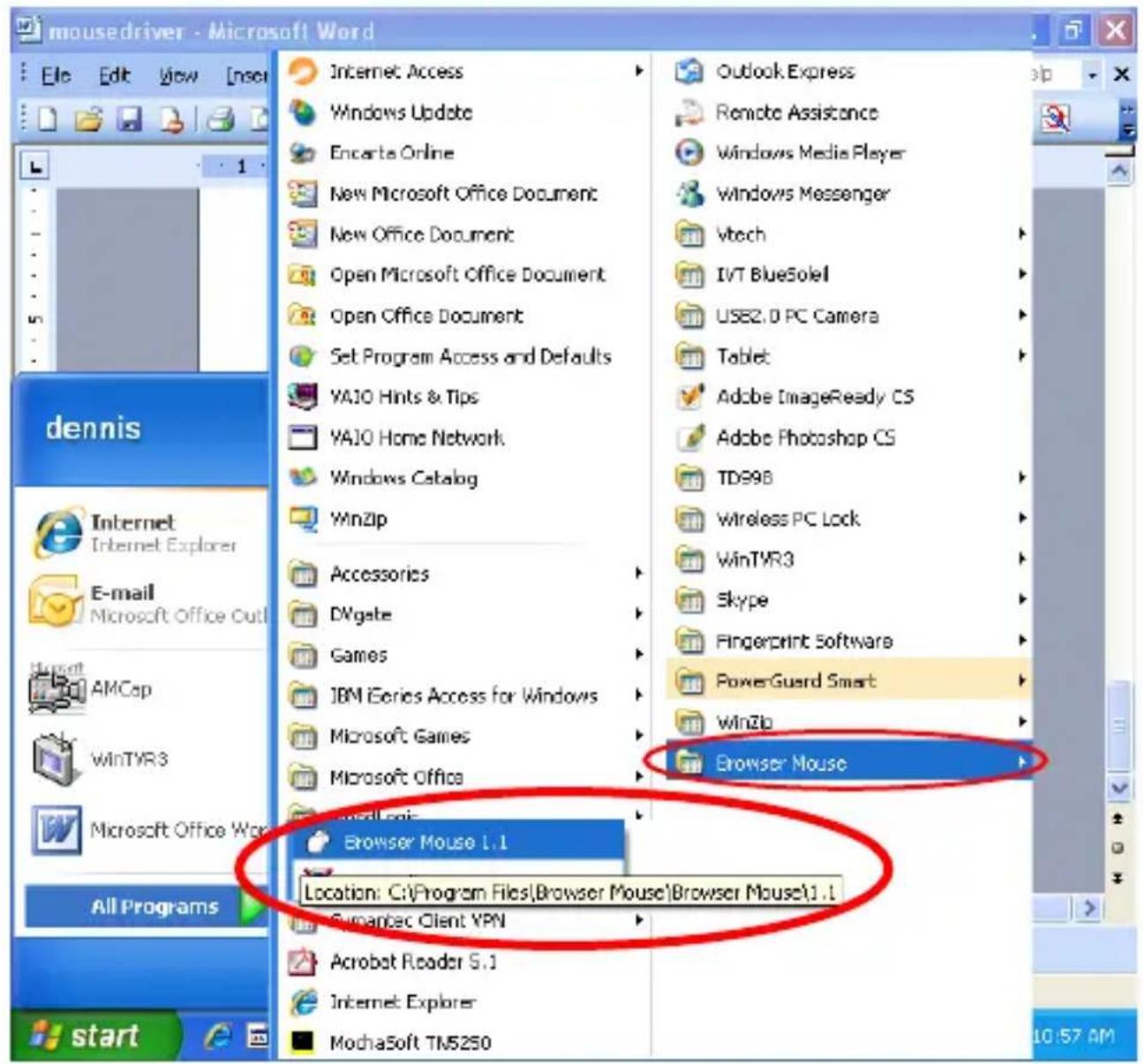
- After the restart, the driver appears in the program files. Launch the application.
-
Launching Browser Mouse 1.1 initially displays the Wheel screen.
-
“Wheel Mode” allows a system default for the wheel behavior (if the wheel is clicked).
- "Wheel Speed" controls how many lines a single turn of the wheel mouse will scroll.
Click "OK" once the settings are satisfactory.

-
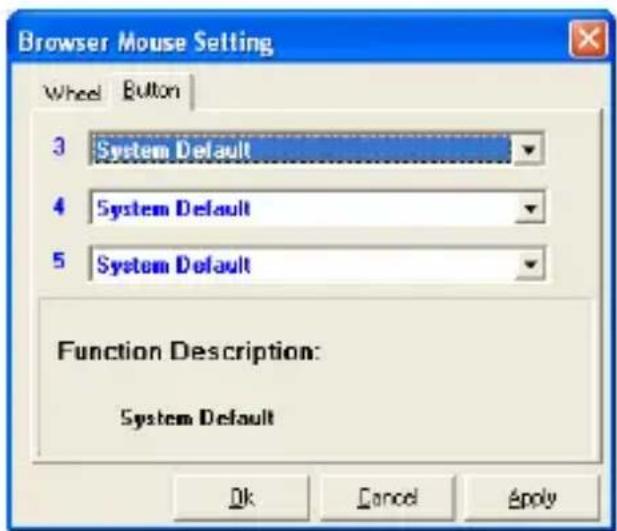
The Button screen displays for selecting the settings of the right mouse button and the two left-side buttons (lever switch).
-
“3” is the right mouse button.
- “4” is the forward part of the lever switch.
- “5” is the back part of the switch. Click “OK” to complete the configuration of the mouse.
SPECIFICATIONS
Standards/Certifications Dimensions
- USB 1.1; CE; FCC; WEEE
General
- USB 1.1 receiver
• 800 dpi optical resolution
• Controls: right & left mouse; scroll wheel; page forward; page back
- Material: ABS plastic
- Compatibility: Windows 98SE/Me/2000/XP/Vista; Mac OS X 10.2 & above
Mouse: 9.8 x 5.6 x 3.6 cm (3.8 x 2.2 x 1.4 in.); 68 g (2.4 oz.)
- USB retractable cable: 70 cm (28 in.)
Environmental
- Operating temperature: 0 – 45°C
- Storage temperature: -40 – 45°C
- Working humidity: < 85%
• Electrical: 5 V < 30 mA
• MM1 Optical Mobile Mini Mouse with Retractable Cable Reel or MM3 Optical Mobile Micro Mouse with Retractable Cable Reel
- Quick install guide, CD & carrying bag
^1 Package Contents
MANHATTAN™
BRINGING COMPUTERS TO LIFE
MANHATTAN® offers a complete line of PC Components, Peripherals, Cables and Accessories. Ask your local computer dealer for more information or visit us online at
www.manhattan-products.com



Brand : MANHATTAN
Model : MM3
Category : Mouse