
TOUCHSCREEN TRAVEL CHESS - Board game SAITEK - Free user manual and instructions
Find the device manual for free TOUCHSCREEN TRAVEL CHESS SAITEK in PDF.


| Product Type | Portable chess computer with touch screen |
| Brand | SAITEK |
| Model | TOUCHSCREEN TRAVEL CHESS |
| Dimensions (L x W x H) | 131 × 83 × 22 mm |
| Weight | 220 g |
| Power | 3 AAA alkaline batteries (AM4/R03) |
| Screen | Matrix LCD 11 characters, 68 × 79 mm |
| Chessboard | Touch 8x8 squares, use with stylus or finger |
| Playing levels | 100 levels (1-60 leisure, 61-100 competition) |
| Game modes | Player vs computer, two players, coach mode, study mode (64 positions) |
| Opening library | Yes, with Grandmaster moves |
| Special functions | Hints, take back, clock, custom setup, problem solving |
| Settings | LCD contrast and speed, sound (on/off, ticking) |
| Maintenance | Clean with a soft dry cloth, do not use chemicals, remove batteries if not used for a long time |
| Safety | Use only alkaline or carbon-zinc batteries, respect polarity, do not mix new and used batteries |
| Box contents | Chess computer, stylus, user manual |
| Reset (ACL) | Hole on the base to reset in case of freeze |
Frequently Asked Questions - TOUCHSCREEN TRAVEL CHESS SAITEK
User questions about TOUCHSCREEN TRAVEL CHESS SAITEK
0 question about this device. Answer the ones you know or ask your own.
Ask a new question about this device
Download the instructions for your Board game in PDF format for free! Find your manual TOUCHSCREEN TRAVEL CHESS - SAITEK and take your electronic device back in hand. On this page are published all the documents necessary for the use of your device. TOUCHSCREEN TRAVEL CHESS by SAITEK.
USER MANUAL TOUCHSCREEN TRAVEL CHESS SAITEK
Touch Screen Travel Chess
Instructions
Bedienungsanleitung
Mode d'emploi
To play a game right away, simply follow these steps!
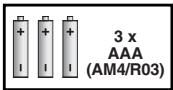
1 Open the battery cover and insert three "AAA" (AM4/R03) alkaline batteries, making sure to observe the correct polarity.
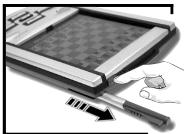
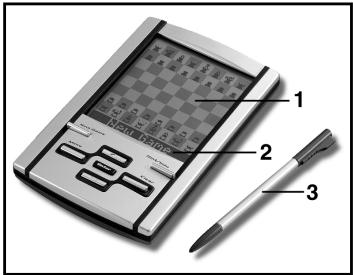
2 Remove the stylus from the storage area on the right-hand side of the unit, as shown here.
3 Press GO/STOP, located on the top edge of the unit, to turn the computer on. If you get no response, reset it as noted in Section 11.1.
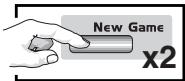
4 Press NEW GAME twice, in quick succession, to reset the computer. If the board doesn't reset for a new game of chess, you've taken too long between keystresses. Just try again!
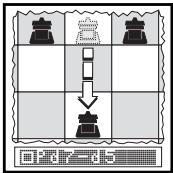
5 Enter moves by pressing the stylus gently on the from and to squares for each move. Note that you may also use your fingertip.
6 When the computer displays its move, its piece will flash briefly on the from and to squares, and the move will then be made on the board. Now, it's your turn again!
To turn the unit off, press GO/STOP. When STOP is displayed, press GO/STOP again to confirm—and your game will be stored in memory!
GET TO KNOW THE CHESS PIECES!

KING
QUEEN
ROOK
BISHOP
KIGHT
PAWN


TABLE OF CONTENTS
QUICK START
KEYS AND FEATURES
INTRODUCTION
1. GETTING STARTED: THE BASICS
1.1 Batteries In, Power On
1.2 Ready to Play? Here's How!
1.3 The Computer Makes its Move
1.4 Game Over? Start a New Game
1.5 Too Easy/Hard? Change Levels!
2. MORE FEATURES TO EXPLORE
2.1 Whose Turn? Check the Display!
2.2 Special Chess Moves
2.3 Illegal/Incorrect Moves
2.4 Check, Mate, and Draw
2.5 Try the Self-Rating System!
2.6 Want a Hint? Just Ask!
2.7 Interrupting the Search
2.8 Changing Sides
2.9 Built-In Openings
2.10 Thinking on the Opponent's Time
2.11 Power Down/Game Memory
3. THE MAIN MENU
4. OPTION MODE
Selecting Game Options
4.1 Two Player Mode
4.2 Search Algorithm
4.3 Autobook Mode
4.4 White at Top
4.5 Countdown Clock
4.6 Ticking Sound
4.7 Coach Mode
4.8 Sound On/Off
4.9 LCD Contrast
4.10 LCD Speed
4.11 Automove Mode
5. LEVEL MODE
Setting a Playing Level
5.1 Fun Levels
5.2 Casual Play Levels
5.3 Tournament Levels
5.4 Speed Chess Levels
5.5 Problem Solving Levels
5.6 Tactical Level
5.7 Infinite Level
6. TAKEBACK MODE
7. INFO MODE
Automatic Info Displays
Manual Info Displays
7.1 Principal Variation
7.2 Search Information
7.3 Chess Clock Information
7.4 Move Count/Game Moves
7.5 Rating Display
8. SETUP MODE
9. STUDY MODE
Selecting Study Positions
Using the Board for Selection
10. NEED HELP? LOOK HERE!
11. TECHNICAL DETAILS
11.1 The ACL Function
11.2 Care and Maintenance
11.3 Technical Specifications
APPENDIX:
STUDY MODE GAMES
KEYS AND FEATURES
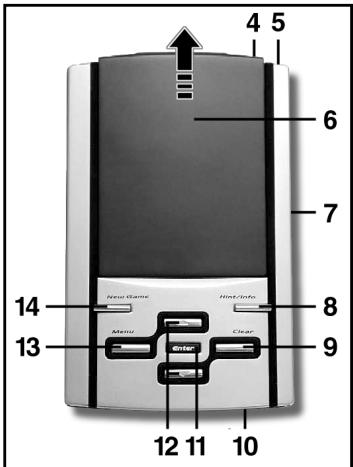
- TOUCH SCREEN CHESSBOARD: Each square registers piece movement when pressed gently with stylus or fingertip.
- INFORMATION LINE: Shows moves, game information, and chess clocks. Also used when selecting options and levels, setting up positions, and more.
- STYLUS: Used to make moves on the touch screen; also used to select settings in the Information Line area.
- GO/STOP KEY: Press to turn unit on; press twice to turn off. Press to pause scrolling display; resume scrolling with CLEAR.
5.STYLUS STORAGE AREA: Insert stylus into slot when not in use. - LCD COVER: Slides on to protect display when unit is not in use.
- ACL (Reset): In base of unit. Used to eliminate static discharge after inserting new batteries.
- HINT/INFO KEY: Press during your move for a hint. Press repeatedly to cycle through main Info displays.
- CLEAR KEY: Press to exit Option/ Info Modes; to cancel Level/Study Modes with no changes; to clear Info Mode displays; to remain in Study Mode after a wrong move; to clear the board in Setup Mode; to resume scrolling after a pause; and to resume play after takebacks.
- BATTERY COMPARTMENT: In base of unit. Uses three "AAA" (AM4/R03) alkaline batteries.
- ENTER KEY: Press to change sides with the computer. Press while the computer is thinking to force it to move. Press to select Main Menu items; to select settings and turn options on/off in Option/Info Modes; to enter a new level in Level Mode; to select a Study Position; to exit Setup Mode with a new position.
- / KEYS: Press to cycle through
Levels/Study Positions one at a time in Level/Study Modes. Press to cycle through Options/Info displays in Option/Info Modes. Press to take back/replay moves in Takeback Mode.
- MENU KEY: Press to enter Menu Mode; press again to exit.
- NEW GAME KEY: Press twice, in quick succession, to reset the computer.
INTRODUCTION
Congratulations on your purchase of Saitek's Touch Screen Travel Chess Computer! Featuring extraordinary chessplaying abilities and a vast array of special options, this sleek unit offers a touch screen interface for convenience and ease of play. Portable and always travel-ready, it will also allow you to enjoy a game of chess anywhere, at home or on the road! Once you familiarize yourself with the basic operation, go on to explore all the extras this unique computer has to offer. You'll soon find that you're enjoying chess as never before!
1. GETTING STARTED: THE BASICS!
1.1 Batteries In, Power On
Your chess computer runs on three "AAA" (AM4/R03) batteries. Insert the batteries into the compartment in the base of the unit, making sure to observe the correct polarity. We recommend fresh alkaline batteries for longer battery life!
To turn the computer on, press GO/STOP. If you get no response, reset the unit by pressing a paper clip or another sharp object down into the hole marked ACL in the base for at least one second.
To conserve batteries, the computer will automatically turn itself off if left idle for about 20 minutes.
1.2 Ready to Play? Here's How!
Follow these steps to start a game:
a. Press GO/STOP to turn the computer on.
b. To reset the computer for a new game of chess, press NEW GAME twice, in quick succession. If you take too long between key presses, the computer won't reset itself, and you'll need to press the keys again. As soon as the unit has been reset, you'll see displayed briefly, and then the symbol for White (□) and the chess clock (□□□□□□□□□□□□□□□□□□□□□□□□□□□□□□□□□□□□□□□□□□□□□□□□□□□□□□□□□□□□□□□□□□□□□□□□□□□□□□□□□□□□□□□□□□□□□□□□□□□□
c. To make a move, lightly press the stylus on the piece you want to move until you hear a beep and the piece flashes. Note that you can use your fingertip instead of the stylus, if desired.
d. Next, press the stylus on your destination square. You'll hear a second beep as the computer confirms your move. Now, it's the computer's turn. You'll notice that the computer often moves instantly at the beginning of a game, instead of taking time to
think. This is because it is playing moves which are stored in its openings library. For details, see Section 2.9.
1.3 The Computer Makes its Move
When the computer moves, it first shows briefly. While the computer considers its move for Black, the display flashes the symbol for Black (图), while showing the computer's clock. Once the actual move is made, the computer will beep and display its move (e.g., 图), and the piece will briefly flash back and forth on the from and to squares. After the move has been made on the board, the display will go back to showing your clock—and it's your turn again.
1.4 Game Over? Start a New Game
Caution: Resetting the computer clears your current game from the computer's memory!
Whenever you finish a game (or if you decide to give up on your current game), it's easy to start over again! Reset the computer by pressing NEW GAME twice in a row. New Game will be displayed, signalling that the computer is ready for another game of chess, using the currently selected playing level.
Special note regarding the Tournament Levels: If you reset for a new game before a Tournament Level game is over, you'll be asked to confirm the game's outcome before the computer resets itself. For details, see Section 2.5.
1.5 Too Easy/Hard? Change Levels!
When the computer is first turned on, it is automatically set to Playing Level 63, with an average computer response time of five seconds per move. You can, however, choose from 100 different levels of play! For descriptions of all the levels, as well as instructions on how to change the playing levels, see Section 5.
2. MORE FEATURES TO EXPLORE
2.1 Whose Turn? Check the Display!
When the computer thinks for Black, it flashes a Black square (图). After the computer moves, the display shows a steady White square (口), indicating that it's now your turn to move for White.
DISPLAY OPTIONS TO KEEP IN MIND!
- To brighten/darken the display: Select a different LCD Contrast setting, as noted in Section 4.9.
- To slow down/speed up a scrolling display: Select a different LCD Speed setting, as described in Section 4.10.
- To pause a scrolling display: Press GO/STOP once; press CLEAR to resume scrolling. Note that this feature is especially valuable if you have several of the automatic Info Mode displays activated while the computer is thinking!
2.2 Special Chess Moves
Please note the following, in regard to certain chess moves.
Captures: Captures are shown with an 国 as in
En Passant: In this type of capture, displayed with an after the capturing move, the computer reminds you to remove the captured pawn by flashing it. Press the pawn to remove it from the board.
Castling: After the King has been moved, the Rook will flash. Make the indicated Rook move on the board to complete the castling maneuver. Kingside castling is displayed as [U], and Queenside castling is displayed as [U].
Pawn Promotion:
- When you promote a pawn, first press the pawn on its from square, as usual. The display then changes to show the available promotion pieces (1234567890). To promote to a Queen, simply press the to square to complete your move. To underpromote to a Rook, Bishop, or Knight, press one of the displayed promotion symbols. The display will confirm briefly (e.g., 1234567890). Press the to square to complete the promotion, and the piece will automatically change on the board. Note: If you change your mind about the promotion piece before pressing the to square, simply press one of the other symbols.
- When the computer promotes a pawn, it indicates its move, along with the promoted piece, as in [1].
2.3 Illegal/Incorrect Moves
Your computer knows all the rules of chess—and it will never cheat! If you attempt to make an illegal move, a high-pitched double beep will alert you to your error. This will occur, for instance, if you
press an illegal from or to square, an incorrect piece or color, or an invalid game key.
If you press an illegal to square, the display will simply continue to indicate the square the piece came from. To continue, move your piece to a legal square. If you press a from square, but decide not to make that move, press that same square again to cancel the input. If you change your mind after entering your whole move, retract the move as described in Section 6.
2.4 Check, Mate, and Draw
Whenever a King is in check, the computer will display briefly after the move is made. If the computer discovers a forced mate, it will briefly show a mate announcement (e.g., iEET). When a game ends in checkmate, the computer will either congratulate you or express its condolences, depending on whether you've won or lost. A display of [iEET] will then end the game.
The computer recognizes draws by stalemate, three-fold repetition, and the 50-move rule. In each of these cases, the corresponding display will be shown after the drawing move has been made.
2.5 Try the Self-Rating System!
Whenever you play on any of the Tournament Levels, the computer will provide you with an approximate ELO rating after the game has ended, based on your performance. Not sure what a "rating" is? It's a universally recognized method of measuring chess performance or describing relative playing ability. The international body which governs chess is called FIDE, or Fédération Internationale des Échecs, and FIDE ratings are sometimes referred to as ELO ratings. The United States Chess Federation (USCF) uses a similar rating system. Ratings are usually four-digit numbers, with stronger players having higher ratings. Towards the upper end of the scale, Masters rank in at 2200 and above, with International Grandmasters at 2500+ . Want to know where you stand? Here's your chance! Refer to Section 5.3 for more information on the Tournament Levels.
2.6 Want a Hint? Just Ask!
If you ever need help with a move, the computer will be glad to oblige! Press HINT/INFO during your turn, and the computer will display a move suggestion. If the hint happens to be e4xd5, for example, [0000] will be displayed. A "ply" is an individual move, or a move for either side. The hint can take from one to five
seconds to show, but it may sometimes take longer. To accept the hint, make the displayed move on the board. To make a different move, simply disregard the hint and make a move of your own. You can also cancel the hint display by pressing CLEAR.
2.7 Interrupting the Search
To interrupt the computer while it's thinking about a move, press ENTER. This forces the computer to play the best move it has found so far. This feature can be extremely useful on the higher levels, where the computer may take a long time to move, and on the Infinite and Tactical Levels, where it thinks indefinitely unless you stop it.
On the Problem Solving Levels, pressing ENTER while the computer is thinking will not cause the computer to make a move. Instead, the computer will display [do move] to indicate that it was interrupted before finding a mate. To continue, switch to another level.
2.8 Changing Sides
To change sides with the computer, press ENTER on your turn-- and the computer will make the next move for your side. You can change sides as often as you wish by pressing ENTER repeatedly.
Want the computer to play the first move for White at the start of a new game? Press NEW GAME twice, and then press ENTER!
Want to see the computer play chess against itself? Press ENTER after each move—and watch as it plays for both sides of the board, one move after another. Study its strategies, and you might just improve your own game!
2.9 Built-In Openings
At the beginning of a game, the computer's reply is often instantaneous on many levels, because it is playing moves from its openings library. The computer's library includes most major openings and many positions from grandmaster play. If the current board position is in its library, the computer plays a response to that position from memory, instead of thinking about the move. Note that the openings library is used on all levels except the Problem Solving Levels.
2.10 Thinking on the Opponent's Time
As you play, you'll probably notice that the computer sometimes replies to your moves immediately, even in the middle of games played on the higher levels. This is because the computer thinks on your time, using the time you are contemplating your next move to
think ahead and plan its own strategies. It tries to anticipate the move you are likely to make, and calculates its responses for that move while you're still thinking. If the computer has guessed correctly, there's no reason for it to keep on calculating—it immediately plays the move it has already found! Note that the computer does not think on the opponent's time on the Fun Levels.
2.11 Power Down/Game Memory
You may interrupt your game and turn the computer off by pressing GO/STOP. The display will show 123456789, and pressing GO/STOP once more to confirm will turn the unit off. Play is then suspended, and the computer will store your game for up to one year. When you switch back on again, you can continue from where you left off! If you decide not to turn the computer off after pressing GO/STOP once, simply press CLEAR to cancel.
If no key presses or moves are made for 20 minutes, the Auto Power Down feature will automatically turn your computer off. To continue, press GO/STOP to turn the computer back on. Note that the computer will not turn itself off while it is thinking about a move, or while 是 is being displayed.
3. THE MAIN MENU: ACCESSING SPECIAL MODES
Touch Screen Travel Chess offers many user-selectable modes and options, all accessed via the integrated Main Menu. Once you press MENU, you're taken to EUIUIUIUI, the first of six Main Menu items. Press (or ) repeatedly to cycle through all the Menu items:
MAIN MENU ITEM......REFERENCE DISPLAY
Option Mode.. Section 4
Level Mode . Section 5
Take Back Mode.. Section 6
Info Mode . Section 7
Setup Mode.. Section 8
Study Mode . Section 9
To select one of the Main Menu items, press ENTER. In each case, you'll be taken to a sub-menu, where you can make subsequent selections. Some of the items (e.g., Option Mode) will offer a variety of different choices and sub-choices, while others (e.g., Setup Mode) will allow you to activate a particular game feature. Since the instructions for selecting menu items will vary, depending on the item you've chosen, please see the referenced section numbers for full details on
A QUICK LOOK AT THE MAIN MENU!
-
E2013: Explore a number of exciting game options.
-
Two Player Mode
-
Coach Mode
Search Algorithm
Sound On/Off
Autobook Mode
-
LCD Contrast
-
White at Top
LCD Speed
- Countdown Clock
Automove Mode
-
Ticking Sound
-
Choose from 100 different levels of play.
Take back any or all previous moves. - Select various automatic information displays.
Show Moves
Show Progress
Show Nodes
Show Evaluation
Show Time per Move
- Set up or change any board position.
- Test yourself with 64 unique Study Positions.
accessing each of these major features. After selecting all desired options and/or changing game settings, press MENU again to exit the Main Menu and return to game play.
4. OPTION MODE: ADD VARIETY TO YOUR GAMES!
Want to explore all sorts of intriguing game options? Just take a look at Option Mode! First, learn how to select and activate these user-selectable options before or during game play, and then go on to learn about the individual options, as described in this section.
Selecting Game Options
Press MENU to enter the Main Menu, and the display automatically shows for Option Mode. Press ENTER to enter Option Mode, and you'll see the first of 11 options, as shown below. Press (or ) repeatedly to cycle through all the options:
OPTION.......REFERENCE.......DEFAULT DISPLAY
Two Player Mode .... Section 4.1
Search Algorithm . Section 4.2
Autobook Mode .... Section 4.3
White at Top . Section 4.4
Countdown Clock .... Section 4.5
Ticking Sound . Section 4.6
Coach Mode. Section 4.7
Sound On/Off Section 4.8
LCD Contrast . Section 4.9
LCD Speed.. Section 4.10
Automove Mode .... Section 4.11 ....
To turn an option on/off or to select option settings (if any), press ENTER when the option is displayed. Pressing ENTER repeatedly will cycle through all choices for the displayed option. When your desired choice is displayed, either press or to go on to a different option, or press CLEAR to return to the Main Menu, and then MENU to return to normal game play. For details on each of these options, see the referenced section numbers. Note: When you reset the computer for a new game, most of your selected options are carried over to the next game. The only exception is Two Player Mode, which automatically returns to Player vs. Computer whenever you start a new game.
4.1 Two Player Mode
Options: (Player vs. Computer)
Player vs. Player)
Normally, the computer automatically answers with a countermove after you enter your move. If you activate [Enter] [Move], however, you can enter any number of moves one by one, without allowing the computer to answer. This feature can be used in a number of interesting ways:
- Play through master games. Press ENTER to see what the computer would do in any position!
- Keep records of your own chess games. When a game is over, play to certain board positions to see how other moves or different strategies might have affected the outcome.
- Study opening lines by entering them manually.
- Play against a friend, with the computer acting as a referee. The computer will check all moves for legality and keep track of the time for both sides!
If you're playing against another person and you want to see what the computer would do in your position, press ENTER to have the computer make your next move. After the computer has moved, Two Player Mode remains in effect, and you can continue your game. Note that this option automatically reverts to its default setting of Player vs.
PRACTICE SETTING AN OPTION!
Menu

- Press MENU to enter the Main Menu. The display will show

- Press ENTER to enter Option Mode. For this example, let's pick the Ticking Clock Option.

- Press five times, until the display shows

- Press ENTER to turn this option on, and the display changes to

- Press CLEAR to exit Option Mode, press MENU to exit Menu Mode—and the simulated ticking will start! Note: To turn this option off again, repeat the above steps.

For more details, see Section 4.6.
Computer whenever you reset for a new game.
4.2 Search Algorithm
Options: /dr#
The program in this chess computer normally uses a Selective Search algorithm. In this particular type of search, the computer concentrates mainly on those moves most likely to be successful, allowing it to see combinations that might otherwise take much longer to compute. You can also switch over to the somewhat slower but very powerful Brute Force algorithm, which can minimize the risk of an occasional oversight.
4.3 Autobook Mode
Options: 100 koh / 01
This unique feature actually monitors your play during the opening phase of the game—and then gives you the opportunity to practice those openings which are giving you the most trouble! It's like having your own personal "Adaptive Opening Coach!" With the Autobook option on, the computer will watch your opening moves as you play.
The next time you end up with a bad position a few moves after the end of an opening variation, the computer will "remember" that particular opening line. In the future, then, the computer will play that same opening whenever possible. This allows you to try out different moves and strategies, in an attempt to become more familiar with that opening, and thereby strengthen your play!
4.4 White at Top
Options: top / bck / mntke
Want to depart from the usual standard and have the computer play the White pieces from the top of the board? Then try out this feature by selecting [top: white] at the beginning of a new game! Start your game by pressing ENTER, and the computer will make the first move for White from the top of the board.
Note: When the computer plays White from the top of the board, you'll notice that the Kings and Queen are positioned differently, and the board notation is automatically reversed.
4.5 Countdown Clock
Options: /down
Normally, the computer defaults to the clock option, displaying the elapsed time. Activating the Countdown Clock option, however, will display the remaining time instead. Here's how to differentiate between the clocks symbols at a glance:
/ Countup Clocks (White/Black)
/ / Countdown Clocks (White/Black)
Note that the Countdown Clock option is only available in combination with the Tournament and Speed Chess Levels.
4.6 Ticking Sound
Options: 1ick e:off / on
Turning this option on will activate a ticking sound that simulates a chess clock. You can create the atmosphere of a championship chess tournament in your very own living room!
4.7 Coach Mode
Options: /doc/017 /movice /interv /300
Activating Coach Mode allows the computer to look over your shoulder while you play, watching what you do and offering help if you
need it! In this unique capacity, the computer might warn you if you are in danger of losing a piece, or if it thinks your move is about to lead to an avoidable material loss. You may see displays like BUBEET 1010000000000000000000000000000000000000000000000000000000000000000000000000000000000000000000000000000
To choose one of the Coach options, press ENTER repeatedly until your desired level is displayed. Once you exit Option Mode and return to game play, the last displayed Coach option will automatically be in effect. The following are the available settings.
- No coaching features are activated.
Here, the computer assumes that you are familiar with many tactical and strategic concepts, so it will only make you aware of less obvious and more advanced concepts, such as sacrifices and combinations. - In this case, the computer gives the amount of assistance it deems appropriate for players who can see the most obvious points, but who also need to be made aware of others.
- This setting will give warnings and advice whenever the computer feels they're necessary, such as when you commit a blunder or if a piece is in jeopardy.
When Coach Mode is activated, the computer will sound intermittent beeps during your turn as White, as a reminder that it's waiting for you to make a move.
4.8 Sound On/Off
Options: 0010
Selecting one of these sound settings gives you the option of playing chess with or without sound effects.
4.9 LCD Contrast
Options: / / /
This option allows you to adjust the contrast of the LCD display, with 1 being the lightest, and 5 the darkest. If you find that the default setting of 3 is too light or too dark to read comfortably, change it by pressing ENTER repeatedly, until your desired setting is displayed.
4.10 LCD Speed
Options: / /
You can control the scrolling speed of the LCD display by setting this option, with 1 being the slowest, and 4 the fastest. If you find that the default setting of 2 is too slow or too fast to read comfortably, you can change it by pressing ENTER repeatedly, until your desired setting is displayed.
4.11 Automove Mode
Options: EUI CMOVE CH / b
Normally, when the computer makes a move, it briefly flashes its piece on the from and to squares, and then automatically makes the move on the board. If you change to 10000000000000000000000000000000000000000000000000000000000000000000000000000000000000000000000000000
5. LEVEL MODE: CHOOSE FROM 100 LEVELS!
Your chess computer has 100 unique playing levels to choose from! The levels are divided into two basic groups:
- FUN LEVELS (1-60): These levels offer beginners and average players a chance to build their chess skills. On many of the Fun Levels, you'll see the computer make mistakes on purpose—just so you can learn from it!
- COMPETITION LEVELS (61-100): These levels are geared towards intermediate and more advanced players. Included are levels for casual and tournament play, problem solving, speed chess, and even special levels for experimentation. As you are selecting levels, keep in mind that when the computer has more time to think about its moves, it becomes stronger and plays better—just like a human chess player!
Setting a Playing Level
Press MENU to enter the Main Menu, and press until the display shows. Press ENTER to enter Level Mode, and you'll see the currently selected level, as in [1] (the default level on the first power up). To change the level, press or to increase/decrease the levels by one, or use your stylus to press or to
increase/decrease the levels by ten. Note that pressing and holding down or will automatically increase/decrease the levels one at a time, until you stop pressing the key. When your desired level is displayed, press ENTER to enter that level selection into the computer. The display will confirm with [Enter] [Enter], and you'll go back to the Main Menu. Press MENU to return to game play.
If you enter Level Mode to verify the level, but you don't actually want to change levels, press CLEAR to go back to the Main Menu. Once you exit the Main Menu with MENU, you'll return to your game without changing the level or clock settings.
Please also note the following regarding level selection:
- The level can be changed whenever it's your turn to move.
- Changing the level always resets the chess clocks.
- If you change levels while the computer is thinking, the computer will abort its search and reset the clock.
FUN LEVELS
5.1 Fun Levels
Level Description
Display
1....Fun Level 1
2....Fun Level 2
3....Fun Level 3
...all the way up to...
58....Fun Level 58
59....Fun Level 59
60....Fun Level 60
The Fun Levels are meant primarily for beginners and younger players. On these levels, this computer is much more "human" than most other chess computers—it gives everyone a chance to win, in a world where chess machines are typically relentless and often quite difficult to beat. Although the general consensus seems to be that computers never make mistakes, on some of these levels, this computer actually does!
Handicaps are built into these levels, demonstrating common mistakes made by beginners. You may see the computer deliberately ignore the material worth of pieces, and ignore key concepts such as pawn structure, centrality, mobility, and King safety. It may overlook or walk into mates, develop its Queen too early, or make impulsive captures and checks. Chess books often advise of basic rules, yet players see their opponents breaking the rules and getting away with it. The Fun Levels provide a way to practice punishment of these
typical mistakes, enabling the beginner to strengthen his game against the human opponents he's likely to face! On some of the weaker Fun Levels, the computer will not only leave pieces unguarded, but it might actually try to lose material. As the levels get higher, they give away material less consistently. They progressively start to consider the material worth of pieces more and more, and eventually only occasionally give pieces away. On the upper Fun Levels, the computer won't actually give away material, but it will play more like a beginner who has learned the basics of the game. You might still see it make errors such as opening itself up to threats of check or checkmate. Why not explore all the Fun Levels—and try to learn from the computer's mistakes!
COMPETITION LEVELS
5.2 Casual Play Levels
| Level | Average Time per Move | Display |
| 61 | 1 second per move | [1]13234567890 |
| 62 | 2 seconds per move | [1]13234567890 |
| 63 | 5 seconds per move | [1]13234567890 |
| 64 | 10 seconds per move | [1]13234567890 |
| 65 | 15 seconds per move | [1]13234567890 |
| 66 | 30 seconds per move | [1]13234567890 |
| 67 | 45 seconds per move | [1]13234567890 |
| 68 | 1 minute per move | [1]13234567890 |
| 69 | 2 minutes per move | [1]13234567890 |
| 70 | 3 minutes per move | [1]13234567890 |
When you choose one of the above levels, you're selecting an average response time for the computer. Note that the response times are averaged over a large number of moves. In the opening and the endgame, the computer will tend to play faster, but in complicated middlegame positions, it may take longer to move.
5.3 Tournament Levels
| Level | Number Moves/Total Time | Display |
| 71 | 40 moves in 1 hour 20 min. | [40 min] [40] |
| 72 | 40 moves in 1 hour 30 min. | [40 min] [40] |
| 73 | 35 moves in 1 hour 45 min. | [35 min] [45] |
| 74 | 40 moves in 1 hour 45 min. | [40 min] [40] |
| 75 | 35 moves in 1 hour 30 min. | [45 min] [45] |
| 76 | 40 moves in 2 hours | [40 min] [40] |
| 77 | 45 moves in 2 hours 30 min. | [45 min] [45] |
- Press one time, and the display will show

- Press ENTER to enter Level Mode, and the current level is displayed. Refer to Section 5, if necessary, to identify the current level.
- Let's find Speed Chess Level 81. Press ▲ or ▼ to increase or decrease the levels by one; press □ or □ to increase or decrease the levels by ten. Watch the display for "mthme".

Menu

- When you see [min:ge me], press ENTER. Then, press MENU to exit Menu Mode and you're ready to try out your new level!
For more details, see Section 5.
- 50 moves in 2 hours.
- 40 moves in 2 hours 30 min.
- 40 moves in 3 hours
The Tournament Levels require you to make a certain number of moves within a specific amount of time. If a player exceeds the allotted time for a given number of moves, the display will indicate this, and the game is over.
As described previously in Section 2.5, this computer utilizes a Self-Rating system whenever you play Tournament Level games! After a Tournament game has ended and you press NEW GAME twice to reset the unit, the computer will briefly display your rating before going on to the new game display. If you miss the rating display, you can press HINT/INFO five times to see the rating again at any time. To clear the display, press CLEAR.
If you reset the computer for a new game during a Tournament game, before the game has actually ended, the computer will allow you to dictate the outcome, as follows:
Display =
If you press ENTER, the rating will be displayed.
If you press
-Display =
If you press ENTER, the rating will be displayed.
If you press
-Display =
If you press ENTER, the rating will be displayed.
If you press
The display will cycle back to
In order to obtain a rating, you must answer one of the above questions with ENTER! If you do not want the game to be rated for any reason, press CLEAR in answer to any of the above questions. The computer will confirm by displaying [yes] [no] [yes] [no].
5.4 Speed Chess Levels
| Level | Total Time per Game | Display | |
| 81 | 5 minutes per game | [1] [2] [3] [4] [5] [6] [7] [8] [9] [10] [11] [12] [13] [14] [15] [16] [17] [18] [19] [20] [21] [22] [23] [24] [25] [26] [27] [28] [29] [30] [31] [32] [33] [34] [35] [36] [37] [38] [39] [40] [41] [42] [43] [44] [45] [46] [47] [48] [49] [50] [51] [52] [53] [54] [55] [56] [57] [58] [59] [60] [61] [62] [63] [64] [65] [66] [67] [68] [69] [70] [71] [72] [73] [74] [75] [76] [77] [78] [79] [80] [81] [82] [83] [84] [85] [86] [87] [88] [89] [90] [91] [92] [93] [94] [95] [96] [97] [98] [99] [100] | [1] [2] [3] [4] [5] [6] [7] [8] [9] [10] [11] [12] [13] [14] [15] [16] [17] [18] [19] [20] [21] [22] [23] [24] [25] [26] [27] [28] [29] [30] [31] [32] [33] [34] [35] [36] [37] [38] [39] [40] [41] [42] [43] [44] [45] [46] [47] [48] [49] [50] [51] [52] [1] [2] [3] [4] [5] [6] [7] [8] [9] [10] [11] [12] [13] [14] [15] [16] [17] [18] [19] [20] [21] [22] [23] [24] [25] [26] [27] (1) [2] [3] [4] [5] [6] [7] [8] [9] [10] [11] [12] [13] [14] [15] [16] [17] [18] [19] [20] [21] [22] [23] [24] [25] [26] [27] [1] [2] [3] [4] [5] [6] [7] [8] [9] [10] [11] [12] [13] [14] [15] [16] [17] [18] [19] [20] [21] [22] [23] [24] [25] [26] [27] - [1] [2] [3] [4] [5] [6] [7] [8] [9] [10] [11] [12] [13] [14] [15] [16] [17] [18] [19] [20] [21] [22] [23] [24] [25] [26] [27] [1] [2] [3] [4] [5] [6] [7] [8] [9] [10] [11] [12] [13] [14] [15] [16] [17] [18] [19] [20] [21] [22] [23] [24] [25] [26] [27] [28] [29] [30] [31] [32] [33] [34] [35] [36] [37] [38] [39] [40] [41] [42] [43] [44] [45] [46] [47] [48] [49] [50] [51] [52] [53] [54] [55] [56] [57] [58] [59] [60] [61] [62] [63] [64] [65] [66] [67] [68] [69] [70] [71] [72] [73] [74] [75] [76] [77] [78] [79] [80] [81] [82] [83] [84] [85] [86] [87] [88] [89] [90] [91] [92] [93] [94] [95] [96] [97] [98] [99] [100] [101] [102] [103] [104] [105] [106] [107] [108] [109] [110] [111] [112] [113] [114] [115] [116] [117] [118] [119] [120] [121] [122] [123] [124] [125] [126] [127] [128] [129] [130] [131] [132] [133] [134] [135] [136] [137] [138] [139] [140] [141] [142] [143] [144] [145] [146] [147] [148] [149] [150] [151] [152] [153] [154] [155] [156] [157] [158] [159] [160] [161] [162] [163] [164] [165] [166] [167] [168] [169] [170] [171] [172] [173] [174] [175] [176] [177] [178] [179] [180] [181] [182] [183] [184] [185] [186] [187] [188] [189] [190] [191] [192] [193] [194] [195] [196] [197] [198] [199] [200] [201] [202] [203] [204] [205] [206] [207] [208] [209] [210] [211] [212] [213] [214] [215] [216] [217] [218] [219] [220] [221] [222] [223] [224] [225] [226] [227] [228] [229] [230] [231] [232] [233] [234] [235] [236] [237] [238] [239] [240] [241] [242] [243] [244] [245] [246] [247] [248] [249] [250] [251] [252] [253] [254] [255] [256] [257] [258] [259] [260] [261] [262] [263] [264] [265] [266] [267] [268] [269] [270] [271] [272] [273] [274] [275] [276] [277] [278] [279] [280] [281] [282] [283] [284] [285] [286] [287] [288] [289] [290] [291] [292] [293] [294] [295] [296] [297] [298] [299] [300] [301] [302] [303] [304] [305] [306] [307] [308] [309] [310] [311] [312] [313] [314] [315] [316] [317] [318] [319] [320] [321] [322] [323] [324] [325] [326] [327] [328] [329] [330] [331] [332] [333] [334] [335] [336] [337] [338] [339] [340] [341] [342] [343] [344] [345] [346] [347] [348] [349] [350] [351] [352] [353] [354] [355] [356] [357] [358] [359] [360] [361] [362] [363] [364] [365] [366] [367] [368] [369] [370] [371] [372] [373] [374] [375] [376] [377] [378] [379] [380] [381] [382] [383] [384] [385] [386] [387] [388] [389] [390] [391] [392] [393] [394] [395] [396] [397] [398] [399] [400] [401] [402] [403] [404] [405] [406] [407] [408] [409] [410] [411] [412] [413] [414] [415] [416] [417] [418] [419] [420] [421] [422] [423] [424] [425] [426] [427] [428] [429] [430] [431] [432] [433] [434] [435] [436] [437] [438] [439] [440] [441] [442] [443] [444] [445] [446] [447] [448] [449] [450] [451] [452] [453] [454] [455] [456] [457] [458] [459] [460] [461] [462] [463] [464] [465] [466] [467] [468] [469] [470] [471] [472] [473] [474] [475] [476] [477] [478] [479] [480] [481] [482] [483] [484] [485] [486] [487] [488] [489] [490] [491] [492] [493] [494] [495] [496] [497] [498] [499] [500] [501] [502] [503] [504] [505] [506] [507] [508] [509] [510] [511] [512] [513] [514] [515] [516] [517] [518] [519] [520] [521] [522] [523] [524] [525] [526] [527] [528] [529] [530] [531] [532] [533] [534] [535] [536] [537] [538] [539] [540] [541] [542] [543] [544] [545] [546] [547] [548] [549] [550] [551] [552] [553] [554] [555] [556] [557] [558] [559] [560] [561] [562] [563] [564] [565] [566] [567] [568] [569] [570] [571] [572] [573] [574] [575] [576] [577] [578] [579] [580] [581] [582] [583] [584] [585] [586] [587] [588] [589] [590] [591] [592] [593] [594] [595] [596] [597] [598] [599] [600] [601] [602] [603] [604] [605] [606] [607] [608] [609] [610] [611] [612] [613] [614] [615] [616] [617] [618] [619] [620] [621] [622] [623] [624] [625] [626] [627] [628] [629] [630] [631] [632] [633] [634] [635] [636] [637] [638] [639] [640] [641] [642] [643] [644] [645] [646] [647] [648] [649] [650] [651] [652] [653] [654] [655] [656] [657] [658] [659] [660] [661] [662] [663] [664] [665] [666] [667] [668] [669] [670] [671] [672] [673] [674] [675] [676] [677] [678] [679] [680] [681] [682] [683] [684] [685] [686] [687] [688] [689] [690] [691] [692] [693] [694] [695] [696] [697] [698] [699] [700] [701] [702] [703] [704] [705] [706] [707] [708] [709] [710] [711] [712] [713] [714] [715] [716] [717] [718] [719] [720] [721] [722] [723] [724] [725] [726] [727] [728] [729] [730] [731] [732] [733] [734] [735] [736] [737] [738] [739] [740] [741] [742] [743] [744] [745] [746] [747] [748] [749] [750] [751] [752] [753] [754] [755] [756] [757] [758] [759] [760] [761] [762] [763] [764] [765] [766] [767] [768] [769] [770] [771] [772] [773] [774] [775] [776] [777] [778] [779] [780] [781] [782] [783] [784] [785] [786] [787] [788] [789] [790] [791] [792] [793] [794] [795] [796] [797] [798] [799] [800] [801] [802] [803] [804] [805] [806] [807] [808] [809] [810] [811] [812] [813] [814] [815] [816] [817] [818] [819] [820] [821] [822] [823] [824] [825] [826] [827] [828] [829] [830] [831] [832] [833] [834] [835] [836] [837] [838] [839] [840] [841] [842] [843] [844] [845] [846] [847] [848] [849] [850] [851] [852] [853] [854] [855] [856] [857] [858] [859] [860] [861] [862] [863] [864] [865] [866] [867] [868] [869] [870] [871] [872] [873] [874] [875] [876] [877] [878] [879] [880] [881] [882] [883] [884] [885] [886] [887] [888] [889] [890] [891] [892] [893] [894] [895] [896] [897] [898] [899] [900] [901] [902] [903] [904] [905] [906] [907] [908] [909] [910] [911] [912] [913] [914] [915] [916] [917] [918] [919] [920] [921] [922] [923] [924] [925] [926] [927] [928] [929] [930] [931] [932] [933] [934] [935] [936] [937] [938] [939] [940] [941] [942] [943] [944] [945] [946] [947] [948] [949] [950] [951] [952] [953] [954] [955] [956] [957] [958] [959] [960] [961] [962] [963] [964] [965] [966] [967] [968] [969] [970] [971] [972] [973] [974] [975] [976] [977] [978] [979] [980] [981] [982] [983] [984] [985] [986] [987] [988] [989] [990] [991] [992] [993] [994] [995] [996] [997] [998] [999] [1000] [1001] [1002] [1003] [1004] [1005] [1006] [1007] [1008] [1009] [1010] [1011] [1012] [1013] [1014] [1015] [1016] [1017] [1018] [1019] [1020] [1021] [1022] [1023] [1024] [1025] [1026] [1027] [1028] [1029] [1030] [1031] [1032] [1033] [1034] [1035] [1036] [1037] [1038] [1039] [1040] [1041] [1042] [1043] [1044] [1045] [1046] [1047] [1048] [1049] [1050] [1051] [1052] [1053] [1054] [1055] [1056] [1057] [1058] [1059] [1060] [1061] [1062] [1063] [1064] [1065] [1066] [1067] [1068] [1069] [1070] [1071] [1072] [1073] [1074] [1075] [1076] [1077] [1078] [1079] [1080] [1081] [1082] [1083] [1084] [1085] [1086] [1087] [1088] [1089] [1090] [1091] [1092] [1093] [1094] [1095] [1096] [1097] [1098] [1099] [1100] [1101] [1102] [1103] [1104] [1105] [1106] [1107] [1108] [1109] [1110] [1111] [1112] [1113] [1114] [1115] [1116] [1117] [1118] [1119] [1120] [1121] [1122] [1123] [1124] [1125] [1126] [1127] [1128] [1129] [1130] [1131] [1132] [1133] [1134] [1135] [1136] [1137] [1138] [1139] [1140] [1141] [1142] [1143] [1144] [1145] [1146] [1147] [1148] [1149] [1150] [1151] [1152] [1153] [1154] [1155] [1156] [1157] [1158] [1159] [1160] [1161] [1162] [1163] [1164] [1165] [1166] [1167] [1168] [1169] [1170] [1171] [1172] [1173] [1174] [1175] [1176] [1177] [1178] [1179] [1180] [1181] [1182] [1183] [1184] [1185] [1186] [1187] [1188] [1189] [1190] (continued) |
On the Speed Chess Levels, you set the total time for the whole game. If the game time is exceeded, the computer displays which side has lost on time, as in time out. For these levels, you may want to activate the Countdown Clock option to show the countdown time instead of the elapsed time (see Section 4.5).
5.5 Problem Solving Levels
| Level | Problem | Display |
| 91 | Mate in 1 move | [15te in 1] |
| 92 | Mate in 2 moves | [1ate in 2] |
| 93 | Mate in 3 moves | [15te in 3] |
| 94 | Mate in 4 moves | [1ate in 4] |
| 95 | Mate in 5 moves | [15te in 5] |
| 96 | Mate in 6 moves | [15te in 6] |
97... Mate in 7 moves.
98....Mate in 8 moves.
Selecting one of these levels activates a special mate finder program. If you have a position where there may be a mate and you would like the computer to find it, set the computer on one of the Problem Solving Levels. Your computer can solve mates in up to eight moves. Mates in one to five are usually found quite quickly, whereas solutions taking six to eight moves may take quite some time. If there is no mate present or the computer cannot find a mate, it will briefly display No moves found. You may continue to play, if desired, by switching to another level.
5.6 Tactical Level
Level Description Display 99. Tactical Play (no time limit)
On the Tactical Level, the computer's goal is to find the best tactical sequence more quickly than it would on a normal playing level. The computer will search indefinitely until it finds a win of two pawns or more, or until you stop the search by pressing ENTER. The Tactical Level is great for experimentation, since it lets the computer concentrate fully on special tactical positions!
5.7 Infinite Level
Level Description Display 100 . Infinet (no time limit)
On the Infinite Level, the computer searches indefinitely until it finds a forced mate, or until you stop the search by pressing ENTER. If the search is halted, the computer makes the move it currently thinks is best. Try experimenting with this level—set up special board positions and let the computer analyze them for you! It will think for hours and even days on end, trying to find the best possible move.
When you're playing chess against this computer, nothing is ever "set in stone"—you can change your mind or decide to play a different move whenever you'd like! When it's your turn to move, simply press MENU to enter the Main Menu, and press repeatedly until the display shows [Ctrl+Enter]. Press ENTER to enter Takeback Mode, and you'll see the last move that was made. To take that move back, press , and the move will be retracted on the board. The display will
then show the next move to be taken back. You may continue to press to take back any number of moves, all the way back to the beginning of the game, if desired. If you reach the beginning, the display will show 10 and you'll automatically be returned to the Main Menu. Note that, as long as you don't go back to the very start of the game, you can always press to go forward through the moves again, if desired. To resume your game at any point with the current board position, press CLEAR and then MENU.
As a shortcut to entering Takeback Mode, you can also simply press on the to square of the last move that was made. The display will briefly show 134567890 , and it will then show the last move that was made. To take the move back, press . As above, repeated presses of will take more moves back, if desired. To resume game play at any point, press CLEAR.
7. INFO MODE: WATCH THE COMPUTER THINK!
Imagine this: You're playing chess against a friend, and it's his move. You'd love to know what move he's considering and you'd really like his opinion of the current board position. But, of course, you won't ask—because that's just not done! Well, guess what—when you play against this chess computer, you can ask anything you want, and you'll get all the answers! In fact, you can obtain an incredible amount of information about the computer's thought process, and studying this information can help you learn so much more about the game!
You may access game information at any time via Info Mode. As described below, you can call up this information manually by pressing HINT/INFO, or you can select Info Mode options to be displayed automatically, every time the computer is considering its next move.
Automatic Info Displays
Activating any or all of the following Info Mode options causes the computer to automatically display that information every time it thinks about its move--you can actually watch the computer "think out loud"!
Important: Info Mode options selected for automatic display are only activated while the computer is thinking!
Press MENU to enter the Main Menu, and press repeatedly until the display shows. Press ENTER to enter Info Mode, and you'll see the first of five options, as shown below. Pressing (or ) repeatedly cycles through these options, as follows:
- Show Moves: Shows the computer's predicted line of play, up to four individual moves. See Section 7.1.
Options: / / / / / move
- Show Nodes: Shows the number of nodes (positions) searched per second. See Section 7.2.
Options:modeles:off/ on
- Show Time per Move: Shows the time used so far for the current move. See Section 7.3.
Options:time/move/off/0n
- Show Progress: Shows the computer's search depth and the move currently being considered. See Section 7.4.
Options:propees/off/ on
- Show Evaluation: Shows the score for the current position. See Section 7.2.
Options:ueuueuaonof1/0n
To turn an option on/off or to select option settings (if any), press ENTER when the option is displayed. Pressing ENTER repeatedly will cycle through all choices for the displayed option. When your desired choice is displayed, either press or to go on to a different option, or press CLEAR to go back to the Main Menu, and then MENU to return to normal game play. For full details on each of these options, see the referenced section numbers.
You may turn on any or all of the above Info Mode Options. If you activate more options than will fit in the display at one time, the display will scroll continuously while the computer considers its next move. If the display is scrolling too quickly, change the LCD Speed, as noted in Section 4.10. You can also press GO/STOP to pause the display, and then press CLEAR to resume the scrolling. Whenever requested information is not available, the display will show
Manual Info Displays
Press HINT/INFO at any time, and the first move of the computer's predicted line of play will be shown (as described in Section 7.1). Game information is divided into several different groups, and pressing HINT/INFO repeatedly cycles from one group to another. The and keys can then be used to cycle through the displays within each group. Note that each of the groups is discussed in detail below. Press CLEAR to return to the normal clock display.
7.1 Principal Variation
When you first press HINT/INFO, you'll see the first move of the
principal variation (the computer's predicted line of play), displayed as in [10]. A "ply" is an individual move, or a move for either side, and the computer's search depth is described in terms of the number of ply it looks ahead. On a two-ply search, for example, the computer will look ahead two individual moves (one move for Black and one for White). Note that this first ply display can also be used as a hint, since this is the move the computer is expecting you to make.
If you check this display while the computer is thinking, you'll see the move the computer is currently considering. If you check it during your turn, you'll see the move the computer is expecting you to make next. In either case, pressing repeatedly cycles through the rest of the moves in the predicted line of play, up to four ply:
Predicted line of play: Move 1
Predicted line of play: Move 2
Predicted line of play: Move 3
Predicted line of play: Move 4
7.2 Search Information
After pressing HINT/INFO to access Info Mode, press it again to see information about the computer's search. The initial display will show the current score; pressing repeatedly cycles through the rest of the information:
- The current score: A numerical evaluation of the current position, based on a pawn being worth 1.0 points; a positive number indicates that White is ahead. Example: If White is winning by two pawns, the display will show 34567890 . Note that the score is not valid on the Problem Solving Levels.
- Two-part display: (a) The current search depth, or the number of individual moves the computer is looking ahead. For example: If the computer is looking ahead 439 individual moves, you'll see with the standing for depth. (b) The move being considered (if the computer is currently thinking).
- Two-part display: (a) The time used so far for the current move.
(b) The number of nodes, or positions, being searched per second (if the computer is currently thinking).
7.3 Chess Clock Information
After pressing HINT/INFO to access Info Mode, press it two more times to see chess clock information. The display will show the total elapsed time for both sides. Notice that the chess clock symbol in the middle portrays the current side to move and the type of clock in use.
AN OUTLINE OF INFO MODE
PRINCIPAL VARIATION INFORMATION:
Hint/Info

= - Predicted line of play: Move 1
Predicted line of play: Move 2
Predicted line of play: Move 3
Predicted line of play: Move 4

SEARCH INFORMATION:
Hint/Info

= · Position evaluation (score)
- Search depth; and
- Move currently being considered (if computer is thinking)
- Elapsed time for current move; and Number of nodes searched per second (if computer is thinking)
CHESS CLOCK INFORMATION:
Hint/Info

= · Elapsed time for both sides

- Remaining time for both sides*
*Speed Chess/Tournament Levels only
MOVE COUNT INFORMATION:
Hint/Info

Current move number + last move made

- Backwards and forwards through moves of current game
RATING INFORMATION:
Hint/Info

= • ELO rating (after a Tournament Level game has been played)
Pressing will cycle through two displays, as shown below:
- Total elapsed time for White/Black (Countup Clock)
White to move, Black to move.
- Total remaining time for White/Black (Countdown Clock: Problem Solving/Speed Chess Levels only)
White to move [i], Black to move [i].
If the Countdown Clock is not currently activated, the second display will simply show a blank clock (
The clocks will stop for various reasons during a game, such as if you take back a move, check level settings, select options, set up a position, or turn the computer off. The times are retained in memory, however, and the clocks resume as soon as play is continued. Whenever you change playing levels or reset the computer for a new game, the clocks are always set back to zero.
7.4 Move Count/Game Moves
After pressing HINT/INFO to access Info Mode, press it three more times to see the current move number and the last move made. You can then press to cycle back through the moves of your game, if desired, or press to go forward again at any point. This gives you an opportunity to go back and write down the moves of a game that turns out to be unexpectedly great!
-
Current move number and last move made.
-
Moves of the current game.
7.5 Rating Display
After pressing HINT/INFO to access Info Mode, press it four more times to see your current rating. Note that the ratings are based on Tournament Level play, as described in Section 5.3.
8. SETUP MODE: CHANGE THE BOARD!
Setup Mode allows you to set up special board positions to play from, or problems you would like the computer to solve!
Caution: All moves in your current game will be erased if you make changes to the board position during a game.
You may change or set up a board position whenever it's your turn to move. Press MENU, and press repeatedly until the display shows. Press ENTER to enter Setup Mode, and you'll see a display showing the color and piece symbols (1).
- To remove a piece from the board, simply press on the piece and it will disappear from the board.
- To move a piece from one square to another, press on the piece, causing it to disappear. Then, press on the new square, and the piece will appear in that location.
- To add a piece to the board, first press directly on the displayed color and piece symbol for the piece you want to add, and then press the square where you'd like to add the piece. To add another piece of the same type and color, simply press down on another square. To add a different piece, press another piece and/or color symbol, and follow the same steps as above.
- To clear the board, press CLEAR while in Setup Mode. The display will ask for confirmation with [Enter] Press ENTER, and the display will show [Enter]. You can then add any number of pieces, as described above. If you decide you don't want to clear the board after all, simply press CLEAR again to cancel, and you'll see [Enter]. Note that this feature can be handy for setting up positions with only a few pieces, where it would be much easier to start out with an empty board!
- Once you have changed the position as described above, note that the color for the side to move is determined by the color of the last piece you set up. Change the color, if necessary, by pressing either 4 for Black or 6 for White.
- To exit Setup Mode, press ENTER. When the computer asks for confirmation with #EEM#EEM#EEM#EEM#, press ENTER to return to normal play with your new board setup. #EEM#EEM#EEM#EEM#EEM#EEM#EEM#EEM#EEM#EEM#EEM#EEM#EEM#EEM#EEM#EEM#EEM#EEM#EEM#EEM#EEM#EEM#EEM#EEM#EEM#EEM#EEM#EEM#EEM#EEM#EEM#EEM#EEM#EEM#
Note that any legal board position can be set up using the above procedures. The computer will not permit you to set up an illegal position, such as one where there are more than the prescribed number of pieces for a normal game, or one where a King is in check and is not to move. In such cases, after you press ENTER to exit Setup Mode, and then ENTER to confirm, the computer will display You will not be allowed to exit Setup Mode until you have set up a legal board position!
If you enter Setup Mode, but you haven't yet made any changes to the board, you can exit by pressing ENTER. The display will confirm with [Enter], and you'll be returned to the Main Menu. Press MENU again to return to normal game play.
9. STUDY MODE: TRY TESTING YOURSELF!
Looking for a terrific learning tool? You'll definitely want to try out Study Mode! Eight famous games are built right into your computer, each containing eight critical points—for a total of 64 different Study Positions. It's up to you to play through the games and make the correct moves that were played for the winning side in the original games! This feature offers great potential for improving your chess knowledge, while allowing you to learn about making the best move in a particular position. And, to make this feature even more exciting, the computer will actually score your performance as you go.
By the way, if you need help solving any of the Study Positions, simply refer to the Appendix for a complete listing of all the Study Mode Games. Remember, though, that these games are included as a reference tool—and you'll only be cheating yourself if you look at the solutions before trying to solve the Study Positions on your own!
Selecting Study Positions
Tip: You can also select the Study Positions by pressing certain board squares, as described later on in this section!
Press MENU to enter the Main Menu, and press (or ) repeatedly until the display shows Eshu. Press ENTER to enter Study Mode, and you'll see the first Study Position, To change the Study Position, press or to increase/decrease the studies by one, or use your stylus to press or to increase/decrease the studies by eight. When your desired Study Position is displayed, press ENTER, and the display will confirm with Clear. Pressing ENTER at this point will start the Study Game, as described below, or pressing CLEAR will cancel and return you to the main Study Mode display.
After pressing ENTER, the computer will automatically start making the moves of the selected Study Game. As soon as the first Study Position is reached, the display will briefly show the movie, and the clock will start. Time for you to guess the move that was played in that position in the original game! Here's how it works:
- There is only one "correct" move per Study Position.
- Once the Study Position has been reached, the displayed color symbol indicates which side is to move.
- If you make the correct move, will be displayed. The computer will then make the next moves in the game,
USE THE BOARD TO SELECT STUDY POSITIONS!
For an easy method of selecting a Study Position, simply enter Study Mode and press one of the corresponding board squares, as shown below.
| 8 | 1-8 | 2-8 | 3-8 | 4-8 | 5-8 | 6-8 | 7-8 | 8-8 |
| 7 | 1-7 | 2-7 | 3-7 | 4-7 | 5-7 | 6-7 | 7-7 | 8-7 |
| 6 | 1-6 | 2-6 | 3-6 | 4-6 | 5-6 | 6-6 | 7-6 | 8-6 |
| 5 | 1-5 | 2-5 | 3-5 | 4-5 | 5-5 | 6-5 | 7-5 | 8-5 |
| 4 | 1-4 | 2-4 | 3-4 | 4-4 | 5-4 | 6-4 | 7-4 | 8-4 |
| 3 | 1-3 | 2-3 | 3-3 | 4-3 | 5-3 | 6-3 | 7-3 | 8-3 |
| 2 | 1-2 | 2-2 | 3-2 | 4-2 | 5-2 | 6-2 | 7-2 | 8-2 |
| 1 | 1-1 | 2-1 | 3-1 | 4-1 | 5-1 | 6-1 | 7-1 | 8-1 |
| a | b | c | d | e | f | g | h |
eventually stopping at the next Study Position to be solved.
-
If you make the wrong move, you'll see displayed briefly, and then
-
To remain in Study Mode and try another move, press CLEAR. Points will be deducted for the incorrect guess, your piece will go back to its original square, and you can make a different move.
-
To exit Study Mode and continue a normal game using the move you played, press ENTER. The computer will start thinking about its next move.
-
Scoring: Each time you solve a Study Position correctly, points are added to your score. You'll get full points if you solve the Study Position on the first try. For each incorrect move you make before finding the correct move, your score will be cut in half. If you reach zero points at any time, however, your score will remain there, no matter how many more moves you try.
- To check your current score, press HINT/INFO twice. Note that the first press will show the last move that was made for the other side. Pressing CLEAR will cancel the score display.
If you solve a Study Game ending in checkmate, will remain in the display after a series of congratulatory messages. At this point, you can (a) reset for a new game, (b) use Info Mode to document the moves by tracing back through them (as described in Section 7.4), or (c) take back any of the moves and resume a normal game from any position. If you solve the last Study Position in a game, but the game has not actually ended, the display will show and the computer will automatically start thinking about the next move, allowing you to continue the game normally.
Using the Board for Selection
Each Study Position can also be activated individually by pressing the corresponding board square. As shown in the Study Mode Chart, each of the 64 squares represents one Study Position. Enter Study Mode by pressing MENU and (or ) until is displayed, and then pressing ENTER. Next, refer to the chart and press one of the board squares to select that Study Position. Press ENTER, and the display will confirm with Press ENTER again, and the Study Game will start, as described previously.
10. NEED HELP? LOOK HERE!
For troubleshooting purposes, we've compiled the following list of situations you might encounter, along with some possible solutions.
a. The computer doesn't react, behaves erratically, or "freezes" during a game.
- Reinsert the batteries, or replace them with fresh alkalines.
- Static discharge may have caused a lock-up. Press into the hole marked ACL to reset the unit (see Section 11.1).
b. The display is dim and/or difficult to read.
- Replace the batteries with fresh alkalines.
- Select a different LCD Contrast Option (see Section 4.9).
c. I've activated some automatic Info Displays to watch the computer think, but the display is scrolling too quickly.
- Select a different LCD Speed option (see Section 4.10).
- Press GO/STOP to pause the scrolling display at any time; press CLEAR to resume scrolling.
d. The computer won't make a move.
- The unit only responds automatically if Two Player Mode is set to for Player vs. Computer (see Section 4.1).
- You might be on a level where the computer thinks for a long time. You can force it to move, if desired, by pressing ENTER.
e. The computer won't accept my move.
- You're attempting to make an illegal move. Check the rules.
- Is your King in check? Will your move put your King into check? Are you castling incorrectly? Review the position.
- Is it your turn? If the color symbol is flashing, the computer is thinking. Press ENTER to interrupt, if desired.
f. The board notation is reversed when I make moves. Why?
- You have the option activated. Go into Option Mode and change to (see Section 4.4).
g. I just reset for a new game, but the computer is showing instead of resetting itself.
- You've interrupted a Tournament Level game, and you need to tell the computer how you want the game to be rated. For details, see Section 5.3.
h. The computer has displayed its move, but its piece is flashing and the move hasn't been made on the board.
- When the Automove Option is turned off, you have to move the computer's pieces on the board. To turn Automove back on, refer to Section 4.11.
i. The computer is displaying the same instead of making a move.
- You're on a Problem Solving Level and the computer hasn't found a mate. If you're not trying to solve a mate problem, switch to a normal playing level (see Section 5).
j. I'm trying to exit the Main Menu by pressing CLEAR, but I'm getting an error beep.
- You're pressing the wrong key! The only way to exit the Main Menu is by pressing MENU.
k. The computer is beeping intermittently even though it's my turn to move.
- When Coach Mode is activated, the computer will sound
reminder beeps during your turn.
I. The computer isn't beeping when it moves.
- Go into Option Mode to turn the sound on (see Section 4.8).
m.The computer won't allow me to exit Setup Mode.
- You've set up an illegal position (e.g., a King may be in check, there may be too many pawns on the board, etc.). Change the board to set up a valid position (see Section 8).
11. TECHNICAL DETAILS
11.1 The ACL Function
Computers sometimes "lock up" due to static discharge or other electrical disturbances. If this should happen, use a pin or another sharp object to press into the hole marked ACL in the base of the unit for at least one second. This resets the computer.
11.2 Care and Maintenance
Your computer is a precision electronic device, and should not be subjected to rough handling or exposed to extreme temperatures or moisture. Do not use chemical agents or liquids to clean the unit, as they may damage the plastic. Be sure to remove the batteries before cleaning the unit.
Weak batteries should be replaced promptly, since they can leak and damage the computer. Please also note the following, regarding the use of batteries. Caution: Use only alkaline or zinc carbon batteries. Do not mix different types of batteries or new and used batteries. Do not recharge non-rechargeable batteries. Use only recommended batteries or equivalent. Be sure to observe the correct polarity when inserting the batteries. Worn out batteries should be removed from the unit promptly. Do not short circuit the supply terminals.
11.3 Technical Specifications
Keys: 8
Chessboard: 9x8 contact membrane (touch panel)
LCD Display: 11-character dot matrix, 68 × 79 mm
Batteries: 3 x AAA/AM4/R03
Dimensions: 131 × 83 × 22 mm
Weight: 220 grams
Please retain this information for future reference.
Saitek reserves the right to make technical changes without notice in the interest of progress.
CONDITIONS OF WARRANTY
- Warranty period is 2 years from date of purchase with proof of purchase submitted.
- Operating instructions must be followed.
- Product must not have been damaged as a result of defacement, misuse, abuse, neglect, accident, destruction or alteration of the serial number, improper electrical voltages or currents, repair, alteration or maintenance by any person or party other than our own service facility or an authorized service center, use or installation of non-Saitek replacement parts in the product or the modification of this product in any way, or the incorporation of this product into any other products, or damage to the product caused by accident, fire, floods, lightning, or acts o violative of instructions furnished by Saitek plc.
- Obligations of Saitek shall be limited to repair or replacement with the same or similar unit, at our option. To obtain repairs under this warranty, present the product and proof of purchase (e.g., bill or invoice) to the authorized Saitek Technical Support Center (listed on the separate sheet packaged with this product) transportation charges prepaid. Any requirements that conflict with any state or Federal laws, rules and/or obligations shall not be enforceable in that particular territory and Saitek will adhere to those laws, rules, and/or obligations.
- When returning the product for repair, please pack it very carefully, preferably using the original packaging materials. Please also include an explanatory note.
- IMPORTANT: To save yourself unnecessary cost and inconvenience, please check carefully that you have read and followed the instructions in this manual.
- This warranty is in Lieu of all other expressed warranties, obligations or liabilities. ANY IMPLIED WARRANTYES, OBLIGATIONS, OR LIABILITIES, INCLUDING BUT NOT LIMITED TO THE IMPLIED WARRANTYES OF MERCHANTABILITY AND FITNESS FOR A PARTICULAR PURPOSE, SHALL BE LIMITED IN DURATION TO THE DURATION OF THIS WRITTEN LIMITED WARRANTY. Some states do not allow limitations on how long an implied warranty lasts, so the above limitations may not apply to you. IN NO EVENT SHALL WE BE LIABLE FOR ANY SPECIAL OR CONSEQUENTIAL DAMAGES FOR BREACH OF THIS OR ANY OTHER WARRANTY, EXPRESS OR IMPLIED, WHATSOEVER Some states do not allow the exclusion or limitation of special, incidental or consequential damages, so the above limitation may not apply to you. This warranty gives you specific legal rights, and you may also have other rights which vary from state to state.
Information for Customers in the United States:
FCC Compliance and Advisory Statement
Warning: Changes or modifications to this unit not expressly approved by the party responsible for compliance could void the user's authority to operate the equipment.
This device complies with Part 15 of the FCC Rules. Operation is subject to the following two conditions:
- This device may not cause harmful interference, and
- This device must accept any interference received, including interference that may cause undesired operation
NOTE: This equipment has been tested and found to comply with the limits for a Class B digital device, pursuant to Part 15 of the FCC Rules. These limits are designed to provide reasonable protection against harmful interference in a residential installation. This equipment generates, uses and can radiate radio frequency energy and, if not installed and used in accordance with the instructions, may cause harmful interference to radio communications. However, there is no guarantee that interference will not occur in a particular installation. If this equipment does cause harmful interference to radio or television reception, which can be determined by turning the equipment off and on, the user is encouraged to try to correct the interference by one or more of the following measures:
- Reorient or relocate the receiving antenna.
- Increase the separation between the equipment and receiver.
- Connect the equipment into an outlet on a circuit different from that to which the receiver is connected.
- Consult the dealer or an experienced radio/TV technician for help.
Saitek Industries, 2295 Jefferson Street, Torrance, CA 90501, USA

SCHHELLSTART
- Finde Matt in 1 Zug
- Finde Matt in 2 Zugen
- Finde Matt in 3 Zugen
- Finde Matt in 4 Zugen
- Finde Matt in 5 Zugen
- Finde Matt in 6 Zugen
- Finde Matt in 7 Zugen
- Finde Matt in 8 Zugen
| 8 | 1-8 | 2-8 | 3-8 | 4-8 | 5-8 | 6-8 | 7-8 | 8-8 |
| 7 | 1-7 | 2-7 | 3-7 | 4-7 | 5-7 | 6-7 | 7-7 | 8-7 |
| 6 | 1-6 | 2-6 | 3-6 | 4-6 | 5-6 | 6-6 | 7-6 | 8-6 |
| 5 | 1-5 | 2-5 | 3-5 | 4-5 | 5-5 | 6-5 | 7-5 | 8-5 |
| 4 | 1-4 | 2-4 | 3-4 | 4-4 | 5-4 | 6-4 | 7-4 | 8-4 |
| 3 | 1-3 | 2-3 | 3-3 | 4-3 | 5-3 | 6-3 | 7-3 | 8-3 |
| 2 | 1-2 | 2-2 | 3-2 | 4-2 | 5-2 | 6-2 | 7-2 | 8-2 |
| 1 | 1-1 | 2-1 | 3-1 | 4-1 | 5-1 | 6-1 | 7-1 | 8-1 |
| a | b | c | d | e | f | g | h |
Options: Top / Bottom
Options: 1000000000 / on
Options: ROBES:off/ON
Options: time move off / on
| 8 | 1-8 | 2-8 | 3-8 | 4-8 | 5-8 | 6-8 | 7-8 | 8-8 |
| 7 | 1-7 | 2-7 | 3-7 | 4-7 | 5-7 | 6-7 | 7-7 | 8-7 |
| 6 | 1-6 | 2-6 | 3-6 | 4-6 | 5-6 | 6-6 | 7-6 | 8-6 |
| 5 | 1-5 | 2-5 | 3-5 | 4-5 | 5-5 | 6-5 | 7-5 | 8-5 |
| 4 | 1-4 | 2-4 | 3-4 | 4-4 | 5-4 | 6-4 | 7-4 | 8-4 |
| 3 | 1-3 | 2-3 | 3-3 | 4-3 | 5-3 | 6-3 | 7-3 | 8-3 |
| 2 | 1-2 | 2-2 | 3-2 | 4-2 | 5-2 | 6-2 | 7-2 | 8-2 |
| 1 | 1-1 | 2-1 | 3-1 | 4-1 | 5-1 | 6-1 | 7-1 | 8-1 |
| a | b | c | d | e | f | g | h |
11.3 Specifications techniques
Touches: 8
| 8 | 1-8 | 2-8 | 3-8 | 4-8 | 5-8 | 6-8 | 7-8 | 8-8 |
| 7 | 1-7 | 2-7 | 3-7 | 4-7 | 5-7 | 6-7 | 7-7 | 8-7 |
| 6 | 1-6 | 2-6 | 3-6 | 4-6 | 5-6 | 6-6 | 7-6 | 8-6 |
| 5 | 1-5 | 2-5 | 3-5 | 4-5 | 5-5 | 6-5 | 7-5 | 8-5 |
| 4 | 1-4 | 2-4 | 3-4 | 4-4 | 5-4 | 6-4 | 7-4 | 8-4 |
| 3 | 1-3 | 2-3 | 3-3 | 4-3 | 5-3 | 6-3 | 7-3 | 8-3 |
| 2 | 1-2 | 2-2 | 3-2 | 4-2 | 5-2 | 6-2 | 7-2 | 8-2 |
| 1 | 1-1 | 2-1 | 3-1 | 4-1 | 5-1 | 6-1 | 7-1 | 8-1 |
| a | b | c | d | e | f | g | h |
- Pantalla = [E E E E E E E E E E E E E E E E E E E E E E E E E E E E E E E E E E E E E E E E E E E E E E E E E E E E E E E E E E E E E E E E E E E E E E E E E E E E E E E E E E E E E E E E E E E E E E
Blancas a mover, Negras a mover.
| 1-8 | 2-8 | 3-8 | 4-8 | 5-8 | 6-8 | 7-8 | 8-8 |
| 1-7 | 2-7 | 3-7 | 4-7 | 5-7 | 6-7 | 7-7 | 8-7 |
| 1-6 | 2-6 | 3-6 | 4-6 | 5-6 | 6-6 | 7-6 | 8-6 |
| 1-5 | 2-5 | 3-5 | 4-5 | 5-5 | 6-5 | 7-5 | 8-5 |
| 1-4 | 2-4 | 3-4 | 4-4 | 5-4 | 6-4 | 7-4 | 8-4 |
| 1-3 | 2-3 | 3-3 | 4-3 | 5-3 | 6-3 | 7-3 | 8-3 |
| 1-2 | 2-2 | 3-2 | 4-2 | 5-2 | 6-2 | 7-2 | 8-2 |
| 1-1 | 2-1 | 3-1 | 4-1 | 5-1 | 6-1 | 7-1 | 8-1 |
a b C d e f g h
2. NOG MEER FUNCTIONS
Opties: C lock: UP / Down
Opties: cecch. / movice / mster / 3iv
Als u de Trainingsstand activeert, kijk de computer als het ware over uw schouder mee als u speelt; hij kijk wat u doet en biodt hulp aan als dat nodig is! In deze stand waarschuwt de computer u als u op het punt staat om een stuk te verliezen of als u op het punt staat een ze te doen die onvermijdelijk tot verlies za leiden. U krijgt waarschuwingen als [a] [a] [a] [a] [a] [a] [a] [a] [a] [a] [a] [a] [a] [a] [a] [a] [a] [a] [a] [a] [a] [a] [a] [a] [a] [a] [a] [a] [a] [a] [a] [a] [a] [a] (1) (2) (3) (4) (5) (6) (7) (8) (9) (10) (11) (12) (13) (14) (15) (16) (17) (18) (19) (20) (21) (22) (23) (24) (25) (26) (27) (28) (29) (30) (31) (32) (33) (34) (35) (36) (37) (38) (39) (40) (41) (42) (43) (44) (45) (46) (47) (48) (49) (50) (51) (52) (53) (54) (55) (56) (57) (58) (59) (60) (61) (62) (63) (64) (65) (66) (67) (68) (69) (70) (71) (72) (73) (74) (75) (76) (77) (78) (79) (80) (81) (82) (83) (84) (85) (86) (87) (88) (89) (90)
Opties: sound on / off
96... Mat in 6 zetten
97 Mat in 7 zetten
98.... Mat in 8 zetten
Opties: time/move:off/ on
Opties: progress of / on
| 8 | 1-8 | 2-8 | 3-8 | 4-8 | 5-8 | 6-8 | 7-8 | 8-8 |
| 7 | 1-7 | 2-7 | 3-7 | 4-7 | 5-7 | 6-7 | 7-7 | 8-7 |
| 6 | 1-6 | 2-6 | 3-6 | 4-6 | 5-6 | 6-6 | 7-6 | 8-6 |
| 5 | 1-5 | 2-5 | 3-5 | 4-5 | 5-5 | 6-5 | 7-5 | 8-5 |
| 4 | 1-4 | 2-4 | 3-4 | 4-4 | 5-4 | 6-4 | 7-4 | 8-4 |
| 3 | 1-3 | 2-3 | 3-3 | 4-3 | 5-3 | 6-3 | 7-3 | 8-3 |
| 2 | 1-2 | 2-2 | 3-2 | 4-2 | 5-2 | 6-2 | 7-2 | 8-2 |
| 1 | 1-1 | 2-1 | 3-1 | 4-1 | 5-1 | 6-1 | 7-1 | 8-1 |
a b C d e f g h
APPENDIX: STUDY MODE GAMES (Section 9)

- TOUCH SCREEN TRAVEL CHESS
- GET TO KNOW THE CHESS PIECES
- TABLE OF CONTENTS
- QUICK START
- KEYS AND FEATURES
- INTRODUCTION
- GETTING STARTED: THE BASICS
- MORE FEATURES TO EXPLORE
- THE MAIN MENU
- OPTION MODE
- LEVEL MODE
- TAKEBACK MODE
- INFO MODE
- SETUP MODE
- STUDY MODE
- NEED HELP? LOOK HERE
- TECHNICAL DETAILS
- APPENDIX
- STUDY MODE GAMES
- 1.1 BATTERIES IN, POWER ON
- 1.2 READY TO PLAY? HERE'S HOW
- 1.3 THE COMPUTER MAKES ITS MOVE
- 1.4 GAME OVER? START A NEW GAME
- 1.5 TOO EASY/HARD? CHANGE LEVELS
- 2.1 WHOSE TURN? CHECK THE DISPLAY
- DISPLAY OPTIONS TO KEEP IN MIND
- 2.2 SPECIAL CHESS MOVES
- PAWN PROMOTION
- 2.3 ILLEGAL/INCORRECT MOVES
- 2.4 CHECK, MATE, AND DRAW
- 2.5 TRY THE SELF-RATING SYSTEM
- 2.6 WANT A HINT? JUST ASK
- 2.7 INTERRUPTING THE SEARCH
- 2.8 CHANGING SIDES
- 2.9 BUILT-IN OPENINGS
- 2.10 THINKING ON THE OPPONENT'S TIME
- 2.11 POWER DOWN/GAME MEMORY
- THE MAIN MENU: ACCESSING SPECIAL MODES
- MAIN MENU ITEM......REFERENCE DISPLAY
- A QUICK LOOK AT THE MAIN MENU
- OPTION MODE: ADD VARIETY TO YOUR GAMES
- SELECTING GAME OPTIONS
- OPTION.......REFERENCE.......DEFAULT DISPLAY
- 4.1 TWO PLAYER MODE
- PRACTICE SETTING AN OPTION
- MENU
- 4.2 SEARCH ALGORITHM
- 4.3 AUTOBOOK MODE
- 4.4 WHITE AT TOP
- 4.5 COUNTDOWN CLOCK
- 4.6 TICKING SOUND
- 4.7 COACH MODE
- 4.8 SOUND ON/OFF
- 4.9 LCD CONTRAST
- 4.10 LCD SPEED
- 4.11 AUTOMOVE MODE
- LEVEL MODE: CHOOSE FROM 100 LEVELS
- SETTING A PLAYING LEVEL
- FUN LEVELS
- 5.1 FUN LEVELS
- COMPETITION LEVELS
- 5.2 CASUAL PLAY LEVELS
- 5.3 TOURNAMENT LEVELS
- 5.4 SPEED CHESS LEVELS
- 5.5 PROBLEM SOLVING LEVELS
- 5.6 TACTICAL LEVEL
- 5.7 INFINITE LEVEL
- INFO MODE: WATCH THE COMPUTER THINK
- AUTOMATIC INFO DISPLAYS
- MANUAL INFO DISPLAYS
- 7.1 PRINCIPAL VARIATION
- 7.2 SEARCH INFORMATION
- 7.3 CHESS CLOCK INFORMATION
- AN OUTLINE OF INFO MODE
- PRINCIPAL VARIATION INFORMATION
- SEARCH INFORMATION
- CHESS CLOCK INFORMATION
- MOVE COUNT INFORMATION
- RATING INFORMATION
- 7.4 MOVE COUNT/GAME MOVES
- 7.5 RATING DISPLAY
- SETUP MODE: CHANGE THE BOARD
- STUDY MODE: TRY TESTING YOURSELF
- SELECTING STUDY POSITIONS
- USE THE BOARD TO SELECT STUDY POSITIONS
- USING THE BOARD FOR SELECTION
- THE COMPUTER ISN'T BEEPING WHEN IT MOVES
- M.THE COMPUTER WON'T ALLOW ME TO EXIT SETUP MODE
- 11.1 THE ACL FUNCTION
- 11.2 CARE AND MAINTENANCE
- 11.3 TECHNICAL SPECIFICATIONS
- PLEASE RETAIN THIS INFORMATION FOR FUTURE REFERENCE
- CONDITIONS OF WARRANTY
- INFORMATION FOR CUSTOMERS IN THE UNITED STATES
- FCC COMPLIANCE AND ADVISORY STATEMENT
- SCHHELLSTART
- 11.3 SPECIFICATIONS TECHNIQUES
- NOG MEER FUNCTIONS
- APPENDIX: STUDY MODE GAMES (SECTION 9)
Brand : SAITEK
Model : TOUCHSCREEN TRAVEL CHESS
Category : Board game