
VISTAPLUS DM 15 ADAPTER - Audio adapter PLANTRONICS - Free user manual and instructions
Find the device manual for free VISTAPLUS DM 15 ADAPTER PLANTRONICS in PDF.


| Product Type | Audio adapter for headset |
| Brand | Plantronics |
| Model | VistaPlus DM15 |
| Compatibility | Compatible with most professional phones |
| Protection technology | SoundGuard Digital (protection against loud noises and sound exposure) |
| Power supply | AC adapter (included) or 2 AA alkaline batteries |
| Dimensions (approx.) | 10 x 6 x 3 cm |
| Weight (approx.) | 100 g |
| Main functions | Headset/handset switch, mute button, receive volume control, tone control, transmit volume control, compatibility switch (6 positions), Quick Disconnect connector |
| Indicator light | Indicates low battery (blinks every 2 seconds) and activation of SoundGuard protection |
| Maintenance | Clean with a soft, slightly damp cloth. Do not use solvent. |
| Safety | Conforms to European legislation on daily sound exposure |
| Spare parts | Not specified |
Frequently Asked Questions - VISTAPLUS DM 15 ADAPTER PLANTRONICS
User questions about VISTAPLUS DM 15 ADAPTER PLANTRONICS
0 question about this device. Answer the ones you know or ask your own.
Ask a new question about this device
Download the instructions for your Audio adapter in PDF format for free! Find your manual VISTAPLUS DM 15 ADAPTER - PLANTRONICS and take your electronic device back in hand. On this page are published all the documents necessary for the use of your device. VISTAPLUS DM 15 ADAPTER by PLANTRONICS.
USER MANUAL VISTAPLUS DM 15 ADAPTER PLANTRONICS
Plantronics Ltd, Interface Business Park, Bincknoll Lane,
Wootton Bassett, Wiltshire SN4 8QQ. ENGLAND
www.plantronics.com

PLANTRONICS
World Leader in Communications Headsets
C
A
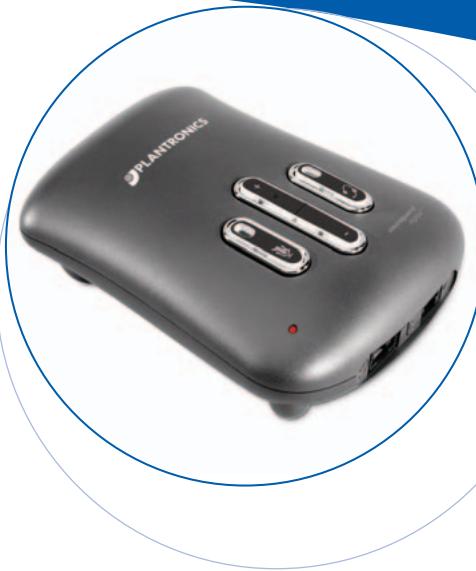
VistaPlus™
DM15
ADAPTER
User Guide
Bedienungsanleitung
Brugervejledning
Manual del usuario
Plantronics 2 year Warranty
Service
GB
Products under warranty are replaced free of charge. 0800 410014
DE
m = 311 ;
World Leader in Communications Headsets

PLANTRONICS
FIGURE 1
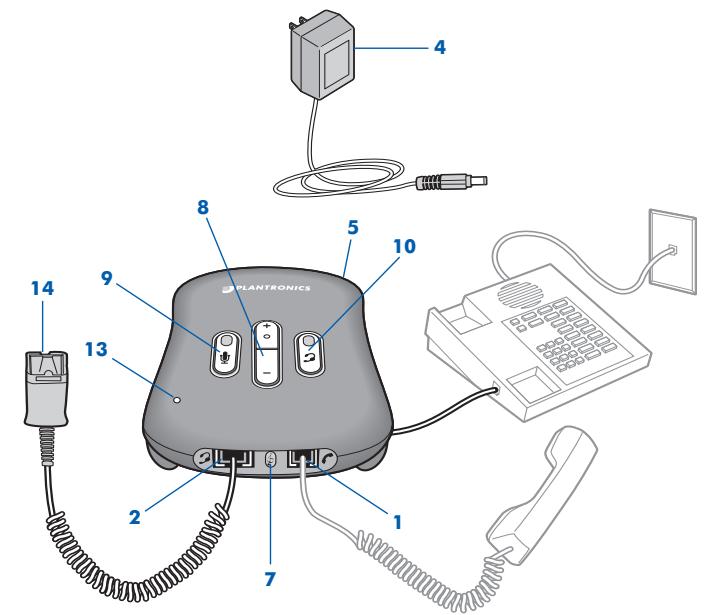
FIGURE 2
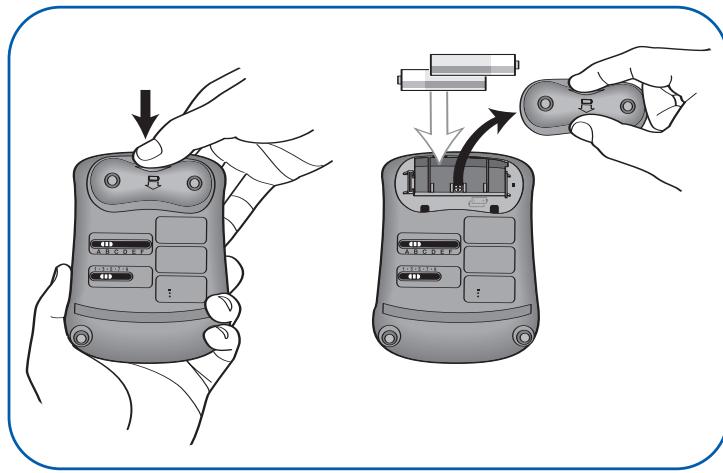
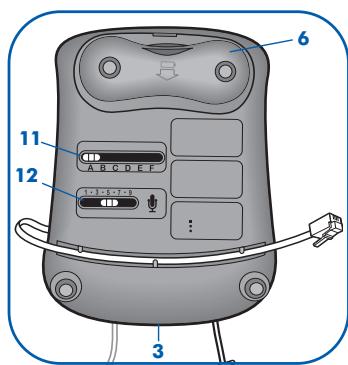
FIGURE 3
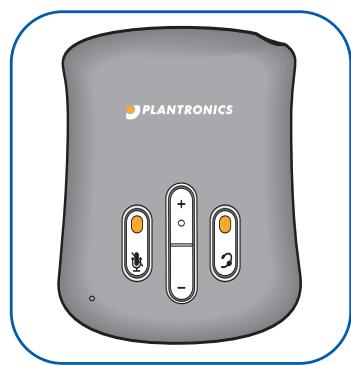
FIGURE 4
GB ENGLISH
Page 1-7
DE DEUTSCH
Seite 9-15
DK DANSK
Side 17-23
ES ESPANOL
Pagina 25-31
FI SUOMI
Page 33-39
FR FrANÇAIS
Pagina 41-47
IT ALIANO
Side 49-55
NL NEDERLANDS
Pagina 57-63
NO NORSK
Pagina 65-71
PT PORTUGUES
Sivut 73-79
SE SVENSKA
Sida 81-87
Important
To ensure safe operation, please read the supplied 'Important Safety Instructions' booklet before installing and using your VistaPlus Adapter.
WELCOME
Thank you for selecting the VistaPlus™ (DM15) Adapter from Plantronics. VistaPlus is a headset adapter that incorporates SoundGuard Digital technology that is designed to offer increased protection against loud sounds for headset users.
VistaPlus is compatible with most business telephones and includes standard adapter functions including headset/handset switch, microphone mute and receive volume adjustment.
SoundGuard DIGITAL provides two distinct types of protection. Firstly, it monitors and predicts the daily personal noise exposure, and adaptively limits the maximum volume to ensure the action levels specified by current and imminent EU legislation are not exceeded.
Constantly on guard, it also identifies and eliminates sudden loud sounds. Network interference, a fax machine tone, or even a whistle blown by a malicious caller are all instantly reduced to a level similar to background noise.
DIAGRAM KEY
1 Handset Port
2 Headset Port
3 Telephone stub cable (pre-connected to port)
4 AC/DC Power Adapter
5 AC/DC Power socket
6 Battery compartment
7 Tone Control
8 Volume Control
9 Mute switch
10 Headset/handset switch
11 Compatibility switch
12 Microphone level control
13 LED Indicator
14 Quick Disconnect (QD)
CONNECTING THE ADAPTER
Refer to Figure 1. Connections
CONNECTING THE DM15
! CAUTION: It is important for correct and safe operation of the DM15 that it be installed in the proper port of your telephone. Follow these instructions carefully.
- On the DM15, locate the free end of the stub cable already plugged into the port with the telephone symbol.
- Follow the curly cord of your handset to the port where it plugs into your phone. Remove the curly cord plug from your phone and replace it with the free end of the Short Cord.
- Plug the curly cord of your handset into the port with the handset symbol on the DM15.
- Connect the AC/DC Power Adapter to the DM15 Adapter and plug into your power source.
- Plug your headset (not supplied) into the Quick Disconnect™ cord from the DM15 Adapter.
INSTALLING THE BATTERIES
Refer to Figure 2 Battery compartment
As an alternative to the AC adapter, the VistaPlus can be operated from two alkaline AA batteries. To install the batteries, remove the battery cover on the bottom of the adapter. Install the batteries into the compartment the correct way round as shown on the inside of the battery cover and then replace the cover.
The LED indicator on the top of the VistaPlus will flash every two seconds when the batteries need replacing.
Disconnect the AC adapter from the VistaPlus and unplug it from the mains supply when using batteries.
ADJUSTING THE ADAPTER
Refer to Figure 3 Switches on the bottom of the unit
The compatibility switch on the bottom of the adapter allows VistaPlus to operate with most business telephones. This switch is set to position A, but if you cannot hear a dial tone move the switch to one of the other positions (A-F). Once you have found the setting that works, it will not need to be changed unless you change your telephone.
SETTING THE SPEAK VOLUME
The speak volume is how loud or quiet your voice is heard by someone on the other end of the line. Put on your headset and tell a colleague you are making a test call to them. If they cannot hear you, move the 'speak volume' slider on the bottom of the adapter until they can hear you. You may also need to decrease the speak volume if this is set too high. Position 9 on this slider is the loudest; position 1 the quietest.
When you have set the speak volume, you should not need to change it, unless you change telephones.
SETTING THE RECEIVE VOLUME
Refer to Figure 4 Top view of buttons and tone control
VistaPlus has a volume control which you can use to adjust the volume of your caller's voice. Step the volume up and down by pushing the volume switch on the top of the adapter until it is set at a comfortable level. The adapter will maintain this volume regardless of the volume of the incoming call and so you should not need to adjust the receive volume very often. Receive volume can be adjusted while you are in a call, if required.
SoundGuard Digital protection ensures that the volumes do not exceed legally defined levels over the course of a working day and will protect you from sudden high volume noises which may occur.
ADJUSTING THE TONE CONTROL
The tone control lets you improve the clarity of calls. There are three settings; push the tone control button while you are making your test call and select the preferred setting.
HEADSET / HANDSET MODE
VistaPlus can be operated in two modes: headset or handset. To use headset mode, press the headset button on the top of the adapter so that you can see the red square. Press this button again to switch to handset mode. In handset mode, the telephone can be used normally.
USING THE MUTE SWITCH
VistaPlus has a mute button so that you can still hear the caller, but they cannot hear you. To use the mute function, press the mute button so that you can see the red square indicator. Press the button again when you want your caller to hear you. Note that mute only works with headset, not with handset.
LEAVING YOUR DESK WHILE MAKING OR TAKING A CALL
If you need to leave your desk during a call, you can keep your headset on and simply disconnect the QD connectors. On some systems, this may hang up the call or place it on hold.
WARNING
The LED indicator on the top of the adapter serves two purposes:
- To indicate when you need to change batteries. The light will flash every two seconds.
To indicate when SoundGuard Digital protection is active. The light will go out when the noise goes away.
PROBLEM
I cannot hear callers / callers cannot hear me
| Possible cause | Remedy |
| Battery problem | Check that the batteries are correctly installed and that the cover if fitted properly. |
| Incorrect setting of the compatibility switch | Move the compatibility switch and listen for a dial tone. |
| Cable not plugged in correctly | Check connections to your headset and telephone. Ensure that you can hear a dial tone. |
| Headset/Handset setting incorrect | To use VistaPlus with a headset ensure that the red indicator is showing on the headset switch. |
| SoundGuard protection active | If the receive volume is suddenly too low and the LED is illuminated, then VistaPlus is protecting you from an unexpected loud sound. Once the sound has finished, the receive volume should return to normal. |
| Low receive volume | Increase the receive volume by pushing the switch on the top of the adapter. |
| Mute function switched on | Your voice is muted if the red indicator is showing on the mute switch. |
| Check speak volume | Make a test call and adjust the volume so that you can be heard. |
PROBLEM
Receive volume generally to quiet
Possible cause
VistaPlus has automatically reduced volume levels to ensure it stays below legally defined levels
Remedy
Check that you are wearing your headset correctly and that your work area is as quiet as possible.
PROBLEM
Caller cannot hear you clearly
Possible cause
Your voice is unclear to callers
Remedy
Reset the speak volume so that your voice can be heard clearly. Do not set this level too high.
MAINTENANCE
Disconnect your VistaPlus adapter from the telephone and mains adapter and clean it with a soft, slightly damp cloth. Do not use solvents or other cleaners. Allow adapter to dry completely before reconnecting.