
VISTA M12 - Audio Accessories PLANTRONICS - Free user manual and instructions
Find the device manual for free VISTA M12 PLANTRONICS in PDF.


| Product Type | Universal modular amplifier for headset |
| Brand | Plantronics |
| Model | Vista M12 |
| Power supply | 2 AA alkaline batteries or AC power adapter (ref. 26503-01) |
| Main functions | SoundGuard® Plus™ sound compression, Call Clarity™ system, transmit and receive volume control, mute function, headset/handset switch, telephone/amplifier compatibility switch |
| Connectivity | Headset jack, Quick Disconnect (QD) connection, modular cords for telephone and handset |
| Telephone compatibility | Suitable for telephones with separate handset; not compatible with telephones with keypad in handset or cordless |
| Hearing protection | SoundGuard Plus protects against sudden sounds (fax tone, etc.) |
| Indicators | Color indicator for headset mode, low battery beeps |
| Included accessories | Amplifier-telephone coiled cord (40974), amplifier-QD coiled cord (26716-01), Velcro strap kit (17521-01), flat screwdriver |
| Optional accessories | Plantronics specialty handset cup (40715-01), custom handset cup only (40714-01), amplifier security device (40696-01) |
| Maintenance | Clean with a soft, dry cloth; avoid moisture and impact |
| Safety | Complies with Section 68 of FCC regulations; registration number and REN on label |
| After-sales service | Plantronics support Monday through Friday, 6am-5pm PST, phone 1-800-544-4660, website www.plantronics.com |
| Dimensions and weight | Not specified in the manual |
Frequently Asked Questions - VISTA M12 PLANTRONICS
User questions about VISTA M12 PLANTRONICS
0 question about this device. Answer the ones you know or ask your own.
Ask a new question about this device
Download the instructions for your Audio Accessories in PDF format for free! Find your manual VISTA M12 - PLANTRONICS and take your electronic device back in hand. On this page are published all the documents necessary for the use of your device. VISTA M12 by PLANTRONICS.
USER MANUAL VISTA M12 PLANTRONICS
to the Vista™ Universal Modular Amplifier from Plantronics®.
The Vista Universal Modular Amplifier adapts your telephone to a Plantronics headset and provides control of the sound through your headset. The Vista amplifier has built-in sound conditioning and protection.
This User Guide will help you install your Vista amplifier and learn its basic operations.
The Vista amplifier is not designed to work on telephones that have the dial pad in the handset or on cordless telephones.
PART I Install in 4 easy Steps
Step 1: Install batteries.
Step 2: Attach to phone and headset.
Step 3: Set default settings.
Step 4: Set telephone/amplifier compatibility switch.
PART II Learn the basics.
bienvenue
à l'Amplificateur
Modulaire Universel Vista de Plantronics
1 Battery Access Door
Compatibility Slide Switch Cover
4 Outgoing Volume Control
5 Incoming Volume Thumbwheel
6 Headset/Handset Selector
4 AC Power Supply Jack
6 Amplifier to QD Coil Cable
Cordon extensible de
7 Amplifier to Telephone
Coil Cable
Cordon extensible de
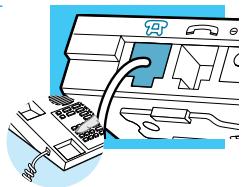
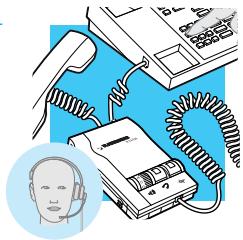
Connect the Vista amplifier to your telephone as shown. Follow the four easy steps on the following pages for complete installation details.
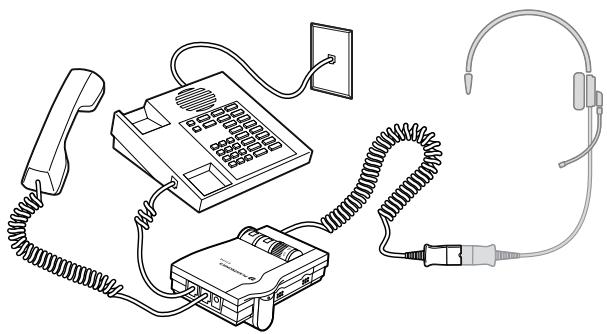
Amplifier Features
SoundGuard Plus™ Sound Compression protects you from harsh noises, such as fax tones
- Call Clarity™ System improves incoming and outgoing sound
- Switch easily between headset and handset
- Incoming and outgoing volume control
- Mute
branchement
& caractéristiques
ATTACH TO PHONE AND HEADSET
RATTACHEMENT AU TÉLÉPHONE ET AU CASQUE
CONECTE EL TELEFONO Y AURICULAR
CONECTAR O APARELHO DE MAO E FONE DE OUVIDO
SET DEFAULT SETTINGS
RéGLAGE DES VALEURS PAR DÉFAUT
PROGRAMA LA CONFIGURACION BÁSICA
The Vista Amplifier requires power to work with most phones.
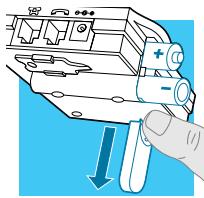
- Remove the Battery Access Door located on the side of the amplifier by placing your thumb on the door and pushing down.
- Install two AA alkaline batteries and replace the door.
- You will hear three "beeps" through the headset when the batteries are low.
STEP2 attach to
phone and headset
- Unplug your telephone's handset cord from the telephone base.
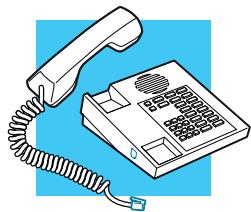
- Plug your telephone's handset cord into the Vista amplifier handset jack ( 一
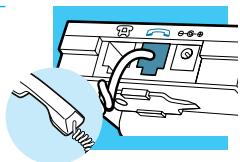
- Connect your telephone base to the Vista amplifier telephone jack (α) using the short curly cord. On your telephone base, plug the short curly cord into the outlet normally used for your handset.
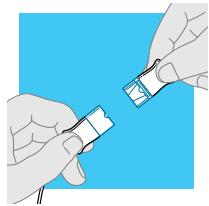
- Plug the headset cord into the Quick Disconnect™ (QD) module on the long curly cord coming from the front of the amplifier. The QD will allow you to disconnect the headset from the amplifier when you are not using the phone, or need to move away from the amplifier, while leaving your headset in place.
STEP1 installation
des piles
STEP2 rattachement
STEP4 set telephone/amplifier Compatibility Switch
These are the default settings for headset use.
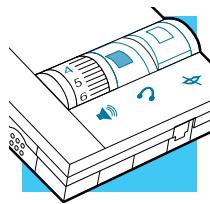
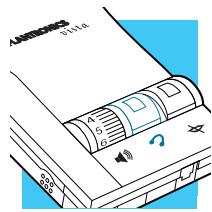
- Headset/Handset Selector is depressed (colored indicator showing).
- Mute Switch is released (no colored indicator showing).
- Incoming Volume Thumbwheel is set to 4.
-
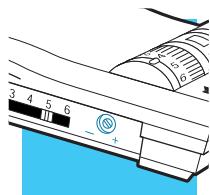
The Outgoing volume has been pre-set. You can adjust it when you place your first call (see page 18).
-
Put on headset.
- Lift the phone's handset off the cradle and place it on your desk.
-
If you don't hear a dial tone, adjust the Telephone/Amplifier Compatibility Switch as indicated below:
-
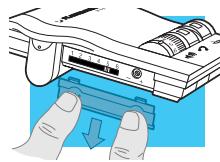
Remove the Telephone Compatibility Switch Access Door by placing two fingers or thumbs on the raised bumps and pushing down.
-
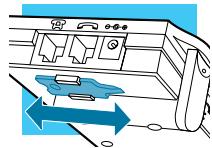
Remove the flat, plastic screwdriver from the bottom of the amplifier by sliding it through the braces holding it in place.
-
Make sure the amplifier is in the default settings, and your telephone handset is off of its cradle.
-
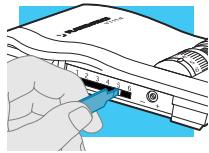
Using the screwdriver, slide the Compatibility Switch until you hear a clear dial tone. Experimenting with various switch settings will not harm the amplifier or your telephone.
STEP3 réglage
PLACEMENT D'UN APPEL D'ESSAI
HAGA UNA LLLAMADA DE PRUEBA
FACA UM TELEFONEMA DE TESTE
MAKING AND RECEIVING CALLS WITH A HEADSET
POUR PLACER ET RECEVOIR DES APPELIS AVEC UN CASQUE
MODO DE HACERY AND RECIBIR LLMADAS CON ELY AURICULAR
COMO LIGAR E RECEBER CHAMADAS COM O FONE DE OUVIDO
ADJUSTING
HEADSET INCOMING VOLUME
HEADSET OUTGOING VOLUME
REGLAGES
VOLUME DU CASQUE A L'ARRIVEE
VOLUME DU CASQUE A L'EMISSION
MODO DE AJUSTAR
We recommend that you make an initial test call to someone familiar with your voice, adjusting the amplifier controls per the following instructions for optimum sound quality.
Making and Receiving Calls with a Headset
- Put on headset.
- Make sure the amplifier settings are in default.
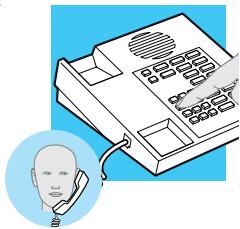
- Lift the phone handset off the cradle and place on your desk.
- Make or receive your call. You will use the dial pad and/or other features of your telephone as you would normally.
- To end the call, hang up the handset.
Adjusting Headset Incoming Volume
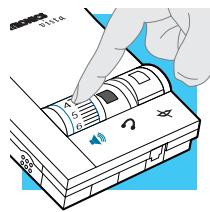
- Adjust the volume by turning the Thumbwheel on the top panel.
- Try different volume settings. 1 is the quietest and 9 is the loudest.
- "Make a Test Call" (see page 19) provides more details about adjusting your incoming volume.
Muting a Call
- Activate the Mute function by depressing the Mute switch (colored indicator showing).
- Deactivate the Mute function by releasing the Mute switch (no colored indicator showing).
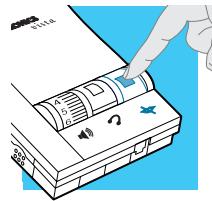
Adjusting Headset Outgoing Volume
- Outgoing Volume is pre-set. Try making a test call before adjusting (see page 19).
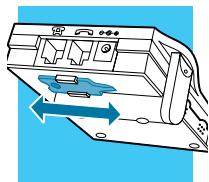
- To access the Outgoing Volume Control, remove the panel on the left-hand side of the amplifier. The same panel houses the Telephone/Amplifier Compatibility Switch.
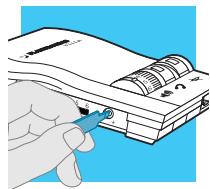
- Use the screwdriver attached to the bottom of the amplifier to adjust the Outgoing Volume Control. Turn clockwise to make your voice louder to the caller. Turn counter-clockwise to make your voice quieter to the caller.
- Replace the panel door and the screwdriver.
Making and Receiving Calls with a Handset
-
Release the Headset/Handset switch (no colored indicator showing).
-
Use the phone handset as you normally would.
maintenance and troubleshoo
MAINTENANCE AND TROUBLESHOOTING
| PROBLEM | ITEMS TO CHECK |
| I DO NOT HEAR A DIAL TONE WHEN I TRY TO MAKE OR RECEIVE A PHONE CALL. | If you are using batteries, confirm that they are good and placed in the battery compartment correctly. If you are using an AC Power Supply, confirm that it is plugged in and the power outlet is turned on. Confirm that the Headset/Handset Selector switch is depressed (colored indicator showing). Confirm that you have lifted the telephone handset out of the cradle. Confirm that the telephone handset cable and the short curly pigtail to the telephone are connected to the correct jacks. (see “Installation”). Confirm that the Telephone/Amplifier Compatibility Switch is in the correct setting for your phone (see “Set the Telephone/Amplifier Compatibility Switch” on page 11). You may want to try moving the switch through all of the positions until you hear a clear dial tone. Experimenting with various switch settings will not harm the amplifier or your phone. The Plantronics Help Desk is ready to assist you! Monday through Friday 8:00 AM to 5:00 PM PST 800 544-4660 |
Trouble Shooting Guide
| PROBLEM | ITEMS TO CHECK |
| MY CALLERS SAY THAT THEY CAN'T HEAR ME AT ALL OR THEY CAN'T HEAR ME VERY WELL. | Make sure the microphone of your headset is positioned in front or near your mouth. If you are using a “noise-cancelling” headset, the position of the microphone is very important. You may need to adjust the “Outgoing Volume”. See “Adjusting Headset Outgoing Volume” on page 24). Confirm that the Telephone/Amplifier Compatibility Switch is in the correct setting for your phone (see “Set the Telephone/Amplifier Compatibility Switch” on page 11). You may want to try moving the switch through all of the positions until your caller hears you clearly. Experimenting with various switch settings will not harm the amplifier or your telephone. |
| I GET A LOW PITCHED HUM IN MY HEADSET SPEAKER AND/OR MY CALLERS COMplain THEY CAN HEAR HUM. | Try moving the Telephone/Amplifier Compatibility Switch through all of the positions until the hum disappears. Experimenting with various switch settings will not harm the amplifier or your telephone. |
| I HEAR THREE ‘BEEPS’ IN THE HEADSET. | If you are using batteries to power the Vista Amplifier, the three ‘beeps’ tell you that the batteries are low and need to be replaced. See “Install Batteries” on page 2. |
Guide de dépannage
REplacement Parts and ACCESSORIES FOR VISTA
REplacement Parts AND ACCESSORIES FOR VISTA
For information on supplies and accessories, call Plantronics at 1-800-544-4660, or visit the Plantronics web site at www.plantronics.com
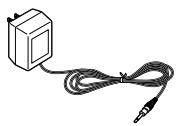
AC Power Supply
ITEM PART # AC Power Supply 26503-01
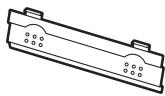
Telephone/Amplifier Compatibility Slide Switch Door
ITEM PART # Telephone/Amplifier 44015-01
Compatibility Slide Switch Door
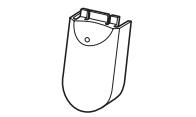
Battery Door
ITEM PART # Battery Door 44014-01
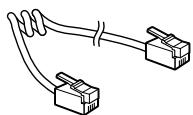
Amplifier to Telephone Coil Cable
(male to male modular plugs)
ITEM PART # Amplifier to Telephone 40974-01
Coil Cable
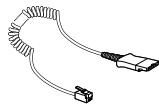
Amplifier to QD Coil Cable
(QD to male modular plug)
ITEM PART #
Amplifier to QD 26716-01
Coil Cable
Velcro* Amplifier Attachment Kit
ITEM PART # Velcro Amplifier 17521-01
Attachment Kit

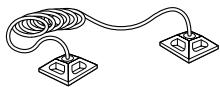
Amplifier Security Device
(attaches amplifier to desk.)
ITEM PART # Amplifier Security 40696-01
Device
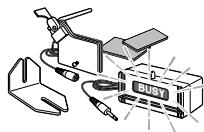
Plantronics Custom Cradle Mate
(holds handset "off-hook" and a flashing "BUSY" light indicates when headset is in use)
ITEM PART # Plantronics Custom 40715-01
Cradle Mate
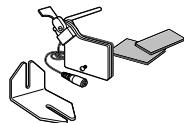
Cradle Mate only
(easy-to-use device that mechanically holds handset "off-hook")
ITEM Cradle Mate only 40714-01
RECHANGES ET ACCESSOIRESPOUR L VISTA
(attaches amplifier to desk.)
ITEM
PARTEN°
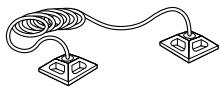
Dispositivo de
40696-01
The following warranty and service information applies only to the U.S. and Canada. For information in other countries, please contact your local distributor.
To obtain in or out of warranty service, please prepay shipment and return the unit to the appropriate facility listed below:
IN THE UNITED STATES
Plantronics Service Center
345 Encinal Street
Santa Cruz, CA 95060
Tel. (800) 544-4660
(831)458-7700
Fax (800) 279-0162
IN CANADA
Plantronics Service Center
1455 Pitfield Blvd.
Saint-Laurent, Quebec H4S 1G3
Tel. (800) 540-8363
(514) 956-8363
Fax (514) 956-1825
Please use the original container, or pack the unit(s) in a sturdy carton with sufficient packing material to prevent damage. Include the following information:
- A proof-of-purchase indicating model number and date of purchase.
- Bill-to address
- Ship-to address
- Number and description of units shipped
- Name and telephone number of person to call, should contact be necessary
- Reason for return and description of the problem
Damage occurring during shipment is deemed the responsibility of the carrier, and claims should be made directly with the carrier.
The name Plantronics, the Plantronics logo and SoundGuard are registered trademarks of Plantronics, Inc. Vista, Quick Disconnect, Call Clarity and SoundGuard Plus are trademarks of Plantronics, Inc. Velcro is a registered trademark of Velcro USA.
FCC REGISTRATION INFORMATION
This equipment complies with Part 68 of the FCC rules. On the bottom of the modular adapter is a label that contains, among other information, the FCC registration number and ringer equivalence number (REN) for this equipment. If requested, this information must be provided to the telephone company.
The telephone company may make changes in its facilities, equipment, operation or procedures that could affect the operation of the equipment. If this happens, the telephone company should provide you advance notice in order for you to make the necessary modifications to maintain uninterrupted services.
If you experience problems with your headset, please refer to the warranty section for information on warranty and repair service. If the problem is causing harm to the telephone network, the telephone company may request that you remove the equipment until the problem is resolved. In extreme cases, the telephone company may be forced to disconnect your service before notifying you of the problem.