FD140 - Uncategorized OpenVox - Free user manual and instructions
Find the device manual for free FD140 OpenVox in PDF.


Pick your language and provide your email: we'll send you a specifically translated version.
| Product Type | 4-Port GSM Fixed Wireless Terminal |
| Brand | OpenVox |
| Model | FD140 |
| SIM Card Slots | 4 |
| Network Compatibility | GSM 850 / 900 / 1800 / 1900 MHz |
| FXS Ports | 4 RJ-11 (analog telephone) |
| Ethernet Port | 1 x RJ-45 10/100 Mbps |
| SMS Capability | Yes, send and receive |
| Voice Codecs | G.711 a-law, G.711 µ-law, G.729, G.723 |
| Power Supply | 12V DC, 1A (max) |
| Power Consumption | <10W |
| Dimensions | 240 × 150 × 35 mm |
| Weight | 1.1 kg |
| Antenna Connectors | 4 SMA female (optional) |
| SIM Security | PIN lock supported |
| Configuration Interface | Web-based GUI |
| Status Indication | LED for Power, Signal, LAN, each GSM |
| Operating Temperature | -10°C to 50°C |
| Humidity | 10% to 90% non-condensing |
| Mounting | Desktop or wall-mount |
| Repairability | Replaceable antenna, SIM tray, fuse |
| Cleaning Instructions | Wipe with dry cloth, no chemicals |
| Certifications | CE, FCC |
| Package Contents | FD140 unit, power adapter, antennas (optional) |
Frequently Asked Questions - FD140 OpenVox
What is the OpenVox FD140 used for?
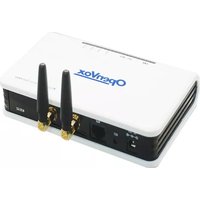
The OpenVox FD140 is a 4-port GSM Fixed Wireless Terminal that connects analog telephones to cellular networks. It allows you to make and receive calls over GSM without a landline.
How do I insert a SIM card into the OpenVox FD140?
Power off the device, open the SIM tray (or cover on the back), insert each SIM card into its slot as indicated. Ensure the metal contact is facing the correct direction, then secure the tray and power on.
How do I connect an analog phone to the device?
Use a standard RJ-11 telephone cable to connect a phone to any of the FXS ports marked 1 to 4. Pick up the phone's handset and listen for a dial tone.
What are the default login credentials for the web interface?
The default username is admin and the default password is admin (default IP: 192.168.1.10). You can change these after first login via the Web Management page.
Can the FD140 send and receive SMS messages?
Yes, the FD140 supports two-way SMS through the web interface or via AT commands. You can send messages from the management portal and receive them on any of the four associated mobile numbers.
How do I improve GSM signal reception?
Connect the included external antennas to the SMA connectors and position them near a window or higher elevation. Avoid placing the unit near metal obstacles or electronic interference sources.
Is the FD140 compatible with all GSM carriers?
The FD140 works on quad-band GSM (850/900/1800/1900 MHz), so it is compatible with most global GSM networks. However, it is not compatible with CDMA-only networks.
How do I reset the device to factory settings?
Use a paperclip to press and hold the RESET button on the back for 10 seconds until all LEDs blink, then release. This will clear all configurations and restore defaults.
Can an external battery backup be used?
Yes, the FD140 accepts a 12V DC input, so you can attach a 12V backup battery or UPS to maintain operation during power outages. Ensure correct polarity.
Is the device easily repairable?
The FD140 is designed with field-replaceable parts including the antenna, SIM tray, and internal fuse. This allows quick replacement of common components without needing a full service technician.
User questions about FD140 OpenVox
0 question about this device. Answer the ones you know or ask your own.
Ask a new question about this device
No questions yet. Be the first to ask one.
Download the instructions for your Uncategorized in PDF format for free! Find your manual FD140 - OpenVox and take your electronic device back in hand. On this page are published all the documents necessary for the use of your device. FD140 by OpenVox.
USER MANUAL FD140 OpenVox


Manual assistant
Powered by Anthropic
Waiting for your message
Product information
Brand : OpenVox
Model : FD140
Category : Uncategorized