DVBR-520HD - TV Decoder SIGMATEK - Free user manual and instructions
Find the device manual for free DVBR-520HD SIGMATEK in PDF.


| Product type | Digital terrestrial decoder |
| Brand | SIGMATEK |
| Model | DVBR-520HD |
| Approximate dimensions | 20 x 15 x 5 cm |
| Approximate weight | 1 kg |
| Power supply | 100-240 V ~ 50/60 Hz, max 8 W |
| Tuner frequency | 170-230 MHz (VHF) and 470-860 MHz (UHF) |
| Modulation | QPSK, 16-QAM, 64-QAM |
| Supported video formats | MPEG-4 AVC/H.264 HP@L4, MPEG-2 MP@ML.HL |
| Output resolutions | 576p, 720p, 1080i, 4:3 and 16:9 |
| Video outputs | HDMI, dual SCART |
| Digital audio output | S/PDIF coaxial |
| Supported audio formats | MPEG-1 layers 1 and 2 |
| Main functions | DTT reception, EPG guide, teletext, subtitles, favorites list, parental control, USB recording, USB media playback |
| USB playback formats | AVI, MP3, WMA, JPEG, MKV, MP4, MPG, BMP (FAT32 only) |
| Care and cleaning | Clean with a dry cloth; do not use liquid products |
| Safety | Do not expose to water or moisture; do not block ventilation openings; disconnect during storms or prolonged non-use |
| Spare parts | Remote control, power cable, AAA batteries (not included) |
| Repairability | Repairs by qualified personnel only |
| General information | 20-page manual available for download; user questions possible |
Frequently Asked Questions - DVBR-520HD SIGMATEK
User questions about DVBR-520HD SIGMATEK
0 question about this device. Answer the ones you know or ask your own.
Ask a new question about this device
Download the instructions for your TV Decoder in PDF format for free! Find your manual DVBR-520HD - SIGMATEK and take your electronic device back in hand. On this page are published all the documents necessary for the use of your device. DVBR-520HD by SIGMATEK.
USER MANUAL DVBR-520HD SIGMATEK
(3) EPG (Electronic Program Guide)
Please read this User Manual carefully to ensure proper use of this product and keep this manual for future reference.
Important Safety Instructions
1) Read these instructions.
2) Keep these instructions.
3) Heed all warnings.
4) Follow all instructions.
5) Do not use this apparatus near water.
6) Clean only with dry cloth.
7) Do not block any ventilation openings, install in accordance with the instructions.
8) Do not install near any heat sources such as radiations, heat registers, stoves, or other apparatus (including amplifiers) that produce heat.
9) Do not defeat the safety purpose of the polarized plug. If the provided plug does not fit into your outlet, consult an electrician for replacement of the obsolete outlet.
10) Protected the power cord from being walked on or pinched particularly at plugs, convenience receptacles, and the point where they exit from the apparatus.
11) Only use attachments/accessories specified by the manufacturer.
12) Unplug this apparatus during lighting storms or when unused for long periods of time.
13) Refer all servicing to qualified service personnel. Servicing is required when the apparatus has been damaged in any way, such as power- supply cord or plug is damaged, liquid has been spilled or objects have fallen into the apparatus, the apparatus has been exposed to rain or moisture, does not operate normally, or has been dropped.
14) Mains plug is used as the disconnect device, the disconnect device shall remain readily operable.
15) The ventilation should not be impeded by covering the ventilation openings with items, such as newspapers, table-cloth, curtains, etc.
16) No naked flame sources, such as lighted candles, should be placed on the apparatus.
17) Attention should be drawn to the environmental aspects of battery disposal.
18) The use of apparatus in moderate climate.
WARNING: To reduce the risk of fire or electric shock, do not expose this apparatus to rain or moisture.
WARNING: The batteries shall not be exposed to excessive heat such as sunshine, fire or the like.
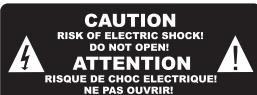
The symbol indicates that dangerous voltages constituting a risk of electric shock are present within this unit.
The symbol indicates that there are important operating and maintenance instructions in the literature accompanying this unit.
This symbol indicates that this product incorporates double insulation between hazardous mains voltage and user accessible parts. when servicing use only identical replacement parts.
CAUTION: When the apparatus was in electrostatic circumstance, it may be malfunction and need to reset by user.
Warning: The USB memory stick should be plug in the unit directly. USB extension cable should not be used to avoid failing of data transferring and interference caused.

Table of Contents
Front and Rear Panel 1
Remote Control. 2
Connections 3
First Time Installation 3
Troubleshooting. 8
Technical Specifications. 8
Front and Rear Panel
1. Front panel
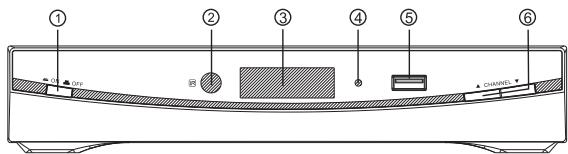
1 POWER BUTTON: Used to turn on/off the main power supply.
2 STANDBY INDICATOR: Used to visually show power state of the set top box, the LED will turn red if the set top box enter standby mode.
3 LED DISPLAY WINDOW: Used to display channel number.
4 REMOTE CONTROL SENSOR: Used to receive the signal from the remote control.
5 USB: Data input from USB storage devices.
6 CHANNEL UP/DOWN: Used to change channels without using the remote control.
2. Rear panel
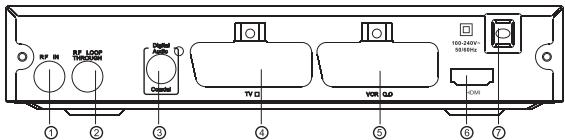
1 RFIN: This socket connects to your external aerial.
2 RF LOOP THROUGH: This socket will bypass the RF signal to either your TV or another video system.
3 COAXIAL: This socket connects to a coaxial socket on your surround sound system.
4 TV SCART: This socket connects to your TV.
5 VCR SCART: This socket connects to either a DVD or other video system.
6 HDMI OUT This socket connects to HDMI in device.
7 MAINS CABLE: This is used to connect to your main power supply.
Remote Control
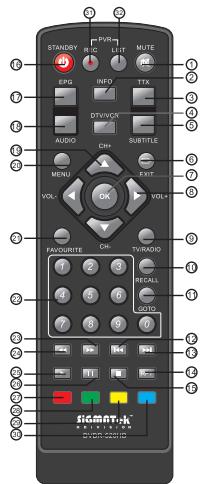
- MUTE: Mute or Restore Audio Output.
- INFO: Displays additional channel information.
- TTX: Displays Teletext Information.
- DTV/VCR: Switches the product to VCR input if it is in DTV state. Switches the product to DTV if it is in VCR state.
- SUBTITLE: Selects Subtitles Language.
- EXIT: Exits the current Menu or returns to the previous Menu.
- OK: Confirms an entry or selection. Displays the list of channels.
- RIGHT/LEFT: Navigates through the Menu. Increases or decreases volume.
- TV/RADIO: Switches from TV function to Radio function and from Radio to TV.
- RECALL: Used to switch between the last two viewed channels.
- GOTO: Selects the play time of media.
- PREV: Skips to the previous track during playing media and skips to the previous channel during playing DTV.
- NEXT: Skips to the next track during playing media and skips to the next channel during playing DTV.
- REPEAT: Selects Repeat or turn off Repeat mode.
- STOP: Stops media play.
- STANDBY: Switch the product to on or standby.
- EPG: (Electronic Program Guide)T urns the program guide on.
- AUDIO: Selects an Audio Language or Audio Mode
- UP / DOWN: Navigates through the Menu. Selects the next or previous Channel.
- MENU: Turns on Main Menu.
- FAVOURITE: Turns on Favourite Menu.
22.0-9 (Numeric Buttons): Selects a channel or setting. - FWD: Searches forwards during media play.
- REV: Searches backwards during media play.
- PLAY: Starts or resumes media play.
- PAUSE: Pauses media play.
- Red button: In Teletext mode, it is the teletext colour button.
- Green button: In Teletext mode, it is the teletext colour button.
- Yellow button: In Teletext mode, it is the teletext colour button.
- Blue button: In Teletext mode, it is the teletext colour button.
- REC: Used to record the program.
- LIST: Used to show the record program list on the current disk.
Installing the Batteries
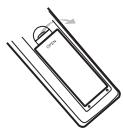
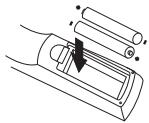
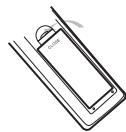
Remove the battery cover from the Remote Control and put 2xAAA size batteries inside the compartment.
The diagram inside the Battery Compartment shows the correct way to install the batteries.
1.Open the cover
2.Install batteries
3.Close the cover
Using the Remote Control
To use the Remote Control, point it towards the front of the Digital Set Top Box. The Remote Control has a range of up to 7 metres from the Set Top Box at an angle of up to 60 degrees.
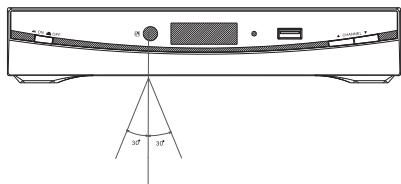
The Remote Control will not operate if its path is blocked.

Sunlight or very bright light will decrease the sensitivity of the Remote Control.

Connections
Caution: Make sure to check the voltage specification of the wall outlet is the same rating with the receiver. To prevent the risk of electric shock, do not open the cover or the back of the receiver.
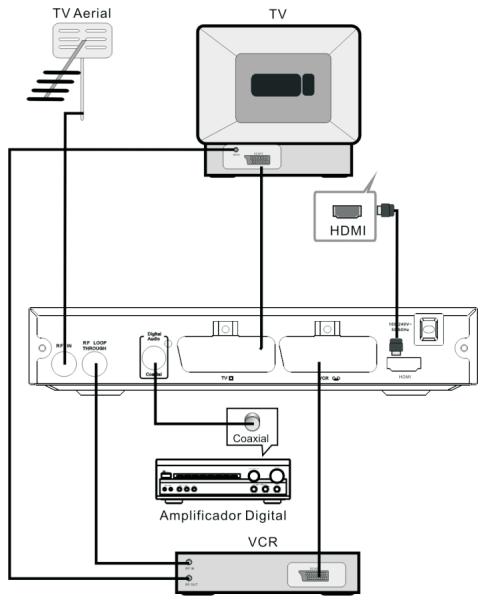
Note: When connecting the receiver to other equipment, e.g., TV, VCR and amplifier, make sure to refer to relevant user manual for instruction. Also, make sure you disconnect all the equipments from the mains supply before the connection.
First Time Installation
After all connections have been made properly, switch on TV and make sure the receiver is connected to the Main Power. Press Power button to switch receiver on. If you are using the receiver for the first time or restored to Factory Default, the Main Menu will appear on your TV screen.
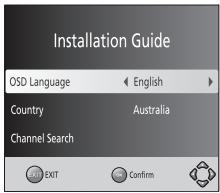
(1) Select [OSD Language] and press RIGHT/LEFT key to select an language.
(2) Select [Country] and press RIGHT/LEFT key to select your country of residence.
(3) Select [Channel Search] and press RIGHT or OK key to begin Automatic channel search.
(4) Once channel tuning is complete, you are now ready to watch TV.
Basic Operation
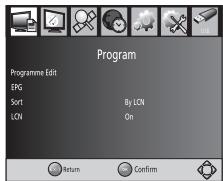
(1) Program Manage Settings
To access the Menu, press the MENU button and select [Program]. The Menu provides options to adjust the Program Manage Settings. Select an option and press OK or RIGHT to adjust that setting. Press the EXIT button to exit the Menu.
(2) Program Edit
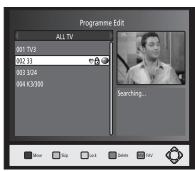
To edit your program preferences (lock, skip, favourite, move or delete), you will need to enter the Program Edit Menu. This Menu requires a password to access. Enter the default password '000000'.
Set Favourite Program
You can create a shortlist of favourite programs that you can easily access. Set Favourite TV or Radio program:
- Select the pre fered program then press the FAVOURITE button. A heart-shaped symbol will appear and the program is marked as a favourite.
- Repeat the previous step to select more Favourite programs.
- To confirm and exit the Menu, press the EXIT key
Disable favourite TV or Radio Program:
Press the FAVOURITE button on the Remote Control with the heart-shaped symbol.
View Favourite Program
- Press the Favourite button and the Favourite Menu will appear.
- Press UP/DOWN to select your Favourite Programs.
- Press OK to select your favourite program.
Delete a TV or Radio Program
- Select the Program and then press the BLUE button. A message will appear. Press OK to delete the program
- Repeat the previous step to select more programs to delete.
Skip TV or Radio Program
- Select the program you would like to skip and press the GREEN button. A skip symbol is displayed. The program is marked as a skip.
- Repeat the previous step to select more programs.
- To confirm and exit the menu, press EXIT key. Disable a skip TV or Radio program: Press the GREEN button on the skip program with the skip symbol.
Move a TV or Radio Program
- Select the preferred program then press the RED button.
A move symbol will appear. - Press UP/DOWN to move the program.
- Press OK to confirm.
- Repeat the above steps to move more channels.
Lock Program
You can lock selected programs for restricted view. Lock a TV or Radio Program:
- Select the preferred program then press the YELLOW button. A lock-shaped symbol is displayed. The program is now marked as locked.
- Repeat the previous step to select more programs.
- To confirm and exit the menu, press the EXIT button.
- Press the YELLOW button to disable the locked program.
- To view the locked program, you will be required to enter either the default password '000000' or your last set password.
(3) EPG (Electronic program guide)
The EPG is an on-screen TV guide that shows scheduled programs seven days in advance for every tuned channel. Press the EPG button on the Remote Control to access guide.
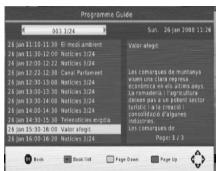
You can use the UP/DOWN key to select the preferred program. If there is more than one page of information, use the BLUE button for page up and the YELLOW button for page down.
(4) Sort
Sort your channels from the following opt
[LCN] - Sort the channels in ascending order.
[Name] - Sort the channels in alphabetical order.
[Service ID] - Sort the channels according to the station.
(5) LCN (Logical channel number)
Set LCN on or off.
(6) Video Setting
To access the Menu, press MENU then select [Picture]. The Menu provides options to adjust the video settings. Press UP/DOWN to select an option and press RIGHT/LEFT to adjust that setting. Press EXIT to exit the menu.
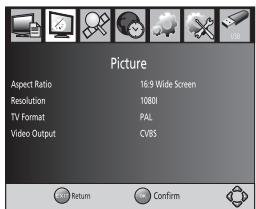
(1). Aspect Ratio
You must set the display format to either 4:3 PanScan, 4:3 Letter Box, 16:9
Full Screen or Auto to get the maximum display when watching TV.
(2). Resolution
If the video does not appear correctly, change the setting. This setting is to match the most common setting for HDMI.
[480i]: for NTSC system TV.
[480P]: for NTSC system TV.
[576i] for PAL system TV.
[576P]: for PAL system TV.
[720P]: for NTSC or PAL system TV.
[1080I]: for NTSC or PAL system TV.
(3). TV format
If the video does not appear correctly, you need to change the settings.
This should match the most common setting for TVs in your country. [NTSC]: for NTSC system TV.
[PAL]: for PAL system TV.
(4). Video output
[CVBS]: CVBS output.
[RGB]: RGB output.
(7) Channel Search
To access the menu, press MENU and select [Search Channel]. The Menu provides options to adjust the Search Channel settings.
Select an option and press RIGHT/LEFT to adjust the settings.
Press EXIT to exit the Menu.
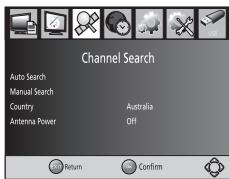
1. Auto Search
Search and install all channels automatically. This option overwrites all preset channels.
- Select [Auto Search] and press OK or RIGHT to start channel search.
- To cancel channel search, press EXIT.
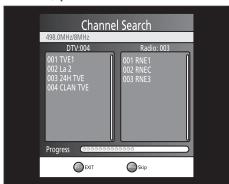
2. Manual Search
Install new channels manually. This option adds new channels without changing the current channels list.
- Select [Manual Search] then press OK or RIGHT. The channel search screen will appear.
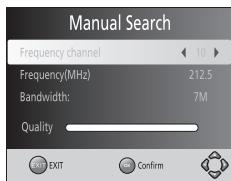

- Press the RIGHT/LEFT key to select the channel frequency
- Press OK to start searching channels
If a channel is found, it is saved and added to the channels list. If channels can't be found, then exit the menu.
(3) Country
Select your country of residence.
(4) Antenna power
Enable Antenna Power if an external active antenna is connected.
(8) Time Setting
To access the Menu, press MENU then select [Time]. The Menu provides options to adjust the time settings.
Press UP/DOWN to select an option and press RIGHT/LEFT to adjust the settings. Press EXIT to exit the menu.
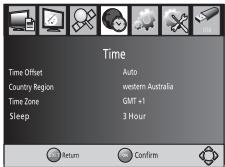
(1) Time offset
Select auto or manual for GMT offset adjustments.
(2) Country Region
Select the Country Region when [Time Offset] is set to Auto.
(3) Time Zone
Select the Time Zone Offset when [Time Offset] is set to Manual.
(4) Sleep
If this setting is off, this function does not work. If this setting is not off, a message will pop up after your preferred time to inform you, that the device will go in to sleep mode. This message will appear under no any operation.
Auto-off function can be set in a timeperiod at 0-12 hours. Standard setting is 3 hours. Press STANDBY button to exit sleep / auto-off mode
(9) Option
To access the Menu, press MENU and select [Option]. The menu provides options to adjust the OSD Language, Subtitle Language and Audio Language.
Select an option and press RIGHT/LEFT to adjust the setting. Press EXIT to exit the Menu.
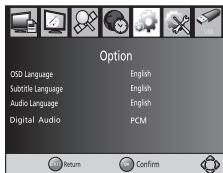
(1). OSD Language
Select an OSD language.
(2). Audio Language
Select the preferred audio language for watching TV channels.
If the language is not available, the default program language will be used.
(3). Subtitle Language
Select the preferred subtitle language.
(4) Digital Audio
Select digital audio output mode.
(10) System Setting
To access the Menu, press MENU and select [System]. The menu provides options to adjust the system settings.
Press the UP/DOWN key to select an option and press RIGHT/LEFT to adjust the setting.
Press EXIT to exit the Menu.
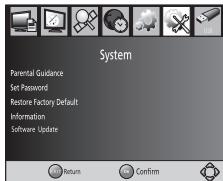
(1) Parental Guidance
You can restrict access to channels that are unsuitable for children. To restrict/lock the channel you will need to enter either the default password '00000' or your own password.
(2) Set Password
Set or change the password for locked programs. Enter your old
password or the default password '000000'. You will then be asked to
enter your new password. To confirm re-enter your new password. Once it is confirmed, press EXIT to exit the Menu.

(3)RestoreFactoryDefault
Reset your Set Top Box to the Default Factory Settings.
In Main Menu select [Restore Factory Default] and press OK or RIGHT to select. Enter your password or the default password '000000' and press OK to confirm. This option will delete all preset channels and settings.
(4) Information
View model, hardware and software information.
(5) Software update
If the status is set 'ON', it will scan new software from broadcast according to your preferred time in 'Start time'.
(11)USB support movie playback :
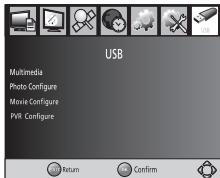
To access the Menu, press the MENU button and select [USB] using the RIGHT/LEFT keys. The menu provides options to playback Music, Photo and
Multimedia files. It can support AVI, MP3, WMA, JPEG and BMP formats.
The unit will only support USB device with FAT32 file system.
It will not support NTFS file system.
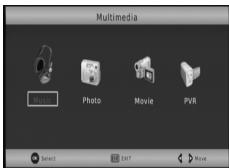
(a) Multimedia: When a USB device is attached you can select from the Music, Photo or Movie options in this menu using the RIGHT/LEFT keys and OK to select. If a USB device is not connected, the warning message "No USB device is Found" will appear.
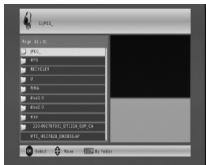
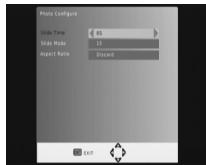
(b) Photo configure:
-Slide Time: adjust slide show interval to 1~8 seconds.
-Slide Mode: adjust slide show effect as mode 0~59 or random.
-Aspect Ratio:
[Keep]: Play picture in its original aspect.
[Discard]: Play picture in full screen mode.
(c) Movie Configure:
- Subtitle Font:
[Small]: Displays the subtitle as small mode.
[Normal]: Displays the subtitle as normal mode.
[Big]: Displays the subtitle as big mode.
- Subtitle Background:
[White]: Displays the subtitle in white background.
[Transparent]: Displays the subtitle in transparent background.
[Grey]: Displays the subtitle in grey background.
[Yellowgreen]: Displays the subtitle in yellowgreen background.
- Subtitle Color:
[Red]: Displays Subtitle in red font.
[Blue]: Displays Subtitle in blue font.
[Green]: Displays Subtitle in green font.
Note:
-
We cannot guarantee compatibility (operation and/or bus power) with all USB mass storage devices and assume no responsibility for any loss of data that may occur when connected to this unit.
-
With large amounts of data, it may take longer for the system to read the contents of a USB device.
-
Some USB devices may not be properly recognized.
-
Even when they are in a supported format, some files may not play or display depending on the content.
(d) PVR Configure
[Record Device]: Select the disk for the record.
[Format]: Format the selected disk.
Troubleshooting
| Problem | Potential Reasons | What to do |
| No picture | Power isn't connected | Connect the power |
| The power switch is not on | Switch on the power | |
| Screen shows No Signal | Not connect DVB-T cable | Plug in the DVB-T cable |
| Incorrect setting | Set up correct parameter | |
| No sound from speaker | No or incorrect connection with audio cable | Connect the audio cable correctly |
| Mute the sound | Switch on the correct volume control | |
| Incorrect sound track | Try another sound track | |
| Only sound, no image on the screen | No or incorrect connection with AV cable | Connect the audio cable correctly |
| The program is a radio program | Press <TV/RADIO> key to shift into TV mode | |
| Remote control unit is not workable | The battery is exhausted | Change new battery |
| Remote control unit is not in the right opposite of the front panel or too far from it | Adjust the way of holding remote control unit and near from the panel | |
| The image stop suddenly or mosaic | The signal is too weak | Strengthen the signal |
Technical Specifications
| Item | Sub Item | Parameter |
| Tuner | Input Frequency | 170~230MHz 470~860MHz |
| RF Input level | -25~-82dBm | |
| IF Bandwidth | 7MHz and 8MHz | |
| Modulation | QPSK, 16QAM, 64QAM | |
| Video | Decoder Format | MPEG4 AVC/H.264 HP@L4 MPEG2 MP@ML.HL |
| Output Format | 576P, 720P, 1080i, 4:3 and 16:9 | |
| Output Port | HDMI, Dual SCART | |
| Audio | Decoder Format | MPEG-1 (layer1&2) |
| Audio output | Digital audio: S/PDIF | |
| Power | Voltage | 100~240V~ 50/60Hz |
| Power | Max 8W |
Note on environmental protection:

After the implementation of the European Directive 2002/96/EU in the national legal system, the following applies: Electrical and electronic devices may not be disposed of with domestic waste. Consumers are obliged by law to return electrical and electronic devices at the end of their service lives to the public collecting points set up for this purpose or point of sale. Details to this are defined by the national law of the respective country. This symbol on the product, the instruction manual or the package indicates that a product is subject to these regulations. By recycling, reusing the materials or other forms of utilizing old devices, you are making an important contribution to protecting our environment.