XZPAD410L - Tablet Hamlet - Free user manual and instructions
Find the device manual for free XZPAD410L Hamlet in PDF.


Pick your language and provide your email: we'll send you a specifically translated version.
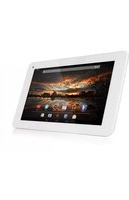
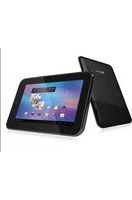
| Product Type | Tablet |
| Brand | Hamlet |
| Model | XZPAD410L |
| Display Size | 10.1 inches |
| Display Resolution | 1280 x 800 pixels |
| Operating System | Android (latest version compatible) |
| Processor | Quad-core, 1.5 GHz |
| RAM | 2 GB |
| Internal Storage | 32 GB (expandable via microSD) |
| Battery Capacity | 6000 mAh |
| Charging Port | Micro USB |
| Rear Camera | 5 MP |
| Front Camera | 2 MP |
| Connectivity | Wi-Fi 802.11 b/g/n, Bluetooth 4.0 |
| Dimensions | 240 x 170 x 10 mm |
| Weight | 510 g |
| In the Box | Tablet, USB cable, power adapter, quick start guide |
| Main Features | Multi-touch screen, dual cameras, expandable storage, lightweight design |
Frequently Asked Questions - XZPAD410L Hamlet
How do I charge the tablet for the first time?
Connect the included USB cable to the micro USB port and the power adapter to a wall outlet. A full charge typically takes about 4 hours. The battery can be used immediately after charging.
Can I expand the storage on the XZPAD410L?
Yes, the tablet has a microSD card slot that supports cards up to 256 GB. This allows you to store more photos, videos, and apps.
How do I reset the tablet to factory settings?
Go to Settings > Backup & reset > Factory data reset. This will erase all data and restore the device to its original state. Make sure to back up important files first.
Why is the tablet not connecting to Wi-Fi?
Make sure the Wi-Fi is enabled and you are entering the correct password. Try restarting your router and the tablet. If the issue persists, forget the network and reconnect.
How can I improve the battery life?
Reduce screen brightness, close background apps, and disable Wi-Fi and Bluetooth when not in use. Activate Battery Saver mode to extend usage time.
Can I use the tablet with a keyboard?
Yes, the device supports external Bluetooth keyboards. You can also use an OTG adapter to connect a wired USB keyboard.
How do I take a screenshot on the tablet?
Press and hold the Power button and the Volume Down button simultaneously until the screen flashes. The screenshot will be saved in the Gallery.
Is the screen protected against scratches?
The screen is made of standard glass and can be scratched with sharp objects. We recommend applying a screen protector and using a protective case.
How do I update the operating system?
Go to Settings > About tablet > System updates. The device will check for available updates and guide you through the installation process.
What should I do if the tablet freezes or becomes unresponsive?
Press and hold the Power button for 10-15 seconds to force a restart. If the problem continues, perform a factory reset or contact support.
User questions about XZPAD410L Hamlet
0 question about this device. Answer the ones you know or ask your own.
Ask a new question about this device
No questions yet. Be the first to ask one.
Download the instructions for your Tablet in PDF format for free! Find your manual XZPAD410L - Hamlet and take your electronic device back in hand. On this page are published all the documents necessary for the use of your device. XZPAD410L by Hamlet.
USER MANUAL XZPAD410L Hamlet

Manual assistant
Powered by Anthropic
Waiting for your message
Product information
Brand : Hamlet
Model : XZPAD410L
Category : Tablet