Zelig Pad 700 - Tablet Hamlet - Free user manual and instructions
Find the device manual for free Zelig Pad 700 Hamlet in PDF.


| Product Type | Tablet |
| Brand | Hamlet |
| Model | Zelig Pad 700 |
| Operating System | Android 4.0.3 |
| Touchscreen | Yes |
| Battery Type | Lithium-ion rechargeable |
| Charging Time | Approximately 6 hours |
| Wi-Fi | Built-in |
| Memory Card Slot | Micro SD |
| Camera | Yes (front-facing) |
| Audio Jack | 3.5 mm headphone jack |
| USB Port | Mini USB (data and charging) |
| Supported Video Formats | H.264, H.263, VC-1, MPEG-1/2/4, DIVX-3/4/5/6, XVID, WMV 7/8, VP6, AVS |
| Supported Audio Formats | MP2, MP3, WAV, AAC, WMA |
| Supported Photo Formats | JPEG, BMP, GIF, PNG |
| Buttons | ESC, HOME, Menu, Volume +/-, Power |
| Speaker | Built-in |
| Microphone | Yes |
| Power Adapter | Included |
| User Manual | Included |
Frequently Asked Questions - Zelig Pad 700 Hamlet
User questions about Zelig Pad 700 Hamlet
0 question about this device. Answer the ones you know or ask your own.
Ask a new question about this device
Download the instructions for your Tablet in PDF format for free! Find your manual Zelig Pad 700 - Hamlet and take your electronic device back in hand. On this page are published all the documents necessary for the use of your device. Zelig Pad 700 by Hamlet.
USER MANUAL Zelig Pad 700 Hamlet
natural_image
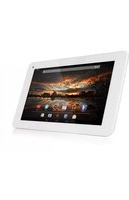
Black foldable tablet with a colorful app interface displayed on its screen (no readable text or symbols on the device itself)USER MANUAL
XZPAD700
www.hamletcom.com
Dear Customer,
thanks for choosing an Hamlet product. Please carefully follow the instructions for its use and maintenance and, once this item has run its life span, we kindly ask You to dispose of it in an environmentally friendly way, by putting it in the separate bins for electrical/electronic waste, or to bring it back to your retailer who will collect it for free.
We inform You this product is manufactured with materials and components in compliance with ROHS directives: 2002/95/CE; with RAEE Directives: 2003/96/CE, Italian Legislative Decree 2005/151 and EMC Directive 2004/108/EC for the following standards:
EN 55022: 2006 + A1: 2007
EN 55024: 1998 + A1: 2001 + A2: 2003
EN 61000-3-2: 2006 + A1: 2009 + A2: 2009
EN 61000-3-3: 2008
CE Mark Warning
This is a Class B product. In a domestic environment, this product may cause radio interference, in which case the user may be required to take adequate measures.

The complete CE declaration of conformity of the product can be obtained by contacting Hamlet at info@hamletcom.com.
The information on the importer for your country are available in the “About Us” section of the Hamlet website at www.hamletcom.com.
Trademarks
All trademarks and company names mentioned in this manual are used for description purpose only and remain property of their respective owners.
Changes
The material in this document is for information only and subject to change without notice. Specifications and appearance are subject to change without prior notice.
Support
The support service for the Exagerate by Hamlet tablets is provided by:
You can contact technical support phone number: 0331-674306 or e-mail at assistenza.tablet@hamletcom.com.
For more information on Zelig Pad Tablets visit the web site www.hamletcom.com/ZeligTab.aspx.
1 Introduction
1.1 What's Included
The following components are included with your purchased product:
• Zelig Pad 700 Tablet PC
- Power Adapter
- USB Cable
- Instruction Manual
1.2 Getting Started
Before operating your Tablet PC for the first time, please read this manual carefully and follow the instructions as below.
1.3 Battery charging
The tablet is equipped with a built-in rechargeable Lithium battery. It is suggested to fully charge the battery before use.
We strongly recommend to use the power adapter included in the packaging, using other adapter may damage the tablet and void the warranty.
Charging Process
- Connect the power adapter to your tablet, and plug the power adapter to the nearest electrical outlet.
- Users can still use the tablet while it is being charged.
2 Appearance and buttons
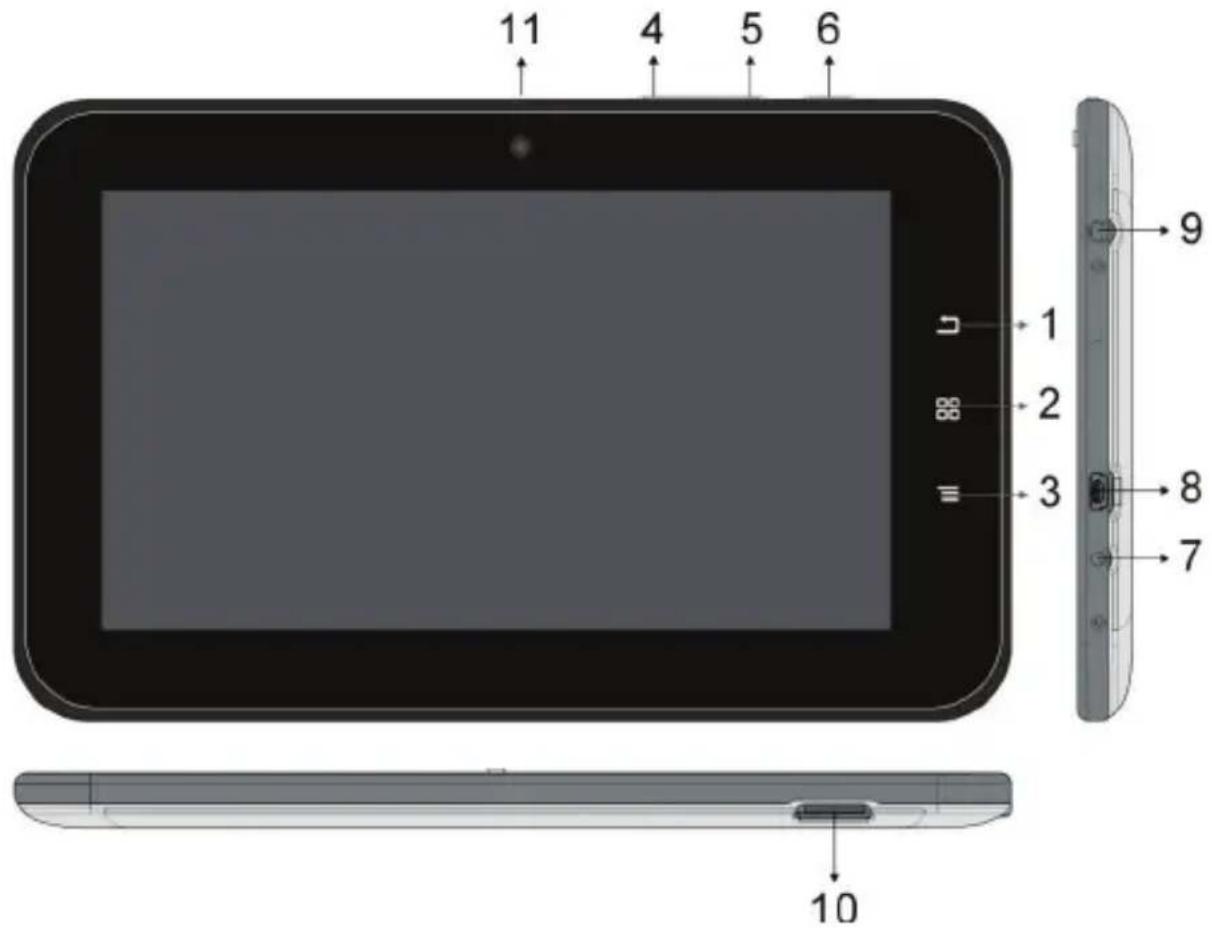
2.1 ESC
Tapping on ESC button will return the previous interface.
2.2 HOME
Tapping on HOME button will return to the main interface.
2.3 Menu
During operations, tap Menu button to show you the menu options.
2.4 Volume –
Press on the Volume – button to decrease the sound volume.
2.5 Volume +
Press on the Volume + button to increase the sound volume
2.6 Power Switch
Turn on/off tablet.
2.7 Power socket
2.8 Mini USB
Mini USB port: you can use it to connect to PC for data transmission, charging or connection with external USB devices.
2.9 Headphone Socket
3.5 mm standard earphone jack.
2.10 Micro SD card slot
2.11 Camera
3 Turn ON/OFF Tablet
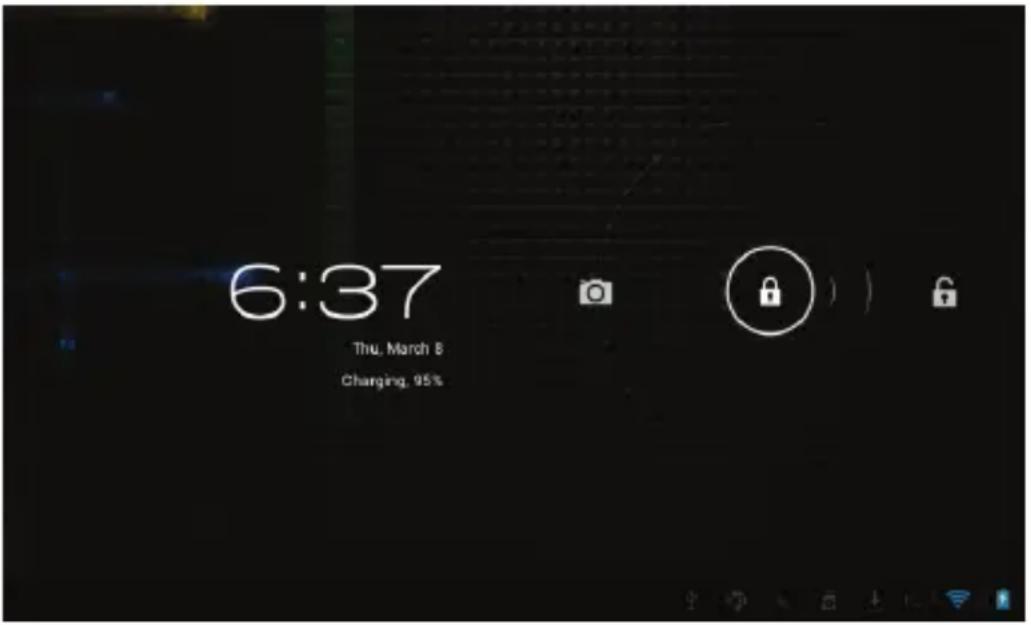
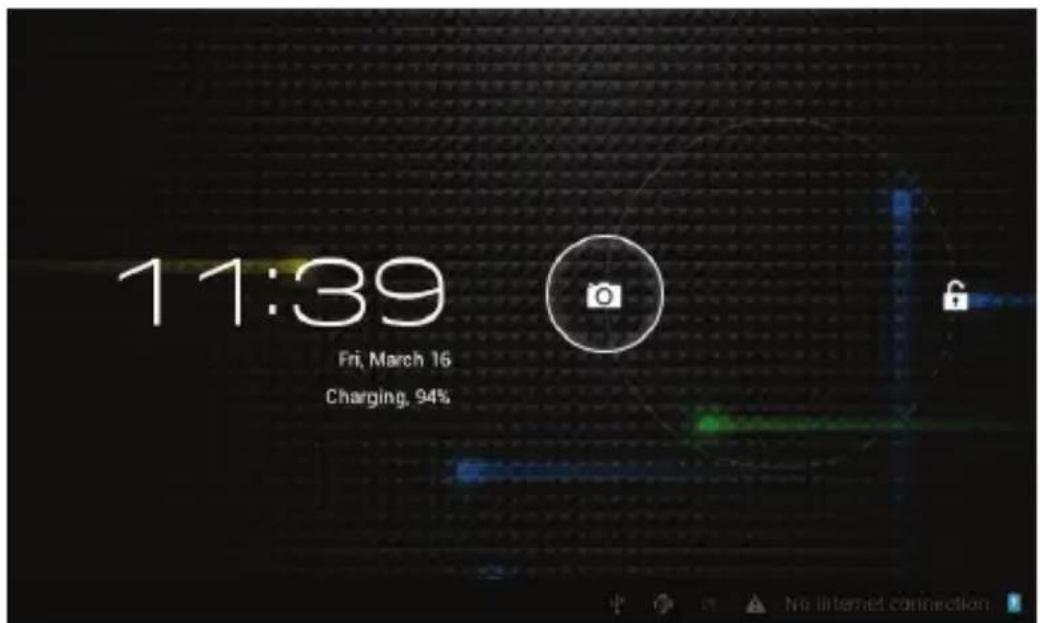
3.1 Turn On: after the battery has been fully charged, press & hold the power switch for around 3 seconds to turn on the device. Screen lock will be showed after starting up.
3.2 Turn Off: When the tablet is ON, press & hold the power switch for around 3 seconds and the system will popup out power off option, tap on it to turn the tablet off.
3.3 Lock screen: quickly press Power Switch and release to lock screen.
3.4 Unlock screen: slide the lock icon rightward onto the unlock icon to unlock the screen and go to main interface; Slide the lock icon leftward onto the camera icon to open camera.

Remarks:
- When battery power has been used up, the tablet will shut down itself automatically.
- If you illegally turn off the device, restart will scan and restore the disk, it may take longer time to enter into system.
4 Connection with PC
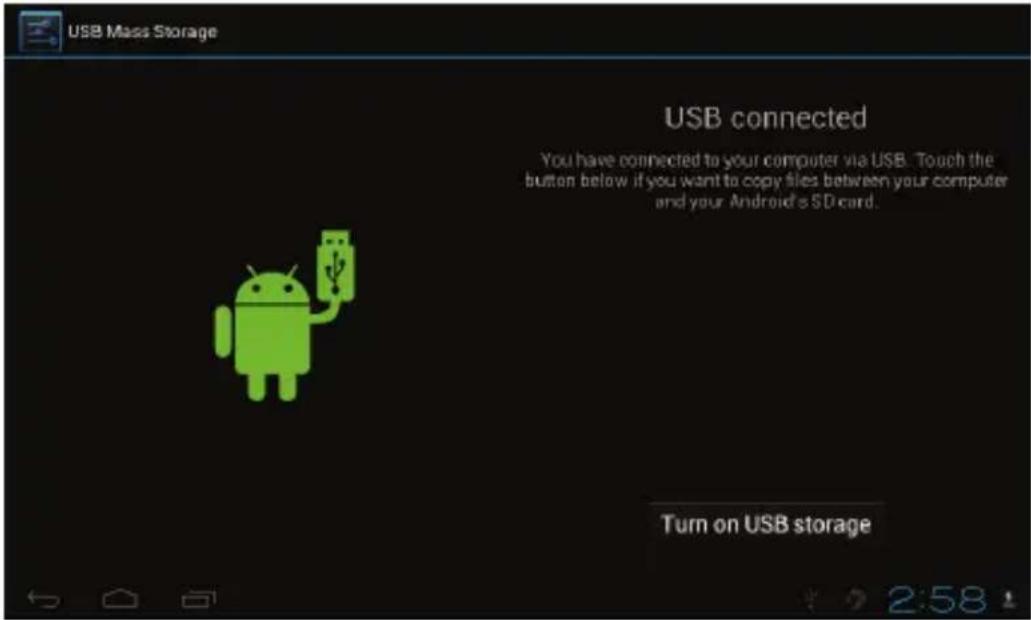
4.1 Use the USB cable provided to connect the tablet with PC, device will pop up the USB connection window, click “Turn on USB storage” to connect to PC, in the connection mode, you can copy or delete the file on the device or the file on the memory device.
5 Tablet Operation Interface
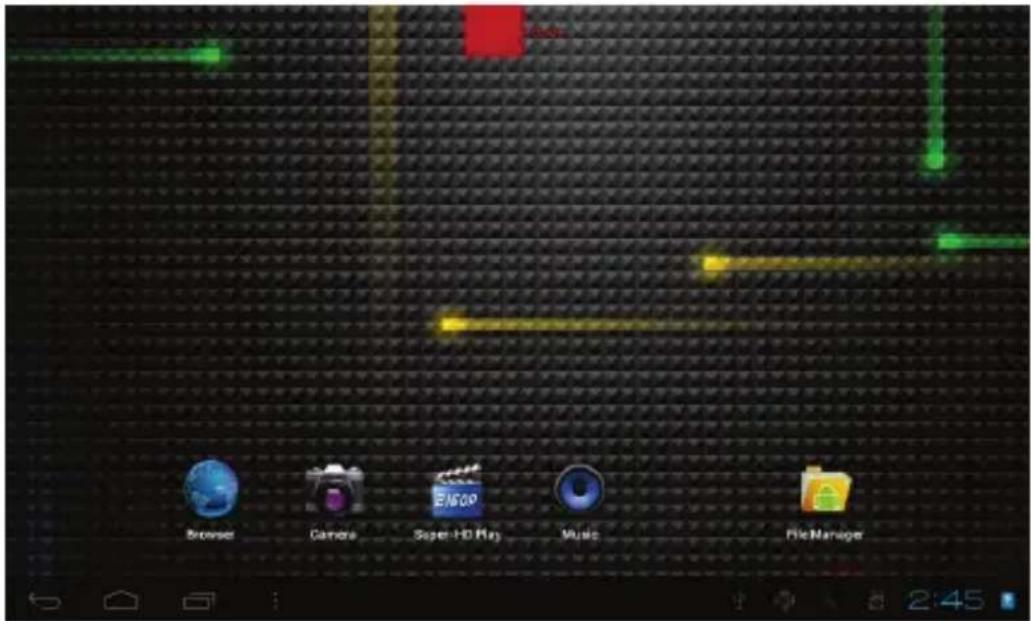
5.1 After starting up, you will enter into below main screen interface.
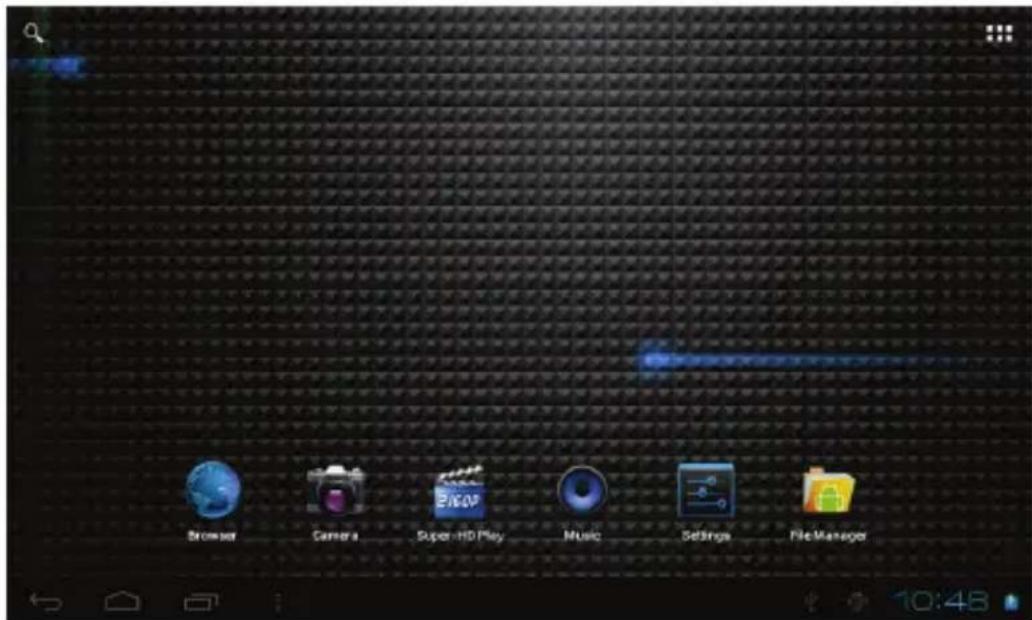
5.2 In the main interface, you can manage main interface software icons: press the icon and hold it for 3 seconds, then you can drag anywhere in the main interface.
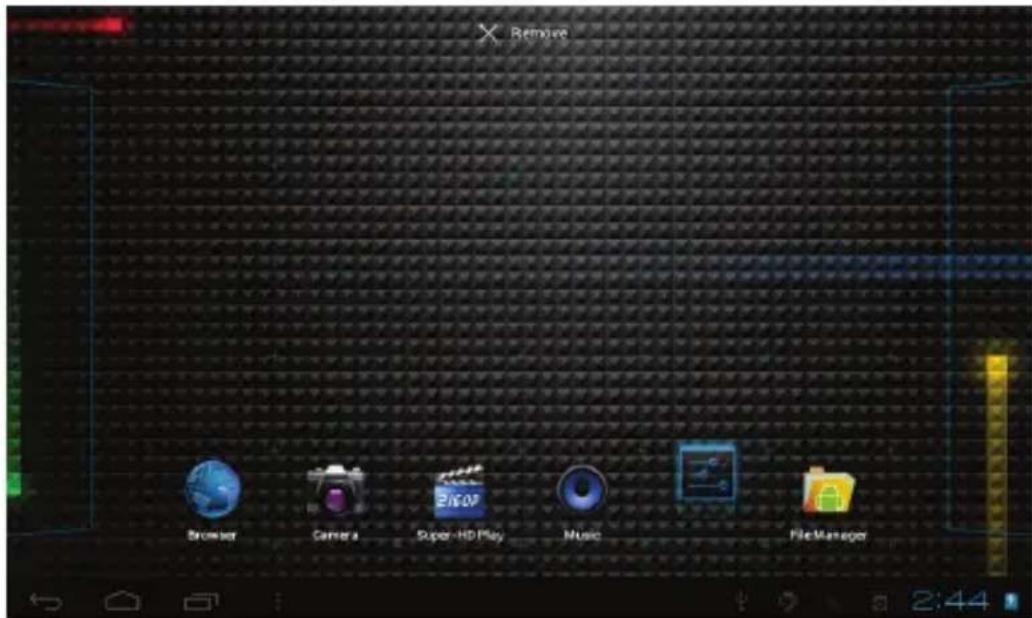
5.3 Delete icons: press the icon and hold it for 3 seconds, and drag the icon onto the “Remove” icon, then you can delete that icon from desktop.
5.4 Touch the screen and hold for around 4 seconds, the dialog box “Choose wallpaper from” will pop out as shown below:
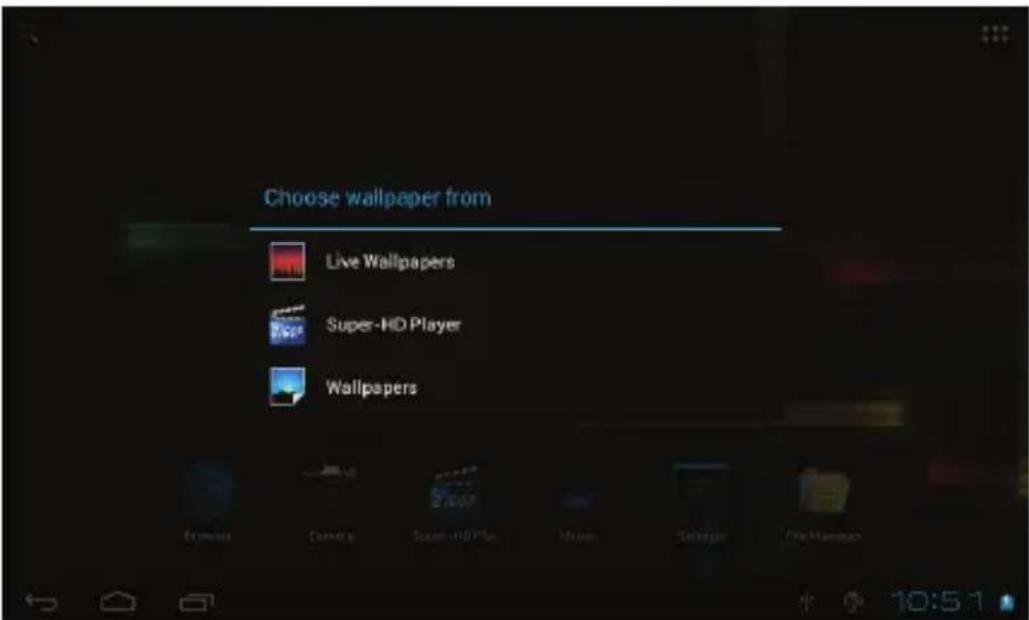
You can choose the wallpaper from different sources and change the wallpaper.
5.5 Status Bar Descriptions

From left to right: Back to previous interface, Back to main interface, Display the Apps performed previously, Menu key, USB connected, USB connected, USB debugging connected, microSD-card information, Current time, battery charge icons, current time.
5.6 Quick Guide For Touch Operations
- No matter which interface you are on the screen, you can go back to main screen by tapping the key located at the left bottom corner of the main screen.
【Attention】The key functions as back to main screen interface.
- During options, by tapping the back key ← at the left bottom corner of the touch screen, you can return to previous screen interface.
● During operations, by tapping the menu key ☐ on the left bottom corner of touch screen, the screen will pop out the below interface:
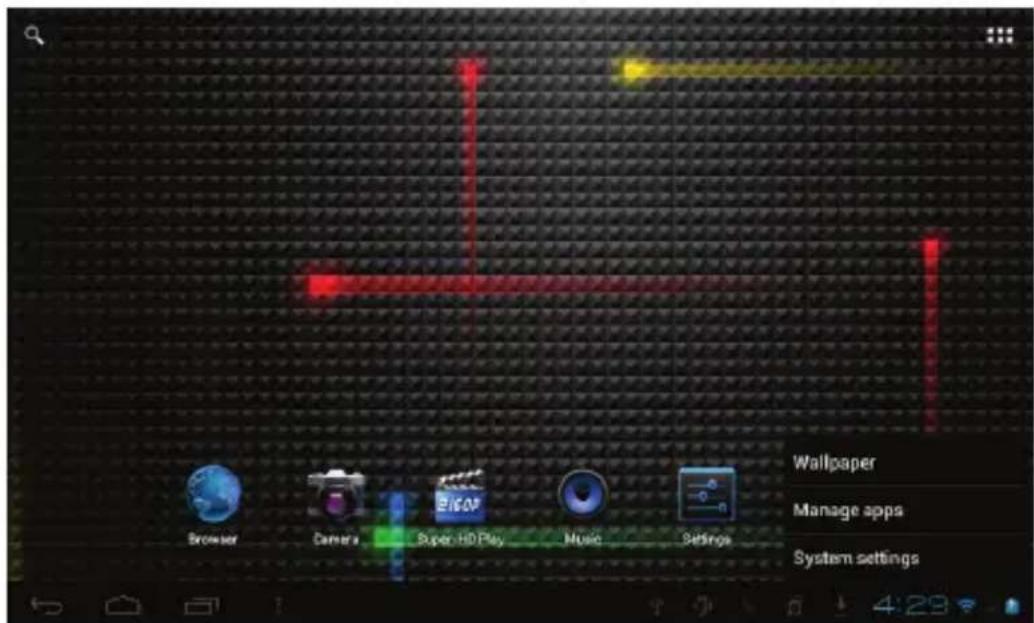
- Click to see all history of Apps performed previously.

- In the main interface, you can touch the icon 📁 to see all the APPS, tap on any App icon and hold it for around 3 seconds, you can drag that App icon onto main screen interface.
6 Basic Settings

6.1 WIRELESS & NETWORKS
Wi-Fi
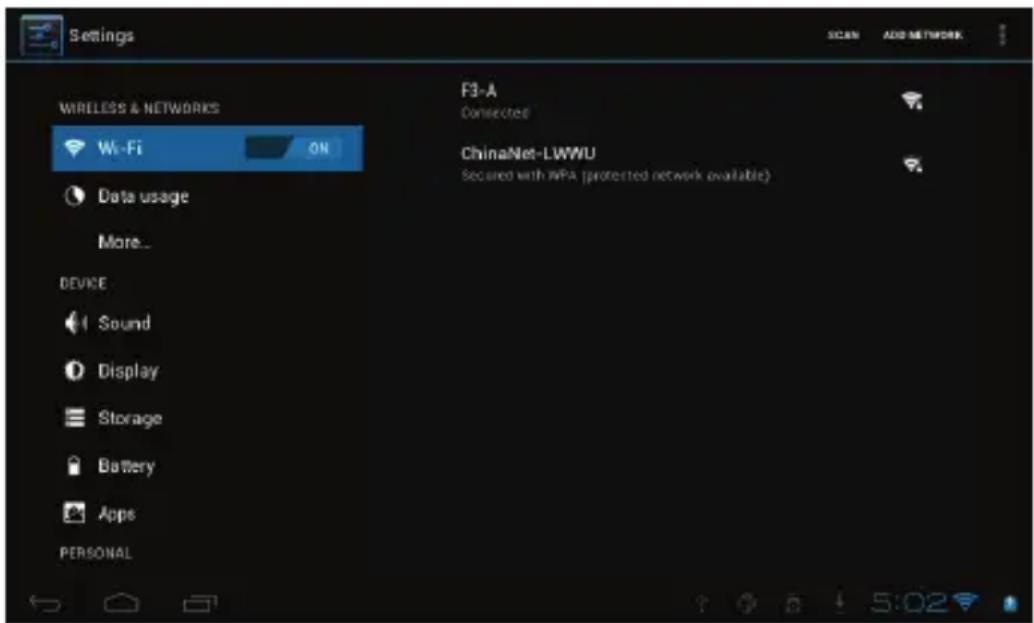
Tap on setting icon, then tap on the "OFF" to open Wi-Fi, All available Wi-Fi networks will be listed, tap on your Wi-Fi network and start to connect. If the Wi-Fi network does not need a password, tap "connect" to start the connection. If the Wi-Fi network needs a password, then input the password and tap "connect" to start the connection. If the Wi-Fi network has been successfully connected before, that information will be stored.
Connection will be done automatically. Once your tablet connects to Wi-Fi successfully, the Wi-Fi icon will appear on the status bar at the below of the screen.

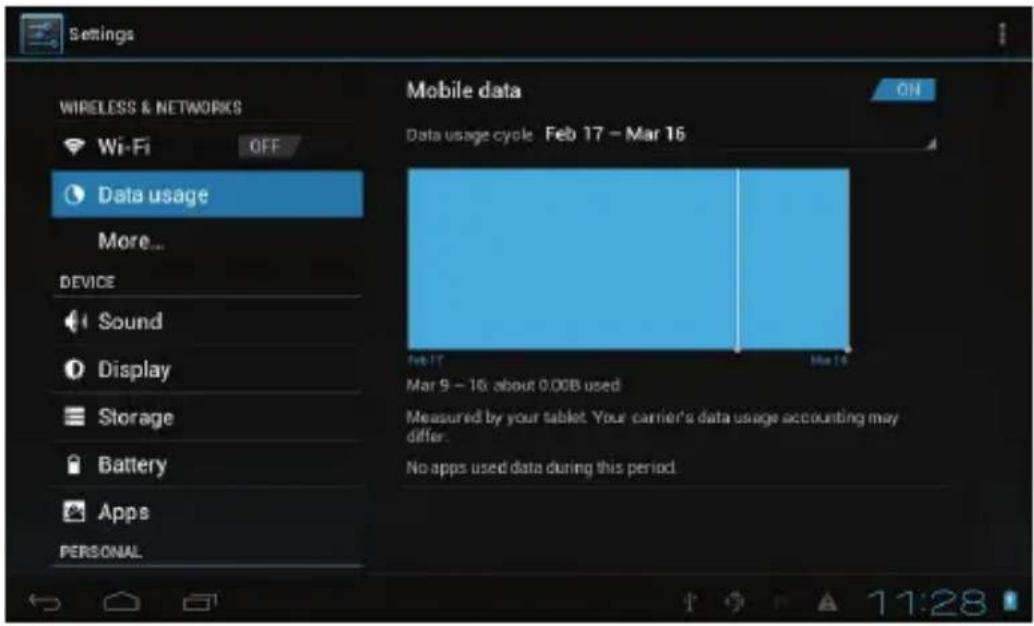
- Data Usage
Select to turn on/off Mobile data, Set mobile data limit.
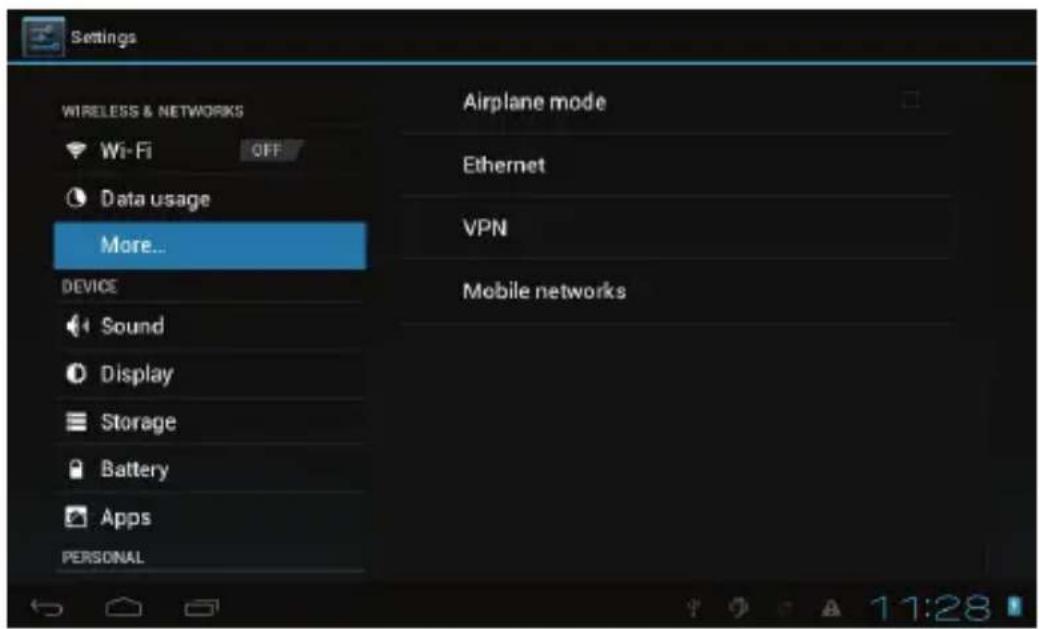
- More...
Select to turn on/off Airplane mode, to setup Ethernet connection, VPN and Mobile networks.
6.2 DEVICE
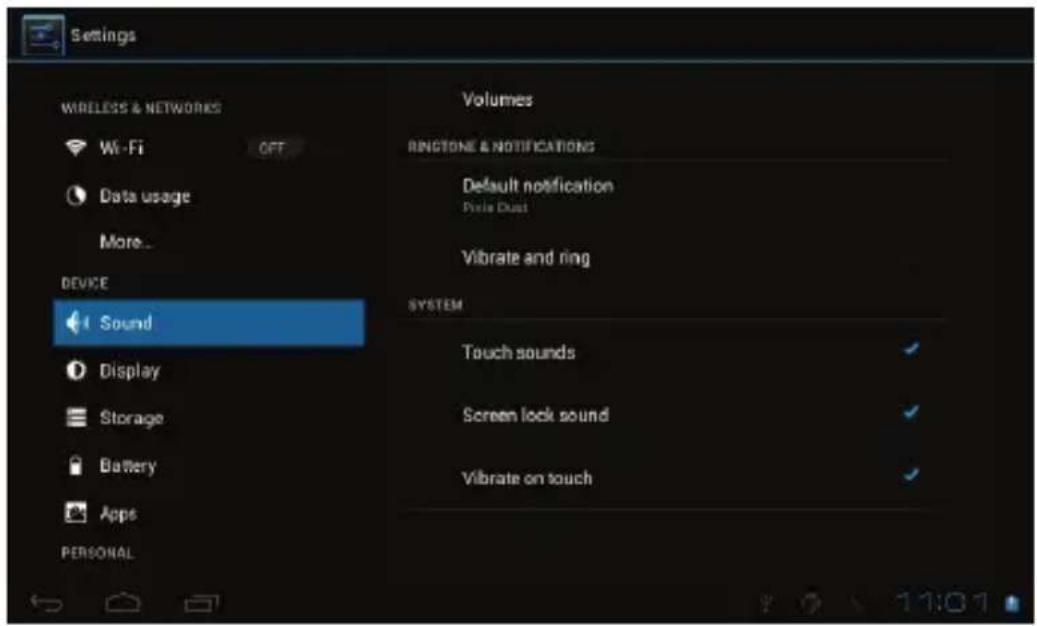
- Sound
Settings on Volume, Ringtone & Notifications, you can also tick to select or untick to unselect for Vibrate and ring, Touch sounds, Screen lock sound and Vibrate on touch.
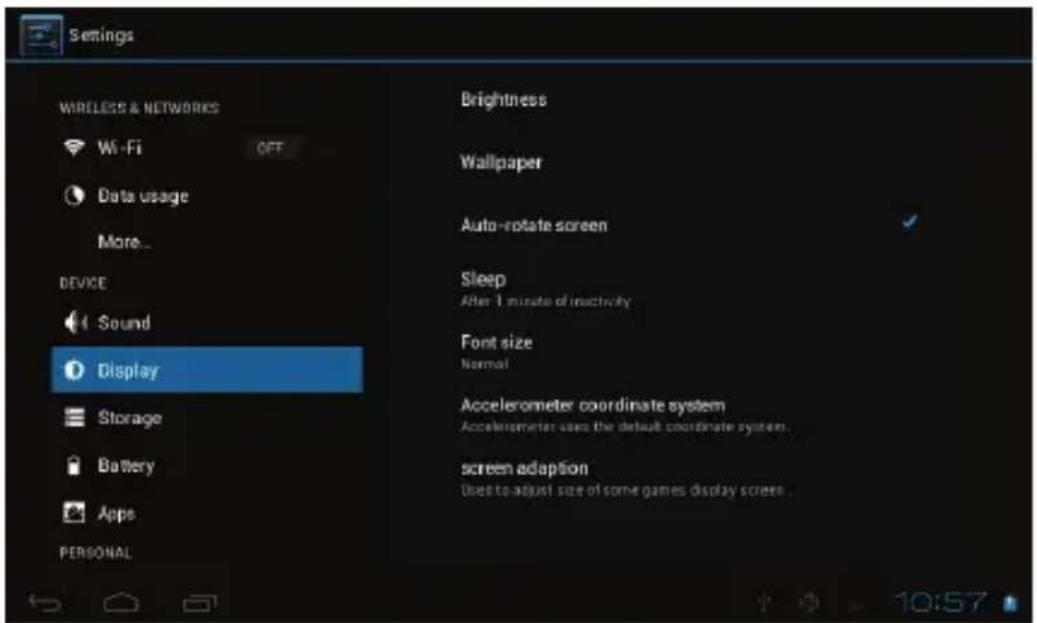
- Display
Settings on LCD Panel brightness, Wallpaper, Auto-rotate screen, sleep, Font size, Accelerometer coordinate system, Screen adaption.
- Storage
To view the available storage space, Erase SD card (format the internal memory) and select the option of enabling media scanning of external SD card or external USB devices.

【Remarks】:
- If you want to safely remove the Micro SD card or USB flash drive, please tap on the option "Unmount SD card", and confirm the selection, after this, you can safely remove SD card/USB host.
- Make sure to tick the option of "Enable media scanning on extsd" and "Enable media scanning on usbhost 1", this way, your tablet can scan and display the files in the external SD card and USB devices.
- Battery
To know the battery usage information.

- Apps
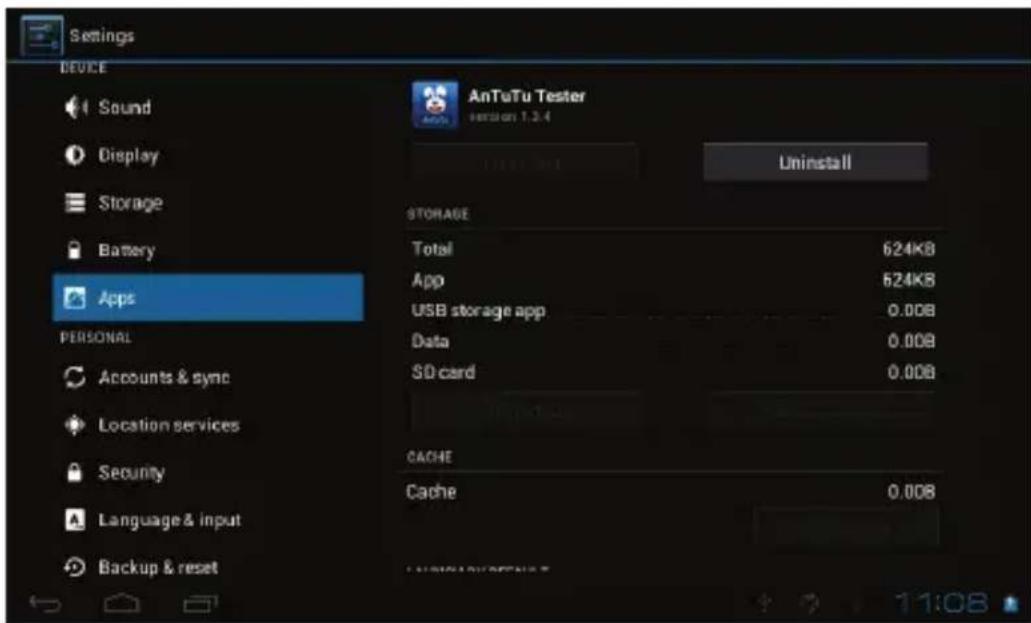
To Manage the applications. Tap on the directories (DOWNLOAD, ON SD CARD, RUNNING or ALL) and select the application which you want to uninstall, you will enter into the following interface, tap on Uninstall, then you can remove that application from tablet.
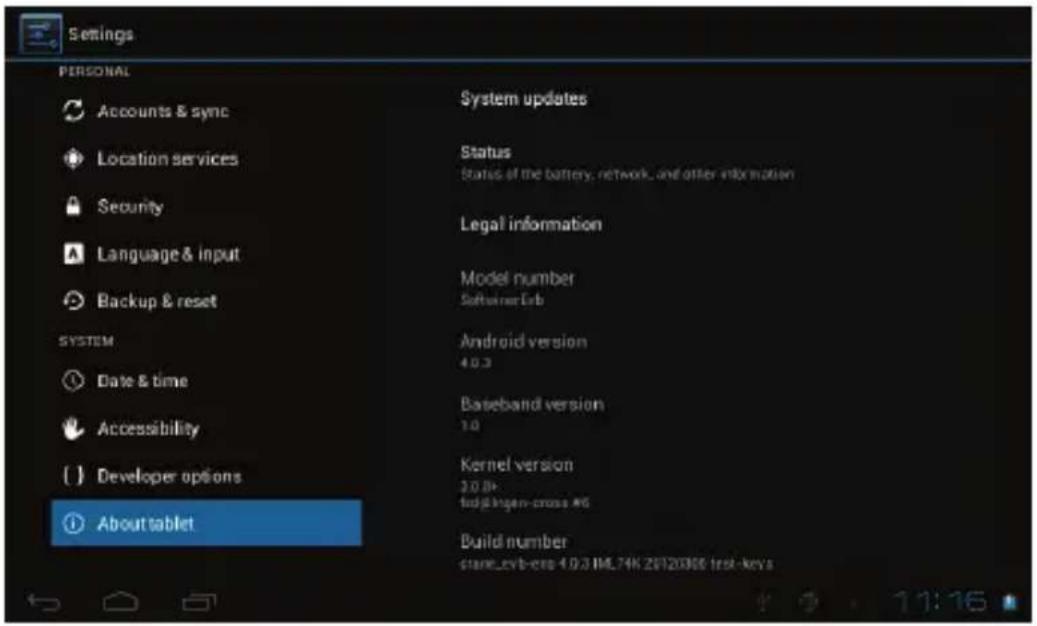
6.3 PERSONAL
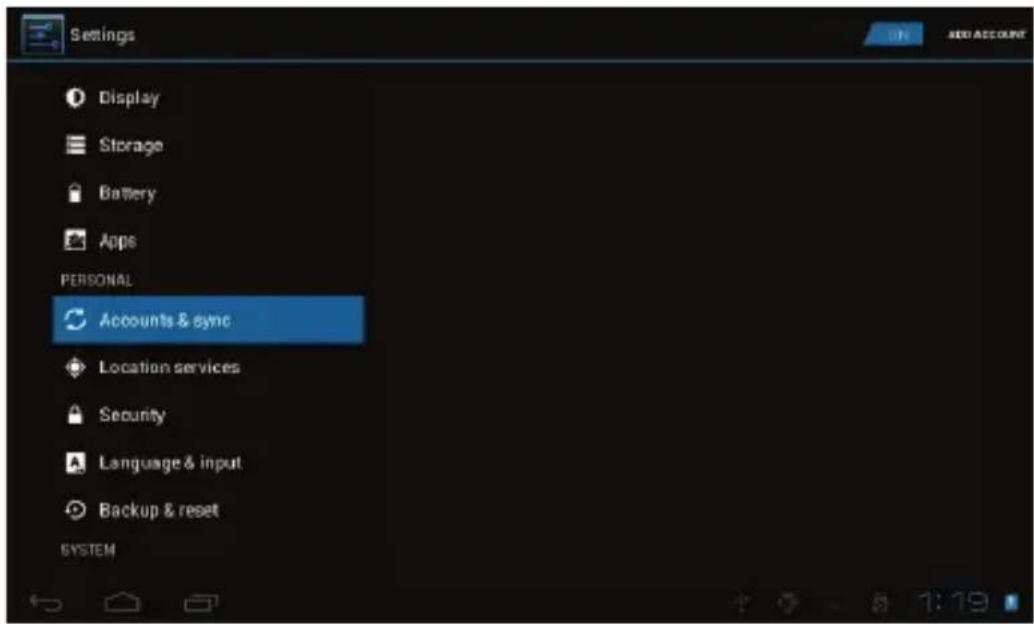
- Accounts & sync
To set up the account and synchronization information.
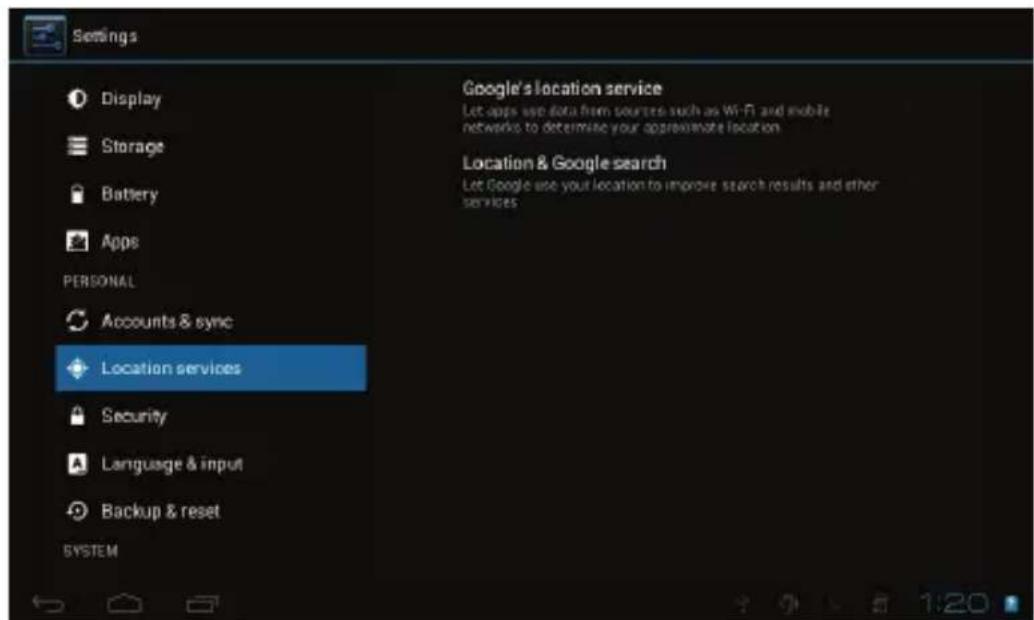
- Location services
Options for you to select “Google’s location service” and “Location & Google search”.
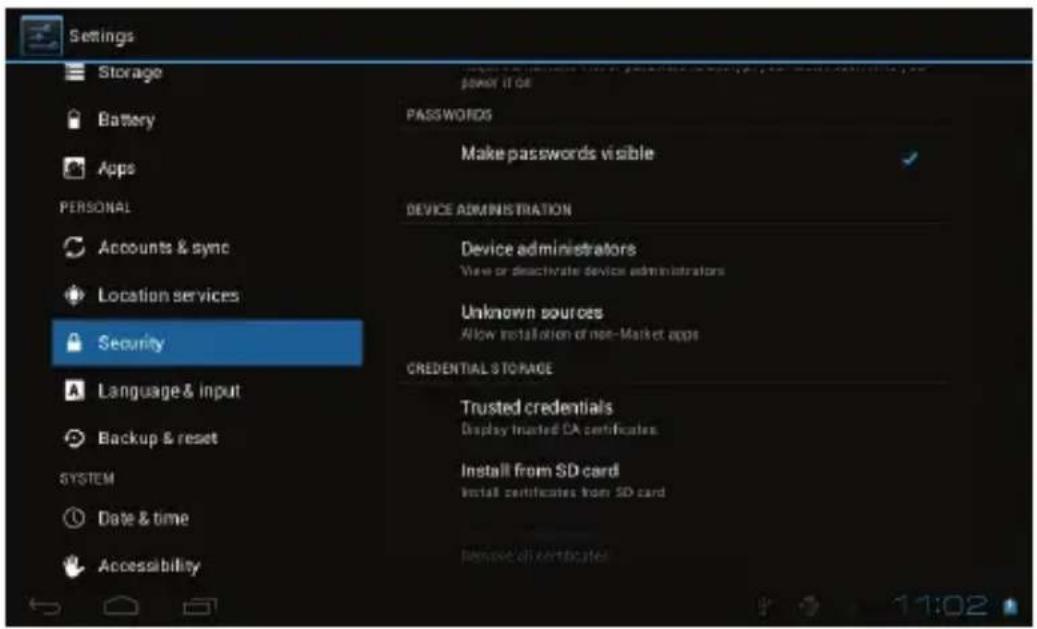
- Security
Settings for Screen lock, Owner info, Encrypt tablet, Make passwords visible, Device administrators, Unknown sources, Trusted credentials, Install from SD card.
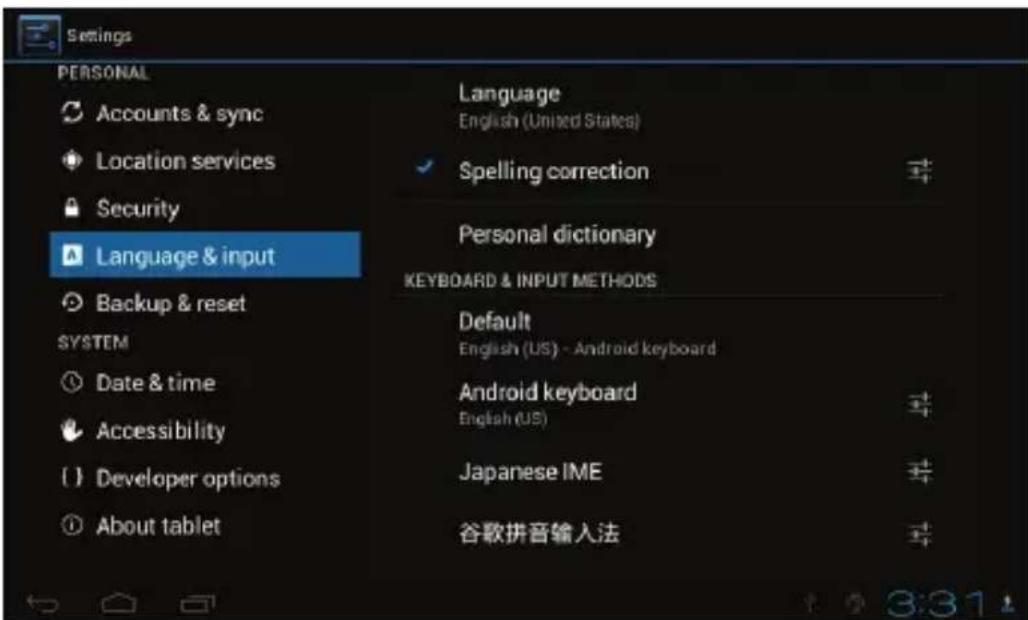
• Language & keyboard
Language selection, text input and automatic error correction option, select your desired Keyboard & Input methods, and settings on Text-to-speech output, Pointer speed.
- Backup & reset
Option of for backup & restore, erase personal data.
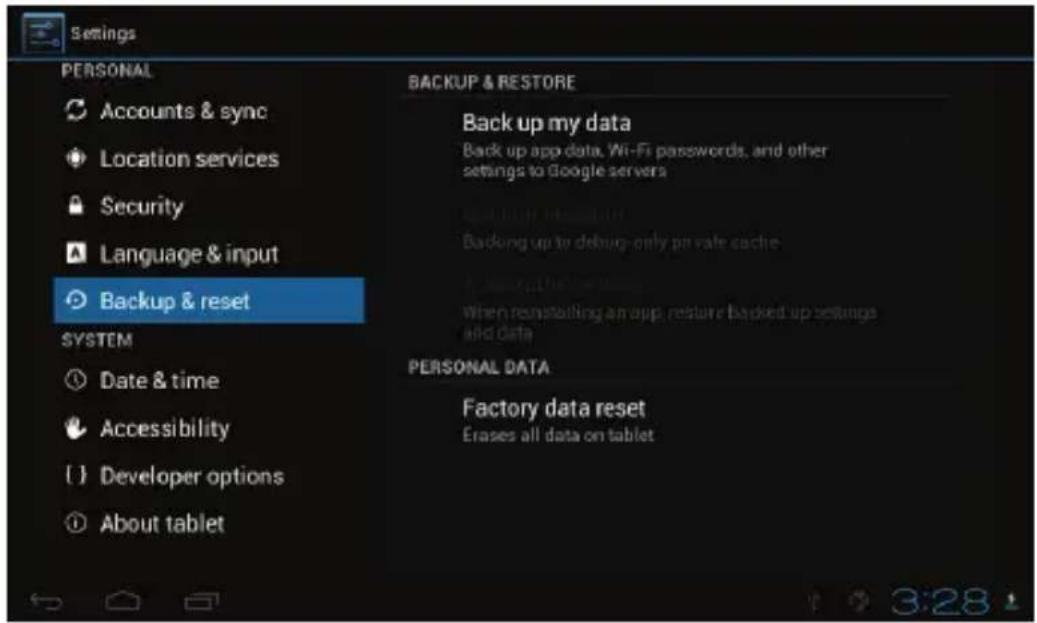
Warning: once you perform the “Factory data reset”, it will erase all personal data in tablet, make sure to back up your personal data before performing this function.
6.4 SYSTEM
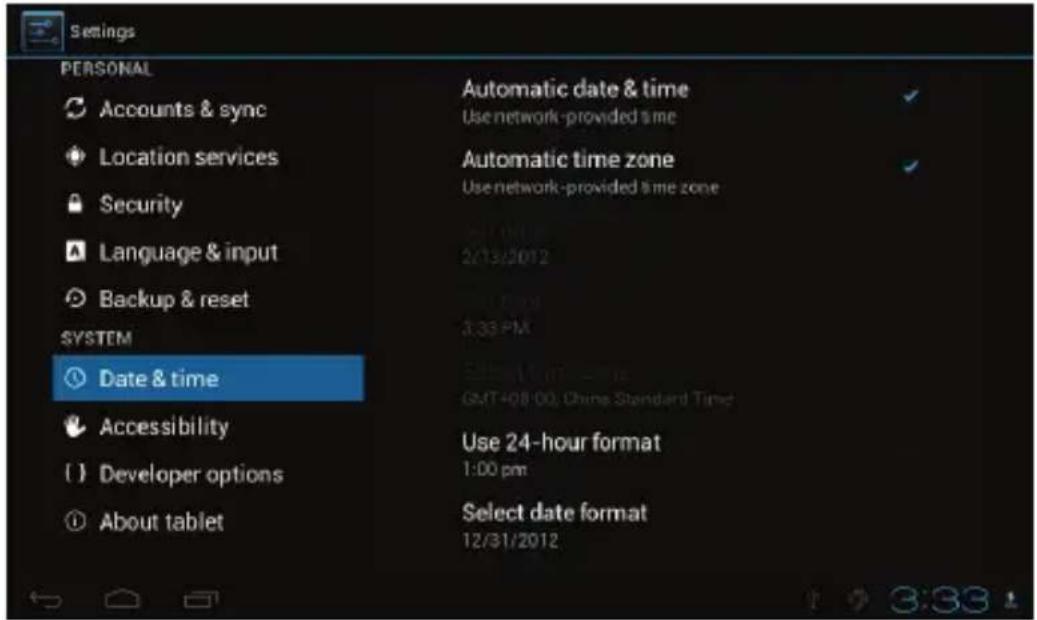
- Date & time
You can use network-provided time or time zone, or you can manually setup date, time, select time zone and you can also select time format and date format.
- Accessibility
TalkBack provides spoken feedback help blind and low-vision users. You need to download this application from Android Market.
You can also setup system settings here. You can choose the options of Large text, Auto-rotate screen, Speak passwords, Touch & hold delay time and Install web scripts.

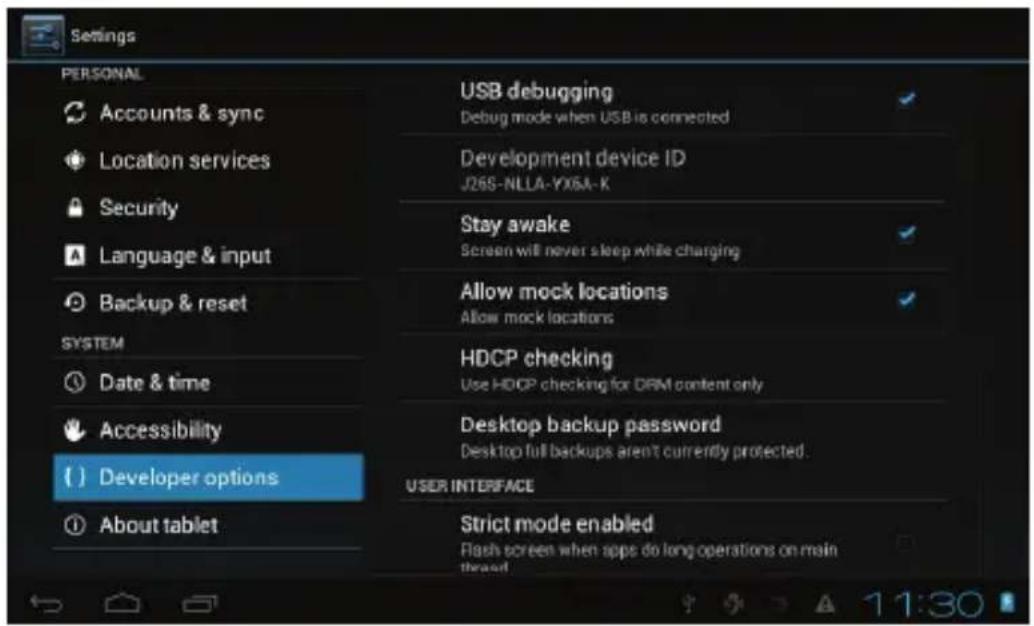
- Developer options
Some advanced settings for the tablet.
- About tablet
Additional informations about the Tablet.
7 Apps Installation
You can download the Apps from Android Market and install them online, or you can install the Apps from your Micro SD card or USB devices. Just tap on the App and run the installation, you can finish the installation and run that App right away.
8 Introductions of Typical Applications
- Browser

After connecting your tablet to Wi-Fi network, tap the Browser icon on desktop to open web browser. The following interface pops up immediately:
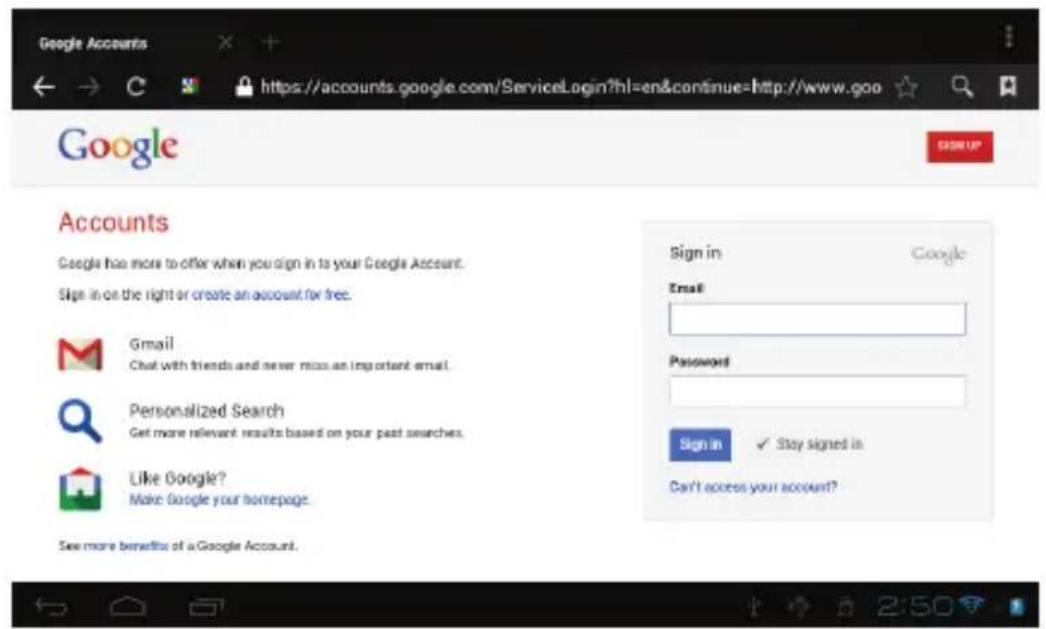
Then you can start web surfing now, during web surfing, tap on the menu icon located at the right top corner of the screen to get more options:

New window: to open up new window of web browser.
Bookmarks: to see the Bookmarks, Most visited websites and History.
Windows: to see different windows of web surfing.
Refresh: to refresh the page.
More: more options of "Add bookmark", "Find on page", "Select text", "Page info", "Share page", "Downloads", "Settings".
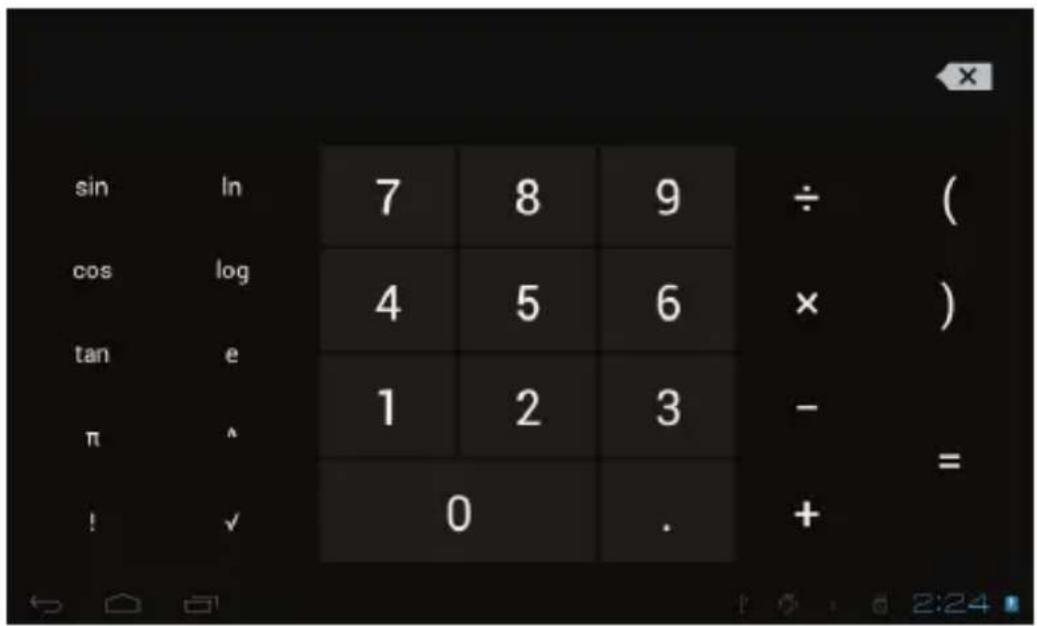
- Calculator

The tablet is with built-in calculator, tap on the Calculator icon to carry out your calculations.
- Calendar

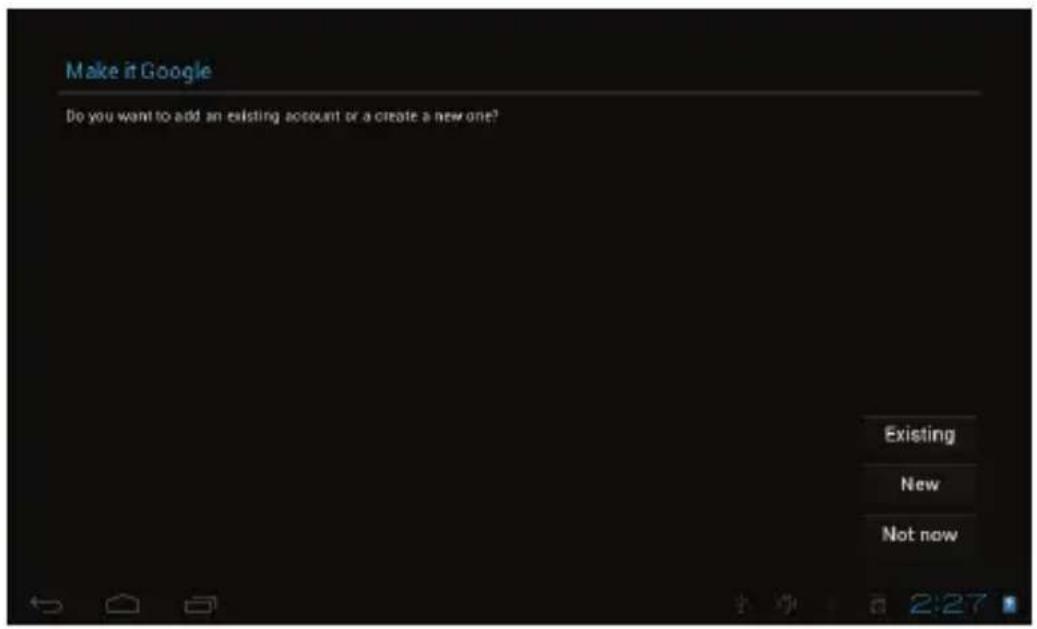
Users can use the Calendar to check date, time and memorandum or add memorandum etc. But before doing this, you have to sign in the Google Account.
- Tap on the Calendar icon, then a dialog box of "New a Google Account" will pop up. Tap "Next" to go the next step.
- If you do not have a Google Account, then tap "Create" to create a new Google account, if you already had a Google Account, tap on "Sign in" to go to next step.
- Input Gmail address and password, then tap "Next" to go forward.
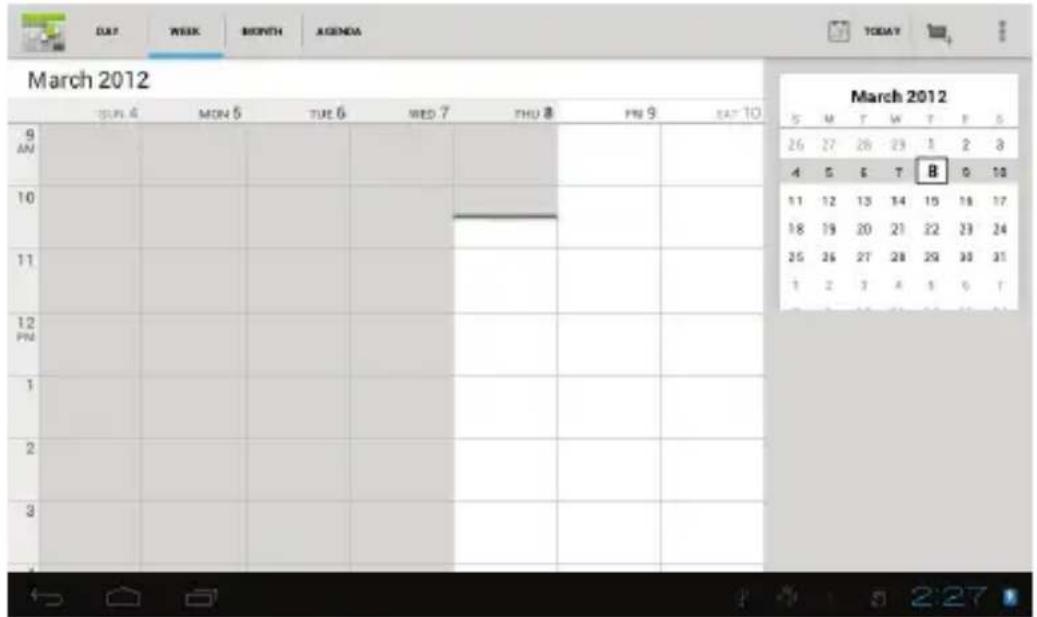
- After you finish the setup, the interface will automatically exit and return to the main interface. Tap on the Calendar icon again to check date, time and add memorandum etc. Tap on the menu button to popup more setting
options of 1 Day, 7 Weeks, Agenda, Today, More, see the screen interface as below.
- Camera

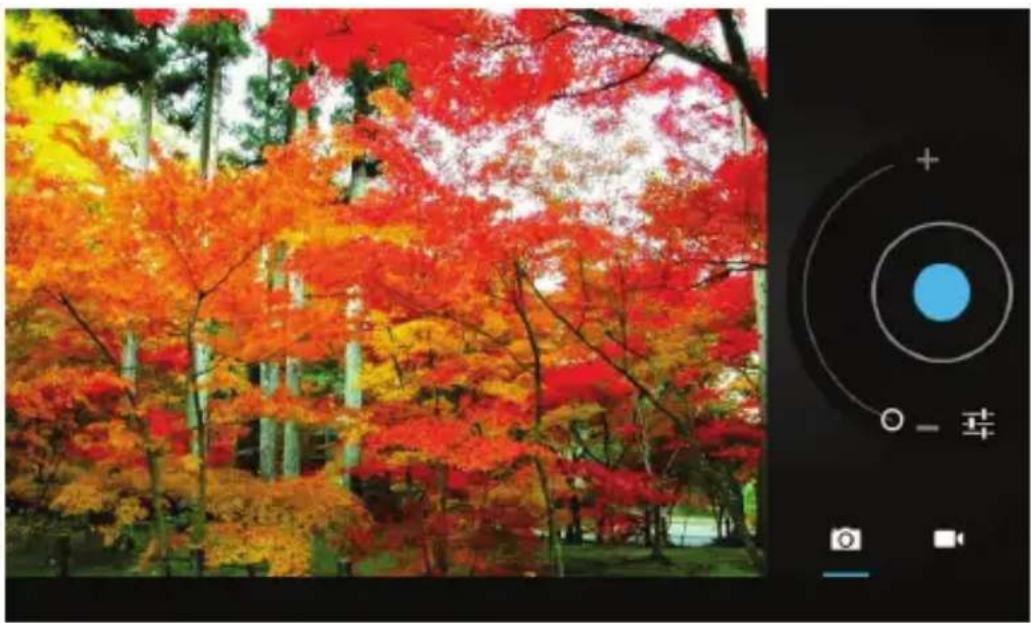
Tap on the Camera icon to run the application.
The camera is located at the right of tablet top, aim at it when you take photo or video. Tap on the circular button to start to take photo or video.
If you want to take photo, tap on the icon 📷 to take photo; if you want to take video, tap on the icon 📄 to take video.
The photos or videos will be saved automatically to internal memory, select "File Manager", then select "DCIM" folder, select "Camera" to find the photos or videos just took.
You can also view your previous photos or videos by tapping on the photo icon at the top right corner of screen. When you view the photos or videos, tap on it to display more options of slideshow, delete, share, zoom in/out, clip, rotating, or set as wallpaper etc.
natural_image
Autumn forest scene with vibrant red and orange foliage, displayed in a photo editing interface (no text or symbols on the main image)- Clock

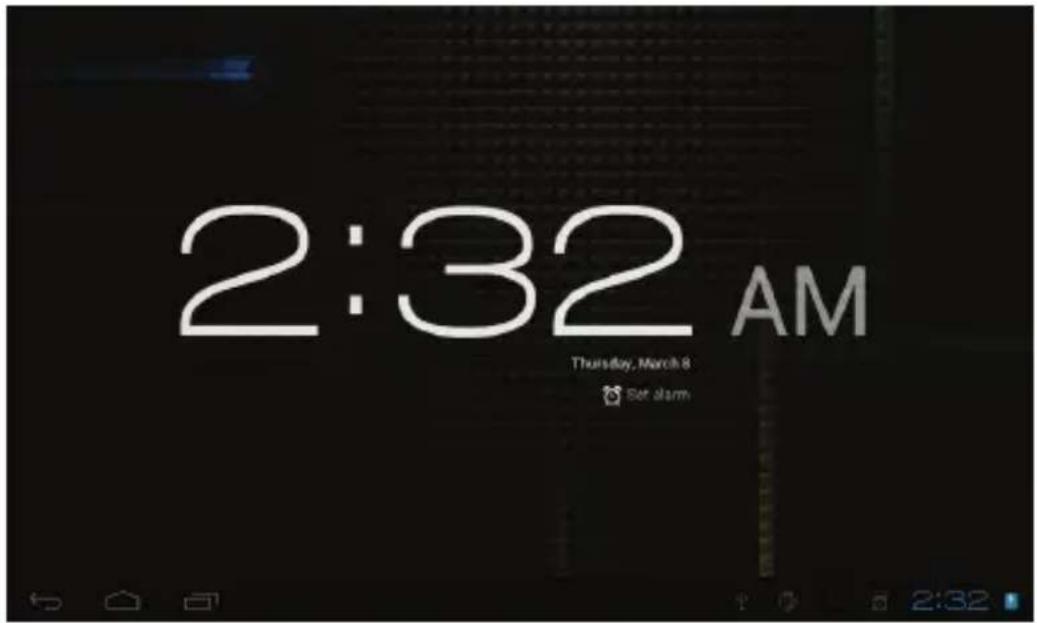
Tap on the Clock icon to run the application.
After running the Clock application, you can setup alarm clock.
- Dev Tools

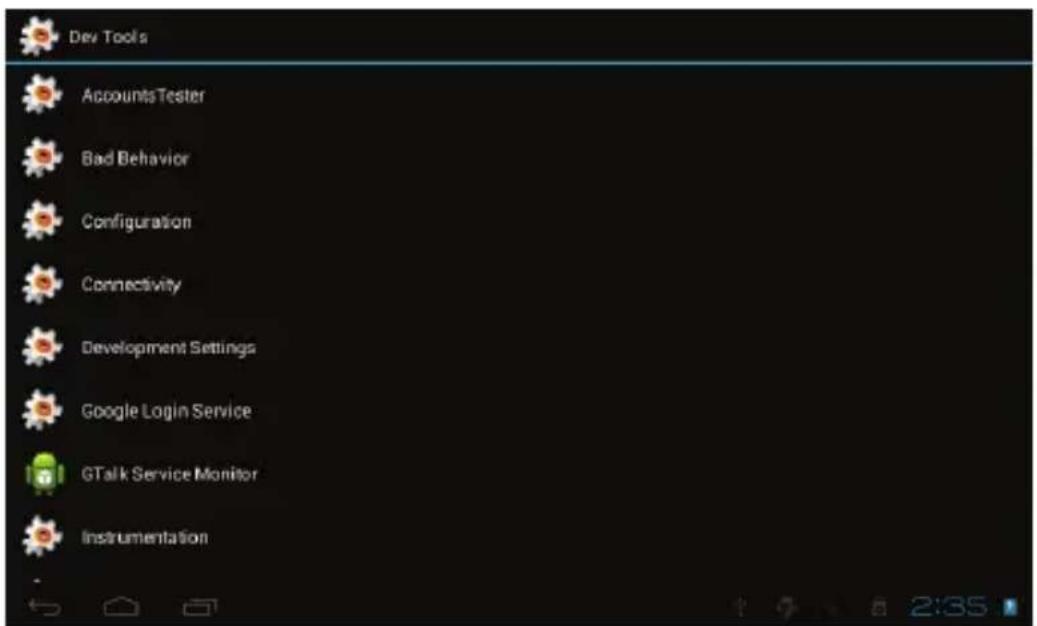
Development tools provided by Android.
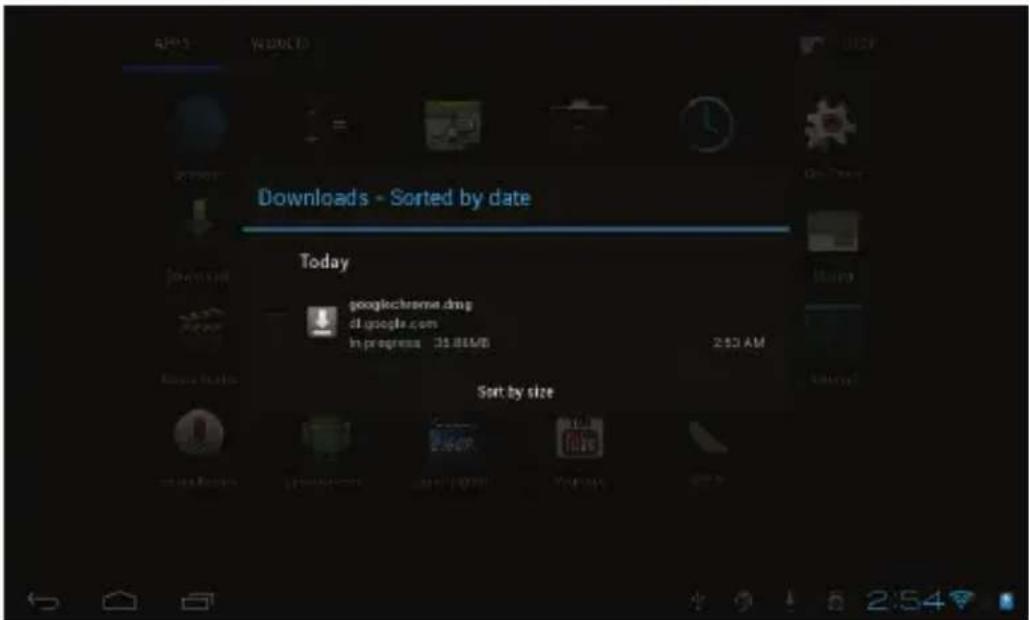
- Downloads

Tap to check all downloaded history.

You can enter one or more personal email address which you would like to access through this tablet.
Tap on Email icon to setup your email account according to the procedures.
You can receive or send e-mails after setup.
To read emails, tap on the Email icon, if you setup only one email account, it opens immediately, if you have setup multiple accounts, they will be listed in the
Accounts screen. Tap on the desired email account, and then tap "Inbox", all emails will be listed, tap on the email which you want to open. You can also
Reply, Forward or Delete the emails.
On the Inbox screen, you can Compose New Email, type on menu icon for more settings on your Email account.
- File Manager

Tap on File Manager icon to browse the files saved in your memory devices (Local, SD card or U-Disk). You can view the files by categories.
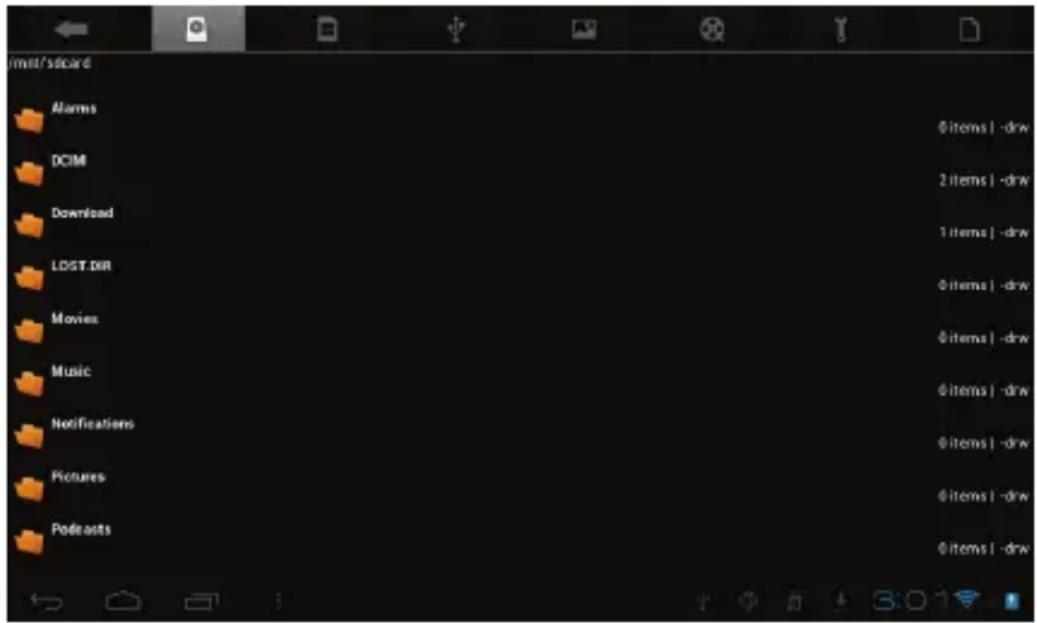
Tap on corresponding memory devices (Local, SD card or U-Disk) to see the files inside. Tapping on the file and hold it for 3 seconds, you will have the options of: Delete File, Rename File, Copy File, Move File and Email File. You can also Copy, Move or Paste files between each memory device. You can have the options of Delete Folder, Rename Folder, Copy Folder, Move Folder, Zip Folder when you tap on a folder and hold it for 3 seconds.
How to copy file: to copy a file: tap on the file and hold it for 3 seconds, select Copy, then tap&hold on the folder which your file needs to be copied into, select “Paste into folder” to copy your file into that folder.
- Play Store

After you signed in the Google Account (mentioned above), tap on the Play Store icon, and accept the Google Play Terms of Service to enter into play shop. You can download more apps from the Android market.
If you want to download apps from Android market, tap on the app icon which you want to download, follow the procedures to download the app and install it onto you tablet.
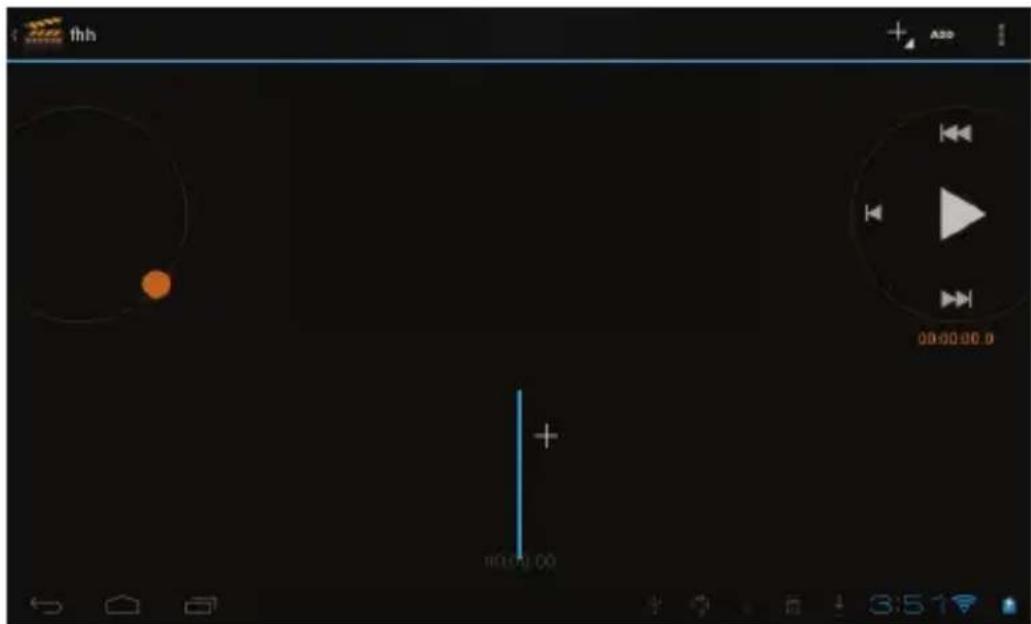
- Movie Studio

Tap on Movie Studio icon to run the application, you have to Create New Project first, then tap on “ADD” to Record a video, Take a photo, Import video clip or import image.
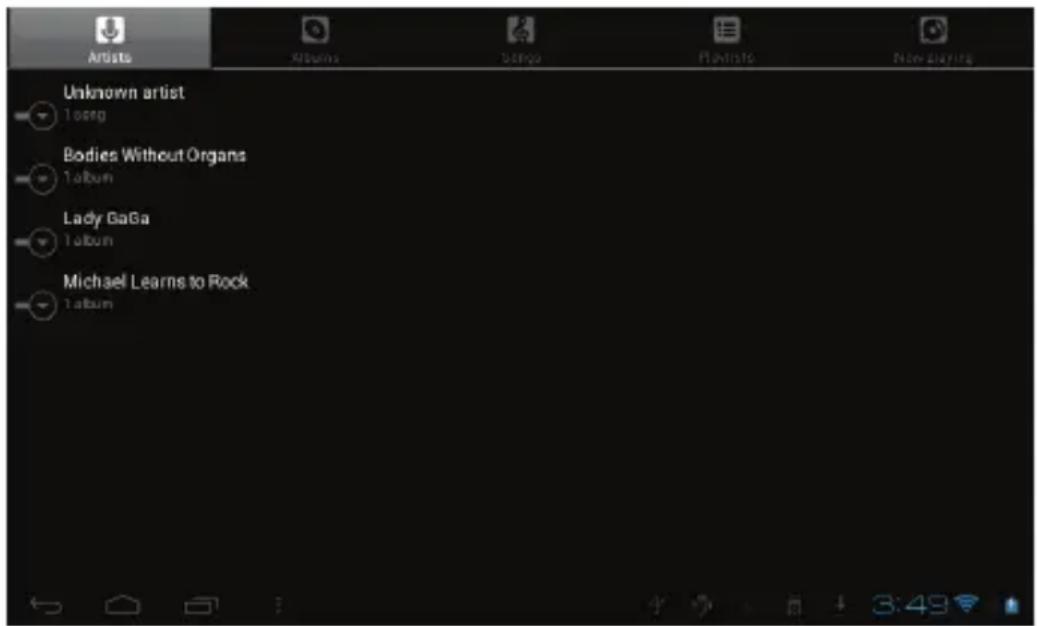
Music

To play the music, tap on the Music icon to run the application.
All songs will be listed and tap on your desired song to play it.
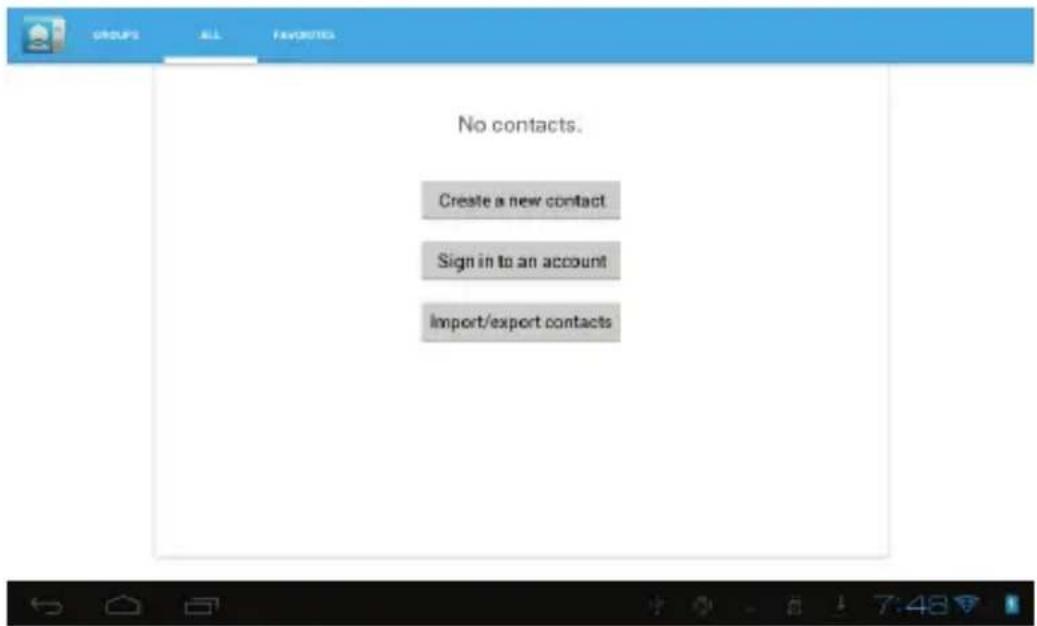
- People

You can create an address book of your personal contacts.
- Tap on the People application icon to run the application.
- If you already logged into your Google account, then you can run the application right away, if you have not logged into your Google account, please log into your Google account by following the steps.
- After entering into People application, you can see the all your contacts informations, you can also Search, Add, Edit your contacts. Tap on the menu icon to display below options:
Share: to share contacts
Delete: to delete the contacts
Contacts to display: to select the options for contacts display
Import/Export: import/Export contacts
Accounts: sync your accounts
Settings: display options for your contacts
- In the Contacts screen, tap on the desired contact, then tap the "star" icon at the right side of screen to add the Contact to Favorites.
- Phone

This Tablet does not support Phone function.
- Search

Search the APK files in your tablet or search online.
To search online, please tap on the icon


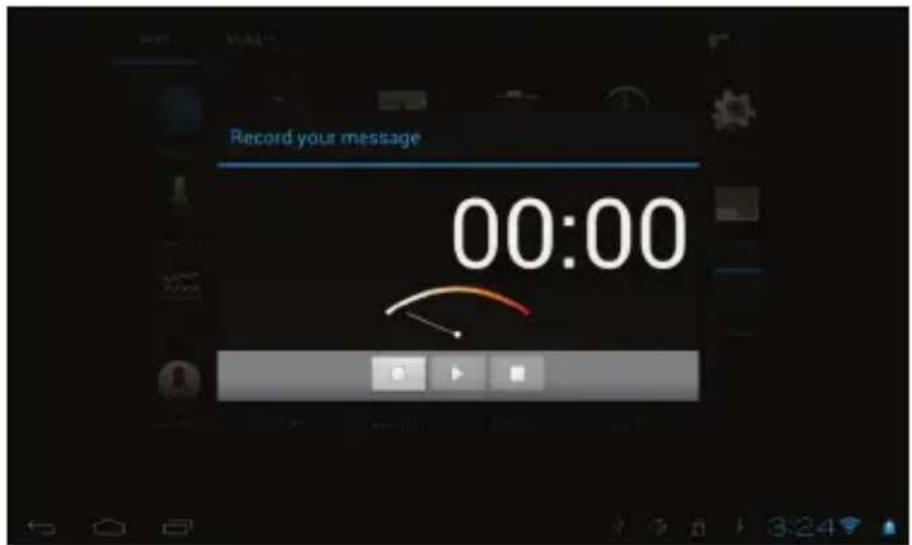
● Sound Recorder

To start the sound recorder, tap on the Sound Recorder icon.
Tap on the icon to start recording.
Tap on the icon □ to stop recording.
Once you stopped the recording, system will prompt: Discard or Done.
Tap on Discard to discard the recording; Tap on Done to save the recording.
The recorded files can be found at root directory of folder File Manager.
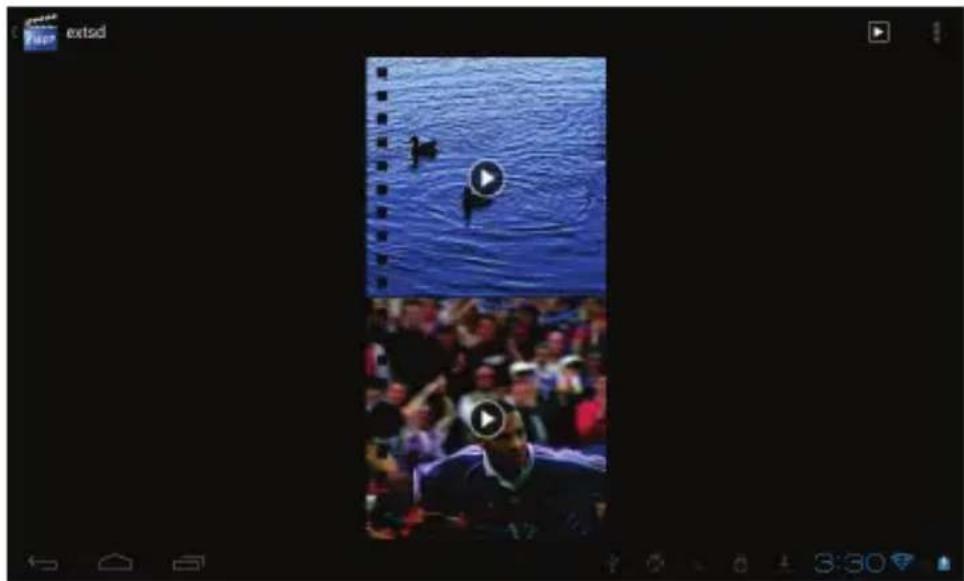
- Video Player

To play the videos, tap on the Video Player icon to run the application. All videos will be listed and tap on your desired video to play it.
natural_image
Two-panel image showing a person watching a water wave and a crowd, with no visible text or symbols.9 Forced shutdown
In case of your tablet was down and you are unable to turn it off according to standard procedures, press the power switch and hold it for 7 seconds, the tablet will be turned off.
10 Factory Reset
To restore the tablet to original factory settings and erase all personal informations, tap on “Settings”→ “Backup&reset” → “Factory data reset”.
Warning: After resetting the device, Google account, data, system settings, and downloaded applications will be removed from your tablet.
11 Battery Management
The battery is not fully charged from factory, so it is recommended that you charge the battery for at least 6 hours before you start to use the device.
The rechargeable battery is designed and manufactured to be used and recharged frequently. As same with all of lithium batteries, the capacity of the battery reduces each time it is charged. However, you can still try to prolong the battery's lifetime by following the suggestions below:
• Use your Tablet at least once a week.
• Fully charge the battery regularly.
- Never leave the battery fully discharged for a long period of time.
• Always keep the device and the battery away from heat and moisture.
12 Charge Battery
Plug the power adapter into an electrical wall outlet and then connect to the device to fully charge the battery before use.
You can charge the battery by using the USB cable.
When fully charged, the battery icon displays as:

A fully discharged battery will take you approximately 6 hours, but you can use the device while it is being charged.
Do not use other adapters than the one provided in your packaging, it may cause damage to the Lithium battery inside.
Do not attempt to open the tablet to replace the battery inside, this will damage the tablet and void the warranty.
13 Important Safety Precautions
Always follow these basic safety precautions when using your Tablet. This reduces the risk of fire, electric shock, and injury.
- Do not expose this product to rain or moisture.
- Keep the device out of direct sunlight and heat sources.
- Do not place other objects on LCD screen, as it may crush and damage the LCD screen.
- Do not use any sharp objects to touch the LCD screen, as this will scratch the screen.
- Only use the AC adapter included with the device. Using any other power adapters will damage your tablet and void the warranty.
- Do not attempt to dismantle the tablet by yourself to do any repair, this will damage the tablet and void the warranty.
14 Clean Your Device
To clean fingerprints or dust from the screen, we recommend to use soft, non-abrasive and non-corrosive cloth for cleaning, such as a camera lens cloth.
Frequently Asked Questions
Android
Q: What Android OS version is on my Device?
A: Android 4.0.3.
Basic Functionality
Q: Do I have to charge the battery before use?
A: You should charge the battery for at least 6 hours, but you can use the device while it's being charged. Use the included power adapter to charge.
Q: Can I use any of my personal email addresses to send/receive email?
A: The device supports POP3 accounts. Some free email accounts are not supported on mobile devices. Check with your email provider to see if you account is supported.
Media Cards
Q: Which media cards are compatible with my Device?
A: Micro SD cards.
Music
Q: What type of music files can I play on my device?
A: MP2, MP3, WAV, AAC, WMA.
Q: How do I add music files to my device?
A: Copy the music files from your PC, Micro SD card or USB storage device directly to your device.
Photos
Q: What type of photo files can I view on my device?
A: JPEG, BMP, GIF, PNG.
Q: How do I add photo files to my device?
A: Copy the photos from your PC, Micro SD card or USB storage device.
Videos
Q: What type of video files can I play on my device?
A: Video decoding (Full HD) support all formats of video such as H.264, H.263, VC-1, MPEG-1/2/4, DIVX-3/4/5/6, XVID, WMV 7/8, VP6, AVS and other popular video formats.
Q: Can I play YouTube videos on my device?
A: Yes, you can run the YouTube application icon to play the videos.
Q: How do I add video files to my device?
A: Copy the video files from your PC, Micro SD card or USB storage device.
Wi-Fi
Q: Do I need a Wi-Fi adapter to connect to the Internet?
A: No, the Wi-Fi adapter is built-in to the device.

- CE Mark Warning
- Trademarks
- Changes
- Support
- Introduction
- What's Included
- Getting Started
- Battery charging
- Charging Process
- Appearance and buttons
- ESC
- HOME
- Menu
- Volume –
- Volume +
- Power Switch
- Power socket
- Mini USB
- Headphone Socket
- Micro SD card slot
- Camera
- Turn ON/OFF Tablet
- Remarks:
- Connection with PC
- Tablet Operation Interface
- Status Bar Descriptions
- Quick Guide For Touch Operations
- Basic Settings
- WIRELESS & NETWORKS
- Wi-Fi
- - Data Usage
- - More...
- DEVICE
- - Sound
- - Display
- - Storage
- 【Remarks】:
- - Battery
- - Apps
- PERSONAL
- - Accounts & sync
- - Location services
- - Security
- • Language & keyboard
- - Backup & reset
- SYSTEM
- - Date & time
- - Accessibility
- - Developer options
- - About tablet
- Apps Installation
- Introductions of Typical Applications
- - Browser
- - Calculator
- - Calendar
- - Camera
- - Clock
- - Dev Tools
- - Downloads
- - File Manager
- - Play Store
- - Movie Studio
- Music
- - People
- - Phone
- - Search
- ● Sound Recorder
- - Video Player
- Forced shutdown
- Factory Reset
- Battery Management
- Charge Battery
- Important Safety Precautions
- Clean Your Device
- Frequently Asked Questions
- Android
- Basic Functionality
- Media Cards
- Photos
- Videos
Brand : Hamlet
Model : Zelig Pad 700
Category : Tablet