Zelig Pad XZPAD412LTE - Tablet Hamlet - Free user manual and instructions
Find the device manual for free Zelig Pad XZPAD412LTE Hamlet in PDF.


Pick your language and provide your email: we'll send you a specifically translated version.
| Product type | Tablet |
| Brand | Hamlet |
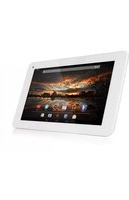
| Model | Zelig Pad XZPAD412LTE |
| Display size | 10.1 inches |
| Resolution | 1280 x 800 pixels |
| Processor | Quad-core 1.3 GHz |
| RAM | 2 GB |
| Storage | 32 GB eMMC, expandable via microSD |
| Operating system | Android 10 |
| Connectivity | Wi-Fi 802.11 b/g/n, Bluetooth 4.2, 4G LTE |
| Battery capacity | 5000 mAh Li-ion |
| Cameras | Front: 2 MP, Rear: 5 MP |
| Dimensions | 240 x 170 x 10 mm |
| Weight | 500 g |
| Power source | DC 5V 2A via micro USB |
| Care and cleaning | Wipe screen and body with a soft, dry cloth. Avoid harsh chemicals or liquids. |
| Safety | Keep away from water, heat sources, and do not disassemble. |
| Spare parts and repairability | Spare parts available from authorized service centers. Battery replacement recommended by professionals. |
| General information | Multi-touch capacitive screen, GPS, accelerometer, 3.5 mm audio jack. |
Frequently Asked Questions - Zelig Pad XZPAD412LTE Hamlet
How do I perform a factory reset on my Hamlet Zelig Pad XZPAD412LTE?
Go to Settings > Backup & reset > Factory data reset. Confirm and wait for the device to reboot. This will erase all data, so backup important files first.
How can I insert the SIM card?
Locate the SIM card tray on the side of the tablet. Use the ejector tool (or a paperclip) to push into the small hole. Insert the nano-SIM card into the tray and reinsert it into the tablet.
How do I connect to a Wi-Fi network?
Swipe down from the top to open the notification panel and tap the Wi-Fi icon. Alternatively, go to Settings > Wi-Fi, turn on Wi-Fi, and select your network. Enter the password if required.
My tablet is running slowly. What can I do?
Clear app caches by going to Settings > Storage > Internal storage and tap Cached data. Uninstall unused apps, restart the tablet, or perform a factory reset if necessary.
How do I take a screenshot?
Press and hold the Power button and the Volume Down button simultaneously for about 2 seconds. The screenshot will be saved in the Gallery app.
Can I expand the storage?
Yes, the tablet supports microSD cards up to 128 GB. Insert the microSD card into the dedicated slot (usually next to the SIM card tray).
How do I update the operating system?
Go to Settings > System > Advanced > System update. Tap Check for update and follow the prompts. Ensure battery is above 50% and connected to Wi-Fi.
The touchscreen is not responding properly. What should I do?
Clean the screen with a dry cloth and remove screen protector if used. Restart the tablet by holding the power button for 10 seconds. If issue persists, try a factory reset.
How do I set up a Bluetooth device?
Enable Bluetooth from Settings > Bluetooth. Make sure your other device is discoverable. Tap the device name to pair, and confirm the PIN if requested.
The battery drains quickly. Any tips?
Reduce screen brightness, disable unused radios (Wi-Fi, Bluetooth, GPS), close unused apps, and check for any battery-draining apps in Settings > Battery. You can also enable Battery saver mode.
User questions about Zelig Pad XZPAD412LTE Hamlet
0 question about this device. Answer the ones you know or ask your own.
Ask a new question about this device
No questions yet. Be the first to ask one.
Download the instructions for your Tablet in PDF format for free! Find your manual Zelig Pad XZPAD412LTE - Hamlet and take your electronic device back in hand. On this page are published all the documents necessary for the use of your device. Zelig Pad XZPAD412LTE by Hamlet.
USER MANUAL Zelig Pad XZPAD412LTE Hamlet

Manual assistant
Powered by Anthropic
Waiting for your message
Product information
Brand : Hamlet
Model : Zelig Pad XZPAD412LTE
Category : Tablet