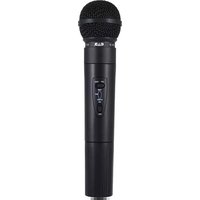
CX1 Connect - Microphone CAD Audio - Free user manual and instructions
Find the device manual for free CX1 Connect CAD Audio in PDF.


Pick your language and provide your email: we'll send you a specifically translated version.
| Product Type | USB Condenser Microphone |
| Brand | CAD Audio |
| Model | CX1 Connect |
| Polar Pattern | Cardioid |
| Frequency Response | 20 Hz - 20 kHz |
| Sample Rate | 48 kHz |
| Bit Depth | 16-bit |
| Connectivity | USB-C |
| Headphone Output | 3.5 mm with volume control |
| Boom Arm Compatible | Yes, with 5/8" thread |
| Included Accessories | Desktop stand, USB-C cable, mini-XLR to USB adapter |
| Dimensions (with stand) | 6.3 x 4.5 x 10.2 inches |
| Microphone Weight | 1.2 lbs (544 g) |
| Power Source | Bus-powered via USB |
| Operating Systems | Windows, macOS via plug-and-play |
| Cleaning Instructions | Wipe with a dry, lint-free cloth; avoid liquids |
| Safety Notes | Keep away from moisture and extreme temperatures |
| Repairability | Not user-serviceable; contact support for repairs |
| Warranty | 1 year limited warranty |
Frequently Asked Questions - CX1 Connect CAD Audio
What is the polar pattern of the CAD Audio CX1 Connect?
The CX1 Connect uses a cardioid polar pattern, which picks up sound from the front and rejects background noise from the sides and rear.
Does the CX1 Connect work with a standard XLR interface?
No, the CX1 Connect is a USB microphone with a mini-XLR to USB adapter included. It does not have a standard XLR output.
Can I monitor my voice in real-time?
Yes, the microphone features a 3.5mm headphone jack with volume control for zero-latency monitoring.
Is the CX1 Connect compatible with gaming consoles?
It works with USB audio class compliant devices, but compatibility with consoles like PS5 or Switch may require additional adapters and is not officially guaranteed.
What software is recommended for the CX1 Connect?
The microphone is plug-and-play and works with any recording software that supports USB audio devices, such as Audacity, GarageBand, and OBS Studio.
How do I connect the CX1 Connect to my computer?
Use the included USB-C cable connected to the adapter, then plug into a USB-A or USB-C port on your computer. No driver installation is needed.
What is the frequency response of the CX1 Connect?
The microphone has a frequency response of 20 Hz - 20 kHz, covering the full range of human hearing.
Can I use the CX1 Connect with a boom arm?
Yes, the microphone has a 5/8" threaded mount, compatible with most standard boom arms and mic stands.
What should I do if the microphone is not being recognized?
Try a different USB port, restart your computer, and ensure the cable is fully inserted. If the issue persists, check the system sound settings and select CX1 Connect as the input device.
How do I clean and maintain the CX1 Connect?
Wipe the exterior with a dry, soft cloth. Avoid moisture and abrasive cleaners. Do not disassemble the microphone. For persistent dust on the grille, use a soft brush.
User questions about CX1 Connect CAD Audio
0 question about this device. Answer the ones you know or ask your own.
Ask a new question about this device
No questions yet. Be the first to ask one.
Download the instructions for your Microphone in PDF format for free! Find your manual CX1 Connect - CAD Audio and take your electronic device back in hand. On this page are published all the documents necessary for the use of your device. CX1 Connect by CAD Audio.
USER MANUAL CX1 Connect CAD Audio
Manual assistant
Powered by Anthropic
Waiting for your message
Product information
Brand : CAD Audio
Model : CX1 Connect
Category : Microphone