V2V-HDAV - Audio/video converter Smart-AVI - Free user manual and instructions
Find the device manual for free V2V-HDAV Smart-AVI in PDF.


Pick your language and provide your email: we'll send you a specifically translated version.
| Product Type | Audio/Video Converter |
| Brand | Smart-AVI |
| Model | V2V-HDAV |
| Dimensions (approx) | 4.5 x 2.5 x 1.0 in (114 x 64 x 25 mm) |
| Weight | 0.4 lbs (180 g) |
| Power Supply | USB-powered (5V DC) or external power adapter (not included) |
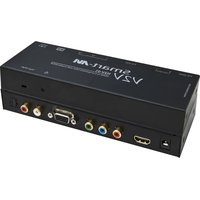
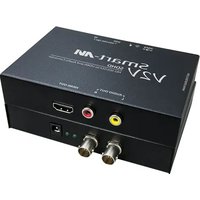
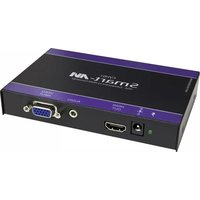
| Input Interface | HDMI |
| Output Interface | VGA plus 3.5mm stereo audio |
| Supported Resolutions | Up to 1920x1080p @60Hz |
| Audio Support | 3.5mm stereo audio output (extracted from HDMI) |
| Functions | Converts HDMI digital video to VGA analog video and extracts audio |
| Installation | Plug and play, no driver required |
| LED Indicators | Power (blue) and Signal (green) |
| Housing | Metal casing for durability |
| Operating Temperature | 32°F to 104°F (0°C to 40°C) |
| Storage Temperature | -4°F to 140°F (-20°C to 60°C) |
| Humidity | 10% to 85% RH non-condensing |
| Cleaning | Use a soft, dry cloth; avoid solvents or liquids |
| Safety | Do not expose to liquids or high temperatures; use only with provided cables |
| Spare Parts | No spare parts available; device is not user-serviceable |
| Repairability | No; contact Smart-AVI support for issues |
| Warranty | 1 year limited warranty |
| Certifications | FCC, CE |
Frequently Asked Questions - V2V-HDAV Smart-AVI
How do I connect the V2V-HDAV converter?
Connect an HDMI source (e.g., laptop) to the HDMI input, then connect a VGA cable from the converter to your VGA monitor. For audio, plug speakers or headphones into the 3.5mm audio output. Finally, power the converter via the USB port (micro-USB) using the included cable.
Why is there no video output?
Check that the HDMI source is outputting a compatible resolution (up to 1080p). Ensure all cables are firmly connected. The LED should be lit; if not, try a different USB power source. Some sources may require a powered USB port.
Can I use this converter with a game console?
Yes, as long as the console outputs HDMI at 1080p or lower. Note that HDCP-protected content may not display on VGA monitors. For best results, disable HDCP on the console if possible.
How do I get audio from the converter?
The converter extracts stereo audio from the HDMI signal and outputs it via the 3.5mm jack. Connect active speakers or headphones. If no audio, check that the HDMI source is set to output audio in stereo PCM format.
Does the converter require drivers?
No, the V2V-HDAV is plug-and-play and does not require any drivers. Simply connect and power on.
What is the maximum cable length for HDMI and VGA?
For reliable operation, use HDMI cables up to 15 feet (5 m) and VGA cables up to 25 feet (8 m). Longer cables may cause signal degradation.
Can I use this converter with a Mac or PC?
Yes, it works with any device that has an HDMI output, including Mac, PC, Linux, and many set-top boxes.
The image is fuzzy or has noise. What should I do?
Ensure the VGA cable is properly shielded and not too long. Check that the HDMI source is outputting a native resolution that matches the monitor's native resolution. Avoid using adapters or extension cables.
How should I clean the device?
Disconnect all cables and power. Wipe the exterior with a soft, dry cloth. Do not use water, solvents, or abrasive cleaners.
What does the LED indicator mean?
A solid blue LED indicates power is on. A green LED indicates an active HDMI signal. If the green LED is off, the converter is not receiving a valid HDMI input.
User questions about V2V-HDAV Smart-AVI
0 question about this device. Answer the ones you know or ask your own.
Ask a new question about this device
No questions yet. Be the first to ask one.
Download the instructions for your Audio/video converter in PDF format for free! Find your manual V2V-HDAV - Smart-AVI and take your electronic device back in hand. On this page are published all the documents necessary for the use of your device. V2V-HDAV by Smart-AVI.
USER MANUAL V2V-HDAV Smart-AVI

Manual assistant
Powered by Anthropic
Waiting for your message
Product information
Brand : Smart-AVI
Model : V2V-HDAV
Category : Audio/video converter