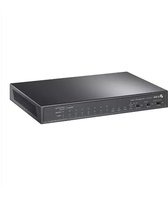
Omada Pro S5500-24F4XF - Switch TP-LINK - Free user manual and instructions
Find the device manual for free Omada Pro S5500-24F4XF TP-LINK in PDF.


Pick your language and provide your email: we'll send you a specifically translated version.
| Product Type | Managed Switch |
| Model | Omada Pro S5500-24F4XF |
| Brand | TP-Link |
| Ports | 24 x 10G SFP+ slots, 4 x 40G QSFP+ slots |
| Switching Capacity | 880 Gbps |
| Packet Forwarding Rate | 654 Mpps |
| MAC Address Table | 32K entries |
| VLAN Support | Up to 4K VLANs, 802.1Q |
| Power Supply | Dual hot-swappable AC power supplies |
| Dimensions (W x D x H) | 440 x 350 x 44 mm (1U) |
| Weight | 7.5 kg |
| Operating Temperature | 0°C to 50°C |
| Cooling | Smart fan cooling |
| Management | Web GUI, CLI, SNMP, RMON |
| Security Features | 802.1X, ACL, RSTP, port security |
| Stacking | Yes, virtual stacking support |
| Warranty | Limited lifetime warranty |
| Included Accessories | Power cord, console cable, rack mount kit |
| Maintenance & Cleaning | Use dry cloth; avoid liquids |
| Spare Parts & Repairability | No user-serviceable parts; contact TP-Link for service |
Frequently Asked Questions - Omada Pro S5500-24F4XF TP-LINK
How to reset the TP-Link Omada Pro S5500-24F4XF to factory defaults?
Press and hold the Reset button on the front panel for about 10 seconds until all LEDs flash. Release and the switch will reboot with factory settings.
What is the default IP address and login credentials?
Default IP: 192.168.0.1. Default username/password: admin/admin (both lowercase). Change after first login.
How to update firmware on this switch?
Download the latest firmware from TP-Link's support site. Access the web GUI, go to System Tools > Firmware Upgrade, choose the file, and start upgrade. Do not power off during update.
Can this switch support VLAN configuration?
Yes. Supports 802.1Q VLAN with up to 4K VLAN groups. Configure via Web GUI or CLI under VLAN menu.
How to enable SNMP for network monitoring?
Navigate to System Tools > SNMP in the web interface. Enable SNMP, set community strings (e.g., public/private), and specify management stations.
Does the S5500-24F4XF support stacking?
Yes, it supports virtual stacking using TP-Link's Omada controller, allowing multiple switches to be managed as one logical unit.
What are the LED indicators and their meanings?
Each port has two LEDs: Link/Act (solid for link, flashing for activity) and Speed (green for 10G, amber for 40G). System LED shows power and status.
How to troubleshoot if the switch is not powering on?
Check the power cable connection and the power source. Try a different outlet. If using dual PSUs, ensure both are properly installed. If issue persists, contact TP-Link support.
Can the switch be rack-mounted?
Yes, it comes with a rack mount kit. Attach the brackets to the sides and secure to standard 19-inch rack using screws.
What is the maximum power consumption?
Typical power consumption is 110W (with all ports active). The switch supports dual power supplies for redundancy.
User questions about Omada Pro S5500-24F4XF TP-LINK
0 question about this device. Answer the ones you know or ask your own.
Ask a new question about this device
No questions yet. Be the first to ask one.
Download the instructions for your Switch in PDF format for free! Find your manual Omada Pro S5500-24F4XF - TP-LINK and take your electronic device back in hand. On this page are published all the documents necessary for the use of your device. Omada Pro S5500-24F4XF by TP-LINK.
USER MANUAL Omada Pro S5500-24F4XF TP-LINK


Manual assistant
Powered by Anthropic
Waiting for your message
Product information
Brand : TP-LINK
Model : Omada Pro S5500-24F4XF
Category : Switch