
CTS14MTD - Synthesizer AKAI - Free user manual and instructions
Find the device manual for free CTS14MTD AKAI in PDF.


| Product type | 14" (37 cm) color TV with built-in DVD player |
| Brand | AKAI |
| Model | CT-S14MTD-E3 |
| Dimensions (W x D x H) | 420 x 409 x 390 mm |
| Net weight | 13.5 kg |
| Power supply | 230 V ~ 50 Hz |
| Power consumption | 80 W |
| Screen size | 14 inches (37 cm) |
| Tuner type | 100 channels, VS tuning |
| Reception channels | VHF CH2-12, UHF CH21-69, Hyperband S1-S41 |
| Compatible disc formats | DVD, Audio CD, MP3, Photo CD |
| Main functions | DVD/CD/MP3 playback, teletext, channel tuning, timer, multilingual OSD menu, DVD functions (zoom, repeat, angle, subtitles, etc.) |
| Speakers | 2 x 3", 8 ohms, power 2 W + 2 W |
| Audio/Video outputs | SCART, composite video output, S-Video, coaxial digital audio output, stereo analog audio output |
| Audio/Video inputs | Front video input, front audio input (stereo) |
| Care and cleaning | Unplug the device before cleaning. Use a soft, dry cloth. Do not use abrasive products or solvents. |
| Safety | Do not expose to rain or moisture. Class 1 laser product. Do not open the casing. Refer all servicing to qualified personnel. |
| Spare parts and repairability | Contact an authorized service center. No user-serviceable parts inside. |
| General information | Importer: AKAI Benelux-Elmarc B.V. Information at www.akai.nl. Specifications subject to change without notice. |
Frequently Asked Questions - CTS14MTD AKAI
User questions about CTS14MTD AKAI
0 question about this device. Answer the ones you know or ask your own.
Ask a new question about this device
Download the instructions for your Synthesizer in PDF format for free! Find your manual CTS14MTD - AKAI and take your electronic device back in hand. On this page are published all the documents necessary for the use of your device. CTS14MTD by AKAI.
USER MANUAL CTS14MTD AKAI
CT-S14MTD-E3: 14 inch (37 cm) Colour TV/Monitor with DVD/AUDIO CD/MP3/Picture CD player and Remote Control.
FEATURES
Safety information
Note:
This unit can be used only where the power supply is AC 220-240V, 50Hz. It cannot be used elsewhere.
- CAUTION:
DVD PLAYER IS A CLASS 1 LASER PRODUCT. HOWEVER THIS PLAYER USES A VISIBLE LASER BEAM WHICH COULD CAUSE HAZARDOUS RADIATION EXPOSURE IF DIRECTED. BE SURE TO OPERATE THE PLAYER CORRECTLY AS INSTRUCTED.
WHEN THIS PLAYER IS PLUGGED TO THE WALL OUTLET, DON NOT PLACE YOUR EYES CLOSE TO THE OPENINGS TO LOOK INTO THE INSIDE OF THIS PLAYER.
O USE OF CONTROLS OR ADJUSTMENTS OTHER THAN THOSE SPECIFIED HEREIN MAY RESULT ON HAZARDOUS RADIATION EXPOSURE.
DO NOT OPEN COVERS OR ATTEMPT TO REPAIR THIS PRODUCT BY YOURSELF. ALWAYS REFER SERVICING TO QUALIFIED PERSONNEL.
WARNING:
○ TO REDUCE THE RISK OF FIRE OR ELECTRIC SHOCK, DO NOT EXPOSE THIS EQUIPMENT TO RAIN OR MOISTURE.
○ TO REDUCE THE RISK OF FIRE, ELECTRIC SHOCK OR PICTURE & SOUND INTERFERENCE, USE THE RECOMMENDED ACCESSORIES ONLY.
CONTENTS
FEATURES 1
PRECAUTIONS 2
LOCATION OF CONTROLS 3
REMOTE CONTROL 4
ANTENNA CONNECTIONS 5
POWER SOURCE. 5
TV OPERATION
PRESETTING THE TV CHANNELS 6
CHANNEL SELECT AND VOLUME CONTROL 7
OPERATING WITH REMOTE CONTROL 8
TELETEXT
TELETEXT OPERATIONS 9
DVD PLAYBACK
BASIC OPERATION 10
INITIAL SETTINGS 10
USING THE SET-UP DISPLAY 10
SETTING FOR VIDEO 12
SETTING FOR AUDIO 12
SETTING FOR RATING (PARENTAL CONTROL) 13
FUNCTION BUTTONS 14
PLAYBACK OF MP3 FILES 18
PLAYBACK OF PICTURE CD 18
SPECIFICATIONS. 19
ATTENTION
THE SCART CONNECTOR OUTPUTS ONLY THE TV SIGNAL
ATTENTION

The exclamation point within the triangle is a warning sign alerting the user of important instructions accompanying the product.

The lightening flash with arrowhead symbol within the triangle is a warning sign alerting the user of "dangerous voltage" inside the unit.

To reduce the risk of electric shock, do not remove the cover. No user serviceable parts inside the unit. Refer all servicing to qualified personnel.

Invisible laser radiation when the unit is opened or interlocks defeated. Avoid exposure to laser beam. Use of controls, adjustments or procedures other than those specified herein may result in hazardous radiation exposure.

This unit must not be exposed to moisture or rain.

This unit should be positioned so that it is properly ventilated. Avoid placing it, for example, close to curtains, on the carpet or in a built-in installation such as a bookcase.

Do not expose this unit to direct sunlight or heat radiating sources.
Please read these precautions before operating this unit.
Power cord protection
To avoid a malfunction of this product and to protect against electric shock, fire or personal injury, please observe the following.
- Hold the plug firmly when connecting or disconnecting the AC power supply to this unit.
Do not connect or disconnect the AC power supply when your hands are wet. - Keep the AC power cord away from heating appliances.
- Never put heavy objects on the power cord.
Do not attempt to repair or reconstruct the power cord in any way.
- Placement
Avoid placing the unit in areas of:
O Direct sunlight.
High temperature (over 35°C or high humidity (over 90%
High levels of dust
The internal parts may be damaged as a result.
Non-use Periods
When not in use, switch off the unit.
- When left unused for a long period of time, the unit should be unplugged from the household AC supply.
Foreign Objects
Touching internal parts of this unit is dangerous and may damage the player. Never attempt to disassemble the unit.
Do not put any foreign objects on the disc tray.
- Keep away from water / magnetic fields
O Keep the unit away from flower vases, tubs, sinks, etc. If liquids are spilled into the unit, serious damage will occur.
Do not place magnetic objects (such as speakers) close to this unit.
- Stacking
Place the unit in a horizontal position. Do not place anything heavy on top of it.
- Do not place the unit on amplifiers or other appliances which may generate heat.
- Condensation
Moisture may form on the lens in the following conditions: -
- Immediately after a heater has been turned on.
In a steamy or very humid room. - When the unit is moved from a cold environment to a warm one.
If moisture forms inside this unit, it may not operate properly. In this case, turn on the power and wait about one hour for the moisture to evaporate.
- If there is noise interference on your TV channels
Depending on the reception conditions of the broadcast, interference may appear on the TV while you are watching a channel with the DVD player on. This is not a malfunction of the unit or the TV. Should this occur, simply switch off the DVD player.
- To protect the unit during a thunder storm
Unplug the AC power cord from the wall outlet and disconnect the antenna.
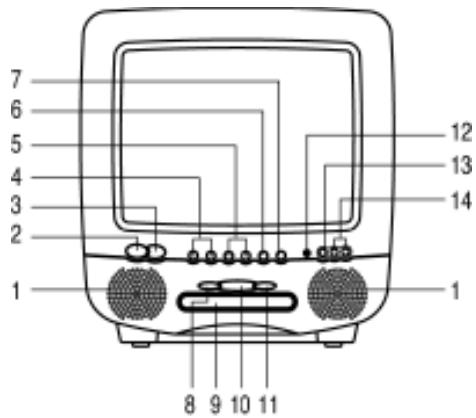
- Speaker
- Power Button
- Remote Sensor
- Channel Buttons
- Volume Buttons
- TV Menu Button
- TV/AV/DVD Button
- Open/Close Button
- DVD Loader
- DVD Play Button
- DVD Stop Button
- Earphone
- Front Video Input
- Front Audio Input
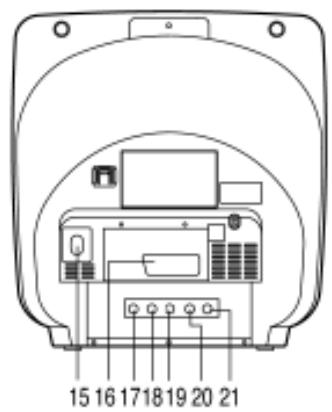
- 75 ohm Antenna
- Scart connector
- Audio digital Out Socket (For DVD only)
- Audio out (R) for DVD
- Audio out (L) for DVD
- Video out for DVD
- S-Video out for DVD
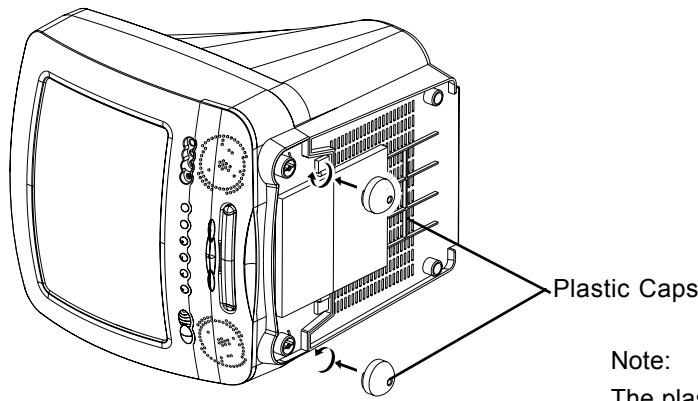
Note:
The plastic caps supplied with the set are just for the foot decoration.
DESCRIPTION OF CONTROLS
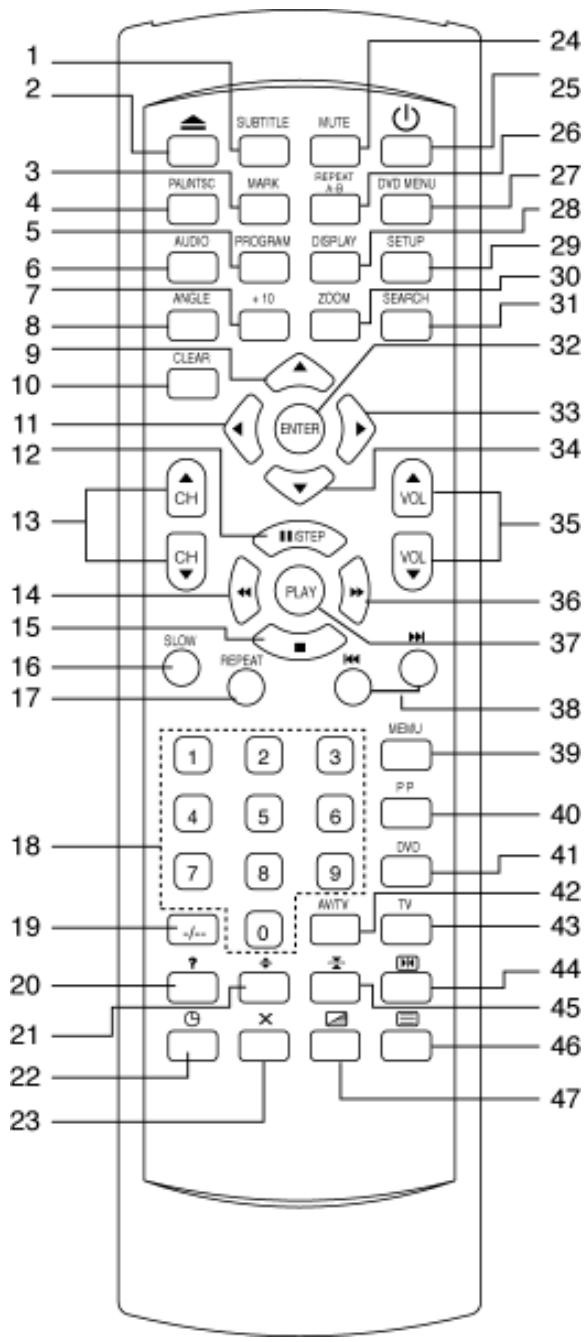
- DVD Subtitle Button
- Eject Button
- Mark Button
- PAL/NTSC Button
- Program Button
- Audio Button
- +10 Button
- Angle Button
- Direction Up Button
- Clear Button
- Direction Left Button
- Pause/step Button
- TV Channel Buttons
- Fast Reverse Button (Back)
- Stop Button
- Slow Buttons
- Repeat Button
- Numeric Buttons
- Two Digit program button
- Teletext Conceal Buttons
- Teletext Enlarge Button
- Teletext Time Display Button
- TV System/Teletext Cancel Button
- Mute Button
- Stand-by button
- Repeat A-B Button
- DVD Menu Button
- Display Button
- Setup Button
- DVD Zoom Button
- Search Button
- DVD Enter Button
- Direction Right Button
- Direction Down Button
- Volume Buttons
- Fast Forward Button (Next)
- Play Button
- DVD Skip Backward/Forward Button
- TV Menu Button
- TV Personal Preference Button
- DVD Button
- AV/TV Button
- TV Button
- Teletext Index Button
- Teletext Stop Button
- Teletext/TV Mode Button
- Teletext Mix Mode Button
BATTERY INSTALLATION
-
Open the battery compartment cover.
-
Install two "AA/UM-3" (penlight size) batteries.
-
Replace the cover.

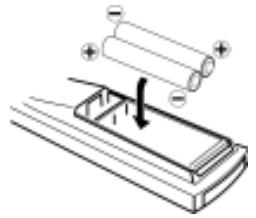
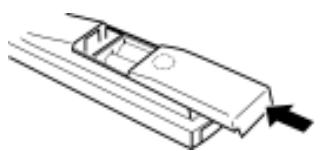
BATTERY CAUTIONS
- Use two "AA/UM-3" size penlight batteries for the remote control handset.
- The batteries may last approximately one year depending on how much the remote control is used. For best performance it is recommended batteries be replaced on a yearly basis, or when remote operation becomes erratic.
- Do not mix old and new batteries.
- Weak batteries can leak and severely damage the remote control transmitter. Always remove batteries as soon as they become weak.
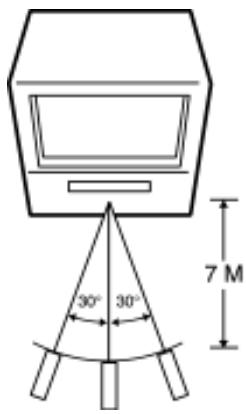
The following cases, the remote control may not operate:
- When there is an obstacle between your TV/DVD and the remote control.
- If you try to operate your TV/DVD from a distance greater than 7 metres.
- If you try to operate your TV/DVD away from the normal viewing angle (over 30° either side of the remote sensor).
NOTE: When direct sunlight, an incandescent lamp, fluorescent lamp or any other strong light shines on the remote sensor, the remote control operation may be unstable.
ANTENNA CONNECTION
Connect an indoor or outdoor antenna to the antenna socket (15) at the rear panel.
For all antenna circuit problems, please consult your local dealer.
EXTERNALANTENNA
The type of antenna required depends on the position of your home, it's distance from the transmitter and local interference. If you do not have an antenna and you are uncertain of what to buy, you should seek the advice of a local antenna contractor.
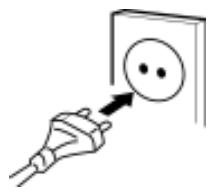
POWER SOURCE
Insert the AC Outlet cord plug into 230V/50Hz AC outlet.
After you have connected the Antenna and Power source, you must check that your TV/DVD is properly installed.
Press MAIN POWER switch on the front panel, the red standby indicator will light.
Turn on your TV/DVD by pressing POWER on the front panel or on the remote control.
Connect your TV aerial to the aerial input socket located on the back of the TV.
Push the Main Power Switch, Power Indicator will be illuminated. After a few seconds the TV screen will light up. Should white dots appear on the screen the TV will require tuning into the available TV stations in your area.
Pre-setting the TV stations into the Memory
(Note: Preset tuning can only be carried out in TV Mode)
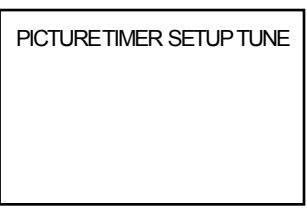
- Press MENU button to see main MENU.
- Press the VOL button to select TUNE mode as shown in figure 1.
FIG.1
AUTOSEARCH
- Press the CH button to select the AUTO SEARCH (auto memory store) mode as shown in figure 2.
-
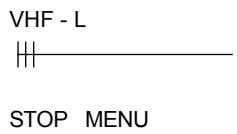
Press the VOL button to start the automatic scanning processes, the on air stations will automatic store into memory as shown in figure 3.
-
When scanning is completed, the set will tune to lowest program and show lowest program number on the screen.
- If want to stop auto search function, press the MENU button.
FIG.2
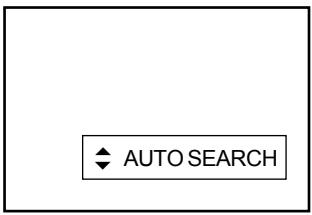
FIG.3
SEARCH (manual)
- Press the MENU button to see main MENU.
- Press the VOL to select TUNE MODE.
- Press the CH Button to select the SEARCH mode and press the VOL to start the station search. The station will stop when the station is tuned in.
- Press the CH to select the desired COLOUR system, SOUND system, PROGRAM position, and press the VOL to select.
- If the station is not clear, to select the FINE TUNE and press VOL to tune the station until the picture is clear.
- Press the CH to select the STORE and press the VOL to store the data into memory.
PICTURE
- Press the MENU button to see main MENU.
- Press the VOL button select the PICTURE mode.
- Press the CH button to select the BRIGHTNESS / COLOUR / CONTRAST / SHARPNESS as show in figure 4.
- Press the VOL button to adjust the level of currently selected item, The steps can be adjusted from 0 63 .
FIG.4
BRIGHTNESS 30
TIMER
- The TV can switch ON/OFF the power automatically by the following procedure.
- Press the MENU button to main MENU.
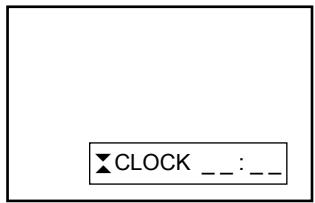
- Press the VOL button to select the TIMER mode, press the CH button to adjust the clock time as shown in figure 5.
- Press the VOL button to adjust the hour time 17: _;
Press the CH button to select the minute 17:00;
Press the VOL to adjust the minute time 17:30
- Continue press the CH and VOL button to set the ON TIME: ON PROG. OFF TIME:
To make the timer function effective, the TV must set to standby mode, after process is completed.
SETUP
- Press the MENU button to see main MENU.
- Press the VOL button to select SETUP mode.
LANGUAGE
- Press the CH button to select the language, as shown in figure 6.
- Press the VOL button to select the desire ENGLISH, RUSSIAN, DUTCH, ITALIAN, GERMAN, FRENCH, SPANISH, PORTUGUESE Lauguages.
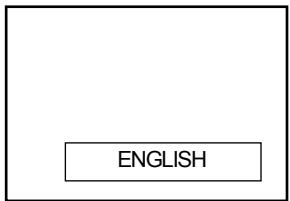
FIG.6
BLUE BACK (blue back-ground)
Press the CH button to select the BLUE BACK, press the VOL button to set the blue background ON / OFF.
CHANNEL SELECT AND VOLUME CONTROL
1) Press CH. buttons to select TV station. (TV Mode Only)
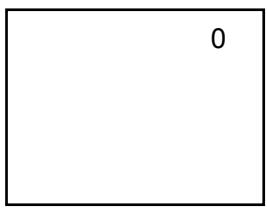
Press CH."T", the program no. will appear on the top right corner and change from higher no. to lower no.
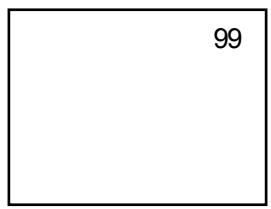
Press CH. "▲", the program no. will change from lower no. to higher no.
2) Press VOL / λ to ADJUST sound level.
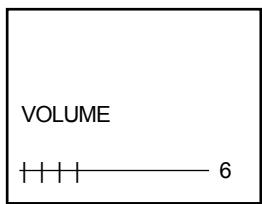
TV/AV/DVD Mode Button (on the main unit)
If video/audio input socket are in use, press AV/TV Mode button, "AV" will display on the top right corner of the screen.
- Press TV/AV/DVD button to turn on DVD. In duration on changing to DVD mode, the screen is dark as it will take a few seconds to show up the" DVD"at the TOP right corner of the screen.

TO SELECT TV STATION USING THE PROGRAM NUMBERS:
- Program Number Up and Down [13]
Press the CH. " " or " " button to select a higher or lower program number.
- 0 - 9 Digit Button
To select TV stations using program numbers 0 - 9. The selected program number will be shown in the left corner of the top of screen in yellow colour.
For example:
Press "9" digit button to select program "9".
- Two Program Number [19]
To select TV station using program numbers "10" - "99".
For example: selecting program 12
- Press the button "-/- -"
- Then press the number "1" button, on screen will show "1-"
-
Then press the number "2" button, channel "12" will show.
-
Personal Preferences Button ( PP ) [40]
Press (PP) button to select the picture effect.

Stand-By Button ( ) [25]
- Press the " " button to switch ON/OFF the picture and sound.
- To switch on the TV from stand-by mode, just press any desired program number (0-9).
Mute Button [24]
- Press the mute button to switch OFF the sound, press once again to switch ON the sound.
TV Mode Button [43]
- Press the TV Mode button to select the TV mode.
TV/AV Mode Button [42]
- Press the AV/TV mode Button to select AV mode, press again back to TV mode.
DVD Mode Button [41]
Press the DVD Button to select DVD mode.(It need a few seconds to start the DVD).
NOTE:
- The transmission code of the remote control is different between TV and DVD, before using the remote control handset to control the TV, press the TV button. To control the DVD, press the DVD button, to make sure the transmission code is correct for TV and DVD, otherwise some keys on the remote hand set will not function.
Teletext - is an information system that displays text on your TV screen. Using the Teletext information system you can select a page of information on a subject that is available in its list of contents (index).
To Operate Teletext
- Press the TV Mode Button .
Select a TV station on which Teletext is being transmitted (check with a TV programme guide). - Press the Teletext Button ( l ) [46]
The list of contents (index) is displayed on the screen. - To select a Page of Teletext
Press the appropriate Digit button for the required Teletext page number.
The selected page number is displayed at the top left corner of the screen. The Teletext page counter searches until the selected page er is located, so that the required information is displayed on the screen. - Program + (CH)
Press the CH " + " button to set up to the next higher teletext page. - Program - (CH)
Press the CH " - " button to set up the next lower teletext page. - Press the (串) button to return the teletext page to page number 100.
To Exit Teletext
Press the TV Mode button, the previously selected TV station appears again on the screen.
Mix Mode Button (
- Press button "☑" to superimpose the text over the TV program on the screen.
- Press once again to return to Teletext page.
EnlargeButton()
- Press button " α " to display top half of the page at double height text.
Press again to display bottom half of the page. - Press again to get full page at normal height text.
StopButton()
More information may follow the page of Teletext you have selected, and it is automatically displayed after a short period of time.
- Press button " 1/2 " to hold the page.
Press again to resume automatic page changing.
Cancel Button (x) (System)
To switch between Teletext and TV programme.
- Press button "x" the TV programme appears.
Press once again to return to the Teletext page.
Conceal Button (?)
Sometimes a Teletext page contains concealed information, for example, in a quiz or puzzle.
- Press button "?" to display the concealed information, press once more to clean.
To Display the Time ( ⊙ ) (In TV Programme Mode)
- Press button " ", the current time is displayed in the top right corner of the screen (e.g. 21:00).
- Press the button again to remove the time display.
NOTE : The time can only be displayed when Teletext is available on the selected TV station.
To Select a Subcode Page
Subcode pages are subsections of long Teletext pages that can only be displayed on the screen one section at a time.
- Select the required Teletext page.
Press the 日 ^ 日 button. - Press a digit button (for the required subcode page).
- If the subroutine page is not immediately available then press the "X" button to return to the TV programme. When the subroutine page becomes available, the subroutine number is displayed in the top left corner of the screen.
- Press the "X" button to display the postcode page.
BASIC OPERATION
- Press TV/AV/DVD button on the unit to turn on DVD on.
- Press OPEN / CLOSE (EJECT) button to load disc on disc tray.
-
Press OPEN / CLOSE button to close the tray.
-
Hold the disc without touching either of its surfaces, position it with the printed title side facing up, align it with the guides, and place it in it's proper position.
DVD Setup Mode
- Setup Mode provides the menu for the configuration of TV mode, Speakers mode, Dolby mode and user preference.
- To exit the Setup Menu, choose the EXIT option in the Setup Menu and press ENTER, or press the Setup Button.
Setup Menu Items
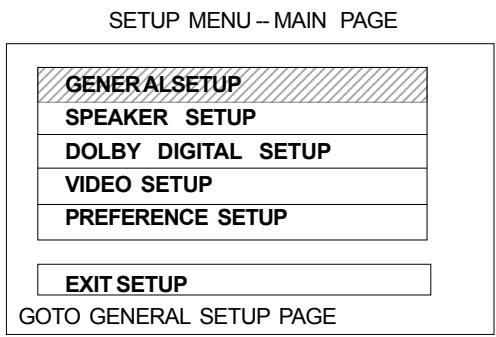
Press the SETUP Button on the remote controller. The following menu
will be shown :
NOTE: (The setup manual display in stop mode only)
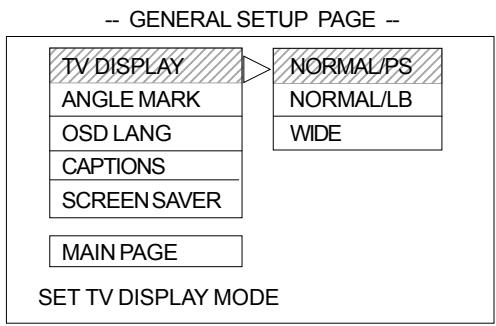
GENERAL SETUP
TV DISPLAY
Normal/PS
This is selected when the DVD player is connected to a normal TV. Wide-screen images are shown on the screen, but with some parts cut automatically
Normal/LB
This is selected when the player is connected to a normal TV. Wide-screen images are shown on the screen, with black belt on the top and bottom.
WIDE
This is selected when the player is connected to a wide-screen TV.
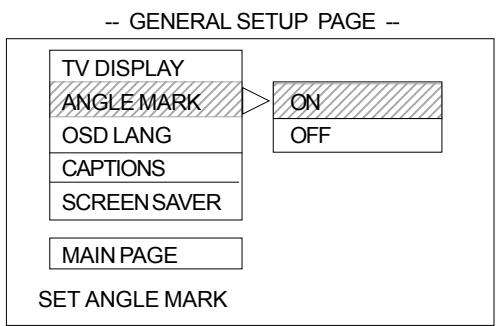
ANGLE MARK
This only works when there is an angle mark on the disc. Select
ON, the screen shows the mark when playing DVD.
- On
- Off
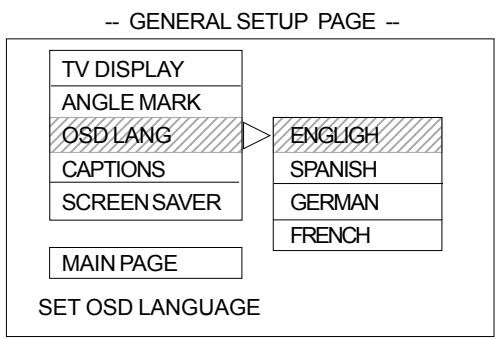
OSD LANGUAGE
This is used to select the OSD language.
- ENGLISH
SPANISH
GERMAN
FRENCH
CAPTIONS
This option can show or hide the captions.
- On (Show captions)
- Off (Hide captions)
SCREENSAVER
Start the screen saver, the screen saver image appears when the player stops or the image is frozen for a few minutes. This saver can keep the screen from being damaged.
On (Start the screen saver).
- Off (Remove the screen saver).
MAIN PAGE
Go back to the Setup Main Menu.
SPEAKER SETUP
DOWNMIX
LT/RT
A disc recorded multi channel soundtrack, the output signal will be incorporated to left and right channel.
STEREO
A disc recorded multi channel soundtrack, the output signal will be incorporated to stereo.
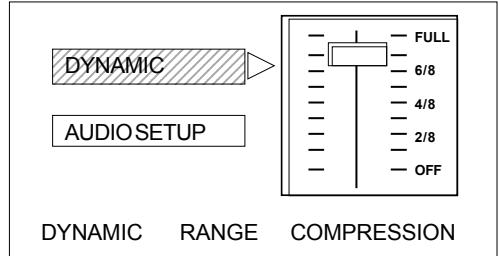
DYNAMIC
This option is used to set the compression ratio in order to control the sound (volume) contrast.
MAIN PAGE
Go back to the Main Page
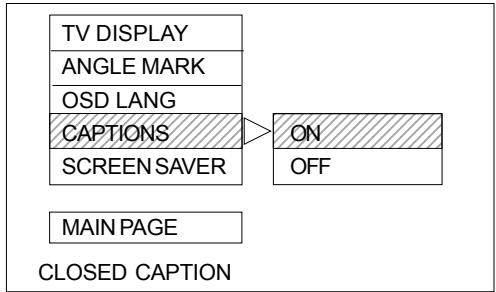
-- GENERAL SETUP PAGE --
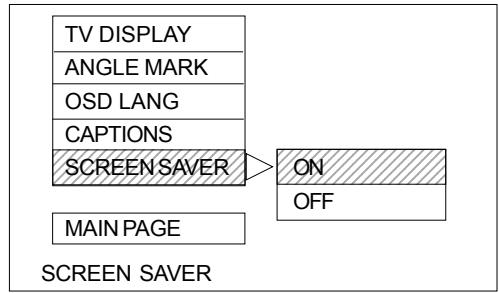
-- GENERAL SETUP PAGE --
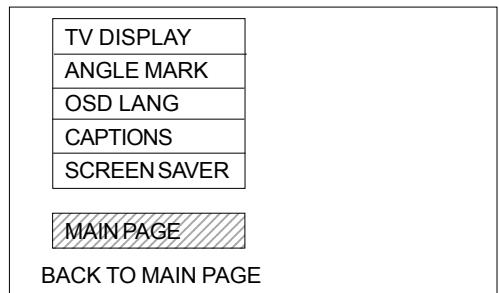
-- GENERAL SETUP PAGE --
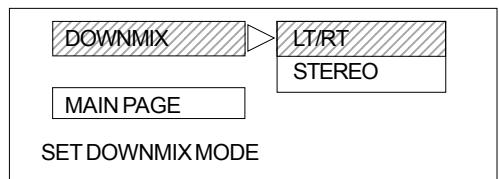
-- SPEAKER SETUP PAGE --
-- DOLBY DIGITAL SETUP --
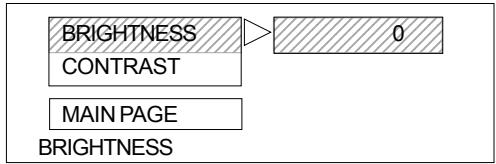
User can set the level of brightness for the image displayed. It is ranged from -20 to 20.
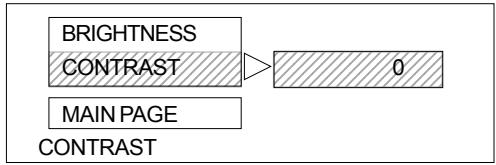
CONTRAST
User can set the level of contrast for the image displayed. It is ranged from -16 to 16.
MAIN PAGE
Go back to the main setup menu.
PREFERENCE SETUP
TV TYPE
- NTSC
This is selected when the player is connected to an NTSC TV.
MULTI
The player will set the TV standard according to the disc in the tray.
PAL
This is selected when the player is connected to a PAL TV.
AUDIO
If a language listed below is recorded on the disc, you can play the sound in such language. If not, the language recorded will be used.
- ENGLISH
FRENCH
SPANISH
GERMAN
SUBTITLE
If a language listed below is recorded on the disc, you set the subtitle to be displayed in such language. If not, the language recorded will be used.
- ENGLISH
FRENCH
SPANISH
GERMAN
DISC MENU
If a language listed below is recorded on the disc, you can set the Menu to be displayed in such language. If not, the language recorded will be used.
- ENGLISH
FRENCH
SPANISH
GERMAN
--VIDEO SETUP PAGE --
--VIDEO SETUP PAGE --
--VIDEO SETUP PAGE --
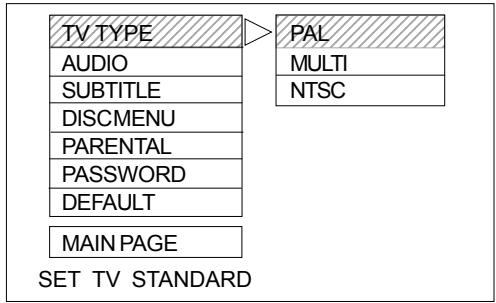
-- PREFERENCE PAGE --
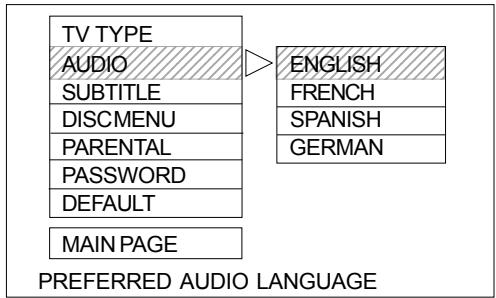
-- PREFERENCE PAGE --
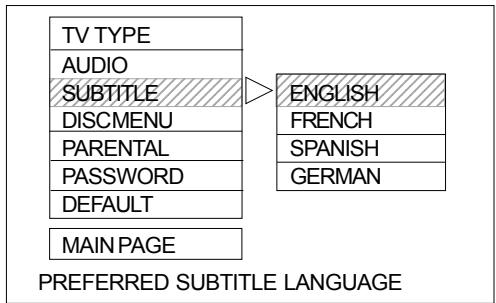
-PREFERENCEPAGE-
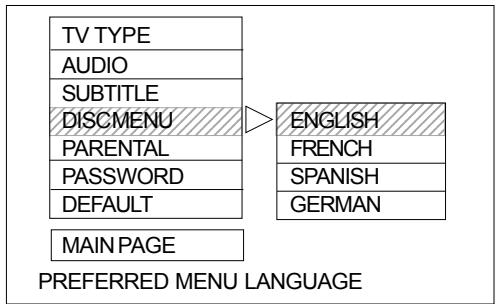
--PREFERENCEPAGE
PARENTAL
When playing disc with parental lock function, you may select an age control grade according to grade of disc and your own preference. For example, if PG is selected, DVD Video disc rated higher than the PG grade cannot be played.
KID SAF
G
PG
PG13
PGR
R
NC17
ADULT
OFF
Password
User can change the password that is required when the user wants to change the Age Control Grade in the Parental Lock function.
NOTE: (The factory setting is 1369)
DEFAULT
User can load the original factory setting by choose RESET and press ENTER.
- RESET
MAIN PAGE
Go back to main setup menu.
EXIT SETUP
Quit the Setup Menu.
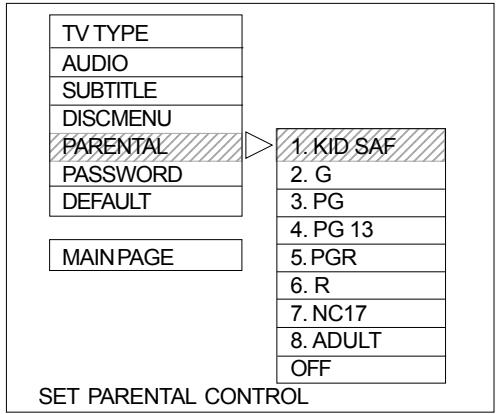
-- PREFERENCE PAGE --
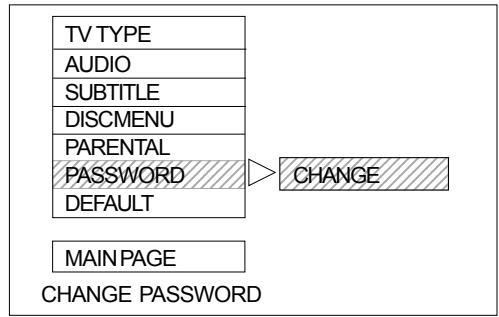
-- PREFERENCE PAGE --
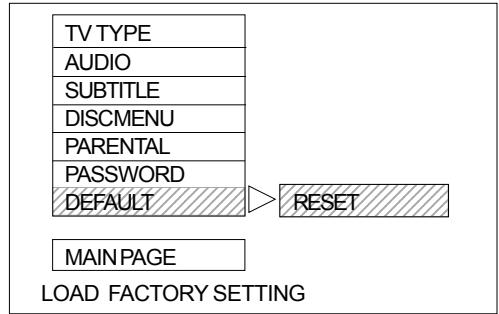
-PREFERENCE PAGE -
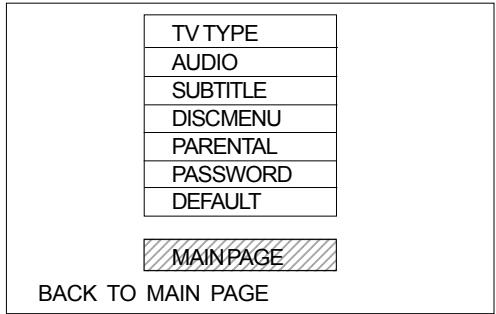
-- PREFERENCE PAGE --
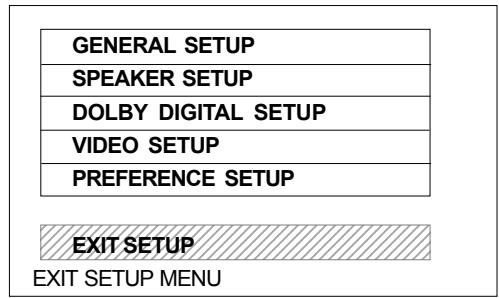
--SETUP MENU--MAIN PAGE--
Play Discs
- Press the OPEN/CLOSE Button ( ) on the front panel and load the Disc on the tray.
The label side should be facing upwards. For a Double-sided DVD Disc, put the disc with label A/1 up.
- Press the OPEN/CLOSE ( ) button again to close the tray and the disc will be loaded.
-
The Disc will be played automatically.
-
If it is a DVD disc, it will show the Menu/Title Page on the screen.
If it is a CD, it will play the first track directly. -
Press the STOP Button (■) if you want to stop the Disc playback You can resume playback by pressing the PLAY button and it will start at the location where you have pressed stopped (Resume Play).
- Press the STOP Button twice to have the Disc really stopped.
PAUSE Mode
This function is applicable for DVD and CD audio.
-
For DVD, the picture will become static.
For CD audio, it will become silent. -
Press the PAUSE Button (I) will cause the player to enter Pause mode.
- Press the PLAY Button or PAUSE Button again will resume to Play State.
OSD
There are 4 OSD languages embedded in the DVD Player : English,Spanish,German and French.
- Press the SETUP button on the remote controller to enter the setup menu main page.
- Choose General Setup through the Navigation Arrows (▶▶▲▼)
- Go to the OSD LANG option and use the Navigation Arrows to do the selection.
- Press ENTER to confirm.
- Press SETUP again to quit the Setup menu.
DVD Menu Play
The DVD Menu Play function is only applicable for DVD movie.User can access the Casting information, Production History, Movie Introduction etc. directly through this function.
- Press the DVD MENU Button on the remote controller to enter the Root Menu.
- Use the Navigation Arrows ( ) or input the item index through the Number keys (0-9) to do the selection.
- Press ENTER to confirm the selection.
Select with Number Button (0-9)
When using the Number Buttons as input, user is always required to enter two digits. For example, to input the number '3', user has to press '0' and '3'.
During a DVD movie playback, input through the Number Buttons will select the Chapter in the current title.
- When playing audio CD, Number Key press will command the player to access the track indicated
Audio Mode
This function is applicable only for DVD.
- For a DVD disc, pressing the AUDIO Button will change the language of playback.
Fast
This function is applicable for DVD and CD audio but with different effects. The FAST FORWARD (▶) key and FAST BACKWARD (↔) key are used to achieve fast play function.
- For DVD, there are 4 different levels of speed (2x, 4x, 8x, 16x). Every successive key press will increment the speed of quick play.
Note: Press PLAY Button at any stage will resume to normal speed.
For CD audio, the FAST FORWARD () key and FAST BACKWARD () will perform quick rolling on the music output.
Press PLAY and the playback will resume to normal speed.
SKIP
During playback, press one of the SKIP buttons (▶ /▶)
- A number of chapters or tracks equal to the number of times the button is pressed is skipped
- When the button is pressed once, the pickup returns to the beginning of the currently playing chapter or track.
- When the button is pressed twice, the pickup jumps to the beginning of the previous chapter or track.
- When the button is pressed once, the pickup goes to the beginning of the next chapter or track.
- In some cases the menu screen may reappear when one of the SKIP buttons is pressed during menu playback on DVD/CD.
Slow Play
The Slow Forward is applicable for DVD. There are 4 steps of slow motion speed, 1/2, 1/4, 1/8, 1/16. Successive key presses will decrement the playback speed.
Note : Press Play Key to switch back to normal playback speed.
Repeat Mode
This function is applicable for DVD and CD audio but with different effects.
- For DVD disc playback, user can choose to repeat the current chapter or the current title. Subsequent key press of the REPEAT key can change between these two options.
- For CD, user can choose to repeat the current track or the whole disc (Repeat All). Subsequent key press of the REPEAT key can change between these two options.
Repeat AB
This function is applicable for DVD and CD audio. User can specify the repeating interval by marking the starting point and the end point.
- Press the REPEAT AB Button to mark the starting point (Playback will continue).
- Press the REPEAT AB Button to mark the end point.(The marked part will be repeated automatically)
Note : Press the REPEAT AB Button during repetition will disable the Repeat mode.
Subtitle
This function is only applicable for DVD disc. It can change the subtitle language shown on the screen.
Note : Number of subtitle available depends on the DVD disc.
Angle
Some discs may have multiple viewing angles during production. The ANGLE button is to select the viewing angle shown on the screen. Note : The number of Angle of View depends on the Disc.
Search
This function is applicable for DVD and CD audio. Through this function, the user can access a specific location or a specific track by key in the target time or the track number.
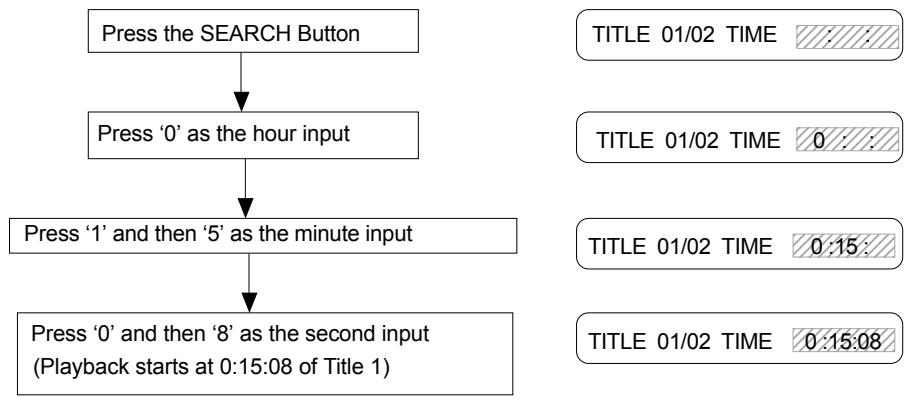
In the DVD playback mode, the player provides two search modes : Search Chapter Time and Search Title Time.
- Press the SEARCH key to choose a search mode (Title time / Chapter time).
- Input the target time through the Number keys (0-9) and the player will jump to the target location immediately.
-
In CD audio, user can only access the location in the current track.
-
Press the SEARCH key to enter the Search Mode (there is only one mode in CD audio playback).
- Input the target time through the Number keys (0-9) and the player will jump to the target location immediately.
Display (Remain Time)
This function is applicable for DVD only. It will display the timing information of the playback on the screen.
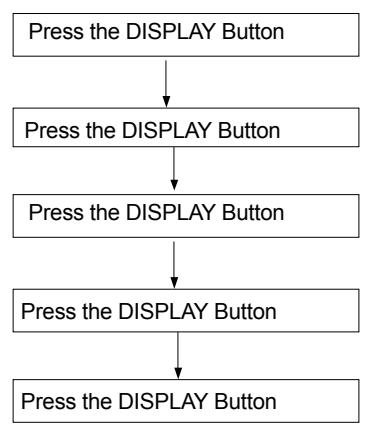
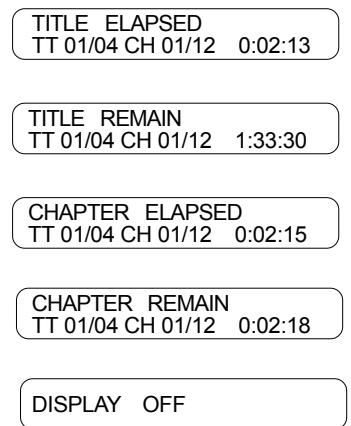
- For DVD playback, subsequent key press on the DISPLAY key will show the Title Elapsed Time, Title Remain Time, Chapter Elapse Time and Chapter Remain Time one by one.
Resume Play
This function is applicable for DVD and CD audio. During the disc playback, when the STOP Button is pressed once, the player will enter the Resume Play mode. At this time, if the PLAY Button is pressed, the player will resume playback at the location where the STOP Button is pressed. If the STOP button is pressed (i.e. STOP Button is pressed twice), the player will be Stop.
Zoom
This function is applicable for DVD . User can enlarge a static picture or a moving picture by pressing the ZOOM key. There are 3 levels of zooming (2x, 3x and 4x) and they can be achieved one by one through subsequent key presses on the ZOOM key.
NOTE: user can select the portion of the picture to be enlarged by using the Navigation keys ( ▲▼).
Program Mode
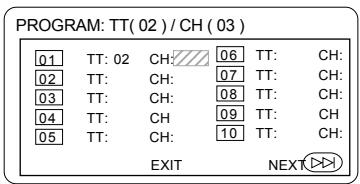
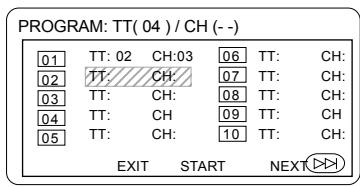
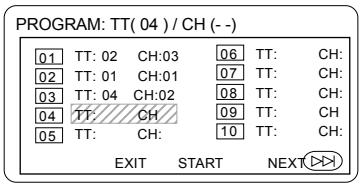
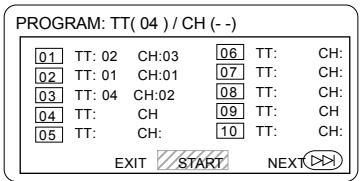
This function is applicable for DVD and CD audio. User can assign the playback sequence according to his/her preference. For CD audio, user can assign the track sequence while for DVD disc, user can assign both the Title and Chapter sequence.
CD
- Press the PROGRAM Key. The Program Sequence table will be shown on the screen.
- Enter the track numbers according to the user preference through the Number keys (0-9).
- After assigning the playback sequence, move the highlight cursor to the START option by using the Navigation Arrows.
Press ENTER on the remote controller to confirm.

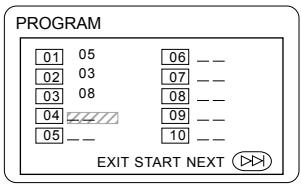
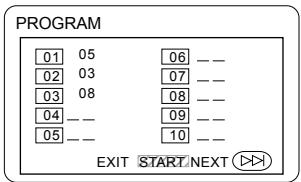
To remove the program :
- Press the PROGRAM Key to invoke the Program Menu.
- Move the highlight cursor to the STOP option by using the Navigation Arrows.
- Press ENTER to confirm.
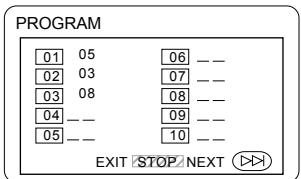
DVD
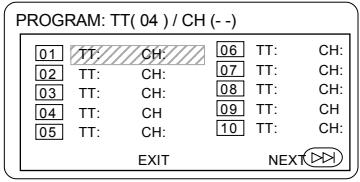
- Press the PROGRAM Key. The Program Sequence table will be shown on the screen.
- Enter the Title number with the Number keys (0-9) on the remote controller.
- Enter the Chapter number of the Title selected in the last step.
- Repeat step 2 - 3 to input the sequence.
- After assigning the playback sequence, move the highlight cursor to the START option by using the Navigation Arrows. Press ENTER on the remote controller to confirm.
Note : The Program can be removed in the same ways as CD audio.
This unit can support ISO9660 file system CD-ROM navigation. Multi-Media files such as MP3 thus can be played in the player.
Operation
- Insert the MP3 disc into the tray. Navigation Menu will be displayed. The menu will show up the files in the root directory, and the MP3 files then be play automatically.
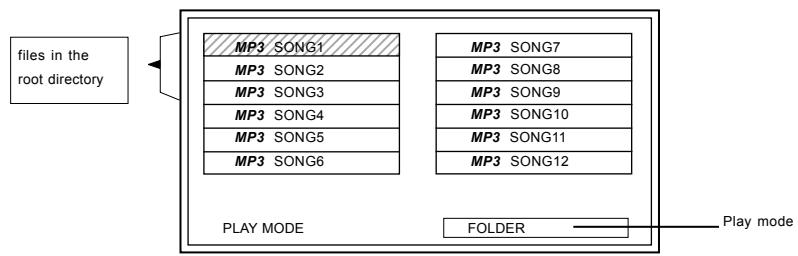
Play Mode
User can change the Play Mode by accessing the PLAY MODE field through the LEFT/RIGHT Navigation Arrows in the menu.
There are five different play modes when playing MP3 disc.
- FOLDER
All the files in the current folder will be played once in sequence.
- SINGLE
The selected file will be played once in sequence.
- REPEAT ONE
The selected file will be repeated.
- REPEAT FOLDER
All the files in the current folder will be repeated.
- SHUFFLE
The selected file will be played in shuffle.
PICTURE CD
The unit can also be used to navigate picture CDs. Insert a picture CD into the tray and the disc will be loaded automatically. If the disc type can be identified, the player will start showing the pictures one by one (Slide Show Mode).
Operations
During Slide Show Mode: -
- Press the STOP Button will shift to the Digest Mode in which 12 pictures will be shown on the screen each time.
- Press the PAUSE Button will freeze the screen so that the current picture can be held for a long time. To resume the slide show mode, press PLAY Button.
- Press the NEXT Button on the remote controller will skip the next picture.
- Press the PREVIOUS Button on the remote controller will repeat the current picture.
- When all the pictures have displayed once, the player will enter the Digest Mode automatically.
TV SECTION
Receiving Channels
VHF
CH2-4
VHF
CH5-12
UHF
CH 21-69
Hyperband
S1-S41
Tuner Type
100 Channel, VS TUNING
DVD SECTION
Laser Wave length 655nm
Laser power : Class 1
Signal System PAL
Digital audio output Coaxial digital output; pin jack
S-video Y output level 1Vp-p (75 Ohm);
C output level 0.300Vp-p (75 Ohm) (PAL),
0.286Vp-p (75 Ohm) (NTSC)
Headphone
Stereo in DVD mode
Mono in TV mode
GENERALSECTION
AC Power Input 230V\~ 50 Hz
AC Power Consumption 80W
Speaker 3" 8ohm x 2
Audio Output 2W + 2W
Dimensions 420x 409x 390 (mm)
Net Weight 13.5 Kg
Specifications subject to change without notice.
Importer AKAI Benelux-Elmarc B.V.
Information: www.akai.nl
- CT-S14MTD-E3: 14 INCH (37 CM) COLOUR TV/MONITOR WITH DVD/AUDIO CD/MP3/PICTURE CD PLAYER AND REMOTE CONTROL
- FEATURES
- SAFETY INFORMATION
- CONTENTS
- TV OPERATION
- TELETEXT
- DVD PLAYBACK
- ATTENTION
- THE SCART CONNECTOR OUTPUTS ONLY THE TV SIGNAL
- POWER CORD PROTECTION
- PLACEMENT
- NON-USE PERIODS
- FOREIGN OBJECTS
- KEEP AWAY FROM WATER / MAGNETIC FIELDS
- STACKING
- CONDENSATION
- IF THERE IS NOISE INTERFERENCE ON YOUR TV CHANNELS
- TO PROTECT THE UNIT DURING A THUNDER STORM
- NOTE
- DESCRIPTION OF CONTROLS
- BATTERY INSTALLATION
- BATTERY CAUTIONS
- ANTENNA CONNECTION
- EXTERNALANTENNA
- POWER SOURCE
- PRE-SETTING THE TV STATIONS INTO THE MEMORY
- AUTOSEARCH
- SEARCH (MANUAL)
- PICTURE
- TIMER
- SETUP
- LANGUAGE
- BLUE BACK (BLUE BACK-GROUND)
- CHANNEL SELECT AND VOLUME CONTROL
- TV/AV/DVD MODE BUTTON (ON THE MAIN UNIT)
- TO SELECT TV STATION USING THE PROGRAM NUMBERS
- STAND-BY BUTTON ( ) [25]
- MUTE BUTTON [24]
- TV MODE BUTTON [43]
- TV/AV MODE BUTTON [42]
- DVD MODE BUTTON [41]
- TO OPERATE TELETEXT
- TO EXIT TELETEXT
- MIX MODE BUTTON (
- ENLARGEBUTTON()
- STOPBUTTON()
- CANCEL BUTTON (X) (SYSTEM)
- CONCEAL BUTTON (?)
- TO DISPLAY THE TIME ( ⊙ ) (IN TV PROGRAMME MODE)
- TO SELECT A SUBCODE PAGE
- BASIC OPERATION
- DVD SETUP MODE
- SETUP MENU ITEMS
- GENERAL SETUP
- TV DISPLAY
- ANGLE MARK
- OSD LANGUAGE
- CAPTIONS
- SCREENSAVER
- MAIN PAGE
- SPEAKER SETUP
- DOWNMIX
- DYNAMIC
- CONTRAST
- PREFERENCE SETUP
- TV TYPE
- AUDIO
- SUBTITLE
- DISC MENU
- PARENTAL
- PASSWORD
- DEFAULT
- EXIT SETUP
- PLAY DISCS
- PAUSE MODE
- OSD
- DVD MENU PLAY
- SELECT WITH NUMBER BUTTON (0-9)
- AUDIO MODE
- FAST
- SKIP
- SLOW PLAY
- REPEAT MODE
- REPEAT AB
- ANGLE
- SEARCH
- DISPLAY (REMAIN TIME)
- RESUME PLAY
- ZOOM
- PROGRAM MODE
- CD
- DVD
- OPERATION
- PLAY MODE
- PICTURE CD
- OPERATIONS
- TV SECTION
- DVD SECTION
- GENERALSECTION
Brand : AKAI
Model : CTS14MTD
Category : Synthesizer