
MRS-1044 - Audio recorder ZOOM - Free user manual and instructions
Find the device manual for free MRS-1044 ZOOM in PDF.


| Product type | Digital multitrack audio recorder |
| Brand | ZOOM |
| Model | MRS-1044 |
| Number of tracks | 10 (6 mono + 2 stereo) |
| Takes per track (V-takes) | 10 per track |
| Simultaneous recording | 2 tracks (mono or 1 stereo) |
| Simultaneous playback | 10 tracks |
| Rhythm section | 255 built-in drum/bass patterns, pattern creation and rhythm songs |
| Mixer | 13 channels (DRUM, BASS, 1-6, 7/8, 9/10) with volume, pan, 2-band EQ, effect send |
| Built-in effects | Insert effect (4 algorithms: guitar/bass, mic, line, mastering) + send/return effects (reverb, chorus/delay) |
| Bounce function | Yes (ping-pong up to 10 tracks simultaneously) |
| Locator functions | Markers (100), A-B repeat, scrub, preview, locate |
| Punch-in/out | Manual and automatic |
| Input connectors | 2 combo XLR/Jack connectors (1 with dedicated guitar/bass jack) |
| Output connectors | 2 RCA (MASTER), 1 headphone jack, 1 optical digital |
| MIDI | IN/OUT |
| Phantom power | +48 V switchable for XLR inputs |
| Power supply | 12 V DC power adapter included |
| Display | Backlit LCD with adjustable contrast |
| Percussion pads | 8 velocity-sensitive pads |
| Expression pedal / footswitch | Inputs for expression pedal (FP01/FP02) and footswitch (FS01) |
| Maintenance and cleaning | Soft dry cloth; do not use solvents or abrasives |
| Safety | Do not open the case, use only the supplied adapter, avoid extreme environments |
| Expansion options | USB or SCSI card (not included, intended for backup and transfer) |
Frequently Asked Questions - MRS-1044 ZOOM
User questions about MRS-1044 ZOOM
0 question about this device. Answer the ones you know or ask your own.
Ask a new question about this device
Download the instructions for your Audio recorder in PDF format for free! Find your manual MRS-1044 - ZOOM and take your electronic device back in hand. On this page are published all the documents necessary for the use of your device. MRS-1044 by ZOOM.
USER MANUAL MRS-1044 ZOOM
In this manual, symbols are used to highlight warnings and cautions for you to read so that accidents can be prevented. The meanings of these symbols are as follows:

This symbol indicates explanations about extremely dangerous matters. If users ignore this symbol and handle the device the wrong way, serious injury or death could result.

This symbol indicates explanations about dangerous matters. If users ignore this symbol and handle the device the wrong way, bodily injury and damage to the equipment could result.
Please observe the following safety tips and precautions to ensure hazard-free use of the MRS-1044
Power requirements

The MRS-1044 is powered by the supplied AC adapter. To prevent malfunction and safety hazards, do not use any other kind of AC adapter.
When using the MRS-1044 in an area with a different line voltage, please consult your local ZOOM distributor about acquiring a proper AC adapter.
- Environment

Avoid using your MRS-1044 in environments where it will be exposed to:
- Extreme temperature
- High humidity or moisture
- Excessive dust or sand
- Excessive vibration or shock
Handling

The MRS-1044 is a precision instrument. Do not exert undue pressure on the keys and other controls. Also take care not to drop the unit, and do not subject it to shock or excessive pressure.
- Alterations

Never open the case of the MRS-1044 or attempt to modify the product in any way since this can result in damage to the unit.
- Connecting cables and input and output jacks

You should always turn off the power to the MRS-1044 and all other equipment before connecting or disconnecting any cables. Also make sure to disconnect all cables and the AC adapter before moving the MRS-1044
Usage Precautions
- Electrical interference
For safety considerations, the MRS-1044 has been designed to provide maximum protection against the emission of electromagnetic radiation from inside the device, and protection from external interference. However, equipment that is very susceptible to interference or that emits powerful electromagnetic waves should not be placed near the MRS-1044, as the possibility of interference cannot be ruled out entirely.
With any type of digital control device, the MRS-1044 included, electromagnetic interference can cause malfunctioning and can corrupt or destroy data. Care should be taken to minimize the risk of damage.
- Cleaning
Use a soft, dry cloth to clean the MRS-1044. If necessary, slightly moisten the cloth. Do not use abrasive cleanser, wax, or solvents (such as paint thinner or cleaning alcohol), since these may dull the finish or damage the surface.
Please keep this manual in a convenient place for future reference.
Contents
USAGE AND SAFETY PRECAUTIONS 2
SAFETY PRECAUTIONS 2
Usage Precautions 2
Introduction 5
Overview 5
Introducing the MRS-1044 6
Recorder section 6
Rhythm section 7
Mixer section 7
Effect section 7
Parts of the MRS- 1044 and what they do ... 8
Front panel 8
Input section 8
Effect section 9
Rhythm section 9
Display section 10
Fader section 10
TRACK PARAMETER section 11
Control section 11
Transport section 12
Rear panel 12
Side panel 13
Connections 14
Listening to the demo songs 15
Turn on the power 15
Select a demo song 15
Play back the demo song 15
Turn off the power 16
Introductory tour 17
Step 1: Preparations before recording 17
1-1: Load a project 17
1-2: Play the rhythm section accom-paniment 18
1-3: Save the project 19
Step 2: Record the first track 20
2-1: Adjust the input sensitivity and recording level 20
2-2: Set the insert effect 21
2-3: Select a track and record 21
Step 3:Overdubbing 23
3-1: Select an insert effect patch 23
3-2: Select a track, and record 23
Step 4: Mixdown 24
4-1: Adjust the volume, pan, and EQ 24
4-2: Using the send/return effects 26
4-3: Apply an insert effect to the entire song 27
4-4: Perform the mixdown 28
Reference [Recorder] 29
Moving to a desired location in the song
(Locate function) 29
Assigning marks within the song
(Marker function) 29
Assigning a mark 29
Locating to a mark location 30
Deleting a mark 30
Finding a desired location
(Scrub/Preview function) 31
Using the Scrub/Preview functions 31
Changing the settings of the Scrub function 31
Playing back repeatedly (A-B Repeat function) 32
Re-recording only a specified region
(Punch-in/out function) 33
Using manual punch-in/out 33
Using auto punch-in/out 33
Using V-takes 35
Switching V-takes 35
Editing the name of a V-take 36
Combining multiple tracks (Bounce function) 37
Executing bounce recording 37
Making settings for the Bounce function 37
Track editing 38
Copying a specified region of data to another location 38
Copying the data of an entire track 40
Moving a specified region of data to another location 40
Erasing a specified region 42
Erasing the data of an entire track 43
Exchanging the data of entire tracks 43
Capturing the recorded contents of a track 44
Capturing a track 44
Swapping with the captured data 45
Reference [Mixer] 46
About the mixer 46
Basic operation of the input mixer 47
Assigning input signals to recording tracks 47
Adjusting the depth of the send/return effects 48
Adjusting the pan/balance 48
Basic operation of the track mixer 49
Adjusting the volume/pan/EQ 49
Adjusting the effect depth 50
Linking odd-numbered/even-numbered channels 50
Saving/recalling mixer settings (Scene function) .... 51
Saving a scene 51
Recalling a saved scene 52
Deleting a scene 52
Switching scenes automatically 52
Switching the level meter display type 54
Reference [Rhythm] 55
About the rhythm section 55
Playing rhythm patterns 56
Selecting and playing a rhythm pattern 56
Changing the tempo of the rhythm pattern 57
Changing the drum kit / bass program 57
Creating a rhythm song 58
Inputting rhythm pattern data 58
Inputting chord data 60
Inputting tempo data 62
Inputting other data 62
Playing a rhythm song 63
Editing a rhythm song 64
Copying a specific region of measures 64
Transposing the entire rhythm song 65
Erasing the rhythm song 65
Creating an original rhythm pattern 66
Selecting the track that you want to record 66
Recording your pad performance in a rhythm pattern 67
Specifying the chord of a rhythm pattern 69
Editing a rhythm pattern 70
Adjusting the volume balance of the drum kit and bass program 70
Copying a rhythm pattern 71
Editing the name of a rhythm pattern 71
Erase a rhythm pattern 71
Importing rhythm patterns and the rhythm song from another project 72
Editing various settings of the rhythm section 72
Basic procedure 72
Changing the length of the pre-count (COUNT) 73
Changing the metronome volume (CLICK) 73
Adjusting the sensitivity of the pads (PAD SENS) .... 73
Checking the remaining amount of memory (MEMORY) 73
Reference [Effects] 74
About the effects 74
Insert effect 74
Send/return effects 74
Using the insert effect 75
About insert effect patches 75
Changing the insert location of the insert effect 76
Applying the insert effect only to the monitor signal 76
Selecting the patch for the insert effect 77
Editing the insert effect patch 78
Storing an insert effect patch 80
Editing the name of an insert effect patch 81
Using the send/return effects 81
About the send/return effect patches 81
Selecting a send/return effect patch 81
Editing a send/return effect patch 82
Storing a send/return effect patch 83
Editing the name of a send/return effect patch 83
Importing patches from another project 84
Reference [Project] 85
About projects 85
Project operations 85
Basic procedure 85
Loading a project (PROJECT SELECT) 86
Creating a new project (PROJECT NEW) 86
Checking the project size / available hard disk capacity (PROJECT SIZE) 86
Duplicating a project (PROJECT COPY) 87
Erasing a project (PROJECT ERASE) 87
Editing the project name (PROJECT NAME) 87
Protecting a project (PROJECT PROTECT) 87
Storing a project (PROJECT STORE) 88
Reference [MIDI] 89
About MIDI 89
What you can do using MIDI 89
About the MIDI connectors 89
Making MIDI-related settings 90
Basic procedure 90
Setting the drum/bass MIDI channel (DRUM CH/BASS CH) 90
Specifying transmission of Timing Clock messages (CLOCK) 90
Specifying transmission of Song Position Pointer messages (SPP) 91
Specifying transmission of Start/Stop/Continue messages (COMMAND) 91
Reference [Other] 92
Changing the function of the foot switch 92
Using the tuner 92
Preventing digital copying of your master tape 93
Appendices 95
Specifications of the MRS-1044 95
Troubleshooting 96
Problems during playback 96
Problems during recording 96
Problems with effects 96
Problems with the rhythm section 97
Problems with MIDI 97
Other problems 97
Effect type/parameter list 98
Insert effect 98
Send Return effect 105
Effect patch list 106
Pattern list 109
Drum kit / bass program list 113
Pad-Instrument/Note# correspondence table 114
MIDI implementation 116
MIDI implementation chart 117
Index 118
- MIDI is a registered trademark of the AMEI.
Overview
Thank you for purchasing the ZOOM MRS-1044 multitrack recording studio (subsequently referred to as "the MRS-1044"). The MRS-1044 is a digital audio workstation with the following features:
■ Brings together all the functionality you need for complete music production
All the functionality you need for music production – hard disk recorder, drum/bass machine, mixer, effects, and more – is provided by the MRS-1044. From creating the rhythm tracks to the processes of multitrack recording and mixdown, the MRS-1044 lets you do it all.
10-track x 10-take recorder
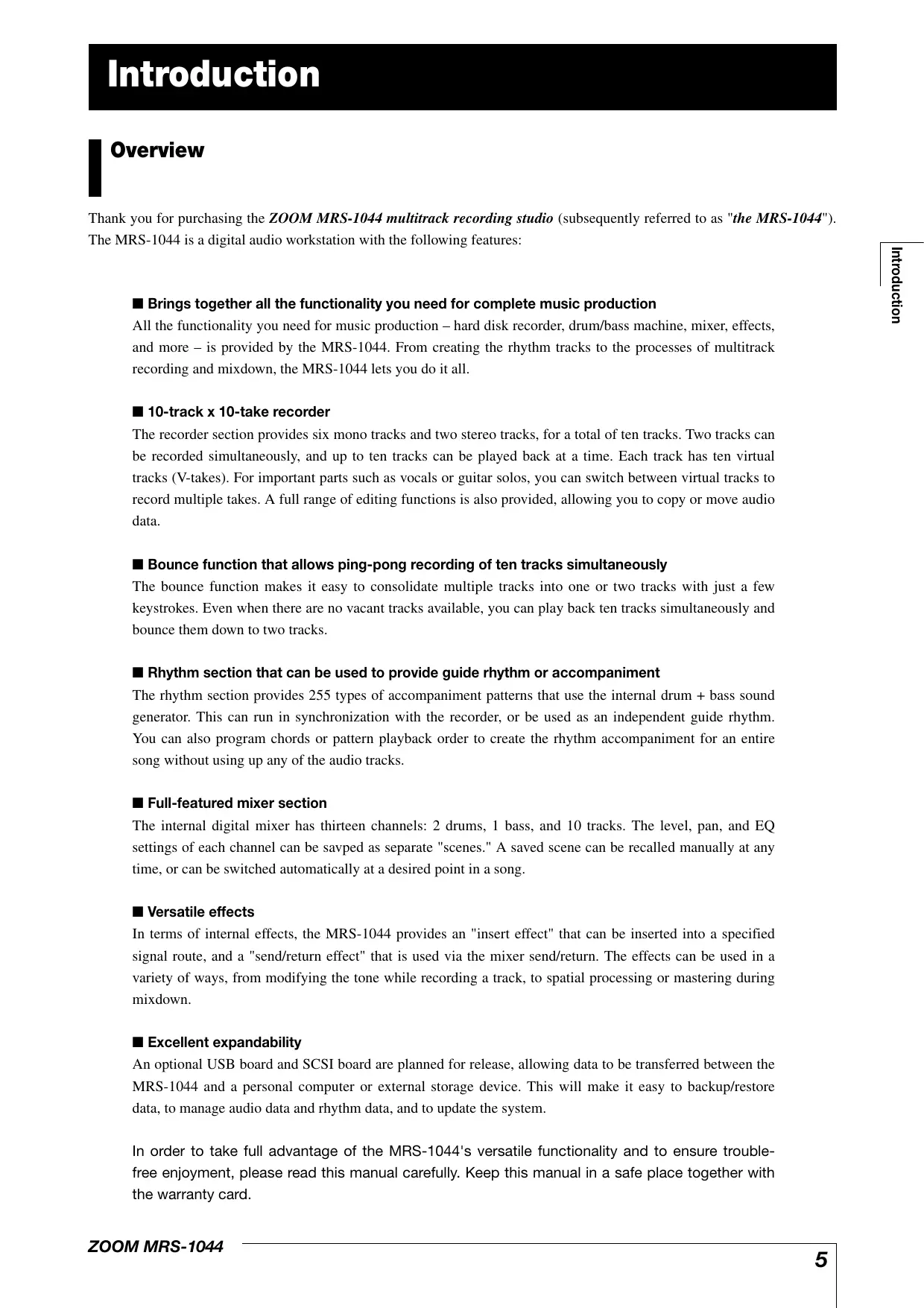
The recorder section provides six mono tracks and two stereo tracks, for a total of ten tracks. Two tracks can be recorded simultaneously, and up to ten tracks can be played back at a time. Each track has ten virtual tracks (V-takes). For important parts such as vocals or guitar solos, you can switch between virtual tracks to record multiple takes. A full range of editing functions is also provided, allowing you to copy or move audio data.
Bounce function that allows ping-pong recording of ten tracks simultaneously
The bounce function makes it easy to consolidate multiple tracks into one or two tracks with just a few keystrokes. Even when there are no vacant tracks available, you can play back ten tracks simultaneously and bounce them down to two tracks.
■ Rhythm section that can be used to provide guide rhythm or accompaniment
The rhythm section provides 255 types of accompaniment patterns that use the internal drum + bass sound generator. This can run in synchronization with the recorder, or be used as an independent guide rhythm. You can also program chords or pattern playback order to create the rhythm accompaniment for an entire song without using up any of the audio tracks.
Full-featured mixer section
The internal digital mixer has thirteen channels: 2 drums, 1 bass, and 10 tracks. The level, pan, and EQ settings of each channel can be savped as separate "scenes." A saved scene can be recalled manually at any time, or can be switched automatically at a desired point in a song.
Versatile effects
In terms of internal effects, the MRS-1044 provides an "insert effect" that can be inserted into a specified signal route, and a "send/return effect" that is used via the mixer send/return. The effects can be used in a variety of ways, from modifying the tone while recording a track, to spatial processing or mastering during mixdown.
Excellent expandability
An optional USB board and SCSI board are planned for release, allowing data to be transferred between the MRS-1044 and a personal computer or external storage device. This will make it easy to backup/restore data, to manage audio data and rhythm data, and to update the system.
In order to take full advantage of the MRS-1044's versatile functionality and to ensure trouble-free enjoyment, please read this manual carefully. Keep this manual in a safe place together with the warranty card.
Introducing the MRS-1044
The MRS-1044 is internally divided into the following four sections.
- Recorder section
This records and plays back audio.
Rhythm section
This uses the internal drum/bass sound generator to play rhythms.
- Mixer section
This mixes the signals from the recorder section and rhythm section, and outputs them from the stereo output jacks.
Effect section
This processes input signals or signals of the mixer section. The MRS-1044 lets you use two effects: an insert effect and a send/return effect.
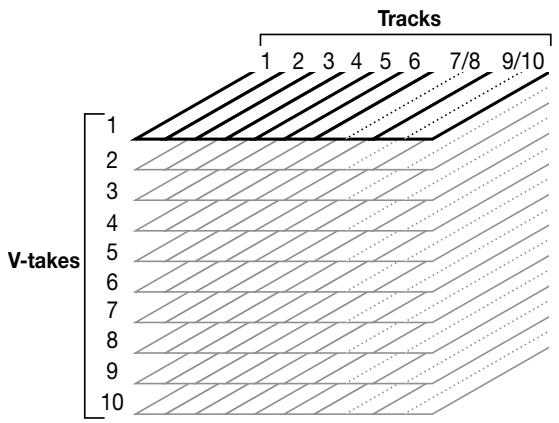
The following diagram shows the relationship and signal flow between each section.
Now let's take a closer look at each section.
Recorder section
The recorder section of the MRS-1044 has ten tracks: six mono tracks (tracks 1 - 6) and two stereo tracks (tracks 7/8 and 9/10). Up to ten tracks can be played back simultaneously, and two tracks can be recorded simultaneously.
Each track 1 - 10 has ten virtual tracks (referred to as "V-takes"), and for each track, you can select one take for recording/playback (Using V-takes p.35). For example, you can record guitar solos onto multiple V-takes, and then compare them later to select the best take.
Rhythm section
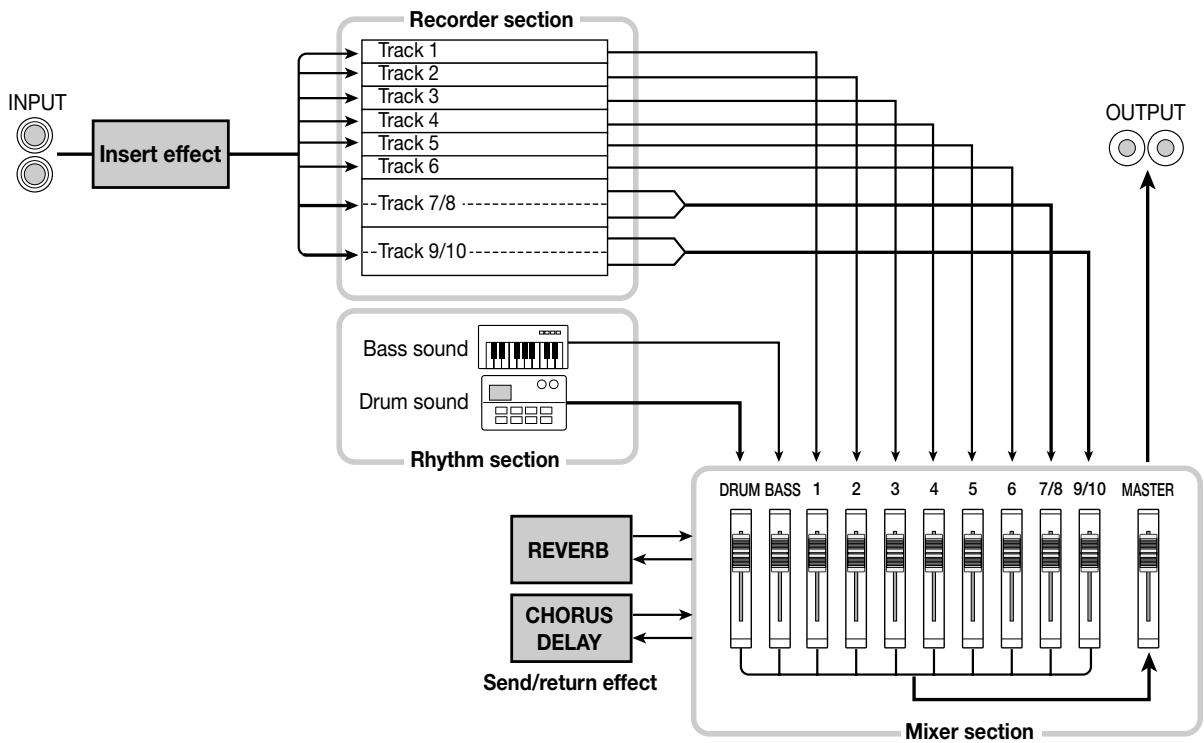
The rhythm section of the MRS-1044 has 255 accompaniment patterns (several measures long) that use the internal drum/bass sound generator. (These are called "rhythm patterns.") Rhythm patterns can be played independently, or in synchronization with the recorder.

HINT
You can also create original patterns by using either the eight pads located on the front panel or through the use of MIDI.
You can arrange rhythm patterns in the desired order of playback, and program chords and tempo to create the rhythm accompaniment for an entire song. (This is called a "rhythm song.") This lets you construct the rhythm accompaniment for a song without using up any audio tracks.
Mixer section
The output of recorder tracks 1 - 6, 7/8 and 9/10, and the drum + bass sound output of the rhythm section are assigned to mixer section channels 1 - 6, channels 7/8, channels 9/10, DRUM channel, and BASS channel respectively. For each channel, the following parameters can be controlled independently.
Volume
Pan
2-band EQ
- Send level to the send/return effect
- Mute on/off
Effect section
The MRS-1044 provides two types of effect: an "insert effect" and a "send/return effect." These two can be used simultaneously. These two effects have differing characteristics, as described below.
Insert effect
This effect is used by inserting it into a specific signal route. You can choose one of the following three locations in which to place the insert effect.
(1) Immediately after the input jack (default setting)
(2) The desired channel of the mixer
(3) Immediately before the MASTER fader
By default, the insert effect is inserted immediately after the input jack (1) as shown in the diagram on p.6, allowing it to directly modify the signal that will be recorded on the track. By changing its location to (2) or (3), you can process a specific track or the entire song during mixdown.
Send/return effect
This effect is internally connected to the send/return of the mixer section. There are two types of effect, reverb and chorus/delay, and they can be used simultaneously.
The depth of the send/return effect is adjusted by the send level of each mixer channel. Raising the send level will produce a deeper reverb or chorus/delay effect for that channel.
Parts of the MRS-1044 and what they do
Front panel
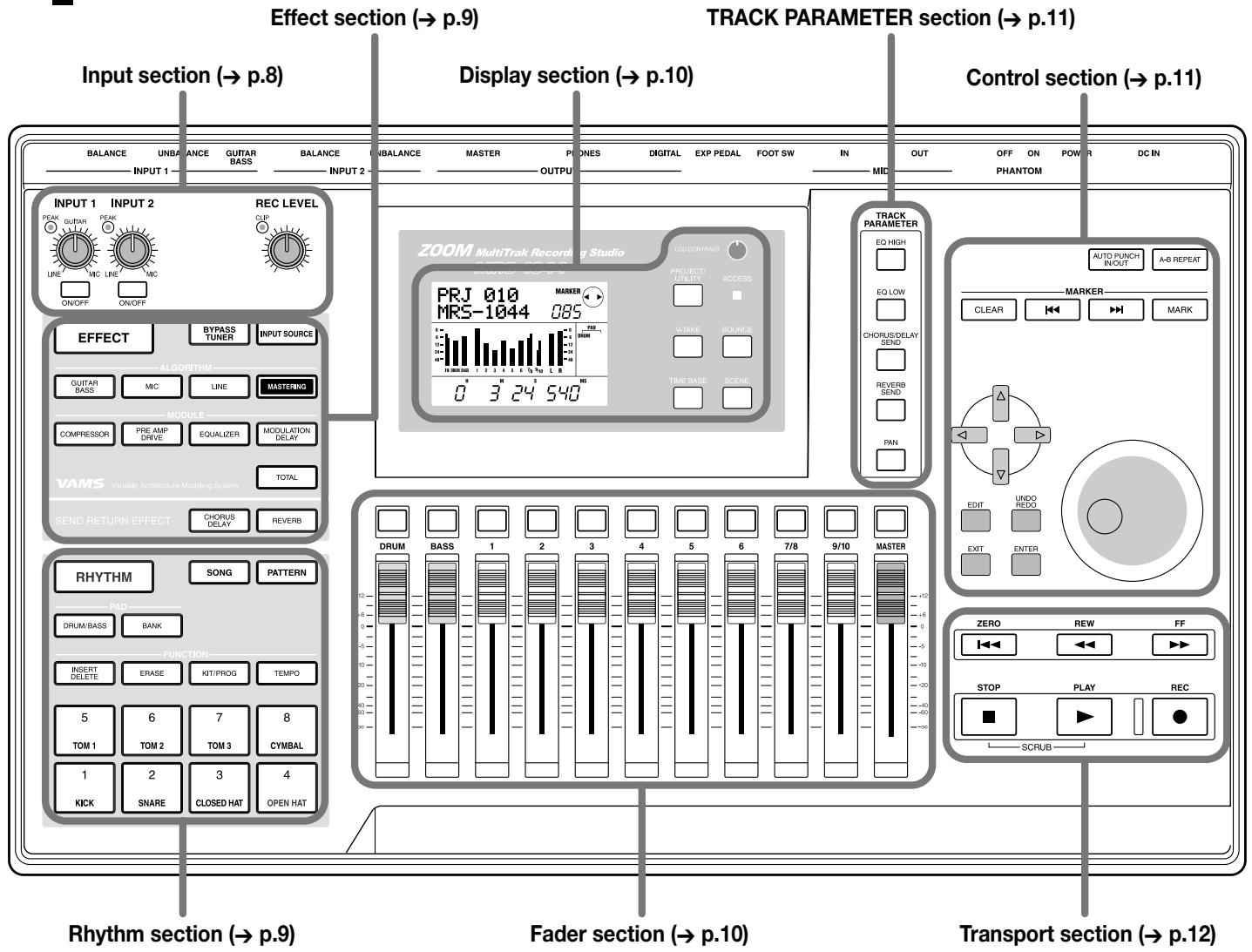
Input section
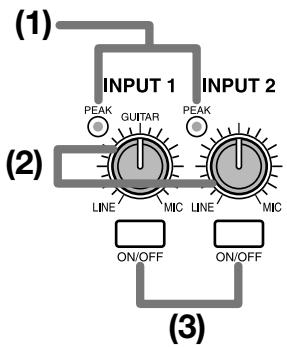
(1)[PEAK] indicators
These show whether the input signal (input source) from the [INPUT 1] and [INPUT 2] jacks is distorting. The indicators will light -6 dB below the level at which the sound begins to distort.
(2) [INPUT 1]/[INPUT 2] controls
These controls adjust the sensitivity of the input signal from the [INPUT 1] and [INPUT 2] jacks.
(3) [ON/OFF] keys
These keys enable/disable [INPUT 1] and [INPUT 2]. When enabled (on), the key will light.
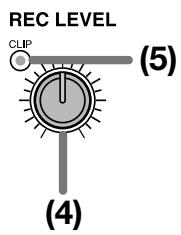
(4) [REC LEVEL] control
This control adjusts the volume of the input signal from the [INPUT 1] and [INPUT 2] jacks.
(5) [CLIP] indicator
This indicator will light if the signal that has passed through the [REC LEVEL] control is clipping.
Effect section
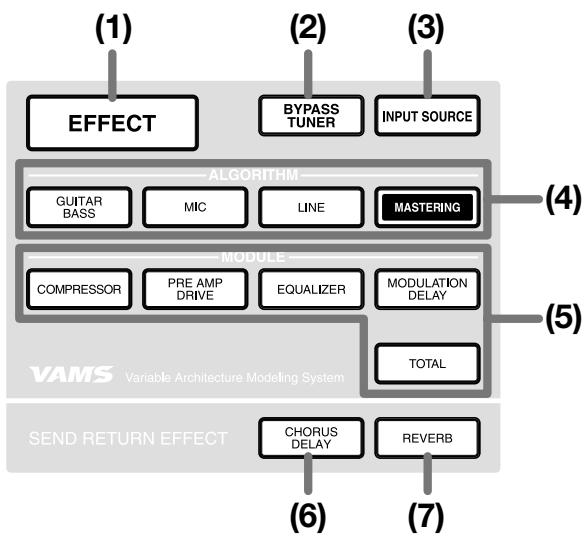
(1) [EFFECT] key
This key accesses a screen where you can select a patch (stored effect settings) or view the patch that is already selected for the internal effect.
(2) [BYPASS/TUNER] key
This key bypasses the insert effect or accesses the Tuner function. The key will light when the insert effect is bypassed. The key will blink when the Tuner function is being used.
(3) [INPUT SOURCE] key
This key is used in conjunction with the [ON/OFF] key or status keys to select the location at which the insert effect will be placed.
(4)ALGORITHM keys
Use the following four keys to select the insert effect algorithm (the combination of effect modules). The key of the selected algorithm will light.
- [GUITAR/BASS] key
- [MIC] key
- [LINE] key
- [MASTERING] key
(5) MODULE keys
Use the following five keys to switch each effect module within the algorithm on/off, or to select an effect module. With the exception of the [TOTAL] key, the key of a module that is in use will light.
- [COMPRESSOR] key
- [PRE AMP/DRIVE] key
- [EQUALIZER] key
- [MODULATION/DELAY] key
- [TOTAL] key
(6) [CHORUS/DELAY] key
This is the chorus/delay of the send/return effect. Pressing this key accesses a screen where you can select a patch or view the current patch. This key will be dark if the chorus/delay is off.
(7) [REVERB] key
This is the reverb of the send/return effect. Pressing this key accesses a screen where you can select a patch or view the current patch. This key will be dark if the reverb is off.
Rhythm section
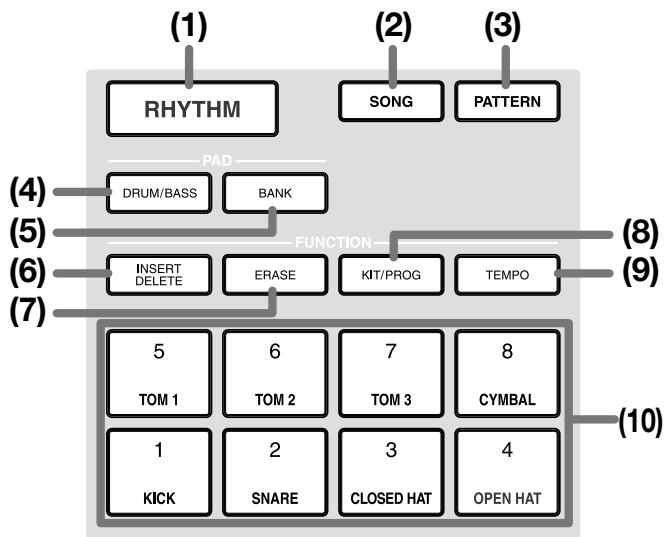
(1) [RHYTHM] key
Use this to record a rhythm pattern or create a rhythm song. When you press this key, the rhythm section will be disconnected from the recorder section, allowing the rhythm section to operate independently.
(2)[SONG]key
(3) [PATTERN] key
These keys switch the rhythm section between "Rhythm Song mode" and "Rhythm Pattern mode." The [SONG] key will light when Rhythm Song mode is selected, and the [PATTERN] key will light when Rhythm Pattern mode is selected.
(4) [DRUM/BASS] key
This key accesses a screen where you can select the tracks (drum track / bass track) that will be assigned to pads 1 - 8.
(5) [BANK] key
This key accesses a screen where you can select the combination of sounds (the "pad bank") that will be assigned to pads 1 - 8 (10).
(6) [INSERT/DELETE] key
(7) [ERASE] key
These keys are used to edit a rhythm song or rhythm pattern.
(8) [KIT/PROG] key
This key accesses a screen where you can change the drum sounds or bass sound used by the rhythm section.
(9) [TEMPO] key
This key accesses a screen where you can view or change the tempo of the rhythm pattern or rhythm song.
(10)Pads 1-8
These pads play the drum sounds or bass sound used by the rhythm section.
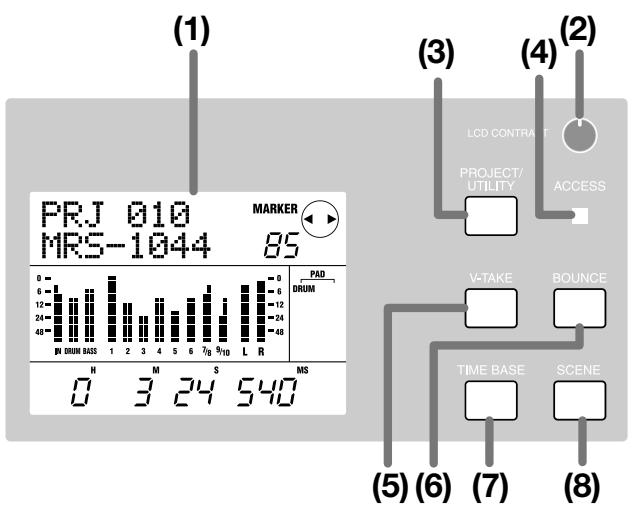
Display section
(1) Display
This shows the current location within the song, the signal level of the various mixer channels, the values of internal settings, and other data necessary for operation. The contents of the display will change according to the operating state.
(2)[LCD CONTRAST] control
This adjusts the contrast of the display.
(3) [PROJECT/UTILITY] key
This key is used to access a variety of functions and settings, such as loading or saving a project, or track editing functions.
(4) [ACCESS] indicator
This indicator will light when the internal hard disk is being read or written to.
(5) [V-TAKE] key
This key accesses a screen where you can switch the virtual track (V-take) of each recorder track (1 - 10) .
(6) [BOUNCE] key
This key is the on/off switch for the Bounce function used to combine multiple tracks.
(7) [TIME BASE] key
This key switches the display counter between time display and measure display.
(8) [SCENE] key
This key is used to save the current mixer settings as a "scene," or to recall a previously saved scene (Scene function).
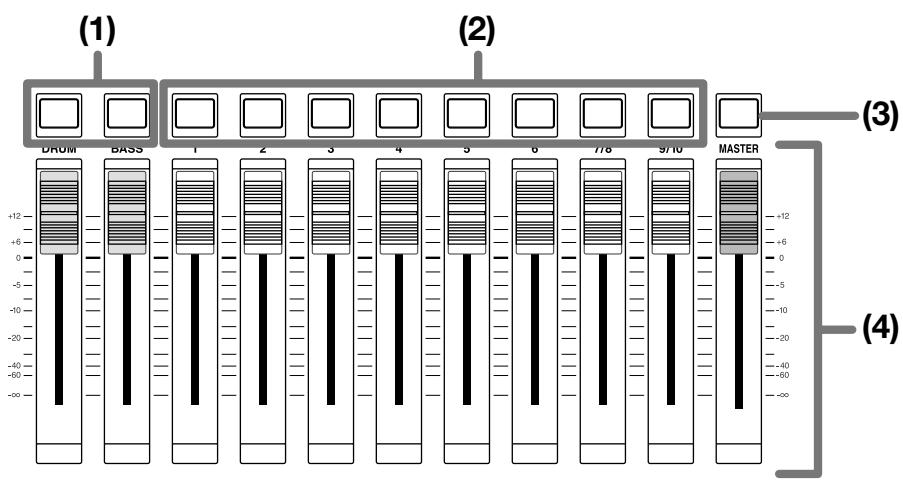
Fader section
(1)DRUM/BASS status keys
These keys are used mainly to switch muting on (key dark) or off (key lit green) for the drum channel and bass channel.
(2) Status keys 1 - 6, 7/8, 9/10
These keys are used mainly to switch muting on/off for channels 1 - 6, 7/8, and 9/10, and to select the recording track. Each time you press a status key, the key will cycle between lit green (channel = mute off) dark (channel = mute on) lit red (selected as recording track).
(3)MASTER status key
This key is used to select the MASTER fader for internal settings.
(4) Faders (DRUM, BASS, 1 - 6, 7/8, 9/10, MASTER)
The DRUM/BASS faders adjust the volume of the drum/bass channels, and faders 1 - 6, 7/8, 9/10 adjust the volume of channels 1 - 6, 7/8, 9/10. The MASTER fader adjusts the overall volume that is sent from the [OUTPUT] jacks.
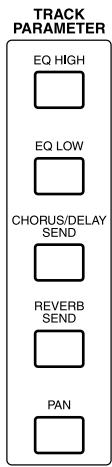
TRACK PARAMETER section
The following five keys are used to access screens where you can adjust settings such as pan, EQ, and send/return effect depth for each channel of the mixer.
- [EQ HIGH] key
- [EQ LOW] key
- [CHORUS/DELAY SEND] key
- [REVERB SEND] key
- [PAN] key
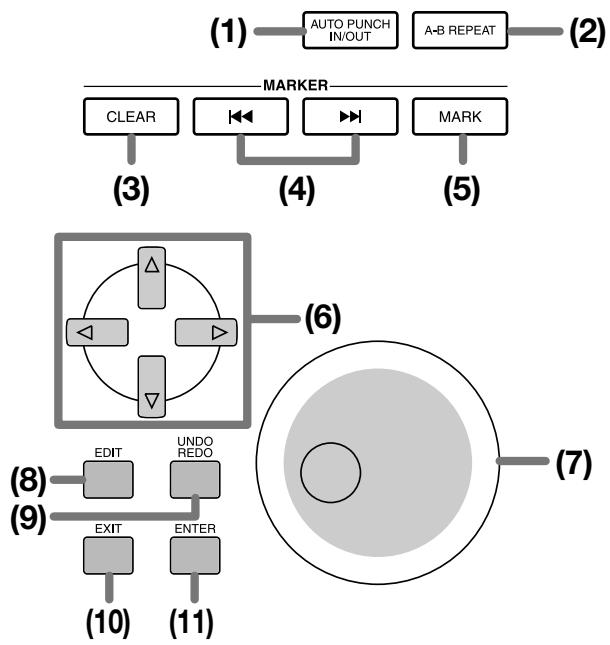
Control section
(1) [AUTO PUNCH IN/OUT] key
This key is used to make settings for the "Auto Punch-in/out function" which lets you re-record a specific region of a track. The key will light when the Auto Punch-in/out function is on.
(2) [A-B REPEAT] key
This key is used to make settings for the "A-B Repeat function" which causes a specified region to play back repeatedly. The key will light when the A-B Repeat function is on.
(3)[CLEAR]key
This key erases the mark that is set for the current location.
(4)MARKER [][keys]
These keys move to the mark that precedes or follows the current location.
(5) [MARK] key
This key sets a mark at the current location. By pressing the [MARK] key at a previously marked location, you can access a screen that lets you assign a scene to that mark.
(6) Cursor [▲]/[▼]/[▲]/[▶] keys
These keys are used to switch between display screens, or to move the blinking area within the display.
(7) Dial
This is used mainly to adjust the value of a setting.
(8) [EDIT] key
Use this key when you want to edit the settings of the internal effects, or to edit a rhythm song / rhythm pattern.
(9) [UNDO/REDO] key
This key is used to capture recorded data from a track, or to exchange (swap) the captured data with the contents of the current track.
(10)[EXIT] key
This key is used to cancel execution of a function, or to return to the previous setting screen.
(11)[ENTER] key
This key is used to confirm a selection or to execute a function.
![ZOOM MRS-1044 - (11)[ENTER] key - 1](/content/2025/01/152225/images/94a0382e311476a2ae364a8cd10bd67edfc56b91fc6b48d4b75d4925bf1e3a91.jpg)
Transport section
![ZOOM MRS-1044 - (11)[ENTER] key - 2](/content/2025/01/152225/images/9b87a3895f525c14bbd353bbc628a453ba36f445e1b54b83b8677f333ab087b1.jpg)
(1) ZERO [k] key
This key returns to the starting location of the song (the zero position of the counter).
(2) REW [4] key
This key moves the current location backward in steps of one second (or in steps of one beat). Press and hold the key to rewind quickly.
(3) FF [▶] key
This key moves the current location forward in steps of one second (or in steps of one beat). Press and hold the key to fast-forward quickly.
(4) STOP [■] key
This key stops the song. To turn the Scrub function on, hold down this key and press the PLAY [▶] key.
(5) PLAY [▶] key
This key plays the song from the current location.
(6)REC[●]key
Use this key to record on the recorder, to record a rhythm pattern, or to begin creating a rhythm song.
![ZOOM MRS-1044 - (6)REC[●]key - 1](/content/2025/01/152225/images/88e4dc3df853cc99c0d4a3a66a0c894b062880f0e238ec337923042095afbcb0.jpg)
(1)[INPUT 1]jacks
These are the input jacks for INPUT 1. Select and use one of the following three jacks.
- BALANCE: This is an XLR balanced jack to which a mic or line-level device can be connected.
- UNBALANCE: This is an unbalanced phone jack to
which a mic or line-level device can be connected.
- GUITAR/BASS: This is a phone jack to which a passivetype electric guitar or bass can be connected directly.
NOTE
These jacks are given priority in the order of GUITAR/BASS UNBALANCE BALANCE. For example, if all three are connected, the GUITAR/BASS jack will be selected.
(2) [INPUT 2] jacks
These are the input jacks for INPUT 2. When connecting a stereo output device, use these jacks in conjunction with the [INPUT 1] jacks. Select and use one of the following two jacks.
- BALANCE: This is an XLR balanced jack to which a mic or line-level device can be connected.
- UNBALANCE: This is an unbalanced phone jack to which a mic or line-level device can be connected.
NOTE
If both jacks are connected, the UNBALANCE jack will be selected.
(3) [OUTPUT] jacks
These jacks output the signal that has passed through the MASTER fader. The following three jacks can be used simultaneously.
- MASTER: These are RCA phono analog output jacks.
- PHONES: A pair of stereo headphones can be connected to this jack. Use the knob beside this jack to adjust the headphone volume.
- DIGITAL: This is an optical-type digital output jack.
(4) [EXP PEDAL] jack
A separately sold expression pedal (ZOOM FP01, FP02) can be connected to this jack.
(5)[FOOT SW] jack
A separately sold foot switch (ZOOM FS01) can be connected to this jack.
(6)[MIDI IN] connector
MIDI messages can be input from this connector.
(7)[MIDI OUT] connector
MIDI messages can be output from this connector.
(8) [PHANTOM ON/OFF] switch
When this switch is on, +48V phantom power will be supplied to the two [INPUT 1/2] BALANCE jacks.
NOTE
If devices that do not require phantom power are connected to the [INPUT 1/2] BALANCE jacks, you must turn this switch off.
(9)[POWER] switch
This switch turns the power of the MRS-1044 on/off.
NOTE
When turning off the power of the MRS-1044, you must use the [POWER] switch. If you turn the power off by simply disconnecting the AC adaptor plug, the previously recorded content or changes will be lost.
(10)[DC 12V] jack
Connect the included AC adaptor to this jack.
Side panel
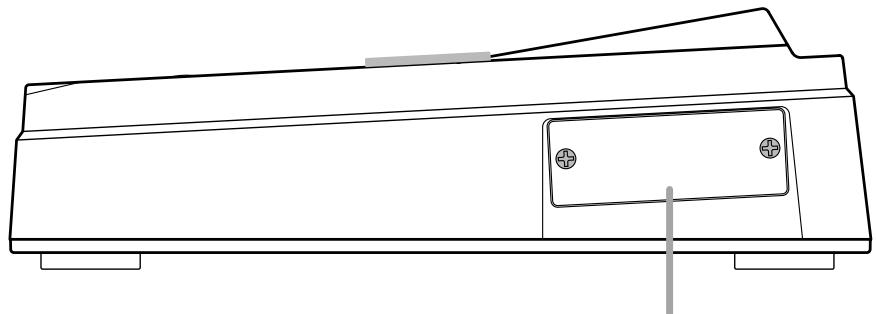
This slot is for installation of a separately sold SCSI board or USB board (planned for release).
Connections
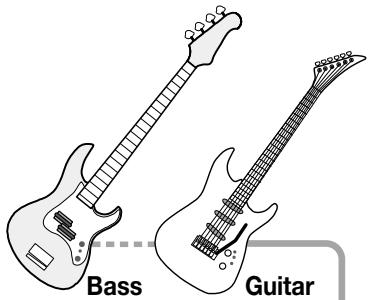
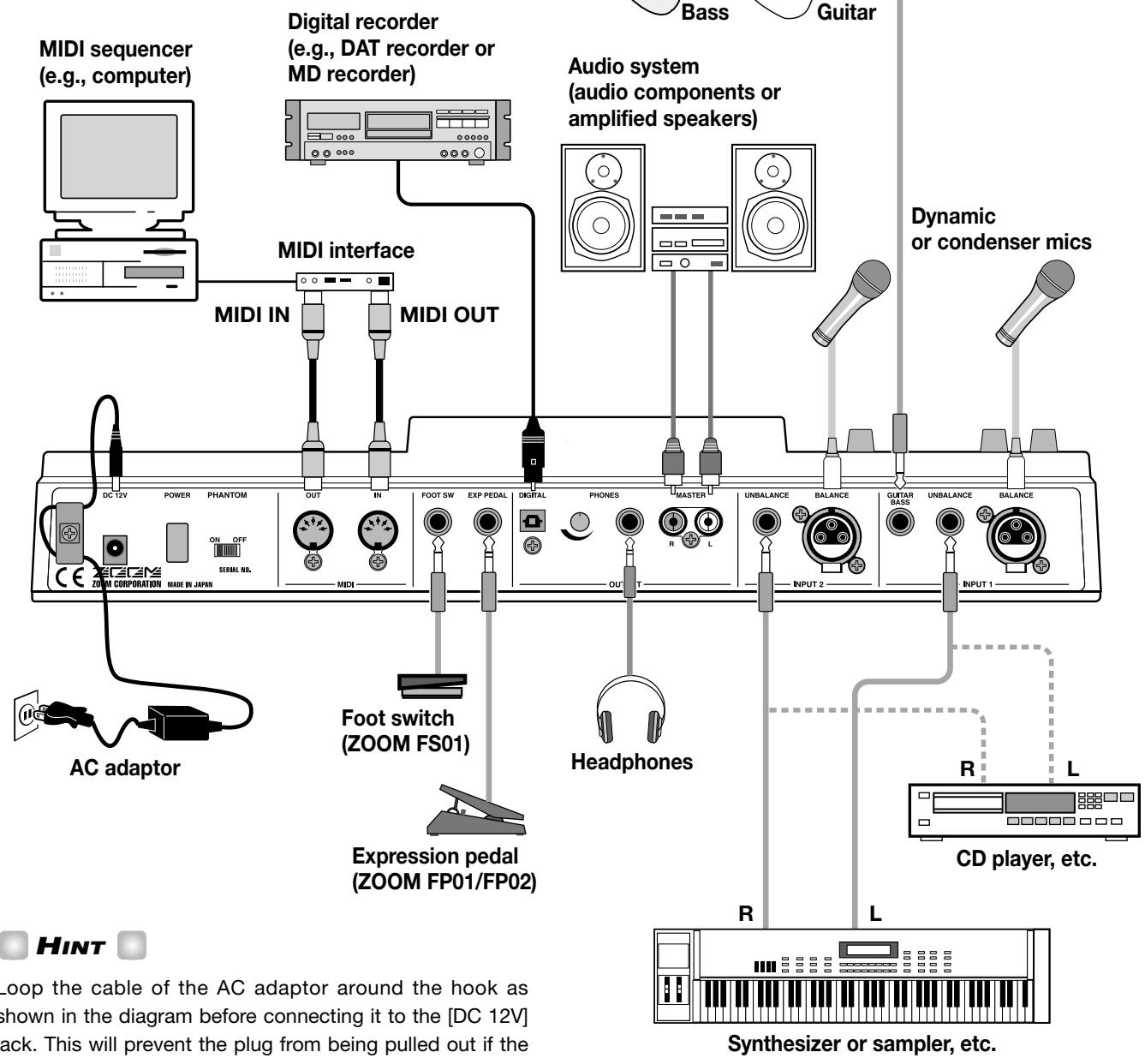
Connect your instruments, audio devices, and MIDI devices as shown in the following diagram.

NOTE
To prevent damage to the speakers of your audio system, turn off the power of the audio system connected to the [OUTPUT] (MASTER) jacks (or turn the volume all the way down) before you make connections.
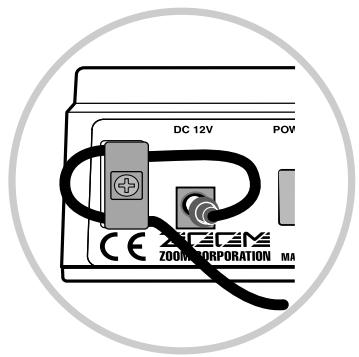

HINT
When connecting stereo output devices such as a synthesizer or CD player, connect the L output of the external device to the [INPUT 1] jack, and the R output to the [INPUT 2] jack.
Listening to the demo songs
When shipped from the factory, the internal hard disk of the MRS-1044 contains several demo songs. After you have finished making connections, turn on the power and listen to the demo songs.
Turn on the power
Here's how to turn on the power of the MRS-1044 and your other equipment.
- Make sure that the AC adaptor, instruments, and audio system (or stereo headphones) are connected appropriately to the MRS-1044. (For details on connections, refer to p.14.)
- Press the rear panel [POWER] switch to turn on the power of the MRS-1044.
POWER

HINT
If electronic instruments are connected to the [INPUT 1]/[INPUT 2] jacks, turn on the power in the order of the electronic instruments MRS-1044.
3. Turn on the power of the audio system connected to the [MASTER] jacks.
Select a demo song
The internal hard disk of the MRS-1044 contains several demo songs. Here's how to load a demo song from the hard disk.
- Press the [PROJECT/UTILITY] key.
The display will indicate "PROJECT."
PROJECT

HINT
On the MRS-1044, data for a song (including the demo songs) is managed in units called "projects." When you load a project, the complete state in which that song was saved will be reproduced.
2. Press the [ENTER] key.
The display will indicate "PROJECT SELECT."


PROJECT SELECT

- Press the [ENTER] key once again.
Now you can select from the projects that are saved on the internal hard disk.

PRJ SEL PRJ000
Project name
Project number
- Turn the dial to select a demo song project.
NOTE
Project numbers 992 and following are not demo songs; they are projects that contain material for use with the "Introductory tour" that starts on page 17, or projects from which you can import rhythm patterns.
- Press the [ENTER] key.
The selected project will be loaded.
Play back the demo song
After the demo song has finished loading, here's how to play it back.
- Turn down the volume of your audio system.
If you are listening through headphones connected to the [OUTPUT] (PHONES) jack, turn down the knob located beside the jack.
- Press the transport section PLAY [▶] key.
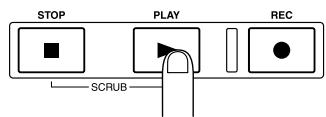
The demo song will begin playing.
-
Raise the volume of your audio system (or the knob for the [OUTPUT] (PHONES) jack) to a comfortable volume.
-
If you want to adjust the volume of the individual tracks, use faders 1 - 6, 7/8, and 9/10. If you want to adjust the volume of the entire song, use the MASTER fader.
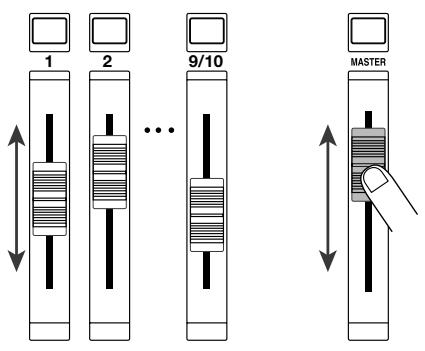
Immediately after the demo song (project) has been loaded, the volume of each track and the overall volume of the entire song will be set automatically, without regard to the current physical positions of the faders. When you operate a fader, the volume will immediately be set to the new position of the fader.
HINT
For a project that uses the rhythm section, use the DRUM fader to adjust the volume of the drum sound, and the BASS fader to adjust the volume of the bass sound.
- To stop the demo song, press the STOP [■]key.
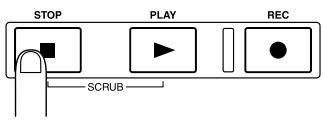
HINT
While stopped, you can press the ZERO [ ] key to move to the beginning of the song. Or you can press the REW [ ] key / FF [ ] key to rewind/fast-forward in steps of one second.
Turn off the power
When turning off the power of the MRS-1044 and your peripheral equipment, do so in the opposite order from which you turned the power on.
- Turn off the power of your audio system (or turn the volume all the way down).
- Press the rear panel [POWER] switch.
Normally, the project will automatically be saved on the
internal hard disk, and then the power will turn off. The next time the power is turned on, the project that you were last operating will be loaded automatically.
HINT
The demo songs have a protect setting that prevents the data from being overwritten. For this reason, the project will not be saved when you turn off the power after loading a demo song.
Caution!
- You must use this method to turn off the power of the MRS-1044. If you turn off the power by disconnecting the AC adaptor plug from the [DC 12V] jack, or by unplugging the AC adaptor from the AC power outlet, the project will not be saved, and any previous recordings or changes will be lost.
- In particular, you must never turn the power off by unplugging the AC adaptor while the access indicator of the display section is lit. Doing so may damage the internal hard disk, causing all data to be lost permanently.
Introductory tour
This section explains the process of recording instruments on tracks while monitoring the accompaniment produced by the rhythm section. It also explains how to complete a two-channel mix.
This introductory tour is divided into the following steps 1 - 4 . By following through these steps in order, you can experience the entire process from recording the first tracks to completing your song.
- Step 1: Preparations before recording
Make recording preparations for the introductory tour.
- Step 2: Recording the first track
Record the first track while listening to the accompaniment of the rhythm section.
- Step 3: Overdubbing
Record (overdub) the second and subsequent tracks while listening to the previously recorded tracks and the backing of the rhythm section.
- Step 4: Mixdown
Mix the rhythm section and the tracks that you recorded on the recorder down to a two-channel stereo mix, creating the finished song.
Step 1: Preparations before recording
In this step, we will load a project in which a rhythm section accompaniment has already been programmed, adjust the volume of the rhythm section, and make preparations for recording.
Preparations
As described on page 14, connect your audio system to the [OUTPUT] (MASTER) jacks. If you are using headphones, connect them to the [OUTPUT] (PHONES) jack.
1-1: Load a project
On the MRS-1044, all data needed to reproduce a song you created (e.g., the recorded contents of the tracks and the settings of the mixer section) is managed in terms of a "project."
Each project contains the following data.
- All recorded data of the recorder section
- Settings of the mixer section
- Settings of the rhythm section
- Settings of the internal effects
- Other settings such as scenes, marks, and MIDI-related settings
HINT
Multiple projects can be saved on the internal hard disk. By loading a project that you created earlier, you can recall the same state in which that project was last saved.
When you want to record on the MRS-1044, you must start by either loading a previously-created project, or creating a new project.
When the MRS-1044 is shipped from the factory, its hard disk contains a sample project in which a rhythm section accompaniment for this introductory tour has already been programmed. Use the following procedure to load this sample project.
1 Turn on the power in the order of first the MRS-1044, and then your audio system.
POWER
When the power of the MRS-1044 is turned on, the project that you used last will be loaded automatically. The following screen will appear in the display.
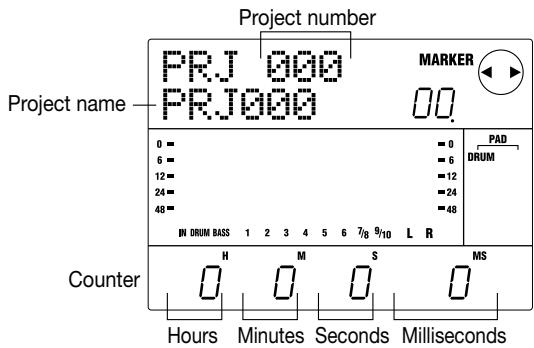
The screen that appears first when the power is turned on is called the "main screen." The main screen is the starting point for all operations.

HINT

If you have pressed one or more keys to switch screens, you can press the [EXIT] key several times to return to the main screen.

In the main screen, press the [PROJECT/UTILITY] key.
The display will indicate "PROJECT."
PROJECT


Press the [ENTER] key.
The project menu will appear. Here you can select various items for working with projects, such as loading or saving a project.
![ZOOM MRS-1044 - Press the [ENTER] key. - 1](/content/2025/01/152225/images/1d1a6ec16fd2a25fd385f5590505938bc9fa7332e37b273b088160f270440ae2.jpg)
![ZOOM MRS-1044 - Press the [ENTER] key. - 2](/content/2025/01/152225/images/b91b9325b35d83f035405868c2d00ba620f387d0d024a5b2909761118c6b2694.jpg)
PROJECT SELECT


Make sure that the display indicates "PROJECT SELECT," and press the [ENTER] key once again.
Now you can select from the projects on the hard disk.

Turn the dial to select the project named "Sample 1" (number 992), and press the [ENTER] key.
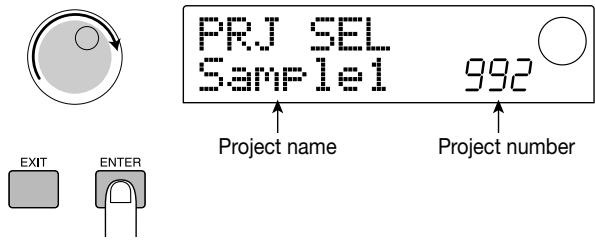
The display will indicate "LOADING" for a time, and then the main screen will reappear. The display will indicate the number and name of the project that was loaded.
1-2: Play the rhythm section accompaniment
The rhythm section of the MRS-1044 contains a drum sound generator and a bass sound generator that can be used to provide an accompaniment. A newly created project contains 255 different accompaniment patterns (called "rhythm patterns") that use these drum and bass sounds, each consisting of several measures. These rhythm patterns can be played in synchronization with the recorder, and used as guide rhythms as you record on a track.
In addition, you can arrange desired rhythm patterns in a specified order of playback, and program chord and tempo change data to create the accompaniment for an entire song. (This is referred to as a "rhythm song.")
In the project you loaded in step 1-1, a simple rhythm song has already been programmed. Here's how to listen to it.

Make sure that the DRUM/BASS status keys are lit, and raise the DRUM, BASS, and MASTER faders to the 0 (dB) position.
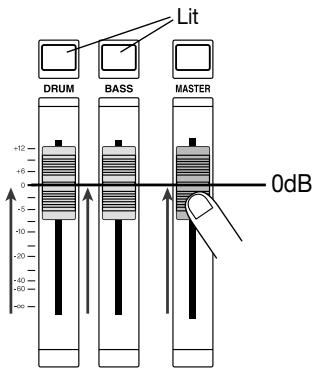
The drum sound and bass sound of the rhythm section are sent respectively to the DRUM channel and BASS channel of the mixer. The DRUM/BASS status keys switch channel
muting on/off, and the DRUM/BASS faders adjust the volume of each channel.
If the DRUM/BASS status keys are dark, muting is turned on. Press the keys to make them light (mute off).

Make sure that the [SONG] key is lit, and press the PLAY[▶] key.
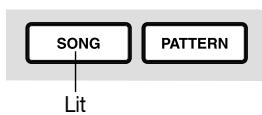
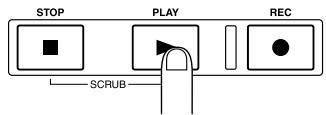
When the [SONG] key is lit, "Rhythm Song mode" is selected, allowing you to create or play a rhythm song. When you press the PLAY [▶] key, the rhythm song will begin playing.

HINT

At this time, the recorder will also begin running. However, since no tracks have been recorded yet, you will not hear any sound.

If necessary, operate the DRUM/BASS faders to adjust the volume balance.
This rhythm song will be used as the accompaniment for the tracks that you will record in step 2. Adjust the volume balance for comfortable listening.

To stop the playback, press the STOP [■] key.
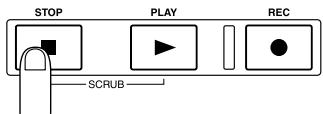

HINT

- For details on programming your own rhythm song to create an original accompaniment, refer to p.58.
- Tempo data has been input at the beginning of the rhythm song for this project. For details on how to change this tempo data, refer to p.62.
1-3: Save the project
Before you begin recording tracks, let's save the project you loaded in step 1 - 2 (Sample 1) on the hard disk in its current state.

HINT

The current project will be saved automatically when you load another project, create a new project, or press the [POWER] switch to turn off the power.

NOTE

If the AC adaptor is pulled out of the outlet and power to the MRS-1044 is lost, all changes that occurred since the last save will be lost. This is also true of any other miscellaneous power failure. To prevent data loss from such causes, we encourage you to execute the Save operation periodically.

In the main screen, press the [PROJECT/UTILITY] key.
The display will indicate "PROJECT."

Press the [ENTER] key.
The project menu will appear.

Use the cursor [] / [] keys to make the display indicate "PROJECT STORE."
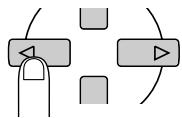
PROJECT STORE


HINT

The arrow(s) that appear in the upper right of the display indicate which cursor keys are valid in the currently-displayed screen.

Press the [ENTER] key.
The "PRJ STR SURE?" screen will appear, asking you whether you are sure that you want to store the project.


PRJ STR SURE?


Press the [ENTER] key once again.
When saving has been completed, you will return to the main screen.
[Example staff: Rhythm guitar 1]

Step 2: Record the first track
In this step, you will record the rhythm guitar backing shown in the staff (above) on track 1, while listening to the accompaniment played by the rhythm song.
Preparations
- Connect your electric guitar to the [INPUT 1] (GUITAR/BASS) jack.
- Load the project you saved in step 1-3 (project name "Sample 1," project number 992). For details on how to load a project, refer to p.17.
2-1: Adjust the input sensitivity and recording level
Here's how to adjust the input sensitivity appropriately for the instrument connected to the [INPUT] jack, and how to adjust the volume of the input signal (recording level).

Press the INPUT 1 [ON/OFF] key to make the key light.
The [ON/OFF] key switches the jack on or off. When the key is lit, the corresponding jack is on.
![ZOOM MRS-1044 - Press the INPUT 1 [ON/OFF] key to make the key light. - 1](/content/2025/01/152225/images/01753338ff38850cdeb2d06a9646aefc01e05039eb5fe85c910501c034b80a1d.jpg)
HINT
When recording from a mono source, make sure the [ON/OFF] key lights only for the jack to which the source is connected. When recording from a stereo source (such as a synthesizer), connect the L/R outputs of the instrument to the [INPUT 1/2] jacks, and turn on the [ON/OFF] keys of
both INPUT 1 and 2.
NOTE
It is not possible to simultaneously input three or more channels of signals.
2 While playing your instrument, turn the [INPUT 1] control to adjust the input sensitivity.
Adjust the [INPUT 1] control so that the [PEAK] indicator lights when you play your instrument most strongly.
![ZOOM MRS-1044 - While playing your instrument, turn the [INPUT 1] control to adjust the input sensitivity. - 1](/content/2025/01/152225/images/bd9b7938631c2cd2bffdf74a5d867eff9dcd31d38626d5643796f2f56853245b.jpg)
3 While playing your instrument, turn the [REC LEVEL] control to adjust the recording level.
Set the [REC LEVEL] control as high as possible without making the [CLIP] indicator light. The current signal level is shown by the level meter (IN) located in the center of the display.
![ZOOM MRS-1044 - While playing your instrument, turn the [REC LEVEL] control to adjust the recording level. - 1](/content/2025/01/152225/images/98b6f7de0493a99e8c7a6537af19331fd583fea330c54088bab94e0b4ea149b2.jpg)
HINT
If a recording track has not been specified, the input signal will be sent directly to the MASTER fader.
2-2: Set the insert effect
The MRS-1044 contains two types of effects: an "insert effect" that can be inserted into a specific signal route, and two "send/return effects" that can be applied to the entire song by using the send/return of the mixer.
In this example, we will record with the insert effect applied to the guitar connected to the [INPUT 1] jack.

For details on using the send/return effects, refer to p.26
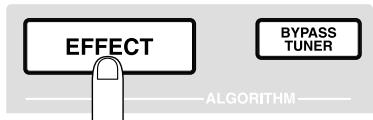
The [EFFECT] key will light, and a screen will appear, allowing you to select a patch for the internal effects. A "patch" is a set of previously saved settings for an internal effect. A newly created project contains patches for the insert effect, and you can instantly change effect settings simply by selecting one of these patches.

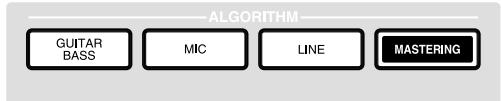
An "algorithm" is a combination of effect modules (individual effects) that the insert effect lets you use simultaneously. Insert effect patches are organized according to their algorithm. This means that when selecting an insert effect patch, you start by selecting the algorithm that is appropriate for the instrument you will be recording, or for the desired purpose.
There are four algorithms, as follows.
- GUITAR/BASS: An algorithm suitable for recording guitar/bass.
- MIC: An algorithm suitable for vocals or mic recording.
-
LINE: An algorithm suitable mainly for recording stereo-output instruments such as synthesizer or electric piano.
-
MASTERING: An algorithm suitable for processing a stereo mix signal, such as during mixdown.
For this example, press the [GUITAR/BASS] key to select the GUITAR/BASS algorithm. The [GUITAR/BASS] key will light, and you can now select patches that use the GUITAR/BASS algorithm.
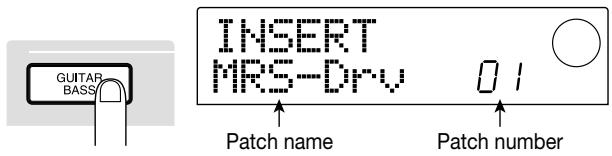

For details on the algorithms, refer to p.75.

For this example, select the patch named "StrmBeat" (number 34).
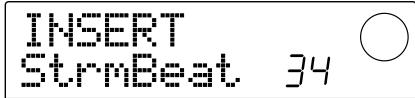
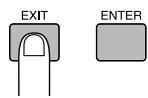
You will return to the main screen.

If you want to record without sending the sound through the insert effect, press the [BYPASS/TUNER] key in the main screen. This will bypass the insert effect. When you press the [BYPASS/TUNER] key once again it will go dark, and bypass will be disabled.
2-3: Select a track and record
Now we will set the recording level, and record the sound of the guitar (with the insert effect applied) on track 1.

By default, the insert effect is inserted before the [REC LEVEL] control. For this reason, the recording level may change if you change the insert effect patch. Re-adjust the
recording level after selecting the insert effect patch.

2 With the recorder stopped, repeatedly press status key 1 to make the key light red.
Status keys 1 - 6, 7/8, and 9/10 are used to switch channel-muting on/off and to select the recording track. Each time you press a status key, the key will cycle through the following states: lit green (channel= mute off) dark (channel= mute on) lit red (selected as the recording track).
When track 1 is selected as the recording track (the status key 1 will change from green to red), the input signal routing will change as follows.
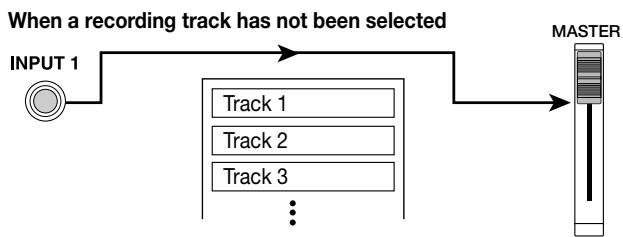
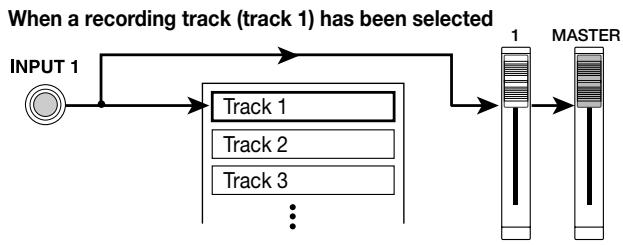
HINT
The number of tracks that can be recorded simultaneously is limited to either two mono tracks or one stereo track. If you want to record in stereo on tracks 1 - 6, select the recording tracks by simultaneously pressing status keys in a combination of 1/2, 3/4, or 5/6.
Press the PLAY [▶] key, and while listening to the rhythm song, operate fader 1 to adjust the monitor level of the guitar.
![ZOOM MRS-1044 - Press the PLAY [▶] key, and while listening to the rhythm song, operate fader 1 to adjust the monitor level of the guitar. - 1](/content/2025/01/152225/images/775cd660a124a57a8b2125e30c5c4d82fa656516ff04436148a1e8acc2030d2e.jpg)
Operating fader 1 simply changes the level at which the recording source is being monitored, and will not affect the recording level. If necessary, you can operate the DRUM/BASS faders to adjust the volume balance with the rhythm song. When you are finished adjusting the monitor level, press the STOP [■] key to stop the rhythm song.
Press the ZERO [4] key to return to the beginning of the song.
![ZOOM MRS-1044 - Press the ZERO [4] key to return to the beginning of the song. - 1](/content/2025/01/152225/images/d2e4b639650d3deb87d32c70dc0c6b48fa9f4537b404bc38bcdd512bac986b22.jpg)
5 To begin recording, hold down the REC [●] key and press the PLAY [▶] key.
![ZOOM MRS-1044 - To begin recording, hold down the REC [●] key and press the PLAY [▶] key. - 1](/content/2025/01/152225/images/2d59f8968e11e6ff019bd6befb0650b58bb698088400519be23444bbc70eb2f9.jpg)
The REC [●] key and PLAY [▶] key will light, and recording on track 1 will begin. Record your guitar playing while listening to the rhythm song.
6 When you have finished recording the guitar, press the STOP [■] key.
The REC [ ] key and PLAY [ ] key will go dark, and recording will stop.
7 To listen to the recorded content, press the ZERO [4] key to return to the beginning of the song, and press the PLAY [▶] key.
Track 1 will be played back together with the rhythm song. If you want to re-do the recording, repeat steps 2 - 6.
If you are satisfied with the recorded content, save the current project.
For details on saving the project, refer to p.19.
HINT
- When the recorder is stopped, you can use the REW [▲] / FF [▼] keys to move the current location backward or forward in steps of one second (if the counter is displaying the time) or in steps of one beat (if the counter is displaying the measure). After moving in this way, you can press the PLAY [▶] key to begin playback from that location.
- You can also use the REW [←] / FF [▶] keys to move the current location, and then re-record from that location. If
you want to re-record repeatedly over the same region, it is convenient to use the auto punch-in/out function ( p.33).
- By using V-takes ( p.35) you can record a new take while preserving the current take.

[Example staff: Rhythm guitar 2]
Step 3: Overdubbing
In this step you will record a rhythm guitar part (like the example staff shown above) on track 2, while listening to the rhythm guitar you recorded on track 1 in step 2 (as well as the rhythm song). Recording additional parts in this way is called "over dubbing."
Preparations
Load the project that you saved as the last operation in Step 2-3. Alternatively, you can load the project "Sample 2" (number 993), in which track 1 already contains a rhythm guitar part recorded on track 1. (For details on loading a project, refer to p.17.)
3-1: Select an insert effect patch
We will also apply an insert effect also to track 2 while recording it.

Press the [EFFECT] key, and use the ALGORITHM keys to select the desired insert effect algorithm.
As in step 2-2, press the [GUITAR/BASS] key to select the GUITAR/BASS algorithm.

Turn the dial to select the desired patch.
For this example, select the patch named "Phaser" (number 7).
INSERT Phaser
07

Press the [EXIT] key.
You will return to the main screen.
3-2: Select a track, and record
Next we will set the recording level, and record the rhythm guitar on track 2.

While playing your instrument, turn the [REC LEVEL] control to adjust the recording level.

With the recorder stopped, press status key 2 repeatedly to make the key light red.
Track 2 will be selected as the recording track.

Press the PLAY [▶] key, and while listening to the rhythm song, use fader 2 to adjust the monitor level.
As necessary, use the DRUM/BASS faders and fader 1 to adjust the volume balance of the rhythm song and track 1. When you are finished adjusting the monitor levels, press the STOP [■] key to stop the song.

Press the ZERO [ ] key to return to the beginning of the song.
5 To start recording, hold down the REC [●] key and press the PLAY [▶] key.
The REC [●] key and PLAY [▶] key will light, and recording on track 2 will begin. Record your guitar playing while listening to the rhythm song and track 1 play back.
6 When you have finished recording your guitar performance, press the STOP [■] key.
The REC [ ] key and PLAY [ ] key will go dark, and recording will end.
7 To hear the recorded content, press the ZERO [4] key to return to the beginning of the song, and press the PLAY [▶] key.
Tracks 1/2 will be played back together with the rhythm song. If you want to re-do the recording, repeat steps 2 - 6.
When you are finished recording track 2, use the same procedure to record other instruments on the remaining tracks. When you are finished with all recording, save the project.
Step 4: Mixdown
When you are finished recording all tracks, you can adjust the volume balance etc. of the rhythm section and recorder section, and create a finished song.
Preparations
- Connect a master recorder such as an MD or DAT recorder to the [OUTPUT] (DIGITAL or MASTER) jacks.
- Load the project that you saved at the end of step 3-2. Alternatively, you can load the project "Sample 3" (number 994) from the hard disk. When the MRS-1044 is shipped from the factory, this project contains pre-recorded performances on all tracks. (For details on loading a project, refer to p.17.) The track structure of "Sample 3" is shown below.
| Track 1 | Rhythm guitar 1 |
| Track 2 | Rhythm guitar 2 |
| Track 3 | Lead guitar |
| Track 4 | Electric piano |
| Track 5 | Organ |
| Track 6 | Synthesizer |
| Track 7/8 | Percussion (L/R) |
| Track 9/10 | Synth pad (L/R) |
4-1: Adjust the volume, pan, and EQ
Here's how to adjust the volume, pan (stereo left/right position), and EQ for each channel of the mixer section.
Adjust the volume
1 Make sure that all status keys (DRUM, BASS, 1 - 6, 7/8, 9/10) are lit green. In addition, press the INPUT 1/2 [ON/OFF] keys to make them go dark.
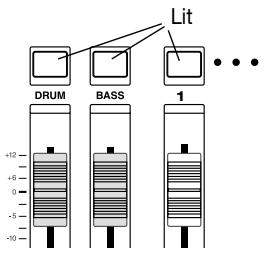
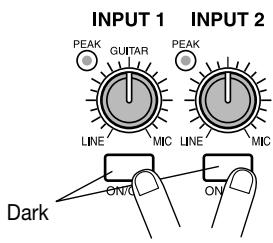
HINT
If the INPUT 1/2 [ON/OFF] keys are turned on, any instruments connected to the [INPUT 1/2] jacks can also be mixed.
2 Raise the MASTER fader to the 0 (dB) position.
Press the PLAY [▶] button to play back the song, and use the faders of each channel (DRUM, BASS, 1-6, 7/8, 9/10) to adjust the volume balance.
The drum sound and bass sound of the rhythm section are assigned to the DRUM and BASS channels respectively, and recorder tracks 1 - 6, 7/8, 9/10 are assigned to mixer channels 1 - 6, 7/8, and 9/10 respectively. Use the DRUM/BASS faders to adjust the volume of the rhythm section, and faders 1 - 6, 7/8, and 9/10 to adjust the volume of each track of the recorder section.
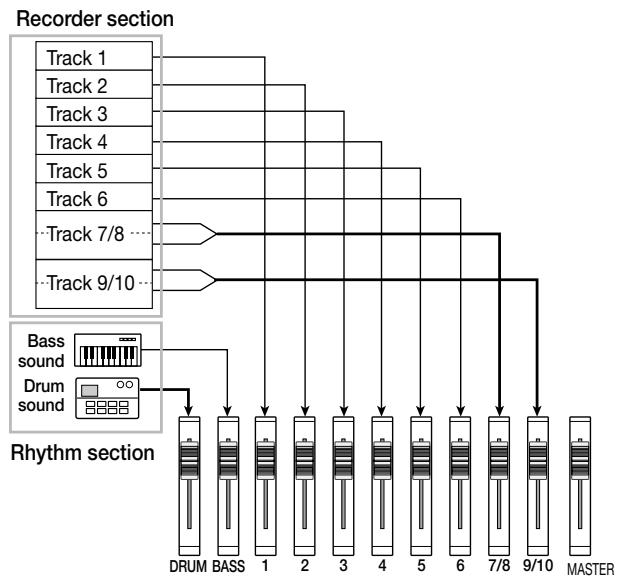
The level meter (DRUM, BASS, 1 - 6, 7/8, 9/10) located in the center of the display indicates the post-fader signal level of each channel. The L/R level meter indicates the level of the signal that has passed through the MASTER fader. Adjust the mix, being careful that the 0 (dB) dot of each level meter does not light.
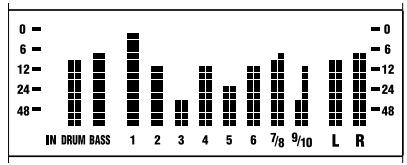
HINT
If necessary, you can also make the level meters show the pre-fader signal levels ( p.54)
Adjust the pan
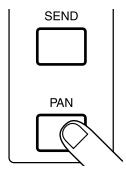
4 In the main screen, press the [PAN] key of the TRACK PARAMETER section.
When you press one of the keys of the TRACK PARAMETER section, the track parameter menu will appear, allowing you to set parameters such as pan and EQ for each channel. If you press the [PAN] key, a screen will appear in which you can adjust the Pan setting.
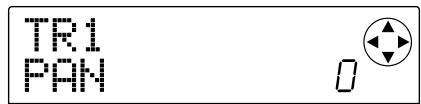
Press the status key of the channel whose pan you want to adjust.
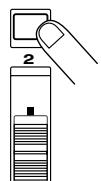
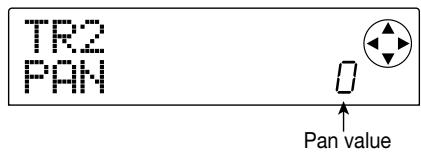
When the track parameter menu is displayed, you can press a status key (or the cursor [] / [] keys) to select the channel whose parameter you want to adjust.
6 Turn the dial to adjust the pan value.
The pan value can be adjusted in a range of L100 (far left) - 0 (center) - R100 (far right).
7 Repeat steps 5 - 6 to adjust the pan of other channels.
NOTE
For the stereo channels (the DRUM channel, channels 7/8 and 9/10), the PAN parameter functions as a BALANCE parameter that adjusts the volume balance between the L/R channels.
Adjust the EQ
Press the [EQ HIGH] key or [EQ LOW] key.
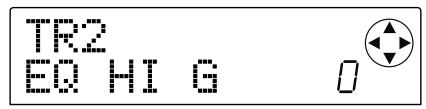
Press the [EQ HIGH] key to adjust the high-frequency equalizer, or press the [EQ LOW] to adjust the low-frequency equalizer. The following illustration shows the
screen that will appear if you press the [EQ HIGH] key.
Press the status key of the channel whose EQ you want to adjust.
10 Use the cursor [ ] / [ ] keys to select the EQ parameter that you want to adjust, and turn the dial to modify the setting.
The available parameters and their ranges are as follows.
If you press the [EQ HIGH] key first
- EQ HI G: Adjust the amount of boost/cut -12 - 0 - 12 (dB) for the high-frequency range.
- EQ HI F: Adjust the frequency at which the high-frequency boost or cut will occur, in the range of 500 - 18000(Hz)
If you press the [EQ LOW] key first
- EQ LO G: Adjust the amount of boost/cut -12 - 0 - 12 (dB) for the low-frequency range.
- EQ LO F: Adjust the frequency at which the low-frequency boost or cut will occur, in the range of 40 - 1600 (Hz).
HINT
- When the EQ HI G / EQ HI F parameters are displayed in the screen, you can press the [EQ HIGH] key to switch the high-frequency EQ on/off. (The key will be dark when this is turned off.)
- When the EQ LO G / EQ LO F parameters are displayed in the screen, you can press the [EQ LOW] key to switch the low-frequency EQ on/off. (The key will be dark when this is turned off.)
11 Repeat steps 9 - 10 to create settings in the same way for other EQ parameters or other channels.
When you have finished creating settings, press the [EXIT] key.
You will return to the main screen.
4-2: Using the send/return effects
Two effects, reverb and chorus/delay, are internally connected to the send/return of the mixer. These effects are called "send/return effects." The following diagram shows
the signal flow of the send/return effects.
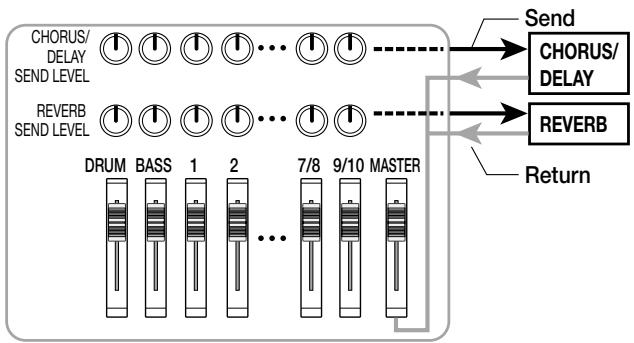
The amount of signal sent to each effect (send level) adjusts the depth of each send/return effect for each channel. Raising the send level will increase the amount of signal that is sent to the effect, producing a deeper effect for that channel.
In this example, we will select a send/return effect patch, and adjust the send level of each channel to adjust the amount of reverb and chorus.
Change the send/return effect patch
Newly created projects contain patches for reverb and chorus/delay. Here's how you can change the patch that is currently selected for reverb or chorus/delay, and edit the reverb or chorus effect as desired.
Press the [EFFECT] key.
A screen will appear in which you can select the patches for the internal effects (insert effect or send/return effects).
![ZOOM MRS-1044 - Press the [EFFECT] key. - 1](/content/2025/01/152225/images/db93529f0cae7df88323db855bccd2fa6f426270d824e54a91744a1b00f02599.jpg)
![ZOOM MRS-1044 - Press the [EFFECT] key. - 2](/content/2025/01/152225/images/61018e2e6528642ceeea8dad391ada48b7eaa0f1ae756b7ffc33c8e67d897882.jpg)
Press the [REVERB] key or [CHORUS/DELAY] key.
Press the [REVERB] key to select a reverb patch, or the [CHORUS/DELAY] key to select a chorus/delay patch. The display will indicate the patch that is currently selected for the effect you selected.
The screen shown in the next page is an example of when the [REVERB] key is pressed.
![ZOOM MRS-1044 - Press the [REVERB] key or [CHORUS/DELAY] key. - 1](/content/2025/01/152225/images/80711a05aefd02cc989b7382e09607888ecb6beb819a72a3b6eb1013efb5d804.jpg)
![ZOOM MRS-1044 - Press the [REVERB] key or [CHORUS/DELAY] key. - 2](/content/2025/01/152225/images/eeee1437a0673c35c739d4d3ee00294a13846e439f33d4ceaff401e558f4bc20.jpg)
Turn the dial to select a patch.
For this example, select the patch named "BrgtRoom" (number 01).
![ZOOM MRS-1044 - Press the [REVERB] key or [CHORUS/DELAY] key. - 3](/content/2025/01/152225/images/cd9e4d5a93fa9f3359b156bf2fd35ab5dbc7cf2fc71712315d5d2169e11ac9ce.jpg)
When you have finished selecting the patch, press the [EXIT] key.
You will return to the main screen.
Adjust the send level

In the TRACK PARAMETER section, press the [CHORUS/DELAY SEND] key or the [REVERB SEND] key.
Press the [REVERB SEND] key if you want to adjust the reverb send level, or the [CHORUS/DELAY SEND] key if you want to adjust the chorus/delay send level. A screen will appear in which you can adjust the send level of the selected effect. The screen shown below is an example of when the [REVERB SEND] key is pressed.
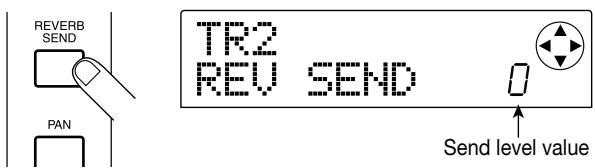

Press the status key of the channel (DRUM, BASS, 1 - 6, 7/8, 9/10) whose send level you want to adjust.
The send level value of the selected channel will be displayed.

Press the PLAY [▶] key, and while the song plays back, turn the dial to adjust the send level value.
The send level can be adjusted in a range of 0 - 100. As the value is increased, the effect will be applied more deeply to the selected channel.

Adjust the send level of other channels in the same way as in steps 6 - 7.

When you have finished making settings, press the [EXIT] key.
You will return to the main screen.
4-3: Apply an insert effect to the entire song
You can place the insert effect immediately before the MASTER fader, and use one of the MASTERING algorithm patches to modify the dynamics or tone of the entire song. Here's how you can use this method to apply an insert effect to the entire song.
Change the insert location of the insert effect

In the main screen, press the [INPUT SOURCE] key (located in the effect section).
The [INPUT SOURCE] key will blink, and the display will indicate "TRACK INPUT." This means that the insert effect is inserted into the input mixer (the mixer section that processes the input signal).


Turn the dial to make the display read "TRACK MASTER."

TRACK
MASTER

Now the insert effect is inserted immediately before the MASTER fader, and can process the signal of the entire song that is sent from the [OUTPUT] jack.
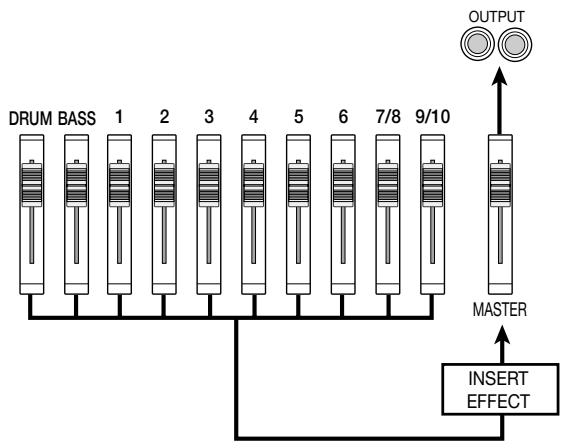

HINT

The insert effect can also be inserted into any desired channel of the mixer, to process the signal of the rhythm section. For details refer to p.76.

Press the [EXIT] key.
You will return to the main screen.
Select a patch for the insert effect

Press the [EFFECT] key, and then press the [MASTERING] key.
The MASTERing algorithm will be selected for the insert effect.
![ZOOM MRS-1044 - Press the [EFFECT] key, and then press the [MASTERING] key. - 1](/content/2025/01/152225/images/6bc78e91a635e11814f18ccceaa417332acf2b21b75e35cb0abc23f1b039d2b7.jpg)
Turn the dial to select a patch.
For this example, select patch number 07 "WarmMst"
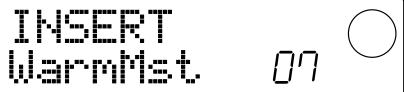

Press the PLAY [▶] key to play back the song.
The entire song will pass through the insert effect and be sent from the [OUTPUT] jacks. If desired, you can edit the currently selected patch to make detailed adjustments to the way in which the effect is applied ( p.78).
![ZOOM MRS-1044 - Press the PLAY [▶] key to play back the song. - 1](/content/2025/01/152225/images/d0a5bfb8b689feca08aff6f37050b624a518e0413ba6b37d3e0461905a7271ab.jpg)
When you have finished selecting the patch, press the [EXIT] key.
You will return to the main screen.
4-4: Perform the mixdown
Finally, you will record (mix down) the completed song onto an external master recorder.

Press the PLAY [▶] key to play back the song, and while you watch the level meter, adjust the overall volume of the song as desired.
Adjust the MASTER fader while making sure that the 0 dB dot of the L/R level meter does not light
![ZOOM MRS-1044 - Press the PLAY [▶] key to play back the song, and while you watch the level meter, adjust the overall volume of the song as desired. - 1](/content/2025/01/152225/images/2fc27ffa382806710fe6ef0b3a0781c17e606ed4bb967787396de2cc3a0dcbeb.jpg)
![ZOOM MRS-1044 - Press the PLAY [▶] key to play back the song, and while you watch the level meter, adjust the overall volume of the song as desired. - 2](/content/2025/01/152225/images/e50181b7c07a591b7332b50c751715a341232f5a71054e7bd607ff03ecd05c4d.jpg)
2 When you have finished adjusting the MASTER fader, press the STOP [■] key to stop, and then press the ZERO [←] key to return to the beginning of the song.
3 Start recording on the external recorder connected to the [OUTPUT] jack(s), and then press the PLAY [▶] key of the MRS-1044.
When you have finished recording, stop the external recorder. Press the MRS-1044's STOP [ ] key to stop the song.
This completes the mixdown. Don't forget to save the current project on the hard disk.
![ZOOM MRS-1044 - Press the PLAY [▶] key to play back the song, and while you watch the level meter, adjust the overall volume of the song as desired. - 3](/content/2025/01/152225/images/c6ae3cc29323975de1f889ecc300475c93c878b55964e8d8027325aea2412937.jpg)
HINT
When shipped from the factory, the hard disk contains a project with a completed mix of all recorded tracks. (Project name "Sample 4," project number 995.) For details on how to load a project, refer to p.17.

NOTE
On the MRS-1044, the current project will be saved automatically when you turn off the power or load another project. For this reason, if you modify the mix after having saved the project with its "completed" mix, you will be unable to return to the original "completed" mix. To make sure that you have preserved the completed mix, we recommend that you either Protect that project ( p.85) or save the current mixer settings as a "scene" ( p.51).
Reference [Recorder]
This section explains the functions and operations of the MRS-1044's recorder section.
Moving to a desired location in the song (Locate function)
You can specify a location within the song in time (minutes / seconds / 10 ms) units or in measure (measure / beat / tick) units, and move to that location.
1. In the main screen, press the [TIME BASE] key in the display section.
The time display and measure display will alternate each time you press the [TIME BASE] key.
![ZOOM MRS-1044 - In the main screen, press the [TIME BASE] key in the display section. - 1](/content/2025/01/152225/images/1f68a6e90519e3de965317933575f0041419edf5efffd2056ff2bc533658eee0.jpg)
NOTE
Locate operations can be performed even if the rhythm section is disconnected from the recorder section (i.e., when the [RHYTHM] key is lit). In this case, however, the measure display will always be used.
2. Make sure that the recorder is stopped, and press the cursor [▶] key once in the main screen.
The "M" character will blink for time display, and the "MEASURE" indicator will blink for measure display.
![ZOOM MRS-1044 - Make sure that the recorder is stopped, and press the cursor [▶] key once in the main screen. - 1](/content/2025/01/152225/images/e656b74a65aa613da733cbb9a797723d518f05950324eff0f700944ffccca682.jpg)
3. Use the cursor [] / [] keys to move the blinking area to the left or right, and turn the dial to specify the location to which you want to move.
The time display can be changed in minutes/seconds/10 millisecond units, and the measure display can be changed in measure/beat/tick units. When you change the value, you will immediately move to the specified location.
You can now press the PLAY [▶] key to begin playing from the point to which you located.
Assigning marks within the song (Marker function)
You can assign up to 100 marks in a song at any desired location, and locate to a mark by pressing a key or by specifying the desired mark number. This is convenient when you want to play back repeatedly from a specific location.
HINT
The marker function can also be used to recall mixer settings (scenes) at a desired location in a song ( p.51) .
Assigning a mark
Here's how to assign a mark at the desired location in a song.
1. Find to the point at which you want to assign a mark.
If necessary, you can use the Scrub function to make fine adjustments to the current location in 10 millisecond steps ( p.31).
HINT
A mark can be assigned either during playback or when stopped.
2. Press the [MARK] key.
A mark will be assigned to the current location. When a mark has been assigned, the new mark number (01 - 99) will appear in the MARKER area in the upper right of the display.
![ZOOM MRS-1044 - Press the [MARK] key. - 1](/content/2025/01/152225/images/4e5ce8e535c8a2913e6e197bbbdbb90fc4b6a8051d0ebea8338d9cf649804377.jpg)
The mark number is assigned automatically in ascending order from the beginning of the song. If you add a new mark between two existing marks, the subsequent marks will be renumbered.
![ZOOM MRS-1044 - Press the [MARK] key. - 2](/content/2025/01/152225/images/61d052c4ff60893505dc124bb5730aace5408a0e12db290ca4c29f8799d4d3b2.jpg)
HINT
- Mark number 00 is already set at the beginning of the song (the counter zero location).
- In the main screen, the MARKER area in the upper right of the display will show the number of the mark that you passed last (i.e., the previous mark in the song). If a dot is shown at the lower right of the mark number, this means that the mark location matches the current location.
Locating to a mark location
Here's how to move to the location of a mark. This can be done in two ways: you can use key operations, or specify the mark number directly.
Using keys to locate
1. Press either the MARKER [←] or [→] key.
Each time you press the key, you will locate to the next mark before or after the current location.
![ZOOM MRS-1044 - Press either the MARKER [←] or [→] key. - 1](/content/2025/01/152225/images/6f690aae817356c1ea4fdc9b6718ea5c6d8a6df53b60c894ac14c5612941f510.jpg)
■ Specifying the mark number to locate
1. In the main screen, press the cursor [<] key once.
The word MARKER will blink in the upper right of the display.
2. Turn the dial to select the desired mark number.
As soon as the number is changed, you will locate to that number.
Deleting a mark
Here's how to delete a mark that you assigned.
1. Locate to the mark that you want to delete.
The mark number displayed in the MARKER area is the mark that will be deleted. However, it is not possible to delete a mark unless the mark location exactly matches the current location. Make sure that the dot at the lower right of the mark number is lit.
2. Press the [CLEAR] key.
The selected mark will be deleted, and subsequent marks will be renumbered.
NOTE
- A deleted mark cannot be recovered.
- It is not possible to delete mark number "00" located at the beginning of the song.
Finding a desired location (Scrub/Preview function)
The MRS-1044 provides a "Scrub" function that lets you search for a desired location while repeatedly playing a short region before or after the current location. This is convenient when you want to accurately find the point at which a specific sound starts or stops. When the Scrub function is on, you can use the "Preview function" that plays 0.7 seconds of the preceding or following sound when you press the REW [←] or FF [▶] key. By using the Scrub and Preview functions together, you can find the desired location quickly and accurately.
NOTE
When the Scrub/Preview functions are being used, only one of the tracks 1 - 10 can be played back.
Using the Scrub/Preview functions
1. In the main screen, hold down the STOP [■] key and press the PLAY [▶] key.
This turns on the Scrub function, and a short region (40 milliseconds by default) following the current location will play back repeatedly.
![ZOOM MRS-1044 - In the main screen, hold down the STOP [■] key and press the PLAY [▶] key. - 1](/content/2025/01/152225/images/d8cc83c73eb74c7cffba377ca8aef265f4d883e96aceeaebd11a12292ba6cb69.jpg)
When the Scrub function is on, the SCRUB indicator will appear in the lower right of the display.
![ZOOM MRS-1044 - In the main screen, hold down the STOP [■] key and press the PLAY [▶] key. - 2](/content/2025/01/152225/images/cfd14b449f1100df5cb89a4886da1858ec7f776c3404b1e009c36e4dee78909a.jpg)
2. Press one of the status keys 1 - 6, 7/8, or 9/10 to select the track that will be scrubbed.
For the stereo tracks (7/8, 9/10), the selection will alternate between odd-numbered and even-numbered tracks each time you press the status key.
3. Use the cursor [] / [] keys to make the unit displayed at the right edge of the counter ("MS" for
time display, or "TICK" for measure display) blink.
4. Turn the dial to the left or right to find the desired location.
While scrub playback continues, the current location will move forward or backward in 10 millisecond steps (for time display) or one-tick steps (for measure display).
5. If you want to use the Preview function to hear the region before the current location, press the REW [←] key. To hear the region after the current location, press the FF [▶] key.
If you press the REW [←] key, a region of 0.7 seconds prior to the current location will play (ending at the current location). If you press the FF [▶] key, a region of 0.7 seconds following the current location will play (beginning at the current location). This is called "preview playback." When preview playback ends, scrub playback will resume.
![ZOOM MRS-1044 - If you want to use the Preview function to hear the region before the current location, press the REW [←] key. To hear the region after the current location, press the FF [▶] key. - 1](/content/2025/01/152225/images/9a2855b41304616586b844b8c08b3db0ca1aa9150a69decaf35895128d144264.jpg)
6. To cancel the Scrub function, press the STOP [■] key.
You will return to the main screen.
Changing the settings of the Scrub function
When the Scrub function is on, you can change the direction of the scrub playback (whether it will play the region before or after the current location), and the length of the scrub playback region.
1. In the main screen, hvold down the STOP [■] key and press the PLAY [▶] key.
This turns the Scrub function on, and the following screen will appear. The characters in the lower left (TO/FRM) indicate the direction of scrub playback, and the number in the lower right (40 - 200) is the length of scrub playback.
![ZOOM MRS-1044 - In the main screen, hvold down the STOP [■] key and press the PLAY [▶] key. - 1](/content/2025/01/152225/images/d76ed2395d9ffb792bff07c949b4cbfe8700cecd4b8a183c4cad925943fffe52.jpg)
2. If you want to change the length of scrub playback,
use the cursor [] / [] keys to make the scrub playback length setting blink, and turn the dial.
You can select 40, 80, 120, 160, or 200 (ms) as the length of scrub playback.
HINT
You can also use the cursor [ ] / [ ] keys to change the scrub playback length.
- If you want to change the direction of scrub playback, use the cursor [] / [] keys to make the scrub playback direction setting blink, and turn the dial.
If you select "TO," scrub playback will begin from an earlier point and end at the current location. If you select "FRM," scrub playback will begin from the current location (this is the default setting).
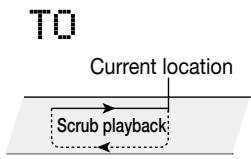
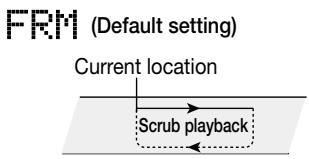
HINT
The scrub function playback will be affected immediately by any change you make to the scrub settings.
- If you want to use the new scrub playback settings to find a location, use the cursor [] /[ ] keys to move the blinking area to the unit displayed at the right of the counter ("MS" for time display, or "TICK" for measure display).
Turn the dial to the left or right, and the current location will move backward or forward. For details on operating the Scrub/Preview functions, refer to the preceding item.
- To exit the Scrub function, press the STOP [■] key.
You will return to the main screen.
Playing back repeatedly (A-B Repeat function)
A-B Repeat is a function that repeatedly plays back a desired region of the song. This is useful when you want to listen to the same region repeatedly.
- Locate to the point at which you want to begin repeat playback, and press the [A-B REPEAT] key.
The [A-B REPEAT] key will blink, and the repeat start location (point A) will be specified.
- Locate to the point at which you want to end repeat playback, and press the [A-B REPEAT] key.
The [A-B REPEAT] key will change from blinking to solidly lit, and the repeat end location (point B) will be specified.
NOTE
If you specify a point B that is located earlier than point A , the region from points B A will be played repeatedly.
HINT
- If you want to re-make the point A/B settings, press the [A-B REPEAT] key several times to make it go dark, and then repeat steps 1 - 2 once again.
-
Point A/B settings can be made when the recorder is either stopped or playing.
-
To begin repeat playback, press the PLAY [▶] key.
Repeat playback will begin when you press the PLAY [▶] key while the [A-B REPEAT] key is lit. Even after pressing the STOP [■] key to stop playback, you can perform repeat playback again as many times as desired, as long as the [A-B REPEAT] key is lit.
- To turn off repeat playback, press the [A-B REPEAT] key.
The [A-B REPEAT] key will go dark, and repeat playback will be turned off.
NOTE
When the [A-B REPEAT] key goes dark, the programmed point A/B locations will be erased.
Re-recording only a specified region (Punch-in/out function)
Punch-in/out is a function that lets you re-record just a specified region of a previously recorded track. The action of switching a currently-playing track to record mode is called "punch-in," and the action of switching back from recording to playback is called "punch-out."
The MRS-1044 provides two ways to do this. You can use the panel keys or a foot switch (sold separately) to punch-in/out manually ("manual punch-in/out"), or cause punch-in/out to occur automatically at previously specified points ("auto punch-in/out").
NOTE
When you use punch-in/out to re-record, the previously recorded material will be overwritten (replaced) by the newly recorded material. If you plan to compare the previous state with the result of punching-in/out, you must capture that track beforehand as Undo data ( p.44).
Using manual punch-in/out
Here's how to use manual punch-in/out to re-record a region of a previously recorded track.
HINT
If you want to use a foot switch (ZOOM FS01/FS02) to punch-in/out, connect the foot switch to the rear panel [FOOT SW] jack.
NOTE
With the default settings of the MRS-1044, a foot switch connected to the [FOOT SW] jack is set to start/stop song playback. If you want to use the foot switch to punch-in/out, you must first change the internal setting ( p.92) .
- Repeatedly press the status key of the track on which you want to punch-in/out, making the key light red.
- Raise the fader of the corresponding channel to the 0 dB position.
- While playing your instrument, use the [REC LEVEL] control to adjust the recording level.
As necessary, play back the recorder and use the faders of the mixer section to adjust the mix balance of your instrument and the playback of the tracks.
- Locate to a point several measures earlier than where you want to punch-in, and press the PLAY [▶] key to begin playback.
- When you come to the punch-in location, press the REC [●] key (or press the foot switch).
The REC [ ] key will light, and recording will begin from that location.
- When you come to the punch-out location, press the REC [●] once again (or press the foot switch once again).
The REC [] key will go dark, and recording will be defeated from that point. - To stop the transport, press the STOP [■] key.
- To check the newly recorded content, locate to the point of step 4, and press the PLAY [▶] key.
Using auto punch-in/out
Auto punch-in/out is a function that lets you specify beforehand the region to be re-recorded. Punch-in will occur automatically when you reach the starting location (in point), and punch-out will occur automatically when you reach the ending location (out point).

In order to perform auto punch-in/out, use the [AUTO PUNCH-IN/OUT] key to first specify the In point and Out point, and then perform the recording operation. The procedure is as follows.
- On the channel for the track that you want to re-record, raise the fader to the 0 dB position.
- While playing your instrument, use the [REC LEVEL] control to adjust the recording level.
- Locate to the point at which you want to punch-in, and press the [AUTO PUNCH-IN/OUT] key.
The [AUTO PUNCH-IN/OUT] key will blink. This sets the "In point" at which recording will begin.
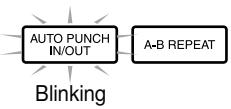
- Locate to the point at which you want to punch out, and press the [AUTO PUNCH-IN/OUT] button once again.
This sets the "Out point" at which recording will end. The [AUTO PUNCH-IN/OUT] button will change from blinking to solidly lit. This indicates that the auto punch-in/out function is now enabled.
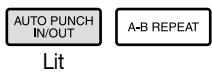
HINT
If you want to specify the in/out points precisely, it is convenient to use the Scrub function ( p.31) to find the locations and assign a mark ( p.29) beforehand at the desired locations.
- Locate the recorder to a spot earlier than the In point.
- Repeatedly press the status key for the track on which you want to punch-in/out, until the key blinks red.
NOTE
A status key that is lit red means that the current location is between the In point and Out point. In this case, operate the transport once again to locate to a point that is earlier than the In point.
- If you want to rehearse the auto punch-in/out, press the PLAY [▶] key.
The recorder will begin playing. When you reach the In point, the track on which you are punching-in/out will be muted. When you reach the Out point, muting will be defeated. (You will always be able to monitor the input signal during this time.) Performing this action will not record anything on the track.
When you are finished rehearsing, move once again to a location earlier than the In point.
- To actually perform auto punch-in/out, hold down the REC [●] key and press the PLAY [▶] key.
When you reach the In point, recording will begin automatically (punch-in). When you reach the Out point, recording will end automatically, and playback will resume (punch-out).
- When you are finished recording, press the STOP [■] key.
- To check the recorded content, press the status key of the track on which you punched-in/out, making the status key light green. Then locate to a point earlier than the In-point, and press the PLAY [▶] key.
If you want to re-do the recording, repeat steps 5 - 8.
- When you are satisfied with the recording, press the [AUTO PUNCH-IN/OUT] key.
The [AUTO PUNCH-IN/OUT] key will go dark, and the Auto Punch-in/out function will be turned off. (The In point and Out point settings will be discarded.)
HINT
By using Auto Punch-in/out in conjunction with the A-B Repeat function ( p.32), you can automatically return to the punch-in point after punching-out, and listen to the recorded content. To do this, set the In/Out points, and then set point A and point B outside this region, and enable A-B Repeat.
Using V-takes
Each track 1 - 10 of the recorder contains ten virtual tracks, called "V-takes." For each track, you can select one take, which will be used for recording and playback. For example, you can switch V-takes as you record multiple vocal or guitar solos on the same track, and later compare them and select the best V-take.
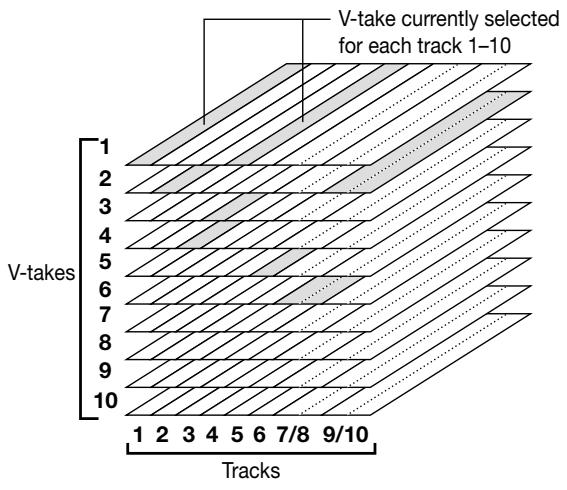
Switching V-takes
Here's how to switch the V-take used by each track 1 - 10.

HINT
Even for the stereo tracks (tracks 7/8 and 9/10) you can select different V-takes for odd-numbered/even-numbered tracks.
1. In the main screen, press the display section [V-TAKE] key.
The [V-TAKE] key will light, and a screen will appear in which you can switch the V-take for each track. In the "TRxx-yy" indication, xx is the track number (1 - 10), and yy is the V-take number (1 - 10) currently selected for that track. The name of the V-take is displayed below "TRxx-yy."
![ZOOM MRS-1044 - In the main screen, press the display section [V-TAKE] key. - 1](/content/2025/01/152225/images/63d3f6ff9dab162d843aa19afefa80c1d1651dbe108782a9a450ecf0cc463cd7.jpg)
The level meter display area will show dots as lit/blinking/dark to indicate the V-take currently selected for each track, and the V-takes that have already been recorded.
![ZOOM MRS-1044 - In the main screen, press the display section [V-TAKE] key. - 2](/content/2025/01/152225/images/8d80087ca51ff7a2eaea283df1910345adc7d84096626db103a9d90b463c2970.jpg)
- Use the cursor [] / [] keys to make the track number blink, and turn the dial to select a track (1-10).
![ZOOM MRS-1044 - In the main screen, press the display section [V-TAKE] key. - 3](/content/2025/01/152225/images/4f47d12eef7a8797f1126ad0dbaa8e19df6ab011d0f2d977de265d1b3146334c.jpg)
![ZOOM MRS-1044 - In the main screen, press the display section [V-TAKE] key. - 4](/content/2025/01/152225/images/00b1193e990eaee29265867c1e691e5e6e6bdf0c5a99ad0ef4007931d00155ed.jpg)
HINT
You can also use the status keys (1 - 6, 7/8, 9/10) to select a track. When using status keys 7/8 and 9/10, the odd-numbered/even-numbered tracks will be selected alternately each time you press the key.
3. Use the cursor [] / [] keys to make the V-take number indicator blink, and turn the dial to select a V-take (1 - 10).
As necessary, repeat steps 2 - 3 to switch V-takes for other tracks as well.
V-takes that have already been recorded will be assigned a default name as follows. These names can be edited as desired. (See the following section.)
- GTRxx-yy: A V-take recorded through an insert effect (algorithm= GUITAR/BASS)
- MICxx-yy: A V-take recorded through an insert effect (algorithm=MIC)
- LINxx-yy: A V-take recorded through an insert effect (algorithm=LINE)
- MASxx-yy: A V-take recorded through an insert effect (algorithm=MASTERING)
-
BYPxx-yy: A V-take recorded with the insert effect bypassed
-
BOUxx-yy: A V-take recorded using the Bounce function
- xx will be the track number (1 - 10), and yy will be the V-take number (1 - 10).
HINT
If an unrecorded V-take is selected, the V-take name area will indicate "NO DATA."
4. When you have finished switching V-takes, press the [EXIT] key.
The [V-TAKE] key will go dark, and you will return to the main screen.
Editing the name of a V-take
A V-take that has been recorded will be automatically assigned a default name, but you can edit this V-take name as follows.
1. In the main screen, press the [V-TAKE] key.
A screen will appear in which you can switch the V-take of each track.
2. Use the cursor [] / [] keys and the dial (or the status keys) to select the track (1 - 10) for which you want to edit the name of a V-take.
For details on how to select a track, refer to p.35.
HINT
- It is not possible to edit the name of an unrecorded V-take (NO DATA).
- The V-take name can be edited only for the V-take that is currently selected for each track 1 - 10.
3. Press the [EDIT] key.
The first character of the V-take name will blink.
TR3-2 GTR3-2
4. Use the cursor [] / [] keys to move the blinking location, and turn the dial to change the character.
The following characters can be selected.
Numerals: 0 - 9
Letters: A-Z, a-z
Symbols: (space)! ” # $ % & ’ ( ) * + , - . / ; ; < =
$$
? @ [ \backslash ] \wedge {} _ {-} ^ {\prime} {{} \sim $$
5. When you have finished inputting the name, press the [EXIT] key.
The name will be updated, and you will return to the screen of step 2. If necessary, you can now edit the V-take name of another track.
6. When you have finished editing, press the [EXIT] key.
You will return to the main screen.
HINT
If all recorded data is erased from a V-take, the name will revert to "NO DATA."
Combining multiple tracks (Bounce function)
"Bounce" is a function that mixes the performances of the recorder section and rhythm section (drum kit + bass program), and records them on one or two tracks. (This is sometimes called "ping-pong recording.") As an example, we will explain how recorder tracks 1 - 8 and the rhythm section can be mixed in stereo, and recorded on tracks 9/10.
Executing bounce recording
1. Press the status key of the bounce-destination track (9/10) to make the key light red.
A maximum of two mono tracks or one stereo track can be selected as the bounce-destination.
2. Press the [BOUNCE] key.
The [BOUNCE] key will light, and the Bounce function will be turned on.
3. Press the PLAY [▶] key to play back the song, and adjust the mix balance of each track.
While watching the L/R level meters, adjust the DRUM, BASS, 1 - 6, and 7/8 channel faders and the MASTER faders so that the L/R level meters do not clip.
When the Bounce function is on, the signal that passes through the MASTER fader will be output from the [OUTPUT] jacks, and at the same time will be sent to the bounce-destination track(s). Even if you are using the insert effect or a send/return effect, the sound with the effect(s) applied will be recorded on the bounce-destination track(s).
![ZOOM MRS-1044 - Press the PLAY [▶] key to play back the song, and adjust the mix balance of each track. - 1](/content/2025/01/152225/images/41a6815fddcdf61a263f1b7627f98010f96640d1fce5e4f4a978d673d697bb5f.jpg)
![ZOOM MRS-1044 - Press the PLAY [▶] key to play back the song, and adjust the mix balance of each track. - 2](/content/2025/01/152225/images/f7ad6ccdeae89b966acfb279787308e1b2e360a810b4f838d69ea3d3e1502cc8.jpg)
HINT
- If you turn the INPUT 1/2 [ON/OFF] keys on, you can mix the input signals from the [INPUT 1] and [INPUT 2] jacks into the bounce recording.
- If you select only one mono track as the bounce
destination, the signal mixed to mono will be recorded.
- If necessary, you can play back all ten tracks, and bounce them to the desired one or two tracks. For details refer to the section that follows.
4. Press the STOP [■] key.
5. Press the ZERO [↓←] key to return to the beginning of the song, and then hold down the REC [●] key and press the PLAY [▶] key.
Recording on track 9/10 will begin.
6. When you have finished recording, press the STOP [■] key.
The Bounce function will be turned off.
Making settings for the Bounce function
You can change the settings of the Bounce function if necessary.
■ Specifying playback/mute for the recording track(s)
By default, the bounce-destination recording track(s) will be muted. If you want to play back all ten tracks simultaneously while you bounce-record, use the following procedure to change the internal setting so that the recording track(s) will also play back.
1. In the main screen, press the [PROJECT/UTILITY] key.
The display will indicate "PROJECT."
2. Use the cursor [] / [] keys to make the display read "UTILITY BOUNCE," and press the [ENTER] key.
3. Use the cursor [] / [] keys to make the display read "BOUNCE REC TR," and press the [ENTER] key.
The current setting will be displayed.
REC TR MUTE
- MUTE: The recording track(s) will be muted (default setting).
- PLAY: The recording track(s) will play back.
4. Turn the dial to change the setting to "PLAY."
- To return to the main screen, press the [EXIT] key several times.
Selecting the recording-destination V-take
By default, the result of the Bounce operation will be recorded on the V-take that is currently selected for the recording track(s). If you want to preserve the contents of the recording track(s), you can use the following procedure to change the recording-destination V-take.

For details on V-takes, refer to p.35.
- In the main screen, press the [PROJECT/UTILITY] key.
The display will indicate "PROJECT."
- Use the cursor [] / [] keys to make the display read "UTILITY BOUNCE," and press the [ENTER] key.
- Use the cursor [] / [] keys to make the display read "BOUNCE REC TAKE," and press the [ENTER] key.
The currently selected recording-destination V-take will be displayed.
- CURRENT: The bounce result will be recorded on the V-take currently selected for the recording track.
-
1 - 10 : The bounce result will be recorded on the V-take of the number you specify here.
-
Turn the dial to specify the recording-destination V-take (CURRENT or 1 - 10).
- To return to the main screen, press the [EXIT] key several times.
Track editing
The audio data recorded on the tracks of the recorder can be edited in a variety of ways, such as erasing portions of it or copying it to other tracks. This section explains the track editing functions.

- When using the track editing functions, the two tracks of each stereo track (7/8, 9/10) are handled as separate tracks.
- V-takes not currently selected for tracks 1 - 10 can also be selected for editing.

In general, recorded track data that was rewritten by an editing operation cannot be recovered. If you plan to compare the state of the data before and after editing, you must Capture the state of that track ( p.44) .
Copying a specified region of data to another location
A specified region of recorded data can be copied to any location in any track. The data that was previously at the copy-destination will be erased, and overwritten by the copy-source data.
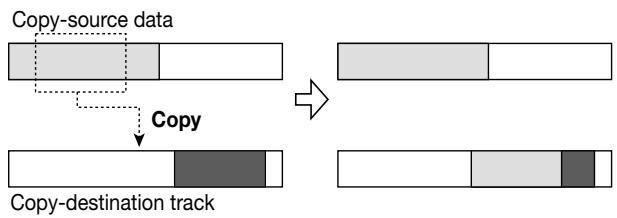
- In the main screen, press the [PROJECT/UTILITY] key.
The display will indicate "PROJECT." - Use the cursor [] / [] keys to make the display read "UTILITY TR EDIT," and press the [ENTER] key.
The track edit menu will appear, from which you can select the desired type of editing function.

- Make sure that the display indicates "TR EDIT COPY," and press the [ENTER] key.
A screen will appear in which you can specify the copy-source track and V-take.
4. Use the dial and cursor [] / [] keys to specify the copy-source track and V-take.
In "TR xx-yy," "xx" is the copy-source track number, and "yy" is the V-take number. Use the dial to select the track number (1 - 10), and use the cursor [] / [] keys to select the V-take number (1 - 10).
![ZOOM MRS-1044 - Use the dial and cursor [] / [] keys to specify the copy-source track and V-take. - 1](/content/2025/01/152225/images/351b3fd73e5ac4b08312fdc66bd0ab2b0076c02f3a53c7685c2e8c73188237a2.jpg)
If you turn the dial toward the right when track 10 is selected, the following screen will appear.
![ZOOM MRS-1044 - Use the dial and cursor [] / [] keys to specify the copy-source track and V-take. - 2](/content/2025/01/152225/images/8b06af0411c3559bb86694ae7ca0844f3805a4a523b6f14a6d8112c471d9f93e.jpg)
In this screen you can use the dial to specify two adjacent odd-numbered/even-numbered tracks (1/2, 3/4, 5/6, 7/8, 9/10) as the copy-source. In this case, the V-takes currently selected for the two selected tracks will automatically be selected as the copy-source.
5. Press the [ENTER] key.
A screen will appear in which you can specify the beginning of the copy-source.
![ZOOM MRS-1044 - Press the [ENTER] key. - 1](/content/2025/01/152225/images/acd0872267e26b79e76bc9eaf2c4a3ad4893121c6d3b77b062ecd8141e0be8fe.jpg)
6. Use the cursor [] / [] keys to move the blinking area in the display, and turn the dial to specify the location.
The location can be specified in one of the following two ways.
- Specifying the location numerically
Move the blinking area to one of the M (minutes) / S (seconds) / MS (milliseconds) areas in the bottom of the display, and turn the dial to edit the value of each unit.
- Assigning a previously-specified mark location
Move the blinking area to the MARKER area in the upper right of the display, and turn the dial to specify the mark number.
HINT
- By pressing the [TIME BASE] key to switch to the Measure display, you can specify the location in measure/beat/clock units.
- By holding down STOP[■] and pressing the PLAY[▶]
key, you can scrub-play the track and V-take you specified in step 4. For details on using scrub-playback, refer to p.31.
- The starting location can be specified only between the beginning of the song and the last-recorded location (i.e., within the recorded data).
7. When you have finished specifying the starting location, press the [ENTER] key.
A screen will appear in which you can specify the ending location of the copy-source.
![ZOOM MRS-1044 - When you have finished specifying the starting location, press the [ENTER] key. - 1](/content/2025/01/152225/images/fe2afe6cb99fb01c0b4cd4f546819c354e7e0105b81699830f68675bb52c2b84.jpg)
8. Specify the ending location of the copy-source in the same way as in step 6.
At this time, you can press the PLAY[▶] key to play back the region between the specified starting location and ending location. If there is no recorded data at the specified ending location, an " * " symbol will appear in the lower line of the screen.
9. When you have finished specifying the ending location, press the [ENTER] key.
A screen will appear in which you can specify the copy-destination track (and V-take).
![ZOOM MRS-1044 - When you have finished specifying the ending location, press the [ENTER] key. - 1](/content/2025/01/152225/images/6a1aa5dcba54891aadcc5a10d14696af12e4ae3f7a991e09d304d39f28a89e0f.jpg)
10. Specify the copy-destination track and V-take in the same way as in step 4.
A screen will appear in which you can specify the copy-destination location.
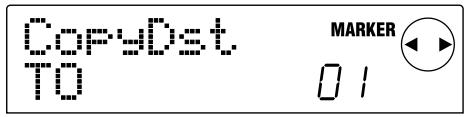
11. Specify the copy-destination location in the same way as in step 6, and press the [ENTER] key.
A screen will appear in which you can specify the number of times (1 - 100) that the data will be copied.
![ZOOM MRS-1044 - Specify the copy-destination location in the same way as in step 6, and press the [ENTER] key. - 1](/content/2025/01/152225/images/cb98f09e79ae56506bfa2fde50bc4b12c53bec84ed3ffe6b1739993aed37787a.jpg)
- Turn the dial to specify the number of times that the data will be copied, and then press the [ENTER] key.
The display will indicate "TrCopy SURE?," asking you to confirm the Copy operation.
13.To execute the Copy, press the [ENTER] key. To cancel, press the [EXIT] key.
When you press the [ENTER] key and the copy is completed, the display will indicate "COMPLETE." If you then press [EXIT], you will return to the Track Edit menu of step 2.
If you press the [EXIT] key in step 13, you will return to the setting screen of step 11. If necessary, you can press the [EXIT] key repeatedly to step backward through each screen.
Copying the data of an entire track
The recorded data of an entire track can be copied to another track. The recorded data at the copy-destination will be erased, and overwritten by the copy-source data.
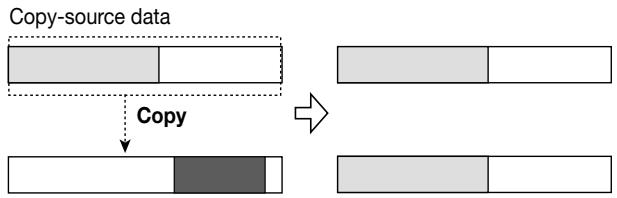
Copy-destination track
- In the main screen, press the [V-TAKE] key.
The [V-TAKE] key will light, and a screen will appear in which you can switch the V-take for each track.
- Press the [PROJECT/UTILITY] key.
A menu will appear in which you can select operations that edit the recorded data of an entire track.
ERASE
TR1-1
MARKER
02

- Repeatedly press the [PROJECT/UTILITY] key to make the display read "COPY TRxx-yy."
In "COPY TRxx-yy," the xx and yy values respectively indicate the copy-source track number and V-take.
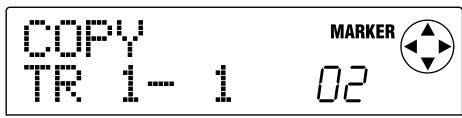
- Use the cursor [] / [] keys and the dial to specify the copy-source track/V-take, and press the [ENTER] key.
A screen will appear in which you can specify the copy-destination track/V-take. In "COPY TO TRxx-yy," the xx value is the copy-destination track number, and the yy value is the V-take number.
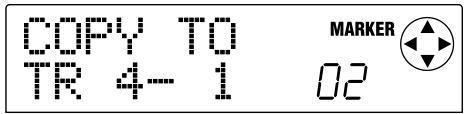
In this screen, the dots of the level meter will be lit or unlit as follows to indicate whether the currently selected V-take has already been recorded or not.
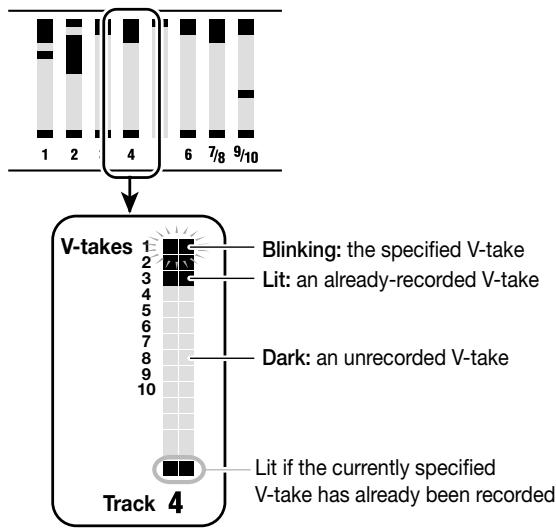
- Use the cursor [] / [] keys and the dial to specify the copy-destination track/V-take, and press the [ENTER] key.
The display will ask "COPY SURE?," asking you to confirm the copy operation.
- To execute the copy, press the [ENTER] key. To cancel, press the [EXIT] key.
When you press the [ENTER] key and the copy is completed, you will return to the screen from step 1.
If you press the [EXIT] key, you will return to the setting screen from step 4. If necessary, you can press the [EXIT] key to step backward through each screen.
Moving a specified region of data to another location
A specified region of recorded data can be moved to the desired location of a desired track. The previous data at the
move-destination will be erased, and overwritten by the move-source data. When this operation is completed, the move-source region will contain silence.
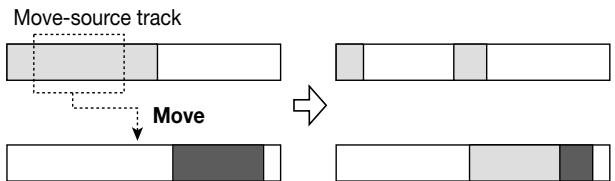
Move-destination track
1. In the main screen, press the [PROJECT/UTILITY] key.
The display will indicate "PROJECT."
2. Use the cursor [] / [] keys to make the display read "UTILITY TR EDIT," and press the [ENTER] key.
The track edit menu will appear.
3. Use the cursor [] / [] keys to make the display read "TR EDIT MOVE," and press the [ENTER] key.
A screen will appear in which you can specify the move-destination track and V-take.
4. Use the dial and the cursor [] / [] keys to specify the move-source track and V-take.
In "TR xx-yy," "xx" specifies the move-source track number, and "yy" specifies the V-take number. Use the dial to select the track number (1 - 10), and use cursor [] / [] keys to select the V-take number (1 - 10).
![ZOOM MRS-1044 - Use the dial and the cursor [] / [] keys to specify the move-source track and V-take. - 1](/content/2025/01/152225/images/9b9d6bc5d796034f62ba2b170de22e02bd9fd31d227444235da19e1a9b330d22.jpg)
If you turn the dial toward the right when track 10 is selected, the following screen will appear.
![ZOOM MRS-1044 - Use the dial and the cursor [] / [] keys to specify the move-source track and V-take. - 2](/content/2025/01/152225/images/11ddc46a887b42e8ad7ea0f8b04d42a320d61f228cdc73f988e23db7dc4637cc.jpg)
In this screen you can use the dial to specify two adjacent odd-numbered/even-numbered tracks (1/2, 3/4, 5/6, 7/8, 9/10) as the move-source. In this case, the V-takes currently selected for the two selected tracks will automatically be selected as the move-source.
5. Press the [ENTER] key.
A screen will appear in which you can specify the starting location of the move-source.
![ZOOM MRS-1044 - Press the [ENTER] key. - 1](/content/2025/01/152225/images/874d991f44da27d413627ed91b7ae487f2d731c5327b0cc5953bb7f684bb33de.jpg)
6. Use the cursor [] / [] keys to move the blinking area in the display, and turn the dial to specify the location.
The location can be specified in one of the following two ways.
- Specifying the location numerically
Move the blinking area to one of the M (minutes) / S (seconds) / MS (milliseconds) areas in the bottom of the display, and turn the dial to edit the value of each unit.
- Assigning a previously-specified mark location
Move the blinking area to the MARKER area in the upper right of the display, and turn the dial to specify the mark number.
HINT
- By pressing the [TIME BASE] key to switch to the Measure display, you can specify the location in measure/beat/clock units.
- By holding down STOP[■] and pressing the PLAY[▶] key, you can scrub-play the track and V-take you specified in step 4. For details on using scrub-playback, refer to p.31.
7. When you have finished specifying the starting location, press the [ENTER] key.
A screen will appear in which you can specify the ending location of the move-source.
![ZOOM MRS-1044 - When you have finished specifying the starting location, press the [ENTER] key. - 1](/content/2025/01/152225/images/439cdd87284e24c3d70d17419eb509c3887bcaa1d9d9d4f46206e05746ffec88.jpg)
8. Specify the ending location of the move-source in the same way as in step 6.
At this time, you can press the PLAY[▶] key to play back the region between the specified starting location and ending location. If there is no recorded data at the specified ending location, an " * " symbol will appear in the lower line of the screen.
9. When you have finished specifying the ending location, press the [ENTER] key.
A screen will appear in which you can specify the move-destination track (and V-take).
![ZOOM MRS-1044 - When you have finished specifying the ending location, press the [ENTER] key. - 1](/content/2025/01/152225/images/b7845e7a3cd56735f8dc9ef48929263dfb3abd1be48c60c42cd6605bc75e93ae.jpg)
- Specify the move-destination track and V-take in the same way as in step 4.
A screen will appear in which you can specify the move-destination location.
![ZOOM MRS-1044 - When you have finished specifying the ending location, press the [ENTER] key. - 2](/content/2025/01/152225/images/07743c9cc54914d15d6d869f3e1d0d9fb101ea7f9279bc465c396bfc1d609607.jpg)
- Specify the move-destination location in the same way as in step 6, and press the [ENTER] key.
A screen will appear in which you can specify the number of times (1 - 100) that the move-source region will be copied.
![ZOOM MRS-1044 - When you have finished specifying the ending location, press the [ENTER] key. - 3](/content/2025/01/152225/images/030307b77f226dee42a43227553441d916dbf6c862c32372c169e81bd65f42da.jpg)
- Turn the dial to specify the number of times that the data will be copied, and press the [ENTER] key.
The display will ask "TrMove SURE?," asking you to confirm the Move operation.
- To execute the Move operation, press the [ENTER] key. To cancel, press the [EXIT] key.
When you press the [ENTER] key and the Move operation is completed, the display will indicate "COMPLETE." If you then press the [EXIT] key, you will return to the Track Edit menu of step 2.
If you press the [EXIT] key in step 13, you will return to the setting screen of step 11. If necessary, you can press the [EXIT] key repeatedly to step back through each setting screen.
![ZOOM MRS-1044 - When you have finished specifying the ending location, press the [ENTER] key. - 4](/content/2025/01/152225/images/a1bbe9fd5775fbdd8f28d0dba875b00eb7b49cb550ffffab3f70b7348b03a80b.jpg)
This operation erases the recorded data from the specified region, returning it to a silent (blank) state.
![ZOOM MRS-1044 - When you have finished specifying the ending location, press the [ENTER] key. - 5](/content/2025/01/152225/images/5bcfee8f76883b26bdd02b2bdd231d84265a3b4afc52c7829f079e162f04943c.jpg)
- In the main screen, press the [PROJECT/UTILITY] key.
The display will indicate "PROJECT."
- Use the cursor [] / [] keys to make the display read "UTILITY TR EDIT," and press the [ENTER] key.
The Track Edit menu will appear.
- Use the cursor [] / [] keys to make the display
read "TR EDIT ERASE," and press the [ENTER] key.
A screen will appear in which you can specify the track and V-take from which data will be erased.
- Use the dial and the cursor [] / [] keys to specify the track and V-take from which data will be erased.
In "TR xx-yy," "xx" is the track number and "yy" is the V-take number from which data will be erased. Use the dial to select the track number (1 - 10), and use the cursor [] / [] keys to select the V-take number (1 - 10).
![ZOOM MRS-1044 - When you have finished specifying the ending location, press the [ENTER] key. - 6](/content/2025/01/152225/images/4147cd289effa54437b38ec43242753d95e7650360c7e1964dae6431a34eb7f6.jpg)
If you turn the dial toward the right when track 10 is selected, the following screen will appear.
![ZOOM MRS-1044 - When you have finished specifying the ending location, press the [ENTER] key. - 7](/content/2025/01/152225/images/a58f399a7339e671dc1ea8277e0c53a234cbb6f2f0f437279ceb60fc038fdf4c.jpg)
In this screen you can use the dial to specify two adjacent odd-numbered/even-numbered tracks (1/2, 3/4, 5/6, 7/8, 9/10). In this case, data will be erased from the V-takes currently selected for the two selected tracks.
- Press the [ENTER] key.
A screen will appear in which you can specify the starting location of the region that will be erased.
![ZOOM MRS-1044 - When you have finished specifying the ending location, press the [ENTER] key. - 8](/content/2025/01/152225/images/3634043125177186fb269fb73b106614bdb1dd5daf696851b98454c78cc67541.jpg)
- Use the cursor [] / [] keys to move the blinking area in the display, and turn the dial to specify the location.
The location can be specified in one of the following two ways.
- Specifying the location numerically
Move the blinking area to one of the M (minutes) / S (seconds) / MS (milliseconds) areas in the bottom of the display, and turn the dial to edit the value of each unit.
- Assigning a previously-specified mark location
Move the blinking area to the MARKER area in the upper right of the display, and turn the dial to specify the mark number.
HINT
- By pressing the [TIME BASE] key to switch to the Measure display, you can specify the location in measure/beat/clock units.
- By holding down STOP[■] and pressing the PLAY[▶] key, you can scrub-play the track and V-take you specified in step 4. For details on using scrub-playback, refer to p.31.
7. When you have finished specifying the starting location, press the [ENTER] key.
A screen will appear in which you can specify the ending location of the region to be erased.
![ZOOM MRS-1044 - When you have finished specifying the starting location, press the [ENTER] key. - 1](/content/2025/01/152225/images/39681fefbcdc5af5868df0d2a0c81cd371e8a0ae989f0392936a7df7af8253fa.jpg)
8. Specify the ending location of the region to be erased in the same way as in step 6.
At this time, you can press the PLAY[▶] key to play back the region between the specified starting location and ending location. If there is no recorded data at the specified ending location, an " * " symbol will appear in the lower line of the screen.
9. When you have finished specifying the ending location, press the [ENTER] key.
The display will ask "TrErase SURE?," asking you to confirm the Erase operation.
10. To execute the Erase operation press the [ENTER] key. To cancel, press the [EXIT] key.
When you press the [ENTER] key and the Erase operation has been completed, the display will indicate "COMPLETE." If you then press the [EXIT] key, you will return to the Track Edit menu from step 2.
If you press the [EXIT] key in step 9, you will return to the setting screen from step 7. If necessary, you can press the [EXIT] key repeatedly to step back through each setting screen.
![ZOOM MRS-1044 - To execute the Erase operation press the [ENTER] key. To cancel, press the [EXIT] key. - 1](/content/2025/01/152225/images/9ddecb3e6794d39862ecd0d9e2e6814b9ecd7d9938d1c457f70304b625501ca8.jpg)
You can erase all recorded data from a specified track. The erased track will revert to an unrecorded state.
![ZOOM MRS-1044 - To execute the Erase operation press the [ENTER] key. To cancel, press the [EXIT] key. - 2](/content/2025/01/152225/images/837f802747952a33e2f056d0ef9a01c7ce5694ecc2df1cbcdd7e61335495f5c9.jpg)
1. In the main screen, press the [V-TAKE] key.
The [V-TAKE] key will light, and a screen will appear in
which you can switch the V-take of each track.
2. Press the [PROJECT/UTILITY] key.
A menu will appear in which you can edit recorded data in units of entire tracks.
3. Repeatedly press the [PROJECT/UTILITY] key to make the display indicate "ERASE TRxx-yy."
In "ERASE TRxx-yy," the xx and yy values respectively indicate the track number and V-take number that will be erased.
![ZOOM MRS-1044 - Repeatedly press the [PROJECT/UTILITY] key to make the display indicate "ERASE TRxx-yy." - 1](/content/2025/01/152225/images/ad739fb426ed495b8e86b0cfcd7603511fdd6f0e80e2643e683bf593b8381db6.jpg)
HINT
In this screen, the lit/unlit state of the dots in the level meter will indicate whether the currently specified V-take has already been recorded. For details refer to p.40.
4. Use the cursor [] / [] keys and the dial to specify the track/V-take that will be erased, and press the [ENTER] key.
The display will indicate "ERASE SURE?," asking you to confirm the Erase operation.
5. Press the [ENTER] key to execute the Erase operation, or press the [EXIT] key to cancel.
When you press the [ENTER] key and the Erase operation has been completed, you will return to the screen from step 1. If you press the [EXIT] key, you will return to the screen from step 3. If necessary, you can press the [EXIT] key to step back through each screen.
Exchanging the data of entire tracks
You can exchange the recorded data of two specified tracks/V-takes.
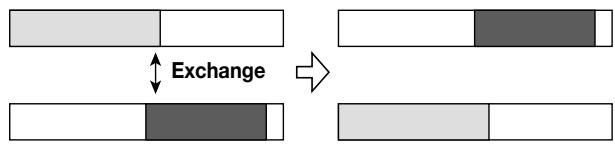
1. In the main screen, press the [V-TAKE] key.
The [V-TAKE] key will light, and a screen will appear in which you can switch the V-take of each track.
2. Press the [PROJECT/UTILITY] key.
A menu will appear in which you can edit recorded data in units of entire tracks.
3. Repeatedly press the [PROJECT/UTILITY] key to make the display indicate "EXCHG TRxx-yy."
In "EXCGH TRxx-yy," the xx and yy values respectively indicate the track number and V-take number that will be exchanged with another track/V-take.
![ZOOM MRS-1044 - Repeatedly press the [PROJECT/UTILITY] key to make the display indicate "EXCHG TRxx-yy." - 1](/content/2025/01/152225/images/d73f8e9431ec7a14c66abb9c86caae6644876d192a7e1f33a223224eb85eda71.jpg)
4. Use the cursor [] / [] keys and the dial to specify the track/V-take that you want to exchange, and press the [ENTER] key.
A screen will appear in which you can specify the other track/V-take with which the first will be exchanged. In "ExchgTo TRxx-yy," the xx and yy values respectively indicate the track number and V-take number.
![ZOOM MRS-1044 - Use the cursor [] / [] keys and the dial to specify the track/V-take that you want to exchange, and press the [ENTER] key. - 1](/content/2025/01/152225/images/7f5c691d16e35d0d9854777d1c04850bb8ae553b814816f1484e6298f5cba803.jpg)
HINT
In this screen, the lit/unlit state of the dots in the level meter will indicate whether the currently specified V-take has already been recorded. For details refer to p.40.
5. Use the cursor [] / [] keys and the dial to specify the other track/V-take for the exchange, and press the [ENTER] key.
The display will indicate "EXCHG SURE?", asking you to confirm the Exchange operation.
6. Press the [ENTER] key to execute the Exchange operation, or press the [EXIT] key to cancel.
When you press the [ENTER] key and the Exchange operation has been completed, you will return to the screen from step 1.
If you press the [EXIT] key, you will return to the screen from step 4. If necessary, you can press the [EXIT] key to step back through each screen.
Capturing the recorded contents of a track
The MRS-1044 lets you capture the recorded data of a desired track, and temporarily store it on the hard disk. The captured data can be swapped (exchanged) with a current track when needed.
For example if you capture a track before performing punch-in/out recording on that track, you can repeat the Swap operation to compare its original state with the results of punch-in/out recording.
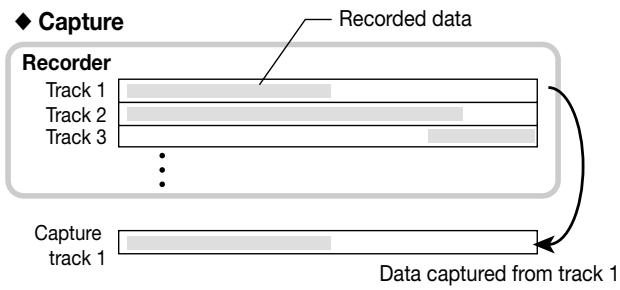
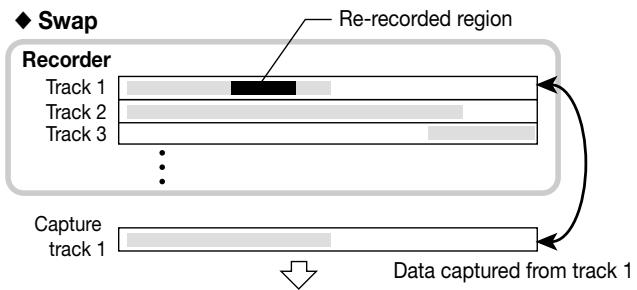
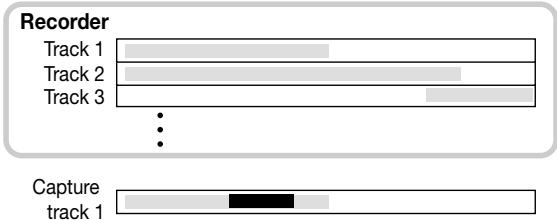
Capturing a track
Here's how to select and capture a desired track.
1. In the main screen, press the [UNDO/REDO] key.
A screen will appear in which you can select the track to be captured.
![ZOOM MRS-1044 - In the main screen, press the [UNDO/REDO] key. - 1](/content/2025/01/152225/images/ad16543a71084bae17be59e2539532dff11f2f8942eed1725d5e331ad4cce43b.jpg)
- Press one of the status keys (1 - 6, 7/8, 9/10) or use the dial to select the track to be captured.
NOTE
It is not possible to capture a track that has not yet been recorded.
3. Press the [ENTER] key.
The display will ask "CAPTURE SURE?"
4. To execute the Capture operation, press the [ENTER] key once again.
When the capture is completed, the display will indicate "SWAP," and you will be able to execute the Swap operation for that track.
5. Press the [EXIT] key.
You will return to the main screen.
HINT
If necessary, you can repeat steps 2 - 4 to capture multiple tracks.
NOTE
The captured data will be erased from the hard disk when the currently selected project is saved.
Swapping with the captured data
Here's how to swap (exchange) the captured data with the current recorded data of a track.
- In the main screen, press the [UNDO/REDO] key.
- Press one of the status keys (1 - 6, 7/8, 9/10) or use the dial to select a track that was previously captured.
When a captured track is selected, the display will indicate "SWAP."
SUPTR1
MARK
00.
HINT
If you select a track that has not been captured, the display will indicate "CAPTURE."
3. Press the [ENTER] key.
The display will ask "SWAP SURE?"
4. To execute the Swap operation, press the [ENTER] key once again.
The recorded data of the selected track will be exchanged with the previously captured recorded data. The recorded data of the selected track will be saved as capture data on the hard disk until the project is saved.
HINT
You can return to the previous state by immediately executing Swap a second time.
5. Press the [EXIT] key.
You will return to the main screen.
Reference [Mixer]
This section explains the functions and operation of the two mixers built into the MRS-1044.
About the mixer
The mixer of the MRS-1044 is divided into two sections: an "input mixer" that processes the input signals from the [INPUT 1/2] jacks, and a "track mixer" that processes the signals from the tracks of the recorder section and from the rhythm section. Details of each mixer are described below.
■ Input mixer
In the input mixer you can adjust the sensitivity of the signals that are input from the [INPUT 1/2] jacks, set various parameters such as pan and send levels to the send/return effects, and assign the signals to the recorder tracks.
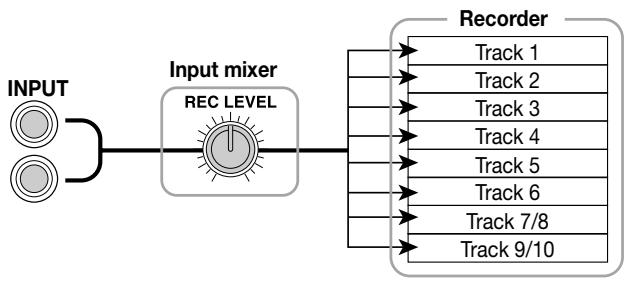
The parameters that can be adjusted in the input mixer are listed in the following table.
Input mixer parameters
Track mixer parameters
| Parameter | Content |
| CHO SEND | Volume sent to chorus/delay (send/return effect) |
| REV SEND | Volume sent to reverb (send/return effect) |
| PAN | Left/right position (L/R channel balance) |
| REC LVL | Volume of the input signal (position of the [REC LEVEL] control) |
Track mixer
In the track mixer you can process the playback signals of the recorder tracks (1 - 6, 7/8, 9/10) and the sound of the drum kit / bass program of the rhythm section, and mix these signals to stereo. The signal mixed by the track mixer is output via the MASTER fader from the [OUTPUT] jacks.
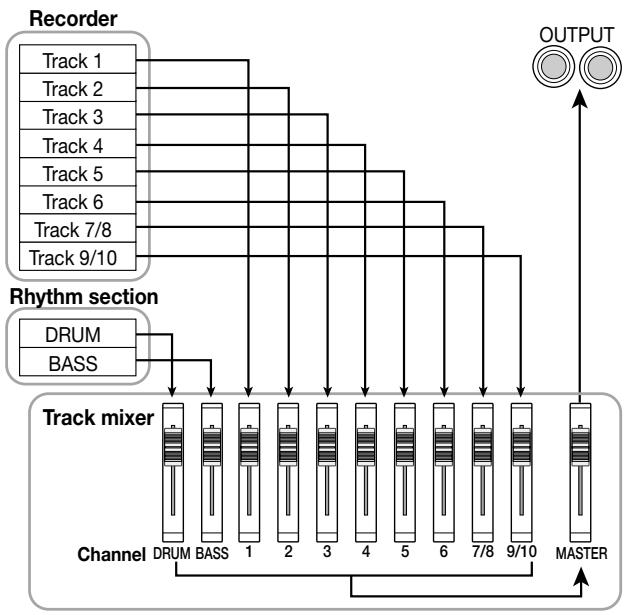
In the track mixer, the signals that are output from each track are handled in units called "channels." The parameters that can be adjusted for each channel (DRUM, BASS, 1-6, 7/8, 9/10) are listed in the table below.
HINT
The DRUM, 7/8, and 9/10 channels are each stereo channels that respectively process the output signals from the drum kit, stereo tracks 7/8, and 9/10. The parameters of these stereo channels are linked.
| Parameter | Content | Channel | |||
| DRUM/BASS | 1-6 | 7/8, 9/10 | MASTER | ||
| EQ HI G | Amount of boost/cut for high-range EQ | ○ | ○ | ○ | |
| EQ HI F | Frequency at which high-range EQ will boost/cut | ○ | ○ | ○ | |
| EQ LO G | Amount of boost/cut for low-range EQ | ○ | ○ | ○ | |
| EQ LO F | Frequency at which low-range EQ will boost/cut | ○ | ○ | ○ | |
| CHO SEND | Volume sent to chorus/delay (send/return effect) | ○ | ○ | ○ | |
| REV SEND | Volume sent to reverb (send/return effect) | ○ | ○ | ○ | |
| PAN | Left/right position (L/R channel balance) | ○ | ○ | ○ | |
| FADER | Volume of each channel (fader position) | ○ | ○ | ○ | ○ |
| ST LINK | Link the parameters of the odd/even-numbered channels | ○ | |||
Basic operation of the input mixer
Assigning input signals to recording tracks
Here's how the signals that are input from the [INPUT 1]/[INPUT 2] jacks can be sent to a recording track, and their recording levels can be adjusted.
- Make sure that the instrument or mic that you want to record is connected to the [INPUT 1]/[INPUT 2] jack(s).
- Press the [ON/OFF] key of the jack(s) (INPUT 1/2) to which you connected your instrument, to make the key light.
The [ON/OFF] key enables and disables the jack. When a key is lit, the corresponding jack is enabled.
- While playing your instrument, turn the [INPUT 1]/[INPUT 2] control(s) to adjust the input sensitivity.
Make adjustments so that the [PEAK] indicator flickers slightly when you play your instrument at its loudest volume. - If you will be recording the sound through the insert effect, select an insert effect patch as necessary.
With the default settings of a project, the insert effect is inserted into the input mixer, and a patch suitable for guitar/bass recording is selected. (For details on how to select a different patch, refer to p.77.)
If you want to record without sending the sound through the insert effect, press the effect section [BYPASS/TUNER] key to bypass the insert effect.
- While playing your instrument, turn the [REC LEVEL] control to adjust the recording level.
The [REC LEVEL] control adjusts the signal level before it is sent to the recording track (i.e., after it has passed through the insert effect). The [CLIP] indicator will light if the signal clips.
HINT
- Adjust the [REC LEVEL] control as high as possible without allowing the [CLIP] indicator to light.
- The level of the signal sent to the recording track will change according to the settings of the insert effect parameters. If you switch insert effect patches or edit the
parameters, you should once again check whether the recording level is appropriate.
- The precise setting of the REC LEVEL parameter can be checked by pressing the TRACK PARAMETER section [PAN] key INPUT 1 or 2 [ON/OFF] key cursor [▼] key.
- Press the status key for the recording-destination track (1 - 6, 7/8, 9/10) to make the key light red, putting the track in record-ready mode.
The input signal from the input mixer will be sent to the recording track. You can select record-ready mode for any one mono track 1 - 6 , any one stereo track (7/8, 9/10), or any two mono tracks (only the track pairs 1/2 , 3/4 , or 5/6 ).
The signal flow from the input mixer to the track will change as follows, depending on the number of selected recording tracks and on the state of the INPUT 1/2 [ON/OFF] keys.
- When two mono tracks or a stereo track is selected as the recording track
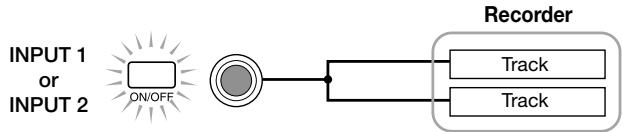
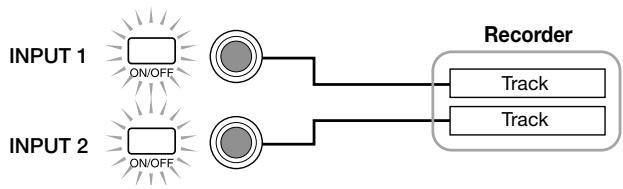
- When one mono track is selected as the recording track

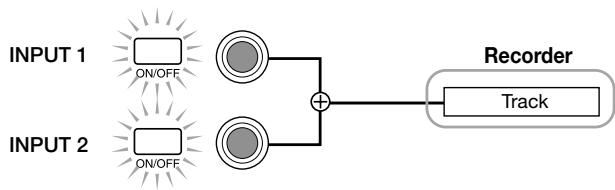
- When a recording track has not been selected
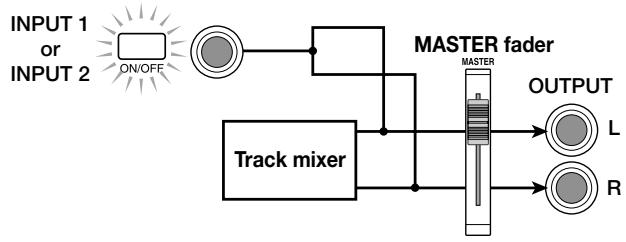
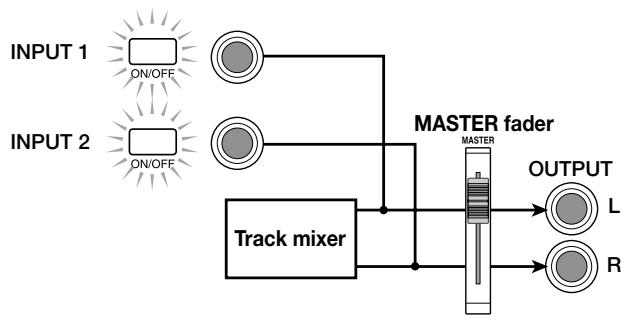
NOTE
The diagrams above show the signal flow when the insert effect has not been inserted into the input mixer. For details on the signal flow when the insert effect is inserted, refer to p.77.
Adjusting the depth of the send/return effects
The depth of the send/return effects can be adjusted by setting the volume (send level) of the signal that is sent from the input mixer to each send/return effect (chorus/delay, reverb).
In normal operation, sending the signal from the input mixer to the send/return effect will only apply the effect to the signal that is sent from the [OUTPUT] jacks, and will not affect the signal that is recorded on a track.
1. Press the TRACK PARAMETER section [CHORUS/ DELAY SEND] key or [REVERB SEND] key to select one of the send/return effects.
Press the [CHORUS/DELAY SEND] key to adjust the chorus/delay depth, or press the [REVERB SEND] key to adjust the reverb depth. The following illustration shows the screen that will appear when the [CHORUS/DELAY SEND] key is pressed.
![ZOOM MRS-1044 - Press the TRACK PARAMETER section [CHORUS/ DELAY SEND] key or [REVERB SEND] key to select one of the send/return effects. - 1](/content/2025/01/152225/images/4fb386e683e75809c191e43567adbdd5b2ddf8f7d0ba7acd6092782a13c1292b.jpg)
HINT
For details on selecting a send/return effect patch, refer to p.81.
2. Press the INPUT 1 (or INPUT 2) [ON/OFF] key.
The input mixer (INPUT) will be selected for operations.
![ZOOM MRS-1044 - Press the INPUT 1 (or INPUT 2) [ON/OFF] key. - 1](/content/2025/01/152225/images/fd111387fa001dce86dff7a482c8677909792cb8f94bb98b746b61d112d58cfa.jpg)
HINT
The CHORUS/DELAY SEND parameter and REVERB SEND parameter are common to both INPUT 1/2 input signals.
3. Turn the dial to edit the value.
Increasing the value will deepen the effect. The range and default value of each parameter are as follows.
- REVERB SEND:0-100(Default:0)
- CHORUS/DELAY SEND:0-100(Default:0)
HINT
- When the CHORUS/DELAY SEND parameter is displayed, pressing the [CHORUS/DELAY SEND] key will cause the signal sent from the input mixer to chorus/delay to be switched on/off. (The key will be dark when this is off.)
- In the same way, when the REVERB SEND parameter is displayed, pressing the [REVERB SEND] key will cause the signal sent from the input mixer to reverb to be switched on/off.
4. When you have finished making settings, press the [EXIT] key.
You will return to the main screen.
Adjusting the pan/balance
Here's how to adjust the pan (stereo position) of the signal sent from the input mixer to the [OUTPUT] jacks or recording tracks, or the balance (the volume balance between two channels).
1. Press the [PAN] key.
A screen will appear in which you can adjust the PAN parameter.
TR1 PAN

2. Press the INPUT 1 (or INPUT 2) [ON/OFF] key.
The input mixer will be selected for pan adjustments.
3. Turn the dial to edit the value of the PAN parameter.
The PAN parameter can be adjusted in a range of L100 (far left) - 0 (center) - R100 (far right).
4. When you have finished adjusting the pan, press the [EXIT] key.
You will return to the main screen.
The function of the PAN parameter will change as follows, depending on the number of input jacks that are currently turned on, and on the number of recording tracks that are currently selected.
- When no recording track is selected
For the signal that is sent from the input mixer to the L/R channels of the [OUTPUT] jacks, the PAN parameter will adjust the pan (if either but not both INPUT 1 or 2 are enabled) or the balance (if both INPUT 1 and 2 are enabled).
- When two mono tracks or a stereo track is selected as the recording track
For the signal that is sent from the input mixer to the pair of odd-numbered/even-numbered tracks, the PAN parameter will adjust the pan (if either but not both INPUT 1 and 2 are enabled) or the balance (if both INPUT 1 and 2 are enabled).
- When one mono track is selected as the recording track
The PAN parameter will have no effect.
Basic operation of the track mixer
Adjusting the volume/pan/EQ
For each channel, you can adjust the volume, pan (stereoposition between the L/R channels of the [OUTPUT] jack), and EQ equalizer).
1. To adjust the volume (output level) of a channel, operate the fader of the corresponding channel (DRUM, BASS, 1-6, 7/8, 9/10).
HINT
- To check the precise setting of the volume (FADER parameter), press the following sequence of keys: TRACK PARAMETER section [PAN] key cursor [▼] key status key of the desired channel.
- You can check the MASTER fader setting by pressing any TRACK PARAMETER key MASTER status key.
2. To adjust the pan of a channel, press the TRACK PARAMETER section [PAN] key, and then press one of the status keys (DRUM, BASS, 1 - 6, 7/8, 9/10) to select the desired channel.
A screen will appear in which you can adjust the PAN parameter of the selected channel.
TR1 PBN
3. Turn the dial to adjust the value of the PAN parameter.
The range is L100 (far left) - 0 (center) - R100 (far right). If you want to continue and adjust the pan of another channel, repeat steps 2 - 3.
HINT
- For channels 7/8, 9/10, and DRUM, the PAN parameter is used to adjust the balance (the volume balance of the left and right channels).
- In the parameter screen you can also use the cursor [] / [] keys to select parameters, and the cursor [] / [] keys to switch channels.
4. To adjust the EQ, press the [EQ HIGH] key or [EQ LOW] key.
Press the [EQ HIGH] key to adjust the high-range tone, or the [EQ LOW] key to adjust the low-range tone.
![ZOOM MRS-1044 - To adjust the EQ, press the [EQ HIGH] key or [EQ LOW] key. - 1](/content/2025/01/152225/images/e810f88ffff1523be2d81ed96e7be73a308113eb867f4c90f70366f34f38fce6.jpg)
HINT

At this time, your editing will affect the channel that was last selected in steps 2 - 3. As necessary, use the statue keys or the cursor [] / [] keys to switch channels.
- Use the cursor [] / [] keys to select the EQ parameter that you want to adjust, and turn the dial to edit the value.
The parameters that can be selected and their ranges are as follows.
If you pressed the [EQ HIGH] key first
- EQ HI G: Adjust the amount of high-range boost/cut.
Range: -12 - 0 - 12 (dB), Default: 0 - EQ HI F: Adjust the frequency at which the high-range boost/cut will occur. Range: 500 - 18000 (Hz), Default: 8000
If you pressed the [EQ LOW] key first
- EQ LO G: Adjust the amount of low-range boost/cut.
Range: -12 - 0 - 12 (dB), Default: 0 - EQ LO F: Adjust the frequency at which the low-range boost/cut will occur.
Range: 40 - 1600 (Hz), Default: 125
TR1
E
HI
6
12


HINT
- When the EQ HI G / EQ HI F screens are displayed, you can press the [EQ HIGH] key to switch the high-range EQ on/off. (The key will be dark when off.)
-
When the EQ LO G / EQ LO F screens are displayed, you can press the [EQ LOW] key to switch the low-range EQ on/off. (The key will be dark when off.)
-
Repeat steps 4 - 5 to adjust settings in the same way for another range or EQ parameter.
- When you have finished adjusting settings, press the [EXIT] key.
You will return to the main screen.
Adjusting the effect depth
Here's how to adjust the effect depth by setting the volume that is sent from each channel to the send/return effects (chorus/delay, reverb).
- Press the TRACK PARAMETER section [CHORUS/DELAY SEND] key or [REVERB SEND] key to select a send/return effect.
- Press one of the status keys (DRUM, BASS, 1 - 6, 7/8, 9/10) to select the desired channel.
The corresponding channel will be selected for operations.
TR1
REU
SEND


- Turn the dial to edit the value.
The effect will apply more deeply as you increase the value. The range and default setting of each parameter are as follows.
- REV SEND: 0 - 100 (Default: 0)
- CHO SEND:0-100(Default:0)

HINT
When the CHORUS/DELAY SEND or REVERB SEND parameters are displayed, you can use the [CHORUS/DELAY SEND] key or [REVERB SEND] key as an on/off switch for the signal that is sent from that channel to the reverb or chorus/delay. For details refer to p.48.
4. When you have finished adjusting settings, press the [EXIT] key.
You will return to the main screen.
Linking odd-numbered/even-numbered channels
Adjacent odd-numbered even-numbered mono channels (1/2, 3/4, 5/6) can be linked. (This is referred to as "stereo link.") The parameters of two stereo-linked channels will operate in tandem in the same way as channels 7/8 or 9/10.
-
Press the TRACK PARAMETER section [PAN] key.
-
Press the status key (1 - 6) for one of the two channels that you want to stereo-link.
- Press the cursor [▼] key twice.
The ST LINK (stereo link) parameter screen will appear.
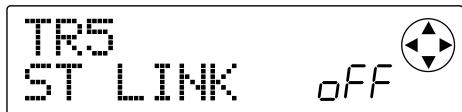
- Turn the dial to switch the setting on.
Stereo linking will be enabled for the selected channel and the adjacent odd-numbered/even-numbered channel. To defeat stereo link, turn this parameter off (oFF).
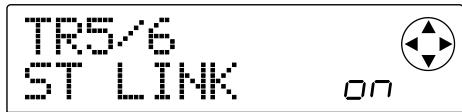
- Press the [EXIT] key.
You will return to the main screen.

The PAN parameter of two stereo-linked channels will function as a BALANCE parameter that adjusts the volume balance between the odd-numbered / even-numbered channels.

- To adjust the volume of stereo-linked channels, use the odd-numbered fader. (The even-numbered fader will have no effect.)
- The parameters as well as the status keys of 2 stereolinked channels will operate in tandem.
Saving/recalling mixer settings (Scene function)
The current mixer and effect settings can be saved as a "scene" in a special area of memory, and recalled either manually or automatically when desired. This is convenient when you want to compare various mixes, or when you want to automate mix operations.
A scene contains the following data.
- Input mixer (except for the REC LEVEL parameter) and track mixer settings
- MASTER fader setting
The state of all status keys - The patch number currently used by the insert effect and the send/return effects
Up to 100 different scenes can be stored in memory. Scene data stored in memory is saved on the internal hard disk as part of the currently selected project.
Saving a scene
Here's how to save the current settings as a scene.
- Press the [SCENE] key, and use the cursor []/[] keys to make the display read "SCENE SAVE."
The right side of the display will indicate the scene number (0 - 99) in which the data will be saved.
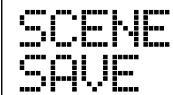


When you save a scene for the first time, pressing the [SCENE] key will automatically access the "SCENE SAVE" screen.
- Turn the dial to select the number (0 - 99) in which the scene will be saved.
Numbers in which a scene is already saved are indicated by an asterisk " ^ 串 ^ 串 at the left.
- To save the scene, press the [ENTER] key.
The scene will be saved in the selected number. To return to the main screen, press the [ENTER] key.

NOTE

If you select a scene that has already been saved, and execute this operation, the previously saved scene will be overwritten.
Recalling a saved scene
Here's how to recall a scene that was saved to memory.
- Press the [SCENE] key, and use the cursor []/[] keys to make the display read "SCENE CALL."
The right side of the display will indicate the scene number that will be recalled.
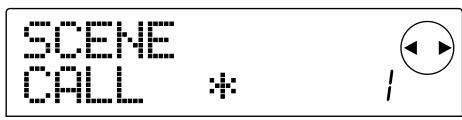

NOTE

It is not possible to access the above screen if no scene has been saved in memory.
- Turn the dial to select the scene number (0 - 99) that you want to recall.
Only scene numbers for which data has been stored in memory can be selected.
- To recall the selected scene, press the [ENTER] key.
The scene will be selected, and you will return to the main screen. If you press the [EXIT] key instead of the [ENTER] key, you will return to the main screen without recalling.
Deleting a scene
Here's how to delete a scene that was stored in memory.
- Press [SCENE], and use the cursor [] / [] keys to make the display indicate "SCENE DEL."
The right side of the display will indicate the scene number for deletion.
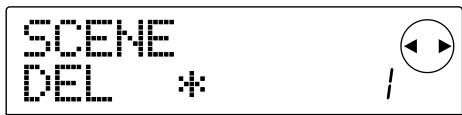

NOTE
It is not possible to access the above screen if no scene has been saved in memory.
- Turn the dial to select the number (0 - 99) of the scene that you want to delete.
Only scene numbers for which data has been stored in memory can be selected.
- To delete the selected scene, press the [ENTER] key.
The scene will be deleted, and you will return to the main screen. If you press the [EXIT] key instead of the [ENTER] key, you will return to the main screen without deleting.
Switching scenes automatically
By assigning a scene to a mark that was placed at a desired location in the song, you can cause scenes to switch automatically. This is convenient when you want to change the mix as the song progresses. Refer to p.29 for more about marks.
- While playing back the song from the beginning, create the mix that will be the starting point, and save it in a scene.
For details on scene operations, refer to p.51.
- Make sure that the transport is stopped, and press the ZERO [K] key to locate to the beginning of the song.
The beginning of the song (counter zero location) already contains mark number zero. First you will assign the starting scene to this mark.
- Press the [MARK] key.
When you press the [MARK] key at a location where a mark has been assigned, a screen will appear in which you can assign a scene to the corresponding mark.
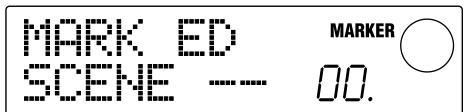
HINT
- If you press the [MARK] key at a location where a mark has not yet been assigned, a new mark will be assigned to that location.
-
If a dot is shown at the lower right of the mark number, this means that the mark matches the current location.
-
Turn the dial to select the number of the scene you saved in step 1 (the scene that will be the starting point of the mix).
The scene will be assigned to the mark, and at the same time the selected scene will be recalled. The following screen shows an example of when mark number 0 is assigned to scene number 1.

HINT
To cancel a scene assignment, turn the dial to make the display indicate "--".
- Press the [EXIT] key.
You will return to the main screen. - Locate the point at which you want the mix to change, and assign a mark.
- While playing back the song from that point, create the new mix, and save it in a scene.
- Use the MARKER [| ] / [ ] keys to locate to the mark you assigned in step 6, and press the [MARK] key.
A screen will appear, allowing you to assign a scene to the mark you selected in step 6.
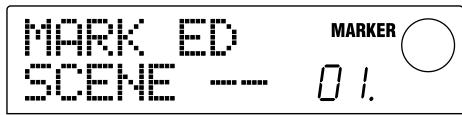
-
Turn the dial to select the number of the scene you saved in step 7.
-
Press the [EXIT] key.
You will return to the main screen.
11.Using the procedure from steps 6 - 10, assign a mark to each point at which you want the mix to change, and assign a scene to each of these marks.
12. When you have assigned the desired scenes to the marks, press the ZERO [K] key to locate to the beginning of the song, and press the PLAY [▶] key to play back.
Each time the song reaches the location of a mark to which a scene has been assigned, that scene will be recalled.
Switching the level meter display type
With the MRS-1044's default settings, the level meters displayed in the center of the screen will indicate the level of the signals that have passed through the [REC LEVEL] controls/faders (post-fader). If necessary, however, you can switch the meters so that they indicate the level of the signals before they pass through the [REC LEVEL] controls/faders (pre-fader).
- In the main screen, press the [PROJECT/UTILITY] key.
The display will indicate "PROJECT." - Use the cursor [] / [] keys to make the display read "UTILITY SYSTEM," and press the [ENTER] key.
- Use the cursor [] / [] keys to make the display read "UTILITY LVL MET," and press the [ENTER] key.
LUL NET Post
- Turn the dial to change the setting to "PRE" (prefader).
To return the setting to post-fader, select "POST."
- Press the [EXIT] key several times.
You will return to the main screen.
Reference [Rhythm]
This section explains the functions and operation of the rhythm section, which uses internal drum sounds and bass sounds to generate backing performances.
About the rhythm section
The "rhythm section" of the MRS-1044 contains drum sounds and bass sounds, and can be used as a drum + bass machine. The rhythm section can be operated in synchronization with the recorder section, or operated independently. Here we will explain the basic concepts and terms that you need to know in order to use the rhythm section.
■ Drum kits and bass programs
The accompaniment created by the rhythm section is produced by a "drum kit" and a "bass program."
The drum kit is a set of 24 drum/percussion sounds such as kick, snare, and conga, and the MRS-1044 contains 31 different drum kits. You can select one of these drum kits, and use the front panel pads 1 - 8 to manually play each sound, or use them as a sound generator for accompaniment.
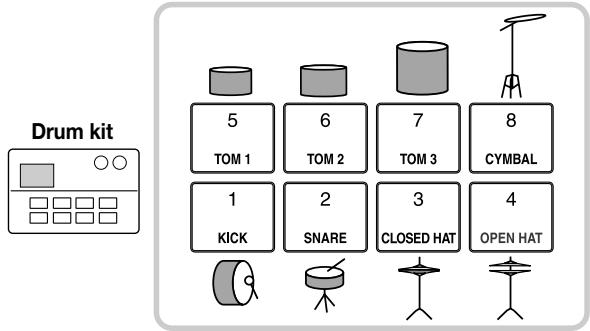
An example of drum sounds assigned to pads
A bass program is a single bass sound, such as an electric bass or acoustic bass. You can choose one of the 16 different bass sounds built into the MRS-1044, and use the front panel pads 1 - 8 to play a scale, or use it as a sound generator for accompaniment.
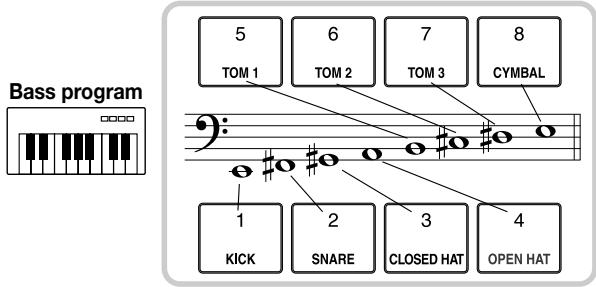
An example of a bass program scale assigned to the pads
The output signal from the drum kit (stereo) and the output signal from the bass program (mono) are internally connected to the DRUM channel and BASS channel of the mixer section. For each, you can independently adjust the volume, pan/balance, and EQ, and apply send/return effects.
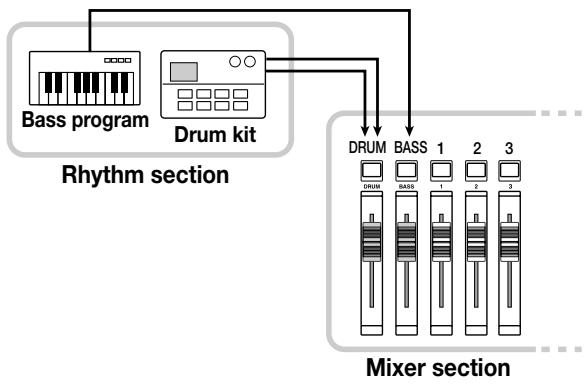
Rhythm patterns and the drum/bass tracks
A newly created project contains 255 accompaniment patterns (each several measures long) with drum/bass performance data. These accompaniment patterns are called "rhythm patterns."
Inside each rhythm pattern, the area that holds the drum performance data is called the "drum track," and the area that holds the bass performance data is called the "bass track."
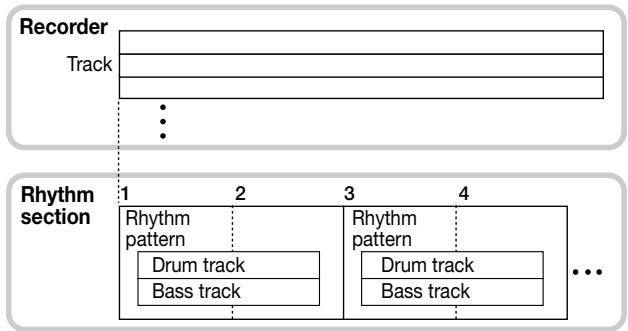
You can edit a portion of a rhythm pattern, or erase the entire recorded content and create an entirely original rhythm pattern. The rhythm patterns you modify are saved on the hard disk together with the other rhythm patterns as part of the project.
Rhythm songs
Multiple rhythm patterns arranged in a desired order of
playback are collectively called a "rhythm song." In a rhythm song, you can program the rhythm pattern data, bass track chord data, and tempo data to create the accompaniment for an entire song. A project can use only one rhythm song.
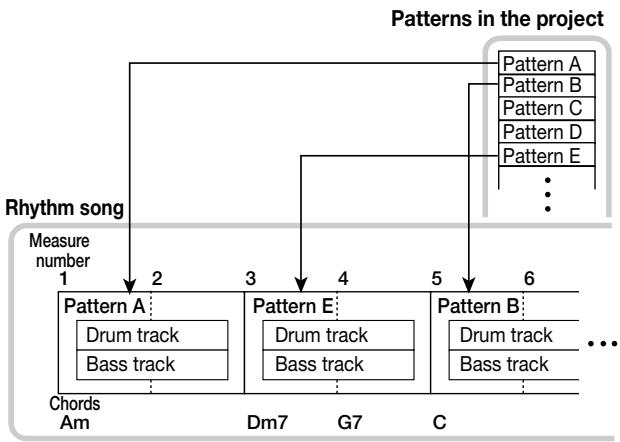
■ Rhythm Pattern mode and Rhythm Song mode
The rhythm section can operate in one of two modes: "Rhythm Pattern mode," in which you can create and play rhythm patterns, and "Rhythm Song mode," in which you can create and play a rhythm song. One of these two modes will always be selected.
The [PATTERN] key will light when Rhythm Pattern mode is selected, and the [SONG] key will light when Rhythm Song mode is selected.
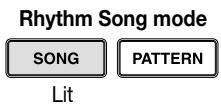
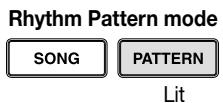
Synchronizing the recorder section and rhythm section
With the default settings of the MRS-1044, the rhythm section will operate in synchronization with the recorder section. When you operate the transport to make the recorder section begin running, the rhythm pattern or rhythm song will also begin playing.
If necessary, however, the rhythm section can be disconnected from the recorder section and used as an independent drum + bass machine. To do this, press the [RHYTHM] key. In this state, operating the transport will cause only the rhythm section to begin playing, and the recorder section will remain stopped.
Playing rhythm patterns
This section explains how to play rhythm patterns, how to change the tempo, and how to change the drum kit or bass program.
Selecting and playing a rhythm pattern
Here's how to select and play one of the 255 rhythm patterns.
NOTE
Before you continue with the following procedure, make sure that the DRUM, BASS, and MASTER faders of the panel are raised, and that the DRUM and BASS status keys are lit.
1. In the main screen, press the [PATTERN] key.
The [RHYTHM] key will blink. If Rhythm Song mode ([SONG] key lit) has been selected, it will switch to Rhythm Pattern mode ([PATTERN] key lit).
The display will show the "rhythm pattern screen" in which you can select a rhythm pattern.
![ZOOM MRS-1044 - In the main screen, press the [PATTERN] key. - 1](/content/2025/01/152225/images/d9163a2fa3a12f67e884a5166073d4fa811b58956278f911de3ee92cab7e702b.jpg)
- Turn the dial to select the rhythm pattern that you want to play.
3. Press the PLAY [▶] key.
The rhythm pattern will begin playing, and at the same time the recorder will begin running.
HINT
When the [RHYTHM] key is dark or blinking, the rhythm section and recorder section are synchronized.
4. If you want to mute the performance of the drum track or bass track, press the DRUM or BASS status key.
The status key will go dark, and the performance of the corresponding track will be muted. To defeat muting, press the same status key once again.
5. To stop playback, press the STOP [■] key.
The recorder and rhythm pattern will stop.
6. To return to the main screen, press the [EXIT] key while the rhythm section is stopped.
The [PATTERN] key will remain lit, and the [RHYTHM] key will go dark. If you press the PLAY [▶] key in this state, the rhythm pattern that was used most recently will play.
7. If you want only the rhythm section to play independently, press the [RHYTHM] key while stopped.
The [RHYTHM] key will light, and the rhythm section will be disconnected from the recorder section. The rhythm pattern screen will appear in the display.
884#810 ROCK10
In this state, pressing the PLAY [▶] key will play only the rhythm pattern, and the recorder section will remain stopped.
NOTE
When the [RHYTHM] key is lit, the counter in the display will always indicate the measure.
HINT
It is also possible to load rhythm pattern data from another project existing on the hard disk ( p.72).
Changing the tempo of the rhythm pattern
You can use the [TEMPO] key to change the tempo of the rhythm pattern.
1. In Rhythm Pattern mode, press the [TEMPO] key.
The current tempo value will be displayed.
![ZOOM MRS-1044 - In Rhythm Pattern mode, press the [TEMPO] key. - 1](/content/2025/01/152225/images/0208cce4ac05102df7b4b5bc9f040f70b9705d86b84d0be32ae042e3a209ba77.jpg)
2. Turn the dial to adjust the tempo.
The tempo can be adjusted in steps of 0.1 over a range of 40 - 250 (BPM). The tempo can even be changed while the rhythm pattern is playing.
3. To change the tempo manually, press the [TEMPO] key twice or more at the desired tempo.
The interval between the last two times you pressed the key will be detected automatically, and set as the new tempo.
4. To return to the main screen, press the [EXIT] key.
HINT
The tempo you specify here will apply to all rhythm patterns played in Rhythm Pattern mode, and to a rhythm song in which tempo data has not yet been input. (For details on rhythm songs, refer to p.55.)
NOTE
If you record on the recorder tracks while listening to the rhythm patterns, and then later change the tempo of the rhythm patterns, the two sets of performances will no longer be synchronized. If you want to record on the recorder while listening to rhythm patterns, you must decide on the tempo first.
Changing the drum kit / bass program
You can change the sounds (drum kit / bass program) that are assigned to the drum or bass tracks of the rhythm pattern.
1. In the main screen, repeatedly press the [DRUM/BASS] key to make the display read either "Pad Drum" or "Pad Bass."
Select "Pad Drum" if you want to switch the drum kit, or "Pad Bass" if you want to switch the bass program.
Pad Drum
2. Press the [KIT/PROG] key.
A screen will appear in which you can change the drum kit or the bass program.
Drunkit BOLIUE1
Name of drum kit / bass program

NOTE

While this screen is displayed, all transport operations are invalid.
3. Turn the dial to select the desired drum kit / bass program.
For a list of drum kits / bass programs that can be selected, refer to the appendix at the end of this manual.
4. Press the [ENTER] key.
The change will be finalized, and you will return to the main screen.
![ZOOM MRS-1044 - Press the [ENTER] key. - 1](/content/2025/01/152225/images/fafcd9817aa7943df698e3a2040b96b5d5d65233582af35490ef6a5c0aa87788.jpg)
NOTE

The drum kit / bass program you select here will apply to all rhythm patterns and rhythm songs.
Creating a rhythm song
This section explains how to arrange rhythm patterns in the desired order of playback in an empty rhythm song, and input chords and other data to create a complete rhythm song.

HINT

When you create a new project on the MRS-1044, the rhythm song will always be empty.

NOTE

Before you perform the following procedure, make sure that the DRUM, BASS, and MASTER faders of the panel are raised, and that the DRUM and BASS status keys are lit.
Inputting rhythm pattern data
Here's how to input rhythm pattern data into an empty rhythm song in the desired playback order.
1. In the main screen, press the [SONG] key, and then press the [RHYTHM] key.
The [RHYTHM] key will light. If Rhythm Pattern mode (the [PATTERN] key lit) has been selected, it will change to Rhythm Song mode (the [SONG] key lit).
The display will show the "rhythm song screen," which indicates the progress of the rhythm song.
50H6


NOTE

- While the rhythm song is playing, the lower line of the screen will show the number of the rhythm pattern that has been input at the current location, the type of chord, and the root.
- The rhythm song can be created/edited only when the [RHYTHM] key is lit.
- While the [RHYTHM] key is lit, the counter in the display will always indicate measure numbers.
2. Press the REC [●] key.
The REC [ ] key will light, and you can now input data such as rhythm pattern numbers and chords into the rhythm song.
EU+
H5
![ZOOM MRS-1044 - Press the REC [●] key. - 1](/content/2025/01/152225/images/9af19a2dfcbe839ad260478f6780cbadc52f25995c3b13c21de6aa1178721564.jpg)
- Use the cursor [] / [] keys to make the display read " Ptn".
+Ptn
F15
![ZOOM MRS-1044 - Press the REC [●] key. - 2](/content/2025/01/152225/images/cc8811e42c852cd395c74e66eda6d7568fba25aec3ff392d3ddcbd7ae203f073.jpg)
The number of the rhythm pattern that is input at the current location is displayed below "Ptn" in this screen. For an empty rhythm song, however, no rhythm pattern data has been input. For this reason, the area that displays the rhythm pattern number will indicate "EOS" (End Of Song) to show the end of the rhythm song.
- Press the [INSERT/DELETE] key to make the display read "INSERT?"
Each time you press the [INSERT/DELETE] key, the display will cycle between "INSERT?" "DELETE?" original display. When "INSERT?" is displayed, new rhythm pattern data can be input at the current location.
INSERT?
P001x004
![ZOOM MRS-1044 - Press the REC [●] key. - 3](/content/2025/01/152225/images/fc58a6e1bd9843a401168bb61130654aa732e2d63a0b967dd176866971c1e459.jpg)
- Turn the dial to select the rhythm pattern that you want to input.
The number and length (in measures) of the currently selected rhythm pattern will be displayed.
INSERT?
P010x804
Rhythm pattern number
Rhythm pattern length (measures)
- As necessary, use the cursor [] / [] keys to change the length of the rhythm pattern.
If you want to lengthen the rhythm pattern, play back the same rhythm pattern repeatedly. If you want to shorten the rhythm pattern, switch to the next rhythm pattern before it has finished playing.
![ZOOM MRS-1044 - Press the REC [●] key. - 4](/content/2025/01/152225/images/86f6321b56e2cf2fc5dd51393b41e567dd32b4a5833f6c455a6d80f48830e712.jpg)
HINT
![ZOOM MRS-1044 - Press the REC [●] key. - 5](/content/2025/01/152225/images/a09601851c635d30fb347ddaad8bb2463a0d2d488b2450f066acded4501ac8f0.jpg)
This operation will not affect the original rhythm pattern.
- To finalize the selected rhythm pattern, press the [ENTER] key.
The rhythm pattern data will be input at the current location.
Ptn 10
![ZOOM MRS-1044 - Press the REC [●] key. - 6](/content/2025/01/152225/images/90be573b2e0672e83d2d1ed80065329cc51a04525882b0f1748221bba89ebca5.jpg)
HINT
![ZOOM MRS-1044 - Press the REC [●] key. - 7](/content/2025/01/152225/images/a65f828e327e9f4fe6a74f8eda08cb09960696fd4428a52b566ad2e5a3879eeb.jpg)
When rhythm pattern data is input, the time signature, chord root, and drum track / bass track volume specified for that rhythm pattern will be input at the same location.
- Repeatedly press the cursor [▶] key to move to the location at which you will input the next rhythm pattern.
Each time you press a cursor [] / [] key, the current location will move one measure backward or forward. When you advance to the end of the rhythm song, the display will indicate "EOS."
![ZOOM MRS-1044 - Press the REC [●] key. - 8](/content/2025/01/152225/images/c25224da7b73fdbf2a5d66421787ca49e1ac54f4dcc4ae236b40d3d08fba65a6.jpg)
HINT
![ZOOM MRS-1044 - Press the REC [●] key. - 9](/content/2025/01/152225/images/c866b2a4a7e877f3364868ef95d6bfc60f643556cd9c59f2d6e98983ae84c5e4.jpg)
- At a location where no rhythm pattern data has been input, an "←" symbol will be displayed to the left of the "Ptn." This indicates that the immediately preceding rhythm pattern will continue playing.
-
It is also possible to insert other rhythm pattern data into the middle of a rhythm pattern.
-
Repeat steps 3 - 8 to input rhythm patterns for the entire song.
If you make a mistake during input, use the following procedures to correct the mistake.
To re-select a pattern that you input
Use the cursor [] /[▲] keys to move to the desired rhythm pattern data, and turn the dial to select a new pattern.
To insert a new pattern
Use the cursor [] / [] keys to move to the location at which you want to insert rhythm pattern data, and execute steps 4 - 7. The rhythm pattern data will be inserted at the current location, and subsequent rhythm pattern data will be moved backward according to the length of that pattern.
![ZOOM MRS-1044 - Press the REC [●] key. - 10](/content/2025/01/152225/images/bfc7610fccd353d21e9147d2697c484df3c7bfdda127ce266d07799f2d8c06be.jpg)
To erase rhythm pattern data
Use the cursor [] / [] keys to move to the location at which you want to erase rhythm pattern data, and press the [ERASE] key. The rhythm pattern data will be erased, and the display will change to "←Ptn," indicating that the preceding pattern will continue playing.

NOTE
If you erase the rhythm pattern data that is recorded at the beginning of the rhythm song, there will be silence until the next location at which rhythm pattern data is input.
To delete a specific measure
Use the cursor [] / [] keys to move to the beginning of the measure that you want to delete, and repeatedly press the [INSERT/DELETE] key to make the display read "DELETE?" When you press the [ENTER] key, the current measure will be deleted, and subsequent rhythm pattern data will be moved forward. If you delete the first measure of a two-measure rhythm pattern, the second measure will remain, and the display will change to " Ptn". If necessary, repeat the step to delete this measure as well.
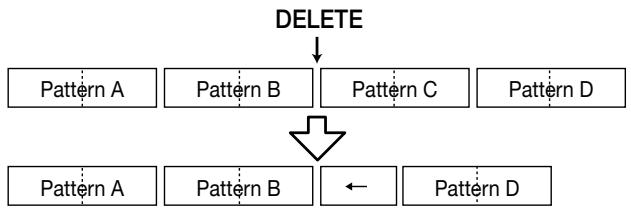
10. When you have completed the entire rhythm song, press the STOP [■] key.
The REC [●] key will go dark, and you will return to the rhythm song screen. If you want to check the content that you input, press the PLAY [▶] key.
- To return to the main screen, stop the rhythm section and press the [EXIT] key.
Inputting chord data
Here's how to add chord data to the rhythm song that you created by inputting rhythm pattern data.
HINT
- Chord data consists of a "ROOT" that specifies the root (C, C#, D ...B) of the chord, and "CHORD" that specifies the type of chord (major or minor, etc.).
- The bass phrase of the rhythm pattern will be transposed according to the root that you input. Also, part of the bass phrase will be converted according to the type of chord you specify.
1. In the main screen, make sure that the [SONG] key is lit, and press the [RHYTHM] key.
The [RHYTHM] key will light, and the rhythm song screen will appear.
2. Press the REC [●] key.
3. Use the cursor [] / [] keys to make the display read "ROOT."
When inputting chord data into the rhythm song, you will specify the chord root (C - B) and chord type (major or minor, etc.) separately. When "ROOT" is displayed, you can specify the root of the chord.
![ZOOM MRS-1044 - Use the cursor [] / [] keys to make the display read "ROOT." - 1](/content/2025/01/152225/images/79b0fc4d9551e775cbb28ec4b9673f5b81af1ee75e0ac58de0c36b903000a5db.jpg)
Chord data is input at locations where a rhythm pattern has been input, as in the illustration above. The default root and type for chord data is as follows.
- Root: the root of the chord specified for the rhythm pattern
- Type: "--" (no conversion)
HINT
For details on rhythm pattern chords, refer to p.69.
4. Turn the dial to specify the note name (C - B) that will be the root of the chord.
The following screen shows an example of when the chord
root has been changed to A.
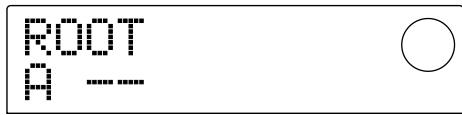
- To specify the chord type, press the cursor [▼] key once to make the display read "CHORD."
- Turn the dial to select the chord type.
You can choose from the following chord types.
| Display | Content | Display | Content |
| ---- | No conversion | ?SUS4 | 7th Suspended 4th |
| Major | Major Triad | SUS4 | Suspended 4th |
| Minor | Minor Triad | ?SUS5 | Minor 7th flat 5 |
| Dominant | Dominant 7th | ?6 | Minor 6th |
| Minor | Minor 7th | ?6 | Major 6th |
| Major | Major 7th | ?9 | Minor 9th |
| Augment | Augment | ?9 | Major 9th |
| Diminish | Diminish | ?MT7 | Minor Major 7th |
The following screen shows an example of when the chord type has been changed to minor (m). With these settings, chord data of "A minor" has been input at the beginning of the rhythm song.
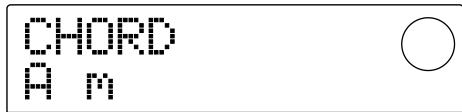
HINT
If you select "--" (no conversion) as the chord type, only the bass will be transposed, and the phrase will not be converted. Select this when you want the original phrase to be played without change.
- Move to the location at which you want to input the next chord data, and input chord data in the same way as described in steps 2 - 5.
Chord data does not necessarily have to be input at the same location as the rhythm pattern data. You can also change the chord in the middle of a rhythm pattern, or in the middle of a measure. The input location can be changed in the following ways.
(1) Moving in steps of a measure
Use the cursor [] / [] keys to move to the beginning of the preceding or following measure.
(2) Specify the location in 4th note units
Use the REW [4] / FF [▶] keys to move to the beginning of the preceding or following quarter note.
(3) Specify the location in 16th note units
Repeatedly press the cursor [▲] key to make the display read "EV→", and turn the dial to move forward or backward in 12-tick (16th note) units.
When you use methods (1) or (2), a " " symbol will be displayed to the left of "CHORD" or "ROOT" at locations where no chord data has been input. This indicates that the preceding chord data will remain in effect.
+CHORD

When you use method (3), the symbol displayed at the right of "EV " will indicate the type of data that is input at the current location. For example, "Pt" indicates rhythm pattern data, and "TS" indicates time signature data. (For details refer to the table on p.63.)
- Input the remaining chord data in the same way.
Chord data that you input can be edited in the following ways.
- To change the chord
Move to the location at which the chord data is input, use the cursor [] / [] keys to switch the display to "ROOT" (chord root) or "CHORD" (chord type), and turn the dial to change the chord.
- To delete chord data
Move to the location at which the chord data is input, use the cursor [] / [] keys to switch the display to "ROOT" or "CHORD," and press the [ERASE] key. The chord data will be erased, and the display will change to " ROOT" or " CHORD."
- When you have finished, press the STOP [■] key.
You will return to the rhythm song screen. Then press the [EXIT] key to return to the main screen.
Inputting tempo data
If no tempo data has been input into a rhythm song, it will play at the tempo that was specified in Rhythm Pattern mode. In other words if you change the tempo in Rhythm Pattern mode, the tempo of the rhythm song will also change.
To prevent this, you can input tempo data at the beginning of the rhythm song in which the rhythm pattern / chord data was input, in order to fix a specific tempo for the rhythm song.
1. In the main screen, make sure that the [SONG] key is lit, and press the PLAY ] key.
The rhythm song will begin playing.
2. Press the [TEMPO] key.
The current tempo setting will be displayed.
![ZOOM MRS-1044 - Press the [TEMPO] key. - 1](/content/2025/01/152225/images/2566e3fb7f55f324403082d5437d83184fdc43b8431493d692fcb00f0dfc4958.jpg)
3. While you listen to the rhythm song, turn the dial to adjust the tempo setting (40.0 - 250.0).
When you decide on the tempo, make a note of the setting.
HINT
If you press the [TEMPO] key two or more times in succession, the interval will be detected automatically, and specified as the new tempo.
4. Press the STOP [■] key to stop the rhythm song, and press the [RHYTHM] key.
The [RHYTHM] key will light, and the rhythm song screen will appear.
5. Press the REC [●] key.
6. Use the cursor [] / [] keys to make the display show "←Tempo".
In this screen you can input new tempo data, or view/edit previously input tempo data.
![ZOOM MRS-1044 - Use the cursor [] / [] keys to make the display show "←Tempo". - 1](/content/2025/01/152225/images/4e7c4cfdb4f56bfdf3c3f2adbb4e51e4cffe869e392290b450787d53bf4c09de.jpg)
7. Turn the dial to input the tempo setting that you decided on in step 3.
Now, each time you play the rhythm song from the beginning, it will be re-set to the tempo setting that you input here.
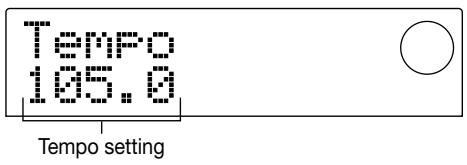
HINT
Tempo data can also be input in the middle of the rhythm song at 16th note intervals. For details refer to the section below.
8. Press the STOP [■] key.
You will return to the rhythm song screen. Then press the [EXIT] key to return to the main screen.
NOTE
If you record on the recorder tracks while listening to the rhythm song, and then change the tempo, the two performances will no longer match. If you want to record while listening to the rhythm song, you must finalize the tempo first.
Inputting other data
A variety of other data (referred to as "events") such as tempo and drum/bass track volume can be added to the rhythm song that you created by inputting rhythm pattern data and chord data.
1. In the main screen, make sure that the [SONG] key is lit, and press the [RHYTHM] key.
The [RHYTHM] key will light, and the rhythm song screen will appear.
2. Press the REC [●] key.
3. Press the cursor [▲] key to make the display indicate "EV→".
When this display is shown, you can turn the dial to move the current location forward or backward in 16th note steps.
![ZOOM MRS-1044 - Press the cursor [▲] key to make the display indicate "EV→". - 1](/content/2025/01/152225/images/f83667fbd6283b435900a3bc565f641626b4472ff2527d2d125ba7a86513818b.jpg)
In this screen, symbols displayed following "EV " such as "Pt" or "TS" let you see what type of events are input at the current location. The following table shows the types of events that can be input, and the corresponding symbols.
| Type of event | Symbol | Content | Range |
| Ptn | Rhythm pattern number | 000 – 254 | |
| TimSig | Time signature | 1 – 8(1/4 – 8/4) | |
| ROOT | Chord root | C – B | |
| CHORD | Chord type | --, Maj, m, 7, m7, M7, aug, dim, 7sus4, sus4, m7b5, m6, 6, m9, M9, mM7 | |
| Tempo | Tempo | 40.0 – 250.0 | |
| DrVOL | Drum track volume | 0 – 15 | |
| BsVOL | Bass track volume | 0 – 15 |
NOTE
If no tempo data has been input, the tempo specified in Rhythm Pattern mode will be used. To specify a tempo for the rhythm song itself, input tempo data at the beginning of the rhythm song ( p.62).
4. Move to the location at which you want to input a new event.
For details on how to move the current location, refer to page 61.
5. Use the cursor [] / [] keys to select the type of event that you want to input.
If the event you select here has been input at the current location, its value will be displayed. If there is no corresponding event, the display will indicate . This indicates that the previously input event will apply.
![ZOOM MRS-1044 - Use the cursor [] / [] keys to select the type of event that you want to input. - 1](/content/2025/01/152225/images/3f572ba2c5bd9706ec24aa29fb55f0ebedff6a984e49f23868970318c6614eae.jpg)
HINT
For all types of events, the minimum unit for input is a 16th note.
6. Turn the dial to input the value.
7. Input the remaining events in the same way.
The events you input can be edited in the following ways.
- To edit the value of an event
Display the event that you want to edit, and turn the dial to input the new value.
- To delete an event
Display the event that you want to delete, and press the [ERASE] key.
8. When you have finished, press the STOP [■] key.
You will return to the rhythm song screen. Then press the [EXIT] key to return to the main screen.
Playing a rhythm song
Here's how to play the rhythm song that you created by inputting rhythm pattern data and chord data.
1. In the main screen, make sure that the rhythm section [SONG] key is lit.
If it is dark, press the [SONG] key. (The rhythm section will switch to Rhythm Song mode.)
2. Press the PLAY [▶] key.
The rhythm song will begin playing. If something has been recorded on the recorder, those tracks will play back simultaneously.
3. To stop the rhythm song, press the STOP [■] key.
4. If you want the rhythm section to play independently, press the [RHYTHM] key while stopped.
The [RHYTHM] key will light, and the rhythm section will be disconnected from the recorder section. The display will show the rhythm song screen.
In this state, pressing the PLAY [▶] key will cause only the rhythm song to play, while the recorder section remains stopped. At this time, the display will show the number of the current pattern and chord.
![ZOOM MRS-1044 - If you want the rhythm section to play independently, press the [RHYTHM] key while stopped. - 1](/content/2025/01/152225/images/1edcba2d0a200d1aa58a7ba4f026d58a77c3ecff1980704730521e65dd1e24a9.jpg)
5. To return to the main screen, press the [EXIT] key.
The [RHYTHM] key will go dark, and you will return to the main screen.
![ZOOM MRS-1044 - To return to the main screen, press the [EXIT] key. - 1](/content/2025/01/152225/images/416fa7c62da855d5cd8db1b7a0024e29ce5c4a3cf4a3461208e5d2d4d5630a50.jpg)
HINT

It is also possible to make the rhythm song play back using different rhythm section sounds (drum kit / bass program). For details refer to p.57 "Changing the drum kit / bass program."
Editing a rhythm song
This section explains how to edit a rhythm song that you created.
Copying a specific region of measures
Part of a rhythm song can be copied in measures and inserted into another location. This is convenient when you want to repeat a portion of a rhythm song.
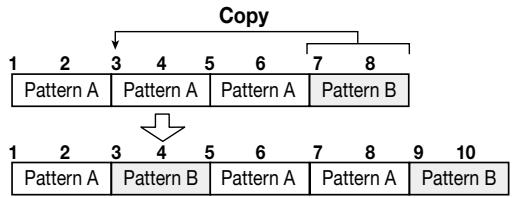
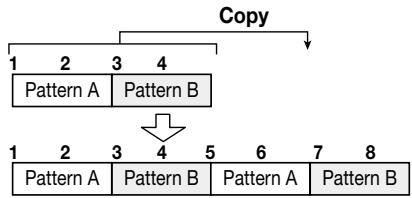
- In the main screen, make sure that the [SONG] key is lit, and press the [RHYTHM] key.
The [RHYTHM] key will light, and the rhythm song screen will appear.
-
Press the REC [●] key.
-
Press the [EDIT] key.
The following screen will appear in the display.
- Turn the dial to select the starting measure of the copy-source region, and press the [ENTER] key.
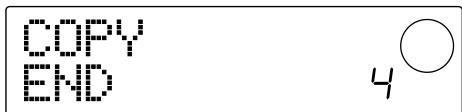
- Turn the dial to select the last measure of the copy-source region, and press the [ENTER] key.
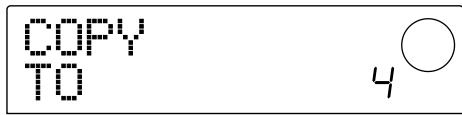
6. Select the starting measure of the copy-destination, and press the [ENTER] key.
The copy will be executed, and you will return to the screen of step 2.
![ZOOM MRS-1044 - Select the starting measure of the copy-destination, and press the [ENTER] key. - 1](/content/2025/01/152225/images/ee4e854882dfad0c0c75e679db3239549bf4571e3ee17d3c53cb32e5dd13d2e7.jpg)
If the copy-destination region extends beyond the end of the rhythm song, the rhythm song will be lengthened automatically.
7. Press the STOP [■] key.
You will return to the rhythm song screen.
Transposing the entire rhythm song
Here's how the bass track of the rhythm song can be transposed in semitone units.
1. In the main screen, make sure that the [SONG] key is lit, and press the [RHYTHM] key.
The [RHYTHM] key will light, and the rhythm song screen will appear.
2. Press the [EDIT] key.
The display will indicate "EDIT TRANSP."
![ZOOM MRS-1044 - Press the [EDIT] key. - 1](/content/2025/01/152225/images/088f71add67c462fd00c6b44d8148f5012718e301512b9de00014d043cc42cd2.jpg)
3. Press the [ENTER] key.
The current transpose setting (-6 - 0 - +6) will be displayed below "TRANSP".
![ZOOM MRS-1044 - Press the [ENTER] key. - 1](/content/2025/01/152225/images/1964c8aef8793d3a8fd0fd07bfe8062b00896a1f4a2a5d531a3663fb6c1b774e.jpg)
4. Turn the dial to change the transpose setting, and press the [ENTER] key.
The display will ask "SURE?"
5. Press the [ENTER] key to execute the Transpose operation, or press the [EXIT] key to cancel.
If you press the [ENTER] key, the Transpose operation will be executed, and the chord data (root) that was input in the
rhythm song will be converted according to the setting you specified.
6. To return to the main screen, press the [EXIT] key several times.
![ZOOM MRS-1044 - To return to the main screen, press the [EXIT] key several times. - 1](/content/2025/01/152225/images/026296f6a54d0c0b50f1868ddc3a5bc7dffa3d9f28e2dfb9e4a72eec3ee846e8.jpg)
By adjusting the reference pitch of the MRS-1044's built-in tuner, you can make fine adjustments to the pitch of the bass program. (For details on the tuner, refer to p.92.)
Erasing the rhythm song
Here's how to erase the entire rhythm song, resetting it to a blank state.
1. In the main screen, make sure that the [SONG] key is lit, and press the [RHYTHM] key.
The [RHYTHM] key will light, and the rhythm song screen will appear.
2. Press the [INSERT/DELETE] key.
The display will ask "DELETE?"
3. Press the [ENTER] key to erase the rhythm song, or press the [EXIT] key to cancel.
If you press the [ENTER] key, the rhythm song will be erased and you will return to the rhythm song screen. If you then press the [EXIT] key, you will return to the main screen.
![ZOOM MRS-1044 - Press the [ENTER] key to erase the rhythm song, or press the [EXIT] key to cancel. - 1](/content/2025/01/152225/images/4b1b7327c8d1d2eeb772239d435d71ae472605f05c2aa2a65dfb88396a671ddf.jpg)
Once you erase the rhythm song, it cannot be recovered. Use this operation with care.
Creating an original rhythm pattern
This section explains how you can create your own original rhythm pattern by tapping the front panel pads 1 - 8 .
Selecting the track that you want to record
Here's how to select an empty rhythm pattern, and then select the track (drum track or bass track) on which you will record a performance.
Selecting an empty rhythm pattern
1. In the main screen, press the [PATTERN] key and then press the [RHYTHM] key.
The [RHYTHM] key will light, and the rhythm pattern screen will appear.
2. Turn the dial to select an empty rhythm pattern.
Empty rhythm patterns are displayed with a name of "EMPTY".
#249 EMPTY
If there is no empty rhythm pattern, you can select an unwanted rhythm pattern and erase it by pressing the [INSERT/DELETE] key [ENTER] key. (For details refer to p.71.)
The subsequent procedure will differ depending on whether you select the drum track or the bass track as the recording destination.
Selecting the drum track
1. Repeatedly press the [DRUM/BASS] key to make the display indicate "Pad Drum."
The drum track will be selected. Now you can tap pads 1 - 8 to hear the sounds of the drum kit selected for the drum track.
The drum kit contains 24 drum/percussion sounds, and eight of these are assigned to the pads.
![ZOOM MRS-1044 - Repeatedly press the [DRUM/BASS] key to make the display indicate "Pad Drum." - 1](/content/2025/01/152225/images/be97d554fc6aa884adc08fb5dbd2a54d6b5efbd997de668ec5ce511142e0e3ab.jpg)
HINT
When the drum track is selected, "DRUM" will always be shown in the PAD area in the right of the display.
2. As necessary, press the [BANK] key and turn the dial to switch pad banks.
The group of sounds assigned to pads 1 - 8 is called the "pad bank." When the drum track is selected, you can switch pad banks to change the drum/percussion sounds that are played by pads 1 - 8. You can select from pad banks 1 - 3 (default: 1).
![ZOOM MRS-1044 - As necessary, press the [BANK] key and turn the dial to switch pad banks. - 1](/content/2025/01/152225/images/e7d84cb4839ff6ea138b147bccdca6ef77c0981e24d89fb474d0482236e87757.jpg)
3. Press the [EXIT] key.
You will return to the rhythm pattern screen. The pad bank setting will remain valid even if you change screens or modes.
Selecting the bass track
1. Repeatedly press the [DRUM/BASS] key to make the display indicate "Pad Bass."
The bass track will be selected. Now you can tap pads 1 - 8 to play the scale of the bass program selected for the bass track.
An example of the scale of the bass program assigned to the pads
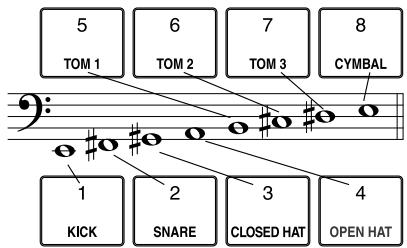
HINT
When the bass track is selected, "BASS" will always be shown in the PAD area in the right of the display.
2. As necessary, press the [BANK] key and turn the dial to switch the pad bank.
When the bass track is selected, you can switch the pad bank to change the scale or range of the bass program played by pads 1 - 8. For the bass track, you can select pad banks Maj-1 - Maj-3 and min-1 - min-3 (default: Maj-1). "Maj" is a major scale, and "min" is a natural minor scale. The number following Maj or min indicates the range in units of an octave.
![ZOOM MRS-1044 - As necessary, press the [BANK] key and turn the dial to switch the pad bank. - 1](/content/2025/01/152225/images/86d45725418f5b7aae1b56e50089bc7a17cbacc03783247c79af911a3c71d93b.jpg)
- As necessary, use the cursor [] / [] keys to change the tonic (C - B) of the currently selected scale (default: E).
4 Press the [EXIT] key.
You will return to the rhythm pattern screen. The pad bank and scale tonic settings will remain valid even if you change screens or modes.
HINT
If necessary, you can also change the drum kit / bass program sound that is assigned to the track ( p.57).
Recording your pad performance in a rhythm pattern
You can specify the shortest note value to be recorded, and the length and time signature of the rhythm pattern, and then record your performance on the pads.
Setting the minimum note value unit (quantization)
With the initial settings, your performance on the pads will be aligned to the closest 16th note when it is recorded in a rhythm pattern. In a context like this, the minimum note value that is recorded is called the "quantization." The quantization can be changed as follows.
1. Make sure that the [PATTERN] key is lit, and press the [RHYTHM] key.
The [RHYTHM] key will light, and the rhythm pattern
screen will appear.
NOTE
A rhythm pattern can be recorded or edited only when the [RHYTHM] key is lit.
2. Press the [EDIT] key.
A screen will appear in which you can edit the rhythm pattern settings. (This is called the "rhythm pattern edit menu.")
![ZOOM MRS-1044 - Press the [EDIT] key. - 1](/content/2025/01/152225/images/28816aad1763e11c2de805ba49a1eabedb3e8e52f6f55e923868ad082c4aab52.jpg)
3. Use the cursor [] / [] keys to make the display read "EDIT QUANTIZ," and press the [ENTER] key.
The current quantization setting will be displayed. The display has the following significance.
![ZOOM MRS-1044 - Use the cursor [] / [] keys to make the display read "EDIT QUANTIZ," and press the [ENTER] key. - 1](/content/2025/01/152225/images/1785b067653b8fd555d55c4add0fb9b5e11b1d785347dc49460219f289269d2d.jpg)
4: quarter note
8: 8th note
12: 8th note triplet
16: 16th note (default setting)
24: 16th note triplet
32: 32nd note
Hi: one tick (no quantization)
HINT
- One tick is a length corresponding to 1/48th of a quarter note.
- This setting is common to all rhythm patterns.
4. Turn the dial to change the setting, and press the [EXIT] key.
The new setting will be finalized, and you will return to the rhythm pattern edit menu.
5. Press the [EXIT] key.
You will return to the rhythm pattern screen.
Setting the length and time signature of the rhythm pattern
When creating a new rhythm pattern, you can use the following procedure to specify the number of measures and time signature in the pattern.
NOTE
It is not possible to change the length or time signature after recording a rhythm pattern.
- Make sure that an empty rhythm pattern is selected in the rhythm pattern screen, and press the [EDIT] key.
The rhythm pattern edit menu will appear.
- Use the cursor [] / [] keys to select the "EDIT BARLEN" or "EDIT TIMESIG" screen, and press the [ENTER] key.
Select the "EDIT BARLEN" screen if you want to change the length of the rhythm pattern, or select the "EDIT TIMESIG" screen if you want to change the time signature. The screen shown below is an example of the display that appears when you select "EDIT TIMESIG" and press the [ENTER] key.
TIMESIG 4/4
3. Turn the dial to change the setting.
- To specify the length of the rhythm pattern (BARLEN)
Turn the dial to specify the number of measures (1 - 99) in the rhythm pattern.
To specify the time signature of the rhythm pattern (TIMESIG)
Turn the dial to specify the time signature of the rhythm pattern in a range of 1/4 - 8/4 .
- After making the change, press the [EXIT] key.
The new setting will be finalized, and you will return to the rhythm pattern edit menu.
- Press the [EXIT] key.
You will return to the rhythm pattern screen.
Recording your pad performance
Here's how to record your pad performance into an empty rhythm pattern.
- Make sure that an empty rhythm pattern is selected in the rhythm pattern screen.
- Press the REC [●] key, and then press the PLAY [▶] key.
You will hear a pre-count of "click, click, click, click." When the pre-count ends, rhythm pattern recording will begin.
HINT
- The recorder section will not operate during rhythm pattern recording.
-
The number of pre-count measures and the metronome volume can be changed as desired ( p.72).
-
While listening to the metronome, tap pads 1-8.
Your performance on the pads will be recorded according to the quantization setting ( p.67) . When you reach the end of the pattern, you will automatically return to the beginning.
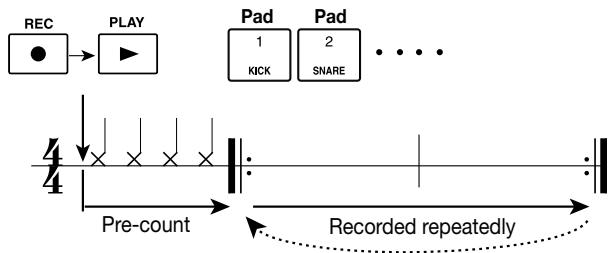
HINT
- The strength with which you tap the pads will be recorded in the pattern. If you are recording on the bass track, the length of time for which you hold down a pad will also be recorded.
- If you press the REC [●] key during recording, the REC [●] key will change to blinking, and recording will be temporarily suspended. In this state you can tap the pads to check which sound is assigned to each pad. Recording will resume when you press the REC [●] key once again.
-
You can also input a pattern using a MIDI controller connected to the MRS-1044's [MIDI IN] connector, instead of tapping the pads.
-
If you want to erase the performance of a specific pad from the track, hold down the [ERASE] key and press the corresponding pad.
Performance data for the corresponding pad will be erased from the pattern for the interval during which you hold down the [ERASE] key and the pad.
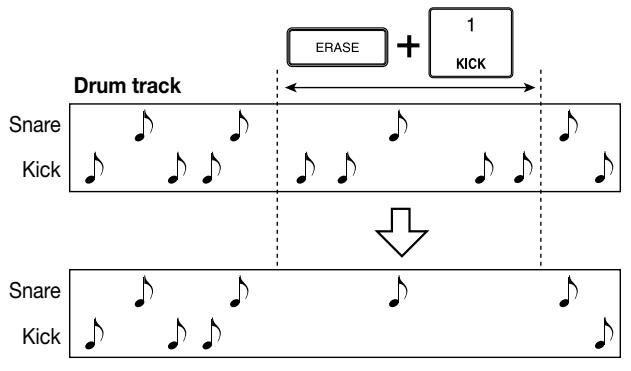
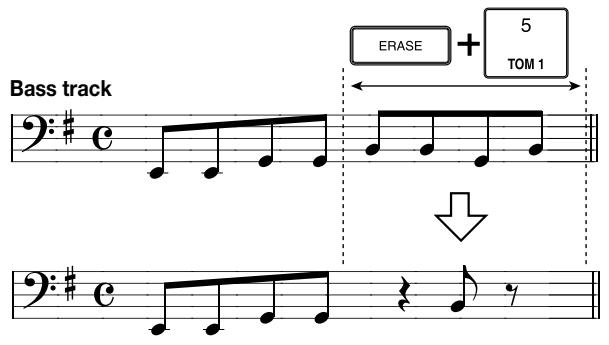
- If you want to erase the performance of all pads from the track, hold down the [ERASE] key and press the status key of the corresponding track (DRUM or BASS).
Performance data for all pads will be erased from the pattern for the interval during which you hold down both keys.
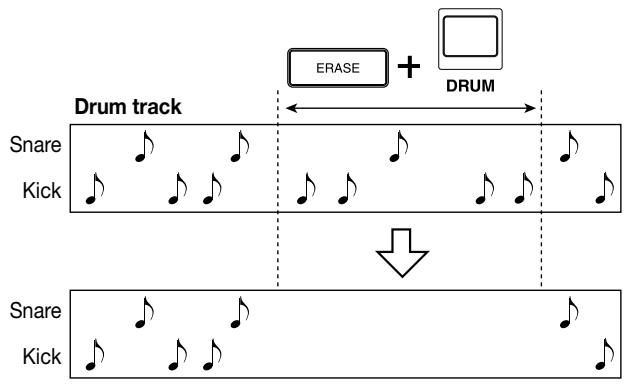
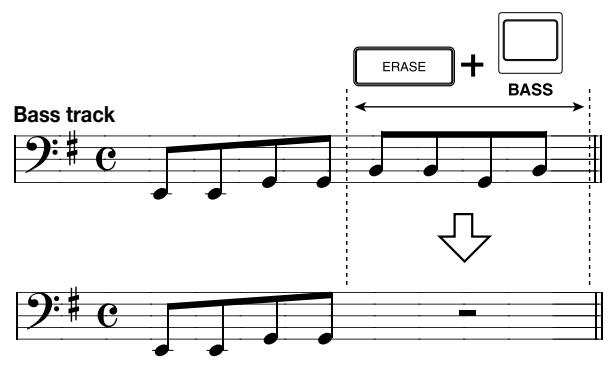
- When you have finished recording, press the STOP [■] key.
Pattern recording will stop, and you will return to the rhythm pattern screen. Press the PLAY [▶] key to hear the pattern that you recorded.
HINT
When you select an empty pattern and record it, a pattern name of "Patxxx" (xxx will be the pattern number) will be assigned automatically. You can edit this pattern name as necessary ( p.71).
- If you want to switch tracks and continue recording the rhythm pattern, repeatedly press the [DRUM/BASS] key to select the desired track (drum or bass), and repeat steps 2-6.
- When you have finished recording the pattern and want to return to the main screen, press the [EXIT] key several times.
Specifying the chord of a rhythm pattern
When you have created a new rhythm pattern that includes a bass track, and want to use this pattern in a rhythm song, you will need to specify the root and chord type for the pattern. If you fail to make these settings, the chords that were specified in the rhythm song may not play correctly. Use the following procedure to specify chords for newly created rhythm patterns.
- In the main screen, press the [PATTERN] key, and then press the [RHYTHM] key.
The [RHYTHM] key will light, and the rhythm pattern screen will appear.
-
Turn the dial to select the rhythm pattern for which you want to specify a chord.
-
Press the [EDIT] key.
The rhythm pattern edit menu will appear.
- Use the cursor [] / [] keys to access either the "EDIT OrROOT" or "EDIT OrCHORD" screen, and press the [ENTER] key.
Select "EDIT OrROOT" if you want to specify the chord root, or "EDIT OrCHORD" if you want to specify the chord type. The following screen shows an example of
what you see when you select "EDIT OrROOT" and press the [ENTER] key.
- Turn the dial to specify the chord root / type.
To specify the chord root (OrROOT)
Turn the dial to specify the note name of the chord root in a range of C-B (default: C).
To specify the chord type (OrCHORD)
Turn the dial to specify the chord type. Only "Maj" (major) or "min" (minor) can be selected (default: Maj).
For example if you input an E minor bass phrase into the rhythm pattern, you would set the root to "E," and the chord type to "min."
- Press the [EXIT] key.
The setting will be finalized, and you will return to the rhythm pattern edit menu.
- To return to the main screen, press the [EXIT] key several times.
Editing a rhythm pattern
This section explains how to edit an existing rhythm pattern.
Adjusting the volume balance of the drum kit and bass program
The volume of the drum kit and bass program can be adjusted by the DRUM and BASS faders of the mixer section. If necessary, however, the volumes of the drum kit and bass program can also be programmed for each rhythm pattern.
- In the main screen, press the [PATTERN] key, and then press the [RHYTHM] key.
The [RHYTHM] key will light, and the rhythm pattern screen will appear. - Turn the dial to select the desired rhythm pattern, and press the [EDIT] key.
The rhythm pattern edit menu will appear.
- Use the cursor [] / [] keys to select either the "EDIT DrumLvl" or "EDIT BassLvl" screen, and press the [ENTER] key.
Select the "EDIT DrumLvl" screen if you want to adjust the volume of the drum track, or the "EDIT BassLvl" screen if you want to adjust the volume of the bass track. The following screen is an example of what you see when you select the "EDIT DrumLvl" screen and press the [ENTER] key.
DrunLul 15
The display will indicate the current volume level (0 - 15).
- Turn the dial to adjust the setting, and press the [EXIT] key.
The change will be finalized, and you will return to the rhythm pattern edit menu. - To return to the main screen, press the [EXIT] key several times.
Copying a rhythm pattern
Here's how a rhythm pattern can be copied to another pattern number.
- In the rhythm pattern screen, select the copy-source rhythm pattern, and press the [EDIT] key.
The rhythm pattern edit menu will appear.
- Use the cursor [] / [] keys to make the display read "EDIT COPY," and press the [ENTER] key.
Copy-source rhythm
Copy-destination
pattern number
rhythm pattern number
- Turn the dial to select the copy-destination rhythm pattern, and press the [ENTER] key.
The display will ask "SURE?"
- Press the [ENTER] key to execute the copy, or press the [EXIT] key to cancel.
When the copy is completed, you will return to the rhythm pattern edit menu.
- To return to the main screen, press the [EXIT] key several times.
Editing the name of a rhythm pattern
Here's how you can edit the name of a rhythm pattern.
- In the rhythm pattern screen, select the rhythm pattern whose name you want to edit, and press the [EDIT] key.
The rhythm pattern edit menu will appear.
- Use the cursor [] / [] keys to make the display read "EDIT NAME," and press the [ENTER] key.
The rhythm pattern name will appear, and the first character will be blinking.
NAME Pat10
- Use the cursor [] / [] keys to move the blinking area, and turn the dial to change the character.
For details on the characters that can be used, refer to p.36.
HINT
When you select an empty rhythm pattern and record onto it, the pattern will automatically be assigned a default name of "Patxxx" (xxx will be the pattern number).
- When you have finished editing the name, press the [EXIT] key.
The rhythm pattern name will be updated, and you will return to the rhythm pattern edit menu.
- To return to the main screen, press the [EXIT] key several times.
Erase a rhythm pattern
Here's how you can erase all data from a specified rhythm pattern, returning it to a blank state.
- In the rhythm pattern screen, select the rhythm pattern that you want to erase.
- Press the [INSERT/DELETE] key.
The display will ask "SURE?"
- Press the [ENTER] key to execute the erasure, or press the [EXIT] key to cancel.
When the pattern has been erased, you will return to the rhythm pattern screen.
- To return to the main screen, press the [EXIT] key several times.
Importing rhythm patterns and the rhythm song from another project
Here's how you can import (load) the rhythm pattern data (255 patterns) and rhythm song data from another project that was saved on the hard disk.
1. In the main screen, press the [RHYTHM] key, and then press the [PROJECT/UTILITY] key.
A screen will appear in which you can make various settings for the rhythm section. (This screen is called the "rhythm utility menu.") This operation can be performed whether the rhythm section is in Rhythm Pattern mode or in Rhythm Song mode.
2. Use the cursor [] / [] keys to make the display read "UTILITY IMPORT," and press the [ENTER] key.
A screen will appear in which you can select the project to be imported.
![ZOOM MRS-1044 - Use the cursor [] / [] keys to make the display read "UTILITY IMPORT," and press the [ENTER] key. - 1](/content/2025/01/152225/images/d388ae4b583bde7f16b5e9dc728a0ad48c19583c86d583a724a3b56c1c39b301.jpg)
3. Turn the dial to select a project, and press the [ENTER] key.
The display will ask "SURE?"
4. Press the [ENTER] key to import, or press the [EXIT] key to cancel.
After the data has been imported, you will return to the rhythm utility menu. To return to the main screen, press the [EXIT] key several times.
NOTE
The rhythm patterns and rhythm song that are imported will overwrite the rhythm patterns and rhythm song of the project that you are currently operating.
Editing various settings of the rhythm section
Here's how you can edit various settings that affect the entire rhythm section, such as adjusting the sensitivity of pads 1 - 8 or adjusting the volume of the metronome.
Basic procedure
The basic procedure for editing the rhythm section settings is the same for most items. Here's the basic procedure.
HINT
You can use the same procedure in either Rhythm pattern mode or Rhythm Song mode.
1. In the main screen, press the [RHYTHM] key.
The [RHYTHM] key will light, and either the rhythm pattern screen or the rhythm song screen will appear, depending on the currently selected mode.
2. Press the [PROJECT/UTILITY] key.
The rhythm utility menu will appear, where you can make various settings for the rhythm section.
3. Use the cursor [] / [] keys to select one of the following items to edit, and press the [ENTER] key.
- COUNT: Change the length of the pre-count.
- CLICK: Change the volume of the metronome.
- PAD SENS (sensitivity): Specify how the volume will be affected by the force with which a pad is struck.
- MIDI: Make MIDI-related settings ( p.90).
- IMPORT: Import rhythm patterns and the rhythm song from a project saved on the hard disk.
- MEMORY (memory remaining): Check the remaining amount of rhythm pattern and rhythm song memory.
4. Turn the dial to edit the setting.
The screen display and operation will be different for each item. For details refer to the sections that follow.
HINT
For details on MIDI operations, refer to page 90. For details on the Import procedure, refer to the preceding section.
5. When you have finished creating settings, press the [EXIT] key several times.
You will return to the main screen.
Changing the length of the pre-count (COUNT)
You can change the length of the pre-count that is sounded when you record a rhythm pattern. When the following screen is displayed, turn the dial to choose one of these settings.
COUNT 1

- OFF: The pre-count will be turned off.
- 1: A one-measure pre-count will be sounded (default setting).
2: A two-measure pre-count will be sounded. - PAD: The pre-count will be turned off, and recording will begin the instant you tap a pad.
Changing the metronome volume (CLICK)
You can change the volume of the metronome that sounds while you record a rhythm pattern. When the following screen is displayed, turn the dial to adjust the volume (0 - 15).
CLICK 18

Adjusting the sensitivity of the pads (PAD SENS)
You can specify how the volume will respond to the force with which you tap the pads (pad sensitivity). When the display indicates "PAD SENS," turn the dial to select one of the following settings.
PADSENS NORMAL

- SOFT: The volume will be soft, regardless of how strongly you tap.
- MEDIUM: The volume will be medium, regardless of
how strongly you tap.
- LOUD: The volume will be loud, regardless of how strongly you tap.
- LITE: Maximum sensitivity. Even light taps will produce a loud volume.
- NORMAL: Normal sensitivity (default setting).
HARD: Low sensitivity.
EX HARD: Lowest sensitivity. Loud volumes will not be produced unless you tap quite strongly.
Checking the remaining amount of memory (MEMORY)
The remaining amount of recording memory for rhythm patterns and the rhythm song will be displayed as a percentage (\%). This screen is for display only, and has no setting that can be edited.
MEMORY 24%

Reference [Effects]
This section explains how to use the effects built into the MRS-1044.
About the effects
The MRS-1044 has two types of effects, an "insert effect" and two "send/return effects." The two types can be used simultaneously. The two types of effect are described below in detail.
Insert effect
The insert effect is used by inserting it into a specific signal route. You can select one of the following locations at which to insert the effect. (See the "Insert Effect" diagram below.)
(1) Input mixer
(2) Any channel of the track mixer (1 - 6, 7/8, 9/10, DRUM, BASS)
(3) Immediately before the MASTER fader
For example if you insert the insert effect into the input mixer, the effect can be applied to the signal that is input from the [INPUT 1/2] jacks, and recorded on a track of the recorder. Alternatively if you insert the insert effect into a channel of the track mixer or immediately before the MASTER fader, you can process a specific track or the entire song during mixdown.
Send/return effects
The send/return effects are internally connected to the send/return of the mixer section. The MRS-1044 has two send/return effects, reverb (REVERB) and chorus/delay (CHORUS/DELAY), and these two can be used simultaneously. The send levels of the input mixer or track mixer adjust the effect depth of the send/return effects. Raising the send level will send the corresponding signal to the input of the effect, and the signal processed by the effect will be returned immediately before the MASTER fader, and mixed with the other signals. (See the "Send/return effect" diagram below.)
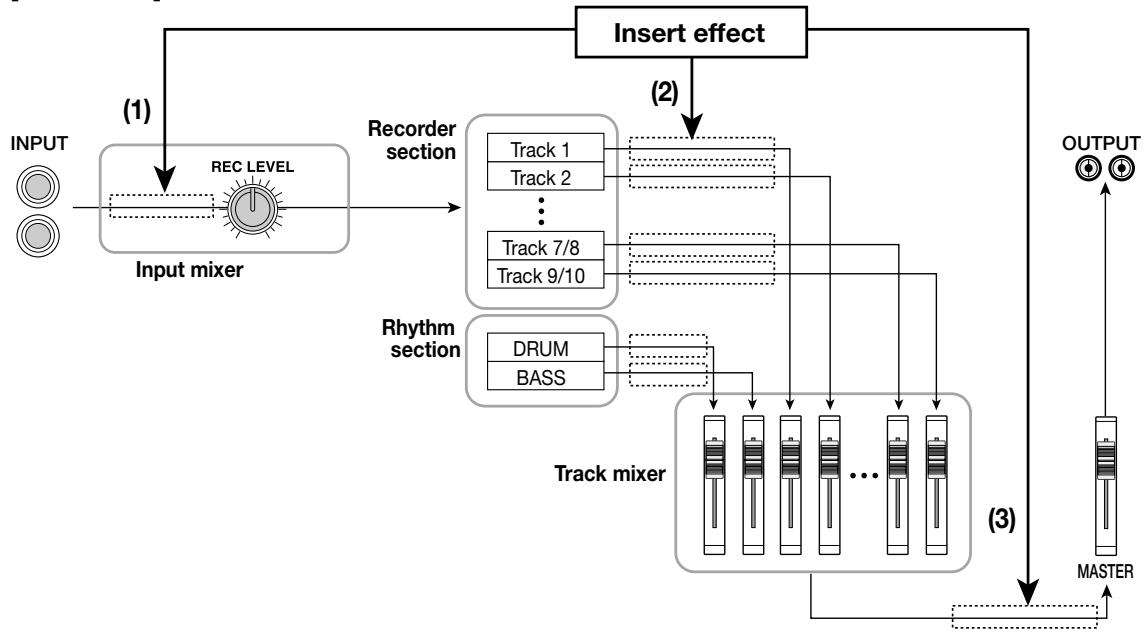
[Insert effect]
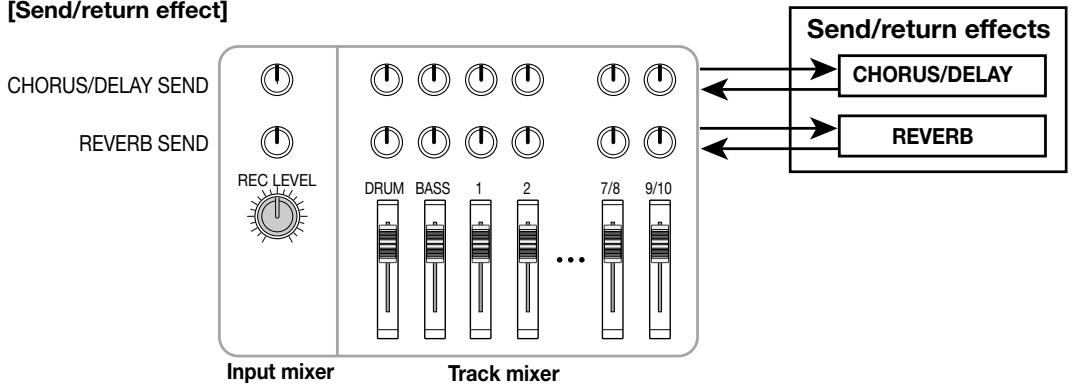
[Send/return effect]
Using the insert effect
This section explains how to insert the insert effect, how to select a patch, and how to edit the patch.
About insert effect patches
The insert effect is a multi-effect unit that contains a chain of separate effects such as compressor, distortion, and delay. Each of these separate effects is called an "effect module," and up to six effect modules can be used simultaneously. A set of effect modules that can be used simultaneously is called an "algorithm." You can use one of the following four types of algorithms.
- GUITAR/BASS: An algorithm suitable for recording guitar/bass.
- MIC: An algorithm suitable for recording vocals etc. through a mic. This algorithm has two variations, "MIC SINGLE" for use with one mic, or "MIC DUAL" for use with two mics.
- LINE: An algorithm used mainly when recording stereo-output line-level devices such as synthesizers or electronic pianos.
- MASTERing: An algorithm suitable for processing a stereo mix signal during mixdown, etc.
The arrangement of the effect modules and the signal flow for each algorithm is shown in the diagram below.
HINT
- Some algorithms are mono input / stereo output, and others are stereo input / stereo output. This difference will affect the signal flow when the insert effect is inserted. For details refer to p.77.
- The MIC algorithms "MIC SINGLE" and "MIC DUAL" will switch according to the effect type selected for the COMP/LIM module. For details on the effect types, refer to p.78.
Each module has various parameters (corresponding to the knobs of a compact effect unit) that can be edited to adjust the character or depth of the effect. Settings for the parameters of each effect module and an overall volume setting (patch level) are collectively referred to as a "patch."
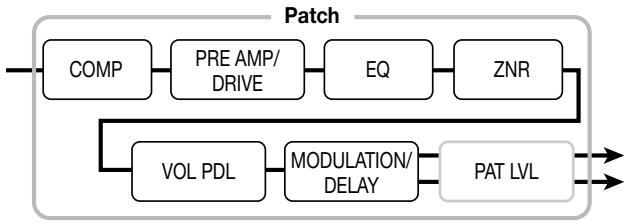
A newly created project contains 220 patches designed by ZOOM, and these patches are organized according to the four algorithms. You can instantly switch insert effect settings simply by selecting the appropriate algorithm, and then selecting a patch. The following table shows how the patches are organized for each algorithm.
| Algorithm | Patch number | Types |
| GUITAR/BASS | 00 – 99 | 100 types |
| MIC | 00 – 49 | 50 types |
| LINE | 00 – 49 | 50 types |
| MASTERING | 00 – 19 | 20 types |
[Module arrangement for each algorithm]
| Algorithm | Effect modules | Input/output type | |||||||
| GUITAR/BASS | COMP | PRE AMP/ DRIVE | EQ | ZNR | VOL PDL | MODULATION/ DELAY | Mono → stereo | ||
| MIC | SINGLE | COMP/LIM | MIC PRE+ DE-ESSER | EQ | ZNR | VOL PDL | MODULATION/ DELAY | ||
| DUAL | COMP/LIM | MIC PRE | EQ | ZNR | VOL PDL | DOUBLING | Stereo → stereo | ||
| CONM | MIC PRE | EQ | ZNR | DOUBLING | |||||
| LINE | COMP/LIM | ISOLATOR | EQ | ZNR | VOL PDL | MODULATION/ | Stereo → stereo | ||
| MASTERING | 3BAND COMP/ LO-FI | NORMALIZE | EQ | ZNR | VOL PDL | DIMENSION/ RESONANCE | |||
Changing the insert location of the insert effect
When the project is in its initial state, the insert effect is sent into the input mixer. However, you may change the insert location as necessary. The procedure is as follows.
1. In the main screen, press the effect section [INPUT SOURCE] key.
The currently selected insert location will appear in the display.
![ZOOM MRS-1044 - In the main screen, press the effect section [INPUT SOURCE] key. - 1](/content/2025/01/152225/images/449923836ff38b2ebcbb334e5226822bab48eae0785b3bc18c9ae26220f83d5b.jpg)
Location at which the insert effect is inserted
The display has the following significance.
- INPUT: Input mixer (default setting)
- DRUM: DRUM channel of the track mixer
- BASS: BASS channel of the track mixer
- TR 1 - TR6: Channels 1 - 6 of the track mixer
- TR1/2, TR3/4, TR5/6, TR7/8, TR9/10: Channels 1/2, 3/4, 5/6, 7/8, or 9/10 of the track mixer
- MASTER: Immediately before the MASTER fader
2. Turn the dial to select the insert location.
HINT
While the above screen is displayed, you can also select the insert location by pressing an INPUT 1/2 [ON/OFF] key or a status key (DRUM, BASS, 1 - 6, 7/8, 9/10, MASTER). When using the status keys to select channels 1/2, 3/4, or 5/6 as a pair, press status keys 1/2, 3/4, or 5/6 simultaneously.
3. Press the [EXIT] key.
You will return to the main screen.
HINT
If the [INPUT SOURCE] key is lit when you are in the main screen, this means that the insert effect is placed in a location other than in the input mixer.
Applying the insert effect only to the monitor signal
Normally when the insert effect is placed into the input mixer, the signal processed by the effect will be recorded on the track. If necessary, however, you can apply the insert effect only to the monitor signal, and record the unprocessed input signal on the track. For example when recording the unprocessed sound of a vocal performance, the vocalist will be more comfortable singing if an insert effect suitable for mic recording is applied to the monitor signal.
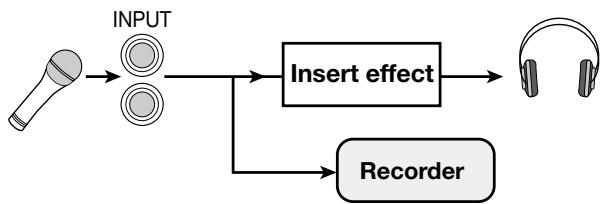
1. Send the insert effect into the input mixer.
For the procedure, refer to the preceding section.
2. Press the [EFFECT] key, and then press one of the ALGORITHM keys that is already lit.
A screen will appear in which you can select an insert effect patch.
3. Press the [PROJECT/UTILITY] key, and use the cursor []/[] keys to make the display read "UTILITY REC SRC."
UTILITY REC SRC

4. Press the [ENTER] key.
A screen will appear in which you can select one of the following two types of signal to be recorded on the track.
REC SRC WET
- WET: The input signal that has passed through the insert effect will be recorded on the track (default setting).
-
DRY: Only the unprocessed input signal will be recorded on the track. Even in this case, however, the insert effect will be applied to the monitor signal.
-
Turn the dial to change the setting to "DRY."
- When you have finished adjusting settings, press the [EXIT] key several times.
You will return to the main screen.

NOTE

The "UTILITY REC SRC" setting is stored independently for each project. Before you begin recording other parts, change the setting back to "WET."
Selecting the patch for the insert effect
Here's how to select the patch for the insert effect.
1. Press the [EFFECT] key.
The [EFFECT] key will light, and a screen will appear in which you can select a patch for the effect that you operated last (either the insert effect or send/return effect). The display will indicate the currently selected patch.
INSERT: insert effect
S/R-REV: Send/return effect (reverb)
S/R-CHO: Send/return effect (chorus/delay)
![ZOOM MRS-1044 - Press the [EFFECT] key. - 1](/content/2025/01/152225/images/a00723e6dcdc06a81e5f6d7040308b59d392295d2dc4f14d3e03287afec723d6.jpg)
-
In the effect section, press the desired ALGORITHM key.
-
GUITAR/BASS algorithm: [GUITAR/BASS] key
- MIC algorithm: [MIC] key
LINE algorithm: [LINE] key - MASTERING algorithm: [MASTERING] key
When selecting a patch for the insert effect, you will begin by first selecting the algorithm (the combination of effect modules). When you press the ALGORITHM key, the display will show the insert effect patches of that algorithm.
INSERT MRS-Drv
01
- Turn the dial to select the desired patch.
As you turn the dial, new patches will be recalled immediately. - If you want to temporarily turn the insert effect off, press the effect section [BYPASS/TUNER] key.
The [BYPASS/TUNER] key will light, and the insert effect will be bypassed. Bypass will be disabled when you press the [BYPASS/TUNER] key once again.
![ZOOM MRS-1044 - Press the [EFFECT] key. - 2](/content/2025/01/152225/images/3c544d7554ecf4204beaa6094294892096a488643240a66421388590368ba11f.jpg)
HINT

If you press the [ENTER] key after pressing the [BYPASS/TUNER] key, the Tuner function will be turned on. (For details on the Tuner function, refer to p.92.)
5. To return to the main screen, press the [EXIT] key.
The flow of the signal that passes through the insert effect will change as shown below, depending on the insert location, the number of input signal channels (1 or 2 channels), and the input/output type of the insert effect (mono input / stereo output, or stereo input and output). ("M S" indicates mono input / stereo output, and "S S" indicates stereo input/output algorithms.)
When inserted into the input mixer
- When recording on two mono tracks (tracks 1/2, 3/4, 5/6) or on a stereo track (7/8, 9/10)


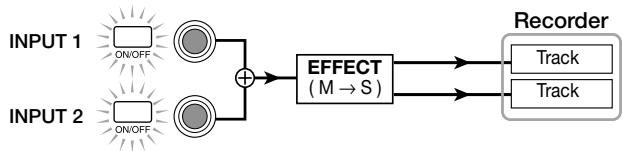
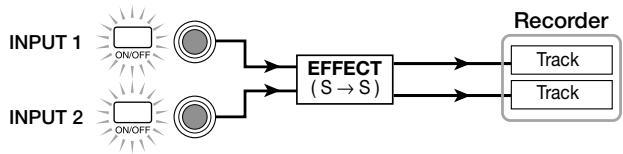
- When recording on one mono track (track 1 - 6)
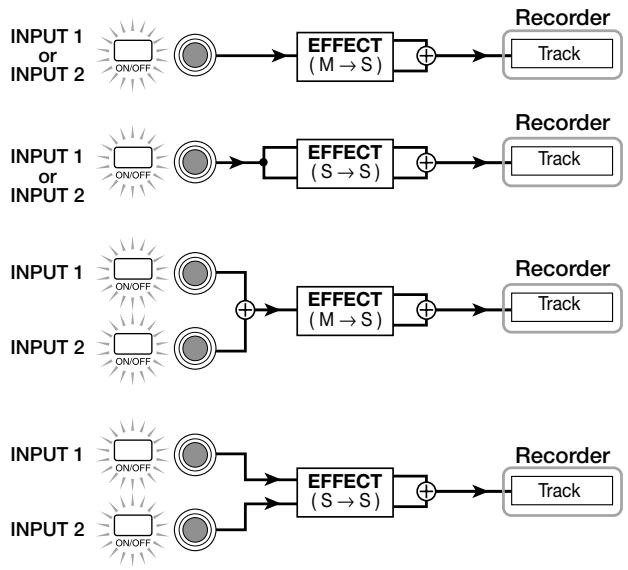

HINT
If no recording track is selected, the output signal of the insert effect will be sent to a location immediately before the MASTER fader, and mixed with the signals of the track mixer.
When inserted into the track mixer
- If two mono channels (channels 1/2, 3/4, 5/6), a stereo channel (7/8, 9/10), or the DRUM channel is selected as the insert location
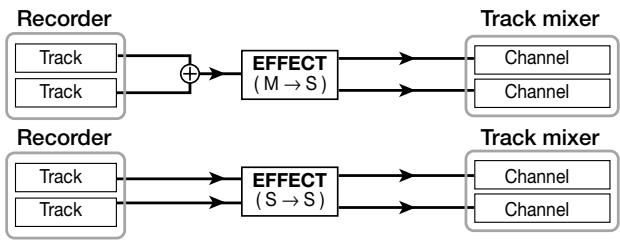
- If a mono channel (channel 1 - 6) or the BASS channel is selected as the insert location
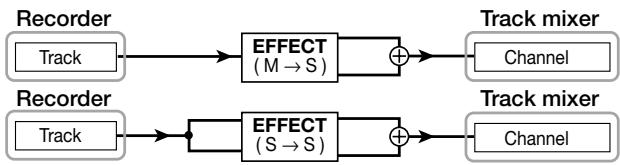
When inserted immediately before the MASTER fader
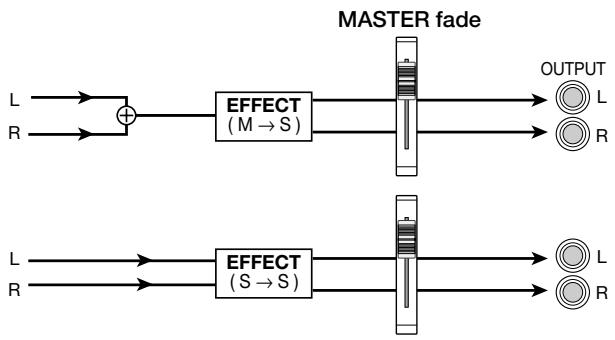
Editing the insert effect patch
The effect modules of the insert effect have various "effect parameters" that can be adjusted to make detailed changes to the character of the effect. By editing the effect parameters, you can obtain the desired tone or effect.
For some effect modules, you can change the "effect type." For example in the GUITAR/BASS algorithm, the MODULATION/DELAY effect module provides twelve effect types such as chorus, flanger, and phaser, and you can select and use any one of these. When you change the effect type, the effect parameters will also change.
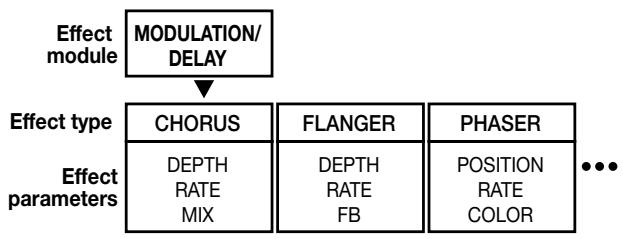
Here's how to edit the effect type and effect parameters for the currently selected patch.
1. Press the [EFFECT] key to make the key light.
The display will indicate the currently selected patch.
2. Use the ALGORITHM keys to select an algorithm, and turn the dial to select the patch that you want to edit.
It is not possible to change the algorithm of the currently selected patch. For this reason, you must first begin by selecting a patch that uses the desired algorithm, even when you want to create a patch from scratch.
3. Press the [EDIT] key.
The upper part of the display will indicate "EDIT." This means that the patch may now be edited.
![ZOOM MRS-1044 - Press the [EDIT] key. - 1](/content/2025/01/152225/images/b0ef24b25a98e0fe4e9a4a12332e7cf1f9a57b16879f214e90b82b5c5e59cfac.jpg)
4. From the MODULE keys, press the key for the effect module that you want to edit.
When editing a patch, use the MODULE keys to select the module for editing. The table below shows how the MODULE keys correspond to the various effect modules.
The following display is an example of when the [MODULATION/DELAY] key is pressed to select the MODULATION/DELAY effect module.
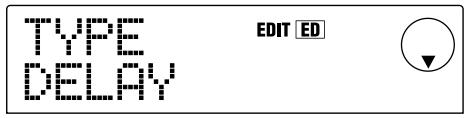
If you select an effect module using a key other than the [TOTAL] key, you can use the cursor [] / [] keys to access the setting screens for the effect type and effect parameters of that module.
HINT
- The lit/dark condition of the [COMPRESSOR], [PRE AMP/DRIVE], [EQUALIZER], and [MODULATION/DELAY] keys indicates the on/off status of the corresponding module. (If you select an effect module that is off, the display will indicate "-OFF-." Each time you press one of these keys, the setting will alternate on/off.
-
To edit the ZNR or VOL PDL modules, press [TOTAL], and then use the cursor [] / [] keys to display either "ZNR" or "VOL PDL." Then turn the dial to edit the parameter.
-
If you want to switch the effect type for the selected module, press the cursor [▲] key to make the display show "TYPE," and then turn the dial to select the desired effect type.
[MODULE key correspondence]
| Key Algorithm | COMPRESSOR | PRE AMP DRIVE | EQUALIZER | MODULATION DELAY | TOTAL | |||
| GUITAR/BASS | COMP | PRE AMP/ DRIVE | EQ | MODULATION/ DELAY | ZNR | VOL PDL | PAT LVL | |
| MIC | SINGLE | COMP/LIM | MIC PRE+ DE-ESSER | EQ | MODULATION/ DELAY | ZNR | VOL PDL | PAT LVL |
| DUAL | COMP/LIM | MIC PRE | EQ | DOUBLING | ZNR | VOL PDL | PAT LVL | |
| LINE | COMP/LIM | ISOLATOR | EQ | MODULATION/ | ZNR | VOL PDL | PAT LVL | |
| MASTERING | 3BAND COMP/ LO-FI | NORMALIZE | EQ | DIMENSION/ RESONANCE | ZNR | VOL PDL | PAT LVL | |
The following diagram shows an example of when the MODULATION/DELAY module effect is changed from "CHORUS" to "FLANGER."
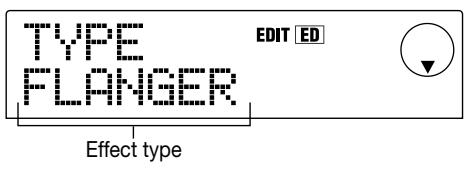
NOTE
Some effect modules have only one effect type. For such modules, there will be no screen for selecting the effect type.
HINT
If the contents of a patch have been edited, the "EDIT" indicator in the upper part of the display will change to "EDITED."
6. Use the cursor [] / [] keys to select the effect parameter that you want to edit.
The following diagram shows an example of what you see when you have selected the DEPTH parameter of the "FLANGER" effect.
![ZOOM MRS-1044 - Use the cursor [] / [] keys to select the effect parameter that you want to edit. - 1](/content/2025/01/152225/images/25bb275f000cf963a7172a164a7045020b6845e9ea7afc48f73dfc76cc51cec2.jpg)
7. Turn the dial to change the setting.
For details on the effect types that can be selected for each effect module, and on the effect parameters of each type, refer to the appendix ( p.98) at the end of this manual.
- Repeat steps 4 - 7 to make the desired edits for other modules.
- If you want to adjust the patch level (the final volume of the patch), press the [TOTAL] key, use the cursor [ ] / [ ] keys to make the display read "TOTAL PAT LVL," and turn the dial.
The patch level can be adjusted in a range of 1 - 30.
HINT
Strictly speaking, the patch level is not an effect module, but is one of the parameters included in the patch.
10. When you have finished editing, press the [EXIT] key.
You will return to the patch select screen.
NOTE
Be aware that if you return to the patch select screen and select another patch, the edited contents will be lost. If you want to keep the results of your editing, refer to the following section.
Storing an insert effect patch
A patch you edited can be stored in any location of the same algorithm. You can also store an existing patch in another location to create a copy of that patch.
1. Press the [EFFECT] key, and then press the [EDIT] key.
The currently selected patch can now be edited.
2. Press the [TOTAL] key, and use the cursor [ ] / [ ] keys to make the display read "STORE."
3. Press the [ENTER] key.
A screen will appear in which you can specify the store-destination patch number.
![ZOOM MRS-1044 - Press the [ENTER] key. - 1](/content/2025/01/152225/images/1aec99d49573f59c8173d817864ac8fe892fabae80baf57dafb1d9e6c2a13560.jpg)
4. Turn the dial to select the store-destination patch number, and press the [ENTER] key.
The display will ask "SURE?"
5. Press the [ENTER] key.
The patch will be stored, and you will return to the patch select screen.
![ZOOM MRS-1044 - Press the [ENTER] key. - 1](/content/2025/01/152225/images/a9b8d85ebe064f2666fc3ca7d56edded409e4afd6f08166b6d1aeb8a80e0e71e.jpg)
HINT
- Patches that you store are saved on the hard disk as part of the project.
- Patch data included in an already existing project can be loaded into the current project ( p.84). This is convenient when you want to use an edited patch in a different project.
Editing the name of an insert effect patch
Here's how to edit the name of the currently selected patch.
1. Press the [EFFECT] key, and then press the [EDIT] key.
The currently selected patch can now be edited.
2. Press the [TOTAL] key, and use the cursor [] / [] keys to make the display read "PAT NAM."
The name of the patch will be displayed below "PAT NAM," and the character currently selected for editing will blink.
![ZOOM MRS-1044 - Press the [TOTAL] key, and use the cursor [] / [] keys to make the display read "PAT NAM." - 1](/content/2025/01/152225/images/8eaa7305943f229a738c165673205541e81865dc8e86c7d1b3e63245b75edaee.jpg)
3. Use the cursor [] / [] keys to move the blinking area, and turn the dial to change the character.
For details on the characters that can be selected, refer to p.36.
4. When you have finished editing the name, use the cursor [] /[▼] keys to make the display read "STORE," and press the [ENTER] key three times.
The patch will be stored with the edited name, and you will return to the patch select screen.
Using the send/return effects
This section explains how to select and edit patches for the send/return effects (reverb, chorus/delay)
About the send/return effect patches
The "reverb" and "chorus/delay" send/return effects are separate and independent.
Reverb and chorus/delay each have an "effect type" that determines the type of effect, and various parameters that let you adjust the character of the effect. Settings for the effect type and parameters, together with a name, are collectively called send/return effect "patches."
A newly created project contains 20 different reverb patches and 20 different chorus/delay patches. You can instantly switch reverb or chorus/delay settings simply by choosing the effect for which you want to select a patch (reverb or chorus/delay), and then selecting a patch.
| Algorithm | Patch number | Types |
| REVERB | 00 – 19 | 20 types |
| CHORUS/DELAY | 00 – 19 | 20 types |
Selecting a send/return effect patch
Here's how to select a reverb or chorus/delay patch.
1. Press the [EFFECT] key, and then press the [REVERB] key or [CHORUS/DELAY] key.
Press the [REVERB] key if you want to select a reverb patch, or the [CHORUS/DELAY] key if you want to select a chorus/delay patch. The currently selected patch will be displayed. The following display shows an example of what you see when the [REVERB] key is pressed.
![ZOOM MRS-1044 - Press the [EFFECT] key, and then press the [REVERB] key or [CHORUS/DELAY] key. - 1](/content/2025/01/152225/images/3884231650e68765b0674c5494336aecdaf969537cc1013a1d4650e552465f5e.jpg)
2. Turn the dial to select the new patch.
As you turn the dial, new patches will be recalled immediately. If the track mixer REVERB SEND and CHORUS/DELAY SEND parameter settings are raised, you can press the PLAY [▶] key to play back the song, and listen to the result of the newly selected patch.

HINT

- When a reverb or chorus/delay patch is selected, you can press the corresponding key ([REVERB] or [CHORUS/DELAY]) to switch that effect on/off. (When off, the key will be dark.)
- For details on track mixer operations, refer to p.49.
3. To return to the main screen, press the [EXIT] key.
Editing a send/return effect patch
Here's how to edit a reverb or chorus/delay patch.
1. Press the [EFFECT] key, and then press the [REVERB] key or [CHORUS/DELAY] key.
Press the [REVERB] key to edit a reverb patch, or press the [CHORUS/DELAY] key to edit a chorus/delay patch. When either key is pressed, the currently selected patch will be displayed. The following screen is an example of what you see when the [CHORUS/DELAY] key is pressed.
![ZOOM MRS-1044 - Press the [EFFECT] key, and then press the [REVERB] key or [CHORUS/DELAY] key. - 1](/content/2025/01/152225/images/1a6c3b47144f2e727e43432310722377a61464ccd2b4d55234584690daf2c2b7.jpg)
2. If necessary, turn the dial to select the patch that you want to edit.
3. Press the [EDIT] key.
The display will indicate "EDIT," and a screen will appear in which you can edit the patch. When the [EDIT] key is first pressed, a screen will appear in which you can select the effect type of the selected send/return effect (in this example, chorus/delay).
![ZOOM MRS-1044 - Press the [EDIT] key. - 1](/content/2025/01/152225/images/db87541d3e11cce233c10c2d4cdeb39ff7c15814de03eabca6f1136b98e352f1.jpg)
Effect type
4. If you want to change the effect type, turn the dial.
In this example, the chorus/delay effect type has been changed from "CHORUS" to "DELAY." When the effect type is changed, the effect parameters will also be different.
EDIT ED


HINT

When the contents of a patch are modified, the "EDIT" indicator in the upper part of the display will change to "EDITED."
5. Use the cursor [] / [] keys to select the effect parameter that you want to edit.
In this example, the TIME parameter of the "DELAY" effect type has been selected.
![ZOOM MRS-1044 - Use the cursor [] / [] keys to select the effect parameter that you want to edit. - 1](/content/2025/01/152225/images/cf3892592ec6def86b680cb210e01e91ab34aa74892f029bd9baab8de1a5165f.jpg)
6. Turn the dial to change the setting.
For details on the effect types that can be selected for reverb or chorus/delay, and on the range of each effect parameter, refer to the appendix ( p.105) at the end of this manual.
7. As necessary, repeat steps 5 - 6 to edit other effect parameters.
8. When you have finished editing, press the [EXIT] key.
You will return to the patch select screen.
![ZOOM MRS-1044 - When you have finished editing, press the [EXIT] key. - 1](/content/2025/01/152225/images/88bcd6c82360ab9221d7009e3fc4237f64cb5214f585f1782a301661b1bf4386.jpg)
NOTE

Be aware that if you return to the patch select screen and select another patch, your edits will be lost. If you want to keep the edited patch, refer to the following section.
Storing a send/return effect patch
A patch you edited can be stored in any location of the same send/return effect. You can also store an existing patch in another location to create a copy of that patch.
- Press the [EFFECT] key, and then press the [EDIT] key.
The currently selected patch can now be edited. - Use the cursor [] / [] keys to make the display read "STORE."
- Press the [ENTER] key.
A screen will appear in which you can specify the store-destination patch number.
- Turn the dial to select the store-destination patch number, and press the [ENTER] key.
The display will ask "SURE?"
- Press the [ENTER] key.
The patch will be stored, and you will return to the patch select screen.
HINT
- Patches that you store are saved on the hard disk as part of the project.
- Patch data included in an already existing project can be loaded into the current project ( p.84). This is convenient when you want to use an edited patch in a different project.
Editing the name of a send/return effect patch
Here's how to edit the name of the patch that is currently selected for a send/return effect.
- Press the [EFFECT] key, and then press the [REVERB] key or [CHORUS/DELAY] key.
Press the [REVERB] key if you want to edit the name of the reverb patch, or press the [CHORUS/DELAY] key if you want to edit the name of the chorus/delay patch. When either key is pressed, the currently selected patch will be displayed. If necessary, turn the dial to select the patch
whose name you want to edit.
- Press the [EDIT] key, and use the cursor [ ] / [ ] keys to make the display read "PAT NAM."
The name of the patch will be displayed below "PAT NAM," and the character currently selected for editing will blink.
- Use the cursor [] / [] keys to move the blinking area, and turn the dial to change the character.
For details on the characters that can be selected, refer to p.36.
- When you have finished editing the name, use the cursor [] /[▼] keys to make the display read "STORE," and press the [ENTER] key three times.
The patch will be stored with the edited name, and you will return to the patch select screen.
Importing patches from another project
Here's how to import (load) all patches for the internal effects (insert effect and send/return effect) from another project that is already saved on the hard disk.
- Press the [EFFECT] key, and then press the [PROJECT/UTILITY] key in the display section.
The display will indicate "UTILITY REC SRC." - Use the cursor [] / [] keys to make the display read "UTILITY IMPORT," and press the [ENTER] key.
A screen will appear, allowing you to select the project from which the patch data will be imported.
3. Turn the dial to select the project from which the patch data will be imported, and press the [ENTER] key.
The display will ask "IMPORT SURE?"
4. Press the [ENTER] key to execute the Import operation, or press the [EXIT] key to cancel.
When the data has been imported, you will return to the "UTILITY IMPORT" screen. At this time, all effect patches of the project you selected in step 3 will be overwritten onto the current project.
Reference [Project]
This section explains operations that affect an entire project.
About projects
On the MRS-1044, the data needed to reproduce a song you create is managed in units called "projects." A project contains the following data.
The data recorded on V-takes 1-10 of tracks 1-10
- The current mixer settings
The settings saved in scene numbers 0 - 99
- The numbers of the patches currently selected for the insert effect / send return effects
- Insert effect and send/return effect patches (260 patches)
- The recorded contents of the rhythm patterns (255 patterns)
The recorded contents of the rhythm song
- The number of the drum kit and bass program currently selected by the drum and bass tracks
- MIDI-related settings
The internal hard disk can store a maximum of 1,000 projects, as long as space is available. A project can be loaded at any time.
NOTE
On the MRS-1044, recording/playback operations can be performed only for the currently loaded project. It is not possible to operate multiple projects simultaneously.
Project operations
This section explains operations such as loading or saving a project. The procedure is the same for most project operations. The basic procedure is as follows.
Basic procedure
- In the main screen, press the [PROJECT/UTILITY] key.
The display will indicate "PROJECT."
PROJECT

- Press the [ENTER] key.
The "project menu" will appear, allowing you to select the desired project operation.
PROJECT SELECT
Project menu item

-
Use the cursor [] / [] keys to select one of the following operations, and press the [ENTER] key.
-
PROJECT SELECT: Load a previously saved project from the internal hard disk.
- PROJECT NEW: Create a new project.
- PROJECT SIZE: View the size of the currently loaded project.
- PROJECT COPY: Duplicate a specified project on the hard disk.
- PROJECT ERASE: Erase a specified project from the hard disk.
- PROJECT NAME: Edit the name of the currently loaded project.
- PROJECT PROTECT: Write-protect the currently loaded project.
-
PROJECT STORE: Store the currently loaded project.
-
Execute the operation (or change the setting) that you selected.
For details on the procedure, refer to the sections that follow.
- To return to the main screen, press the [EXIT] key several times.
HINT
In the case of an operation that you execute, you will automatically return to the main screen after execution.
Loading a project (PROJECT SELECT)
You can select a project that was saved on the hard disk, and load it. When the following screen is displayed, use the dial to select the project that you want to load.
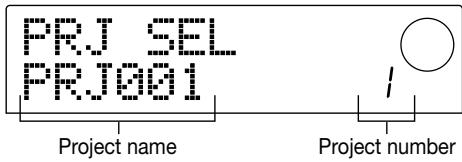
Press the [ENTER] key to load the project, or press the [EXIT] key to cancel. After the project has been loaded, you will return to the main screen.
HINT
- When you press the [ENTER] key, the project that you had been working on will be saved automatically before the selected project is loaded.
- When the power of the MRS-1044 is turned on, the project that you were last working on will be loaded automatically.
Creating a new project (PROJECT NEW)
This operation creates a new project. To execute, press the [ENTER] key when the following screen is displayed. To cancel, press the [EXIT] key.
Number of the project that will be newly created
When you press the [ENTER] key, a new project will be loaded, and you will return to the main screen.
HINT
- A newly created project will be automatically assigned a default name of "PRJxxx" (xxx will be a project number in the range of 000 - 999). You can edit this name as desired.
- When you press the [ENTER] key, the project that you had been working on will be saved automatically before the new project is created.
Checking the project size / available hard disk capacity (PROJECT SIZE)
This displays the size of the currently loaded project, the available capacity of the internal hard disk, and the remaining recording time. Use the cursor [] /[▼] keys to switch between the following display items.
- REMAIN MB: This shows the remaining space on the internal hard disk in MB (megabyte) units. (One megabyte is 1,048,576 bytes.)
REMAIN 13988NB

- REMAIN h/m: The approximate recordable time remaining for each track is shown in hours (h) / minutes (m) / seconds.
REMAIN 45h55m46

- PRJ SIZ MB: This shows the size of the currently loaded project in MB (megabyte) units.
PRJ SIZ 00122MB

- PRJ SIZ h/m: This shows the size of the currently loaded project in terms of the recorded time per track, in hours (h) and minutes (m).
PRJ SIZ 00h24m13

NOTE
- These screens are for display only, and contain no items that can be edited.
- The remaining recordable time is an approximation.
Duplicating a project (PROJECT COPY)
This operation copies a specified project that is saved on the hard disk.
- When the above screen is displayed, turn the dial to select the copy-source project, and press the [ENTER] key.
A screen will appear in which you can specify the copy-destination project number.
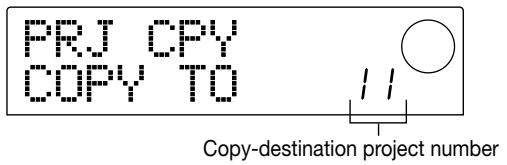
- Turn the dial to select the copy-destination project number, and press the [ENTER] key.
The display will ask "SURE?"
- To execute the copy, press the [ENTER] key. To cancel, press the [EXIT] key.
When the copy operation has been completed, you will return to the main screen with the copy-destination project selected.
Erasing a project (PROJECT ERASE)
This operation erases the specified project from the hard disk. When the following screen is displayed, use the dial to select the project that you want to erase.
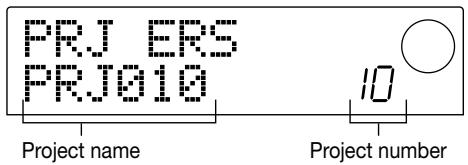
To execute the erasure, press the [ENTER] key. To cancel, press the [EXIT] key. When the erase operation has been completed, you will return to the main screen.
HINT
It is also possible to erase the currently loaded project. In this case, the lowest-numbered project will automatically be loaded after the erase operation has been completed.
NOTE
Once a project has been erased, it cannot be recovered. Use this operation with care.
Editing the project name (PROJECT NAME)
This lets you edit the name of the currently loaded project. When the following screen is displayed, the character selected for editing will blink.

Use the cursor [] / [] keys to move the blinking area, and use the dial to change the character.
For details on the characters that can be used, refer to p.36.
HINT
The edited name of the project will be updated when the project is saved.
Protecting a project (PROJECT PROTECT)
This setting lets you write-protect the currently loaded project. When the following screen is displayed, use the dial to select one of the following two settings.

- OFF: Protect is turned off.
-
ON: Protect is turned on. When protect is on, the following operations will be impossible.
-
Editing or recording on the recorder
- Changing the V-take
- Editing a patch
- Recording or editing a rhythm pattern or the rhythm
song
- Deleting or saving the project
- Saving/deleting scenes, making marker settings, etc.
A project for which the Protect setting is turned on is indicated by a symbol displayed at the left of the project number in the main screen.
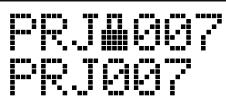

HINT
- If you save the project after completing the mix, it will be impossible to return to that state if you continue making changes. If you do not want a completed mix to be changed further, we recommend that you turn Protect on.
- The Protect setting will be stored on the internal hard disk as soon as you switch the setting on or off.
Storing a project (PROJECT STORE)
This operation stores the currently loaded project on the hard disk. To store the project, press the [ENTER] key when the following screen is displayed.
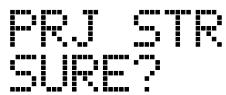

When the project has been stored, you will return to the "PROJECT STORE" screen.
HINT
The currently loaded project will be stored automatically when you load another project, when you create a new project, or when you press the [POWER] switch to turn off the power.
NOTE
If the AC adaptor is pulled out of the outlet and power to the MRS-1044 is lost, all changes that occurred since the project was last stored will be lost. This is also true of any other miscellaneous power failure. As a precaution against such occurrences, we recommend that you store the project periodically.
Reference [MIDI]
This section explains the MIDI-related settings of the MRS-1044.
About MIDI
MIDI (Musical Instrument Digital Interface) is a standard that allows messages such as performance data (collectively called "MIDI messages") to be exchanged between devices such as electronic musical instruments and computers. The MRS-1044 supports MIDI, and can transfer messages to and from another MIDI-compatible device via the [MIDI IN/OUT] connectors located on its rear panel.
What you can do using MIDI
On the MRS-1044, you can use MIDI for the following things
- Play a drum kit / bass program from an external device
Performance data can be sent from a MIDI keyboard or computer to the MRS-1044, to play a drum kit or bass program. When creating a rhythm pattern, you can also record a performance from an external MIDI device instead of using the pads.
- Operate the MRS-1044 and an external MIDI device in synchronization
Synchronization messages called "(MIDI) Timing Clock" can be transmitted from the MRS-1044 to an external rhythm machine, sequencer, or similar MIDI device, so that the two devices will operate in synchronization.
About the MIDI connectors
The MRS-1044 has the following connectors in order to exchange MIDI messages with external MIDI devices.

OUT

IN
MIDI
- [MIDI IN] connector
This connector receives MIDI messages that are sent from an external MIDI device. This connector is used mainly to
receive Note messages from an external MIDI device in order to play a drum kit or bass program.
- [MIDI OUT] connector
This connector transmits MIDI messages from the MRS-1044. Note messages that represent the content played by a rhythm pattern or rhythm song are transmitted from this connector, as well as MIDI Timing Clock messages when the MRS-1044 is running.
Making MIDI-related settings
This section explains the procedure for making MIDI-related settings. The procedure is the same for most settings. The basic procedure is as follows.
Basic procedure
- Press the [RHYTHM] key, and then press the [PROJECT/UTILITY] key.
- Use the cursor [] / [] keys to make the display read "UTILITY MIDI."
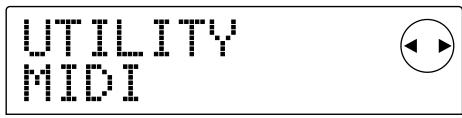
- Press the [ENTER] key.
Now you can select MIDI-related setting items.
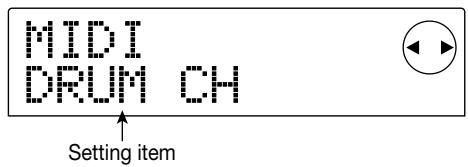
-
Use the cursor [] / [] keys to select one of the following items that you want to set, and press the [ENTER] key.
-
DRUM CH: Set the MIDI channel of the drum track.
- BASS CH: Set the MIDI channel of the bass track.
- CLOCK: Turn Timing Clock transmission on/off.
- SPP: Turn Song Position Pointer transmission on/off.
-
COMMAND: Turn Start/Stop/Continue message transmission on/off.
-
Use the dial to set the item.
For details on each item, refer to the explanations that follow.
6. When you have finished creating settings, press the [EXIT] key several times.
You will return to the usual screen.
Setting the drum/bass MIDI channel (DRUM CH / BASS CH)
You can specify the MIDI channels for the drum track and bass track.
When the display shows "DRUM CH" or "BASS CH," turn the dial to select one of the following settings.
DRUM CH 10CH
- 1 - 16CH: MIDI channels 1 - 16 (default: DRUM CH=10, BASS CH=9)
- OFF: Channel messages (Note messages) will not be transmitted or received.
If you specify a MIDI channel (1 - 16) for the drum or bass track, you can transmit Note messages from an external MIDI device on that MIDI channel to play the sounds of the MRS-1044's drum or bass track (i.e., to play the drum kit or bass program). Also, when you play back a rhythm pattern (or rhythm song) on the MRS-1044, the content of the drum and/or bass track will be transmitted as Note messages. If this setting is turned OFF, Note messages will not be transmitted or received.
Specifying transmission of Timing Clock messages (CLOCK)
This setting specifies whether the MIDI synchronization message Timing Clock will be transmitted. When the display shows "CLOCK," turn the dial to select one of the following settings.
CLOCK OH
- ON (transmission on): MIDI Timing Clock will be transmitted when the MRS-1044 is running (default setting).
- OFF (transmission off): Timing Clock will not be transmitted.
Timing clock will be output according to the tempo of the rhythm pattern (or rhythm song) that is playing. In order for the external MIDI device to play back in synchronization at an appropriate tempo, you will need to specify the tempo and time signature of the rhythm pattern
(rhythm song) even if you are not using the rhythm track.
NOTE
Timing Clock will be transmitted even if the drum and/or bass tracks are muted (DRUM/BASS status keys dark).
HINT
- When using MIDI Timing Clock messages transmitted from the MRS-1044 to synchronize the operation of an external MIDI device, you should also turn on transmission for Song Position Pointer and Start/Stop/Continue messages as well as Timing Clock.
- When transmitting Timing Clock from the MRS-1044, we recommend that you turn the drum/bass MIDI channels OFF. Synchronization may become unstable if MIDI messages other than timing clock are also being transmitted.
Specifying transmission of Song Position Pointer messages (SPP)
You can specify whether Song Position Pointer messages will be transmitted. Song Position Pointer is a MIDI message that indicates the current measure position. Normally it is used in conjunction with Timing Clock.
When the display indicates "SPP," turn the dial to select one of the following settings.
SPP OH

- ON (transmission on): MIDI Song Position Pointer messages will be transmitted when a Locate operation is performed on the MRS-1044 (default setting).
- OFF (transmission off): Song Position Pointer messages will not be transmitted.
Specifying transmission of Start/ Stop/Continue messages (COMMAND)
You can specify whether Start/Stop/Continue messages will be transmitted. Start/Stop/Continue are MIDI messages that control the transport of a device, causing it to "run" or "stop." Normally these messages are used in conjunction with Timing Clock. When the display indicates "COMMAND," turn the dial to select one of the following settings.
COMMAND ON

- ON (transmission on): The appropriate Start/ Stop/Continue message will be transmitted when the MRS-1044 stops or begins running (default setting).
- OFF (transmission off): Start/Stop/Continue messages will not be transmitted.
Reference [Other]
This section explains how to use functions such as the MRS-1044's built-in tuner, and how to change the function of the foot switch.
Changing the function of the foot switch
With the default settings of the MRS-1044, a separately sold foot switch (ZOOM FS01) connected to the [FOOT SW] jack can be used to play/stop the MRS-1044. If you want to use the foot switch to perform manual punch-in/out recording ( p.33), use the following procedure to change the internal setting.
- In the main screen, press the [PROJECT/UTILITY] key.
The display will indicate "PROJECT." - Use the cursor [] / [] keys to make the display read "UTILITY SYSTEM," and press the [ENTER] key.
- Use the cursor [] / [] keys to make the display read "UTILITY FOOT SW," and press the [ENTER] key.
The function currently assigned to the foot switch will be displayed.
FOOT SWFLY-5TP
- PLY_STP: The MRS-1044 will alternate between play/stop each time you press the foot switch (default setting).
-
PUNCH IO: The foot switch can be used to perform manual punch-in/out.
-
Use the dial to select either "PLY_STP" or "PUNCH IO."
- To return to the main screen, press the [EXIT] key several times.
Using the tuner
The MRS-1044 has a built-in chromatic tuner that can be used when tuning an instrument (e.g., guitar or bass) connected to the [INPUT 1/2] jacks. Here's how to use the tuner.
- Connect the instrument that you want to tune to the [INPUT 1/2] jack, and turn on the [ON/OFF] key for the jack to which you connected it.
- In the main screen, press the [EFFECT] key, and then press one of the lit ALGORITHM keys.
The patch currently selected for the insert effect will be displayed.
NOTE
It is not possible to use the tuner from a screen that shows a send/return effect patch.
3. Press the [BYPASS/TUNER] key.
The display will alternately show "INSERT BYPASS" and "TUNER ENTER." During this time, the insert effect will be bypassed.
4. Press the [ENTER] key.
The display will indicate "TUNER," and the tuner function will be turned on. While the tuner function is on, the insert effect will remain bypassed, and the send/return effects (reverb and chorus/delay) will also be turned off.
![ZOOM MRS-1044 - Press the [ENTER] key. - 1](/content/2025/01/152225/images/b3ca3e0c5fc196202e08d356d0f93b55377948ddddc54eff34d26cc402f62cb4.jpg)
- Play the note that you want to tune, and tune your instrument so that the desired note name (C, C#, D, D#, E...) appears in the display.
![ZOOM MRS-1044 - Press the [ENTER] key. - 2](/content/2025/01/152225/images/21e6d64d6f93f2d531935b3f649db6898a5165808ad318d103a2339361bb8b16.jpg)
- When the desired note name appears, watch the ">" and "<" symbols in the display, and make fine adjustments to the tuning.
![ZOOM MRS-1044 - Press the [ENTER] key. - 3](/content/2025/01/152225/images/21c28164f872650f831feff0982bf09ff65f65785e796a94786c687d1ece342d.jpg)
- If you want to change the reference pitch of the tuner, turn the dial.
The reference pitch of the tuner is set to middle A = 440Hz by default. The reference pitch can be adjusted in a range of 435 - 455Hz .
![ZOOM MRS-1044 - Press the [ENTER] key. - 4](/content/2025/01/152225/images/27ae68a43260120fb0693929771d573f1b1c2c89e5c43fad253f52ab0398f88f.jpg)
HINT
If you change the reference pitch, the pitch of the bass program will also change accordingly.
- When you have finished tuning, press the [EXIT] key.
You will return to the main screen. At the same time, the insert effect will remain bypassed, but the send/return effects will be switched back on.
- To disable bypass for the insert effect, press the [BYPASS/TUNER] key.
Preventing digital copying of your master tape
When mixing down to a DAT recorder etc. via the [DIGITAL] jack, you can prevent digital copies from being made from your completed master tape onto another digital recorder. The procedure is as follows.
- In the main screen, press the [PROJECT/UTILITY] key.
The display will indicate "PROJECT." - Use the cursor [] / [] keys to make the display show "UTILITY SYSTEM," and press the [ENTER] key.
- Use the cursor [] / [] keys to make the display show "UTILITY D PRTCT," and press the [ENTER] key.
The current digital copy setting will be displayed.
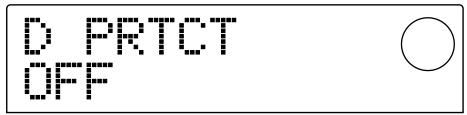
- OFF: Digital copying from your master tape to another digital recorder will be permitted (default setting).
- ON: SCMS (Serial Copy Management System) data will be added to the digital signal that is output from the [DIGITAL] jack. It will not be possible to make digital copies from a master tape that contains this data.
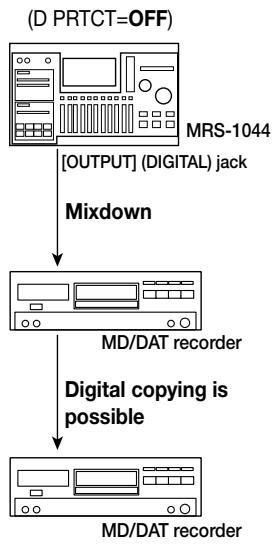
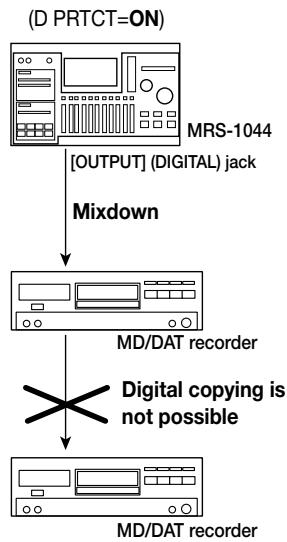
- Turn the dial to switch the setting "ON."
- When you have finished making settings, press the [EXIT] key several times.
You will return to the main screen.

HINT

This setting must be made before you mixdown. If you turn the setting ON after mixing down, it will have no effect.
Specifications of the MRS-1044
Recorder
Physical tracks 10
Virtual tracks 100 (10 virtual tracks for each track)
Drum track 1 (stereo)
Bass track 1 (mono)
Simultaneously recordable tracks
2 tracks
Recorded data format 16 bit linear (uncompressed)
Maximum recording time More than 44 hours (calculated for mono tracks)
Markers 100 mark points per project
Location display Hour/Min/Sec/mSec display, or Meas/Beat/Tick display
Track editing functions Copy, Move, Paste, Erase, Exchange
Punch-in/out function Manual, Auto
Other functions Bounce, Scrub/Preview, A-B Repeat, Undo/Redo
- Mixer
Simultaneously playable tracks
13 (10 audio tracks + stereo drum track + mono bass track)
11 (1 - 6 mono, 7/8 - 9/10 stereo, drum, bass, stereo master)
Level meter display Switchable post-fader/pre-fader, fader value monitor function
Track parameters Equalizer, effect send, pan (balance for stereo-link)
Equalizer HIGH (f: 500 Hz-18 kHz, GAIN: +/-12 dB)
LOW (f: 40 Hz-1.6 kHz, GAIN: +/-12 dB)
Effect send Chorus/delay send, reverb send
Stereo link Selectable for tracks 1/2,3/4,5/6 fixed for tracks 7/8 and 9/10
Scene function 100 scenes for each project (can be registered at markers)
Effects
Algorithms 4 types (guitar/bass, mic, line, mastering)
Modeling method VAMS (Variable Architecture Modeling System)
Number of patches 220 (100 guitar/bass + 50 mic + 50 line + 20 mastering)
Number of effect modules 4 (compressor, pre-amp/drive, equalizer, modulation/delay)
Number of send/return patches
40 (20 chorus/delay + 20 reverb)
Tuner type Auto chromatic tuner
Tuner calibration 435 - 445Hz ,adjustable in 1Hz steps
Rhythm
Number of voices 8drumvoices,1bassvoice
Sound generator type 16 bit linear PCM
Drum kits 30 drum kits
Number of drum sounds 24 for each drum kit (8 pads x 3 banks)
Number of bass sounds 15 types (5 octaves for each sound)
Number of pads 8 pads (velocity sensitive)
Resolution 48 PPQN
Time signatures 1/4 - 8/4 time signatures
Number of factory preset patterns
More than 400 (rewritable)
Maximum number of patterns
255 patterns for each song (rewritable)
Maximum number of measures
999 measures (for each Rhythm song), 255 measures (for each Rhythm pattern)
Number of notes Approximately 10,000 notes (for each Rhythm song)
40.0 - 250.0 (resolution 1/10)
Hard disk
3.5 inch E-IDE type, 15 GB
Number of projects
Maximum of 1,000 projects
A/D converter
24 bit 64 times oversampling
D/A converter
24 bit 128 times oversampling
Sampling frequency
44.1 kHz
Signal processing
24 bit
Frequency response
20Hz - 20kHz + / - 1 dB (for 10k -ohm load)
S/N
93 dB (IHF-A)
Dynamic range
97 dB (IHF-A)
THD+N
0.02% (400 Hz, at 10 k-ohm load)
Display
60 × 42 ~mm original LCD (with backlight)
Guitar/bass (Hi-Z) input
1 x mono phone jack, input impedance 500 k-ohms
Unbalanced inputs
2 x mono phone jack, input impedance greater than 50 k-ohms, unbalanced
Balance inputs
2 x XLR-3-31 type, input impedance 1 k-ohm balanced, pin 2 hot
Phantom power
48 V (with on/off switch)
Input level
-50 dBm < continuously variable < +4 dBm
Master out
RCA phono jacks (L/R)
Output impedance
1 k-ohm
Nominal output level
-10 dBm
Headphone out
Stereo phone jack, 50~mW (at 32 ohm load)
Digital out
S/P DIF optical (20 bit)
MIDI
IN, OUT
Control input
FP02 input jack, FS01 input jack
Optional board slot
1
Dimensions
DC 12V, 2A (requires included AD0009 AC adaptor)
Power consumption
20 W (12V 1A) typical
Included items
Universal AC adaptor (AD-0009), AC cable
Optional accessory
FS01 (foot switch), FP02 (expression pedal)
Optional board
UIB-01 (USB interface board), SIB-01 (SCSI interface board)
0dBm = 0.775Vrms
Specifications and appearance are subject to change without notice for improvement.
Troubleshooting
If the MRS-1044 does not function as you expect, check the following points first.
Problems during playback
No sound, or sound is very weak
- Check the connections to your audio system, and the volume of your audio system.
- Make sure that the status keys of each channel are lit green. If a key is dark, press the key to make it light green.
- Make sure that the fader of each channel and the MASTER fader are raised. If they are already raised, lower each fader and then raise it once again.
- If a scene with the volume lowered has been assigned to a mark, the volume will automatically be lowered when that mark is reached. Delete the scene that is assigned to the mark ( p.52).
- The recorder will not operate when the [RHYTHM] key is lit. Press the [EXIT] key several times to make the [RHYTHM] key go dark.
Operating the fader does not affect the volume
- On channels for which stereo link is turned on, the fader of the even-numbered channel will have no effect. Either turn stereo link off ( p.50), or operate the fader of the odd-numbered channel.
The display indicates "Don't Play" and playback is not possible
- The recorder will not operate in the current screen. Press the [EXIT] key several times to switch to the main screen.
Problems during recording
The input signal cannot be heard, or is too soft
- Make sure that the INPUT 1/2 [ON/OFF] keys are lit.
- Make sure that the [INPUT 1]/[INPUT 2] controls are raised.
- Make sure that the [REC LEVEL] control is raised. If it is already raised, lower it and then raise it again.
Can't record on a track
- Make sure that you have selected a recording track.
- Check whether you have run out of free space on the
hard disk ( p.85)
- Recording is not possible if the project is write-protected. Either turn protect off ( p.85), or use a different project.
The signal from the [INPUT 1/2] (BALANCE) jack(s) is not input
- If plugs are inserted in the [INPUT 1] (GUITAR/BASS, UNBALANCE) jacks or the [INPUT 2] (UNBALANCE) jack, disconnect these plugs.
The recorded sound is distorted
- Check whether the input sensitivity setting ([INPUT 1/2] control) and recording level setting ([REC LEVEL] control) were appropriate.
- Lower the fader so that the 0 (dB) dot of the level meter does not light.
- If the EQ gain of the track mixer is set extremely high, the sound may be audiably distorted even if the fader is lowered. Set the EQ to an appropriate value.
Problems with effects
Insert effect does not apply
- Make sure that the [BYPASS/TUNER] key is dark.
- Make sure that the insert effect is sent to the desired location ( p.76) .
- Make sure that a MODULE key is lit. If all MODULE keys are dark, either press one or more MODULE keys to make them light, or select another patch.
Send/return effect does not apply
- Make sure that the [CHORUS/DELAY] or [REVERB] key is lit. If it is dark, press the key several times to make it light.
- For each channel of the mixer, make sure that the REVERB SEND or CHORUS/DELAY SEND parameter is turned on. If it is on, make sure that the send level is raised ( p.50) .
Problems with the rhythm section
Can't hear the rhythm pattern play back
- Make sure that the DRUM/BASS status keys are lit green.
- Make sure that the DRUM/BASS faders are raised. If the faders are already raised, lower them and then raise them once again.
- Make sure that you have not selected a blank rhythm pattern (pattern name "EMPTY").
Can't hear the rhythm song play back
- In the case of a new project, the rhythm song has not yet been created, so you will hear no sound. Either create the rhythm song, or load a project for which a rhythm song has been created.
No sound when you tap the pads
- If the pad sensitivity has been set to "SOFT," loud sounds will not be produced even when you tap strongly. Change the setting to "NORMAL," "LITE," or "LOUD" ( p.72).
Can't record or edit a rhythm pattern / rhythm song
- When the [RHYTHM] key is dark or blinking, it is not possible to record or edit a rhythm pattern or rhythm song. Press the [RHYTHM] key to make the key light.
- If the display indicates "FULL," this means that you have used up the rhythm section memory. Please delete unneeded rhythm patterns.
■ Sounds recorded in the rhythm pattern do not play
- Sounds that exceed the maximum polyphony (8 notes for the drum track, and 1 note for the bass track) will not be played. Either delete some of the other notes that have already been recorded ( p.68), or stay within the maximum polyphony when you record.
Problems with MIDI
The MRS-1044's drum/bass sounds cannot be played from an external MIDI device
- Make sure that a MIDI cable is correctly connected from the MIDI OUT connector of the external device to the MRS-1044's [MIDI IN] connector.
- Make sure that the MIDI channels for the drum track and bass track are set appropriately ( p.90) .
- Make sure that the MIDI transmit channel(s) of the
external device matches the MIDI channel(s) of the drum track and/or bass track.
Can't synchronize with an external MIDI device
- Make sure that a MIDI cable is correctly connected from the [MIDI OUT] connector of the MRS-1044 to the MIDI IN connector of the external device.
- On the MRS-1044, make sure that transmission is enabled for the Timing Clock, Song Position Pointer, and Start/Stop/Continue messages ( p.90).
- On the external MIDI device, make sure that it is set to receive Timing Clock and synchronize to it.
- Make sure that the external MIDI device is in playback mode.
Other problems
Can't save the project
- The project cannot be saved if the Protect setting is on. Turn protect off ( p.85) .
Can't use the tuner
- The tuner cannot be used if the insert effect is inserted in a location other than the input mixer. Change the insert location to the input mixer.
Can't record on an external recorder connected to the [OUTPUT] (DIGITAL) jack.
- Make sure that the external recorder is set to a sampling frequency of 44.1kHz .
- Make sure that the audio format of the external recorder supports S/P DIF.
Can't create a new project or copy a project
- If the display indicates "FULL," this means that 1,000 projects already exist, and no further projects can be created. Please delete unwanted projects.
The display indicates "STOP REORDER," and operation is not possible
- The currently-performed operation cannot be performed while the recorder is running. Press the STOP[ ] key to stop the recorder, and then perform the operation.
Effect type/parameter list
Insert effect
GUITAR/BASS ALGORITHM
COMPRESSOR MODULE
| TYPE | PARAMETER 1 | PARAMETER 2 | PARAMETER 3 |
| COMP | SENS | ATTACK | LEVEL |
| A compressor that makes the dynamics more consistent. | |||
Explanation of COMPRESSOR MODULE parameters
| Parameter name | Range | Explanation of parameter |
| SENS | 0 – 10 | Set the input sensitivity of the compressor. |
| ATTACK | 0 – 10 | Adjust the speed at which compression is applied. |
| LEVEL | 1 – 8 | Adjust the output level of the module. |
PRE AMP/DRIVE MODULE
| TYPE | PARAMETER 1 | PARAMETER 2 | PARAMETER 3 | PARAMETER 4 | PARAMETER 5 | PARAMETER 6 |
| J-CLN | GAIN | TONE | LEVEL | -- | -- | -- |
| Clean sound that models a transistor combo amp. | ||||||
| US-CLN | GAIN | TONE | LEVEL | -- | -- | -- |
| Clean sound that models a built-in type vacuum tube amp. | ||||||
| US-DRV | GAIN | TONE | LEVEL | -- | -- | -- |
| Drive sound that models a built-in type vacuum tube amp. | ||||||
| Tweed | GAIN | TONE | LEVEL | -- | -- | -- |
| Model of a small built-in vacuum tube combo amp, with characteristic distortion. | ||||||
| Class A | GAIN | TONE | LEVEL | -- | -- | -- |
| Unique crunch sound that models a British-style combo amp. | ||||||
| UK-CRU | GAIN | TONE | LEVEL | -- | -- | -- |
| Crunch sound that models a British-style vacuum tube stack amp. | ||||||
| UK-DRV | GAIN | TONE | LEVEL | -- | -- | -- |
| Drive sound that models a British-style vacuum tube stack amp. | ||||||
| CMB 335 | GAIN | TONE | LEVEL | -- | -- | -- |
| Models a vacuum tube combo amp characterized by long sustain. | ||||||
| MTL PNL | GAIN | TONE | LEVEL | -- | -- | -- |
| High-gain drive sound that models a vacuum tube stack amp. | ||||||
| BLK BTM | GAIN | TONE | LEVEL | -- | -- | -- |
| Model of a vacuum tube stack amp, characterized by thick lows and delicate distortion. | ||||||
| MD LEAD | GAIN | TONE | LEVEL | -- | -- | -- |
| Drive sound that models a high-gain amp suitable for lead. | ||||||
| FZ-STK | GAIN | TONE | LEVEL | -- | -- | -- |
| 60's sound typical of a Fuzz unit played through an amp stack. | ||||||
| TE Bass | GAIN | TONE | LEVEL | -- | -- | -- |
| Model of a bass amp with a distinctively clean low-mid range. | ||||||
| FD Bass | GAIN | TONE | LEVEL | -- | -- | -- |
| Model of a bass amp with vintage-style drive. | ||||||
| SnsBass | GAIN | TONE | LEVEL | CABINET | SPEAKER | DEPTH |
| Trebly drive sound for bass. | ||||||
| CR+CAB | GAIN | TONE | LEVEL | CABINET | SPEAKER | DEPTH |
| Combination of crunch and cabinet simulator. | ||||||
| TS+CAB | GAIN | TONE | LEVEL | CABINET | SPEAKER | DEPTH |
| Combination of vintage overdrive and cabinet simulator. | ||||||
| GV+CAB | GAIN | TONE | LEVEL | CABINET | SPEAKER | DEPTH |
| Combination of vintage distortion and cabinet simulator. | ||||||
| MZ+CAB | GAIN | TONE | LEVEL | CABINET | SPEAKER | DEPTH |
| Combination of metal-style distortion and cabinet simulator. | ||||||
| 9002+CB | GAIN | TONE | LEVEL | CABINET | SPEAKER | DEPTH |
| Combination of the Zoom 9002 distortion and cabinet simulator. | ||||||
| Aco.Sim | TOP | BODY | LEVEL | CABINET | SPEAKER | DEPTH |
| Transforms the sound of an electric guitar into an acoustic-guitar-like tone. | ||||||
| E-AcPRE | COLOR | TONE | LEVEL | CABINET | SPEAKER | DEPTH |
| Pre-amp for electric-acoustic. | ||||||
| BassSim | TONE | LEVEL | -- | -- | -- | -- |
| Transforms the sound of an electric guitar into a bass-guitar-like tone. | ||||||
| CABINET | CABINET | SPEAKER | DEPTH | -- | -- | -- |
| Simulation of the cabinet of a guitar/bass amp. | ||||||
Explanation of PRE AMP/DRIVE MODULE parameters
| Parameter name | Range | Explanation of parameter |
| GAIN | 1 - 30 | Adjusts the amount of gain. |
| TONE | 0 - 10 | Adjusts the tone. |
| LEVEL | 1 - 8 | Adjusts the output level of the module. |
| TOP | 1 - 30 | Adjusts the resonance of the strings. |
| BODY | 0 - 10 | Adjusts the resonance of the body. |
| CABINET | CM | Combo: Simulation of a combo-type cabinet. |
| br | Bright Combo: Produces a brighter tone than Combo. | |
| Ft | Flat: A cabinet with a flat response. | |
| St | Stack: Produces the character of a stack-type cabinet. | |
| bC | BassCombo: The sound of a combo-type cabinet for bass. | |
| bS | BassStack: The sound of a stack-type cabinet for bass. | |
| SPEAKER | C1 | Combo 1: The sound of a combo-type guitar amp with one 12 inch speaker. |
| C2 | Combo 2: The sound of a combo-type guitar amp with two 12 inch speakers. | |
| C3 | Combo 3: The sound of a combo-type guitar amp with one 10 inch speaker. | |
| GS | Gt Stack: The sound of a stack-type guitar amp with four 10 inch speakers. | |
| GW | Gt Wall: The sound of multiple stack-type amps placed together. | |
| bC | Bs Combo: The sound of a combo-type bass amp with one 15 inch speaker. | |
| bS | Bs Combo: The sound of a stack-type bass amp with four 6.5 inch speakers. | |
| DEPTH | 0 - 10 | Adjusts the cabinet resonance of the speaker. |
| COLOR | 1 - 4 | Adjusts the character of the electric-acoustic pre-amp. |
EQ MODULE
| TYPE | PARAMETER 1 | PARAMETER 2 | PARAMETER 3 | PARAMETER 4 |
| 3BandEQ | HIGH | MID | LOW | LEVEL |
| Three-band equalizer. | ||||
Explanation of EQ MODULE parameters
| Parameter name | Range | Explanation of parameter |
| HIGH | -12 - 12 | Boosts/cuts the high-frequency range. |
| MID | -12 - 12 | Boosts/cuts the mid-frequency range. |
| LOW | -12 - 12 | Boosts/cuts the low-frequency range. |
| LEVEL | 1 - 8 | Sets the output level of the module. |
ZNR MODULE
| TYPE | PARAMETER 1 |
| ZNR | THRESHOLD |
| Zoom's proprietary noise reduction that minimizes noise when you are not playing. |
Explanation of ZNR MODULE parameters
| Parameter name | Range | Explanation of parameter |
| THRESHOLD | OFF,1 – 30 | Adjusts the sensitivity of ZNR. For best results, set this as high as possible without allowing the attacks or decays to sound unnatural. |
VOL PDL MODULE
| TYPE | PARAMETER 1 |
| VOL PDL | MIN VOL |
| You can use an expression pedal to control the volume. |
Explanation of VOL PDL MODULE parameters
| Parameter name | Range | Explanation of parameter |
| MIN VOL | 0 – 10 | When using an expression pedal as a volume pedal, this specifies the minimum volume. |
MODULATION/DELAY MODULE
| TYPE | PARAMETER 1 | PARAMETER 2 | PARAMETER 3 | PARAMETER 4 |
| CHORUS | DEPTH | RATE | MIX | -- |
| Stereo chorus with clear sound and great spaciousness. | ||||
| FLANGER | DEPTH | RATE | FB | -- |
| An effect that adds a pronounced character and modulation to the sound. | ||||
| PHASER | POSITION | RATE | COLOR | -- |
| An effect that adds a swooshing modulation to the sound. | ||||
| TREMODO | DEPTH | RATE | CLIP | -- |
| An effect that cyclically varies the volume. | ||||
| PDL-WAH | POSITION | FREQ | LEVEL | RTM |
| An effect that lets you use an expression pedal to control wah manually. | ||||
| AutoWah | FLT TYPE | POSITION | RESO | SENS |
| An effect in which wah is applied according to your playing dynamics. | ||||
| PITCH | SHIFT | TONE | BALANCE | -- |
| An effect that modifies the pitch of the original sound. | ||||
| RingMod | POSITION | RATE | BALANCE | -- |
| An effect that produces a metallic resonance. | ||||
| EXCITER | FREQ | DEPTH | LowBoost | -- |
| An effect that gives the sound more focus and spatial definition. | ||||
| AIR | SIZE | TONE | MIX | -- |
| Simulates the effect of air on the room resonance, giving the sound spatial depth. | ||||
| WIDE | TIME | WET LVL | DRY LVL | -- |
| An effect that produces the sound of a stereo recording made with two mics. | ||||
| DELAY | TIME | FB | MIX | -- |
| A delay effect with a maximum of 500 mSec. | ||||
Explanation of MODULATION/DELAY MODULE parameters
| Parameter name | Range | Explanation of parameter |
| DEPTH | 0 - 10 | Adjusts the depth of the effect. |
| RATE | 1 - 30 | Adjusts the speed of the effect. |
| MIX | 0 - 30 | Adjusts the mix amount of the effect. |
| FB | TYPE = FLANGER : -10 - 10 TYPE = DELAY : 0 - 10 | Adjusts the amount of feedback. |
| POSITION | AF / bF | Exchanges the effect locations of the DRIVE module and MOD module. |
| COLOR | 1 - 4 | Changes the type of the phase tone. |
| CLIP | 0 - 10 | Emphasizes the effect. |
| FREQ | TYPE = PDL-WAH : 1 - 50 TYPE = EXCITER : 1 - 5 | Specifies the center frequency of the wah. |
| Specifies the frequency. | ||
| LEVEL | 1 - 8 | Sets the output level of the module. |
| RTM | OFF / On | Specifies whether the expression pedal will be used as a wah pedal. |
| FLT TYPE | bPF / LPF | Specifies the type of filter. |
| RESO | 1 - 10 | Adds character to the sound. |
| SENS | -10 - 10 | Adjusts the sensitivity with which the effect is applied. |
| SHIFT | -12.0 - 24.0 | Sets the amount of shift produced by the pitch shifter. |
| TONE | 0 - 10 | Adjust the tone. |
| BALANCE | 0 - 30 | Adjusts the balance between the direct sound and effect sound. |
| LowBoost | 0 - 10 | Emphasizes the low-frequency range. |
| SIZE | 1 - 10 | Specifies the spatial width. |
| TIME | TYPE = WIDE : 1 - 64 TYPE = DELAY : 1 - 50 | Sets the delay time. |
| WET LVL | 0 - 30 | Adjusts the mix amount of the effect sound. |
| DRY LVL | 0 - 30 | Adjusts the mix amount of the direct sound. |
MIC ALGORITHM
COMP/LIM MODULE
| TYPE | PARAMETER 1 | PARAMETER 2 | PARAMETER 3 | PARAMETER 4 | PARAMETER 5 | PARAMETER 6 |
| SINGLE COMP x1 | SENS | ATTACK | LEVEL | -- | -- | -- |
| A mono input/output compressor. | ||||||
| SINGLE LIMITx1 | THRESHOLD | RELEASE | LEVEL | -- | -- | -- |
| A mono input/output limiter. | ||||||
| DUAL COMP x2 | SENS_1 | ATTACK_1 | LEVEL_1 | SENS_2 | ATTACK_2 | LEVEL_2 |
| A two-channel input/output compressor. Parameters for left and right can be set independently. | ||||||
| DUAL LIMITx2 | THRSH_1 | RELEASE1 | LEVEL_1 | THRES_2 | RELEASE2 | LEVEL_2 |
| A two-channel input/output limiter. Parameters for left and right can be set independently. | ||||||
Explanation of COMP/LIM MODULE parameters
| Parameter name | Range | Explanation of parameter | |
| SENS | SINGLE | 0-15 | Adjusts the input sensitivity of compression. |
| SENS 1 | DUAL ( Lch ) | ||
| SENS 2 | DUAL ( Rch ) | ||
| ATTACK | SINGLE | 0-15 | Adjusts the speed at which compression is applied. |
| ATTACK_1 | DUAL ( Lch ) | ||
| ATTACK_2 | DUAL ( Rch ) | ||
| THRSHLD | SINGLE | 0-15 | Adjusts the sensitivity at which the limiter begins to apply. |
| THRSH_1 | DUAL ( Lch ) | ||
| THRES_2 | DUAL ( Rch ) | ||
| RELEASE | SINGLE | 0-15 | Specifies the length from when the input signal level falls below the threshold until compression ends. |
| RELEASE1 | DUAL ( Lch ) | ||
| RELEASE2 | DUAL ( Rch ) | ||
| LEVEL | SINGLE | 1-8 | Specifies the output level of the module. |
| LEVEL_1 | DUAL ( Lch ) | ||
| LEVEL_2 | DUAL ( Rch ) | ||
MIC PRE MODULE
| TYPE | PARAMETER 1 | PARAMETER 2 | PARAMETER 3 | PARAMETER 4 | PARAMETER 5 | PARAMETER 6 |
| MIC PRE (*1) | COLOR | TONE | LEVEL | DE-ESSER | -- | -- |
| A pre-amp for use with an external mic. | ||||||
| MIC PRE (*2) | COLOR 1 | TONE 1 | LEVEL 1 | COLOR 2 | TONE 2 | LEVEL 2 |
| A pre-amp for use with an external mic. | ||||||
1: When a SINGLE type effect is selected for the COMP/LIM module
2: When a DUAL type effect is selected for the COMP/LIM module
Explanation of MIC PRE MODULE parameters
| Parameter name | Range | Explanation of parameter | |
| COLOR | SINGLE | 1-6 | Specifies the response of the mic pre-amp.1. Flat response2. Low-cut response curve.3. Response curve for acoustic guitar.4. Low-cut response curve for acoustic guitar.5. Response curve for vocal.6. Low-cut response curve for vocal. |
| COLOR 1 | DUAL (Lch) | ||
| COLOR 2 | DUAL (Rch) | ||
| TONE | SINGLE | 0-10 | Adjusts the tone. |
| TONE 1 | DUAL (Lch) | ||
| TONE 2 | DUAL (Rch) | ||
| LEVEL | SINGLE | 1-8 | Sets the output level of the module. |
| LEVEL 1 | DUAL (Lch) | ||
| LEVEL 2 | DUAL (Rch) | ||
| DE-ESSER | SINGLE | 0-10 | Specifies the amount by which vocal sibilants will be cut. |
EQ MODULE
| TYPE | PARAMETER 1 | PARAMETER 2 | PARAMETER 3 | PARAMETER 4 | PARAMETER 5 | PARAMETER 6 | PARAMETER 7 | PARAMETER 8 |
| 3BandEQ (*1) | HIGH | MID | LOW | LEVEL | -- | -- | -- | -- |
| Three-band equalizer. | ||||||||
| 3BandEQ (*2) | HIGH 1 | MID 1 | LOW 1 | LEVEL 1 | HIGH 2 | MID 2 | LOW 2 | LEVEL 2 |
| Three-band equalizer. | ||||||||
1: When a SINGLE type effect is selected for the COMP/LIM module
2: When a DUAL type effect is selected for the COMP/LIM module
Explanation of EQ MODULE parameters
| Parameter name | Range | Explanation of parameter | |
| HIGH | SINGLE | -12 – 12 | Boosts/cuts the high-frequency range. |
| HIGH 1 | DUAL ( Lch ) | ||
| HIGH 2 | DUAL ( Rich ) | ||
| MID | SINGLE | -12 – 12 | Boosts/cuts the mid-frequency range. |
| MID 1 | DUAL ( Lch ) | ||
| MID 2 | DUAL ( Rich ) | ||
| LOW | SINGLE | -12 – 12 | Boosts/cuts the low-frequency range. |
| LOW 1 | DUAL ( Lch ) | ||
| LOW 2 | DUAL ( Rich ) | ||
| LEVEL | SINGLE | 1 – 8 | Sets the output level of the module. |
| LEVEL 1 | DUAL ( Lch ) | ||
| LEVEL 2 | DUAL ( Rich ) | ||
ZNR MODULE
| TYPE | PARAMETER 1 | PARAMETER 2 |
| ZNR (*1) | THRESHOLD | -- |
| Zoom's proprietary noise reduction that minimizes noise when you are not playing. | ||
| ZNR (*2) | THRSH 1 | THRSH 2 |
| Zoom's proprietary noise reduction that minimizes noise when you are not playing. | ||
1: When a SINGLE type effect is selected for the COMP/LIM module
2: When a DUAL type effect is selected for the COMP/LIM module
Explanation of ZNR MODULE parameters
| Parameter name | Range | Explanation of parameter | |
| THRESHOLD | SINGLE | OFF,1 – 30 | Adjusts the sensitivity of ZNR. For best results, set this as high as possible without allowing the attacks or decays to sound unnatural. |
| THRSH 1 | DUAL ( Lch ) | ||
| THRSH 2 | DUAL ( Rch ) | ||
VOL PDL MODULE
| TYPE | PARAMETER 1 |
| VOL PDL | MIN VOL |
| You can use an expression pedal to control the volume. |
*For an explanation of the parameters, refer to the GUITAR/BASS algorithm.
MODULATION/DELAY MODULE
| TYPE | PARAMETER 1 | PARAMETER 2 | PARAMETER 3 | PARAMETER 4 | PARAMETER 5 | PARAMETER 6 |
| CHORUS | DEPTH | RATE | MIX | -- | -- | -- |
| Stereo chorus with clear sound and great spaciousness. | ||||||
| FLANGER | DEPTH | RATE | FB | -- | -- | -- |
| An effect that adds a pronounced character and modulation to the sound. | ||||||
| PHASER | RATE | COLOR | -- | -- | -- | -- |
| An effect that adds a swooshing modulation to the sound. | ||||||
| TREMOLO | DEPTH | RATE | CLIP | -- | -- | -- |
| An effect that cyclically varies the volume. | ||||||
| PITCH | SHIFT | TONE | BALANCE | -- | -- | -- |
| An effect that modifies the pitch of the original sound. | ||||||
| RingMod | RATE | BALANCE | -- | -- | -- | -- |
| An effect that produces a metallic resonance. | ||||||
| EXCITER | FREQ | DEPTH | LowBoost | -- | -- | -- |
| An effect that gives the sound more focus and spatial definition. | ||||||
| AIR | SIZE | TONE | MIX | -- | -- | -- |
| Simulates the effect of air on the room resonance, giving the sound spatial depth. | ||||||
| DELAY | TIME | FB | MIX | -- | -- | -- |
| A delay effect with a maximum of 500 mSec. | ||||||
| DOUBLE (*1) | TIME | TONE | MIX | -- | -- | -- |
| A doubling effect that allows the delay time to be set in 1 mSec steps up to 100 mSec. | ||||||
| DOUBLE (*2) | TIME 1 | TONE 1 | MIX 1 | TIME 2 | TONE 2 | MIX 2 |
| A doubling effect that allows the delay time to be set in 1 mSec steps up to 100 mSec. | ||||||
1: When a SINGLE type effect is selected for the COMP/LIM module
2: When a DUAL type effect is selected for the COMP/LIM module (usable only with DOUBLE)
Explanation of MODULATION/DELAY MODULE parameters
| Parameter name | Range | Explanation of parameter | |
| DEPTH | SINGLE | 0 - 10 | Specifies the depth of the effect. |
| RATE | SINGLE | 1 - 30 | Specifies the speed of the effect. |
| COLOR | SINGLE | 1 - 4 | Modifies the type of phase tone. |
| CLIP | SINGLE | 0 - 10 | Emphasizes the effect. |
| SHIFT | SINGLE | -12.0 - 24.0 | Specifies the amount of pitch shift produced by the pitch shifter. |
| BALANCE | SINGLE | 0 - 30 | Adjusts the balance between the direct sound and effect sound. |
| FREQ | SINGLE | 1 - 5 | Specifies the frequency. |
| LowBoost | SINGLE | 0 - 10 | Emphasizes the low range. |
| SIZE | SINGLE | 1 - 10 | Specifies the spatial width. |
| FB | SINGLE | TYPE = FLANGER : -10 - 10 | Adjusts the amount of feedback. |
| TYPE = DELAY : 0 - 10 | |||
| TIME | SINGLE | TYPE = DELAY : 1 - 50 | Sets the delay time. (x 10 mSec) |
| TYPE = DOUBLE : 1 - 100 | Sets the delay time. (x 1 mSec) | ||
| TIME 1 | DUAL (Lch) | 1 - 100 | Sets the delay time. (x 1 mSec) |
| TIME 2 | DUAL (Rch) | ||
| TONE | SINGLE | 0 - 10 | Adjusts the tone. |
| TONE 1 | DUAL (Lch) | ||
| TONE 2 | DUAL (Rch) | ||
| MIX | SINGLE | 0 - 30 | Adjusts the mix amount of the effect. |
| MIX 1 | DUAL (Lch) | ||
| MIX 2 | DUAL (Rch) | ||
LINE ALGORITHM
COMP/LIM MODULE
| TYPE | PARAMETER 1 | PARAMETER 2 | PARAMETER 3 |
| COMP | SENS | ATTACK | LEVEL |
| A stereo input/output compressor. | |||
| LIMITER | THRESHOLD | RELEASE | LEVEL |
| A stereo input/output limiter. | |||
Explanation of COMP/LIM MODULE parameters
| Parameter name | Range | Explanation of parameter |
| SENS | 0 - 15 | Specifies the input sensitivity of compression. |
| ATTACK | 0 - 15 | Adjusts the speed at which compression is applied. |
| LEVEL | 1 - 8 | Specifies the output level of the module. |
| THRESHOLD | 0 - 15 | Specifies the sensitivity at which the limiter will begin to apply. |
| RELEASE | 0 - 15 | Specifies the time from when the input signal falls below the threshold until compression ends. |
ISOLATOR MODULE
| TYPE | PARAMETER 1 | PARAMETER 2 | PARAMETER 3 | PARAMETER 4 | PARAMETER 5 |
| ISOLATOR | XOVER_Lo | XOVER_Hi | MIX_HIGH | MIX_MID | MIX_LOW |
| An effect that divides the signal into three frequency bands, and lets you specify the mix amount. | |||||
Explanation of ISOLATOR MODULE parameters
| Parameter name | Range | Explanation of parameter |
| XOVER_Lo | 50 – 16000 | Specifies the frequency at which the Lo/Mid bands will be divided. |
| XOVER_Hi | 50 – 16000 | Specifies the frequency at which the Mid/Hi bands will be divided. |
| MIX_HIGH | OFF, -24 – 6 | Specifies the mix amount of the high range. |
| MIX_MID | OFF, -24 – 6 | Specifies the mix amount of the mid range. |
| MIX_LOW | OFF, -24 – 6 | Specifies the mix amount of the low range. |
EQ MODULE
| TYPE | PARAMETER 1 | PARAMETER 2 | PARAMETER 3 | PARAMETER 4 |
| 3BandEQ | HIGH | MID | LOW | LEVEL |
| Three-band equalizer. | ||||
*For an explanation of the parameters, refer to the GUITAR/BASS algorithm.
ZNR MODULE
| TYPE | PARAMETER 1 |
| ZNR | THRESHOLD |
| Zoom's proprietary noise reduction that minimizes noise when you are not playing. |
*For an explanation of the parameters, refer to the GUITAR/BASS algorithm.
VOL PDL MODULE
| TYPE | PARAMETER 1 |
| VOL PDL | MIN VOL |
| You can use an expression pedal to control the volume. |
*For an explanation of the parameters, refer to the GUITAR/BASS algorithm.
MODULATION/DELAY MODULE
| TYPE | PARAMETER 1 | PARAMETER 2 | PARAMETER 3 |
| CHORUS | DEPTH | RATE | MIX |
| Stereo chorus with clear sound and great spaciousness. | |||
| FLANGER | DEPTH | RATE | FB |
| An effect that adds a pronounced character and modulation to the sound. | |||
| PHASER | RATE | COLOR | -- |
| An effect that adds a swooshing modulation to the sound. | |||
| TREMODO | DEPTH | RATE | CLIP |
| An effect that cyclically varies the volume. | |||
| PITCH | SHIFT | TONE | BALANCE |
| An effect that modifies the pitch of the original sound. | |||
| RingMod | RATE | BALANCE | -- |
| An effect that produces a metallic resonance. | |||
| DOUBLE | TIME | TONE | MIX |
| A doubling effect that allows the delay time to be set in 1 mSec steps up to 100 mSec. | |||
Explanation of MODULATION/DELAY MODULE parameters
| Parameter name | Range | Explanation of parameter |
| DEPTH | 0 - 10 | Specifies the depth of the effect. |
| RATE | 1 - 30 | Specifies the speed of the effect. |
| MIX | 0 - 30 | Adjusts the mix amount of the effect. |
| FB | TYPE = FLANGER : -10 - 10 | Adjusts the amount of feedback. |
| COLOR | 1 - 4 | Modifies the type of phase tone. |
| CLIP | 0 - 10 | Emphasizes the effect. |
| SHIFT | -12.0 - 24.0 | Sets the amount of change produced by the pitch shifter. |
| TONE | 0 - 10 | Adjusts the tone. |
| BALANCE | 0 - 30 | Adjusts the volume balance between the direct sound and effect sound. |
| TIME | 1 - 100 | Specifies the delay time. |
■ MASTERING ALGORITHM
3BAND COMP/Lo-Fi MODULE
| TYPE | PARAMETER 1 | PARAMETER 2 | PARAMETER 3 | PARAMETER 4 | PARAMETER 5 | PARAMETER 6 | PARAMETER 7 | PARAMETER 8 |
| MLT CMP | XOVER_Lo | XOVER_Hi | SNS_HIGH | SENS_MID | SENS_LOW | MIX_HIGH | MIX_MID | MIX_LOW |
| An effect that divides the input signal into three frequency bands, and lets you specify a compressor and mix amount for each band. | ||||||||
| Lo-Fi | CHARA | COLOR | DIST | TONE | EFX LVL | DRY LVL | -- | -- |
| An effect that intentionally degrades the audio quality of the sound. | ||||||||
Explanation of 3BAND COMP/Lo-Fi MODULE parameters
| Parameter name | Range | Explanation of parameter |
| XOVER_Lo | 50 – 16000 | Specifies the frequency at which the Lo/Mid bands will be divided. |
| XOVER_Hi | 50 – 16000 | Specifies the frequency at which the Mid/Hi bands will be divided. |
| SNS_HIGH | 0 – 15 | Specifies the sensitivity of the compressor applied to the high range. |
| SENS_MID | 0 – 15 | Specifies the sensitivity of the compressor applied to the mid range. |
| SENS_LOW | 0 – 15 | Specifies the sensitivity of the compressor applied to the low range. |
| MIX_HIGH | OFF, -24 – 6 | Specifies the mix amount of the high range. |
| MIX_MID | OFF, -24 – 6 | Specifies the mix amount of the mid range. |
| MIX_LOW | OFF, -24 – 6 | Specifies the mix amount of the low range. |
| CHARA | 0 – 10 | Specifies the character of the filter. |
| COLOR | 1 – 10 | Specifies the color. |
| DIST | 0 – 10 | Specifies the degree of distortion. |
| TONE | 0 – 10 | Adjusts the tone. |
| EFX LVL | 0 – 30 | Adjusts the mix amount of the effect sound. |
| DRY LVL | 0 – 30 | Adjusts the mix amount of the direct sound. |
NORMALIZE MODULE
| TYPE | PARAMETER 1 |
| NORMLZR | GAIN |
| A module that lets you set the input level of the comp module |
Explanation of NORMALIZE MODULE parameters
| Parameter name | Range | Explanation of parameter |
| GAIN | -12 - 12 | Specifies the gain. |
EQ MODULE
| TYPE | PARAMETER 1 | PARAMETER 2 | PARAMETER 3 | PARAMETER 4 |
| 3BandEQ | HIGH | MID | LOW | LEVEL |
| Three-band equalizer. | ||||
*For an explanation of the parameters, refer to the GUITAR/BASS algorithm.
ZNR MODULE
| TYPE | PARAMETER 1 |
| ZNR | THRESHOLD |
| Zoom's proprietary noise reduction that minimizes noise when you are not playing. |
*For an explanation of the parameters, refer to the GUITAR/BASS algorithm.
VOL PDL MODULE
| TYPE | PARAMETER 1 |
| VOL PDL | MIN VOL |
| You can use an expression pedal to control the volume. |
*For an explanation of the parameters, refer to the GUITAR/BASS algorithm.
DIMENSION/RESONANCE MODULE
| TYPE | PARAMETER 1 | PARAMETER 2 | PARAMETER 3 | PARAMETER 4 | PARAMETER 5 | PARAMETER 6 | PARAMETER 7 |
| DIMENSN | RISE_1 | RISE_2 | -- | -- | -- | -- | -- |
| DIMENSN An effect that produces spatial width. | |||||||
| RESONNC | DEPTH | FreqOFST | RATE | TYPE | RESO | EFX LVL | DRY LVL |
| RESONNC A resonance filter with LFO. | |||||||
Explanation of DIMENSION/RESONANCE MODULE parameters
| Parameter name | Range | Explanation of parameter |
| RISE_1 | 0 – 30 | Specifies the degree to which the stereo component is emphasized. |
| RISE_2 | 0 – 30 | Specifies the spaciousness that includes the mono component. |
| DEPTH | 0 – 10 | Specifies the depth of the effect. |
| FreqOFST | 1 – 30 | Specifies the LFO offset. |
| RATE | 1 – 30 | Specifies the speed of the effect. |
| TYPE | HPF /LPF /bPF | Specifies the type of filter. |
| RESO | 1 – 30 | Adds character to the effect. |
| EFX LVL | 0 – 30 | Adjusts the mix amount of the effect sound. |
| DRY LVL | 0 – 30 | Adjusts the mix amount of the direct sound. |
Send Return effect
CHORUS/DELAY MODULE
| TYPE | PARAMETER 1 | PARAMETER 2 | PARAMETER 3 | PARAMETER 4 | PARAMETER 5 |
| CHORUS | LFO TYPE | DEPTH | RATE | PRE DLY | EFX LVL |
| A stereo chorus that produces clear sound and a wonderfully spacious feeling. | |||||
| DELAY | TIME | FB | DAMP | EFX LVL | REV_SEND |
| A delay effect of up to 1000 mSec. | |||||
| DOUBLE | TIME | TONE | EFX LVL | -- | -- |
| A doubling effect of up to 100 mSec. | |||||
Explanation of CHORUS/DELAY MODULE parameters
| Parameter name | Range | Explanation of parameter |
| LFO TYPE | Mn /St | Selects the LFO phrase; Mn (mono) or St (stereo). |
| DEPTH | 0 - 10 | Sets the depth of the effect. |
| RATE | 1 - 30 | Sets the speed of the effect. |
| PRE DLY | 1 - 30 | Sets the pre-delay time. |
| EFX LVL | 0 - 30 | Adjusts the mix amount of the effect sound. |
| TIME | TYPE=DELAY:1 - 1000 TYPE=DOUBLE:1 - 100 | Sets the delay time. (TIME=setting value x 1msec) |
| FB | 0 - 10 | Adjusts the amount of feedback. |
| DAMP | 0 - 10 | Sets the amount of high-frequency decay for the delay sound. |
| REV_SEND | 0 - 30 | Sets the amount of delay sound that is sent to reverb. |
| TONE | 0 - 10 | Adjusts the tone. |
REVERB MODULE
| TYPE | PARAMETER 1 | PARAMETER 2 | PARAMETER 3 | PARAMETER 4 | PARAMETER 5 | PARAMETER 6 |
| HALL | PRE DLY | REV TIME | EQ_HIGH | EQ_LOW | E/R MIX | EFX LVL |
| A reverb effect that produces the reverberation characteristic of a concert hall. | ||||||
| ROOM | PRE DLY | REV TIME | EQ_HIGH | EQ_LOW | E/R MIX | EFX LVL |
| A reverb effect that simulates the reverberation of a room. | ||||||
Explanation of REVERB MODULE parameters
| Parameter name | Range | Explanation of parameter |
| PRE DLY | 1 – 100 | Specifies the pre-delay time. |
| REV TIME | 1 – 30 | Specifies the reverb time. |
| EQ_HIGH | -12 – 6 | Specifies the high-frequency volume of the reverb sound. |
| EQ_LOW | -12 – 6 | Specifies the low-frequency volume of the reverb sound. |
| E/R MIX | 0 – 30 | Specifies the volume of early reflections. |
| EFX LVL | 0 – 30 | Adjusts the mix amount of the effect sound. |
Effect patch list
■ GUITAR/BASS ALGORITHM
| No. | PATCH NAME | Comment | Application |
| 00 | Standard | Clean sound touched up for recording | |
| 01 | MRS-Drv | Full distortion + rich sound | |
| 02 | RCT-BG | The high-gain amp sound of the American-made "Rectifier" series | |
| 03 | CrnchCmp | Crunch sound subtly tuned with a touch of compression | |
| 04 | 9002Lead | The original 9002 sound | |
| 05 | F-Tweed | The sound of a small, American-made vintage tube amp | |
| 06 | J-Chorus | JC clean sound | |
| 07 | Phaser | Clean sound that simulates a vintage phase effect | |
| 08 | BlackPnl | The heavy metal sound of the "5100 series" of American-made stack amp | |
| 09 | MatchCru | Crunch sound of a modern class-A amp | |
| 10 | Arpeggio | Clean sound suitable for arpeggios | |
| 11 | JetSound | Versatile jet sound | |
| 12 | Combo-BG | Sound characterized by detailed overdrive and long sustain | |
| 13 | FDR-Twin | Drive channel sound of an American-made vintage tube amp | |
| 14 | Beatle | Class-A type Mersey Beat sound | |
| 15 | CleanCH | Clean channel sound of an American-made vintage tube amp | |
| 16 | WildFuzz | Vintage fuzzbox sound | |
| 17 | JBSTYLE | Octaver simulation. An indispensable effect for Gt&Bs unison riffs | |
| 18 | Pitch-5 | Even single notes sound like power chords. Also great as a variation for solo sounds. | |
| 19 | BRT-Drv | The great sound of the British "900 series" of stack amps | |
| 20 | Soldan | High-gain amp sound ideal for single coil half-tone settings | |
| 21 | MatchDrv | Drive sound of a modern class-A amp | |
| 22 | Snake | Heavy metal sound with a solid bottom | |
| 23 | Crunch | "800 series" crunch sound ensemble | |
| 24 | Ballad | Warm lead sound | |
| 25 | Metal-X | Good metal sound with subtle overtones produced by effect | |
| 26 | DP-Drv | 70's hard rock sound | |
| 27 | WetDrive | Simple overdrive sound with a wet feel | |
| 28 | Mellow | Lead sound with a sweet tone | |
| 29 | MultiDst | Strong all-around sound for backing or melody | |
| 30 | Bright | Crisp sound for a wide range of uses | |
| 31 | Melody | Tastefully seasoned sound, ideal for melodies | |
| 32 | V-Blues | Vintage blues sound | |
| 33 | BlueFngr | Bluesy sound suitable for finger picking | |
| 34 | StrmBeat | Basic sound suitable for strummed backing | |
| 35 | CompCln | Natural comp sound | |
| 36 | JazzTone | Clean sound suitable for jazz | |
| 37 | Funky | Funky cutting sound | |
| 38 | FDR-Cln | Clean sound of American-made vintage tube amp | |
| 39 | Rockbilly | Rockabilly sound with short delay | |
| 40 | NYFusion | Clean sound suitable for direct-line recording | |
| 41 | Wet-Rhy | Cutting sound suitable for ballades | |
| 42 | LA-Std | LA studio-style big chorus sound | |
| 43 | 50sRNB | Tremolo sound suitable for rhythm & blues | |
| 44 | DeepFLG | Clean flanged sound | |
| 45 | HDR-Drv | Wet new hard rock sound | |
| 46 | 12-Clean | Clean sound suitable for arpeggios, with octave pitch | |
| 47 | Cry-Lead | "Cry effect" -style sound | |
| 48 | ZakWah | Lead sound with auto-wah | |
| 49 | TheRing | Ring modulator also usable as a sound effect for recording | |
| 50 | BS-Pick | Tight sound for playing with a pick | Bass |
| 51 | BS-Od | Rock sound with retro-feeling distortion | |
| 52 | BS-Drv | Bass sound with hard distortion | |
| 53 | BS-Fingr | All-around sound for finger picking | |
| 54 | BS-Slap | Crisp slap sound | |
| 55 | BS-Comp | Nice-feeling sound with attack controlled by picking dynamics | |
| 56 | BS-Edge | Tight sound with an edge | |
| 57 | BS-Solo | Sound suitable for melody, with chorus | |
| 58 | BS-Octve | Sound with an upper octave mixed in, useful in an ensemble | |
| 59 | BS-Wah | Funky bass with auto-wah | |
| 60 | AG-Fingr | Sound suitable for finger-style playing | Electro-acoustic |
| 61 | AG-Cho | Chorus sound for electro-acoustic. Use with strumming, arpeggios, or solos. | |
| 62 | AG-12 | Simulation of 12 string sound | |
| 63 | AG-Flang | Flanging sound tuned for acoustic guitar | |
| 64 | AcoSIM 1 | Simulation of unadorned acoustic guitar sound | Acoustic guitar simulations |
| 65 | AcoSIM 2 | Acoustic simulation with beautiful chorus effect | |
| 66 | AcoSIM 3 | Shimmering detuned sound with no modulation | |
| 67 | BsSIM1 | Simulates a tight picked bass Bass simulations | Bass simulations |
| 68 | BsSIM2 | Chorus bass simulation, effective with melody lines | |
| 69 | BsSIM3 | Simulation of an auto-wah bass | |
| 70 '99 | EMPTY |
MIC ALGORITHM
| No. | PATCH NAME | Comment | Application |
| 00 | Vo-Stnd | Standard vocal effect | Vocal (single) |
| 01 | Vo-Rock | Rock vocal effect | |
| 02 | Vo-Balld | Ballade vocal effect with depth created by detuned chorus | |
| 03 | Vo-Echo | Vocal echo effect | |
| 04 | Vo-PreC1 | For condenser mics: smooth, listenable sound recommended during recording | |
| 05 | Vo-PreC2 | For condenser mics: doubling sound that adds depth to a voice, recommended during recording | |
| 06 | Vo-PreD1 | For dynamic mics: an effect that improves the definition of the sound, recommended during recording | |
| 07 | Vo-PreD2 | For dynamic mics: makes the sound fatter and wetter, recommended during recording | |
| 08 | Vo-Robot | Robot voice as in SF movies | |
| 09 | AG-Live | Sound for mic recording, with a live feel. Broadly usable, not only for guitar. | Acoustic guitar |
| 10 | AG-Bright | Sound for mic recording; bright and crisp | |
| 11 | AG-Solo | Gorgeous solo sound | |
| 12 | AG-Edge | Patch for acoustic guitar, useable during recording (enhances the edge) | |
| 13 | AG-Strum | Patch for acoustic guitar, usable during recording (suitable for strumming) | |
| 14 | ForWind | Sound with good presence and distinctive mid-range | Wind instruments Brass instruments Piano |
| 15 | ForBrass | Overall crisp-sounding short delay | |
| 16 | ForPiano | Sound with enhanced depth and definition Piano | |
| 17 | Vo/Vo 1 | Patch suitable for duets | Vocal (dual) |
| 18 | Vo/Vo 2 | Patch for chorus opposed to a main vocal | |
| 19 | Vo/Vo 3 | Patch suitable for harmony | |
| 20 | AG/Vo 1 | Patch that creates a street-like character | Sing-along |
| 21 | AG/Vo 2 | Patch with differing vocal character than Street | |
| 22 | AG/Vo 3 | Patch that applies effects to aggressively modify the vocal character | |
| 23 | AG-Mix 1 | Enhanced sound effective for mixdown (strumming) | Acoustic guitar |
| 24 | AG-Mix 2 | Enhanced sound effective for mixdown (arpeggios) | |
| 25 49 | EMPTY |
LINE ALGORITHM
| No. | PATCH NAME | Comment | Application |
| 00 | Syn-Lead | Effect for single-note synth leads | Keyboard |
| 01 | OrganPha | Phaser effect for synth/organ | |
| 02 | OrgaRock | Sound for rock organ | |
| 03 | EP-Chor | Beautiful resonance and chorus, effective for electric piano | |
| 04 | ClavFlg | Sound for clavinet | |
| 05 | Concert | Concert hall effect for piano | Piano |
| 06 | Honkey | Honky-tonk piano simulation | |
| 07 | PowerBD | An effect that gives a bass drum more power | Rhythm |
| 08 | DrumFlg | Conventional flanger for drums | |
| 09 | LiveDrum | Simulation of outdoor live doubling | |
| 10 | JetDrum | Phaser sound effective on 16-beat hi-hat | |
| 11 | AsianKit | Transforms a standard kit into an Asian kit | |
| 12 | BassBost | Boost patch that emphasizes the low range | Audio |
| 13 | Mono->St | An effect that gives spaciousness to a mono source | |
| 14 | AM Radio | Simulation of an AM radio | |
| 15/49 | EMPTY |
■ MASTERING ALGORITHM
| No. | PATCH NAME | Comment | Application |
| 00 | PlusAlfa | Mastering that enhances the overall power | Mastering |
| 01 | All-Pops | Conventional mastering | |
| 02 | StWide | Wide-range mastering | |
| 03 | DiscoMst | Mastering for club sound | |
| 04 | Boost | Mixdown effect for a hi-fi finish | |
| 05 | Power | For mixes with a big and powerful low range | |
| 06 | Live | Add a live feel to the overall mix | |
| 07 | WarmMst | Mastering that adds an overall warm feeling | |
| 08 | TightUp | Mastering with an overall hard feel | |
| 09 | 1930Mst | Mastering to a 1930's sound | |
| 10 | LoFi Mst | For lo-fi mastering | |
| 11 | BGM | Mastering for background music | |
| 12 | EMPTY | ||
| 19 |
CHORUS /DELAY
| No. | PATCH NAME | Comment |
| 00 | Vocal | Chorus effective for adding color to a vocal |
| 01 | GtChorus | Chorus effect useful for lackluster guitar sound |
| 02 | Doubling | Versatile doubling effect |
| 03 | Echo | Flamboyant analog-style delay for guitar or vocal |
| 04 | Delay375 | Delay that matches the commonly-used tempo of 120 |
| 05 | LongDLY | Long delay ideal for ballades, etc. |
| 06 | FastCho | Fast chorus (effective for adding depth to the sound) |
| 07 | DeepCho | Versatile deep chorus effect |
| 08 | ShortDLY | Versatile short delay |
| 09 | DeepDBL | Deep doubling effect |
| 10 | EMPTY | |
| 19 |
REVERB
| No. | PATCH NAME | Comment |
| 00 | TightHal | Hall reverb with a hard tonal quality |
| 01 | BrgtRoom | Room reverb with a hard tonal quality |
| 02 | SoftHall | Hall reverb with a mild tonal quality |
| 03 | LargeHal | Simulates the reverberation of a large hall |
| 04 | SmallHal | Simulates the reverberation of a small hall |
| 05 | LiveHous | Simulates the reverb of a live house |
| 06 | TrStudio | Simulates the reverberation of a rehearsal studio (garage) |
| 07 | DarkRoom | Room reverb with a mild tonal quality |
| 08 | VcxRev | Reverb tuned to enhance the vocal |
| 09 | Tunnel | Simulates the reverberation of a tunnel |
| 10 | EMPTY | |
| 19 |
Pattern list
Basic set
| Pattern number | Pattern name | Chord |
| 000 | 08Beat01 | Em |
| 001 | 08Beat02 | Em |
| 002 | 08Beat03 | Em |
| 003 | 08Beat04 | Em |
| 004 | 08Beat05 | Em |
| 005 | 08Beat06 | Em |
| 006 | 08Beat07 | Em |
| 007 | 08Beat08 | Em |
| 008 | 08Beat09 | Em |
| 009 | 08Beat10 | Em |
| 010 | 08Beat11 | Em |
| 011 | 08Beat12 | Em |
| 012 | 16Beat01 | Em |
| 013 | 16Beat02 | Em |
| 014 | 16Beat03 | Em |
| 015 | 16Beat04 | EM |
| 016 | 16Beat05 | Em |
| 017 | 16Beat06 | Em |
| 018 | 16Beat07 | Em |
| 019 | 16Beat08 | Em |
| 020 | 16FUS 01 | Em |
| 021 | 16FUS 02 | Em |
| 022 | 04JAZZ01 | EM |
| 023 | 04JAZZ02 | EM |
| 024 | 04JAZZ03 | EM |
| 025 | 04JAZZ04 | Em |
| 026 | BOSSA | Em |
| 027 | CNTRY | Em |
| 028 | 68BLUS | Em |
| 029 | DANCE | Em |
| 030 | ROCK01 | Em |
| 031 | ROCK02 | Em |
| 032 | ROCK03 | Em |
| 033 | ROCK04 | Em |
| 034 | ROCK05 | Em |
| 035 | ROCK06 | Em |
| 036 | ROCK07 | Em |
| 037 | ROCK08 | Em |
| 038 | ROCK09 | Em |
| 039 | ROCK10 | Em |
| 040 | ROCK11 | Em |
| 041 | ROCK13 | Em |
| 042 | ROCK15 | Em |
| 043 | ROCK17 | Em |
| 044 | ROCK19 | Em |
| 045 | ROCK21 | Em |
| 046 | ROCK23 | Em |
| 047 | ROCK25 | Em |
| 048 | ROCK27 | Em |
| 049 | ROCK28T | Em |
| 050 | HRK 01 | Em |
| 051 | HRK 02 | Em |
| Pattern number | Pattern name | Chord |
| 052 | HRK 03 | Em |
| 053 | HRK 04 | Em |
| 054 | HRK 05 | Em |
| 055 | HRK 06 | Em |
| 056 | HRK 07 | Em |
| 057 | MTL 01 | Em |
| 058 | MTL 02 | Em |
| 059 | MTL 03 | Em |
| 060 | MTL 04 | Em |
| 061 | THRS01 | Em |
| 062 | THRS02 | Em |
| 063 | PUNK01 | Em |
| 064 | PUNK02 | Em |
| 065 | FUS 01 | Em |
| 066 | FUS 02 | Em |
| 067 | FUS 05 | Em |
| 068 | FUS 06 | Em |
| 069 | POP 01 | Em |
| 070 | POP 03 | Em |
| 071 | POP 05 | EM |
| 072 | POP 07 | Em |
| 073 | POP 09 | EM |
| 074 | POP 11 | Em |
| 075 | RnB 01 | Em |
| 076 | RnB 03 | Em |
| 077 | RnB 05 | Em |
| 078 | RnB 07 | EM |
| 079 | RnB 09 | EM |
| 080 | FUNK01 | Em |
| 081 | FUNK03 | Em |
| 082 | FUNK05 | Em |
| 083 | FUNK07 | Em |
| 084 | FUNK09 | Em |
| 085 | FUNK11 | Em |
| 086 | HIP 01 | Em |
| 087 | HIP 03 | Em |
| 088 | HIP 05 | Em |
| 089 | HIP 07 | Em |
| 090 | HIP 09 | Em |
| 091 | HIP 11 | Em |
| 092 | HIP 13 | Em |
| 093 | HIP 15 | Em |
| 094 | HIP 17 | Em |
| 095 | HIP 19 | Em |
| 096 | HIP 21 | Em |
| 097 | HIP 23 | Em |
| 098 | DANC01 | Em |
| 099 | DANC03 | Em |
| 100 | DANC05 | Em |
| 101 | HOUS01 | Em |
| 102 | HOUS03 | Em |
| 103 | HOUS04 | Em |
- When a new project is created, the Basic set will be placed in the rhythm patterns.
- With the factory settings, project number 999 contains the Basic set, and drum kit 08GENERL and bass program 10PICKED are selected.
- Select the drum kit / bass program and tempo as desired. (With the factory settings, project number 999 is protected. If you want to change the drum kit or bass program, you must first defeat the Protect setting. See p.87.)
- If you want to use these patterns in another project, execute the Rhythm Import operation (see p.72).
■ Rock set
| Pattern number | Pattern name | Chord |
| 000 | ROCK01 | Em |
| 001 | ROCK02 | Em |
| 002 | ROCK03 | Em |
| 003 | ROCK04 | Em |
| 004 | ROCK05 | Em |
| 005 | ROCK06 | Em |
| 006 | ROCK07 | Em |
| 007 | ROCK08 | Em |
| 008 | ROCK09 | Em |
| 009 | ROCK10 | Em |
| 010 | ROCK11 | Em |
| 011 | ROCK12 | Em |
| 012 | ROCK13 | Em |
| 013 | ROCK14 | Em |
| 014 | ROCK15 | Em |
| 015 | ROCK16 | Em |
| 016 | ROCK17 | Em |
| 017 | ROCK18 | Em |
| 018 | ROCK19 | Em |
| 019 | ROCK20 | EM |
| 020 | ROCK21 | Em |
| 021 | ROCK22 | Em |
| 022 | ROCK23 | Em |
| 023 | ROCK24 | Em |
| 024 | ROCK25 | Em |
| 025 | ROCK26 | Em |
| 026 | ROCK27 | Em |
| 027 | ROCK28T | Em |
| 028 | ROCKs1VA | Em |
| 029 | ROCKs1FA | Em |
| 030 | ROCKs1VB | Em |
| 031 | ROCKs1FB | Em |
| 032 | ROCKs2VA | Em |
| 033 | ROCKs2FA | Em |
| 034 | ROCKs2VB | Em |
| 035 | ROCKs2FB | Em |
| 036 | ROCKs3VA | Em |
| 037 | ROCKs3FA | Em |
| 038 | ROCKs3VB | Em |
| 039 | ROCKs3FB | Em |
| 040 | ROCKs4VA | Em |
| 041 | ROCKs4FA | EM |
| 042 | ROCKs4VB | EM |
| 043 | ROCKs4FB | EM |
| 044 | ROCKs4BR | Em |
| 045 | HRK 01 | Em |
| 046 | HRK 02 | Em |
| 047 | HRK 03 | Em |
| 048 | HRK 04 | Em |
| 049 | HRK 05 | Em |
| 050 | HRK 06 | Em |
| 051 | HRK 07 | Em |
| 052 | HRK s1VA | Em |
| 053 | HRK s1FA | Em |
| 054 | HRK s1VB | Em |
| 055 | HRK s1FB | Em |
| 056 | HRK s2VA | Em |
| Pattern number | Pattern name | Chord |
| 057 | HRK s2FA | Em |
| 058 | HRK s2VB | Em |
| 059 | HRK s2FB | Em |
| 060 | MTL 01 | Em |
| 061 | MTL 02 | Em |
| 062 | MTL 03 | Em |
| 063 | MTL 04 | Em |
| 064 | MTL s1VA | Em |
| 065 | MTL s1FA | Em |
| 066 | MTL s1VB | Em |
| 067 | MTL s1FB | Em |
| 068 | THRS01 | Em |
| 069 | THRS02 | Em |
| 070 | PUNK01 | Em |
| 071 | PUNK02 | Em |
| 072 | TP s1VA | Em |
| 073 | TP s1FA | Em |
| 074 | TP s1VB | Em |
| 075 | TP s1FB | Em |
| 076 | FUS 01 | Em |
| 077 | FUS 02 | Em |
| 078 | FUS 03 | Em |
| 079 | FUS 04 | Em |
| 080 | FUS 05 | Em |
| 081 | FUS 06 | Em |
| 082 | FUS 07 | EM |
| 083 | FUS 08 | Em |
| 084 | FUS s1VA | Em |
| 085 | FUS s1FA | Em |
| 086 | FUS s1VB | Em |
| 087 | FUS s1FB | Em |
| 088 | FUS s2VA | Em |
| 089 | FUS s2FA | Em |
| 090 | FUS s2VB | Em |
| 091 | FUS s2FB | Em |
| 092 | FUS s3VA | Em |
| 093 | FUS s3FA | Em |
| 094 | FUS s3VB | Em |
| 095 | FUS s3FB | Em |
| 096 | 16FUS 03 | Em |
| 097 | 16FUS 04 | Em |
| 098 | INDTs1VA | Em |
| 099 | INDTs1FA | Em |
| 100 | INDTs1VB | Em |
| 101 | INDTs1VC | Em |
| 102 | POP 01 | Em |
| 103 | POP 02 | EM |
| 104 | POP 03 | Em |
| 105 | POP 04 | Em |
| 106 | POP 05 | EM |
| 107 | POP 06 | Em |
| 108 | POP 07 | Em |
| 109 | POP 08 | Em |
| 110 | POP 09 | EM |
| 111 | POP 10 | EM |
| 112 | POP 11 | Em |
| 113 | POP 12T | Em |
| Pattern number | Pattern name | Chord |
| 114 | POP s1VA | Em |
| 115 | POP s1FA | Em |
| 116 | POP s1VB | Em |
| 117 | POP s1FB | EM |
| 118 | POP s2VA | EM |
| 119 | POP s2FA | EM |
| 120 | POP s2VB | EM |
| 121 | POP s2FB | EM |
| 122 | POP s3VA | Em |
| 123 | POP s3FA | Em |
| 124 | POP s3VB | Em |
| 125 | POP s3FB | Em |
| 126 | RnB 01 | Em |
| 127 | RnB 02 | Em |
| 128 | RnB 03 | Em |
| 129 | RnB 04 | Em |
| 130 | RnB 05 | Em |
| 131 | RnB 06 | Em |
| 132 | RnB 07 | EM |
| 133 | RnB 08 | EM |
| 134 | RnB 09 | EM |
| 135 | RnB 10 | EM |
| 136 | RnB s1VA | Em |
| 137 | RnB s1FA | Em |
| 138 | RnB s1VB | Em |
| 139 | RnB s1FB | Em |
| 140 | FUNK01 | Em |
| 141 | FUNK02 | Em |
| 142 | FUNK03 | Em |
| 143 | FUNK04 | Em |
| 144 | FUNK05 | Em |
| 145 | FUNK06 | Em |
| 146 | FUNK07 | Em |
| 147 | FUNK08 | EM |
| 148 | FUNK09 | Em |
| 149 | FUNK10 | Em |
| 150 | FUNK11 | Em |
| 151 | FUNK12 | Em |
| 152 | FUNKs1VA | Em |
| 153 | FUNKs1FA | Em |
| 154 | FUNKs1VB | Em |
| 155 | FUNKs1FB | EM |
| 156 | FUNKs2VA | Em |
| 157 | FUNKs2FA | Em |
| 158 | FUNKs2VB | Em |
| 159 | FUNKs2FB | Em |
| 160 | 16Beat09 | Em |
| 161 | 16Beat10 | Em |
| 162 | 16Beat11 | Em |
| 163 | 16Beat12 | Em |
| 164 | 08Beat01 | Em |
| 165 | 08Beat02 | Em |
| 166 | 08Beat03 | Em |
| 167 | 08Beat04 | Em |
| 168 | 08Beat05 | Em |
| 169 | 08Beat06 | Em |
| 170 | 08Beat07 | Em |
| Pattern number | Pattern name | Chord |
| 171 | 08Beat08 | Em |
| 172 | 08Beat09 | Em |
| 173 | 08Beat10 | Em |
| 174 | 08Beat11 | Em |
| 175 | 08Beat12 | Em |
| 176 | 16Beat01 | Em |
| 177 | 16Beat02 | Em |
| 178 | 16Beat03 | Em |
| 179 | 16Beat04 | Em |
| 180 | 16Beat05 | EM |
| 181 | 16Beat06 | Em |
| 182 | 16Beat07 | Em |
| 183 | 16Beat08 | Em |
| 184 | 16FUS 01 | Em |
| 185 | 16FUS 02 | Em |
| 186 | 04JAZZ01 | Em |
| 187 | 04JAZZ02 | EM |
| 188 | 04JAZZ03 | EM |
| 189 | 04JAZZ04 | EM |
| 190 | BOSSA | Em |
| 191 | CNTRY | Em |
| 192 | 68BLUS | Em |
| 193 | DANCE | Em |
| 194 | INTRO01 | Em |
| 195 | INTRO02 | Em |
| 196 | INTRO03 | Em |
| 197 | INTRO04 | Em |
| 198 | INTRO05 | Em |
| 199 | INTRO06 | Em |
| 200 | INTRO07 | Em |
| 201 | INTRO08 | Em |
| 202 | INTRO09 | Em |
| 203 | INTRO10 | Em |
| 204 | INTRO11 | Em |
| 205 | INTRO12 | Em |
| 206 | INTRO13 | Em |
| 207 | INTRO14 | Em |
| 208 | INTRO15 | Em |
| 209 | INTRO16 | Em |
| 210 | INTRO17 | Em |
| 211 | INTRO18 | Em |
| 212 | COUNT | Em |
| 213 | ENDING01 | Em |
| 214 | ENDING02 | Em |
| 215 | ENDING03 | Em |
| 216 | ENDING04 | Em |
| 217 | ENDING05 | Em |
| 218 | ENDING06 | Em |
| 219 | ENDING07 | Em |
| 220 | METRO4/4 | Em |
| 221 | METRO3/4 | Em |
| 222 | All Mute | Em |
| 223 254 | EMPTY |
- With the factory settings, project number 996 contains the Rock set, and drum kit 00LIVE1 and bass program 00LIVEBS are selected.
- Select the drum kit / bass program and tempo as desired. (With the factory settings, project number 996 is protected. If you want to change the drum kit or bass program, you must first defeat the Protect setting. See p.87.)
- If you want to use these patterns in another project, execute the Rhythm Import operation (see p.72).
HipHop/Techno set
| Pattern number | Pattern name | Chord |
| 000 | HIP 01 | Em |
| 001 | HIP 02 | Em |
| 002 | HIP 03 | Em |
| 003 | HIP 04 | Em |
| 004 | HIP 05 | Em |
| 005 | HIP 06 | Em |
| 006 | HIP 07 | Em |
| 007 | HIP 08 | Em |
| 008 | HIP 09 | Em |
| 009 | HIP 10 | Em |
| 010 | HIP 11 | Em |
| 011 | HIP 12 | EM |
| 012 | HIP 13 | Em |
| 013 | HIP 14 | Em |
| 014 | HIP 15 | Em |
| 015 | HIP 16 | Em |
| 016 | HIP 17 | Em |
| 017 | HIP 18 | Em |
| 018 | HIP 19 | Em |
| 019 | HIP 20 | Em |
| 020 | HIP 21 | Em |
| 021 | HIP 22 | Em |
| 022 | HIP 23 | Em |
| 023 | HIP s1VA | Em |
| 024 | HIP s1FA | Em |
| 025 | HIP s1VB | Em |
| 026 | HIP s1FB | Em |
| 027 | HIP s1VC | Em |
| 028 | HIP s1VD | Em |
| 029 | HIP s2VA | Em |
| 030 | HIP s2VB | Em |
| 031 | HIP s2FB | Em |
| 032 | HIP s2VC | Em |
| 033 | HIP s2VD | Em |
| 034 | HIP s3VA | Em |
| 035 | HIP s3VB | Em |
| 036 | Hip Funk | Em |
| 037 | DANC01 | Em |
| 038 | DANC02 | Em |
| 039 | DANC03 | Em |
| 040 | DANC04 | Em |
| 041 | DANC05 | Em |
| 042 | DANC06 | Em |
| 043 | DANCs1VA | Em |
| 044 | DANCs1FA | Em |
| 045 | DANCs1VB | Em |
| 046 | DANCs1FB | Em |
| 047 | DANCs2VA | Em |
| 048 | DANCs2FA | Em |
| 049 | DANCs2VB | Em |
| 050 | DANCs2FB | EM |
| 051 | HOUS01 | Em |
- With the factory settings, project number 997 contains the HipHop/Techno set, and drum kit 20HIPHP1 and bass program 07SYNTH are selected.
- Select the drum kit / bass program and tempo as desired. (With the factory settings, project number 997 is protected. If you want to change the drum kit or bass program, you must first defeat the Protect setting. See p.87.)
- If you want to use these patterns in another project, execute the Rhythm Import operation (see p.72).
■ Jazz/Latin set
| Pattern number | Pattern name | Chord |
| 000 | BALD01 | EM |
| 001 | BALD02 | Em |
| 002 | BALD03 | EM |
| 003 | BALD04 | EM |
| 004 | BALD05T | EM |
| 005 | BALD06 | Em |
| 006 | BALD07 | Em |
| 007 | BALD08 | Em |
| 008 | BALD09 | EM |
| 009 | BALD10 | Em |
| 010 | BALD11T | Em |
| 011 | BALDs1VA | Em |
| 012 | BALDs1FA | Em |
| 013 | BALDs1VB | Em |
| 014 | BALDs1FB | Em |
| 015 | BLUS01 | Em |
| 016 | BLUS02 | EM |
| 017 | BLUS03 | Em |
| 018 | BLUS04 | Em |
| 019 | BLUS05 | EM |
| 020 | BLUS06 | EM |
| 021 | BLUSs1VA | EM |
| 022 | BLUSs1FA | EM |
| 023 | BLUSs1VB | EM |
| 024 | BLUSs1FB | EM |
| 025 | CNTR01 | Em |
| 026 | CNTR02 | Em |
| 027 | CNTR03 | Em |
| 028 | CNTR04 | Em |
| 029 | CNTRs1VA | Em |
| 030 | CNTRs1FA | Em |
| 031 | CNTRs1VB | Em |
| 032 | CNTRs1FB | EM |
| 033 | JAZZ01 | EM |
| 034 | JAZZ02 | Em |
| 035 | JAZZ03 | Em |
| 036 | JAZZ04 | Em |
| 037 | JAZZ05 | Em |
| 038 | JAZZ06 | Em |
| 039 | JAZZ07P | Em |
| 040 | JAZZs1VA | EM |
| 041 | JAZZs1FA | Em |
| 042 | JAZZs1VB | Em |
| 043 | JAZZs1FB | Em |
| 044 | SHFL01 | Em |
| 045 | SHFL02 | Em |
| 046 | SHFL03 | Em |
| 047 | SHFL04 | Em |
| 048 | SHFL05 | Em |
| 049 | SHFLs1VA | Em |
| 050 | SHFLs1Va | Em |
| 051 | SHFLs1FA | Em |
| Pattern number | Pattern name | Chord |
| 052 | SHFLs1VB | Em |
| 053 | SHFLs1FB | EM |
| 054 | SKA 01 | Em |
| 055 | SKA 02 | Em |
| 056 | SKA 03 | Em |
| 057 | SKA 04 | Em |
| 058 | REGG01 | Em |
| 059 | REGG02 | Em |
| 060 | REGG03 | Em |
| 061 | REGG04 | Em |
| 062 | REGGs1VA | Em |
| 063 | REGGs1FA | Em |
| 064 | REGGs1VB | Em |
| 065 | REGGs1FB | Em |
| 066 | AFRO01 | Em |
| 067 | AFRO02 | Em |
| 068 | AFRO03 | Em |
| 069 | AFRO04 | Em |
| 070 | AFRO05 | Em |
| 071 | AFRO06 | Em |
| 072 | AFRO07 | Em |
| 073 | AFRO08 | Em |
| 074 | AFROs1VA | Em |
| 075 | AFROs1FA | Em |
| 076 | AFROs1VB | Em |
| 077 | AFROs1FB | Em |
| 078 | LATN01 | Em |
| 079 | LATN02 | EM |
| 080 | LATN03 | Em |
| 081 | LATN04 | Em |
| 082 | LATN05 | Em |
| 083 | LATN06 | Em |
| 084 | LATN07 | Em |
| 085 | LATN08 | EM |
| 086 | LATN09 | Em |
| 087 | LATN10 | Em |
| 088 | LATN11 | Em |
| 089 | LATN12 | Em |
| 090 | LATNs1VA | Em |
| 091 | LATNs1FA | Em |
| 092 | LATNs1VB | Em |
| 093 | LATNs1FB | Em |
| 094 | LATNs2VA | Em |
| 095 | LATNs2FA | Em |
| 096 | LATNs2VB | Em |
| 097 | LATNs2FB | Em |
| 098 | MidE01 | Em |
| 099 | MidE02 | Em |
| 100 | MidE03 | Em |
| 101 | MidE04T | Em |
| 102 | MidEs1VA | Em |
| 103 | MidEs1FA | Em |
| Pattern number | Pattern name | Chord |
| 104 | MidEs1VB | Em |
| 105 | MidEs1FB | Em |
| 106 | BOSSA 01 | Em |
| 107 | SAMBA 01 | Em |
| 108 | SAMBA 02 | Em |
| 109 | 08Beat01 | Em |
| 110 | 08Beat02 | Em |
| 111 | 08Beat03 | Em |
| 112 | 08Beat04 | Em |
| 113 | 08Beat05 | Em |
| 114 | 08Beat06 | Em |
| 115 | 08Beat07 | Em |
| 116 | 08Beat08 | Em |
| 117 | 08Beat09 | Em |
| 118 | 08Beat10 | Em |
| 119 | 08Beat11 | Em |
| 120 | 08Beat12 | Em |
| 121 | 16Beat01 | Em |
| 122 | 16Beat02 | Em |
| 123 | 16Beat03 | Em |
| 124 | 16Beat04 | EM |
| 125 | 16Beat05 | Em |
| 126 | 16Beat06 | Em |
| 127 | 16Beat07 | Em |
| 128 | 16Beat08 | Em |
| 129 | 16FUS 01 | Em |
| 130 | 16FUS 02 | Em |
| 131 | 04JAZZ01 | EM |
| 132 | 04JAZZ02 | EM |
| 133 | 04JAZZ03 | EM |
| 134 | 04JAZZ04 | Em |
| 135 | BOSSA | Em |
| 136 | CNTRY | Em |
| 137 | 68BLUS | Em |
| 138 | DANCE | Em |
| 139 | INTRO01 | Em |
| 140 | INTRO02 | Em |
| 141 | INTRO03 | Em |
| 142 | INTRO04 | Em |
| 143 | INTRO05 | Em |
| 144 | INTRO06 | Em |
| 145 | INTRO07 | Em |
| 146 | INTRO08 | Em |
| 147 | INTRO09 | Em |
| 148 | INTRO10 | Em |
| 149 | INTRO11 | Em |
| 150 | INTRO12 | Em |
| 151 | INTRO13 | Em |
| 152 | INTRO14 | Em |
| 153 | INTRO15 | Em |
| 154 | INTRO16 | Em |
| 155 | INTRO17 | Em |
| Pattern number | Pattern name | Chord |
| 156 | INTRO18 | Em |
| 157 | COUNT | Em |
| 158 | ENDING01 | Em |
| 159 | ENDING02 | Em |
| 160 | ENDING03 | Em |
| 161 | ENDING04 | Em |
| 162 | ENDING05 | Em |
| 163 | ENDING06 | Em |
| 164 | ENDING07 | Em |
| 165 | METRO4/4 | Em |
| 166 | METRO3/4 | Em |
| 167 | All Mute | Em |
| 168 254 | EMPTY |
- With the factory settings, project 998 contains the Jazz/Latin set, and drum kit 12JAZZ and bass program 05ACOUBS are selected.
- Select the drum kit / bass program and tempo as desired. (With the factory settings, project number 998 is protected. If you want to change the drum kit or bass program, you must first defeat the Protect setting. See p.87.)
- If you want to use these patterns in another project, execute the Rhythm Import operation (see p.72).
Drum kit / bass program list
Drum Kit List
| No. | Display | Kit name | |
| LIVE ROCK | 0 | 00LIVE1 | LiveRock1 |
| 1 | 01LIVE2 | LiveRock2 | |
| STUDIO DRUMS | 2 | 02STDIO1 | Studio Drums1 |
| 3 | 03STDIO2 | Studio Drums2 | |
| STANDARD KIT | 4 | 04STNDR1 | Standard KIT1 |
| 5 | 05STNDR2 | Standard KIT2 | |
| VARIATION | 6 | 06ELE_DR | Electric Drums |
| 7 | 07ENHPWR | Enhanced Power | |
| GENERAL DRUMS | 8 | 08GENERL | General Kit |
| 9 | 09DRUM9 | Drum#9 | |
| FUNK TRAP | 10 | 10FUNK1 | FunkTrap1 |
| 11 | 11FUNK2 | FunkTrap2 | |
| JAZZ DRUMS | 12 | 12JAZZ | Jazz Kit |
| 13 | 13BRUSH | Brush Kit | |
| EPIC ROCK | 14 | 14EPIC1 | Epic Rock1 |
| 15 | 15EPIC2 | Epic Rock2 | |
| BALLAD SET | 16 | 16BALAD1 | Ballad Set1 |
| 17 | 17BALAD2 | Ballad Set2 | |
| DANCE KIT | 18 | 18DANCE1 | Dance Kit1 |
| 19 | 19DANCE2 | Dance Kit2 | |
| RAP/HIPHOP | 20 | 20HIPHP1 | Rap/Hiphop1 |
| 21 | 21HIPHP2 | Rap/Hiphop2 | |
| TECHNO BEAT | 22 | 22TECH1 | Techno Beat1 |
| 23 | 23TECH2 | Techno Beat2 | |
| LO-FI KIT | 24 | 24LO_FI | Lo-Fi Kit |
| 25 | 25DIST | Distortion | |
| PERCUSSION | 26 | 26GNPERC | General Percussion |
| 27 | 27DRSKIN | Drum Skins | |
| ENSEMBLE PARTS | 28 | 28CLKSTK | Click and Sticks |
| 29 | 29LOPERC | Lo Percussion | |
| 30 | 30HIPERC | Hi Percussion |
Bass Program List
| No. | Display | Program name |
| 0 | 00LIVEBS | Live Bass |
| 1 | 01STUDIO | Studio Bass |
| 2 | 02EPICBS | Epic Bass |
| 3 | 03FUNKBS | Funk Bass |
| 4 | 04BALLAD | Ballad Bass |
| 5 | 05ACOUBS | Acoustic Bass |
| 6 | 06ROCKBS | Rock Bass |
| 7 | 07SYNTH | Synth Bass |
| 8 | 08TECHNO | Techno Bass |
| 9 | 09NOFRET | No Frets |
| 10 | 10PICKED | Picked Jazz |
| 11 | 11JAZZBS | Jazz Bass |
| 12 | 12DRIVE | Drive Bass |
| 13 | 13FUZZ | Fuzz Bass |
| 14 | 14SAW | Saw Wave |
| 15 | 15SQUARE | Square Wave |
Pad-Instrument/Note# correspondence table
■ Drum pad instrument name / MIDI note# correspondence table
Common to all kits (except for kits 12, 13, 26, 27, 28, 29, 30)
| PAD No. | PAD NAME | BANK1 | BANK2 | BANK3 | |||
| Instrument name | NOTE# | Instrument name | NOTE# | Instrument name | NOTE# | ||
| PAD1 | KICK | Kick | 36 | CowBell | 56 | Agogo | 67 |
| PAD2 | SNARE | Snare | 38 | Mute High Conga | 62 | Tambourine | 54 |
| PAD3 | CLOSED HAT | Closed HiHat | 42 | Open High Conga | 63 | Hand Claps | 39 |
| PAD4 | OPEN HAT | Open HiHat | 46 | Low Conga | 64 | Short Guiro | 73 |
| PAD5 | TOM 1 | TOM 1 | 50 | Stick | 37 | High Timbales | 65 |
| PAD6 | TOM 2 | TOM 2 | 47 | High Bongo | 60 | Low Timbales | 66 |
| PAD7 | TOM 3 | TOM 3 | 43 | Low Bongo | 61 | Shaker | 70 |
| PAD8 | CYMBOL | Crash Cymbal | 49 | Ride Cymbal | 51 | Cup | 53 |
KIT:12JAZZ
| PAD No. | PAD NAME | BANK1 | BANK2 | BANK3 | |||
| Instrument name | NOTE# | Instrument name | NOTE# | Instrument name | NOTE# | ||
| PAD1 | KICK | Kick | 36 | Ride Cymbal 2 | 56 | Agogo | 67 |
| PAD2 | SNARE | Snare | 38 | Mute High Conga | 62 | Tambourine | 54 |
| PAD3 | CLOSED HAT | Closed HiHat | 42 | Open High Conga | 63 | Pedal HiHat | 39 |
| PAD4 | OPEN HAT | Open HiHat | 46 | Low Conga | 64 | Short Guiro | 73 |
| PAD5 | TOM 1 | TOM 1 | 50 | Stick | 37 | High Timbales | 65 |
| PAD6 | TOM 2 | TOM 2 | 47 | High Bongo | 60 | Low Timbales | 66 |
| PAD7 | TOM 3 | TOM 3 | 43 | Low Bongo | 61 | Shaker | 70 |
| PAD8 | CYMBAL | Crash Cymbal | 49 | Ride Cymbal 1 | 51 | Cup | 53 |
KIT:13BRUSH
| PAD No. | PAD NAME | BANK1 | BANK2 | BANK3 | |||
| Instrument name | NOTE# | Instrument name | NOTE# | Instrument name | NOTE# | ||
| PAD1 | KICK | Kick 1 | 36 | Snare 2 | 56 | Agogo | 67 |
| PAD2 | SNARE | Snare 1 | 38 | Mute High Conga | 62 | Tambourine | 54 |
| PAD3 | CLOSED HAT | Closed HiHat | 42 | Open High Conga | 63 | Pedal HiHat | 39 |
| PAD4 | OPEN HAT | Open HiHat | 46 | Low Conga | 64 | Short Guiro | 73 |
| PAD5 | TOM 1 | TOM 1 | 50 | Stick | 37 | High Timbales | 65 |
| PAD6 | TOM 2 | TOM 2 | 47 | High Bongo | 60 | Low Timbales | 66 |
| PAD7 | TOM 3 | Kick 2 | 43 | Low Bongo | 61 | Shaker | 70 |
| PAD8 | CYMBOL | Crash Cymbal | 49 | Ride Cymbal | 51 | Cup | 53 |
KIT:26GNPERC
| PAD No. | PAD NAME | BANK1 | BANK2 | BANK3 | |||
| Instrument name | NOTE# | Instrument name | NOTE# | Instrument name | NOTE# | ||
| PAD1 | KICK | Metronome Click | 36 | Short Guiro 1 | 56 | Wood Block High | 67 |
| PAD2 | SNARE | Metroneme Bell | 38 | Long Guiro 1 | 62 | Wood Block Low | 54 |
| PAD3 | CLOSED HAT | Scratch 1 | 42 | Agogo 1 | 63 | Jingle Bell | 39 |
| PAD4 | OPEN HAT | Scratch 2 | 46 | Agogo 2 | 64 | Castanet | 73 |
| PAD5 | TOM 1 | HighQ | 50 | Claves 1 | 37 | Mute Surdo | 65 |
| PAD6 | TOM 2 | Square Click | 47 | Cabasa | 60 | Open Surdo | 66 |
| PAD7 | TOM 3 | Short Stick | 43 | Whistle 1 | 61 | Muted Triangle | 70 |
| PAD8 | CYMBOL | Vibrasilap | 49 | Whistle 2 | 51 | Open Triangle | 53 |
KIT:27DRSKIN
| PAD No. | PAD NAME | BANK1 | BANK2 | BANK3 | |||
| Instrument name | NOTE# | Instrument name | NOTE# | Instrument name | NOTE# | ||
| PAD1 | KICK | Live Conga 1 | 36 | Hand Tom | 56 | Wood Block High | 67 |
| PAD2 | SNARE | Live Conga 2 | 38 | Doumbek 1 | 62 | Wood Block Low | 54 |
| PAD3 | CLOSED HAT | Timbales 1 | 42 | Doumbek 2 | 63 | Jingle Bell | 39 |
| PAD4 | OPEN HAT | Timbales 2 | 46 | Doumbek 3 | 64 | Castanet | 73 |
| PAD5 | TOM 1 | Bongo Reverb 1 | 50 | Latin Sell 1 | 37 | Mute Surdo | 65 |
| PAD6 | TOM 2 | Bongo Reverb 2 | 47 | Cabasa | 60 | Open Surdo | 66 |
| PAD7 | TOM 3 | Tumba 1 | 43 | Whistle 1 | 61 | Muted Triangle | 70 |
| PAD8 | CYMBAL | Tumba 2 | 49 | Whistle 2 | 51 | Open Triangle | 53 |
KIT:28CLKSTK
| PAD No. | PAD NAME | BANK1 | BANK2 | BANK3 | |||
| Instrument name | NOTE# | Instrument name | NOTE# | Instrument name | NOTE# | ||
| PAD1 | KICK | Stick Reverb | 36 | Latin Sell | 56 | Wood Block High | 67 |
| PAD2 | SNARE | Studio Click | 38 | Castanet 1 | 62 | Wood Block Low | 54 |
| PAD3 | CLOSED HAT | Cross Stick | 42 | Castanet 2 | 63 | Jingle Bell | 39 |
| PAD4 | OPEN HAT | Short Guiro | 46 | Castanet 3 | 64 | Castanet | 73 |
| PAD5 | TOM 1 | Claves | 50 | Brush Slap | 37 | Mute Surdo | 65 |
| PAD6 | TOM 2 | Wood Click 1 | 47 | Cabasa | 60 | Open Surdo | 66 |
| PAD7 | TOM 3 | Wood Click 2 | 43 | Whistle 1 | 61 | Muted Triangle | 70 |
| PAD8 | CYMBAL | Wood Click 3 | 49 | Whistle 2 | 51 | Open Triangle | 53 |
KIT:29LOPERC
| PAD No. | PAD NAME | BANK1 | BANK2 | BANK3 | |||
| Instrument name | NOTE# | Instrument name | NOTE# | Instrument name | NOTE# | ||
| PAD1 | KICK | Doumbek 1 | 36 | Loose Conga 1 | 56 | Wood Block High | 67 |
| PAD2 | SNARE | Doumbek 2 | 38 | Loose Conga 2 | 62 | Wood Block Low | 54 |
| PAD3 | CLOSED HAT | Doumbek 3 | 42 | Tabla 1 | 63 | Jingle Bell | 39 |
| PAD4 | OPEN HAT | Timbales | 46 | Tabla 2 | 64 | Castanet | 73 |
| PAD5 | TOM 1 | Tumba 1 | 50 | Latin Sell | 37 | Mute Surdo | 65 |
| PAD6 | TOM 2 | Tumba 2 | 47 | Cabasa | 60 | Open Surdo | 66 |
| PAD7 | TOM 3 | Tumba 3 | 43 | Whistle 1 | 61 | Muted Triangle | 70 |
| PAD8 | CYMBAL | Hand Tom | 49 | Whistle 2 | 51 | Open Triangle | 53 |
KIT:30HIPERC
| PAD No. | PAD NAME | BANK1 | BANK2 | BANK3 | |||
| Instrument name | NOTE# | Instrument name | NOTE# | Instrument name | NOTE# | ||
| PAD1 | KICK | Tambourine 1 | 36 | Long Guiro 1 | 56 | Wood Block High | 67 |
| PAD2 | SNARE | Tambourine 2 | 38 | Long Guiro 2 | 62 | Wood Block Low | 54 |
| PAD3 | CLOSED HAT | Tambourine 3 | 42 | Agogo 1 | 63 | Jingle Bell | 39 |
| PAD4 | OPEN HAT | Claves | 46 | Agogo 2 | 64 | Castanet | 73 |
| PAD5 | TOM 1 | Shaker 1 | 50 | Short Guiro | 37 | Mute Surdo | 65 |
| PAD6 | TOM 2 | Shaker 2 | 47 | Cabasa | 60 | Open Surdo | 66 |
| PAD7 | TOM 3 | Shaker 3 | 43 | Whistle 1 | 61 | Muted Triangle | 70 |
| PAD8 | CYMBOL | Vibraslap | 49 | Whistle 2 | 51 | Open Triangle | 53 |
- On the MRS-1044, each drum kit is independent. This means that instruments with identical names may sound different.
Bass pad note# correspondence table
For E min
| PAD No. | PAD NAME | min-1 | min-2 | min-3 |
| NOTE# | NOTE# | NOTE# | ||
| PAD1 | KICK | 28 | 40 | 52 |
| PAD2 | SNARE | 30 | 42 | 54 |
| PAD3 | CLOSED HAT | 31 | 43 | 55 |
| PAD4 | OPEN HAT | 33 | 45 | 57 |
| PAD5 | TOM 1 | 35 | 47 | 59 |
| PAD6 | TOM 2 | 36 | 48 | 60 |
| PAD7 | TOM 3 | 38 | 50 | 62 |
| PAD8 | CYMBAL | 40 | 52 | 64 |
For E Maj
| PAD No. | PAD NAME | Maj-1 | Maj-2 | Maj-3 |
| NOTE# | NOTE# | NOTE# | ||
| PAD1 | KICK | 28 | 40 | 52 |
| PAD2 | SNARE | 30 | 42 | 54 |
| PAD3 | CLOSED HAT | 32 | 44 | 56 |
| PAD4 | OPEN HAT | 33 | 45 | 57 |
| PAD5 | TOM 1 | 35 | 47 | 59 |
| PAD6 | TOM 2 | 37 | 49 | 61 |
| PAD7 | TOM 3 | 39 | 51 | 36 |
| PAD8 | CYMBOL | 40 | 52 | 64 |
- If the key is set to other than E, the NOTE# will change accordingly.
- The bass can be sounded in a range of note numbers 12 – 74.
- Note numbers 12 - 74 can be received from MIDI IN regardless of the Pad Bank setting.
MIDI implementation
MRS-1044 MIDI IMPLEMENTATION
1. Recognized Messages
| Status | 1st | 2nd | Description | |
| 8nH | kk | vv | Note Off | kk: note number vv: velocity will be ignored |
| 9nH | kk | 00H | Note Off | kk: note number |
| 9nH | kk | vv | Note On | kk: note number vv: velocity |
| BnH | 07H | vv | Channel Volume | vv: volume value |
| BnH | 78H | xx | All Sounds Off | |
| BnH | 7BH | xx | All Notes Off | |
2. Transmitted Messages
| Status | 1st | 2nd | Description |
| 8nH | kk | 40H | Note Off kk: note number |
| 9nH | kk | vv | Note On kk: note number vv: velocity |
| BnH | 07H | vv | Channel Volume vv: volume value |
| BnH | 7BH | 00H | All Notes Off |
| F2H | sl | sh | Song Position Pointer shsl: song position |
| F8H | Timing Clock | ||
| FAH | Start | ||
| FBH | Continue | ||
| FCH | Stop |
MIDI implementation chart
[HardDisk Recorder]
Date: 20.August,2001
Model MRS-1044 MIDI Implementation Chart
Version :1.01
| Function ... | Transmitted | Recognized | Remarks | ||
| Basic Channel Default Changed | 1-16,OFF 1-16,OFF | 1-16,OFF 1-16,OFF | Memorized | ||
| Mode Default Messages Altered | 3 x *** **** | 3 x | |||
| Note Number | True voice | 12-74 *** **** | 12-74 | ||
| Velocity Note ON Note OFF | ○ x | ○ x | |||
| After Key's Touch Ch's | x x | x x | |||
| Pitch Bend | x | x | |||
| Control Change | 7 | 7 120 | Volume All Sounds Off | ||
| Prog Change | True # | x *** **** | x | ||
| System Exclusive | x | x | |||
| System Common | Song Pos Song Sel Tune | ○ x x | x x x | ||
| System Real Time | Clock Commands | ○ o | x x | ||
| Aux Mes-sages | Local ON/OFF All Notes OFF Active Sense Reset | x o x x | x o x x | ||
| Notes | |||||
Mode 1 : OMNI ON, POLY
Mode 2 : OMNI ON, MONO
o : Yes
Mode 3 : OMNI OFF, POLY
Mode 4 : OMNI OFF, MONO
x : No
Index
A
| A-B Repeat function | 32 |
| [A-B REPEAT] key | 11, 32 |
| [ACCESS] indicator | 10 |
| Algorithm | 21, 75 |
| ALGORITHM keys | 9, 77 |
| [AUTO PUNCH IN/OUT] key | 11, 33 |
| Auto punch-in/out | 33 |
B
| Balance | 48 |
| [BANK] key | 10, 66 |
| Bass track | 55 |
| Bass program, editing a | 57 |
| Bass programs | 55 |
| BASS status key | 10 |
| Bounce function | 37 |
| [BOUNCE] key | 10, 37 |
| [BYPASS/TUNER] key | 9, 21, 92 |
C
| Capture | 44 |
| Channel | 46 |
| Chord type | 61 |
| [CHORUS/DELAY SEND] key | 11, 48 |
| [CHORUS/DELAY] key | 9, 81 |
| [CLEAR] key | 11, 30 |
| [CLIP] indicator | 8, 20 |
| [COMPRESSOR] key | 9, 79 |
| Control section | 11 |
| Counter | 18 |
| Cursor [▲]/[▼]/[▲][▼] keys | 12 |
D
| [DC 12V] jack | 13 |
| Demo songs | 15 |
| Dial | 12 |
| Display | 10 |
| Display section | 10 |
| Drum kit | 55 |
| Drum kit, changing the | 57 |
| DRUM status key | 10 |
| Drum track | 55 |
| [DRUM/BASS] key | 10 |
E
| [EDIT] key | 12 |
| Effect modules | 75 |
| Effect parameters | 78, 98 |
| Effect section | 7, 9 |
| Effect types | 78, 98 |
| [EFFECT] key | 9, 21 |
| Effects | 74 |
| [ENTER] key | 12 |
| EQ | 25, 49 |
| [EQ HIGH] key | 11, 49 |
| [EQ LOW] key | 11, 49 |
| [EQUALIZER] key | 9, 79 |
| [ERASE] key | 10, 60, 69 |
| [EXIT] key | 12 |
| [EXP PEDAL] jack | 13 |
F
| Fader section | 10 |
| Faders | 10 |
| FF[►] key | 12 |
| [FOOT SW] jack | 13 |
| Foot switch | 13, 14, 92 |
| Front panel | 8 |
G
[GUITAR/BASS] key 9,77
H
Hard disk free space, checking the 86
1
| [INPUT 1] / INPUT 2] controls | |
| 8, 20, 47 | |
| [INPUT 1] jacks | 12 |
| BALANCE | 12 |
| GUITAR/BASS | 13 |
| UNBALANCE | 12 |
| [INPUT 2] jacks | 13 |
| BALANCE | 13 |
| UNBALANCE | 13 |
| Input mixer | 46 |
| Adjusting the depth of the send/return effects | 48 |
| Adjusting the pan/balance | 48 |
| Assigning the input signal to recording tracks | 47 |
| Input section | 8 |
| Input sensitivity | 20 |
| [INPUT SOURCE] key | 9, 76 |
| Insert effect | 7, 74 |
| Applying an insert effect only to the monitor signal | 76 |
| Changing the insert location of the insert effect | 76 |
| Editing a patch | 78 |
| Editing the patch name | 81 |
| Selecting a patch | 77 |
| Storing a patch | 80 |
| [INSERT/DELETE] key | 10 |
K
[KIT/PROG] key 10,57
L
| [LCD CONTRAST] control | 10 |
| Level meter | 25 |
| Switching the level meter display type | 54 |
| [LINE] key | 9, 77 |
| Locate / the Locate function | 29 |
M
| Main screen | 18 |
| Manual punch-in/out | 33 |
| [MARK] key | 12, 29 |
| Marker function | 29 |
| MARKER[←] / [→] keys | 12, 30 |
| Marks | 29 |
| Assigning a mark | 29 |
| Deleting a mark | 30 |
| Locating to a mark location | 30 |
| MASTER fader | 10 |
| MASTER status key | 10 |
| [MASTERING] key | 9, 77 |
| Measure display | 29 |
| Memory, checking the remaining | |
| Metronome, changing the volume of the | 73 |
| [MIC] key | 9, 77 |
| MIDI | 89 |
| MIDI channel, setting the | 90 |
| MIDI messages | 89 |
| Song Position Pointer transmission | 91 |
| Start/Stop/Continue transmission | 91 |
| Timing Clock transmission | 90 |
| [MIDI IN] / [MIDI OUT] | |
| connectors | 13, 89 |
| Mixdown | 24 |
| Mixer | 46 |
| Mixer section | 7 |
| [MODULATION/DELAY] key | 9, 79 |
| MODULE keys | 9, 79 |
N
Note messages 89
0
| [ON/OFF] keys | 8, 20, 47 |
| [OUTPUT] JACKS | 13 |
| DIGITAL | 13 |
| MASTER | 13 |
| PHONES | 13 |
| Overdubbing | 23 |
P
Pad bank 66
Pad sensitivity, adjusting the 73
Pads 10,55
Pan 25,48
[PAN] key 11,48,49
Patch level 75,80
Patches 21
Insert effect patches 75
Importing patches from another
project 84
Patch list 106
Send/return effect patches 81
[PARTERN] key 9, 56
[PEAK] indicators 8,20
[PHANTOM ON/OFF] switch 13
Phantom power supply 13
Ping-pong recording 37
PLAY[ ]key 12
Post-fader 54
Power, turning off the 16
Power, turning on the 15
[POWER] switch 13, 15, 16
[PRE AMP/DRIVE] key 9,79
Pre-count, changing the length of the 73
Pre-fader 54
Preview function 31
Project 17,85
Checking the size of a project 86
Copying a project 87
Creating a new project 86
Editing the project name 87
Erasing a project 87
Loading a project 86
Protecting a project 87
Storing a project 88
Project menu 18, 85
[PROJECT/UTILITY] key 10
Punch-in/out function 33
Q
Quantization 67
R
Rear panel 12
[REC LEVEL] control 8,20,47
REC[●]key 12
Recorder 29
Recorder section 6, 29
Recording level 20
Remaining time for recording,
checking the 86
Repeat playback 32
[REVERBSEND]key 11,48
[REVERB]key 9,81
REW[4] key 12
[RHYTHM] key 9
Rhythm pattern 55
Changing the tempo of a
rhythm pattern 57
Selecting and playing a rhythm pattern 56
Rhythm pattern Edit menu 67
Rhythm Pattern mode 56
Rhythm pattern screen 56
Rhythm pattern, creating a 66
Recording on a rhythm pattern 67
Selecting the track to record 66
Specifying a chord of a rhythm pattern 69
Rhythm pattern, editing a 70
Adjusting the drum/bass
volume balance 70
Copying a rhythm pattern 71
Erasing a rhythm pattern 71
Editing the name of a rhythm
pattern 71
Loading a rhythm pattern
from another project 72
Rhythm section 7,9,55
Rhythm song 18, 55
Rhythm Song mode 19,56
Rhythm Song screen 58
Rhythm song, creating a 58
Inputting chord data 60
Inputting other data 62
Inputting rhythm pattern data 58
Inputting tempo data 62
Playing a rhythm song 63
Rhythm song, editing a 64
Copying a specific region
of measures 64
Erasing a rhythm song 65
Loading a rhythm song from
another project 72
Transposing the entire rhythm
song 65
Rhythm utility menu 72
S
[SCENE] key 10, 51
Scenes / the Scene function 51
Deleting a scene 52
Recalling a saved scene 52
Saving a scene 51
Switching scenes automatically 52
SCMS 93
Scrub function 31
SCSI board 5,13
Send level 48
Send/return effects 7,26,74
Editing a patch 82
Editing the patch name 83
Selecting a patch 81
Storing a patch 83
Side panel 13
Song Position Pointer 91
[SONG] key 9, 56
Status keys 10,22
Stereo link 50
STOP[■]key 12
Swap 44
T
Tempo 57
[TEMPO] key 10,57
[TIME BASE] key 10,29
Time display 29
TimingClock 89,90
[TOTAL]key 9,79
Trackeditmenu 38
Track editing 38
Copying a specified region of data to another location 38
Copying the data of an entire track 40
Erasing a specified region 42
Erasing the data of an entire track 43
Exchanging the data of entire tracks 43
Moving a specified region of data to another location 40
Track mixer 46
Adjusting the effect depth 50
Adjusting the volume/pan/EQ 49
Linking two channels 50
TRACKPARAMETERsection 11
Transport section 12
Tuner 92
U
[UNDO/REDO] key 12,44
USB board 5,13
V
[V-TAKE] key 10,35
V-takes 35
Editing the name of a V-take 36
Switching the V-takes 35
Z
ZERO[k] key 12
ZEM
ZOOM CORPORATION
NOAH Bldg., 2-10-2, Miyanishi-cho, Fuchu-shi, Tokyo 183-0022, Japan
PHONE: +81-42-369-7116 FAX: +81-42-369-7115
Web Site: http://wwwzoomo.co.jp
- Power requirements
- - Environment
- Handling
- - Alterations
- - Connecting cables and input and output jacks
- Usage Precautions
- - Electrical interference
- - Cleaning
- Contents
- USAGE AND SAFETY PRECAUTIONS 2
- Introduction 5
- Introducing the MRS-1044 6
- Parts of the MRS- 1044 and what they do ... 8
- Front panel 8
- Rear panel 12
- Connections 14
- Listening to the demo songs 15
- Introductory tour 17
- Step 1: Preparations before recording 17
- Step 2: Record the first track 20
- Step 3:Overdubbing 23
- Step 4: Mixdown 24
- Reference [Recorder] 29
- Assigning marks within the song
- Finding a desired location
- Playing back repeatedly (A-B Repeat function) 32
- Re-recording only a specified region
- Using V-takes 35
- Combining multiple tracks (Bounce function) 37
- Track editing 38
- Capturing the recorded contents of a track 44
- Reference [Mixer] 46
- Basic operation of the track mixer 49
- Saving/recalling mixer settings (Scene function) .... 51
- Switching the level meter display type 54
- Reference [Rhythm] 55
- Reference [Effects] 74
- Reference [Project] 85
- Reference [MIDI] 89
- Reference [Other] 92
- Appendices 95
- Overview
- ■ Brings together all the functionality you need for complete music production
- 10-track x 10-take recorder
- Bounce function that allows ping-pong recording of ten tracks simultaneously
- ■ Rhythm section that can be used to provide guide rhythm or accompaniment
- Full-featured mixer section
- Versatile effects
- Excellent expandability
- Introducing the MRS-1044
- - Recorder section
- Rhythm section
- - Mixer section
- Effect section
- Recorder section
- HINT
- Mixer section
- Insert effect
- Send/return effect
- Parts of the MRS-1044 and what they do
- Front panel
- Input section
- (1)[PEAK] indicators
- [INPUT 1]/[INPUT 2] controls
- [ON/OFF] keys
- [REC LEVEL] control
- [CLIP] indicator
- [EFFECT] key
- [BYPASS/TUNER] key
- [INPUT SOURCE] key
- (4)ALGORITHM keys
- MODULE keys
- [CHORUS/DELAY] key
- [REVERB] key
- [RHYTHM] key
- (2)[SONG]key
- [PATTERN] key
- [DRUM/BASS] key
- [BANK] key
- [INSERT/DELETE] key
- [ERASE] key
- [KIT/PROG] key
- [TEMPO] key
- (10)Pads 1-8
- Display
- (2)[LCD CONTRAST] control
- [PROJECT/UTILITY] key
- [ACCESS] indicator
- [V-TAKE] key
- [BOUNCE] key
- [TIME BASE] key
- [SCENE] key
- Fader section
- (1)DRUM/BASS status keys
- Status keys 1 - 6, 7/8, 9/10
- (3)MASTER status key
- Faders (DRUM, BASS, 1 - 6, 7/8, 9/10, MASTER)
- [AUTO PUNCH IN/OUT] key
- [A-B REPEAT] key
- (3)[CLEAR]key
- (4)MARKER [][keys]
- [MARK] key
- Cursor [▲]/[▼]/[▲]/[▶] keys
- Dial
- [EDIT] key
- [UNDO/REDO] key
- (10)[EXIT] key
- (11)[ENTER] key
- ZERO [k] key
- REW [4] key
- FF [▶] key
- STOP [■] key
- PLAY [▶] key
- (6)REC[●]key
- (1)[INPUT 1]jacks
- NOTE
- [INPUT 2] jacks
- [OUTPUT] jacks
- [EXP PEDAL] jack
- (5)[FOOT SW] jack
- (6)[MIDI IN] connector
- (7)[MIDI OUT] connector
- [PHANTOM ON/OFF] switch
- (9)[POWER] switch
- (10)[DC 12V] jack
- Side panel
- Connections
- Listening to the demo songs
- Turn on the power
- Select a demo song
- Play back the demo song
- Turn off the power
- Caution!
- Introductory tour
- - Step 1: Preparations before recording
- - Step 2: Recording the first track
- - Step 3: Overdubbing
- - Step 4: Mixdown
- Step 1: Preparations before recording
- Preparations
- 1-1: Load a project
- Turn on the power in the order of first the MRS-1044, and then your audio system.
- PROJECT
- Press the [ENTER] key.
- PROJECT SELECT
- 1-2: Play the rhythm section accompaniment
- 1-3: Save the project
- Step 2: Record the first track
- Preparations
- 2-1: Adjust the input sensitivity and recording level
- Press the INPUT 1 [ON/OFF] key to make the key light.
- While playing your instrument, turn the [INPUT 1] control to adjust the input sensitivity.
- While playing your instrument, turn the [REC LEVEL] control to adjust the recording level.
- 2-2: Set the insert effect
- 2-3: Select a track and record
- With the recorder stopped, repeatedly press status key 1 to make the key light red.
- Press the PLAY [▶] key, and while listening to the rhythm song, operate fader 1 to adjust the monitor level of the guitar.
- Press the ZERO [4] key to return to the beginning of the song.
- To begin recording, hold down the REC [●] key and press the PLAY [▶] key.
- When you have finished recording the guitar, press the STOP [■] key.
- To listen to the recorded content, press the ZERO [4] key to return to the beginning of the song, and press the PLAY [▶] key.
- If you are satisfied with the recorded content, save the current project.
- Step 3: Overdubbing
- 3-1: Select an insert effect patch
- 3-2: Select a track, and record
- Step 4: Mixdown
- 4-1: Adjust the volume, pan, and EQ
- Adjust the volume
- Adjust the pan
- Adjust the EQ
- 4-2: Using the send/return effects
- Change the send/return effect patch
- Press the [EFFECT] key.
- Press the [REVERB] key or [CHORUS/DELAY] key.
- Adjust the send level
- 4-3: Apply an insert effect to the entire song
- Change the insert location of the insert effect
- Press the [EXIT] key.
- Select a patch for the insert effect
- Press the [EFFECT] key, and then press the [MASTERING] key.
- Turn the dial to select a patch.
- Press the PLAY [▶] key to play back the song.
- When you have finished selecting the patch, press the [EXIT] key.
- 4-4: Perform the mixdown
- Press the PLAY [▶] key to play back the song, and while you watch the level meter, adjust the overall volume of the song as desired.
- Reference [Recorder]
- Moving to a desired location in the song (Locate function)
- In the main screen, press the [TIME BASE] key in the display section.
- Make sure that the recorder is stopped, and press the cursor [▶] key once in the main screen.
- Use the cursor [] / [] keys to move the blinking area to the left or right, and turn the dial to specify the location to which you want to move.
- Assigning marks within the song (Marker function)
- Assigning a mark
- Find to the point at which you want to assign a mark.
- Press the [MARK] key.
- Locating to a mark location
- Using keys to locate
- Press either the MARKER [←] or [→] key.
- ■ Specifying the mark number to locate
- In the main screen, press the cursor [<] key once.
- Turn the dial to select the desired mark number.
- Deleting a mark
- Locate to the mark that you want to delete.
- Press the [CLEAR] key.
- Finding a desired location (Scrub/Preview function)
- Using the Scrub/Preview functions
- In the main screen, hold down the STOP [■] key and press the PLAY [▶] key.
- Press one of the status keys 1 - 6, 7/8, or 9/10 to select the track that will be scrubbed.
- Use the cursor [] / [] keys to make the unit displayed at the right edge of the counter ("MS" for
- Turn the dial to the left or right to find the desired location.
- If you want to use the Preview function to hear the region before the current location, press the REW [←] key. To hear the region after the current location, press the FF [▶] key.
- To cancel the Scrub function, press the STOP [■] key.
- Changing the settings of the Scrub function
- In the main screen, hvold down the STOP [■] key and press the PLAY [▶] key.
- If you want to change the length of scrub playback,
- Playing back repeatedly (A-B Repeat function)
- Re-recording only a specified region (Punch-in/out function)
- Using manual punch-in/out
- Using auto punch-in/out
- Using V-takes
- Switching V-takes
- In the main screen, press the display section [V-TAKE] key.
- Use the cursor [] / [] keys to make the V-take number indicator blink, and turn the dial to select a V-take (1 - 10).
- When you have finished switching V-takes, press the [EXIT] key.
- Editing the name of a V-take
- In the main screen, press the [V-TAKE] key.
- Use the cursor [] / [] keys and the dial (or the status keys) to select the track (1 - 10) for which you want to edit the name of a V-take.
- Press the [EDIT] key.
- TR3-2 GTR3-2
- Use the cursor [] / [] keys to move the blinking location, and turn the dial to change the character.
- When you have finished inputting the name, press the [EXIT] key.
- When you have finished editing, press the [EXIT] key.
- Combining multiple tracks (Bounce function)
- Executing bounce recording
- Press the status key of the bounce-destination track (9/10) to make the key light red.
- Press the [BOUNCE] key.
- Press the PLAY [▶] key to play back the song, and adjust the mix balance of each track.
- Press the STOP [■] key.
- Press the ZERO [↓←] key to return to the beginning of the song, and then hold down the REC [●] key and press the PLAY [▶] key.
- When you have finished recording, press the STOP [■] key.
- Making settings for the Bounce function
- ■ Specifying playback/mute for the recording track(s)
- In the main screen, press the [PROJECT/UTILITY] key.
- Use the cursor [] / [] keys to make the display read "UTILITY BOUNCE," and press the [ENTER] key.
- Use the cursor [] / [] keys to make the display read "BOUNCE REC TR," and press the [ENTER] key.
- REC TR MUTE
- Turn the dial to change the setting to "PLAY."
- Selecting the recording-destination V-take
- Track editing
- Copying a specified region of data to another location
- Use the dial and cursor [] / [] keys to specify the copy-source track and V-take.
- Press the [ENTER] key.
- Use the cursor [] / [] keys to move the blinking area in the display, and turn the dial to specify the location.
- - Specifying the location numerically
- - Assigning a previously-specified mark location
- When you have finished specifying the starting location, press the [ENTER] key.
- Specify the ending location of the copy-source in the same way as in step 6.
- When you have finished specifying the ending location, press the [ENTER] key.
- Specify the copy-destination track and V-take in the same way as in step 4.
- Specify the copy-destination location in the same way as in step 6, and press the [ENTER] key.
- Copying the data of an entire track
- Moving a specified region of data to another location
- Use the cursor [] / [] keys to make the display read "UTILITY TR EDIT," and press the [ENTER] key.
- Use the cursor [] / [] keys to make the display read "TR EDIT MOVE," and press the [ENTER] key.
- Use the dial and the cursor [] / [] keys to specify the move-source track and V-take.
- Specify the ending location of the move-source in the same way as in step 6.
- Specify the ending location of the region to be erased in the same way as in step 6.
- To execute the Erase operation press the [ENTER] key. To cancel, press the [EXIT] key.
- Press the [PROJECT/UTILITY] key.
- Repeatedly press the [PROJECT/UTILITY] key to make the display indicate "ERASE TRxx-yy."
- Use the cursor [] / [] keys and the dial to specify the track/V-take that will be erased, and press the [ENTER] key.
- Press the [ENTER] key to execute the Erase operation, or press the [EXIT] key to cancel.
- Exchanging the data of entire tracks
- Repeatedly press the [PROJECT/UTILITY] key to make the display indicate "EXCHG TRxx-yy."
- Use the cursor [] / [] keys and the dial to specify the track/V-take that you want to exchange, and press the [ENTER] key.
- Use the cursor [] / [] keys and the dial to specify the other track/V-take for the exchange, and press the [ENTER] key.
- Press the [ENTER] key to execute the Exchange operation, or press the [EXIT] key to cancel.
- Capturing the recorded contents of a track
- Capturing a track
- In the main screen, press the [UNDO/REDO] key.
- Press the [ENTER] key.
- To execute the Capture operation, press the [ENTER] key once again.
- Press the [EXIT] key.
- Swapping with the captured data
- To execute the Swap operation, press the [ENTER] key once again.
- Reference [Mixer]
- About the mixer
- ■ Input mixer
- Track mixer
- Basic operation of the input mixer
- Assigning input signals to recording tracks
- - When a recording track has not been selected
- Adjusting the depth of the send/return effects
- Press the TRACK PARAMETER section [CHORUS/ DELAY SEND] key or [REVERB SEND] key to select one of the send/return effects.
- Press the INPUT 1 (or INPUT 2) [ON/OFF] key.
- Turn the dial to edit the value.
- When you have finished making settings, press the [EXIT] key.
- Adjusting the pan/balance
- Press the [PAN] key.
- TR1 PAN
- Turn the dial to edit the value of the PAN parameter.
- When you have finished adjusting the pan, press the [EXIT] key.
- - When no recording track is selected
- - When two mono tracks or a stereo track is selected as the recording track
- - When one mono track is selected as the recording track
- Basic operation of the track mixer
- Adjusting the volume/pan/EQ
- To adjust the volume (output level) of a channel, operate the fader of the corresponding channel (DRUM, BASS, 1-6, 7/8, 9/10).
- To adjust the pan of a channel, press the TRACK PARAMETER section [PAN] key, and then press one of the status keys (DRUM, BASS, 1 - 6, 7/8, 9/10) to select the desired channel.
- TR1 PBN
- Turn the dial to adjust the value of the PAN parameter.
- To adjust the EQ, press the [EQ HIGH] key or [EQ LOW] key.
- Adjusting the effect depth
- Linking odd-numbered/even-numbered channels
- Saving/recalling mixer settings (Scene function)
- Saving a scene
- Recalling a saved scene
- Deleting a scene
- Switching scenes automatically
- Switching the level meter display type
- LUL NET Post
- Reference [Rhythm]
- About the rhythm section
- ■ Drum kits and bass programs
- Rhythm patterns and the drum/bass tracks
- Rhythm songs
- ■ Rhythm Pattern mode and Rhythm Song mode
- Synchronizing the recorder section and rhythm section
- Playing rhythm patterns
- Selecting and playing a rhythm pattern
- In the main screen, press the [PATTERN] key.
- Press the PLAY [▶] key.
- If you want to mute the performance of the drum track or bass track, press the DRUM or BASS status key.
- To stop playback, press the STOP [■] key.
- To return to the main screen, press the [EXIT] key while the rhythm section is stopped.
- If you want only the rhythm section to play independently, press the [RHYTHM] key while stopped.
- 884#810 ROCK10
- Changing the tempo of the rhythm pattern
- In Rhythm Pattern mode, press the [TEMPO] key.
- Turn the dial to adjust the tempo.
- To change the tempo manually, press the [TEMPO] key twice or more at the desired tempo.
- To return to the main screen, press the [EXIT] key.
- Changing the drum kit / bass program
- In the main screen, repeatedly press the [DRUM/BASS] key to make the display read either "Pad Drum" or "Pad Bass."
- Pad Drum
- Press the [KIT/PROG] key.
- Drunkit BOLIUE1
- Turn the dial to select the desired drum kit / bass program.
- Press the [ENTER] key.
- Creating a rhythm song
- Inputting rhythm pattern data
- In the main screen, press the [SONG] key, and then press the [RHYTHM] key.
- 50H6
- Press the REC [●] key.
- To erase rhythm pattern data
- To delete a specific measure
- When you have completed the entire rhythm song, press the STOP [■] key.
- Inputting chord data
- In the main screen, make sure that the [SONG] key is lit, and press the [RHYTHM] key.
- Use the cursor [] / [] keys to make the display read "ROOT."
- Turn the dial to specify the note name (C - B) that will be the root of the chord.
- +CHORD
- Inputting tempo data
- In the main screen, make sure that the [SONG] key is lit, and press the PLAY ] key.
- Press the [TEMPO] key.
- While you listen to the rhythm song, turn the dial to adjust the tempo setting (40.0 - 250.0).
- Press the STOP [■] key to stop the rhythm song, and press the [RHYTHM] key.
- Press the REC [●] key.
- Use the cursor [] / [] keys to make the display show "←Tempo".
- Turn the dial to input the tempo setting that you decided on in step 3.
- Press the STOP [■] key.
- Inputting other data
- Press the cursor [▲] key to make the display indicate "EV→".
- Move to the location at which you want to input a new event.
- Use the cursor [] / [] keys to select the type of event that you want to input.
- Turn the dial to input the value.
- Input the remaining events in the same way.
- - To edit the value of an event
- - To delete an event
- When you have finished, press the STOP [■] key.
- Playing a rhythm song
- In the main screen, make sure that the rhythm section [SONG] key is lit.
- Press the PLAY [▶] key.
- To stop the rhythm song, press the STOP [■] key.
- If you want the rhythm section to play independently, press the [RHYTHM] key while stopped.
- To return to the main screen, press the [EXIT] key.
- Editing a rhythm song
- Copying a specific region of measures
- Select the starting measure of the copy-destination, and press the [ENTER] key.
- Press the STOP [■] key.
- Transposing the entire rhythm song
- Press the [EDIT] key.
- Turn the dial to change the transpose setting, and press the [ENTER] key.
- Press the [ENTER] key to execute the Transpose operation, or press the [EXIT] key to cancel.
- To return to the main screen, press the [EXIT] key several times.
- Erasing the rhythm song
- Press the [INSERT/DELETE] key.
- Press the [ENTER] key to erase the rhythm song, or press the [EXIT] key to cancel.
- Creating an original rhythm pattern
- Selecting the track that you want to record
- Selecting an empty rhythm pattern
- In the main screen, press the [PATTERN] key and then press the [RHYTHM] key.
- Turn the dial to select an empty rhythm pattern.
- #249 EMPTY
- Selecting the drum track
- Repeatedly press the [DRUM/BASS] key to make the display indicate "Pad Drum."
- As necessary, press the [BANK] key and turn the dial to switch pad banks.
- Press the [EXIT] key.
- Selecting the bass track
- Repeatedly press the [DRUM/BASS] key to make the display indicate "Pad Bass."
- An example of the scale of the bass program assigned to the pads
- As necessary, press the [BANK] key and turn the dial to switch the pad bank.
- Press the [EXIT] key.
- Recording your pad performance in a rhythm pattern
- Setting the minimum note value unit (quantization)
- Make sure that the [PATTERN] key is lit, and press the [RHYTHM] key.
- Use the cursor [] / [] keys to make the display read "EDIT QUANTIZ," and press the [ENTER] key.
- Turn the dial to change the setting, and press the [EXIT] key.
- Setting the length and time signature of the rhythm pattern
- TIMESIG 4/4
- Turn the dial to change the setting.
- Specifying the chord of a rhythm pattern
- Editing a rhythm pattern
- Adjusting the volume balance of the drum kit and bass program
- DrunLul 15
- Copying a rhythm pattern
- Editing the name of a rhythm pattern
- Erase a rhythm pattern
- Importing rhythm patterns and the rhythm song from another project
- In the main screen, press the [RHYTHM] key, and then press the [PROJECT/UTILITY] key.
- Use the cursor [] / [] keys to make the display read "UTILITY IMPORT," and press the [ENTER] key.
- Turn the dial to select a project, and press the [ENTER] key.
- Press the [ENTER] key to import, or press the [EXIT] key to cancel.
- Editing various settings of the rhythm section
- Basic procedure
- In the main screen, press the [RHYTHM] key.
- Use the cursor [] / [] keys to select one of the following items to edit, and press the [ENTER] key.
- Turn the dial to edit the setting.
- When you have finished creating settings, press the [EXIT] key several times.
- Changing the length of the pre-count (COUNT)
- COUNT 1
- Changing the metronome volume (CLICK)
- CLICK 18
- Adjusting the sensitivity of the pads (PAD SENS)
- PADSENS NORMAL
- Checking the remaining amount of memory (MEMORY)
- MEMORY 24%
- Reference [Effects]
- About the effects
- Send/return effects
- Using the insert effect
- About insert effect patches
- Changing the insert location of the insert effect
- In the main screen, press the effect section [INPUT SOURCE] key.
- Turn the dial to select the insert location.
- Applying the insert effect only to the monitor signal
- Send the insert effect into the input mixer.
- Press the [EFFECT] key, and then press one of the ALGORITHM keys that is already lit.
- Press the [PROJECT/UTILITY] key, and use the cursor []/[] keys to make the display read "UTILITY REC SRC."
- UTILITY REC SRC
- REC SRC WET
- Selecting the patch for the insert effect
- Press the [EFFECT] key.
- When inserted into the input mixer
- When inserted into the track mixer
- Editing the insert effect patch
- Press the [EFFECT] key to make the key light.
- Use the ALGORITHM keys to select an algorithm, and turn the dial to select the patch that you want to edit.
- From the MODULE keys, press the key for the effect module that you want to edit.
- Use the cursor [] / [] keys to select the effect parameter that you want to edit.
- Turn the dial to change the setting.
- When you have finished editing, press the [EXIT] key.
- Storing an insert effect patch
- Press the [EFFECT] key, and then press the [EDIT] key.
- Press the [TOTAL] key, and use the cursor [ ] / [ ] keys to make the display read "STORE."
- Turn the dial to select the store-destination patch number, and press the [ENTER] key.
- Editing the name of an insert effect patch
- Press the [TOTAL] key, and use the cursor [] / [] keys to make the display read "PAT NAM."
- Use the cursor [] / [] keys to move the blinking area, and turn the dial to change the character.
- When you have finished editing the name, use the cursor [] /[▼] keys to make the display read "STORE," and press the [ENTER] key three times.
- Using the send/return effects
- About the send/return effect patches
- Selecting a send/return effect patch
- Press the [EFFECT] key, and then press the [REVERB] key or [CHORUS/DELAY] key.
- Turn the dial to select the new patch.
- To return to the main screen, press the [EXIT] key.
- Editing a send/return effect patch
- If necessary, turn the dial to select the patch that you want to edit.
- If you want to change the effect type, turn the dial.
- Use the cursor [] / [] keys to select the effect parameter that you want to edit.
- Turn the dial to change the setting.
- As necessary, repeat steps 5 - 6 to edit other effect parameters.
- When you have finished editing, press the [EXIT] key.
- Storing a send/return effect patch
- Editing the name of a send/return effect patch
- Importing patches from another project
- Reference [Project]
- About projects
- Project operations
- Loading a project (PROJECT SELECT)
- Creating a new project (PROJECT NEW)
- Checking the project size / available hard disk capacity (PROJECT SIZE)
- REMAIN 13988NB
- REMAIN 45h55m46
- PRJ SIZ 00122MB
- PRJ SIZ 00h24m13
- Duplicating a project (PROJECT COPY)
- Erasing a project (PROJECT ERASE)
- Editing the project name (PROJECT NAME)
- Protecting a project (PROJECT PROTECT)
- Storing a project (PROJECT STORE)
- Reference [MIDI]
- About MIDI
- What you can do using MIDI
- - Play a drum kit / bass program from an external device
- - Operate the MRS-1044 and an external MIDI device in synchronization
- About the MIDI connectors
- - [MIDI IN] connector
- - [MIDI OUT] connector
- Making MIDI-related settings
- Setting the drum/bass MIDI channel (DRUM CH / BASS CH)
- Specifying transmission of Timing Clock messages (CLOCK)
- Specifying transmission of Song Position Pointer messages (SPP)
- SPP OH
- Specifying transmission of Start/ Stop/Continue messages (COMMAND)
- COMMAND ON
- Reference [Other]
- Changing the function of the foot switch
- FOOT SWFLY-5TP
- Using the tuner
- Press the [BYPASS/TUNER] key.
- Preventing digital copying of your master tape
- Specifications of the MRS-1044
- Recorder
- - Mixer
- Effects
- Rhythm
- Troubleshooting
- Problems during playback
- No sound, or sound is very weak
- Operating the fader does not affect the volume
- The display indicates "Don't Play" and playback is not possible
- Problems during recording
- The input signal cannot be heard, or is too soft
- Can't record on a track
- The signal from the [INPUT 1/2] (BALANCE) jack(s) is not input
- The recorded sound is distorted
- Problems with effects
- Insert effect does not apply
- Send/return effect does not apply
- Problems with the rhythm section
- Can't hear the rhythm pattern play back
- Can't hear the rhythm song play back
- No sound when you tap the pads
- Can't record or edit a rhythm pattern / rhythm song
- ■ Sounds recorded in the rhythm pattern do not play
- Problems with MIDI
- The MRS-1044's drum/bass sounds cannot be played from an external MIDI device
- Can't synchronize with an external MIDI device
- Other problems
- Can't save the project
- Can't use the tuner
- Can't record on an external recorder connected to the [OUTPUT] (DIGITAL) jack.
- Can't create a new project or copy a project
- The display indicates "STOP REORDER," and operation is not possible
- Effect type/parameter list
- GUITAR/BASS ALGORITHM
- MIC ALGORITHM
- LINE ALGORITHM
- ■ MASTERING ALGORITHM
- Send Return effect
- Effect patch list
- Pattern list
- Drum kit / bass program list
- Pad-Instrument/Note# correspondence table
- ■ Drum pad instrument name / MIDI note# correspondence table
- Bass pad note# correspondence table
- MIDI implementation
- Recognized Messages
- Transmitted Messages
- MIDI implementation chart
- Index
- A
- B
- C
- D
- E
- F
- G
- H
- 1
- K
- L
- M
- N
- 0
- P
- Q
- R
- S
- T
- U
- V
- Z
- ZEM
Brand : ZOOM
Model : MRS-1044
Category : Audio recorder