
H4NEXT - Audio recorder ZOOM - Free user manual and instructions
Find the device manual for free H4NEXT ZOOM in PDF.

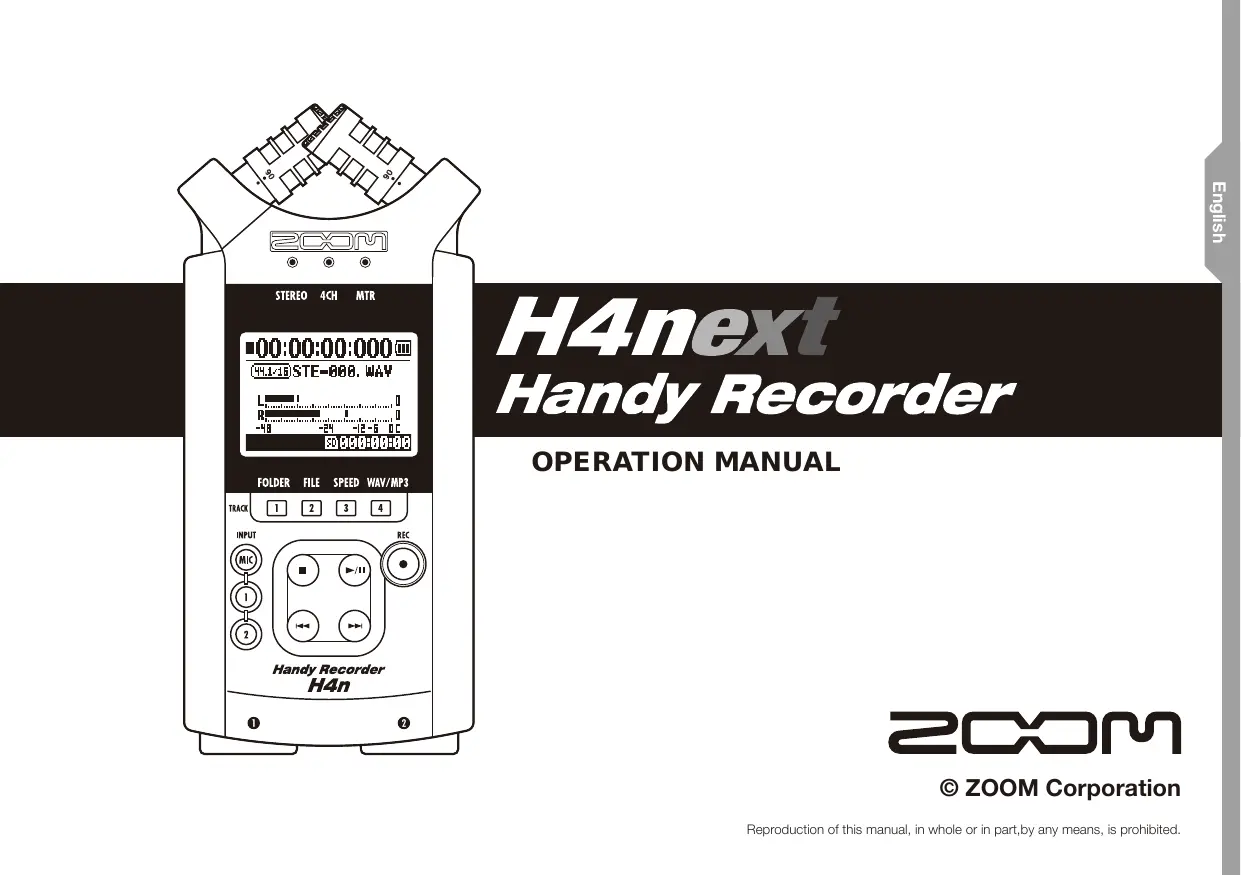

| Product type | Portable digital audio recorder |
| Dimensions | Approx. 156 x 70 x 35 mm |
| Weight | 280 g (without batteries) |
| Power supply | 2 AA (LR6) batteries or ZOOM AD-14 AC adapter (DC 5V, 1A) |
| Built-in microphones | XY stereo condenser microphones adjustable from 90° to 120° |
| Inputs | 2 combo XLR/6.35 mm jacks (phantom +24V), 1 external mic input with Plug-in Power |
| Outputs | Line/Phone jack (3.5 mm stereo mini-jack), built-in mono speaker |
| Recording media | SD/SDHC card from 16 MB to 32 GB |
| Recording modes | Stereo, Stamina (power saving), 4-channel, Multitrack (MTR) |
| Recording formats | WAV (44.1/48/96 kHz, 16/24 bit), MP3 (48-320 kbps, VBR) |
| Built-in functions | Chromatic tuner, metronome, effects (preamp and EFX), low-cut filter, compressor/limiter, karaoke, AB repeat, markers |
| Connectivity | USB 2.0 Hi-Speed (audio interface and card reader), optional remote control |
| Battery life | Approx. 6 h (normal mode) / 11 h (Stamina mode) with alkaline batteries |
| Included accessories | SD card, windscreen, microphone stand adapter, AC adapter, USB cable, case, Cubase LE4 startup guide |
| Safety | HOLD lock, shock and vibration protection, outdoor use with windscreen |
| Maintenance and cleaning | Clean with a soft dry cloth; do not use solvents |
| Spare parts and repairability | AC adapter, batteries, SD card, remote control (optional); do not open, contact customer service |
| General information | Manufactured by ZOOM Corporation, Japan |
Frequently Asked Questions - H4NEXT ZOOM
User questions about H4NEXT ZOOM
0 question about this device. Answer the ones you know or ask your own.
Ask a new question about this device
Download the instructions for your Audio recorder in PDF format for free! Find your manual H4NEXT - ZOOM and take your electronic device back in hand. On this page are published all the documents necessary for the use of your device. H4NEXT by ZOOM.
USER MANUAL H4NEXT ZOOM
H4next Handy Recorder
OPERATION MANUAL
Special features of H4n
Thank you very much for purchasing our ZOOM H4n Handy Recorder (hereinafter abbreviated to H4n).
The H4n has the following special features.
- An all-in-one handy recorder.
You can enjoy recording and creating your own music any time, any where with the H4n.
The H4n has a very compact 280g lightweight design, equipped with high quality stereo condenser microphones capable of an XY pickup pattern, a built-in speaker, SD card recording, mixer and internal effects.
- Interface from any field recording to multi-track recording.
The H4n is equipped with recording operation modes:
- Equipped with newly innovated XY Stereo Microphone variable angle from 90 to 120 degree.
The H4n features mobility of the built-in microphones to address to a wider range of recording scenarios. If you want a wider area of sound, you can set the microphones to 120 degrees. Or set them to 90 degrees for a clearer sound source around the center. Either way, the microphones are equipped on the same XY style axis, so you can record natural stereo sound with no phase difference.
- XLR/standard phone combo jacks allow connection of microphones and guitars directly.
We load various connection tools enable to wide ranges of recording with H4n. The stereo and condenser microphones, the instruments like guitar, bass, keyboard and so on can be connected directly to this compact H4n.
- It can be used as an Audio Interface/SD card reader for a computer.
An onboard USB 2.0 Hi-Speed jack allows direct connection to a computer. You can use it as an audio interface with built-in effects (sampling rate 44.1kHz ). You can also use the H4n as an SD card reader for your computer. You can even take the recorded files from your computer and create an audio CD using those files as material in any DAW software.
- Other built-in functions: Tuner/Metronome/Karaoke.
The H4n can be used as a standard chromatic tuner. It is also capable of more irregular tuning functions, like for a 7-string guitar or a 5-string bass, along with others. The H4n has a metronome function convenient for practice and multi-track recording.
You can change playback speed between the ranges of 50% to 150% .
There are many effective functions equipped such as central cancel function for stereo files, Karaoke function with various key control, language learning and voice training function.
The H4n is ideal for the following scenarios

Vocal recording
Recording acoustic guitar sound
Piano recitals

Live performance recording

The band practices

Transfer analogue sound sources to digital sources

Recording the meetings

Any field sound recording

Drum practice recording
A table of contents
Special features of H4n 001
The H4n is ideal for the following scenarios 002
A table of contents 003
Safety precautions for users 006
Copyright warnings 007
Getting started
1-1 Recording flow using the H4n 009
1-2 Easy recording guide [STEREO MODE] 011
2-1 Name and function of each part 013
2-2 Installation of the attachments and options 015
3 Battery/Power outlet setting 017
4-1 Power On and Off, How to use power and hold switch 019
4-2 How to use the [REC] and locator buttons. 021
4-3 How to use the track [1], [2], [3] and [4] buttons 022
4-4 How to use the input [MIC], [1] and [2] buttons. 023
4-5 How to use REC LEVEL and VOLUME 024
4-6 How to use [DIAL] and [MENU] buttons 025
5-1 Insert a SD card 027
5-2 Set date and time
6-1 Setting up: How to connect to outside machines 029
6-2 Setting up: Built-in microphones 030
6-3 Setting up: Built-in microphones /outside microphone with plug-in power ... 031
6-4 Setting up: INPUT [1], [2] connections and phantom power source .... 032
6-5 Setting up: USB connection, H4n used as an Audio Interface 033
6-6 Setting up: USB connection, H4n used as a SD card reader 035
6-7 Setting up: A built-in speaker 036
7-1 About H4n modes 037
7-2 Selecting a
7-3 Details about modes 039
8-1
8-2
8-3
8-4
9 Option: Remote control operation 045
Operations
1-01 Setting / Recording: Set input source and recording level 047
1-02 Setting / Recording: Recording in STEREO and STAMINA mode.....049
1-03 Setting/Recording:Recording format
1-04 Setting / Recording: File name
1-05 Setting / Recording: Recording on 4CH mode. 053
1-06-1 Setting / Recording: Recording in MTR mode 055
1-06-2 Setting / Recording: Recording
1-06-3 Setting / Recording: Recording
1-07 Setting/Recording:TRACK MENU in MTR mode 059
1-08-1 Setting / Recording: Re-recording,
1-08-2 Setting / Recording: Re-recording,
2-01-1 Recording function
2-01-2 Recording function
2-02 Recording function 067
2-03 Recording function
2-04 Recording function
2-05 Recording function
2-06 Recording function
2-07 Recording function
2-08 Recording function
3-01-1 Tuner
3-01-2 Tuner, all other .076
3-01-3 Tuner
3-01-4 Tuner
3-02 Metronome
3-03-1 All about EFFECT 081
3-03-2 Effect
3-03-3 Effect
3-03-4 Effect
3-03-5 Effect
3-03-6 Effect
3-03-7 Effect
3-03-8 Effect
3-04-1 A sing-along machine
3-04-2 A sing-along machine
4-01 Playback:Playback files(stereo,4ch and stamina modes) 094
4-02 Playback:
4-03 Playback: Setting marks 096
4-04 Playback:
4-05 Playback:
4-06 Playback:
4-07 Playback:Playback files(MTRmode) 101
4-08 Playback: Appointing time with a counter 102
5-01 Edit/Output:
5-02 Edit/Output:104
5-03 Edit/Output:
5-04 Edit/Output:
5-05 Edit/Output:107
5-06 Edit/Output:.. 108
5-07 Edit/Output:
5-08 Edit/Output:
5-09 Edit/Output:
5-10 Edit/Output:
5-11 Edit/Output:MARKLIST> 115
5-12 Edit/Output:
5-13 Edit/Output: 117
5-14 Edit/Output:
5-15 Edit/Output:
5-16 Edit/Output:PROJECT(DELETE)> 120
5-17 Edit/Output:
5-18 Edit/Output: <PROJECT(COPY)> 122
5-19 Edit/Output:
5-20 Edit/Output:
6-01 Utility:
6-02 Utility:
6-03 Utility:
6-04 Utility:
6-05 Utility:
6-06 Utility:
6-07 Utility:
6-08 Utility:
6-09 Utility: How to use H2 and H4 SD cards 134
Reference
Main spec list by mode 137
Available setting menu list by each mode 138
Effect types on MTR mode and the parameter 139
H4n patch list 145
H4n products spec 147
When you think something may be wrong with your machine. 148
Index 149
Safety precautions for users
SAFETY PRECAUTIONS
In this manual, the warning and caution symbols are used to highlight dangerous accidents and troubles for users to read so that accidents can be prevented. The meanings of these symbols are as follows:

Warning
If the users ignore this symbol and handle the device the wrong way, serious injury or death could result.

Caution
If the users ignore this symbol and handle the device the wrong way, bodily injury and damage to the equipment could result.
Please read through the following safety tips and precautions to ensure hazard-free use of the H4n.
Power requirements

Warning
Since power consumption of this unit is fairly high, we recommend the use of an AC adapter whenever possible. In case you use batteries, use either alkaline or nickel-metal hydride batteries.
[AC adapter operation]
- Make sure to use only an AC adapter, DC5 center plus 1A (ZOOM AD 14 A/D). The use of other than the specified type may damage the unit and pose a safety hazard.
- Connect the AC adapter only to an AC outlet that supplies the rated voltage required by the adapter.
- When disconnecting the AC adapter from the AC outlet, make sure grasp the adapter itself and never pull at the cable.
- During lightning or when not using for an extended period, disconnect the AC adapter from the AC outlet.
[Battery operation]
- Use two conventional size AA-1.5 volt batteries.
-
H4n cannot be used for recharging. Pay close attention to the labeling of the batteries to make sure you choose the correct ones.
-
When not using for an extended period, remove the batteries from the unit.
- If battery leakage has occurred, wipe the battery compartment and battery terminals carefully to remove all remnant of battery fluid.
- When using the unit, the battery compartment cover should be closed.
Environment

Warning
To prevent unexpected troubles and malfunctions, avoid using H4n in environment where it will be exposed to:
- Extreme temperatures
- Heat sources such as radiators or stoves
High humidity or moisture - Excessive dust or sand
- Excessive vibration or shock
Handling

Warning
- Never place any objects filled with liquids, such as a vase, on the H4n since this can cause electric shock.
- Never place naked flame sources, such as lighted candles, on the H4n since this can cause fire.

Caution
- The H4n is a precision instrument. Do not exert undue pressure on the keys and other controls. Take care not to drop, bump, and do not subject it to shock or excessive pressure, which can cause serious troubles.
Take care that no foreign objects (coins or pins etc.) or liquids (water, alcoholic drinks and juice) can enter the unit. - Do not place the H4n speaker closer to other precision instruments (watch and computer), electronic medical instruments, or magnetic cards.
Connecting cables and input and output jacks

Caution
You should always turn off the power to the H4n and all other equipment before connecting or disconnecting any cables. Make sure to disconnect all a connection cables and the power code before moving the H4n.
Alterations

Warning
Never open the case of the H4n or attempt to modify the product in any way since this can result in damage to the unit.
Volume

Caution
Do not use the H4n at a loud volume for a long time since this can cause hearing impairment.
USAGE PRECAUTIONS
Electrical interference
For safety considerations, the H4n has been designed to provide maximum protection against the emission of electromagnetic radiation from inside the device, and protection from external interference. However, the equipment that is very susceptible to interference or that emits powerful electromagnetic waves should not be placed near the H4n, as the possibility of interference cannot be ruled out entirely.
With any type of digital control device, the H4n included, electromagnetic interference can cause malfunctioning and can corrupt or destroy data. Care should be taken to minimize the risk of damage.
Cleaning
Use a soft, dry cloth to clean the H4n. If necessary, slightly moisten the cloth. Do not use abrasive cleanser, wax, or solvents (such as paint thinner or cleaning alcohol), since these may dull the finish or damage the surface.
Please keep this manual in a convenient place for future reference.
Copyright warnings
Recording of live performances
Many artists and most live venues do not allow recording and photography and will check for cameras and recorders at the entrance. Even if recording is allowed, it is prohibited to sell, distribute, or upload to the Internet without the organizer's authorization. Copyright violation is a crime.
Capturing music and sound files
Saving music to CD, MP3, or other media, reproducing files for personal use can be considered a copyright violation.
Trademarks:
- The SD symbol and SDHC symbol are trademarks.


- The use of MPEG Layer-3 audio compression technology is licensed from Fraunhofer IIS and Gisvel SpA.
- Windows is a registered trademark of US Microsoft Corporation.
Mac OS and Macintosh is a trademark of Apple Inc. - Steinberg and Cubase are registered trademarks of Steinberg Media Technologies GmbH Inc.
- Names of manufacturers and products are each respective owner's trademarks or registered.
Getting started
1-1 Recording flow using the H4n
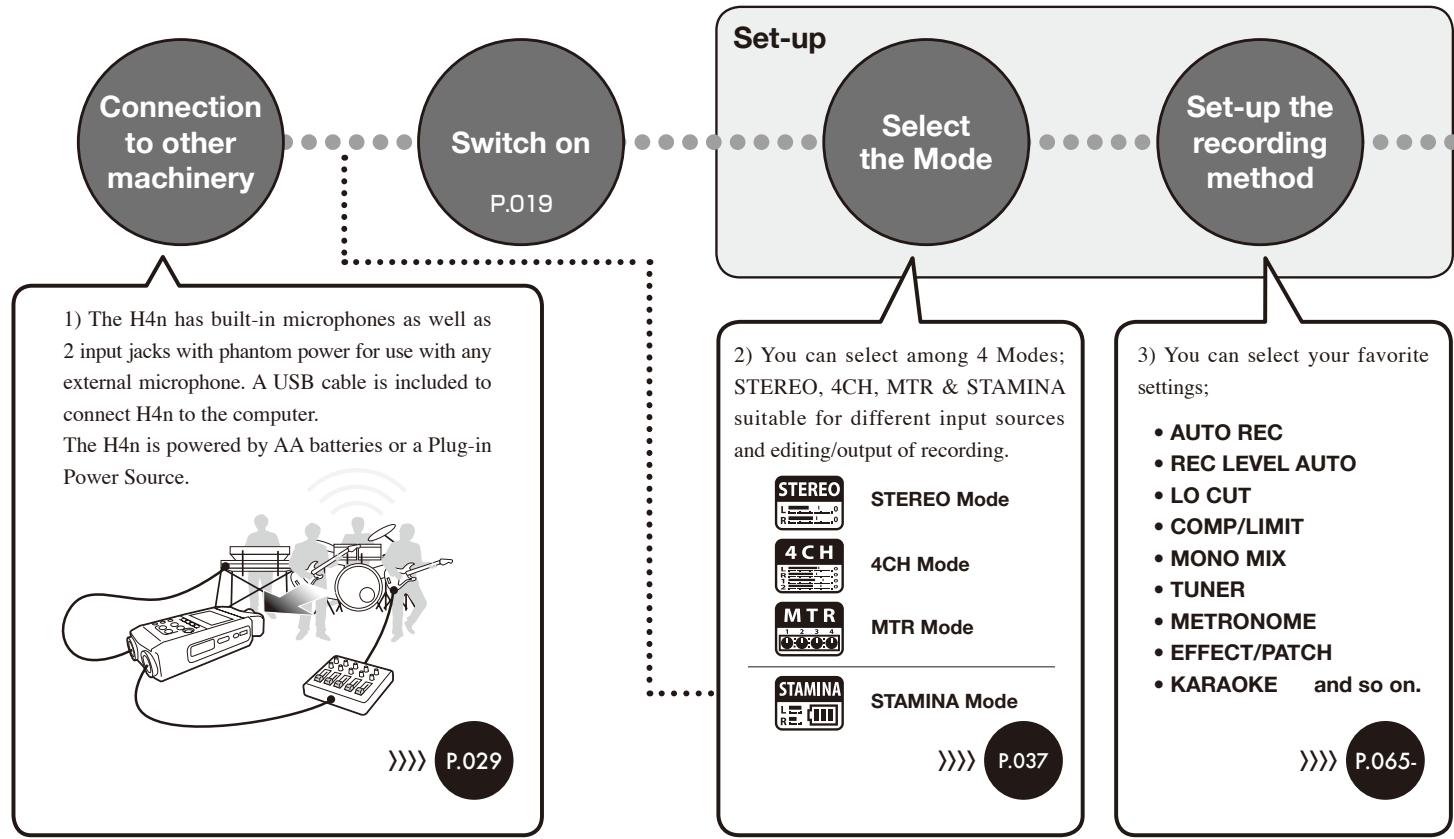
The following is the basic flow of recording operation for the H4n. Depending on the object and purpose of the recording, you can select various mode settings for optional quality recording. With the H4n on-board guitar and mic modeling, multi-track recording capability, and the ability to use your own microphones, you can adapt the H4n to any situation and enjoy numerous recording styles.
1-2 Easy recording guide [STEREO MODE]
The following is basic recording instructions using the built-in stereo microphone and a built-in speaker on STEREO MODE.
![ZOOM H4NEXT - 1-2 Easy recording guide [STEREO MODE] - 1](/content/2025/01/152221/images/f077a43ebc397fd2d1b27caa4fec90d4b39dcbccfc811e0b8cbb4edd6a9bee3a.jpg)
![ZOOM H4NEXT - 1-2 Easy recording guide [STEREO MODE] - 2](/content/2025/01/152221/images/3a959295fe167c399fd449124535ff751071ac1aab7c883e13a89eaa2822e583.jpg)
![ZOOM H4NEXT - 1-2 Easy recording guide [STEREO MODE] - 3](/content/2025/01/152221/images/39bc8ae397b3010fb338783dd56fbd764e33a04ee6ce8249da09b434ca7bcda7.jpg)
![ZOOM H4NEXT - 1-2 Easy recording guide [STEREO MODE] - 4](/content/2025/01/152221/images/8e6f9c62e2ff6664da9ca1b88c878a7e1eeeca810dd8cf990e106262049c709f.jpg)
![ZOOM H4NEXT - 1-2 Easy recording guide [STEREO MODE] - 5](/content/2025/01/152221/images/b7412e316d91772ffdf4e17d2ada45e1e41808a2a2a5e33d841996a55568eef1.jpg)
STEREO mode indicator light on
![ZOOM H4NEXT - 1-2 Easy recording guide [STEREO MODE] - 6](/content/2025/01/152221/images/8670ee056b352cd18962f8858c9632d464d8e2479e8dc9ef3f0d44db2a24b4d5.jpg)
In case of a wrong MODE indicator or a wrong screen
![ZOOM H4NEXT - 1-2 Easy recording guide [STEREO MODE] - 7](/content/2025/01/152221/images/a2d3c1828781100eaee046a9374fe444a137e2745882225720751ace7681317f.jpg)
Input from the built-in micropf ones
![ZOOM H4NEXT - 1-2 Easy recording guide [STEREO MODE] - 8](/content/2025/01/152221/images/4015aec2833a3a6ece3bfffb50f3412abfbe4363b036c34080f003b398ee1871.jpg)
![ZOOM H4NEXT - 1-2 Easy recording guide [STEREO MODE] - 9](/content/2025/01/152221/images/ab804daba78a4c37c166c8f66e5a4bb952948d143eb330a09900fd51ab790ef1.jpg)
![ZOOM H4NEXT - 1-2 Easy recording guide [STEREO MODE] - 10](/content/2025/01/152221/images/875480ceddba9908bf9acb0e83c7970877a7b3604bf839098bbf7727cf1aff68.jpg)
![ZOOM H4NEXT - 1-2 Easy recording guide [STEREO MODE] - 11](/content/2025/01/152221/images/3310115db507f8f8d296e5d58a805856bf30cf40d77b6c2a21135fddbdac3887.jpg)
Recording standby mark
![ZOOM H4NEXT - 1-2 Easy recording guide [STEREO MODE] - 12](/content/2025/01/152221/images/99aae6e768b8d3672214a340152b348e8f8a19508c622002744573717df7a47d.jpg)
Press here when you want to stop.
![ZOOM H4NEXT - 1-2 Easy recording guide [STEREO MODE] - 13](/content/2025/01/152221/images/9b5e2ade60a9929928258fb610a3e5dfd3aff334c240a31881c85fd8cdf0955f.jpg)
![ZOOM H4NEXT - 1-2 Easy recording guide [STEREO MODE] - 14](/content/2025/01/152221/images/a5ccb2a531e2cb65cb47f45a4fc4fe1a66c5f3aabf15e60ad31318b149f3edce.jpg)
![ZOOM H4NEXT - 1-2 Easy recording guide [STEREO MODE] - 15](/content/2025/01/152221/images/0a7199b0a7805e878189fe30c00a186f5a58a1a8f68bc585d0bdaffa7755da75.jpg)
![ZOOM H4NEXT - 1-2 Easy recording guide [STEREO MODE] - 16](/content/2025/01/152221/images/12b5d115d95b0856b8a3e2defa394f8d77461546f98c3f8ac36b94595cc1539d.jpg)
![ZOOM H4NEXT - 1-2 Easy recording guide [STEREO MODE] - 17](/content/2025/01/152221/images/f9509eb333b0b24433a875eb1b37ee5ad5d52f90c67ffa6d6a4295de0f6db540.jpg)
DECREASE INCREASE
![ZOOM H4NEXT - 1-2 Easy recording guide [STEREO MODE] - 18](/content/2025/01/152221/images/79a2741a2a9fb2b2d9ddfb462ff63f91460ae6473a44cbdf925dfa5e446d9818.jpg)
![ZOOM H4NEXT - 1-2 Easy recording guide [STEREO MODE] - 19](/content/2025/01/152221/images/218c2ee03565841aa89832092b18a349481f9e56fec8a11a51a60fcb924e786e.jpg)
light on
![ZOOM H4NEXT - 1-2 Easy recording guide [STEREO MODE] - 20](/content/2025/01/152221/images/19546da67c4104db329f948383287a99f3bd240056e47466ac13aee9b127b305.jpg)
Counter turns
SD CARD remaining capacity low
![ZOOM H4NEXT - 1-2 Easy recording guide [STEREO MODE] - 21](/content/2025/01/152221/images/80c17cb7971fc82b3b1fee2e3d26b3bed1324318bf1eecc387d305a4e4ae5918.jpg)
Temporary Stop Re-recording
Counter doesn't return 0
![ZOOM H4NEXT - 1-2 Easy recording guide [STEREO MODE] - 22](/content/2025/01/152221/images/7d6aba6b49dc27c70401f2b9294622bd25f43e946a21708b945d898821256d9b.jpg)
The mark is put
Applied to the file at the WAV file format
![ZOOM H4NEXT - 1-2 Easy recording guide [STEREO MODE] - 23](/content/2025/01/152221/images/b38a52d3e53834f84d2f91ee19f6daa2d70cb80cb6640ba31b4a09ebeb338ffd.jpg)
![ZOOM H4NEXT - 1-2 Easy recording guide [STEREO MODE] - 24](/content/2025/01/152221/images/4365632645d59f2f673c787a2b81541373294602d61e09e92efcc856973bce94.jpg)
light off
![ZOOM H4NEXT - 1-2 Easy recording guide [STEREO MODE] - 25](/content/2025/01/152221/images/94da6767f02eef18b0de1e1f27589b6aac44f585f62188df035ae773d373e01d.jpg)
Counter returns 0:00:00:00:000
In detail
![ZOOM H4NEXT - 1-2 Easy recording guide [STEREO MODE] - 26](/content/2025/01/152221/images/5d9990cf370de111fc3e669b8fac26fc7da3e47f973deff705de6feb238265c6.jpg)
P.049
![ZOOM H4NEXT - 1-2 Easy recording guide [STEREO MODE] - 27](/content/2025/01/152221/images/7b2e1ae024af851c804a133179068edac8e46fe750af1ae77c7678928d94aef5.jpg)
[PLAYBACK]
![ZOOM H4NEXT - 1-2 Easy recording guide [STEREO MODE] - 28](/content/2025/01/152221/images/7ee40211650e073e4c7b7f22cd2e9fc1ae0872fa8684f8e60258a19a1dd2f3aa.jpg)
[STOP]
![ZOOM H4NEXT - 1-2 Easy recording guide [STEREO MODE] - 29](/content/2025/01/152221/images/f7d88ca78784c35120b4a27a44fa37ee2aa03c4eb87e3e993cf7c1ce8b3ec760.jpg)
Output: Built-in speaker
In detail
![ZOOM H4NEXT - 1-2 Easy recording guide [STEREO MODE] - 30](/content/2025/01/152221/images/3cc1034bdde1fa7c92080b9b5cd57ee4a8ce712d30cf9af675d74b1e41db269e.jpg)
P.094
2-1 Name and function of each part
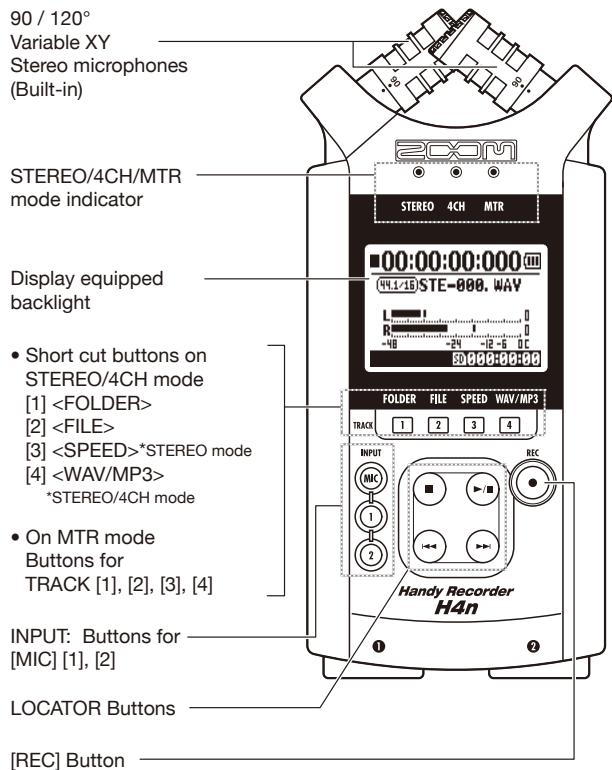
[FRONT PANEL]
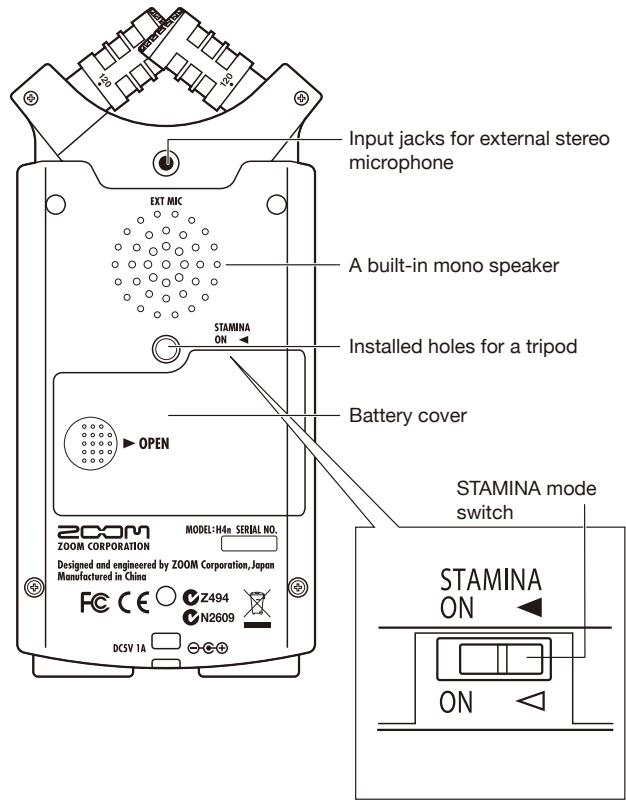
[BACK PANEL]

[RIGHT PANEL]
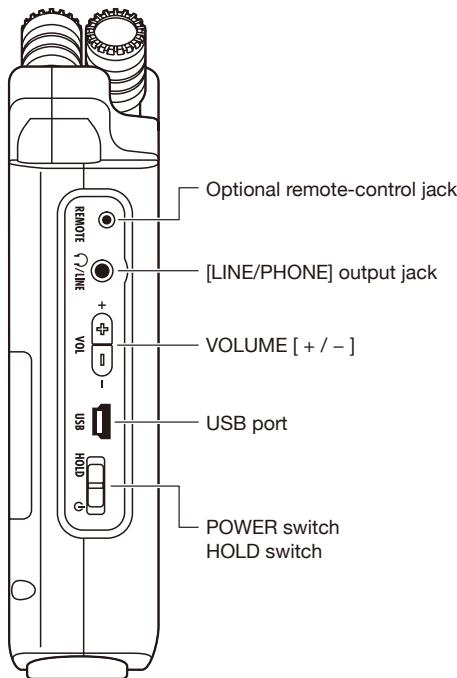
[LEFT PANEL]
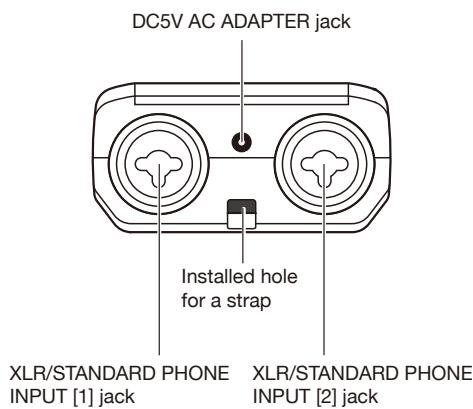
[BOTTOM PANEL]
2-2 Installation of the attachments and options
The following attachments are included in the H4n package.
Before use, please make sure that you have each attachment (and optional items).
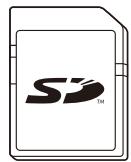
SD CARD
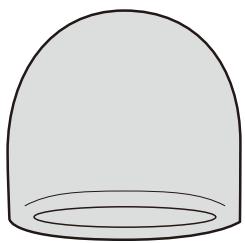
WINDSHIELD

MICROPHONE STAND ADAPTER
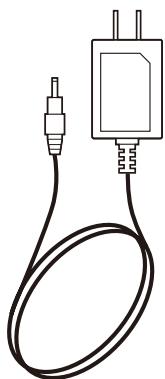
AC ADAPTER (ZOOM AD-14A/D)
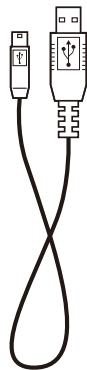
USB CABLE
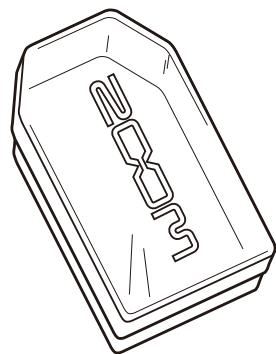
MAIN BODY CASE
Instruction manual
DAW start-up guide
Cubase LE4
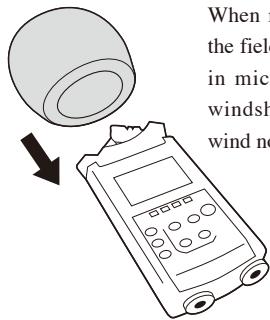
How to use the windshield
When recording outside in the field, covering the built-in microphones with this windshield, you can emit wind noise or blast.
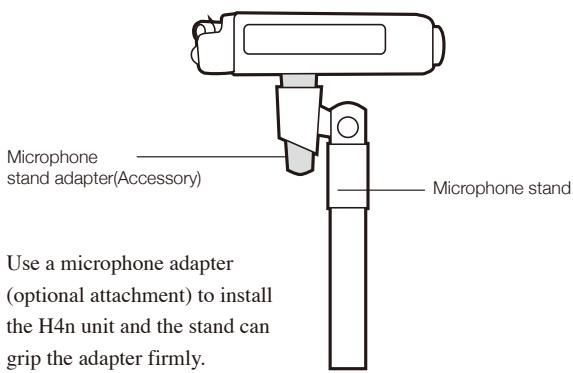
- How to install a microphone stand
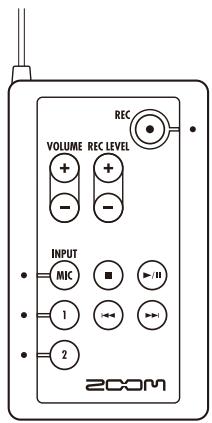
Remote control (Option, sold separately)
[FRONT PANEL]
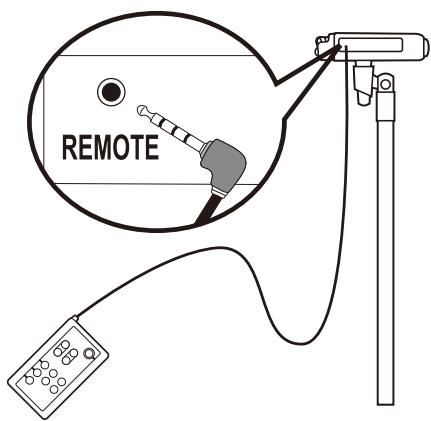

[SIDE PANEL]
Operation of remote control

P.045
3 Battery/Power outlet setting
Power for H4n recorder is supplied by domestic power source and batteries.
- Domestic power source
An AC adapter is included.
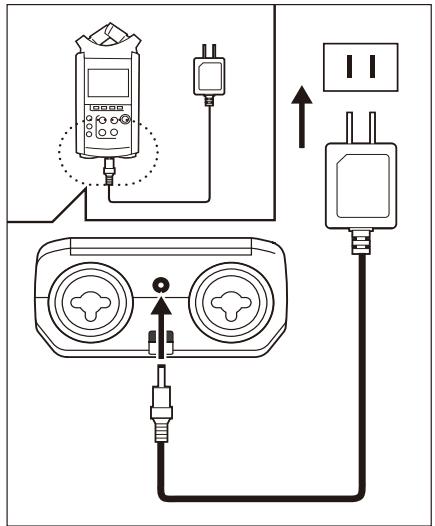
An attached AC adapter
Zoom AD-14
Use of an AC adapter other than the one included may cause trouble.
- Battery installation
Install two size AA batteries (IEC R6)
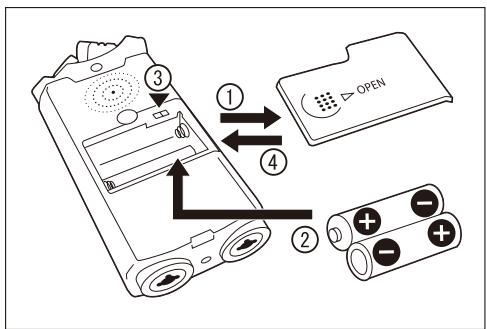
1 Open the battery compartment cover.
NOTE:
Make sure power switch off!
Whenever you open the battery compartment cover, plug in and plug out the AC adapter, make sure power off, otherwise the recording data can be destroyed.
2 Insert two size AA batteries ensuring you match the polarity markings (+ and -).
- Illustration : open the battery compartment cover and insert batteries.
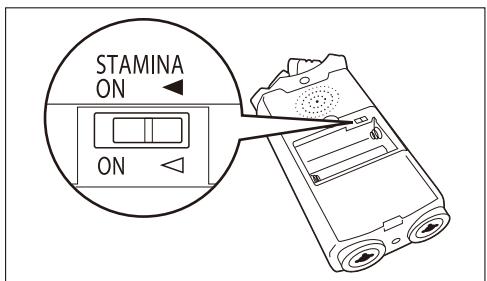
3 Set the Stamina Mode Switch.
- Illustration of a Stamina Switch on.
: Use in general (Using AC adapter, batteries)
ON: Stamina Mode On (Eco-power mode when using batteries)
4 Close the battery compartment cover.
- Illustration of closing the battery compartment cover.
- Battery's approximate lifetime
| Alkaline battery | in general use | about 6 hours |
| in stamina mode use | about 11 hours |
- Approximate lifetime when it is used for continuous recording on WAV 44.1 kHz/16bit format.
- Remaining lifetime of the battery
When "Low Battery!" indication appears, immediately switch off unit and exchange batteries, or shift power source to AC adapter.
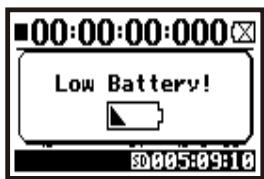
When remaining battery life is getting short, "Low Battery" indication will be shown every two seconds and the power will switch off shortly after.
NOTE:
Usable batteries
You can use conventional alkaline and nickel metal hydride batteries.
Power supply from USB
Connect the USB cable to the H4n while it's already connected to the computer with the power switch off, and power is automatically turned on via USB bus power supply. This function is only available when the H4n is used as an SD card reader or an audio interface.
HINT:
To measure the lifetime of the battery
The remaining lifetime of the battery is measured more precisely, setting the using battery type on the H4n.
Saving period for the setting
Whenever power supply is off by dead battery, the H4n can save the date/time setting for three minutes. When the saving time is over, the setting will be return to the primary value.
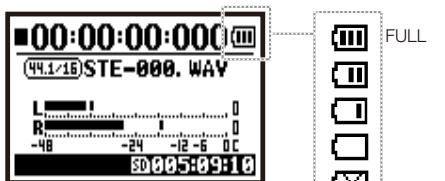
Screen indicator for power
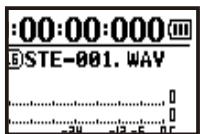
Using batteries
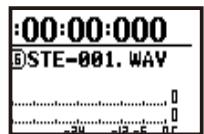
Using AC adapter
Ref.
P.033
Ref.
P.128
4-1 Power On and Off, How to use power and hold switch
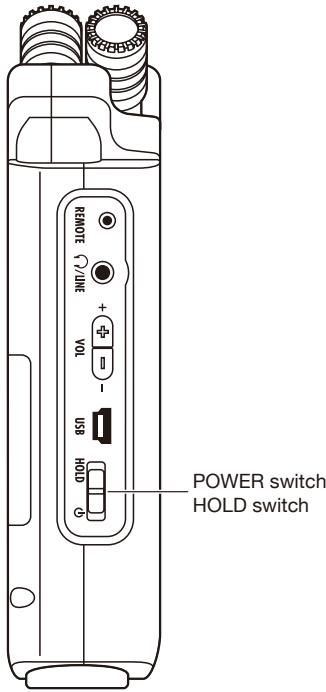
[LEFT PANEL]
1 [Preparation] Make sure all equipment is turned off.
2 Insert SD card.
3 [Power On _ Boot up] Slide the power switch.
VER=1.00
200
4 Switch on connecting instruments and monitors in turn.
NOTE
- Before power switch on, lower the volume of instruments and monitors connected to the H4n.
- The display says "No Card" when booting up, make sure that the SD card is inserted correctly.
- The display says when booting up, the date and time setting is the primary value.
"Reset DATE/TIME"
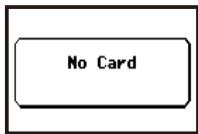
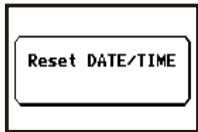
Ref.
P.028
HINT: Procedure for power on.
To connect more than one machinery, turn power switch on in the following order:
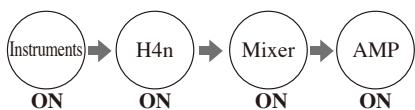
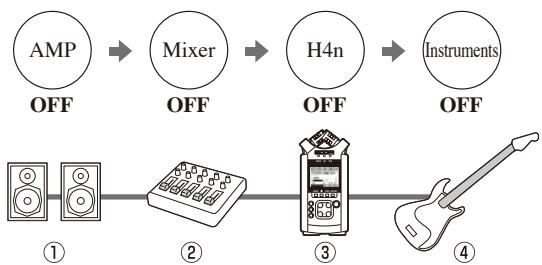
[Preparation] Turn power switch off, first the monitor system then instruments.
2 [Power Off _ Shut down] Slide the power switch.
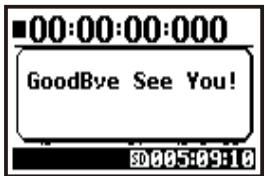
* shut down screen
HINT Procedure for power off
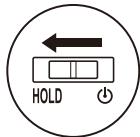
HOLD Function
The H4n features a HOLD function to make any button operation inactive, preventing errors during recording.
To make HOLD function valid, slide the power switch to HOLD.
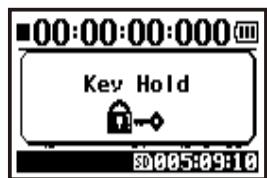
* 'Key Hold' display
If you press any button during HOLD function on, the screen will display 'Key Hold' for two seconds. To get out of the HOLD mode, reverse the power switch as the beginning.
4-2 How to use the [REC] and locator buttons
Buttons like [REC], [STOP], [PLAY/PAUSE], [FF], [REW] have all different functions according to each MODE.
![ZOOM H4NEXT - 4-2 How to use the [REC] and locator buttons - 1](/content/2025/01/152221/images/221aaf7317848a1edfccbd122625bc8e3af9c2e17cd3a5a32cb1111718d1b71d.jpg)
[FRONT PANEL]
Locator buttons
STEREO/4CH/STAMINA MODE
REC

[REC] button
Stop
Enter recording standby mode and reset the counter to 0
Recording Standby
Start recording and the counter begins to move
Record
Playback
Place a mark (only for WAV FILE)
LOCATOR BUTTONS

[STOP] button
Recording, recording standby, recording temporary stop
Stop recording and return to 0
Playback, playback temporary Stop
Stop playback and the counter stops
![ZOOM H4NEXT - [STOP] button - 1](/content/2025/01/152221/images/9cf96f41cb65093c7a0b393ccfbdc847b6b2f34041ab83de88c962756b6e1c5e.jpg)
[PLAY/PAUSE] button
Stop
Start playback and the counter begins to move
Recording, temporary stop
Suspend recording temporary and restart
recording standby
Start recording and the counter begins to move
Playback, temporary stop
Suspend playback temporary and restart
![ZOOM H4NEXT - [PLAY/PAUSE] button - 1](/content/2025/01/152221/images/c8d28e6f906e3be2b155eee99cbc70fe3262623df6a21fd0ae43b4e2d674eb99.jpg)
[FF], [REW] buttons
Stop
Less than one second press
[FF] button displays a next file
[REW] button returns to the head of the file
- However if there is a marker in a WAV file, the button moves to the marking place.
More than one second press
Playback temporary stop
Repeating a short time partial playback, operate wind-forward and rewind.
The longer the time of pressing, the faster gets its speed. Stop at the end or the beginning of the file.
MTR MODE
REC
[REC] button : Having a recording standby track
Set to overwrite recording
Stop
Become recording standby condition
Record, Recording Standby
Stop recording
(You can continue playback while recording)
Playback
Stop recording and the counter to 0
Set always new recording
Stop
Stop recording and the counter stops
Recording Standby
Start recording and the counter begins to move
LOCATOR BUTTONS

[STOP] button
Recording
Stop recording and the counter stops
Playback
Stop playback and the counter stops
Temporary stop
Temporary stop Stop each movement
![ZOOM H4NEXT - [STOP] button - 1](/content/2025/01/152221/images/a7a08c9a19cf32b0740d9f331d306bc98123425ee683ba779d2c7d24f8493c0b.jpg)
[PLAY/PAUSE] button
Stop
Start playback
Recording
While overwrite setting : No function While always new setting: Suspend recording temporary
Recording standby
Start recording and the counter begins to move
Playback
Suspend playback temporary
![ZOOM H4NEXT - [PLAY/PAUSE] button - 1](/content/2025/01/152221/images/5a706775281b3ee81eea937a3ad06bfdfcce469756b4ad6ccb8f5abe93076715.jpg)
[FF][REW] buttons
Stop
Less than one second press down
Playback
[FF]: Enables to operate wind-forward per second
[REW]: Returns to the head of the file
Temporary stop
More than one second press
Repeating a short time partial playback, operate wind-forward and rewind
4-3 How to use the track [1], [2], [3] and [4] buttons
The buttons of TRACK [1] _ [4] have different functions according to each MODE.
![ZOOM H4NEXT - 4-3 How to use the track [1], [2], [3] and [4] buttons - 1](/content/2025/01/152221/images/cb057d5497ecc28e5294e79acd79d98eeba6e31c36a06180e1b730026c812a01.jpg)
[Front Panel]
MTR MODE
Switch from 'RECORDING' to 'PLAYBACK' of the tracks, or the other way around

When you start recording, press the track number you want to record and the track becomes 'Recording Standby' status. That track number button lights on.
Make settings of the track and the input source
After selecting the track, make input source setting. Using the INPUT button you can make recording on monaural, stereo and combination of those.
Select only one track

- track #2-#4 are the same, press the number you select
Select two tracks
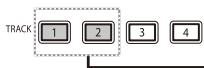
- track #3 and #4 are the same
For stereo input you select from [MIC] and [1] [2]
![ZOOM H4NEXT - For stereo input you select from [MIC] and [1] [2] - 1](/content/2025/01/152221/images/8181a0c8fbf4098ff95c5f007a08a023fb821b00882f530153c98442dd38cf2d.jpg)
![ZOOM H4NEXT - For stereo input you select from [MIC] and [1] [2] - 2](/content/2025/01/152221/images/daeb80aac60e3e3176a39ae66e334abd548682badb7d927c739e4549f65755d1.jpg)
For monaural input you select either from
[1] or [2]


-
Input selections are those four different combinations.
-
Those operations are not valid during recording and playback.
STEREO/4CH/STAMINA MODE
Move to the FOLDER SELECT> menu
Move to the
3 Move to the
Move to the
- Valid only when you are not operating record-playback job.
HINT:
Even if you press one track button set for stereo link, the other 2 tracks correspond to it and move the same.
Ref. STEREO LINK

4-4 How to use the input [MIC], [1] and [2] buttons
These buttons have different functions depending on the various modes.
[FRONT PANEL]
![ZOOM H4NEXT - 4-4 How to use the input [MIC], [1] and [2] buttons - 1](/content/2025/01/152221/images/7dada9b223090f8c6adbffb9df213ecccb951423988ea5829ebc729b34c49a7a.jpg)
INPUT [1] & [2] buttons
STEREO/STAMINA MODE
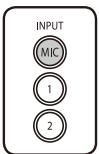
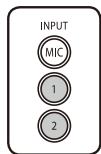
Select INPUT [MIC] or INPUT [1] [2] = the selected one light on.
Either you select the INPUT [1] or INPUT [2] button, they will both respond the same. Both buttons light up after the selection. (Once lighted the buttons do not respond) Any other settings about input sources like [REC LEVEL, should be made to the lighted target.
- When the presently selected input clips its button will blink.
4CH MODE
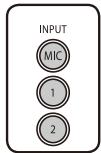
Use all input sources like [MIC], [1] and [2] = All [MIC], [1] and [2] light on.
When you switch to 4CH, H4n will receive 2- system stereo inputs from [MIC] and [1] [2] altogether. When you press the lighted button, each shows its input level and you can make adjustment to recording level operating [REC LEVEL].
- When the input clips the corresponding button blinks.
MTR MODE
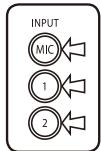
Make the settings individually on [MIC], [1] and [2] depend on stereo or monaural input = the corresponding button lights on.
You can select individually INPUT [MIC], [1] and [2]
- When you use built-in and the external stereo microphones, select INPUT [MIC].
- When you make stereo input using the external input jack, select both INPUT [1] and [2].
You press either INPUT [1] or [2] button and then press another button. - When the selected input clips its button blinks.
HINT:
What is clip?
The input level reaches up to the maximum which the H4n can record, that is 0 dB. In this case the recording sound can be distorted and need adjustment of recording level.
4-5 How to use REC LEVEL and VOLUME
These keys enable to adjust the levels of recording input and output volume.
(All the modes are the same)
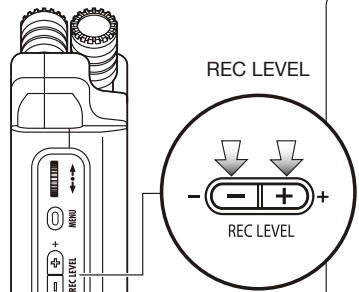
[LEFT PANEL]
REC LEVEL' THE ENTIRE MODE IS IN COMMON
The recording levels coming from the INPUT [1] & [2] will be adjusted in 100 levels from 1 to 100 with (+ / - ) key.
Press the 'REC LEVEL' = Adjusting
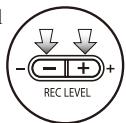
INPUT

Target setting:
Press INPUT [MIC], [1] and [2] buttons and select the input source which you want to adjust the recording level.
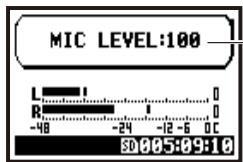
1_100
+ : Increase reception level (amplify)
--: Decrease reception level (reduce)
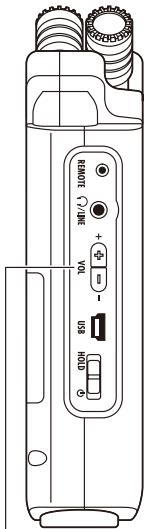
[RIGHT PANEL]
[VOLUME] THE ENTIRE MODE IS IN COMMON
![ZOOM H4NEXT - [VOLUME] THE ENTIRE MODE IS IN COMMON - 1](/content/2025/01/152221/images/4b147baad1eab78e285e62a7ce24867820e44310fa641fa0c7c50e5dfc27ab68.jpg)
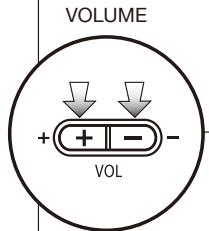
Press the 'VOL' = Adjusting
Output volume from a built-in speaker and output jacks will be adjusted in 101 levels from 0 to 100 with the (+ / - ) key.
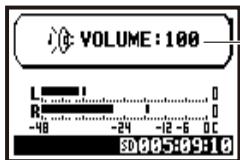
0_100
+ : Increase Volume
:DecreaseVolume
4-6 How to use [DIAL] and [MENU] buttons
[DIAL] and [MENU] buttons are used for various settings while recording and playback.
Here are some basic explanations about each operation.
![ZOOM H4NEXT - 4-6 How to use [DIAL] and [MENU] buttons - 1](/content/2025/01/152221/images/9c033e137e66b4d09f43eb45a055664f19ecc83c7b66f6d19f7d9d0a8709622f.jpg)
[RIGHT PANEL]
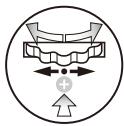
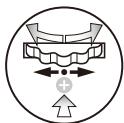
The basic operation for [DIAL]
![ZOOM H4NEXT - The basic operation for [DIAL] - 1](/content/2025/01/152221/images/78a5d7ea24084b65cd41c03daadf5b7fdb89f621fc84740cf319e99c7d4cdfed.jpg)
Select
![ZOOM H4NEXT - The basic operation for [DIAL] - 2](/content/2025/01/152221/images/bd3ecb5cf90237e8a8b02b7ef8658ae5ff9aff65d1a5cc22f1553b9559185cbc.jpg)
Press
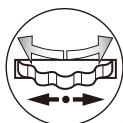
Rotate the [DIAL] = select an item
Rotate the [DIAL], and the cursor on the display will move along the [DIAL]
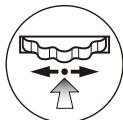
Press the [DIAL] = confirm the selection
Press down [DIAL], your selection is confirmed.
for additional selections, move on to the next screen.
When you complete selections, the screen returns back to the previous one.
The basic operation for [MENU] button
![ZOOM H4NEXT - The basic operation for [MENU] button - 1](/content/2025/01/152221/images/51b400b28c36f503aef0c5114b216d2a24aa28765f8a571564f976220161febe.jpg)
Select
Calling [MENU] screen
When setting recording or playback method, Press [MENU] button at the top screen of each mode.
![ZOOM H4NEXT - Calling [MENU] screen - 1](/content/2025/01/152221/images/0d641ce43eab521cf0b624c784abb9ac0ebb770b7df1f9f06602094bcbfd289b.jpg)
Canceling the setting
If you press the [MENU] button during any setting operation, its operation will be canceled and the screen returns back to the previous one.
To cancel setting operation and to return back to the top screen of the each mode, press [MENU] button for more than 2 seconds.
The operation when [ ] cursor is on display (Date-Time Setting, Changing File Name Directory, etc)
![ZOOM H4NEXT - The operation when [ ] cursor is on display (Date-Time Setting, Changing File Name Directory, etc) - 1](/content/2025/01/152221/images/dac7c844aec2897fa2dbe82feefe4527745ac3d990f360709b1cabec9bdcec23.jpg)
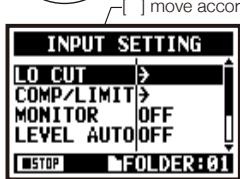
When you rotate the [DIAL], [ ] moves accordingly.
![ZOOM H4NEXT - The operation when [ ] cursor is on display (Date-Time Setting, Changing File Name Directory, etc) - 2](/content/2025/01/152221/images/6c9eafb67cd63e556aa022f0f9477637e260f86dfb275f19994e9db20df087f0.jpg)
Pressing [DIAL] down, change the numbers and letters.
![ZOOM H4NEXT - The operation when [ ] cursor is on display (Date-Time Setting, Changing File Name Directory, etc) - 3](/content/2025/01/152221/images/151c671c2b24cdad2083ba992c08070344b3dc1c2d2f577fe961225c71e04d27.jpg)
![ZOOM H4NEXT - The operation when [ ] cursor is on display (Date-Time Setting, Changing File Name Directory, etc) - 4](/content/2025/01/152221/images/9acf69066bafff07d8b5dac63e40ed270b606e42869406956ed38080474b6bc6.jpg)
The item letters or numbers are reversed Rotate [DIAL] to change the numbers and letters Press [DIAL] down to confirm your selection.
![ZOOM H4NEXT - The operation when [ ] cursor is on display (Date-Time Setting, Changing File Name Directory, etc) - 5](/content/2025/01/152221/images/d22d6e5d25db70c68e5d90a425710986088f7bbd3088af29aa6cedc4d8d94750.jpg)
[DIAL] operation on the top screen
![ZOOM H4NEXT - [DIAL] operation on the top screen - 1](/content/2025/01/152221/images/a1046f6f4f50ba1e0d72188d3a9d011ed3e0a746c6a5d8785ca726cc63320f63.jpg)
Moving [DIAL] on the top screen, 'cursor' moves. Pressing (highlight)
[ ] enables to operate 'COUNTER' or to move to the setting menu.
- Available only on MTR mode.
The operation when the selections are listed on screen
By rotating the [DIAL], the selection lists will move accordingly.
Push [DIAL] down, to confirm your selection.
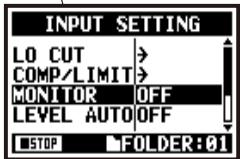
the screen returns back to the previous one.
About the on the selection lists
When you see this display, there are more selections on the
next screen. Highlight arrow and press [DIAL] to move on to the next screen.
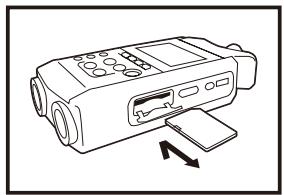
5-1 Insert a SD card
The SD card is required to record. Make sure to turn off power before inserting or removing the SD card.
[How to install the SD card]
1 Make sure power is off.
[How to remove the SD card]
1 Make sure power is off.
2 Insert the SD card into the slot.
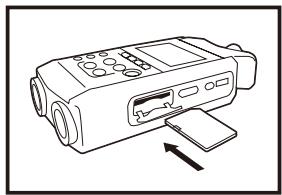
2 By pushing remove the SD card from the slot.
SD card capacity time to record (approx.)
| 4GB SDHC card | Recording time |
| WAV 44.1 kHz/16 bits (measured in terms of stereo track) | approx. 380 minutes |
| MP3 44.1 kHz/128 kbps (measured in terms of stereo track) | approx. 68 hours |
NOTE:
POWER OFF!
Never insert or remove the SD card while the power is on. This may destroy the data.
CAUTIONS WHEN INSERTING SD CARD
- You can use 16MB_2GB and 4_32GB SD card. Regard to up-to-date SD cards please see and check at our ZOOM site: http://www.zoom.co.jp.
- When you use the SD card for your computer, digital camera or other machine, formatting in the H4n is required.
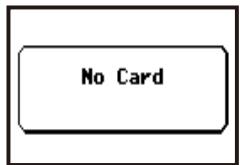
- When "No Card" is seen on the display on at the boot-up, check if the SD card is correctly inserted.
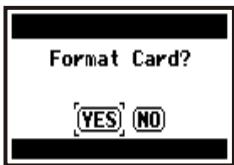
- When "Format Card" is seen on the display at booting-up, this means the SD card has not been formatted in the H4n. To format, press [DIAL] down and select OK button.
- When the booting-up screen says "Card Protect", the card is covered with OVERWRITE PROTECT. To release this protect slide the lock switch of the SD card.
"Warning" no SD card in when booting - up.
"Warning" SD card in unable to recognized. Press <YES> , all the data will be deleted.
5-2 Set date and time
Each file will automatically record the date/time.
To facilitate searching for files by date, be sure to set the date/time after every battery change.

1 Press.
2 Select
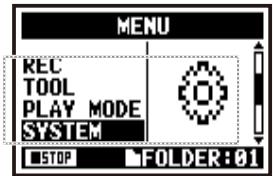
3 Select
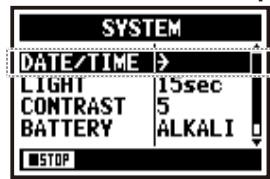
5 Select < 0K> and press.
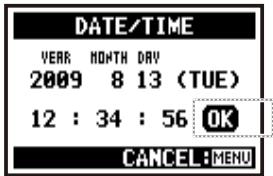
4 Set YEAR MONTH DAY TIME (Time: Minute: Second)
Select the item on
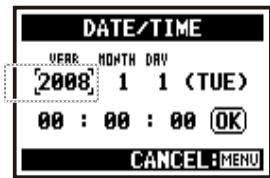
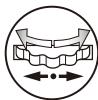
You can select the item while moving [ ] of the [DIAL].
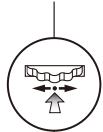
Press the [DIAL]
- The selected item figures are reversed.
[Change the figure number]:
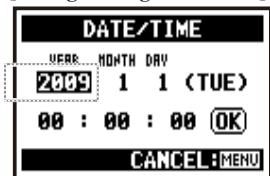

You can select the number by rotating the [DIAL].
Press the [DIAL]
- [ ] comes out on display.
NOTE:
When "Reset DATE/TIME" is seen on the display at the booting-up, the date/time needs to be set.
Reset DATE/TIME
-
When power off for more than three minutes, the setting of the date/time will be return to the beginning one.
-
You cannot use this setting during recording and playback.
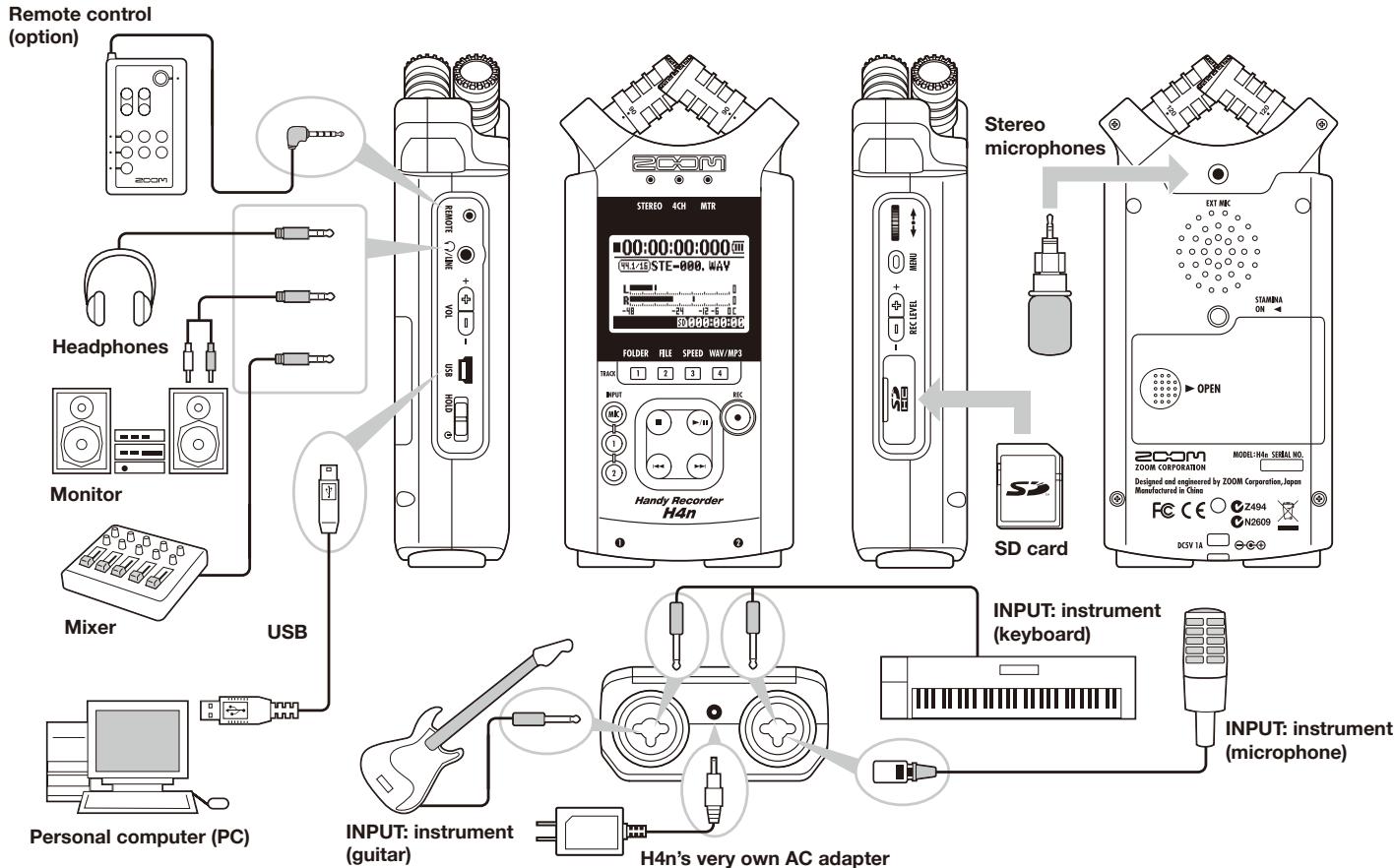
6-1 Setting up: How to connect to outside machines
H4n can make various connections along with different recording occasions.
6-2 Setting up: Built-in microphones
These are special features of the H4n built-in microphones.
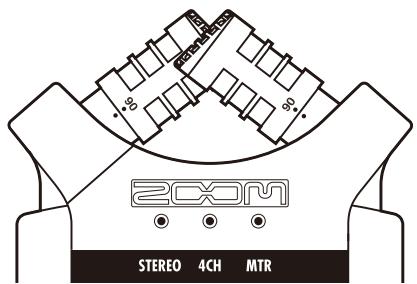
High quality microphones in an XY pattern ensure a natural stereo image when recording sounds.
Stereo recording is often done by placing two microphones in a V shape. Pointing microphones outward will result in stereo separation, however responsiveness for area directly in front of the microphone will be low, causing problems with depth reception.
H4n adapted X Y stereo system recommends placing two microphone units in like "X" shape. By pointing microphones inward at a crossing angle, the H4n can cover a wide area and at the same time, captures sound sources in the center with clarity and definition. At the same time the sound collecting spots are almost centered and no topology difference between right and left channels.
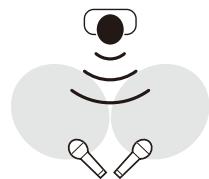
Collect the sound around centering position.
General stereo microphones
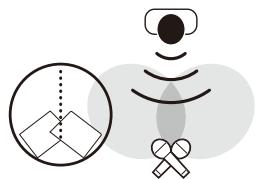
H4n stereo microphones
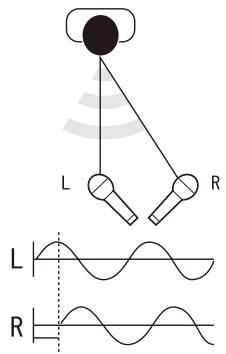
Stereo images with no topology difference
Time lag
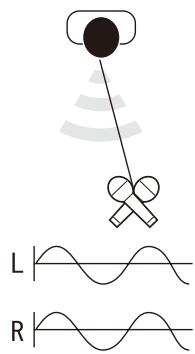
H4n stereo microphones
DIRECTIVITY OF 90^ , 120^
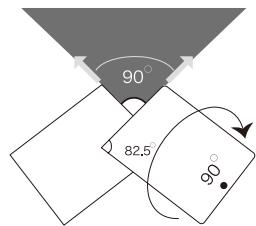
Center 90^
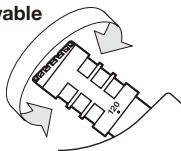
movable
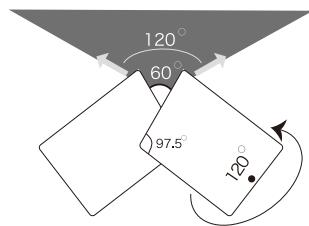
Width 120^
6-3 Setting up: Built-in microphones /outside microphone with plug-in power
The input jack for the external microphone is suitable to
Close microphone recording
Please put H4n 30 - 50cm away from the sound source.
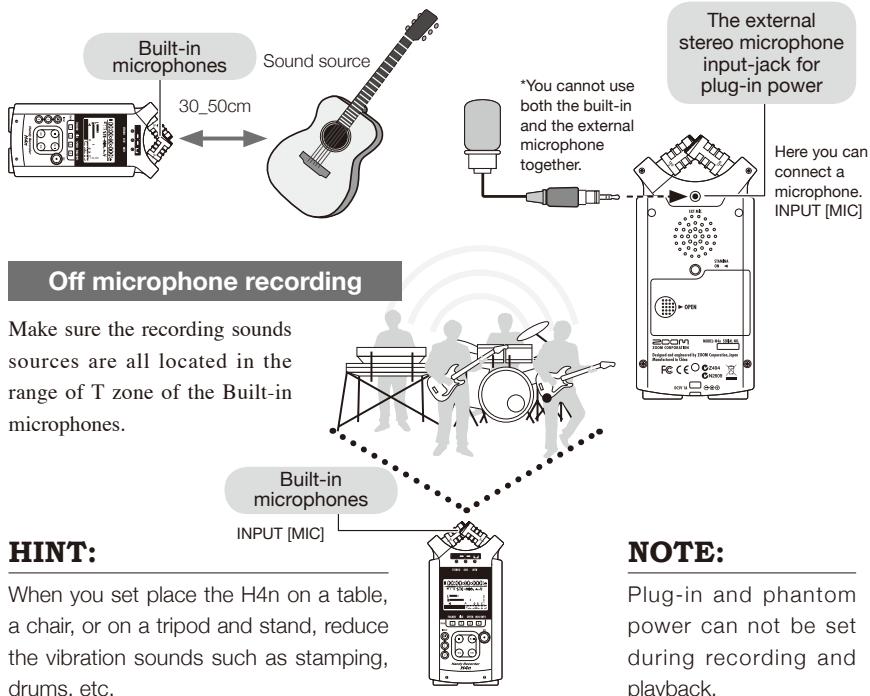
External microphone recording
When you use the external microphone, be sure to select the correct setting.
[How to make setting of power]
![ZOOM H4NEXT - [How to make setting of power] - 1](/content/2025/01/152221/images/ad84992349a35bf7457c694a0b82381551f2db98147134599f77e2fadc1f04d9.jpg)
![ZOOM H4NEXT - [How to make setting of power] - 2](/content/2025/01/152221/images/d60152dac74f6a07bba8f10a0b40c0afff67de8dbec5979afdd57c9da79ba2e2.jpg)
![ZOOM H4NEXT - [How to make setting of power] - 3](/content/2025/01/152221/images/4a5838ba2a5ecca6dae2e43ac230d5bb1a4993a036867bda9b64f9be72217cb8.jpg)
![ZOOM H4NEXT - [How to make setting of power] - 4](/content/2025/01/152221/images/196a8a3dfb674764f82b0f0d2fe755c956a1cae823ba066b171fd2f218beb113.jpg)
Press the [MENU] button for more than 2 seconds, and start operation from the top screen.
![ZOOM H4NEXT - [How to make setting of power] - 5](/content/2025/01/152221/images/261ccc1c33d89e12ced248c192959c4e519425e89e25869f61bbdfedd4495dad.jpg)
![ZOOM H4NEXT - [How to make setting of power] - 6](/content/2025/01/152221/images/7995deb6cc8b49e793b6ff481f852a14d28df28805d51d7f4e28ce9a8b697dd0.jpg)
![ZOOM H4NEXT - [How to make setting of power] - 7](/content/2025/01/152221/images/e58c91fa7cb0cdafc8e3edf33afbca653c575f4723ae2fde80611c3c7d57db9d.jpg)
![ZOOM H4NEXT - [How to make setting of power] - 8](/content/2025/01/152221/images/6d1ce181e2ed2046e64ca4b6afc6b8ad4594d5c7c5895dfa3d478aaab17d21f1.jpg)
1 Press.
2 Select and press.
3 Select
4 Select
![ZOOM H4NEXT - [How to make setting of power] - 9](/content/2025/01/152221/images/456e461a53e20f837e671039e35166018bb394d2656242b796209f0577cfd83e.jpg)
![ZOOM H4NEXT - [How to make setting of power] - 10](/content/2025/01/152221/images/89050c806a72b0021709a7e21bad728daa4b07cca5f6794f90a5f2926c770539.jpg)
![ZOOM H4NEXT - [How to make setting of power] - 11](/content/2025/01/152221/images/cf2c20989f0f4e76ccab74f0ce4dfeaaae0419cd7f574787e449178f16e01e46.jpg)
6-4 Setting up: INPUT [1], [2] connections and phantom power source
Using INPUT [1] and INPUT [2] you can connect to a guitar, a bass, a keyboard, etc.
Connecting to instruments
For a guitar or a bass, you can directly plug into either INPUT [1] or INPUT [2].
For a keyboard with stereo output, you can plug into both the INPUT [1] and the INPUT [2].
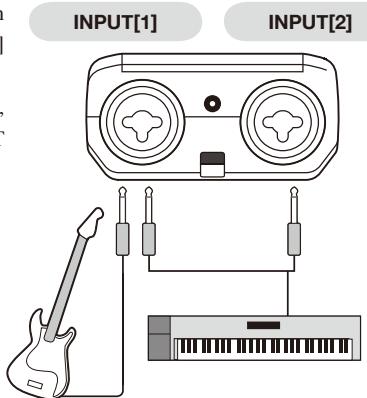
Connecting to a microphone
To connect a microphone you connect X L R plugs to INPUT [1] and INPUT [2]. In case you need phantom power, such as using a condenser microphone, be sure to select the following setting.

Dynamic microphone
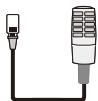
Condenser microphone *for phantom power
NOTE:
Some condenser microphones cannot operate with +24V phantom power, but comparing to +48V setting this function is useful for battery operation to economize electric consumption.
[How to make setting of power]
![ZOOM H4NEXT - [How to make setting of power] - 1](/content/2025/01/152221/images/21f9d4ccc2d9926b3dbdb759dab990e5069ebbcd13f21f71412e9bd6605c4178.jpg)
6-5 Setting up: USB connection, H4n used as an Audio Interface
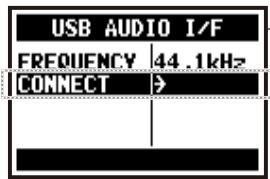
When you use the H4n as an Audio Interface (AUDIO I/F), make the following settings.
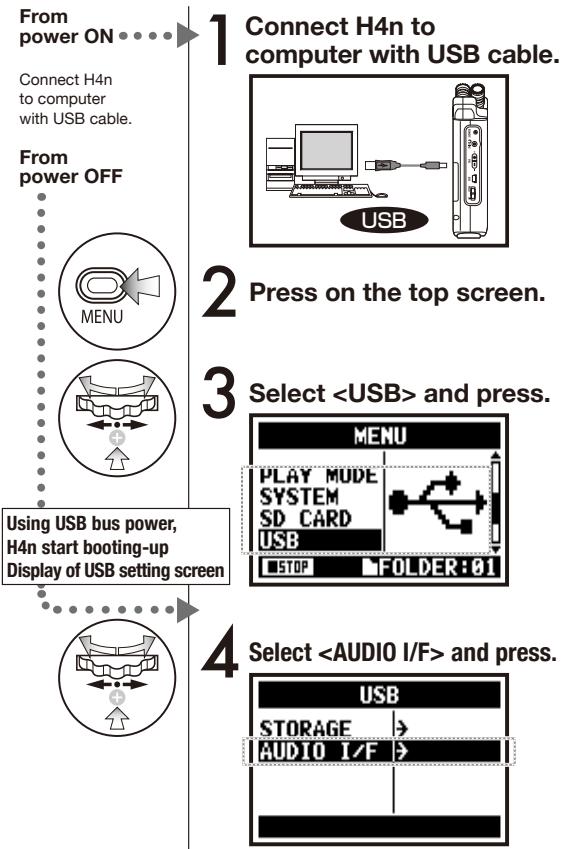
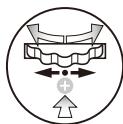
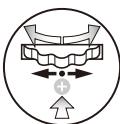
5 Select and press.
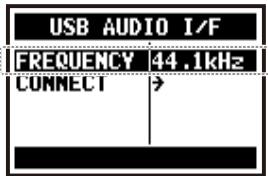
6 Select a sampling rate and press.
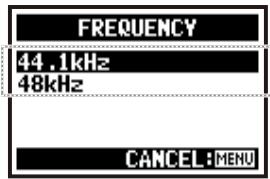
7 Select and press.
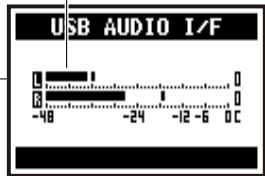
displayed input or output level
Two channels can be sent and received while it connects a computer and by using of 44.1kHz or 48kHz .
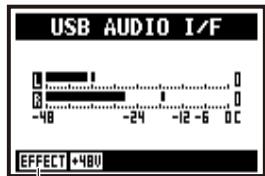
displayed a active function
Ref.
P.083
P.075
P.071
P.032
P.031
[Button operation during setting and
![ZOOM H4NEXT - [Button operation during setting and menu] - 1](/content/2025/01/152221/images/b8fcbfa772ba02bb0cc9fb1dbd3ad3f7aac420c79dde419deb2df181b6a3bed0.jpg)
Press.
![ZOOM H4NEXT - [Button operation during setting and menu] - 2](/content/2025/01/152221/images/b70beda9bfa4ddefc2cf29334d356e53641560760f3c9a2d6641fac7e9d38cda.jpg)
![ZOOM H4NEXT - [Button operation during setting and menu] - 3](/content/2025/01/152221/images/343772d5140f4523408f64234e69a1ecd0d71df23ffddae93da1f6d98b830916.jpg)
Select and press.
| EFFECT | Use EFFECT (only on 44.1 kHz) |
| TUNER | Use TUNER |
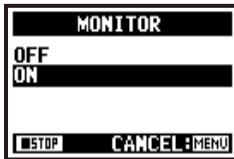
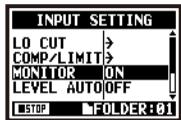
| MONITOR | Use MONITOR |
| PHANTOM | Use PHANTOM power |
| PLUG-IN | Use PLUG-IN power |
| DISCONNECT | Disconnect |
[You can use those buttons during setting]
![ZOOM H4NEXT - [You can use those buttons during setting] - 1](/content/2025/01/152221/images/5c16ca4303a9fbdf8e1ddd44596146692e3f00756e35cd5d333f191742b40270.jpg)
![ZOOM H4NEXT - [You can use those buttons during setting] - 2](/content/2025/01/152221/images/a80747288e1c79174315184ce96a6960c0d02387a7285e05e13488dd858ad36c.jpg)
* Call [MENU] and make setting
![ZOOM H4NEXT - [You can use those buttons during setting] - 3](/content/2025/01/152221/images/c17727b9f346243a4a25f98b8964fcab8545e76834eb553c7f8a15ad598e4887.jpg)
![ZOOM H4NEXT - [You can use those buttons during setting] - 4](/content/2025/01/152221/images/a12746b7c1aa65a4fd3f7b56ee09308cbdbdf5e578d0677ee067bf1a96bf3c8a.jpg)
* Adjust input / output level
[Selection of input source]
![ZOOM H4NEXT - [Selection of input source] - 1](/content/2025/01/152221/images/f0cdfdf3de1b3350aff1a244514e122c6823cb539e7d99c5b16158d9ad6f7041.jpg)
When you press the INPUT button corresponding to its input source, it lights and is confirmed the selection.
While not using input, press the lighted button and make light off, you make no input condition.
- No input can send no signals to a computer and operate no monitoring.
Selecting input, input signals are sent to a computer.
To monitor the input signals in H4n you must run
NOTE:
- You cannot change a sampling rate while computer is recognizing H4n as an audio interface.
- To connect as an Audio I/F, make sure that a sampling rate (step 6) matches the recording software and playback file.
- You cannot use this setting during recording and playback.
HINT:
Usage of AUDIO INTER FACE
- You can record input signals of the H4n on the audio track of DAW software, and listen to its outcomes.
- You can also work those input signals in the H4n built-in
function. - The
can be used when the sampling rate is 44.1 kHz. - Making connection not necessary for a specific driver.
- When using different DAW software, please read their guidebooks together.
6-6 Setting up: USB connection, H4n used as a SD card reader
When you use the H4n as a SD card reader, make the following settings.
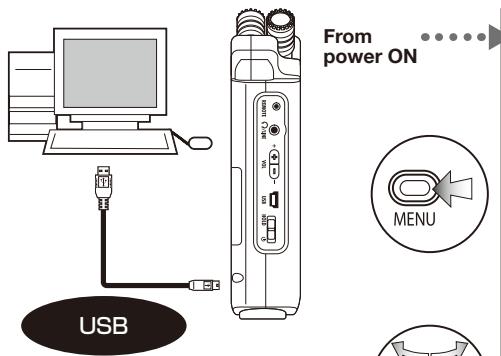
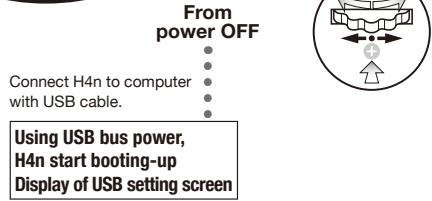
After it's powered 'ON', connect the H4n to the computer with the USB cable.
2 Press on the top screen.
3 Select
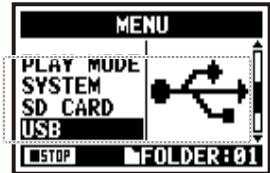
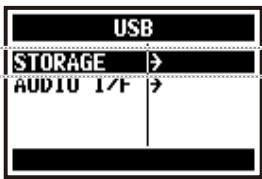
- Select
and press.
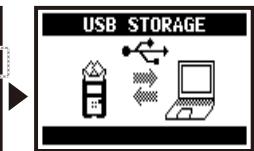
connection completed
NOTE:
- Before physically unplugging USB cable (and H4n) from computer, be sure to perform the "safely remove hardware" function on the computer first. Unplugging USB cable (and H4n) without performing this function may damage files.
- Compatible operating system Windows XP Mac OS X (10.2 or later)
HINT:
USB bus power
USB bus power is the method to supply power from a computer through the USB cable.
Connecting USB with the H4n power off condition, H4n automatically boots up and displays USB menu.
Usage of a SD card reader
- A computer can use the recording data of the H4n.
- The H4n can use the music data created on a computer.
The file names available
The H4n cannot operate the files with the letters more than half-size alphabets and numerals.
6-7 Setting up: A built-in speaker
The H4n is equipped with a built-in mono speaker.
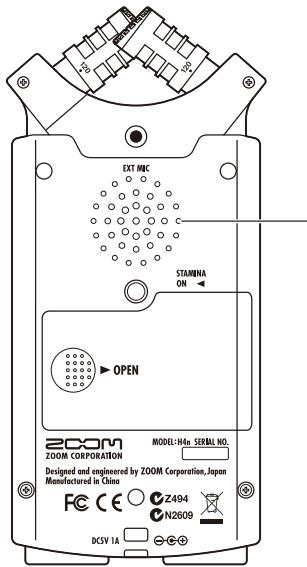
H4n built-in speaker
This is a mono speaker for playback. Without connecting headphones to [LINE/PHONE] jack, you can easily playback the recorded data and listen.
NOTE:
There is no output when [LINE/PHONE] jack is plugged in.
When setting is the
HINT:
When you can use this function:
- The FILE playback
- Using as
- Nothing connected to the [LINE/PHONE] jack.
7-1 About H4n modes
There are four operational modes in H4n: STEREO/STAMINA, 4 CH (CHANNEL), MTR (MULTI TRACK) mode.
You can choose the mode according to your need.
- STEREO mode
You can easily create a stereo recording via the built-in microphones or an external microphone.
The STEREO mode is convenient to record a band's live performance, acoustic instrument, voice, lecture, or a subtle soundscape. you can then transfer the file to a stereo WAV/MP3 recorder,player.
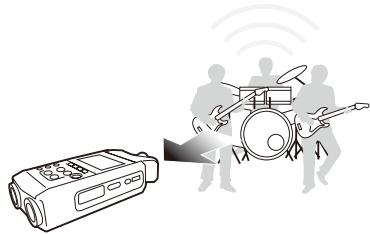
- Only one chance performance of 'live' or rehearsal recording.
In-line recording of a single instrument.
Field recording. - Voice memo-like recording for melody.
- Record important points during conference recording.
- STAMINA mode
This is an economical mode to make a battery life longer. This is important when recording for long periods of time: STAMINA mode reduces the number of battery changes. The STEREO mode controls operational functions a little.
Continuous usage time for a Alkaline battery: approximately 11 hours (battery life can be less, depending on your usage)
Only possible to record · playback on stereo WAV 4.1kHz / 16 bit Format, MP3.
When using batteries, STAMINA mode can be set the STAMINA switch on before the booting up. P.017
Live' outside recording.
- At the conference, or the places difficult to change batteries.
4CH mode
In 4CH mode, you can simultaneously record stereo input signals from two systems.
You can catch both live sounds via a stereo microphone and instrumental in-line input sounds via an external microphone simultaneously.
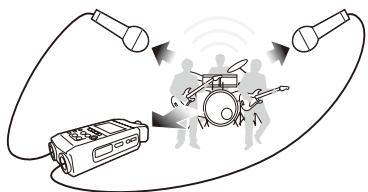
- Simultaneous recording with both line input and a microphone.
- Simultaneous recording both in front and back spaces.
- Simultaneous recording in places both far away via a line and closer to the H4n.
- 4CH recording of the surrounding sounds to edit environment sound sources.
- Recording space and air atmosphere to feel at a live location.
MTR mode
The MTR mode can be used for a wide range of purposes. In MTR mode, you can combine and mix favorite tracks (either stereo or mono).
You can make
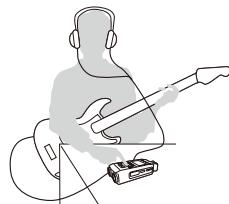
- Recording section by section and combine them of each track.
- Duplicate recording, re-recording from the beginning.
- Recording used
- Adjusting balances of each sound after recording.
- Rehearsals indoor or outside.
7-2 Selecting a and its confirmation
To plug in external machines, be sure to select the suitable mode depending on your purpose.
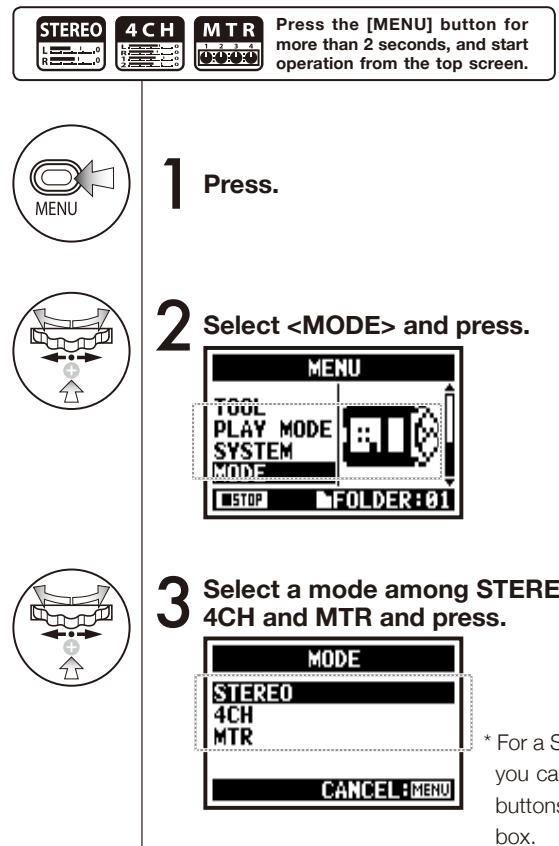
HINT:
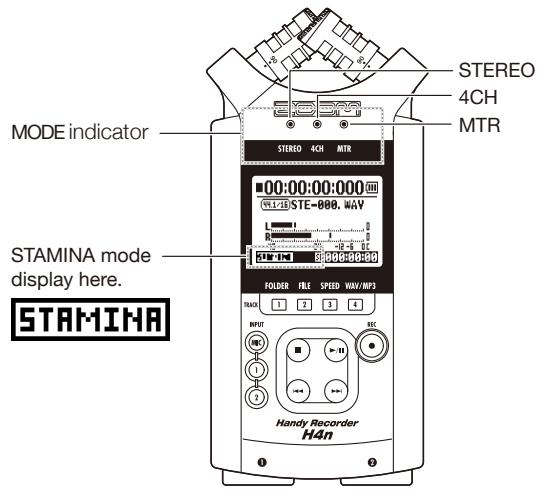
Confirmation of the mode
- You can confirm the current mode on 'MODE indicator' at FRONT PANEL.
- The mode when you switch on is the same mode you selected when switched off.
- When you use the machine at first and re-set time, the mode is set 'STEREO'.
7-3 Details about modes
Input and output levels as well as saving and formatting data are different in each mode.
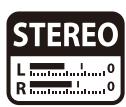
STEREO mode


STAMINA MODE
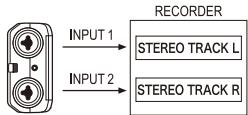
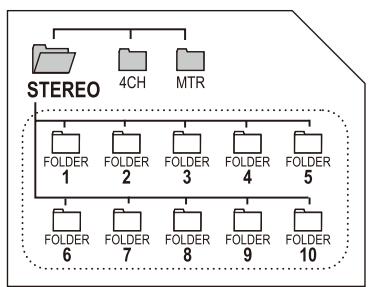
In STEREO mode, you can select 2 different inputs either INPUT[MIC] or INPUT[1] and INPUT[2], and operate them as one stereo file.
Those data is saved in the 10 fixed folders as the FILE.
In STAMINA mode, the functions are limited to maximize the battery life time.
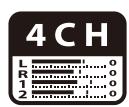
4CH mode
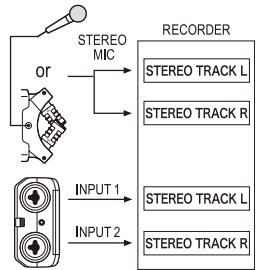
When both INPUT[1] and INPUT[2] are used at the same time, play back.
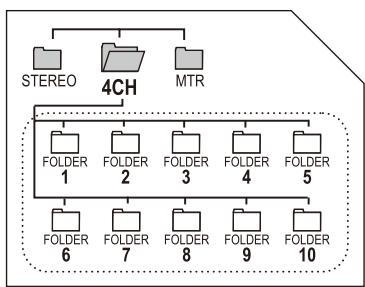
You can operate recording as two stereo files.
The data is saved in the 10 fixed folders as the FILE.
MTR mode
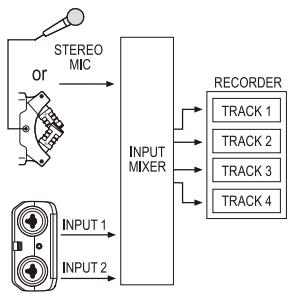
You can combine tracks with the INPUT[1], INPUT[2] and MONAURAL and STEREO types, depend on the setting and available your own
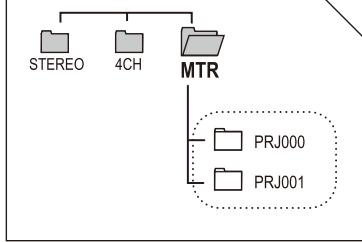
Only in the MTR mode you can control data and settings as the PROJECT unit.
8-1 screens: STEREO and STAMINA modes


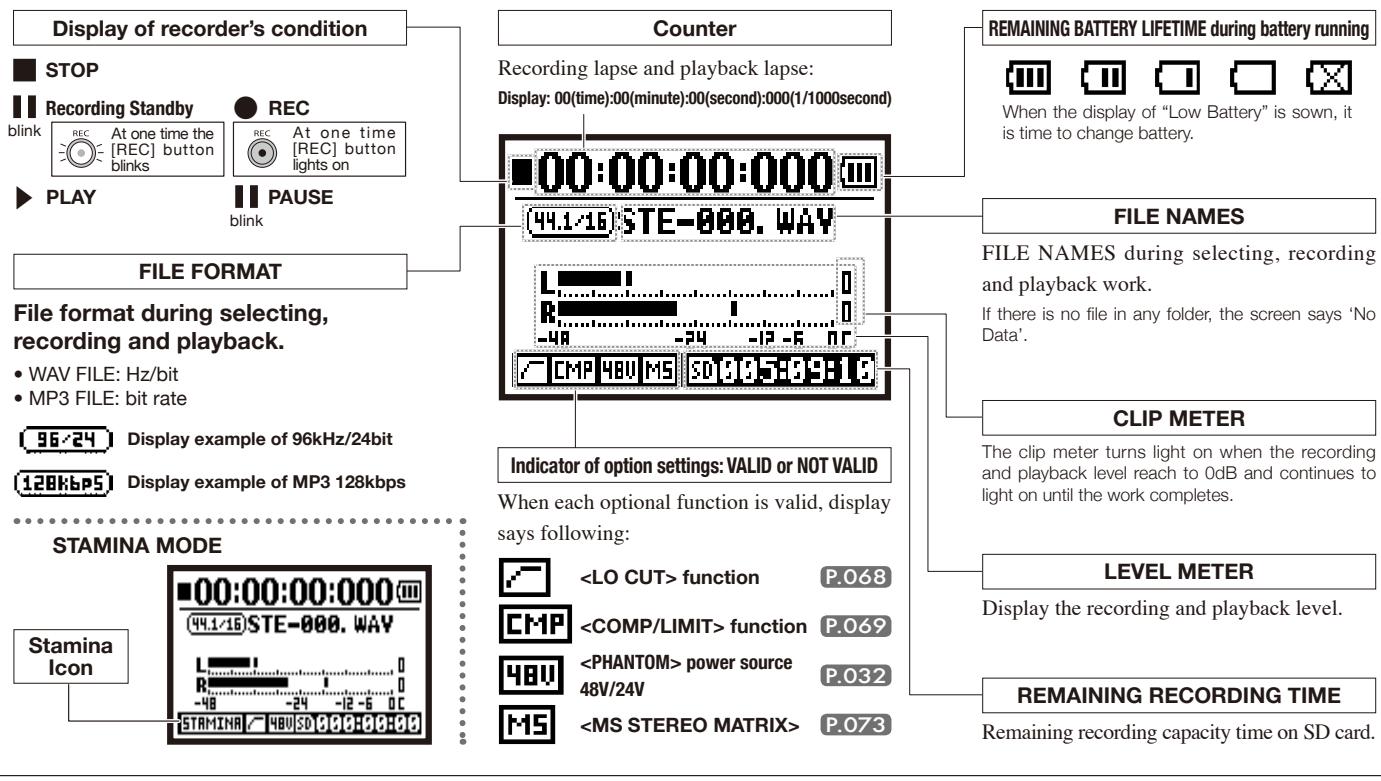
- Explanation of the top screen
8-2 screen: 4CH mode

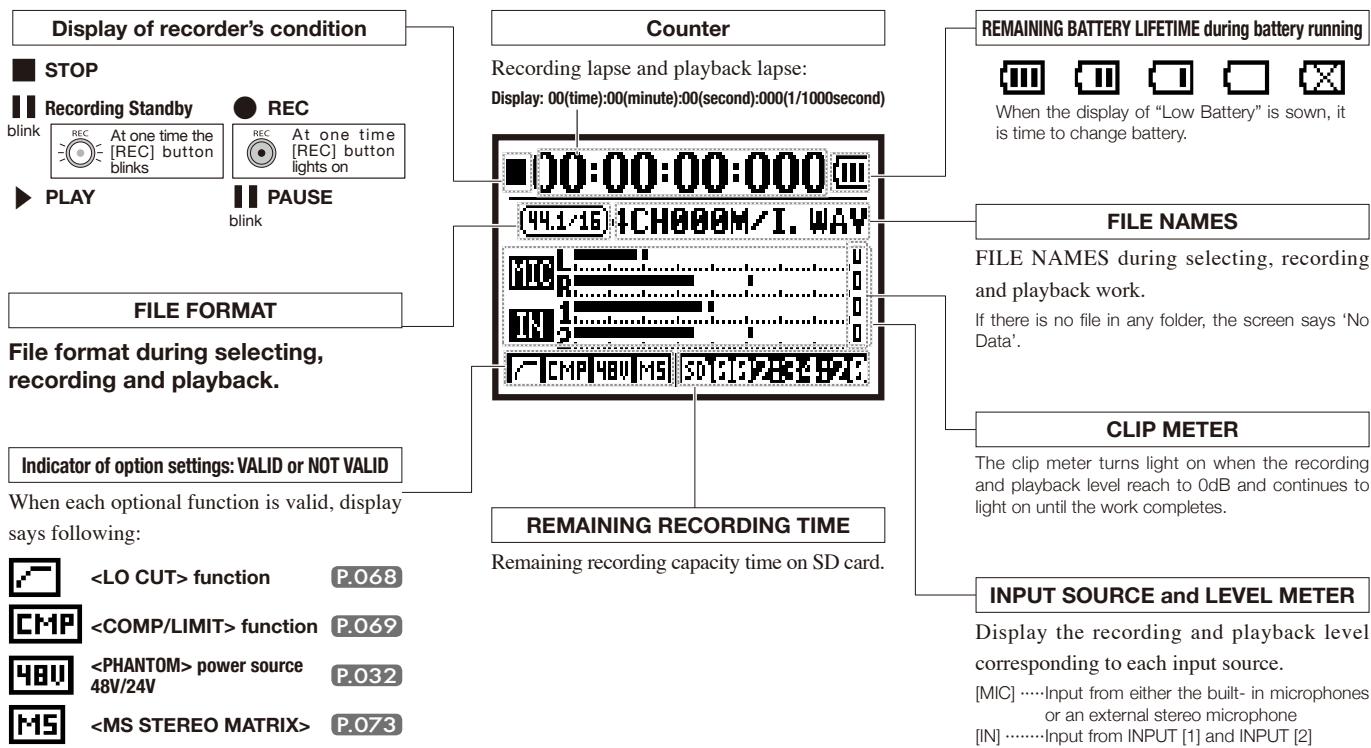
- Explanation of the top screen
8-3 screen: MTR mode

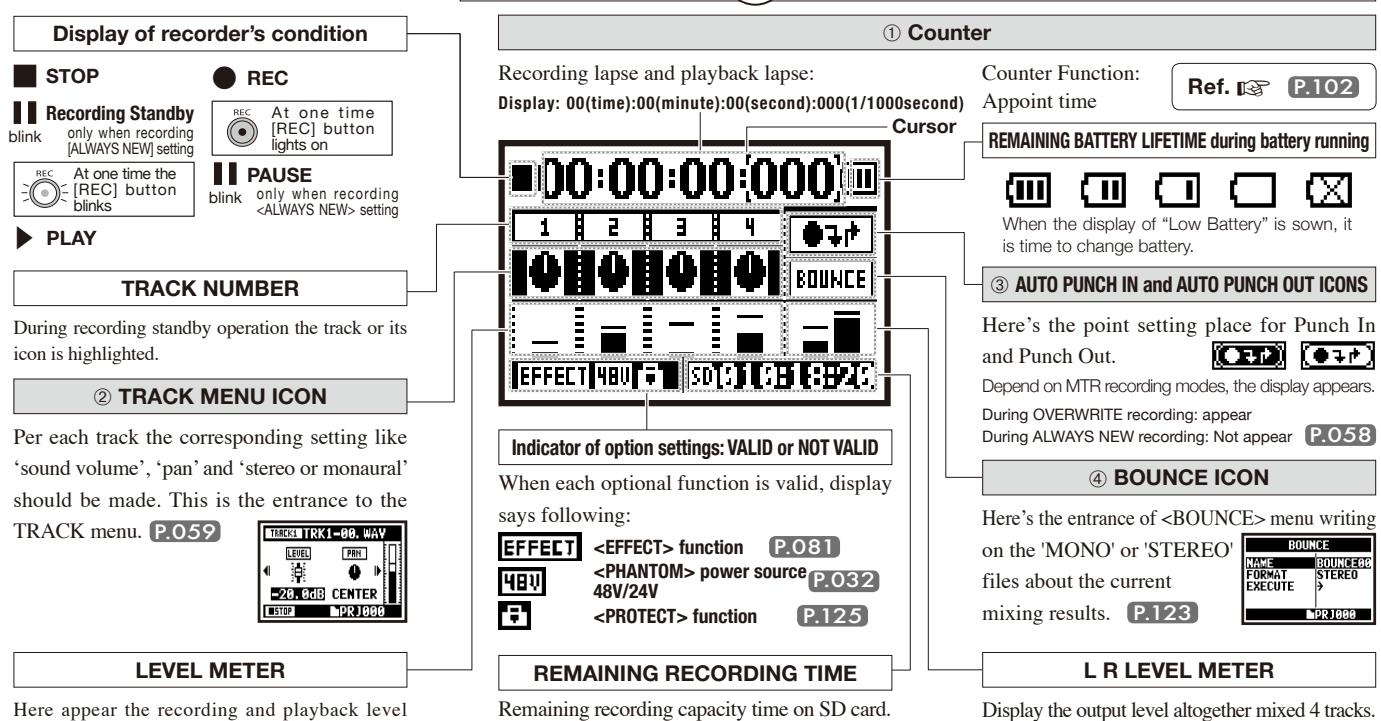
- Explanation of the top screen
8-4 screen: MAIN MENU
Menu item list displayed by [MENU] button.
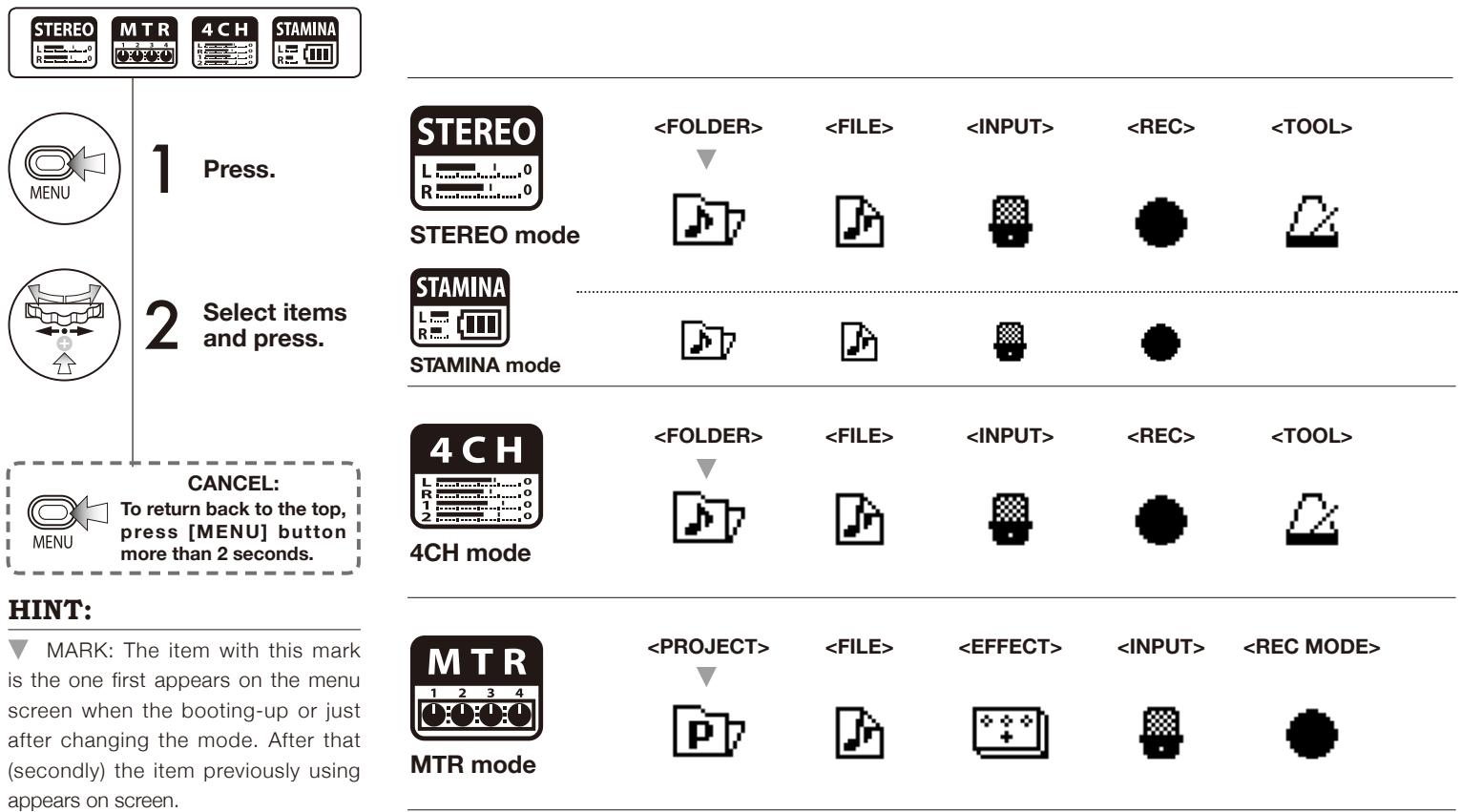






When using batteries, STAMINA mode can be set the STAMINA switch on before the booting up. P.017
SYSTEM>




SYSTEM>




Display at the bottom of Menu screen
On the menu available for recording and playback, the level of the current recorder condition is displayed at the left bottom of the screen.
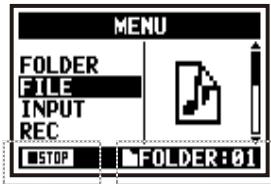
On the right bottom of the screen the current folder number is displayed (On Stereo, 4ch and Stamina mode).
PRJ086
On MTR mode the project name working currently is displayed.

Stop

Playback temporary stop

Playback

Recording Standby / Recording temporary stop

Recording Standby On MTR mode and recording on OVERWRITE

Recording
9 Option: Remote control operation
When you use the optional remote controller, you can operate the H4n from a distance.
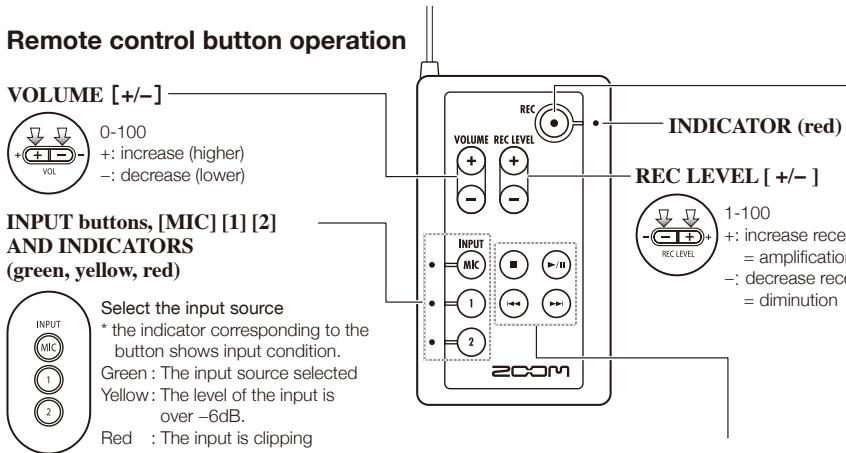

[REC]
button
Recording and placing marks.

Stop
Become recording standby condition and reset the counter to 0

Recording Standby
Start recording and the counter begins to move

Recording Playback
Place a mark (only for WAV FILE)
This can be used only when the recording standby track available.

Set to overwrite recording
Record, Recording Standby
Stop recording
(You can continue playback while recording)
Playback
Stop recording and the counter to 0
Set always new recording
Stop
Stop recording and the counter stops
Recording Standby
Start recording and the counter begins to move

LOCATOR buttons
[FF], [REW] buttons
![ZOOM H4NEXT - [FF], [REW] buttons - 1](/content/2025/01/152221/images/92f6619b012da03c5574ac512bae35d2dad8d0cdeeed8de5b15699b496e2aad6.jpg)
Stop
![ZOOM H4NEXT - [FF], [REW] buttons - 2](/content/2025/01/152221/images/424c1f18409f2f339505c145da0a483777ba5ad226607e2e295b0d0bfb8fec88.jpg)
Playback
Playback temporary stop
![ZOOM H4NEXT - [FF], [REW] buttons - 3](/content/2025/01/152221/images/afbf117c4333e6eaf5038ed35c5f1b799cb2c8582a69ddf6403752e89427746f.jpg)
Less than one second press
[FF] button displays a next file
[REW] button returns to the head of the file
However if there is a marker in a WAV file, the button moves to the marking place
More than one second press
Repeating a short time partial playback, operate wind-forward and rewind
The longer the time of pressing, the faster gets its speed. Stop at the end or the beginning of the file.

Stop
Playback
Playback temporary stop
Less than one second press
[FF]: Enables to operate wind-forward per second [REV]: Returns to the head of the file
More than one second press
Repeating a short time partial playback, operate wind-forward and rewind

[STOP] button
![ZOOM H4NEXT - [STOP] button - 1](/content/2025/01/152221/images/4d705e7cce9a54428147c24162c53ebe9162968acfd33e6a566c3dbcc4a98116.jpg)
Record, Recording Standby Temporary stop
Stop recording and return to 0
![ZOOM H4NEXT - [STOP] button - 2](/content/2025/01/152221/images/f1ffa23a4e81df7fc4fd424540fce6cafd2ef75251952552ad34c191fbee347a.jpg)
Playback temporary stop
Stop playback and the counter stops
![ZOOM H4NEXT - [STOP] button - 3](/content/2025/01/152221/images/376b1c1e3d23a4b4f49a36bf4034bcc6829c7f14aee464bba7cb5366fa66eb82.jpg)
![ZOOM H4NEXT - [STOP] button - 4](/content/2025/01/152221/images/610e1cc58ef7841da1262f754363553cfeeebeeabc0db55f2348ef88eaab8e46.jpg)
Recording
Stop recording and the counter stops
Playback
Stop playback and the counter stops
Recording temporary stop
Stop each movement
Playback temporary stop

[PLAY/PAUSE] button
![ZOOM H4NEXT - [PLAY/PAUSE] button - 1](/content/2025/01/152221/images/28bef2c0a8257fb44c1d56f1ab8fbc37b6a4ec4c364329ddba65df141afb4c14.jpg)
Stop
Start playback and the counter begins to move
![ZOOM H4NEXT - [PLAY/PAUSE] button - 2](/content/2025/01/152221/images/59aa348ba239ca1adaba9c29a5513c426dd77f22a8ded989cb60e021d9f81a28.jpg)
Recording standby
Suspend recording temporary and restart
Recording, temporary stop
Suspend recording temporary and restart
Playback, temporary stop
Start recording and the counter begins to move
![ZOOM H4NEXT - [PLAY/PAUSE] button - 3](/content/2025/01/152221/images/ad95d57604182efd6e5a14ab66f179bdc0dde1a27c2c417974fe1ee0741f2b6a.jpg)
Stop
Start playback
![ZOOM H4NEXT - [PLAY/PAUSE] button - 4](/content/2025/01/152221/images/0b26413a49724d0672123c07036ecac178c9162574f6aa58ace9b4ba88080cbf.jpg)
Recording
While overwrite setting : No functionis always new setting : Suspend recordingtemporary .
Recording standby
Start recording and the counter begins to move.
Playback
Suspend playback temporary
Operations
1-01 Setting / Recording: Set input source and recording level
Control settings for the targets, built-in microphones or external input jacks.
STEREO MODE
Use the stereo input source of either [MIC] or INPUT [1] [2].
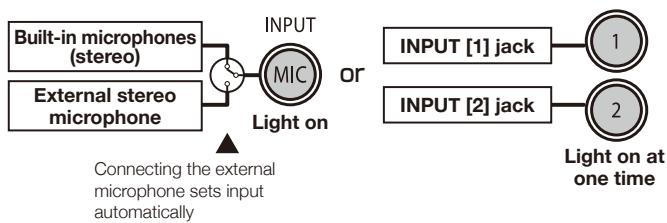
4CH MODE
Use both [MIC] and INPUT [1] [2] stereo input.
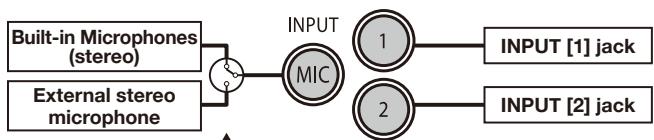
Connecting the external microphone sets input automatically
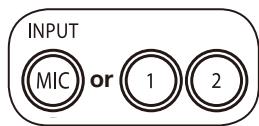
All lights on
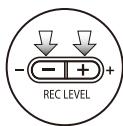
1 Select INP and press.
- Selection is available at any time during Stop, Recording Standby or Recording.

or 1 2 light on.
2 Press REC LEVEL and adjust the levels.
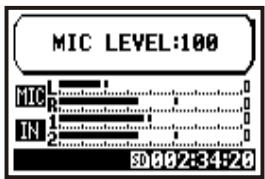

1 Select INPUT and press.
The recording level selected is displayed
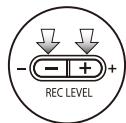
2 Press REC LEVEL and adjust the levels.
HINT:
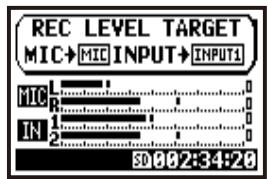
On the top screen of the 4CH mode, press REC LEVEL button, and display "REC LEVEL TARGET" appears. Select the input and press.
MTR MODE
On each track make the input setting of monaural or stereo.
SELECT the input per track one by one and adjust.
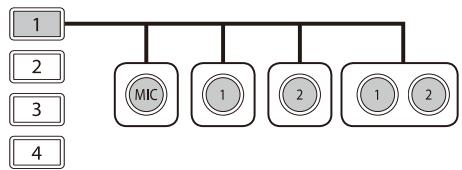
SELECT the input to 2 tracks and adjust.
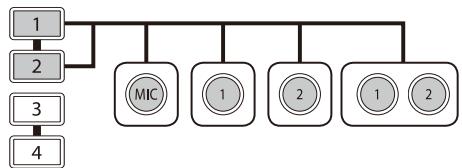
| TRACK 1 | TRACK 2 | TRACK 3 | TRACK 4 |
| MONAURAL | STEREO | MONAURAL | MONAURAL |
| STEREO | MONAURAL | MONAURAL | |
| MONAURAL | MONAURAL | STEREO | |
| STEREO | STEREO | ||
Use the REC LEVEL
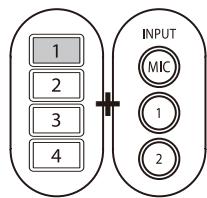
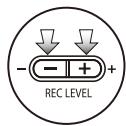
1 Press the selected track and input button.
2 Press REC LEVEL and adjust the level.
HINT:
You can make different recording on multiple tracks separately on MTR mode. Make desirable selections of input sources freely when recording.
1-02 Setting / Recording: Recording in STEREO and STAMINA mode
This is a way to record in both stereo and stamina modes using the built-in or stereo microphones.
[RECORDING DIRECTION]
Confirmation of the mode.
(Stereo mode)
Change the FILE setting.
- REC FORMAT,
- FILE NAME TYPE
Use the recording functions.
AUTO REC/STOP, PRE REC,
REC LEVEL AUTO
Use METRONOME
-
Recording standby
-
Select the input source
-
Adjust the recording level of
the source
Recording
- Start recording: Temporary
stop, Start recording again,
Put a mark
- Recording completes
marks mean you can record without those settings.
STEREO
STAMINA
L
Press the [MENU] button for
more than 2 seconds, and start operation from the top screen.
00:00:00:000
94.1/15 STE-000.WAV
30805:89:10
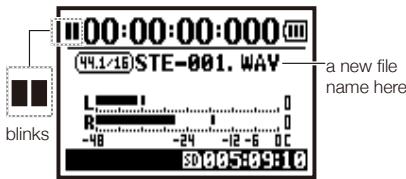
STEREO MODE TOP
light blinks
REC

1 [RECORDING STANDBY] press.
2 Select an input source and press.
Using a built-in microphones, press [REC], connecting to external devices INPUT [1] and INPUT [2]
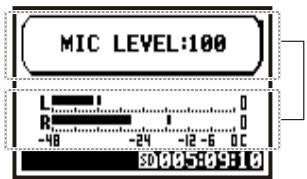
3 Adjust the recording level of the input source.
light on

4 [REC START] press.
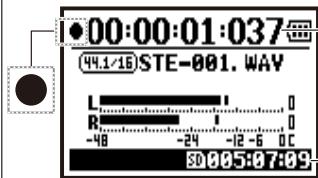
The number figures rotate.
light off
REC

5 [REC FINISH] press.
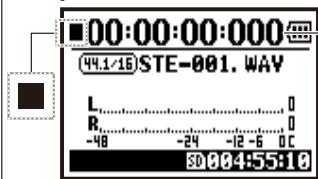
- The counter returns back to 0.
[TEMPORARY STOP]
![ZOOM H4NEXT - [TEMPORARY STOP] - 1](/content/2025/01/152221/images/0fd69138508b887a8e61844860732722155251d8e0dff923c1b15f0529e0c2f8.jpg)
Press
light blinks
![ZOOM H4NEXT - [TEMPORARY STOP] - 2](/content/2025/01/152221/images/4257cc2531d9ef09bba9552ce289c6082d4d574ddb38a8b6842f2bb469d65c45.jpg)
![ZOOM H4NEXT - [TEMPORARY STOP] - 3](/content/2025/01/152221/images/7e0d19eb7e6169e75667788b22f5893fcb4f4a52523789a06bca06ccbf7bd7dd.jpg)
![ZOOM H4NEXT - [TEMPORARY STOP] - 4](/content/2025/01/152221/images/7d5f8cd2f1c42ced11b836a9012517099762b0cf691852868c7e4e388093e233.jpg)
Counter doesn't return to 0.
[RECORDING AGAIN]
![ZOOM H4NEXT - [RECORDING AGAIN] - 1](/content/2025/01/152221/images/d129f34d4415c770d0882a718a420ce7bc2c6df5465f87dd16a4c1fc7efb5737.jpg)
Press
light on
![ZOOM H4NEXT - [RECORDING AGAIN] - 2](/content/2025/01/152221/images/b5eab47a63d924e68ee5f250fe7ce13e78485d4d3f7a2159134cdc8db3cb467e.jpg)
![ZOOM H4NEXT - [RECORDING AGAIN] - 3](/content/2025/01/152221/images/1cc793b62d497f159bf69a2b9659dbbd030568209486818de24c43db0d11a5c9.jpg)
![ZOOM H4NEXT - [RECORDING AGAIN] - 4](/content/2025/01/152221/images/d4647b4f708de4f3e95051c4c9336f9e90442b13ef8da30611a553125a4c477f.jpg)
You can start recording from the position you stopped on the same file.
HINT:
On STEREO mode can be made 19 different setting using. WAV & MP3. If you want to change, operate before recording.
change
The file names are named automatically.
You can choose from two:
* The recording date is written.
The initial notation is
MARK
When the recording format is WAV, you can put the mark on your file pressing [REC] button while recording. You can move swiftly to the marked position during playback. When you make a temporary stop on WAV FILE, the mark will be placed at the stop position.
NOTE:
While recording and playback, no
Ref.
P.051
P.052
Mark setting
P.096
P.079
P.065
P.067
P.070
Make the setting of recording format


Press the [MENU] button for more than 2 seconds, and start operation from the top screen.
"Short cut"
Pressing TRACK
on the top screen.

1 Press.
2 Select

3 Select
REC SETTING
REC FORMAT44.1/16
AUTOREC
PREREC
FILE NAME
OFF
DEFAULT
FOLDER:01
A Select one and press.
REC FORMAT
WAY44.1kHz/16bit
WAV44.1kHz/24bit
WAY48kHz/16bit
WAY48kHz/24bit
CANCELE:MENU
default;
WAV44.1 kHz/16bit.
NOTE:
How to use WAV and MP3 format
- The WAV FILES with no compression are used for high quality sound recording. Because data is not compressed, the volume of the file will increase compare to MP3 format.
- MP3 FILES decrease the sound quality because of data compression, but are useful to save SD card capacity and to record much more sounds.
HINT:
VARIETY OF WAV FILES
Selections are: Sampling Rate/ Frequency (44.1/48/96 kHz), the frequency when changing analogue signals to digital signal, Quantum bit numeral value indicating the minuteness of dynamics (16/24 bit).
The bigger the number, the higher the sound quality, but the more file capacity is required.
The WAV files recorded on STEREO/4CH/STAMINA mode correspond to BWF (Broadcast Wave Format) and documented the marks and production date.
VARIETY OF MP3
Select the bit rate which indicates information volume per minute. The bigger the numeral number, the lower the rate of compression and the higher the sound quality. The higher compression MP3 will consumes less capacity of SD card.
VBR (Variable Bit Rate) means the bit rate style variable according to the input information volume.
REC FORMAT
| STEREO mode | |
| WAV | 44.1kHz/16bit |
| 44.1kHz/24bit | |
| 48kHz/16bit | |
| 48kHz/24bit | |
| 96kHz/16bit | |
| 96kHz/24bit | |
| MP3 | 48kbps |
| 56kbps | |
| 64kbps | |
| 80kbps | |
| 96kbps | |
| 112kbps | |
| 128kbps | |
| 160kbps | |
| 192kbps | |
| 224kbps | |
| 256kbps | |
| 320kbps | |
| VBR | |
| 4CH mode | |
| WAV | 44.1kHz/16bit |
| 44.1kHz/24bit | |
| 48kHz/16bit | |
| 48kHz/24bit | |
When recording, a file name is automatically assigned. To change that, take the following steps.

Press the [MENU] button for more than 2 seconds, and start operation from the top screen.
1 Press.
2 Select
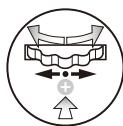
3 Select
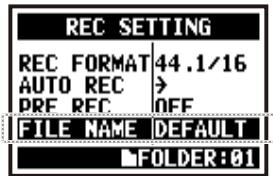
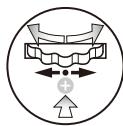
A Select and press.
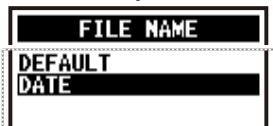
The initial notation is
CANCEL:MENU
| File Name | |
| STEREO mode: | |
| <DEFAULT> | STE-xxx.wav (mp3) : 'STE-'3 figures, extension * <MONO MIX> setting MONO-xxx.wav (mp3) : 'MONO' 3 figures, extension |
| <DATE> | 090531-xxx.wav (mp3) : year, date yymmdd-3 figures, extension |
| 4CH mode: | |
| No change | 4CH-xxxxM.wav Record file of the built-in microphones: '4CH-' 3 figures 'M' extension 4CH-xxxxI.wav Record file of the external input: '4CH-' 3 figures 'I' extension |
| MTR mode: | |
| STEREO FILE | TRK1-xx,wav : 'TRK' track number- 2 figures, extension * On stereo tracks put the track number like [1] [2] using L and R. |
| MONO FILE | |
NOTE:
- You can set the DATE type only on STEREO mode.
- You can use other file names on STEREO and MTR mode. Those settings is operated on
- When you name the file other than the H4n and include except half-size alphabets and figures, you cannot operate on the H4n.
Ref.
P.109
1-05 Setting / Recording: Recording on 4CH mode
This is the method to record 4 channel stereo sounds coming from the built-in mic and the external input jack.
[RECORDING DIRECTION]
Change to 4CH mode
Change the FILE setting.
REC FORMAT
Use the recording functions:
- AUTO REC/STOP
PREREC
REC LEVEL AUTO
Use the METRONOME
-
Recording standby.
-
Select the input source.
-
Adjust the recording level of the source.
Recording operation.
-
Start recording
-
temporary stop
-
record again
-
put a mark on a file.
-
Recording completes.
![ZOOM H4NEXT - [RECORDING DIRECTION] - 1](/content/2025/01/152221/images/8960f70ab54e3dbb9ad9bdb397ff1ce88c4cb01179a7fc11df2c24bf0ef1683e.jpg)
Press the [MENU] button for more than 2 seconds, and start operation from the top screen.
![ZOOM H4NEXT - [RECORDING DIRECTION] - 2](/content/2025/01/152221/images/ab8c2bb5a8c9823c621050028f61ca8aade6e67b11ba71aba0077ae280df9ce1.jpg)
STEREO
MODE TOP
![ZOOM H4NEXT - [RECORDING DIRECTION] - 3](/content/2025/01/152221/images/361eff4b35b7c810a38ea489de7028ca2d1e41748d6406cc236cc3cc014062a1.jpg)
light blinks
![ZOOM H4NEXT - [RECORDING DIRECTION] - 4](/content/2025/01/152221/images/15d37bb2f98202fb475a00d6cd8f851f4570796745602124780e035c90c713cb.jpg)
1 [RECO press.
![ZOOM H4NEXT - [RECORDING DIRECTION] - 5](/content/2025/01/152221/images/ca8d25776c30ec7ba12ac0438bb9947cde4beeea2ad34e01c8d9cf728f4c7fa0.jpg)
![ZOOM H4NEXT - [RECORDING DIRECTION] - 6](/content/2025/01/152221/images/70e3877796da1041d5f4659899d335956ff0c1d7020c019bb83b4a943a8f900d.jpg)
3 Adjust the recording level of the input sources.
![ZOOM H4NEXT - [RECORDING DIRECTION] - 7](/content/2025/01/152221/images/fcd5ddf2a22b9ab189bcf29b52367d7686f91838bd78d19b011c1dfe685df287.jpg)
4 [START RECORDING] press.
![ZOOM H4NEXT - [RECORDING DIRECTION] - 8](/content/2025/01/152221/images/bd70ea8a3edceda68b434260dd20f0e05bcbf9a7f3b9ff4f4dc3adaffc5eccf6.jpg)
2 [Adjust the recording level] Select the input sources and press.
- When you use a built-in microphones:
select [MIC]
Connection from outside:
INPUT [1] and [2]
![ZOOM H4NEXT - [RECORDING DIRECTION] - 9](/content/2025/01/152221/images/ee9027dfc0f92f585c8ca4f10628e2970e76952f7b117d678e0ab6974a1a4857.jpg)
light off
REC
![ZOOM H4NEXT - [RECORDING DIRECTION] - 10](/content/2025/01/152221/images/60213c37a59bd66ea3d3ad83cf8aa60c108dd9fccb9bd75ca2e12634c83cf4a8.jpg)
5 [COMPLETE RECORDING] press.
![ZOOM H4NEXT - [RECORDING DIRECTION] - 11](/content/2025/01/152221/images/1672dfa1da6412542dad571a5d2451a7bbc4f2c527b402de6cb7e6553d09568b.jpg)
You can record skipping this step.
[TEMPORARY STOP]
![ZOOM H4NEXT - [TEMPORARY STOP] - 1](/content/2025/01/152221/images/420ff29b9f5526e01a71c50a87c2ed66bac16bc0e04be84df489847bfd75ea49.jpg)
Press.
light blinks
![ZOOM H4NEXT - [TEMPORARY STOP] - 2](/content/2025/01/152221/images/a1b938ab1a471ba2f4460c32fa5a361720507a3f8cc93612376be6bf79c0a92a.jpg)
![ZOOM H4NEXT - [TEMPORARY STOP] - 3](/content/2025/01/152221/images/0c86a7bcf5939151563b36ccb5fe73eb9a9bd8c6ceee46ac34e76fca9b5fdc2c.jpg)
Counter doesn't return back to 0.
[RECORDING AGAIN]
![ZOOM H4NEXT - [RECORDING AGAIN] - 1](/content/2025/01/152221/images/d577c0a897c7ef1855b6f6cf1fd5da6948d3134e013338ceeb615800ddc51c3c.jpg)
Press.
light on
![ZOOM H4NEXT - [RECORDING AGAIN] - 2](/content/2025/01/152221/images/4d07e92bfd49e0229fbef415dad4d3eeb93d16219bab6230ecd10c5f59808caf.jpg)
![ZOOM H4NEXT - [RECORDING AGAIN] - 3](/content/2025/01/152221/images/1c0be23ce1c07421a003e2e10afd7e7420f67ad7c5b0799a2d09c974756fa36c.jpg)
Continue recording from the position stopped on the same file.
HINT:
FILE NAME
On 4CH mode the input from the built-in and the external microphones is saved separately as STEREO WAV FILE.
Those 2 files are always administered as one pair and named as followings depend on the input:
[MIC] file: 4CHxxxxM.wav
INPUT [1] [2] file: 4CHxxxxl.wav
On screen 2 files noted 'M/I' at one time.
- You cannot change the file name.
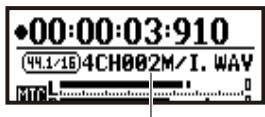
file name
CHANGE
If you want change, operate before recording.
Mark
While the recording format is WAV, if you press [REC] button during recording operation, the mark is put on the file and you can move swiftly to the marked position during playback.
When you pause, that becomes the mark position.
NOTE:
While recording and playback, no
Ref. 13
P.051
P.052
Mark setting
P.096
P.079
P.065
P.067
P.070
Mode change
P.038
1-06-1 Setting / Recording: Recording in MTR mode
Making proper use of tracks, you can create a recording that combines monaural and stereo.
[RECORDING DIRECTION]
Change to MTR mode
Create a new PROJECT.
Record the first track.
Select the [REC] mode
Setting up PUNCH IN/OUT
Use the METRONOME
Set up the EFFECT
Recording Standby
Select the track to record
- Select the input source
- Adjust the recording level of the source
Start recording
ct the track to record
ect the input source
- Adjust the recording level of the source
Temporary Stop
Re-start
Complete recording
Make setting (mix)
- TRACK MENU setting
Adjust the track
LEVELPAN
Make setting (mix)
- TRACK MENU setting
Adjust the track
LEVEL PAN
Record the second track
This means you can record without this setting.
Change to ,

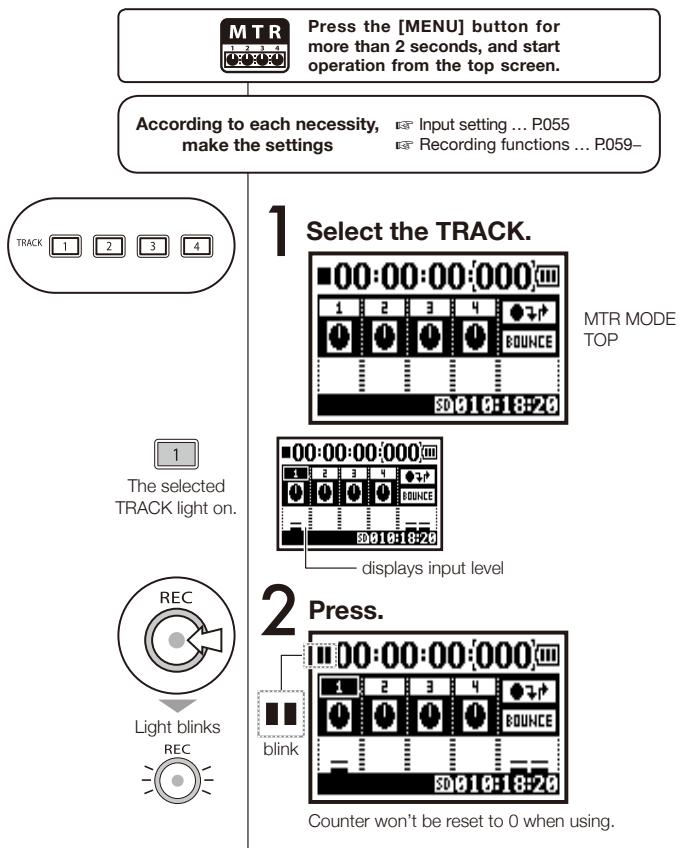
Press the [MENU] button for more than 2 seconds, and start operation from the top screen.
1 Press.
2 Select
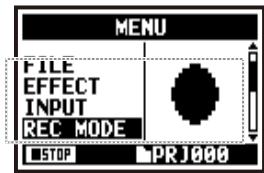
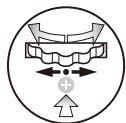
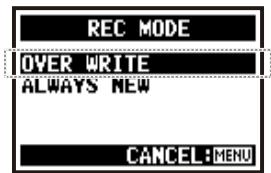
3 Select either
About INPUT SOURCE and TRACK
Only one recording track
- Input source comes from either INPUT [1] or INPUT [2].
INPUT [1] or [2]
TRACK
- Input sources come from either [MIC] or INPUT [1] [2].
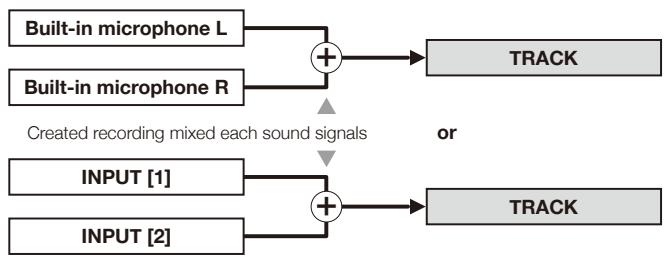
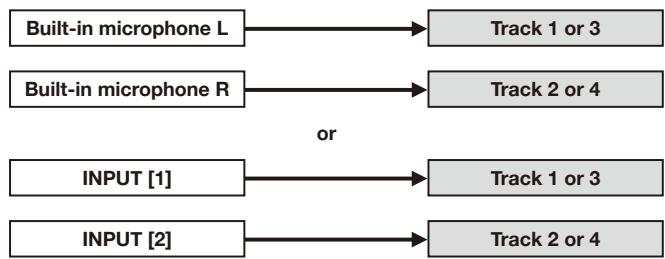
Two recording tracks
- Input source comes from either INPUT [1] or INPUT [2].

The same signals are sent to both tracks.
- The input source comes from either [MIC] or INPUT [1] [2].
1-06-2 Setting / Recording: Recording in MTR mode
You can select either two recording style modes.
Using the
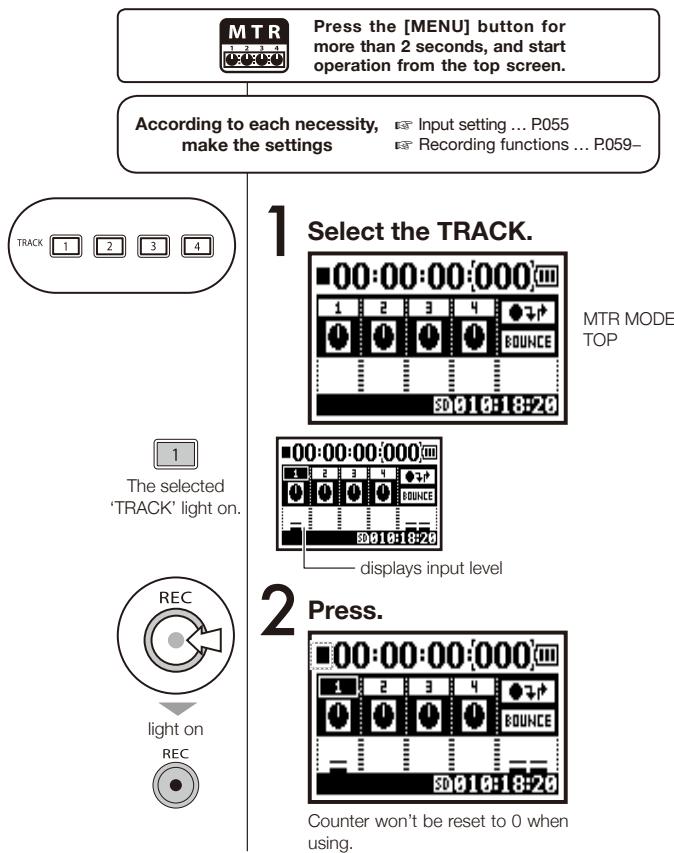

light on

light off
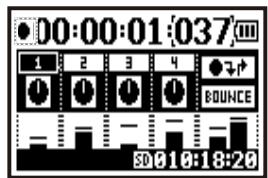
3 [START RECORDING] press.
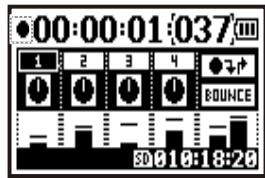
4 [STOP RECORDING] press.
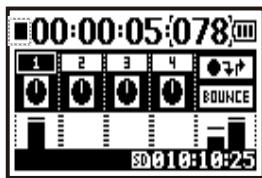
Counter doesn't return back to 0.
It returns to the position in which the recording began with the [REW] button.
The content recorded by pushing [PLAY/PAUSE] button can be confirmed.
In ALWAYS NEW, a new file is made whenever it records.
light on

3 [START RECORDING] press.
4 [STOP RECORDING] press.
Counter return back to 0.
The recorded file can be reproduced by pushing [PLAY/PAUSE] button.
1-07 Setting / Recording: TRACK MENU in MTR mode
This is an exclusive menu available only on MTR mode to set a track.
Link tracks together, create a stereo track, or you can create a special setting for output effects.
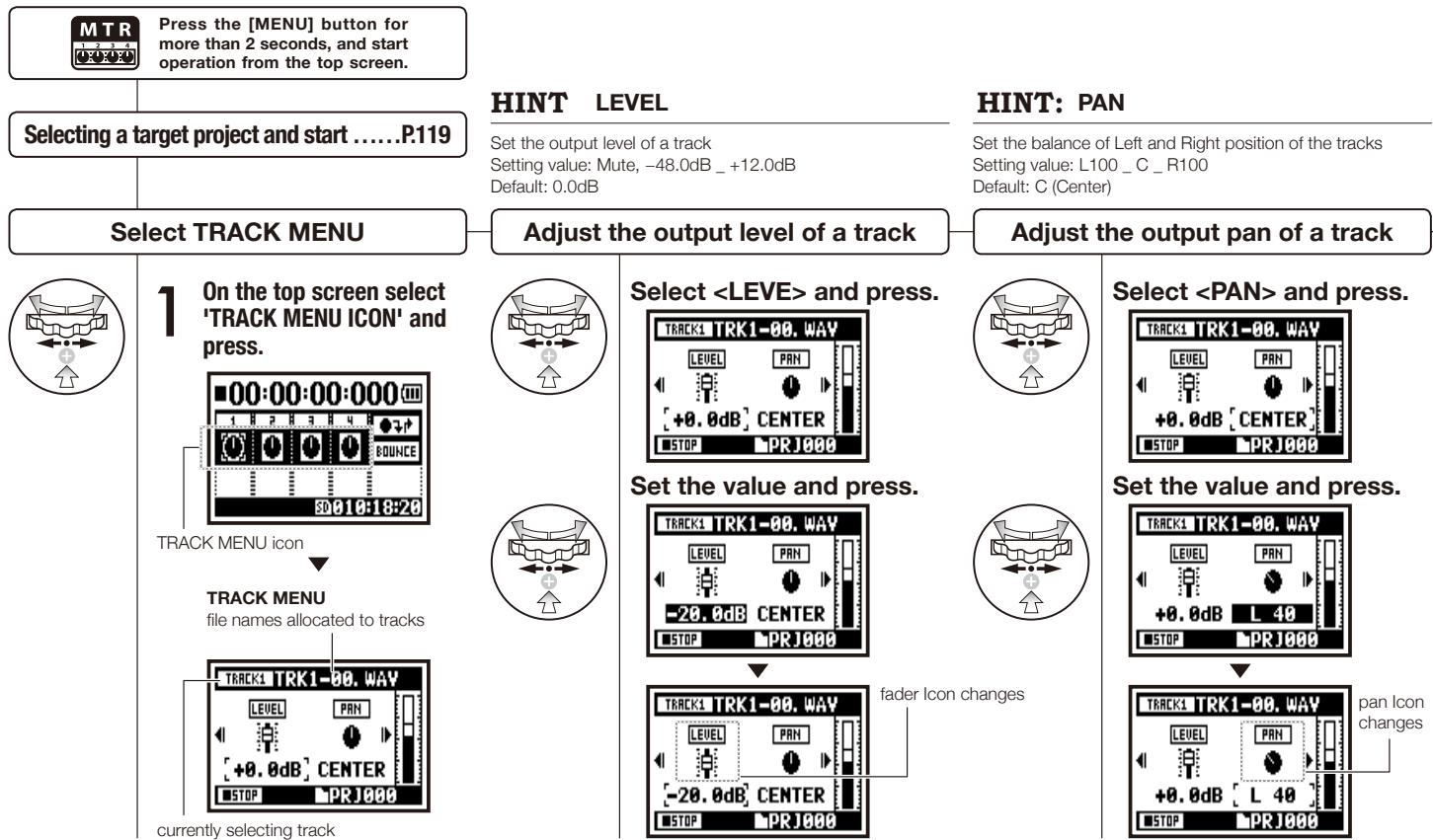
HINT:STEREO LINK
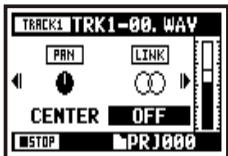
You can make setting to create a 'STEREO 1' track combined with 2 tracks from 1/2 and 3/4 or to create a monaural track. Setting value: ON/OFF Default: OFF
NOTE:
Setting for
Select and press.
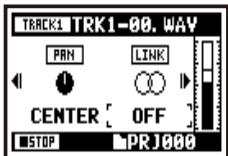
Set the value and press.

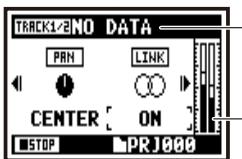
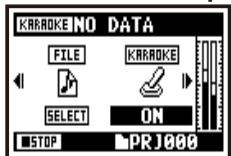
When change the format, the display says "NO DATA".
The display of 'LEVEL METER changes 'STEREO'.
NOTE:
- You can make playback operation of only a monaural file on 'MONO TRACK' and a stereo file on 'STEREO TRACK'.
- When you make setting changes of
, it becomes "NO DATA" which has no file selection. - When you change from 'ON' to 'OFF', the setting of
turns to the previous one. - When you change from 'OFF' to 'ON', the setting of
and return to 'DEFAULT'.
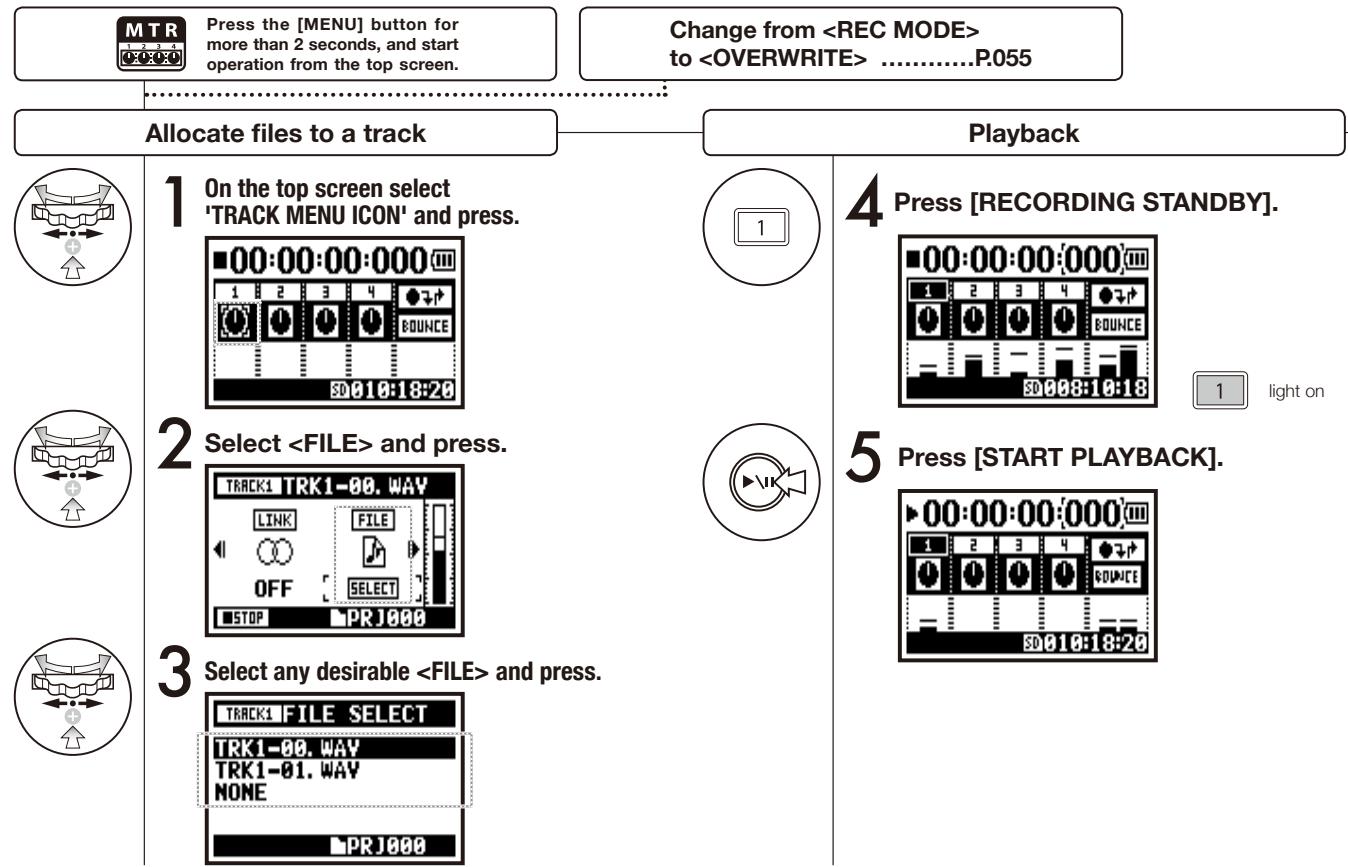
Allocate files to a track
Select and press.
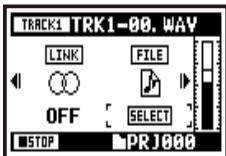
Select the to be allocated and press.
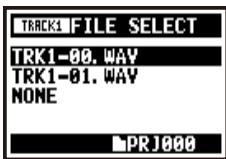
Display for the file list available to allocate with corresponding file style.
NOTE:
- You cannot record on the
track. - When the
turns on automatically with a monaural track setting, it turns to "NO DATA" condition. - When the
track has been set, you cannot make the other tracks .
HINT:
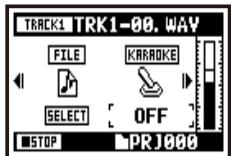
You can make 'KARAOKE TRACK' setting either two tracks from track 1/2 or 3/4. You can set <KEY CONTROL> and <CENTER CANCEL> operations.
Setting value: ON/OFF Default: OFF
Setting
Select and press.
Set the value and press.
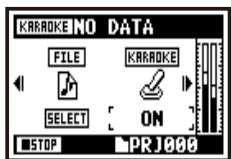
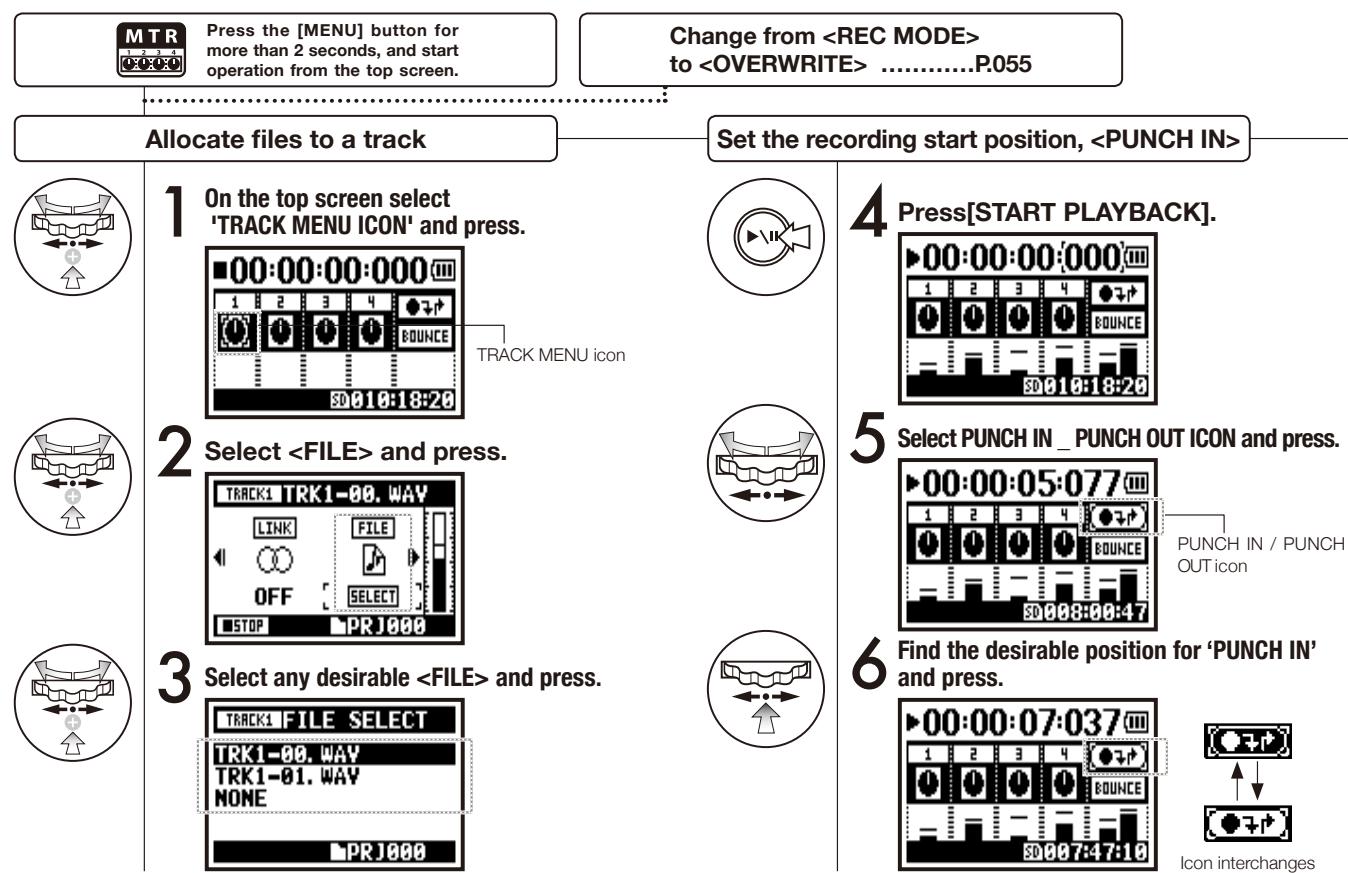
1-08-1 Setting / Recording: Re-recording, automatic
This function,
Here we explain how to start
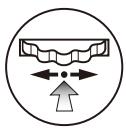
Set the recording end position,
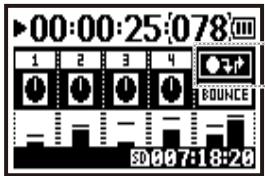
7 Press the desirable position for 'PUNCH OUT'.

The PUNCH OUT setting confirmed
| → | ● PUNCH OUT | ■ PUNCH OUT |
| PLAY | REC | PLAY |
| Start | Stop the practical re-recording parts | |
HINT:
- You can make position setting for
using counter while stopping. First set each time and move the cursor to , and then press [DIAL]. - During
_ Step 7-, if you press [DIAL] again, all the setting will be cancelled.
NOTE
Setting available on MTR mode and
Re-recording
Rewind the file to the head (Counter: 0) or to the position to start re-recording 'PUNCH IN'.
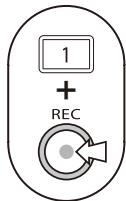
9 Press TRACK [1], Recording Standby.
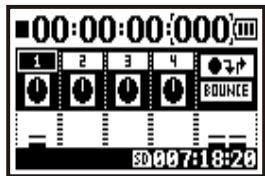

[1] In a range of punch in and out setting, the light on and outside of the range the light blinks.
10 Press TRACK [1] [PLAYBACK _ RECORDING].
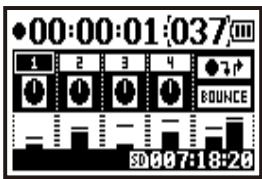

When reaches the recording start position 'PUNCH IN': REC light on, and automatically start recording. [1] When reaches the recording end position 'PUNCH OUT': [1] light blinks=automatically end.
Ref.
Appointing the time using a counter
P.102
1-08-2 Setting / Recording: Re-recording, manual
Using [OVERWRITE] recording operation in MTR mode, you can manually punch in and out. Press [REC] button during playback, from that pressed position you can start re-recording.
Re-recording (Manual )
6 Performance (Not recording).
7 Press [START RECORDING].
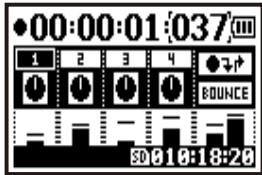


light on
light on
8 Performance (Recording).
9
Press [FINISH RECORDING].
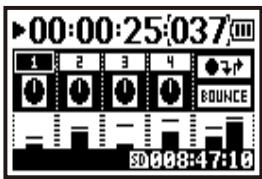


light off
light on
10 Press [PLAYBACK FINISH].
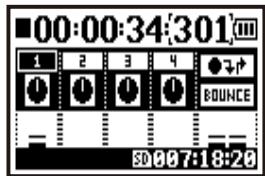
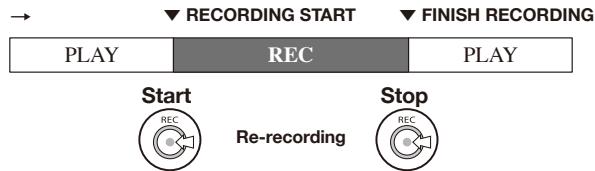
The H4n can detect when the input surpasses the standard level, and can automatically start recording from the recording standby position.



Pressing the [MENU] button long for two seconds, start to operate from the top screen of the MODE.
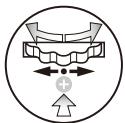
1 Press.
2 Select
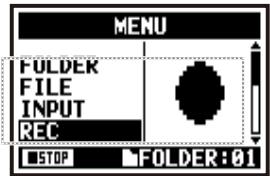

3 Select
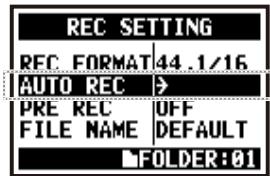
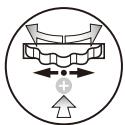
4 [START LEVEL SETTING] Select
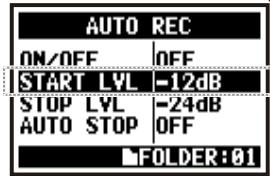
5 Adjust the level.
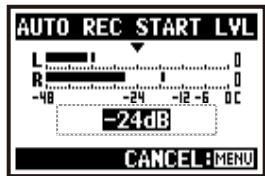
Set the input level to start recording automatically.
6 Select
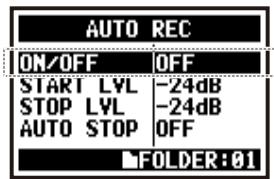
7 Select
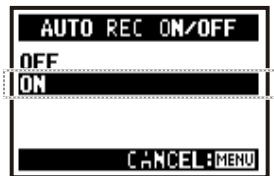
HINT:
Display of "Wait for Signal"
While
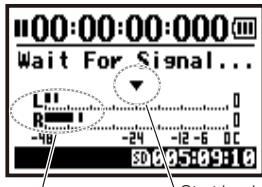
Present input level
Start level
When the present level goes over the start level, recording starts. At this point press [REC] button and you can also start recording.
NOTE:
- You cannot use this setting during recording and playback.
- You cannot use this functions together with
, and
.
When
STEREO

4CH

Press the [MENU] button for more than 2 seconds, and start operation from the top screen.
1 Press.
2 Select
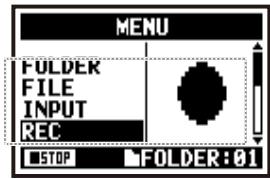
3 Select
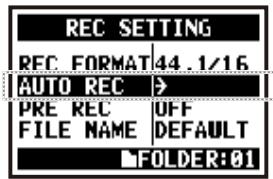
4 [STOP LEVEL SETTING] Select
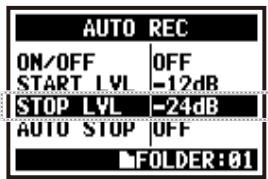
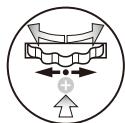
5 Adjust the level.
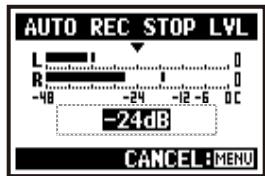
Set the input level to give an automatic stop signal
6 Select
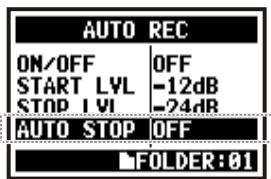
7 Select the time setting.
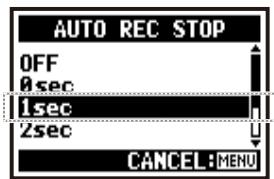
Select from 1 - 5 seconds setting after the input signals are lower down than STOP LEVEL till finishing.
HINT:
When[AUTORECSTOP] is on, 'STOPLEVEL' display appears during recording.
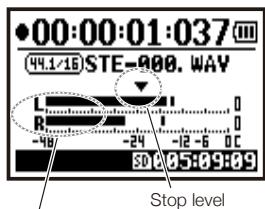
Present input level
NOTE:
- You cannot use this function during recording and playback.
- When
is on, you can finish recording with pressing [STOP] button.
The
 setting can be initialized with pressing the [REC] button, automatically adding the previous 2 seconds to your recording.


Press the [MENU] button for more than 2 seconds, and start operation from the top screen.

1 Press.

2 Select  and press.


3 Select  and press.


4 Select < ON> and press.

HINT

When [PRE REC] is on, H4n can always save input signals during recording standby for a certain period.
Pressing [REC] button, start recording. H4n can record maximum 2 seconds tracing backward from the saving data.
NOTE

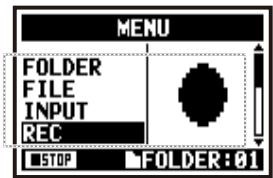
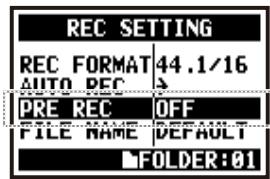
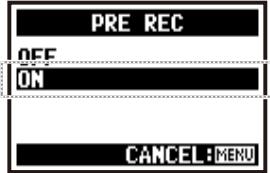
- You cannot use this setting during recording and playback.
- You cannot use this functions together with
and .
- I When recording on 96 kHz, 4CH mode, record maximum one second tracing backward.
The
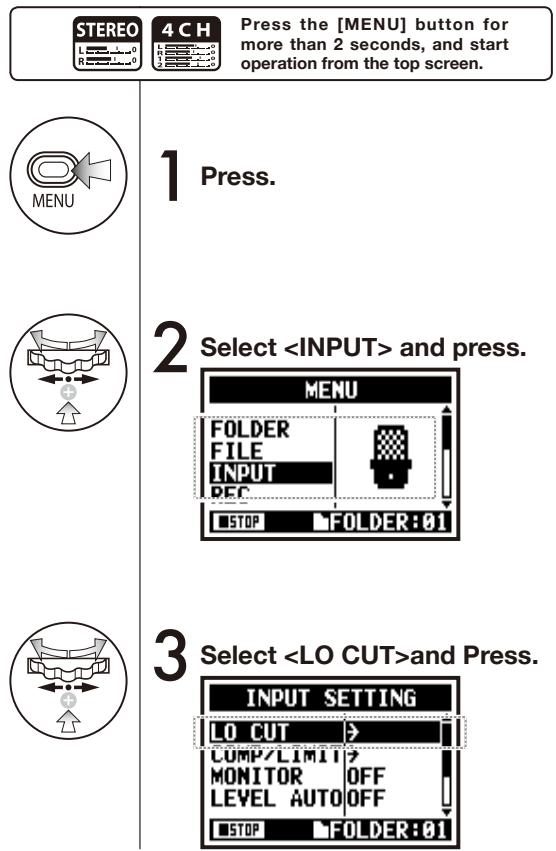
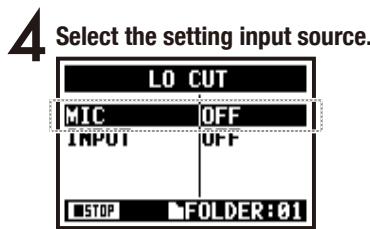
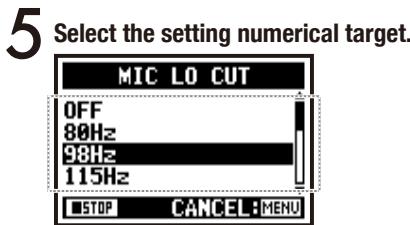
HINT:
- You can Select the
filter among eleven frequencies, such as OFF, 80, 98, 115, 133, 150, 168, 185, 203, 220, and 237Hz . When selecting higher numbers, you should verify the outcome before recording. - The smaller the numeral figures get, the lower become cut-off frequency and lower frequencies will be cut off.
2-04 Recording function
The
level input signals are lifted up and high level input signals are controlled down when recording.
STEREO

4CH

Press the [MENU] button for more than 2 seconds, and start operation from the top screen.
1 Press.
2 Select and press.
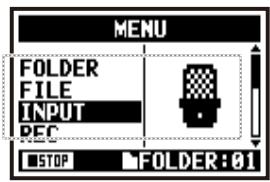
3 Select
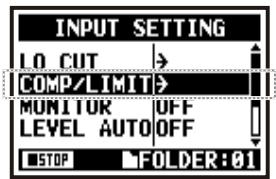
4 Select the setting input source.
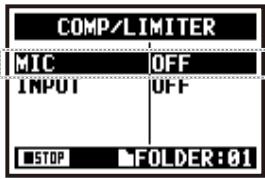
5 Select the setting target.
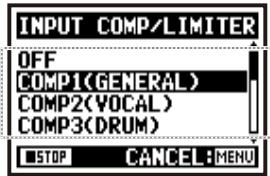
HINT:
| OFF | Compressor and Limiter are off | |
| COMP1 (GENERAL) | Standard compressor | The compressor can compress higher level sounds and raise the level. |
| COMP2 (VOCAL) | Compressor suitable for vocal | |
| COMP3 (DRUM) | Compressor suitable for drum and percussion | |
| LIMIT1 (GENERAL) | Standard limiter | The limiter can compress when the input signals go over the fixed level |
| LIMIT2 (CONCERT) | Limiter suitable for ‘live’ | |
| LIMIT3 (STUDIO) | Limiter suitable for ‘studio’ recording | |
This function enables to watch the input level while recording standby, and adjusts the maximum level at 6dB during recording.
STEREO

4CH

Press the [MENU] button for more than 2 seconds, and start operation from the top screen.
1 Press.
2 Select and press.
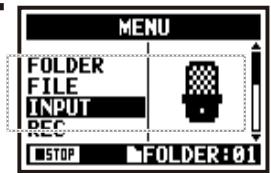
3 Select
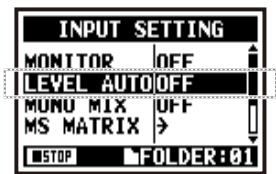
4 Select
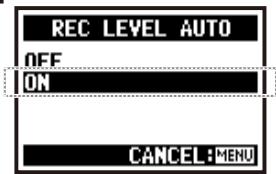
HINT:
Set
Display when
recording standby
Present input level
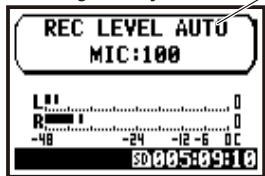
STEREO MODE
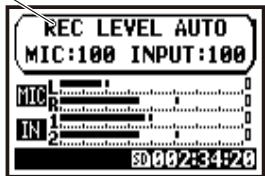
4CH MODE
Display when -6dB is exceeded while recording
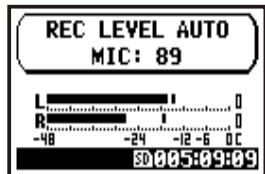
NOTE:
- You cannot use this function together with
. - You cannot use this setting during recording and playback.
The sounds during standby condition are monitored through the speaker.
Even when you are not in standby condition, the input sound levels can be previewed. Follow the next steps.


Press the [MENU] button for more than 2 seconds, and start operation from the top screen.
1 Press.
2 Select and press.
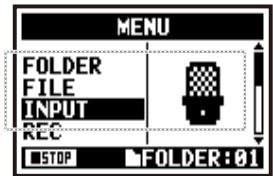
3 Select
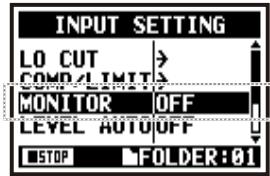
4 Select < ON> and press.
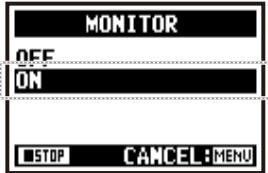
HINT:
You can always monitor the input source through [LINE/PHONE MINI STEREO OUT] during recording standby. Except this condition
NOTE:
You cannot monitor the input sound through the built-in speaker.
Mix the selecting inputs (L/R signals), and then send the same signals to each L/R channel.
STEREO

4CH

Press the [MENU] button for more than 2 seconds, and start operation from the top screen.
1 Press.
2 Select and press.
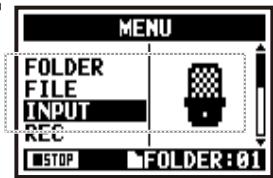
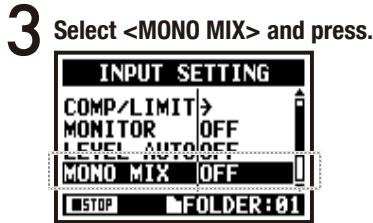
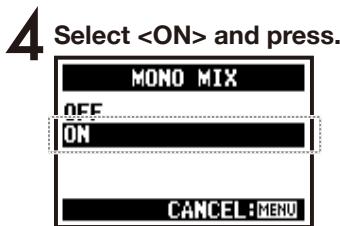
NOTE:
- The name of the recorded file making
valid is "MONO-xxx" - You cannot use this function together with
. - You cannot use this setting during recording and playback.
2-08 Recording function
This function enables to convert the stereo microphone signals under MS system to the regular stereo L/R signals.
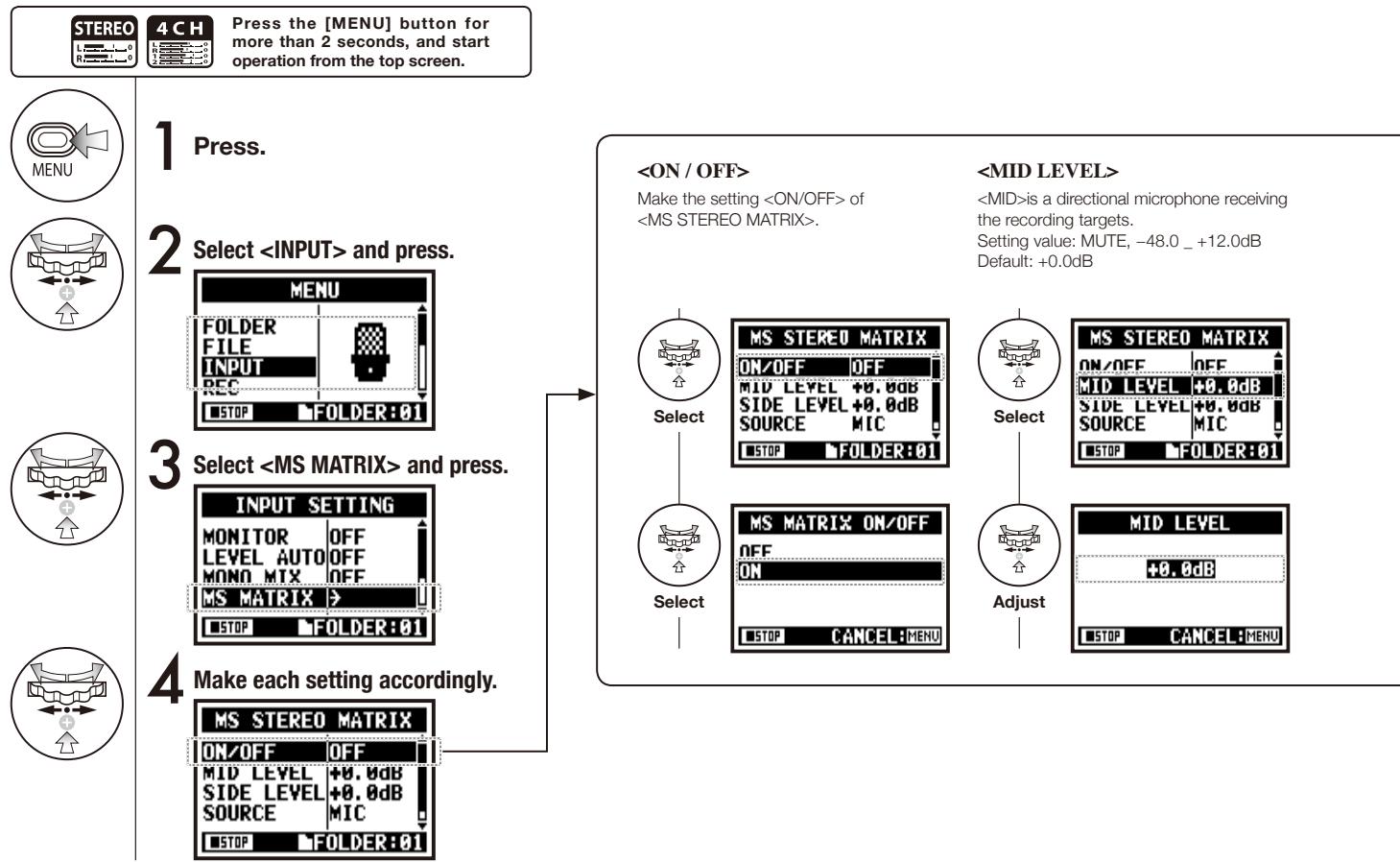
A bi-directional microphone
Select
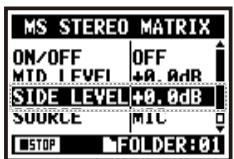

Adjust
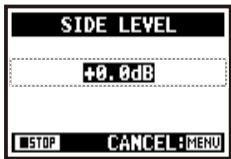
Enable to select what input is effective. (Only on 4CH mode)
Select
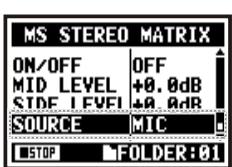

Select
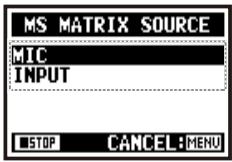
Allocate <MID> inputs and <SIDE> inputs between L-ch (INPUT [1]) and R-ch (INPUT [2]).
Select
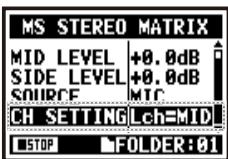

Select
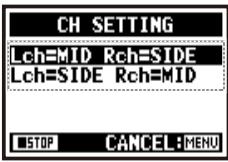
NOTE:
You cannot use this function together with
3-01-1 Tuner
This is a tuner to display [NOTE] for the input signals at the chromatic mode.
STEREO
4CH

MTR

Press the [MENU] button for more than 2 seconds, and start operation from the top screen.
1 Press.
2 Select
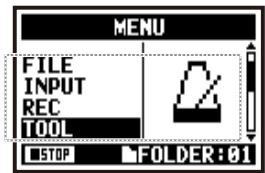
3 Select
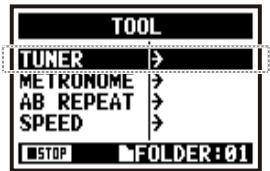
- Select
and press.
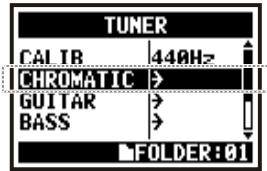
5 Tuning.
The indicator shows the input signals are higher or lower than the 'NOTE' described below.
Both marks light on when the inputs signals match the 'NOTE'.
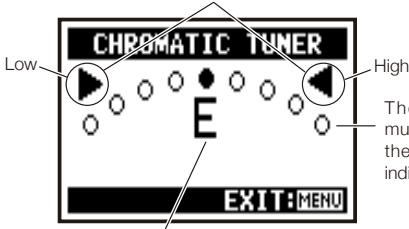
These dots show how much gaps exist between the input signals and the indicated NOTE.
The name of the [NOTE] shows the nearest one to the input signals.
HINT:
- The input source signals selected at the present become the tuning target.
- Operating under 4CH mode, at Step 4 select and select the input source, and then continue to steps 5.
NOTE:
Not available during recording and playback.
Ref.
Display of tuning
Relationship between string numbers and notes
P.078
Aside from CHROMATIC, there are other tuning modes such as GUITAR, BASS, OPEN A, OPEN D, OPEN E, OPEN G and DADGAD.


Press the [MENU] button for more than 2 seconds, and start operation from the top screen.
1 Press.
2 Select
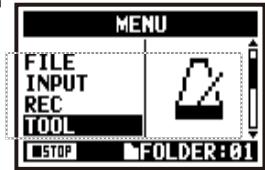
3 Select
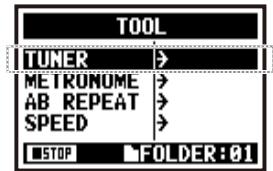
4 Select the tuning mode and press.
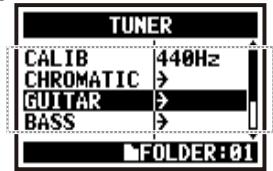
5 Tuning.
The indicator shows the input signals are higher or lower than the 'NOTE' described below. Both marks light on when the input signals match the 'NOTE'.
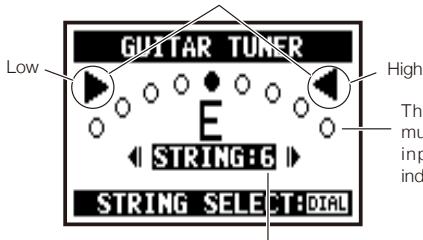
String number currently selected.
You can [DIAL] and select.
HINT:
- The input source signals selected at the present become the tuning target.
- Operating under 4CH mode, at Step 4 select and select the input source, and then continue to steps 5.
NOTE:
Not available during recording and playback.
Ref.
Display of tuning
Relationship between string numbers and notes
P.078
3-01-3 Tuner
This function allows you to make settings for calibration (Frequency of A code) or a tuner.
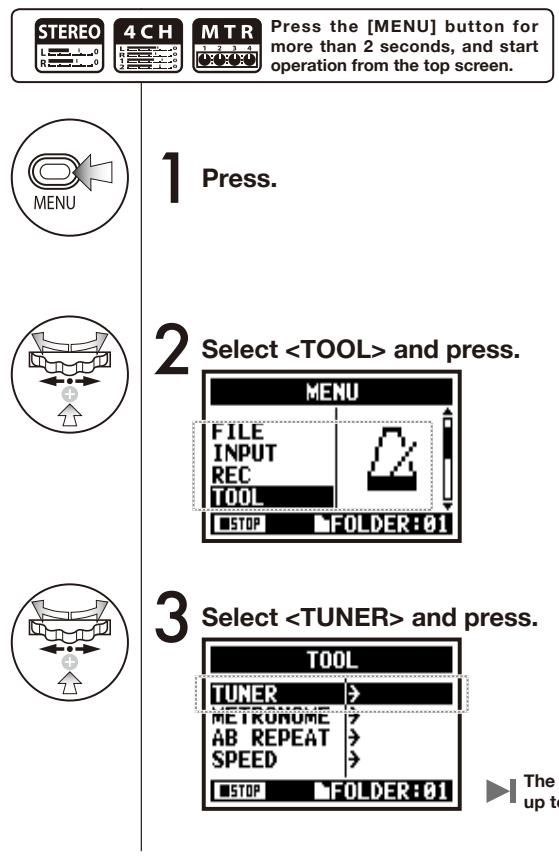
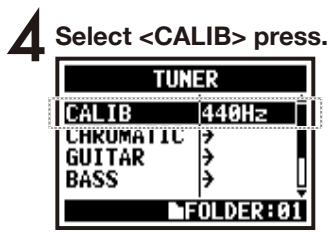
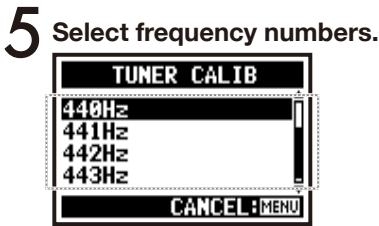
HINT:
- The initial setting is 440Hz .
- You can make any setting per 1Hz from 435Hz to 445Hz.
NOTE:
Not available during recording and playback.
The tuner on 4CH mode can make setting of input source tuning.
4CH

Press the [MENU] button for more than 2 seconds, and start operation from the top screen.
4
Select and press.
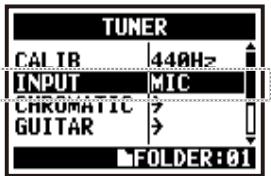
5
Select input source and press.
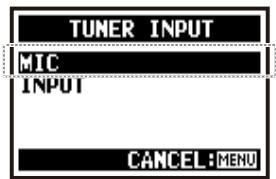
HINT:


Tuning display
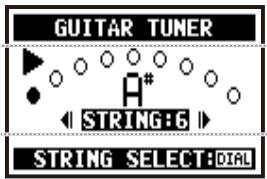
When tuning is low
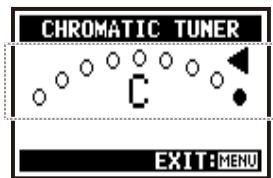
When tuning is high
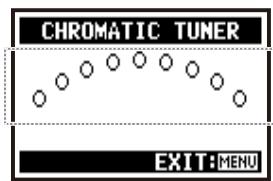
No input sound (chromatic)
Tuner type and code
| Tuner type | String number/ note name | ||||||
| 1 | 2 | 3 | 4 | 5 | 6 | 7 | |
| GUITAR | E | B | G | D | A | E | B |
| BASS | G | D | A | E | B | ||
| OPEN A | E | C# | A | E | A | E | |
| OPEN D | D | A | F# | D | A | D | |
| OPEN E | E | B | G# | E | B | E | |
| OPEN G | D | B | G | D | G | D | |
| DADGAD | D | A | G | D | A | D | |
NOTE:
Not available during recording and playback.
3-02 Metronome
The metronome has other convenient functions such as click, pre-count, tempo, sound, etc.
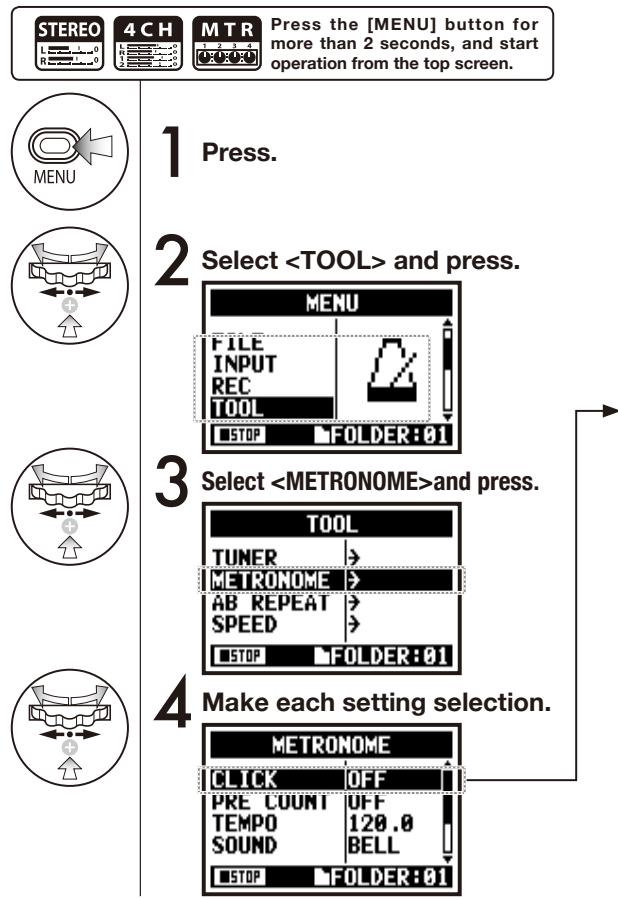
Set for the beginning time of the metronome sound. This setting cannot be used while recording and playback.

Select
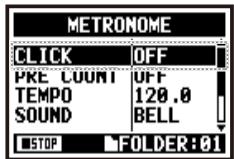

Select
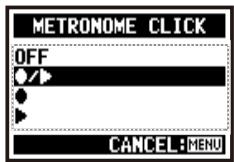
Select conditions
OFF
/ --Recording/Playback
- -Only during recording
Only during playback
Set the count number just before the beginning of recording. Setting is impossible when
andis ON.
Select
Select
Select beat.Select among OFF,1-8 beat and SPECIAL.
Count ofNOTE:
The metronome starts sounding at the first point of recording—the beginning of playback. Thus, if you're starting in the middle of a tune, sometimes the sounding point may be out of sync compared to the composition.
Set the metronome speed.
Select
Adjust
default: 120.0.You can set between 40.0 and 250.0 BPM, per 0.1.
Set the metronome tone.
Select
Select
default: bell sound.You can select among BELL, CLICK, STICK, COWBELL and HI-Q.
Set the pattern of the metronome.
Select
Select
default: 4/4.You can select among 0/4 (no accent), 1/4_8/4, and 6/8.
Set for the volume of the metronome.
Select
Select
You can select among eleven levels.3-03-1 All about EFFECT
Brief outline about how to use <EFFECT> , its flow, input and output
[Flow of the EFFECT]About input and output of [EFFECT]
Effect you can use on MTR mode from monaural and stereo input. The flow of signals
will change corresponding to the input sources and recording tracks.
One recording track:
- Input source comes from either INPUT [1] or [2]
- Input source comes from either [MIC] or INPUT [1] [2]
Two recording tracks:
- Input source comes from either INPUT [1] or [2]
- Input source comes from either [MIC] or INPUT [1] [2]
Using the EFFECT made up of 2 modules in MTR mode, you can add various effects to the input signals.
MTR
0000
Press the [MENU] button for more than 2 seconds, and start operation from the top screen.
1 Press.
2 Press
and press.
3 Press
and press.
4 Select No.: PATCH NAME and press.
5 Select PATCH and press.
6 Pressing [MENU] for more than two seconds returns you to the top screen.
-PATCH NUMBER: PATCH NAME.
ON/OFF for
If it on, display is OFF.
- IMPORT: Carry in a PATCH from
the other PROJECT
EDIT: Create a new PATCH,
Edit a PATCH.
Ref.
patch list
P.148
P.149
NOTE:
PATCH
There are 2 types of modules and parameter settings on MTR mode which are saved as 'Patch'.
60 patches are available and 50 of them have been programmed.
You can create your own patch combining
and adjust the PARAMETER.
3-03-4 Effect
, editing PRE AMP modules You can edit the PATCH using PRE SET EFFECT.
3-03-5 Effect
, editing EFX modules Edit the patch by selecting from various parameters that correspond closest to your desired effect.
Select the nearest image PATCH and edit it....P084
ADJUST EFX module
7 Select
and press.
Press
and EFX module turns on.
9 Select editing PARAMETER and press.
HINT:
To select PRE AMP and EFX modules, make setting after changing the module status ON.
Default: OFF does not display parameters and no setting available.
No "OFF" condition modules are selected during
ICON
PRE AMP MODULE CONDITION ON / OFF
EFFECT TYPE: SET THE EFX
VARIOUS PARAMETERS
Ref. EFX module PARAMETERP.141
Adjust the levels of the patch and change the name.
NOTE:
When the value is changed, 'ED' display comes up.
Without
operation, press [MENU] button and return to the top without the edit/change saved. EFFECT
...P.084 STORE
10 Select
and press.
11 Select the 'PATCH No.' where to save and press.
12 Select
and press.
NOTE:
The items you edited have 'ED' display and confirmed by
operation. Select not
. (not stored)
Confirmed
Select "YES" and it will be overwritten.
When you want no overwriting, you can store a separate patch at
operation. Patches are stored per a project.
3-03-8 Effect
, taking in a patch from another PROJECT You can apply the edited and saved EFFECT PATCH, used in other project to the current PROJECT.
import one patch
5 Select
and press.
8 Select
and press.
The patch selected at step6 is now imported to the present project.
6 Select an import patch and press.
7 Select which patch you want to import to the present project and press.
NOTE:
When pressing the
, "No Other Project!" display will appear when there is no PROJECT.
HINT:
Read in MODE Read in PROJECT Start importing current PROJECT
Selected PROJECT3-04-1 A sing-along machine
preparation Create spontaneous music files and convert them into KARAOKE form, then record vocals or additional guitar sounds over those files.
[Flow of the KARAOKE]
[Preparation]
Prepare the stereo files for the background
Create a new project for "Karaoke" .P118
Import the file to the project
- Copy the file to the project folder .....P039
- Use
function......P.117 [Setting KARAOKE]
(Prepare tracks for the Karaoke)
- Select 'TRACK MENU ICON' and open the 'TRACK MENU'
- Make
on. - Allocate files.
[Adjustment of the Karaoke tracks]
LEVEL
CENTER CANCEL
KEY
FINE-FINE
[KARAOKE OPERATION]
- Connect the microphone
- Make the setting for the recording tracks
- Make 'RECORDING' on.
- Playback
- Recording
Press the [MENU] button for more than 2 seconds, and start operation from the top screen.
KARAOKE track preparation
1 Select TRACK MENU icon and press.
2 Select
and press.
3 Select
and press.
Allocate an optional file on to KARAOKE track
4 Select TRACK MENU icon and press.
5 Select
and press.
6 Select an optional file and press.
Make CENTER CANCELATION of the KARAOKE track
7
Select TRACK MENU icon and press.
8
Select
and press.
9
Convert that into <ON> and press.
Change the KEY of KARAOKE track
10
Select TRACK MENU icon and press.
11
Select
and press.
12
Adjust and press.
Continue to the next page
HINT:
The contents of KARAOKE TRACK are different from a general TRACK MENU.
3-04-2 A sing-along machine
recording A slight adjustment of KARAOKE TRACK KEY.
13 Select TRACK MENU icon and press.
14 Select
and press.
15Make adjustment and press.
Recording on KARAOKE
1 Connect the microphone. Press the INPUT button correspondi to the connected input jack.
2 Select the track menu icon and press.
3 Press 'PRACTICE' (no recording).
4 [START RECORDING]
Press [REC] button and make recording standby condition. After that press [PLAY/PAUSE] button to start recording.
NOTE:
You cannot use this function together with
. Ref.
P.059
4-01 Playback :Playback files(stereo,4ch and stamina modes)
Immediately after recording, you can playback the file by pressing the [PLAY/PAUSE] button.
If you prefer to call up the files for later playback, take the following steps.
STEREO
4CH
STAMINA
Press the [MENU] button for more than 2 seconds, and start operation from the top screen.
1 Press.
2 Select
and press.
"Short cut"
Pressing TRACK
on the top screen.
3 Select the targeted file and press.
4 Select
5 [START PLAYBACK] Press.
"Short cut"
You can select the file in the folders on the top screen.
You should confirm the file name.
HINT:
- On the top screen you can move directly to Step 3, just press TRACK [2] button.
- If you press [PLAY/PAUSE] button after selecting files, the selected file starts playback immediately.
- You can select files in the folder directly using [DIAL] from the top screen.
Ref.
P.104 Aside from general playback, you can also select
1) one file only playback, 2) repeat playback of one file, and 3) all files repeat playback.
STEREO
4CH
STAMINA
Press the [MENU] button for more than 2 seconds, and start operation from the top screen.
1 Press.
2 Select
and press.
4 [START PLAYBACK] Press.
3 Select a play mode and press.
Select desirable mode.
PLAY ALL Playback all the files in the folder. PLAY ONE Playback one file. REPEAT ONE Playback repeat of one composition only. REPEAT ALL Playback all files in the folder. NOTE:
You cannot use this setting during recording and playback.
4-03 Playback : Setting marks
While operating file playback you can create marks at desired spots.
You can move easily to the spot during playback.
NOTE:
- Mark function is available only in case of WAV format.
- The maximum marks you can place in one file are 99.
- The mark stricken once cannot be deleted.
HINT:
- Pressing [REC] button during recording, you can create marks.
- You can recognize marks in the file in the .
Ref.
P.115
4-04 Playback:
The
repeat setting allows you to playback two points on the file repeatedly.
4 [START PLAYBACK] Press.
point A moves.5 [Set up point A] Press.
The point A is placed a mark, and changes into B and moves.6 [Set up point B] Press.
Playback is practiced repeatedly between the indicated locations.HINT:
You can make setting of point [A] and [B] during stopping.
HINT:
Movable with a long press.
Caution:
When you move around in the file using [FF] and [REW] buttons, and whenever you press the button for less than 2 seconds (quick press), automatically move to the next file. If there is a mark, move to the marked point. Press [FF] and [REW] buttons for more than 2 seconds (long press) and you can move to your desirable point.
After setting up A and B points press the [REC] button, you can cancel all settings.
NOTE:
During recording and playback, you cannot make any settings after Step 3 of
.
FIX/CLEAR of A & B point REC STOP ■ PLAYBACK/TEMPORARY STOP of the file \u Holding the key for more than one second, operate wind-forward and rewind | | | | | Just press the button, and move back or forward to the file* However if there is a marker in a WAV file, the button moves to the marking place. | | | | | You can adjust playback speed of the file.
You can playback 2 stereo files of 4CH mode mixing LEVEL with PAN.
4-07 Playback :Playback files (MTR mode)
There are various ways to playback on MTR mode: Create files differently according to a recording mode and allocate random files to tracks and then playback them at one time.
4-08 Playback : Appointing time with a counter
You can appoint the recording time or any time randomly using a counter which indicates time lapse of the work.
Press the [MENU] button for more than 2 seconds, and start operation from the top screen.
1 Select the counter figures on the top screen and press.
2 Set the time: Select the figures according to the appointing hour / minute / second.
3 Change the figures and press.
HINT
The folder that stores the recording result and the file for the reproduction is chosen.
NOTE:
- You cannot use this setting during recording and playback.
- You can select any one separately among 10 folders in STEREO/ STAMINA and 4CH mode.
HINT:
You can call the
pressing TRACK [1] button on the top screen. Selecting playback files from the file list.
4 Select
HINT:
- You can select files in the folder directly using [DIAL] from the top screen.
- You can move the step 3
pressing TRACK [2] button on the top screen. This function displays the selected file information.
NAME Name of the file DATE The recorded date of the file, or the renewal date when it created by PC or other device. FORMAT The format of the file. * On MTR Mode, display is either MONO or STEREO. SIZE Capacity of the file. (kB or MB) TIME The recording time of the file. Delete a selected file.
NOTE:
Caution;
Once deleted, you cannot retrieve the file.
Delete all the files in the folders and projects.
NOTE:
Once deleted, you cannot retrieve the file.
You can make file copies on MTR mode and create the copy in the same project on MTR mode.
This function is convenient when you cannot make a mistake to overwrite recording or to save the copy.
4 Select < COPY> and press.
5 Select
and press.
HINT:
Change the file name: The name of the file name to make copy is "COPY-XXX".
You can change that if necessary.
5-07 Edit / Output :
On STEREO, MTR and STAMINA MODE, you can change the name of the file.
When recorded on 4CH MODE, the file names cannot be changed.
SELECTING THE FILES...P.104
4 Select
and press.
6 [Input a letter or number.] Select.
select the letter with [DIAL]
5 [Make change of each letter or number.] Select and press.
select the letter to be changed
press the [DIAL] and then the letter is reversed
7 Press.
press the [DIAL] and then the change is confirmed
8 Select
and press.
HINT:
Display when the file name is over
12 characters.
When the name of the file has more than 12 letters, a triangle mark appears telling letters available outside the screen.
When converting letters, follow the next order:
(space)!#$%&'()+,-01234 56789;=@ABCDEFGHIJKLMNOPQRSTUVWXYZ[^^_abcdefghijklmnopqrst uwxyz{}
NOTE:
In case of two files with the same name. The display shows "This file name already exists!", the screen returns to the previous one and you will need to create a different name.
5-08 Edit / Output :
On STEREO MODE you can encode WAV FILE into MP3 FORMAT (Optional bit rate).
SELECTING THE FILES...P.104
4 Select
and press.
7 Select
and press.
5 Select
and press.
6 Select your desired bit rate and press.
HINT:
- The name of the encode-completed file becomes automatically the "Original file name.mp3"
- You cannot have two files with the same name. When the screen says "The file name already exists!", select
and create a different name.
FILE MP3 ENCODE
File NameExists!
RENAME
CANCEL
FOLDER:01Bit rate that can be selected unit : kbps
48, 56, 64, 80, 96, 112, 128, 160, 192, 224, 256, 320, VBR Default; 128 kbps
Ref.
P.109
This function automatically adjusts up to 0dB of the file's maximum level for enhanced sound quality and audio consistency.
SELECTING THE FILES...P.104
4 Select
and press.
5 Select
and press.
NOTE:
function is available only in case of WAV format. 5-10 Edit / Output :
This function makes WAV FILE on 4CH STEREO encode to STEREO FILE.
The encoded files are stored in the folder on STEREO mode.
SELECTING THE FILES...P.104
Select
4 Select
and press. 4CH000M/I.WAY
SELECT
INFORMATION
STEREO ENCODE
NUKMALIZE
FOLDER:01
Set up
: You should select to make MIXER settings effective when you start encoding.
Select
and press. FILE STEREO ENCODE
MIXER
ENABLE
SAVE IN EXECUTE
FOLDER81
FOLDER:01
6 Select and press.
MIXER ENABLE
ENABLE
DISABLE
FOLDER:01
Ref.
P.100
ENABLE
means to make setting effective.
DISABLE
means to inactivate setting, in other words mix two files 1:1
Select
Select the folder on STEREO mode to save the encoded files.
7
Select
and press.
8
Select the
folder and press.
EXECUTION
9
Select
and press.
HINT:
You cannot have two files with the same name. If the screen says "File name exists!", select
and set up a different name.
The encoded files are stored in the folder.
The file name automatically given is the same as the one on 4CH mode but M/I is changed to MIX.
Ref.
P.109
You can view the list of marks put in the WAV FILE.
SELECTING THE FILES...P.104
4 Select and press.
This mark shows sounds dropout happening.
The mark the user created.
NOTE:
The H4n will place the mark on the point automatically when sound dropout happens during recording.
HINT:
When there are no marks on the required files, the display will show "No Mark!".
STE-000.WAY
No Mark!
FOLDER:01
Sound dropout (skipping) of a SD card
When you transfer the recorded data to a SD card, sometimes the speed of processing does not go in time and Sound dropout happens.
The speed of processing is different depending on mode, kind of
, type of SD card, etc. If the processing work is light, Sound dropout hardly happens,
STEREO MODE 4CH MODE Heavy▲ WAV96kHz/24bit WAV48kHz/24bit WAV96kHz/16bit WAV44.1kHz/24bit WAV48kHz/24bit WAV48kHz/16bit WAV44.1kHz/24bit WAV44.1kHz/16bit Light▼ WAV48kHz/16bit WAV44.1kHz/16bit MP3 and when the work is heavy, it often happens. In that case, change
to lighter. Ref.
Setting the mark
P.051
P.096
On STEREO MODE, you can divide files at any desired position.
SELECTING THE FILES...P.104
5 [START PLAYBACK] Press.
Up: the current position in the file.
Below: the current time in the file.
6 [DIVIDE POSITION] You should press at the desirable dividing spot.
7 Select
and press.
HINT:
- After the
operation, there will be 2 files: the first portion will get [A] and the second one will get [B] at the end of the file name. Operation of button on
DIVIDE REC PLAYBACK or TEMPORARY STOP of the file \(\langle \widehat{\mathbf{v}}\rangle\) Holding the button for more than one second 'HOLD'. WIND-FORWARD and REWIND \(\langle \widehat{\mathbf{v}}\rangle\) Moves for one second. The marked file moves to the 'MARK'. (Just press) \(\langle \widehat{\mathbf{v}}\rangle\)
This function is used to move files to a different folder or mode.
SELECTING THE FILES...P.104
4 Select
and press.
5 Select
and press.
6 Select the moving mode.
7 Select
and press.
8 Select the moving folder(project).
Ref.
P.118
P.109
NOTE:
MOVABLEFILEFORMAT
- Only stereo files can move to stereo folder. Monaural files cannot move to the stereo folders.
- Only 4CH files can move to 4CH folders.
- Moving to the MTR project you need 44.1 kHz/16bit format.
- If you try to move the files in the other format, the screen says, "44.1 kHz/16 bit WAV Format Only!".
MOVE TO MTR FOLDER
To move to the folders on MTR mode, the project folders must be prepared. If there is no project folder, The screen says "No Project!".
Here you can make a new project dealing with music as a unit and make settings for
'AUDIO TRACK' or 'EFFECT' in MTR mode.
HINT:
To change the name of the new project.
Numbering of the projects
- The H4n gives the number from the youngest 1 in turn automatically.
- You cannot change the number.
- You can use the same name in multiple projects
The maximum number of the projects
You can create a maximum of 1000 projects. Each project name can be up to 8 letters long.
(space)!#" # % \& ' ')*+,-./0123456789;;<=>?@ABCDEF GHJKLMNOPQRSTUVWXYZ[]^`abcdefghijklmnop qrstuvwxyz{!}
When you change letters, you can change in the above-mentioned order:
5-15 Edit / Output :
Import in the other projects stored in the SD card.
MTR
Press the [MENU] button for more than 2 seconds, and start operation from the top screen.
1 Press.
2 Select
and press.
3 Select
4 Select a your desired project and press.
5-16 Edit / Output :
This function is to delete project.
NOTE:
Once deleted, you cannot retrieve the project.
HINT:
You cannot delete a project under protection. You need to release it from protection before delete operation.
Ref.
P.125
5-17 Edit / Output :
You can change the name of the project.
Press the [MENU] button for more than 2 seconds, and start operation from the top screen.
1 Press.
2 Select
and press.
3 Select
and press.
4 Select the project to change the name and press.
6 Change the letter and press.
7 Select < 0K> and press.
When you change letters, you can change in the following order:
(Space)!#"(and)')*+,-./0123456789;<==>?@ABCDEFGHIJKLMNOPQRSTUVWXYZ[ ]^_`^_abcdefghijklmnopqrstuvwxyz{';}
HINT:
Project number;
- The H4n gives the number from the youngest 1 in turn automatically.
- You cannot change the number.
- You can use the same name in multiple projects.
Copy the project and create a new project with a new number.
Select a target project and start operation...P.119
Press the [MENU] button for more than 2 seconds, and start operation from the top screen.
1 Press.
2 Select
and press.
3 Select < COPY> and press.
4 Select
and press.
HINT:
Change a project number of the copy to move to.
Display the youngest number that has not yet been used.
Change the project name to after copy.
Ref.
P.121
5-19 Edit / Output :
You can make one file in MONO or STEREO, collecting the mixed of MTR mode results recently created.
Select the type capable to output
4 Select
and press.
5 Select the file type and press.
STEREO
MONO
STEREO file
MONAURAL file
Execution
6 Select
and press.
HINT:
BOUNCE means to put together the various music data divided in different tracks and files into the stereo or monaural files.
If you make
operation, a new file will be created in the same project. NOTE:
You cannot use this setting during recording and playback.
Using the PROTECT function on your project prohibits dividing of tracks and the change of files in that project.
4 Select
and press.
The mark shows the protected projects.NOTE:
If you try to change a file allocated in a track, the screen will say "Project Protected".
HINT:
is useful protection against the case when the setting of the completed music might be changed mistakenly. You can set the lighting time of the LCD BACK LIGHT on the display.
1 Press.
2 Select
and press.
3 Select
and press.
4 Select the time you desire and press.
OFF Switch off the light all the time. ON Switch on the light all the time. 15sec Light on for 15 seconds after the last key operation. 30sec Light on for 30 seconds after the last key operation.
- default; 15 seconds.
NOTE:
You cannot use this setting during recording and playback.
Adjust the display contrast.
4 Change the number and press.
- You can adjust from #1 to #8. A higher the number corresponds to more contrast.
- default; #5
NOTE:
You cannot use this setting during recording and playback.
By setting your battery type, H4n can correctly display the remaining lifetime of the battery.
4 Select the battery type and press.
ALKALINE Alkaline battery Ni-MH Nickel hydrogen storage battery
- Default; ALKALINE
NOTE:
Battery that can be used.
- Please use the alkaline or the nickel hydrogen storage battery.
- You cannot use this setting during recording and playback.
After it starts, the version of H4n can be confirmed.
NOTE:
You cannot use this setting during recording and playback.
Return all the setting back to the original shipment condition.
1 Press.
2 Select
and press.
3 Select
and press.
4 Select
and press.
NOTE:
- You cannot use this setting during recording and playback.
- Caution: if you operate the
, all the settings restored in this unit will be canceled and the setting returns to the original shipment condition. You can confirm the remaining capacity of the SD CARD.
NOTE:
You cannot use this setting during recording and playback.
Formatting the SD card suitable the H4n.
1 Press.
2 Select
and press.
3 Select
and press.
4 Select
and press.
HINT:
"Format Card"
If you insert the SD card not for the H4n, the unit says at booting up time, "Format Card?"
NOTE:
- You cannot use this setting during recording and playback.
- Caution: When you format the SD card, all data will be deleted.
- The SD cards used in the computer or the digital camera, sow be formatted in H4n before using.
Ref.
SD card of H4 and H2
P.134
If H4n (and SD card) is connected to the computer (PC) that has access to the internet, you can download H4n software upgrades.
1 PC * PC = computer (Windows and Macintosh)
Open Web site of ZOOM on PC and download the most recent system software. [http://www.zoom.co.jp]
You can verify H4n version at <SYSTEM(VERSION)> .
2 PC H4n To set-up connection of H4n and PC, connect with USB cable.
Connect H4n to PC with USB cable.
3
You can operate SD card data in H4n through PC.
Connect H4n to PC with USB cable.
The downloaded system software is copied onto the root directory of the SD card of H4n.
4 PC H4n
Cancel the connection of PC and H4n.
Switch on keep pressing [PLAY/PAUSE] button.
HINT:
Connect to a PC and select
. The H4n will be recognized as a SD card reader and you can make use of it. NOTE:
Please disconnect through PC.
Ref.
P.129
6-09 Utility: How to use H2 and H4 SD cards
When you use the SD cards for H2 and H4 in the H4n, you can move their files and projects to the H4n.
1 Insert SD card for H2/H4 unit into H4n and boot up the unit.
2 Select MOVE FILES and
, and press. it is displayed for H4 as H4.
NOTE:
- The stereo files of H2/H4 and the projects of H4 will be moved to the H4n stereo folders and MTR projects.
- After moving to H4n, those SD cards are not recognized in H2/H4 unit.
- The projects move in turn from the youngest number 1 to the new project in H4n.
- When the H4n has more than 1000 projects in the unit after transfer, the unit says, "Project Full!" and stop moving. H2 Files Are Located on SD Card.
- You must reduce the project number in H4n and continue the transfer.
HINT:
"File Name EXISTS!"
If there is the same file name in the moving folder, operate
work.
Ref.
P.109
Reference
Main spec list by mode
STEREO MODE 4CH MTR STAMINA Recording Format STEREO WAV: 44.1/48/96kHz 16/24bit STEREO MP3: 48, 56, 64,80,96,112,128,160,192, 224,256, 320kbps, VBR44.1kHz STEREO WAV × 2 : 44.1/48kHz 16/24bit 44.1kHz 16it STEREO WAV, MONAURAL WAV, those total 4 tracks can be combined 44.1 kHz/16bit WAV type only (fixed) Maximum Track Numbers on Simultaneous Recording 2 tracks (STEREO 1 track) 4 Tracks (STEREO 2 Tracks) 2 tracks (STEREO 1 track, Monaural 2 tracks) 2 tracks (STEREO 1 track) Limitation on File Capacity 2 GB * during STEREO and 4CH mode you should make a separate file when the recording capacity is over 2GB. File Making During Recording Always save the initial one (impossible to overwrite) Always save the initial one (impossible to overwrite) Select either overwrite recording (save) or new recording (save) Always save as the initial one (impossible to overwrite) File Saving Place Save in STEREO mode's very own 10 folders Save in 4CH mode's very own 10 folders Collect multiple numbers of files and control them as [PROJECT] Save in STEREO mode's very own 10 folders File Name Change OK Impossible Impossible OK Folder Name Change Impossible Impossible Impossible Impossible Marking Function OK (WAV file only) OK (WAV file only) Impossible OK (WAV file only) Available setting menu list by each mode
SYSTEM STEREO 4CH MTR STAMINA DATE/TIME △ △ △ △ BACK LIGHT ○ ○ ○ ○ LCD CONTRAST ○ ○ ○ ○ BATTERY TYPE ○ ○ ○ ○ FACTORY RESET △ △ △ △ SD CARD STEREO 4CH MTR STAMINA FORMAT △ △ △ △ REMAIN △ △ △ △ USB STEREO 4CH MTR STAMINA AUDIO IF △ △ △ - STORAGE △ △ △ - MODE STEREO 4CH MTR STAMINA MODE △ △ △ - FOLDER SELECT STEREO 4CH MTR STAMINA FOLDER SELECT △ △ - △ FILE STEREO 4CH MTR STAMINA FILE INFORMATION △ △ △ △ FILE RENAME △ △ △ △ FILE MP3 ENCODE △ - - - NORMALIZE △ △ - - DIVIDE △ - - - MOVE △ △ △ - MARK LIST △ △ - △ FILE DELETE △ △ △ △ FILE DELETE ALL △ △ △ △ FILE STERO ENCODE - △ - - FILE COPY - - △ -
INPUT SETTING STEREO 4CH MTR STAMINA LO CUT ○ ○ - ○ COMP/LIMIT ○ ○ - - MONITOR ○ ○ ○ ○ REC LEVEL AUTO △ △ - △ MONO MIX △ - - △ MS STEREO MATRIX ○ ○ - - PHANTOM ○ ○ ○ ○ PLUG-IN POWER ○ ○ ○ ○ REC SETTING STEREO 4CH MTR STAMINA REC FORMAT △ △ - - AUTO REC △ △ - △ PRE REC △ △ - - FILE NAME △ - - △ TOOL STEREO 4CH MTR STAMINA TUNER △ △ △ - METRONOME* ○ ○ ○ - A-B REPEAT △ △ - - SPEED △ - - - PLAY MODE STEREO 4CH MTR STAMINA PLAY MODE △ △ - △ REC MODE STEREO 4CH MTR STAMINA REC MODE - - △ - EFFECT STEREO 4CH MTR STAMINA EDIT - - ○ - IMPORT - - △ -
PROJECT STEREO 4CH MTR STAMINA NEW PROJECT - - △ - SELECT - - △ - RENAME - - △ - COPY - - △ - DELETE - - △ - PUNCH IN/OUT STEREO 4CH MTR STAMINA PUNCH IN/OUT - - ○* - BOUNCE STEREO 4CH MTR STAMINA BOUNCE - - △ - ...You can use this setting during recording and playback. *** has the exception.
...You cannot use this setting during recording and playback.Effect types on MTR mode and the parameter
PREAMP module
- Guitar preamp effect types
FD CLEAN Clean sound of Fender TwinReverb ('65) VX CLEAN Clean sound of Vox AC30 HW CLEAN Clean sound of Hiwatt Custom 100 UK BLUES Crunch sound of Marshall 1962 Bluesbreaker BGcrunch Crunch sound of Mesa Boogie MK MS #1959 Crunch sound of Marshall 1959 PV DRIVE High-gain sound of Peavey 5150 RECT VNT High-gain sound using the red channel of Mesa Boogie Dual Rectifier (Vintage mode) DZ DRIVE High-gain sound of Diezel Herbert channel 3 TS+FDcmb Combination of Fender Combo amp and Ibanez TS-9 SD+MSstk Combination of Marshall stack amp and Boss SD-1 FZ+MSstk Combination of FuzzFace and Marshall stack amp The above 12 effect types have the same parameters.
(1) CABINET 0 – 2 Adjusts the intensity of the speaker cabinet sound. (2) GAIN 0 – 100 Adjusts the preamp gain (distortion depth). (3) BASS -12 – 12 Adjusts boost/cut in the low range. (4) MIDDLE -12 – 12 Adjusts boost/cut in the middle range. (5) TREBLE -12 – 12 Adjusts boost/cut in the high range. (6) LEVEL 1 – 100 Adjusts the level of the signal after passing the PRE-AMP module. (7) ZNR (ZOOM Noise Reduction) OFF, 1 – 16 Adjusts the sensitivity of the noise reduction circuit developed by ZOOM.
ACO SIM This effect makes an electric guitar sound like an acoustic guitar. (1) TOP 0 – 10 Adjusts the characteristic string tone of the acoustic guitar. (2) BODY 0 – 10 Adjusts the characteristic body tone of the acoustic guitar. (3) BASS -12 – 12 Adjusts boost/cut in the low range. (4) MIDDLE -12 – 12 Adjusts boost/cut in the middle range. (5) TREBLE -12 – 12 Adjusts boost/cut in the high range. (6) LEVEL 1 – 100 Adjusts the level of the signal after passing the PRE-AMP module. (7) ZNR (ZOOM Noise Reduction) OFF, 1 – 16 Adjusts the sensitivity of the noise reduction circuit developed by ZOOM.
Manufacturer names and product names mentioned in this table are trademarks or registered trademarks of their respective owners. The names are used only to illustrate sonic characteristics and do not indicate any affiliation with ZOOM CORPORATION.
Bass preamp effect types
SVT Simulation of Ampeg SVT sound. BASSMAN Simulation of Fender Bassman 100 sound. HARTKE Simulation of Hartke HA3500 sound. SUP-Bass Simulation of Marshall Super Bass sound. SANSAMP Simulation of Sansamp Bass Driver DI sound. TUBE PRE ZOOM original tube preamplifier sound. The above 6 effect types have the same parameters.
(1) CABINET 0 – 2 Adjusts the intensity of the speaker cabinet sound. (2) GAIN 0 – 100 Adjusts the preamp gain (distortion depth). (3) BASS -12 _ 12 Adjusts boost/cut in the low range. (4) MIDDLE -12 _ 12 Adjusts boost/cut in the middle range. (5) TREBLE -12 _ 12 Adjusts boost/cut in the high range. (6) BALANCE 0 – 100 Sets the mixing balance between the signal before input and after passing the module. Higher values result in a higher ratio of post-module signal. (7) LEVEL 1 – 100 Adjusts the level of the signal after passing the PREAMP module. (8) ZNR (ZOOM Noise Reduction) OFF, 1 – 16 Adjusts the sensitivity of the noise reduction circuit developed by ZOOM.
Manufacturer names and product names mentioned in this table are trademarks or registered trademarks of their respective owners. The names are used only to illustrate sonic characteristics and do not indicate any affiliation with ZOOM CORPORATION.
Mic preamp effect types
VO MPRE Preamp with characteristics optimized for vocals. AG MPRE Preamp with characteristics optimized for recording an acoustic guitar. FlatMPRE Preamp with flat characteristics. The above 3 effect types have the same parameters.
(1) COMP OFF, 1 – 10 Adjusts the parameter which keeps the level within a certain range by attenuating high-level signals and boosting low-level signals. (2) DE-ESSER OFF, 1 – 10 Adjusts the degree by which sibilants are attenuated. (3) LOW CUT OFF, 1 – 10 Adjusts the frequency of a filter designed to attenuate low-frequency noise that is easily picked up my a mic. (4) BASS -12 – 12 Adjusts boost/cut in the low range. (5) MIDDLE -12 – 12 Adjusts boost/cut in the middle range. (6) TREBLE -12 – 12 Adjusts boost/cut in the high range. (7) LEVEL 1 – 100 Adjusts the level of the signal after passing the PREAMP module. (8) ZNR (ZOOM Noise Reduction) OFF, 1 – 16 Adjusts the sensitivity of the noise reduction circuit developed by ZOOM. EFX module
- Compressor/limiter effect types
RackComp This is a compressor which attenuates high-level signals and boosts lowlevel signals. (1) THRESHOLD 0 – 50 Adjusts the threshold level of the compressor. (2) RATIO 1 – 10 Adjusts the compression ratio of the compressor. (3) ATTACK 1 – 10 Adjusts the attack speed of the compressor. (4) LEVEL 2 – 100 Adjusts the level of the signal after passing the EFX module. LIMITER This is a limiter which attenuates high-level signals that exceed a certain threshold. (1) THRESHOLD 0 – 50 Adjusts the threshold level of the limiter. (2) RATIO 1 – 10 Adjusts the compression ratio of the limiter. (3) RELEASE 1 – 10 Adjusts the speed of the limiter release after the signal falls below the threshold level. (4) LEVEL 2 – 100 Adjusts the level of the signal after passing the EFX module. Modulation effect types
AUTO WAH This is an auto wah effect that tracks the input signal intensity. (1) POSITION Before, After Selects the insertion position of the EFX module: "Before" the PREAMP module or "After" the PREAMP module. (2) SENSE -10 - -1, 1 - 10 Adjusts the effect sensitivity. (3) RESONANC 0 - 10 Adjusts the resonance characteristic of the effect. (4) LEVEL 2 - 100 Adjusts the level of the signal after passing the EFX module. PHASER This effect produces sound with a pulsating character. (1) POSITION Before, After Selects the insertion position of the EFX module: "Before" the PREAMP module or "After" the PREAMP module. (2) RATE 0 - 50, Ref. P144 Adjusts the modulation rate. (3) COLOR 4STAGE, 8STAGE, INVERT 4, INVERT 8 Selects the sound type of the effect. (4) LEVEL 2 - 100 Adjusts the level of the signal after passing the EFX module. TREMODO This effect periodically varies the volume. (1) DEPTH 0 - 100 Adjusts the modulation depth. (2) RATE 0 - 50, Ref. P144 Adjusts the modulation rate. (3) WAVE UP 0 - 9, DOWN 0 - 9, TRI 0 - 9 Allows selection of the modulation waveform. Available settings are UP (rising sawtooth), DOWN (falling sawtooth), and TRI (triangle). Higher setting values result in more clipping of wave peaks, which reinforces the effect. (4) LEVEL 2 - 100 Adjusts the level of the signal after passing the EFX module. RING MOD This effect produces a metallic ringing sound. Adjusting the FREQUENCY drastic change of sound character. (1) POSITION Before, After Selects the insertion position of the EFX module: "Before" the PREAMP module or "After" the PREAMP module. (2) FREQ 1 - 50 Adjusts the modulation frequency. (3) BALANCE 0 - 100 Adjusts the balance between original sound and effect sound. (4) LEVEL 2 - 100 Adjusts the level of the signal after passing the EFX module. SLOW ATK This effect softens the attack rate of each note, resulting in a violin playing style sound. (1) POSITION Before, After Selects the insertion position of the EFX module: "Before" the PREAMP module or "After" the PREAMP module. (2) TIME 1 - 50 Adjusts the rise time. (3) CURVE 0 - 10 Adjusts the attack volume change curve. (4) LEVEL 2 - 100 Adjusts the level of the signal after passing the EFX module. CHORUS This effect mixes a variable pitch-shifted component to the original signal, resulting in full-bodied resonating sound. ENSEMBLE This is a chorus ensemble with three-dimensional move-ment. The above 2 effect types have the same parameters. (1) DEPTH 0 - 100 Adjusts the modulation depth. (2) RATE 1 - 50 Adjusts the modulation rate. (3) TONE 0 - 10 Adjusts the tone. (4) MIX 0- 100 Adjusts the level of effect sound mixed to the original sound.
FLANGER This effect produces a resonating and strongly undulating sound. (1) DEPTH 0 - 100 Adjusts the modulation depth. (2) RATE 0 - 50,Ref. P144 Adjusts the modulation rate. (3) RESONANC -10 - 10 Adjusts the resonance characteristic of the ef-fect. (4) MANUAL 0 - 100 Adjusts the frequency range in which the effect operates. STEP Special effect that changes the sound in a staircase pat-tern. (1) DEPTH 0 - 100 Adjusts the modulation depth. (2) RATE 0 - 50,Ref. P144 Adjusts the modulation rate. (3) RESONANC 0 - 10 Adjusts the resonance characteristic of the ef- fect. Adjusts the effect sound envelope. (2) SHAPE 0 - 10 Adjusts the effect sound envelope. VIBE This is an automatic vibrato effect. (1) DEPTH 0 - 100 Adjusts the modulation depth. (2) RATE 0 - 50,Ref. P144 Adjusts the modulation rate. (3) TONE 0 - 10 Adjusts the balance between original sound and effect sound. (4) BALANCE 0 - 100 This effect varies the sound like a talking modu-lator. CRY This effect varies the sound like a talking modulator. (1) RANGE 1 – 10 Adjusts the frequency range in which the effect operates. (2) RESONANC 0 – 10 Adjusts the resonance characteristic of the effect. (3) SENSE -10 – -1, 1 – 10 Adjusts the effect sensitivity. (4) BALANCE 0 – 100 Adjusts the balance between original sound and effect sound. PITCH This effect shifts the pitch up or down. (1) SHIFT -12 – 12, 24 Adjusts the pitch shift amount in semitones. (2) TONE 0 – 10 Adjusts the tone. (3) FINE -25 – 25 Fine-adjusts the pitch shift amount in cent (1/100 semitone units). (4) BALANCE 0 – 100 Adjusts the balance between original sound and effect sound. Delay/reverb effect types
AIR This effect lends spatial depth to the sound by reproduct- ing the ambient atmosphere of a room. (1) SIZE 1 – 100 Adjusts the size of the simulated space. (2) REFLEX 0 – 10 Adjusts the amount of wall reflections. (3) TONE 0 – 10 Adjusts the tone. (4) MIX 0 – 100 Adjusts the level of effect sound mixed to the original sound. DELAY This a long delay of up to 5000 milliseconds. ECHO This simulates a tape echo with a long delay time of up to 5000 milliseconds. ANALOG This simulates a warm-sounding analog delay with a long delay time of up to 5000 milliseconds. The above 3 effect types have the same parameters. (1) TIME 1 – 5000ms,*Ref. P144 Adjusts the delay time. (2) FEEDBACK 0 – 100 Adjusts the feedback amount. (3) HIDAMP 0 – 10 Adjusts the delay sound damping characteristics in the high frequency range. (4) MIX 0 – 100 Adjusts the level of effect sound mixed to the original sound.
- ms = milliseconds.
RvsDelay This is a reverse delay with a long delay time of up to 2500 milliseconds. (1) TIME 1 – 2500ms,* Ref. P144 Adjusts the delay time. (2) FEEDBACK 0 – 100 Adjusts the feedback amount. (3)HIDAMP 0 – 10 Adjusts the delay sound damping characteristics in the high frequency range. (4) BALANCE 0 –100 Adjusts the balance between original sound and effect sound.
- ms = milliseconds.
HALL This reverb effect simulates the acoustics of a concert hall. ROOM This reverb effect simulates the acoustics of a room. SPRING This effect simulates a spring reverb. ARENA This effect simulates a large venue such as an arena. T ROOM This effect simulates the acoustics of a tiled room. M SPRING This effect simulates a bright and clear sounding spring reverb. The above 6 effect types have the same parameters.
(1) DECAY 1 – 30 Adjusts the reverb duration. (2) PRE DLY 1 – 100 Adjusts the delay between the original sound and the start of the reverb sound. (3)TONE 0 – 10 Adjusts the tone. (4) MIX 0 – 100 Adjusts the level of effect sound mixed to the original sound. [Table]
Parameters with a <> symbol can be selected in note units, using the metronome tempo as reference. Note durations
A Thirty-second note 3 Half triplet note x 3 Quarter note x 3 B Sixteenth note . Dotted eighth note . . 3 Quarter triplet note . Quarter note . . C Dotted six-teenth note . Dotted quarter note . . D Eighth note x 2 Quarter note x 2 x 20 Quarter note x 20 NOTE:
- The actual note range that can be selected depends on the parameter.
- Some tempo and note symbol combinations may result in values that exceed the parameter range. In such a case, the value will automatically be set to 1/2 . If this would still exceed the range, the value is set to 1/4 .
H4n patch list
Effect patches in this page" Patch List" can be used in 4track mode and audio interface function. (with sampling rate in 44.1kHz )
Category No. Patch Name Description PREAMP module EFX module Guitar 00 Fender Clean Basic clean sound optimized for recording. FD CLEAN OFF 01 Natural Cho Versatile clean chorus sound for applications ranging from arpeggio to melody playing. OFF ENSEMBLE 02 FunkyCutting Great sound for seventies style funky cutting. FD CLEAN AUTO WAH 03 Clean Lead Sound suitable for solo play, characterized by clean delay with a tempo setting of about 120 BPM. HW CLEAN DELAY 04 Vox Clean Mersey beat sound as exemplified by the Beatles using the Vox AC30TBX. VX CLEAN LIMITER 05 Light AcoSim Acoustic guitar simulation ideal for stroke playing. ACO SIM HALL 06 Clean Comp Natural compressor sound that differs from a conventional stomp box compressor. FD CLEAN RackComp 07 CuttingPhase Phaser with a wide range of applications for various cutting styles. OFF PHASER 08 Smooth Trem Tremolo sound that smoothly enhances everything from full notes to delicate arpeggios. FD CLEAN TREMOLO 09 Deep Vibe Vibrato sound provides body to sound effects and band sound. OFF VIBE 10 Octave Down Distorted unison sound adds a one octave lower component. TS+FDcmb PITCH 11 MS Crunch Marshall Bluesbreaker crunch sound that closely tracks your picking. UK BLUES RackComp 12 Full Crunch Simulation of the versatile Mesa Boogie Mk III for backing or lead. BGcrunch RackComp 13 Air Crunch Crunch sound with a light and airy feel. UK BLUES AIR 14 Blues Tone Solid backbone for lead parts in Blues and Rock'n Roll. TS+FDcmb ROOM 15 Crossover Overdrive tone with just the right chorus for Fusion and Crossover. BGcrunch ENSEMBLE 16 Peavey Lead High gain sound of Peavey 5150 fits power chords, speedy riffs, or technical solos. PV DRIVE OFF 17 Diezel Riff Heavy riff sound using a DIEZEL Herbert simulation. DZ DRIVE OFF 18 Rectify Lead Simulation of the Mesa Boogie Rectifier high-gain sound. RECT VNT RackComp 19 Melody Line Delay sound for playing everything from melody to improvised solos. PV DRIVE DELAY 20 Classic MS Sound modeled on the Marshall 1959 SuperLead 100. MS #1959 ROOM 21 Fuzz Box Distinct fuzz tone using a combination of FUZZ FACE + Marshall sound. FZ+MSstk SPRING 22 Air Lead Mesa Boogie Mk III drive sound combines airiness with a gutsy touch. BGcrunch AIR 23 Jet Flanger Well-known jet sound makes chords more expressive. SD+MSstk FLANGER 24 Wah Lead Heavy wah sound combining distortion and auto wah, suitable for lead play. SD+MSstk AUTO WAH Bass 25 Hartke Tight sound modeled on the HARTKE HA3500. HARTKE OFF 26 Bassman Standard bass sound inspired by the FENDER BASSMAN 100. BASSMAN OFF 27 SVT Rock bass sound modeled on the AMPEG SVT. SVT OFF 28 SuperBass Drive sound modeled on the MARSHALL 1992 SuperBass. SUP-Bass OFF 29 SANSAMP Simulates the sound of the SANSAMP BASS DRIVER DI. SANSAMP OFF 30 Studio Pre Straightforward tube preamp sound is highly versatile. TUBE PRE OFF 31 Pick Bass HARTKE HA3500 sound optimized for picking. HARTKE OFF 32 Chorus Bass Sound with chorus blend, suitable for melody playing. BASSMAN ENSEMBLE 33 Slap Comp Compressor sound that allows free selection of styles, such as slap (chopper), picking and finger playing. SVT RackComp 34 Flange Bass Flanging bass sound such as used in Fusion music. TUBE PRE FLANGER Mic 35 StandardComp Standard compressor optimized for recording. FlatMPRE RackComp 36 Studio Comp Compressor sound suitable for vocal recording. VO MICPRE RackComp 37 Chorus Vocal Deep chorus sound for solo vocals. VO MICPRE CHORUS 38 Flange Vocal Flanger sound for soothing pop music vocals. VO MICPRE FLANGER 39 Light Vocal Effect sound for bright and articulate vocals. FlatMPRE ROOM 40 Spring Effect sound with effective use of spring reverb. VO MPRE SPRING 41 Arena Deep reverb sound as if singing in an arena. VO MPRE ARENA 42 Doubling Conventional doubling effect. VO MPRE DELAY 43 Lead Vocal Delay effect suitable for main vocal parts. VO MPRE DELAY 44 Analog Echo Vocal echo sound using an analog delay effect. VO MPRE ANALOG 45 Reverse Trip Trippy sound using a reverse delay. VO MPRE RvsDelay 46 AG Reverb Preamp + reverb combination optimized for mic recording of acoustic guitar. AG MPRE ARENA 47 AG Arpeggio Preamp + chorus combination optimized for mic recording of acoustic guitar (arpeggio play). AG MPRE CHORUS 48 AG Ensemble Preamp + ensemble combination optimized for mic recording of acoustic guitar (arpeggio play). AG MPRE ENSEMBLE 49 AG Lead Preamp + delay combination optimized for mic recording of acoustic guitar (lead play). AG MPRE DELAY 50 - 59 EMPTY
- Manufacturer names and product names mentioned in this patch list are trademarks or registered trademarks of their respective owners and do not indicate any affiliation with ZOOM CORPORATION. All product and artist names are intended only to illustrate sonic characteristics that were used as reference in the development of this product.
Recorder STEREO MODE 4CH MODE MTR MODE Number of simultaneous recording tracks 2 4 2 Number of simultaneous playback tracks 2 4 4 Recording time 4GB (SDHC) Approx. 380 minutes (converted to WAV 44.1 kHz/16 bit stereo track) Approx. 68 hours (converted to MP3 44.1 kHz/128 kbps stereo track) * Recording times are approximations. Actual times may differ according to recording conditions. Maximum number of simultaneous recording file size 2GB Projects 1000/card Locate function Hours/Minutes/Seconds/milliseconds Other functions Punch-in/out, Bounce, A-B repeat Effects Modules 2 STEREO MODE / 4CH MODE : LO CUT, COMP/LIMITER MTR MODE : PRE AMP module , EFX module Types 50 Patches 60 Tuners Chromatic, Guitar, Bass, Open A/D/E/G, DADGAD Metronome Metronome sound sources 5 Variable beat 1/4 - 8/4, 6/8, unaccentuated Tempo 40.0 - 250.0 BPM A/D conversion 24 bit 24 bit × 128 oversampling D/A conversion 24 bit 24 bit × 128 oversampling Recording media SD card (16MB – 2GB), SDHC card (4GB – 32GB) Data type WAV Format <Record/Play> Quantization 16/24 bit Sampling frequency 44.1/48/96 kHz
Data type MP3 Format <Recording> Bit rate 48, 56, 64, 80, 96, 112, 128, 160, 192, 224, 256, 320 kbps, VBR Sampling frequency 44.1 kHz <Playback> Bit rate 32, 40, 48, 56, 64, 80, 96, 112, 128, 160, 192, 224, 256, 320 kbps, VBR Sampling frequency 44.1/48 kHz Display 128 x 64 dots Full-dot LCD (with backlight) Inputs INPUT [1] [2] XLR (balanced input) / standard phone (unbalanced input) combo jack Input impedance (using balanced input) 1 kΩ balanced, pin 2 hot (using unbalanced input) 480 kΩ unbalanced Input level (using balanced input) -10 dBm _ -42 dBm (using unbalanced input) +2 dBm _ -32 dBm Built-in stereo mic Unidirectional condenser microphone Gain +7 dB _ +47 dB EXT MIC Mini stereo phone jack Input impedance 2 kΩ Input level -7 dBm _ -47 dBm Outputs LINE / PHONE LINE Output load impedance 10 kΩ or more Rated output level -10 dBm PHONE 20 mW+20 mW (into 32-Ω load) Monaural speaker 400 mW 8 Ω Phantom power supply 48 V, 24 V, OFF USB USB2.0High Speed Mass Storage Class operation, Audio Interface operation USB functions can be operated by USB bus power Power requirements DC 5 V 1A AC from AC adapter (ZOOM AD-14), Batteries IEC R6 ( size AA ) x 2 Continuous recording time 6 hours (Usually) 11 hours (STAMINA MODE) Dimensions 73 (W) x 156.3 (D) x 35 (H) mm Weight 280 g
- 0 dBm = 0.755 Vrms * Design and specifications subject to change without notice.
When you think something may be wrong with your machine
If there are problems during operation of the H4n, check the following points first.
Problems during recording/playback
No sound, or sound is very weak
- Check the connections to your monitor system, and the volume setting of the system.
- Check whether the volume level setting of tracks 1 - 4 is appropriate.
Recorder stops during playback
- When playback is carried out with a track in recording standby condition, a temporary file is created in the H4n. If the remaining capacity of the SD card is low, the temporary file may use up all the remaining space, causing playback to stop. In such a case, cancel the recording standby condition of the track.
No sound from connected instrument,or sound is very weak
- Check input source settings ( P.047)
- Check setting of INPUT [1], INPUT [2], and [MIC] buttons. ( P.047)
- Check whether recording level setting is appropriate. ( P.047)
- If INPUT [1]/INPUT [2] jacks are used, try raising output level of connected instrument.
- When the monitor function ( P.071) is off, the input signal can only be monitored if a track is set to recording standby or if the recorder is in the recording standby condition.
Cannot record on a track
- Verify that [REC] button and button for recording target track are lit in red.
If a project is protected, recording is not possible. Use another project or turn protection off ( P.125).
Verify that an SD card is inserted in the slot.
- Check whether the hold function is enabled ( P.020) .
- If the indication "Card Protected" is shown on the display, the SD card is write-protected. Slide the write-protect switch to the non-protected position.
Cannot perform bounce
- Verify that the level of tracks 1 - 4 is not fully lowered.
- Verify that there is sufficient free space on the SD card.
Other problems
Cannot use effects
- Check whether effect section is on. The effect section is off by default in stereo mode and in 4-track mode.
Cannot use tuner
- Check whether the jack to which the instrument is connected is selected as input source.
Unit is not recognized when connected to a computer via USB
- Check whether the operating system of the computer meets the requirements listed on page 035.
- To have the H4n recognized by the computer, USB mode must first be selected at the H4n ( P.033).
[4CH MODE]
Details P37-39
Mode and top screen P41
Mode selection P37-38
Playback operation P94
Recording operation P53
[A]
AB repeat P97
Always New recording mode▶P58
AUDIO I/F (Audio interface), use as P33
AUTO PUNCH IN/OUT▶P61
AUTOREC P65
AUTO REC STOP P66
[B]
Battery/Power outlet setting P17
BATTERY TYPE P128
Bit rate P51
BOUNCE P123
Built-in microphones P30
Built-in speaker P36
[C]
Copyright warnings P7
CANCEL operation P25
CARIB/TUNER P77
CHROMATIC/TUNER P75
COMP/LIMIT P69
Connections P29
[D]
DATE/TIME P28
DAW software P34
DIVIDE P116
[DIAL] use as >P25
[DISPLAY]
DISPLAY BACK LIGHT P126
DISPLAY CONTRAST▶P127
[E]
[EFFECT] P81-
EDIT P84
EDIT (EFX) P86
EDIT (LEVEL) P87
EDIT (PRE AMP) P85
EDIT (RENAME)▶P87
EDIT (STORE) P88
Effect types and parameters P139
Effects P81
IMPORT▶P89
Patch List P145
EFX module/EFFECT P86
[F]
FACTORY RESET P130
[FILE]
FILE (COPY) P108
FILE DELETE P106
FILE DELETE ALL P107
FILE INFORMATION P105
FILE MP3 ENCODE P111
FILE NAME P52
FILE NORMALIZE P112
FILE RENAME▶P109
FILE SELECT P104
FILE STEREO ENCODE P113
FILE/TRACK MENU P59
FOLDER SELECT P103
FORMAT P132
[H]
HOLD switch P20
[]
IMPORT/EFFECT P89
INPUT [MIC][1][2] buttons operations P23
INPUT/TUNER P78
[K]
[KARAOKE]
Preparation P91
Recording P93
Setting/TRACK MENU P59
[L]
LEVEL/EFFECT P87
LEVEL/TRACK MENU P59
Locator buttons operations P21
LO CUT P68
[M]
Manual PUNCH IN/OUT▶P63
MARK P96
MARK LIST P115
[MENU]
MAIN MENU P43
[MENU] button operations▶P25
METRONOME P79
MIXER P100
Mixing P59
MODE P37-44
MONITOR P71
MONO MIX P72
MOVE▶P117
MP3 ENCODE P111
MP3 file format▶P51
MS STEREOMATRIGP73
[MTR MODE]
Always new recording mode P58
Mode and top screen P42
Mode selection P38
Over write recording mode P57
Playback operations P101
Recording operations P55
TRACK MENU▶P59
[N]
NEW PROJECT P118
NORMALIZE P112
[O]
Off-mic recording P31
On-mic recording P31
Over write recording mode▶P57
[P]
PATCH EDIT/EFFECT P84
Patch List P145
PAN/TRACK MENU P59
Phantom power P32
PLAY MODE P95
Plug-in power▶P31
POWER switch P19
Power On and Off P19
PRE AMP/EFFECT P85
PREREC P67
[PROJECT]
BOUNCE P123
COPY P122
DELETE P120
NEW PROJECT P118
RENAME▶P121
PROTECT P125
SELECT P119
PUNCH IN/OUT (Auto)▶P61
PUNCH IN/OUT (Manual) ▷P63
[R]
REC FORMAT▶P51
REC LEVEL AUTO P70
REC LEVEL operations P24
[REC] button operations▶P21
Recording (stereo/stamina mode) ▷P49
Recording (4CH mode)▶P53
Recording (MTR mode) P55
Recording track selection P47
REMAIN P131
Remote control (option) P16-45
RENAME/EFFECT P87
RENAME/FILE P109
RENAME/PROJECT P121
[S]
Safety precautions for users P6
Setting P29
[SD CARD]
Audio Interface, use as P33
H2, H4 SD card, use as P134
Checking available space on the SD card P131
SD card reader, use as P35
Software version upgrading P133
SPEED P99
[STAMINA MODE]
Details P37,39
Mode and top screen P40
Mode setting P17-38
Playback operation P94
Recording operation P49
STEREO ENCODE P113
[STEREO MODE]
Details▶P37·39
Mode and top screen P40
Mode selection P38
Playback operation P94
Recording operation P49
STEREO LINK P60
STORAGE▶P35·133
STORE/EFFECT P88
[T]
TRACK MENU P59
TRACK [1][2][3][4] buttons operations P22
[TUNER]
CARIB P77
CHROMATIC P75
GUITAR, OPEN G, DAGDAG P76
INPUT P78
TUNER types P78
[U]
[USB connection]
H4n used as a SD card reader P35
H4n used as an Audio Interface P33
USB bus power P35
[M]
VOLUME operations P24
WAV file format P51
Write-protect P125
The FCC regulation warning (for U.S.A.)
This equipment has been tested and found to comply with the limits for a Class B digital device, pursuant to Part 15 of the FCC Rules. These limits are designed to provide reasonable protection against harmful interference in a residential installation. This equipment generates, uses, and can radiate radio frequency energy and, if not installed and used in accordance with the instructions, may cause
harmful interference to radio communications. However, there is no guarantee that interference will not occur in a particular installation. If this equipment does cause harmful interference to radio or television reception, which can be determined by turning the equipment off and on, the user is encouraged to try to correct the interference by one or more of the following measures:
- Reorient or relocate the receiving antenna.
- Increase the separation between the equipment and receiver.
- Connect the equipment into an outlet on a circuit different from that to which the receiver is connected.
- Consult the dealer or an experienced radio/TV technician for help.
Disposal of Old Electrical & Electronic Equipment (Applicable in European countries with separate collection systems)
This symbol on the product or on its packaging indicates that this product shall not be treated as household waste. Instead it shall be handed over to the applicable collection point for the recycling of electrical and electronic equipment. By ensuring this product is disposed of correctly, you will help prevent potential negative consequences for the environment and human health, which could otherwise be caused by inappropriate waste handling of this product. The recycling of materials will help to conserve natural resources. For more detailed information about recycling of this product, please contact your local city office, your household waste disposal service or the shop where you purchased the product.
H4next Handy Recorder
200
ZOOM CORPORATION
ITOHPIA Iwamotocho 2chome Bldg. 2F, 2-11-2, Iwamoto-cho,
Chiyoda-ku, Tokyo 101-0032, Japan
Web Site: http://wwwzoomo.co.jp
Cubase LE 4 installation
Connections and preparation
Use Cubase LE 4 to record
Windows Vista / XP
To connect the H4n to a computer running Windows Vista (or Windows XP) and to enable audio input/output, proceed as follows. The installation description uses Windows Vista as an example.
Download the latest ZOOM H4 ASIO driver from the web site of ZOOM Corporation (http://www.zoom.co.jp) and install the driver.
The ZOOM H4 ASIO driver software is required to enable use of Cubase LE 4 for audio input and output with a computer. Refer to the read_me file included in the download package for instructions on how to install the driver correctly.
NOTE
If the system software of the H4n is not up to date, the H4n may not be recognized correctly by the computer. You should always upgrade the system software to the latest version. The latest version can also be downloaded from the web site of ZOOM Corporation.
Insert the supplied "Cubase LE 4" DVD-ROM into the DVD drive of the computer, and perform the installation steps.
When you insert the DVD-ROM, a screen asking what you want to do appears. Select "Open folder to view files". When the contents of the DVD-ROM are shown, open the "Cubase LE 4 for Windows" folder by double-clicking on it, and then double-click the executable "Setup" ("Setup.exe") file to start the installation process.
Setup
HINT
If nothing happens when you insert the DVD-ROM, open the Start menu and select "Computer" ("My Computer" in Windows XP). Then double-click the "Cubase LE 4" DVD-ROM icon to display the contents of the DVD-ROM.
NOTE
When the installation of Cubase LE 4 is complete, a screen asking about installation of activation (software license authentication) management software appears. Install this software, because it is required for registering Cubase LE 4.
Connect the H4n to the computer using a USB cable.
Take the required steps at the H4n to enable USB connection. The H4n will be recognized by the computer. If this is the first time to connect the H4n, wait until the message "Your devices are ready to use" appears.
HINT
For information on steps to take at the H4n, see the section "Setting up: USB connection, H4n used as an Audio Interface" (p.033) of the H4n operation manual.
NOTE
- If you monitor the audio signal during recording via the audio output of the computer, there will be an audible delay. Be sure to use the
[PHONES/LINE] jack of the H4n to monitor the signal.
- Use a high-quality USB cable and keep the connection as short as possible. If USB bus power is supplied to the H4n via a USB cable that is more than 3 meters in length, the low voltage warning indication may appear.
Bring up the "Sound" window from the Control Panel and make the input device setting for the computer.
To bring up the "Sound" window, select "Control Panel" from the Start menu and click "Hardware and Sound", then click "Sound".
In the "Sound" window, verify that "H4 Audio" is listed under the Play and Record devices and that the device is checked. (To switch between Play and Record, click the tabs at the top of the window.) If the device is not checked, right-click on the icon for the device and click "Set as Default Device" so that a check mark appears.
Start Cubase LE 4. Then access the "Devices" menu, select "Device Setup..." and click "VST Audio System".
To start Cubase LE 4, double-click the Cubase LE 4 shortcut icon that was created on the desktop. After startup, select "ZOOM H4 ASIO Driver" as the ASIO driver in the right section of the Device Setup window. When you change the ASIO driver selection, a confirmation message appears. Click the "Switch" button.
ASIO driverThe device indication in the left section of the window now shows "ZOOM H4 ASIO Driver" as the ASIO driver.
Click on this indication to select it, and then click the "Control Panel" button in the right section of the Device Setup window.
The window that appears lets you set the latency and sampling frequency for the ASIO driver. The latency should be set to a value that is as low as possible without causing sound dropouts during recording and playback. The sampling frequency setting should match the setting of the H4n.
When the setting is complete, click the OK buttons in the respective windows to return to the startup condition of Cubase LE 4.
Continued overleaf
Cubase LE 4 installation
Connections and preparation
Use Cubase LE 4 to record
MacOS X
To connect the H4n to a computer running MacOS X and enable audio input/output, proceed as follows.
Insert the supplied "Cubase LE 4" DVD-ROM into the DVD drive of the Macintosh.
The contents of the DVD-ROM appear automatically. If nothing happens when you insert the DVD-ROM, double-click the "Cubase LE 4" icon shown on the desktop.
Install Cubase LE 4 on the Macintosh.
When the contents of the DVD-ROM appear, open the "Cubase LE 4 for MacOS X" folder by double-clicking it, and then double-click the "Cubase LE 4.mpkg" file to start the installation process.
Cubase LE 4.mpkg
Connect the H4n to the computer using a USB cable.
Take the required steps at the H4n to enable USB connection. The H4n will be recognized by the computer.
HINT
For information on steps to take at the H4n, see the section "Setting up: USB connection, H4n used as an Audio Interface" (p.033) of the H4n operation manual.
NOTE
- If you monitor the audio signal during recording via the audio output of the computer, there will be an audible delay. Be sure to use the [PHONES/LINE] jack of the H4n to monitor the signal.
- Use a high-quality USB cable and keep the connection as short as possible. If USB bus power is supplied to the H4n via a USB cable that is more than 3 meters in length, the low voltage warning indication may appear.
Open the "Applications" folder and then the "Utilities" folder, and double-click "Audio MIDI Setup".
The Audio MIDI Setup screen appears. Click "Audio Devices" and check whether "H4 Audio" is selected as default input/default output.
If another device is selected, use the pull-down menu to change the selection to "H4 Audio".
When the setting has been made, close Audio MIDI Setup.
Start Cubase LE 4. Then access the "Devices" menu, select "Device Setup..." and click "VST Audio System".
To start Cubase LE 4, double-click on the Cubase LE 4 icon that was placed in the "Applications" folder during installation.
After startup, be sure to verify that "H4 Audio (2)" is selected as ASIO driver in the right section of the Device Setup window.
If another item is selected, use the pull-down menu to change the selection to "H4 Audio (2)".
When the setting has been made, click the OK button to close the window.
Continued overleaf
From the "Devices" menu of Cubase LE 4, select "VST Connections" and select the device containing the string "Zm In (Out)" ("H4 Audio" for MacOS X) as input port and output port.
Use the tabs at top (top center for Mac OS X) left to switch between input and output, and verify that "Zm In (Out)" is selected as device port. If another device is selected, click the device port field and change the selection.
7 Access the "File" menu and select "New Project".
The new project window appears. Here you can select a project template.
Make sure that the "Empty" template is selected, and click the OK button.
A window for selecting the project file save location appears
After specifying a suitable project file save location (such as the desktop), click the OK button (Choose button in MacOS X).
A new project is created, and the project window for controlling most of the Cubase LE 4 operations appears.
Project windowTo create a new audio track, access the "Project" menu and select "Add track". In the submenu that appears, select "Audio".
he Add Track window for specifying the number of audio tracks and the stereo/mono setting appears.
In this example, set the number of tracks to "1" and select stereo, then click the OK button.
A new stereo audio track is added to the project window.
Make the following settings for the newly created audio track.
HINT
The Inspector shows information about the currently selected track. If nothing is shown, click on the track to select it.
Connect the guitar or other instrument to the [INPUT] jack of the H4n and select the desired patch.
The sound selected here will be recorded on the computer via the [USB] port. For information on how to select the input signal and effect patch for the H4n, see page 034 (Selecting the input source) and page 083 (Selecting a patch) of the H4n operation manual.
Access the "Devices" menu of Cubase LE 4 and select "Mixer".
The mixer window appears.
This window shows the channel assigned to the created track, and the master channel.
Perform the following steps here.
Mixer window
Channel assigned to audio track
Master channelHINT
When the monitoring button is enabled, the level meter next to the fader shows the input level to the audio track. When the monitoring button is disabled, the meter fader shows the audio track output level.
While playing your instrument, adjust the output level of the H4n to achieve a suitable recording level for Cubase LE 4.
The recording level for Cubase LE 4 can be checked with the level meter for the channel that is assigned to the recording standby track. Set the level as high as possible without causing the meter to reach the end of the scale.
To adjust the level, do not use the fader of Cubase LE 4. Instead change the recording level and gain settings at the H4n.
NOTE
- While the monitoring button is enabled, the direct signal input to the H4n and the signal routed to the computer and then returned to the H4n will be output simultaneously from the H4n, causing a flanger-like effect in the sound. To accurately monitor the sound also while adjusting the recording level, temporarily set the output device port for the VST connection (step 6) to "Not Connected".
- The level meter as in the above illustration shows the signal level after processing in the H4n. When you pluck a guitar string the meter may register with a slight delay, but this is not a defect.
When the recording level has been adjusted, click the monitoring button to disable it.
The input level is no longer shown on the meter, and the signal returned to the H4n via the computer is muted.
In this condition, only the signal before sending to the computer can be monitored via the [PHONES/LINE] jack of the H4n.
Verify that the transport panel is being shown.
If the transport panel is not shown, access the "Transport" menu and select "Transport Panel".
To start recording, click the Record button in the transport panel.
Recording starts.
As you play your instrument, the waveform appears in real time in the project window.
To stop recording, click the Stop button in the transport panel.
Check the recorded content.
To play the recording, perform the following steps.
Go to beginning of project
Play button2. Use the button in the transport panel to move to the beginning of the project.
- Click the Play button in the transport panel to start playback.
HINT
If no sound is heard when you click the Play button after recording, check the VST connection settings (step 6) once more.
NOTE
To continue using Cubase LE 4, a process called activation (license authentication and product registration) is necessary. When you start Cubase LE 4, a screen offering to register the product will appear. Select "Register Now". A web site for registration will open in your Internet browser. Follow the instructions on that page to register and activate the product.
For optimum enjoyment
While using Cubase LE 4, other applications may slow down drastically or a message such as "Cannot synchronize with USB audio interface" may appear. If this happens frequently, consider taking the following steps to optimize the operation conditions for Cubase LE 4.
(1) Shut down other applications besides Cubase LE 4. In particular, check for resident software and other utilities.
(2) Reduce plug-ins (effects, instruments) used by Cubase LE 4.When there is a high number of plug-ins, the computer's processing power may not be able to keep up. Reducing the number of tracks for simultaneous playback can also be helpful.
(3) Power the unit from an AC adapter.
When a device designed to use USB power is powered via the USB port, the current supply may sometimes fluctuate, leading to problems. See if using an AC adapter improves operation.
If applications still run very slowly or the computer itself does not function properly, disconnect the H4n from the computer and shut down Cubase LE 4. Then reconnect the USB cable and start Cubase LE 4 again.

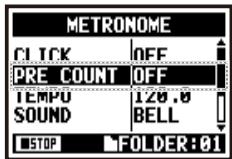

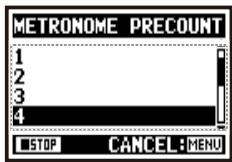
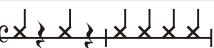
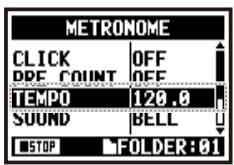

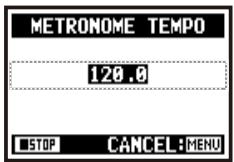

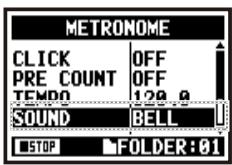

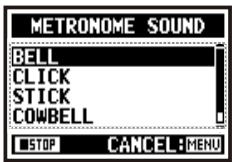
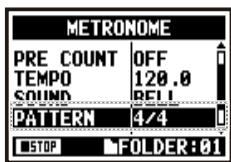

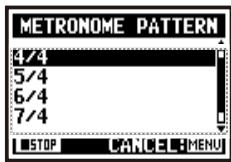
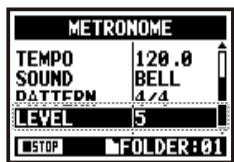

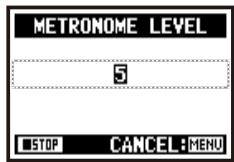
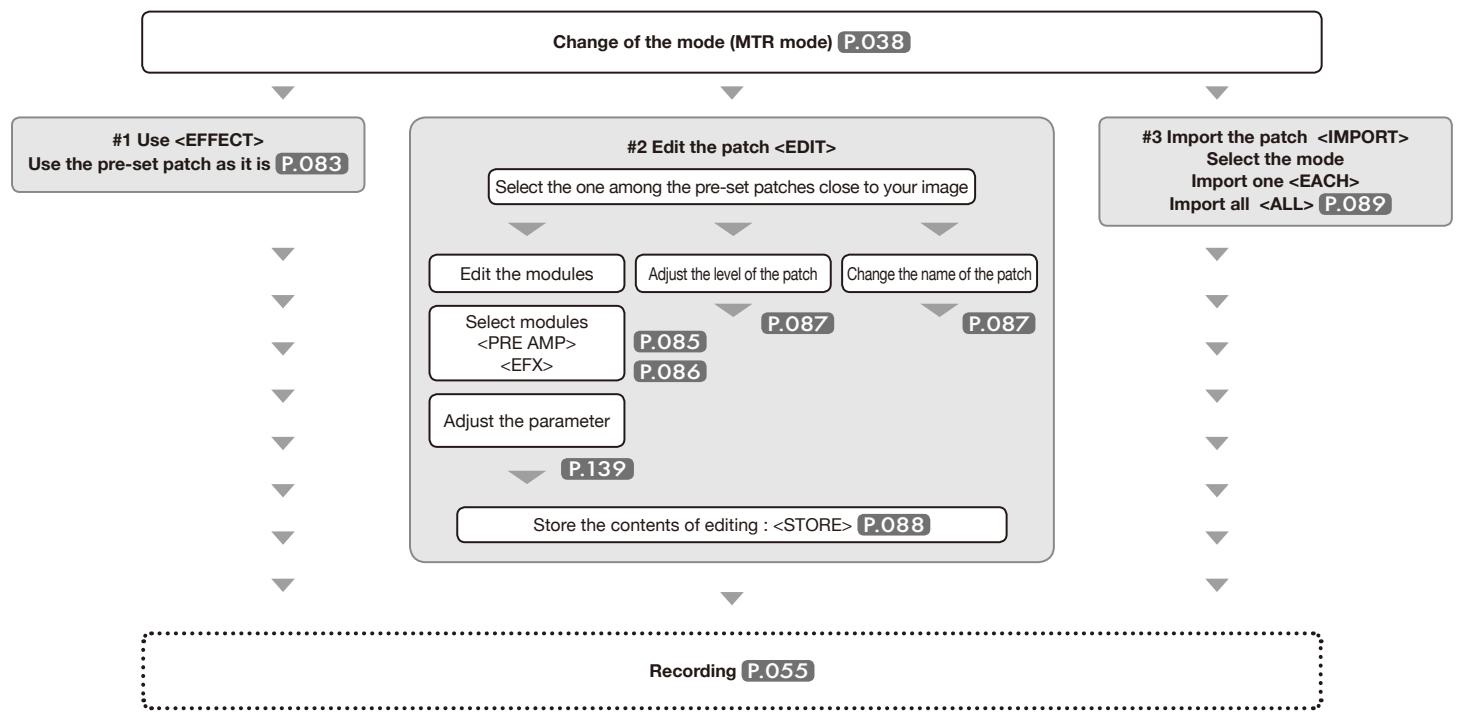
![ZOOM H4NEXT - About input and output of [EFFECT] - 1](/content/2025/01/152221/images/05e6a8475a1a61066f53c53f116dba8cb91738aa59bc8707909057c55533b165.jpg)
![ZOOM H4NEXT - About input and output of [EFFECT] - 2](/content/2025/01/152221/images/3e35ec6e2ad34c7395a898c46fc5883922676fa1e5992fb2095fa1c84cc1dd4e.jpg)
![ZOOM H4NEXT - About input and output of [EFFECT] - 3](/content/2025/01/152221/images/98160cc657403dea80f6e5169f53ea24db9b1938194a6344d4e5982b54d934c8.jpg)
![ZOOM H4NEXT - About input and output of [EFFECT] - 4](/content/2025/01/152221/images/d46707508be701dc6d23e1412f543e346eac6deed755da37fe8b24fa44e60568.jpg)
![ZOOM H4NEXT - About input and output of [EFFECT] - 5](/content/2025/01/152221/images/1b25765ddf33c467241e050a3c7268511e9b50eaf127eb4f9841b44e06b765b2.jpg)
![ZOOM H4NEXT - About input and output of [EFFECT] - 6](/content/2025/01/152221/images/1a5b5c0d6c125d428bc61e20f3e20d0510c7c3cfcb05420f265e2f9a76ce7994.jpg)
![ZOOM H4NEXT - About input and output of [EFFECT] - 7](/content/2025/01/152221/images/c09222c0b305a4dd8c1c6f28fed0539288e92377fbb9ac60464413361a5903f2.jpg)
![ZOOM H4NEXT - About input and output of [EFFECT] - 8](/content/2025/01/152221/images/ca6d1109dd64147070cb4307dec0bba8e3cbc55f3ed8e3c7059f8c056f6e5b56.jpg)
![ZOOM H4NEXT - About input and output of [EFFECT] - 9](/content/2025/01/152221/images/ee10767323803ebdf13332adbd07e2dd3d088442ac4dc0e05bac812f5db042b6.jpg)
![ZOOM H4NEXT - About input and output of [EFFECT] - 10](/content/2025/01/152221/images/9aecd8c640687186dcf2cf71f08e2f14824d3a9120b03fab31efe7e14cb65b1b.jpg)
![ZOOM H4NEXT - About input and output of [EFFECT] - 11](/content/2025/01/152221/images/e43cfcf07fc5badd298498c19aee071e7cc21e8345f9e0c8b6e9306b3d4beab8.jpg)
![ZOOM H4NEXT - About input and output of [EFFECT] - 12](/content/2025/01/152221/images/4ac9b036355024de3db85c7d41e2cce0afb6ed58289eb073bf4741460487ec08.jpg)
![ZOOM H4NEXT - About input and output of [EFFECT] - 13](/content/2025/01/152221/images/cbfdff4f5423bec5598b8c3f46f56b1ae6fcd463824dc2da296a9a39c09400fa.jpg)
![ZOOM H4NEXT - About input and output of [EFFECT] - 14](/content/2025/01/152221/images/985ace12b7bef460499b6580ed2bd52c80ebfa5df43ae4261a839144cebca6fd.jpg)
![ZOOM H4NEXT - About input and output of [EFFECT] - 15](/content/2025/01/152221/images/68d6d3fb1804bb571b5f193b5cbc84afdd4853341efba6e234d4eabe9c020fbc.jpg)
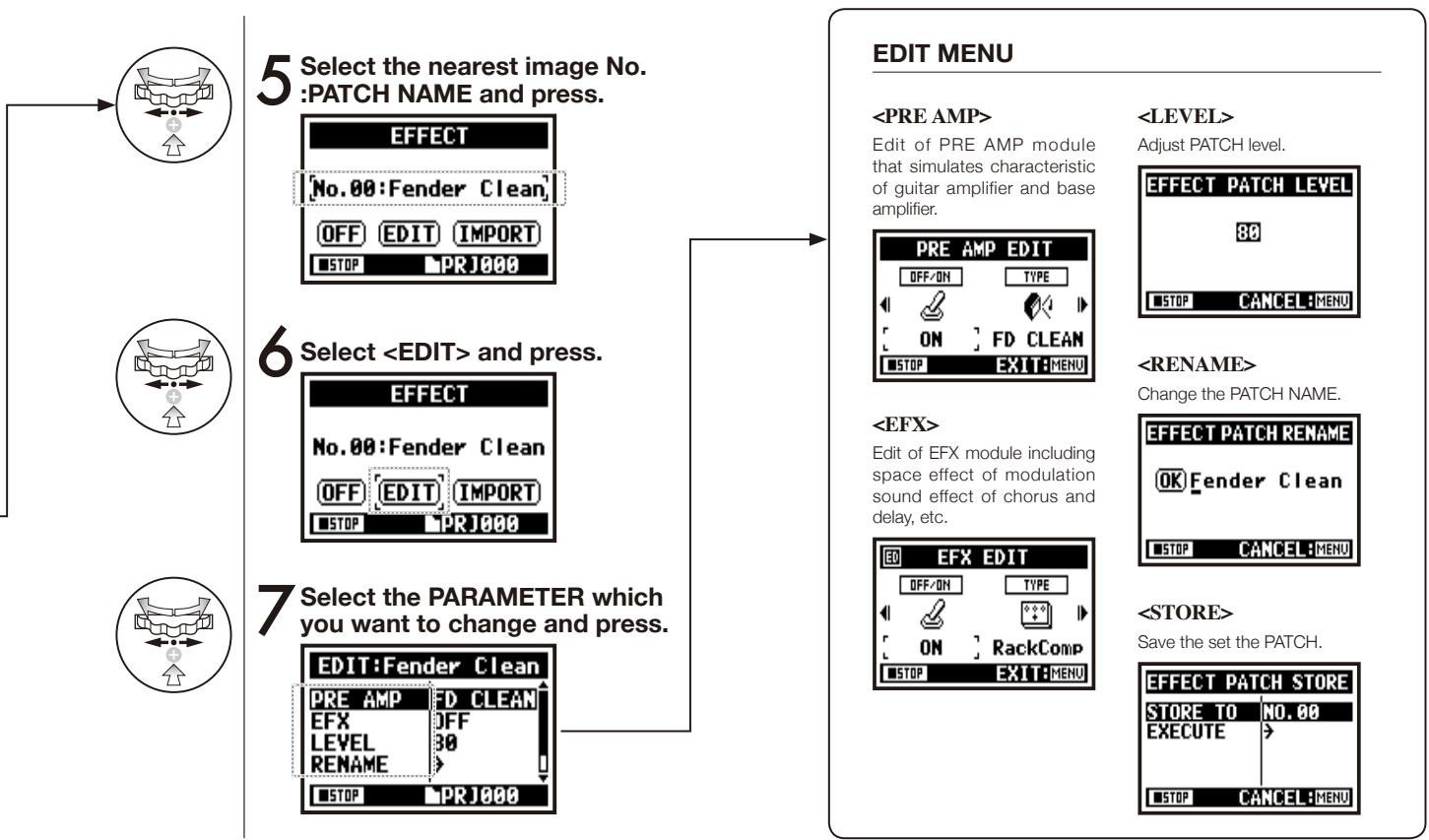
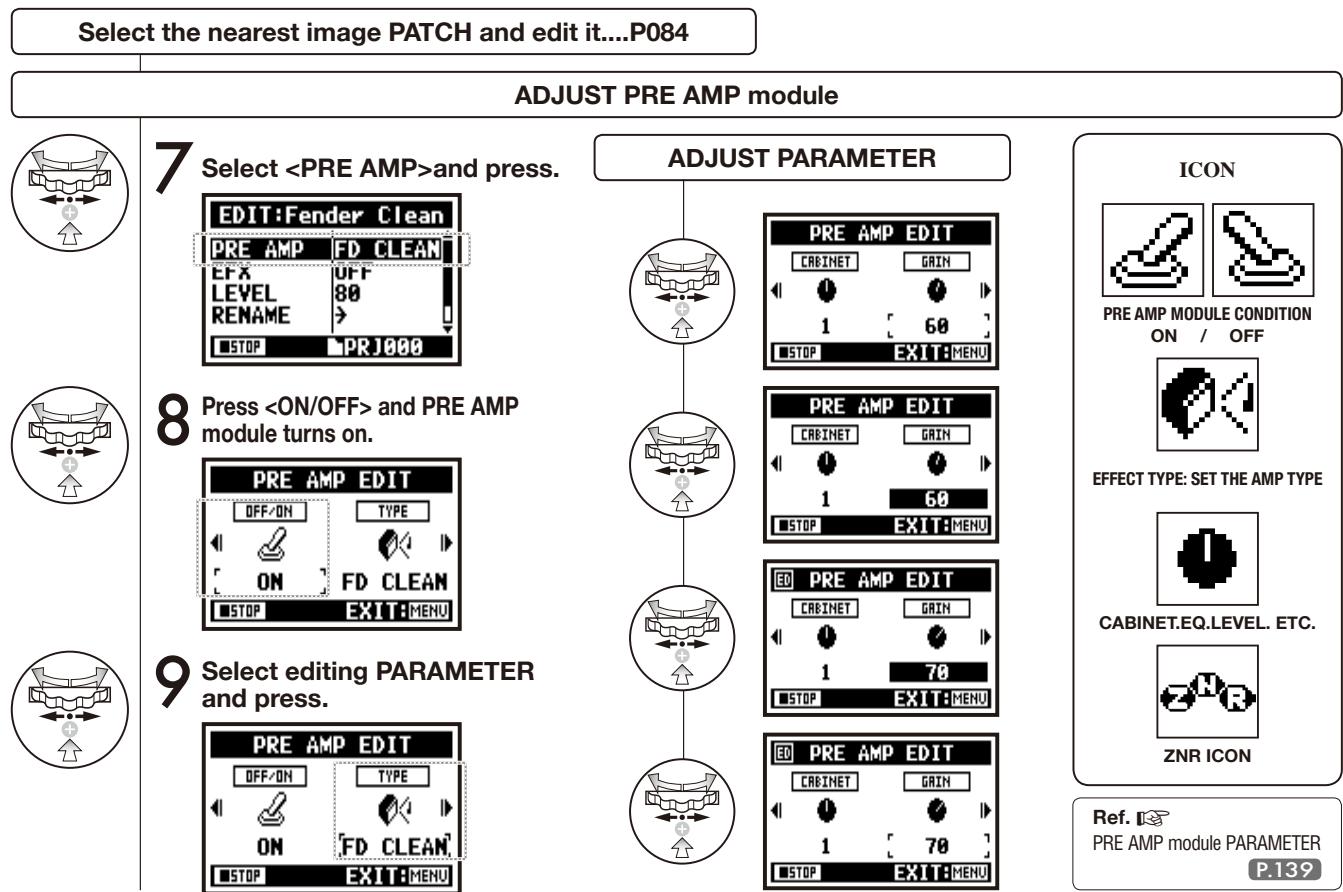
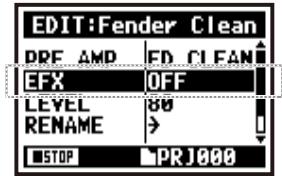
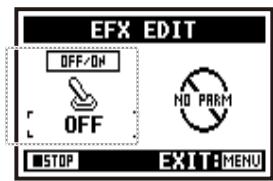
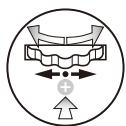
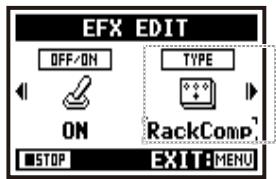
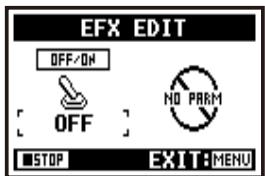

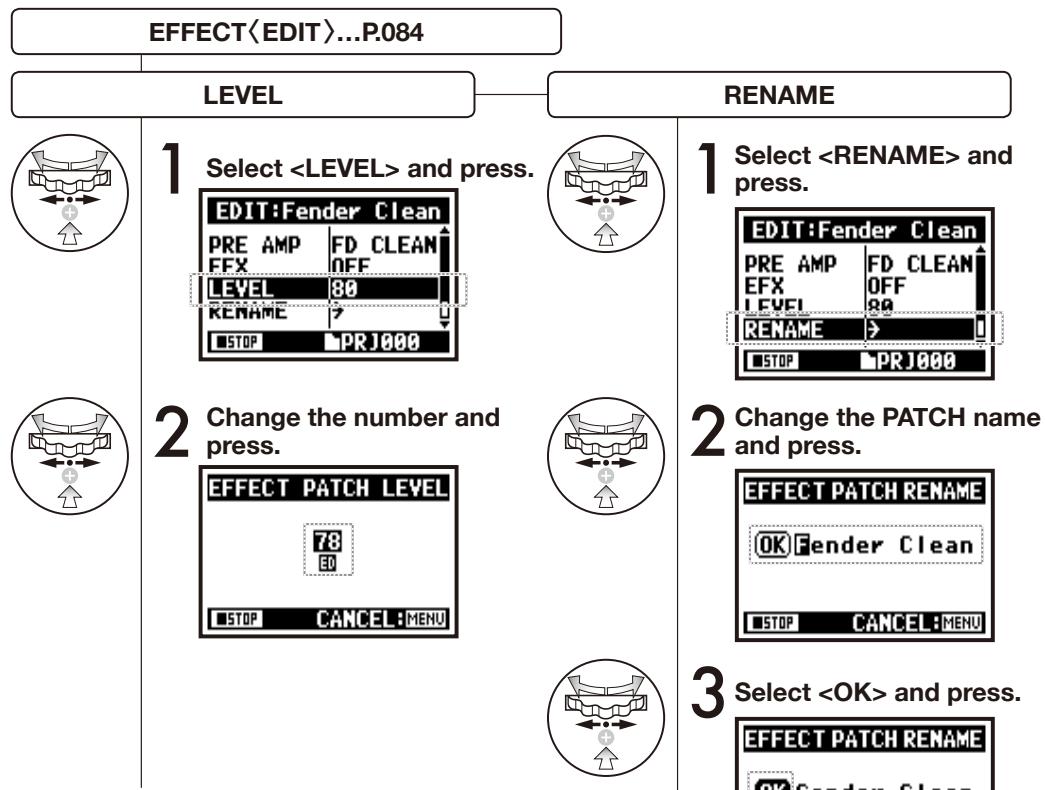
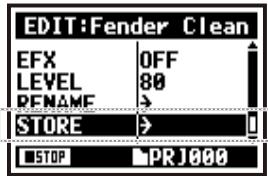
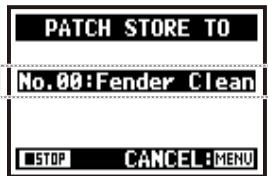
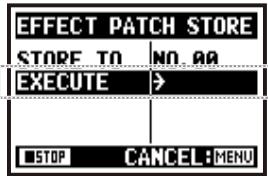
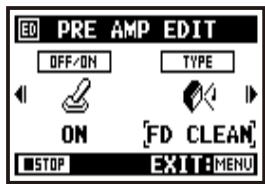
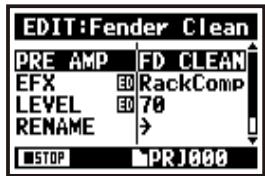
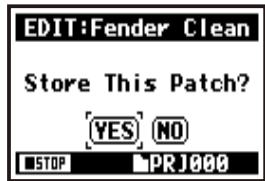
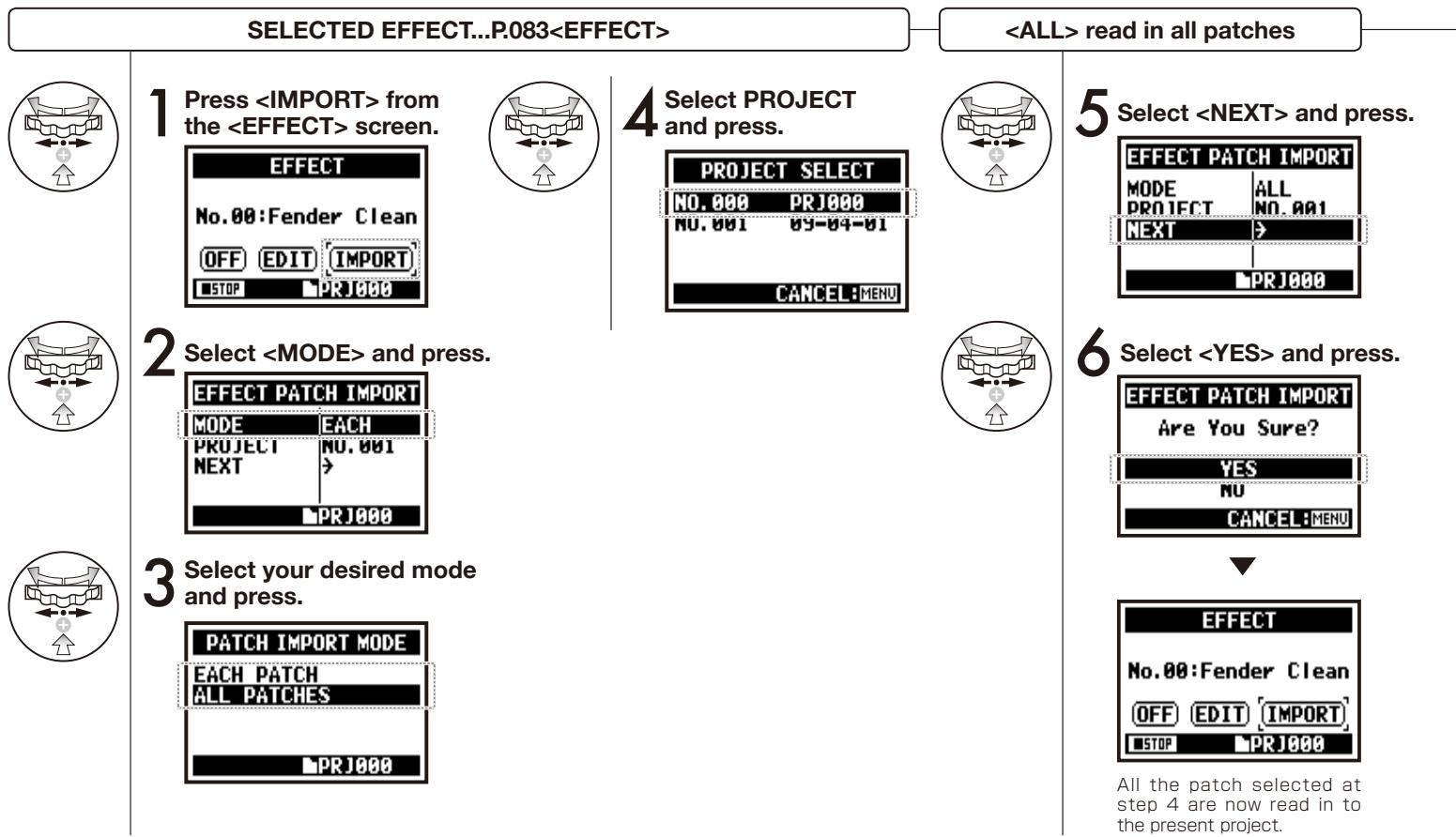
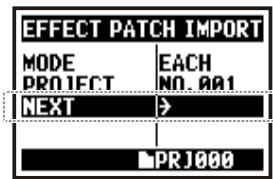
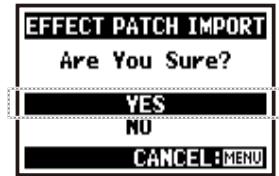

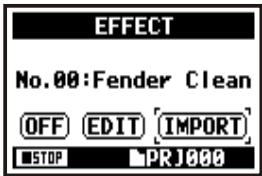
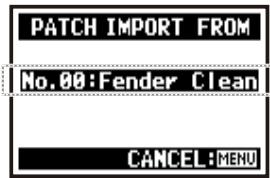
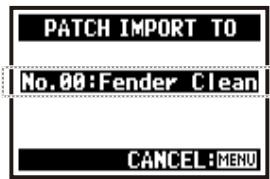
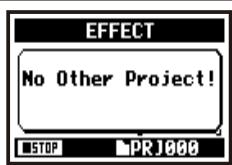
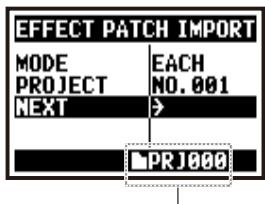
![ZOOM H4NEXT - [Flow of the KARAOKE] - 1](/content/2025/01/152221/images/e7737517a9b90e9e36da287c76b88af903b9fbec29a09a675248e15454925293.jpg)
![ZOOM H4NEXT - [Flow of the KARAOKE] - 2](/content/2025/01/152221/images/ce1bdc62988b90e15b8529d51c38c3d0a1a1e3ebd11fc3fa3c6d807550f1d0a5.jpg)
![ZOOM H4NEXT - [Flow of the KARAOKE] - 3](/content/2025/01/152221/images/b9f7b64a87e9ad18f607035b2633650e7414e54e3349b06cba3cb3c11a9ecba6.jpg)
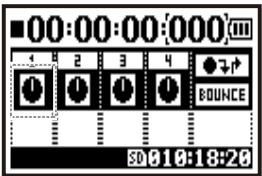
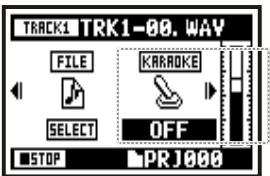
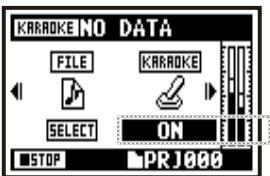
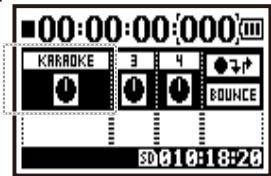
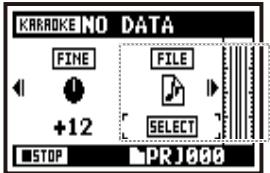
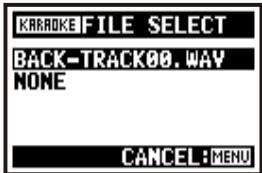
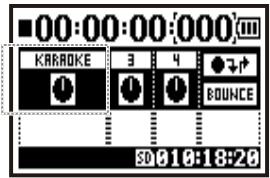
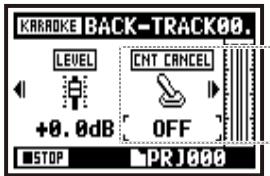
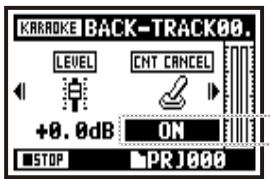
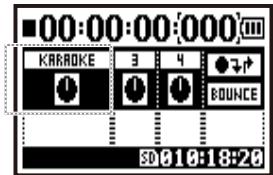
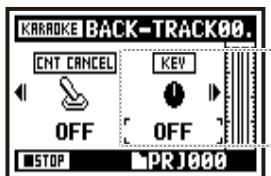
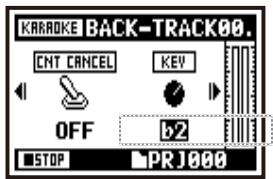
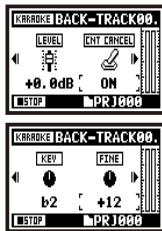
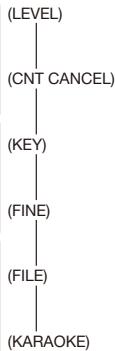
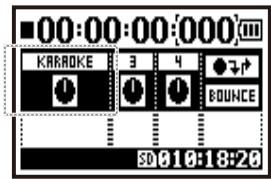
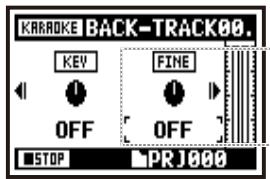
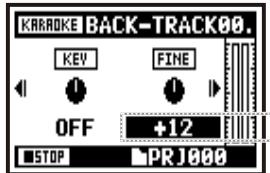
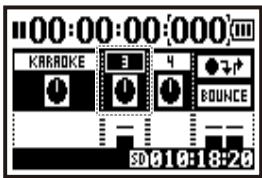


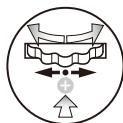
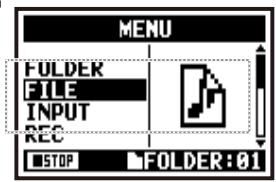
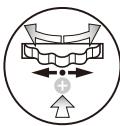
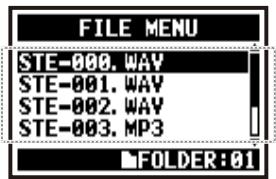
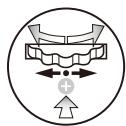
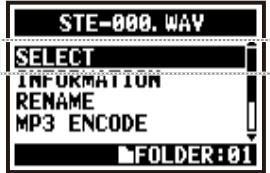
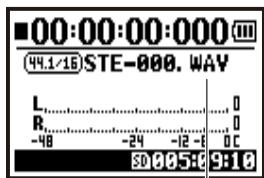
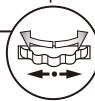


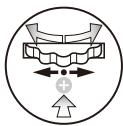
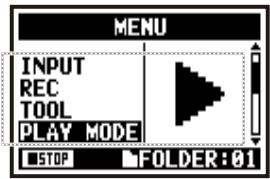
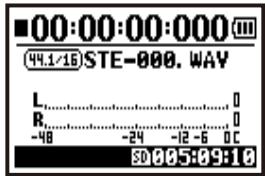
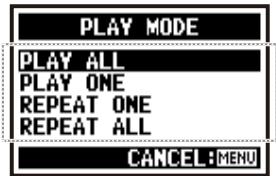
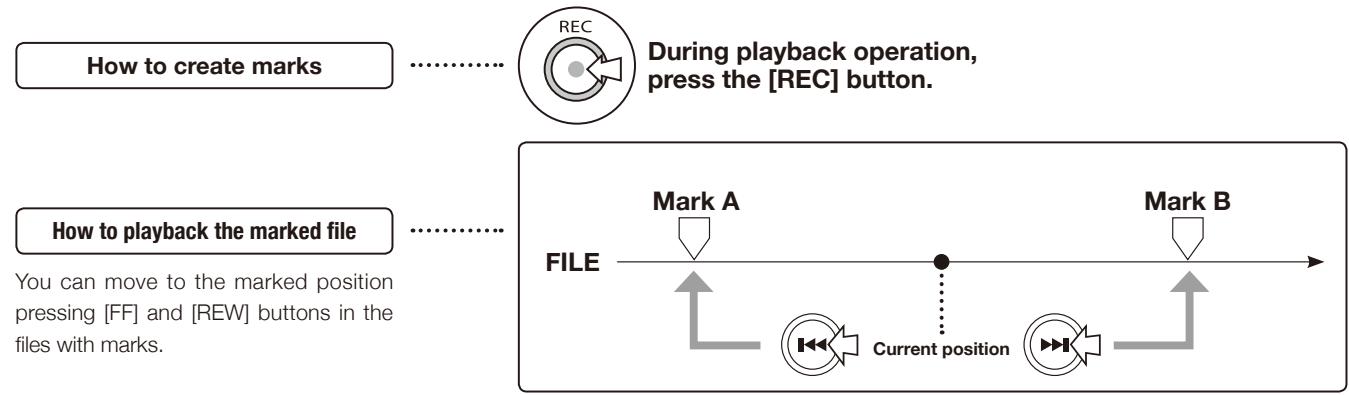
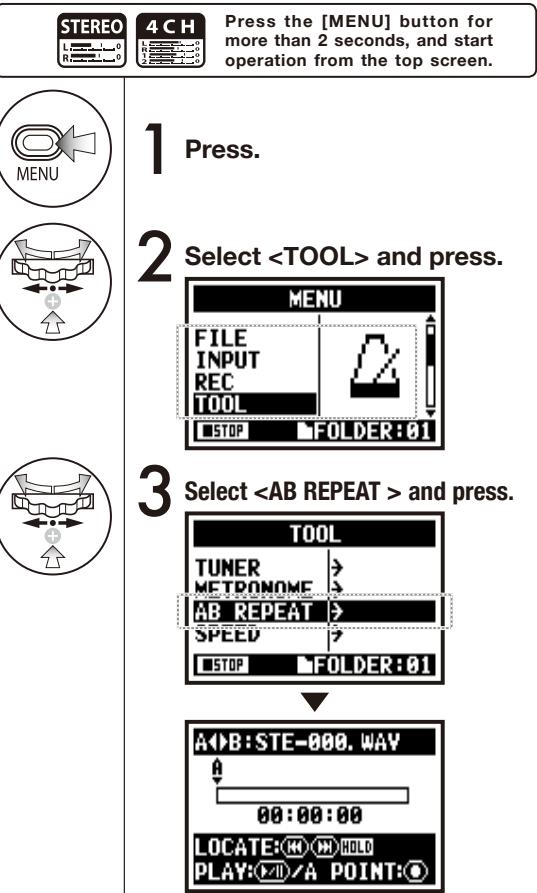
![ZOOM H4NEXT - [START PLAYBACK] Press. - 1](/content/2025/01/152221/images/c684ce224e60d800862e9b2080d0c867a9e332f0370816810ba67728e60d555d.jpg)
![ZOOM H4NEXT - [START PLAYBACK] Press. - 2](/content/2025/01/152221/images/bb5a68c0aa20c81e23645787c57677a4944ec0bdad9a03db23e7381168b73e23.jpg)
![ZOOM H4NEXT - [Set up point A] Press. - 1](/content/2025/01/152221/images/3d0b509014fe19c0a90660dd5695b353b73b710e35613cb41c34f2d40f34c213.jpg)
![ZOOM H4NEXT - [Set up point A] Press. - 2](/content/2025/01/152221/images/50ab2fd8fb22db88499c80d541b1e8dcbea54b1eca3c6e0c223dfcd489f6f991.jpg)
![ZOOM H4NEXT - [Set up point B] Press. - 1](/content/2025/01/152221/images/60db1a5326f24bf1e0cec03433bd996080f6c52e219c7148e6962b29c9d0988d.jpg)
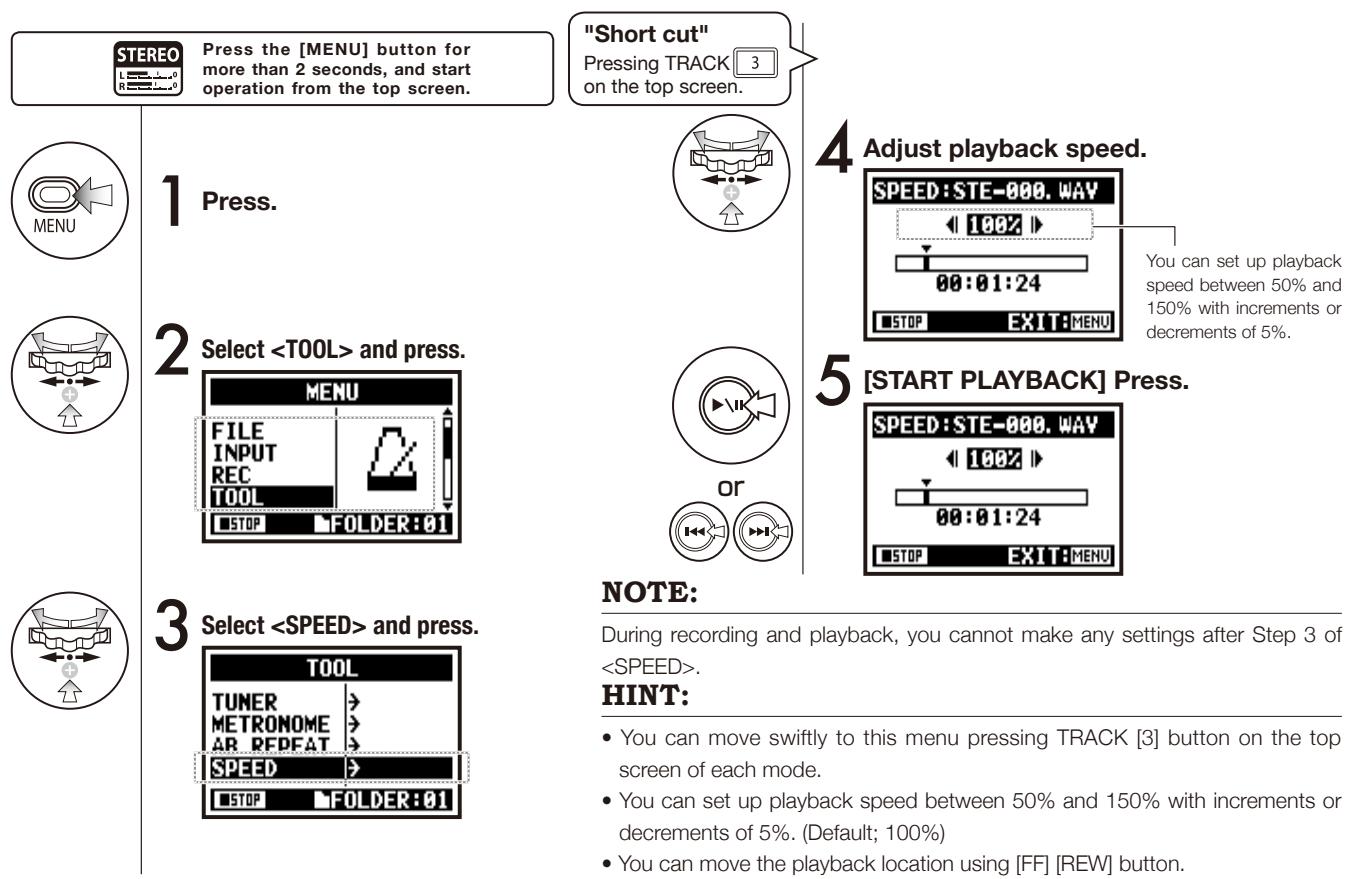
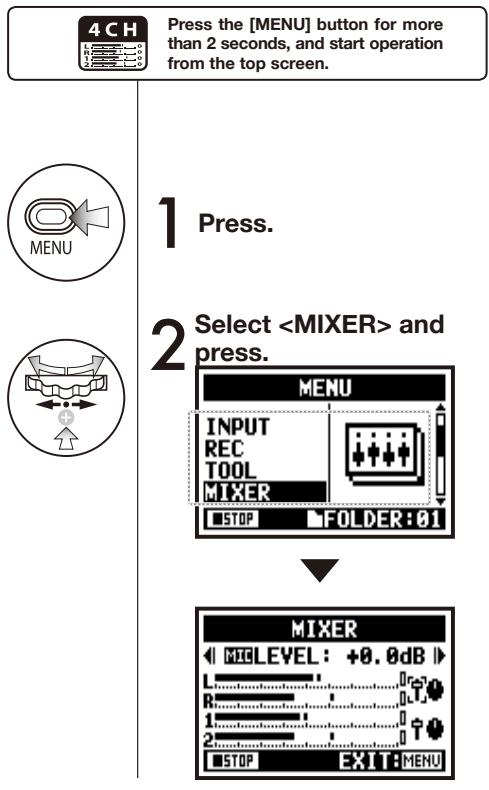
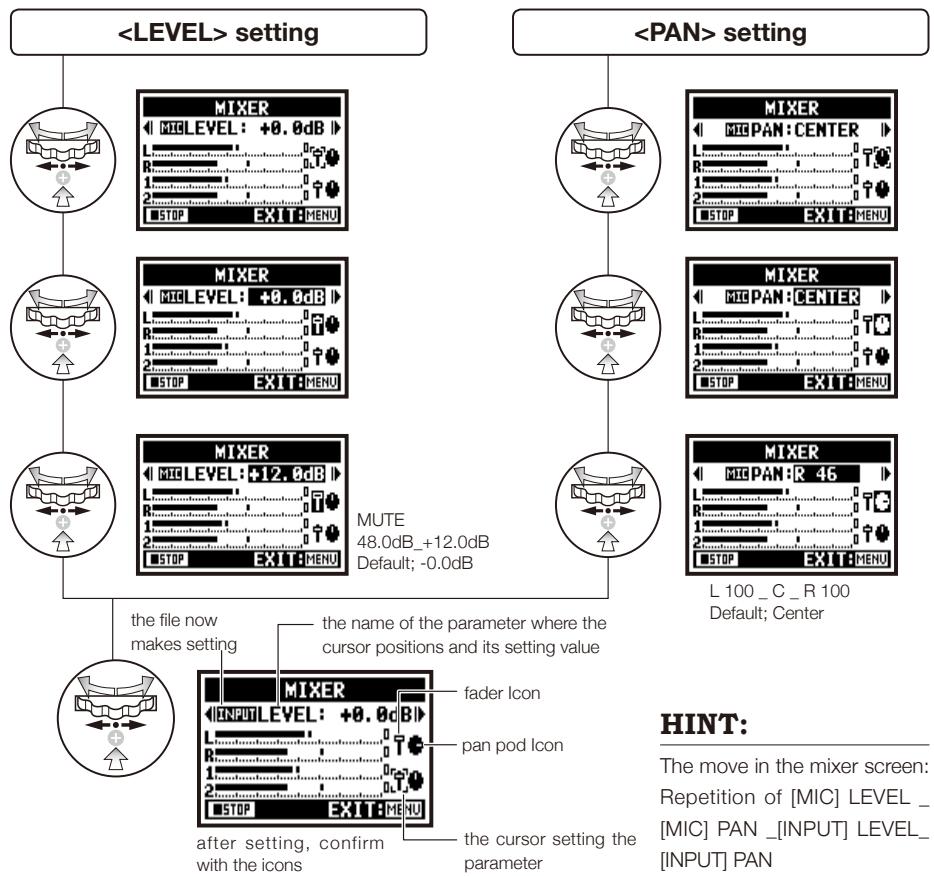
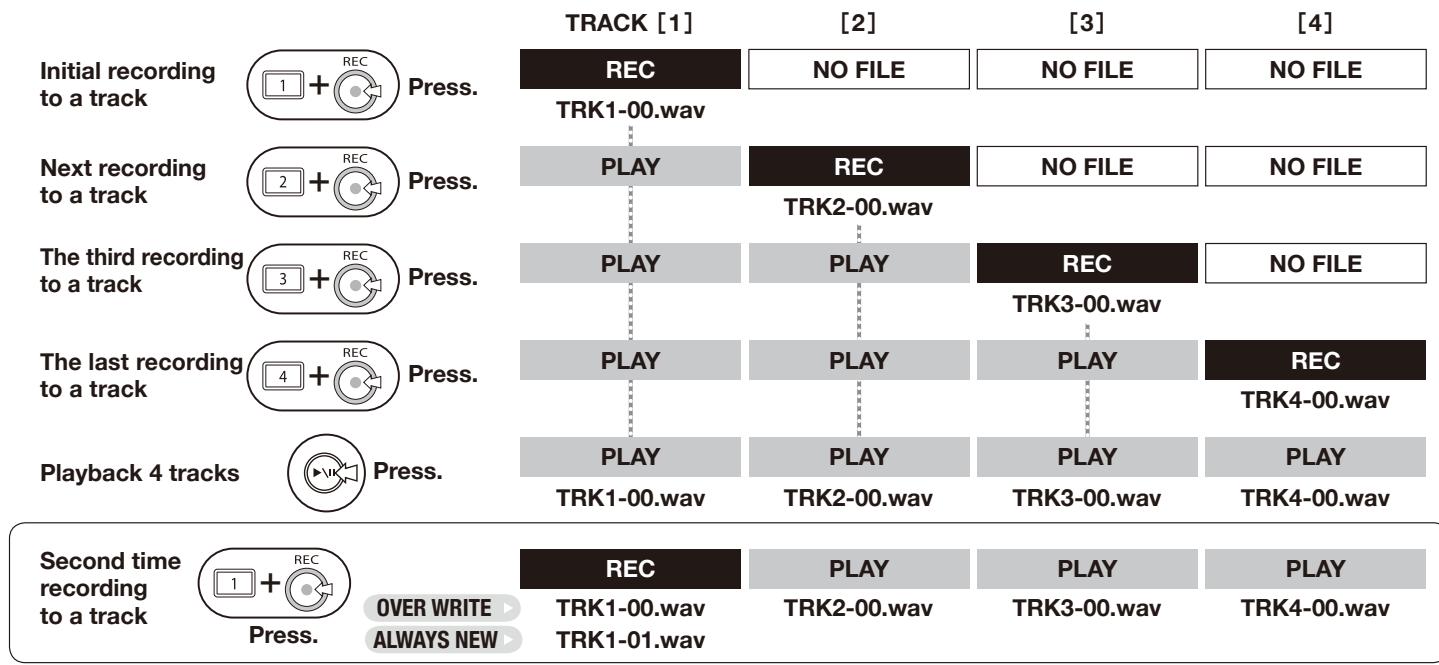


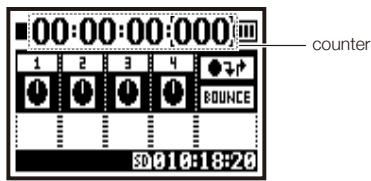
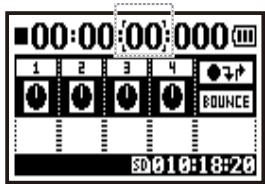
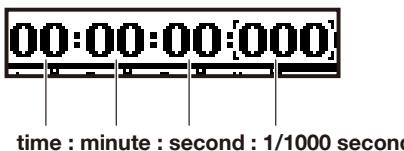
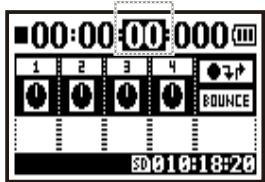
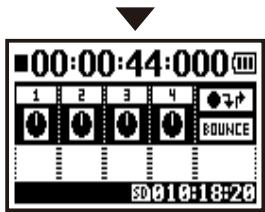
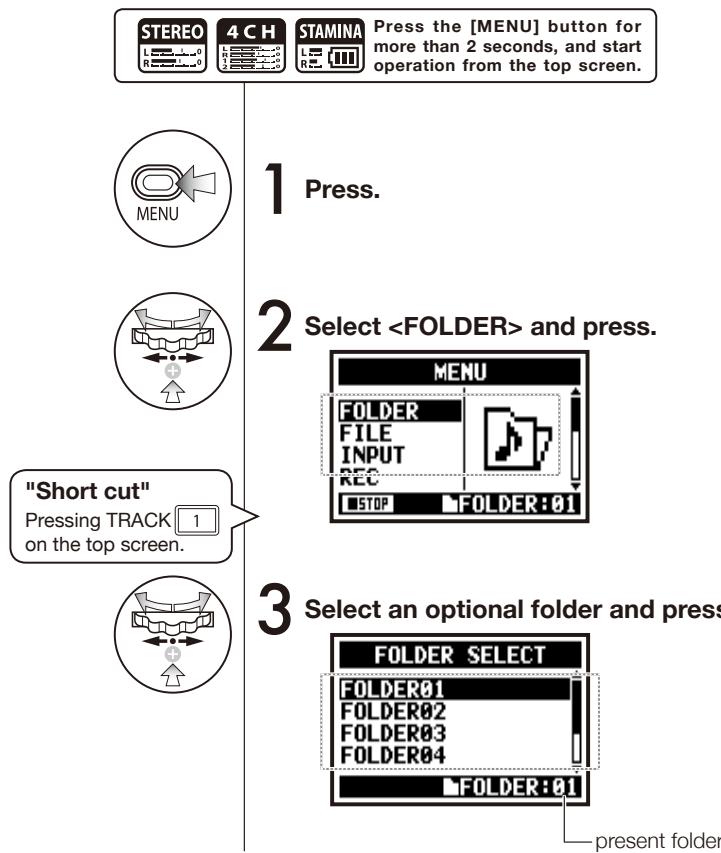
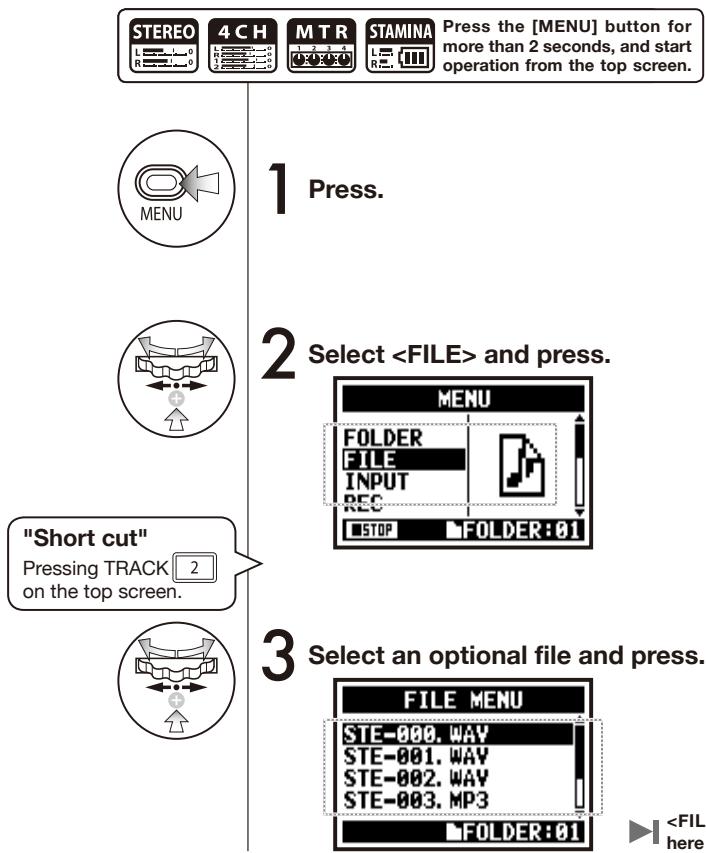
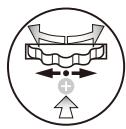
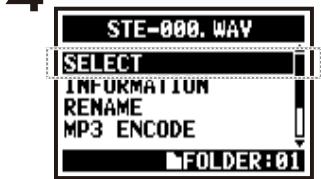
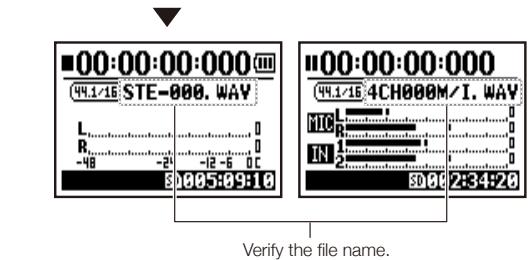
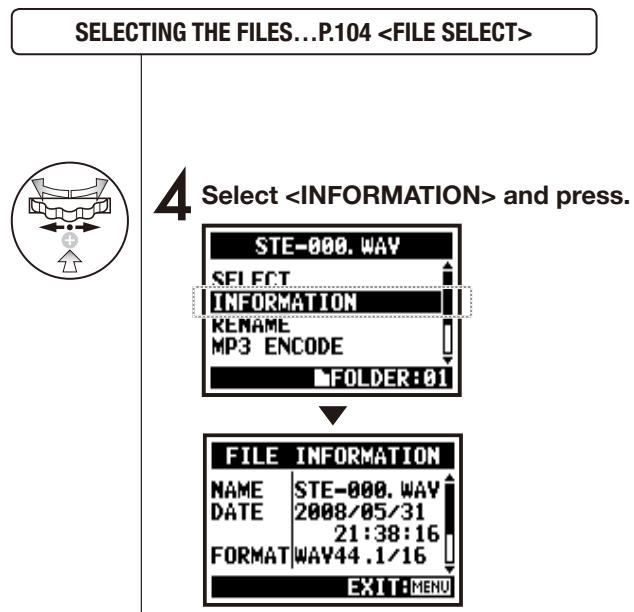
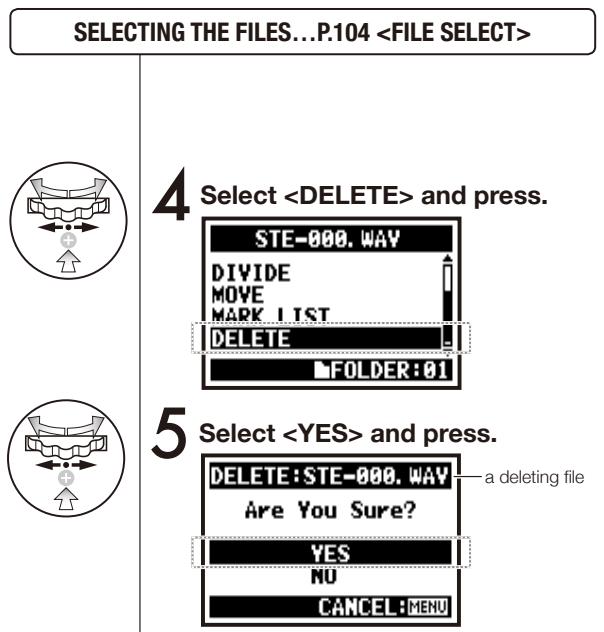
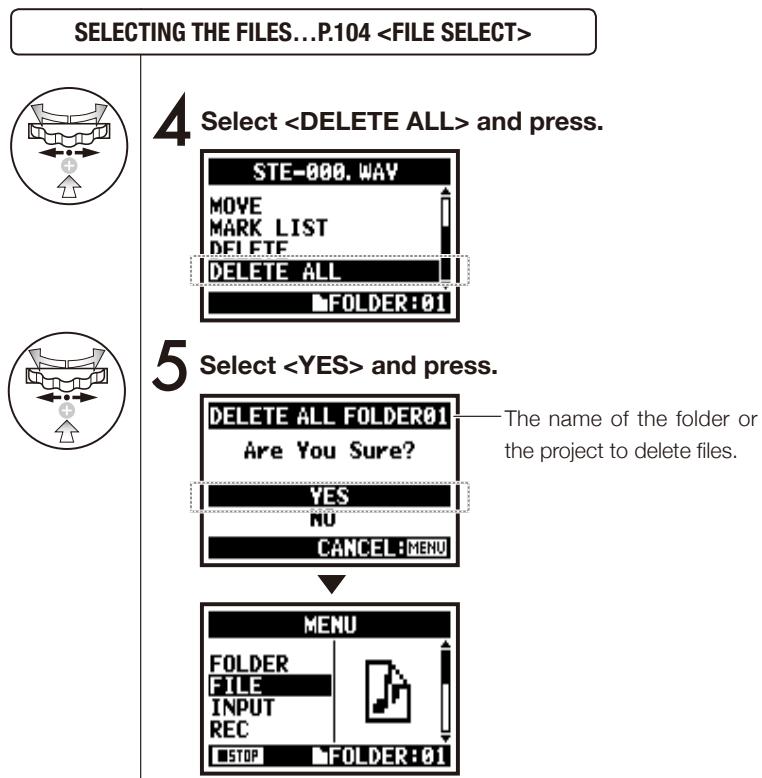
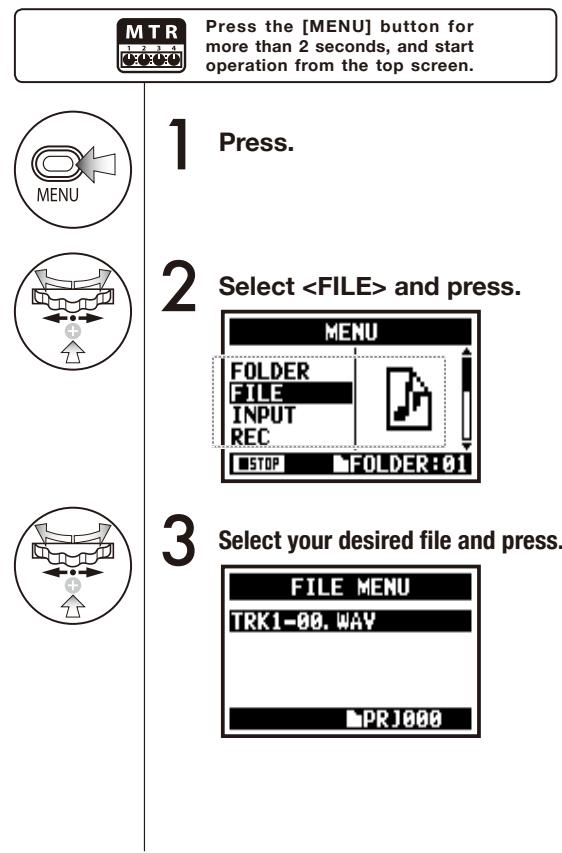
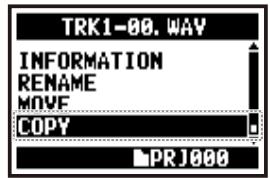
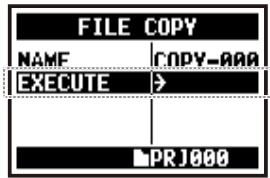
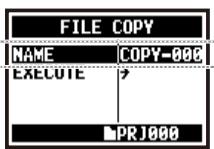
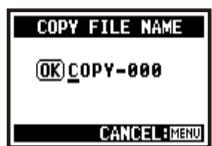
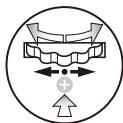
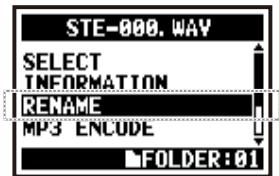
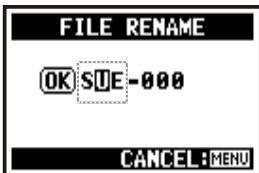
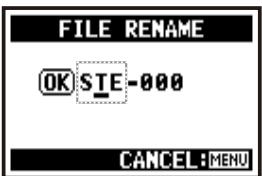
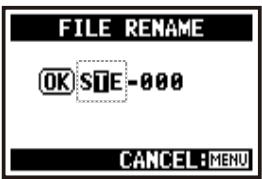
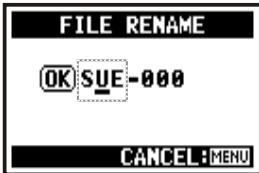
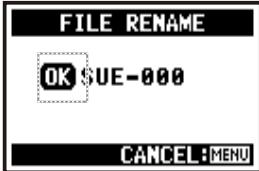
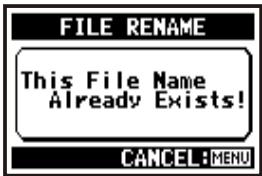
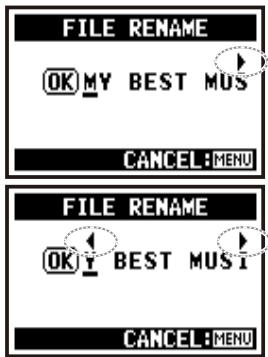
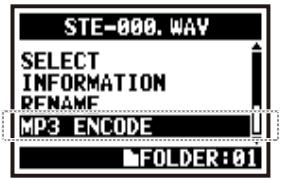
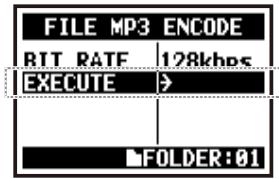
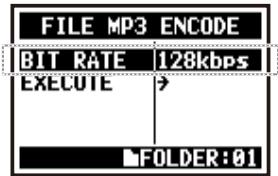
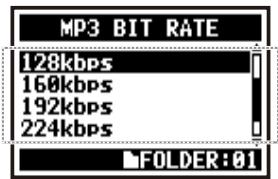
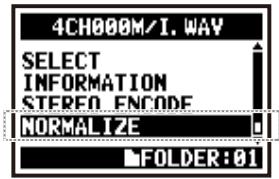
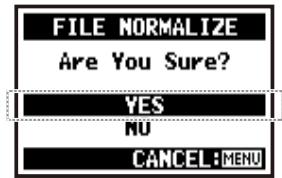
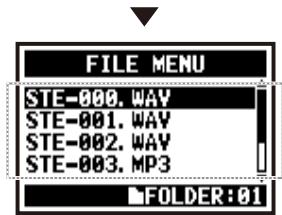
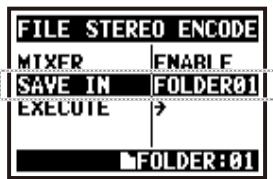
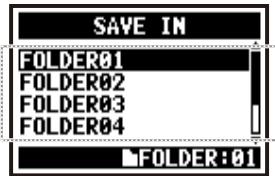
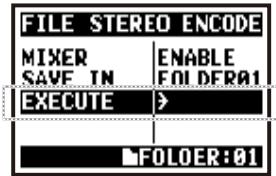
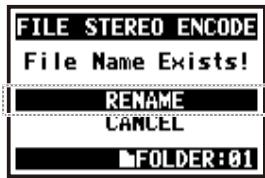
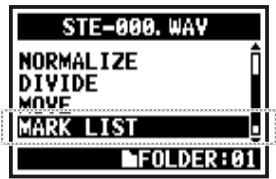

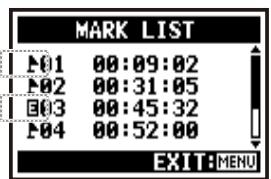
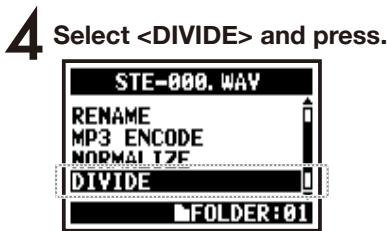
![ZOOM H4NEXT - [START PLAYBACK] Press. - 1](/content/2025/01/152221/images/7455061408f6e2a87cffd4ba3f0ac81f5cce4f27d3c26bfe0972e8d480081c39.jpg)
![ZOOM H4NEXT - [START PLAYBACK] Press. - 2](/content/2025/01/152221/images/01d77d402b493739f67faed61b25a4d9d6caf4b342ebd4494c952b1694a01abe.jpg)
![ZOOM H4NEXT - [START PLAYBACK] Press. - 3](/content/2025/01/152221/images/c4368b7dfd2cb9d56c64cb156cae3900b5a044466adc4209ffa29039d1516787.jpg)
![ZOOM H4NEXT - [DIVIDE POSITION] You should press at the desirable dividing spot. - 1](/content/2025/01/152221/images/210c31a8b47be6052fc6ef41ef416a9beb0f65bc8579eebe5ce219c12dc70a81.jpg)
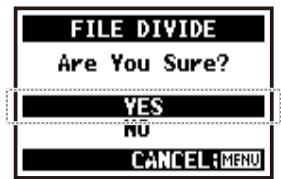
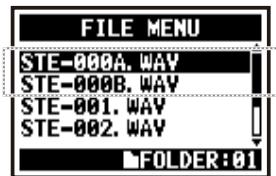

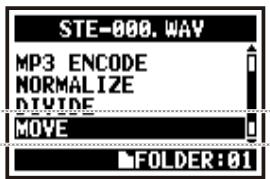
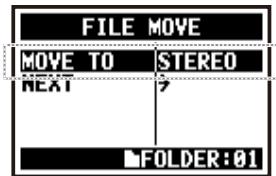
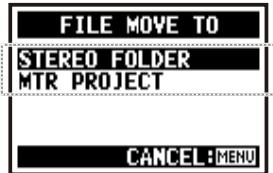
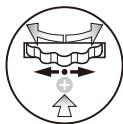
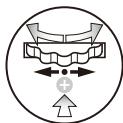
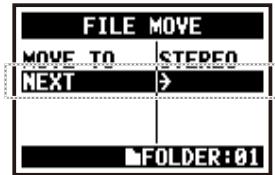
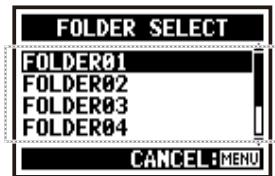
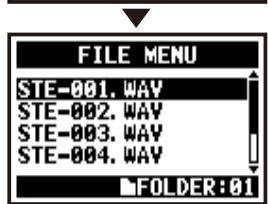
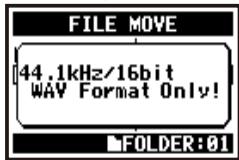
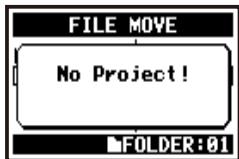
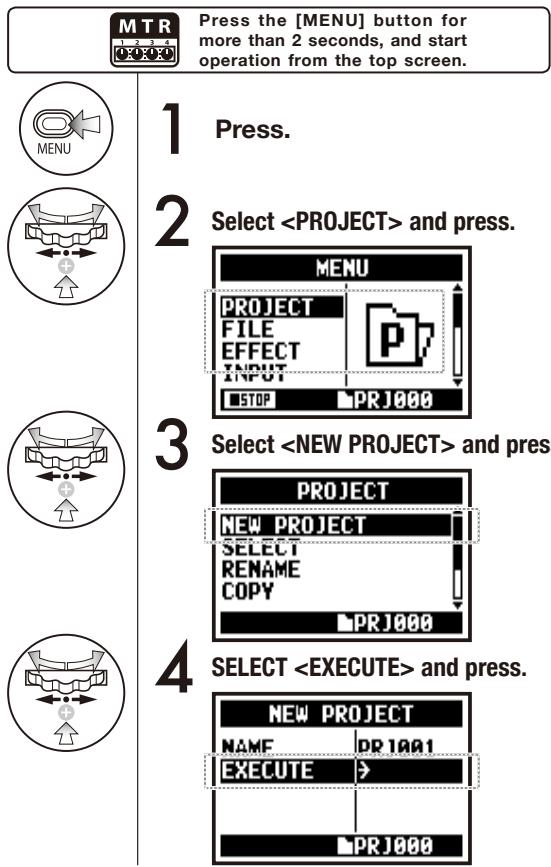
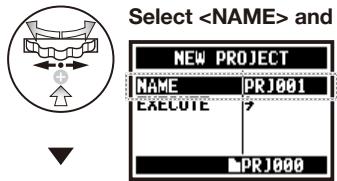
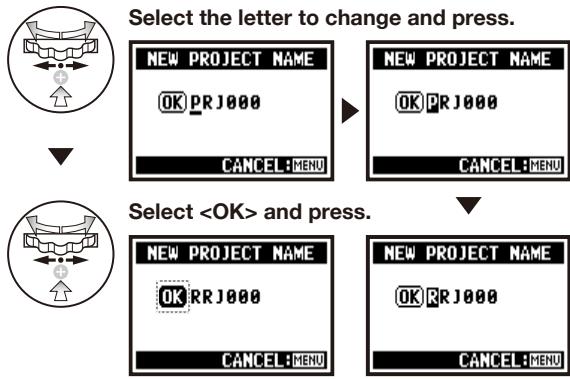
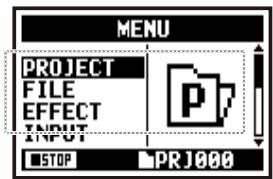
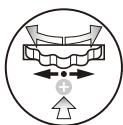
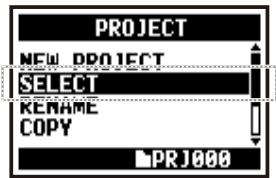
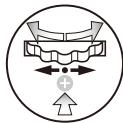
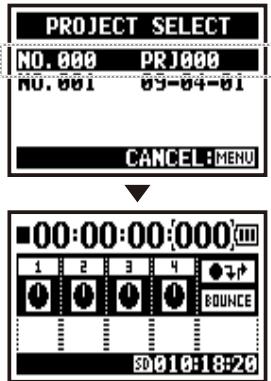
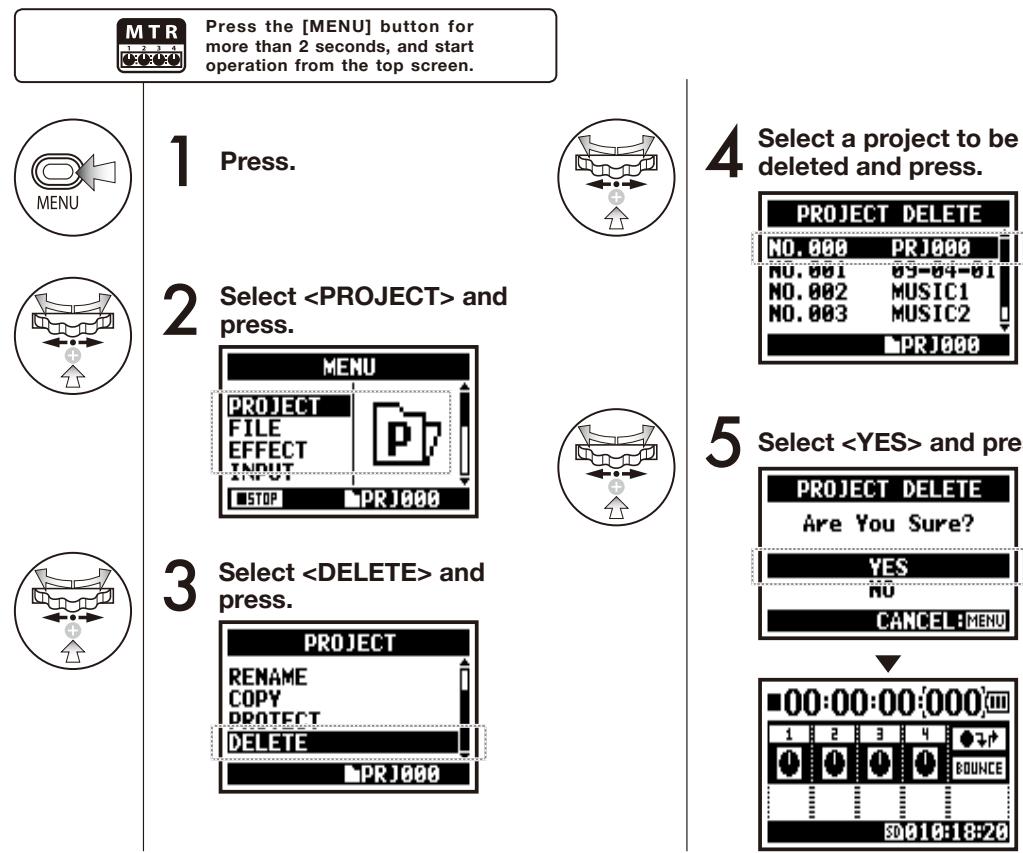

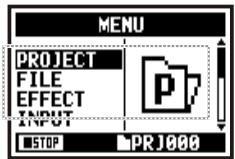
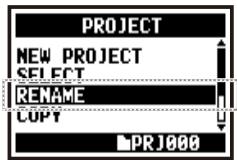
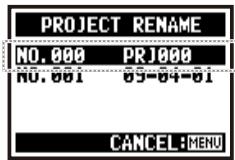
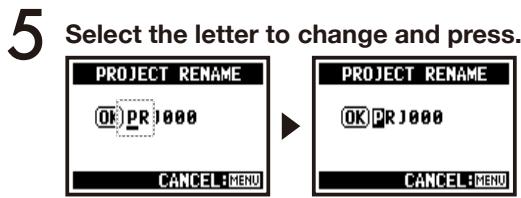
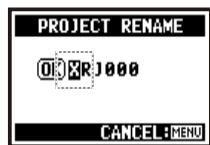
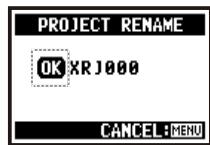

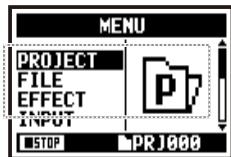
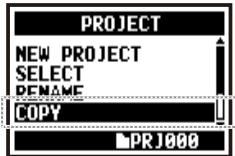
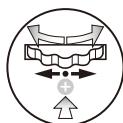
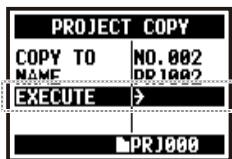
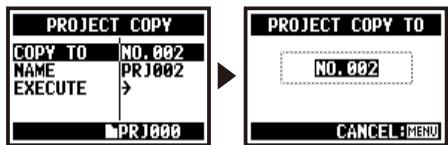
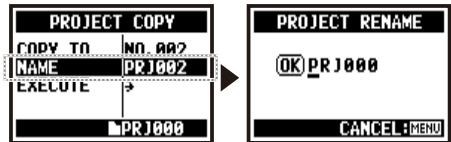
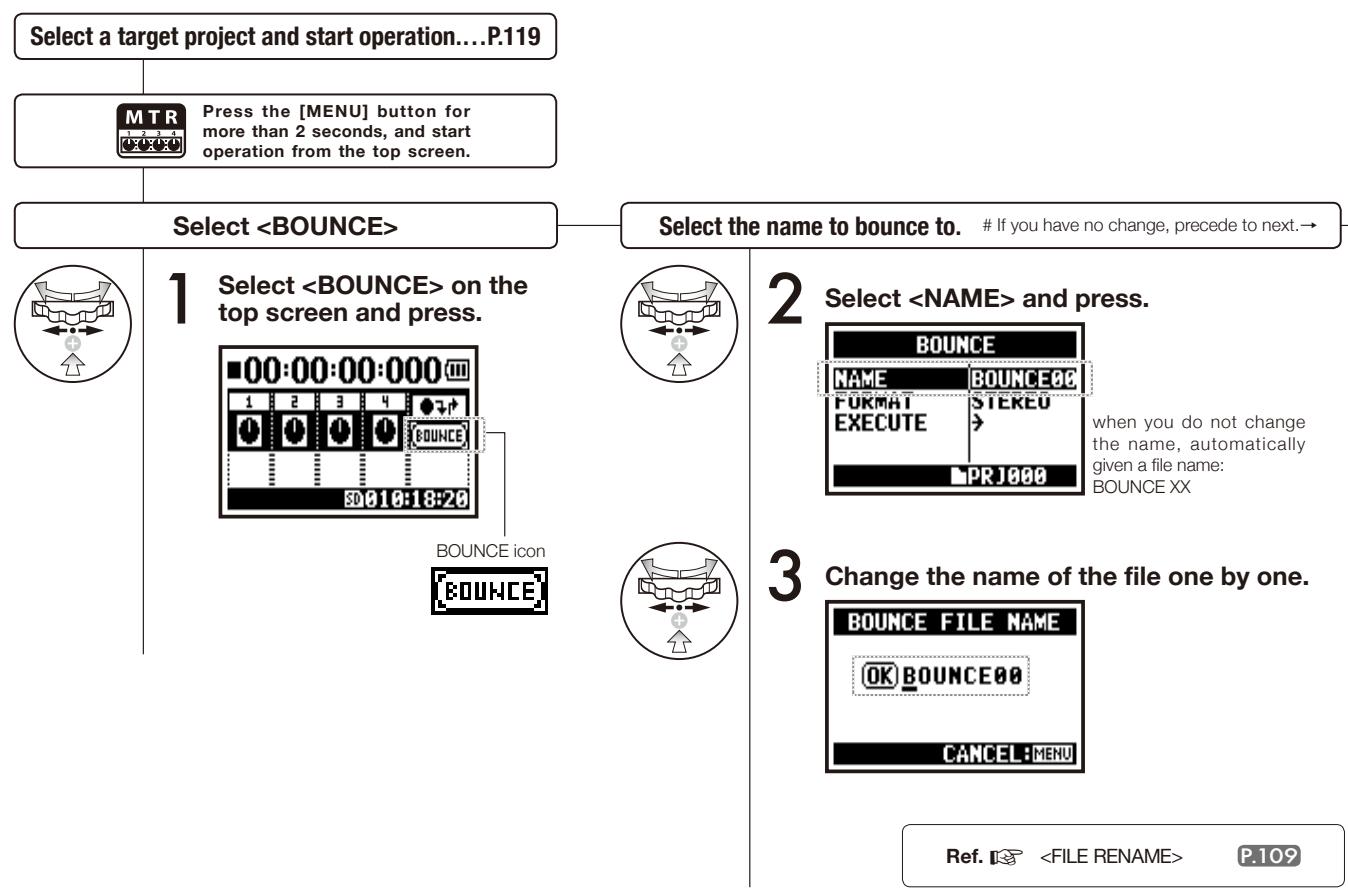
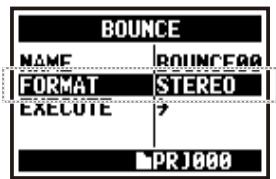
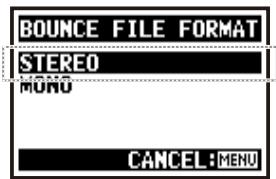
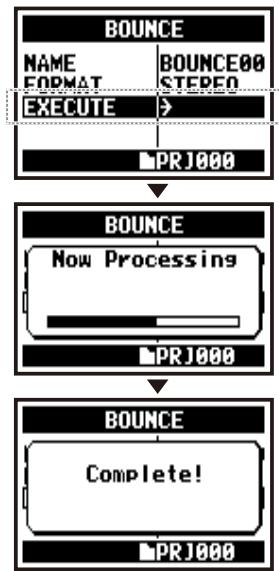
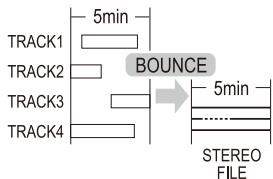

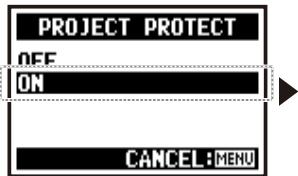
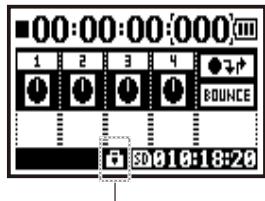
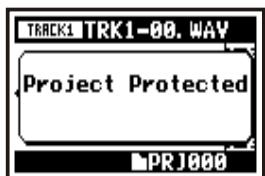

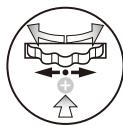
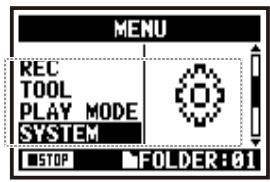
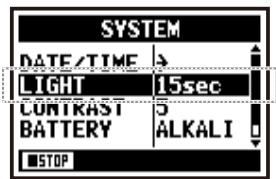
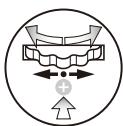
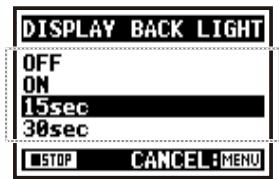
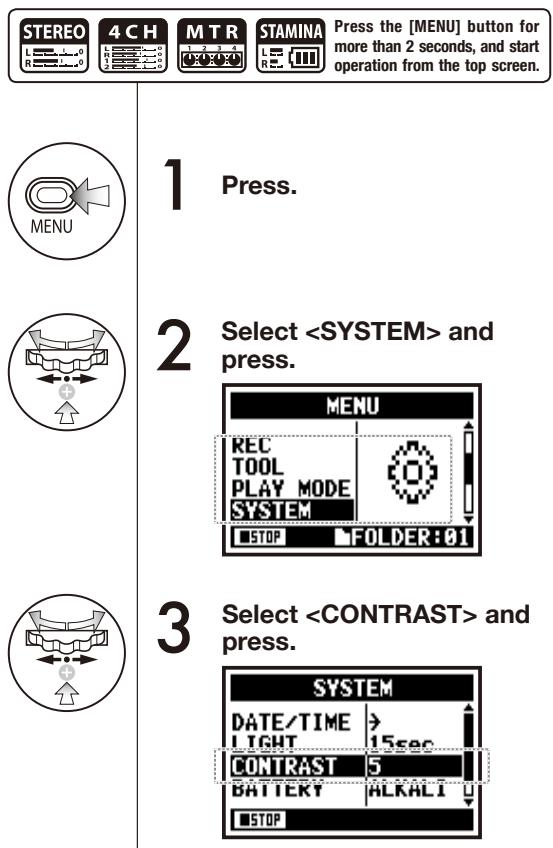
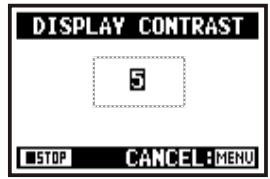
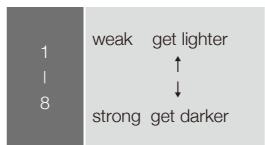
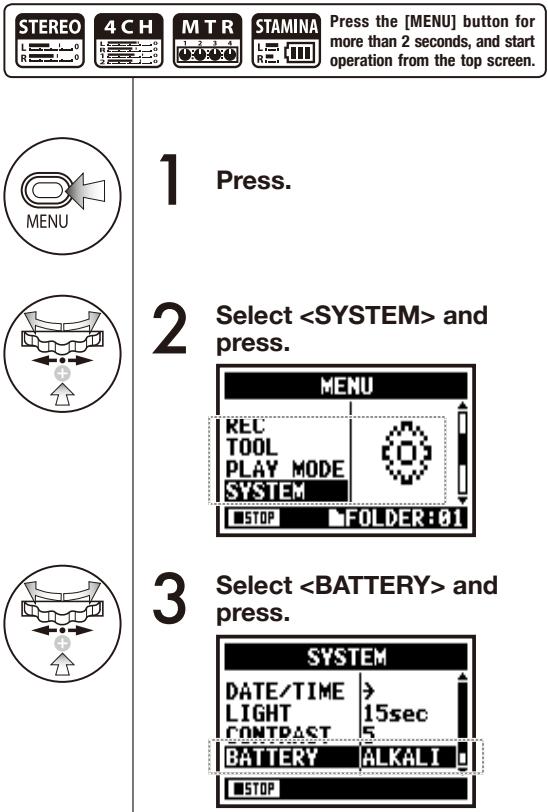
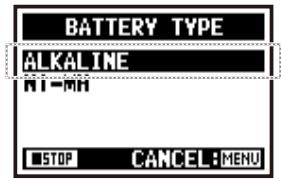
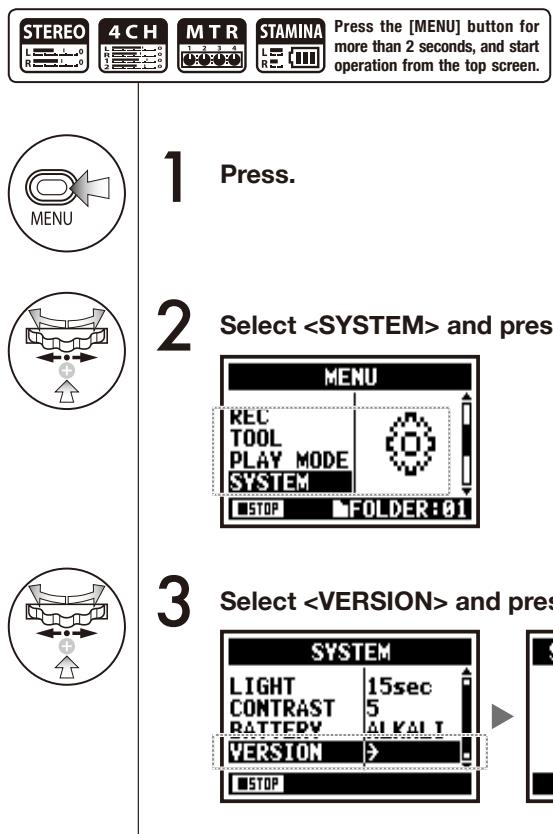

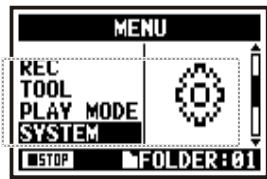
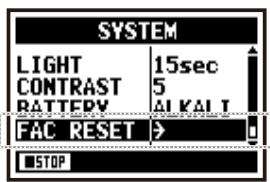
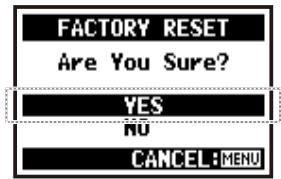
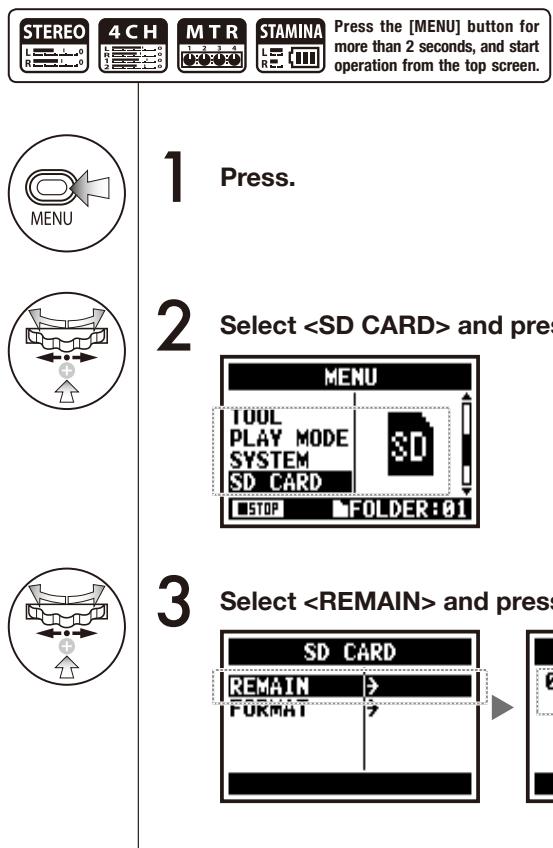


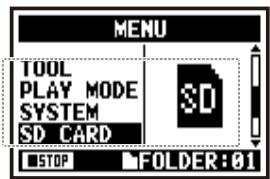
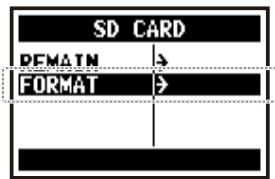
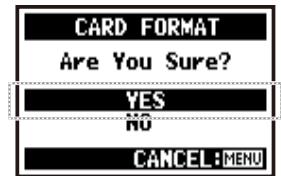
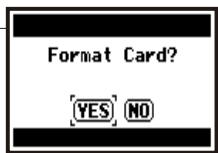
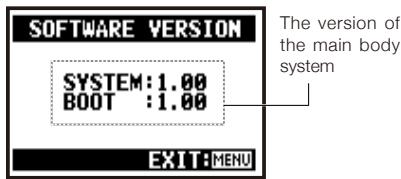

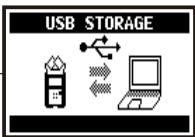
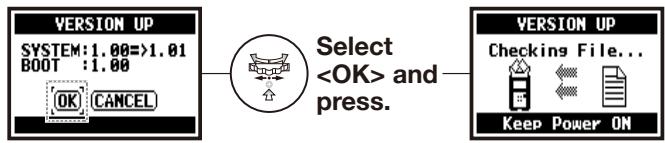
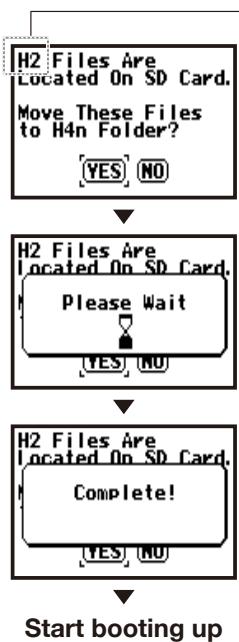
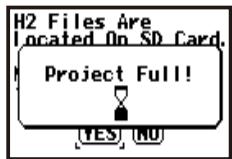
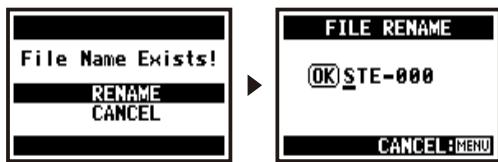



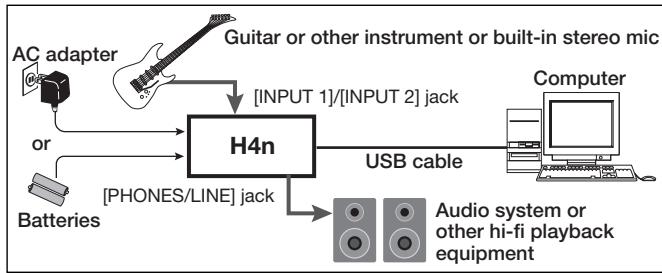

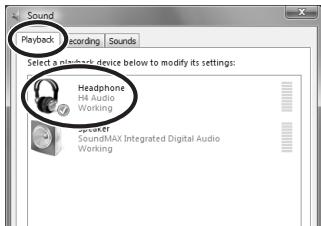
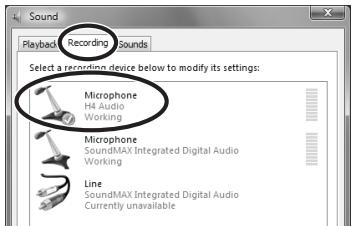

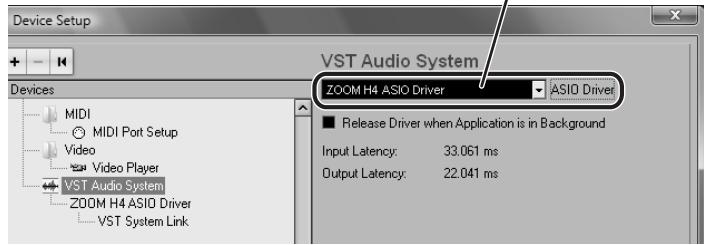
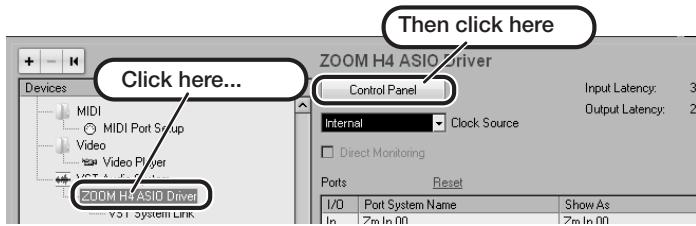



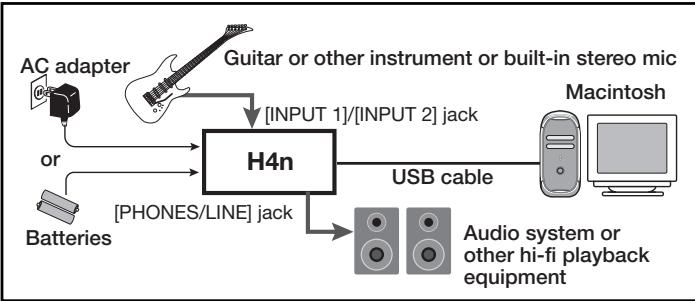

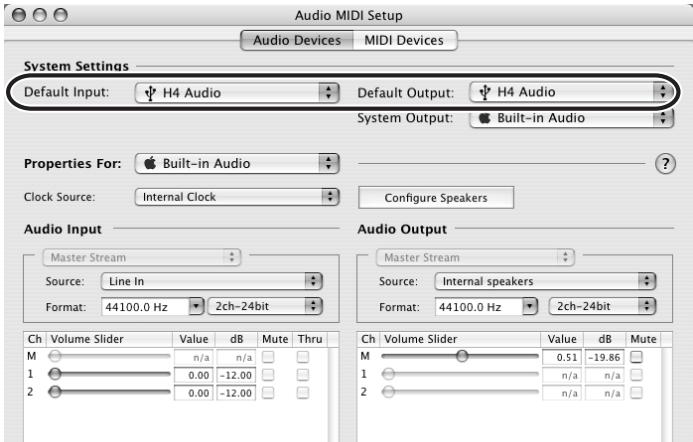

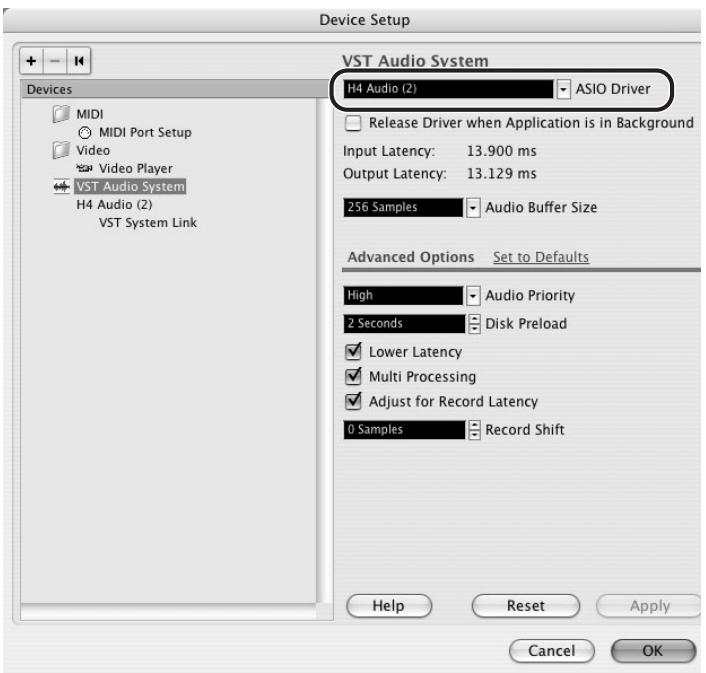

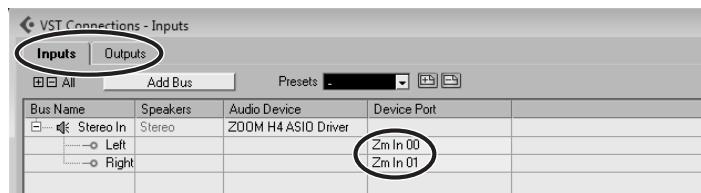
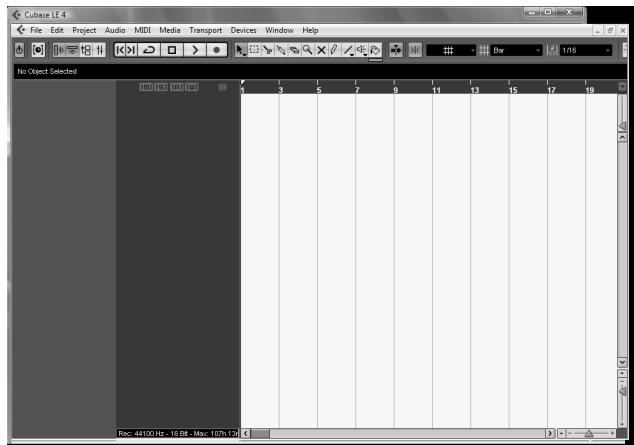
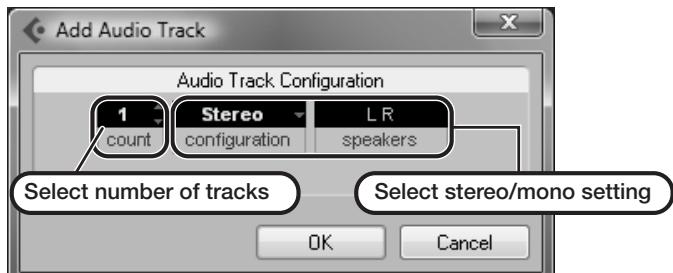
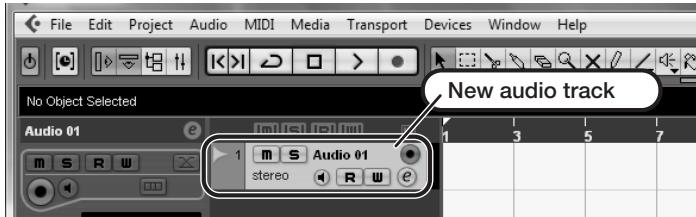
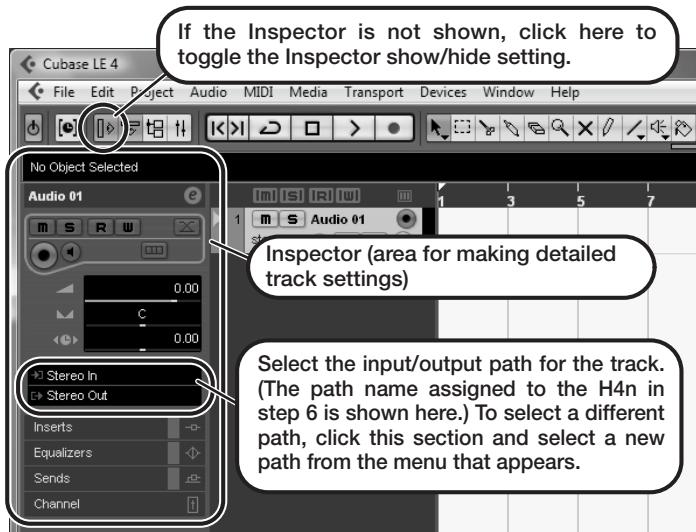
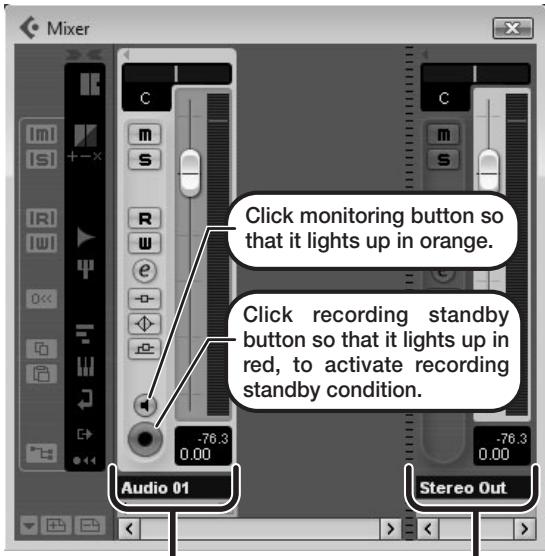
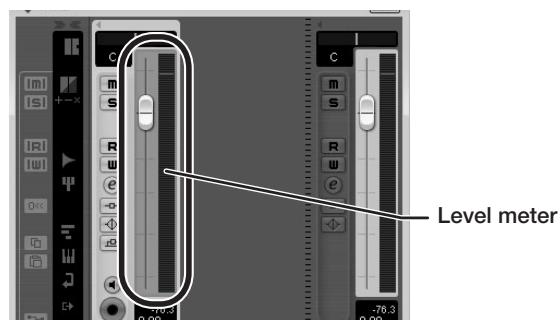

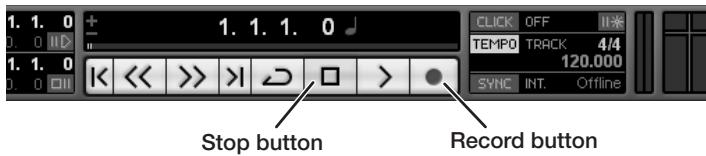

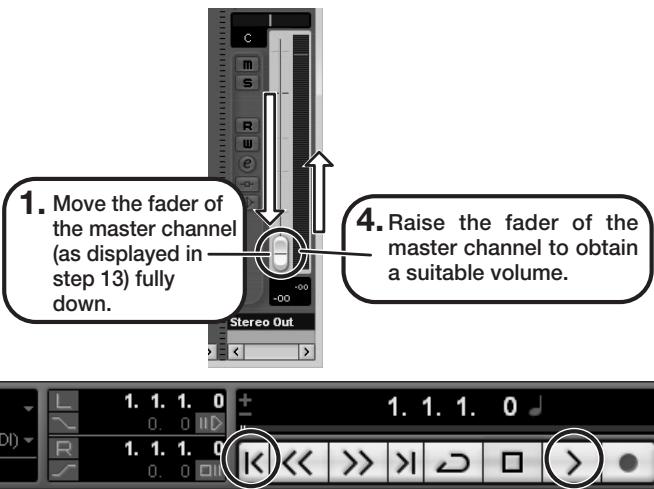
- H4next Handy Recorder
- Special features of H4n
- - An all-in-one handy recorder.
- - Interface from any field recording to multi-track recording.
- - Equipped with newly innovated XY Stereo Microphone variable angle from 90 to 120 degree.
- - XLR/standard phone combo jacks allow connection of microphones and guitars directly.
- - It can be used as an Audio Interface/SD card reader for a computer.
- - Other built-in functions: Tuner/Metronome/Karaoke.
- The H4n is ideal for the following scenarios
- A table of contents
- Getting started
- Operations
- Reference
- Safety precautions for users
- SAFETY PRECAUTIONS
- Power requirements
- [AC adapter operation]
- [Battery operation]
- Environment
- Handling
- Connecting cables and input and output jacks
- Alterations
- Volume
- USAGE PRECAUTIONS
- Electrical interference
- Cleaning
- Please keep this manual in a convenient place for future reference.
- Copyright warnings
- Recording of live performances
- Capturing music and sound files
- Trademarks:
- 1-1 Recording flow using the H4n
- 1-2 Easy recording guide [STEREO MODE]
- 2-1 Name and function of each part
- 2-2 Installation of the attachments and options
- Battery/Power outlet setting
- - Domestic power source
- - Battery installation
- Open the battery compartment cover.
- NOTE:
- Make sure power switch off!
- Insert two size AA batteries ensuring you match the polarity markings (+ and -).
- Set the Stamina Mode Switch.
- Close the battery compartment cover.
- - Battery's approximate lifetime
- - Remaining lifetime of the battery
- Usable batteries
- Power supply from USB
- HINT:
- To measure the lifetime of the battery
- Saving period for the setting
- Screen indicator for power
- 4-1 Power On and Off, How to use power and hold switch
- NOTE
- HINT: Procedure for power on.
- HINT Procedure for power off
- HOLD Function
- 4-2 How to use the [REC] and locator buttons
- STEREO/4CH/STAMINA MODE
- [REC] button
- LOCATOR BUTTONS
- [STOP] button
- [PLAY/PAUSE] button
- [FF], [REW] buttons
- Less than one second press
- More than one second press
- MTR MODE
- [REC] button : Having a recording standby track
- Set to overwrite recording
- Set always new recording
- [FF][REW] buttons
- 4-3 How to use the track [1], [2], [3] and [4] buttons
- Switch from 'RECORDING' to 'PLAYBACK' of the tracks, or the other way around
- Make settings of the track and the input source
- Select only one track
- Select two tracks
- For stereo input you select from [MIC] and [1] [2]
- For monaural input you select either from
- 4-4 How to use the input [MIC], [1] and [2] buttons
- STEREO/STAMINA MODE
- 4CH MODE
- 4-5 How to use REC LEVEL and VOLUME
- REC LEVEL' THE ENTIRE MODE IS IN COMMON
- Press the 'REC LEVEL' = Adjusting
- [VOLUME] THE ENTIRE MODE IS IN COMMON
- Press the 'VOL' = Adjusting
- 4-6 How to use [DIAL] and [MENU] buttons
- The basic operation for [DIAL]
- Rotate the [DIAL] = select an item
- Press the [DIAL] = confirm the selection
- The basic operation for [MENU] button
- Calling [MENU] screen
- Canceling the setting
- The operation when [ ] cursor is on display (Date-Time Setting, Changing File Name Directory, etc)
- [DIAL] operation on the top screen
- The operation when the selections are listed on screen
- About the → on the selection lists
- 5-1 Insert a SD card
- POWER OFF!
- CAUTIONS WHEN INSERTING SD CARD
- 5-2 Set date and time
- 6-1 Setting up: How to connect to outside machines
- 6-2 Setting up: Built-in microphones
- DIRECTIVITY OF 90° , 120°
- 6-3 Setting up: Built-in microphones /outside microphone with plug-in power
- Close microphone recording
- External microphone recording
- [How to make setting of power]
- 6-4 Setting up: INPUT [1], [2] connections and phantom power source
- Connecting to instruments
- Connecting to a microphone
- 6-5 Setting up: USB connection, H4n used as an Audio Interface
- Select and press.
- Select a sampling rate and press.
- Select and press.
- [Button operation during setting and menu]
- [You can use those buttons during setting]
- [Selection of input source]
- Usage of AUDIO INTER FACE
- 6-6 Setting up: USB connection, H4n used as a SD card reader
- USB bus power
- Usage of a SD card reader
- The file names available
- 6-7 Setting up: A built-in speaker
- H4n built-in speaker
- 7-1 About H4n modes
- - STEREO mode
- - STAMINA mode
- 7-2 Selecting a and its confirmation
- Confirmation of the mode
- 7-3 Details about modes
- 8-1 screens: STEREO and STAMINA modes
- 8-2 screen: 4CH mode
- 8-3 screen: MTR mode
- 8-4 screen: MAIN MENU
- Display at the bottom of Menu screen
- PRJ086
- Option: Remote control operation
- Recording and placing marks.
- Recording
- 1-01 Setting / Recording: Set input source and recording level
- STEREO MODE
- Select INP and press.
- Press REC LEVEL and adjust the levels.
- Select INPUT and press.
- 1-02 Setting / Recording: Recording in STEREO and STAMINA mode
- [RECORDING DIRECTION]
- marks mean you can record without those settings.
- [TEMPORARY STOP]
- [RECORDING AGAIN]
- change
- MARK
- How to use WAV and MP3 format
- VARIETY OF WAV FILES
- VARIETY OF MP3
- 1-05 Setting / Recording: Recording on 4CH mode
- FILE NAME
- 1-06-1 Setting / Recording: Recording in MTR mode
- Recording Standby
- Start recording
- Complete recording
- Change to ,
- About INPUT SOURCE and TRACK
- 1-06-2 Setting / Recording: Recording in MTR mode
- 1-07 Setting / Recording: TRACK MENU in MTR mode
- HINT:STEREO LINK
- Select and press.
- Set the value and press.
- Allocate files to a track
- Select the to be allocated and press.
- Setting
- 1-08-1 Setting / Recording: Re-recording, automatic
- Set the recording end position,
- Re-recording
- 1-08-2 Setting / Recording: Re-recording, manual
- Re-recording (Manual )
- HINT
- 2-04 Recording function
- 2-08 Recording function
- 3-01-1 Tuner
- Tuning.
- 3-01-3 Tuner
- 4
- 5
- Tuning display
- Tuner type and code
- 3-02 Metronome
- 3-03-1 All about EFFECT
- About input and output of [EFFECT]
- PATCH
- 3-03-4 Effect , editing PRE AMP modules
- 3-03-5 Effect , editing EFX modules
- ADJUST EFX module
- ICON
- STORE
- 3-03-8 Effect , taking in a patch from another PROJECT
- import one patch
- Select and press.
- Select an import patch and press.
- Select which patch you want to import to the present project and press.
- 3-04-1 A sing-along machine preparation
- [Flow of the KARAOKE]
- KARAOKE track preparation
- Allocate an optional file on to KARAOKE track
- Make CENTER CANCELATION of the KARAOKE track
- 7
- 8
- 9
- Change the KEY of KARAOKE track
- 10
- 11
- 12
- 3-04-2 A sing-along machine recording
- A slight adjustment of KARAOKE TRACK KEY.
- Select TRACK MENU icon and press.
- Select and press.
- 15Make adjustment and press.
- Recording on KARAOKE
- Connect the microphone. Press the INPUT button correspondi to the connected input jack.
- Select the track menu icon and press.
- Press 'PRACTICE' (no recording).
- [START RECORDING]
- Press [REC] button and make recording standby condition. After that press [PLAY/PAUSE] button to start recording.
- 4-01 Playback :Playback files(stereo,4ch and stamina modes)
- 4-03 Playback : Setting marks
- 4-04 Playback:
- [START PLAYBACK] Press.
- [Set up point A] Press.
- [Set up point B] Press.
- Caution:
- 4-07 Playback :Playback files (MTR mode)
- 4-08 Playback : Appointing time with a counter
- Caution;
- 5-07 Edit / Output :
- SELECTING THE FILES...P.104
- 5-08 Edit / Output :
- 5-10 Edit / Output :
- Select
- EXECUTION
- Select and press.
- Sound dropout (skipping) of a SD card
- [START PLAYBACK] Press.
- [DIVIDE POSITION] You should press at the desirable dividing spot.
- Operation of button on
- Selectand press.
- Select the moving mode.
- Select the moving folder(project).
- MOVABLEFILEFORMAT
- MOVE TO MTR FOLDER
- Numbering of the projects
- 5-15 Edit / Output :
- 5-16 Edit / Output :
- 5-17 Edit / Output :
- Project number;
- Select a target project and start operation...P.119
- 5-19 Edit / Output :
- Select the type capable to output
- "Format Card"
- 6-09 Utility: How to use H2 and H4 SD cards
- Select MOVE FILES and , and press.
- "File Name EXISTS!"
- Main spec list by mode
- Available setting menu list by each mode
- Effect types on MTR mode and the parameter
- PREAMP module
- - Guitar preamp effect types
- EFX module
- - Compressor/limiter effect types
- Modulation effect types
- [Table]
- H4n patch list
- When you think something may be wrong with your machine
- Problems during recording/playback
- No sound, or sound is very weak
- Recorder stops during playback
- No sound from connected instrument,or sound is very weak
- Cannot record on a track
- Cannot perform bounce
- Other problems
- Cannot use effects
- Cannot use tuner
- Unit is not recognized when connected to a computer via USB
- [4CH MODE]
- [A]
- [B]
- [C]
- [D]
- [DISPLAY]
- [E]
- [F]
- [FILE]
- [H]
- []
- [K]
- [L]
- [M]
- [N]
- [O]
- [P]
- [R]
- [S]
- [SD CARD]
- [STAMINA MODE]
- [STEREO MODE]
- [T]
- [TUNER]
- [U]
- [USB connection]
- The FCC regulation warning (for U.S.A.)
- Disposal of Old Electrical & Electronic Equipment (Applicable in European countries with separate collection systems)
- 200
- ZOOM CORPORATION
- Cubase LE 4 installation
- Connections and preparation
- Use Cubase LE 4 to record
- Windows Vista / XP
- Connect the H4n to the computer using a USB cable.
- MacOS X
- Access the "File" menu and select "New Project".
- Make sure that the "Empty" template is selected, and click the OK button.
- After specifying a suitable project file save location (such as the desktop), click the OK button (Choose button in MacOS X).
- To create a new audio track, access the "Project" menu and select "Add track". In the submenu that appears, select "Audio".
- Connect the guitar or other instrument to the [INPUT] jack of the H4n and select the desired patch.
- Access the "Devices" menu of Cubase LE 4 and select "Mixer".
- While playing your instrument, adjust the output level of the H4n to achieve a suitable recording level for Cubase LE 4.
- When the recording level has been adjusted, click the monitoring button to disable it.
- Verify that the transport panel is being shown.
- To start recording, click the Record button in the transport panel.
- Check the recorded content.
- Use the button in the transport panel to move to the beginning of the project.
- For optimum enjoyment
Brand : ZOOM
Model : H4NEXT
Category : Audio recorder