
CS-245 - Compact audio system ONKYO - Free user manual and instructions
Find the device manual for free CS-245 ONKYO in PDF.


| Product Type | Compact audio system (CD system with receiver) |
| Brand | ONKYO |
| Model | CS-245 (CR-245 + D-T05) |
| Dimensions (Main Unit) | 215 x 100 x 270 mm |
| Weight (Main Unit) | 2.4 kg |
| Speaker Dimensions | 130 x 210 x 172 mm |
| Speaker Weight | 1.6 kg each |
| Power Supply | AC 230 V, 50 Hz |
| Power Consumption | 30 W |
| Standby Power Consumption | 0.2 W (without iPod charging) |
| Output Power | 2 x 15 W (6 Ω, 1 kHz, IEC) |
| Speaker Type | 2-way bass-reflex, magnetically shielded |
| Speaker Impedance | 6 Ω |
| Speaker Frequency Response | 55 Hz – 50 kHz |
| CD Player | Audio CD, CD-R/RW (MP3) |
| FM Radio | 30 presets, RDS, auto preset |
| iPod/iPhone Dock | Yes, direct digital connection |
| USB Port | MP3 playback (up to 299 folders, 648 files) |
| Timer Functions | Programmable timer, sleep timer, iPod alarm |
| Display | Dimmable (DIMMER) |
| Remote Control | Yes (RC-823S) |
| Connectivity | Line input (LINE), subwoofer output, video output, headphone jack |
| Care and Cleaning | Dust with a soft cloth; for stains, use a slightly damp soft cloth with mild detergent |
| Safety | Do not expose to moisture, do not open the casing, use only specified accessories |
| Spare Parts and Repairability | No user-serviceable parts; contact qualified service personnel |
Frequently Asked Questions - CS-245 ONKYO
User questions about CS-245 ONKYO
0 question about this device. Answer the ones you know or ask your own.
Ask a new question about this device
Download the instructions for your Compact audio system in PDF format for free! Find your manual CS-245 - ONKYO and take your electronic device back in hand. On this page are published all the documents necessary for the use of your device. CS-245 by ONKYO.
USER MANUAL CS-245 ONKYO
CD Receiver (CR-245)
Speakers (D-T05)
Instruction Manual
Getting Started. En-2
Connections. En-14
Basic Operation En-17
Playing CDs. En-19
Playing Your iPod/iPhone...En-24
Listening to the Radio... En-26
Playing a USB Flash Drive...En-29
Clock and Timer En-30
Miscellaneous En-34
Thank you for purchasing an Onkyo CD Receiver System.
Please read this manual thoroughly before making any connections and plugging it in.
Following the instructions in this manual will enable you to obtain optimum performance and listening enjoyment from your new CD Receiver System.
Please retain this manual for future reference.
WARNING:
TO REDUCE THE RISK OF FIRE OR ELECTRIC SHOCK, DO NOT EXPOSE THIS APPARATUS TO RAIN OR MOISTURE.
CAUTION:
TO REDUCE THE RISK OF ELECTRIC SHOCK, DO NOT REMOVE COVER (OR BACK). NO USER-SERVICEABLE PARTS INSIDE. REFER SERVICING TO QUALIFIED SERVICE PERSONNEL.

WARNING
RISK OF ELECTRICS
DO NOT OPEN
AVIS
RISQUE DE CHOC ELECTRIQUE
NE PAS OUVRIR


The lightning flash with arrowhead symbol, within an equilateral triangle, is intended to alert the user to the presence of uninsulated "dangerous voltage" within the product's enclosure that may be of sufficient magnitude to constitute a risk of electric shock to persons.

The exclamation point within an equilateral triangle is intended to alert the user to the presence of important operating and maintenance (servicing) instructions in the literature accompanying the appliance.
Important Safety Instructions
-
Read these instructions.
-
Keep these instructions.
-
Heed all warnings.
-
Follow all instructions.
-
Do not use this apparatus near water.
-
Clean only with dry cloth.
-
Do not block any ventilation openings. Install in accordance with the manufacturer's instructions.
-
Do not install near any heat sources such as radiators, heat registers, stoves, or other apparatus (including amplifiers) that produce heat.
-
Do not defeat the safety purpose of the polarized or grounding-type plug. A polarized plug has two blades with one wider than the other. A grounding type plug has two blades and a third grounding prong. The wide blade or the third prong are provided for your safety. If the provided plug does not fit into your outlet, consult an electrician for replacement of the obsolete outlet.
-
Protect the power cord from being walked on or pinched particularly at plugs, convenience receptacles, and the point where they exit from the apparatus.
-
Only use attachments/accessories specified by the manufacturer.
-
Use only with the cart, stand, tripod, bracket, or table specified by the manufacturer, or sold with the apparatus. When a cart is used, use caution when moving the cart/ apparatus combination to avoid injury from tip-over.
PORTABLE CART WARNING
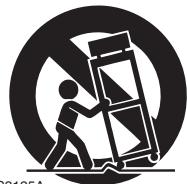
S3125A
- Unplug this apparatus during lightning storms or when unused for long periods of time.
-
Refer all servicing to qualified service personnel. Servicing is required when the apparatus has been damaged in any way, such as power-supply cord or plug is damaged, liquid has been spilled or objects have fallen into the apparatus, the apparatus has been exposed to rain or moisture, does not operate normally, or has been dropped.
-
Damage Requiring Service
Unplug the apparatus from the wall outlet and refer servicing to qualified service personnel under the following conditions:
A. When the power-supply cord or plug is damaged,
B. If liquid has been spilled, or objects have fallen into the apparatus,
C. If the apparatus has been exposed to rain or water,
D. If the apparatus does not operate normally by following the operating instructions. Adjust only those controls that are covered by the operating instructions as an improper adjustment of other controls may result in damage and will often require extensive work by a qualified technician to restore the apparatus to its normal operation,
E. If the apparatus has been dropped or damaged in any way, and
F. When the apparatus exhibits a distinct change in performance this indicates a need for service.
- Object and Liquid Entry
Never push objects of any kind into the apparatus through openings as they may touch dangerous voltage points or short-out parts that could result in a fire or electric shock.
The apparatus shall not be exposed to dripping or splashing and no objects filled with liquids, such as vases shall be placed on the apparatus.
Don't put candles or other burning objects on top of this unit.
- Batteries
Always consider the environmental issues and follow local regulations when disposing of batteries.
- If you install the apparatus in a built-in installation, such as a bookcase or rack, ensure that there is adequate ventilation.
Leave 20cm (8") of free space at the top and sides and 10cm (4") at the rear. The rear edge of the shelf or board above the apparatus shall be set 10cm (4") away from the rear panel or wall, creating a flue-like gap for warm air to escape.
- Recording Copyright—Unless it's for personal use only, recording copyrighted material is illegal without the permission of the copyright holder.
- AC Fuse—The AC fuse inside the unit is not user-serviceable. If you cannot turn on the unit, contact your Onkyo dealer.
- Care—Occasionally you should dust the unit all over with a soft cloth. For stubborn stains, use a soft cloth dampened with a weak solution of mild detergent and water. Dry the unit immediately afterwards with a clean cloth. Don't use abrasive cloths, thinners, alcohol, or other chemical solvents, because they may damage the finish or remove the panel lettering.
4. Power Warning
BEFORE PLugging IN THE UNIT FOR THE FIRST TIME, READ THE FOLLOWING SECTION CAREFULLY.
AC outlet voltages vary from country to country. Make sure that the voltage in your area meets the voltage requirements printed on the unit's rear panel (e.g., AC 230 V, 50 Hz or AC 120 V, 60 Hz).
The power cord plug is used to disconnect this unit from the AC power source. Make sure that the plug is readily operable (easily accessible) at all times.
For models with [POWER] button, or with both [POWER] and [ON/STANDBY] buttons:
Pressing the [POWER] button to select OFF mode does not fully disconnect from the mains. If you do not intend to use the unit for an extended period, remove the power cord from the AC outlet.
For models with [ON/STANDBY] button only: Pressing the [ON/STANDBY] button to select
Standby mode does not fully disconnect from the mains. If you do not intend to use the unit for an extended period, remove the power cord from the AC outlet.
5. Preventing Hearing Loss Caution
Excessive sound pressure from earphones and headphones can cause hearing loss.
6. Batteries and Heat Exposure Warning
Batteries (battery pack or batteries installed) shall not be exposed to excessive heat as sunshine, fire or the like.
- Never Touch this Unit with Wet Hands—Never handle this unit or its power cord while your hands are wet or damp. If water or any other liquid gets inside this unit, have it checked by your Onkyo dealer.
8. Handling Notes
- If you need to transport this unit, use the original packaging to pack it how it was when you originally bought it.
- Do not leave rubber or plastic items on this unit for a long time, because they may leave marks on the case.
-
This unit's top and rear panels may get warm after prolonged use. This is normal.
-
If you do not use this unit for a long time, it may not work properly the next time you turn it on, so be sure to use it occasionally.
- When you've finished using this unit, remove all discs and turn off the power.
9. Installing this Unit
- Install this unit in a well-ventilated location.
- Ensure that there's adequate ventilation all around this unit, especially if it's installed in an audio rack. If the ventilation is inadequate, the unit may overheat, leading to malfunction.
- Do not expose this unit to direct sunlight or heat sources, because its internal temperature may rise, shortening the life of the optical pickup.
- Avoid damp and dusty places, and places subject to vibrations from loudspeakers. Never put the unit on top of, or directly above a loudspeaker.
- Install this unit horizontally. Never use it on its side or on a sloping surface, because it may cause a malfunction.
- If you install this unit near a TV, radio, or VCR, the picture and sound quality may be affected. If this occurs, move this unit away from the TV, radio, or VCR.
10. Moisture Condensation
Moisture condensation may damage this unit.
Read the following carefully:
Moisture may condense on the lens of the optical pickup, one of the most important parts inside this unit.
- Moisture condensation can occur in the following situations:
- The unit is moved from a cold place to a warm place.
- A heater is turned on, or cold air from an air conditioner is hitting the unit.
- In the summer, when this unit is moved from an air conditioned room to a hot and humid place.
- The unit is used in a humid place.
- Do not use this unit when there's the possibility of moisture condensation occurring. Doing so may damage your discs and certain parts inside this unit.
If condensation does occur, unplug the power cord and leave the unit for two to three hours in the room temperature.
This unit contains a semiconductor laser system and is classified as a "CLASS 1 LASER PRODUCT". So, to use this model properly, read this Instruction Manual carefully. In case of any trouble, please contact the store where you purchased the unit.
To prevent being exposed to the laser beam, do not try to open the enclosure.
CAUTION:
CLASS 1M VISIBLE AND INVISIBLE LASER
RADIATION WHEN OPEN. DO NOT VIEW
DIRECTLY WITH OPTICAL INSTRUMENTS.
THIS PRODUCT UTILIZES A LASER. USE OF CONTROLS OR ADJUSTMENTS OR PERFORMANCE OF PROCEDURES OTHER THAN THOSE SPECIFIED HEREIN MAY RESULT IN HAZARDOUS RADIATION EXPOSURE.
The label on the right is applied on the rear panel.
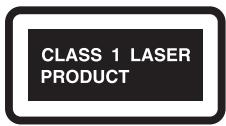
- This unit is a CLASS 1 LASER PRODUCT and employs a laser inside th
- To prevent the laser from being exposed, do not remove the cover. Refer servicing to qualified personnel.
For British models
Replacement and mounting of an AC plug on the power supply cord of this unit should be performed only by qualified service personnel.
IMPORTANT
The wires in the mains lead are coloured in accordance with the following code:
Blue: Neutral
Brown: Live
As the colours of the wires in the mains lead of this apparatus may not correspond with the coloured markings identifying the terminals in your plug, proceed as follows:
The wire which is coloured blue must be connected to the terminal which is marked with the letter N or coloured black.
The wire which is coloured brown must be connected to the terminal which is marked with the letter L or coloured red.
IMPORTANT
The plug is fitted with an appropriate fuse. If the fuse needs to be replaced, the replacement fuse must approved by ASTA or BSI to BS1362 and have the same ampere rating as that indicated on the plug. Check for the ASTA mark or the BSI mark on the body of the fuse. If the power cord's plug is not suitable for your socket outlets, cut it off and fit a suitable plug. Fit a suitable fuse in the plug.
For European Models
Declaration of Conformity

We, ONKYO EUROPE ELECTRONICS GmbH LIEGNITZERSTRASSE 6, 82194 GROEBENZELL, GERMANY
declare in own responsibility, that the ONKYO product described in this instruction manual is in compliance with the corresponding technical standards such as EN60065, EN55013, EN55020 and EN61000-3-2, -3-3.
GROEBENZELL, GERMANY
ONKYO EUROPE ELECTRONICS GmbH
Before Using Your New Speakers
- Place the speakers on sturdy, flat surfaces. Putting them on uneven or unstable surfaces where they may fall and cause damage will affect the sound quality.
- Do not keep water or other liquids close to the speakers. If a liquid is spilled over them, the woofer and tweeter inside may be damaged.
- Do not handle the speakers with wet or damp hands.
Speaker Precautions
The speakers can handle the specified input power when used for normal music reproduction. If they're fed any of the following signals, even if the input power is within the specified rating, excessive current may flow in the speaker coils, causing burning or wire breakage:
- Interstation noise from an untuned FM radio.
- Audio from a cassette that's being fast-forwarded.
- High-pitched sounds generated by an oscillator, electronic musical instrument, and so on.
- Amplifier oscillation.
- Special test tones from audio test CDs and so on.
- Thumps and clicks caused by connecting or disconnecting audio cables (always turn off your amplifier before connecting or disconnecting cables).
- Microphone feedback.
The speakers contain powerful magnets. Do not put metal items, such as screwdrivers, close to the speakers, as they may be attracted toward the magnet, causing injury, or damage to the tweeter diaphragm.
Using Close to a TV or Computer
TVs and computer monitors are magnetically sensitive devices and as such are likely to suffer from discoloration or picture distortion when conventional speakers are placed nearby. To prevent this, the speakers feature internal magnetic shielding. In some situations, however, discoloration may still be an issue. In this case, turn off your TV or monitor, wait 15 to 30 minutes, and then turn it back on again. This normally activates the degaussing function, which neutralizes the magnetic field, thereby removing any discoloration effects. If discoloration problems persist, try moving the speakers away from your TV or monitor. Note that discoloration can also be caused by a magnet or demagnetizing tool that's too close to your TV or monitor.
Note:
- If the speakers are placed close to a TV or monitor, due to the electromagnetic waves radiated by the TV or monitor, you may hear noise from the speakers even after your amplifier has been turned off. To prevent this, position the speakers away from your TV or monitor.
Make sure you have the following items:
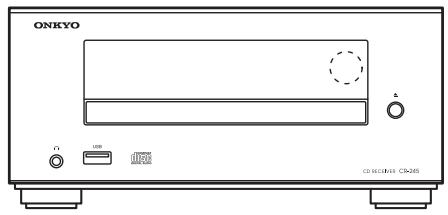
CR-245
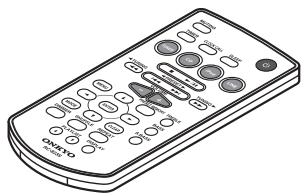
Remote controller (RC-823S)
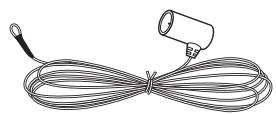
Indoor FM antenna
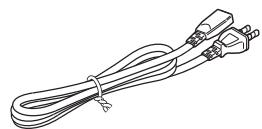
Power cord
(Connector type varies from country to country.)
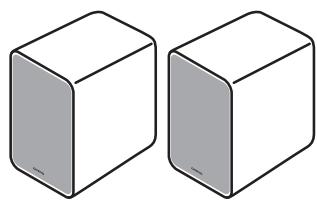
Speakers (D-T05)
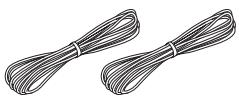
Speaker cables
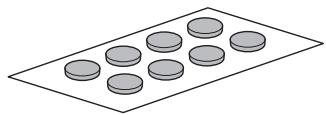
8 floor pads
- In catalogs and on packaging, the letter at the end of the product name indicates the color. Specifications and operation are the same regardless of color.
General
- CD tuner audio system with built-in iPod/iPhone*1 dock
Super Bass (S.Bass) function for deeper bass sounds - Bass and treble tone controls
- Line input for external audio source
- AUDIO OUT (SUBWOOFER) jack
VIDEO OUT jack for the video output of the iPod/ iPhone - Headphones jack
- Dimmable display
Speakers
- Stylish cabinet
2 Way Bass-reflex
iPod
- iPod/iPhone direct digital connection *2
- Control your iPod/iPhone with the remote controller
- Made for iPod touch (1st, 2nd, 3rd and 4th generation), iPod classic, iPod nano (2nd, 3rd, 4th, 5th and 6th generation), iPhone 4, iPhone 3GS, iPhone 3G and iPhone
Radio
FMtuner
- 30 FM presets
RDS (Radio Data System)
FM Auto Preset function
CD Player
- Play audio CDs, MP3 CDs (CD-R and CD-RW)
- RANDOM playback mode
- 2-mode repeat function (current track or all tracks)
USB Flash Drive
- MP3 playback from USB flash drives
Timer and Clock
- Programmable timer
- Sleep timer
- The alarm play function of the iPod/iPhone can power-on the CD receiver and switch the input to iPod/iPhone*3
Made for

iPhone
*1. iPhone, iPod, iPod classic, iPod nano, iPod shuffle, and iPod touch are trademarks of Apple Inc., registered in the U.S. and other countries.
"Made for iPod" and "Made for iPhone" mean that an electronic accessory has been designed to connect specifically to iPod or iPhone, respectively, and has been certified by the developer to meet Apple performance standards.
Apple is not responsible for the operation of this device or its compliance with safety and regulatory standards.
Please note that the use of this accessory with iPod or iPhone may affect wireless performance.
2. An iPod/iPhone can only be used by connecting it to the iPod dock connector on the top panel of the CD receiver.
3. This functionality might not be available depending on the iPod/iPhone model or apps.
Important Safety Instructions. 2
Precautions 3
Package Contents 5
Features 6
Getting to Know the CD receiver 8
Top and Front Panels 8
Display 9
Rear Panel 9
Remote Controller. 10
Before Using the CD Receiver. 11
Using the Included Floor Pads for speakers. 11
Using the Remote Controller 11
Replacing the Battery. 11
Disc (Audio CD and MP3) and
USB Flash Drive (MP3) Notes 12
Connecting FM Antenna 14
Connecting Speakers. 14
Connecting Other Components 15
Connecting a Powered Subwoofer 15
Connecting an AudioPlayback Device. 15
Connecting a TV 15
Connecting the Power Cord 16
Basic Operation 17
Turning On the CD Receiver 17
Selecting the Input Source 17
Adjusting the Volume 17
Muting the CD Receiver (remote controller only). 17
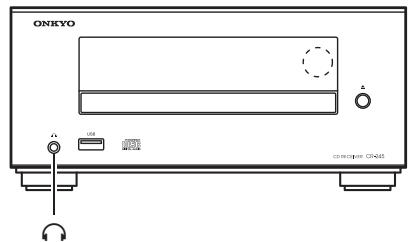
Using Headphones 17
Adjusting the Bass and Treble (remote controller only). 18
Using Super Bass (remote controller only). 18
Changing the Display Brightness (remote controller only). 18
Playing CDs. 19
Using the CD receiver 19
Using the Remote Controller. 20
Displaying CD Information 20
Selecting MP3 Files. 21
Displaying MP3 Information 22
Random Playback 22
RepeatPlayback 23
Playing Your iPod/Phone 24
Installing the iPod Dock Adapters. 24
Using the Top Panel Buttons 24
Using the Remote Controller. 25
Navigating the iPod Menu with the Remote Controller 25
Playing video from the iPod/iPhone 25
Listening to the Radio 26
Tuning into FM Radio Stations 26
Preseting FM Stations Automatically (Auto Preset) 26
Presetting FM Stations Manually 27
Selecting Preset Stations. 27
Receiving RDS (remote controller only). 28
Erasing Presets 28
Playing a USB Flash Drive 29
Setting the Clock 30
Setting the Clock 30
Using the Timer 31
Programming the Timer 31
Turning Timer On and Off 32
Using the Sleep Timer 32
TimerPlayback using the Alarm Play Function of your iPod/iPhone 33
Troubleshooting 34
Specifications 38
Top and Front Panels
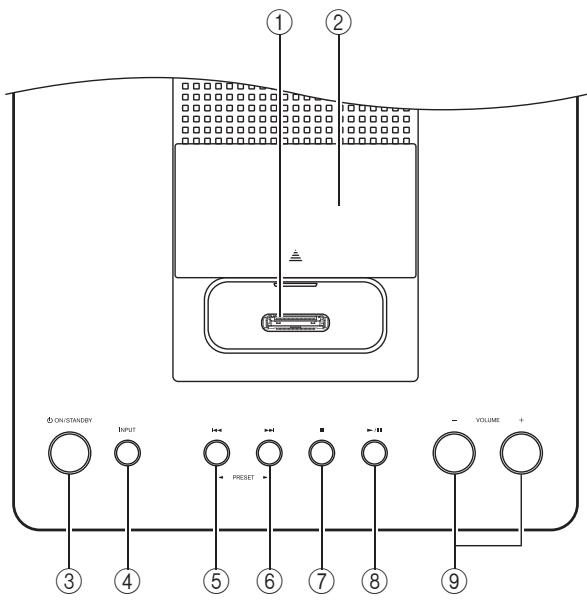
Top Panel
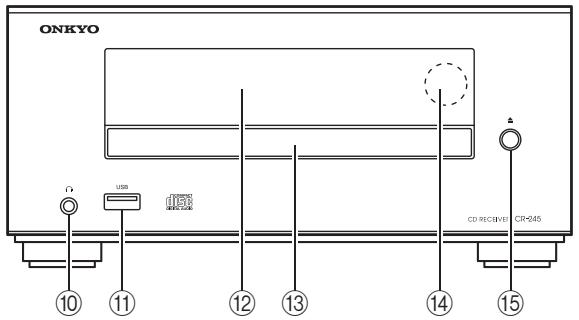
Front Panel
For detailed information, see the pages in parentheses.
① iPod/iPhone Dock (24)
② Dock cover (24)
③ ON/STANDBY button (17, 31, 33, 34)
④ INPUT button (17, 24, 25, 26, 27, 29)
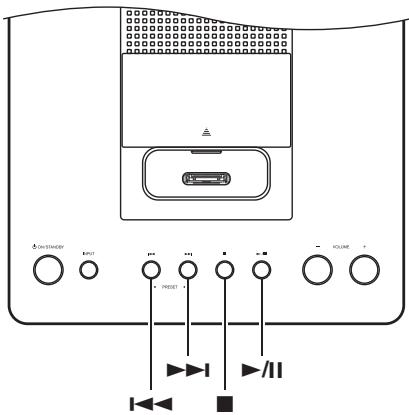
(5) Previous [I◁]/PRESET [◁] button (19, 24, 27)
⑥ Next [▶▶I]/PRESET [▶] button (19, 24, 27)
⑦ Stop [■] button (19, 24, 34)
⑧ Play/Pause [▶/II] button (19, 29)
⑨ VOLUME [-] /[+] buttons (17, 25)
10 Headphones jack (17)
⑪ USB port (29)
⑫ Display
⑬ Disc tray (19)
Remote control sensor (11)
15 Open/Close [▲] button (19)
Display
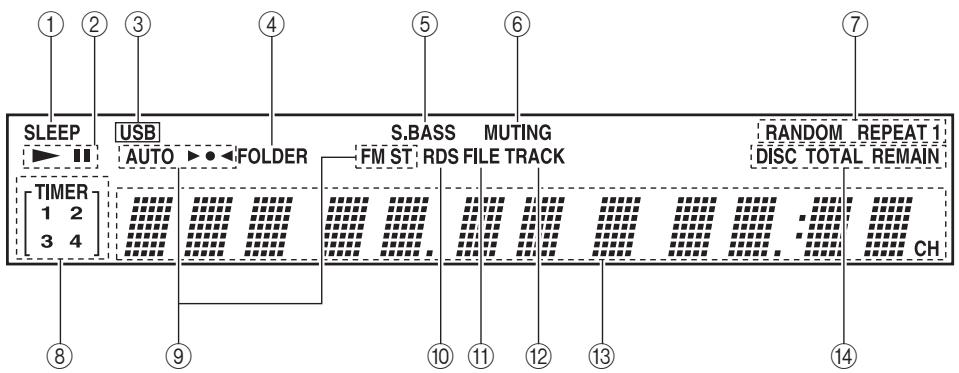
① SLEEP indicator
② Play ▶ and Pause II indicators
③ USB indicator
④ FOLDER indicator
S.BASS indicator
(6) MUTING indicator
⑦ Playback mode indicators
⑧ TIMER indicators
⑨ Tuning indicators
10 RDS indicator
⑪ FILE indicator
⑫ TRACK indicator
⑬ Message area
14 DISC, TOTAL, and REMAIN indicators
Rear Panel
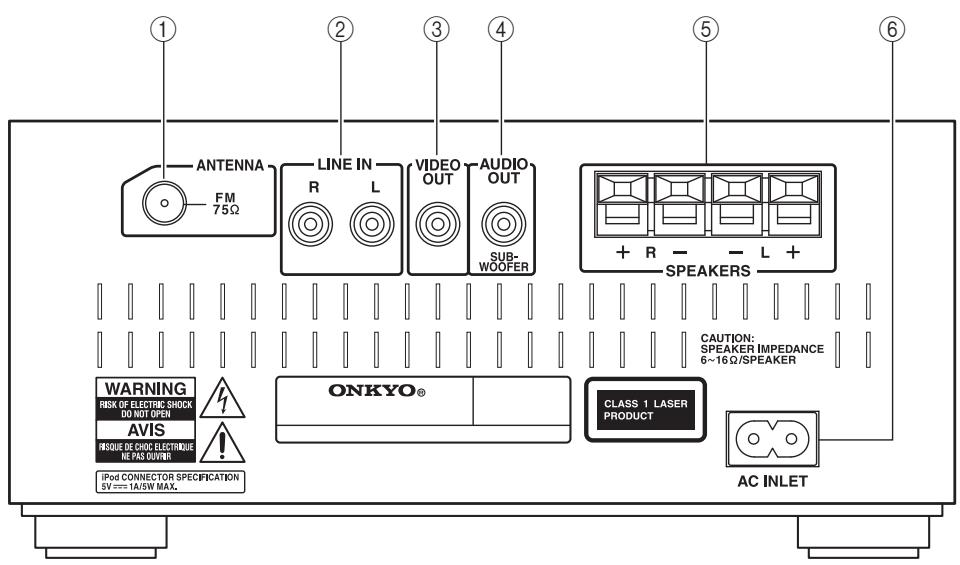
① FM ANTENNA jack
② LINE IN jack
③VIDEO OUT jack
④ AUDIO OUT (SUBWOOFER) jack
⑤ SPEAKERS terminals
⑥ AC INLET
Remote Controller
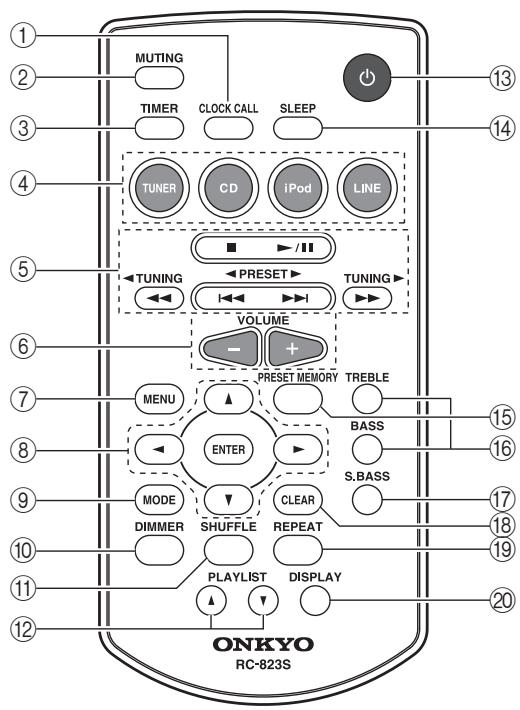
For detailed information, see the pages in parentheses.
① CLOCKCALLbutton(30)
② MUTING button (17)
③ TIMER button (30, 31, 32)
④ Input Selector buttons (17)
⑤ Stop [■] (20, 25), Play/Pause [▶/II] (20, 21, 22, 25, 29), [I▲▲]/[▶▶], PRESET [▲]/[▶] (20, 25, 27), [▲▲]/[▶▶], TUNING [▲]/[▶] (20, 25, 26) buttons
⑥ VOLUME ([-])/([+] buttons (17)
⑦ MENU button (25)
Arrow [▲]/[▼]/[←] /[▶] buttons and ENTER button
⑨ MODE button (21, 25, 26)
DIMMER button (18)
⑪ SHUFFLE button (22, 25)
⑫ PLAYLIST [] / [] buttons (25)
⑬ button (17, 31, 33)
⑭ SLEEP button (32)
15 PRESET MEMORY button (26, 27)
16 TREBLE/BASS buttons (18)
S.BASS button (18)
18 CLEAR button (18, 22, 28)
19 REPEAT button (23)
DISPLAY button (20, 22, 28, 30, 32)
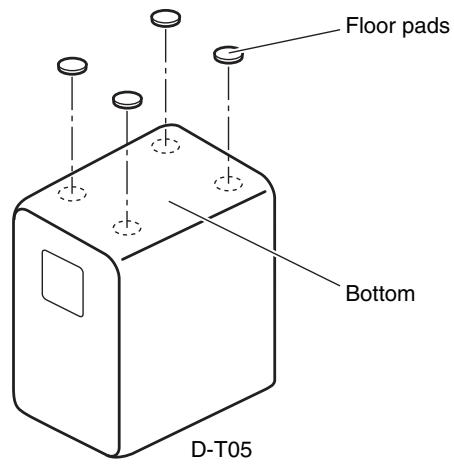
Using the Included Floor Pads for speakers
You can improve the sound quality by attaching the included floor pads to raise the speakers off the surface and reduce the contact area. The floor pads also make the speakers stable and prevent them from slipping.
Using the Remote Controller
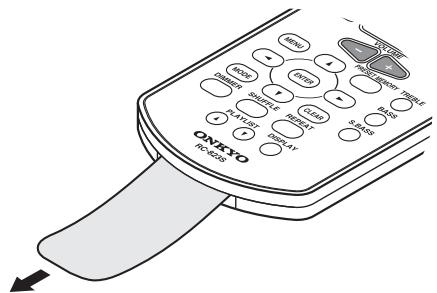
Remove the plastic film before using the remote controller.
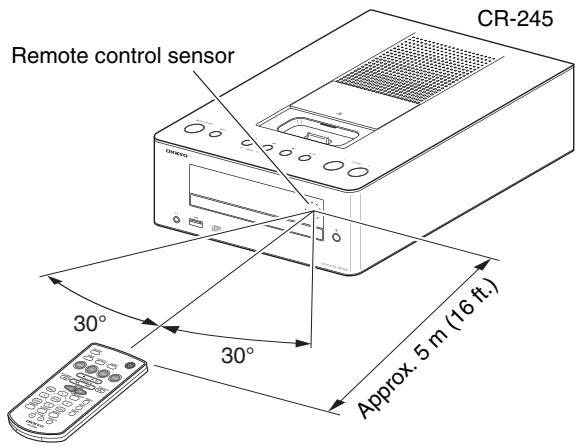
When using the remote controller, point it toward the CD receiver's remote control sensor, as shown below.
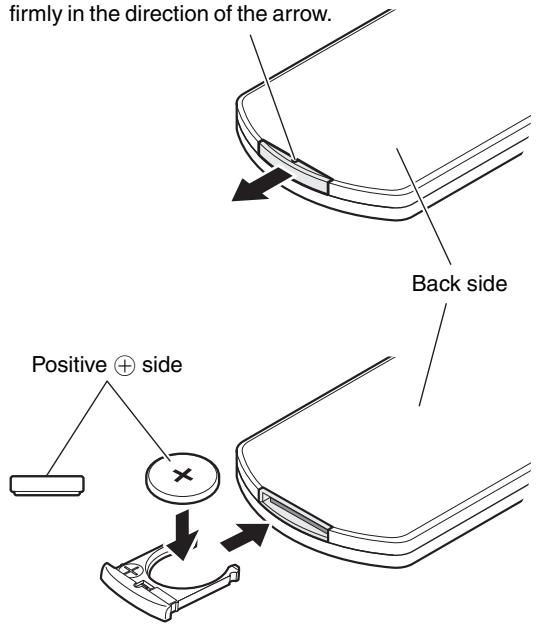
Replacing the Battery
Use only a battery of the same type (CR2025).
Firmly insert a thin stick or similar object into the hole, and pull out firmly in the direction of the arrow.
Notes:
- If the remote controller doesn't work reliably, try replacing the batteries.
- If you intend not to use the remote controller for a long time, remove the batteries to prevent damage from leakage or corrosion.
- Expired batteries should be removed as soon as possible to prevent damage from leakage or corrosion.
Caution:
- Replacing the battery incorrectly may cause an explosion. Use only a battery of the same type or an equivalent.
Disc (Audio CD and MP3) and USB Flash Drive (MP3) Notes
Precautions for Playback
Compact discs (CDs) with the following logo on the label surface can be used.
Do not use discs designed for purposes other than audio, such as CD-ROMs for PC use. Abnormal noise could damage the CD receiver.

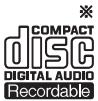
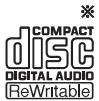
- The CD receiver supports CD-R and CD-RW discs. Note that some discs may not playback because of the disc characteristics, scratches, contamination or the recording state. A disc recorded with an audio CD record will not playback unless it is finalized.
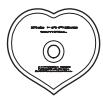
Never use discs which have a special shape (such as hearts or octagons). These types of discs could jam and damage the CD receiver.



CDPlayback with Copy-control Function
Some audio CDs with copy-control function do not comply with official CD standards. These are special discs and cannot be played with the CD receiver.
Playback of MP3 Discs
MP3 files recorded on a CD-R/CD-RW can be played with the CD receiver.
- Use discs which have been recorded following the ISO 9660 Level 2 file system. (The supported directory depth is eight levels, the same as ISO 9660 Level 1)
- Discs recorded with the hierarchical file system (HFS) cannot be played.
- Discs must be closed (finalized).
- Only MP3 files with the extension ".MP3" or ".mp3" are supported.
- Files recorded using MPEG 1 audio layer 3 at sampling frequencies of 32/44.1/48kHz and a constant bit rate (CBR) of 32 - 320kbps are supported.
- A maximum of 299 folders can be recognized on a single CD. A maximum of 648 files can be recognized in a single folder.
Playback from USB Flash Drives
MP3 files recorded on a USB flash drive can be played with the CD receiver.
- USB flash drives formatted in FAT16 or FAT32 are supported.
- Only MP3 files with the extension ".MP3" or ".mp3" are supported.
- Files recorded using MPEG 1 audio layer 3 at sampling frequencies of 32/44.1/48kHz and a constant bit rate (CBR) of 32 - 320kbps are supported.
- A maximum of 299 folders can be recognized on a single USB flash drive. A maximum of 648 files can be recognized in a single folder.
Notes:
- A disc recorded with a recorder or personal computer may not play in some cases. (Cause: Disc's characteristics, damaged or dirty disc, dirt on player's lens, dew condensation, etc.)
- A disc recorded on a personal computer may not play because of the application settings or environment. Record the disc with the proper format. (Contact the application maker for details.)
- A disc with insufficient storage capacity may not playback properly.
Handling Discs
Hold discs by the edge, or by the center hole and edge. Avoid touching the playback surface (surface with nothing printed on it).
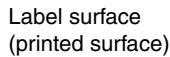
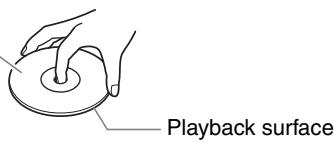
Do not attach paper or stickers, or write on the playback or label surface of the disc. Take care not to scratch or damage the disc.
Precautions for Rental Discs
Do not use discs with residue from cellophane tape, rental discs with labels which are peeling off, or discs with decorative labels. This type of disc could get stuck in the CD receiver, or could damage the CD receiver.
Precautions for Inkjet Printable Discs
Do not leave a CD-R/CR-RW having a label printed with an inkjet printer in the CD receiver for a long time. The disc could get stuck in the CD receiver, or could damage the CD receiver.
Remove the disc from the CD receiver when not being played, and store it in a case. A freshly printed disc will stick easily, and should not be played immediately.
Caring for Discs
If the disc is dirty, the CD receiver will have a hard time reading signals, and the audio quality may drop. If the disc is dirty, gently wipe off fingerprints and dust with a soft cloth. Lightly wipe from the center outwards.
To remove stubborn dust or dirt, wipe the disc with a soft cloth dampened with water, and then dry it with a dry cloth. Do not use cleaning spray for analog records or antistatic agents, etc. Never use volatile chemicals such as benzine
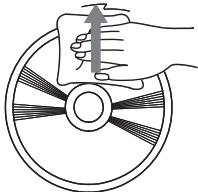
or paint thinner as they can impregnate the disc surface.
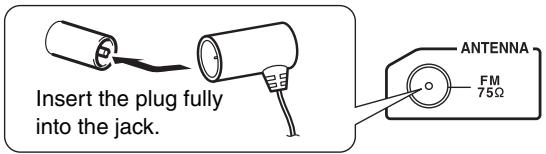
This section explains how to connect the supplied indoor FM antenna.
The CD receiver won't pick up any radio signals if no antenna is connected, so you must connect the antenna to use the tuner.
Connecting Speakers
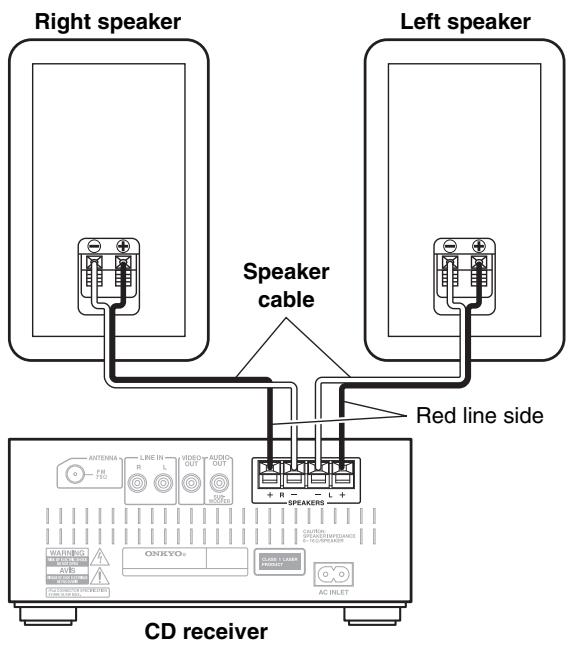
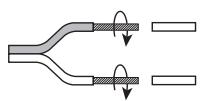
Remove the precut insulation from the ends of the speaker cables, and twist the bare wires tightly.
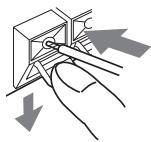
Push the lever to open the hole, insert the bare wire into the hole, and then release the lever.
Make sure that the speaker terminals are gripping the bare wires, not the insulation.
Note:
- Once your CD receiver is ready for use, you'll need to tune into a radio station and position the antenna to achieve the best possible reception.
Tip:
-
If you cannot achieve good reception with the supplied indoor FM antenna, try a commercially available outdoor FM antenna instead.
-
Connect the right speaker to the CD receiver's right (R) SPEAKERS terminals. Connect the left speaker to the left (L) SPEAKERS terminals.
- Pay close attention to speaker wiring polarity. Connect positive (+) terminals to only positive (+) terminals, and negative (-) terminals to only negative (-) terminals. If you get them the wrong way around, the sound will be out of phase and will sound unnatural.
- Use the red line wires to connect the positive (+) terminals.
- Do not connect anything other than the included speakers (D-T05). We cannot take responsibility for malfunctions or poor results if this CD receiver is used with any other speakers.
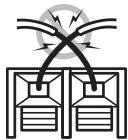
- Do not connect both speaker cables to the same L or R terminals. Do not connect more than two speaker terminals to each speaker.
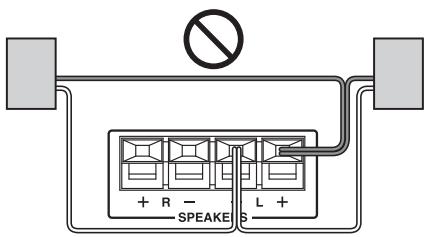
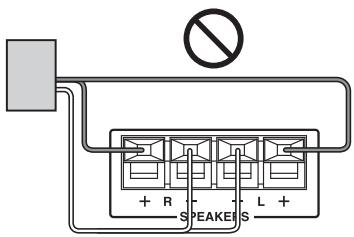
- Be careful not to short the positive and negative wires.
Doing so may damage the CD receiver and/or speakers.
+
About Connections
- Before making any connections, read the manuals supplied with your other components.
- Don't connect the power cord until you've completed and double-checked all connections.
Connection Color Coding
RCA-type audio connections are usually color-coded: red and white. Use red plugs to connect right-channel audio inputs and outputs (typically labeled "R"). Use white plugs to connect left-channel audio inputs and outputs (typically labeled "L").
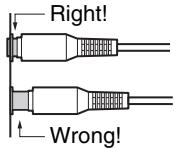
Push plugs in all the way to make good connections (loose connections can cause noise or malfunctions).
Note:
- Do not put anything on top of the CD receiver, as it may interfere with proper ventilation.
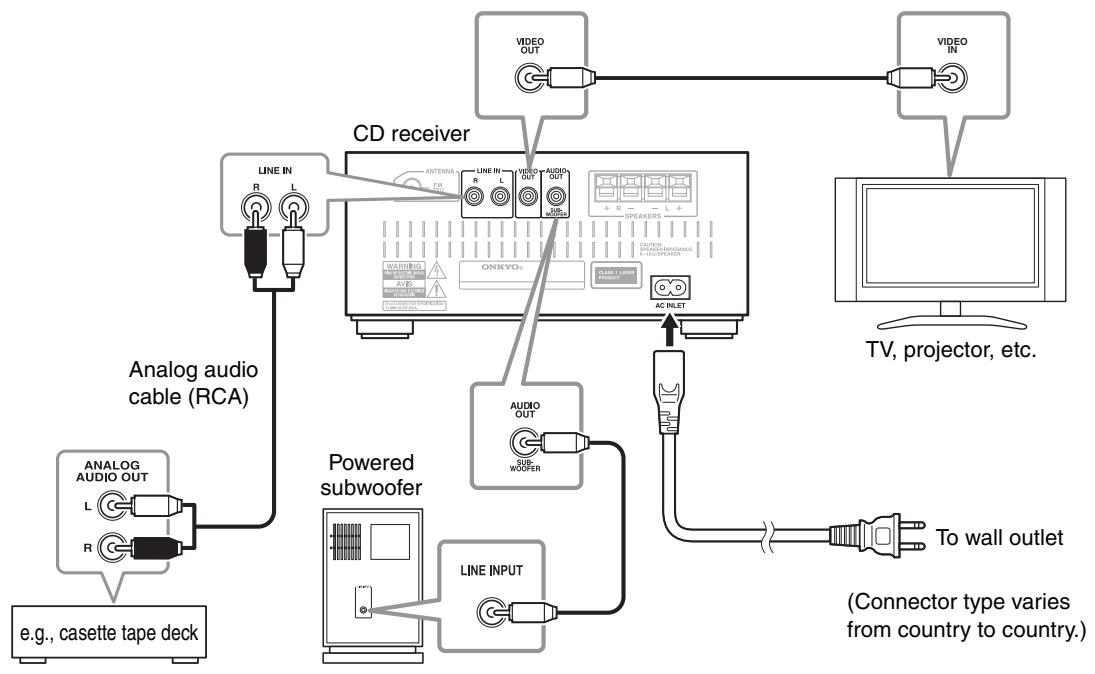
Connecting a Powered Subwoofer
Using a suitable cable, connect the CD receiver's AUDIO OUT: SUBWOOFER to the input on your powered subwoofer.
If your subwoofer is unpowered and you're using an external amplifier, connect the AUDIO OUT: SUBWOOFER to the amp's input.
Note:
- Do not connect or disconnect the power cord while the subwoofer is powered-on. Doing so may damage the subwoofer. You must power-off the subwoofer before connecting or disconnecting the power cord.
Connecting an Audio Playback Device
Using a suitable cable, connect the CD receiver's LINE IN jacks to the OUTPUT (PLAY) jacks of your cassette tape deck, TV, or other audio playback device.
Connecting a TV
If you want to view the contents of videos from your iPod/iPhone on your TV, connect the CD receiver's VIDEO OUT jack to the VIDEO IN jack of your TV or projector.
Connecting the Power Cord
Connect the CD receiver's power cord to a suitable wall outlet.
Notes:
- Do not use any cord other than the included power cord.
Do not connect the included power cord to any other device. Doing so may cause malfunctions or accidents.
- Do not unplug the power cord from the AC INLET while the other end of the cord is still connected to an AC outlet. You may receive an electric shock if you accidentally touch the internal terminals of the power cord.
- Before connecting the power cord, connect all of your speakers and AV components.
- Turning on the CD receiver may cause a momentary power surge that might interfere with other electrical equipment on the same circuit. If this is a problem, plug the receiver into a different branch circuit.
- Plug the power cord into an AC outlet that is easily accessible so that you can quickly unplug it if necessary.
Turning On the CD Receiver
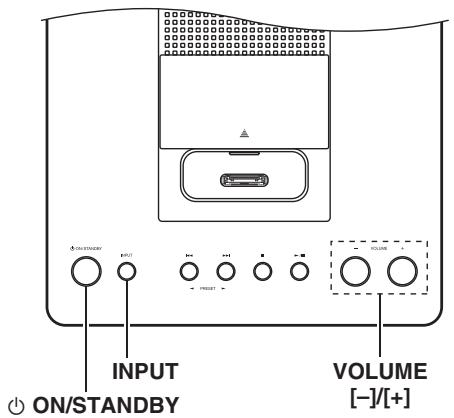
Press the [ON/STANDBY] button.
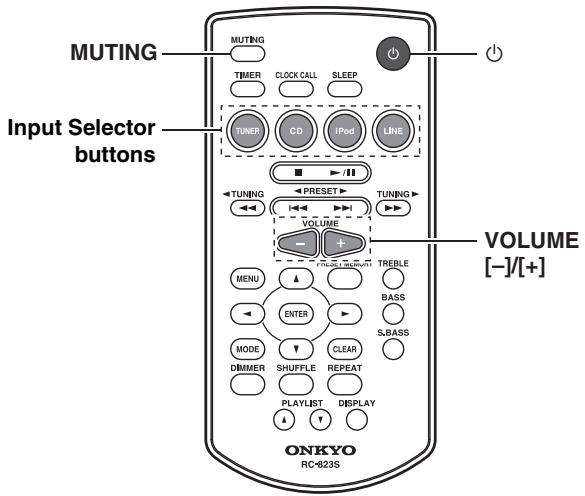
Alternatively, press the remote controller's [O] button. The CD receiver comes on, and the display lights up. If an iPod/iPhone is connected to the CD receiver, the "Connecting" message will be shown and the iPod/iPhone will be charged. Even if the CD receiver is in standby mode, the "Charging" message will be shown and charging will occur.
Selecting the Input Source
You can select CD, iPod (USB), FM, or LINE, which can be an external component.
To select the input source, use the remote controller's Input Selector buttons. On the CD receiver, press the [INPUT] button repeatedly.
The input sources are selected in the following order.

Adjusting the Volume
Press the VOLUME \([+\] button to increase the volume or the VOLUME \([-]\) button to decrease it.
You can also use the remote controller's VOLUME [-] /[+] buttons.
Muting the CD Receiver (remote controller only)
You can temporarily mute the output of the CD receiver. Press the remote controller's [MUTING] button.
The CD receiver is muted.
"Muting" appears on the display for a few seconds. The MUTING indicator flashes continuously while the CD receiver is muted.
To unmutte the receiver, press the [MUTING] button again.
Notes:
- Press the VOLUME [-] /[+] buttons on the CD receiver or pressing the VOLUME [-] /[+] buttons on the remote controller will unmute the CD receiver.
- If you turn the CD receiver off, the next time you turn it on, the CD receiver will be unmuted.
Using Headphones
You can connect a pair of stereo headphones ( 3.5mm 1/8-inch phone plug) to the receiver's headphones [N] jack for private listening.
Notes:
- Always turn down the volume before connecting your headphones.
- While the headphones plug is inserted in the headphones [O] jack, the speakers are turned off.
Using Super Bass (remote controller only)
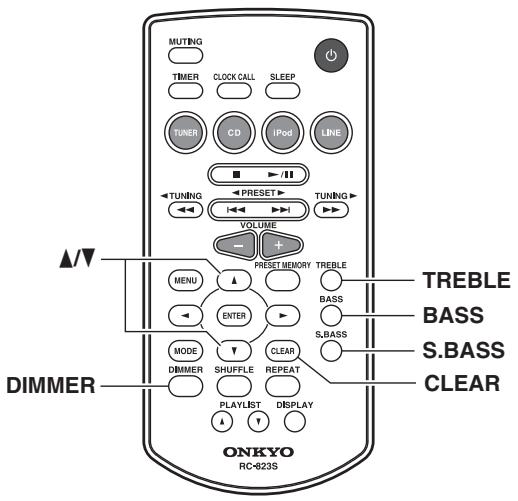
To turn on Super Bass, press the [S.BASS] button.
The setting will alternate between S.Bass Off, S.Bass 1, S.Bass 2, and S.Bass Off each time you press the button. To turn off Super Bass, press the [S.BASS] button repeatedly until "S.Bass Off" appears.
Changing the Display Brightness (remote controller only)
You can adjust the brightness of the display.
Press the remote controller's [DIMMER] button repeatedly to select: dim, or normal brightness.
Adjusting the Bass and Treble (remote controller only)
Press the [BASS] or [TREBLE] button, and then use the [ ] / [ ] buttons to adjust the bass or treble, respectively.
The default setting is "0." You can adjust the bass and treble from -5 to +5 .
While adjusting the bass or treble, you can press the [CLEAR] button to return the setting to "0".
Note:
- If you press no buttons for 5 seconds, the previous display will appear automatically.
Using the CD receiver
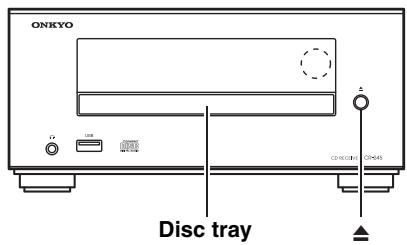
Press the [▲] button to open the disc tray.
Tip:
- Pressing the [▲] button while the CD receiver is on Standby will turn on the CD receiver and open the disc tray.
2 Place the CD on the tray with the label-side facing up.
Place 8cm CDs in the center of the tray.
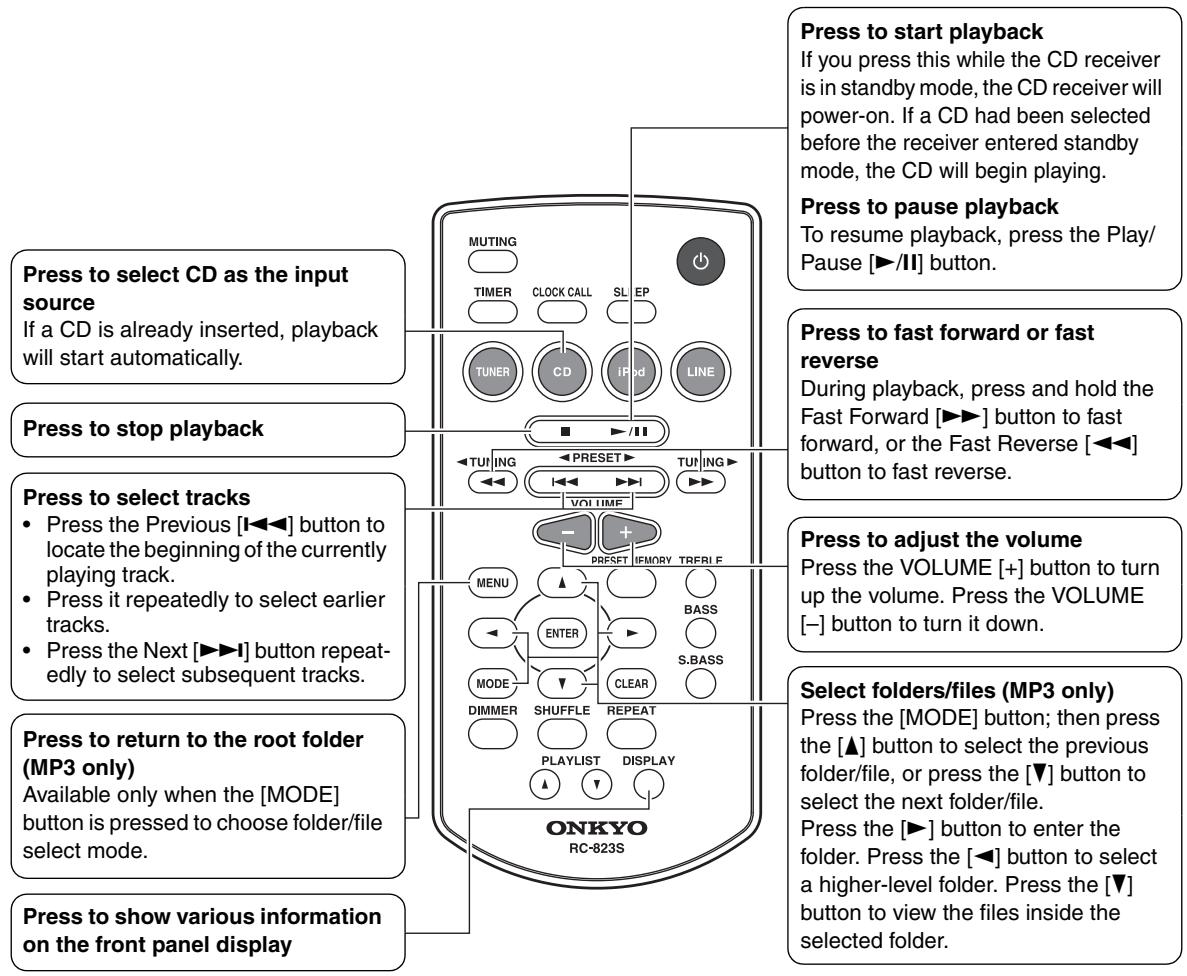
3 To start playback, press the [▶/II] button.
The disc tray closes and playback starts.
Then the “ ” indicator appears.
To stop playback:
Press the [ ] button.
Playback stops automatically when the last track has been played.
To pause playback:
Press the [/] button. The Pause "I" indicator appears. To resume playback, press the [/] button again.
To remove the CD:
Press the [] button to open the disc tray.
Information Displayed When Playback is Stopped:
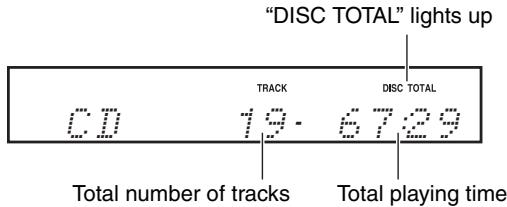
Audio CD
Selecting Tracks
To return to the beginning of the track currently playing, press the Previous [I▶] button.
Press the Previous [▶] button repeatedly to select earlier tracks.
Press the Next [▶▶] button repeatedly to select subsequent tracks.
Note:
Operation using the remote controller is explained on the next page.
Using the Remote Controller
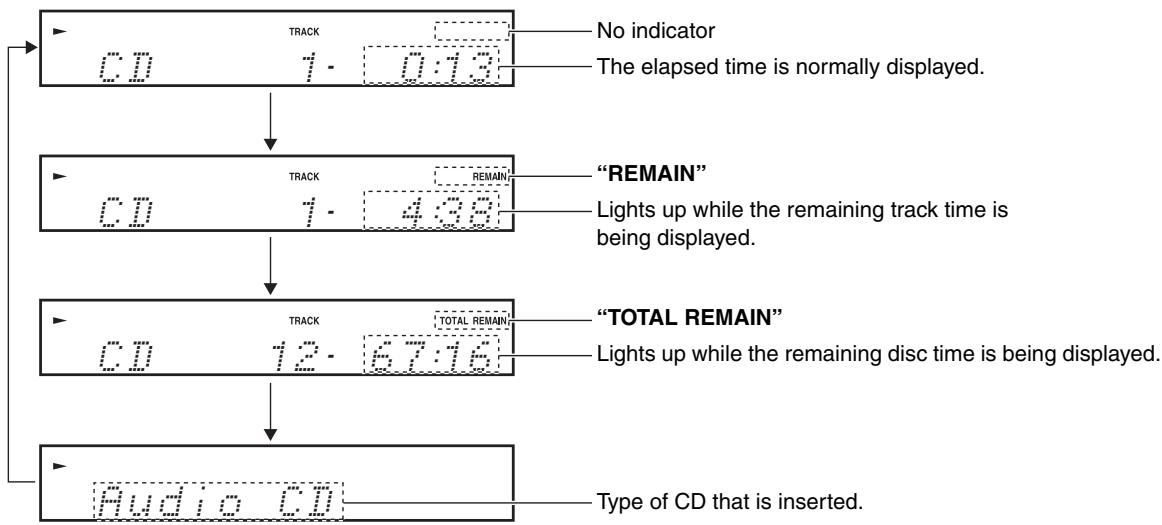
Displaying CD Information
During playback or while playback is paused, press the remote controller's [DISPLAY] button repeatedly to display the following CD information.
Note:
- See page 22 for details on displaying MP3 information.
Selecting MP3 Files
The files on an MP3 CD can be located at the disc's root level or within a folder.
A folder can contain additional folders, with other folders inside them in a hierarchical structure as shown in the following illustration.
A maximum of 648 files and folders (total) can be shown within a folder. Files and folders are listed alphabetically without distinction.
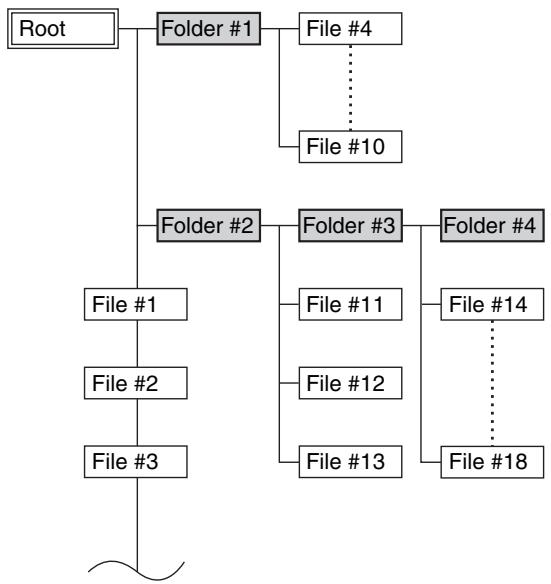
If you don't select a specific MP3 file or folder for playback, all of the MP3 files will be played in numerical order starting with file #1.
If random playback is selected, the files will not be played in the numerical order shown above. If you want the files to play in the numerical order shown above, you must cancel random playback (see page 22).
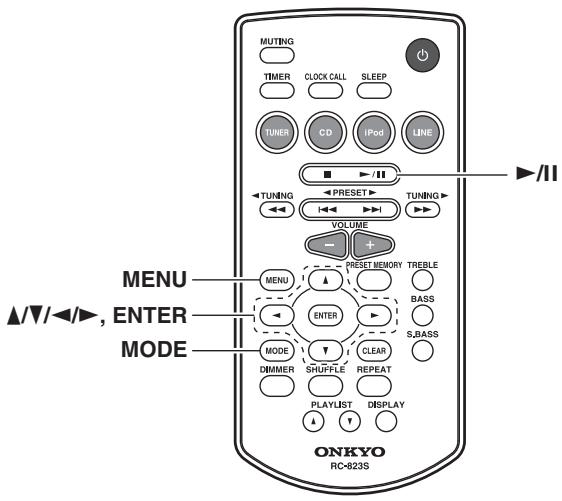
1 While playback is stopped, press the [MODE] button.
"FOLDER" will light, and the name of the first folder will be shown.
![ONKYO CS-245 - While playback is stopped, press the [MODE] button. - 1](/content/2025/01/151878/images/ef46be5cb609ded6ace350babff41912be5a8c7ab0a90f78c9ce1436daf5b054.jpg)
2 Use the arrow [] / [] buttons to select a folder.
![ONKYO CS-245 - Use the arrow [] / [] buttons to select a folder. - 1](/content/2025/01/151878/images/04ae7d3e4b4820b398c933c9da81bcb81025ca69c17c5c093991e6f21b55ba87.jpg)
Press the [ENTER] button or the [ ] button to enter the folder.
Repeat this operation to select the desired folder.
When the " " message is shown, you can press the [ENTER] button to return to the upper-level folder.
3 Use the arrow [] / [] buttons to select the MP3 files within the folder.
The name of the MP3 file inside the folder is displayed.
![ONKYO CS-245 - Use the arrow [] / [] buttons to select the MP3 files within the folder. - 1](/content/2025/01/151878/images/19325781b8f6e58a468c3f51ca779d0f1b4e185d119c02ce9079f8038a6d4e2f.jpg)
To select a different folder, press the [] / [] button, then use the [] / [] buttons to select the desired folder, and finally press the [ENTER] button. Use the [] / [] buttons to select the desired file.
4 To start playback, press the [ENTER] button or Play/Pause [▶/II] button.
Playback will start with the specified file and continue until all of the MP3 files have been played.
To select an MP3 file in another folder during playback, press the [MODE] button, select the folder by using the arrow [ ] / [ ] / [ ] / [ ] buttons, and then press the [ENTER] button. Now use the arrow [ ] / [ ] buttons to select the MP3 files within that folder.
Pausing Playback
To pause playback, press the Play/Pause [▶/11] button.
To resume playback, press it again.
Selecting a higher or lower folder
Press the [] button to select a higher-level folder, or the [] button to select a lower-level folder.
To return to the root
Press the [MODE] button, and then press the [MENU] button.
Displaying MP3 Information
You can display various information about the MP3 file currently playing, such as title, artist, and album.
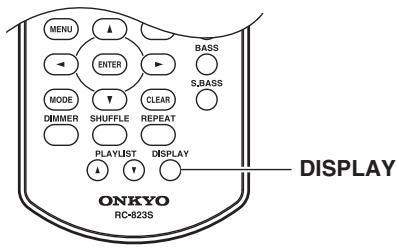
During playback, press the [DISPLAY] button repeatedly to display the following MP3 information.
The information is shown in the following order.
Elapsed time: The length of time that the current MP3 file has been playing (default display).
Remain time: The length of remaining time for the current MP3 file.
File name: Name of the current MP3 file.
Folder name: Name of the current folder.
Sampling rate and bit rate: Sampling rate and bit rate of the current MP3 file.
Volume label: Title of the current disc.
Notes:
- Only single-byte alphanumeric characters can be shown.
- A folder name, file name, or volume label that contains anything other than single-byte alphanumeric characters might be garbled.
Random Playback
With random playback, all of the tracks on the disc are played in random order.
Random playback can also be used in conjunction with repeat playback.
Note:
- In the case of MP3 files, the same song might be played.
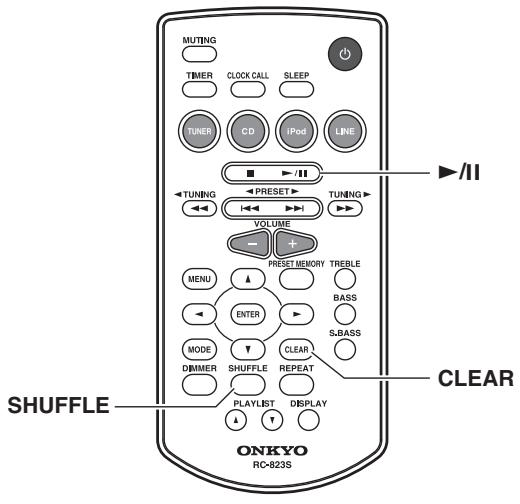
Random playback can be set when the input source is set to CD or USB.
1 Press the [SHUFFLE] button until the RANDOM indicator appears.
2 To start random playback, press the Play/ Pause [▶/II] button.
Cancelling Random Playback
To cancel random playback, press the [SHUFFLE] or [CLEAR] button.
When playing a CD, random playback will be cancelled automatically when the CD is removed.
Repeat Playback
With repeat playback, you can play an entire CD repeatedly or play one track repeatedly.
Repeat playback can also be used in conjunction with random playback.
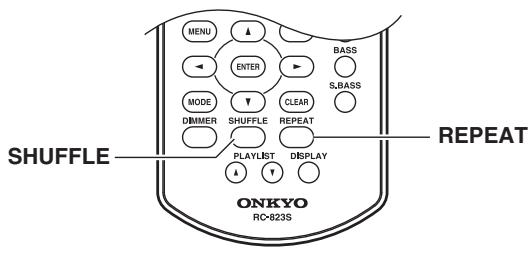
Press the [REPEAT] button repeatedly until the REPEAT or REPEAT 1 indicator appears.
"REPEAT" will repeatedly play all songs.
"REPEAT 1" will repeatedly play the currently-playing song or the selected song.
Note:
- If REPEAT 1 is selected, pressing the [SHUFFLE] button will cancel REPEAT 1; random playback will occur.
Cancelling Repeat Playback
To cancel repeat playback, press the [REPEAT] button repeatedly until both the REPEAT and REPEAT 1 indicators disappear.
When playing a CD, repeat playback will be cancelled automatically when the CD is removed.
- Before using your iPod/iPhone with the CD receiver, be sure to update your iPod/iPhone with the latest software, available from the Apple Web site.
- If you leave your iPod/iPhone paused when using it on its own, eventually it will go into hibernation. If you insert it into the CD receiver dock in this state, you'll need to wait a few moments before your iPod/iPhone is ready for use.
- Always remove your iPod/iPhone before moving the CD receiver.
- Depending on your iPod/iPhone, or the type of content being played, some functions may not work as expected.
Installing the iPod Dock Adapters
Gently push down and slide open the dock cover on the CD receiver.
First, with the adapter slot facing the back, fit in the front of the adapter and then press in the back until a click is heard. To remove the adapter, lift the back side up. If the adapter is difficult to remove, insert a thin object into the slot and lift the adapter up.
Always use the Universal Dock Adapter enclosed with the iPod model to correctly set the iPod in the CD receiver.
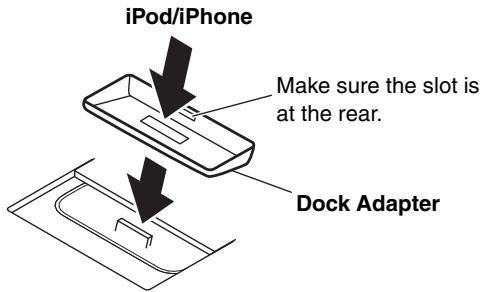
Note:
- Inserting your iPod/iPhone into the iPod dock without the appropriate adapter may damage the dock connector.
Using the Top Panel Buttons
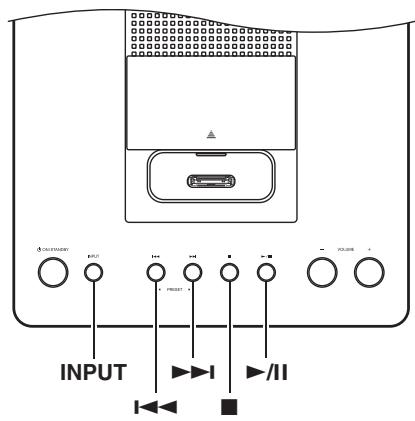
1 Press the [INPUT] button repeatedly to select "iPod/USB".
Notes:
- If the input indication shows "USB," a USB flash drive is connected to the USB port. Please remove the USB flash drive (see page 29).
- Even if a USB flash drive is connected to the USB port, the iPod/iPhone input will be selected if an iPod/ iPhone is connected to the iPod dock.
2 Insert your iPod/iPhone into the CD receiver's iPod dock.
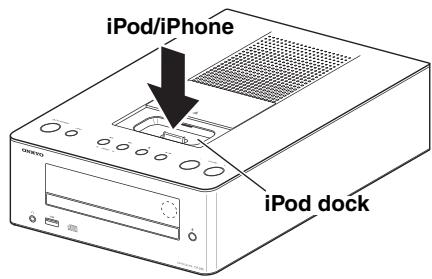
Make sure your iPod/iPhone is properly seated in the CD receiver's iPod dock.
Notes:
- The iPod/iPhone must be connected to the iPod dock. Do not connect it to the USB port.
- To prevent damage to the dock connector, do not twist or force your iPod/iPhone into the dock, and be careful not to wiggle your iPod/iPhone while inserting it.
- Do not use with any iPod/iPhone accessories, such as FM transmitters and microphones, as they may cause a malfunction.
- If you use a case with your iPod/iPhone, always remove it before you insert it. Otherwise, it may not connect properly and a malfunction may occur.
- When you remove your iPod/iPhone from the iPod dock, always close the dock cover afterward.
3 Press the Play/Pause [▶/II] button. Playback starts.
Selecting Tracks
To return to the beginning of the track that's currently playing or paused, press the Previous [▶] button.
Press the Previous [ ] button repeatedly to select earlier tracks.
Press the Next [▶▶] button repeatedly to select subsequent tracks.
Pausing Playback
To pause playback, press the Play/Pause [▶/II] button.
Press the Play/Pause [▶/II] button again to resume playback. You can also pause playback by pressing the
[ ] button.
Note:
- Operation using the remote controller is explained below.
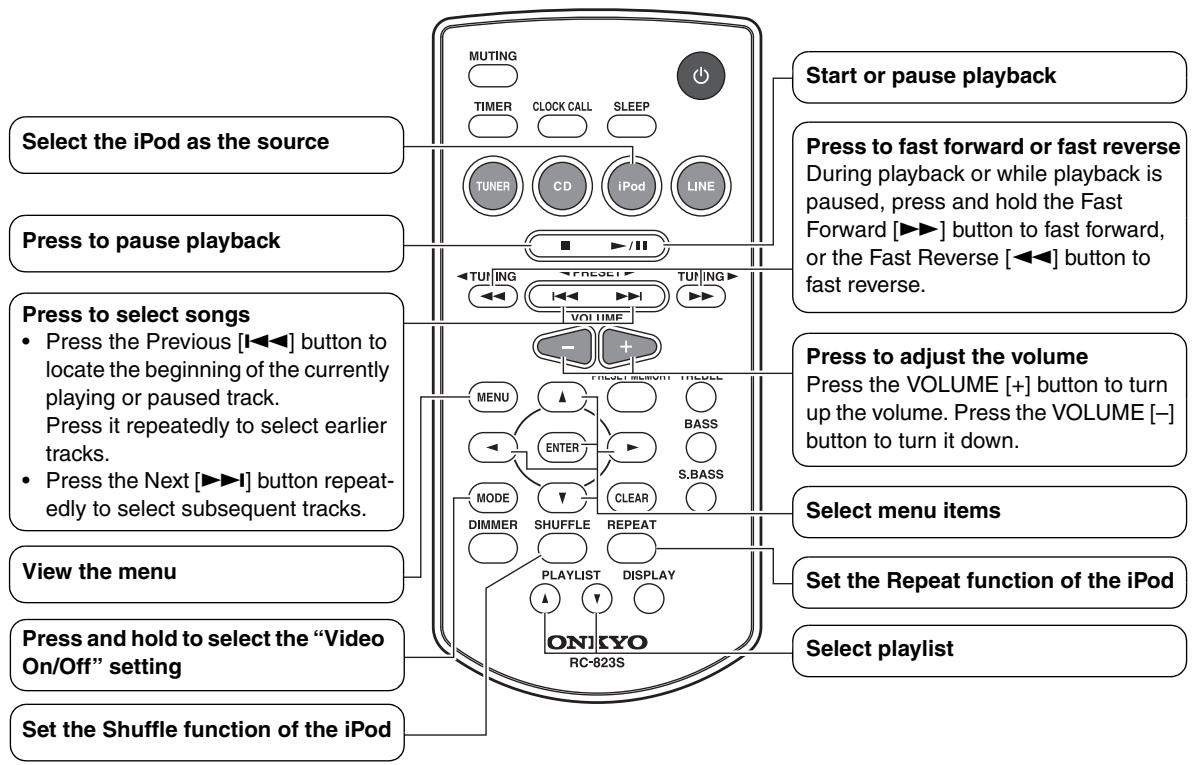
Using the Remote Controller
Navigating the iPod Menus with the Remote Controller
1 Press the [MENU] button to display the iPod menu.
2 Use the Up/Down [▲]/[▼]/[←] /[▶] buttons to select an item on the menu, and then press the [ENTER] button.
Note:
- The volume level is adjusted by using the VOLUME ([-] / [+] buttons on the CD receiver or its remote controller. Adjusting the volume on your iPod/iPhone has no effect.
Playing video from the iPod/iPhone
1 Connect your iPod/iPhone to the iPod dock.
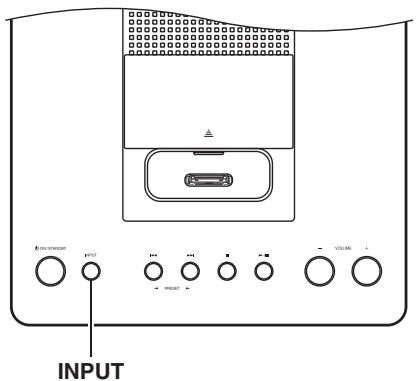
2 Press the [iPod] button, or the [INPUT] button on the top panel, repeatedly to select "iPod".
"IPod" appears on the display.
3 Press and hold down the [MODE] button.
Each time you hold down the [MODE] button, the setting will alternate between "Video On" and "Video Off." Select "Video On," and then remove and reinsert your iPod/iPhone.
Press the Play/Pause [▶/II] button.
Playback starts.
Notes:
- The [MODE] button will not work unless an iPod/ iPhone is inserted and iPod is selected as the input source.
- This function will become available after you have specified the Video On/Off setting and then removed and reinserted your iPod/iPhone.
- For some models of iPod/iPhone, the output settings of the iPod/iPhone might take priority.
- This function might not work depending on the model of iPod/iPhone or depending on its apps.
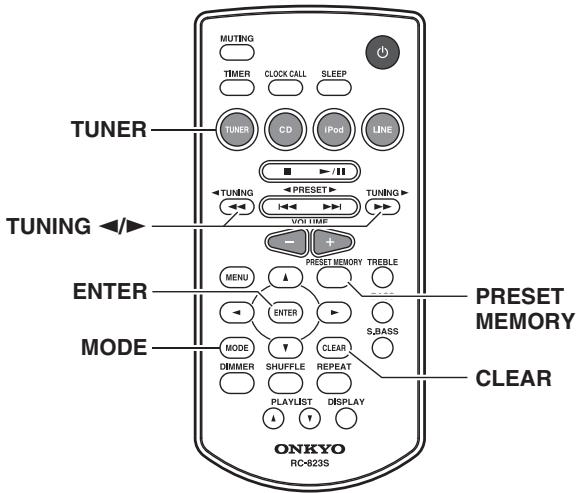
Tuning into FM Radio Stations
When tuned to a station, the Tuned ( ) indicator appears. When receiving a stereo FM signal, the FM ST indicator appears as well.
| AUTO | FM ST |
| FM | 87.50 MHz |
The [MODE] button is used to select Auto mode or Mono mode. In Auto mode, the output will be stereo or mono depending on the station being received. In Mono mode, the output will be mono regardless of the station.
Press the [TUNER] button, or the [INPUT] button on the top panel, repeatedly to select "FM".
2 Use the TUNING [] / [] buttons to tune into a station.
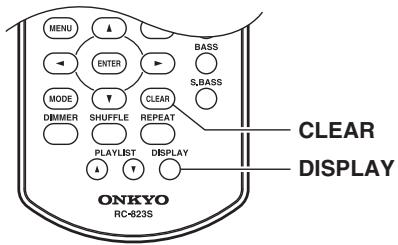
Each time you press a TUNING button, the frequency changes 0.05MHz steps for FM. If you press and hold a TUNING button, the frequency will change continuously. Once you release the button, tuning will stop automatically when a frequency on which a radio station is broadcasting is found. If you want to interrupt this process, press the [CLEAR] button.
Tuning into weak stereo FM stations
If the signal from a stereo FM station is weak, it may be impossible to get good reception. In this case, press the [MODE] button to switch to Mono mode and listen to the station in mono.
Presetting FM Stations Automatically (Auto Preset)
With the Auto Preset function, you can automatically preset all of the FM radio stations available in your area in one go. Presets make it easy to select your favorite stations and eliminate the need to tune the radio manually each time you want to change stations.
As an alternative to this Auto Preset function, there's also a Manual Preset function that lets you manually preset individual FM stations (see page 27).
Auto Preset Caution!
Any existing presets will be deleted when the Auto Preset function is run.
Press the [TUNER] button, or the [INPUT] button on the top panel, repeatedly until "FM" appears.
Make sure the FM antenna is positioned to achieve the best possible reception.
Press the [PRESET MEMORY] button.
"Auto Preset?" appears on the display.
3 To start the Auto Preset function, press [ENTER].
Up to 30 stations can be preset and presets are stored in frequency order.
If you want to interrupt the Auto Preset process, press the [CLEAR] button.
Note:
Depending on your location, a preset may be stored with no station, and you'll hear only noise when you select it. In this case, delete the preset (see page 28).
Presetting FM Stations Manually
With the Preset Write function, you can manually preset individual FM radio stations. Presets make it easy to select your favorite stations and eliminate the need to tune the radio manually each time you want to change stations.
FM stations can also be preset automatically (see page 26).
About Presets
You can store up to 30 FM stations as presets.
1 Tune into the station that you want to store as a preset (see page 26).
2 Press and hold down the [PRESET MEMORY] button to the preset number flashes.
When the preset has been stored, the preset number will change from blinking to steadily lit.
Preset numbers are automatically stored starting with the lowest unused number.
If all 30 presets have been set, the display will indicate "Preset FULL," and no further presets can be stored. You'll need to erase an existing preset before storing another one.
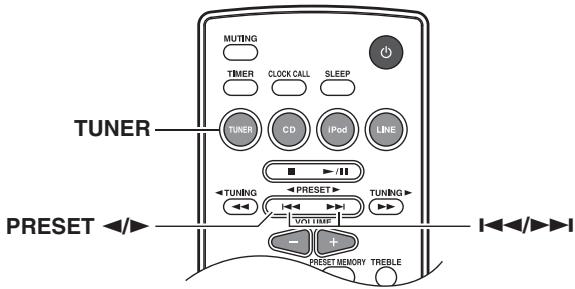
Selecting Preset Stations
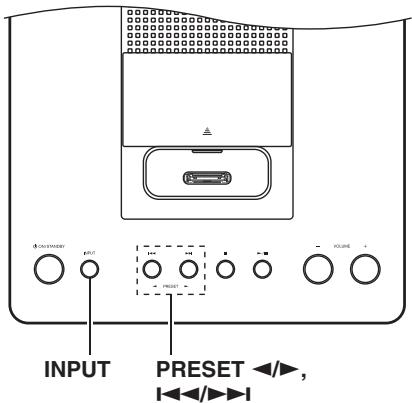
You must store some presets before you can select them (see pages 26 to 27).
Press the [TUNER] button, or the [INPUT] button on the top panel, repeatedly to select "FM".
The preset you selected the last time you listened to the radio will be selected.
2 Use the PRESET [] / [] buttons to select a preset.
Press the Previous [▶] button to select the previous preset. Press the Next [▶] button to select the next preset.
Tip:
- If you press the remote controller's [TUNER] button while the CD receiver is on Standby, it will turn on automatically and the station that you listened to last time will be heard.
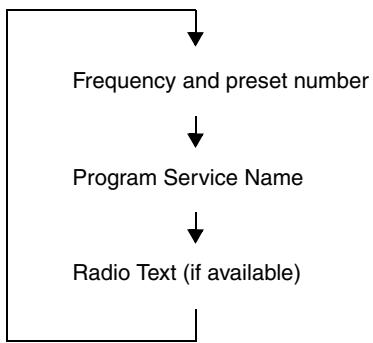
Receiving RDS (remote controller only)
Press the [DISPLAY] button repeatedly to display the following RDS information.
RDS can be viewed on this unit only in areas where RDS broadcasts are available.
What is RDS?
RDS stands for Radio Data System and is a method of transmitting data in FM radio signals. It was developed within the European Broadcasting Union (EBU) and many European FM radio stations use it these days.
The unit supports and displays Program Service Name (PS) and Radio Text (RT) RDS data.
The RDS indicator appears on the display when the unit is tuned to an FM station that supports RDS.
Notes:
- If the signal from an RDS station is weak, RDS data may be displayed intermittently or not at all.
- The message "Waiting" may appear while the RT data is being received.
Erasing Presets
1 Select the preset you want to erase (see page 27).
2 Press and hold down the [CLEAR] button to erase the preset.
When the preset has been erased, presets following the erased preset will be renumbered forward and redisplayed.
1 Disconnect the iPod/iPhone from the iPod dock.
A USB flash drive cannot be used if an iPod/ iPhone is inserted.
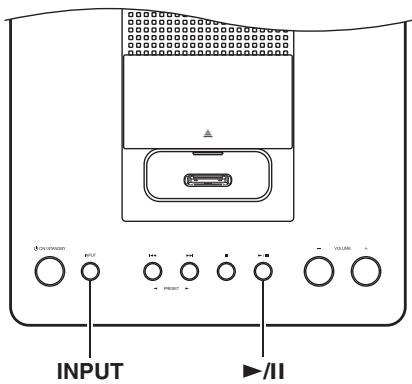
2 Press the [iPod] button, or the [INPUT] button on the top panel, repeatedly to select "iPod/USB".
3 Insert a USB flash drive in the USB port.
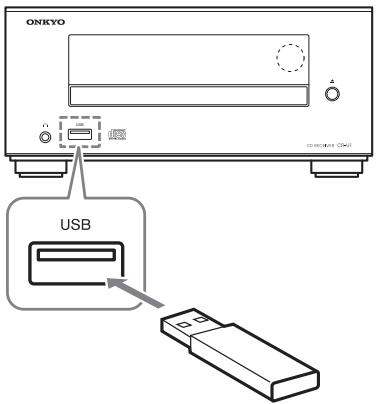
4 To start playback, press the [▶/II] button.
Selecting folders and files, and using the random play and repeat play functions, are the same as when playing back MP3 files from a CD (see page 21).
![ONKYO CS-245 - To start playback, press the [▶/II] button. - 1](/content/2025/01/151878/images/287fe73e6718168ab4c10ffcce2d51ce654f0f02599ab6d918e83389db0c2cdd.jpg)
Notes:
- Do not connect your USB flash drive via a USB hub.
- When connecting or disconnecting a USB flash drive, use your hand to support the CD receiver so that it does not move.
- For details on the usable formats for a USB flash drive, refer to page 12 "Playback from USB Flash Drives".
- If you want to play your iPod/iPhone, disconnect the USB flash drive from the USB port.
- The USB port is only for USB flash drives; do not connect your iPod/iPhone to it.
- Even if a USB flash drive is connected to the USB port, the iPod/iPhone input will be selected if an iPod/iPhone is connected to the iPod dock.
- Do not connect the CD receiver's USB port to a USB port on your computer. Music on your computer cannot be played through the CD receiver in this way.
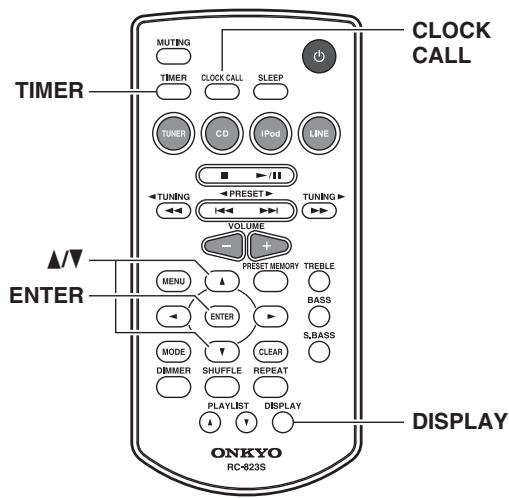
Setting the Clock
1 Press the [TIMER] button repeatedly until "Clock" appears.

2 Press [ENTER].

3 Use the arrow [ ] / [ ] buttons to enter the current hour.
When the CD receiver is shipped from the factory, the time display format is set to 24-hour time. Set the current hour as it would appear in 24-hour time. If you want to set the current hour as 12-hour time, press the [DISPLAY] button.
4 Press [ENTER].
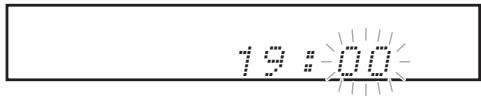
Use the arrow [] / [] buttons to enter the current minute.
6 Press [ENTER].

The clock is set and the second dot starts flashing.
Displaying the Time
To display the time, press the remote controller's [CLOCK CALL] button. Press the button again or perform another operation to cancel the time display. If the CD receiver is on Standby, the day and time will be displayed for 8 seconds.
While the CD receiver is on, the day and time are displayed continuously.
Change the time format
To change the time format between 12-hour and 24-hour, press the [DISPLAY] button.
The CD receiver has a programmable timer for automated playback, and a sleep timer for turning the CD receiver off after a specified period.
You can also use the alarm playback function of your iPod/iPhone to initiate timer playback on the CD receiver.
The timer can be used to start FM, CD, iPod/USB, or LINE playback at a specified time. You could, for example, use a timer to turn on the CD receiver every morning, just like a radio alarm clock.
Note:
- If iPod is selected as the input source for the timer settings, USB will play if only a USB flash drive is connected, and iPod/iPhone will play if an iPod/ iPhone is connected.
Programming the Timer
Notes:
- You must set the clock before you can program the timer.
- If you don't operate any buttons for 5 seconds while programming a timer, the procedure will be cancelled and the previous display will reappear.
- When the CD receiver is turned on by the timer, playback will begin with the most recently received station in the case of FM, the first song in the case of a CD or iPod (USB), and the current state of the connected device in the case of LINE.
- Only one timer can be set.
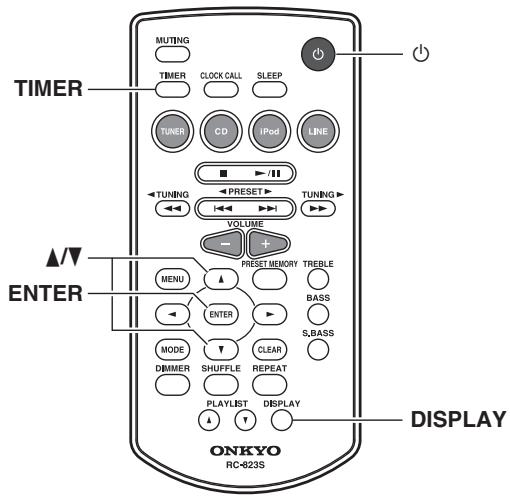
1 Prepare the source that you want the timer to play.
If you want FM to play, tune to the station you want to hear.
If you want a CD to play, insert the disc.
For an iPod/iPhone, place it in the dock. If you're using a USB flash drive rather than an iPod/iPhone,
disconnect the iPod/iPhone from the iPod dock (see page 29).
If you want to play a device connected to LINE, make settings on the connected device so that it will start playing when the timer operates.
2 Press the [TIMER] button repeatedly until "Timer XX" appears.
"XX" indicates the source that was last selected for timer playback.
![ONKYO CS-245 - Press the [TIMER] button repeatedly until "Timer XX" appears. - 1](/content/2025/01/151878/images/95381e80e4eb849a8f82ec05d6f96c84df6297e298eead088e03319aae5bc00d.jpg)
3 Use the arrow [] / [] buttons to select the source, and then press [ENTER].
You can select the following sources:
FM, CD, iPod (USB), LINE.
In the display, "TIMER" and a number indication will blink according to the input source you've selected.
The number will be "1" for FM, "2" for CD, "3" for iPod (USB), and "4" for LINE.
4 Use the arrow [] / [] buttons to specify the "hour" at which you want the timer to play, and then press [ENTER].
![ONKYO CS-245 - Use the arrow [] / [] buttons to specify the "hour" at which you want the timer to play, and then press [ENTER]. - 1](/content/2025/01/151878/images/c209c7e81716341dddd48cf2ca66541cbfb7a87a7e454cef088d980edf315178.jpg)
Use the arrow [] / [] buttons to specify the "minute" at which you want to timer to play, and then press [ENTER].
![ONKYO CS-245 - Use the arrow [] / [] buttons to specify the "minute" at which you want to timer to play, and then press [ENTER]. - 1](/content/2025/01/151878/images/6a36453daf68aa2d633bac44248ae60aab794e03b75a26b12d8ddf2b7df22e5f.jpg)
6 Use the arrow [] / [] buttons to select "Timer On," and then press the [ENTER] button.
When a timer is turned on, its TIMER and number appears on the display.
If there is no operation for several seconds, the setting will be made with the currently-shown content.
The display will return to its previous state except for "TIMER" and the number of the selected input source; the timer is now set.
7 Press the [ON/STANDBY] button or the remote controller's [ ] button to set the CD receiver to Standby.
Tips:
- If you decide to cancel during this procedure without making timer settings, press the [TIMER] button.
- By pressing the [DISPLAY] button when specifying the time, you can switch between 12-hour and 24-hour displays.
Notes:
- Be sure to set the CD receiver to Standby, otherwise the timed operation will not work. If the timer has been set, timed operation will work even if the SLEEP timer caused the CD receiver to enter Standby mode.
Once the timer has been turned on, playback will start at the same time every day. Be sure to turn off the timer before leaving on vacation. - If the timer turns the power on, the "SLEEP" indication will light. If no operation is performed for one hour, the CD receiver will automatically enter Standby mode. If you perform any operation, the "SLEEP" indication will turn off, and the CD receiver will continue operating.
Turning Timer On and Off
Once a timer has been programmed, you can turn it on or off as necessary. For example, while you're on holiday, you may want to turn off the timer you use as an early morning alarm.
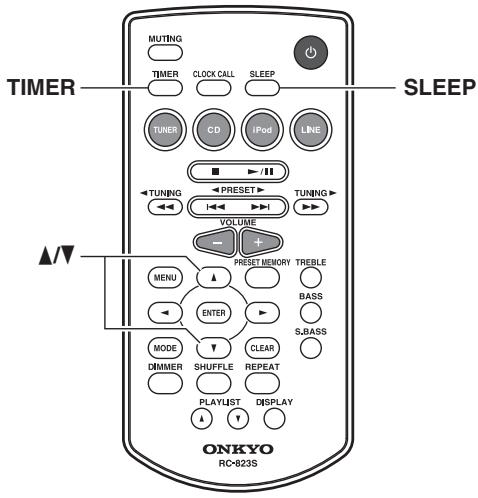
Press the [TIMER] button repeatedly until "Timer On" or "Timer Off" appears.
2 Use the arrow [] / [] buttons to select either "Time On" (set) or "Timer Off" (cancel), and then press the [ENTER] button.
If there is no operation for several seconds, the setting will be made with the currently-shown content, and the display will return to its previous state.
If you specify Timer On (set), the "TIMER" indication and the number of the selected input source will light.
If you select Timer Off (i.e., turn off the timer), the "TIMER" indicator will disappear.
Using the Sleep Timer
With the sleep timer, you can set the CD receiver so that it automatically turns off after a specified period.
Press the [SLEEP] button repeatedly to select the required sleep time.
With the [SLEEP] button, you can set the sleep time from 90 to 10 minutes in 10 minute steps.
When the sleep timer has been set, the SLEEP indicator appears on the display. The sleep time appears on the display for about 3 seconds, then the previous display reappears.
Checking the Remaining Sleep Time
To check the remaining sleep time, press the [SLEEP] button.
Note that if you press the [SLEEP] button while the sleep time is being displayed, you'll shorten the sleep time by 10 minutes.
For example if you press the [SLEEP] button and the remaining time is shown as 55 minutes, pressing the [SLEEP] button once again will shorten this time to 50, and each subsequent press will shorten the time in 10 minute increments.
Canceling the Sleep Timer
To cancel the sleep timer, press the [SLEEP] button repeatedly until "Sleep Off" appears.
Note:
- If the timer turns the power on, the "SLEEP" indication will light. If you perform any operation, the "SLEEP" indication will turn off. If you want to set the SLEEP timer, you'll need to make the setting again after the "SLEEP" indication turns off.
TimerPlayback using the Alarm Play Function of your iPod/iPhone
When the alarm play function of the iPod/iPhone connected to the CD receiver starts playing a song, the CD receiver will power-on and switch to the iPod input.
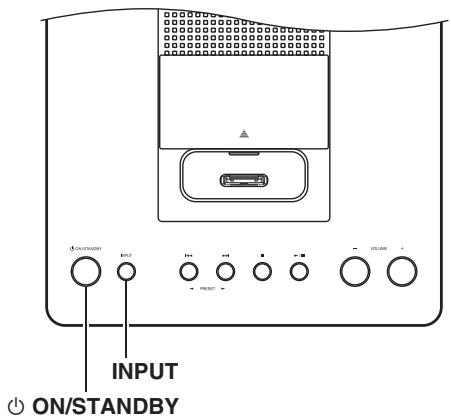
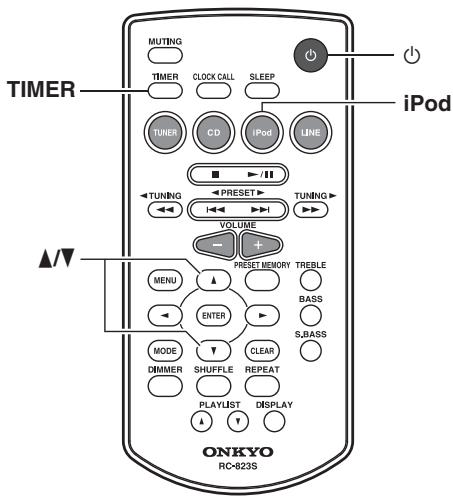
1 On your iPod/iPhone, make settings for its alarm play function.
2 Make sure that nothing is connected to the USB port, and then connect your iPod/ iPhone to the iPod dock. (see page 24) If the USB indication is shown, a USB flash drive is connected. Disconnect the USB flash drive.
3 Repeatedly press the [TIMER] button to make the iPod alarm mode "iPodAlarmOff" message appear.
4 Use the arrow [] / [] buttons to select "iPodAlarmOn," and then press the [ENTER] button.
If there is no operation for several seconds, the setting will be made with the currently-shown content, and the display will return to its previous state.
Press the CD receiver's [ON/STANDBY] button or the remote controller's [O] button to put the CD receiver in standby mode.
When the alarm play function of the iPod/iPhone begins, the CD receiver will power-on and the input will be switched to iPod.
Notes:
- In order for the timer to work, the CD receiver must be in standby mode.
- This function will not work if the iPod/iPhone is not connected.
- Timer playback will not work with an alarm that merely plays a bell tone or similar sound on the iPod/iPhone. It will work when the app plays a song or playlist.
- This function might not work with some iPod/iPhone apps.
Tip:
- This function will power-on the CD receiver and switch the input to iPod when it detects a song being played back by the iPod/iPhone. If you play back a song on the iPod/iPhone without using its alarm play function, the CD receiver will power-on and switch to the iPod input in the same way.
If you have any trouble using the CD receiver, look for a solution in this section.
If you can't resolve the issue yourself, try resetting the CD receiver before contacting your Onkyo dealer.
To reset the receiver to its factory defaults, turn it on and, while holding down the CD receiver's stop [■] button, press the [ON/STANDBY] button. When the display indicates "RESET," release the buttons. After a while, the CD receiver will enter standby mode.
Note that resetting the CD receiver will delete your radio presets and custom settings.

ON/STANDBY
Power
Can't turn on the CD receiver.
- Make sure that the power cord is properly plugged into the wall outlet (see page 16).
- Make sure that the power cord is properly plugged into the CD receiver's AC INLET (see page 16).
- Unplug the power cord from the wall outlet, wait 30 minutes or more, then plug it in again.
The CD receiver turns off unexpectedly.
- If the sleep timer has been set and the SLEEP indicator is shown on the display, the CD receiver will turn off automatically after a specified period (see page 32).
Audio
There's no sound.
- Make sure the CD receiver's volume is not set too low (see page 17).
- Make sure the correct input source is selected (see page 17).
- Make sure the CD receiver is not muted (see page 17).
- Check all connections and correct as necessary (see pages 14 to 15).
- While headphones are connected, the speakers output no sound (see page 17).
- If there's no sound from an external device connected to LINE IN, check whether the external device's audio output level (volume) might be too low.
The sound quality is not good.
- Make sure the speaker cables are connected with the correct polarity (see page 14).
- Make sure all audio connecting plugs are pushed in all the way (see page 15).
- The sound quality can be affected by strong magnetic fields, such as that from a TV. Try moving any such devices away from the CD receiver.
- If you have any devices that emit high-intensity radio waves near the CD receiver, such as a cellular phone that's being used to make a call, the CD receiver may output noise.
- The CD receiver's precision drive mechanism may emit a faint hissing sound while reading discs during playback or when searching for tracks. You may be able to hear this noise in extremely quiet environments.
Audio output is intermittent when the CD receiver is subjected to vibration.
- The CD receiver is not a portable device. Use it in a location that's not subject to shock or vibration.
- Make sure that the included cork floor pads are attached to the speakers (see page 11).
Headphones output is intermittent or there's no sound.
- This may be due to dirty contacts. Clean the headphones plug. See your headphones' instruction manual for cleaning information. Also, make sure that the headphones cable is not broken or damaged.
Audio performance.
- Audio performance will be at its best about 10 to 30 minutes after the CD receiver has been turned on and had time to warm up.
- Using cable ties to bundle audio cables with speaker or power cables may degrade the sound quality, so don't do it.
CDPlayback
The disc will not play.
- Make sure the disc has been loaded correctly, with the label-side facing up.
- Check to see if the surface of the disc is dirty (see page 12).
- If condensation is suspected, turn on the CD receiver and leave it for 2 to 3 hours before playing any discs.
- Some CD-R/RW discs may not be playable (see page 12).
It takes a long time for playback to start.
- It may take the CD receiver a while to read CDs that contain many tracks or files.
Playback jumps.
- The CD receiver is being subjected to vibration or the disc is scratched or dirty (see page 13).
- The volume may be too loud. Turn down the volume (see page 17).
Can't play MP3 Discs.
- Use only ISO 9660 Level 1 or Level 2 format discs (see page 12).
- The disc has not been finalized. Finalize the disc.
- Check whether the file format is supported (see page 12).
- MP3 files without a“.MP3” or“.mp3” filename extension are not recognized.
iPod/iPhone
There's no sound.
- Make sure that your iPod/iPhone is not connected to the USB port. The iPod/iPhone must be connected to the iPod dock.
- Make sure your iPod/iPhone is properly seated in the CD receiver's iPod dock. Even very thin iPod/iPhone cases can prevent the iPod/iPhone from seating properly on the dock connector, so always remove any case before inserting your iPod/iPhone (see page 24).
- Make sure the CD receiver is turned on, the input source is set to iPod, and the volume is not set too low.
- Make sure that your iPod/iPhone is compatible with the system (see page 6).
No video output.
- Hold down the [MODE] button to select "Video On" (see page 25).
- Check the settings of your iPod/iPhone. Even if the CD receiver is set to "Video On," the settings of the iPod/iPhone might take priority.
No video on the screen of the iPod/iPhone when you play back a movie.
- The video is output from the CD receiver's VIDEO output. Hold down the [MODE] button to select "Video Off." External output might also be selected on your iPod/iPhone.
Can't control your iPod/iPhone with the CD receiver's remote controller.
- Make sure your iPod/iPhone is properly seated in the CD receiver's iPod dock. Even very thin iPod/iPhone cases can prevent the iPod/iPhone from seating properly on the dock connector, so always remove any case before inserting your iPod/iPhone (see page 24).
- You may not be able to control your iPod/iPhone immediately after inserting it into the CD receiver's iPod dock. In this case, wait a few moments until your iPod/iPhone wakes up.
- Depending on your iPod/iPhone model, its software version, or the content you're playing, some functions may not work as expected (see pages 24 and 25).
- The iPod/iPhone might not be connected if its power is turned off, or if it is insufficiently charged. Check the state of your iPod/iPhone.
Can't recharge the iPod/iPhone.
- Check the iPod/iPhone connection.
- Depending on the state of your iPod/iPhone, the CD receiver might not be able to charge it. Try using the dedicated charging method provided for the iPod/iPhone.
USB Flash Drive Playback
Can't access the music files on a USB flash drive.
- Make sure that an iPod/iPhone is not connected to the iPod dock. If an iPod/iPhone is connected, disconnect it (see page 29).
- The CD receiver supports USB flash drives only. Note, however, that playback may not be possible with some USB flash drives.
- Make sure that the USB flash drive has been formatted as FAT16 or FAT32.
- USB flash drives with built-in USB hub functionality are not supported.
- This CD receiver cannot play files other than MP3 files.
Can't play MP3 files.
- MP3 files without a .MP3 or .mp3 filename extension are not recognized.
- Check whether the file format is supported (see page 12).
- The MP3 file's copyright option is on. Don't use the copyright option.
Tuner
Reception is noisy, stereo FM reception suffers from hiss, the Auto Preset function doesn't preset all stations, or the FM ST indicator doesn't light up when tuned to a stereo FM station.
- Check the antenna connections (see page 14).
- Change the position of the antenna (see page 14).
- Move the CD receiver away from a nearby TV or computer.
- Cars or airplanes can cause noisy interference.
- The radio signal will be weakened if it has to pass through a concrete wall before reaching the antenna.
- Switch to Mono mode and listen in mono. The FM ST indicator will go off (see page 26).
- If none of the above improves the reception, install an outdoor antenna (see page 14).
If a power failure occurs or the power cable is disconnected.
- A brief power outage will not cause the contents of memory to be lost. However if the power cable is left disconnected for an extended period of time, only the clock settings (including the timer) will be reset. Please make these settings again as necessary (see pages 26 and 27).
Can't adjust the frequency of the radio.
- Use the remote controller's TUNING [] / [] buttons to change the frequency of the radio (see page 26).
RDS doesn't work.
- The FM station you are tuned to doesn't support RDS.
- The radio signal is weak. Change the position of the antenna. If that doesn't work, install an outdoor FM antenna (see page 14).
Remote Controller
The remote controller doesn't work properly.
- Replace the battery with a new one.
- The remote controller is too far away from the CD receiver, or there's an obstacle between them (see page 11).
- The CD receiver's remote control sensor is being subjected to bright light (inverter-type fluorescent light or sunlight).
- The CD receiver is located behind the tinted glass doors of an audio rack or cabinet.
External Components
No sound is heard from your turntable.
- Make sure the turntable has a built-in phono equalizer. If the turntable doesn't have a phono equalizer built-in, you must provide one.
Timer
The timer doesn't work.
- Make sure the clock has been set correctly (see page 30).
- Timed operation will fail if the CD receiver is on at the specified On time, so make sure it's set to Standby (see page 31).
- If you press the [TIMER] button while a timed operation is in progress, the timer will be cancelled.
- The volume setting for timer playback will be the volume that was set before the CD receiver entered standby mode. Set the appropriate volume beforehand.
- If a power failure occurs and the clock stops, the timer will also be reset. Reset the clock, and then make timer settings.
Clock
The display indicates "---:---" when you press the [CLOCK CALL] button.
- A power failure has occurred, and the clock has stopped. Set the clock again (see page 30).
Others
Standby power consumption.
- Charging will begin when you connect an iPod/iPhone, causing the power consumption to increase. Charging will occur even if the CD receiver enters standby mode.
Onkyo is not responsible for damages (such as CD rental fees) due to unsuccessful recordings caused by the unit's malfunction. Before you record important data, make sure that the material will be recorded correctly.
The CD receiver contains a microcomputer. In very rare situations, severe interference, noise from an external source, or static electricity may cause it to malfunction or lock up. In the unlikely event that this should happen, unplug the power cord, wait at least 30 minutes, and then plug it back in again. If this doesn't resolve the issue, reset the CD receiver to its factory defaults (see page 34).
Amplifier
| Rated output power (IEC) | 2ch × 15 W (6 Ω, 1 kHz, 2ch driven) |
| THD + N (total harmonic distortion + N) | |
| 10 % (Power Rated) | |
| 0.5 % (1 kHz 1W) | |
| Damping factor | 60 (1 kHz, 8 Ω) |
| Input sensitivity and impedance | |
| 1000 mV/ 47 kΩ (LINE) | |
| Frequency response | 40 Hz–20 kHz/+0 dB, -3 dB |
| Tone control | +10 dB, -10 dB, 100 Hz (BASS) |
| +10 dB, -10 dB, 10 kHz (TREBLE) | |
| +4 dB/+8 dB, 80 Hz (S.BASS 1/2) | |
| Signal to noise ratio | 84 dB (LINE, IHF-A) |
| Speaker impedance | 6–16 Ω |
Tuner
| Tuning frequency range | 87.50–108.00 MHz |
| Channel preset | 30 |
| CD | |
| Playable media | CD and CD-R/CD-RW (music CDs and MP3 CDs) |
USB
| Playable media | USB Flash Drive (MP3) |
| Speakers D-T05 | |
| Type | 2 way bass-reflex |
| Impedance | 6 Ω |
| Maximum input power | 30 W |
| Output sound pressure level | 82 dB/W/m |
| Frequency response | 55 Hz–50 kHz |
| Crossover frequency | 4.5 kHz |
| Cabinet capacity | 3.4 liter |
| Dimensions (W × H × D) | 130 × 210 × 172 mm (5-1/8" × 8-1/4" × 6-3/4") (incl. grille and projection) |
| Weight | 1.6 kg (3.5 lbs.) |
| Driver units | 3-15/16" Cone Woofer 3/4" Balanced Dome Tweeter |
| Terminal | Spring Type Color Coded |
| Other | Magnetic shielding |
General
| Power supply | AC 230 V, 50 Hz |
| Power consumption | 30 W |
| Standby power consumption | 0.2 W (when not charging iPod) |
| Dimensions (W × H × D) | 215 × 100 × 270 mm (8-1/2" × 3-15/16" × 10-5/8") |
| Weight | 2.4 kg (5.3 lbs.) |
| ■ Audio input | |
| Analog input | LINE |
| ■ Video output | |
| Video output | VIDEO OUT |
| ■ Audio output | |
| Analog output | HEADPHONES, SPEAKERS |
| ■ Other | |
| USB | 2.0 HS |
Specifications and features are subject to change without notice.
ONKYO
18 Park Way, Upper Saddle River, N.J. 07458, U.S.A.
Tel: 800-229-1687, 201-785-2600 Fax: 201-785-2650
http://www.us.onkyo.com/
ONKYO EUROPE ELECTRONICS GmbH
Liegnitzerstrasse 6, 82194 Groebenzell, GERMANY
Tel: +49-8142-4401-0 Fax: +49-8142-4401-555
http://www.eu.onkyo.com/
ONKYO EUROPE ELECTRONICS GmbH (UK BRANCH)
The Coach House 81A High Street, Marlow, Buckinghamshire, SL7 1AB, UK
Tel: +44-(0)1628-473-350 Fax: +44-(0)1628-401-700
ONKYO CHINA LIMITED
Unit 1 & 12, 9/F, Ever Gain Plaza Tower 1, 88, Container Port Road, Kwai Chung,
N.T., Hong Kong. Tel: 852-2429-3118 Fax: 852-2428-9039
http://www.ch.onkyo.com/
ONKYO CHINA PRC
1301, 555 Tower, No.555 West NanJin Road, Jin an, Shanghai,
China 200041, Tel: 86-21-52131366 Fax: 86-21-52130396
- Instruction Manual
- WARNING:
- CAUTION:
- WARNING
- AVIS
- Important Safety Instructions
- PORTABLE CART WARNING
- Power Warning
- Preventing Hearing Loss Caution
- Batteries and Heat Exposure Warning
- Handling Notes
- Installing this Unit
- Moisture Condensation
- Moisture condensation may damage this unit.
- For British models
- IMPORTANT
- For European Models
- Declaration of Conformity
- Before Using Your New Speakers
- Speaker Precautions
- Using Close to a TV or Computer
- Note:
- Power cord
- General
- Speakers
- iPod
- Radio
- CD Player
- USB Flash Drive
- Timer and Clock
- Top and Front Panels
- Display
- Rear Panel
- Remote Controller
- Using the Included Floor Pads for speakers
- Replacing the Battery
- Notes:
- Disc (Audio CD and MP3) and USB Flash Drive (MP3) Notes
- Precautions for Playback
- CDPlayback with Copy-control Function
- Playback of MP3 Discs
- Playback from USB Flash Drives
- Handling Discs
- Precautions for Rental Discs
- Precautions for Inkjet Printable Discs
- Caring for Discs
- Connecting Speakers
- Tip:
- About Connections
- Connection Color Coding
- Connecting a Powered Subwoofer
- Connecting an Audio Playback Device
- Connecting a TV
- Connecting the Power Cord
- Turning On the CD Receiver
- Press the [ON/STANDBY] button.
- Selecting the Input Source
- Adjusting the Volume
- Press the VOLUME \([+\] button to increase the volume or the VOLUME \([-]\) button to decrease it.
- Muting the CD Receiver (remote controller only)
- Using Headphones
- Using Super Bass (remote controller only)
- Changing the Display Brightness (remote controller only)
- Adjusting the Bass and Treble (remote controller only)
- Using the CD receiver
- Press the [▲] button to open the disc tray.
- Place the CD on the tray with the label-side facing up.
- To start playback, press the [▶/II] button.
- To stop playback:
- To pause playback:
- To remove the CD:
- Selecting Tracks
- Using the Remote Controller
- Displaying CD Information
- Selecting MP3 Files
- While playback is stopped, press the [MODE] button.
- Use the arrow [] / [] buttons to select a folder.
- Use the arrow [] / [] buttons to select the MP3 files within the folder.
- To start playback, press the [ENTER] button or Play/Pause [▶/II] button.
- Pausing Playback
- Selecting a higher or lower folder
- To return to the root
- Displaying MP3 Information
- During playback, press the [DISPLAY] button repeatedly to display the following MP3 information.
- Random Playback
- Cancelling Random Playback
- Repeat Playback
- Press the [REPEAT] button repeatedly until the REPEAT or REPEAT 1 indicator appears.
- Cancelling Repeat Playback
- Installing the iPod Dock Adapters
- Using the Top Panel Buttons
- Press the [INPUT] button repeatedly to select "iPod/USB".
- Insert your iPod/iPhone into the CD receiver's iPod dock.
- Press the Play/Pause [▶/II] button. Playback starts.
- Navigating the iPod Menus with the Remote Controller
- Playing video from the iPod/iPhone
- Press and hold down the [MODE] button.
- Press the Play/Pause [▶/II] button.
- Tuning into FM Radio Stations
- Tuning into weak stereo FM stations
- Presetting FM Stations Automatically (Auto Preset)
- Auto Preset Caution!
- Presetting FM Stations Manually
- About Presets
- Selecting Preset Stations
- Receiving RDS (remote controller only)
- What is RDS?
- Erasing Presets
- Disconnect the iPod/iPhone from the iPod dock.
- Press the [iPod] button, or the [INPUT] button on the top panel, repeatedly to select "iPod/USB".
- Insert a USB flash drive in the USB port.
- To start playback, press the [▶/II] button.
- Displaying the Time
- Change the time format
- Programming the Timer
- Prepare the source that you want the timer to play.
- Press the [TIMER] button repeatedly until "Timer XX" appears.
- Use the arrow [] / [] buttons to select the source, and then press [ENTER].
- Use the arrow [] / [] buttons to specify the "hour" at which you want the timer to play, and then press [ENTER].
- Use the arrow [] / [] buttons to specify the "minute" at which you want to timer to play, and then press [ENTER].
- Use the arrow [] / [] buttons to select "Timer On," and then press the [ENTER] button.
- Press the [ON/STANDBY] button or the remote controller's [ ] button to set the CD receiver to Standby.
- Tips:
- Turning Timer On and Off
- Press the [TIMER] button repeatedly until "Timer On" or "Timer Off" appears.
- Using the Sleep Timer
- Press the [SLEEP] button repeatedly to select the required sleep time.
- Checking the Remaining Sleep Time
- Canceling the Sleep Timer
- TimerPlayback using the Alarm Play Function of your iPod/iPhone
- Power
- Can't turn on the CD receiver.
- The CD receiver turns off unexpectedly.
- Audio
- There's no sound.
- The sound quality is not good.
- Audio output is intermittent when the CD receiver is subjected to vibration.
- Headphones output is intermittent or there's no sound.
- Audio performance.
- CDPlayback
- The disc will not play.
- It takes a long time for playback to start.
- Playback jumps.
- Can't play MP3 Discs.
- iPod/iPhone
- No video output.
- No video on the screen of the iPod/iPhone when you play back a movie.
- Can't control your iPod/iPhone with the CD receiver's remote controller.
- Can't recharge the iPod/iPhone.
- USB Flash Drive Playback
- Can't access the music files on a USB flash drive.
- Can't play MP3 files.
- Tuner
- Reception is noisy, stereo FM reception suffers from hiss, the Auto Preset function doesn't preset all stations, or the FM ST indicator doesn't light up when tuned to a stereo FM station.
- If a power failure occurs or the power cable is disconnected.
- Can't adjust the frequency of the radio.
- RDS doesn't work.
- The remote controller doesn't work properly.
- External Components
- No sound is heard from your turntable.
- Timer
- The timer doesn't work.
- Clock
- The display indicates "---:---" when you press the [CLOCK CALL] button.
- Others
- Standby power consumption.
- ONKYO
Brand : ONKYO
Model : CS-245
Category : Compact audio system