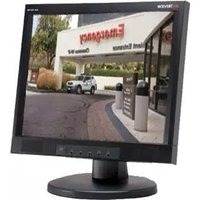
TME19A - Monitor Tatung - Free user manual and instructions
Find the device manual for free TME19A Tatung in PDF.


Pick your language and provide your email: we'll send you a specifically translated version.
| Product Type | Monitor |
| Brand | Tatung |
| Model | TME19A |
| Display Size | 19 inches (diagonal) |
| Resolution | 1280 x 1024 (SXGA) |
| Aspect Ratio | 5:4 |
| Brightness | 250 cd/m² |
| Contrast Ratio | 1000:1 |
| Response Time | 5 ms |
| Viewing Angle | 170° horizontal, 160° vertical |
| Refresh Rate | 60 Hz |
| Connectivity | VGA, DVI-D |
| Power Consumption | 25 W (typical), <1 W (standby) |
| Input Voltage | 100-240 V AC, 50/60 Hz |
| Weight (with stand) | 5.5 kg |
| Dimensions (with stand) | 440 x 390 x 210 mm (W x H x D) |
| VESA Mount | 100 x 100 mm |
| Tilt Adjustment | -5° to +15° |
| Kensington Lock | Yes |
| Speakers | None |
| Certifications | FCC, CE, RoHS |
| Color | Black |
| Package Contents | Monitor, power cord, VGA cable, user manual |
| Manufacturer | Tatung Company |
Frequently Asked Questions - TME19A Tatung
How do I clean my Tatung TME19A monitor?
Use a soft, dry microfiber cloth to gently wipe the screen. For stubborn stains, lightly dampen the cloth with distilled water. Do not use alcohol, ammonia, or abrasive cleaners. Unplug the monitor before cleaning.
What is the recommended resolution for optimal display?
The native resolution is 1280 x 1024 at 60 Hz. Using this resolution ensures the sharpest image. Lower resolutions may appear blurry or stretched.
How do I adjust the brightness on the monitor?
Use the buttons on the front or side of the monitor to access the On-Screen Display (OSD) menu. Navigate to 'Brightness' and adjust using the arrow keys. Save and exit.
Does the Tatung TME19A have built-in speakers?
No, this monitor does not include built-in speakers. External speakers or headphones connected to your computer are needed for audio output.
How do I mount the monitor on a wall?
The monitor is VESA compatible with a 100x100 mm pattern. Use a VESA standard wall mount kit. Remove the stand, attach the mount to the back, and follow the mount instructions. Ensure the wall can support the monitor's weight.
What should I do if the screen is flickering?
Check the refresh rate in your computer's display settings; set it to 60 Hz. Ensure the video cable (VGA or DVI) is securely connected. Try a different cable or port. If the issue persists, test with another device.
Can I connect multiple monitors to my computer?
Yes, if your computer has multiple video outputs (e.g., HDMI, DVI, VGA). Connect each monitor to a separate port and configure them in your display settings (extend or duplicate).
Is the Tatung TME19A Energy Star certified?
Yes, it meets Energy Star standards, consuming low power in standby (<1 W) and typical use (25 W). This helps reduce electricity costs and environmental impact.
How do I reset the monitor to factory settings?
Access the OSD menu using the buttons. Navigate to 'Reset' or 'Factory Default' and confirm. This restores all settings (brightness, contrast, color, etc.) to original values.
What should I do if there are dead pixels on the screen?
A few dead pixels are common and within manufacturing tolerances. If they are bothersome, try a pixel fixing tool (software) that cycles colors rapidly. If under warranty, contact Tatung support for possible replacement.
User questions about TME19A Tatung
0 question about this device. Answer the ones you know or ask your own.
Ask a new question about this device
No questions yet. Be the first to ask one.
Download the instructions for your Monitor in PDF format for free! Find your manual TME19A - Tatung and take your electronic device back in hand. On this page are published all the documents necessary for the use of your device. TME19A by Tatung.
USER MANUAL TME19A Tatung
Manual assistant
Powered by Anthropic
Waiting for your message
Product information
Brand : Tatung
Model : TME19A
Category : Monitor