
UP-HT1 - Audio accessory ONKYO - Free user manual and instructions
Find the device manual for free UP-HT1 ONKYO in PDF.


| Product type | AM/FM HD Radio Tuner with Universal Port |
| Dimensions (W x H x D) | 140 x 32.5 x 110 mm |
| Weight | 0.4 kg |
| Power supply | 12 V, 300 mA |
| FM frequency range | 87.5 MHz – 107.9 MHz (step 0.2 MHz) |
| AM frequency range | 530 kHz – 1710 kHz (step 10 kHz) |
| Station presets | 40 FM/AM presets |
| Connectivity | Universal Port, FM antenna, AM antenna |
| Supported technologies | HD Radio, RDS, multicast channels |
| Search modes | Automatic and manual |
| Blend function | Auto/analog signal selection |
| Information display | Station name, artist, title, RDS text |
| Mode selector | TUNER, THROUGH, AUTO |
| Maintenance | Soft dry cloth; avoid solvents |
| Safety | Do not expose to water; unplug before cleaning |
| Spare parts and repairability | Consult a qualified technician; no user-serviceable parts |
Frequently Asked Questions - UP-HT1 ONKYO
User questions about UP-HT1 ONKYO
0 question about this device. Answer the ones you know or ask your own.
Ask a new question about this device
Download the instructions for your Audio accessory in PDF format for free! Find your manual UP-HT1 - ONKYO and take your electronic device back in hand. On this page are published all the documents necessary for the use of your device. UP-HT1 by ONKYO.
USER MANUAL UP-HT1 ONKYO
Universal Port Option
HD Radio Tuner
UP-HT1
François
Instruction Manual
Thank you for purchasing an Onkyo product. Please read this manual carefully before making any connections or using this product. By following these instructions, you'll get the best audio performance and the most listening pleasure from your Onkyo product. Keep this manual for future reference.
WARNING:
TO REDUCE THE RISK OF FIRE OR ELECTRIC SHOCK,DO NOT EXPOSE THIS APPARATUS TO RAIN OR MOISTURE.
CAUTION:
TO REDUCE THE RISK OF ELECTRIC SHOCK,DO NOT REMOVE COVER (OR BACK).NO USER-SERVICEABLE PARTS INSIDE. REFER SERVICING TO QUALIFIED SERVICE PERSONNEL.

WARNING
RISK OF ELECTRIC SHOCK
DO NOT OPEN


The lightning flash with arrowhead symbol, within an equilateral triangle, is intended to alert the user to the presence of uninsulated "dangerous voltage" within the product's enclosure that may be of sufficient magnitude to constitute a risk of electric shock to persons.

The exclamation point within an equilateral triangle is intended to alert the user to the presence of important operating and maintenance (servicing) instructions in the literature accompanying the appliance.
Important Safety Instructions
- Read these instructions.
- Keep these instructions.
- Heed all warnings.
- Follow all instructions.
- Do not use this apparatus near water.
- Clean only with dry cloth.
- Do not block any ventilation openings. Install in accordance with the manufacturer's instructions.
- Do not install near any heat sources such as radiators, heat registers, stoves, or other apparatus (including amplifiers) that produce heat.
- Do not defeat the safety purpose of the polarized or grounding-type plug. A polarized plug has two blades with one wider than the other. A grounding type plug has two blades and a third grounding prong. The wide blade or the third prong are provided for your safety. If the provided plug does not fit into your outlet, consult an electrician for replacement of the obsolete outlet.
- Protect the power cord from being walked on or pinched particularly at plugs, convenience receptacles, and the point where they exit from the apparatus.
- Only use attachments/accessories specified by the manufacturer.
- Unplug this apparatus during lightning storms or when unused for long periods of time.
-
Refer all servicing to qualified service personnel. Servicing is required when the apparatus has been damaged in any way, such as power-supply cord or plug is damaged, liquid has been spilled or objects have fallen into the apparatus, the apparatus has been exposed to rain or moisture, does not operate normally, or has been dropped.
-
Damage Requiring Service
Unplug the apparatus from the wall outlet and refer servicing to qualified service personnel under the following conditions:
A. When the power-supply cord or plug is damaged,
B. If liquid has been spilled, or objects have fallen into the apparatus,
C. If the apparatus has been exposed to rain or water,
D. If the apparatus does not operate normally by following the operating instructions. Adjust only those controls that are covered by the operating instructions as an improper adjustment of other controls may result in damage and will often require extensive work by a qualified technician to restore the apparatus to its normal operation,
E. If the apparatus has been dropped or damaged in any way, and
F. When the apparatus exhibits a distinct change in performance this indicates a need for service.
Precautions
- Recording Copyright—Unless it's for personal use only, recording copyrighted material is illegal without the permission of the copyright holder.
- Care—Occasionally you should dust the unit all over with a soft cloth. For stubborn stains, use a soft cloth dampened with a weak solution of mild detergent and water. Dry the unit immediately afterwards with a clean cloth. Don't use abrasive cloths, thinners, alcohol, or other chemical solvents, because they may damage the finish or remove the panel lettering.
- Never Touch this Unit with Wet Hands—Never handle this unit or its power cord while your hands are wet or damp. If water or any other liquid gets inside this unit, have it checked by your Onkyo dealer.
-
Handling Notes
-
If you need to transport this unit, use the original packaging to pack it how it was when you originally bought it.
- Do not leave rubber or plastic items on this unit for a long time, because they may leave marks on the case.
- If you do not use this unit for a long time, it may not work properly the next time you turn it on, so be sure to use it occasionally.
Memory backup
The UP-HT1 uses a battery-less memory backup system in order to retain radio presets and other settings when it's unplugged or in the case of a power failure.
For U.S. models
FCC Information for User
CAUTION:
The user changes or modifications not expressly approved by the party responsible for compliance could void the user's authority to operate the equipment.
NOTE:
This equipment has been tested and found to comply with the limits for a Class B digital device, pursuant to Part 15 of the FCC Rules. These limits are designed to provide reasonable protection against harmful interference in a residential installation.
This equipment generates, uses and can radiate radio frequency energy and, if not installed and used in accordance with the instructions, may cause harmful interference to radio communications. However, there is no guarantee that interference will not occur in a particular installation. If this equipment does cause harmful interference to radio or television reception, which can be determined by turning the equipment off and on, the user is encouraged to try to correct the interference by one or more of the following measures:
Reorient or relocate the receiving antenna.
- Increase the separation between the equipment and receiver.
- Connect the equipment into an outlet on a circuit different from that to which the receiver is connected.
- Consult the dealer or an experienced radio/TV technician for help.
Features
HD Radio Capability
CD-quality FM
Rich-sound AM
40 presets
Crystal-clear sound
Through mode for connecting additional options

Radio®
HD Radio™ Technology Manufactured under License From iBiquity Digital Corp. U.S. and Foreign Patents.
HD Radio™ and the HD Radio logo are proprietary trademarks of IBiquity Digital Corp.
Supplied Accessories
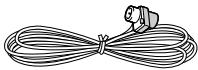
Indoor FM antenna
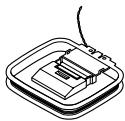
AM loop antenna
About the UP-HT1
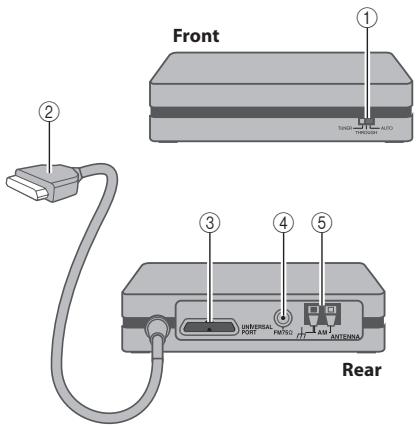
① Mode selector
② Universal Port cable
③ UNIVERSALPORT
④ FM antenna jack
⑤ AM antenna terminals
Connecting the UP-HT1
Turn off your Universal Port-compatible Onkyo product. Connect the UP-HT1 to its UNIVERSAL PORT. Set the UP-HT1's Mode selector.
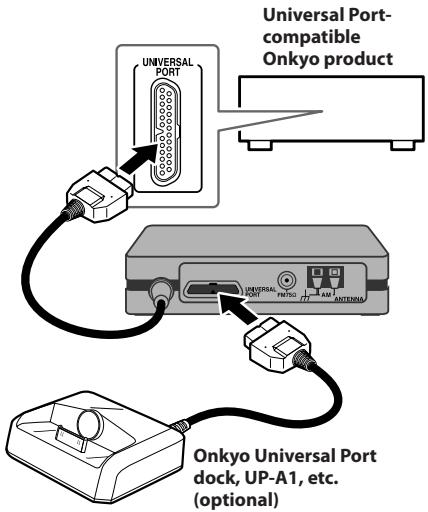
Setting the Mode Selector
Turn off the Universal Port-compatible Onkyo product before setting the Mode selector.
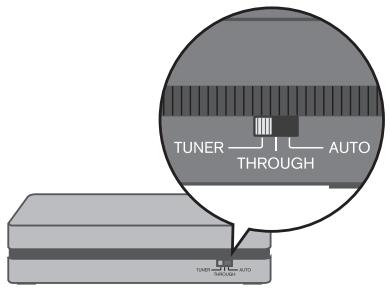
TUNER: Select this to listen to HD Radio.
- THROUGH: Select this to listen to the device connected to the UP-HT1's Universal Port, for example, an iPod in a UP-A1 dock.
- AUTO: When AUTO is selected, the source is selected automatically when the input source is changed on the Universal Port-compatible Onkyo product. For example, selecting the TUNER input source selects the UP-HT1, while selecting the
DOCK input source selects the dock (UP-A1, etc.) connected to the UP-HT1's Universal Port. Note that some Universal Port-compatible Onkyo products do not support this functionality, in which case you will need to set the Mode Selector manually.
Connecting the Indoor FM Antenna
The supplied indoor FM antenna is for indoor use only.
1. Attach the FM antenna, as shown.
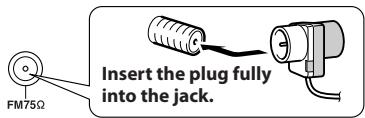
Once your UP-HT1 is ready for use, you'll need to tune into an FM radio station and adjust the position of the FM antenna to achieve the best possible reception.
- Use thumbtacks or something similar to fix the FM antenna into position.
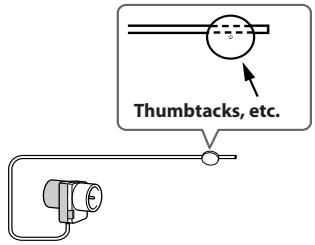
Caution: Be careful that you don't injure yourself when using thumbtacks.
If you cannot achieve good reception with the supplied indoor FM antenna, try a commercially available outdoor FM antenna instead (see page 9).
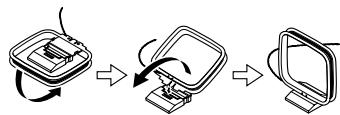
Connecting the AM Loop Antenna
The supplied indoor AM loop antenna is for indoor use only.
- Assemble the AM loop antenna, inserting the tabs into the base, as shown.
- Connect both wires of the AM loop antenna to the AM push terminals, as shown.
Make sure that the wires are attached securely and that the push terminals are gripping the bare wires, not the insulation.
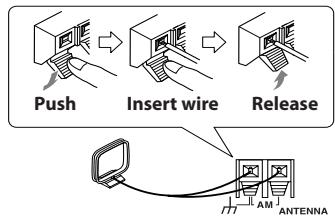
If you cannot achieve good reception with the supplied indoor AM antenna, try using it with a commercially available outdoor AM antenna.
Connecting an Outdoor FM Antenna
If you cannot achieve good reception with the supplied indoor FM antenna, try a commercially available outdoor FM antenna instead.
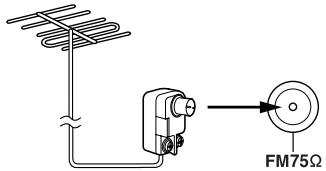
Notes:
- Outdoor FM antennas work best outside, but usable results can sometimes be obtained when installed in an attic or loft.
- For best results, install the outdoor FM antenna well away from tall buildings, preferably with a clear line of sight to your local FM transmitter.
-
Outdoor antenna should be located away from possible noise sources, such as neon signs, busy roads, etc.
-
For safety reasons, outdoor antenna should be situated well away from power lines and other high-voltage equipment.
- Outdoor antenna must be grounded in accordance with local regulations to prevent electrical shock hazards.
Using a TV/FM Antenna Splitter
It's best not to use the same antenna for both FM and TV reception, as this can cause interference problems. If circumstances demand it, use a TV/FM antenna splitter, as shown.
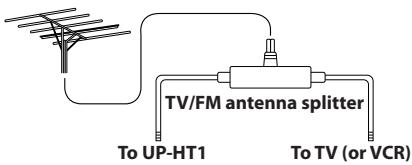
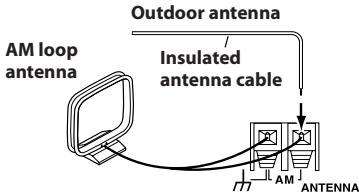
Connecting an Outdoor AM Antenna
If good reception cannot be achieved using the supplied AM loop antenna, an outdoor AM antenna can be used in addition to the loop antenna, as shown.
Remote Controller
You can control the UP-HT1 with your Universal Port-compatible Onkyo product's remote controller. Aim it at your Universal Port-compatible Onkyo product, not the UP-HT1. The layout of the remote controller's buttons varies depending on the Universal Port-compatible Onkyo product you are using.
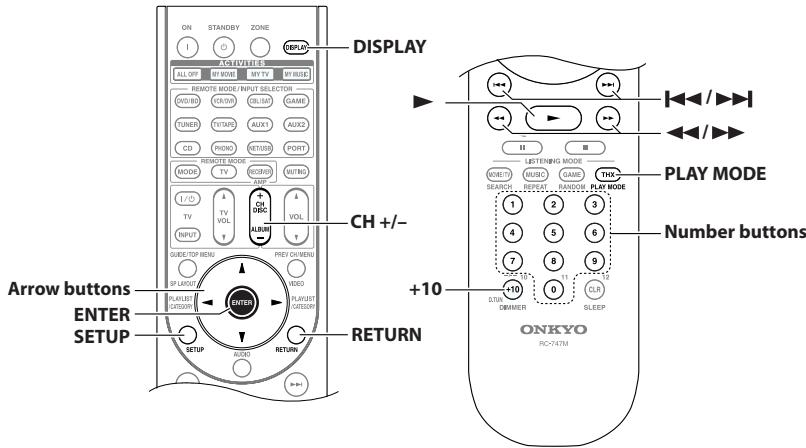
(An Onkyo AV receiver's remote controller is shown here.)
You can use the following buttons on your Universal Port-compatible Onkyo product's remote controller.
| Button | Function | Explanation |
| 0-9 | Direct Tuning/Preset | Used to select radio presets by number, and to enter AM/FM station frequencies. |
| +10 | Direct Tuning Set | Selects the Direct Tuning mode. With AM and FM, you can select a station directly by entering its frequency. |
| DISPLAY | Display Change | Used to view various information on the display. |
| PLAY MODE | Auto/Mono | With AM and FM, this button selects the Auto or Manual tuning mode. |
| SETUP | Setup/Return | Selects Setup mode. |
| RETURN | Return | Returns to the previous display. |
| Arrow [▲]/[▼] buttons | Tuning Up/Down | With AM and FM, the Up and Down [▲]/[▼] buttons are used for tuning. |
| Setup Up/Down | In Setup menu, used to select and adjust settings. | |
| Arrow [←]/[▶] buttons | Supplemental Program Service Up/Down | Used to select secondary multicast channels. |
| Setup Up/Down | In Setup menu, used to adjust settings. | |
| ENTER | Blend Mode/Enter | Used to select Blend mode (Auto or Analog). In Setup menu, used to confirm various functions and settings. |
| CH+/− | Preset Up/Down | Used to select radio presets. |
| Play [▶] | AM/FM | Used to select radio bands, AM or FM. |
| [←/→] | Preset Down/Up | Used to select radio presets. |
| [←/→] | Tuning Down/Up | With AM and FM, these buttons are used for tuning. |
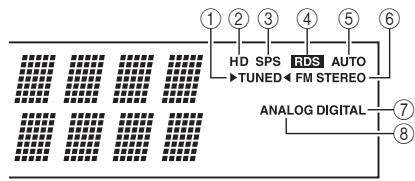
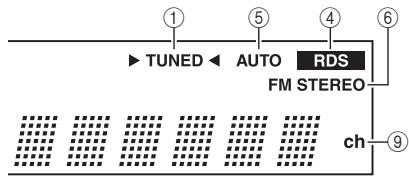
This display information shows an example. Some indicator may not appear depending on your connected model.
① TUNED
The Tuned indicator lights up when properly tuned to a radio station. During Auto Tuning, the Tuning Arrows flash.
② HD
Lights up when tuned to an HD Radio station.
③ SPS
Lights up when an HD Radio station provides multicast channel program.
④ RDS
Lights up when tuned to an FM radio station that supports RDS (Radio Data System).
⑤ AUTO
Lights up when Auto Tuning mode is selected.
⑥ FM STEREO
Lights up when an analog audio is being received in a stereo reception. (It indicates the status of analog audio during digital HD Radio reception.)
⑦ DIGITAL
Lights up when a digital HD Radio transmission is being received.
⑧ ANALOG
Lights up when an analog HD Radio transmission is being received.
9 ch
Lights up when a preset channel is displayed.
Listening to AM and FM Radio
- Turn on your Universal Port-compatible Onkyo product and select the PORT input source.
- Press the [PORT] remote mode button on your remote controller to select the PORT remote mode.
- Press the Play [▶] button repeatedly to select AM or FM.
-
Press the [PLAY MODE] button repeatedly to select Auto or Manual Tuning mode.
-
Auto Tuning Mode
The AUTO indicator appears and stereo radio reception is possible. - Manual Tuning Mode
The AUTO indicator disappears and radio reception will be in mono. - Use the []/[] buttons to tune into a station.
In Auto Tuning mode, once a station is found, tuning stops automatically.
FM frequency changes in 0.2 MHz steps, 10kHz steps for AM.
In Manual Tuning mode, the frequency stops changing when you release the buttons. Press the buttons repeatedly to change the frequency one step at a time.
When tuned into a station, the Tuned indicator on your Universal Port-compatible Onkyo product appears.
When tuned into a stereo FM station, the FM STE-REO indicator on your Universal Port-compatible Onkyo product appears.
The FM STEREO indicator shows the status of analog audio. (It does not indicate the status during digital reception.)
Tuning into weak stereo FM stations
If the signal from a stereo FM station is weak, it may be impossible to get good reception. In this case, switch to Manual Tuning mode and listen to the station in mono.
Tuning into Stations by Frequency
You can tune into AM and FM stations directly by entering the appropriate frequency.
- Press the [+10] button.
- Within 8 seconds, use the number buttons to enter the frequency of the radio station.
For example, to tune into an FM station at 87.5 MHz, press [+10] , [8], [7], and [5].
To select a multicast channel at the same time, use number buttons [1] to [8] to enter its number immediately after entering the station's frequency.
Listening to HD Radio™ Stations
HD Radio technology brings digital radio to conventional analog AM and FM radio stations, with improved sound quality, better reception, and new data services. HD Radio technology provides CD-quality sound for FM stations, and FM-quality sound for AM stations. In addition, FM HD Radio stations can transmit multiple programs on the same frequency by using multicast channels. Text data display includes station name, song title, artist name, and so on.
For more information about HD Radio technology, visit:
www.ibiquity.com
www.hdradio.com
About HD Radio Stations
HD Radio stations broadcast on the same AM and FM frequencies they've always used, and you can receive them by tuning into your favorite station as normal. If the current AM or FM station supports HD Radio technology, the HD Radio indicator lights up. When an HD Radio transmission is received, the "HD SPS" indicator appears or "HD Radio" appears on the display.
- If the current AM or FM station supports HD Radio technology, the station's name will be displayed instead of the band and frequency.
- When music data is received, song title and artist name information will be displayed next to the HD indicator.
- If the current HD Radio station supports multicast channels, the currently selected multicast channel will be displayed to the right of the HD indicator.
Selecting Multicast Channels
FM HD Radio stations can transmit multiple programs on the same frequency by using what are called multicast channels.
1. Use the Left/Right Arrow [<] [/▶] buttons to select a multicast channel.
If you select a multicast channel that is not currently broadcasting, a plus [+] symbol or period [] will appear next to the HD indicator, indicating that the channel has been reserved. When broadcasting commences, that channel will be selected automatically.
![ONKYO UP-HT1 - Use the Left/Right Arrow [<] [/▶] buttons to select a multicast channel. - 1](/content/2025/01/151779/images/e64a7203334369a1c141ecd97985e9e3d0dc105623eb230479073aeb7ff92305.jpg)
Note: Multicast channels are not available on AM.
Setting the Blend Mode
HD Radio transmissions contain analog and digital signals. If available, the digital signal is used automatically. In areas with poor reception, you may want to choose the analog signal.
1. Press [ENTER] repeatedly to select Auto or Analog.
![ONKYO UP-HT1 - Press [ENTER] repeatedly to select Auto or Analog. - 1](/content/2025/01/151779/images/fcc07cba369e36a5eaa66adc629d7a305fe8ff0f6946a674ba03b141e37e6b6d.jpg)
Auto: Select to use the digital signal when available.
Anlg (Analog): Select to use the analog signal.
Note: Multicast channels 2 through 8 are digital only, so you must select multicast channel #1 before you can change the Blend mode.
Displaying HD Radio Information
Press the [DISPLAY] button repeatedly to cycle through the available information.
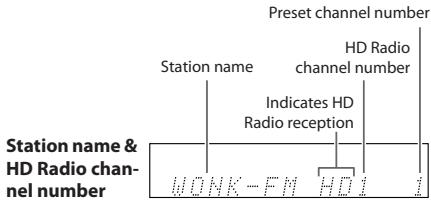
HD channel, Artist name, and Song title are displayed in the 2nd line if the connected product has a two-line display.
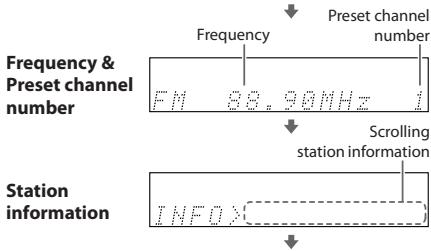
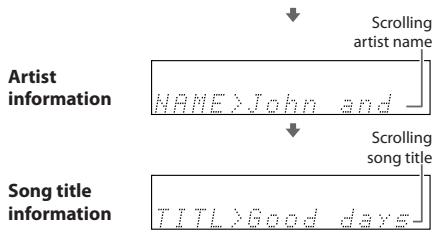
Note: The exact information displayed depends on your Universal Port-compatible Onkyo product.
If your Universal Port-compatible Onkyo product supports Universal Port OSD (onscreen display), HD Radio information can be displayed on your TV.
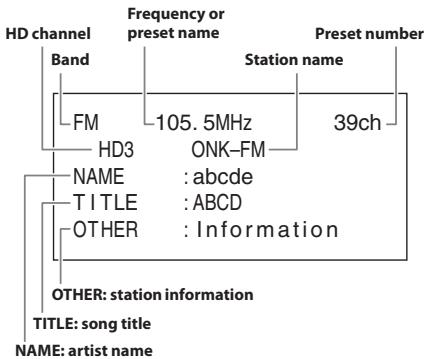
Note: This information is displayed only when receiving HD Radio.
RDS stands for Radio Data System and is a method of transmitting data in FM radio signals. RDS is approved by the National Radio Systems Committee (NRSC) and is available in North America.
Many FM stations use it these days. In addition to displaying text information, RDS can also help you find radio stations by type (e.g., news, sport, rock, etc.). This product supports the following types of RDS information: Program Service Name (PS), Radio Text (RT), and Program Type (PTY).
Displaying RDS Information
The RDS indicator lights up when tuned to an FM radio station that supports RDS.
Press the [DISPLAY] button repeatedly to cycle through the available information.
1. Program Service Name
When tuned to an RDS station that's broadcasting PS information, the station's name will be displayed.
2. Frequency
The frequency of the RDS station is displayed.
3. Radio Text
When tuned to an RDS station that's broadcasting RT text information, the text will be shown on the display.
4. Program Type
When tuned to an RDS station that's broadcasting PTY information, the type of program will be displayed.
Note: If the signal from an RDS station is weak, RDS data may be displayed intermittently or not at all.
Presetting Your Favorite Stations
With the Preset Write function, you can preset individual FM and AM radio stations. Presets make it easy to select your favorite stations and eliminate the need to tune the radio manually each time you want to change stations. You can store up to 40 FM and AM stations as presets.
- Tune into the station you want to store as a preset.
- Press the [SETUP] button, and then use the Up/Down Arrow [] / [] buttons to select "Preset Write"
- Press [ENTER].
- Use the Left/Right Arrow [] / [] buttons or CH [+] / [-] buttons to select a preset.
FM 833MHz
- To store the station, press [ENTER].
Selecting Preset Stations
You must store some presets before you can select them.
- Use the CH [+] / [-] buttons to select a preset.
Press the CH [+ button to select the previous preset. Press the CH [-] button to select the next preset.
You can also use the number buttons or
[←]/[→] buttons to select presets.
Erasing Presets
- Select the preset you want to erase.
- Press the [SETUP] button, and then use Up/Down Arrow [ ] / [ ] buttons to select "Preset Erase".
- Press [ENTER].
A message requesting confirmation appears.
To cancel the Preset Erase function at this point, press the [RETURN] button.
- To erase the preset, press [ENTER].
The preset is erased and "Erase OK?" appears on the display.
- Press [ENTER].
The preset is erased and "Complete" appears on the display.
Naming Presets
You can name presets for easy identification. The preset name may contain of up to ten characters.
- Select the preset you want to name.
- Press the [SETUP] button, and then use the Up/Down Arrow [] / [] buttons to select "Name Edit"
- Press [ENTER].
- Use the Up/Down [▲]/[▼] buttons to select the available characters (see next page), and use the Left/Right [▲]/[▶] buttons to move the cursor.
- When you've finished entering the name, press [ENTER].
"Name Edit" appears on the display.
- Press the [RETURN] button to return to the normal display.
Available Characters
ABCDEFGHIJKLMNOPQRSTUVWXYZ abcdefghijklmnopqrstuvwxyz 0123456789 .’() ^+ = /,::;! ? (space)
Erasing a Preset's Name
- Select the preset whose name you want to erase.
- Press the [SETUP] button, and then use the Up/Down Arrow []/[] buttons to select "Name Erase".
- Press [ENTER].
The preset's name is erased and "Erase OK?" appears on the display.
4. Press [ENTER].
The preset's name is erased and "Complete" appears on the display.
Using a UP-A1 Dock
When the UP-HT1's Mode Selector is set to TUNER, the iPod in the connected UP-A1 dock will not be charged. If you change the Mode Selector from TUNER TO THROUGH while your Universal Port-compatible Onkyo product is in Standby mode, you must remove and reinsert the iPod in the UP-A1 to start charging.
- iPod is a trademark of Apple Inc., registered in the U.S. and other countries.
Troubleshooting
If you have any trouble using the UP-HT1, look for a solution in this section.
The UP-HT1 is not recognized by your Universal Port-compatible Onkyo product
- Make sure the UP-HT1 is properly connected to the UNIVERSAL PORT on your Universal Port-compatible Onkyo product.
- Turn off all devices before connecting to a UNIVERSAL PORT.
No sound
- Make sure your amplifier's volume control is not set to minimum.
- Check all connections and correct as necessary (see page 6).
The UP-HT1 is connected to a Universal Port-compatible Onkyo product but doesn't work
- Turn off all devices, and then set the UP-HT1's Mode selector to TUNER.
Can't control the UP-HT1 by using the buttons on the front panel of the Universal Port-compatible Onkyo product
- This is normal. The UP-HT1 can be controlled only by using the Universal Port-compatible Onkyo product's remote controller. (However, some products can control using the front panel's buttons.)
- Press the [PORT] remote mode button on your remote controller to select the PORT remote mode.
The displays shown in this manual differ to what's displayed on your Universal Port-compatible Onkyo product
- The exact information displayed depends on your Universal Port-compatible Onkyo product. The displays shown in this instruction manual serve as examples only.
If you can't resolve an issue yourself, try resetting the UP-HT1 as follows before contacting your Onkyo dealer.
Connect the UP-HT1 to your Universal Port-compatible Onkyo product. On your Universal Port-compatible Onkyo product, select the PORT input source.
When the UP-HT1 has been recognized, while holding down the [PORT] button on the front panel of the product, press the [STANDBY/ON] button on the front panel of the product. (The reset procedure may vary depending on your Universal Port-compatible Onkyo product, so refer to its instruction manual as well.)
Note that resetting the UP-HT1 will delete your radio presets and custom settings.
Specifications
40 FM/AM presets
FM tuning frequency range: 87.5 MHz-107.9 MHz in 0.2 MHz steps
AM tuning frequency range: 530 kHz-1710 kHz in 10 kHz steps
Rating: 12 V, 300 mA
Dimensions (W x H x D): 140 x 32.5 x 110 mm (5-1/2" x 1-1/4" x 4-5/16")
Weight: 0.4kg (0.9 lbs.)
FM frequency changes in 0.2 MHz steps, 10kHz steps for AM.
18 Park Way, Upper Saddle River, N.J. 07458, U.S.A.
Tel: 201-785-2600 Fax: 201-785-2650 http://www.us.onkyo.com/
ONKYO EUROPE ELECTRONICS GmbH
Liegnitzerstrasse 6, 82194 Groebenzell, GERMANY
Tel: +49-8142-4401-0 Fax: +49-8142-4401-555 http://www.eu.onkyo.com/
ONKYO EUROPE UK Office
Suite 1, Gregories Court, Gregories Road, Beaconsfield, Buckinghamshire, HP9 1HQ
UNITED KINGDOM Tel: +44-(0)1494-681515 Fax: +44(0)-1494-680452
ONKYO CHINA LIMITED
Unit 1&12, 9/F, Ever Gain PlazaTower 1, 88, Container Port Road, Kwai Chung, N.T., HONG KONG Tel: 852-2429-3118 Fax: 852-2428-9039 http://www.ch.onkyo.com/
10905-1
- WARNING:
- CAUTION:
- Important Safety Instructions
- Precautions
- Memory backup
- For U.S. models
- FCC Information for User
- NOTE:
- Features
- HD Radio Capability
- Radio®
- Supplied Accessories
- Indoor FM antenna
- AM loop antenna
- About the UP-HT1
- Connecting the UP-HT1
- Setting the Mode Selector
- Connecting the Indoor FM Antenna
- Attach the FM antenna, as shown.
- Connecting the AM Loop Antenna
- Connecting an Outdoor FM Antenna
- Notes:
- Using a TV/FM Antenna Splitter
- Connecting an Outdoor AM Antenna
- Remote Controller
- ① TUNED
- Listening to AM and FM Radio
- Tuning into weak stereo FM stations
- Tuning into Stations by Frequency
- Listening to HD Radio™ Stations
- About HD Radio Stations
- Selecting Multicast Channels
- Use the Left/Right Arrow [<] [/▶] buttons to select a multicast channel.
- Setting the Blend Mode
- Press [ENTER] repeatedly to select Auto or Analog.
- Displaying HD Radio Information
- Displaying RDS Information
- Program Service Name
- Frequency
- Radio Text
- Program Type
- Presetting Your Favorite Stations
- Selecting Preset Stations
- Erasing Presets
- Naming Presets
- Available Characters
- Erasing a Preset's Name
- Using a UP-A1 Dock
- Troubleshooting
- The UP-HT1 is not recognized by your Universal Port-compatible Onkyo product
- No sound
- The UP-HT1 is connected to a Universal Port-compatible Onkyo product but doesn't work
- Can't control the UP-HT1 by using the buttons on the front panel of the Universal Port-compatible Onkyo product
- The displays shown in this manual differ to what's displayed on your Universal Port-compatible Onkyo product
- Specifications
- FM/AM presets
- ONKYO EUROPE ELECTRONICS GmbH
- ONKYO EUROPE UK Office
- ONKYO CHINA LIMITED
Brand : ONKYO
Model : UP-HT1
Category : Audio accessory