
ESP - Inkjet Printer KODAK - Free user manual and instructions
Find the device manual for free ESP KODAK in PDF.


| Product type | Inkjet printer |
| Brand | KODAK |
| Model | ESP |
| Printing technology | Thermal inkjet |
| Maximum resolution | 4800 x 1200 dpi |
| Print speed (black) | Up to 8 ppm |
| Print speed (color) | Up to 6 ppm |
| Maximum paper size | A4 (210 x 297 mm) |
| Input tray | 100 sheets |
| Output tray | 50 sheets |
| Connectivity | USB 2.0, Wi-Fi 802.11 b/g/n |
| Mobile compatibility | KODAK app (iOS/Android) |
| Borderless printing | Yes, up to A4 size |
| Ink cartridges | 2 cartridges (black and color) |
| Dimensions (W x D x H) | 445 x 305 x 152 mm |
| Weight | 3.6 kg |
| Power supply | 100-240 V AC, 50-60 Hz |
| Power consumption | 10 W (printing), 1 W (standby) |
| Maintenance and cleaning | Automatic printhead cleaning via software |
| Safety | Auto-off after inactivity, overheat protection |
| Spare parts and repairability | User-replaceable cartridges and printhead |
Frequently Asked Questions - ESP KODAK
User questions about ESP KODAK
0 question about this device. Answer the ones you know or ask your own.
Ask a new question about this device
Download the instructions for your Inkjet Printer in PDF format for free! Find your manual ESP - KODAK and take your electronic device back in hand. On this page are published all the documents necessary for the use of your device. ESP by KODAK.
USER MANUAL ESP KODAK
Networking Setup Guide
Setting Up a Wireless (Wi-Fi) Connection
Before you connect, you need:
- a wireless router.
- to determine whether your wireless router supports Wi-Fi Protected Setup (WPS).
NOTE: If you have specific questions about your router, see your router manufacturer's documentation.
Connecting to a non-WPS wireless router
Record your network information in the spaces below, using the correct uppercase and lowercase letters.
Network Name (SSID):
Security String (case-sensitive):
NOTE: If you already set up your printer, you need to press Home, then press to select Network Settings, then WiFi Setup Wizard. Press OK after each selection.
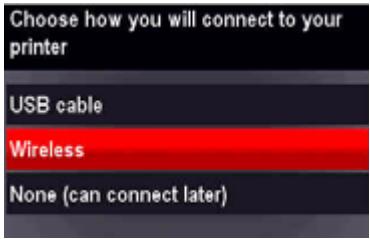
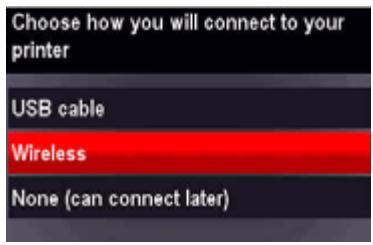
- Press to select Wireless, then press OK.
- Press to select your network, then press OK.
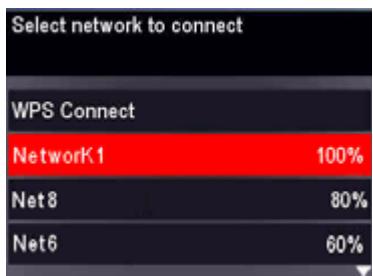
If you don't see your network in the list, or if you want to change your network, select Rescan for Wireless Networks, then press OK.
If the name of your network is not listed, make sure your wireless router is turned on and within range. If the name of your network is still not listed, go to www.kodak.com/go/inkjetnetworking.
- If your network requires a password, use the LCD keyboard to enter your Security String. The Security String is case-sensitive.
On the control panel (both types of keyboards), press , , or to select the letters and numbers, using the correct uppercase and lowercase letters. Press OK after each character. When you are done, select DONE, then press OK.
There are two types of keyboards. Follow the instructions for your keyboard.
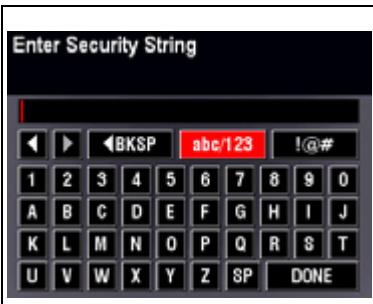
- To change from uppercase to lowercase, select abc/123, then press OK.
- To change from lowercase to uppercase, select ABC/123, then press OK.
• To enter punctuation or symbols, select!@#, then press OK.
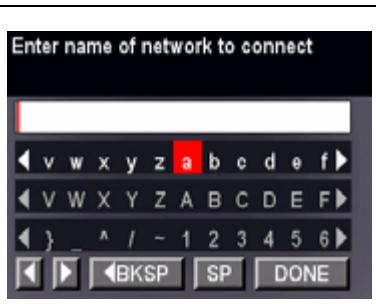
Use the arrow keys to select the letters, numbers, and symbols. Press OK after each selection.
- When the confirmation message appears, press OK.
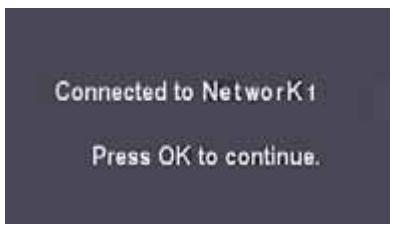
When the printer is successfully connected, the Wi-Fi status light is on.
If you are unable to connect your printer, go to www.kodak.com/go/inkjetnetworking.
- Install the KODAK All-in-One Printer Software on your computer. Follow the on-screen instructions to complete your setup.
NOTE: If you installed the software before connecting to your network, select Start > Programs > Kodak > Kodak Printer Network Setup Utility and follow the on-screen instructions.
Connecting to a WPS wireless router
NOTE: If you already set up your printer, you need to press Home, then press to select Network Settings, then WiFi Setup Wizard. Press OK after each selection.
- Press to select Wireless, then press OK.
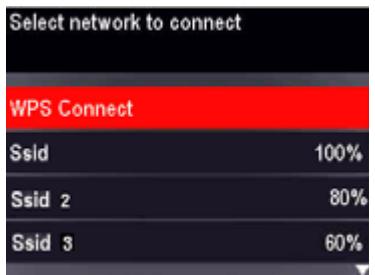
2. With WPS Connect selected, press OK.
3. Select one of these two methods of connecting:
IMPORTANT: Before you press OK on the printer, make sure you know where the router's button is, or where to enter the generated PIN.
| Pressing a Button | Entering a PIN |
| a. With Push Button Configuration selected, press OK. b. Press or select the WPS button for your wireless router. NOTE: You will have two minutes to press or select the WPS button. It may be a button on the device or a virtual button in the device's software. | a. Press ↓ to select Generate WPS PIN, then press OK. b. In your wireless router's software, locate the PIN screen. c. Enter the PIN you received from the LCD into the PIN screen. |
4. When the confirmation message appears, press OK.
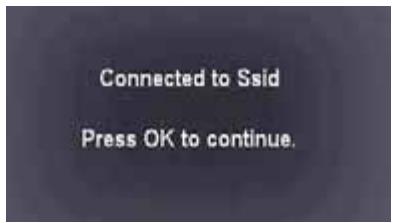
When the printer is successfully connected, the Wi-Fi status light should be on.
If you are unable to connect your printer, go to www.kodak.com/go/inkjetnetworking.
- Install the KODAK All-in-One Printer Software on your computer. Follow the on-screen instructions to complete your setup.
NOTE: If you installed the software before connecting to your network, select Start > Programs > Kodak > Kodak Printer Network Setup Utility and follow the on-screen instructions.
1
Setting Up an Ethernet Connection
Before you connect, you need to:
- Have a functional Ethernet network that includes a router, switch, or hub with an Ethernet port.
- Have a Category 5 (or higher) Ethernet cable.
- Temporarily disable your firewall until the printer is successfully installed and communicating.
Connecting to an Ethernet network
- Connect the Ethernet cable into the Ethernet port on the back of the printer.
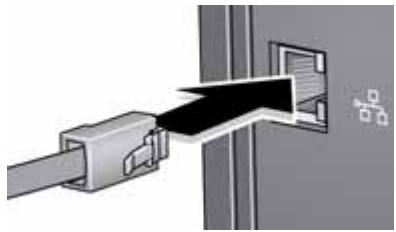
- Connect the other end of the Ethernet cable into an available Ethernet port on your router, switch, or hub.
- Install the KODAK All-in-One Printer Software on your computer. Follow the on-screen instructions to complete your setup.
Kodak
Eastman Kodak Company
Rochester, NY 14650
© Eastman Kodak Company, 2010

Kodak is a trademark of Eastman Kodak Company.
Specifications subject to change without notice.
P/N 1K5951
July 2010
Printed in China
- Setting Up a Wireless (Wi-Fi) Connection
- Connecting to a non-WPS wireless router
- Connecting to a WPS wireless router
- With WPS Connect selected, press OK.
- Select one of these two methods of connecting:
- When the confirmation message appears, press OK.
- 1
- Setting Up an Ethernet Connection
- Connecting to an Ethernet network
- Kodak
Brand : KODAK
Model : ESP
Category : Inkjet Printer