
Z1015 IS - Digital Camera KODAK - Free user manual and instructions
Find the device manual for free Z1015 IS KODAK in PDF.


| Product type | Bridge digital camera |
| Brand | KODAK |
| Model | Z1015 IS |
| Sensor resolution | 10 megapixels |
| Optical zoom | 15x (equivalent 28-420 mm) |
| Image stabilization | Yes, by sensor shift |
| LCD screen | 2.5 inches, 230,000 dots |
| Viewfinder | Electronic |
| Image formats | JPEG, RAW |
| Video recording | 720p at 30 fps |
| Storage media | SD/SDHC, 64 MB internal memory |
| Power supply | Rechargeable Li-ion battery KLIC-7003 |
| Dimensions (L x H x D) | 110 x 73 x 70 mm |
| Weight (without battery) | 350 g |
| Connectivity | USB 2.0, AV output, HDMI |
| Maintenance and cleaning | Clean the lens with a soft dry cloth. Use a blower for dust. Store in a case. |
| Safety | Do not expose to moisture, avoid shocks, remove the battery if not used for a long time. |
| Spare parts and repairability | Battery, charger, USB cable, case available. Repair by authorized center. |
| General information | Camera from the Z series, with Smart Capture mode and advanced functions. |
Frequently Asked Questions - Z1015 IS KODAK
User questions about Z1015 IS KODAK
0 question about this device. Answer the ones you know or ask your own.
Ask a new question about this device
Download the instructions for your Digital Camera in PDF format for free! Find your manual Z1015 IS - KODAK and take your electronic device back in hand. On this page are published all the documents necessary for the use of your device. Z1015 IS by KODAK.
USER MANUAL Z1015 IS KODAK
Installing the software
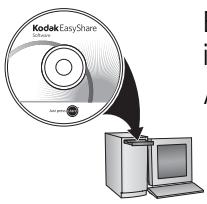
Before connecting any cables, install the software that was included with your camera. Follow the on-screen instructions. After installing the software, return to this user guide.

Attaching the strap
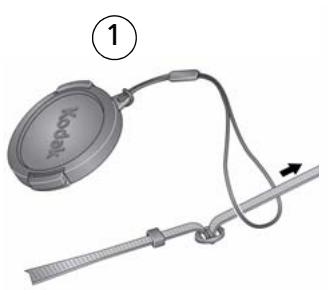
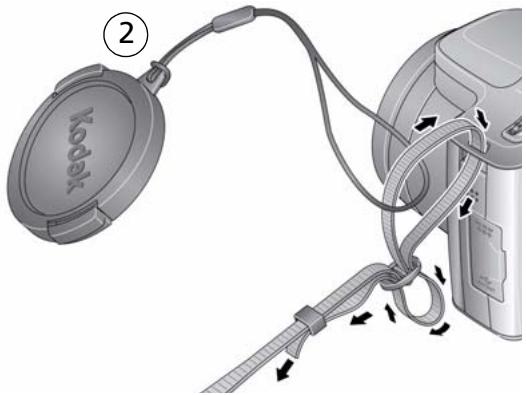
See the Extended user guide
www.kodak.com/go/z1015support
3 Loading the battery
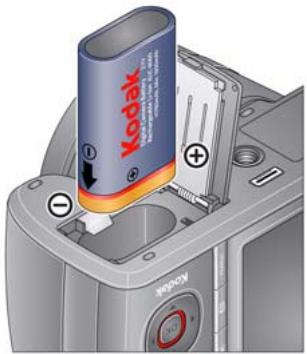
Kodak Li-ion rechargeable digital camera battery KLIC-8000
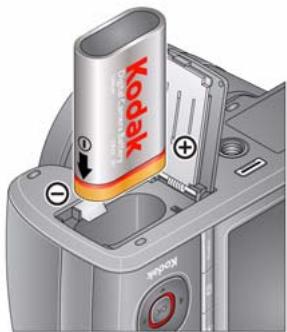
Kodak lithium digital camera battery CRV3 (non-rechargeable)
See the Extended user guide
www.kodak.com/go/z101support
Charging the KLIC-8000 battery
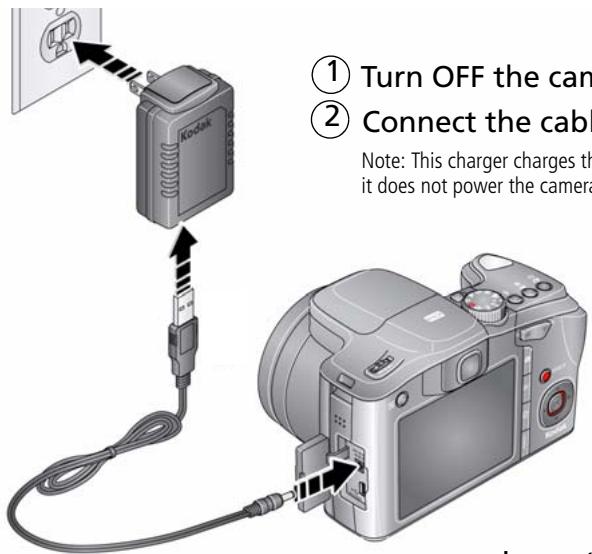
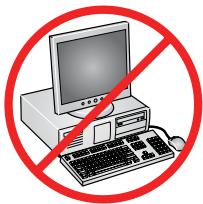
Important: DO NOT plug this cable into a computer.
Charging light
- Blinking: charging
- Steady: finished charging (approximately 3.5 hours)

See the Extended user guide
www.kodak.com/go/z101support
Charging the battery using optional accessories
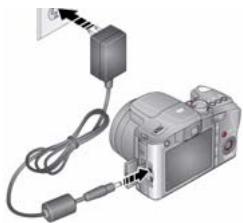
Kodak 5V AC adapter (2 amp)
To charge the battery, turn off the camera.
To power the camera (without charging the battery), turn on the camera.
Kodak EasyShare camera and printer docks
Turn off the camera.
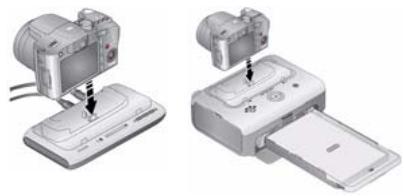
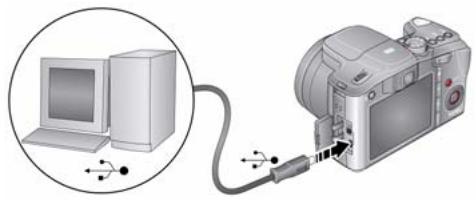
Kodak USB cable and a USB computer port
Turn off the camera. Ensure that the USB cable is connected to a powered USB port and the computer is turned on (not in sleep mode).
| See the Extended user guide | www.kodak.com/go/z1015support |
| Purchase accessories | www.kodak.com/go/z1015accessories |
| Learn more about USB charging | www.kodak.com/go/USBcharging |

Turning on the camera
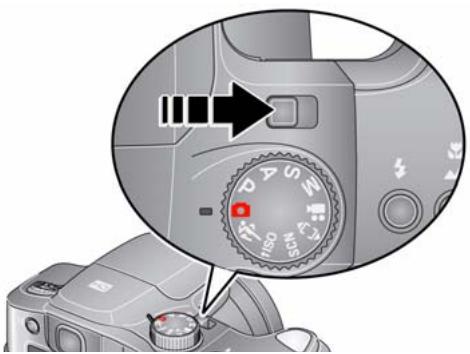
Setting the language, date/time
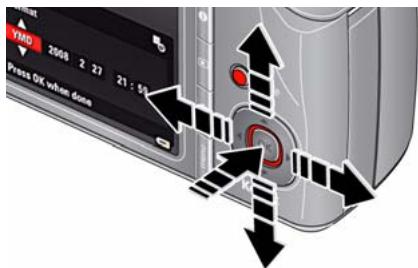
Language:
to change
OK to accept
Date/Time:
to change
for previous/next field
OK to accept
See the Extended user guide
www.kodak.com/go/z1015support

Taking a picture/video
Pictures
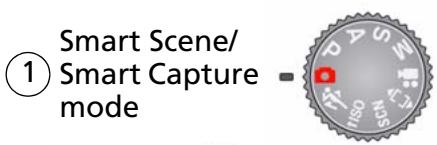
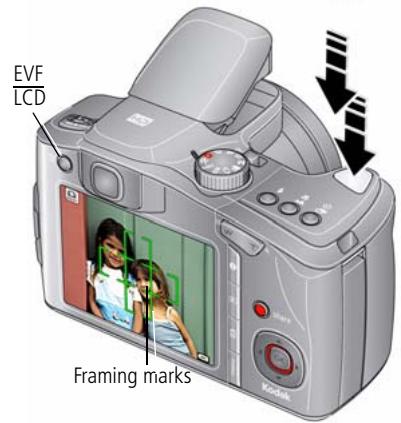
(2) Press the Shutter button halfway to lock the focus. When the framing marks turn green, press the Shutter button completely down.
Videos
(1)
Video mode
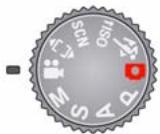
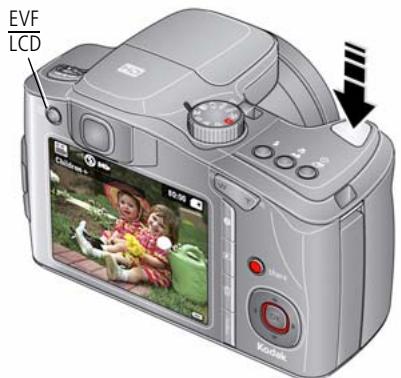
(2) Press the Shutter button completely down and release.
To stop recording, press and release the Shutter button again.

Reviewing pictures/videos
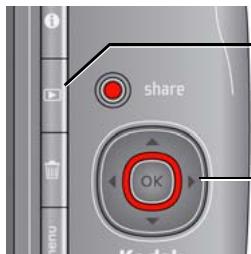
Review

previous/next picture/video

Transferring pictures/videos
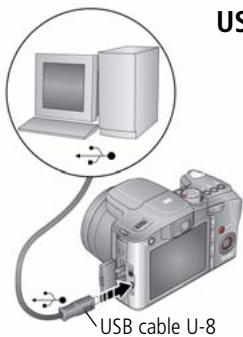
USB cable
① Turn off camera.
② Connect USB cable.
③ Turn on camera.
Kodak EasyShare software opens on your computer and prompts you through the transfer process.
Kodak EasyShare printer dock or camera dock
(May be sold separately.)
To use an EasyShare dock, see its user documentation.
See dock compatibility
www.kodak.com/go dockcompatibility
Purchase accessories
www.kodak.com/go/z101accessories

Keep learning about your camera!
Congratulations!
You have:
- set up your camera
- taken pictures
- transferred pictures to your computer
Keep learning!
Finish reading this book, so you can take and share your best pictures!
Visit www.kodak.com/go/z1015support and www.kodak.com/go/easysharecenter for:
- the extended user guide
- interactive troubleshooting and repairs
- interactive tutorials
- FAQs
- downloads
- accessories
- printing information
- product registration
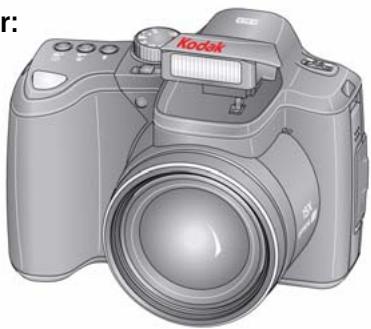
Learn about on-camera Help
page 23
Front view
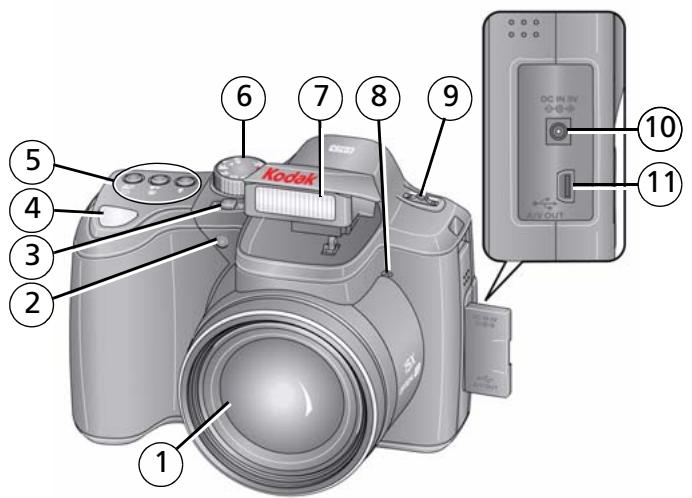
1 Lens
2 Low-light assist, Self-timer light, Video light
3 On/Off switch
4 Shutter button
5 Drive button (Self-timer, Burst)
Focus button (Close-up/Macro, Landscape, Manual)
■ Flash button
6 Mode dial
7 Flash
8 Microphone
9 Jog dial (for PASM modes)
10 DC-In (5V), for optional AC adapter
11 USB/AV Out
Back view
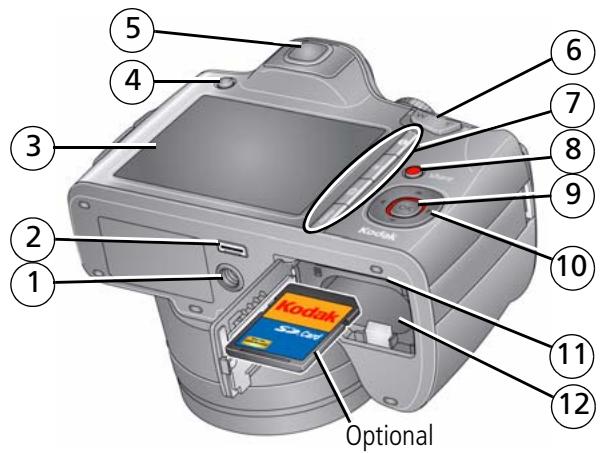
1 Tripod socket
2 Dock connector
3 LCD
4 EVF/LCD button
5 EVF (Electronic viewfinder)
6 Zoom (Wide Angle/Telephoto) button
7 Info/Review/Delete/Menu buttons
8 Share button
9 OK button
11 Slot for optional SD/SDHC card
12 Battery compartment
1 Doing more with your camera
Capture modes
| Capture mode | For | |
| Smart Scene/ Smart Capture | General picture taking—it offers excellent image quality and ease of use. NOTE: Smart Scene is the default mode. To change it, press the Menu button, highlight Capture Mode, then press OK. For faster processing, choose Smart Scene. For automatic picture enhancement, choose Smart Capture. ■ Faces are detected. ■ The scene is analyzed for other content and for lighting. ■ In Smart Capture, Kodak Perfect Touch technology is applied (for better, brighter pictures). To choose picture size, press the Menu button and choose Picture Size. ■ 3:2 (the best choice when making 4 x 6 prints) ■ 16:9 (wide screen) ■ 4:3 (the default setting) | |
| P, A, S, M | More creative control. (See page 21.) Program, Aperture Priority, Shutter Priority, and Manual mode. | |
| ISO High ISO | People in low-light scenes. | |
| Sport | Action pictures. | |
| Capture mode | For | |
| SCN | Scene | Point-and-shoot simplicity when taking pictures under special conditions. |
| Panorama | "Stitching" 2 or 3 pictures into 1 panoramic scene. | |
| Video | Video with sound. (See page 6.) | |
Using the 15X optical zoom
Use optical zoom to get up to 15X closer to your subject while taking pictures/videos.
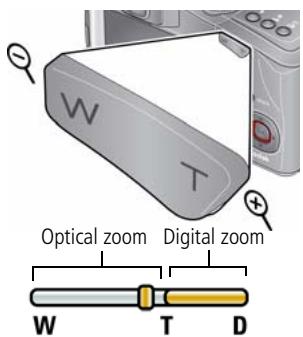
1 Use the LCD to frame your subject.
2 Press Telephoto (T) or Wide (W) to zoom in/out.
3 Take the picture or video.
NOTE: To get a focused picture every time, remember:
Use the auto focus framing marks, page 6.
As you zoom in, move away from your subject.
Use digital zoom to get up to 5X beyond optical zoom while taking pictures. Press Telephoto (T) past the maximum optical zoom. Digital zoom is not available in Smart Scene/Smart Capture mode.
NOTE: You may notice decreased image quality when using digital zoom. The slider on the zoom indicator turns red when the picture quality reaches the limit for an acceptable 4 × 6 -in. (10 x 15 cm) print.
Using the flash
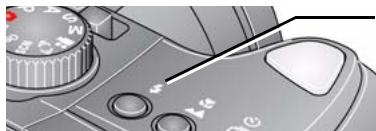
Press repeatedly to scroll through flash modes. (See flash modes below.)
| Flash modes | Flash fires | |
| Auto | A | When the lighting conditions require it. |
| Off | B | Never. |
| Fill | F | Every time you take a picture. Use when the subject is in shadow or is "backlit." In low light, hold the camera steady or use a tripod. Not available in Smart Scene/Smart Capture mode. (ISO is set to 400.) |
| Red Eye Your camera can correct red-eye using 2 methods | G | Preflash—A preflash fires, shrinking the eye pupil, before the picture is taken. |
| D | Digital Correction—A preflash does not fire; the camera corrects red eye. | |
Flash-to-subject distance in Smart Scene/Smart Capture mode
| Wide angle | 5.0 m (16.4 ft) |
| Telephoto | 3.2 m (10.5 ft) |
Using focus modes
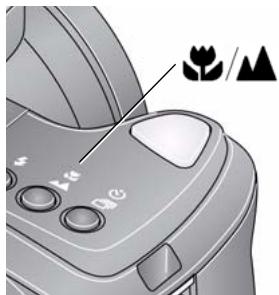
1 In most Still modes, press the Focus button:
Once for Macro (close-up)
Again for Landscape (infinity)
Again for Manual Focus
Again to return to normal Auto Focus
2 Compose the scene. Press the Shutter button halfway, then completely down.
| Icon | Mode | Description |
| (none) | Normal AF | Focus setting for general picture-taking. |
| Macro | To gain sharpness and detail in pictures at close range. Use available light instead of flash, if possible. Camera automatically sets the focus distance depending on the zoom position:0.1–1.0 m (0.3–3.3 ft) @ wide macro0.7–3.5 m (2.3–11.5 ft) @ telephoto macro | |
| Landscape | To gain sharpness of distant scenes. Camera uses infinity auto-focus.Auto-focus framing marks are not available in Landscape. | |
| MF | Manual Focus | The focus icon shows the direction and distance of the focus (to infinity).Press ↦ to view 2X magnification of the central area of focus. During magnification, press ↦ to adjust focal length. (Framing marks are off in this mode.) |
Using the self-timer
Use the self-timer when you want to be included in a picture, or to ensure a steady Shutter button press.
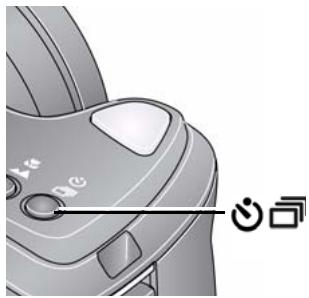
1 Place the camera on a tripod or flat surface.
2 In most Still modes, press the Self-timer/Burst button
Once for a 10-second delay (so you have time to get into the scene)
Again for a 2-second delay (for a steady, auto-shutter release on a tripod)
Again for 2-shot (one picture taken after 10 seconds; another, 8 seconds later)
3 Compose the scene. Press the Shutter button halfway, then completely down. The picture is taken after the delay.
To cancel the Self-timer during countdown, press the Self-timer/Burst button or press the Shutter button completely down.
Use the same procedure to use the self-timer in Video mode, but:
Turn the Mode dial to Video
Press the Shutter button completely down.
NOTE: The video stops when no storage space remains. Only the 2- and 10-second options are available in video mode.
Using the burst feature
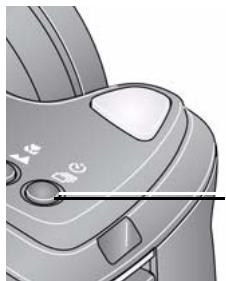

1 In most Still modes, press the Self-timer/Burst button. (See burst modes below.)
NOTE: Burst is unavailable in Portrait, Night Portrait, Night Landscape, Backlight, Fireworks, and Panorama modes.
2 Press the Shutter button halfway to focus and set exposure.
3 Press the Shutter button completely down and hold it to take pictures.
The camera stops taking pictures when you release the Shutter button, when the pictures are taken, or when there is no more storage space.
NOTE: During quickview, you can delete all pictures in the burst series. To delete selectively, do so in Review (see page 18).
| Mode | Icon | Description | Purpose |
| First Burst | Camera takes up to 3 pictures while the Shutter button is pressed. | Capture an expected event. Example: A person swinging a golf club. | |
| Last Burst | Camera takes up to 30 pictures while the Shutter button is pressed. When the Shutter button is released, only the last 3 pictures are saved. | Capture an event when the precise timing is uncertain. Example: A child blowing out birthday candles. |
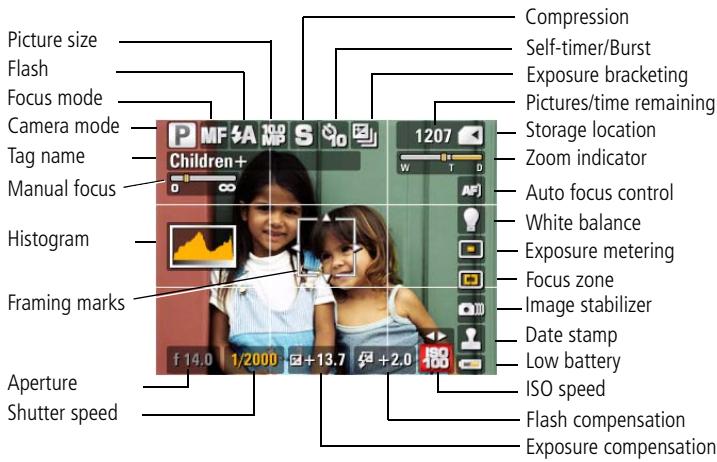
Understanding the picture-taking icons
Status icons indicate mode, feature, and camera status.
2 Working with pictures/videos
Deleting pictures/videos
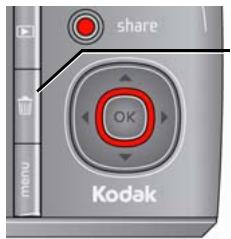
Delete
1 Press the Review button.
2 Press / to find a picture/video.
3 Press the Delete button.
4 Follow the screen prompts.
Using the menu button in Review
1 Press the Review button, then the Menu button.
2 Press to choose a tab:
Review to view pictures/videos
Edit to edit pictures/videos
Setup for other camera settings
3 Press to highlight a setting, then press OK.
4 Choose an option, then press OK.
IMPORTANT: Your camera offers an on-board Help system. To get the most from your camera, see page 23.
Understanding the review icons
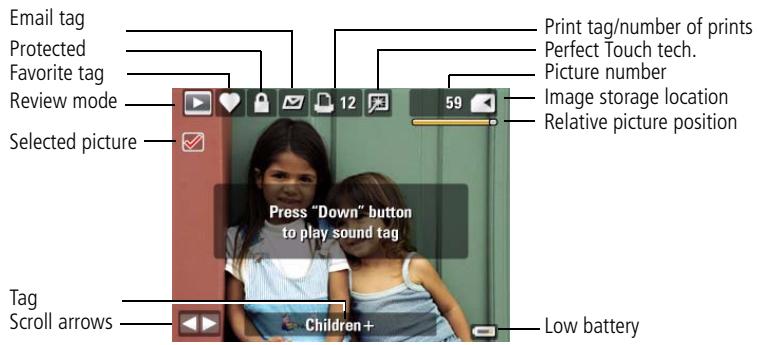
Pictures
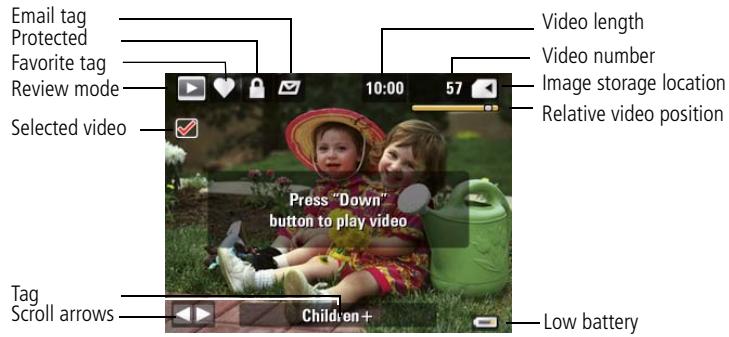
Videos
3 Using the advanced features
Using the Menu button to change settings
NOTE: Some settings remain until you change them; others remain until you turn off the camera. Some capture modes offer limited settings.
1 Press the Menu button.
2 Press / to highlight a menu tab:
Capture for the most common picture-taking settings.
Capture + for more advanced picture-taking settings.
Setup for other camera settings.
3 Press to highlight a setting, then press OK.
4 Choose an option, then press OK.
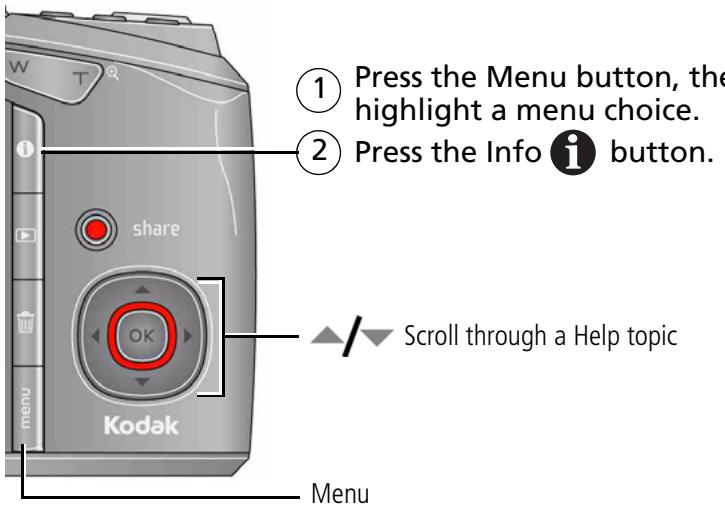
NOTE: Press the Info button ① for information about camera settings and options. Some capture modes offer limited settings.
P, A, S, and M modes
Use these modes when you want more control over your camera and pictures.
| Mode | When to use | Press Jog dial to control |
| P | Program mode offers the ease of auto shooting with full access to all menu options. The camera sets the shutter speed and aperture (f-stop) based on the scene lighting. | Exposure compensation, flash compensation, and ISO speed |
| A | Aperture Priority mode controls depth of field (the range of sharpness). The aperture setting may be affected by optical zoom. | Aperture, exposure compensation, flash compensation, and ISO speed |
| S | Shutter Priority mode prevents blur when your subject is moving. The camera automatically sets the aperture for proper exposure. (Use a tripod for slow shutter speeds.) | Shutter speed, exposure compensation, and flash compensation |
| M | Manual mode offers the highest level of creative control. (To prevent blur, use a tripod for slow shutter speeds.) | Aperture, shutter speed, flash compensation, and ISO speed |
(1) Turn to access a setting.
(2) Press to unlock the setting.
(3) Turn to change the setting.
(4) Press to lock the setting.
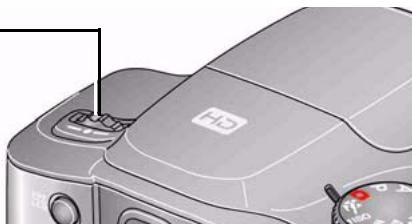
NOTE: Settings you change in P, A, S, or M modes apply only to pictures taken in those modes. The settings, including Flash, are maintained for P, A, S, and M modes—even when you change modes or turn off the camera. Use Reset Camera to reset P, A, S, or M mode to its default setting.
Changing P, A, S, or M mode settings
PASM modes control the aperture, shutter speed, exposure compensation, flash compensation, and ISO. Use the Menu button to control all other settings.
1 Turn the Mode dial to P, A, S, or M.
2 Jog dial: Turn to access a setting. Press to unlock the setting. Turn to change the setting. Press to lock the setting. (See page 21.)
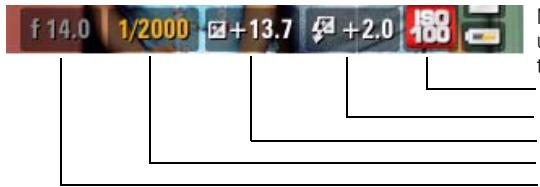
Note: A yellow setting indicates possible unsatisfactory results. (However, you can still take the picture.)
ISO
Flash compensation
Exposure compensation
Shutter speed
Aperture
ISO—adjust the camera's sensitivity to light. Higher ISO indicates greater sensitivity.
NOTE: A higher ISO may produce unwanted "noise" in a picture. ISO 3200 and 6400 available only in 3.1 MP and lower picture sizes.
Flash Compensation—adjust flash brightness.
Exposure Compensation—adjust the exposure (lighten or darken pictures).
Shutter speed—control how long the shutter stays open.
Aperture—(also known as f-stop) control the size of the lens opening, depth of field.
Smaller f-stop numbers indicate a larger lens opening; good for low-light.
Larger f-stop numbers indicate a smaller lens opening; keeps the main subject sharp; good for landscapes and well-lit conditions.
4 Solving camera problems
Getting help from your camera
Your camera offers a built-in Help system. It describes every setting for every menu choice. If you learn nothing else about your camera, learn how to use on-camera Help. Because the more you know your camera, the more confident you become!
For step-by-step product support, visit www.kodak.com/go/z1015support and select Interactive Troubleshooting & Repairs.
5 Appendix

CAUTION:
Do not disassemble this product; there are no user-serviceable parts inside. Refer servicing to qualified service personnel. Kodak AC adapters and battery chargers are intended for indoor use only. The use of controls, adjustments, or procedures other than those specified herein may result in exposure to shock and/or electrical or mechanical hazards. If the LCD breaks, do not touch the glass or liquid. Contact Kodak customer support.
The use of an accessory that is not recommended by Kodak may cause fire, electric shock, or injury. For approved accessories, visit www.kodak.com/go/accessories.
Use only a USB-certified computer equipped with a current-limiting motherboard. Contact your computer manufacturer if you have questions.
If using this product in an airplane, observe all instructions of the airline.
When removing the battery, allow it to cool; it may be hot.
Follow all warnings and instructions supplied by the battery manufacturer.
Use only batteries approved for this product to avoid risk of explosion.
- Keep batteries out of the reach of children.
- Do not allow batteries to touch metal objects, including coins. Otherwise, a battery may short circuit, discharge energy, become hot, or leak.
Do not disassemble, install backward, or expose batteries to liquid, moisture, fire, or extreme temperature.
- Remove the battery when the product is stored for an extended period of time. In the unlikely event that battery fluid leaks inside the product, contact Kodak customer support.
In the unlikely event that battery fluid leaks onto your skin, wash immediately with water and contact your local health provider. For additional health-related information, contact your local Kodak customer support.
Dispose of batteries according to local and national regulations. Visit www.kodak.com/go/kes.
Do not charge non-rechargeable batteries.
For more information on batteries, see www.kodak.com/go/batterytypes.
Limited Warranty
Kodak warrants Kodak consumer electronic products and accessories ("Products"), excluding batteries, to be free from malfunctions and defects in both materials and workmanship for one year from the date of purchase. Retain the original dated sales receipt. Proof of the date of purchase will be required with any request for warranty repair.
Limited warranty coverage
Warranty service is only available from within the country where the Products were originally purchased. You may be required to ship Products, at your expense, to the authorized service facility for the country where the Products were purchased. Kodak will repair or replace Products if they fail to function properly during the warranty period, subject to any conditions and/or limitations stated herein. Warranty service will include all labor as well as any necessary adjustments and/or replacement parts. If Kodak is unable to repair or replace a Product, Kodak will, at its option, refund the purchase price paid for the Product provided the Product has been returned to Kodak along with proof of the purchase price paid. Repair, replacement, or refund of the purchase price are the sole remedies under the warranty. If replacement parts are used in making repairs, those parts may be remanufactured, or may contain remanufactured materials. If it is necessary to replace the entire Product, it may be replaced with a remanufactured Product. Remanufactured Products, parts and materials are warranted for the remaining warranty term of the original Product, or 90 days after the date of repair or replacement, whichever is longer.
Limitations
This warranty does not cover circumstances beyond Kodak's control. This warranty does not apply when failure is due to shipping damage, accident, alteration, modification, unauthorized service, misuse, abuse, use with incompatible accessories or attachments (such as third party ink or ink tanks), failure to follow Kodak's operation, maintenance or repacking instructions, failure to use items supplied by Kodak (such as adapters and cables), or claims made after the duration of this warranty. Kodak makes no other express or implied warranty for this product, and disclaims the implied warranties of merchantability and fitness for a particular purpose. In the event that the exclusion of any implied warranty is ineffective under the law, the duration of the implied warranty will be one year from the purchase date or such longer period as required by law. The option of repair, replacement, or refund is Kodak's only obligation. Kodak will not be responsible for any special, consequential or incidental damages resulting from the sale, purchase, or use of this product regardless of the cause. Liability for any special, consequential or incidental damages (including but not limited to loss of revenue or profit, downtime costs, loss of the use of the equipment, cost of substitute equipment,
facilities or services, or claims of your customers for such damages resulting from the purchase, use, or failure of the Product), regardless of cause or for breach of any written or implied warranty is expressly disclaimed.
Your rights
Some states or jurisdictions do not allow exclusion or limitation of incidental or consequential damages, so the above limitation or exclusion may not apply to you. Some states or jurisdictions do not allow limitations on how long an implied warranty lasts, so the above limitation may not apply to you. This warranty gives you specific rights, and you may have other rights which vary from state to state or by jurisdiction.
Outside the United States and Canada
In countries other than the United States and Canada, the terms and conditions of this warranty may be different. Unless a specific Kodak warranty is communicated to the purchaser in writing by a Kodak company, no warranty or liability exists beyond any minimum requirements imposed by law, even though defect, damage, or loss may be by negligence or other act.
Regulatory compliance
FCC compliance and advisory

Kodak EasyShare Z1015 IS digital camera
This equipment has been tested and found to comply with the limits for a Class B digital device, pursuant to Part 15 of the FCC Rules. These limits are designed to provide reasonable protection against harmful interference in a residential installation. This equipment generates, uses, and can radiate radio frequency energy and, if not installed or used in accordance with the instructions, may cause harmful interference to radio communications. However, there is no guarantee that interference will not occur in a particular installation. If this equipment does cause harmful interference to radio or television reception, which can be determined by turning the equipment off and on, the user is encouraged to try to correct the interference by one or more of the following measures: 1) reorient or relocate the receiving antenna; 2) increase the separation between the equipment and the receiver; 3) connect the equipment to an outlet on a circuit different from that to which the receiver is connected; 4) consult the dealer or an experienced radio/TV technician for additional suggestions. Any changes or modifications not expressly approved by the party responsible for compliance could void the user's authority to operate the equipment. Where shielded interface cables have been provided with the
product or specified additional components or accessories elsewhere defined to be used with the installation of the product, they must be used in order to ensure compliance with FCC regulation.
Australian C-Tick

N137
Waste Electrical and Electronic Equipment labeling

EU: It is the final user's responsibility to discard this equipment into an approved, segregated collection scheme to enable its suitable treatment/disposal and to improve human/environmental protection. For more information, see your retailer, local authority, or www.kodak.com/go/recycle. (Product weight: 325 g.)
Canadian DOC statement
DOC Class B Compliance—This Class B digital apparatus complies with Canadian ICES-003.
FCC and Industry Canada
This device complies with Industry Canada RSS-210 and FCC Rules. Operation is subject to the following two conditions: (1) this device may not cause harmful interference, and (2) this device must accept any interference received, including interference that may cause undesired operation.
Use of this product in any manner that complies with the MPEG-4 visual standard is prohibited, except for use by a consumer engaging in personal and non-commercial activities.
Russian GOST-R

AIO-40
Eastman Kodak Company
Rochester, NY 14650
ΦOTOKaMepa H3RTOBJIeHa B KITae; ocTaJIbHbIe 9JIeMeHTBI -
B COOTBeTcBHII C MapKHPOBKOH
China RoHS
环保使用期限(EPUP)
Eastman Kodak Company
Rochester, New York 14650
© Eastman Kodak Company, 2008
Kodak, EasyShare, and Perfect Touch are trademarks of Eastman Kodak Company.
4F8330_en
- Installing the software
- Attaching the strap
- Loading the battery
- Charging the KLIC-8000 battery
- Charging the battery using optional accessories
- Kodak 5V AC adapter (2 amp)
- Kodak EasyShare camera and printer docks
- Kodak USB cable and a USB computer port
- Turning on the camera
- Setting the language, date/time
- Taking a picture/video
- Pictures
- Videos
- Reviewing pictures/videos
- Transferring pictures/videos
- USB cable
- Kodak EasyShare printer dock or camera dock
- Keep learning about your camera!
- Congratulations!
- Keep learning!
- Visit www.kodak.com/go/z1015support and www.kodak.com/go/easysharecenter for:
- Front view
- Back view
- Doing more with your camera
- Capture modes
- Using the 15X optical zoom
- Using the flash
- Using focus modes
- Using the self-timer
- Use the same procedure to use the self-timer in Video mode, but:
- Using the burst feature
- Understanding the picture-taking icons
- Working with pictures/videos
- Deleting pictures/videos
- Using the menu button in Review
- Understanding the review icons
- Using the advanced features
- Using the Menu button to change settings
- P, A, S, and M modes
- Changing P, A, S, or M mode settings
- Solving camera problems
- Getting help from your camera
- Appendix
- CAUTION:
- Limited Warranty
- Limited warranty coverage
- Limitations
- Your rights
- Outside the United States and Canada
- Regulatory compliance
- FCC compliance and advisory
- Australian C-Tick
- Waste Electrical and Electronic Equipment labeling
- Canadian DOC statement
- FCC and Industry Canada
- Russian GOST-R
- China RoHS
- 环保使用期限(EPUP)
Brand : KODAK
Model : Z1015 IS
Category : Digital Camera