
M893 IS - Digital Camera KODAK - Free user manual and instructions
Find the device manual for free M893 IS KODAK in PDF.


User questions about M893 IS KODAK
0 question about this device. Answer the ones you know or ask your own.
Ask a new question about this device
Download the instructions for your Digital Camera in PDF format for free! Find your manual M893 IS - KODAK and take your electronic device back in hand. On this page are published all the documents necessary for the use of your device. M893 IS by KODAK.
USER MANUAL M893 IS KODAK
Installing the software
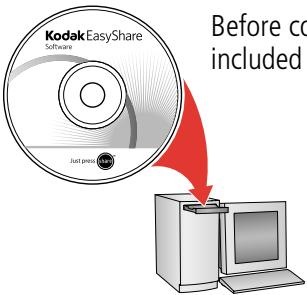
Before connecting any cables, install the software that was included with your camera. Follow the on-screen instructions.
After installing the software, return to this User guide.

Loading the KLIC- 7001 battery
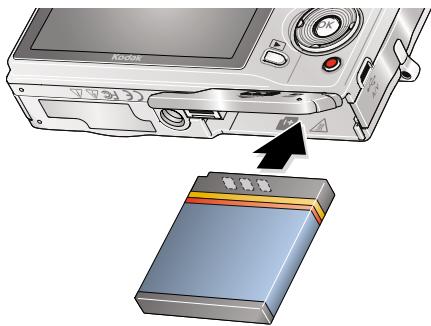
Kodak Li-lon
rechargeable digital camera battery
KLIC-7001

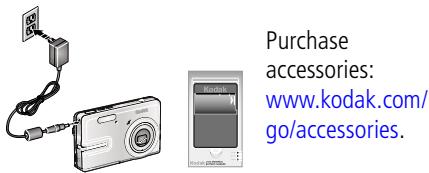
Charging the KLIC-7001 battery
Kodak USB AC adapter (included)
Learn more at: www.kodak.com/go/USBcharging.
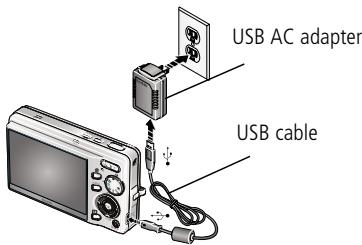
Battery
Charging light
Kodak EasyShare camera or printer docks (may be sold separately)
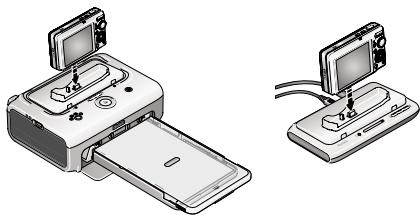
First, turn OFF the camera.
Charge until the Battery Charging light turns off (up to 3 hours).
Kodak 5V AC adapter, Kodak Li-Ion universal battery chargers (sold separately)
Your computer
Connect the USB cable to the computer's USB port, not a Hub.
Make sure the computer is turned on and not in sleep mode.

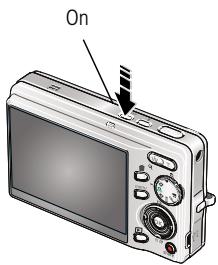
Turning on the camera

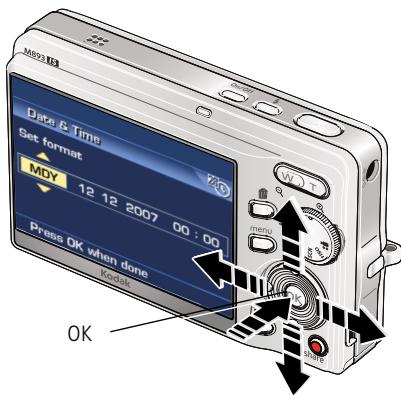
Setting the language, date/time
Language: 1 / to change. 2 OK to accept.
Date/Time:
1 At the prompt, press OK.
2 to change.
4 for previous/next fi OK to accept.

Taking a picture/video
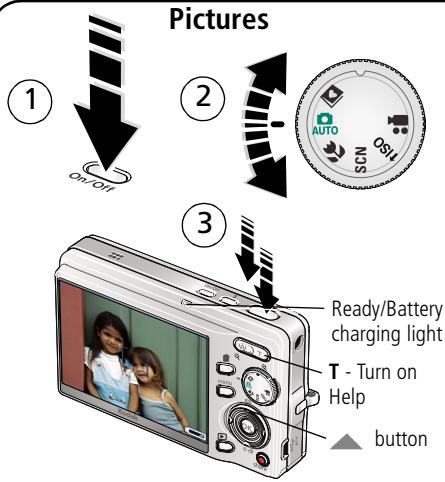
Press the Shutter button halfway to focus and set exposure. Press it completely down when the Ready light turns green.
Press to turn on/off:
- Status icons
- Framing grid
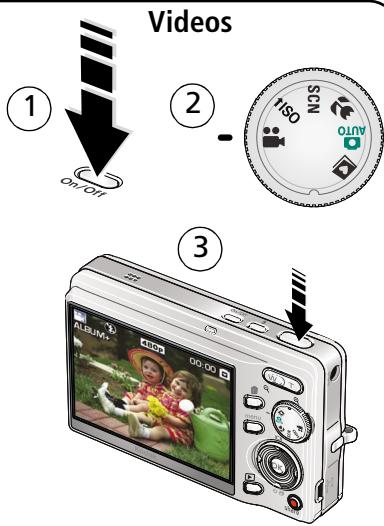
Press the Shutter button completely down and release. To stop recording, press the Shutter button again.

Reviewing pictures/videos
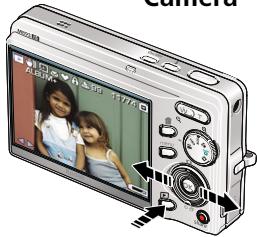
Camera
1 Press Review.
(2) / for previous/next picture/video.
Videos
Play.
During playback:
OK pause/unpause.
adjust the volume.
play at 2X speed; press again for 4X.
reverse at 2X speed; press again for 4X.
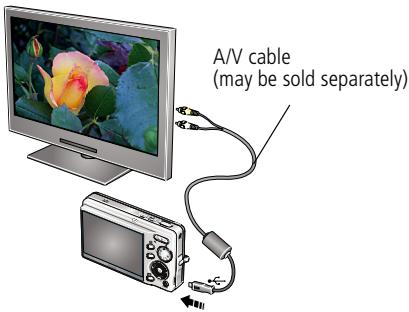
Your television
① Turn off the camera.
② Connect the A/V cable.
③ Turn on the camera.
④ Review pictures/videos/slide shows on a television.
Other display devices:
- Your computer monitor
Devices equipped with a video input

Transferring pictures/videos
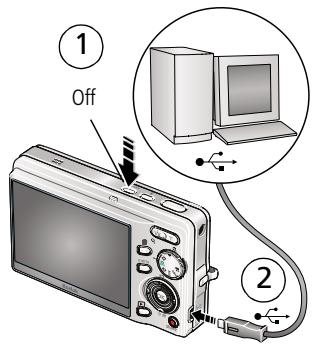
USB cable
(3)
Kodak EasyShare printer dock or camera dock
(May be sold separately)
For dock compatibility, visit www.kodak.com/go/dockcompatibility.
To purchase accessories, visit www.kodak.com/go/m893accessories. To use an EasyShare dock, see its User guide.

Keep learning about your camera!
Congratulations!
You have:
- set up your camera
- taken pictures
- transferred pictures to your computer
Keep learning!
Finish reading this book, so you can take and share your best pictures!
Visit www.kodak.com/go/m893support and www.kodak.com/go/easysharecenter for:
- the Extended user guide
- interactive troubleshooting and repairs
- interactive tutorials
- FAQs
- downloads
- accessories
- printing information
- product registration
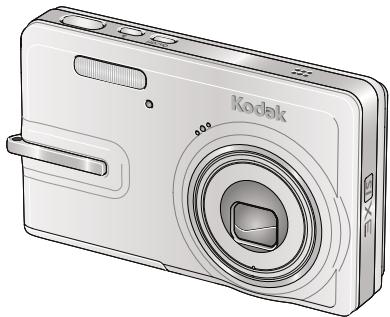
Front view
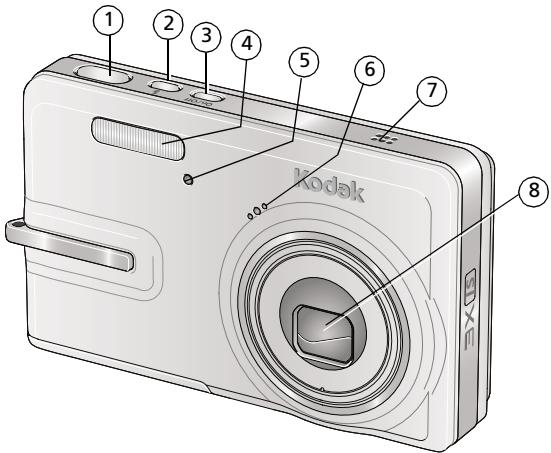
1 Shutter button
2 Flash button
3 On/Off button
4 Flash
5 Self-timer/video light
6 Microphone
7 Speaker
8 Lens
Back view
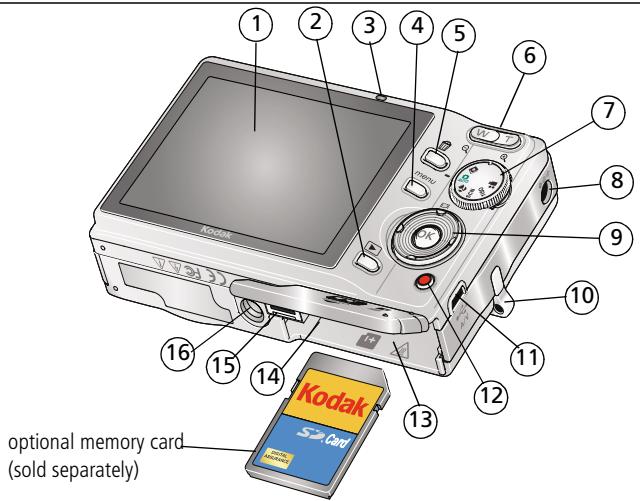
1 LCD
2 Review button
3 Ready/Battery charging light
4 Menu button
5 Delete button
6 Zoom button (Wide/Telephoto)
7 Mode dial
8 DC-In (5V) G- for optional AC adapter
9


10
Strap post
11
USB port

12
Share button
13
Battery compartment
14
SD/SDHC memory card slot
15
Dock connector
16
Tripod socket
1 Doing more with your camera
Using optical zoom
Use optical zoom to get up to 3X closer to your subject.
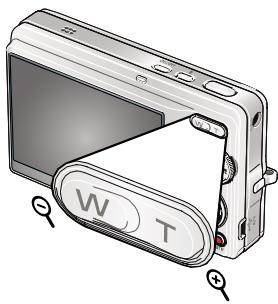
Optical Digital zoom zoom range range W T D
1 Use the LCD to frame your subject.
2 Press Telephoto (T) to zoom in. Press Wide Angle (W) to zoom out.
The zoom indicator shows zoom status.
3 Take the picture or video.
Always use the auto focus framing marks.
If you are not using zoom (1X, wide angle), you can be as close as 2 ft (0.6 m) to your subject.
As you zoom, you need to move further from your subject.
Using the flash
Use the flash when you take pictures at night, indoors, or outdoors in heavy shadows.
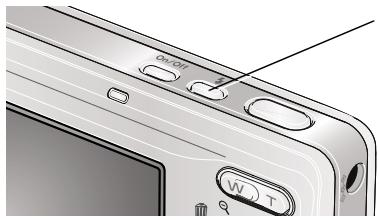
Press the button repeatedly to scroll through flash modes (see Flash modes below).
The current flash mode appears in the LCD screen.
| Flash modes | Flash fires | |
| Auto Flash | When the lighting conditions require it. | |
| Off | Never. | |
| Fill | Every time you take a picture, regardless of the lighting conditions. Use when the subject is in shadow or is "backlit" (when the light is behind the subject). In low light, hold the camera steady or use a tripod. | |
| Red-eye | If Red-eye Pre-flash is turned off: ■ The flash fires once and the camera automatically corrects red-eye in the picture. | If Red-eye Pre-flash is turned on: ■ The flash fires once so the eyes become accustomed to the flash, then fires again when the picture is taken. |
Using different picture-taking modes

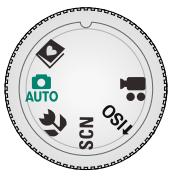
Choose the mode that best suits your subjects and surroundings.
| Use this mode | For | |
| AUTO | Auto | General picture taking—offers an excellent balance of image quality and ease of use. |
| Close-up | Close range. Use available light instead of flash if possible. | |
| SCN | Scene | Point-and-shoot simplicity when taking pictures under special conditions. (See page 13.) |
| ISO | High ISO | People in low-light scenes indoors using a higher ISO. |
| Video | Capturing video with sound. (See page 4.) | |
| Favorite | Reviewing favorite pictures. | |
Scene modes
Choose a Scene mode—for great pictures in practically any situation!
1 Turn the Mode dial to Scene SCN.
2 Press / to display Scene mode descriptions. If the mode description turns off before you finish reading it, press OK.
3 Press OK to choose a Scene mode.
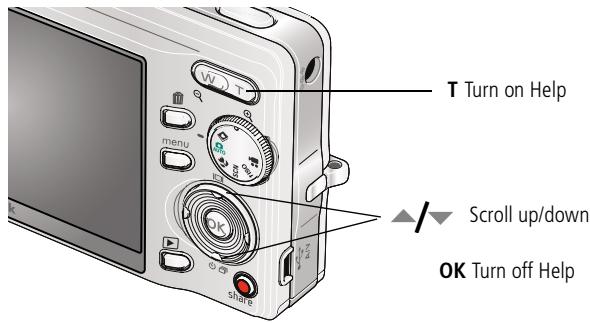
Using camera Help
To better understand each menu option, use camera Help. Select an option you want to learn more about, then press the Zoom telephoto (T) button.
Taking panoramic pictures
Use panorama to "stitch" up to 3 pictures into a panoramic scene.
1 Turn the Mode dial to SCN.
2 Press / on the 4-way button to highlight Panorama Left-Right or Panorama Right-Left (depending on the direction you want to pan), then press the OK button.
3 Take the first picture.
After a quickview, the LCD displays the liveview and an "overlay" from the first picture.
4 Compose the second picture. Make the overlay from the first picture cover the same portion in the new picture. (You can press the Delete button to re-take a picture.)
5 If you are taking only 2 pictures, press the OK button to stitch them together.
After you take 3 pictures, the pictures are automatically stitched together. The LCD displays a quickview for approximately 10 seconds.
Take 2 or 3 pictures.
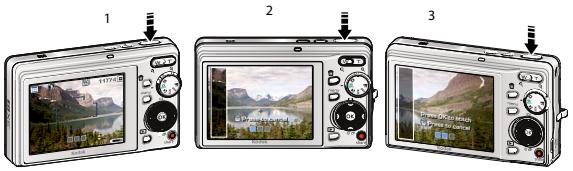
Get 1 panoramic picture.

Understanding picture-taking icons
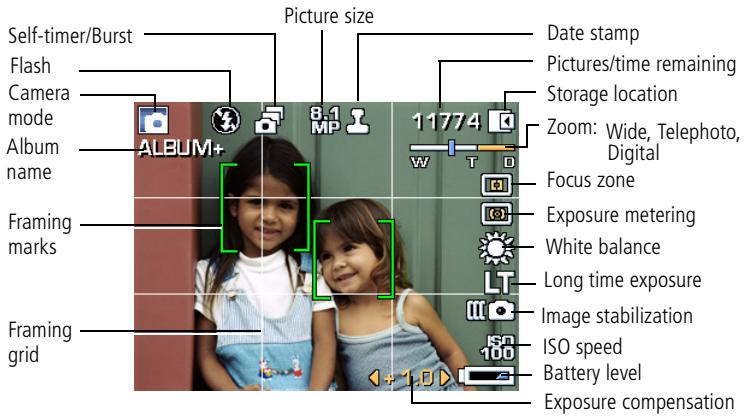
2 Working with pictures/videos
Magnifying pictures
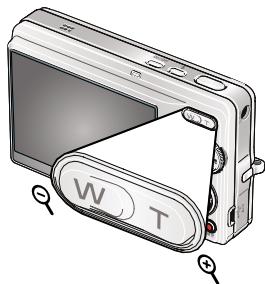
1 Press the Review button.
2 Press W/T to magnify 2X-8X.
3 Press / to view other parts of the picture.
4 Press OK to return to 1X.
Cropping pictures
You can crop a picture so that only the desired portion of the picture remains.
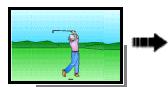
Picture
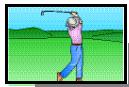
Cropped picture
1 Press the Review button, then to find a picture.
2 Press the Menu button. Press to find Edit.
3 Press to highlight Crop, then press OK.
4 Press Telephoto (T) to zoom in, or / to move the crop box. Press OK.
5 Follow the screen prompts.
Using sound tags
You can add a unique sound/message (up to 1 minute long) to your picture (not to videos).
Recording a sound tag
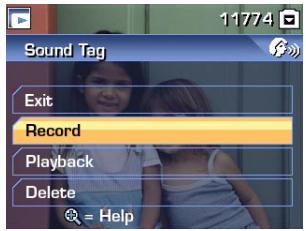
1 Press the Review button, then to find a picture.
2 Press the Menu button, then to highlight Sound Tag. Press the OK button.
3 Choose Record, then press OK.
4 Follow the screen prompts. The sound tag is applied to your picture.
Playing a sound tag
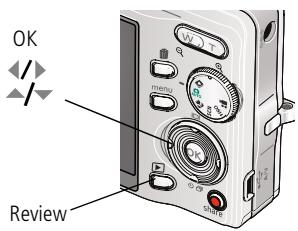
1 Press the Review button, then / to find a tagged picture.
2 Press to play the sound tag.
3 Press / to adjust the volume.
4 Press OK to stop playback.
Viewing thumbnails (multi-up)
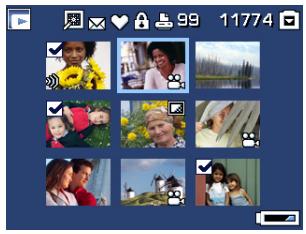
1 Press the Review button.
2 Press the Zoom Wide Angle (W) button to change from single-picture view to multi-up thumbnails.
3 Press Telephoto (T) to return to single-picture view.
To select multiple pictures/videos, see page 21.
Using Kodak Perfect Touch technology
Kodak Perfect Touch technology helps ensure better, brighter pictures.
1 Press the Review button, then
for previous/next picture.
2 Press the Menu button. Press
to find Edit.
3 Press to highlight Perfect Touch tech., then press OK.
The enhancement is previewed in a split screen. Press to view other parts of the picture.
4 Press OK. Follow the screen prompts to replace the original picture or to save the enhanced picture as a new one.
NOTE: You cannot enhance previously enhanced pictures.
Editing videos
Making a picture from a video
You can choose a single frame from a video, then make a picture suitable for printing.
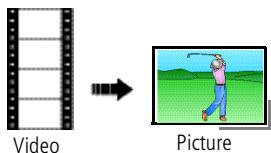
1 Press the Review button, then / to find a video.
2 Press the Menu button. Press / to find Edit.
3 Press to highlight Make Picture, then press OK.
4 Press to select a video frame.
5 Follow the screen prompts to save the picture.
Trimming a video
You can delete an unwanted portion from the beginning or end of a video.
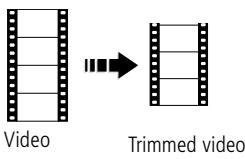
1 Press the Review button, then to find a video.
2 Press the Menu button. Press to find Edit.
3 Press to highlight Trim, then press .
4 Follow the screen prompts. (Use fast-forward and fast-reverse, if needed.)
Making a video action print
From a video, you can make a 4-, 9-, or 16-up picture, suitable for a 4 × 6 -inch (10 x 15 cm) print.
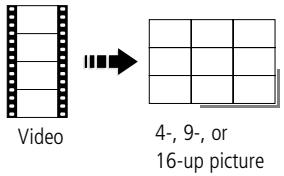
1 Press the Review button, then to find a video.
2 Press the Menu button. Press / to highlight Edit Video, then press OK.
3 Press to highlight Video Action Print, then press OK.
4 Choose an option, then press OK.
Auto options: The camera includes the first and last frames, then 2, 7, or 14 equally spaced frames.
Manual options: You choose the first and last frames; the camera chooses 2, 7, or 14 equally spaced frames.
Running a slide show
Use Slide Show to display your pictures/videos on the camera, a television, or any device equipped with a video input (see page 5).
1 Press the Review button, then the Menu button.
2 Press to highlight Slide Show, then press the OK button.
3 Press to highlight Begin Show, then press the OK button.
To interrupt the Slide Show, press the OK button.
Running a multimedia slide show
Multimedia Slide Show is similar to Slide Show, but also offers music and visual effects. First, select 2-20 pictures (see page 21). Then:
1 Press the Review button.
2 Press to highlight Multimedia Slide Show, then press the OK button.
3 Press to highlight a choice from the menu, then press the OK button.
Selecting multiple pictures/videos
Use the multi-select feature when you have two or more pictures/videos to print, delete, etc. (Multi-select is used most effectively in Multi-Up mode, page 18.)
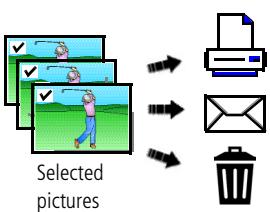
1 Press the Review button, then to find a picture/video.
2 Press the OK button to select pictures/videos.
A check mark appears on the picture. You can now print, transfer, or delete the selected pictures. You can press OK a second time to remove a check mark.
Deleting pictures/videos
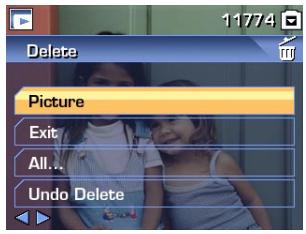
1 Press the Review button.
2 Press / for previous/next picture/video.
3 Press the Delete button.
4 Follow the screen prompts.
NOTE: After you delete a picture, the next picture (overlaid with the Delete menu with the Undo Delete option) appears. If there are no more pictures, the Delete menu on a blank screen appears. See Using the undo delete feature for more information.
Using the undo delete feature
If you accidentally delete a picture, use Undo Delete to retrieve it. This feature is available only immediately after you delete a picture in Review mode. The Undo Delete option appears.
1 Press to highlight Undo Delete.
2 Press OK.
The deleted picture (overlaid with the Delete menu) appears.
3
Solving camera problems
For step-by-step product support, visit www.kodak.com/go/m893support and select Interactive Troubleshooting & Repairs.
Camera problems
| If... | Try one or more of the following |
| Camera does not turn on/off. | Remove the battery, then reinsert correctly (see page 1). Install new battery. Charge rechargeable battery (see page 2). |
| Camera does not recognize SD card. | Purchase a certified SD/SDHC card. Write-once SD cards not supported. Reformat the card. Caution: Formatting a card deletes all pictures and videos, including protected files. Insert a card into the slot, then push to seat. |
| Short battery life with Kodak Li-Ion rechargeable digital camera battery KLIC-7001. | Limit the following activities that quickly deplete battery power: reviewing pictures/videos on the LCD; excessive use of the flash. |
| Battery does not charge using USB charging. | See page 2 or visit www.kodak.com/go/usbcharging. |
4 Appendix
Important safety instructions

CAUTION:
Do not disassemble this product; there are no user-serviceable parts inside. Refer servicing to qualified service personnel. Do not expose this product to liquid, moisture, or extreme temperatures. Kodak AC adapters and battery chargers are intended for indoor use only. The use of controls, adjustments, or procedures other than those specified herein may result in exposure to shock and/or electrical or mechanical hazards. If the LCD breaks, do not touch the glass or liquid. Contact Kodak customer support.
The use of an accessory that is not recommended by Kodak may cause fire, electric shock, or injury.
Use only a USB-certified computer. Contact your computer manufacturer if you have questions.
If using this product in an airplane, observe all instructions of the airline.
When removing the battery, allow it to cool; it may be hot.
Read and follow all warnings and instructions supplied by the battery manufacturer.
Use only batteries approved for this product to avoid risk of explosion.
- Keep batteries out of the reach of children.
- Do not allow batteries to touch metal objects, including coins. Otherwise, a battery may short circuit, discharge energy, become hot, or leak.
Do not disassemble, install backward, or expose batteries to liquid, moisture, fire, or extreme temperature.
- Remove the battery when the product is stored for an extended period of time. In the unlikely event that battery fluid leaks inside the product, contact Kodak customer support.
In the unlikely event that battery fluid leaks onto your skin, wash immediately with water and contact your local health provider. For additional health-related information, contact your local Kodak customer support.
Dispose of batteries according to local and national regulations.
Do not charge non-rechargeable batteries.
For more information on batteries, see www.kodak.com/go/batterytypes
Upgrading your software and firmware
Download the latest versions of the software included on the Kodak EasyShare software CD and the camera firmware (the software that runs on the camera). See www.kodak.com/go/m893downloads.
Additional care and maintenance
If the camera has been subjected to inclement weather or you suspect water has gotten inside the camera, turn off the camera and remove the batteries and card. Allow components to air-dry for at least 24 hours before using the camera again.
- Blow gently on the lens or LCD to remove dust and dirt. Wipe gently with a soft, lint-free cloth or an untreated lens-cleaning tissue. Do not use cleaning solutions unless designed specifically for camera lenses. Do not allow chemicals, such as suntan lotion, to contact painted surfaces.
Service agreements are available in some countries. Contact a dealer of Kodak products for more information.
For digital camera disposal or recycling information, contact your local authorities. In the US, visit the Electronics Industry Alliance Web site at www.eiae.org or visit www.kodak.com/go/m893support.
Warranty
Kodak warrants Kodak consumer electronic products and accessories ("Products"), excluding batteries, to be free from malfunctions and defects in both materials and workmanship for one year from the date of purchase. Retain the original dated sales receipt. Proof of the date of purchase will be required with any request for warranty repair.
Limited warranty coverage
Warranty service is only available from within the country where the Products were originally purchased. You may be required to ship Products, at your expense, to the authorized service facility for the country where the Products were purchased. Kodak will repair or replace Products if they fail to function properly during the warranty period, subject to any conditions and/or limitations stated herein. Warranty service will include all labor as well as any necessary adjustments and/or replacement parts. If Kodak is unable to repair or replace a Product, Kodak will, at its option, refund the purchase price paid for the Product provided the Product has been returned to Kodak along with proof of the purchase price paid. Repair, replacement, or refund of the purchase price are the sole remedies under the warranty. If replacement parts are used in making repairs, those parts may be remanufactured, or may contain remanufactured materials. If it is necessary to replace the entire Product, it may be replaced with a remanufactured Product. Remanufactured Products, parts and materials are warranted
for the remaining warranty term of the original Product, or 90 days after the date of repair or replacement, whichever is longer.
Limitations
This warranty does not cover circumstances beyond Kodak's control. This warranty does not apply when failure is due to shipping damage, accident, alteration, modification, unauthorized service, misuse, abuse, use with incompatible accessories or attachments (such as third party ink or ink tanks), failure to follow Kodak's operation, maintenance or repacking instructions, failure to use items supplied by Kodak (such as adapters and cables), or claims made after the duration of this warranty. Kodak makes no other express or implied warranty for this product, and disclaims the implied warranties of merchantability and fitness for a particular purpose. In the event that the exclusion of any implied warranty is ineffective under the law, the duration of the implied warranty will be one year from the purchase date or such longer period as required by law. The option of repair, replacement, or refund is Kodak's only obligation. Kodak will not be responsible for any special, consequential or incidental damages resulting from the sale, purchase, or use of this product regardless of the cause. Liability for any special, consequential or incidental damages (including but not limited to loss of revenue or profit, downtime costs, loss of the use of the equipment, cost of substitute equipment, facilities or services, or claims of your customers for such damages resulting from the purchase use or failure of the Product), regardless of cause or for breach of any written or implied warranty is expressly disclaimed.
Your rights
Some states or jurisdictions do not allow exclusion or limitation of incidental or consequential damages, so the above limitation or exclusion may not apply to you. Some states or jurisdictions do not allow limitations on how long an implied warranty lasts, so the above limitation may not apply to you. This warranty gives you specific rights, and you may have other rights which vary from state to state or by jurisdiction.
Outside the United States and Canada
In countries other than the United States and Canada, the terms and conditions of this warranty may be different. Unless a specific Kodak warranty is communicated to the purchaser in writing by a Kodak company, no warranty or liability exists beyond any minimum requirements imposed by law, even though defect, damage, or loss may be by negligence or other act.
FCC compliance and advisory

Kodak EasyShare M893 IS digital camera
This equipment has been tested and found to comply with the limits for a Class B digital device, pursuant to Part 15 of the FCC Rules. These limits are designed to provide reasonable protection against harmful interference in a residential installation.
This equipment generates, uses, and can radiate radio frequency energy and, if not installed or used in accordance with the instructions, may cause harmful interference to radio communications. However, there is no guarantee that interference will not occur in a particular installation.
If this equipment does cause harmful interference to radio or television reception, which can be determined by turning the equipment off and on, the user is encouraged to try to correct the interference by one or more of the following measures: 1) reorient or relocate the receiving antenna; 2) increase the separation between the equipment and the receiver; 3) connect the equipment to an outlet on a circuit different from that to which the receiver is connected; 4) consult the dealer or an experienced radio/TV technician for additional suggestions.
Any changes or modifications not expressly approved by the party responsible for compliance could void the user's authority to operate the equipment. Where shielded interface cables have been provided with the product or specified additional components or accessories elsewhere defined to be used with the installation of the product, they must be used in order to ensure compliance with FCC regulation.
FCC and Industry Canada
This device complies with Industry Canada RSS-210 and FCC Rules. Operation is subject to the following two conditions: (1) this device may not cause harmful interference, and (2) this device must accept any interference received, including interference that may cause undesired operation.
Canadian DOC statement
DOC Class B Compliance
This Class B digital apparatus complies with Canadian ICES-003.
Observation des normes-Classe B
Waste Electrical and Electronic Equipment labeling

EU: It is the user's responsibility to discard this equipment into an approved, segregated collection scheme to enable its suitable treatment/disposal and to improve human/environmental protection. For more information, see your retailer, local authority or www.kodak.com/go/recycle. (Product weight: 109 g.)
VCCI Class B ITE
Eastman Kodak Company
Rochester, NY 14650
Eastman Kodak Company, 2007
Kodak, EasyShare, and Perfect Touch are trademarks of Eastman Kodak Company.
4F8110_en