 ManualGo.com
 CELED24DVDU6 - Téléviseur CONTINENTAL EDISON - Free user manual and instructions
Find the device manual for free CELED24DVDU6 CONTINENTAL EDISON in PDF.


Download the instructions for your Téléviseur in PDF format for free! Find your manual CELED24DVDU6 - CONTINENTAL EDISON and take your electronic device back in hand. On this page are published all the documents necessary for the use of your device. CELED24DVDU6 by CONTINENTAL EDISON.
USER MANUAL CELED24DVDU6 CONTINENTAL EDISON
TABLE DES MATIÈRES Basic Operation (Fonctionnement de base) ······································································· 22 DVD Setup Mode (Mode Configuration DVD) ·························································· 22 General Setup (Configuration générale) ··················································································22 Audio Setup (Configuration audio) ············································································· 24 Preference Setup (Configuration favorite)·································································· 25
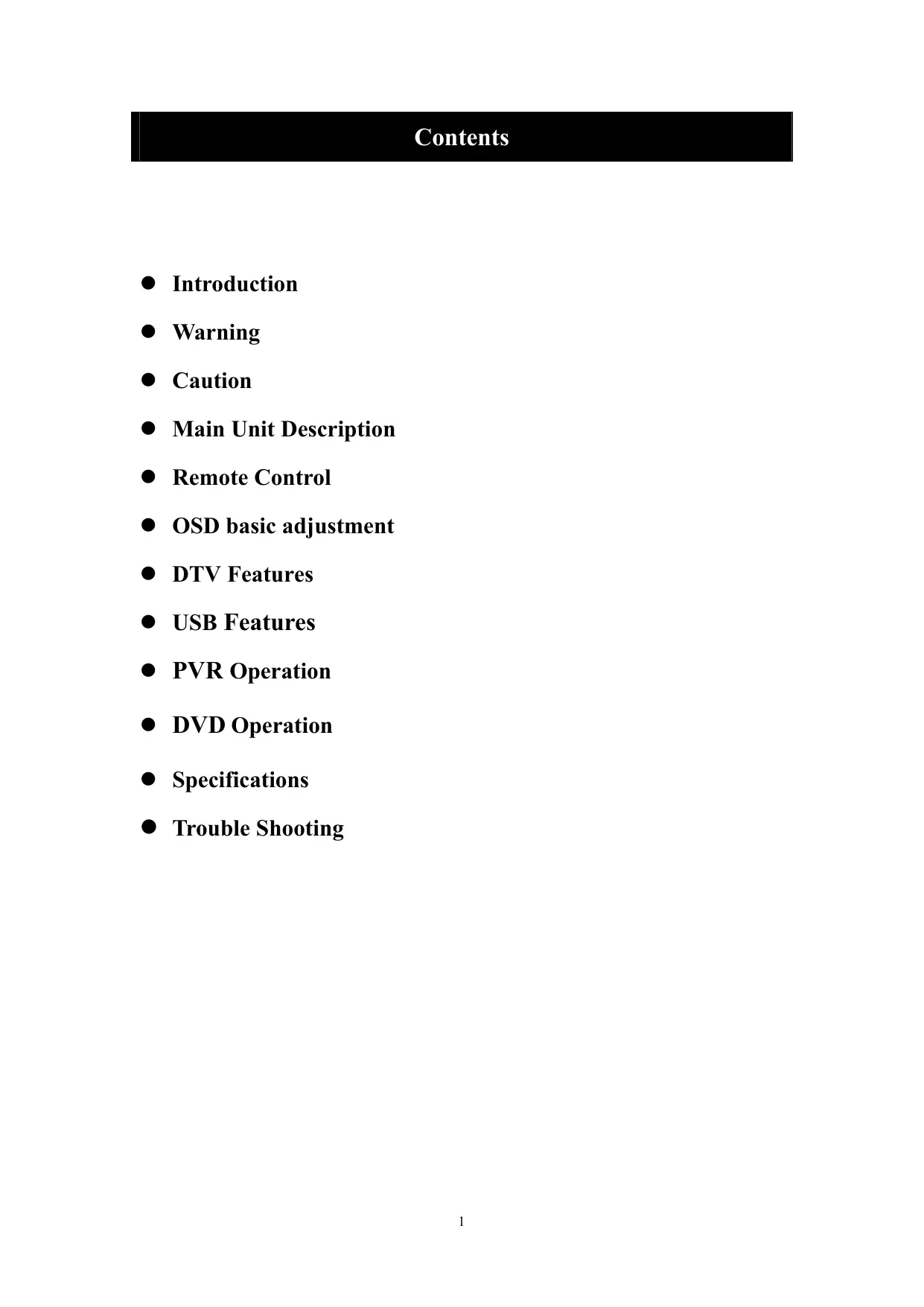
z Introduction z Warning z Caution z Main Unit Description z Remote Control z OSD basic adjustment z DTV Features z USB Features z PVR Operation z DVD Operation z Specifications
Introduction Thank you very much for your purchase of our product of
LED TV. It serves as a normal color
TV and PC monitor. To enjoy your TV to the full from the very beginning, read this manual carefully and keep it handy for ready reference.
INSTALLATION ① Locate the TV in a room where direct light does not strike the screen. Total darkness or a reflection on the picture screen can cause eyestrain. Soft and indirect lighting is recommended for comfortable viewing. ② Allow enough space between the receiver and the wall to permit ventilation. ③ Avoid excessively warm locations to prevent possible damage to the cabinet or premature component failure. ④ This TV can be connected to AC100-240V 50/60HZ. ⑤ Do not install the TV in a location near heat sources such as radiator, air ducts, direct sunlight, or in a place somewhere like close compartment and close area. Do not cover the ventilation openings when using the TV. ⑥ The indicator light will last about 30 seconds to go out after cutting off the electricity, during this period, you cannot repower it on until the indicator light goes out, thanks a lot for your attention!
CAUTION RISK OF ELECTRIC SHOCK DO NOT OPEN CAUTION: TO AVOID THE RISK OF ELECTRIC SHOCK. DO NOT REMOVE COVER (OR BACK). NO USER- SERVICEABLE PARTS INSIDE. REFER SERVICING TO QUALIFIED SERVICE PERSONNEL.
This symbol is intended to alert the user to avoid the risk of electric shock, do not disassemble this equipment by anyone except a qualified service personnel.
Class I structures of equipment should be connected to the grid power output with a protective earth connection on the socket. Power plug as a broken appliance,broken installations should be easy to operate.
High voltages are used in the operation of this product. Do not open the product's casing. Refer servicing to qualified service personnel .
Caution To prevent fire or electrical shock hazard, do not expose the main unit to rain or moisture,do not place objects filled with liquids, such as vases, on the apparatus.
Caution Do not drop or push objects into the television cabinet slots or openings. Never spill any kind of liquid on the television receiver.
Caution Avoid exposing the main unit to direct sunlight and other sources of heat. Do not stand the television receiver directly on other products which give off heat. E. g. video cassette players, Audio amplifiers. Do not block the ventilation holes in the back cover. Ventilation is essential to prevent failure of electrical component. Do not squash power supply cord under the main unit or other heavy objects.
Caution Never stand on, lean on, push suddenly the product or its stand. You should Pay special attention to children.
Caution Do not place the main unit on an unstable cart stand, shelf or table. Serious injury to an individual, and damage to the television, may result if it should fall.
Caution When the product is not used for an extended period of time, it is advisable to disconnect the AC power cord from the AC outlet.
Caution The LED panel used in this product is made of glass. Therefore, it can break when the product is dropped or applied with impact. Be careful not to be injured by broken glass pieces in case the LED panel breaks.
Main unit description Control Panel Button Function 1. Menu key 2. TV/AV select 3. Volume up/down 4. Channel up/down 5. PLAY/PAUSE 6. EJECT 7. STANDBY 8. Remote control sensor
TV Terminal Connections
1. HEADPHONE output terminal. 2. PC AUDIO terminal. 3. VGA input terminal. 4. Mini-YPBPR input terminal. 5. SCART input terminal. 6. Video input terminal. 7. AUDIO input terminal. 8. COAXIAL terminal 9. TV antenna. 10. HDMI input terminal. 11. USB input terminal. 12. CI slot
Optional Configuration as below: Connect the USB to the USB jack on the set.
NOTE ● It is only 500 mA MAX of DC current output when you connect with USB jack ● To ensure the Mobile HD works well, you should use other power supply for the Mobile HD. And do not use the USB jack in the same time. ● It supports Mobile HD by connecting with USB jack (must more than 2 GB). The partitions of the Mobile HD can’t be more than 4 partitions. The max partition is 2TB. It supports FAT/FAT32 document. The max FAT document is 4GB and the max FAT32 document is 2TB.
TV Functions 1.POWER: Press the TV on and standby. 2.SLEEP: Press to select a preset time interval for automatic shut off. 3.MUTE: Press to mutes the sound. 4.SOURCE: Press to display the input source menu. 5.NUMBER: Numeric buttons for direct channel access. 6.AUDIO/LANG.: Stereo, Mono, Dual audio/Change audio language. 7.TV/RADIO: Press to change between TV and Radio 8.EXIT: Exit the menu 9.CH.LIST: channel list 10.BACK:go back to the last viewed channel 11.MENU: Press to display the OSD menu. 12-13.CHANNEL “+” “-”: Press to change the TV channels. 14. ◄►▲▼, ENTER: Use to select on-screen menu items and change menu values 15-16. VOL “+” “-”: Press to increase or decrease the volume. 25.SUB.T: Display/OFF the subtitle on screen 28.EPG: Electronic Program Guide(EPG) display. 29.FAV: Press to display the favorite channel list which you stored before. 30.P.MODE: Press to select the picture mode. 8
PVR Setting to see the PVR file) TEXT functions 21.TEXT: Teletext function 22.REVEAL: Teletext reveal 23.HOLD: Teletext hold. 24.SUB.P: Teletext subpage 25.SUB.T: Teletext subtitle 26.INDEX: Teletext index 27.SIZE: Teletext size 33/34/35/36. Colour buttons: Teletext function USB Functions 18.►:PLAY/PAUSE 19. :STOP/Exit PVR or Timeshift 21.: Fast return key 22.:Fast forward key 23.: Previous key 24.: Next key 33/34/35/36. Colour buttons:Media function DVD functions 5.NUMBER: Numeric buttons for direct channel access. 14. ◄►▲▼, ENTER: Use to select on-screen menu items and change menu values 17. SETUP: Access to the system menu 20. :EJECT 25.SUB.T: in DVD mode : display / OFF the subtitle on the screen. 26.TITLE: in DVD mode display the DVD title content 27.ZOOM: in DVD mode Zoom the picture 28.D.MENU: Access to menu in DVD Disc 29.PROG.: In DVD mode, access to menu list, select chapters, titles 30.LANG.: in DVD mode select audio language 31.SEARCH: in DVD mode Search disc chapter and time 32.DISPLAY: Show Current Information 33.ANGLE: In DVD mode, select movie vision angle 34.SLOW: SLOW in DVD mode 35.A-B: repeat point A to point B when selected 36.REPEAT: Repeat chapter
OSD basic adjustment Installation Guide If this is the first time you are turning on the TV and there are no programs in the TV memory, the installation Guide menu will appear on the screen. 1. Press the “c/d/e/f” button to select the local language. 2. Press the “c/d/e/f” button to select mode. 3. Press the “c/d/e/f” button to select the local country you want to 4. Press the “c/d/e/f” button to select mode :DTV+ATV,DTV,ATV. 5. Press the “c/d/e/f” button to select “ON”or “OFF”.
Note: Searching for platform will take a long time, please be patient!
Channel Press MENU button to display the main menu. Press ◄ / ► button to select CHANNEL in the main menu
1.Auto Scan Press “c/d” button to select “Auto Scan” Press “c/d” button to select country and press the“c/d” button to select mode. Press “c/d/button “ and then press “ f”button to start scanning. Press “MENU” or “EXIT”button to stop
Note: Searching for platform will take a long time. Please be patient!
2.Analog Manual Scan Press “c/d” button to select “Manual scan” and press the“f” button to Analog manual scan. Press “MENU” button to return the previous menu. Press “EXIT” button to exit the menu.
3.Digital Manual Tuning Press “c/d” button to select “Diigital Manual Scan” and press the “d” button to start. Press “MENU” button to return the previous menu. Press “EXIT” button to exit the menu.
4.Channel Edit Press “c/d” button to select “Channel Edit” and press the “ENTER” button to enter.
a. DELETE Press “c/d” button to select the program and press “RED” button once to delete the program. NOTE:RENAME only use in ATV.
b. SKIP Press “c/d” button to select the channel which you want to skip and press the “BLUE” button to skip . Press “BLUE” button again to cancel the setting.
c. MOVE Press “c/d” button to select the channel and press the “YELLOW” button to move . Then press the “c/d” button to select the channel with which you want to move. Press “YELLOW” button again to confirm. 11
5. Signal information (only use in DTV) Press “c/d” button to select “Signal information” and press the “ENTER” button . Press “MENU” button to return the previous menu. Press “EXIT” button to exit the menu.
PICTURE You can select the type of picture, which best corresponds to your viewing. Press the “MENU” button to enter the OSD menu. Then press “e/f” button to select the “PICTURE” menu. Press “c/d” button to select “Picture Mode” and press the “e/f” button to select.
1. Press “c/d” button to select “Brightness” and press the “e/f” button to enter brightness adjustment menu to adjust brightness. 2. Press “c/d” button to select “Contrast” and press the “e/f” button to enter contrast adjustment menu to adjust contrast. 3. Press “c/d” button to select “Sharpness” and press the “e/f” button to enter sharpness adjustment menu to adjust sharpness. 4. Press “c/d” button to select “Saturation” and press the “e/f” button to enter Saturation adjustment menu to adjust saturation. 5. Press “c/d” button to select “Hue’’ and press the “e/f” button to enter hue adjustment menu to adjust hue. 6. Press “c/d” button to select “Sharpness” and press the “e/f” button to enter sharpness adjustment menu to adjust sharpness. 7. Press “c/d” button to select “Color Temp” and press the “e/f” button to select mode: Standard,Cool,Warm.. 8. Press “c/d” button to select “Aspect Ratio” and press the “e/f” button to select. 9. Press “c/d” button to select “Advanceed Settings” and press the “f” button to enter Advanceed Settings adjustment menu to adjust. 12
SOUND You can select the type of sound, which best corresponds to your listening. Press the “MENU” button to enter the OSD menu. Then press “e/f” button to select the “SOUND” menu.
Press “c/d” button to select “Sound Mode” and press the “e/f” button to select mode. Press “c/d” button to select “Treble” and press the “e/f” button to adjust. Press “c/d” button to select “Bass” and press the “e/f” button to adjust. Press “c/d” button to select “Balance” and press the “e/f” button to adjust. Press “c/d” button to select “Surround sound’’and“e/f” button to select“0N”or “OFF”. Press “c/d” button to select “EQ Setting’’and“e/f” button to enter EQ Setting adjustment menu to adjust EQ.. 7. Press “c/d” button to select “AVL” and press the “e/f” button to select “On” or “Off”. 8. Press “c/d” button to select “SPDIF” and press the “e/f” button to adjust. 9. Press “c/d” button to select “Audio description” and press the “e/f” button to adjust. 10. Press “c/d” button to select “SOUND TYPE” and press the “e/f” button to adjust.
LOCK SYSTEM Press the “MENU” button to enter the OSD menu. Then press “e/f” button to select the “Lock System” menu. The default password is “0000”.
1. Press “c/d” button to select “Enable’’and then press “e/f” button to select “On” or “Off” 2. Press “c/d” button to select “channel locks” and press the “f” button to select channel(s)to 13
lock . 3. Press “c/d” button to select “Parental Rating” and press the “e/f” button to set. 4. Press ▼ / ▲ button to select “Lock Keypad”, then press button to select “On” or “Off”, The key board will be invalid if you set Lock Keypad “On”. 5. Press ▼ / ▲ button to select “New Password” and set your new password. 6.. Press ▼ / ▲ button to select“Clear Lock”and then press the “f” button to clear.
SETUP Press the “MENU” button to enter the OSD menu. Then press“e/f” button to select the “SETUP” menu.
1. Press “c/d” button to select “OSD Language” and press the “e/f” button to select the OSD language which you desire. 2. Press “c/d/” button to select “Audio Language” and press the “f” button to enter the Audio language adjustment menu to select the Audio language which you desire. 3. Press “c/d” button to select “Subtitle” and press the “f” button to select “On” or “Off”. Note: This function is only used for DTV source. 4. Press “c/d” button to select “Teletxt” menu and press the “f” button to enter sub-menu. 5. Press “c/d /e/f ”button to select Mode Setting. 6. Press “c/d/e/f” button to select “Time Setting”. 7. Press “c/d/e/f” button to select “HDMI CEC Control”. 8. Press “c/d/e/f” button to select “PVR Settings”. 9. Press “c/d” button to select “First Time Setup”, then press “ENTER” button to set relevant options including OSD language, country and tuning. 10. Press “c/d/e/f” button to select “OAD”, then press “ENTER” button to enter sub menu. 11 .Press “c/d” button to select “Reset”, then press “ENTER” a dialogue. Press “e” button selecting “Yes” to restore all setting to default setting.
PC Press the “MENU” button to enter the OSD menu. Then press “e/f’’ button to select the “PC Setting” menu. (Only available in PC model).
Press “c/d” button to select “Auto Adjust” menu and press the “f”button to auto adjustment. Press “c/d” button to select “H Position” and press the “e/f” button to adjust. Press “c/d” button to select “V-Position” and press the “e/f” button to adjust. Press “c/d” button to select “Phase” and press the “e/f” button to adjust. Press “c/d” button to select “Clock” and press the “e/f” button to adjust.
DTV Features Favorite List When the source is selected as DTV, users can enter Favorite List by pressing “FAV” button. The “Favorite List” window is illustrated as follows:
Program Information When the source is selected as DTV, you can press “display” button to display the channel’s information. The program information window is illustrated as follows:
Audio When the source is selected as DTV, users can enter the Setup menu to enter the “Audio Language” menu . The “audio language” window is illustrated, and press “c/d” button to select the “audio language” menu .
Electronic Program Guide(EPG) Electronic Program Guide (EPG) provides program information which will be broadcasted now or in the future. The system will display EPG window by pressing “EPG” button. DATE and TIME information is displayed on the right of the window. The left side shows all channels. The right side shows the programs in the channel. The selected program is also displayed on the top of the screen. 1. Press the “c/d” button to select the “program”. You can press “RED” button to enter record mode. Press “GREEN” button to display the program’s detail. Press “YELLOW” button to Check details at PVR’s Schedule List introduction. Press “Blue” button to enter remind setting. 2. Press the “c/d” button to select “CH” and press the “e/f” button to select the channel number to see the current channel’s program forecast. Note: The U disk will be formatted when in burning, please do not store important files in the U disk.
Subtitle When the source is selected as DTV, users can go to the menu to set. Note: The pictures in regard to function are provided for reference purposes only.
Only available when there is CI card under DTV.
USB Features Press the “SOURCE” button to change to
1. Press the “◄ / ►” button enter the “PHOTO” option, and press enter button to enter 2.Press ◄ / ► button to select drive disk you want to watch, then press enter button to enter. 3.Press “BLUE” button to enter the sub menu to set. 4. Press the “exit” button to back to the previous menu.
◄ / ► button to select MUSIC in the main menu, then press enter button to enter 2. Press ◄ / ► button to select drive disk you want to watch, then press enter button to enter 3. Press “BLUE” button to enter the sub menu to set. 4.. Press the “exit” button to back to the previous menu 18
in the main menu, then press
enter button to enter
2. Press c/d button to select drive disk you want to watch, then press enter button to enter 3. Press “BLUE” button to enter the sub menu to set. 4. Press the “exit” button to back to the previous menu.
1. 1.Press ◄ / ► button to select TEXT in the main menu, then press enter button to enter. 2. Press c/d button to select drive disk you want to watch, then press enter button to enter 3. Press “BLUE” button to enter the sub menu to set. 4. Press the “exit” button to back to the previous menu.
1. Press “c/d” button to select “PVR Settings” and press the “ENTER”or “►” button to enter.
a) Press “◄ / ►” button to select “File Manager” and press the “ENTER” button to check PVR file system.
b) Press “◄ / ►” button to select “Device List” and press the “ENTER” button to the sub menu.
c)Press “c/d” button to select “Scheduled Record” and press the “ENTER” button to set.
Note: 1. The U disk will be formatted when in format, please do not store important files in the U disk. 2. Press “ ” button for the first time to start recording, for the second time, the sign of recorder will be slimmed down, but it's still under recording.
DVD Operation(G10 SM0 2)
CONTENTS Basic Opeartion ·········································································································· 22 DVD Setup Mode ······································································································· 22 General Setup ············································································································· 22 Audio Setup ················································································································ 24 Preference Setup········································································································· 25
Basic Operation 1. Press Source button on the remote controller to select DVD input source. 2. Press button to load disc into disc tray. Hold the disc without touching either or its surfaces, insert the DVD with the label toward the device’s back panel into the DVD slot on the right side of you TV set. Only push the DVD slightly until the unit feeds it automatically.
DVD Setup Mode · Setup Mode provides the menu for the configuration of General Setup Page, Speaker Setup Page, Audio Setup Page and Preference Page . · Item selection in the Setup Menu is done by using the Navigation Arrows, SETUP button and the OK button. · Press the SETUP button first , enter into SETUP menu, then press the DIRECTION RIGHT button,you can enter into the next Sub-menu.Press the DIRECTION LEFT button,you can back to the preview menu. · Press the SETUP button again to exit the Setup Menu.
General Setup TV Display This is used to select the aspect 4:3/Pan Scan, 4:3/Letter Box, Wide.
OSD Language This is used to select the OSD language. · English · French · German · · ·
Italian Spanish Po rtuguese
Screen Saver Start the screen saver, the screen saver image will appear when the player stops or the picture is frozen for a few minutes. This saver can keep the screen from being damaged. · On (Start the screen saver). · Off (Remove the screen saver).
Last Memory Can set the items on the last memory, “on”and “off” option. Select “on”, shutdown the machine before the settings for memory, re-boot the machine setting. Set near the same time. Select “off”, every time the machine automatically switched back to the default settings. · On (Start the last memory). · Off (Remove the last memory).
Audio Setup Downmix · LT/RT A disc recorded multi channel soundtrack, the output signal will be incorporated to left and right channel. · Stereo A disc recorded multi channel soundtrack, The output signal will be incorporated to stereo.
Dual Mono This is used to select the Stereo, L-MONO, R-MONO and MIX-MONO.
Dynamic This option is used to set the compression ratio in order to control the sound (Volume) contrast.
Preference Setup You must sure no disc in the DVD then you can select Preference Page. TV Type · PAL This is selected when the player is connected to an PAL System TV. · MULTI The player will set the TV system according to the disc in the tray. · NTSC This is selected when the player is connected to a NTSC System TV.
Audio If a language listed below is recorded on the disc, you can play the sound in such language. If not, the language recorded will be used. ·English ·French ·German ·Spanish ·Italian ·Portuguese
Subtitle If a language listed below is recorded on the disc, you set the subtitle to be displayed in such language. If not, the language recorded will be used. ·English
·French ·German ·Spanish ·Italian ·Portuguese
Disc Menu If a language listed below is record on the disc, you can set the Menu to be displayed in such language. If not, the language recorded will be used. ·English ·French ·German ·Spanish ·Italian ·Portuguese
Parental When playing disc with parental lock function, you may select an Age Control Grade according to grade of disc and your own preference. For example, if PG is selected, DVD Video disc rated higher than the PG grade cannot be played. · KID SAFE · G · PG · PG 13 · P GR
· ADULT Password User can change the password that is required when the user wants to change the Age Control Grade in the Parental Lock function. NOTE: (Default password is 123456 )
Default User can load the original factory setting by choose RESET and press OK button.
Trouble Shooting Before consulting service personnel, check the following chart for possible solutions.
PROBLEM SOLUTION TV will not turn on
●Make sure the power cord is plugged in. ●The batteries in the remote control may be Exhausted; replace the batteries. ●Check the cable between TV and antenna/ external AV device.
No picture, no sound
●Press the power button on the remote. ●Press the SOURCE button the remote, then press the “▲/▼”button repeatedly to select the TV source. ●Check the cable between TV and antenna/ external AV device.
Poor picture, sound OK Audio noise
●Try another channel, the station may have broadcast difficulties. ●Adjust the brightness/contrast in the Video menu. Check that the unit is set to PAL ●Move any infrared equipment away from the TV.
The TFT LED panel uses a panel consisting of sub pixels which requires sophisticated technology to produce. However, there may be a small number of bright or dark pixels on the screen. These pixels will have no impact on the performance of the product.
After-sale Service In case any problem mostly like a fault occurs while your using LED TV ,please contact the store where you purchased this unit or the service agency.
Instructions for fixing stand Note: the pictures below are only for reference
2. Screw the stand in the position as E shows.
3. Screws are provided with stand.