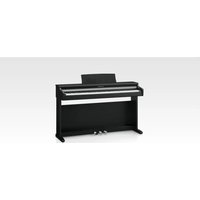
KCP90 - Piano KAWAI - Free user manual and instructions
Find the device manual for free KCP90 KAWAI in PDF.


Pick your language and provide your email: we'll send you a specifically translated version.
| Product Type | Digital Piano |
| Brand | Kawai |
| Model | KCP90 |
| Keyboard Action | Responsive Hammer Compact (RHC) - 88 weighted keys |
| Touch Sensitivity | Four levels (Light, Normal, Heavy, Off) |
| Sound Source | Harmonic Imaging technology with 88-key sampling |
| Maximum Polyphony | 192 notes |
| Number of Tones | 25 internal sounds |
| Reverb | Yes (multiple types) |
| Metronome | Yes (adjustable tempo and beat) |
| Transpose | Yes (semitone steps) |
| Split / Layer Modes | Yes (dual and split) |
| Pedals | 3 pedals (damper, soft, sostenuto) |
| Display | LCD screen |
| Connections | USB to Host, USB to Device, Line Out, Headphone jacks (2) |
| Speaker System | 40W (20W x 2) amplifier with 12cm x 2 speakers |
| Power Supply | AC adapter (included) |
| Dimensions (W x D x H) | 1350 mm x 360 mm x 820 mm (with music rest) |
| Weight | 43 kg |
| Accessories Included | Music rest, power adapter, pedal board, owner's manual |
| Finish Options | Black, Rosewood, White |
| Warranty | Limited manufacturer warranty (check local dealer) |
Frequently Asked Questions - KCP90 KAWAI
How to adjust the touch sensitivity on my Kawai KCP90?
Press the TOUCH button on the control panel repeatedly to cycle through the four settings: Light, Normal, Heavy, and Off (fixed touch). The selected setting is shown on the display.
How can I activate the metronome?
Press the METRONOME button to start the metronome. Use the +/- or TEMPO controls to adjust the tempo and beat. Press the button again to stop.
Can I connect the KCP90 to a computer?
Yes, use the USB to Host port located at the rear of the piano. Connect a USB cable to your computer. No drivers are required for most operating systems (MIDI class compliant).
How to transpose the keyboard?
Press and hold the TRANSPOSE button, then press a key on the keyboard to set the transposition interval (each key corresponds to a semitone). Release the button to confirm.
How to use the Dual (layer) mode?
Press the DUAL button. Select the first tone using the tone buttons, then select the second tone (the LED for Dual will flash). Adjust the volume balance using the BALANCE slider if available, or via the settings menu.
What type of headphones should I use?
Use standard stereo headphones with a 6.35mm (1/4 inch) plug. The KCP90 has two headphone jacks located under the keyboard.
How to record and play back my performance?
Press the REC button to enter recording mode. Play your piece, then press PLAY/STOP to stop recording. To playback, press the PLAY/STOP button. Recorded data is stored in internal memory.
Does the KCP90 have built-in speakers?
Yes, it has a 40W (20W x 2) amplifier with two 12cm speakers, providing rich sound for practice and performance without external speakers.
How to clean the keyboard and surfaces?
Use a soft, dry or slightly damp cloth. Avoid using solvents, alcohol, or abrasive cleaners. For the keys, you can gently wipe with a damp cloth and dry immediately.
What is the recommended way to power off the instrument?
First, turn down the volume to minimum, then press the POWER switch to the off position. If not using for extended periods, unplug the AC adapter from the outlet.
User questions about KCP90 KAWAI
0 question about this device. Answer the ones you know or ask your own.
Ask a new question about this device
No questions yet. Be the first to ask one.
Download the instructions for your Piano in PDF format for free! Find your manual KCP90 - KAWAI and take your electronic device back in hand. On this page are published all the documents necessary for the use of your device. KCP90 by KAWAI.
USER MANUAL KCP90 KAWAI
Manual assistant
Powered by Anthropic
Waiting for your message
Product information
Brand : KAWAI
Model : KCP90
Category : Piano