BBFHM2410HC - Monitor BlueBuilt - Free user manual and instructions
Find the device manual for free BBFHM2410HC BlueBuilt in PDF.


Pick your language and provide your email: we'll send you a specifically translated version.
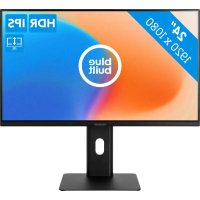
| Brand | BlueBuilt |
| Model | BBFHM2410HC |
| Category | Monitor |
| Screen Size | 24 inches (61 cm) |
| Native Resolution | 1920 x 1080 pixels (Full HD) |
| Refresh Rate | 60 Hz |
| Panel Type | IPS |
| Response Time | 5 ms |
| Brightness | 250 cd/m² |
| Contrast Ratio | 1000:1 |
| Viewing Angles (H/V) | 178° / 178° |
| Connectivity | 1 x HDMI, 1 x VGA, headphone jack |
| VESA Mount | 100 x 100 mm |
| Dimensions (with stand) | 541 x 415 x 180 mm |
| Weight (with stand) | 3.5 kg |
| Power Supply | External power adapter, 12 V |
| Power Consumption (typical) | 30 W |
| Energy Class | F |
| Key Features | Tilt adjustment, blue light filter, game mode, flicker-free display |
| Care and Cleaning | Clean with a soft, dry cloth. Do not use liquid or abrasive cleaners. |
| Safety | Do not open the casing. Use a grounded power outlet. Disconnect before cleaning. |
| Spare Parts and Repairability | Contact BlueBuilt customer service. Do not attempt to repair yourself. |
Frequently Asked Questions - BBFHM2410HC BlueBuilt
How to connect the monitor to my computer?
Use an HDMI or VGA cable (depending on available ports). Plug one end into the monitor and the other into the computer. Make sure both devices are turned off during connection.
What to do if the screen displays 'No Signal'?
Check that the cable is properly connected at both ends. Ensure the input source selected on the monitor (via buttons) matches the cable used. Test with another cable or device.
How to adjust brightness and contrast?
Use the buttons located under the screen bezel to access the OSD (On-Screen Display) menu. Navigate the settings to adjust brightness, contrast, and other settings.
How to clean the screen?
Turn off the monitor and unplug it. Use a soft, dry cloth (microfiber) to gently wipe the screen. Never use chemical products, alcohol, or liquids directly on the screen.
Does the monitor have built-in speakers?
No, the BBFHM2410HC model does not have built-in speakers. You must use external speakers or headphones connected to the audio jack.
How to mount the monitor on a VESA arm?
Remove the base by unscrewing the attachment screws. Attach the VESA bracket (100 x 100 mm) to the monitor using the screws provided with the arm. Follow the mounting bracket instructions.
What cables are included in the box?
The monitor comes with an HDMI cable, a VGA cable, a power adapter, and a quick start guide. Depending on the batch, an audio cable may also be included.
How to activate the blue light filter?
Access the OSD menu via the buttons, look for an option named 'Low Blue Light' or 'Blue Light Filter', and enable it. This reduces eye strain in night mode.
What is the maximum supported resolution?
The native resolution is 1920 x 1080 pixels (Full HD). The monitor can accept lower resolutions, but display will be optimized at 1080p.
How to reset to factory settings?
In the OSD menu, look for a 'Reset' option. Confirm to restore default settings. You can also hold down the power button for 10 seconds on some models.
User questions about BBFHM2410HC BlueBuilt
0 question about this device. Answer the ones you know or ask your own.
Ask a new question about this device
No questions yet. Be the first to ask one.
Download the instructions for your Monitor in PDF format for free! Find your manual BBFHM2410HC - BlueBuilt and take your electronic device back in hand. On this page are published all the documents necessary for the use of your device. BBFHM2410HC by BlueBuilt.
USER MANUAL BBFHM2410HC BlueBuilt


Manual assistant
Powered by Anthropic
Waiting for your message
Product information
Brand : BlueBuilt
Model : BBFHM2410HC
Category : Monitor