
DF3120 - Drone PARROT - Free user manual and instructions
Find the device manual for free DF3120 PARROT in PDF.


| Product type | Digital photo frame |
| Brand | Parrot |
| Model | DF3120 |
| Screen dimensions | 3.5 inches (QVGA 320 x 240 pixels) |
| Frame dimensions | 71 x 53 mm |
| Weight of frame only | 95 g |
| Power supply | 110-240 V, 0.2 A, 50/60 Hz via power adapter |
| Internal memory | 32 MB (stores over 300 photos) |
| Wireless connectivity | Bluetooth (FTP, OPP, BIP profiles) |
| Wired connectivity | USB 2.0 (cable provided) |
| Supported image formats | JPEG (except CMYK), GIF |
| Compatible memory cards | SD, microSD, miniSD, SDHC, MMC, MMCplus, MMCmobile, MMCmicro, RS-MMC mini |
| Main functions | Photo display, programmable slideshow, clock, transfer via Bluetooth/USB/SD card, image rotation, sorting and deletion |
| Screen saver | Automatic (light sensor), preset schedule, or disabled |
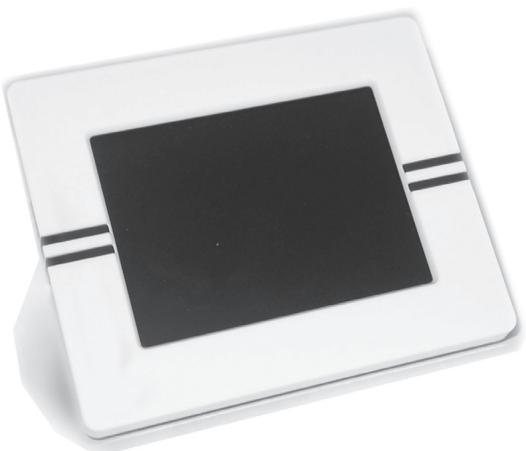
| Package contents | LCD frame, transformer, USB cable, metal support rod, 4 attachment tabs, user manual |
| Maintenance and cleaning | Clean with a dry cloth; do not expose to liquids |
| Safety | Unplug during storms or prolonged non-use; professional intervention required in case of damage |
| General information | Software update via Bluetooth; hotline available (see www.parrot.com) |
Frequently Asked Questions - DF3120 PARROT
User questions about DF3120 PARROT
0 question about this device. Answer the ones you know or ask your own.
Ask a new question about this device
Download the instructions for your Drone in PDF format for free! Find your manual DF3120 - PARROT and take your electronic device back in hand. On this page are published all the documents necessary for the use of your device. DF3120 by PARROT.
USER MANUAL DF3120 PARROT
Wireless Digital photo frame
for Bluetooth mobile phones, smartphones, PDAs, Bluetooth enabled computers and digital cameras

Bluetooth

ENG
FRA
ARA
English 5
Francais 19
46
General Information
FCC Compliance Statement
This device complies with part 15 of the FCC rules. Operation is subject to the following two conditions:
(1). this device may not cause harmful interference, and
(2). this device must accept any interference received, including interference that may cause undesired operation.
Note: The manufacturer is not responsible for any radio or tv interference caused by unauthorized modifications to this equipment. Such modifications could void the user's authority to operate the equipment.
Declaration of Conformity
CE
We, Parrot S.A. of 174 quai de Jemmapes, 75010 Paris, France, declare under our sole responsibility that our product, the Parrot DF3120 to which this declaration relates is in conformity with appropriate standards EN300328, EN301489-1, EN60950 following the provision of Radio Equipment and Telecommunication Equipment directive (1999/5/EC R&TTE), with requirements covering EMC directive 89/336/EEC.
Registered Trademarks
The Bluetooth® word mark and logos are owned by the Bluetooth® SIG, Inc..
Any use of such marks and logo by Parrot S.A. is under license. All others names and trademarks mentioned in this document are copyright-protected and are the property of their respective owners.
Bluetooth QID : - B012781
-B012423
-B012424
Correct Disposal of This Product
(Applicable in the European Union and other European countries with separate collection systems). This marking shown on the product or its literature, indicates that it should not be disposed with other household wastes at the end of its working life. To prevent possible harm to the environment or human health from uncontrolled waste disposal, please separate this from other types of wastes and recycle it responsibly to promote the sustainable reuse of material resources. Household users should contact either the retailer where they purchased this product, or their local government office, for details of where and how they can take this item for environmentally safe recycling. Business users should contract their supplier and the terms and conditions of the purchase contract. This product should not be mixed with other commercial wastes for disposal
Copyrights
Copyright © 2007 Parrot. All rights reserved. The total or even partial reproduction, transmission or storage of this guide in any form or by any process whatsoever (electronic, mechanical, photocopy, recording or otherwise) is strictly prohibited without prior consent from Parrot.
Identification N. 394 149 496 R.C.S. PARIS
Parrot S.A.
Modifications
The explanations and specifications in this guide are given for information purposes only and may be modified without prior notice. They are deemed to be correct at time of going to press. The utmost care has been taken when writing this guide, as part of the aim to provide you with accurate information. However, Parrot shall not be held responsible for any consequences arising from any errors or omissions in the guide, nor for any damage or accidental loss of data resulting directly or indirectly from the use of the information herein. Parrot reserves the right to amend or improve the product design or user guide without any restrictions and without any obligation to notify users. The information in this guide is deemed to be correct at time of going to press. As part of our ongoing concern to upgrade and improve our products, the product that you have purchased may differ slightly from the model described in this guide.
If so, a later version of this guide might be available in electronic format at Parrot's website at www.parrot.com.
English
Contents
General information 07
Important safety instructions 08
Introduction 09
Kit contents 10
Quick Start Guide 10
Menu structure 11
- Scrolling Through the Menus 11
2.Description of the Icons and Features 11
2.1 Main menu 11
2.2 SD card menu 12
2.3 Settings menu 12
Sending pictures to the Parrot DF3120 13
- Via Bluetooth 13
1.1 Pairing Your Phone or Computer with the Parrot DF3120. 13
1.2 Sending from a Phone or PDA 14
1.3 Sending from a Computer 14
-
Sending from a computer by USB 15
-
Using with a memory card 15
Settings 16
-
Picture Display Order 16
-
Deleting pictures 16
-
Frame Orientation 16
-
Choosing and Creating a Slideshow 17
Updating the software 17
Hotline 18
Technical specifications 18
General Information
1. Modifications
The explanations and specifications in this guide are given for information purposes only and may be modified without prior notice. They are deemed to be correct at time of going to press. The utmost care has been taken when writing this guide, as part of the aim to provide you with accurate information. However, Parrot shall not be held responsible for any consequences arising from any errors or omissions in the guide, nor for any damage or accidental loss of data resulting directly or indirectly from the use of the information herein. Parrot reserves the right to amend or improve the product design or user guide without any restrictions and without any obligation to notify users. As part of our ongoing concern to upgrade and improve our products, the product that you have purchased may differ slightly from the model described in this guide. If so, a later version of this guide might be available in electronic format at Parrot's website at www.parrot.com.
2. Correct Disposal of This Product
(Waste Electrical & Electronic Equipment)
(Applicable in the European Union and other European countries with separate collection systems).
This marking shown on the product or its literature, indicates that it should not be disposed with other household wastes at the end of its working life. To prevent possible harm to the environment or human health from uncontrolled waste disposal, please separate this from other types of wastes and recycle it responsibly to promote the sustainable reuse of material resources. Household users should contact either the retailer where they purchased this product, or their local government office, for details of where and how they can take this item for environmentally safe recycling. Business users should contract their supplier and the terms and conditions of the purchase contract. This product should not be mixed with other commercial wastes for disposal.

Important safety Instructions
- This apparatus shall not be exposed to dripping or splashing and no object filled with liquid, such as vases, shall be placed on the apparatus.
- The AC/DC adaptor which provides disconnection from mains supply shall remain readily operable. Unplug this apparatus when unused for long periods of time.
- Read these instructions
- Keep these instructions
- Heed all warnings
- Follow all instructions
- Do not use this apparatus near water
- Clean only with dry cloth
- Do not block any ventilation openings. Install in accordance with the manufacturer's instructions.
- Do not install near any heat as radiators. Heat registers, stoves or other apparatus (including amplifiers) that produce heat.
-
Do not defeat the safety purpose of the polarized or grounding type plug. A polarized plug has two blades with one wider than the other. A grounding type plug has two blades and a third grounding prong. The wide blade or the third prong are provided for your safety. If the provided plug does not fit into your outlet, consult an electrician for replacement of the obsolete outlet.
-
Only use attachments/accessories specified by the manufacturer
- Unplug this apparatus during lightning storms or when unused for long periods of time.
- Refer all servicing to qualified service personnel. Servicing is required when the apparatus has been damaged in any way, such as power supply cord or AC/DC adaptor is damaged, liquid has been spilled or objects have fallen into the apparatus, the apparatus has been spilled or objects have fallen into the apparatus, the apparatus has been exposed to rain or moisture, does not operate normally, or has been dropped.
- WARNING: To reduce the risk of fire or electric shock, do not expose this apparatus to rain or moisture. This apparatus is designed for indoor use only.
Introduction
The Bluetooth® technology enables voice and data to be sent via a short-distance radio link. It allows several electronic devices to communicate with each other.
Parrot draws on its long years of experience in the Bluetooth technology to offer you the Parrot DF3120, an innovative photo frame. You can send your photos to the Parrot DF3120 by Bluetooth, USB connection or an SD card.
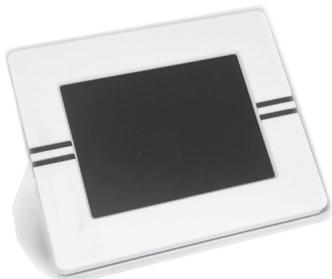
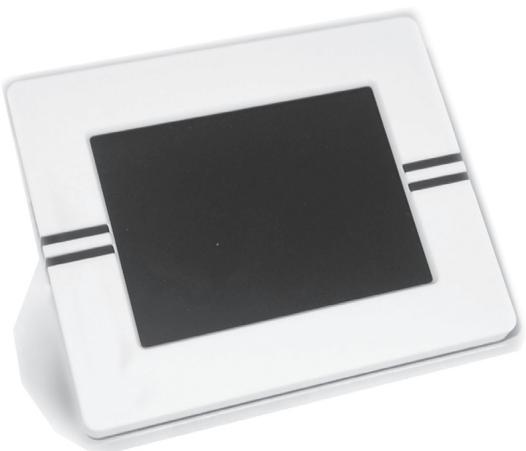
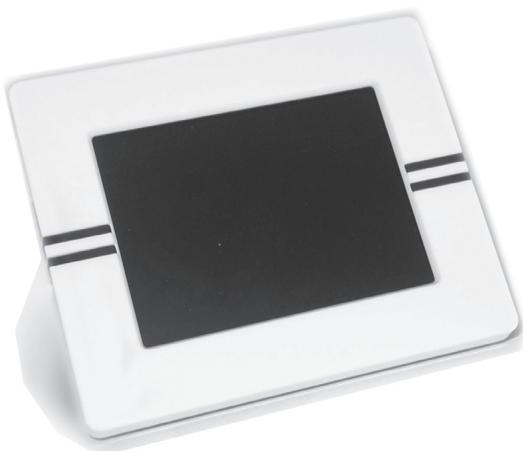
The Parrot DF3120 is an LCD photo frame (320 x 240 pixels) that can store over 300 photos. You can configure the display by programming slideshows or by rotating the frame. The Parrot DF3120 sports a stylish design, blending in seamlessly inside the home. The Parrot DF3120 can tell you the time just like a clock.
Kit contents
The kit contains:
An LCD frame
A transformer
- A USB cable
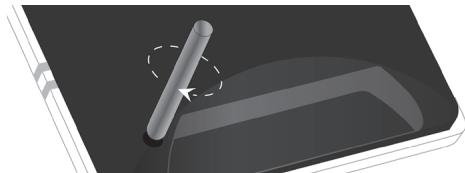
- A metal rod to be screwed into the frame (the rod helps to support the frame).
- Four sets of four clips
A user guide
A Parrot product guide
Quick Start Guide
- Screw the metal rod into the back of the frame.
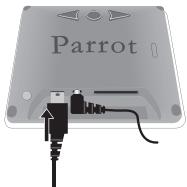
- Use the power lead to power up the Parrot DF3120.
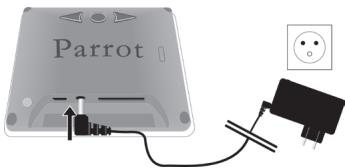
- Turn on the Parrot DF3120 using the switch on the back of the device.
- Choose the language to be used by the Parrot DF3120 (refer to the section entitled «Description of the Icons and Features» in the «Settings» chapter)
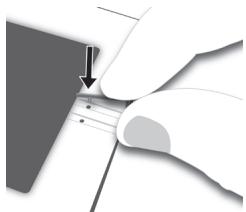
NOTE: USE THE CLIPS AS SHOWN IN THE DIAGRAM BELOW.
- TO ATTACH THE CLIP, INSERT THE PIN INTO THE HOLE PROVIDED AND THEN PRESS THE OTHER END UNTIL YOU HEAR A CLICK.
- TO REMOVE THE CLIP, USE A TOOTHPICK OR A THIN OBJECT TO UNCLIP THE BACK.
Menu structure
1. Scrolling Through the Menus
You can scroll through the menus using the buttons on the back of the Parrot DF3120.
To access the main menu, press the button on the back of the frame.
Select buttons:
: Move left or up, depending on the frame's orientation. It can also be used to select the previous photo.
- Move right or down, depending on the frame's orientation. It can also be used to select the next photo.
Enter button:
: Enters the selected menu or selects a photo.
The icon takes you back to the previous menu or exits the menus.
2.Description of the Icons
and Features
2.1 Main menu

: Returns to the previous menu.

Turns the photo to the right.

: Displays the photos as thumbnails.

: For choosing and creating滑片.

: Organises the order in which the photos are displayed. NOTE: PHOTOS ON THE MEMORY CARD CANNOT BE SORTED.

: deletes one or more pictures. NOTE:PICTURES ON THE MEMORY CARD CANNOT BE DELETED.

: Lets you switch from the internal memory to the SD card. NOTE: THE "USE SD CARD" ICON IS INACTIVE IF NO SD CARD IS INSERTED TO THE PARROT DF3120.

: For adjusting the display and Bluetooth settings.

: Provides information on the software built into the Parrot DF3120, the memory status and the picture displayed.
2.2 SD card menu

: Returns to the main menu.

Turns the photo to the right.

: Displays the photos as thumbnails.

: Creates a slideshow using the photos on the SD card.

- Copies the pictures on the SD card to the internal memory.

: Lets you switch from the SD card to the internal memory.

: For adjusting the display and Bluetooth settings.

: Provides information on the software built into the Parrot DF3120, the memory status and the picture displayed.
2.3 Settings menu
The «Settings» menu can be accessed from the main menu.

: Returns to the main menu.

:Time:- Adjust the time using the «Select» buttons. Press the «Enter» button to confirm.
- Visibility: Enable / Disable the permanent time display. This is the default setting.
- Format: Select the format of the displayed time.(AM/PM)

-
: - Visibility: makes the Parrot DF3120 visible or invisible to other Bluetooth devices.
-
Frame name: for selecting the pre-recorded Bluetooth name by which the frame will be detected by other Bluetooth devices.
- Advanced mode: for selecting a specific or standard pairing mode depending on the model of your Bluetooth phone (for further information, visit the Support heading on our website at www.parrot.com).

Adjusts the brightness of the display. You can adjust the screen brightness using the «Select» buttons on the back of the Parrot DF3120; press the «Enter» button to confirm.

: Screen saver. Allows you to choose one of the following options:
- Automatic : the screen's backlight level is controlled by an algorithm that uses a light sensor built into the frame. This is the default setting.
- Predefined Time: a predefined time range determines when the screen is backlit. You will be prompted to set the time on the Parrot DF3120.
- Disable: the screenshot, which is triggered according to the brightness, is disabled.
- Standby mode: triggers the screenshoter.
NOTE: TO EXIT THE STANDBY MODE, PRESS ANY BUTTON OR START A CONNECTION.

: Select the required language.

: Restores the factory settings (doing so does not delete your photos).
Sending pictures to the Parrot DF3120
1. Via Bluetooth
Prior to use your Parrot DF3120 with your phone / computer for the very first time, you must initially pair the two devices. This procedure allows both devices to exchange information in order to configure a Bluetooth connection.
1.1 Pairing Your Phone or Computer with the Parrot DF3120
- Ensure that the Parrot DF3120 is adjusted so that it is visible to all Bluetooth devices. Refer to the «Settings» chapter in this guide.
- Activate the Bluetooth feature on your phone / computer (refer to your phone's or computer's user guide or visit the Support heading on our website at www.parrot.com).
- Search for Bluetooth devices on your phone / computer.
- Select the Parrot DF3120 in the list of Bluetooth devices proposed by your phone / computer.
- On your phone / computer, enter the code «0000».
- Your two devices are now paired.
NOTE: WITH SOME PHONES, YOU MUST ENABLE THE «SPECIFIC RECEPTION MODE», OPTION IN THE «ADVANCED MODE...», MENU PRIOR TO PAIR YOUR PHONE WITH THE PARROT DF3120 (AVAILABLE IN THE « SETTINGS», «BLUETOOTH», MENU). FOR FURTHER INFORMATION, VISIT OUR WEBSITE AT www.parrot.com
NOTE : DEPENDING ON THE MODEL OF YOUR PHONE / COMPUTER ,THIS PHASE MIGHT BE OPTIONAL . HOWEVER , IT WILL ENABLE YOU TOSEND YOUR PHOTOS TO THE PARROT DF3120 MORE QUICKLY .
1.2 Sending from a Phone or PDA
- Ensure that the Parrot DF3120 is adjusted so that it is visible to all Bluetooth devices. Refer to the «Settings» chapter in this guide.
- Activate the Bluetooth feature on your phone or PDA.
- On your phone/PDA, go to the «Pictures» menu. Select a picture and choose «Send by Bluetooth». Your device starts searching for Bluetooth peripherals.
- Once the search has finished, select your Parrot DF3120. If your device prompts you to enter a code, type «0000». The picture is then sent to the Parrot DF3120. Several pictures can be sent at the same time, though this feature will depend on your device.
- During transmission, the Bluetooth icon appears on the screen and the picture is displayed.
1.3 Sending from a Computer
- Ensure that the Parrot DF3120 is adjusted so that it is visible to all Bluetooth devices. Refer to the
chapter in this guide. - Activate the Bluetooth feature on your computer.
- Right-click on the picture that you wish to send and choose "Send by Bluetooth".
- Your PC will search for any nearby Bluetooth peripherals.
- Select your Parrot DF3120. Type «0000» if your PC prompts you to enter a code.
- During transmission, the Bluetooth icon appears on the screen and the picture is displayed.
NOTE: IF YOU ARE UNABLE TO DETECT THE PARROT DF3120, YOU MIGHT HAVE INADVERTENTLY MADE THE BLUETOOTH FRAME INVASIBLE TO OTHER DEVICES. REFER TO THE « SETTINGS» CHAPTER IN THIS GUIDE. HOWEVER, IF YOUR BLUETOOTH DEVICE IS ALREADY PAIRED TO THE FRAME, IT CAN ALWAYS CONNECT TO THE PARROT DF3120.
NOTE : FOR FURTHER INFOR MATION ON THE MODE FOR SENDING PHOTOS , REFER TO YOUR PHONE ' S USER GUIDE OR VISIT OUR WEBSITE AT www.parrot.com
2. Sending from a computer by USB
NOTE: THE PARROT DF3120 FEATURES 10 MO OF STORAGE SPACE: TO SAVE SPACE, REMEMBER TO RESIZE YOUR PAGES BEFORE COOPYING
THEM TO THE INTERNAL MEMORY.
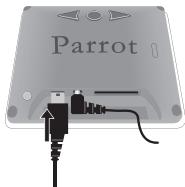
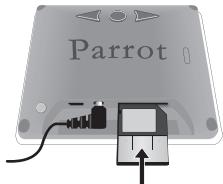
- Connect the Parrot DF3120 to your PC with the USB cable.
The computer detects a new device.
- Copy your JPEG (except CMYK) or GIF pictures to the Parrot DF3120.
- Disconnect the cable from the Parrot DF3120. The Parrot DF3120 automatically saves the pictures.
- Repeat the procedure if you wish to transfer new pictures.
3. Using with a memory card
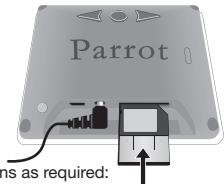
1.Insert the memory card into the appropriate slot.
The JPEG and GIF pictures stored on the memory card are displayed.
- Select the «Copy» icon.
Select one of the following options as required:
- Copy current picture
- Copy selected pictures (in this case, you must select the pictures that you wish to copy by using the Select and Enter buttons, select the Exit icon and then confirm your choice)
- Copy all pictures
- Confirm your choice.
The selected photos are resized and copied to the internal memory.
NOTE: IF YOU WISH TO SWITCH BACK TO THE INTERNAL MEMORY, SELECT THE USE INTERNAL MEMORY ICON.
Settings
The Parrot DF3120 allows you to adjust several settings. You can fully manage the frame's display, such as determining the order in which pictures appear, creating slideshows and displaying the time. You can also change the orientation of the Parrot DF3120.
1. Picture Display Order
- Access the main menu of the Parrot DF3120 and then select the «Arrange the pictures » menu.
- Your pictures are displayed as thumbnails. The display may run over several pages: holding down one of the «Select» buttons will allow you to scroll through the previous and next pages. Simply release the button to stop scrolling.
- Select the picture with the «Select» buttons and then press the «Enter» button on the back of the frame to confirm your choice.
- The selected photo is placed at the top of the screen on the Parrot DF3120 and a cursor indicates the photo's position in the album. Press the "Select" buttons to change the photo's position. You can change its position in all the pages of your album.
- Once the cursor is in the position where you want to place the image, press the «Enter» button.
NOTE: PHOTOS ON THE MEMORY CARD CANNOT BE ROTATED.
2. Deleting pictures
The «Delete» submenu provides you with the following options:
- Delete this picture: Deletes the displayed picture.
- Delete these pictures: Deletes the selected images.
- Delete all pictures : Deletes all pictures on the internal memory.
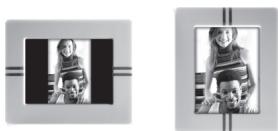
3. Frame orientation
Choose the frame orientation :
- Portrait mode.
- Landscape mode.
4. Choosing and Creating a Slideshow
The «Slideshow» submenu provides you with the following options:
- None: No slideshows is able.
The Parrot DF3120 features five滑ideshow: a default slideshow with all the photos in the internal memory, three user-definable customised滑ideshow and an SD card slideshow.
The Parrot DF3120 proposes four slideshows, one of which featuring all the photos stored on your frame in their order of appearance. Once the slideshow has been selected, you can enable / disable or configure it. The following options are available for creating a slideshow:
- Picture choice: use the «Select» and «Enter» buttons to select the photos for your slideshow. The selected photos are marked with a tick (not available for the default slideshow).
- Timer: defines the slideshow display time.
- Picture order: used to define the order in which the photos are displayed in the slideshow (not available for the default slideshow).
- Random: arranges the photos in the slideshow at random.
- Delete slideshow: resets the slideshow (the selected images
will no longer be part of the slideshow, but they will not be deleted from the frame's memory).
-
Transition: defines the transition effect between the photos in your slideshow:
-
None
- Fade
- Tile
Wipe - Checkerboard
- Random
Updating the software
The Parrot DF3120 can be updated by Bluetooth.
Download the utilities and the update procedure from our website at www.parrot.com.
Hotline
Our hotline is at your disposal. You can contact us by email or telephone. Check out our website at www.parrot.com for further information.
Europe: [+33] (0) 148036069 (languages spoken French, English, Spanish and German)
Italy: [+39] 02 86 39 14 63
Spain: [+34] 902 404 202
UK: [+44] (0)870 112 5872
Germany: 0900 172 77 68
USA: [+1] (877) 9 PARROT (toll-free)
Technical specifications
1. Screen
- Screen size LCD: 3,5"
- Screen resolution: 320x240 pixels (QVGA)
262144 colours
Internal memory of 32MB for storing over 300 photos
Light sensor for the automatic backlight mode
Weight (frame only): 95 g
- Dimensions: 71 × 53 mm
Power supply: 110V / 240V ,0.2A,50 / 60Hz
2. Bluetooth
- Bluetooth 2.0 + EDR qualified
- Bluetooth PIN Code : 0000
- Profiles supported : FTP (File Transfer Profile), OPP (Object Push Profile), BIP (Basic Imaging Profile)
- Software updates by Bluetooth
- Photo / Picture files supported: GIF/JPEG (except CMYK)
3. Compatible memory cards
- SD, micro SD (with adapter), mini SD (with adapter)
- SDHC (class 2, 4, 6), mini SDHC (with adapter)
- MMC, MMC plus, MMC mobile (with adapter), MMC micro (with adapter), RS-MMC mini (with adapter).
François
Sommaire
Informations generales 21
Qualified Bluetooth 2.0 + EDR
Bluetooth PIN Code : 0000 •
aogcal 1eogg
FTP (File Transfer Profile) -
OPP (Object Push Profile) -
BIP (Basic Imaging Profile) -
1j0j0j0j0j0j0j0j0j0j0j0j0j0j0j0j0j0j0j0j0j0j0j0j0j0j0j0j0j0j0j0j0j0j0j0j0j0j0j0j0j0j0j0j0
.1021 0251 joo Lgai n oJ U Sg Jn
JJIJIJIJIJIJIJIJIJIJIJIJIJIJIJIJIJIJIJIJIJIJIJIJIJIJIJIJIJIJIJIJIJIJIJIJIJIJIJIJIJIJIJIJIJIJIJIJIJIJIJIJIJIJIJIJIJIJIJIJIJIJIJIJIJIJIJIJIJIJIJIJIJIJIJIJIJIJIJIJIJIJIJIJIJIJIJIJIJIJIJIJIJIJIJIJIJIJIJIJIJ
Ljg
akij
guc
SD ailll jy e yjg jz y 10000000000000000000000000000000000000
中
a. Bluetooth Parrot DF3120
. www.parrot.com 1
sBluetooth gParrot DF3120 jzj
gaaa jyoc slilg lsl.4
aJlll lJlJl aCyJll JcJll Jgj
.
Joo 5 Parrot DF3120
Caww wlll 3. dall o5111 1
SD
ailll alil .alcui gaiag / alui w i ci 1
:
Ljai jll jgall jgg 1 g 1 jj j j j
jell o jgoo) ooh aolc alwgl g jldl oogall
(y)
aaii aaii aiee
yaaal yaaal yaaal yae aaiyaaal ayaaal paiaaie
(y)
.
1.2
aJdJI 1 aJdJI 1 1 1 1 1 1 1 1 1 1 1 1 1 1 1 1 1 1 1 1 1 1 1 1 1 1 1 1 1 1 1 1 1 1 1 1 1 1 1 1 1 1
1. b_1b_2 与 b_1b_2 .
025-21-24
a. g a w! 8 g a w! b
1
JL 11111111111111111111111111111111111111111111111111111
jss 1
“j”aaiia jai Parrot DF3120 1 aaii iai aiai aiai aiai aiai aiai aiai aiai aiai aiai aiai aiai aiai aiai aiai aiai aiai aiai aiai aiai aiai aiai aiai aiai aiai aiai aiai aiai aiai aiai aiai aiai aiai aiai aiai aiai aiai aiai aiai aiai aiai aiai aiai aiai aiai aiai aiai aiai aiai aiai aiai Ai aiaiaiaiaiaiaiaiaiaiaiaiaiaiaiaiaiaiaiaiaiaiaiaiaiaiaiaiaiaiaiaiaiaiaiaiaiaiaiaiaiaiaiaiaiaiaiaiaiaiaiaiaiaiaiaiaiaiaiaiaiaiaiaiaiaiaiaiaiaiaiaiaiaiaiaiaiaiaiaiaiaiaiaiaiaiaiaiaia ia aaaaaa aa aaaaaa aaaaaa aaaaaa aaaaaa aaaaaa aaaaaa aaaaaa aaaaaa aaaaaa aaaaaa aaaaaa aaaaaa aaaaaa aaaaaa aaaaaa aaaaaa aaaaaa aaaaaa aaaaaa aaaaaa aaaaaa aaaaaa aaaaaa aaaaaa aaaaaa aaaaaa aaaaaa aaaaaa aaaaaa aaaaaa aaaaaa aaaaaa aaaaaa aaaaaa
LjE 5c28 aJSLJIaLLaJg aJgJgJgJlaJbXlo
02513 aolb2 20 plesuX1.3
..slll jslj y slll alll 1.1 .allll jnannnnn nn nnnnnn nnnnnn nnnnnn nnnnnn nnnnnn nnnnnn nnnnnn nnnnnn nnnnnn nnnnnn nnnnnn nnnnnn nnnnnn nnnnnn nnnnnn nnnnnn nnnnnn nnnnnn nnnnnn nnnnnn nnnnnn nnnnnn nnnnnn nnnnnn nnnnnn nnnnn nnnnnn nnnnnn nnnnnn nnnnnn nnnnnn nnnnnn nnnnnn nnnnnn nnnnnn nnnnnn nnnnnn nennn n nn
J 1211 1.2
a.1d1 a.gw1 gwi
gall 10 aegagao jzai jy jy gall 10 aegagao cuii jy jy jy "a5i" g "j5i" yj plaiuue Ieauia iay jy jy ay
aLalalj aylall jlc gao wiy oolj yolai jyolai ool 0o 1.3
.“aaii jiai aaii aaii jai iaii
USB
dalelealee eaeel 10 2020 10 2020 10 2020 10 2020 10 2020
Parrot DF3120 Jgssj, 1.1
Jgssj, jessw. USB Jls alsw.
Jgsj
(CMYK,J)JPEGJ<2JgJ<2J<2J.2 .Parrot DF3120GIF
.Parrot DF3120 JLSJ.3
Parrot DF3120
a 153 4 a 15 i 15 a 15
JgJgJgJgJgJgJgJgJgJgJgJgJgJgJgJgJgJgJgJgJgJgJgJgJgJgJgJgJgJgJgJgJgJgJgJgJgJgJgJgJgJgJgJgJgJgJgJgJgJgJ
Parrot DF3120 5
JJIJI JIJI 1
jg05 g jgjjj 1
jglgllwjgi gill jgall glgaiIgaiI
“CgJgLJIaWgJLwJ”
.
.«Parrot Photo»
a, jL;!j,jg..s Lb 1; «0000» a, jL j
.aaas aaii iie gigil jyjg kJLwZI aloc JIs
Parrot DF3120
JLJI JIJIJIJIJIJIJIJIJIJIJIJIJIJIJIJIJIJIJIJIJIJIJIJIJIJIJIJIJIJIJIJIJIJIJIJIJIJIJIJIJIJIJIJIJIJIJIJIJIJIJIJIJIJIJIJIJIJIJIJIJIJIJIJIJIJIJIJIJIJIJIJIJIJIJIJIJIJIJIJIJIJIJIJIJIJIJIJIJIJIJIJIJIJIJIJIJIJIJIJIJIJ
. Parrot DF3120 1oJoo Joo oJoo Joo Joo Joo Joo
Liofo 0jpo g wilg jolll poaill lloj yjogll Jluo Jao Logell Jo aJia
.(www.parrot.com
PDA jLg gJ JJ1.2
Parrot DF3120 5
JJIJI JIJI 1
Lai Loo gajgll jao J
jg jgs jgi .PDA jgs g
.0gjll jz c JlJgJ 1JwJJ!
JLJdJgAaBbI.«Parrot DF3120» jzjzjjz
.aaLJI JgJgJLJwJ gJwLaic.0000>>aJI Jd
Jgj 1000000000000000000000000000000000000000000
aLJIgIgIgJI jorjgauw. JraJyAogaiy C JLy
Parrot DF3120
J 1
(1Lw/LoLg)acLW 24) acLW|lg! Js wJisLcw
:
Parrot DF3120 1
. SD aIbIaIbIaIbIaIbIaIbIaIbIaIbIaIbIaIbIaIbIaIbIaIbIaIbIaIbIaIbIaIbIaIbIaIbIaIbIaIbIaIbIaIbIaIbIaIbIaIbIaIbIab
J 240x320LCDg Parrot DF3120
300 1
Parrot DF3120
Parrot DF3120
.
aill lcll jil jil gllg 10000000000000000000000000000000000000000000
.1gj 10000000000000000000000000000000000000000000000000000000000000000000
ailll lio no yalil aannll 2 (aigjS1xg aifu,gS1yg>1 cLb3 gg3g3X
(5) 1 aabai 1 gajg jgjg jg jg jg jg jg jg jg jg jg jg jg jg jg jg jg jg jg jg jg jg jg jg jg jg jg jg jg jg jg jg jg jg jg jg jg jg jg jg jg jg jg jg jg jg jg jg jg jg jg jg
Jolc LogLeo
2.1.1
gagagagagagagagagagagagagagagagagagagagagagagagagagagagagagagagagagagagagagagagagagagagagagagagagagagagagagagagagagagagagagagagagagagagagagagagagagagagagagagagagagagagagagagagagagagagagagagagagagagagag
L
- pssuill ool oalee
42 46 - 2
- 2.1
- SD 2.2
- 2.3
- Parrot DF3120
- 1
- Parrot DF3120 1.1
- PDA jg gJ Jw! 1.2
- 1.3
- USB 2
- 36
- 1
- 2
- L2x1 0L31 .3
- 4
- 1
- 2
33.


Parrot
Parrot S.A. - 174, quai de Jemmapes - 75010 Paris - France
Fax +33 1 48 03 06 66 / Phone +33 1 48 03 60 60
www.parrot.com

- Bluetooth
- General Information
- FCC Compliance Statement
- Declaration of Conformity
- CE
- Registered Trademarks
- Correct Disposal of This Product
- Copyrights
- Modifications
- Contents
- Modifications
- Correct Disposal of This Product
- Important safety Instructions
- Introduction
- Kit contents
- Quick Start Guide
- Menu structure
- Scrolling Through the Menus
- Select buttons:
- Enter button:
- 2.Description of the Icons
- and Features
- Main menu
- SD card menu
- Settings menu
- Sending pictures to the Parrot DF3120
- Via Bluetooth
- Pairing Your Phone or Computer with the Parrot DF3120
- Sending from a Phone or PDA
- Sending from a Computer
- Sending from a computer by USB
- Using with a memory card
- Settings
- Picture Display Order
- Deleting pictures
- Frame orientation
- Choosing and Creating a Slideshow
- Updating the software
- Hotline
- Technical specifications
- Screen
- Bluetooth
- Compatible memory cards
- Sommaire
- 中
- gaaa jyoc slilg lsl.4
- 1.2
- b_1b_2 与 b_1b_2 .
- 1
- jss 1
- aolb2 20 plesuX1.3
- USB
- PDA jLg gJ JJ1.2
- Parrot DF3120
- J 1
- Jolc LogLeo
- 2.1.1
- L
- Parrot
Brand : PARROT
Model : DF3120
Category : Drone