VMA570 - Car stereo CLARION - Free user manual and instructions
Find the device manual for free VMA570 CLARION in PDF.


User questions about VMA570 CLARION
0 question about this device. Answer the ones you know or ask your own.
Ask a new question about this device
Download the instructions for your Car stereo in PDF format for free! Find your manual VMA570 - CLARION and take your electronic device back in hand. On this page are published all the documents necessary for the use of your device. VMA570 by CLARION.
USER MANUAL VMA570 CLARION
The Clarion VMA570 and VMA770 monitors are to be viewed by rear-seat occupants only.
Digital video products are not intended for viewing by the driver while the vehicle is in motion. Such use may distract the driver and/or interfere with the driver's safe operation of the vehicle, and thus result in serious injury or death. Such use may also violate government law.
Clarion disclaims any liability for any bodily injury, including fatalities, or property damage that may result from any improper or unintended uses of this product.
About Installation
Installation of mobile audio and video components requires experience with a variety of mechanical and electrical procedures. Although this manual provides general installation and operation instructions, it does not show the exact installation methods for your particular vehicle.
If you do not have the required knowledge and experience to successfully complete the installation, we strongly recommend consulting an authorized Clarion dealer about professional installation options.
Contents
About Installation 2
1. INTRODUCTION 4
Features 4
Precautions 4
Please note 5
2. USING THE MONITOR 6
Front panel controls. 6
Wireless headphones (Optional) 7
Playing a video or game station 7
Display mode setting 8
Adjusting the picture 8
Turning the unit off and on. 9
Switching between video sources 9
Playing two video sources at once 9
Disabling automatic power on 9
Returning adjustments to the factory settings (Reset) 9
Remote IR Function 10
Connecting a video source 10
3. CARE AND MAINTENANCE 11
Cleaning the cabinet. 11
Cleaning the LCD panel 11
Servicing the monitor. 11
4. INSTALLATION AND WIRING 12
What is included in the box 12
Before Starting 12
Installing the monitor 13
Wiring the monitor 14
5. TROUBLESHOOTING 17
6. SPECIFICATION 18
VMA570 General Specifications. 18
VMA570 Specifications 18
VMA770 General Specifications. 19
VMA770 Specifications 19
7. GUIDE LABEL 56
The Clarion VMA570 (5.6-inch) and VMA770 (7-inch) are high performance video monitors designed specifically for the mobile environment. Intended for use with other Clarion multimedia products, they can also be integrated with many other products as part of a complete mobile video solution.
Features
Two video inputs support simultaneous connection to both dedicated video source units and optional audio/video components, such as camcorders or video game stations.
- The infrared remote control receiver output allows integration with selected Clarion DVD players.
- The monitor automatically switches to either NTSC or PAL video formats. (NTSC is the standard of North American video format.)
- The 16:9 aspect ratio screen allows DVD films to be viewed in their original aspect ratio for the best cinematic experience.
Precautions
- Do not operate your monitor in ways other than those described in this manual.
- Do not play a multimedia system when the vehicle's engine is turned off. Doing so runs down the vehicle's battery.
- Do not disassemble or modify your monitor.
- Keep moisture away from the monitor. Water and humidity may damage internal circuitry.
- Do not let the monitor become overheated.
If the temperature in the vehicle is high or the monitor has been exposed to direct sunlight, cool the monitor (such as, by running the air conditioning) before you turn it on.
- Keep all liquids, including beverages and cleaning fluids away from the monitor. Liquids in the monitor can damage the electronics and result in electrical shock or fire. If the unit becomes wet, turn off all power and contact an authorized Clarion dealer to have the monitor inspected.
- Never press on the liquid crystal display (LCD) panel. You may damage it.
Failure to observe these precautions may damage your vehicle, the monitor, or the video source, and may void the warranty.
Please note
- In extremely cold weather the movement of the picture may slow and the picture may darken. The picture will return to normal once the temperature rises.
- You may see small black or shiny dots in the liquid crystal panel. These non-conforming pixels are normal and do not indicate a product defect.
- Please tear off the liquid crystal panel protect film before using the monitor. The protect film is on the panel's surface to prevent scratch during transportation. Please remove this film before use.
- This equipment has been tested and found to comply with the limits for a Class B digital device, pursuant to Part 15 of the FCC Rules. These limits are designed to provide reasonable protection against harmful interference in a residential installation. This equipment generates, uses, and can radiate radio frequency energy and, if not installed and used in accordance with the instructions, may cause harmful interference to radio communications. However, there is no guarantee that interference will not occur in a particular installation. If this equipment does cause harmful interference to radio or television reception, which can be determined by turning the equipment off and on, the user is encouraged to consult the dealer or an experienced radio/TV technician for help.
2. USING THE MONITOR
These monitors are components in a full audio/video system that may include a VCR, DVD player, game station, camcorder or other video source unit.
Note :
If you have any questions about compatible components, such as system controllers, source units, FM modulators, or other audio/video products, please contact your authorized Clarion dealer.
To operate the monitor, the vehicle ignition key switch must be in the ACC or ON (run) position.

ACC or engine
ON position
WARNING! To prevent the battery from going dead, always operate this unit with the engine running, if possible.
The video source unit (such as a DVD player) may turn on automatically when you turn the ignition on.
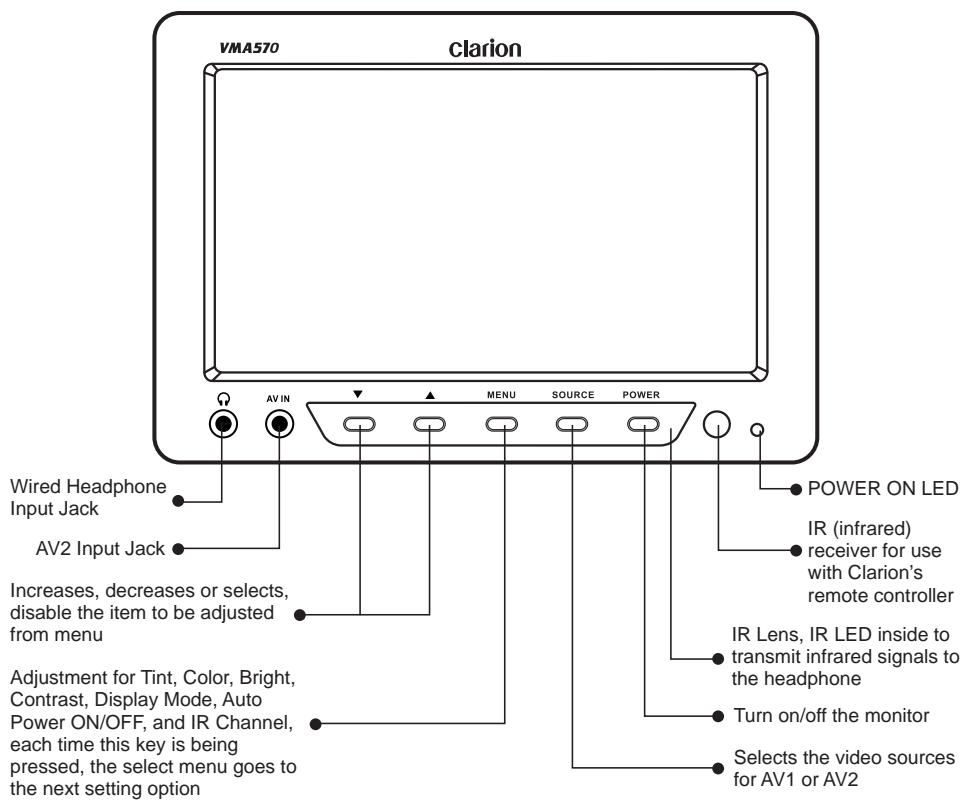
Front panel controls
Wireless headphones (Optional)
Power OFF/ON turns the headphones power on and off.
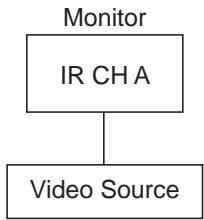
Single channel wireless headphones are appropriate if only one monitor is installed in the passenger compartment.
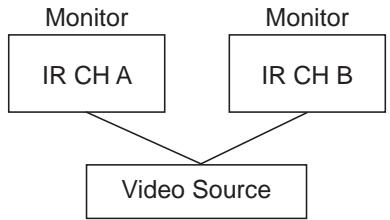
Configuration 1
Configuration 2
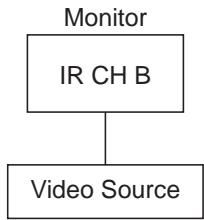
If two monitors are used for rear entertainment systems, dual channel wireless headphones are most appropriate. In this circumstance, channels A and B on both headphone and monitor should be set respectively.
Volume adjustments are done at the wireless headphones.
Note :
If two monitors are used for the rear entertainment systems, and single channel wireless headphones are used; either one of the monitor's IR channel must be turned "off".
Playing a video or game station
The monitor is preset at the factory to turn on automatically when the vehicle's ignition is turned on. The monitor remains dark until it detects a video signal.
- Insert the media (tape, cartridge, game or disc) into the video source.
- Turn on the headphones.
If this is the first time you've used the unit, make sure your wireless headphones have fresh batteries installed.
Note:
Your wireless headphones must be in view of the monitor for the infrared transmission to work.
- Press play on the video source.
- Adjust the volume on your wireless headphone.
Display mode setting
To choose the proper display mode for the different video sources, please refer to display mode setting below.
- Press MENU several times until you reach the DISPLAY MODE option.
- Press (down key) or (up key) to select the display mode for: NORMAL, FULL WIDE, and WIDE.
- WIDE may stretch the image to fill the entire screen, NORMAL displays the image at its true aspect ratio (4:3), FULL WIDE stretches the image horizontally to fit the screen for aspect ratio of 16:9.
4:3
16:9
Note :
- When using a DVD player as the source, make sure that the unit's output mode is set to "FULL WIDE" or "16:9". This ensures that the DVD player will generate a video signal, which can take advantage of the monitor's aspect ratio.
- When using a source that generates a "normal", 4:3 image signal, such as a video game or video cassette player, the FULL WIDE mode stretches the image to fit the screen. Some minor image distortion may be visible.
- Video format are automatically select between PAL or NTSC depending on the video format.
Adjusting the picture
For optimum picture quality, the tint, color, brightness, and contrast can be adjusted independently.
- Press the MENU key to display the picture adjustment menus.
The monitor displays the adjustment menus.
- Press the MENU key again until you reach the option you wish to adjust.
The monitor displays the adjustment bar as below.

TINT adjusts the tone of color. (Only for NTSC)
COLOR adjusts the color saturation.
BRIGHT adjusts the monitor's brightness.
CONTRAST adjusts the differences between light and dark areas.
- Press the (up key) controls button to increase the adjustment.
Press the (down key) controls button to decrease the adjustment.
Each setting has 30 steps of adjustment range and is preset to 15 at the factory. Once you've adjusted the picture, wait a moment and the adjustment menus disappear.
Turning the unit off and on
Press the POWER key to turn the unit off.
When you turn the vehicle's ignition off, the monitor automatically shuts off.
Switching between video sources
If your vehicle has two video sources, for example, a DVD player goes to AV1 and a game console goes to AV2, you can easily switch between them.
- Press the SOURCE key.
The monitor will display AV1 and press the SOURCE key to select the input for AV2 for the game console.
- Press the SOURCE key again to select AV1 input for DVD player.
Note :
- If you're using only one video source, the screen remains dark when you select the unavailable source.
- Default setting for VMA570 / VMA770 is AV1 for normal case.
Playing two video sources at once
If your vehicle is equipped with two LCD monitors in the headrests and two video source units, two different video sources can be viewed at the same time.
Each monitor transmits the infrared audio signal over its own channel, A or B. When a vehicle has two monitors, the default is to configure the monitor in the driver's headrest to use IR channel A, and the monitor in the passenger's headrest to use IR channel B. You can change this.
- Press the MENU key several times to locate the IR CH option.
- Press down () or up () to alternate between A and B or OFF.
Note:
You don't need to select the IR channel if your vehicle has only one monitor.
Disabling automatic power on
Your monitor is preset at the factory to switch on when you turn on your vehicle's ignition. However, you can set it up to remain off until you press POWER on the monitor.
- Press the MENU key several times until you reach the AUTO POWER option.
- Press down () or up () to turn automatic power ON or OFF.
Returning adjustments to the factory settings (Reset)
- Press the MENU key several times to locate the RESET option.
- Press either down () or up () to reset the settings.
If you don't wish to reset the settings, either press MENU again or wait for the monitor to exit the picture adjustment menus automatically.
Note :
- If you reset the options and the monitor was set to source 2 (AV2), the monitor reverts to the default setting of AV1. If there is no active video source on AV1, the screen may go dark. Press SOURCE to switch the monitor back to AV2.
- The reset settings only valid for the Tint, Color, Brightness, Contrast, Volume that setting those parameter back to default value 15, and set to IR CHA, AUTOPOWER ON.
Remote IR Function
The LCD monitor comes with an IR receiver that works with Clarion remote control devices. Aim the remote control at the IR receiver during use.
Note:
The IR receiver only functions with selected Clarion multimedia equipment.
Connecting a video source
The video sources you are using may be preinstalled for you, or your configuration may be designed to allow you to change devices.
For example, returning from a day at the beach, you may disconnect your game from the game port and connect your camcorder to view the video you just shot.
CAUTION! Always take care when disconnecting and connecting electronic devices.
Cleaning the cabinet
Use a soft dry cloth and gently wipe dust and dirt from the cabinet.
Do not use benzene, thinner, car cleaner, or other cleaners. These substances may damage the cabinet or cause the paint to peel.
Cleaning the LCD panel
Use a soft dry cloth and gently wipe off the dust. The LCD panel surface can be easily scratched. Do not rub it with any abrasive object.
Servicing the monitor
In the event that trouble arises, never open the case or disassemble the unit. The internal parts are not serviceable by the user. Opening any components will void the warranty.
CAUTION!
Changes or modifications to this product not approved by the manufacturer will void the warranty.
Read these instructions and the following precautions carefully.
What is included in the box
In addition to this manual, the box contains:
- Either a VMA570 (5.6-inch) or VMA770 (7-inch) monitor unit with wiring harness
(1) 1.2 M / V RCA cable
(1) power cable
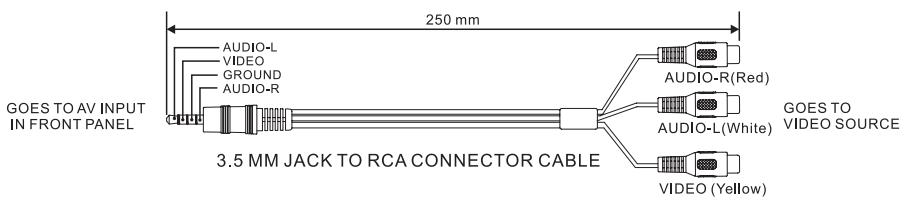
(1) 25cm 3.5mm Jack to RCA adaptor cable - Owner's manual & Installation guide
Bezel
Metal insert card
Before Starting
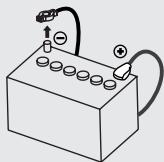
Disconnect the negative (-) battery terminal on the vehicle's battery.
WARNING!
To prevent short circuits during installation, be sure to disconnect the battery.
Precautions
- This unit is exclusively for vehicles with a negative ground, 12V power supply.
- Do not open the case. There are no user-serviceable parts inside. If you require assistance, consult your Clarion dealer or an authorized Clarion service center.
- Use a soft dry cloth to clean the screen. Never use a rough cloth, thinner, benzene, alcohol, or other solvent. The screen surface is easy to scratch, do not rub it when cleaning.
- Always use great care when attaching anything to a vehicle! Visually inspect all sides of any potential screw location to ensure no damage will occur.
WARNING!
NEVER install this monitor where it is visible from the driver's seat, or where it could injure any vehicle occupant in case of an accident. Ensure that your installation does not create risk of head-strike injury, and that the monitor will remain securely mounted in the case of an accident or sudden maneuver.
Installing the monitor
Flush mounting in the headrest
You may use the included bezel to mount the monitor.
- Ensure that you will have sufficient clearance for the monitor and its rear-located wiring harness.
- Cut the opening.
- Route the pigtail cable end of the wiring harness into the opening from the rear out the front.
- Insert the bezel and route the wiring harness through the opening in the rear.
- Firmly attach the bezel to the mounting surface and/or to the interior of the mounting surface.
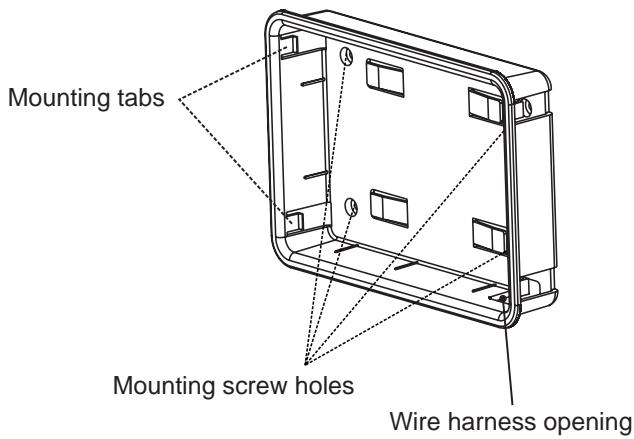
- Connect the wiring harness to the monitor, and tuck the excess wiring harness length carefully out of the way behind the bezel.
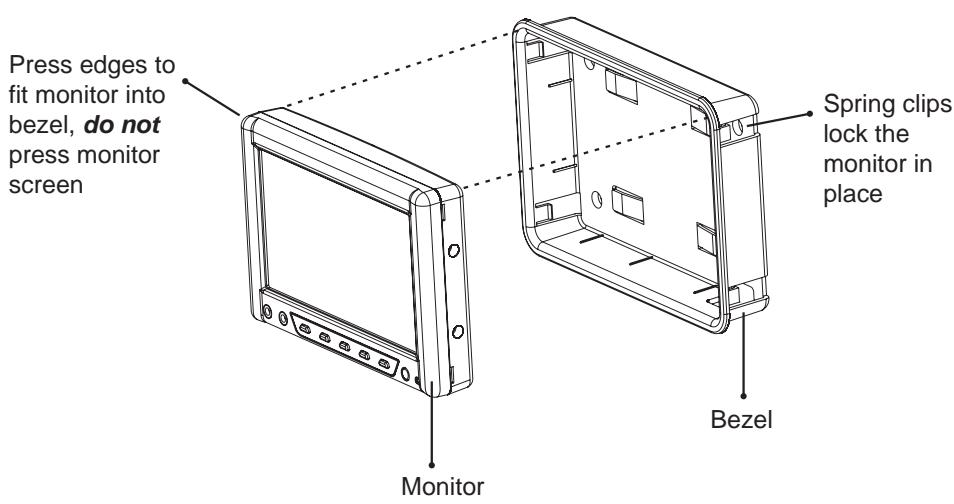
- Gently insert the monitor into the bezel.
Press only on the edges of the monitor, not on the screen. You should hear a few soft clicks as the monitor locks into place by four spring clips on the bezel.
CAUTION!
NEVER press on the surface of the screen! Gently press on the edges of the monitor case. If you find that you cannot insert the monitor without excessive force, you may need to check your wire harness position for interference with the insertion process. Your may also need make the opening slightly larger.
Removing the monitor from the bezel
To remove the monitor from the bezel, insert the metal insert card between the monitor case and the side of the bezel to release the spring clips.
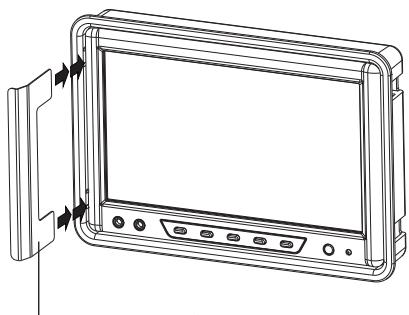
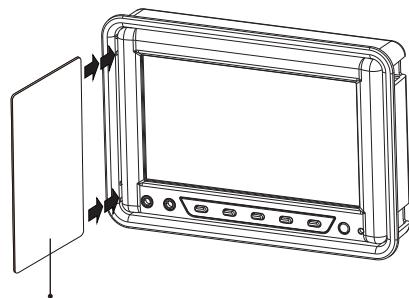
Insert the metal insert card to take monitor out of the bezel
Wiring the monitor
Precautions
- Disconnect the negative (-) battery terminal before making any wiring connections.
- Be particularly careful where you route cables. Keep the cable away from source of heat, such as the engine, exhaust system, and etc. Heat can damage cables.
- If the fuse should blow, make sure all connections are correct and no wires are damaged before replacing the fuse. Always use fuses that are the same amperage value as the original. When replacing a fuse, never let the battery side touch any metal part or any other wire.
WARNING!
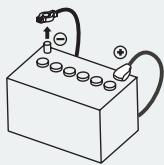
Be sure to disconnect the battery (-) terminal before starting. This is to prevent short circuits during installation.
Procedure
- Disconnect the negative (-) battery terminal before making any wire connections.
- Find a place in the vehicle for the video source(s).
- Create passage holes for the power and video cables.
When drilling through metal or plastic, use grommets to protect the cables from sharp edges that could penetrate the insulation and cause a short circuit and device failure.
- Connect the ground lead (black) securely to a clean metal plate on the vehicle.
Use sand paper to remove any paint from the surface where you attach the ground terminal.
- Reconnect the negative (-) battery terminal.
Monitor connections
CAUTION!
Some non-Clarion automotive DVD and VCP source units use a similar connector for an external IR receiver, but use different pin polarity than the Clarion uses. Connecting non-Clarion source equipment to this connector could cause equipment damage not covered by the warranty!
IR connector polarity:
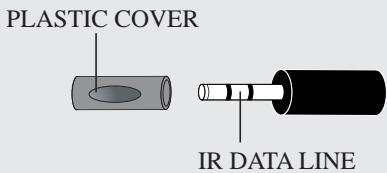
This 3.5mm IR Jack has plastic cover to prevent short, to remove the plastic cover, please do not pull it out directly, please rotate the plastic cover and put it out slowly.
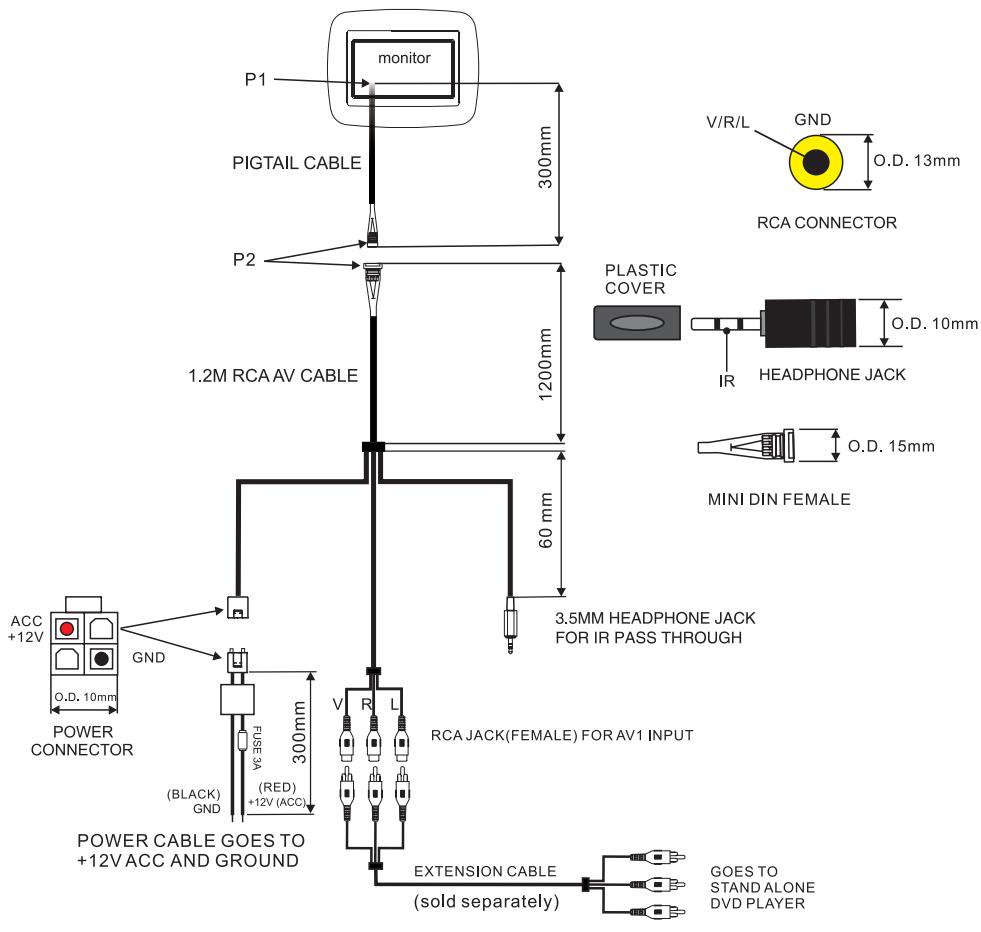
Connections Diagram
The system does not work
A fuse may be blown. Replace the external fuse with a fuse of the same amperage.
The power wires may not be connected. Check the wiring connections and reset.
No picture
Press SOURCE to make sure the proper input is selected.
If there is still no picture, press MENU. If the menu appears, check the source unit and video connections. If no menu appears, check all fuses and power connections to the monitor and the associated equipment.
The noise comes out
If portable audio-visual devices are connected to this monitor in the state where it connected with the vehicle's power supply for charge etc., a noise may occur rarely.
In this case, please use portable audio-visual devices without connecting with a vehicles power supply. Please use it with the internal battery of devices etc.
Note:
The monitor has an operating temperature range of -10^ to +70^ ( +15^ +158^ ). If the temperature is outside this operating range, the unit may not turn on, or the screen may be slow to react to image changes. The monitor will function normally once it returns to its proper operating range.
With a DVD player and widenscreen DVD disc, there are black bars above and below the picture
Change the TV display mode to "FULL WIDE" in the DVD player's Setup menu.
After changing this setting, if there are still black bars, set the Display mode to "FULL WIDE" by push MENU key as mentioned before.
The screen is dark
The brightness is set too low. Press MENU and adjust the BRIGHT option.
The interior of the vehicle is too hot or too cold. The monitor's operating temperature is -10^ to +70^ ( +15^ +158^ ).
Note:
The technical data and the design of the equipment may change for the sake of technical improvement without prior notice.
VMA570 General Specifications
Power requirement : 12V DC (10.8V-15.6V)
Power consumption : 7 watts, power on - typical
0.6 amps (600mA) - typical
Weight : 300 g
Dimension (w x h x d) : 160.8 x 111.8 x 32.5 mm (with Bezel)
Included parts : LCD monitor with wiring harness
(1) 1.2M A/V RCA cable
(1) power cable
3.5mm Jack to RCA connector cable
- Owner's manual and installation guide
Bezel
Metal insert card
VMA570 Specifications
Display type :Color TFT Active Matrix LCD
Screen size : 5.6"
Pixels : 480 RGB (H) x 234 (V)
Screen resolution 336,960 dots
Video input lever (RCA) : 1.0 volts peak to peak
Video format NTSC, PAL
English
CLARION PRODUCT REGISTRATION INFORMATION
For USA and Canada only
www.clarion.com
Dear Customer:
Congratulations on your purchase of a Clarion mobile electronic products. We are confident that you'll enjoy your Clarion experience.
There are many benefits to registering your product. We invite you to visit our website at www.clarion.com to register your Clarion product.
We have made product registration simple with our easy to use website. The registration form is short and easy to complete. Once you're registered, we can keep you informed of important product information.
Register at www.clarion.com - it's easy to keep your Clarion product up to date.
Français
INFORMATIONS DE L'ENREGISTREMENT DE PRODUITS CLARION
Audio signal line noise prevention filter
Use: Please use it, when a alternator system noise mixes in an audio signal input.
Installation: As shown in a below connection diagram, please use it with connecting to an audio input. Before starting, be sure to disconnect the minus terminal on the vehicle's battery.