
7130G - Smartphone BLACKBERRY - Free user manual and instructions
Find the device manual for free 7130G BLACKBERRY in PDF.


User questions about 7130G BLACKBERRY
0 question about this device. Answer the ones you know or ask your own.
Ask a new question about this device
Download the instructions for your Smartphone in PDF format for free! Find your manual 7130G - BLACKBERRY and take your electronic device back in hand. On this page are published all the documents necessary for the use of your device. 7130G by BLACKBERRY.
USER MANUAL 7130G BLACKBERRY
Getting Started Guide
BlackBerry 7130gTM
How do I navigate?
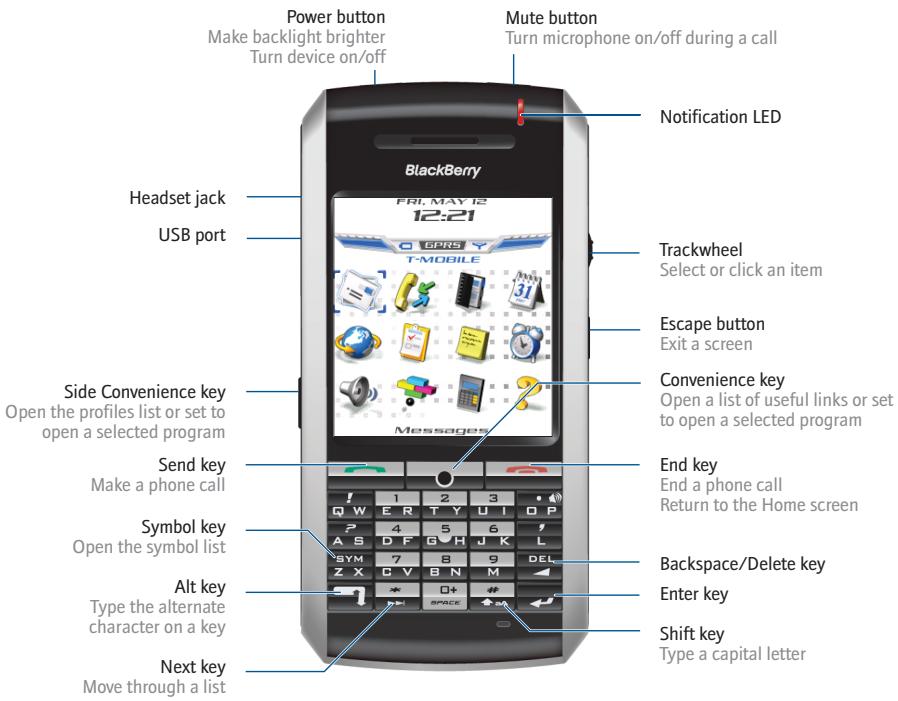
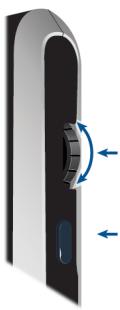
Roll the trackwheel to move the cursor and highlight items on the screen.
Click (press) the trackwheel to open the menu or select items.
Press the Escape button to exit a screen, cancel an action, or go back one page in the browser.
How do I type?
To type using SureTypeTM technology, press the key for each letter of a word only once. When the word is finished, press + SPACE
Put it to the test! Try to type an entire sentence without stopping to make corrections.
To: Beth Visram Subject: Welcome
Welcome Welcomr
Shortcuts
Phone
Open the phone screen or make a phone call
End a call
Turn mute on or off during a call
Turn speakerphone on or off during a call
Change the volume during a call
Dial a letter in a phone number
Open the contact list from the phone screen
Redial a number
Call a voice mail access number
Assign speed dial to a number key
Press

Press

Press the Mute button
Press

Roll the trackwheel
Hold + Press the letter (once for the first letter, twice for the second letter, using the multi-tap method)
Hold

Press

Hold

Hold the number key > Type a phone number
Message list
Compose a new message
Reply to sender
Reply to all
Forward a message
Go to the next message
Go to the previous message
Go to messages from the next day
Go to messages from the previous day
Go to the next unread message
Go to the top of the list
Go to the bottom of the list
View phone call logs
View received messages
Press

Press

Press

Press

Press

Press

Press

Press

Press

Press

Press

Press

Press


Browser
Go back one page
Exit the browser
Open a selected link
Switch between normal and full screen view
Go down one page
Go up one page
Go to a specific web page
Add a bookmark
Press the Escape button
Hold the Escape button
Press

Press

Press

Press

Press

Press

Calendar
For these shortcuts to work in Day view, in the calendar options, set the Enable Quick Entry field to No.
Go to the next day, week, or month
Press

Go to the previous day, week, or month
Schedule an appointment
Press

Press

Move the cursor horizontally in week view
Move the cursor vertically in month view
Hold + trackwheel
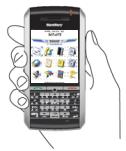
Navigatingscreens
Lock the device/keyboard
Hold or Click Lock (set a password for added security)
Unlock the device/keyboard
Press + Double-click the trackwheel
Move the cursor
Roll the trackwheel or Press + Roll the trackwheel
Return to the previous screen
Press the Escape button
Return to the Home screen
Click an item
Highlight the item > Click the trackwheel
Select multiple items
Hold + Roll the trackwheel
Switch between programs
Hold + Press the Escape button
Go to the top of a screen

Go to the bottom of a screen

Turn on or off the device
Hold the Power button
Typing and editing
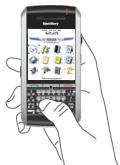
Type using SureType technology
Finish typing a word and begin a new word
Move through the list that appears when you type
Select an item from the list that appears when you type
Type the whole word. Press each letter key only once.
Press
Press
Press or
+
Capitalize a letter
Insert a period
Type the alternate character on a key
Insert a symbol
Hold the letter
Press + space twice
Press 1 + the key
Press SYM Press a letter
or SYM Press Z X again to see more symbols
Insert an accented character
Hold a letter ^+ Roll the trackwheel
Switch between the multitap and SureType™ input methods
In a text field, hold

Type using multi-tap input method
Press a key once for the first letter. Press a key twice for the second letter.
Fields
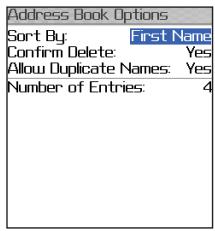
Press SPACES to change the value in a field.
Press to view all the values that are available in the selected field.
On an option screen, you can also select an option and click the trackwheel. Click Change Option. Click a value.
Menu
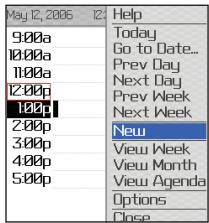
Click the trackwheel to view the menu.
On the menu, click standard menu items such as New, View, Edit, Delete, Save, Options, and Help. Additional menu items might appear depending on the item you have selected.
Programs
Explore the many useful programs that your BlackBerry® device has to offer. Here are a few to get you started.

Click Messages to view the messages list, compose new messages, and set options for email messages.

Click Browser to visit web pages, download items, and set browser options. Your device might have more than one browser.

Click Profiles to set and edit ring tone profiles or to manage downloaded ring tones.

Click Options to find the main list of device options, including Bluetooth®options, password options, and more.

Additional programs appear on the home screen, including the task list, memos list, calculator, alarm, pictures list, help, and more!
Status indicators

roaming

Home zone

receiving data

transmitting data

Bluetooth radio on

Bluetooth connection

alarm set

voice mail message

Number mode on

Shift mode on

Alt mode on

input language

Multi-tap mode on

placed call

missed call

received call

sent message

message sending

message not sent

read message

unread message

filed message

message includes attachment

unread SMS message

unread MMS message

system busy

notification LED

low battery LED

wireless coverage LED

Bluetooth connection LED
Full battery power

Low battery power

Charging
Wireless network coverage
You must connect to the wireless network to begin using many device features. To connect to or disconnect from the wireless network, click Turn Wireless On/Turn Wireless Off.
Indicators on the Home screen show the wireless coverage level for the area in which you are using your device. A low level of wireless coverage might limit the use of some device features, as shown in the chart below.
Full wireless coverage
No wireless coverage
Wireless is turned off
Emergency calls only




| EDGE | EPRS | EDGE | EPRS | BSM | |
| Emergency calls | ● | ● | ● | ● | ● |
| SMS messages | ● | ● | ● | ● | ● |
| Phone | ● | ● | ● | ● | ● |
| MMS messages | ● | ● | |||
| Email and PIN messages | ● | ● | |||
| Browser | ● | ● | |||
| High-speed data | ● |
Contents
Welcome to BlackBerry! 3
About SureType 3
Setting up your device 5
Insert the SIM card 5
Insert the battery 5
Charge the battery 6
Connect to the wireless network 6
Setting up for email using the BlackBerry Enterprise Server 7
Set up for email using the device 7
Set up for email using a computer 7
How do I... 9
Make phone calls 9
Type using SureType 9
Send email messages 9
Send PIN messages 9
Send SMS (text) messages 10
Send MMS (multimedia) messages 10
Add contacts 10
Add SIM card contacts to your address book 10
Go to web pages 10
Type passwords 11
Set a device password 11
Lock the device 11
Set the date and time 11
Enable profiles 11
Turn on the Bluetooth radio 11
Pair with another Bluetooth-enabled device 11
Find more information 12
Frequently asked questions 13
Welcome to BlackBerry!
Whether you plan to use your BlackBerry® device for business or personal productivity, you have made an excellent choice! With powerful messaging, voice, web, and organizer features, BlackBerry is the all-in-one solution that is designed to keep you connected to the people, data, and resources that you need every day.
To begin using your BlackBerry device, you must set up and turn on the device, connect to the wireless network, and set up for email. You can also choose to install the BlackBerry Desktop Software so that you can connect your device to a computer for data synchronization and charging.
Take a moment to read this guide and any documents provided by your wireless service provider. These resources provide important setup information and are designed to help you get the most from your BlackBerry device.
About SureType
Your BlackBerry device is equipped with SureType™ innovative keyboard technology, which integrates a traditional phone keypad and a familiar keyboard layout with intuitive software. It "learns" as you type, recognizing word patterns and enabling you to type information easily.
When you type, the letters on screen change automatically-by the time you've finished typing a word, SureType has probably already figured out the word you want to type. It's that smart! This evolutionary technology enables you to easily, quickly, and accurately type words without having to get used to an unfamiliar keyboard layout.
See "Type using SureType" on page 9 for more information about typing.
Setting up your device
Insert the SIM card
Your SIM card contains important information about your wireless service. Your SIM card might be inserted already.
Warning: Turn off your device before you insert or remove the SIM card. Do not scratch, bend, or expose the SIM card to static electricity or wet conditions.
- Press the battery cover.
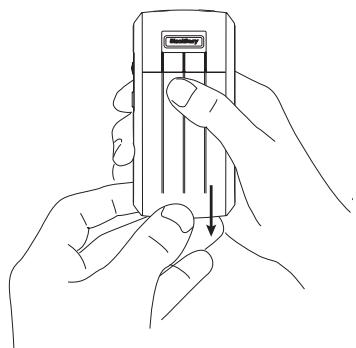
- Slide off the battery cover.
- If the battery is inserted, remove it.
- Hold the SIM card with the metal contacts facing down so that the notches on the card align with the notches in the SIM card holder on your device.
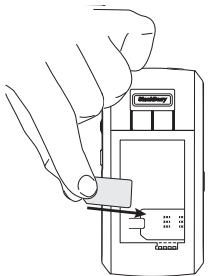
- Slide the SIM card into the holder so that it lies flat below the metal guide.
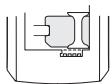
Note: To remove the SIM card, press the tab. Slide the SIM card over the tab and out of the holder.
Insert the battery
Warning: Use only the battery that Research In Motion® specifies for use with your device. See the Safety and Product Information Booklet on the BlackBerry User Tools CD for more information about using the battery safely.
- Press the battery cover.
- Slide off the battery cover.
- Insert the battery so that the connectors on the battery align with the connectors on your device.
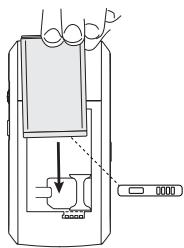
- Replace the battery cover.
-
If the battery is charged, your device turns on and the confirm date and time dialog box appears.
-
If the date and time are incorrect, click Edit. See "Set the date and time" on page 11 for more information.
If the date and time are correct, click OK.
Charge the battery
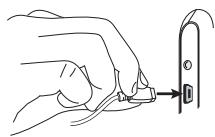
- Connect the small end of the USB cable to your device.
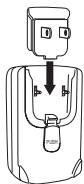
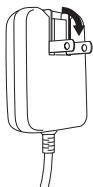
- Depending on the type of travel charger that you received with your device, you might need to slide the plug blade attachment into the power adapter or pull the plug blades down.
-
Plug the power adapter into a power outlet.
-
Charge the battery to full power.
Note: If you install the BlackBerry Desktop Software on a computer, you can charge your device by connecting it to that computer. See "Can I charge my device by connecting it to my computer?" on page 13 for more information.
Connect to the wireless network
On the device, if the power is off, press the Power button. Your device should connect to the wireless network automatically.
To connect to the wireless network successfully, your wireless service must be active, and you must be in a wireless network coverage area. See the wireless network coverage chart on the inside front cover of this guide for more information.
When your device is not connected to the wireless network, you can continue to use features that do not require a connection to the wireless network. For example, you can type and save draft email messages, manage tasks, or use the calculator.
Setting up for email using the BlackBerry Enterprise Server
Your system administrator might set up your device for email on your behalf, or you might need to associate your BlackBerry device with a supported email address yourself using one of the methods described here.
Set up for email using the device
If your system administrator has provided you with an enterprise activation password, you can set up for email using the device.
- Verify that your device is connected to the wireless network.
- On your device, click Enterprise Activation.
- Type your supported corporate email account address.
- Type the enterprise activation password provided by your system administrator.
- Click Activate.
Note: Your system administrator might request that you install the BlackBerry Device Manager program on your computer to reduce the amount of data that is sent over the wireless network when your device is connected to your computer.
Set up for email using a computer
If your system administrator has not provided you with an enterprise activation password, but has confirmed that you are permitted to use the BlackBerry Enterprise Server, you can install the BlackBerry Desktop Software on your computer to set up for email.
To install the desktop software, you require the following items:
Intel®-compatible 486 or higher computer that is compliant with USB 1.1 or later
Windows 98, Windows ME, Windows 2000, or Windows XP
Available USB port
If you use Windows 98 (not Windows 98 Second Edition), you must download the DCOM 98 version 1.3 update from www.microsoft.com/com/default.mspx for the USB driver to operate as expected.
- Insert the BlackBerry User Tools CD into your CD drive.
-
Complete the on-screen instructions.
-
Select BlackBerry Enterprise Server or BlackBerry Desktop Redirector as your account integration option.
-
Select BlackBerry Enterprise Server as your email redirection option.
-
When the installation is complete, connect the smaller end of the USB cable to your device.
- Connect the larger end of the USB cable to an available USB port on your computer.
- On your computer, on the Windows taskbar, click Start.
-
Click Programs >BlackBerry >Desktop Manager.
-
When you are prompted to generate an encryption key, complete the on-screen instructions.
Note: To find out more information about the features of the BlackBerry Desktop Software, click Help > Desktop Help Contents.
How do I...
Make phone calls
On the Home screen, type a phone number. Press the Send key. To end the call, press the End key.
Notes: Press the Send key on any screen to open the phone.
Select a contact, call log, or phone number link on any screen and press the Send key to make a call.
To turn on speakerphone during a call, click the trackwheel. Click Activate Speaker. To turn off speakerphone, click the trackwheel. Click Activate Handset.
Type using SureType
To type in most fields, use the SureType input method. Press the key for each letter of a word once until you have typed an entire word. When you use SureType technology, the letters on the screen change automatically until the word is complete.
For example, to type the word run, press ER + UI + BN. Press the Space key.
If you type all the letters in a word and the word does not appear correctly, or if more than one word is available for the keys that you pressed, use the list to build a word.
- To move through selections in the list, press the Next key. You can also roll the trackwheel to move forward and backward in the list.
- To choose a selection from the list and continue typing the same word, press the Enter key or click the trackwheel.
To choose a selection from the list and begin typing a new word, press the Space key.
To delete letters that you have typed, press the Backspace/Delete key.
Send email messages
You must associate your device with an email address before you can send and receive email messages.
- In a messages list, click the trackwheel.
- ClickCompose Email.
- In the To field, type an email address or a contact name.
- Click the trackwheel.
- Type a message.
- Click the trackwheel.
- Click Send.
Note: If your device is associated with more than one email address, you can select an address to send the message from. At the top of the message, in the Send Using field, press the Space key until the preferred email address appears.
Send PIN messages
A personal identification number (PIN) uniquely identifies each BlackBerry device on the network. If you know the PIN of another BlackBerry device user, you can send a PIN message to that person. To find your PIN, in the device options, click Status.
- In a messages list, click the trackwheel.
- Click Compose PIN.
- In the To field, type a PIN or a contact name.
- Click the trackwheel.
- Type a message.
- Click the trackwheel.
- Click Send.
Send SMS (text) messages
- In a messages list, click the trackwheel.
- ClickComposeSMS.
- Click [Use Once].
- Click SMS.
- Type an SMS-compatible phone number.
- Click the trackwheel.
- Click Continue.
- Type a message.
- Click the trackwheel.
- Click Send.
Note: If you have added contacts to the address book, you can select a contact from the list after you clickCompose SMS.
Send MMS (multimedia) messages
- In a messages list, click the trackwheel.
- ClickComposeMMS.
- Click [Use Once].
- Click MMS.
- Select a send method for your MMS message.
- Type an MMS-compatible phone number or an email address.
- Click the trackwheel.
- Click Continue.
- Type a message.
- Click the trackwheel.
- Click Attach Address, Attach Appointment, Attach Audio, or Attach Picture.
-
Click a contact, appointment, audio file, or image.
-
If you selected a contact, click Continue.
-
If you selected an appointment, click Attach Appointment.
-
Click Continue.
- Click the trackwheel.
- Click Send.
Note: If you have added contacts to the address book, you can select a contact from the list after you click Compose MMS.
Add contacts
- In the address book, click the trackwheel.
- Click New Address.
- Type the contact information.
- Click the trackwheel.
- Click Save.
Add SIM card contacts to your address book
If you have saved contact information on your SIM card, you can copy that information into the address book on your device.
- In the address book, click the trackwheel.
- Click SIM Phone Book.
- Click the trackwheel.
- Click Copy All To Address Book.
Go to web pages
- In the browser, click the trackwheel.
- Click Go To.
- Type a web address.
- Click the trackwheel.
- Click OK.
Notes: To insert a period, press the Space key.
To insert a slash mark () , press the Shift key ^+ the Space key.
The Go To dialog box tracks the web addresses that you type. To go to a web page on the list, click the web address. Click OK.
Type passwords
To type passwords, use the multi-tap input method. Press the key once to type the first letter on the key, or press the key twice to type the second letter on the key. If the password contains capital letters, hold the letter key. When you have finished typing your password, press the Enter key.
Set a device password
- In the device options, click Security Options.
- Click General Settings.
- Set the Password field to Enabled.
- Set the other security options.
- Click the trackwheel.
- Click Save.
- Type a device password.
- Click the trackwheel.
- Retype the device password.
- Click the trackwheel.
Lock the device
With a device password set, on the Home screen, click Lock.
To unlock your device, on the Lock screen, roll the trackwheel. Click Unlock. Type your password. Press the Enter key.
Note: When the device is locked, you should be able to make an emergency call without dialing the emergency access number. Click Emergency Call. Click Yes.
Set the date and time
- In the device options, click Date/Time.
- Set the Time Zone field.
- In the Date/Time Source field, set a date and time source.
- Click the trackwheel.
- Click Update Time.
- Click the trackwheel.
- Click Save.
Note: To set the date and time yourself, set the Date/Time Source field to Off. Set the other fields on the Date/Time screen to display the correct date and time. Save your changes.
Enable profiles
In the profiles list, click a notification profile. Click Enable.
Note: To change the current notification profile quickly, select a profile. Press the Space key.
Turn on the Bluetooth radio
To turn on the Bluetooth® radio, in the device options, click Bluetooth. Click the trackwheel. Click Enable Bluetooth.
To turn off the Bluetooth radio, in the device options, click Bluetooth. Click the trackwheel. Click Disable Bluetooth.
Pair with another Bluetooth-enabled device
- In the device options, click Bluetooth.
- Click the trackwheel.
- Click Add Device.
-
Click the name of a Bluetooth-enabled device.
-
In the Enter passkey for
field, type a passkey. - Type the same passkey on the Bluetooth-enabled device to which you are pairing.
Notes: Verify that the Bluetooth-enabled device that you want to pair with is in the correct mode for pairing.
The names of Bluetooth-enabled devices with which you have already paired appear in the list of paired Bluetooth-enabled devices. They do not appear in the list of Bluetooth-enabled devices that appears when you click Add Device.
Find more information
To open help topics for a program that you are using, in the program, click the trackwheel. Click Help.
To open the main list of help topics for all programs, on any help screen, click the trackwheel. Click Index.
Frequently asked questions
Why does my device not turn on?
The power might be off. Press the Power button.
The battery might not be charged. See "Charge the battery" on page 6 for more information.
Why does my device not charge?
A connection might not be complete. Check that all cables and plugs are fully inserted into ports and power outlets. See "Charge the battery" on page 6 for more information.
The battery might not be inserted properly. Turn off your device and then remove and reinsert the battery. Verify that the connectors on the battery align with the connectors on your device. See "Insert the battery" on page 5 for more information.
If you connect your device to the computer to charge, verify that the computer is turned on. If you connect your device to the computer using a USB hub, the hub must be self powered to provide enough power to charge your device.
Can I charge my device by connecting it to my computer?
If you have installed the BlackBerry Desktop Software or the BlackBerry Device Manager on your computer, you can connect your device to the computer to charge the battery.
- Verify that the computer is turned on.
- Connect the smaller end of the USB cable to your device.
- Connect the larger end of the USB cable to an available USB port on your computer.
Note: To find more help with connecting your device to the computer, in the desktop software, click Help to view the BlackBerry Desktop Software Online Help.
Why can I not send or receive email messages?
Verify that your device is connected to the wireless network. See "Connect to the wireless network" on page 6 for more information.
Verify that you have associated your device with a supported email address. See "Setting up for email using the BlackBerry Enterprise Server" on page 7 for more information.
If you continue to be unable to send and receive messages, reset your device by removing and reinserting the battery.
Note: To find more information about sending and receiving email messages, in a messages list, click the trackwheel. Click Help > Email Messages.
How do I install the BlackBerry Desktop Redirector?
If you use a Microsoft Outlook (Workgroup installation) email account that resides on a Microsoft Exchange Server version 5.5 or later and your device does not have access to a BlackBerry Enterprise Server, you might choose to install the BlackBerry Desktop Redirector software on your computer to associate your device with the email address.
To install the BlackBerry Desktop Redirector, when you install the BlackBerry Desktop Software, select BlackBerry Desktop Redirector as your message redirection option. See "Set up for email using a computer" on page 7 for more information about installing the BlackBerry Desktop Software.
Your computer must be on and the BlackBerry Desktop Redirector must be running to send and receive messages on your device.
How do I clean the screen?
Clean the screen and device using only a soft dry cloth. Do not use liquid, aerosol cleaners, or solvents on or near your device. Disconnect any cables from your computer and unplug any charging accessories from the electrical outlet before cleaning.
Note: See the Safety and Product Information Booklet on the BlackBerry User Tools CD for more information about caring for your device.
Where can I buy accessories for my device?
You can buy approved accessories for your device online at:
www.shopblackberry.com
Note: Use only those accessories approved by RIM® for use with your particular device model. Using any accessories not approved by RIM for use with your particular device model might invalidate any approval or warranty applicable to the device and might be dangerous.
Where can I download games and ring tones for my device?
Many third-party vendors offer games, ring tones, and other programs for your device online. You can download new programs using your device browser, or download them using your computer and load them onto your device using the BlackBerry Application Loader tool of the BlackBerry Desktop Software.
For example, you can visit the following web site using the browser on your device:
mobile.blackberry.com
Note: Your use of third-party software shall be governed by and subject to you agreeing to the terms of separate software licenses, if any, for those products or services. Any third-party products or services that are provided with RIM products and services are provided "as is". RIM makes no representation, warranty, or guarantee
whatsoever in relation to the third-party products or services and RIM assumes no liability whatsoever in relation to the third-party products and services even if RIM has been advised of the possibility of such damages or can anticipate such damages.
Why does the screen on my device turn off?
When you do not use your device for a period of time, the screen turns off to conserve battery power. Roll the trackwheel or press any key to turn the screen on again.
Why do some programs not appear on the Home screen?
Verify that your device is connected to the wireless network. Some programs, such as browser programs, might not appear on your device until it has successfully connected to the wireless network. See "Connect to the wireless network" on page 6 for more information.
If your device uses a theme, the program might appear in a folder or program menu instead of on the Home screen. The program might also use a different name.
Customer support web site:
Germany:
www.t-mobile.co.uk/instantemail
Customer support phone number:
Austria:
(43) 0676 20333
Germany:
(49) 01803302202 or 2202 on your device
Netherlands:
(31) 0800 7112
United Kingdom:
(44) 0845 412 500 or 150 on your device
For additional BlackBerry help and
troubleshooting information:
www.blackberry.com/support
© 2006 Research In Motion Limited. All Rights Reserved. The BlackBerry and RIM families of related marks, images and symbols are the exclusive properties of Research In Motion Limited. RIM, Research In Motion, 'Always On, Always Connected', the "envelope in motion" symbol, BlackBerry, and BlackBerry Enterprise Server are registered with the U.S. Patent and Trademark Office and may be pending or registered in other countries.
The Bluetooth word mark and logos are owned by the Bluetooth SIG Inc. and any use of such marks by Research In Motion Limited is under license. IBM, Lotus Notes, Lotus, Domino, and iNotes are registered trademarks of International Business Machines Corporation in the United States and/or other countries. Intel is a registered trademark of Intel Corporation or its subsidiaries in the United States and other countries. JavaScript is a trademark of Sun Microsystems Inc. in the United States and other countries. Mac OS is a trademark of Apple Computer Inc. registered in the United States and other countries. Microsoft, Windows, Windows NT and Outlook are either registered trademarks or trademarks of Microsoft Corporation in the United States and/or other countries. Netscape is a registered trademark of Netscape Communication Corporation. Novell and GroupWise are registered trademarks of Novell Inc. in the United States and other countries. All other brands, product names, company names, trademarks, and service marks are the properties of their respective owners.
The BlackBerry device and/or associated software are protected by copyright, international treaties and various patents, including one or more of the following U.S. patents: 6,278,442; 6,271,605; 6,219,694; 6,075,470; 6,073,318; D445,428; D433,460; D416,256. Other patents are registered or pending in various countries around the world. Visit www.rim.com/patents.shtml for a list of RIM [as hereinafter defined] patents.
This document is provided "as is" and Research In Motion Limited and its affiliated companies ("RIM") assume no responsibility for any typographical, technical or other inaccuracies in this document. RIM reserves the right to periodically change information that is contained in this document; however, RIM makes no commitment to provide any such changes, updates, enhancements or other additions to this document to you in a timely manner or at all. RIM MAKES NO REPRESENTATIONS, WARRANTY, CONDITIONS OR COVENANTS, Either EXPRESS OR IMPLIED (INCLUDING WITHOUT LIMITATION, ANY EXPRESS OR IMPLIED WARRANTY OR CONDITIONS OF FITNESS FOR A PARTICULAR PURPOSE, NON-INFRINGEMENT, MERCHANTABILITY, DURABILITY, TITLE, OR RELATED TO THE PERFORMANCE OR NON-PERFORMANCE OF ANY SOFTWARE REFERENCED HEREIN OR PERFORMANCE OF ANY SERVICES REFERENCED HEREIN). IN CONNECTION WITH YOUR USE OF THIS DOCUMENTATION, NEITHER RIM NOR ITS RESPECTIVE DIRECTORS, OFFICERS, EMPLOYEES OR CONSULTANTS SHALL BE LIABLE TO YOU FOR ANY DAMAGES WHATSOEVER BE THEY DIRECT, ECONOMIC, COMMERCIAL, SPECIAL, CONSEQUENTIAL, INCIDENTAL, EXEMPLARY OR INDIRECT DAMAGES, EVEN IF RIM HAS BEEN ADVISED OF THE POSSIBILITY OF SUCH DAMAGES, INCLUDING WITHOUT LIMITATION, LOSS OF BUSINESS REVENUE OR EARNINGS, LOST DATA, DAMAGES CAUSED BY DELAYS, LOST PROFITS, OR A FAILURE TO REALIZE EXPECTED SAVINGS.
This document might contain references to third party sources of information, hardware or software, products or services and/or third party web sites (collectively the "Third-Party Information"). RIM does not control, and is not responsible for, any Third-Party Information, including, without limitation the content, accuracy, copyright compliance, compatibility, performance, trustworthiness, legality, decency, links, or any other aspect of Third-Party Information. The inclusion of Third-Party Information in this document does not imply endorsement by RIM of the Third Party Information or the third party in any way. Installation and use of Third Party Information with RIM's products and services may require one or more patent, trademark or copyright licenses in order to avoid infringement of the intellectual property rights of others. Any dealings with Third Party Information, including, without limitation, compliance with applicable licenses and terms and conditions, are solely between you and the third party. You are solely responsible for determining whether such third party licenses are required and are responsible for acquiring any such licenses relating to Third Party Information. To the extent that such intellectual property licenses may be required, RIM expressly recommends that you do not install or use Third Party Information until all such applicable licenses have been acquired by you or on your behalf. Your use of Third Party Information shall be governed by and subject to you agreeing to the terms of the Third Party Information licenses. Any Third Party Information that is provided with RIM's products and services is provided "as is". RIM makes no representation, warranty or guarantee whatsoever in relation to the Third Party Information and RIM assumes no liability whatsoever in relation to the Third Party Information even if RIM has been advised of the possibility of such damages or can anticipate such damages.
Check with your service provider for availability, roaming arrangements, service plans and features.
Certain features outlined in this document require a minimum version of BlackBerry Enterprise Server Software, BlackBerry Desktop Software, and/or BlackBerry Device Software and may require additional development or third-party products and/or services for access to corporate applications.
BlackBerry 7130gTM
Model number: RBA42GW
Published in XXXXX
PRINTSPEC-005
Where can I find more information?
Typing tutorial
To learn important typing tips, use the typing tutorial. The tutorial appears automatically the first time that you turn on your device. To open the tutorial at any time, in the programs list, click Help. Click Typing Tutorial.
User guide
To learn more about how to use your device, in the programs list, click Help.
To find help topics for the program that you are using, in the menu on your device, click Help.
Additional resources
To find the BlackBerry Internet Service™ Online Help, log in to the web site. On the menu bar, click Help.
To find the BlackBerry® User Guide, Safety and Product Information Booklet, or Software License Agreement and Warranty Booklet for your device, insert the BlackBerry User Tools CD that accompanied your device into the CD drive on your computer.
To find the BlackBerry Desktop Software Online Help or BlackBerry User Guide open the BlackBerry Desktop Software, on the menu bar, click Help.