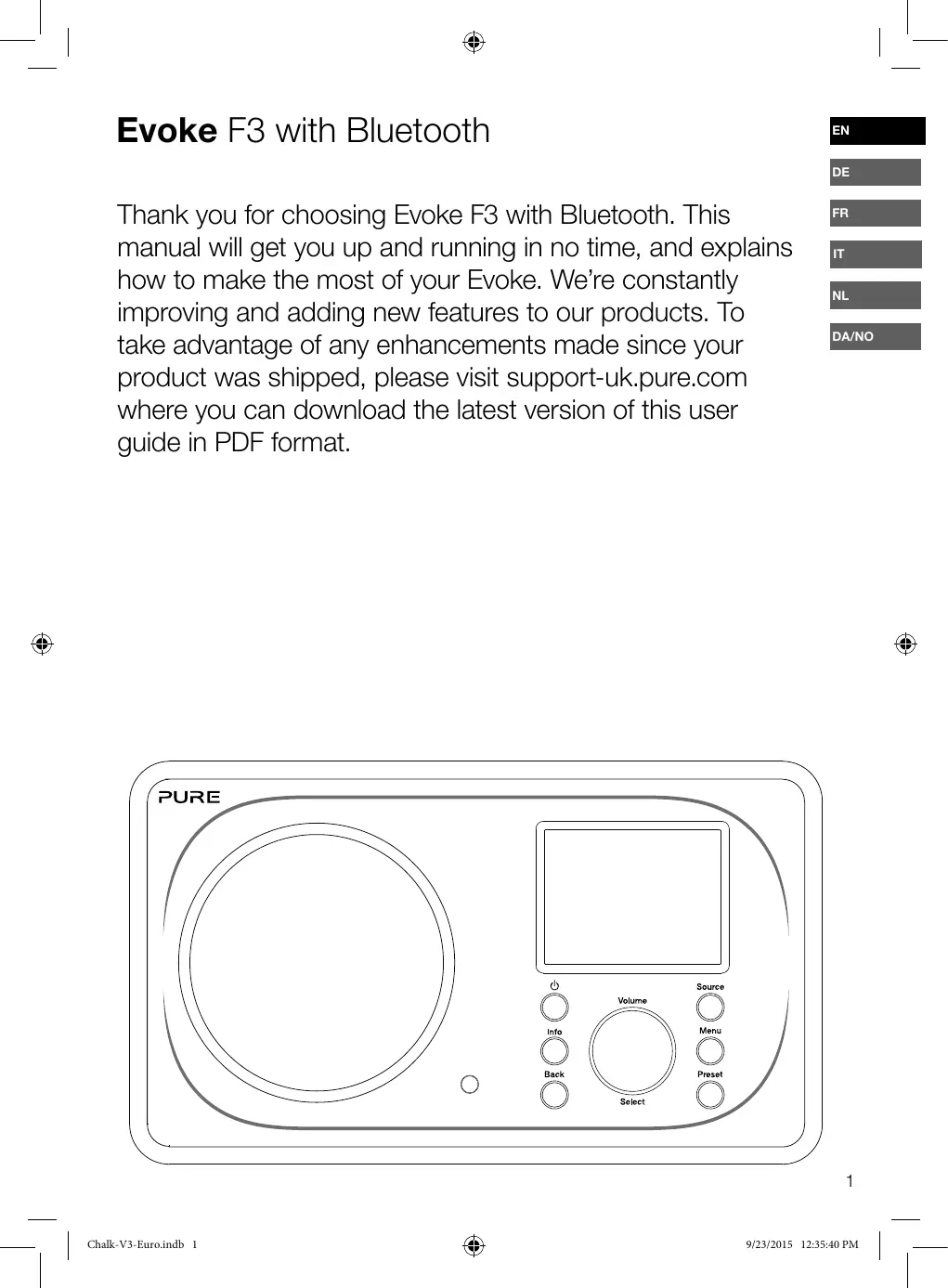
USER MANUAL EVOKE F3 PURE
Thank you for choosing Evoke F3 with Bluetooth. This manual will get you up and running in no time, and explains how to make the most of your Evoke. We're constantly improving and adding new features to our products. To take advantage of any enhancements made since your product was shipped, please visit support-uk.pure.com where you can download the latest version of this user guide in PDF format.

- Familiarise yourself with all of the safety information and instructions before using the radio. When passing this radio on to others, please include all documents.
- Always protect the radio against moisture and humidity. Do not put this radio in water or any other liquid as this can cause serious damage. If liquid or water is spilled on to the radio, switch it off at the mains immediately, disconnect the mains plug and contact your dealer.
- Using the radio in rooms or climates with high humidity and temperatures may cause condensation to form inside the radio, which can damage the radio.
- Using the radio in dusty conditions may cause damage to the interior electronic components, which may lead to the radio malfunctioning.
- The radio must be placed on a flat table surface and should not be subjected to vibrations.
- To reduce the risk of electric shock, do not remove any screws as there are no user-serviceable parts inside. Refer servicing to qualified personnel.
- Avoid extreme degrees of temperature, either hot or cold. Place the device well away from heat sources such as radiators or gas/electric fires.
- Fit the mains adaptor to an easily accessible socket located near the radio and ONLY use the mains power adapter supplied.
- Never touch the plug or the radio itself with wet hands. Never pull the power cable when disconnecting the power adaptor from the power supply.
- Ensure that the available supply voltage corresponds with the required operational voltage of the radio before use.
- Disconnect your radio from the power supply if you will not use your radio for a long period of time (e.g. if you are going on holiday).
- Always unplug your radio from the mains socket before cleaning.
- When cleaning the radio, do not use any type of abrasive pad or abrasive cleaning solutions as these may damage the radio's surface.

We do not recommend listening to your radio with headphones or ear phones via the 3.5mm Line Out socket. If you decide to use headphones or earphones, the excessive sound pressure or volume may damage your hearing. Always adjust the volume to a level that is pleasant and not too loud. If the volume of your radio is too high when listening via your headphones or earphones for an extended period it can damage your hearing.
Contents
4 Introduction
4 Network requirements
4 What's in the box?
4 Front panel controls
5 Front and rear panels
6 Remote control
7 Display
8 Getting started
8 Quick set up
9 Internet listening
9 Listening to internet content
9 Station list
10 Streaming audio to Evoke
10 Streaming using Bluetooth
11 Streaming from Spotify
11 Streaming audio from a PC or Mac
12 Listening to digital or FM radio
12 Changing digital stations
12 Changing FM stations
12 Storing a preset
12 Listening to a preset
13 Setting alarms and timers
13 Setting an alarm
13 Setting the sleep timer
13 Cancelling a sounding or snoozing alarm
13 Snoozing a sounding alarm
14 Controlling Evoke from your smartphone or tablet
15 Options and settings
16 Specifications
15 Network settings
Introduction
Network requirements
To enjoy using all of Evoke's features, you will need:
- A wireless access point, router or similar network device (802.11a/b/g/n) that is connected to a broadband internet connection.
- A PC, tablet or smartphone, etc connected to the same Wi-Fi as your Evoke.
What's in the box?
You'll find the following items in Evoke's box:
- Evoke F3 with Bluetooth
Remote control
Power adaptor
- Instruction manual
- Spotify flyer
Note: Retain all packaging after removing Evoke and the accessories from the box. If you decide to dispose the packaging, please do so according to local regulations.
Front panel controls
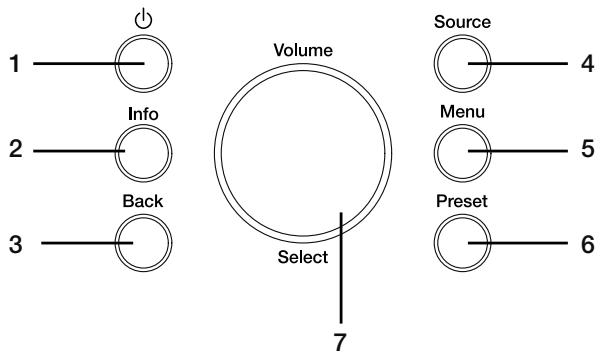
No. Description
1 Standby
2 Information
3 Back
4 Source
5 Menu
6 Preset
7 Volume/Select
Function
Press to switch Evoke between on and standby.
Press to display information about the content that is currently playing.
Press to return to the previous menu.
Press to switch source.
Press to access the settings menu.
If listening to an internet, digital or FM radio station, press to save the radio station as a preset.
Turn and press to select menu options. If listening to content, turn to adjust the volume.
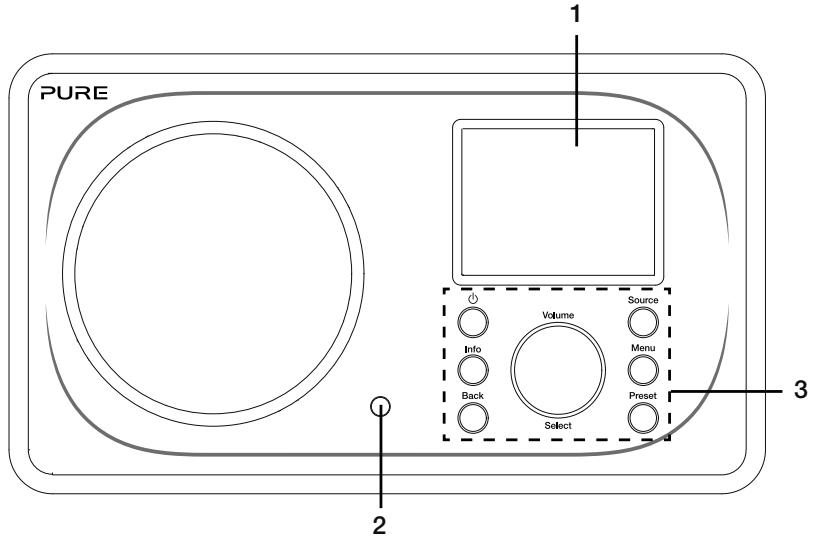
Front and rear panels
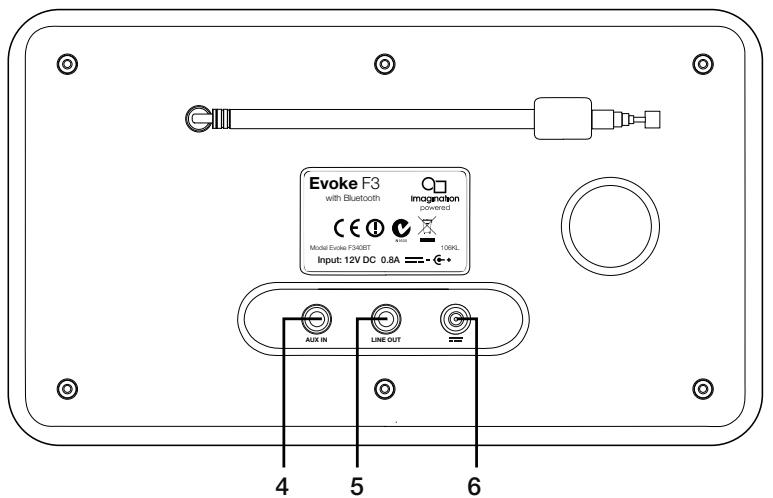
No.
1 2.4" TFT screen
2 Remote receiver
3 Front panel controls
4 Aux in
5 Line out
6 DC in
Function
Colour display.
Receives infrared signals from the remote control.
Used to control Evoke's functions (see previous page for more information).
3.5mm auxiliary input connection for an iPod, MP3 player, etc.
3.5mm output connector for external amplifier/hi-fi system.
12V DC input connection for supplied mains adapter.
Remote control
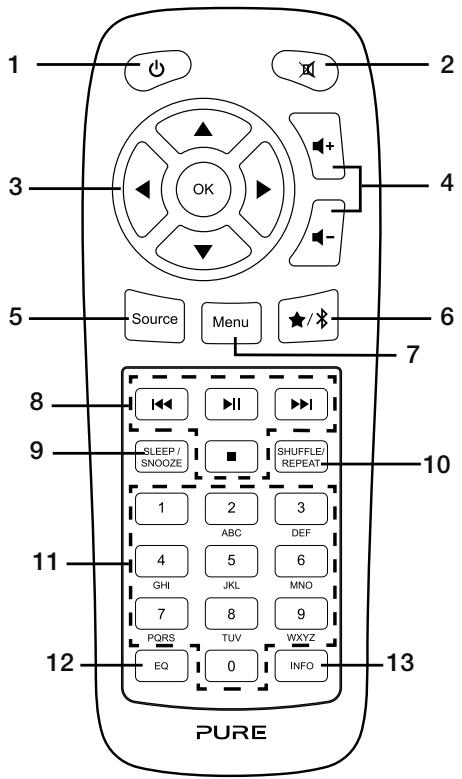
| No. | Description | Function |
| 1 | Standby | Press to switch Evoke between on and standby |
| 2 | Mute | Press to mute the volume. |
| 3 | Navigation controls | Used to navigate Evoke's menus. If listening to digital or FM radio, press the ▲/▼ buttons to change radio station. |
| 4 | Volume | Press to turn the volume up or down. |
| 5 | Source | Press to switch source or access the settings menu. |
| 6 | Presents/Bluetooth | If listening to an internet, digital or FM radio station, press to save the radio station as a preset. If in Bluetooth mode, press to switch Evoke in or out of Bluetooth pairing mode. |
| 7 | Menu | Press to access the settings menu. |
| 8 | Playback controls | Press to control playback when listening to content from the music player. |
| 9 | Sleep/Snooze | Press to set the sleep timer. If an alarm is sounding, press to snooze the alarm. |
| 10 | Shuffle/Repeat | Press to shuffle or repeat the track that is currently playing. |
| 11 | Number | Press to recall a preset. Press and hold to store a preset to the respective number. |
| 12 | Equaliser | Press to open the equaliser menu. |
| 13 | Information | Press to display information about the content that is currently playing. |
Display
Press the Source button to display the 'Source' menu. Turn and press the Select dial to switch between Evoke's sources.
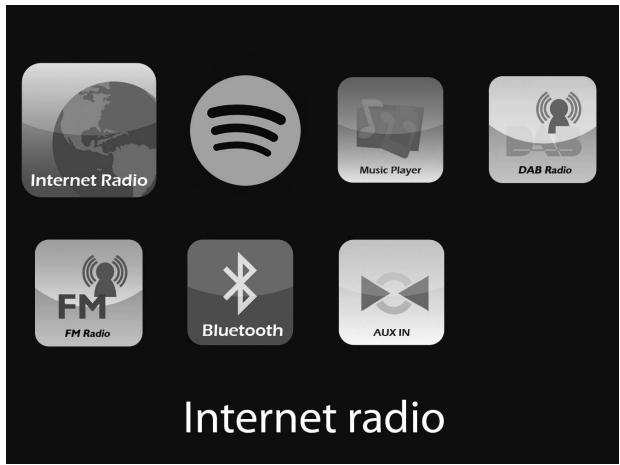
Description
Internet Radio
Spotify
Music Player
DAB Radio
FM Radio
Bluetooth
Aux In
Function
Listen to an internet radio station or podcast.
Listen to Spotify (see page 11).
Listen to tracks from your computer.
Listen to a digital radio station.
Listen to an FM radio station.
Listen to content streamed from your phone or tablet.
Listen to content from a device connected to your Aux in connection.
Getting started
Quick set up
1 - Unclip the aerial and fully extend it (steps A and B).
- Insert the jack of the supplied mains adapter into the socket on the rear of the radio (C).
- Plug the mains adapter into the mains supply (D).

2 Press the Standby button to switch Evoke on.
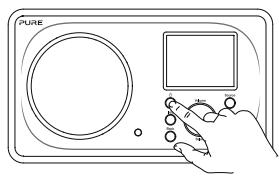
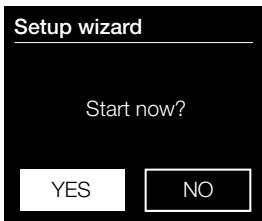
3 The first time you switch on Evoke you will be asked if you would like to run the setup wizard, which will help you connect Evoke to your Wi-Fi. If you want to run the setup wizard now, turn and press the Select dial to select 'Yes' and follow the prompts on screen. To set up Evoke later, turn and press the Select dial to select 'No'.
Note: For more information on using the setup wizard see page 15.
You can connect Evoke to your Wi-Fi to access to thousands of internet radio stations and podcasts from around the world. Once connected to the internet you can also access additional subscription services such as Spotify, which provides you with instant access to millions of music tracks. We're constantly improving and adding new features to our internet service. To find out more about the latest enhancements made since your product was shipped, please visit support-uk.pure.com.
Listening to internet content
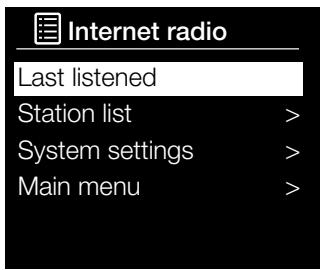
Internet radio menu
Thousands of radio stations around the world broadcast online. To listen:
- Press the Source button to display the 'Source' menu.
- Turn and press the Select dial to select 'Internet radio'.
- Turn and press the Select dial to select one of the following options:
Last listened: Select this option to tune Evoke into the last station you were listening to.
Station list: Select this option to see a list of currently available Internet stations or listen to podcasts (see 'Station list' below for more information).
System settings: Select this option to change Evoke's settings (download our full user guide on support-uk.pure.com for more information).
Main menu: Select this option to view Evoke's main menu.
Station list
You can listen to a range of radio stations as well as Podcasts from the 'Station list' menu. Turn and press the Select dial to select one of the following options:
My favourites
Select this option to start listening to an internet radio station that you added to your favourites list.
Local United Kingdom
Select this option to browse for an internet radio station based in your country. Turn and press the Select dial to select 'All stations' to view all local based stations in alphabetical order. To browse for a station based on genre, turn and press the Select dial to select the genre you want to browse for.
BBC
Select this option to browse for a BBC radio station.
Stations
Select this option to browse for any internet radio station. Turn and press the Select dial to browse for a station based on the 'Location' or 'Genre'.
Searching for a station
Select this option to search for an internet radio station. Turn and press the Select dial to highlight and select characters. Select 'BKSP' to delete a character. Turn and press the Select dial to start searching for an internet station. To cancel your search, turn and press the Select dial to select 'CANCEL'.
Podcasts
Podcasts are prerecorded audio shows on a wide variety of subjects such as comedy, arts, business, and culture, for you to enjoy anytime. Turn and press the Select dial to browse for a podcast based on the 'Location' or 'Genre'.
My added stations
Select this option to start listening to any internet radio stations that you manually added.
Help
Select this option to view some frequently asked questions relating to internet radio.
Streaming audio to Evoke
Streaming using Bluetooth
You can use Bluetooth to stream any audio from your phone or tablet to Evoke.
Pairing a mobile device with Evoke
Before you can stream audio to Evoke, you will need to pair your phone or tablet with Evoke.
Note: Bluetooth pairing varies on different mobile devices. See your mobile device manual for specific information.
To pair with Evoke using Bluetooth:
- Press the Source button and turn and press the Select dial to select 'Bluetooth'. Evoke will display the Bluetooth input display and the Bluetooth icon (X) will start to flash.
Note: If the Bluetooth icon is displayed, Evoke is already connected to another Bluetooth device. See below for more information.
- On your mobile device, select the option to add a new Bluetooth device. On some mobile devices you may need to select the search or scan option.
- Start the pairing process on your mobile device. Do this by selecting 'Evoke F3 BT' from the list of available devices that appear on the mobile device's screen. Your mobile device will connect to Evoke automatically once paired.
You will now be able to start streaming audio to Evoke from your mobile device.
Disconnecting a mobile device from Evoke
You can only have one mobile device connected to Evoke via Bluetooth at any one time. If you want to stream audio from a different mobile device, you will need to disconnect any mobile device that is currently connected to Evoke via Bluetooth first.
To disconnect a mobile device from Evoke:
- Press the Menu button and turn and press the Select dial to select 'BT disconnect'.
- Turn and press the Select dial to select 'Yes' to disconnect your mobile device from Evoke.
If your mobile device goes out of Evoke's Bluetooth range (this is usually around 10m (30ft)) the mobile device's Bluetooth connection is disconnected automatically. To manually disconnect your mobile device from Evoke, you will need to open the Bluetooth settings on your mobile device (see your mobile device's manual for more information).
When you disconnect a mobile device from Evoke, Evoke will remain in the 'Bluetooth' source. To listen to another source, e.g. digital radio, press the Source button to display the home menu and turn and press the Select dial to choose the source you want to listen to.
Streaming from Spotify
Press the Source button and turn and press the Select dial to select 'Spotify' from the Home screen.
Spotify Connect
A better way to listen at home
Spotify Connect lets you play Spotify through your home speakers or TV, using the Spotify app as a remote.
You'll need a Spotify Premium account to use Spotify Connect. If you don't have it, just go to http://www.spotify.com/freetrial for your free trial.
Step 1. Connect your device to the same Wi-Fi network as your phone, tablet or PC running the Spotify app.
Step 2. Open the Spotify app, and play any song.
Step 3. Tap the song image in the bottom left of the screen.
Step 4. Tap the Connect icon
Step 5. Pick your [device] from the list.
For more information on how to set up and use Spotify Connect please visit www.spotify.com/connect.
Licenses
The Spotify Software is subject to third party licenses found here:
http://www.spotify.com/connect/third-party-licenses
For more information on how to setup and use Spotify Connect please visit www.spotify.com/connect.
Streaming audio from a PC or Mac
You can stream audio stored on your computer or on a UPnP-compatible Network Attached Storage (NAS) device to Evoke. To stream music from your computer you will need to install media server software on it. To find out more about setting up your computer so that it can stream audio to your PC or Mac, download our full user guide from support-uk.pure.com.
Listening to digital or FM radio
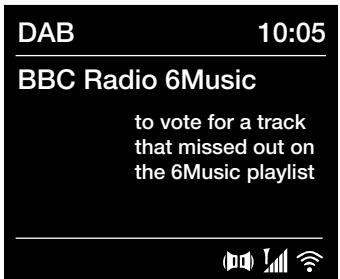
Digital radio screen
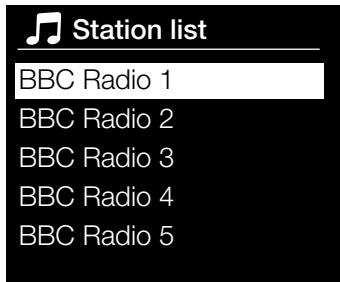
Changing digital radio station
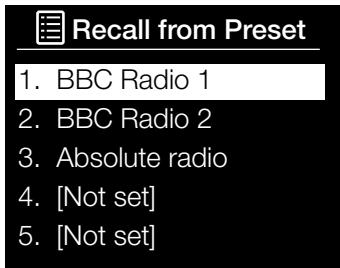
Selecting a preset
Changing digital stations
- Press the Source button and turn and press the Select dial to select 'DAB radio' from the Home screen. The first time you select DAB radio, Evoke will perform an autotune to find all available stations and will tune into one when finished.
- Press the Menu button and turn and press the Select dial to select 'Station list'.
- Turn the Select dial left or right to browse through the list of available digital stations.
- Press the Select dial to change the station.
Changing FM stations
Seek tuning
- Press the Source button and turn and press the Select dial to select 'FM radio' from the Home screen.
- Press the Select dial to seek to the next FM radio station that has a strong signal.
Manual tuning
- Press the Source button and turn and press the Select dial to select 'FM radio' from the Home screen.
- Press and hold the Select button to enter manual tuning mode.
- Turn the Select dial to step up or down 0.05 MHz.
Storing a preset
- Tune to the station you want to store as a preset.
- Press and hold the Preset button on Evoke or on the remote control to view the preset list.
- Turn and press the Select dial to store the radio station to one of the available preset slots.
Listening to a preset
- Press the Preset button to display the preset list.
- Turn and press the Select dial to select the preset that you want to listen to.
Setting alarms and timers
Evoke has two alarms and a sleep timer.
Setting an alarm
- Press the Menu button and turn and press the Select dial to select 'Main Menu'.
- Turn and press the Select dial to select 'Alarms'.
- From the 'Alarms' menu, turn and press the Select dial to select either 'Alarm 1' or 'Alarm 2'.
- Turn and press the Select dial to select 'Enable'.
- Turn the Select dial to adjust the frequency and press to confirm.
- Select 'Time' by turning a pressing the Select dial, and turn the dial to adjust the hours, minutes and AM or PM, pressing to confirm each section.
- Turn and press the Select dial to select 'Mode'. Turn and press the Select dial to choose between 'Buzzer', 'Internet', 'DAB' or 'FM', then press the Select dial to confirm.
- If you've chosen 'Internet', 'DAB' or 'FM' radio, turn and press the Select dial to select 'Preset', To play the station you last listened to, turn and press the Select dial to select 'Last listened' or turn and press the Select dial to choose a radio station from the preset list. Note: Skip this step of you are setting a Tone alarm.
- Turn and press the Select dial to select the 'Volume'. Turn and press the Select the dial to set the volume of the alarm.
- Turn and press the Select dial to select 'Save' to save your alarm.
Note: You can also set the alarm by using the navigation control buttons on your remote. See page 6 for more information.
Setting the sleep timer
- Press the Menu button and turn and press the Select dial to select 'Main menu'.
- Turn and press the Select dial to select 'Sleep'.
- Turn and press the Select dial to adjust the length of the sleep timer from 15 minutes to 1 hour in 15 minute steps.
Cancelling a sounding or snoozing alarm
Press Standby to cancel any sounding alarm.
Snoozing a sounding alarm
To snooze a sounding alarm, press any button apart from Standby to display the snooze screen. To adjust the amount of time the alarm will be snoozed by, press any button apart from Standby to adjust the snooze time in 5 minute intervals up to 15 minutes, and then 30 minutes.
Controlling Evoke from your smartphone or tablet
You can switch between sources, browse content and control the volume on Evoke on your smartphone or tablet by downloading the Pure Select app. You can download the Pure Select app on your smartphone or tablet from the Apple App Store or Google Play. To find out more about using the Pure Select app, see the help supplied with the app.
Note: Your smartphone or tablet will need to be on the same Wi-Fi network as Evoke.
Opening the Pure Select app for the first time
You will be asked to select the device that you want to stream to when you first open the app. Select Evoke from the list of devices that are displayed on the app's screen. If you've already installed the app, select Evoke from the drop-down menu at the top of the screen.
Finding your way around the Pure Select app
The Pure Select app has three main views, which you can select by tapping the tabs at the top of the app's screen:
SOURCE: Tap to switch between Evoke's sources.
NOW PLAYING: Tap to view and control the content that is currently playing on Evoke. See 'Pure Select app controls' below for more information.
BROWSE: Tap to browse for an internet radio station or podcast.
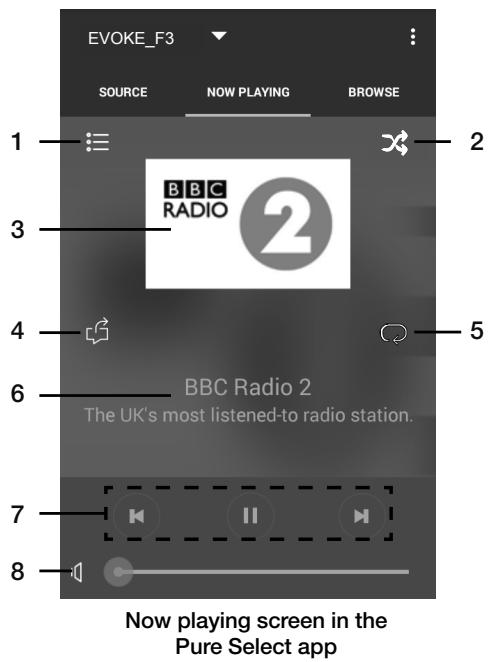
Pure Select app controls


- Tap to tune into one of your favourite internet stations.
- Tap to shuffle the shuffle the track that is currently playing when listening to a playlist.
- Displays any artwork associated with the radio station or music playing.
- Tap to share what you are listening to with your friends on various social media, including Facebook and Twitter.
- Tap to repeat the current track that is playing.
- When playing music, displays information about the artist and album. When listening to a radio station displays, information about the radio show.
- Playback controls.
- Volume controls. Tap to mute Evoke's volume. Slide bar to adjust Evoke's volume.
Options and settings
Press the Menu button on Evoke or on the remote control to access the Settings menu. To find out about all available options, download our full user guide from support-uk.pure.com.
Network settings
Evoke can be connected to your network using a Wi-Fi connection.

Connecting Evoke to your Wi-Fi using the setup wizard
- Press the Menu button to view the main menu.
- Turn and press the Select dial to select 'System settings' > 'Network' > 'Network wizard'.
- Turn and press the Select dial to select your region. Evoke will search for available Wi-Fi networks.
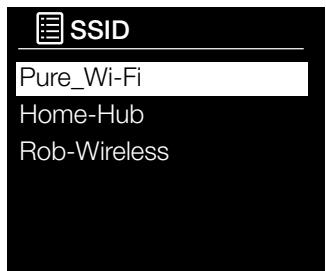
- Turn and press the Select dial to select the name (SSID) of your Wi-Fi network. If your network requires a key, follow steps 5-6.
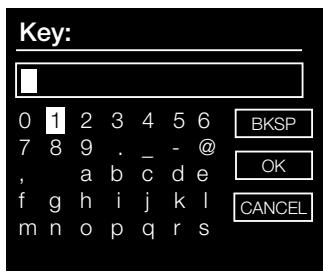
- Enter your network key or password by turning and pressing the Select dial to highlight and select characters. If you want to delete the last character, turn the Select dial to select 'BKSP' and push to confirm.
- Turn and press the Select dial to select 'OK'. Evoke will connect to your network.
Helpful hint: Your Wi-Fi key is case sensitive, make sure to enter it exactly as shown.
Specifications
| Radio | Digital (DAB/DAB+), FM and internet radio (via Wi-Fi). |
| Frequencies | Digital Band III 174-240 MHz, FM 87.5-108 MHz (with RDS). |
| Display | 2.4", 320 x 240, TFT colour display. |
| Network | Wi-Fi: 802.11a, 802.11b and 802.11g supported with WEP and WPA/WPA2 encryption, WPS. |
| 2.412 GHz ~ 2.472 GHz (channels 1 to 13). |
| 0.5 MB broadband speed recommended. |
| Bluetooth |
| Media streaming | Audio codecs supported include WMA, AAC, MP3, FLAC. |
| Media streaming requires UPnP server/DLNA |
| Speaker | 3.5" full range driver, 5W output |
| Input connectors | 12 V DC power adapter socket (adapter supplied). 3.5mm Line-in for auxiliary devices |
| Output connectors | 3.5mm stereo line out socket |
| Mains power adapter | 12 V DC, 800 mA |
| Power consumption | Standby mode: <1 W. |
| Dimensions | 195mm wide x 118mm deep x 110mm high |
| Weight | 1.08kg |
| Warranty | Comprehensive three year warranty. |
| Approvals | CE marked. Hereby, Pure, declares that this Band II LPD device is in compliance with the essential requirements and other relevant provisions of Directive 1999/5/EC. The Declaration of Conformity may be consulted at http://www.pure.com/about/r-tte-doc.ETSI EN 300 401 compliant. |
Imagination Technologies Limited warrants to the end user that this product will be free from defects in materials and workmanship in the course of normal use for a period of three years from the date of purchase. This guarantee covers breakdowns due to manufacturing or design faults; it does not apply in cases such as accidental damage, however caused, wear and tear, negligence, adjustment, modification or repair not authorised by us. Should you have a problem with your unit please contact your supplier or contact Pure Support at http://support-uk.pure.com
Disclaimer
Imagination Technologies Limited makes no representation or warranties with respect to the content of this document and specifically disclaims any implied warranties of merchantability or fitness for any particular purpose. Further, Imagination Technologies Limited reserves the right to revise this publication and to make changes in it from time to time without obligation of Imagination Technologies Limited to notify any person or organization of such revisions or changes.
Trademarks
Evoke F3 with Bluetooth, Pure, the Pure logo, Imagination Technologies, and the Imagination Technologies logo are trademarks or registered trademarks of Imagination Technologies Limited.
Copyright
Copyright © 2015 Imagination Technologies Limited. All rights reserved. No part of this publication may be copied or distributed, transmitted, transcribed, stored in a retrieval system, or translated into any human or computer language, in any form or by any means, electronic, mechanical, magnetic, manual or otherwise, or disclosed to third parties without the express written permission of Imagination Technologies Limited. Version 3 September 2015.
Correct disposal of this product

This marking indicates that this product should not be disposed with other household waste throughout the EU. To prevent possible harm to the environment or human health from uncontrolled waste disposal, recycle it responsibly to promote the sustainable reuse of material resources. To return your used device, please use the return and collection system or contact the retailer where the product was purchased. They can take this product for environmental safe recycling.
A better way to listen at home
http://www.spotify.com/connect/third-party-licenses
4 Aux in
5 Line-out
6 DC in
Functie
Kleurenschem.
4 Volume
5 Source (Modus)
6 Keuzestations/bluetooth
7 Menu
8 Afspeelknoppen
9 Sleep/Snooze
http://www.spotify.com/connect/third-party-licenses
Sog after en station
http://www.spotify.com/connect/third-party-licenses
Imagination Technologies Limited
Home Park Estate
Kings Langley
Herts,WD4 8LZ
United Kingdom
www.pure.com
http://support-uk.pure.com
Pure