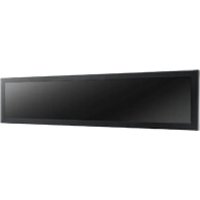
DSD-5028 - Monitor Advantech - Free user manual and instructions
Find the device manual for free DSD-5028 Advantech in PDF.


Pick your language and provide your email: we'll send you a specifically translated version.
| Product Type | Monitor |
| Brand | Advantech |
| Model | DSD-5028 |
| Display Size | 28 inches (diagonal) |
| Resolution | 1920 x 1080 (Full HD) |
| Backlight Type | LED |
| Aspect Ratio | 16:9 |
| Contrast Ratio | 1000:1 (typical) |
| Brightness | 300 cd/m² |
| Response Time | 5 ms (GTG) |
| Viewing Angle | 178° horizontal / 178° vertical |
| Input Connectors | VGA, DVI-D, HDMI, DisplayPort |
| Power Consumption | 35 W (typical), 0.5 W (standby) |
| Power Supply | AC 100-240V, 50/60 Hz |
| Operating Temperature | 0°C to 40°C |
| Dimensions (W x H x D) | 660 x 400 x 50 mm (without stand) |
| Weight | 6.5 kg (without stand) |
| Mount Type | VESA 100 x 100 mm |
| Speakers | Integrated 2 x 2W |
| Cleaning Instructions | Wipe with a soft, dry cloth. Do not use solvents. |
| Safety | Do not expose to water or high humidity. Use only approved power adapters. |
Frequently Asked Questions - DSD-5028 Advantech
How do I connect my computer to the DSD-5028 monitor?
Use one of the available input ports: VGA, DVI-D, HDMI, or DisplayPort. Connect the corresponding cable from your computer to the monitor, then select the correct input source using the monitor's menu buttons.
What should I do if the monitor displays 'No Signal'?
Check that the video cable is securely connected at both ends. Ensure the computer is powered on and outputting to the correct port. Try pressing the input source button on the monitor to cycle through inputs.
Can I mount the DSD-5028 on a wall?
Yes, the monitor supports VESA 100 x 100 mm mounting. Use a compatible wall mount bracket and follow the instructions to attach securely.
How do I clean the screen safely?
Turn off the monitor and unplug it. Use a soft, lint-free microfiber cloth slightly dampened with water. Gently wipe the screen. Do not spray liquid directly onto the screen or use abrasive cleaners.
What is the maximum resolution supported?
The DSD-5028 supports a maximum resolution of 1920 x 1080 at 60 Hz. For best performance, set your computer's display output to this resolution.
Does the monitor have built-in speakers?
Yes, the monitor has integrated stereo speakers (2 x 2W). Audio can be played via HDMI or DisplayPort. You can also connect external speakers through the audio output jack.
How do I adjust the brightness and contrast?
Press the Menu button on the monitor to open the OSD (On-Screen Display). Navigate using the arrow buttons to 'Picture' settings, then adjust brightness and contrast to your preference.
Can I use this monitor with a PlayStation or Xbox?
Yes, you can connect a gaming console via HDMI. Ensure the console's output resolution is set to 1080p. Note that the monitor does not have built-in speakers for console audio unless you use the audio output.
What power cord do I need?
The monitor uses a standard IEC C13 power cord. It operates on AC 100-240V, 50/60 Hz. Use only the power cord provided with the monitor or a compatible replacement.
How do I reset the monitor settings to factory defaults?
Press the Menu button, go to 'Setup' or 'System' menu, and select 'Factory Reset' or 'Reset All'. Confirm the selection. The monitor will restore default settings.
User questions about DSD-5028 Advantech
0 question about this device. Answer the ones you know or ask your own.
Ask a new question about this device
No questions yet. Be the first to ask one.
Download the instructions for your Monitor in PDF format for free! Find your manual DSD-5028 - Advantech and take your electronic device back in hand. On this page are published all the documents necessary for the use of your device. DSD-5028 by Advantech.
USER MANUAL DSD-5028 Advantech
Manual assistant
Powered by Anthropic
Waiting for your message
Product information
Brand : Advantech
Model : DSD-5028
Category : Monitor